

-
Deployment guide for
Microsoft SharePoint 2013
Microsoft Corporation
Published: October 2012
Author: Microsoft Office System and Servers Team (itspdocs@microsoft.com)
- Abstract
This book provides deployment instructions for SharePoint 2013. The audiences for this book include application specialists, line-of-business application specialists, and IT administrators who are ready to deploy SharePoint 2013.
The content in this book is a copy of selected content in the SharePoint 2013 technical library as of the publication date. For the most current content, see the technical library on the web.

This document is provided “as-is.” Information and views expressed in this document, including URL and other Internet website references, may change without notice. You bear the risk of using it.
Some examples depicted herein are provided for illustration only and are fictitious. No real association or connection is intended or should be inferred.
This document does not provide you with any legal rights to any intellectual property in any Microsoft product. You may copy and use this document for your internal, reference purposes.
© 2012 Microsoft Corporation. All rights reserved.
Microsoft, Access, Active Directory, Backstage, Bing, Excel, Groove, Hotmail, Hyper-V, InfoPath, Internet Explorer, Office 365, OneNote, Outlook, PerformancePoint, PowerPoint, SharePoint, Silverlight, SkyDrive, Visio, Visio Studio, Windows, Windows Live, Windows Mobile, Windows PowerShell, Windows Server, and Windows Vista are either registered trademarks or trademarks of Microsoft Corporation in the United States and/or other countries.
The information contained in this document represents the current view of Microsoft Corporation on the issues discussed as of the date of publication. Because Microsoft must respond to changing market conditions, it should not be interpreted to be a commitment on the part of Microsoft, and Microsoft cannot guarantee the accuracy of any information presented after the date of publication.
Overview of SharePoint 2013 installation and configuration 1
Installation and configuration 3
Configure settings, services, solutions, and sites 5
Prepare for installation of SharePoint 2013 9
TechNet articles about how to prepare for SharePoint 2013 installation and initial configuration 9
Additional resources about SharePoint 2013 installation and initial configuration 10
Initial deployment administrative and service accounts in SharePoint 2013 11
Account permissions and security settings in SharePoint 2013 14
About account permissions and security settings 14
SharePoint administrative accounts 14
Setup user administrator account 14
SharePoint farm service account 15
SharePoint service application accounts 16
Default content access account 16
Excel Services unattended service account 17
My Sites application pool account 17
Other application pool accounts 18
WSS_CONTENT_APPLICATION_POOLS database role 18
WSS_SHELL_ACCESS database role 19
SP_DATA_ACCESS database role 19
All SharePoint 2013 service accounts 46
Configure SQL Server security for SharePoint 2013 environments 47
Configuring a SQL Server instance to listen on a non-default port 48
Blocking default SQL Server listening ports 49
Configuring Windows Firewall to open manually assigned ports 50
Configuring SQL Server client aliases 50
Install prerequisites for SharePoint 2013 from a network share 52
Installer switches and arguments 52
Download and combine the SharePoint 2013 prerequisites on a file share 53
Install the SharePoint 2013 prerequisites at the command prompt 54
Install the SharePoint 2013 prerequisites by using an arguments file 54
TechNet articles about how to install and configure SharePoint 2013 58
Additional resources about how to install and configure SharePoint 2013 59
Install SharePoint 2013 on a single server with a built-in database 61
Run the Microsoft SharePoint Products Preparation Tool 63
Run the SharePoint Products Configuration Wizard 64
Install SharePoint 2013 on a single server with SQL Server 68
Before you install SharePoint 2013 on a single server 68
Install SharePoint 2013 on a single server 69
Run the Microsoft SharePoint Products Preparation Tool 70
Run the SharePoint Products Configuration Wizard 71
Run the Farm Configuration Wizard 74
Install SharePoint 2013 across multiple servers for a three-tier farm 77
Before you install SharePoint 2013 on multiple servers for a three-tier farm 79
Using the Microsoft SharePoint Products Preparation Tool 79
Public updates and hotfix packages 80
Install SharePoint 2013 on the farm servers 80
Create and configure the farm 81
Add web servers to the farm 83
Install or uninstall language packs for SharePoint 2013 85
About language IDs and language packs 85
Installing language packs on the web and application servers 87
Uninstalling language packs 88
Add web or application servers to farms in SharePoint 2013 89
Before you add a web or application server to a SharePoint farm 89
Install prerequisite software 92
Install the SharePoint software 93
Add the new SharePoint server to the farm 93
Remove a server from a farm in SharePoint 2013 97
Removing a web server or application server from a SharePoint farm 97
Remove a web server or an application server from a farm by using Control Panel 98
Removing a database server from a SharePoint farm 99
Install and configure a virtual environment for SharePoint 2013 103
TechNet articles about SharePoint 2013 virtualization with Hyper-V 103
Additional resources about Hyper-V installation and initial configuration 103
Review the general best practice guidance for virtualization 106
Best practice guidance for virtualization 107
Configure the Hyper-V host computer 108
Install and configure virtual networking 109
Virtual local area networks (VLANs) 110
Network adapters and virtual network switches 111
Create and configure the virtual machines 112
Configure the memory for the virtual machines 112
Configure the processors for the virtual machines 113
Configure the controllers and hard disks for the virtual machines 114
Configure services and general settings 115
TechNet articles about how to configure settings for the server farm 117
Additional resources about how to configure settings for the server farm 119
Configure authentication infrastructure in SharePoint 2013 120
TechNet articles about how to configure authentication infrastructure 120
Configure forms-based authentication for a claims-based web application in SharePoint 2013 122
Phase 2: Configure the Web.Config files for an LDAP membership provider 124
Configure the Central Administration Web.Config file 124
Configure the Security Token Service Web.Config file 126
Configure the new web application Web.Config file 127
Create a new web application that uses forms-based authentication with Windows PowerShell 128
Configure a forms-based authentication web application for Windows Azure autohosted apps 130
Configure SAML-based claims authentication with AD FS in SharePoint 2013 132
Phase 1: Install and configure an AD FS server 133
Phase 2: Configure AD FS with the web application as a relying party 133
Configure AD FS for a relying party 133
Export the token signing certificate 135
Phase 3: Configure SharePoint 2013 to trust AD FS as an identity provider 135
Exporting multiple parent certificates 136
Import a token signing certificate by using Windows PowerShell 136
Define a unique identifier for claims mapping by using Windows PowerShell 138
Create a new authentication provider 138
Associate an existing web application with the AD FS identity provider 139
Create a new web application with the AD FS identity provider 140
Configure server-to-server authentication in SharePoint 2013 141
TechNet articles about how to configure server-to-server authentication 141
Configure server-to-server authentication between SharePoint 2013 farms 142
Configure a SharePoint 2013 trust relationship with another farm 142
Configure server-to-server authentication between SharePoint 2013 and Exchange Server 2013 146
Configure server-to-server authentication between SharePoint 2013 and Lync Server 2013 149
Configure app authentication in SharePoint Server 2013 152
Step 1. Configure the SharePoint Server 2013 app authentication trust 153
Configure SharePoint Server 2013 to trust ACS 153
Configure SharePoint Server 2013 to trust the app 154
Step 2. Register the app with the Application Management service 156
Step 3. Configure app permissions 156
Configure client certificate authentication for SharePoint 2013 157
Configure client certificate authentication 158
Configure availability and recovery solutions for SharePoint 2013 160
Configure SQL Server 2012 AlwaysOn Availability Groups for SharePoint 2013 161
Knowledge and skill requirements 162
SQL Server AlwaysOn Availability Group concepts 162
Windows Server Failover Clustering 164
SharePoint Foundation 2013 and SharePoint Server 2013 164
Detailed steps to configure an AlwaysOn Availability Group for SharePoint 164
Prepare the Windows Server cluster environment 165
Prepare the SQL Server environment 166
Create and configure the availability group 167
About replicas and data synchronization 168
Replica configuration requirements 169
Create and configure the availability group 171
Create the availability group 171
Install and configure SharePoint 2013 172
Add SharePoint databases to the availability group 173
Use failover tests to validate the AlwaysOn installation 174
Monitor the AlwaysOn environment 174
Configure email integration for a SharePoint 2013 farm 176
TechNet articles about email integration 176
Configure incoming email for a SharePoint 2013 farm 178
Install and configure the SMTP service 179
Install IIS 6.0 Management tools 180
Configure the SMTP service 180
Configure incoming email in a basic scenario 181
Configure incoming email in an advanced scenario 181
Prepare your environment for incoming email in an advanced scenario 184
Configure AD DS to be used with Directory Management Service 184
Add an SMTP connector in Microsoft Exchange Server 2010 188
Configure permissions to the email drop folder 189
Configure email drop folder permissions for the logon account for the SharePoint Timer service 190
Are attachments missing from email messages that are sent to a SharePoint document library? 191
Configure outgoing email for a SharePoint 2013 farm 192
Install and configure the SMTP service 193
Configure the SMTP service 194
Configure outgoing email for a farm 195
Configure outgoing email for a specific web application 196
Configure services and service applications in SharePoint 2013 198
TechNet articles about how to configure services for SharePoint 2013 198
Additional resources about how to configure services for SharePoint 2013 200
Configure the Secure Store Service in SharePoint 2013 201
Generate an encryption key 203
Refresh the encryption key 204
Store credentials in Secure Store 204
Create a target application 205
Set credentials for a target application 207
Create and configure a Search service application in SharePoint Server 2013 209
How to create and configure a SharePoint Search service application 209
Step 1: Create accounts that are required for a SharePoint Search service application 210
Step 2: Create a SharePoint Search service application 211
Step 3: Configure the SharePoint Search service application 212
Specify the default content access account 212
Specify the contact email address 213
Create content sources in a SharePoint Search service application 213
Step 4: Configure the SharePoint Search service application topology 214
Create a Search Center site in SharePoint Server 2013 215
Deploy people search in SharePoint Server 2013 218
People search prerequisites 218
Configure My Sites settings 219
Add data for people search 222
Add user profiles to the profile store 222
Add information to My Sites 223
Configure result sources for search in SharePoint Server 2013 225
Levels and permissions for result sources 226
Set a result source as default 228
Create and configure Machine Translation services in SharePoint Server 2013 230
Create a SharePoint Machine Translation service application 231
Database section properties 232
Configure the Machine Translation Service 234
Configure Request Manager in SharePoint Server 2013 238
Windows PowerShell examples to enable routing and throttling 242
Windows PowerShell examples routing target tasks 243
Routing and throttling rules 244
Front-end web server selection 246
Request routing and prioritizing 246
Monitoring and maintenance 247
Configure Business Connectivity Services solutions for SharePoint 2013 249
About Business Connectivity Services installation scenarios 249
Deploy a Business Connectivity Services on-premises solution in SharePoint 2013 251
What these procedures help you deploy 251
How to use these procedures and a roadmap of the procedures 253
On-premises scenario prerequisites 255
How to download and install the AdventureWorks sample database 256
Create a SQL Server user on the AdventureWorks database 258
Start the Business Data Connectivity service 259
Create the Business Data Connectivity service application in SharePoint 2013 260
Create a new Business Data Connectivity Services service application 260
Set permissions on the Business Connectivity Services Metadata Store 262
Configure Secure Store Service for on-premises Business Connectivity Services 264
Create and configure an external content type with SharePoint Designer 2013 267
Define general information 267
Define general and Office behaviors 268
Create a connection to the external data 268
Select a table, view, or routine and Define Operation 268
Map Outlook fields and set up the external item picker control 269
Set the Title field for an external list and complete the external content type 269
Set up permissions to the external content type 271
Create a view of an external list 273
Manage user permissions to the external list 275
Synchronize the external list with Outlook 277
Update customer data offline and refresh it online 278
Configure eDiscovery in SharePoint Server 2013 279
Configure communication between SharePoint Server 2013 and Exchange Server 2013 279
Configure Search to crawl all discoverable content 280
Create an eDiscovery center 281
Configure site mailboxes in SharePoint Server 2013 282
Configure SharePoint for Site Mailboxes in SharePoint Server 2013 283
Install Exchange Web Services API on SharePoint Server 284
Establish OAuth Trust and Service Permissions on SharePoint Server 2013 284
Configure Exchange Server 2013 for Site Mailboxes 293
Establish OAuth Trust and Service Permission on Exchange 293
Table of Error Codes for Reference When Running Configuration Checklist Script 293
Configure Exchange task synchronization in SharePoint Server 2013 297
Configure SharePoint for Task Synchronization in SharePoint Server 2013 298
Install Exchange Web Services API on SharePoint Server 298
Configure Exchange Server 2013 for Task Synchronization 299
Establish OAuth Trust and Service Permission on Exchange 299
Configure social computing features in SharePoint Server 2013 300
TechNet articles about configuring social computing features 300
Additional resources about configuring social computing features 301
Configure My Sites in SharePoint Server 2013 302
User Profile service application and profile synchronization 303
Create a My Site host site collection 303
Add a wildcard inclusion managed path to the web application 304
Connect the web application to service applications 305
Enable self-service site creation for the web application 305
Configure My Site settings for the User Profile service application 307
Enable the User Profile Service Application – Activity Feed Job 309
Configure trusted My Site host locations 310
Configure links to Office client applications 310
Add personalization site links on My Sites 310
Create and configure communities in SharePoint Server 2013 312
Configure microblogging in SharePoint Server 2013 315
TechNet articles about microblogging 315
Configure Following settings in SharePoint Server 2013 316
Configure Following settings for My Sites 316
Manage Feed Cache and Last Modified Time Cache repopulation in SharePoint Server 2013 318
Repopulate the Last Modified Time Cache by using timer jobs in Central Administration 319
Repopulate the Feed Cache and Last Modified Time Cache by using Windows PowerShell cmdlets 320
Manage the Distributed Cache service in SharePoint Server 2013 321
Start and stop the Distributed Cache service 321
Change the memory allocation of the Distributed Cache service 322
Change the memory allocation of the Distributed Cache by using Windows PowerShell 323
Add or remove a server in a Distributed Cache cluster 324
Remove a server from the cache cluster by using a Windows PowerShell 324
Perform a graceful shutdown of the Distributed Cache service 325
Change the service account 325
Enable or disable personal and social features for users or groups in SharePoint Server 2013 327
Enable users or groups to use personal and social features 327
Configure web content management solutions in SharePoint Server 2013 329
Configure cross-site publishing in SharePoint Server 2013 331
Create site collections for cross-site publishing 332
Activate the Cross-Site Collection Publishing feature 332
Create content for authoring sites 332
Create and manage term sets for tagging content on authoring sites 332
Create catalog content by using SharePoint lists 333
Share a library or list as a catalog 334
Make a term set available to other site collections 336
Configure search for cross-site publishing 336
Connect a publishing site to a catalog in SharePoint Server 2013 338
Connect a publishing site to a catalog 339
Configure Search Web Parts in SharePoint Server 2013 342
Add a Content Search Web Part to a page 343
Configure the query for a Content Search Web Part 343
Configure the display templates for the Content Search Web Part 348
Add a Refinement Web Part to a page 348
Configure the Refinement Web Part 349
Change the refiner display name 350
Display refiner counts in a Refinement Web Part 350
Configure the display templates for the Refinement Web Part 351
Add a Taxonomy Refinement Panel Web Part to a page 351
Configure the Taxonomy Refinement Panel Web Part 352
Add a Recommended Items Web Part to a page 352
Configure the Recommended Items Web Part 353
Configure the display templates for the Recommended Items Web Part 355
Configure refiners and faceted navigation in SharePoint Server 2013 356
Enable a managed property as refiner 357
Managed properties that are enabled as refiners by default 357
Enable a managed property as a refiner in SharePoint Central Administration 359
Configure refiners for faceted navigation 360
Enable a term set for faceted navigation 360
Add refiners to a term set 360
Set intervals for refiner values 361
Configure result sources for web content management in SharePoint Server 2013 362
Levels and permissions for result sources 363
Set a result source as default 366
Configure recommendations and usage event types in SharePoint Server 2013 367
Create a custom usage event type 368
Record a custom usage event 369
Record a default usage event 373
Change the level of importance of a usage event type 376
Change the Recent time period for a usage event type 378
Enable and disable the logging of usage events of anonymous users 379
Configure workflow in SharePoint Server 2013 383
Installing and configuring workflow for SharePoint Server 2013 384
Workflow Platform types available in SharePoint Server 2013 385
Install and configure SharePoint Server 2013 386
Install and configure Workflow Manager 386
Configure Workflow Manager to work with the SharePoint Server 2013 farm 386
Installing Workflow Manager certificates in SharePoint Server 2013 391
Install Workflow Manager certificates in SharePoint 391
Create a web application in SharePoint 2013 393
TechNet articles about how to create web applications 393
Create web applications that use classic mode authentication in SharePoint 2013 395
Create a web application that uses classic mode authentication with Windows PowerShell 396
Create claims-based web applications in SharePoint 2013 399
Create a claims-based web application by using Central Administration 400
Create a claims-based web application by using Windows PowerShell 404
Create a classic-mode web application by using Windows PowerShell 405
Configure basic authentication for a claims-based web application in SharePoint 2013 407
Configure IIS to enable basic authentication 408
Configure digest authentication for a claims-based web application in SharePoint 2013 410
Configure IIS to enable digest authentication 411
Install and manage solutions for SharePoint 2013 412
TechNet articles about how to install and manage solutions 412
Additional resources about how to install and manage solutions 413
Install and manage apps for SharePoint 2013 414
Downloadable resources about apps for SharePoint 414
TechNet articles about apps for SharePoint 414
Additional resources about apps for SharePoint 415
Overview of apps for SharePoint 2013 417
Where are apps for SharePoint hosted? 417
How are apps for SharePoint and SharePoint sites related? 418
What is the URL for an app for SharePoint? 419
Use and benefits of apps for SharePoint 420
Impacts of apps for SharePoint 420
Plan for apps for SharePoint 2013 421
Governance: determine the app for SharePoint policy for your organization 421
Plan app configuration settings 422
Determine the domain name to use 424
Plan app permissions management in SharePoint 2013 427
App permission request scopes 428
App authorization policies 430
Configure an environment for apps for SharePoint 2013 431
Configure the domain names in DNS (all hosting options) 433
Create a new wildcard SSL certificate 437
Configure the Subscription Settings and App Management service applications 437
Configure the app URLs to use 442
Configure the Internet-facing endpoints feature (Optional) 444
Manage the App Catalog in SharePoint 2013 445
Configure the App Catalog site for a web application 446
Configure app requests and SharePoint Store settings 447
Add apps to the App Catalog 449
Remove apps from the App Catalog 450
Add apps for SharePoint to a SharePoint 2013 site 451
Add apps for SharePoint to SharePoint sites 452
Remove an app for SharePoint from a SharePoint 2013 site 455
Remove an app from a SharePoint site 455
Monitor apps for SharePoint for SharePoint Server 2013 457
Selecting apps to monitor in Central Administration 458
Monitoring app details in Central Administration 459
Monitoring app details in a SharePoint site 460
Monitor and manage app licenses in SharePoint Server 2013 462
Monitoring and managing app licenses 463
Upgrade to SharePoint 2013 466
Downloadable resources about upgrade 466
TechNet articles about upgrade 466
Additional resources about upgrade 467
Get started with upgrades to SharePoint 2013 468
Downloadable resources about upgrade to SharePoint 2013 468
TechNet articles about understanding upgrade 468
Additional resources about upgrade to SharePoint 2013 470
What’s new in SharePoint 2013 upgrade 471
In-place upgrade of the farm is not supported 471
Database-attach upgrade is available for some service application databases 471
Deferred site collection upgrade 472
Site collection health checker 472
Upgrade evaluation site collections 472
Notifications for life-cycle events 473
Throttles for site collection upgrade 473
True “SharePoint 2010” instead of visual upgrade 473
Log files now in ULS format 474
Overview of the upgrade process to SharePoint 2013 475
Create the SharePoint 2013 farm 476
Copy the SharePoint 2010 Products databases 476
Upgrade SharePoint 2010 Products databases and service applications 477
Upgrade SharePoint 2010 Products site collections 479
Upgrade other SharePoint 2010 Products site collections 481
Services upgrade overview for SharePoint Server 2013 483
Database attach upgrade with services 483
Considerations for specific services 485
Upgrade farms that share services (parent and child farms) to SharePoint 2013 487
Process for upgrading farms that share services 487
Best practices for upgrading to SharePoint 2013 494
Best practices for testing upgrade 494
Best practices for upgrading to SharePoint 2013 495
Review supported editions and products for upgrading to SharePoint 2013 497
Physical topology guidance 498
Supported editions for upgrade 498
Supported cross-product upgrades 499
Plan for upgrade to SharePoint 2013 500
TechNet articles about how to plan for upgrade 500
Additional resources about how to plan for upgrade to SharePoint 2013 501
Determine strategy for upgrade to SharePoint 2013 502
How to minimize downtime during upgrade 502
Create a plan for current customizations during upgrade to SharePoint 2013 505
Identify customizations in your environment 505
Evaluate the customizations 505
Considerations for specific customizations 507
Ensure that future customizations follow best practices 510
Plan for site collection upgrades in SharePoint 2013 511
Determine the site collections that farm administrators should upgrade 511
Plan settings for upgrade notifications, self-service upgrade, and site collection creation 512
Properties that control site collection upgrade and site creation 512
Properties that control upgrade notifications 513
Plan for upgrade evaluation sites 514
Timer jobs for upgrade evaluation site collections 515
How the upgrade evaluation site collections are created 515
Plan site collection upgrade throttling and queues 515
Throttle levels for site collection upgrade 516
About site collection modes 518
Train site collection administrators 518
Plan for performance during upgrade to SharePoint 2013 520
About upgrade performance for SharePoint 2013 520
Estimate the space that you must have for the upgrade 521
Estimate how long the upgrade will take 522
Environment performance after upgrade 526
Create a communication plan for the upgrade to SharePoint 2013 527
Who is a member of the upgrade team? 527
When and what to communicate to the upgrade team 528
When and what to communicate to site users 529
Clean up an environment before an upgrade to SharePoint 2013 530
Delete unused or underused site collections and subwebs 530
Check large lists (lists with lots of data) 531
Delete excess columns from wide lists (lists with too many columns) or remove wide lists 531
Consider moving site collections into separate databases 531
Remove extraneous document versions 531
Remove unused templates, features, and Web Parts 532
Remove PowerPoint Broadcast sites 532
Finish Visual Upgrades in SharePoint 2010 Products 532
How to make structural changes 534
Test and troubleshoot an upgrade to SharePoint 2013 536
Downloadable resources about how to test and troubleshoot upgrade 536
TechNet articles about how to test and troubleshoot upgrade 537
Additional resources about how to test and troubleshoot upgrade 537
Use a trial upgrade to SharePoint 2013 to find potential issues 539
Using a virtual test environment 541
Using a physical test environment 541
Identify and install customizations 542
Copy real data to the test environment and upgrade databases 543
Review results after you upgrade databases 544
Run upgrade again, if it is necessary 544
Upgrade site collections and My Sites 544
Review results after you upgrade site collections 545
Adjust your plans and test again 545
Troubleshoot database upgrade issues in SharePoint 2013 546
General principles to identify issues 546
First, check upgrade status and log files 546
Then, address issues in order 547
Q: I want to upgrade from a pre-release version of SharePoint 2013 547
Q: The log says I have missing templates, features, or other server-side customizations 547
Q: I see errors and warnings during upgrade about connectivity or corruption 549
Q: I ran out of disk space 549
Q: I see an error about authentication 549
Q: SQL Server says I don’t have permissions 550
Q: A database will not upgrade 550
Q: I changed a database name during restore, but I cannot find the files that have that name 550
Q: I cannot back up the Search service application Administration database 550
Q: Trusted connections are not working for Excel Services after upgrade 550
Q: My workflows are no longer associated correctly 551
Troubleshoot site collection upgrade issues in SharePoint 2013 552
Check upgrade status and log files 552
Q: I don’t see a UI control on the page that used to be there 553
Q: The view on a large list is not working any longer 553
Q: I see an error about a duplicate content type name 553
Q: My site looks ugly, doesn’t behave as expected, or I see script errors 553
Q: Custom content in my site disappeared or doesn’t work 554
Q: I receive an error that says a control or page cannot render 554
Restart a database-attach upgrade or a site collection upgrade to SharePoint 2013 555
Restart upgrade for a database by using Windows PowerShell 555
Restart upgrade for a site collection 556
Upgrade databases from SharePoint 2010 to SharePoint 2013 558
Downloadable resources about upgrading databases 558
TechNet articles about upgrading databases 558
Additional resources about upgrade 559
Checklist for database-attach upgrade (SharePoint 2013) 561
Complete the database attach upgrade 562
Prepare the new environment 562
Back up and restore databases 564
Upgrade service application databases 565
Attach and upgrade content databases 568
Complete post-upgrade steps 569
Post upgrade steps for database attach upgrade 569
Attach databases and upgrade to SharePoint 2013 572
Install SharePoint 2013 in a new environment 574
Configure service applications and farm settings 574
Record the passphrase for the Secure Store service application 576
Set the previous version databases to be read-only 576
Back up the SharePoint 2010 Products databases by using SQL Server tools 577
Export the encryption key for the User Profile service application 578
Restore a backup copy of the database 579
Set the databases to read-write 580
About upgrading the service application databases 581
Start the service instances 581
Upgrade the Secure Store service application 583
Upgrade the Business Data Connectivity service application 585
Upgrade the Managed Metadata service application 587
Upgrade the User Profile service application 588
Start the User Profile Synchronization service 591
Upgrade the PerformancePoint Services service application 592
Upgrade the Search service application 593
Verify that all of the new proxies are in the default proxy group 596
Attach a content database to a web application and upgrade the database 600
Verification: Verify upgrade for the first database 603
Attach the remaining databases 604
Verification: Verify upgrade for additional databases 604
Verify database upgrades in SharePoint 2013 606
Verify upgrade status for databases 606
Review the log files for database attach upgrade 606
Check upgrade status for databases 607
Validate the upgraded environment 607
Migrate from classic-mode to claims-based authentication in SharePoint 2013 608
Convert SharePoint 2013 classic-mode web applications to claims-based web applications 612
Upgrade site collections to SharePoint 2013 616
Downloadable resources how to upgrade site collections 616
TechNet articles about how to upgrade site collections 616
Additional resources about how to upgrade to SharePoint 2013 617
Run site collection health checks in SharePoint 2013 618
Site collection health check rules 619
Run the site collection pre-upgrade health checks by using Site Settings 620
Run the site collection pre-upgrade health checks by using Windows PowerShell 620
Upgrade a site collection to SharePoint 2013 623
Create an upgrade evaluation site (Optional) 625
View upgrade status in Site Settings 626
Review site collections upgraded to SharePoint 2013 628
Checklists for reviewing upgraded sites 629
Customized (unghosted) pages 631
Manage site collection upgrades to SharePoint 2013 633
Before you begin to upgrade site collections to SharePoint 2013 633
Control upgrade notifications and self-service upgrade 634
Control the compatibility range for site creation modes 636
Control the queue for upgrades of sites to SharePoint 2013 638
Control site throttle settings for upgrade to SharePoint 2013 640
Create upgrade evaluation site collections by using Windows PowerShell 644
Upgrade site collections by using Windows PowerShell 645
View upgrade status by using Windows PowerShell 646
- Abstract
-
Getting help
Every effort has been made to ensure the accuracy of this book. This content is also available online in the Office System TechNet Library, so if you run into problems you can check for updates at:
http://technet.microsoft.com/office
If you do not find your answer in our online content, you can send an email message to the Microsoft Office System and Servers content team at:
itspdocs@microsoft.com
If your question is about Microsoft Office products, and not about the content of this book, please search the Microsoft Help and Support Center or the Microsoft Knowledge Base at:
http://support.microsoft.com
-
Overview of SharePoint 2013 installation and configuration
Published: July 16, 2012
Summary: Learn about how to install and configure SharePoint Server 2013 or SharePoint Foundation 2013 in a farm.
Applies to: SharePoint Foundation 2013 | SharePoint Server 2013
Although SharePoint products farms vary in complexity and size, a combination of careful planning and a phased deployment that includes ongoing testing and evaluation significantly reduces the risk of unexpected outcomes. This article provides an overview for all types of SharePoint 2013 farm deployment.
For a visual representation of the information in this article, see the SharePoint 2013 Products Deployment model in the Technical diagrams (SharePoint 2013) topic. Related technical diagrams include “Topologies for SharePoint 2013 and Services inSharePoint Server 2013″.
In this article:
The logical result of SharePoint 2013’s flexibility and richness can be a high degree of complexity around installing and configuring SharePoint 2013 correctly. A fundamental understanding of the following key structural elements in a SharePoint 2013 environment is required in order to correctly deploy and support SharePoint 2013:
- Server farm: The top-level element of a logical architecture design for SharePoint 2013.
- Web application: An IIS Web site that is created and used by SharePoint 2013.
- Content database: Provides storage Web application content. You can separate content into multiple content databases at the site collection level.
- Site collection: A set of Web sites that have the same owner and share administration settings.
- Site: One or more related Web pages and other items (such as lists, libraries, and documents) that are hosted inside a site collection.
For more information about these and other architectural components, see Plan logical architectures for SharePoint 2013.
In addition to understanding the elements of a SharePoint 2013 environment and how they have to be configured for your solution, you must consider the following additional factors: physical architecture, installation and configuration, and the various stages of deployment.
- Server farm: The top-level element of a logical architecture design for SharePoint 2013.
-
Physical architecture
The physical architecture, which consists of one or more servers and the network infrastructure, enables you to implement the logical architecture for a SharePoint 2013 solution. The physical architecture is typically described in two ways: by its size and by its topology. Size, which can be measured in several ways, such as the number of users or the number of documents, is used to categorize a farm as small, medium, or large. Topology uses the idea of tiers or server groups to define a logical arrangement of farm servers.
-
Size
Size uses the number of users and number of content items as a fundamental measure to indicate whether a server farm is small, medium, and large, as follows:
-
A small server farm typically consists of at least two Web servers and a database server. One of the Web servers hosts the Central Administration site and the other handles additional farm-related tasks, such as serving content to users.
The small farm can be scaled out to three tiers using a dedicated application server in response to the number of users, the number of content items, and the number of services that are required.
-
A medium server farm typically consists of two or more Web servers, two application servers, and more than one database servers. We recommend that you start with the preceding configuration and then scale out to accommodate the workload placed on the servers.
In scenarios where services are known to use a disproportionate amount of resources, you can scale out the application tier. Performance data will indicate which services you should consider off-loading to a dedicated server.
- A large server farm can be the logical result of scaling out a medium farm to meet capacity and performance requirements or by design before a SharePoint 2013 solution is implemented. A three-tier topology environment typically uses dedicated servers on all the tiers. Additionally, these servers are often grouped according to their role in the farm. For example, all client-related services can be grouped onto one or two servers and then scaled out by adding servers to this group as needed in response to user demand for these services.
 Note:
Note:
The recommendation for scaling out a farm is to group services or databases with similar performance characteristics onto dedicated servers and then scale out the servers as a group. In large environments, the specific groups that evolve for a farm depend on the specific demands for each service in a farm.
For specific numbers related to small, medium, and large farms, see Performance and capacity management for SharePoint 2013 Products.
Topology
Topology uses tiers as a model for logically arranging farm servers according to the components that they host or their roles in a server farm. A SharePoint 2013 farm is deployed on one, two, or three tiers, as follows:
- In a single-tier deployment, SharePoint 2013 and the database server are installed on one computer.
- In a two-tier deployment, SharePoint 2013 components and the database are installed on separate servers. This kind of deployment maps to what is called a small farm. The front-end Web servers are on the first tier and the database server is located on the second tier. In the computer industry, the first tier is known as the Web tier. The database server is known as the database tier or database back-end.
- In a three-tier deployment, the front-end Web servers are on the first tier, the application servers are on the second tier, which is known as the application tier, and the database server is located on the third tier. A three-tier deployment is used for medium and large farms.
-
-
Installation and configuration
After you finish planning your solution you can create a SharePoint 2013 farm to host the solution. The first step is to install SharePoint 2013 and create the farm that is required for the solution. The process of preparing your environment consists of the following phases:
- Prepare the servers
- Create the farm
- Configure settings, services, solutions, and sites
 Note:
Note:
The farm that you create and deploy will undergo significant changes in size, topology, and complexity as you move through the different deployment stages illustrated in the SharePoint 2013 Products Deployment model. This is typical and the expected result of a phased deployment. This is why we recommend that you follow all of the stages described in the “Deployment stages” section of this article.
-
Prepare the servers
In this phase, you get your servers ready to host the product. This includes the supporting servers and the servers that will have SharePoint 2013 installed. The following servers must be configured to support and host a farm:
-
Database server: The required version of SQL Server, including service packs and cumulative updates must be installed on the database server. The installation must include any additional features, such as SQL Analysis Services, and the appropriate SharePoint 2013 logins have to be added and configured. The database server must be hardened and, if it is required, databases must be created by the DBA. For more information, see:
-
Application servers and front-end Web servers: The farm servers that will have SharePoint 2013 installed must be prepared as follows: verify that they meet the hardware requirements, have the operating system hardened, have the required networking and security protocols configured, have the SharePoint 2013 software prerequisites installed and hardened, and have the required authentication configured. For more information, see:
- Domain controller: The required farm accounts have to be configured for the domain and directory synchronization must be configured.
 Important:
SharePoint 2013 does not support installation on to a domain controller in a production environment. A single label domain (SLD) names or single label forests is also not supported. Because the use of SLD names is not a recommended practice, SharePoint 2013 is not tested in this scenario. Therefore, there may be incompatibility issues when SharePoint 2013 are implemented in a single label domain environment. For more information, see Information about configuring Windows for domains with single-label DNS names and the DNS Namespace Planning Solution Center.
For information about required accounts, see:
- Initial deployment administrative and service accounts in SharePoint 2013
- About Directory Synchronization (http://go.microsoft.com/fwlink/p/?LinkId=193169)
-
Create the farm
In this phase, you install the product and configure each server to support its role in the farm. You also create the configuration database and the SharePoint Central Administration Web site. The following servers are required for a SharePoint 2013 farm:
- Database server: Unless you plan to use DBA-created databases, the configuration database, content database, and other required databases are created when you run the SharePoint Products Configuration Wizard.
- Application server: After you prepare the application server, install any additional components that are required to support functions such as Information Rights Management (IRM) and decision support. Install SharePoint 2013 on the server that will host SharePoint Central Administration Web site and then run the SharePoint Products Configuration Wizard to create and configure the farm.
- Front-end Web server: Install SharePoint 2013 on each Web server, install language packs, and then run the SharePoint Products Configuration Wizard to add the Web servers to the farm.
 Note:
Note:
After you add and configure all the front-end Web servers, you can add any additional application servers that are part of your topology design to the farm.
For more information about supported deployment scenarios, see Install SharePoint 2013.
-
Configure settings, services, solutions, and sites
In this phase, you prepare the farm to host your site content by completing the following tasks:
- Configure services. For more information, see Configure services and service applications in SharePoint 2013
- Configure global settings. For more information, see Configure SharePoint 2013
- Create and populate the sites. For more information, see Set up Web applications and sites (SharePoint 2013)
 Note:
Note:
Farm configuration steps are not isolated to a specific tier in the server infrastructure.
-
Deployment stages
By deploying a SharePoint 2013 solution in stages, you gain the benefits that are provided by a systematic approach, such as collecting performance and usage data that you can use to evaluate your solution. Additional benefits include verifying your capacity management assumptions and identifying issues before the farm is put into production.
We recommend that you deploy your farm in the following stages:
- Planning
- Development
- Proof of concept
- Pilot
- User acceptance test
-
Production
-
Planning
-
Before you can deploy a farm, you must plan the solution that you want to deploy and determine the infrastructure requirements, such as server resources and farm topology. When you finish the planning stage, you should have documented the following:
- An infrastructure design to support your solution
- A detailed description of how you will implement the farm and the solution
- A plan for testing and validating the solution
- A site and solution architecture
- An understanding of the monitoring and sustained engineering requirements to support the solution
- A record of how the solution will be governed
- An understanding of how the solution will be messaged to the user to drive adoption of the solution
We recommend that you use the planning resources and articles described in Plan for SharePoint 2013.
 Important:
Resource and time issues may pressure you to be less rigorous during the planning stage. We recommend that you try to be as diligent as possible because missed or lightly touched planning elements can resurface as significant issues after you are in production. These issues can create much additional work, consume unbudgeted resources, and potentially take away from the success of your SharePoint 2013.
After the planning stage, you move through the following deployment stages, updating and revising your plans, configurations, and topologies as you test.
-
Development
During the development stage you will deploy SharePoint 2013 on a single server or on multiple servers to develop, test, evaluate, and refine the solution that you intend to implement. This environment is scaled according to your needs during solution development and can be retained as a scaled down environment for future development and testing. This is not a stable environment and there are no service-level agreements.
-
Proof of concept
During the proof of concept stage, the objective is two-fold: to understand SharePoint 2013 and to evaluate SharePoint 2013 in the context of how it can address your business needs. The first level of product evaluation can be done by installing all of the product components on a single server. You do a more extensive product evaluation by a proof-of-concept deployment.
A proof-of-concept deployment on a single server or on a small farm enables you to expand the scope of your evaluation. In this deployment, non-IT staff is added to the evaluation team, which provides a broader view of how SharePoint 2013 features might be actually be used in the organization. The benefit of a proof-of-concept deployment is that you can collect data that can be used to refine your original plan. This data—such as page views, user behavior patterns, and server resource consumption—also enables you to start to build a benchmark for sizing your farm. A proof of concept is also good when you evaluate service applications and determining what feature sets that you will offer your end users.
It is important during the proof-of-concept stage that you understand the unique characteristics and functionality of these features because this understanding will help you define your overall topology. Be aware that a proof-of-concept deployment requires additional resources and extends the time required to put SharePoint 2013 into production.
 Tip:
Tip:
Virtualization provides a good platform for evaluating SharePoint 2013 because a virtual environment provides flexibility, rapid deployment capability, and the ability to roll back virtual machines to previous states.
-
Pilot
A pilot is used to test your solution on a small scale. There are two approaches to using a pilot deployment. In the first approach, the focus is on functional testing without using real data. By using the second approach you test for production characteristics by using real data and have your pilot users test different kinds of tasks. We recommend the second approach because of the broader scope and real-world data that you can collect and use to refine your solution design.
A pilot deployment provides many benefits. It enables you to collect data that you can use to validate the following aspects of your farm design:
- Infrastructure design
- Capacity management assumptions
- Site and solution architecture
- Solution usage assumptions
The pilot stage also enables you to determine additional data that should be collected to increase the breadth and depth of your benchmarks. This is important if you want to assess the potential effect of additional features or services that you want to add to the farm before the user acceptance test.
At the conclusion of the pilot deployment, you can use the data that you collect to adjust the various components of the solution and its supporting infrastructure.
-
User acceptance test (UAT)
A user acceptance test deployment—also known as a pre-production environment—is used by organizations as a transitional step from the pilot deployment to a production deployment. An organization’s business processes determine the scope, scale, and duration of user accept testing.
The topology of the pre-production environment should be the same as, or very similar to the planned production topology. During user acceptance testing, the SharePoint 2013 solution is tested against a subset or a complete copy of production data. This deployment stage provides a final opportunity for performance tuning and validating operational procedures such as backups and restores.
-
Production
The final stage is rolling your farm into a production environment. At this stage, you will have incorporated the necessary solution and infrastructure adjustments that were identified during the user acceptance test stage.
Putting the farm into production requires you to complete the following tasks:
- Deploy the farm.
- Deploy the solution.
- Implement the operations plan.
- If required, deploy additional environments such as authoring and staging farms, and services farms.
- Planning
-
Prepare for installation of SharePoint 2013
Published: July 16, 2012
Summary: Learn about permissions, accounts, security settings, and what you have to do to prepare your environment for SharePoint 2013.
The following downloadable resources, articles on TechNet, video recordings, and related resources provide information about how to prepare for SharePoint 2013 installation and initial configuration.
-
TechNet articles about how to prepare for SharePoint 2013 installation and initial configuration
The following articles about how to prepare for SharePoint 2013 installation and initial configuration are available to view online. Writers update articles on a continuing basis as new information becomes available and as users provide feedback.

Content
Description
Initial deployment administrative and service accounts in SharePoint 2013
Provides information about the administrative and service accounts that are required for an initial SharePoint 2013 installation.
Account permissions and security settings in SharePoint 2013
Describes SharePoint 2013 administrative and services account permissions. This article discusses the following areas: Microsoft SQL Server, the file system, file shares, and registry entries.
Configure SQL Server security for SharePoint 2013 environments
Learn how to harden SQL Server for SharePoint 2013 environments by using SQL Server tools and Windows Firewall.
Install prerequisites for SharePoint 2013 from a network share
Describes how to install SharePoint 2013 prerequisites from an offline shared network location using the prerequisite installer (PrerequisiteInstaller.exe) tool.
-
Additional resources about SharePoint 2013 installation and initial configuration
The following resources about SharePoint 2013 installation and initial configuration are available from other subject matter experts.
Content
Description

Visit the Resource Center to access videos, Community Sites, documentation, and more.
-
Initial deployment administrative and service accounts in SharePoint 2013
Updated: October 2, 2012
Summary: Learn about the administrative and service accounts that are required to initially install SharePoint 2013.
Applies to: SharePoint Foundation 2013 | SharePoint Server 2013 Standard | SharePoint Server 2013 Enterprise
This article provides information about the administrative and service accounts that are required for an initial SharePoint 2013 deployment. Additional accounts and permissions are required to fully implement all aspects of a production farm.
 Note:
Note:
For a complete list of permissions, see Account permissions and security settings in SharePoint 2013.
-
Required permissions
To deploy SharePoint 2013 on a server farm, you must provide credentials for several different accounts.
The following table describes the accounts that are used to install and configure SharePoint 2013.
Account
Purpose
Requirements
SQL Server service account
The SQL Server service account is used to run SQL Server. It is the service account for the following SQL Server services:
- MSSQLSERVER
- SQLSERVERAGENT
If you do not use the default SQL Server instance, in the Windows Services console, these services will be shown as the following:
- MSSQL<InstanceName>
- SQLAgent<InstanceName>
Use either a Local System account or a domain user account.
If you plan to back up to or restore from an external resource, permissions to the external resource must be granted to the appropriate account. If you use a domain user account for the SQL Server service account, grant permissions to that domain user account. However, if you use the Network Service or the Local System account, grant permissions to the external resource to the machine account (<domain_name>\<SQL_hostname>).
The instance name is arbitrary and was created when SQL Server was installed.
Setup user account
The Setup user account is used to run the following:
- Setup
- SharePoint Products Configuration Wizard
- Domain user account.
- Member of the Administrators group on each server on which Setup is run.
- SQL Server login on the computer that runs SQL Server.
-
Member of the following SQL Server roles:
- securityadmin fixed server role
- dbcreator fixed server role
- securityadmin fixed server role
If you run Windows PowerShell cmdlets that affect a database, this account must be a member of the db_owner fixed database role for the database.
Server farm account or database access account
The server farm account is used to perform the following tasks:
- Configure and manage the server farm.
- Act as the application pool identity for the SharePoint Central Administration Web site.
- Run the Microsoft SharePoint Foundation Workflow Timer Service.
- Domain user account.
Additional permissions are automatically granted for the server farm account on Web servers and application servers that are joined to a server farm.
The server farm account is automatically added as a SQL Server login on the computer that runs SQL Server. The account is added to the following SQL Server security roles:
- dbcreator fixed server role
- securityadmin fixed server role
- db_owner fixed database role for all SharePoint databases in the server farm
 Note:
Note:
We recommend that you install SharePoint 2013 by using least-privilege administration.
- MSSQLSERVER
-
Account permissions and security settings in SharePoint 2013
Published: September 4, 2012
Summary: Learn about the permissions and security settings to use with a deployment of SharePoint 2013.
Applies to: SharePoint Foundation 2013 | SharePoint Server 2013
This article describes SharePoint administrative and services account permissions for the following areas: Microsoft SQL Server, the file system, file shares, and registry entries.
In this article:
-
About account permissions and security settings
The SharePoint Configuration Wizard (Psconfig) and the Farm Creation Wizard, both of which are run during a Complete installation, configure many of the SharePoint baseline account permissions and security settings.
-
SharePoint administrative accounts
One of the following SharePoint components automatically configures most of the SharePoint administrative account permissions during the setup process:
- The SharePoint Configuration Wizard (Psconfig).
- The Farm Creation Wizard.
- The SharePoint Central Administration web site.
-
Windows PowerShell.
-
Setup user administrator account
-
This account is used to set up each server in your farm by running the SharePoint Configuration Wizard, the initial Farm Creation Wizard, and Windows PowerShell. For the examples in this article, the setup user administrator account is used for farm administration, and you can use Central Administration to manage it. Some configuration options, for example, configuration of the SharePoint 2013 Search query server, require local administration permissions. The setup user administrator account requires the following permissions:
- It must have domain user account permissions.
- It must be a member of the local administrators group on each server in the SharePoint farm, excluding the server running SQL Server and the Simple Mail Transfer Protocol (SMTP) server.
- This account must have access to the SharePoint databases.
- If you use any Windows PowerShell operations that affect a database, the setup user administrator account must be a member of the db_owner role.
- This account must be assigned to the securityadmin and dbcreatorSQL Server security roles during setup and configuration.
 Note:
Note:
The securityadmin and dbcreatorSQL Server security roles might be required for this account during a complete version-to-version upgrade because new databases might have to be created and secured for services.
After you run the configuration wizards, machine-level permissions for the setup user administrator account include:
- Membership in the WSS_ADMIN_WPG Windows security group.
- Membership in the IIS_WPG role.
After you run the configuration wizards, database permissions include:
- db_owner on the SharePoint server farm configuration database.
- db_owner on the SharePoint Central Administration content database.
 Warning:
If the setup user administrator account cannot a log on to the computer running SQL Server, the configuration wizards will not run correctly. If the account that you use to run the configuration wizards does not have the appropriate special SQL Server role membership or access as db_owner on the databases, the configuration wizards will not run correctly.
-
SharePoint farm service account
The server farm account, which is also referred to as the database access account, is used as the application pool identity for Central Administration and as the process account for the SharePoint Foundation 2013 Timer service. The server farm account requires the following permissions:
- It must have domain user account permissions.
Additional permissions are automatically granted to the server farm account on web servers and application servers that are joined to a server farm.
After you run the SharePoint Configuration Wizard, machine-level permissions include:
- Membership in the WSS_ADMIN_WPG Windows security group for the SharePoint Foundation 2013 Timer service.
- Membership in WSS_RESTRICTED_WPG for the Central Administration and Timer service application pools.
- Membership in WSS_WPG for the Central Administration application pool.
After you run the configuration wizards, SQL Server and database permissions include:
- Dbcreator fixed server role.
- Securityadmin fixed server role.
- db_owner for all SharePoint databases.
- Membership in the WSS_CONTENT_APPLICATION_POOLS role for the SharePoint server farm configuration database.
- Membership in the WSS_CONTENT_APPLICATION_POOLS role for the SharePoint_Admin content database.
- The SharePoint Configuration Wizard (Psconfig).
-
SharePoint service application accounts
This section describes the service application accounts that are set up by default during installation.
-
Application pool account
The application pool account is used for application pool identity. The application pool account requires the following permission configuration settings:
The following machine-level permission is configured automatically: The application pool account is a member of WSS_WPG.
The following SQL Server and database permissions for this account are configured automatically:
- The application pool accounts for Web applications are assigned to the SP_DATA_ACCESS role for the content databases.
- This account is assigned to the WSS_CONTENT_APPLICATION_POOLS role associated with the farm configuration database.
-
This account is assigned to the WSS_CONTENT_APPLICATION_POOLS role associated with the SharePoint_Admin content database.
-
Default content access account
-
 Important:
Information in this section applies to SharePoint Server 2013 only.
The default content access account is used within a specific service application to crawl content, unless a different authentication method is specified by a crawl rule for a URL or URL pattern. This account requires the following permission configuration settings:
- The default content access account must be a domain user account that has read access to external or secure content sources that you want to crawl by using this account.
- For SharePoint Server sites that are not part of the server farm, you have to explicitly grant this account full read permissions to the web applications that host the sites.
-
This account must not be a member of the Farm Administrators group.
-
Content access accounts
-
 Important:
Information in this section applies to SharePoint Server 2013 only.
Content access accounts are configured to access content by using the Search administration crawl rules feature. This type of account is optional and you can configure it when you create a new crawl rule. For example, external content (such as a file share) might require this separate content access account. This account requires the following permission configuration settings:
- The content access account must have read access to external or secure content sources that this account is configured to access.
-
For SharePoint Server sites that are not part of the server farm, you have to explicitly grant this account full read permissions to the web applications that host the sites.
-
Excel Services unattended service account
-
 Important:
Information in this section applies to SharePoint Server 2013 only.
Excel Services uses the Excel Services unattended service account to connect to external data sources that require a user name and password that are based on operating systems other than Windows for authentication. If this account is not configured, Excel Services will not attempt to connect to these types of data sources. Although account credentials are used to connect to data sources of operating systems other than Windows, if the account is not a member of the domain, Excel Services cannot access them. This account must be a domain user account.
-
My Sites application pool account
 Important:
Information in this section applies to SharePoint Server 2013 only.
The My Sites application pool account must be a domain user account. This account must not be a member of the Farm Administrators group.
The following machine-level permission is configured automatically: This account is a member of WSS_WPG.
The following SQL Server and database permissions are configured automatically:
- This account is assigned to the WSS_CONTENT_APPLICATION_POOLS role that is associated with the farm configuration database.
- This account is assigned to the WSS_CONTENT_APPLICATION_POOLS role that is associated with the SharePoint_Admin content database.
-
The application pool accounts for web applications are assigned to the SP_DATA_ACCESS role for the content databases
-
Other application pool accounts
-
The other application pool account must be a domain user account. This account must not be a member of the Administrators group on any computer in the server farm.
The following machine-level permission is configured automatically: This account is a member of WSS_WPG.
The following SQL Server and database permissions are configured automatically:
- This account is assigned to the SP_DATA_ACCESS role for the content databases.
- This account is assigned to the SP_DATA_ACCESS role for search database that is associated with the web application.
- This account must have read and write access to the associated service application database.
- This account is assigned to the WSS_CONTENT_APPLICATION_POOLS role that is associated with the farm configuration database.
- This account is assigned to the WSS_CONTENT_APPLICATION_POOLS role that is associated with the SharePoint_Admin content database.
-
-
SharePoint database roles
This section describes the database roles that installation sets up by default or that you can configure optionally.
-
WSS_CONTENT_APPLICATION_POOLS database role
The WSS_CONTENT_APPLICATION_POOLS database role applies to the application pool account for each web application that is registered in a SharePoint farm. This enables web applications to query and update the site map and have read-only access to other items in the configuration database. Setup assigns the WSS_CONTENT_APPLICATION_POOLS role to the following databases:
- The SharePoint_Config database (the configuration database).
- The SharePoint_AdminContent database.
Members of the WSS_CONTENT_APPLICATION_POOLS role have the execute permission for a subset of the stored procedures for the database. In addition, members of this role have the select permission to the Versions table (dbo.Versions) in the SharePoint_AdminContent database. For other databases, the accounts planning tool indicates that access to read these databases is automatically configured. In some cases, limited access to write to a database is also automatically configured. To provide this access, permissions for stored procedures are configured.
-
WSS_SHELL_ACCESS database role
The secure WSS_SHELL_ACCESS database role on the configuration database replaces the need to add an administration account as a db_owner on the configuration database. By default, the setup account is assigned to the WSS_SHELL_ACCESS database role. You can use a Windows PowerShell command to grant or remove memberships to this role. Setup assigns the WSS_SHELL_ACCESS role to the following databases:
- The SharePoint_Config database (the configuration database).
- One or more of the SharePoint Content databases. This is configurable by using the Windows PowerShell command that manages membership and the object that is assigned to this role.
Members of the WSS_SHELL_ACCESS role have the execute permission for all stored procedures for the database. In addition, members of this role have the read and write permissions on all of the database tables.
-
SP_READ_ONLY database role
The SP_READ_ONLY role should be used for setting the database to read only mode instead of using sp_dboption. This role as its name suggests should be used when only read access is required for data such as usage and telemetry data.
 Note:
Note:
The sp_dboption stored procedure is not available in SQL Server 2012. For more information about sp_dboption see sp_dboption.
The SP_READ_ONLY SQL role will have the following permissions:
- Grant SELECT on all SharePoint stored procedures and functions
- Grant SELECT on all SharePoint tables
-
Grant EXECUTE on user-defined type where schema is dbo
-
SP_DATA_ACCESS database role
-
The SP_DATA_ACCESS role is the default role for database access and should be used for all object model level access to databases. Add the application pool account to this role during upgrade or new deployments.
 Note:
Note:
The SP_DATA_ACCESS role replaces the db_owner role in SharePoint 2013.
The SP_DATA_ACCESS role will have the following permissions:
- Grant EXECUTE or SELECT on all SharePoint stored procedures and functions
- Grant SELECT on all SharePoint tables
- Grant EXECUTE on User-defined type where schema is dbo
- Grant INSERT on AllUserDataJunctions table
- Grant UPDATE on Sites view
- Grant UPDATE on UserData view
- Grant UPDATE on AllUserData table
- Grant INSERT and DELETE on NameValuePair tables
- Grant create table permission
-
-
Group permissions
This section describes permissions of groups that the SharePoint 2013 setup and configuration tools create.
-
WSS_ADMIN_WPG
WSS_ADMIN_WPG has read and write access to local resources. The application pool accounts for the Central Administration and Timer services are in WSS_ADMIN_WPG. The following table shows the WSS_ADMIN_WPG registry entry permissions.
Key name
Permissions
Inherit
Description
HKEY_LOCAL_MACHINE\SYSTEM\CurrentControlSet\Services\VSS
Full control
Not Applicable
Not Applicable
HKEY_LOCAL_MACHINE\Software\Microsoft\Office\15.0\Registration\{90150000-110D-0000-1000-0000000FF1CE}
Read, write
Not Applicable
Not Applicable
HKEY_LOCAL_MACHINE\SOFTWARE\Microsoft\Office Server
Read
No
This key is the root of the SharePoint 2013 registry settings tree. If this key is altered, SharePoint 2013 functionality will fail.
HKEY_LOCAL_MACHINE\SOFTWARE\Microsoft\Office Server\15.0
Full control
No
This key is the root of the SharePoint 2013 registry settings.
HKEY_LOCAL_MACHINE\Software\Microsoft\Office Server\15.0\LoadBalancerSettings
Read, write
No
This key contains settings for the document conversion service. Altering this key will break document conversion functionality.
HKEY_LOCAL_MACHINE\Software\Microsoft\Office Server\15.0\LauncherSettings
Read, write
No
This key contains settings for the document conversion service. Altering this key will break document conversion functionality.
HKEY_LOCAL_MACHINE\Software\Microsoft\Office Server\15.0\Search
Full control
Not Applicable
Not Applicable
HKEY_LOCAL_MACHINE\Software\Microsoft\Shared Tools\Web Server Extensions\15.0\Search
Full control
Not Applicable
Not Applicable
HKEY_LOCAL_MACHINE\Software\Microsoft\Shared Tools\Web Server Extensions\15.0\Secure
Full control
No
This key contains the connection string and the ID of the configuration database to which the machine is joined. If this key is altered, the SharePoint 2013 installation on the machine will not function.
HKEY_LOCAL_MACHINE\Software\Microsoft\Shared Tools\Web Server Extensions\15.0\WSS
Full control
Yes
This key contains settings used during setup. If this key is altered, diagnostic logging may fail and setup or post-setup configuration may fail.
The following table shows the WSS_ADMIN_WPG file system permissions.
File system path
Permissions
Inherit
Description
%AllUsersProfile%\ Microsoft\SharePoint
Full control
No
This directory contains the file-system-backed cache of the farm configuration. Processes might fail to start and the administrative actions might fail if this directory is altered or deleted.
C:\Inetpub\wwwroot\wss
Full control
No
This directory (or the corresponding directory under the Inetpub root on the server) is used as the default location for IIS Web sites. SharePoint sites will be unavailable and administrative actions might fail if this directory is altered or deleted, unless custom IIS Web site paths are provided for all IIS Web sites extended with SharePoint 2013.
%ProgramFiles%\Microsoft Office Servers\15.0
Full control
No
This directory is the installation location for SharePoint 2013 binaries and data. The directory can be changed during installation. All SharePoint 2013 functionality will fail if this directory is removed, altered, or removed after installation. Membership in the WSS_ADMIN_WPG Windows security group is required for some SharePoint 2013 services to be able to store data on disk.
%ProgramFiles%\Microsoft Office Servers\15.0\WebServices
Read, write
No
This directory is the root directory where back-end Web services are hosted, for example, Excel and Search. The SharePoint 2013 features that depend on these services will fail if this directory is removed or altered.
%ProgramFiles%\Microsoft Office Servers\15.0\Data
Full control
No
This directory is the root location where local data is stored, including search indexes. Search functionality will fail if this directory is removed or altered. WSS_ADMIN_WPG Windows security group permissions are required to enable search to save and secure data in this folder.
%ProgramFiles%\Microsoft Office Servers\15.0\Logs
Full control
Yes
This directory is the location where the run-time diagnostic logging is generated. Logging functionality will not function properly if this directory is removed or altered.
%ProgramFiles%\Microsoft Office Servers\15.0\Data\Office Server
Full control
Yes
Same as the parent folder.
%windir%\System32\drivers\etc\HOSTS
Read, write
Not Applicable
Not Applicable
%windir%\Tasks
Full control
Not Applicable
Not Applicable
%COMMONPROGRAMFILES%Microsoft Shared\Web Server Extensions\15
Modify
Yes
This directory is the installation directory for core SharePoint 2013 files. If the access control list (ACL) is modified, feature activation, solution deployment, and other features will not function correctly.
%COMMONPROGRAMFILES%\Microsoft Shared\Web Server Extensions\15\ADMISAPI
Full control
Yes
This directory contains the SOAP services for Central Administration. If this directory is altered, remote site creation and other methods exposed in the service will not function correctly.
%COMMONPROGRAMFILES%\Microsoft Shared\Web Server Extensions\15\CONFIG
Full control
Yes
This directory contains files used to extend IIS Web sites with SharePoint 2013. If this directory or its contents are altered, web application provisioning will not function correctly.
%COMMONPROGRAMFILES%\Microsoft Shared\Web Server Extensions\15\LOGS
Full control
No
This directory contains setup and runtime tracing logs. If the directory is altered, diagnostic logging will not function correctly.
%windir%\temp
Full control
Yes
This directory is used by platform components on which SharePoint 2013 depends. If the access control list is modified, Web Part rendering and other deserialization operations might fail.
%windir%\System32\logfiles\SharePoint
Full control
No
This directory is used by SharePoint Server usage logging. If this directory is modified, usage logging will not function correctly.
This registry key applies only to SharePoint Server.
%systemdrive\program files\Microsoft Office Servers\15 folder on Index servers
Full control
Not Applicable
This permission is granted for a %systemdrive\program files\Microsoft Office Servers\15 folder on Index servers.
-
WSS_WPG
WSS_WPG has read access to local resources. All application pool and services accounts are in WSS_WPG. The following table shows WSS_WPG registry entry permissions.
Key name
Permissions
Inherit
Description
HKEY_LOCAL_MACHINE\SOFTWARE\Microsoft\Office Server\15.0
Read
No
This key is the root of the SharePoint 2013 registry settings.
HKEY_LOCAL_MACHINE\Software\Microsoft\Office Server\15.0\Diagnostics
Read, write
No
This key contains settings for the SharePoint 2013 diagnostic logging. Altering this key will break the logging functionality.
HKEY_LOCAL_MACHINE\Software\Microsoft\Office Server\15.0\LoadBalancerSettings
Read, write
No
This key contains settings for the document conversion service. Altering this key will break document conversion functionality.
HKEY_LOCAL_MACHINE\Software\Microsoft\Office Server\15.0\LauncherSettings
Read, write
No
This key contains settings for the document conversion service. Altering this key will break document conversion functionality.
HKEY_LOCAL_MACHINE\Software\Microsoft\Shared Tools\Web Server Extensions\15.0\Secure
Read
No
This key contains the connection string and the ID of the configuration database to which the machine is joined. If this key is altered, the SharePoint 2013 installation on the machine will not function.
HKEY_LOCAL_MACHINE\Software\Microsoft\Shared Tools\Web Server Extensions\15.0\WSS
Read
Yes
This key contains settings that are used during setup. If this key is altered, diagnostic logging may fail and setup or post-setup configuration may fail.
The following table shows the WSS_WPG file system permissions.
File system path
Permissions
Inherit
Description
%AllUsersProfile%\ Microsoft\SharePoint
Read
No
This directory contains the file-system-backed cache of the farm configuration. Processes might fail to start and the administrative actions might fail if this directory is altered or deleted.
C:\Inetpub\wwwroot\wss
Read, execute
No
This directory (or the corresponding directory under the Inetpub root on the server) is used as the default location for IIS Web sites. SharePoint sites will be unavailable and administrative actions might fail if this directory is altered or deleted, unless custom IIS Web site paths are provided for all IIS Web sites extended with SharePoint 2013.
%ProgramFiles%\Microsoft Office Servers\15.0
Read, execute
No
This directory is the installation location for the SharePoint 2013 binaries and data. It can be changed during installation. All SharePoint 2013 functionality will fail if this directory is removed, altered, or moved after installation. WSS_WPG read and execute permissions are required to enable IIS sites to load SharePoint 2013 binaries.
%ProgramFiles%\Microsoft Office Servers\15.0\WebServices
Read
No
This directory is the root directory where back-end Web services are hosted, for example, Excel and Search. The SharePoint 2013 features that depend on these services will fail if this directory is removed or altered.
%ProgramFiles%\Microsoft Office Servers\15.0\Logs
Read, write
Yes
This directory is the location where the runtime diagnostic logging is generated. Logging functionality will not function properly if this directory is removed or altered.
%COMMONPROGRAMFILES%\Microsoft Shared\Web Server Extensions\15\ADMISAPI
Read
Yes
This directory contains the SOAP services for Central Administration. If this directory is altered, remote site creation and other methods exposed in the service will not function correctly.
%COMMONPROGRAMFILES%\Microsoft Shared\Web Server Extensions\15\CONFIG
Read
Yes
This directory contains files used to extend IIS Web sites with SharePoint 2013. If this directory or its contents are altered, web application provisioning will not function correctly.
%COMMONPROGRAMFILES%\Microsoft Shared\Web Server Extensions\15\LOGS
Modify
No
This directory contains setup and runtime tracing logs. If the directory is altered, diagnostic logging will not function correctly.
%windir%\temp
Read
Yes
This directory is used by platform components on which SharePoint 2013 depends. If the access control list is modified, Web Part rendering, and other deserialization operations may fail.
%windir%\System32\logfiles\SharePoint
Read
No
This directory is used by SharePoint Server usage logging. If this directory is modified, usage logging will not function correctly.
The registry key applies only to SharePoint Server.
%systemdrive\program files\Microsoft Office Servers\15
Read, execute
Not Applicable
The permission is granted for %systemdrive\program files\Microsoft Office Servers\15 folder on Index servers.
-
Local service
The following table shows the local service registry entry permission:
Key name
Permissions
Inherit
Description
HKEY_LOCAL_MACHINE\Software\Microsoft\Office Server\15.0\LoadBalancerSettings
Read
No
This key contains settings for the document conversion service. Altering this key will break document conversion functionality.
The following table shows the local service file system permission:
File system path
Permissions
Inherit
Description
%ProgramFiles%\Microsoft Office Servers\15.0\Bin
Read, execute
No
This directory is the installed location of the SharePoint 2013 binaries. All the SharePoint 2013 functionality will fail if this directory is removed or altered.
-
Local system
The following table shows the local system registry entry permissions:
Key name
Permissions
Inherit
Description
HKEY_LOCAL_MACHINE\Software\Microsoft\Office Server\15.0\LauncherSettings
Read
No
This key contains settings for the document conversion service. Altering this key will break document conversion functionality.
This registry key applies only to SharePoint Server.
HKEY_LOCAL_MACHINE\Software\Microsoft\Shared Tools\Web Server Extensions\15.0\Secure
Full control
No
This key contains the connection string and the ID of the configuration database to which the machine is joined. If this key is altered, the SharePoint 2013 installation on the machine will not function.
HKEY_LOCAL_MACHINE\Software\Microsoft\Shared Tools\Web Server Extensions\15.0\Secure\FarmAdmin
Full control
No
This key contains the encryption key that is used to store secrets in the configuration database. If this key is altered, service provisioning and other features will fail.
HKEY_LOCAL_MACHINE\Software\Microsoft\Shared Tools\Web Server Extensions\15.0\WSS
Full control
Yes
This key contains settings that are used during setup. If this key is altered, diagnostic logging may fail and setup or post-setup configuration may fail.
The following table shows the local file system permissions:
File system path
Permissions
Inherit
Description
%AllUsersProfile%\ Microsoft\SharePoint
Full control
No
This directory contains the file-system-backed cache of the farm configuration. Processes might fail to start and administrative actions might fail if this directory is altered or deleted.
C:\Inetpub\wwwroot\wss
Full control
No
This directory (or the corresponding directory under the Inetpub root on the server) is used as the default location for IIS Web sites. SharePoint sites will be unavailable and administrative actions might fail if this directory is altered or deleted, unless custom IIS Web site paths are provided for all IIS Web sites extended with SharePoint 2013.
%COMMONPROGRAMFILES%\Microsoft Shared\Web Server Extensions\15\ADMISAPI
Full control
Yes
This directory contains the SOAP services for Central Administration. If this directory is altered, remote site creation and other methods exposed in the service will not function correctly.
%COMMONPROGRAMFILES%\Microsoft Shared\Web Server Extensions\15\CONFIG
Full control
Yes
If this directory or its contents are altered, Web Application provisioning will not function correctly.
%COMMONPROGRAMFILES%\Microsoft Shared\Web Server Extensions\15\LOGS
Full control
No
This directory contains setup and run-time tracing logs. If the directory is altered, diagnostic logging will not function correctly.
%windir%\temp
Full control
Yes
This directory is used by platform components on which SharePoint 2013 depends. If the access control list is modified, Web Part rendering, and other deserialization operations might fail.
%windir%\System32\logfiles\SharePoint
Full control
No
This directory is used by SharePoint Server for usage logging. If this directory is modified, usage logging will not function correctly.
This registry key applies only to SharePoint Server.
-
Network service
The following table shows the network service registry entry permission:
Key name
Permissions
Inherit
Description
HKEY_LOCAL_MACHINE\Software\Microsoft\Office Server\15.0\Search\Setup
Read
Not Applicable
Not Applicable
-
Administrators
The following table shows the administrators registry entry permissions:
Key name
Permissions
Inherit
Description
HKEY_LOCAL_MACHINE\Software\Microsoft\Shared Tools\Web Server Extensions\15.0\Secure
Full control
No
This key contains the connection string and the ID of the configuration database to which the machine is joined. If this key is altered, the SharePoint 2013 installation on the machine will not function.
HKEY_LOCAL_MACHINE\Software\Microsoft\Shared Tools\Web Server Extensions\15.0\Secure\FarmAdmin
Full control
No
This key contains the encryption key that is used to store secrets in the configuration database. If this key is altered, service provisioning and other features will fail.
HKEY_LOCAL_MACHINE\Software\Microsoft\Shared Tools\Web Server Extensions\15.0\WSS
Full control
Yes
This key contains settings that are used during setup. If this key is altered, diagnostic logging may fail and setup or post-setup configuration may fail.
The following table shows the administrators file system permissions:
File system path
Permissions
Inherit
Description
%AllUsersProfile%\ Microsoft\SharePoint
Full control
No
This directory contains the file-system-backed cache of the farm configuration. Processes might fail to start and administrative actions might fail if this directory is altered or deleted.
C:\Inetpub\wwwroot\wss
Full Control
No
This directory (or the corresponding directory under the Inetpub root on the server) is used as the default location for IIS Web sites. SharePoint sites will be unavailable and administrative actions might fail if this directory is altered or deleted, unless custom IIS web site paths are provided for all IIS web sites that are extended with SharePoint 2013.
%COMMONPROGRAMFILES%\Microsoft Shared\Web Server Extensions\15\ADMISAPI
Full control
Yes
This directory contains the SOAP services for Central Administration. If this directory is altered, remote site creation and other methods exposed in the service will not function correctly.
%COMMONPROGRAMFILES%\Microsoft Shared\Web Server Extensions\15\CONFIG
Full control
Yes
If this directory or its contents are altered, web application provisioning will not function correctly.
%COMMONPROGRAMFILES%\Microsoft Shared\Web Server Extensions\15\LOGS
Full control
No
This directory contains setup and runtime tracing logs. If the directory is altered, diagnostic logging will not function correctly.
%windir%\temp
Full control
Yes
This directory is used by platform components on which SharePoint 2013 depends. If the ACL is modified, Web Part rendering, and other deserialization operations might fail.
%windir%\System32\logfiles\SharePoint
Full control
No
This directory is used by SharePoint Server for usage logging. If this directory is modified, usage logging will not function correctly.
This registry key applies only to SharePoint Server.
-
WSS_RESTRICTED_WPG
WSS_RESTRICTED_WPG can read the encrypted farm administration credential registry entry. WSS_RESTRICTED_WPG is only used for encryption and decryption of passwords that are stored in the configuration database. The following table shows the WSS_RESTRICTED_WPG registry entry permission:
Key name
Permissions
Inherit
Description
HKEY_LOCAL_MACHINE\Software\Microsoft\Shared Tools\Web Server Extensions\15.0\Secure\FarmAdmin
Full control
No
This key contains the encryption key that is used to store secrets in the configuration database. If this key is altered, service provisioning and other features will fail.
-
Users group
The following table shows the users group file system permissions:
File system path
Permissions
Inherit
Description
%ProgramFiles%\Microsoft Office Servers\15.0
Read, execute
No
This directory is the installation location for SharePoint 2013 binaries and data. It can be changed during installation. All SharePoint 2013 functionality will fail if this directory is removed, altered, or moved after installation.
%ProgramFiles%\Microsoft Office Servers\15.0\WebServices\Root
Read, execute
No
This directory is the root directory where back-end root Web services are hosted. The only service initially installed on this directory is a search global administration service. Some search administration functionality that uses the server-specific Central Administration Settings page will not work if this directory is removed or altered.
%ProgramFiles%\Microsoft Office Servers\15.0\Logs
Read, write
Yes
This directory is the location where the run-time diagnostic logging is generated. Logging will not function properly if this directory is removed or altered.
%ProgramFiles%\Microsoft Office Servers\15.0\Bin
Read, execute
No
This directory is the installed location of SharePoint 2013 binaries. All of the SharePoint 2013 functionality will fail if this directory is removed or altered.
-
All SharePoint 2013 service accounts
The following table shows the all SharePoint 2013 service accounts file system permission:
File system path
Permissions
Inherit
Description
%COMMONPROGRAMFILES%\Microsoft Shared\Web Server Extensions\15\LOGS
Modify
No
This directory contains setup and runtime tracing logs. If this directory is altered, diagnostic logging will not function correctly. All SharePoint 2013 service accounts must have write permission to this directory.
-
-
Configure SQL Server security for SharePoint 2013 environments
Published: July 16, 2012
Summary: Learn how to improve the security of SQL Server for SharePoint 2013 environments.
Applies to: SharePoint Foundation 2013 | SharePoint Server 2013
When you install SQL Server, the default settings help to provide a safe database. In addition, you can use SQL Server tools and Windows Firewall to add additional security to SQL Server for SharePoint 2013 environments.
In this article:
-
Before you begin
Before you begin this operation, review the following tasks about how to secure your server farm:
- Block UDP port 1434.
- Configure named instances of SQL Server to listen on a nonstandard port (other than TCP port 1433 or UDP port 1434).
- For additional security, block TCP port 1433 and reassign the port that is used by the default instance to a different port.
- Configure SQL Server client aliases on all front-end web servers and application servers in the server farm. After you block TCP port 1433 or UDP port 1434, SQL Server client aliases are necessary on all computers that communicate with the computer that is running SQL Server.
 Note:
Note:
Because SharePoint 2013 runs as websites in IIS, administrators and users depend on the accessibility features that browsers provide. SharePoint 2013 supports the accessibility features of supported browsers. For more information, see the following resources:
- Block UDP port 1434.
-
Configuring a SQL Server instance to listen on a non-default port
SQL Server provides the ability to reassign the ports that are used by the default instance and any named instances. In SQL Server 2008 R2, and SQL Server 2012, you reassign the TCP port by using SQL Server Configuration Manager. When you change the default ports, you make the environment more secure against hackers who know default assignments and use them to exploit your SharePoint environment.
To configure a SQL Server instance to listen on a non-default port
- Verify that the user account that is performing this procedure is a member of either the sysadmin or the serveradmin fixed server role.
- On the computer that is running SQL Server, open SQL Server Configuration Manager.
- In the navigation pane, expand SQL Server Network Configuration.
-
Click the corresponding entry for the instance that you are configuring.
The default instance is listed as Protocols for MSSQLSERVER. Named instances will appear as Protocols for named_instance.
- In the main window in the Protocol Name column, right-click TCP/IP, and then click Properties.
-
Click the IP Addresses tab.
For every IP address that is assigned to the computer that is running SQL Server, there is a corresponding entry on this tab. By default, SQL Server listens on all IP addresses that are assigned to the computer.
- To globally change the port that the default instance is listening on, follow these steps:
- For each IP address except IPAll, clear all values for both TCP dynamic ports and TCP Port.
- For IPAll, clear the value for TCP dynamic ports. In the TCP Port field, enter the port that you want the instance of SQL Server to listen on. For example, enter 40000.
- To globally change the port that a named instance is listening on, follow these steps:
- For each IP address including IPAll, clear all values for TCP dynamic ports. A value of 0 for this field indicates that SQL Server uses a dynamic TCP port for the IP address. A blank entry for this value means that SQL Server will not use a dynamic TCP port for the IP address.
- For each IP address except IPAll, clear all values for TCP Port.
- For IPAll, clear the value for TCP dynamic ports. In the TCP Port field, enter the port that you want the instance of SQL Server to listen on. For example, enter 40000.
-
Click OK.
A message indicates that that the change will not take effect until the SQL Server service is restarted. Click OK.
- Close SQL Server Configuration Manager.
-
Restart the SQL Server service and confirm that the computer that is running SQL Server is listening on the port that you selected.
You can confirm this by looking in the Event Viewer log after you restart the SQL Server service. Look for an information event similar to the following event:
Event Type:Information
Event Source:MSSQL$MSSQLSERVER
Event Category:(2)
Event ID:26022
Date:3/6/2008
Time:1:46:11 PM
User:N/A
Computer:computer_name
Description:
Server is listening on [ ‘any’ <ipv4>50000]
- Verification: Optionally, include steps that users should perform to verify that the operation was successful.
-
Blocking default SQL Server listening ports
Windows Firewall with Advanced Security uses Inbound Rules and Outbound Rules to help secure incoming and outgoing network traffic. Because Windows Firewall blocks all incoming unsolicited network traffic by default, you do not have to explicitly block the default SQL Server listening ports. For more information, see Windows Firewall with Advanced Security and Configuring the Windows Firewall to Allow SQL Server Access.
-
Configuring Windows Firewall to open manually assigned ports
To access a SQL Server instance through a firewall, you must configure the firewall on the computer that is running SQL Server to allow access. Any ports that you manually assign must be open in Windows Firewall.
To configure Windows Firewall to open manually assigned ports
- Verify that the user account that is performing this procedure is a member of either the sysadmin or the serveradmin fixed server role.
- In Control Panel, open System and Security.
- Click Windows Firewall, and then click Advanced Settings to open the Windows Firewall with Advanced Security dialog box.
- In the navigation pane, click Inbound Rules to display the available options in the Actions pane.
- Click New Rule to open the New Inbound Rule Wizard.
- Use the wizard to complete the steps that are required to allow access to the port that you defined in Configuring a SQL Server instance to listen on a non-default port.
 Note:
Note:
You can configure the Internet Protocol security (IPsec) to help secure communication to and from your computer that is running SQL Server by configuring the Windows firewall. You do this by selecting Connection Security Rules in the navigation pane of the Windows Firewall with Advanced Security dialog box.
-
Configuring SQL Server client aliases
If you block UDP port 1434 or TCP port 1433 on the computer that is running SQL Server, you must create a SQL Server client alias on all other computers in the server farm. You can use SQL Server client components to create a SQL Server client alias for computers that connect to SQL Server.
- Verify that the user account that is performing this procedure is a member of either the sysadmin or the serveradmin fixed server role.
- Run Setup for SQL Server on the target computer, and install the following client components:
- Connectivity Components
- Management Tools
- Open SQL Server Configuration Manager.
- In the navigation pane, click SQL Native Client Configuration.
- In the main window under Items, right-click Aliases, and select New Alias.
- In the Alias – New dialog box, in the Alias Name field, enter a name for the alias. For example, enter SharePoint_alias.
- In the Port No field, enter the port number for the database instance. For example, enter 40000. Make sure that the protocol is set to TCP/IP.
- In the Server field, enter the name of the computer that is running SQL Server.
- Click Apply, and then click OK.
- Verification: You can test the SQL Server client alias by using SQL Server Management Studio, which is available when you install SQL Server client components.
- Open SQL ServerManagement Studio.
- When you are prompted to enter a server name, enter the name of the alias that you created, and then click Connect. If the connection is successful, SQL ServerManagement Studio is populated with objects that correspond to the remote database.
- To check connectivity to additional database instances from SQL ServerManagement Studio, click Connect, and then click Database Engine.
-
Install prerequisites for SharePoint 2013 from a network share
Published: July 16, 2012
Summary: Learn how to how to install SharePoint 2013 prerequisites from an offline shared network location by using the prerequisite installer (PrerequisiteInstaller.exe) tool.
Applies to: SharePoint Foundation 2013 | SharePoint Server 2013
Installing prerequisites from an offline location is typically required when the servers on which you want to install SharePoint 2013 are isolated from the Internet. Even if this is not the case, installing prerequisites from an offline central location enables you to make sure of farm server consistency by installing a well-known and controlled set of images.
 Note:
Note:
The Microsoft SharePoint Products Preparation Tool is a user interface built on PrerequisiteInstaller.exe. The Microsoft SharePoint Products Preparation Tool accepts no user input.
In this article:
- Installer switches and arguments
- Download and combine the SharePoint 2013 prerequisites on a file share
- Install the SharePoint 2013 prerequisites at the command prompt
- Install the SharePoint 2013 prerequisites by using an arguments file
- Known issues
 Important:
The steps in this article apply to SharePoint Foundation 2013 and SharePoint Server 2013.
- Installer switches and arguments
-
Installer switches and arguments
By using PrerequisiteInstaller.exe with switches and arguments, you control the versions of the required software that are installed and the location from which they are installed.
PrequisiteInstaller.exe accepts single or multiple switch and argument pairs. A switch identifies the prerequisite and the argument specifies the action and the location of the prerequisite.
A switch and argument pair uses the following format:
/switch: <path>
Where:
- /switch is a valid switch to identify a prerequisite. For example, /SQLNCli: is the switch for the Microsoft SQL Server 2008 R2 SP1 Native Client.
- <path> is expressed as the path of a local file or the path of a file share, for example, “C:\foldername\sqlncli.msi” or “\\<servername>\<sharename>\sqlncli.msi”.
Each switch and its argument are separated by a colon and a space. The argument is enclosed in quotation marks.
The switch and argument pairs can be passed to PrerequisiteInstaller.exe at the command prompt or read from an arguments text file.
- /switch is a valid switch to identify a prerequisite. For example, /SQLNCli: is the switch for the Microsoft SQL Server 2008 R2 SP1 Native Client.
-
Download and combine the SharePoint 2013 prerequisites on a file share
The process for downloading and combining prerequisites consists of the steps that were described in the following procedures.
To identify prerequisites
- Refer to Hardware and software requirements (SharePoint 2013), which lists all the required and optional software for SharePoint 2013. Additionally, this document provides the download location for each prerequisite that is available for download on the Internet.
- From the command prompt, navigate to the root of the SharePoint 2013 installation media or folder location.
-
At the command prompt, type the following command and then press ENTER:
PrerequisiteInstaller.exe /?
This displays a list of the command-line options and switches and their corresponding arguments for installing a prerequisite from the command-line.
 Tip:
Tip:
To copy the contents of the active About window to the Clipboard, press CTRL+C.
- Verify that you have an accurate list of the required software. Compare the output from the prerequisite installer to the list of prerequisites in step 1.
- Download the prerequisites to a computer that has Internet access.
Next, follow these steps to create a central location that you can use for installing SharePoint 2013 prerequisites on all the farm servers.
To combine prerequisites
- Create a shared folder on a computer that can be accessed by the servers on which the prerequisites will be installed.
- Copy the files that you downloaded from the Internet to the shared folder.
After you finish creating an available network location for the prerequisites, use the procedure in the following section to install SharePoint 2013 prerequisites on a server.
-
Install the SharePoint 2013 prerequisites at the command prompt
You can install one or more of the prerequisites from the command line using the following procedure.
To install from the command line
- From the Start menu, open the Command Prompt window using the Run as administrator option.
- Navigate to the SharePoint 2013 source directory.
-
Type the prerequisite program switch and corresponding argument for the program that you want to install, and then press ENTER, for example:
PrerequisiteInstaller.exe /SQLNCli: “\\o15-sf-admin\SP_prereqs\sqlncli.msi”
 Note:
Note:
To install more than one prerequisite, type each switch and argument pair. Be sure to separate each pair by a space, for example:
PrerequisiteInstaller.exe /IDFX: “\\<path>\Windows6.1-KB974405-x64.msu” /sqlncli:”\\<path>\sqlncli.msi” /Sync:”\\<path>\Synchronization.msi”
-
Install the SharePoint 2013 prerequisites by using an arguments file
You can install the prerequisites from the file share using an arguments file that consists of switches and corresponding path statements to the programs that have to be installed.
When you run PrerequisiteInstaller.exe with an arguments file, the following happens:
- PrerequisiteInstaller.exe reads the argument file to verify that each switch is valid and that the program identified in the path statement exists.
 Note:
Note:
If you specify an argument, PrerequisiteInstaller.exe ignores the arguments file and only processes the command-line argument.
- PrerequisiteInstaller.exe scans the local system to determine whether any of the prerequisites are already installed.
- PrerequisiteInstaller.exe installs the programs in the argument file and returns one of the following exit codes:
- 0 – Success
- 1 – Another instance of this application is already running
- 2 – Invalid command line parameter
- 1001 – A pending restart blocks installation
- 3010 – A restart is needed
- If a prerequisite requires a restart, a 3010 code is generated and you are prompted to click Finish to restart the system. The behavior of the installer after a 3010 code is different depending on which of the following conditions are true on the computer:
- If the component that requires a restart is already installed on the system, the 3010 code is generated and the remaining prerequisites are installed. After the last prerequisite is installed you are prompted to restart the system.
-
If the component that requires a restart is installed on the system by PrerequisiteInstaller.exe, the installer generates the 3010 code, and the installation of the remaining prerequisites is skipped. You are prompted to restart the system.
After the system restarts, PrerequisiteInstaller.exe starts to run again because the startup file that is created before the restart contains a /continue flag.
Multiple components may require a restart. So PrerequisiteInstaller.exe may have to be restarted several times. After a restart, PrerequisiteInstaller.exe ignores the arguments file and attempts to download and install the remaining prerequisites from the Internet. For more information, see Known issues.
Use the following procedure to create an arguments file.
To create an arguments file
- Using a text editor, create a new text document named PrerequisiteInstaller.Arguments.txt. Save this file to the same location as PrerequisiteInstaller.exe. This file will contain the switches and arguments that are used when you run the Microsoft SharePoint Products Preparation Tool.
-
Using a text editor, edit PrerequisiteInstaller.Arguments.txt and provide file paths to the installation source for each prerequisite switch by using the following syntax:
/switch: <path>
Where /switch is a valid switch and <path> is a path of the installation source.
The following example shows a complete arguments file that uses a file share as a common installation point. Do not include carriage returns in your file.
/PowerShell:”<path>\WINDOWS6.1-KB2506143-x64.msu” /NETFX:”<path>\dotNetFx45_Full_x86_x64.exe” /IDFX:”<path>\Windows6.1-KB974405-x64.msu” /sqlncli:”<path>\sqlncli.msi” /Sync:”<path>\Synchronization.msi” /AppFabric:”<path>\setup.exe” /IDFX11:”<path>\Microsoft Identity Extensions.msi” /MSIPCClient:”<path>\msipc.msi” /WCFDataServices:”<path>\WcfDataServices.exe” /KB2671763:”<path>\AppFabric1.1-RTM-KB2671763-x64-ENU.exe
- After you finish editing PrerequisiteInstaller.Arguments.txt, save your edits, and verify that this file is in the same directory as PrerequisiteInstaller.exe.
Use the following procedure to install the prerequisites.
To install the prerequisites using an arguments file
- Run PrerequisiteInstaller.exe at the command prompt to install the prerequisites.
 Caution:
If you are prompted to click Finish to restart the system, do not do so. Instead, click Cancel. For more information, see Known issues you continue with the next step.
- Restart the system manually.
-
At the command prompt type the following command and then press Enter:
PrerequisiteInstaller.exe
There are two known issues that affect the use of an arguments file:
-
Using line breaks in the arguments file
If you create an arguments file and use line breaks to put each switch and argument on a separate line, the prerequisite installer fails. The workaround is to enter all the switch and argument pairs on a single line.
-
After a computer restart, the arguments file is not used
After a restart, PrerequisiteInstaller.exe executes the startup command file, which contains a /continue flag. The /continue flag forces the installer to ignore the arguments file.
You must prevent a restart by deleting the startup task in this command file by using one of the following options:
Option 1
- Run PrerequisiteInstaller.exe by double-clicking it. The program will display the first screen with the list of prerequisites.
-
Click Cancel. PrerequisiteInstaller.exe deletes the startup task.
Option 2
- From the Start menu, choose Run and then type regedit to open the registry.
- Open the key HKEY_LOCAL_MACHINE\SOFTWARE\Microsoft\Windows\CurrentVersion\Explorer\Shell Folders.
- Check the value for “Common Startup”. This shows the directory where the startup tasks are listed.
- Close the registry editor without making any changes.
- Navigate to the startup directory, which is usually <systemdir>\ProgramData\Microsoft\Windows\Start Menu\Programs\Startup.
- Delete the startup task by deleting “SharePointServerPreparationToolStartup_0FF1CE14-0000-0000-0000-000000000000.cmd”.
-
Install SharePoint 2013
Published: July 16, 2012
Summary: Introduces articles that describe how to install SharePoint 2013 in various topologies, on both physical and virtual environments.
Applies to: SharePoint Foundation 2013 | SharePoint Server 2013
Testing and implementing SharePoint 2013 solutions at different stages of the deployment life cycle requires deployments in various topologies.
The following articles on TechNet provide information about how to deploy SharePoint 2013 on one or more servers to create different topologies that you can use for testing and implementing SharePoint 2013 solutions at different stages of the deployment life cycle.
-
TechNet articles about how to install and configure SharePoint 2013
The following articles about how to install and configure SharePoint 2013 are available to view online. Writers update articles on a continuing basis as new information becomes available and as users provide feedback.

ContentDescription
Describes how to install SharePoint 2013 on a single server. This deployment uses SQL Server and can easily be scaled out to create two- and three-tier farm topologies.
Install SharePoint 2013 on a single server with a built-in database
Explains how to install SharePoint 2013 on a single server. This deployment uses SQL Server Express and is typically used for evaluating SharePoint 2013.
Install SharePoint 2013 across multiple servers for a three-tier farm
Describes how to install SharePoint 2013 on multiple servers. This deployment uses SQL Server and the resulting three-tier topology provides the foundation for implementing any solution.
Install and configure a virtual environment for SharePoint 2013
This article describes how to use Windows PowerShell to install SharePoint 2013 in a Hyper-V environment.
Describes language packs and how to download, install, and uninstall them.
Explains how to add a web or application server to a farm. The procedures in this article apply to a SharePoint 2013 farm that consists of at least two tiers. They should not be used for converting a single server deployment to a multiple server farm.
Provides information about how to add a new database server to an existing SharePoint 2013 farm.
Describes how to remove a web server, application server, or a database server from a SharePoint 2013 farm.
Describes how to remove SharePoint 2013 from a computer.
Install and configure a virtual environment for SharePoint 2013
Learn about permissions, accounts, security settings, and what you have to do to prepare your Windows Server 2008 Hyper-V environment for SharePoint 2013.
-
Additional resources about how to install and configure SharePoint 2013
The following resources about how to install and configure SharePoint 2013 are available from other subject matter experts.
Content
Description

Installation and Deployment for SharePoint 2013 Resource Center
Visit the Resource Center to access videos, Community Sites, documentation, and more.
-
Install SharePoint 2013 on a single server with a built-in database
Published: July 16, 2012
Summary: Learn how to install SharePoint 2013 with a built-in database on a single server.
Applies to: SharePoint Foundation 2013 | SharePoint Server 2013
You can quickly publish a SharePoint site by deploying SharePoint 2013 on a single server that has a built-in database. This configuration is useful if you want to evaluate SharePoint 2013 features and capabilities, such as collaboration, document management, and search. This configuration is also useful if you are deploying only a few websites and you want to minimize administrative overhead.
This article contains required information and procedures to install and configure SharePoint 2013 with a built-in database on a single server.
In this article:
 Important:
The steps in this article apply to SharePoint Foundation 2013 and SharePoint Server 2013. The procedures in this topic install Microsoft SQL Server 2008 R2 SP1 Express Edition. However, User Profile synchronization does not work with the Express Edition. If you intend to use User Profile synchronization with SharePoint Server 2013, you must choose a different installation scenario.
-
Overview
When you deploy SharePoint 2013 on a single server that has a built-in database by using the default settings, Setup installs Microsoft SQL Server 2008 R2 SP1 Express Edition and the SharePoint product. The SharePoint Products Configuration Wizard creates the configuration database and content database for the SharePoint sites. Additionally, the SharePoint Products Configuration Wizard installs the SharePoint Central Administration website and creates your first SharePoint site collection.
 Note:
Note:
This article does not describe how to install SharePoint 2013 in a farm environment, or how to upgrade from previous releases of SharePoint 2013. For more information about how to install SharePoint 2013 on a single-server farm, see Install SharePoint 2013 on a single server with SQL Server. For more information about how to install SharePoint 2013 on a multiple server farm, see Install SharePoint 2013 across multiple servers for a three-tier farm. For more information about upgrade, see Upgrade to SharePoint 2013.
 Note:
Note:
The Distributed Cache service gives you a complete social computing experience. For more information about the Distributed Cache service, see Overview of microblog features, feeds, and the Distributed Cache service in SharePoint Server 2013, Manage the Distributed Cache service in SharePoint Server 2013, Plan for feeds and the Distributed Cache service (SharePoint Server 2013), and What’s new in authentication for SharePoint 2013
Consider the following restrictions of this method of installation:
- You cannot use this method on a domain controller or in a workgroup environment.
- This method is not supported for production on a domain controller.
- If your computer is in a workgroup, you cannot install AppFabric for Windows Server.
- A Microsoft SQL Server 2008 R2 SP1 Express Edition database cannot be larger than 10 GB.
- You cannot use user profile synchronization in this type of installation. If you want to use user profile synchronization, you must use a server farm installation of SharePoint 2013. For more information, see Install SharePoint 2013 on a single server with SQL Server or Install SharePoint 2013 across multiple servers for a three-tier farm, and Configure profile synchronization (SharePoint 2013).
- You cannot use this method on a domain controller or in a workgroup environment.
-
Before you begin
Before you begin installation, make sure that you have met all hardware and software requirements. For more information, see Hardware and software requirements (SharePoint 2013). To make sure that you perform a clean installation of SharePoint 2013, you must first remove any earlier version of SharePoint 2013 and any pre-release prerequisites if installed.
-
Install SharePoint 2013
To install and configure SharePoint 2013, follow these steps:
- Run the Microsoft SharePoint Products Preparation Tool.
- Run Setup, which installs Microsoft SQL Server 2008 R2 SP1 Express Edition and the SharePoint product.
- Run the SharePoint Products Configuration Wizard, which installs and configures the configuration database, the content database, and installs the SharePoint Central Administration website. This wizard also creates your first SharePoint site collection.
- Configure browser settings.
- Perform post-installation steps.
 Important:
To complete the following procedures, you must be a member of the Administrators group on the computer on which you are installing SharePoint 2013.
-
Run the Microsoft SharePoint Products Preparation Tool
Because the prerequisite installer downloads components from the Microsoft Download Center, you must have Internet access on the computer on which you are running the installer. Use the following procedure to install software prerequisites for SharePoint 2013.
To run the Microsoft SharePoint Products Preparation Tool
- Verify that the user account that is performing this procedure is the Setup user account. For information about the Setup user account, see Initial deployment administrative and service accounts in SharePoint 2013.
- In the folder where you downloaded the SharePoint 2013 software, locate and then run prerequisiteinstaller.exe.
- On the Welcome to the Microsoft SharePoint Products Preparation Tool page, click Next.
- On the License Terms for software products page, review the terms, select the I accept the terms of the License Agreement(s) check box, and then click Next.
- On the Installation Complete page, click Finish.
- After you complete the Microsoft SharePoint Products Preparation Tool, you must also install the following:
- KB 2554876
- KB 2708075
- KB 2759112
-
Run Setup
The following procedure installs Microsoft SQL Server 2008 R2 SP1 Express Edition and the SharePoint product. At the end of Setup, you can choose to start the SharePoint Products Configuration Wizard, which is described later in this section.
To run Setup
- Verify that the user account that is performing this procedure is the Setup user account. For information about the Setup user account, see Initial deployment administrative and service accounts in SharePoint 2013.
- On the SharePoint Server 2013 or SharePoint Foundation 2013 Start page, click Install SharePoint Server or Install SharePoint Foundation.
- On the Enter Your Product Key page, enter your product key, and then click Continue.
- On the Read the Microsoft Software License Terms page, review the terms, select the I accept the terms of this agreement check box, and then click Continue.
- On the Server Type tab, click Standalone.
- When Setup finishes, a dialog box prompts you to complete the configuration of your server. Ensure that the Run the SharePoint Products Configuration Wizard now check box is selected.
- Click Close to start the configuration wizard.
 Note:
Note:
If Setup fails, check log files in the Temp folder of the user account that you used to run Setup. Ensure that you are logged in using the same user account, and then type %temp% in the location bar in Windows Explorer. If the path in Windows Explorer resolves to a location that ends in a “1” or “2”, you will have to navigate up one level to view the log files. The log file name is SharePoint Server Setup (<time stamp>).
-
Run the SharePoint Products Configuration Wizard
Use the following procedure to install and configure the configuration database and the content database, and install the SharePoint Central Administration website.
To run the SharePoint Products Configuration Wizard
- Verify that the user account that is performing this procedure is the Setup user account. For information about the Setup user account, see Initial deployment administrative and service accounts in SharePoint 2013.
- If you have closed the SharePoint Products Configuration Wizard, you can access it by clicking Start, point to All Programs, click SharePoint 2013 Products, and then click SharePoint 2013 Products Configuration Wizard. If the User Account Control dialog box appears, click Continue.
- On the Welcome to SharePoint Products page, click Next.
- In the dialog box that notifies you that some services might have to be restarted during configuration, click Yes.
- On the Configuration Successful page, click Finish.
 Note:
Note:
If the SharePoint Products Configuration Wizard fails, check the PSCDiagnostics log files, which are located on the drive on which SharePoint 2013 is installed, in the %COMMONPROGRAMFILES%\Microsoft Shared\Web Server Extensions\15\LOGS folder.
- On the Template Selection page, select one of the following options, and then click OK:
- In the Template Selection section, click a predefined template.
- In the Solutions Gallery section, click Solutions Gallery, and customize your own site template.
- On the Set Up Groups for this Site page, specify who should have access to your site, and then either create a new group or use an existing group for these users by doing one of the following:
- To create a new group, click Create a new group, and then type the name of the group and the members that you want to be part of this group.
- To use an existing group, click Use an existing group, and then select the user group in the Item list.
- Click OK.
 Note:
Note:
If you are prompted for your user name and password, you might have to add the SharePoint Central Administration website to the list of trusted sites and configure user authentication settings in Internet Explorer. You might also want to disable the Internet Explorer Enhanced Security settings. If you see a proxy server error message, you might have to configure proxy server settings so that local addresses bypass the proxy server. For more information about how to configure browser and proxy settings, see Configure browser settings.
After you run the SharePoint Products Configuration Wizard, you should confirm that SharePoint 2013 works correctly by configuring additional settings in Internet Explorer.
If you are not using Internet Explorer, you might have to configure additional settings for your browser. For information about supported browsers, see Plan browser support (SharePoint 2013).
To confirm that you have configured browser settings correctly, log on to the server by using an account that has local administrative credentials. Next, connect to the SharePoint Central Administration website. If you are prompted for your user name and password when you connect, perform the following procedures:
- Add the SharePoint Central Administration website to the list of trusted sites
- Disable Internet Explorer Enhanced Security settings
If you receive a proxy server error message, perform the following procedure:
- Configure proxy server settings to bypass the proxy server for local addresses
To add the SharePoint Central Administration website to the list of trusted sites
- Verify that the user account that completes this procedure has the following credentials:
- The user account is a member of the Administrators group on the computer on which you are performing the procedure.
- In Internet Explorer, on the Tools menu, click Internet Options.
- On the Security tab, in the Select a zone to view or change security settings area, click Trusted Sites, and then click Sites.
- Clear the Require server verification (https:) for all sites in this zone check box.
- In the Add this web site to the zone box, type the URL to your site, and then click Add.
- Click Close to close the Trusted Sites dialog box.
- Click OK to close the Internet Options dialog box.
To disable Internet Explorer Enhanced Security settings
- Verify that the user account that completes this procedure has the following credentials:
- The user account is a member of the Administrators group on the computer on which you are performing the procedure.
- Click Start, point to All Programs, point to Administrative Tools, and then click Server Manager.
- In Server Manager, select the root of Server Manager.
-
In the Security Information section, click Configure IE ESC.
The Internet Explorer Enhanced Security Configuration dialog box appears.
- In the Administrators section, click Off to disable the Internet Explorer Enhanced Security settings, and then click OK.
To configure proxy server settings to bypass the proxy server for local addresses
- Verify that the user account that completes this procedure has the following credentials:
- The user account is a member of the Administrators group on the computer on which you are performing the procedure.
- In Internet Explorer, on the Tools menu, click Internet Options.
- On the Connections tab, in the Local Area Network (LAN) settings area, click LAN Settings.
- In the Automatic configuration area, clear the Automatically detect settings check box.
- In the Proxy Server area, select the Use a proxy server for your LAN check box.
- Type the address of the proxy server in the Address box.
- Type the port number of the proxy server in the Port box.
- Select the Bypass proxy server for local addresses check box.
- Click OK to close the Local Area Network (LAN) Settings dialog box.
- Click OK to close the Internet Options dialog box.
-
Post-installation steps
After you install SharePoint 2013, your browser window opens to the SharePoint Central Administration website of your new SharePoint site. Although you can start to add content to the site or customize the site, we recommend that you first perform the following administrative tasks:
- Configure usage and health data collection You can configure usage and health data collection in your server farm. The system writes usage and health data to the logging folder and to the logging database. For more information, see Configure usage and health data collection (SharePoint 2013).
- Configure diagnostic logging You can configure diagnostic logging that might be required after initial deployment or upgrade. The default settings are sufficient for most situations, but depending on the business needs and life cycle of the farm, you might want to change these settings. For more information, see Configure diagnostic logging (SharePoint 2013).
- Configure incoming e-mail You can configure incoming e-mail so that SharePoint sites accept and archive incoming e-mail. You can also configure incoming e-mail so that SharePoint sites can archive e-mail discussions as they occur, save e-mailed documents, and show e-mailed meetings on site calendars. In addition, you can configure the SharePoint Directory Management Service to provide support for e-mail distribution list creation and administration. For more information, see Configure incoming email for a SharePoint 2013 farm.
- Configure outgoing e-mail You can configure outgoing e-mail so that your Simple Mail Transfer Protocol (SMTP) server sends e-mail alerts to site users and notifications to site administrators. You can configure both the “From” e-mail address and the “Reply” e-mail address that appear in outgoing alerts. For more information, see Configure outgoing email for a SharePoint 2013 farm.
- Configure search settings You can configure search settings to crawl the content in SharePoint 2013.
- Configure usage and health data collection You can configure usage and health data collection in your server farm. The system writes usage and health data to the logging folder and to the logging database. For more information, see Configure usage and health data collection (SharePoint 2013).
-
Install SharePoint 2013 on a single server with SQL Server
Published: July 16, 2012
Summary: Learn how to install SharePoint 2013 on a single server.
Applies to: SharePoint Foundation 2013 | SharePoint Server 2013
A single server installation consists of one server that runs both SQL Server and SharePoint 2013. You can install and configure SharePoint 2013 on a single server if you are hosting only a few sites for a limited number of users or if you want to create a trial or development environment. This configuration is also useful if you want to configure a farm to meet your needs first, and then add servers to the farm at a later stage.
In this article:
- Overview
- Before you install SharePoint 2013 on a single server
- Install SharePoint 2013 on a single server
- Post-installation steps
 Important:
The steps in this article apply to SharePoint Foundation 2013 and SharePoint Server 2013.
- Overview
-
Overview
When you install SharePoint 2013 on a single server, you can configure SharePoint 2013 to meet your specific needs. After you have completed setup and the SharePoint Products Configuration Wizard, you will have installed binaries, configured security permissions, configured registry settings, configured the configuration database, configured the content database, and installed the SharePoint Central Administration web site. Next, you can choose to run the Farm Configuration Wizard to configure the farm, select the services that you want to use in the farm, and create the first site collection, or you can manually perform the farm configuration at your own pace.
-
Before you install SharePoint 2013 on a single server
Before you begin to install and configure SharePoint 2013, do the following:
- Ensure that you are familiar with the operating-system guidelines described in Performance Tuning Guidelines for Windows Server 2008 and Performance Tuning Guidelines for Windows Server 2008 R2.
- Ensure that you have met all hardware and software requirements. You must have a 64-bit version of Windows Server 2008 R2 SP1. For server farms, you must also have a 64-bit version of SQL Server 2008 R2 SP1. For more information about these requirements, such as specific updates that you must install, see Hardware and software requirements (SharePoint 2013).
- Ensure that you perform a clean installation of SharePoint 2013.
- Ensure that you are prepared to set up the required accounts by using appropriate permissions. For detailed information, see Initial deployment administrative and service accounts in SharePoint 2013.
- Ensure the Max degree of parallelism is set to 1. For additional information about max degree of parallelism see, Configure the max degree of parallism Server Configuration option and Degree of Parallelism
 Note:
Note:
The Distributed Cache service gives you a complete social computing experience. For more information about the Distributed Cache service, see Overview of microblog features, feeds, and the Distributed Cache service in SharePoint Server 2013, Manage the Distributed Cache service in SharePoint Server 2013, Plan for feeds and the Distributed Cache service (SharePoint Server 2013), and What’s new in authentication for SharePoint 2013
 Security
As a security best practice, we recommend that you install SharePoint 2013 by using least-privilege administration.
- Ensure that you are familiar with the operating-system guidelines described in Performance Tuning Guidelines for Windows Server 2008 and Performance Tuning Guidelines for Windows Server 2008 R2.
-
Install SharePoint 2013 on a single server
To install and configure SharePoint 2013 on a single server, you will follow these steps:
- Run the Microsoft SharePoint Products Preparation Tool, which installs all prerequisites to use SharePoint 2013.
- Run Setup, which installs binaries, configures security permissions, and edits registry settings for SharePoint 2013.
- Run SharePoint Products Configuration Wizard, which installs and configures the configuration database, installs and configures the content database, and installs the SharePoint Central Administration web site.
- Configure browser settings.
- Run the Farm Configuration Wizard, which configures the farm, creates the first site collection, and selects the services that you want to use in the farm.
- Perform post-installation steps.
 Important:
To complete the following procedures, the account that you use must be a member of the Administrators group on the computer on which you are installing SharePoint 2013. For information about user accounts, see Initial deployment administrative and service accounts in SharePoint 2013.
-
Run the Microsoft SharePoint Products Preparation Tool
Because the prerequisite installer downloads components from the Microsoft Download Center, you must have Internet access on the computer on which you are running the installer. Use the following procedure to install software prerequisites for SharePoint 2013.
To run the Microsoft SharePoint Products Preparation Tool
- Verify that the user account that is performing this procedure is the Setup user account. For information about the Setup user account, see Initial deployment administrative and service accounts in SharePoint 2013.
- In the folder where you downloaded the SharePoint 2013 software, locate and then run prerequisiteinstaller.exe.
- On the Welcome to the Microsoft SharePoint Products Preparation Tool page, click Next.
- On the License Terms for software products page, review the terms, select the I accept the terms of the License Agreement(s) check box, and then click Next.
- On the Installation Complete page, click Finish.
- After you complete the Microsoft SharePoint Products Preparation Tool, you must also install the following:
- KB 2554876
- KB 2708075
- KB 2759112
-
Run Setup
The following procedure installs binaries, configures security permissions, and edits registry settings for SharePoint 2013. At the end of Setup, you can choose to start the SharePoint Products Configuration Wizard, which is described later in this section.
To run Setup
- Verify that the user account that is performing this procedure is the Setup user account. For information about the Setup user account, see Initial deployment administrative and service accounts in SharePoint 2013.
- On the SharePoint Server 2013 Start page, click Install SharePoint Server.
- On the Enter Your Product Key page, enter your product key, and then click Continue.
- On the Read the Microsoft Software License Terms page, review the terms, select the I accept the terms of this agreement check box, and then click Continue.
-
On the Server Type tab, click Complete.
The stand-alone option is used to install a single server that has a built-in database.
- Optional: To install SharePoint 2013 at a custom location, click the File Location tab, and then either type the location or click Browse to find the location.
- Click Install Now.
- When Setup finishes, a dialog box prompts you to complete the configuration of your server. Ensure that the Run the SharePoint Products and Technologies Configuration Wizard now check box is selected.
- Click Close to start the configuration wizard.
 Note:
Note:
If Setup fails, check log files in the Temp folder of the user account you used to run Setup. Ensure that you are logged in using the same user account and then type %temp% in the location bar in Windows Explorer. If the path in Windows Explorer resolves to a location that ends in a “1” or “2”, you have to navigate up one level to view the log files. The log file name is SharePoint Server Setup (<time stamp>).
-
Run the SharePoint Products Configuration Wizard
Use the following procedure to install and configure the configuration database and the content database, and to install the SharePoint Central Administration website.
To run the SharePoint Products Configuration Wizard
- Verify that the user account that is performing this procedure is the Setup user account. For information about the Setup user account, see Initial deployment administrative and service accounts in SharePoint 2013.
- If you have closed the SharePoint Products Configuration Wizard, you can access it by clicking Start, point to All Programs, click SharePoint 2013 Products, and then click SharePoint 2013 Products Configuration Wizard. If the User Account Control dialog box appears, click Continue.
- On the Welcome to SharePoint Products page, click Next.
- In the dialog box that notifies you that some services might have to be restarted during configuration, click Yes.
- On the Connect to a server farm page, click Create a new server farm, and then click Next.
-
On the Specify Configuration Database Settings page, do the following:
- In the Database server box, type the name of the computer that is running SQL Server.
- In the Database name box, type a name for your configuration database or use the default database name. The default name is SharePoint_Config.
- In the Username box, type the user name of the server farm account. Ensure that you type the user name in the format DOMAIN\user name.
- In the Database server box, type the name of the computer that is running SQL Server.
 Security
The server farm account is used to create and access your configuration database. It also acts as the application pool identity account for the SharePoint Central Administration application pool, and it is the account under which the Microsoft SharePoint Foundation Workflow Timer service runs. The SharePoint Products Configuration Wizard adds this account to the SQL Server Login accounts, the SQL Serverdbcreator server role, and the SQL Serversecurityadmin server role. The user account that you specify as the service account has to be a domain user account. However, it does not have to be a member of any specific security group on your front-end web servers or your database servers. We recommend that you follow the principle of least-privilege and specify a user account that is not a member of the Administrators group on your front-end web servers or your database servers.
- In the Password box, type the user password.
- Click Next.
-
On the Specify Farm Security Settings page, type a passphrase, and then click Next.
Although a passphrase resembles a password, it is usually longer to improve security. It is used to encrypt credentials of accounts that are registered in SharePoint 2013. For example, the SharePoint 2013 system account that you provide when you run the SharePoint Products Configuration Wizard. Ensure that you remember the passphrase, because you must use it every time that you add a server to the farm.
Ensure that the passphrase meets the following criteria:
- Contains at least eight characters
-
Contains at least three of the following four character groups:
- English uppercase characters (from A through Z)
- English lowercase characters (from a through z)
- Numerals (from 0 through 9)
- Nonalphabetic characters (such as !, $, #, %)
- English uppercase characters (from A through Z)
-
On the Configure SharePoint Central Administration Web Application page, do the following:
- Either select the Specify port number check box and type the port number that you want the SharePoint Central Administration web application to use, or leave the Specify port number check box cleared if you want to use the default port number.
- Click either NTLM or Negotiate (Kerberos).
- Either select the Specify port number check box and type the port number that you want the SharePoint Central Administration web application to use, or leave the Specify port number check box cleared if you want to use the default port number.
- Click Next.
- After you complete the SharePoint Products Configuration Wizard page, review your configuration settings to verify that they are correct, and then click Next.
 Note:
Note:
The Advanced Settings option is not available in SharePoint 2013.
-
On the Configuration Successful page, click Finish. When the wizard closes, setup opens the web browser and connects to Central Administration.
If the SharePoint Products Configuration Wizard fails, check the PSCDiagnostics log files, which are located on the drive on which SharePoint 2013 is installed, in the %COMMONPROGRAMFILES%\Microsoft Shared\Web Server Extensions\15\LOGS folder.
If you are prompted for your user name and password, you might have to add the SharePoint Central Administration web site to the list of trusted sites and configure user authentication settings in Internet Explorer. You might also want to disable the Internet Explorer Enhanced Security settings. If you see a proxy server error message, you might have to configure proxy server settings so that local addresses bypass the proxy server. Instructions for configuring proxy server settings are provided in the following section. For more information about how to configure browser and proxy settings, see Configure browser settings.
-
Configure browser settings
After you run the SharePoint Products Configuration Wizard, you should confirm that SharePoint 2013 works correctly by configuring additional settings in Internet Explorer.
If you are not using Internet Explorer, you might have to configure additional settings for your browser. For information about supported browsers, see Plan browser support (SharePoint 2013).
To confirm that you have configured browser settings correctly, log on to the server by using an account that has local administrative credentials. Next, connect to the SharePoint Central Administration web site. If you are prompted for your user name and password when you connect, perform the following procedures:
- Add the SharePoint Central Administration website to the list of trusted sites
- Disable Internet Explorer Enhanced Security settings
If you receive a proxy server error message, perform the following procedure:
- Configure proxy server settings to bypass the proxy server for local addresses
To add the SharePoint Central Administration website to the list of trusted sites
- Verify that the user account that completes this procedure has the following credentials:
- The user account is a member of the Administrators group on the computer on which you are performing the procedure.
- In Internet Explorer, on the Tools menu, click Internet Options.
- On the Security tab, in the Select a zone to view or change security settings area, click Trusted Sites, and then click Sites.
- Clear the Require server verification (https:) for all sites in this zone check box.
- In the Add this web site to the zone box, type the URL to your site, and then click Add.
- Click Close to close the Trusted Sites dialog box.
- Click OK to close the Internet Options dialog box.
To disable Internet Explorer Enhanced Security settings
- Verify that the user account that completes this procedure has the following credentials:
- The user account is a member of the Administrators group on the computer on which you are performing the procedure.
- Click Start, point to All Programs, point to Administrative Tools, and then click Server Manager.
- In Server Manager, select the root of Server Manager.
-
In the Security Information section, click Configure IE ESC.
The Internet Explorer Enhanced Security Configuration dialog box appears.
- In the Administrators section, click Off to disable the Internet Explorer Enhanced Security settings, and then click OK.
To configure proxy server settings to bypass the proxy server for local addresses
- Verify that the user account that completes this procedure has the following credentials:
- The user account is a member of the Administrators group on the computer on which you are performing the procedure.
- In Internet Explorer, on the Tools menu, click Internet Options.
- On the Connections tab, in the Local Area Network (LAN) settings area, click LAN Settings.
- In the Automatic configuration area, clear the Automatically detect settings check box.
- In the Proxy Server area, select the Use a proxy server for your LAN check box.
- Type the address of the proxy server in the Address box.
- Type the port number of the proxy server in the Port box.
- Select the Bypass proxy server for local addresses check box.
- Click OK to close the Local Area Network (LAN) Settings dialog box.
- Click OK to close the Internet Options dialog box.
-
Run the Farm Configuration Wizard
You have now completed setup and the initial configuration of SharePoint 2013. You have created the SharePoint Central Administration web site. You can now create your farm and sites, and you can select services by using the Farm Configuration Wizard.
To run the Farm Configuration Wizard
- Verify that the user account that is performing this procedure is the Setup user account. For information about the Setup user account, see Initial deployment administrative and service accounts in SharePoint 2013.
- On the SharePoint Central Administration home page, on the Quick Launch, click Configuration Wizards, and then click Launch the Farm Configuration Wizard.
- On the Help Make SharePoint Better page, click one of the following options, and then click OK:
- Yes, I am willing to participate (Recommended.)
- No, I don’t want to participate.
- On the Configure your SharePoint farm page, next to Yes, walk me through the configuration of my farm using this wizard, click Start the Wizard.
- On the Configure your SharePoint farm page, in the Service Account section, click the service account option that you want to use to configure your services.
 Security
For security reasons, we recommend that you use a different account from the farm administrator account to configure services in the farm.
If you decide to use an existing managed account — that is, an account of which SharePoint 2013 is aware — make sure that you click that option before you continue.
- In the Services section, review the services that you want to use in the farm, and then click Next.
 Note:
Note:
For more information, see Configure services and service applications in SharePoint 2013. If you are using Office Web Apps, see Office Web Apps (SharePoint 2013).
-
On the Create Site Collection page, do the following:
- In the Title and Description section, in the Title box, type the name of your new site.
- Optional: In the Description box, type a description of what the site contains.
- In the Web Site Address section, select a URL path for the site.
- In the Template Selection section, in the Select a template list, select the template that you want to use for the top-level site in the site collection.
- In the Title and Description section, in the Title box, type the name of your new site.
 Note:
Note:
To view a template or a description of a template, click any template in the Select a template list.
- Click OK.
- On the Configure your SharePoint farm page, review the summary of the farm configuration, and then click Finish.
-
Post-installation steps
After you install and configure SharePoint 2013, your browser window opens to the Central Administration web site of your new SharePoint site. Although you can start adding content to the site or customizing the site, we recommend that you first perform the following administrative tasks.
- Configure usage and health data collection You can configure usage and health data collection in your server farm. The system writes usage and health data to the logging folder and to the logging database. For more information, see Configure usage and health data collection (SharePoint 2013).
- Configure diagnostic logging You can configure diagnostic logging that might be required after initial installation or upgrade. The default settings are sufficient for most situations. Depending upon the business needs and life-cycle of the farm, you might want to change these settings. For more information, see Configure diagnostic logging (SharePoint 2013).
- Configure incoming e-mail You can configure incoming e-mail so that SharePoint sites accept and archive incoming e-mail. You can also configure incoming e-mail so that SharePoint sites can archive e-mail discussions as they occur, save e-mailed documents, and show e-mailed meetings on site calendars. In addition, you can configure the SharePoint Directory Management Service to provide support for e-mail distribution list creation and administration. For more information, see Configure incoming email for a SharePoint 2013 farm.
- Configure outgoing email You can configure outgoing email so that your Simple Mail Transfer Protocol (SMTP) server sends email alerts to site users and notifications to site administrators. You can configure both the “From” email address and the “Reply” email address that appear in outgoing alerts. For more information, see Configure outgoing email for a SharePoint 2013 farm.
- Configure Search settings You can configure Search settings to crawl the content in SharePoint 2013.
- Configure usage and health data collection You can configure usage and health data collection in your server farm. The system writes usage and health data to the logging folder and to the logging database. For more information, see Configure usage and health data collection (SharePoint 2013).
-
Install SharePoint 2013 across multiple servers for a three-tier farm
Published: July 16, 2012
Summary: Learn how to install SharePoint 2013 to create a server farm that includes web servers, an application server, and a database server.
Applies to: SharePoint Foundation 2013 | SharePoint Server 2013
A three-tier farm configuration consists of two front-end web servers, an application server, and a database server. The deployment sequence and configurations that are described in this article are based on recommended best practices. While the farm configuration is not complex, it provides a fundamental infrastructure to implement a SharePoint 2013 solution on similar — or more complex farms.
In this article:
-
Overview
The basic steps in this deployment are as follows:
- Ensure that you are familiar with the concept of a three-tier topology.
- Ensure that you have done all the planning and preparatory work, such as verifying hardware and software requirements.
- Install the required software updates on all servers that will be part of the farm.
- Install the SharePoint 2013 prerequisites on servers in the application and web tiers.
- Install SharePoint 2013 on the application server and the web servers.
- Create and configure the SharePoint farm.
- Provision services.
- Complete post-deployment tasks as required.
Topology overview
This topology is typically used for the medium and large farms described in Overview of SharePoint 2013 installation and configuration. In terms of performance, capacity, and scalability, a three-tier topology is recommended over a two-tier topology. A three-tier topology provides the most efficient physical and logical layout to support scaling out or scaling up, and it provides better distribution of services across the member servers of the farm. The following illustration shows the three-tier deployment that is described in this article.
Three-tier farm configuration
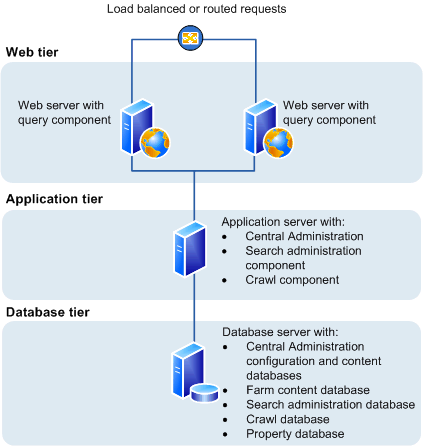 In the previous illustration, note the following:
- You can add web servers to the web tier. These servers can be configured as conventional web servers to handle user requests, or they can be configured to host dedicated query components or other service components.
- You can add farm servers to the application tier and configure them as dedicated servers that will host the SharePoint Central Administration website or other services on the farm that require dedicated resources or isolation from the web tier — for example, crawl components, query components, and profile pages.
-
You can add database servers to the database tier to implement a stand-alone instance, database mirroring, or a failover cluster. To configure the farm for high availability, database mirroring or a failover cluster is required on the database tier.
-
Before you install SharePoint 2013 on multiple servers for a three-tier farm
-
Before you begin to install and configure SharePoint 2013, do the following:
- Ensure that you are familiar with the operating-system guidelines described in Performance Tuning Guidelines for Windows Server 2008 and Performance Tuning Guidelines for Windows Server 2008 R2.
- Ensure that you have met all hardware and software requirements. You must have a 64-bit version of Windows Server 2008 R2 SP1. For server farms, you must also have a supported 64-bit version of SQL Server. For more information about these requirements, such as specific updates that you must install, see Hardware and software requirements (SharePoint 2013).
- Ensure that you perform a clean installation of SharePoint 2013.
- Ensure that you are prepared to set up the required accounts by using appropriate permissions. For detailed information, see Initial deployment administrative and service accounts in SharePoint 2013.
 Note:
Note:
If your computer is in a Workgroup, you cannot install AppFabric for Windows Server.
 Note:
Note:
The Distributed Cache service gives you a complete social computing experience. For more information about the Distributed Cache service, see Overview of microblog features, feeds, and the Distributed Cache service in SharePoint Server 2013, Manage the Distributed Cache service in SharePoint Server 2013, Plan for feeds and the Distributed Cache service (SharePoint Server 2013), and What’s new in authentication for SharePoint 2013
-
Using the Microsoft SharePoint Products Preparation Tool
The Microsoft SharePoint Products Preparation Tool checks for the presence of prerequisites, and installs and configures all required programs. The Microsoft SharePoint Products Preparation Tool requires an Internet connection to download and configure SharePoint 2013 prerequisites. The Microsoft SharePoint Products Preparation Tool runs when you start to install SharePoint 2013.
-
Database server
Ensure that SQL Server is updated to the required level and the TCP/IP protocol is enabled for the network configuration.
Organizations whose database administrators operate independently from SharePoint administrators will have to make sure that the correct version of SQL Server is available and updated to the required level. In addition, you will have to request a DBA-created database that is configured for your farm.
Ensure the Max degree of parallelism is set to 1. For additional information about max degree of parallelism see, Configure the max degree of parallism Server Configuration option and Degree of Parallelism.
-
Public updates and hotfix packages
Ensure that public updates and the required hotfix packages are installed for the operating system, SQL Server, and SharePoint 2013. We recommend that all servers be updated to the same software version before you apply the public updates.
- Ensure that you are familiar with the concept of a three-tier topology.
-
Prepare the farm servers
Before you install SharePoint 2013 , you must check for and install all the prerequisites on the application server and the web servers by using the Microsoft SharePoint Products Preparation Tool.
 Tip:
Tip:
If you decide to install prerequisites manually, you can still run the Microsoft SharePoint Products Preparation Tool to verify which prerequisites are required on each server.
Use the following procedure to install prerequisites on each server in the farm.
To run the Microsoft SharePoint Products Preparation Tool
- Verify that the user account that is performing this procedure is the Setup user account. For information about the Setup user account, see Initial deployment administrative and service accounts in SharePoint 2013.
- In the folder where you downloaded the SharePoint 2013 software, locate and then run prerequisiteinstaller.exe.
- On the Welcome to the Microsoft SharePoint Products Preparation Tool page, click Next.
 Note:
Note:
The preparation tool may have to restart the local server to complete the installation of some prerequisites. The installer will continue to run after the server is restarted without manual intervention. However, you will have to log on to the server again.
- On the License Terms for software products page, review the terms, select the I accept the terms of the License Agreement(s) check box, and then click Next.
- On the Installation Complete page, click Finish.
- After you complete the Microsoft SharePoint Products Preparation Tool, you must also install the following:
-
Install SharePoint 2013 on the farm servers
After the prerequisites are installed, follow these steps to install SharePoint 2013 on each farm server.
The following procedure installs binaries, configures security permissions, and edits registry settings for SharePoint 2013. At the end of Setup, you can choose to start the SharePoint Products Configuration Wizard, which is described later in this article.
To run Setup
- Verify that the user account that is performing this procedure is the Setup user account. For information about the Setup user account, see Initial deployment administrative and service accounts in SharePoint 2013.
- On the SharePoint 2013 Start page, click Install SharePoint Server.
- On the Enter Your Product Key page, enter your product key, and then click Continue.
- On the Read the Microsoft Software License Terms page, review the terms, select the I accept the terms of this agreement check box, and then click Continue.
- On the Choose the installation you want page, click Server Farm.
- On the Server Type tab, click Complete.
- On the File Location tab, accept the default location or change the installation path, and then click Install Now.
 Note:
Note:
As a best practice, we recommend that you install SharePoint 2013 on a non-system drive.
- When the Setup program is finished, a dialog box prompts you to complete the configuration of your server. Clear the Run the SharePoint Products and Technologies Configuration Wizard now check box.
 Note:
Note:
For consistency of approach, we recommend that you do not run the configuration wizard until you have installed SharePoint 2013 all application and front-end web servers that will participate in the server farm.
- Click Close to finish Setup.
-
Create and configure the farm
To create and configure the farm, you run the SharePoint Products Configuration Wizard. This wizard automates several configuration tasks, such as creating the configuration database, installing services, and creating the Central Administration website. We recommend that you run the SharePoint Products Configuration Wizard on the server that will host the SharePoint Central Administration website before you run the wizard on the other servers in the farm.
To run the SharePoint Products Configuration Wizard and configure the farm
- Verify that the user account that is performing this procedure is the Setup user account. For information about the Setup user account, see Initial deployment administrative and service accounts in SharePoint 2013.
- On the server that will host Central Administration (the application server), click Start, point to All Programs, and then click SharePoint 2013 Products, and then click SharePoint 2013 Products Configuration Wizard. If the User Account Control dialog box appears, click Continue.
- On the Welcome to SharePoint Products page, click Next.
- In the dialog box that notifies you that some services might have to be restarted during configuration, click Yes.
- On the Connect to a server farm page, click Create a new server farm, and then click Next.
-
On the Specify Configuration Database Settings page, do the following:
- In the Database server box, type the name of the computer that is running SQL Server.
- In the Database name box, type a name for your configuration database, or use the default database name. The default name is SharePoint_Config.
- In the Username box, type the user name of the server farm account in DOMAIN\user name format.
- In the Database server box, type the name of the computer that is running SQL Server.
 Important:
The server farm account is used to create and access your configuration database. It also acts as the application pool identity account for the SharePoint Central Administration application pool, and it is the account under which the SharePoint Timer service runs. The SharePoint Products Configuration Wizard adds this account to the SQL Server Login accounts, the SQL Serverdbcreator server role, and the SQL Serversecurityadmin server role. The user account that you specify as the service account has to be a domain user account. However, it does not have to be a member of any specific security group on your web servers or your database servers. We recommend that you follow the principle of least-privilege, and specify a user account that is not a member of the Administrators group on your front-end web servers or your database servers.
- In the Password box, type the user password.
- Click Next.
-
On the Specify Farm Security Settings page, type a passphrase, and then click Next.
Although a passphrase resembles a password, it is usually longer to improve security. It is used to encrypt credentials of accounts that are registered in SharePoint 2013. For example, the SharePoint 2013 system account that you provide when you run the SharePoint Products Configuration Wizard. Ensure that you remember the passphrase, because you must use it every time that you add a server to the farm.
Ensure that the passphrase meets the following criteria:
- Contains at least eight characters
-
Contains at least three of the following four character groups:
- English uppercase characters (from A through Z)
- English lowercase characters (from a through z)
- Numerals (from 0 through 9)
- Nonalphabetic characters (such as !, $, #, %)
- English uppercase characters (from A through Z)
-
On the Configure SharePoint Central Administration Web Application page, do the following:
- Either select the Specify port number check box and type the port number that you want the SharePoint Central Administration web application to use, or leave the Specify port number check box cleared if you want to use the default port number.
- Either select the Specify port number check box and type the port number that you want the SharePoint Central Administration web application to use, or leave the Specify port number check box cleared if you want to use the default port number.
 Note:
Note:
If you want to access the SharePoint Central Administration website from a remote computer, make sure that you allow access to the port number that you configure in this step. You do this by configuring the inbound rule for SharePoint Central Administration v4 in Windows Firewall with Advanced Security.
- Click either NTLM or Negotiate (Kerberos).
- Click Next.
- On the Completing the SharePoint Products Configuration Wizard page, click Next.
- On the Configuration Successful page, click Finish.
 Note:
Note:
If the SharePoint Products Configuration Wizard fails, check the log files on the drive on which SharePoint 2013 is installed, which are located in the %COMMONPROGRAMFILES%\Microsoft Shared\Web Server Extensions\15\LOGS folder.
-
The Central Administration website will open in a new browser window.
On the Help Make SharePoint Better page, click one of the following options and then click OK.
- Yes, I am willing to participate (Recommended).
- No, I don’t wish to participate.
- Yes, I am willing to participate (Recommended).
-
On the Initial Farm Configuration Wizard page, you have the option to use a wizard to configure services or you can decide to configure services manually. For the purpose of this article, we use the manual option. Click Cancel.
The choice that you make here is a matter of personal preference. The Farm Configuration Wizard will configure some services automatically when you run it. However, if you configure services manually, you have greater flexibility in designing your logical architecture.
For information about how to use the wizard to configure services, see Configure services and service applications in SharePoint 2013. If you are using Microsoft Office Web Apps, see Office Web Apps overview (Installed on SharePoint 2013).
 Important:
If you are using a DBA-created database, you cannot use the Farm Configuration Wizard, you must use SharePoint Products Configuration Wizard.
-
Add web servers to the farm
After you create the farm on the application server, you can add the servers for the web tier by following the same process described earlier in this topic for installing SharePoint 2013 on the server that hosts Central Administration. The only difference is that during setup, you are prompted to join an existing farm. Follow the wizard steps to join the farm.
For additional information about how to add servers to a farm, see Add web or application servers to farms in SharePoint 2013. This article also provides detailed information for the steps in the following procedure.
-
Post-installation steps
After you install and configure SharePoint 2013, your browser window opens to the Central Administration web site of your new SharePoint site. Although you can start adding content to the site or customizing the site, we recommend that you first perform the following administrative tasks.
- Configure usage and health data collection You can configure usage and health data collection in your server farm. The system writes usage and health data to the logging folder and to the logging database. For more information, see Configure usage and health data collection (SharePoint 2013).
- Configure diagnostic logging You can configure diagnostic logging that might be required after initial installation or upgrade. The default settings are sufficient for most situations. Depending upon the business needs and life-cycle of the farm, you might want to change these settings. For more information, see Configure diagnostic logging (SharePoint 2013).
- Configure incoming e-mail You can configure incoming e-mail so that SharePoint sites accept and archive incoming e-mail. You can also configure incoming e-mail so that SharePoint sites can archive e-mail discussions as they occur, save e-mailed documents, and show e-mailed meetings on site calendars. In addition, you can configure the SharePoint Directory Management Service to provide support for e-mail distribution list creation and administration. For more information, see Configure incoming email for a SharePoint 2013 farm.
- Configure outgoing email You can configure outgoing email so that your Simple Mail Transfer Protocol (SMTP) server sends email alerts to site users and notifications to site administrators. You can configure both the “From” email address and the “Reply” email address that appear in outgoing alerts. For more information, see Configure outgoing email for a SharePoint 2013 farm.
- Configure Search settings You can configure Search settings to crawl the content in SharePoint 2013.
- Configure usage and health data collection You can configure usage and health data collection in your server farm. The system writes usage and health data to the logging folder and to the logging database. For more information, see Configure usage and health data collection (SharePoint 2013).
-
Install or uninstall language packs for SharePoint 2013
Published: July 16, 2012
Summary: Learn how to download, install, and uninstall language packs for SharePoint 2013.
Applies to: SharePoint Foundation 2013 | SharePoint Server 2013
Language packs enable site owners and site collection administrators to create SharePoint sites and site collections in multiple languages without requiring separate installations of SharePoint 2013. You install language packs, which contain language-specific site templates, on web and application servers. When an administrator creates a site or a site collection that is based on a language-specific site template, the text that appears on the site or the site collection is displayed in the site template’s language. Language packs are typically used in multinational deployments where a single server farm supports users in different locations, or when sites and web pages must be duplicated in one or more languages.
If users are accessing Project Server 2013 in the SharePoint farm and have to view their project data in another language, they will also have to install a corresponding Project Server 2013 language pack. For more information about Project Server 2013 language packs, see Deploy language packs in Project Server 2013
Word breakers and stemmers enable you to search efficiently and effectively across content on SharePoint sites and site collections in multiple languages without requiring separate installations of SharePoint 2013. Word breakers and stemmers are automatically installed on web and application servers by Setup.
 Important:
If you are uninstalling SharePoint 2013, you must uninstall all language packs before you uninstall SharePoint 2013.
In this article:
-
About language IDs and language packs
Site owners or site collection administrators who create sites or site collections can select a language for each site or site collection.
The language that they select has a language identifier (ID). The language ID determines the language that is used to display and interpret text that is on the site or site collection. For example, when a site owner creates a site in French, the site’s toolbars, navigation bars, lists, and column headings appear in French. Similarly, if a site owner creates a site in Arabic, the site’s toolbars, navigation bars, lists, and column headings appear in Arabic. In addition, the default left-to-right orientation of the site changes to a right-to-left orientation to correctly display Arabic text.
The language packs that are installed on the web and application servers determine the list of available languages that you can use to create a site or site collection. By default, sites and site collections are created in the language in which SharePoint 2013 was installed. For example, if you install the Spanish version of SharePoint 2013, the default language for sites, site collections, and web pages is Spanish. If someone has to create sites, site collections, or web pages in a language other than the default SharePoint 2013 language, you must install the language pack for that language on the web and application servers. For example, if you are running the French version of SharePoint 2013, and a site owner wants to create sites in French, English, and Spanish, you must install the English and Spanish language packs on the web and application servers.
By default, when a site owner creates a new web page in a site, the site displays text in the language that is specified by the language ID.
Language packs are not bundled into multilingual installation packages. You must install a specific language pack for each language that you want to support. Also, language packs must be installed on each web and application server to make sure that that each web and application server can display content in the specified language.
 Important:
You cannot change an existing site, site collection, or web page from one language to another by applying different language-specific site templates. After you use a language-specific site template for a site or a site collection, the site or site collection always displays content in the language of the original site template.
Only a limited set of language packs are available for SharePoint 2013.
Although a site owner specifies a language ID for a site, some user interface elements such as error messages, notifications, and dialog boxes do not display in the language that was specified. This is because SharePoint 2013 relies on several supporting technologies — for example, the Microsoft .NET Framework, Microsoft Windows Workflow Foundation, Microsoft ASP.NET, and SQL Server — some of which are localized into only a limited number of languages. If a user interface element is generated by any of the supporting technologies that are not localized into the language that the site owner specified for the site, the user interface element appears in English. For example, if a site owner creates a site in Hebrew, and the .NET Framework component displays a notification message, the notification message will not display in Hebrew because the .NET Framework is not localized into Hebrew. This situation can occur when sites are created in any language except the following: Chinese, French, German, Italian, Japanese, Korean, and Spanish.
Each language pack that you install creates a folder at %COMMONPROGRAMFILES%\Microsoft Shared\Web server extensions\15\LAYOUTS\Locale_ID that contains language-specific data. In each locale_ID folder, you must have only one HTML error file that contains the error information that is used when a file cannot be found. Anytime a file cannot be found for any site in that language, this file will be used. You can specify the file to use by setting the FileNotFoundPage for each web application.
In some cases, some text might originate from the original installation language, which can create a mixed-language experience. This kind of mixed-language experience is typically seen only by content creators or site owners and is not seen by site users.
-
Downloading language packs
Follow these steps for each language that you want to support. If you decide to download more than one language, please be aware that a unique file that has a common name is downloaded for each language. Therefore, make sure that you download each language pack to a separate folder on the hard disk so that you do not overwrite a language pack of a different language.
 Important:
By default, the Windows PowerShell Help files are installed in English (en-us). To view these files in the same language as the operating system, install the language pack for the same language in which the operating system was installed.
You can download language packs from the same location where you downloaded SharePoint 2013.
-
Installing language packs on the web and application servers
After you install the necessary language files on the web and application servers, you can install the language packs. Language packs are available as individual downloads (one download for each supported language). If you have a server farm environment and you are installing language packs to support multiple languages, you must install the language packs on each web and application server.
 Important:
The language pack is installed in its native language. The procedure that follows is for the English language pack.
To install a language pack
- Verify that the user account that is performing this procedure is the Setup user account. For information about the Setup user account, see Initial deployment administrative and service accounts in SharePoint 2013.
- In the folder where you downloaded the language pack, run setup.exe.
- On the Read the Microsoft Software License Terms page, review the terms, select the I accept the terms of this agreement check box, and then click Continue.
- The Setup wizard runs and installs the language pack.
-
Rerun the SharePoint Products Configuration Wizard by using the default settings. If you do not run the SharePoint Products Configuration Wizard after you install a language pack, the language pack will not be installed correctly.
The SharePoint Products Configuration Wizard runs in the language of the base installation of SharePoint 2013, not in the language of the language pack that you just installed.
To rerun the SharePoint 2013 Configuration Wizard
- Verify that the user account that is performing this procedure is the Setup user account. For information about the Setup user account, see Initial deployment administrative and service accounts in SharePoint 2013.
- Click Start, point to All Programs, click Microsoft SharePoint 2013 Products, and then click SharePoint 2013 Products Configuration Wizard.
- On the Welcome to SharePoint Products page, click Next.
- Click Yes in the dialog box that alerts you that some services might have to be restarted during configuration.
- On the Modify Server Farm Settings page, click Do not disconnect from this server farm, and then click Next.
- If the Modify SharePoint Central Administration Web Administration Settings page appears, do not change any of the default settings, and then click Next.
- After you complete the Completing the SharePoint Products and Technologies Configuration Wizard, click Next.
- On the Configuration Successful page, click Finish.
- After you install a new language pack and rerun the Rerun the SharePoint 2013 Configuration Wizard, you must deactivate and then reactivate any language-specific features before you use the new language pack.
When you install language packs, the language-specific site templates are installed in the %COMMONPROGRAMFILES%\Microsoft Shared\Web server extensions\15\TEMPLATE\LanguageID directory, where LanguageID is the Language ID number for the language that you are installing. For example, the United States English language pack installs to the %COMMONPROGRAMFILES%\Microsoft Shared\Web Server Extensions\15\TEMPLATE\1033 directory. After you install a language pack, site owners and site collection administrators can create sites and site collections based on the language-specific site templates by specifying a language when they are creating a new SharePoint site or site collection.
-
Uninstalling language packs
If you no longer have to support a language for which you have installed a language pack, you can remove the language pack by using the Control Panel. Removing a language pack removes the language-specific site templates from the computer. All sites that were created that have those language-specific site templates will no longer work (the URL will produce a HTTP 500 – Internal server error page). Reinstalling the language pack will make the site functional again.
You cannot remove the language pack for the version of SharePoint 2013 that you have installed on the server. For example, if you are running the Japanese version of SharePoint 2013, you cannot uninstall the Japanese language support for SharePoint 2013.
-
Add web or application servers to farms in SharePoint 2013
Published: July 16, 2012
Summary: Learn how to add a server to an existing SharePoint 2013 farm so the server can later be configured for use as a front-end web server or as an application server.
Applies to: SharePoint Foundation 2013 | SharePoint Server 2013
The procedures in this article apply to a SharePoint 2013 farm that consists of at least two tiers. This article does not describe how to convert a single-server deployment to a multiple-server farm.
In this article:
-
Before you add a web or application server to a SharePoint farm
 Note:
Note:
Administrators typically use the SharePoint Central Administration website and the SharePoint Management Shell to manage deployments. For information about accessibility for administrators, see Accessibility for SharePoint Products.
Because SharePoint 2013 runs as websites in Internet Information Services (IIS), administrators and users depend on the accessibility features that browsers provide. SharePoint 2013 supports the accessibility features of supported browsers. For more information, see the following resources:
- Plan browser support
- Accessibility for SharePoint Products
- Accessibility features in SharePoint 15 Products
- Keyboard shortcuts
- Touch
-
Determine server role
To add a new server to the farm, you must know its intended role to plan for additional or specialized configurations and assess the potential effect of adding the server to a production environment.
 Note:
Note:
A typical three-tier farm includes front-end web servers, an application server that also hosts Central Administration, and a database server. The scope of this article is the front-end web server and application server roles.
After you determine the role of the server in your farm topology, you must identify the services and features that must be configured for the server to meet this role. This information will determine how SharePoint 2013 is configured to provision the server for its role in either the web tier or the application tier. For more information, see Manage service applications in SharePoint 2013.
The following illustration shows a SharePoint 2013 farm with two front-end web servers (Web-1 and Web-2) that serve content and host the search query component. The only application server (App-1) hosts Central Administration and the search crawl component for the farm.
Options for adding a server to a farm
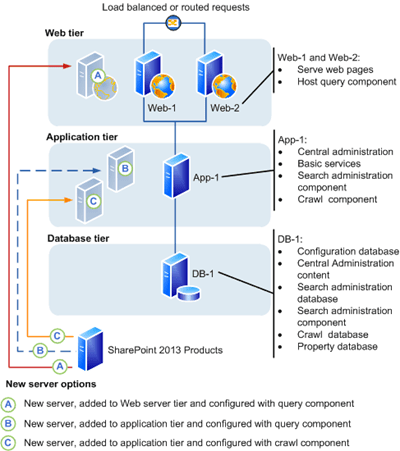
The following sections provide information about the general characteristics of the front-end web server and application server roles.
-
Front-end web server role
The fundamental role of a front-end web server is to host web pages, web services, and the Web Parts that are required to process requests from users. The web server directs these requests to the application server, which returns the results to the front-end web server.
Depending on farm requirements, the front-end web server may also be configured to support search in scenarios where there are no dedicated search servers.
 Note:
Note:
Distributing search is not an option for SharePoint 2013, where only a single search instance is permitted for each content database.
SharePoint 2013 provides more flexibility by letting you to install different search components, typically query components, on one or more front-end web servers. This is option A in the previous farm illustration. A third server also improves load balancing and increases front-end web server availability. Three servers on the web-tier is called a stretched farm.
-
Application server role
By default, the server that hosts Central Administration in a three-tier farm is an application server. You can add application servers to host services that can be deployed to a single server and used by all the servers in a farm.
Services with similar usage and performance characteristics can be logically grouped on a server, and if it is necessary, hosted on multiple servers if a scale out is required to respond to performance or capacity requirements. For example, client-related farm services such as Word Services and Word Viewer can be combined into a service group and hosted on a dedicated server. In addition, some services, such as the Managed Metadata service, can be configured as service application that can be used by other farms.
In the farm illustration, there are two options to add an application server.
- In option B an additional server is configured to host all queries for the farm. The query component is removed from the front-end web servers.
- In option C an additional server is configured as a dedicated crawl server, which offloads farm indexing from the server that hosts Central Administration. The front-end web servers continue to host the query component for the farm.
In a three-tier farm that is running enterprise search, dedicated application servers are typically configured to host individual enterprise search components. Servers hosting a query component are known as query servers and servers hosting a crawl component are known as index servers. For more information, see Manage search topology (SharePoint Server 2013).
-
Additional tasks
Before you start to install prerequisite software, you have to complete the following:
- Verify that the new server meets the hardware and software requirements described in Hardware and software requirements for SharePoint 2013.
- Verify that you have the minimum level of permissions that are required to install and configure SharePoint 2013 on a new server. You must be a member of the Farm Administrators SharePoint group and the Administrators group on the local server to complete the procedures in this article. For more information, see Initial deployment administrative and service accounts in SharePoint 2013.
- Verify that you know the name of the database server on the farm to which you are connecting, and the name of the configuration database if you are adding the server by using Windows PowerShell commands.
- If you intend to use Windows PowerShell commands to add the server, verify that you meet the following minimum memberships: SharePoint 2013 is installed.
- Securityadmin fixed server role on the SQL Server instance.
- db_owner fixed database role on all databases that are to be updated.
- Administrators group on the server on which you are running the Windows PowerShell cmdlets.
- An administrator can use the Add-SPShellAdmin cmdlet to grant permissions to use SharePoint 2013 cmdlets.
 Note:
Note:
If you do not have permissions, contact your Setup administrator or SQL Server administrator to request permissions. For additional information about Windows PowerShell permissions, see Add-SPShellAdmin.
- Document the location of the SharePoint 2013 binary and log files on the existing farm servers. We recommend that the location of these files on the new server map to the locations used on the other servers in the farm. For more information, see Configure diagnostic logging in SharePoint 2013.
 Important:
If you change the location of the trace log to a non-system drive, change the location on all the servers in the farm. Existing or new servers cannot log data if the location does not exist. In addition, you will be unable to add new servers unless the path that you specify exists on the new server. You cannot use a network share for logging purposes.
- Plan browser support
-
Install prerequisite software
Before you can install SharePoint 2013 and add a server to the farm, you must check for and install all the prerequisite software on the new server. You do this by using the Microsoft SharePoint Products Preparation Tool, which requires an Internet connection to download and configure SharePoint 2013 prerequisites. If you do not have an Internet connection for the farm servers, you can still use the tool to determine the software that is required. You will have to obtain installable images for the required software. For download locations, see Access to applicable software in “Hardware and software requirements (SharePoint 2013).”
 Tip:
Tip:
After you obtain a copy of the required software, we recommend that you create an installation point that you can use to store the images. You can use this installation point to install future software updates.
For detailed instructions about how to install the prerequisites, see Prepare the farm servers in the article, Install SharePoint 2013 across multiple servers for a three-tier farm.
-
Install the SharePoint software
After you install the prerequisites, follow these steps to install SharePoint 2013 on the new server. For detailed instructions about how to install SharePoint 2013, see Install SharePoint 2013 on a single server with SQL Server.
To install SharePoint 2013
- Verify that the user account that is performing this procedure is the Setup user account. For information about the Setup user account, see Initial deployment administrative and service accounts in SharePoint 2013.
- From the product media or a file share that contains the SharePoint 2013 Products installation files, run Setup.exe.
- On the Start page, click the link to install SharePoint 2013.
- Review and accept the Microsoft License Terms.
- On the Server Type tab, select Complete.
 Note:
Note:
You can choose to install only the components that are required for a front-end web server. However, if you perform a complete installation, you have more flexibility to re-purpose the server role in the farm in the future.
- Accept the default file location where SharePoint 2013 will be installed or change the installation path in order to suit your requirements.
 Tip:
Tip:
As a best practice, we recommend that you install SharePoint 2013 on a drive that does not contain the operating system.
- When Setup finishes, a dialog box prompts you to run the SharePoint Products Configuration Wizard. You can start the wizard immediately or from the Windows command prompt later.
-
Add the new SharePoint server to the farm
You add the new server to the farm by using one of the following procedures:
- To add a new SharePoint 2013 server to the farm by using the SharePoint Products Configuration Wizard
- To add a new SharePoint 2013 server to the farm by using Windows PowerShell
To add a new SharePoint 2013 server to the farm by using the SharePoint Products Configuration Wizard
- To add a new SharePoint 2013 server to the farm by using the SharePoint Products Configuration Wizard
- Verify that the user account that is performing this procedure is the Setup user account. For information about the Setup user account, see Initial deployment administrative and service accounts in SharePoint 2013.
- Start the SharePoint 2013 Products Configuration Wizard.
-
For Windows Server 2008 R2:
- On the new server, click Start, point to All Programs, click Microsoft SharePoint 2013 Products, and then click SharePoint 2013 Products Configuration Wizard.
- On the new server, click Start, point to All Programs, click Microsoft SharePoint 2013 Products, and then click SharePoint 2013 Products Configuration Wizard.
-
For Windows Server 2012:
-
On the new server, on the Start screen, click SharePoint 2013 Products Configuration Wizard.
If SharePoint 2013 Products Configuration Wizard is not on the Start screen:
-
Right-click Computer, click All apps, and then click SharePoint 2013 Products Configuration Wizard.
For more information about how to interact with Windows Server 2012, see Common Management Tasks and Navigation in Windows Server 2012.
-
- On the Welcome to SharePoint Products page, click Next.
- On the Connect to a server farm page, click Connect to an existing server farm.
- Click Next.
- On the Specify Configuration Database settings page, type the name of the instance of SQL Server in the Database server box, and then click Retrieve Database Names.
- Select the name of the configuration database in the Database name list, and then click Next.
- On the Specify Farm Security Settings page, type the name of the farm passphrase in the Passphrase box, and then click Next.
- On the Completing the SharePoint Products Configuration Wizard page, click Next.
- On the server that hosts Central Administration, click Manage servers in this farm to verify that the new server is part of the farm.
 Note:
Note:
You can also verify a successful server addition or troubleshoot a failed addition by examining the log files. These files are located on the drive on which SharePoint 2013 is installed, in the %COMMONPROGRAMFILES%\Microsoft Shared\Web Server Extensions\15\LOGS folder. For more information, see Monitor health in SharePoint 2013.
- On the Servers in Farm page, click the name of the new server. Use the list of available services on the Services on Server page to start the services that you want to run on the new server.
- Configure SharePoint 2013 so that the new server can accommodate the role for which it was intended. For more information, see Configure the new server.
To add a new SharePoint 2013 server to the farm by using Windows PowerShell
- Verify that you have the following memberships:
- securityadmin fixed server role on the SQL Server instance.
- db_owner fixed database role on all databases that are to be updated.
-
Administrators group on the server on which you are running the Windows PowerShell cmdlets.
An administrator can use the Add-SPShellAdmin cmdlet to grant permissions to use SharePoint 2013 cmdlets.
 Note:
Note:
If you do not have permissions, contact your Setup administrator or SQL Server administrator to request permissions. For additional information about Windows PowerShell permissions, see Add-SPShellAdmin.
- Start the SharePoint 2013 Management Shell.
-
For Windows Server 2008 R2:
- On the Start menu, click All Programs, click Microsoft SharePoint 2013 Products, and then click SharePoint 2013 Management Shell.
- On the Start menu, click All Programs, click Microsoft SharePoint 2013 Products, and then click SharePoint 2013 Management Shell.
-
For Windows Server 2012:
-
On the Start screen, click SharePoint 2013 Management Shell.
If SharePoint 2013 Management Shell is not on the Start screen:Right-click
-
Computer, click All apps, and then click SharePoint 2013 Management Shell.
For more information about how to interact with Windows Server 2012, see Common Management Tasks and Navigation in Windows Server 2012.
-
-
At the Windows PowerShell command prompt, type the following command to connect the server to a configuration database:
Connect-SPConfigurationDatabase -DatabaseServer “<$DatabaseServer>” -DatabaseName “<$RunSettings.ConfigurationDatabaseName>” -Passphrase “<$Passphrase>“
Where:
- <$DatabaseServer> is the name of the server that hosts the configuration database
- <$RunSettings.ConfigurationDatabaseName> is the name of the configuration database
- <$Passphrase> is the passphrase for the farm
-
At the Windows PowerShell command prompt, type the following command to install the Help File Collections:
Install-SPHelpCollection -All
-
At the Windows PowerShell command prompt, type the following command to install the Security Resource for SharePoint 2013:
Initialize-SPResourceSecurity
-
At the Windows PowerShell command prompt, type the following command to install the basic services:
Install-SPService
-
At the Windows PowerShell command prompt, type the following command to install all the features:
Install-SPFeature -AllExistingFeatures
-
At the Windows PowerShell command prompt, type the following command to install application content:
Install-SPApplicationContent
-
At the Windows PowerShell command prompt, type the following command to get a list of servers in the farm.
Get-SPFarm | select Servers
 Note:
Note:
You can also verify a successful server addition or troubleshoot a failed addition by examining the log files. These files are located on the drive on which SharePoint 2013 is installed, in the %COMMONPROGRAMFILES%\Microsoft Shared\Web Server Extensions\15\LOGS folder. For more information, see Monitor health in SharePoint 2013.
- Configure SharePoint 2013 so that the new server can accommodate the role for which it was intended. For more information, see Configure the new server.
-
Configure the new server
The new server has no real functionality in the farm until you configure the services that are required to support the role that you planned for the new server. For more information, see Configure services and service applications in SharePoint 2013.
-
Remove a server from a farm in SharePoint 2013
Published: July 16, 2012
Summary: Learn how to remove a web server, application server, or database server from a SharePoint 2013 farm.
Applies to: SharePoint Foundation 2013 | SharePoint Server 2013
There are three types of servers in a server farm running SharePoint 2013: web servers, application servers, and database servers. The method that you use to remove a server from a SharePoint farm varies depending on the type of server that you are removing from the farm.
In this article:
- Removing a web server or application server from a SharePoint farm
- Removing a database server from a SharePoint farm
- Remove a database server, web server, or application server from a SharePoint farm by using Central Administration
 Note:
Note:
Because SharePoint 2013 runs as websites in Internet Information Services (IIS), administrators and users depend on the accessibility features that browsers provide. SharePoint 2013 supports the accessibility features of supported browsers. For more information, see the following resources:
- Removing a web server or application server from a SharePoint farm
-
Removing a web server or application server from a SharePoint farm
For information about uninstallation procedures that SharePoint 2013 supports, see Uninstall SharePoint 2013.
Removing a server that contains a search topology component can affect future search activities. The extent of that effect depends on the farm search topology. We recommend that you remove or relocate any search topology components from a server before removing the server from the farm.
If you remove a server that hosts a crawl component, no index files are lost. However, you might reduce or remove the capacity to crawl content.
You can lose index files in the following situations:
- The farm has only one query component, and you remove the server that hosts the query component.
- You have configured the index to be partitioned and you delete the last query component in one of the partitions. In this case, you will lose a portion of the index.
In either of these cases, a full crawl will have to be performed to re-create the index files.
You can deploy specific techniques to build fault tolerance into the search topology. If these techniques are followed, the deliberate or unplanned removal of a server from the topology can be absorbed without losing data and without affecting the ability to crawl or serve queries. (However, performance can still be affected.) For more information, see Technical diagrams (SharePoint 2013).
Make sure that the server that you want to remove is not running any important site components. If important services or components (such as a custom Web Part) are running on the server and are not available on another server in the farm, removing the server can damage sites in the farm. For example, if the server that you want to remove is the only application server in the farm that is running the Business Data Connectivity service, removing the server can make any sites that rely on that service stop working correctly.
You can remove a web server or an application server from the server farm by uninstalling SharePoint 2013 from the server through Control Panel. When you uninstall SharePoint 2013 by using Control Panel, you remove the program files and other information from the server.
To remove a web server or an application server from a farm by using Control Panel
- The farm has only one query component, and you remove the server that hosts the query component.
- Verify that the user account that completes this procedure has the following credentials:
- The user account that performs this procedure is a member of the Administrators group on the server.
- Stop the services that are running on the server. For information about how to determine which services are running on a specific server and stopping services, see Start or Stop a service (SharePoint 2013).
- On the server that you want to remove from the farm, click Start, click Control Panel, and then double-click Programs and Features.
- In the list of currently installed programs, click SharePoint 2013, and then click Uninstall.
- Click Continue at the confirmation prompt to uninstall the program.
-
Removing a database server from a SharePoint farm
To remove a database server from a farm without uninstalling SharePoint and therefore deleting the data that was stored in the database, you must first move any databases that are hosted by that server to another database server in the farm and then use Central Administration to remove the database server from the farm.
You cannot remove a database server if it is the only database server available in the farm, or if it is the database server that hosts the configuration database.
 Caution:
If you uninstall SharePoint 2013 from the server that is running Central Administration, you will be unable to administer the server farm until you configure another server in the farm to host the Central Administration site.
-
Remove a database server, web server, or application server from a SharePoint farm by using Central Administration
If a web server or application server is no longer available, or if uninstalling SharePoint 2013 from Control Panel is not possible, you can remove the web server or application server from the farm by using the SharePoint Central Administration website. Removing a server from the farm by using Central Administration does not uninstall SharePoint 2013 from the server, nor does it make any sites on that server inaccessible. We recommend that you use the process described in Remove a web server or an application server from a farm by using Control Panel to uninstall SharePoint 2013 instead of using Central Administration to remove the server.
Removing the server from the farm by using Central Administration does not delete this information from the server. Use the Central Administration procedure for removing database servers only, or for removing a web server or an application server from the farm when the server is no longer available to uninstall through Control Panel.
You can follow these steps to remove a web server, application server, or database server from the farm. However, we recommend that you remove web servers and application servers from a farm by using Control Panel, instead of by using Central Administration. For information, see To remove a web server or an application server from a farm by using Control Panel.
Before you remove a database server from a farm, make sure that you have moved any databases stored on that server to a different database server in your farm.
To remove a database server, web server, or application server from a SharePoint farm by using Central Administration
- Verify that the user account that completes this procedure has the following credentials:
- The user account that performs this procedure is a member of the Farm Administrators SharePoint group.
- The user account that performs this procedure is a member of the Administrators group on the server.
- Stop the services that are running on the server. For information about how to determine which services are running on a specific server and stopping services, see Start or Stop a service (SharePoint 2013).
- On the SharePoint Central Administration website, in the System Settings section, click Manage servers in this farm.
- On the Servers in Farm page, locate the row that contains the name of the server that you want to remove, and then click Remove Server.
-
In the warning that appears, click OK to remove the server or click Cancel to stop the operation.
The page updates, and the server that you removed no longer appears in the list of servers.
-
Uninstall SharePoint 2013
Published: July 16, 2012
Summary: SharePoint Server 2013 and SharePoint Foundation 2013 support a limited set of methods to uninstall.
Applies to: SharePoint Foundation 2013 | SharePoint Server 2013 .
You remove SharePoint 2013 by uninstalling it from Control Panel. When you uninstall SharePoint 2013, most files and subfolders in the installation folders are removed. However, some files are not removed. Also,
- Web.config files, index files, log files, and customizations that you might have are not automatically removed when you uninstall SharePoint 2013.
- SQL Server databases are detached but are not removed from the database server.
- If you uninstall a single server that has a built-in database, SQL Server Express is not removed.
- When you uninstall SharePoint 2013, all user data remains in the database files.
- Web.config files, index files, log files, and customizations that you might have are not automatically removed when you uninstall SharePoint 2013.
-
Before you begin
Before you begin this operation, confirm that you have uninstalled all language packs that are on the server.
 Note:
Note:
Because SharePoint 2013 runs as websites in Internet Information Services (IIS), administrators and users depend on the accessibility features that browsers provide. SharePoint 2013 supports the accessibility features of supported browsers. For more information, see the following resources:
-
Uninstall SharePoint 2013
Use this procedure to uninstall SharePoint 2013.
To uninstall SharePoint 2013
- Verify that you are a member of the Farm Administrators group or a member of the Administrators group on the local computer.
- On the computer that runs SharePoint 2013, log on as a local or domain administrator.
- Start Control Panel.
-
For Windows Server 2008 R2:
- Click Start, and then click Control Panel.
- Click Start, and then click Control Panel.
-
For Windows Server 2012:
-
On the Start screen, click Control Panel.
For more information about how to interact with Windows Server 2012, see Common Management Tasks and Navigation in Windows Server 2012.
-
- In the Programs area, click Uninstall a program.
- In the Uninstall or change a program dialog box, click Microsoft SharePoint Server 2013.
- Click Change.
-
On the Change your installation of Microsoft SharePoint Server 2013 page, click Remove, and then click Continue.
A confirmation message appears.
-
Click Yes to remove SharePoint 2013.
A warning message appears.
-
Click OK to continue.
A confirmation message appears.
-
Click OK.
You might be prompted to restart the server.
 Note:
Note:
If you did not remove the language template packs before you uninstalled and then reinstalled SharePoint 2013, you must run Repair from the SharePoint Products Configuration Wizard for each language template pack on the server. After the repair operation is complete, you must restart the server. Finally, complete the language template pack configuration by running the SharePoint Products Configuration Wizard.
-
Install and configure a virtual environment for SharePoint 2013
Published: July 16, 2012
Summary: Learn about permissions, accounts, security settings, and what you have to do to prepare your Windows Server 2008 Hyper-V environment for SharePoint 2013.
Applies to: SharePoint Foundation 2013 | SharePoint Server 2013
The following downloadable resources, articles on TechNet, and related resources provide information about how to prepare Hyper-V to support a SharePoint 2013 virtual farm.
-
TechNet articles about SharePoint 2013 virtualization with Hyper-V
The following articles about virtualization in SharePoint 2013 are available to view online. Writers update articles on a continuing basis as new information becomes available and as users provide feedback.
Content
Provides

Use best practice configurations for the SharePoint 2013 virtual machines and Hyper-V environment
Provides best practice guidance to install and configure virtual machines for a SharePoint 2013 farm and the Hyper-V virtualization host computer.
-
Additional resources about Hyper-V installation and initial configuration
The following resources about Hyper-V are available from other subject matter experts.
Content
Description

Visit the TechCenter to access videos, community sites, documentation, and more.

This TechNet Magazine article provides an overview of the preparation required to shift applications to a virtual environment.
-
Use best practice configurations for the SharePoint 2013 virtual machines and Hyper-V environment
Published: July 16, 2012
Summary: Follow best practice recommendations to configure the SharePoint 2013 virtual machines and the Windows Server 2008 Hyper-V infrastructure.
Applies to: SharePoint Foundation 2013 | SharePoint Server 2013
After you create a detailed architecture design and system specifications, you are ready to install and configure the virtual environment for the SharePoint 2013 farm. To achieve the performance and capacity goals that you identify in your detailed design and system specifications, you must have a correctly configured virtual environment. One or more badly configured virtual machines or virtualization hosts can significantly reduce performance.
This article discusses Windows Server 2008 Hyper-V technology configuration options and their potential impact on the performance of the virtualization host computer, the virtual machines, and the SharePoint 2013 farm in general. Key decision points and best practice configurations provide guidance when you set up the virtual environment.
 Important:
A wide range of features and installation options are available to set up and configure a Hyper-V environment. Measurements focus on testing and guidance on the features and configurations that provide quantifiable benefits and consider the known performance characteristics of server roles in a SharePoint products farm.
In this article:
- Introduction and scope
- Review the general best practice guidance for virtualization
- Configure the Hyper-V host computer
- Install and configure virtual networking
- Create and configure the virtual machines
- Configure the memory for the virtual machines
- Configure the processors for the virtual machines
- Configure the controllers and hard disks for the virtual machines
- Configure services and general settings
- Introduction and scope
-
Introduction and scope
We recommend that you use a bottom up approach to configure the Hyper-V environment for the SharePoint 2013 farm. Start with the Hyper-V host computer configuration and then work up to the virtual layer to configure the virtual network components and the virtual machines.
Before you install and configure the Hyper-V environment, we recommend that you review the following articles:
- Hardware Considerations for Hyper-V in Windows Server 2008
- Requirements and Limits for Virtual Machines and Hyper-V in Windows Server 2008 R2
-
-
Article scope
-
Several aspects about how to configure a virtual environment that are not discussed in detail are documented in separate articles. Detailed information about the following subjects is out of scope for this article:
- Business Continuity Management (high availability and disaster recovery) for a virtual environment
- Securing a virtual environment (options and best practices)
 Note:
Note:
SharePoint 2013does not support the virtualization changes and features in Windows Server 2012.
- Hardware Considerations for Hyper-V in Windows Server 2008
-
Review the general best practice guidance for virtualization
When you install and configure virtualization for a SharePoint 2013 farm, every configuration choice that you make and implement has an effect on all other parts of the virtual environment. Your primary goal is to create intended consequences and positive effects. To achieve this goal you have to understand the interaction between the virtual and the physical, the inherent constraints. You also have to follow best practice guidance when you set up the virtual farm.
The first thing that you have to do before you install and configure your virtual environment is to make sure that you install the latest version of the Hyper-V Best Practices Analyzer (BPA). You can get this update from Update for Best Practices Analyzer for HYPER-V for Windows Server 2008 R2 x64 Edition (KB977238).
You can use Hyper-V Best Practices Analyzer to scan a server that is running the Hyper-V role and help identify configurations that do not comply with the best practices of Microsoft for this role. BPA scans the configuration of the physical computer, the virtual machines, and other resources, such as virtual networking and virtual storage. No configuration changes are made by running the scan.
The scan results display the following information:
- A list of issues that you can sort by severity
- Recommended fixes for issues
- Links to instructions
The best practices in the following table explain several aspects of virtualization and are not necessarily specific to any virtualization technology.
 Note:
Note:
Hyper-V partition terminology
Hyper-V provides three types of partitions: the root partition, the parent partition, and the child partition. Each partition has its resources (memory and processor) and policies for device use. The root partition is the original partition and it starts the hypervisor. The parent partition calls the hypervisor to request the creation of new child partitions—the virtual machines.
-
Best practice guidance for virtualization
Best practice
Description
Leave adequate memory for the Hyper-V partitions.
Calculate the total memory requirements for all the virtual machines on the host and ensure that there is enough available memory to meet Hyper-V partition requirements.
 Important:
For SharePoint products virtual machines, we recommend 4 GB of RAM or more for host computer operations.
Do not use the parent partition for services other than Hyper-V.
Do not run additional roles or services on the parent partition. Run them on the virtual machines instead because the parent is differentiated for scheduling.
Do not store host computer system files on drives that are used for Hyper-V storage.
To reduce disk contention, do not store system files (for example, Pagefile.sys) on hard disks that are dedicated to storing virtual machine data.
Use a minimum of two physical network adapters.
For better network management and performance, dedicate one adapter to virtual machine network traffic and use the other adapter for virtualization host network traffic.
Do not oversubscribe the CPU on the virtualization host computer.
Review the supported ratio of virtual processors per logical processor and avoid oversubscribing the host computer CPU. The optimum virtual processor:logical processor ratio is 1:1. For more information, see Configure the processors for the virtual machines.
Do not cross Non-uniform memory access (NUMA) boundaries.
Hyper-V spans NUMA nodes to assign physical memory to a virtual machine; however, this does reduce performance on the virtual machine. For more information, see Configure the memory for the virtual machines
Do not use snapshots in a production environment.
Do not use snapshots for the virtual machines in a SharePoint products production environment. When you create a snapshot, Hyper-V creates a new secondary drive for the virtual machine. Write operations occur on the new drive and read operations occur on both drives, which has the same net affect as a differencing disk. Every snapshot that you add reduces disk performance further.
- A list of issues that you can sort by severity
-
Configure the Hyper-V host computer
When you configure the Hyper-V host computer, we recommend that you consider the following configuration options and best practices:
-
Close the operating system management windows.
Hyper-V Manager and Virtual Machine Connection sessions consume resources. For example, Hyper-V manager causes Windows Management Instrumentation (WMI) activity in the parent partition. When you close the Virtual Machine Connection Manager, video emulation is disabled, which eliminate this source of resource consumption.
-
Avoid running programs such as anti-virus software on the parent partition.
Run them on the child partition if they are required.
-
Use hardware that supports Second Level Address Translation (SLAT).
SLAT is hardware that is optimized for virtualization improves virtual machine performance, and reduces processing load on the Windows hypervisor. For more information, see Hyper-V: List of SLAT-Capable CPUs for Hosts.
-
If your hardware supports Hyper-Threading, enable it.
Hyper-Threading splits the CPU pipeline in two and makes a single core look like two cores.
-
-
Install and configure virtual networking
Hyper-V provides the level of networking robustness and configuration options that you expect to see in a physical networking environment. There are, of course, some limitations because you are dealing with virtual devices.
We recommend that you refer to the following documentation to prepare to install and configure virtual networking.
- Understanding Networking with Hyper-V
- How does basic networking work in Hyper-V?
- Hyper-V: What are the uses for different types of virtual networks?
- Understanding Hyper-V VLANs
- Hyper-V VLANs Part II
-
-
Hyper-V virtual networks
-
You can create and configure a Hyper-V virtual network before you install and configure virtual machines. In addition, you can create more than one virtual network on a Hyper-V host computer.
 Note:
Note:
You cannot create more than one virtual network on a Hyper-V host computer if the computer is running a Server Core installation of Windows Server 2008 or Windows Server 2008 R2.
Hyper-V provides three types of virtual networks that you can configure for virtual machines. The following table provides a summary of these virtual networks and their characteristics.
-
Virtual network types
Type
Description
External
Provides a communication link between virtual machines and a physical network by creating an association to a physical network adapter on the host computer. Dedicate one physical adapter to this type of network.
For security purposes you can isolate traffic between virtual machines and other computers on the physical network by clearing the Allow management operating system to share this network adapter setting. However, you will be unable to connect to the management operating system remotely.
Internal
Provides a communications link between the host computer and the virtual machines. This provides a degree of isolation from external network traffic and is typically used in a test environment where you want to connect to the virtual machines by using the management operating system.
Private
Provides a communications link between the virtual machines. They are completely isolated from the host computer and this type of virtual network is often used to set isolated test domains.
 Important:
In a scenario where two internal (or private) virtual networks are created in Hyper-V and two virtual machines are created on a separate IP subnet, these virtual machines cannot communicate with one another. Because the virtual switch operates at layer 2 of the ISO/OSI Network Model, you have to have a router to achieve routing at a higher level.
After you create your virtual network, you can specify the range of media access control (MAC) addresses that are automatically assigned to the virtual network adapters. Hyper-V enables you to provide static MAC addresses to a virtual adapter to avoid collisions on the network.
 Tip:
Tip:
John Howard’s blog post, Hyper-V: MAC Address allocation and apparent network issues MAC collisions can cause provides a very good explanation about MAC Address allocation and associated network issues.
Windows Server 2008 R2 adds the option to configure MAC address spoofing (Enable Spoofing Of MAC Addresses) in the virtual network adapter settings. For more information, see Configure MAC Address Spoofing for Virtual Network Adapters.
-
Virtual local area networks (VLANs)
From a performance perspective, the ability to create virtual local area networks (VLANs) can provide significant throughput gains. Because virtual machines on the same VLAN can communicate through the virtual switch, network traffic is faster because it does not have to use the physical network adapter. Another benefit of a VLAN configuration is the fact that, because it is software-based, a virtual machine can easily be moved between hosts and still keeps its network configuration.
When you enable virtual LAN identification for the management operating system, you can assign a VLAN identifier (ID), which is an integer that uniquely identifies a node that belongs to a particular VLAN. If you use virtual LAN feature and a VLAN ID, note the following:
- The physical adapters must support VLAN tagging and this feature has to be enabled.
- Set the VLAN ID on either the virtual switch or on the virtual machine’s network adapter instead of the physical adapter.
-
You can assign only one VLAN ID on the virtual switch.
-
Network adapters and virtual network switches
-
Hyper-V provides two kinds of virtual network adapters that you can configure for a virtual machine: a network adapter and a legacy network adapter.
- A network adapter, also known as a synthetic adapter, is the preferred option for most virtual machine configurations. The driver for this adapter is included with the integration services that are installed with the Windows Server 2008 R2 guest operating system.
- A legacy adapter emulates an Intel 21140-based PCI Fast Ethernet Adapter, which results in a lower data transfer than the network adapter. A legacy network adapter also supports network-based installations because it can boot to the Pre-Boot Execution Environment (PXE).
Unless you have to use a legacy adapter until you can install the virtual machine driver or have to do a network boot, we recommend that you configure a virtual machine with a network adapter. If you do have to use a legacy adapter for a network installation, you can always add a network adapter later, and then delete the legacy adapter.
NIC teaming is the process of grouping several physical NICs into one logical NIC, which can be used for network fault tolerance and transmit load balance. The process of grouping NICs is called teaming. Teaming has two purposes:
- Fault tolerance. Teaming more than one physical NIC to a logical NIC maximizes high availability. Even if one NIC fails, the network connection does not stop and continues to operate on other NICs.
- Load balancing. Balancing the network traffic load on a server can enhance the functionality of the server and the network. Load balancing within network interconnect controller (NIC) teams enables distributing traffic among the members of a NIC team so that traffic is routed among all available paths.
 Note:
Note:
Windows Server 2008 Service Pack 2 (SP2) and Windows Server 2008 R2 have no restrictions that are associated with NIC Teaming and the Failover Clustering feature. In Windows Server 2008, the Microsoft Failover Cluster Virtual Adapter is compatible with NIC Teaming and enables it to be used on any network interface in a Failover Cluster.
Windows Server 2008 R2 adds important new capabilities that you should use in your Hyper-V environment if your servers and network hardware support them. We recommend that you investigate the following networking options:
- Large Send Offload (LSO) and Checksum Offload (CSO). The virtual networks in Hyper-V support LSO and CSO. In addition, if your physical network adapters support these capabilities, the virtual traffic is offloaded to the physical network as necessary. Most network adapters support LSO and CSO.
- Jumbo frames. With Windows Server 2008 R2, jumbo frame improvements converge to support up to 6 times the payload per packet. This increases overall throughput and reduces CPU utilization for large file transfers. Physical networks and virtual networks support jumbo frames. This includes switches and adapters.
 Note:
Note:
For physical networks, all intervening network hardware such as switches must have jumbo frame support enabled also.
- TCP chimney. This lets virtual NICs in child partitions to offload TCP connections to physical adapters that support it, which reduces CPU utilization and other overhead.
- Virtual machine queue (VMQ). VMQ improves network throughput by distributing network traffic for multiple VMs across multiple processors. This process reduces processor utilization by offloading packet classification to the hardware and avoiding both network data copy and route lookup on transmit paths. VMQ is compatible with most other task offloads and can coexist with large send offload and jumbo frames.
- Understanding Networking with Hyper-V
-
Create and configure the virtual machines
Although Hyper-V supports several guest operating systems, SharePoint 2013 requires the 64-bit edition of Windows Server 2008 R2 Service Pack 1 (SP1) Standard, Enterprise, or Data Center. For more information about supported guest operating systems, see About Virtual Machines and Guest Operating Systems
Hyper-V provides many configuration options and you can change a configuration, the amount of memory for example, after the virtual machine is running as a SharePoint products farm server. With the exception of adding a virtual hard disk drive for a SCSI controller, you have to shut down a virtual machine before you can change its configuration.
Configure each virtual machine according to the requirements in Capacity management and high availability in a virtual environment (SharePoint Server 2010). Configure the following for each virtual machine:
- The BIOS setting to set the boot sequence (legacy network adapter, CD, IDE, or floppy disk)
- The amount of memory
- The number of virtual processors
- The type and number of controllers
- The type and number of hard disks
- The type and number of network adapters
In addition to the previous configurations, you also have the option to configure a DVD drive, COM ports, and a virtual floppy disk.
From a SharePoint products perspective, the primary configuration considerations are the memory, processor, and hard disks.
- The BIOS setting to set the boot sequence (legacy network adapter, CD, IDE, or floppy disk)
-
Configure the memory for the virtual machines
Configure memory on a virtual machine as you typically do for an application that runs on a physical server. The memory allocation must be sufficient to reasonably handle the load at ordinary and peak times. For SharePoint virtual machines, insufficient memory is the main cause of performance issues.
Before you install and configure the virtual machines on a Hyper-V host computer, calculate how much memory is available for the virtual machines. The root partition must have sufficient memory to provide services such as I/O virtualization and management to support the child partitions. For SharePoint products, we recommend that you allow a minimum of 4 GB of RAM for overhead on a Hyper-V virtualization host computer.
After you factor in the 4 GB RAM reserve for the virtualization host, configure the virtual machines to use the remaining memory.
Dynamic memory
Windows Server 2008 R2 SP1 has the option of configuring dynamic memory (with a minimum value and maximum value) for virtual machines.
We do not support this option for virtual machines that run in a SharePoint 2013 environment. The reason is that this implementation of dynamic memory does not work with every SharePoint feature. For example, Distributed Cache and Search do not resize their caches when the allocated memory for a virtual machine is dynamically changed. This can cause performance degradation, especially when assigned memory is reduced.
Non-uniform memory access (NUMA)
A very import aspect of virtual machine memory configuration is Non-uniform memory access (NUMA). NUMA is a memory design that speeds up memory access by partitioning physical memory so each processor in a multi-CPU has its own memory. For example, in a system with 8 cores and 32 GB of RAM, each core or node has 4 GB of physical memory. If a virtual machine is configured to use 8 GB of RAM, the system has to use memory in another node. Because crossing the NUMA boundary can reduce virtual performance by as much as 8%, it is a best practice to configure a virtual machine to use resources from a single NUMA node. For more information about NUMA, refer to the following articles:
-
Configure the processors for the virtual machines
You can configure multiple virtual processors for a virtual machine, up to a limit of four processors. You cannot configure more processors per virtual machine than there are logical (cores) processors on the virtualization host. For example, given a dual core physical server, the limit is two virtual processors for a virtual machine. Although Hyper-V supports up to eight virtual processors per core or per thread, a configuration that exceeds this ratio (8:1) is known as being oversubscribed. For any virtual machine that you use in a SharePoint 2013 farm, we recommend a ratio of 1:1. Oversubscribing the CPU on the virtualization host can decrease performance, depending on how much the CPU is oversubscribed. For more information, see Hyper-V VM Density, VP:LP Ratio, Cores and Threads
-
Configure the controllers and hard disks for the virtual machines
You can use two controller options and several hard disk configurations for a virtual machine. Before you configure storage for your virtual machines, read the following posts written by Jose Barreto, who is a member of the File Server Team at Microsoft.
- Storage options for Windows Server 2008 Hyper-V
- More on Storage Options for Windows Server 2008 Hyper-V
You can select either Integrated Device Electronics or SCSI devices on virtual machines, as follows:
- IDE devices: Hyper-V uses emulated devices with IDE controllers. You can have up to two IDE controllers with two disks on each controller. The startup disk (also known as the boot disk) must be attached to one of the IDE devices. The startup disk can be either a virtual hard disk or a physical disk. Although a virtual machine must use an IDE device as the startup disk to start the guest operating system, you have many options to choose from when you select the physical device that will provide the storage for the IDE device.
- SCSI devices: Each virtual machine supports up to 256 SCSI disks (four SCSI controllers with each controller supporting up to 64 disks). SCSI controllers use a type of device that was developed specifically for use with virtual machines and use the virtual machine bus to communicate. The virtual machine bus must be available when the guest operating system is started. Therefore, virtual hard disks that are attached to SCSI controllers cannot be used as startup disks.
 Note:
Note:
Physical SCSI devices typically provide better I/O performance than physical IDE devices. However, this is not the case for virtualized SCSI and IDE devices in Hyper-V. Support for hot swappable hard disk drives, which the Hyper-V implementation of SCSI supports, is a better reason for selecting SCSI drives than performance gains.
The version of Hyper-V released with Windows Server 2008 R2 provides significant improvements in virtual hard disk performance. For more information, see Virtual Hard Disk Performance: Windows Server 2008 / Windows Server 2008 R2 / Windows 7. For a summary of virtual machine drive options, see the “How to choose your Hyper-V and VHD Storage Container Format” section of ” Virtual Hard Disk Performance: Windows Server 2008 / Windows Server 2008 R2 / Windows 7″.
Hyper-V supports many storage options. For more information about the storage options, see Planning for Disks and Storage.
You can use the following types of physical storage with a server that runs Hyper-V:
- Direct-attached storage: You can use Serial Advanced Technology Attachment (SATA), external Serial Advanced Technology Attachment (eSATA), Parallel Advanced Technology Attachment (PATA), Serial Attached SCSI (SAS), SCSI, USB, and Firewire.
- Storage area networks (SANs): You can use Internet SCSI (iSCSI), Fibre Channel, and SAS technologies.
For more information, see Configuring Pass-through Disks in Hyper-V.
There is no generic storage solution for every virtual environment. Selecting the optimal virtual machine drive option for your SharePoint 2013 servers requires research and extensive testing to implement the best storage solution for your virtual environment. When you pick a storage solution you must consider access performance, storage needs, and how much memory is used for the advanced caching of virtual hard disk images.
- Storage options for Windows Server 2008 Hyper-V
-
Configure services and general settings
In a Hyper-V environment, you can specify the configuration of virtual networking and the configuration for each virtual machine. Additionally, you can configure how each virtual machine interacts with the Hyper-V host computer, and also the stop and restart behavior if the running state of the virtual machine is interrupted.
-
Integration services
Hyper-V includes a software package for supported guest operating systems that improves integration between the physical computer and the virtual machine. This package is known as integration services. You should verify that the management operating system (which runs the Hyper-V role) and virtual machines are running the same version of integration services. For more information, see Version Compatibility for Integration Services.
For each virtual machine you can configure the following integration items between the virtual machine and the virtualization host computer:
- Operating system shutdown
- Time synchronization
- Data exchange
- Heartbeat
- Backup (volume snapshot)
 Important:
Disable the time synchronization for each SharePoint virtual machine. SharePoint 2013 implements timer jobs extensively and the latency during time synchronization will cause unpredictable results in the SharePoint environment.
-
Automatic stop and start
For each virtual machine you can configure automatic stop and start behavior if a physical computer shuts down.
The options for stop are as follows:
-
Save the virtual machine state.
The current state of the virtual machine is saved. When the virtual machine is started, Hyper-V attempts to restore the virtual machine to the state it was in.
-
Turn off the virtual machine.
This is the equivalent of pulling the power plug on a server.
-
Shut down the guest (virtual machine) operating system.
This is the equivalent of shutting down a computer by using the Windows Shut down option.
For a SharePoint products virtual machine, do not configure the virtual machine to save state. Virtual machines that start from saved state will be out of synchronization with the other servers in the farm. We recommend that you configure the virtual machine to use a shutdown because it minimizes that chances that the virtual machine can be corrupted. When a shutdown happens, all timer jobs that are running can finish, and there will be no synchronization issues when the virtual machine restarts.
The opposite of an automatic stop is an automatic start. Hyper-V provides the following startup options when the physical server restarts:
-
Do nothing.
You have to start the virtual machine manually regardless of its state when the physical server shut down.
- Automatically start if the virtual machine was running when the service stopped.
-
Always start this virtual machine automatically.
Hyper-V starts the virtual machine regardless of its state when the physical server shut down.
We recommend that you select either of the first two options. Both options are acceptable. However, the decision is ultimately up to the IT team that manages and maintains the virtual environment.
In addition to the previous start options, you can configure a startup time delay for a virtual machine. We recommend that you do this to reduce resource contention on a virtualization host. However, if your start option is to do nothing, this is not an issue.
-
-
Configure SharePoint 2013
Published: July 16, 2012
Summary: Lists articles that describe how to configure settings (such as services, authentication, and specific features) after you install SharePoint 2013.
Applies to: SharePoint Foundation 2013 | SharePoint Server 2013
After you install SharePoint 2013, you must configure several additional settings to enable key features in your farm. The articles in this section provide steps for configuring these settings.
-
TechNet articles about how to configure settings for the server farm
The following articles about how to configure settings for the server farm are available to view online. Writers update articles on a continuing basis as new information becomes available and as users provide feedback.
Content
Description

These articles describe how to configure the infrastructure for user, server-to-server, and app authentication.

Configure availability and recovery solutions for SharePoint 2013
Learn about the options for providing high availability and disaster recovery solutions for SharePoint 2013.

These articles describe how to configure incoming and outgoing e-mail in the server farm.

Learn about new licensing functionality and how to configure licensing in SharePoint Server 2013.

Learn how to subscribe to SMS alerts for your mobile device in SharePoint Server 2013.

Learn how Request Manager can route and throttle incoming requests to help improve performance and availability.

Configure services and service applications in SharePoint 2013
These articles describe how to configure services and service applications.

Configure usage and health data collection (SharePoint 2013)
Learn how to configure usage and health data collection.

Configure Business Connectivity Services solutions for SharePoint 2013
Find links to procedures to help you install and configure Business Connectivity Services for SharePoint 2013 on-premises and other scenarios.

Learn the steps to set up and configure eDiscovery in SharePoint Server 2013 and Exchange Server 2013.

Configure Exchange task synchronization in SharePoint Server 2013
Configure Exchange Server 2013 and SharePoint Server 2013 for task synchronization by using the SharePoint Server 2013 Task Synchronization feature.

Configure Exchange Server 2013 and SharePoint Server 2013 for team email by using the SharePoint Server 2013 Site Mailboxes feature.

Configure social computing features in SharePoint Server 2013
These articles describe how to configure social computing features. This includes My Sites, Community Sites, and microblogging in SharePoint Server 2013.

Configure web content management solutions in SharePoint Server 2013
Learn how to configure SharePoint web content management solutions that use cross-site collection publishing in SharePoint Server 2013.

Learn how to install and configure Workflow Manager in SharePoint Server 2013.
-
Additional resources about how to configure settings for the server farm
The following resources about how to configure settings for the server farm are available from other subject matter experts.
Content
Description

Installation and Deployment for SharePoint 2013 Resource Center
Visit the Resource Center to access videos, community sites, documentation, and more.
-
Configure authentication infrastructure in SharePoint 2013
Published: July 16, 2012
Summary: Find resources to help you configure the infrastructure for user, server-to-server, and app authentication in SharePoint 2013.
Applies to: SharePoint Foundation 2013 | SharePoint Server 2013
The following articles on TechNet and related resources provide information about how to configure authentication infrastructure.
-
TechNet articles about how to configure authentication infrastructure
The following articles about how to configure authentication infrastructure in SharePoint 2013 are available to view online. Writers update articles on a continuing basis as new information becomes available and as users provide feedback.

Content
Description
Configure forms-based authentication for a claims-based web application in SharePoint 2013
Describes the steps to configure forms-based authentication using a Lightweight Directory Access Protocol (LDAP) membership provider.
Configure SAML-based claims authentication with AD FS in SharePoint 2013
Describes the steps to configure Security Assertion Markup Language (SAML)-based claims authentication using Active Directory Federation Services (AD FS) 2.0.
Configure server-to-server authentication in SharePoint 2013
These articles describe the steps to configure server-to-server authentication.
Describes the steps to configure app authentication for SharePoint Server 2013.
Configure client certificate authentication for SharePoint 2013
Describes how to configure user authentication with client certificates.
-
Configure forms-based authentication for a claims-based web application in SharePoint 2013
Updated: October 2, 2012
Summary: Learn how to configure forms-based authentication with an LDAP provider for a new SharePoint 2013 web application.
Applies to: SharePoint Foundation 2013 | SharePoint Server 2013
This article provides guidance for configuring forms-based authentication for a SharePoint 2013 web application that uses a Lightweight Directory Access Protocol (LDAP) membership provider. Forms-based authentication is an identity management system that is based on ASP.NET membership and role provider authentication. Forms-based authentication in SharePoint 2013 is a claims-based authentication method. For more information about the use of forms-based authentication, see the “Implementing forms-based authentication“ section of Plan for user authentication methods.
 Important:
The steps in this article apply to SharePoint Server 2013.
For a version of these procedures that are configured in a standardized test lab, see Test Lab Guide: Demonstrate forms-based claims authentication for SharePoint Server 2013.
-
Before you begin
Before you begin this operation, you should be familiar with the concepts in Plan for user authentication methods.
 Note:
Note:
Because SharePoint 2013 runs as websites in Internet Information Services (IIS), administrators and users depend on the accessibility features that browsers provide. SharePoint 2013 supports the accessibility features of supported browsers. For more information, see the following resources:
-
Process overview
This configuration has the following phases that must be performed in consecutive order:
- Phase 1: Create a new web application that uses forms-based authentication with Central Administration
- Phase 2: Configure the Web.Config files for an LDAP membership provider
Within each phase, the set of procedures must also be performed in consecutive order.
For an alternative to creating the new web application by using Central Administration, see Create a new web application that uses forms-based authentication with Windows PowerShell.
If you are using iFrame-based Windows Azure autohosted apps within the web application, see Configure a forms-based authentication web application for Windows Azure autohosted apps.
- Phase 1: Create a new web application that uses forms-based authentication with Central Administration
-
Phase 1: Create a new web application that uses forms-based authentication with Central Administration
Perform the steps in the following procedure to create a web application that uses forms-based authentication with Central Administration.
To create a new web application that uses forms-based authentication with Central Administration
- Verify that the user account that is performing this procedure is a site collection administrator.
- Start SharePoint 2013 Central Administration.
-
For Windows Server 2008 R2:
- Click Start, click Microsoft SharePoint 2013 Products, and then click SharePoint 2013 Central Administration.
- Click Start, click Microsoft SharePoint 2013 Products, and then click SharePoint 2013 Central Administration.
-
For Windows Server 2012:
-
On the Start screen, click SharePoint 2013 Central Administration.
If SharePoint 2013 Central Administration is not on the Start screen:
-
Right-click Computer, click All apps, and then click SharePoint 2013 Central Administration.
For more information about how to interact with Windows Server 2012, see Common Management Tasks and Navigation in Windows Server 2012.
-
- In Central Administration, in the Application Management section, click Manage web applications.
- In the Contribute group of the ribbon, click New.
- In the Claims Authentication Types section of the Create New Web Application dialog box, select Enable Forms Based Authentication (FBA).
-
Type a membership provider name in ASP.NET Membership provider name and a role manager name in ASP.NET Role manager name.
In the example Web.Config files depicted in this article, the membership provider is membership and the role manager is rolemanager.
- Configure the other settings for this new web application as needed, and then click OK to create it.
- When prompted with the Application Created dialog box, click OK.
-
Phase 2: Configure the Web.Config files for an LDAP membership provider
After you successfully create the new web application, modify the following Web.Config files in every web front-end server in the farm:
- To configure the Central Administration Web.Config file
- To configure the Security Token Service Web.Config file
-
-
Configure the Central Administration Web.Config file
-
The following procedure configures the Central Administration web site to recognize and use the new forms-based membership provider and role manager.
To configure the Central Administration Web.Config file
- To configure the Central Administration Web.Config file
- Click Start, point to Administrative Tools, and then click Internet Information Services (IIS) Manager.
- In the console tree, open the server name, and then Sites.
- Right-click the SharePoint Central Administration v4 site, and then click Explore.
- In the folder window, double-click the Web.Config file.
-
In the <Configuration> section, find the <system.web> section and add the following example entry:
<membership defaultProvider=”AspNetSqlMembershipProvider”>
<providers>
<add name=”membership”
type=”Microsoft.Office.Server.Security.LdapMembershipProvider, Microsoft.Office.Server, Version=15.0.0.0, Culture=neutral, PublicKeyToken=71e9bce111e9429c”
server=”yourserver.com”
port=”389″
useSSL=”false”
userDNAttribute=”distinguishedName”
userNameAttribute=”sAMAccountName”
userContainer=”OU=UserAccounts,DC=internal,DC=yourcompany,DC=distinguishedName (of your userContainer)”
userObjectClass=”person”
userFilter=”(ObjectClass=person)”
scope=”Subtree”
otherRequiredUserAttributes=”sn,givenname,cn” />
</providers>
</membership>
<roleManager enabled=”true” defaultProvider=”AspNetWindowsTokenRoleProvider” >
<providers>
<add name=”roleManager”
type=”Microsoft.Office.Server.Security.LdapRoleProvider, Microsoft.Office.Server, Version=15.0.0.0, Culture=neutral, PublicKeyToken=71e9bce111e9429c”
server=”yourserver.com”
port=”389″
useSSL=”false”
groupContainer=”DC=internal,DC=yourcompany,DC=distinguishedName (of your groupContainer)”
groupNameAttribute=”cn”
groupNameAlternateSearchAttribute=”samAccountName”
groupMemberAttribute=”member”
userNameAttribute=”sAMAccountName”
dnAttribute=”distinguishedName”
groupFilter=”((ObjectClass=group)”
userFilter=”((ObjectClass=person)”
scope=”Subtree” />
</providers>
</roleManager>
In the preceding entry, substitute the following:
- The name of your membership provider in <add name=”membership”.
- The fully qualified domain name (FQDN) of your domain controller (your LDAP server) in server=”yourserver.com”.
- The distinguished name of your user container in userContainer=”OU=UserAccounts,DC=internal,DC=yourcompany,DC=distinguishedName (of your userContainer)”.
- The name of your role manager in <add name=”roleManager”.
- The distinguished name of your group container in groupContainer=”DC=internal,DC=yourcompany,DC=distinguishedName (of your groupContainer)”.
After you add this entry, save and close the Web.Config file.
-
Configure the Security Token Service Web.Config file
The following procedure configures the Security Token Service to recognize and use the new forms-based membership provider and role manager.
To configure the Security Token Service Web.Config file
- In the console tree of Internet Information Services (IIS) Manager, open the SharePoint Web Services site.
- In the console tree, right-click SecurityTokenServiceApplication, and then click Explore.
- In the folder window, double-click the Web.Config file.
-
In the <Configuration> section, create a new <system.web> section and add the following example entry:
<membership>
<providers>
<add name=”membership”
type=”Microsoft.Office.Server.Security.LdapMembershipProvider, Microsoft.Office.Server, Version=15.0.0.0, Culture=neutral, PublicKeyToken=71e9bce111e9429c”
server=”yourserver.com”
port=”389″
useSSL=”false”
userDNAttribute=”distinguishedName”
userNameAttribute=”sAMAccountName”
userContainer=”OU=UserAccounts,DC=internal,DC=yourcompany,DC=com”
userObjectClass=”person”
userFilter=”(&(ObjectClass=person))”
scope=”Subtree”
otherRequiredUserAttributes=”sn,givenname,cn” />
</providers>
</membership>
<roleManager enabled=”true” >
<providers>
<add name=”rolemanager”
type=”Microsoft.Office.Server.Security.LdapRoleProvider, Microsoft.Office.Server, Version=15.0.0.0, Culture=neutral, PublicKeyToken=71e9bce111e9429c”
server=”yourserver.com”
port=”389″
useSSL=”false”
groupContainer=”DC=internal,DC=yourcompany,DC=com”
groupNameAttribute=”cn”
groupNameAlternateSearchAttribute=”samAccountName”
groupMemberAttribute=”member”
userNameAttribute=”sAMAccountName”
dnAttribute=”distinguishedName”
groupFilter=”(&(ObjectClass=group))”
userFilter=”(&(ObjectClass=person))”
scope=”Subtree” />
</providers>
</roleManager>
In the preceding entry, substitute the following:
- The name of your membership provider in <add name=”membership”.
- The FQDN of your domain controller (your LDAP server) in server=”yourserver.com”.
- The distinguished name of your user container in userContainer=”OU=UserAccounts,DC=internal,DC=yourcompany,DC=com”.
- The name of your role manager in <add name=”roleManager”.
- The distinguished name of your group container in groupContainer=”DC=internal,DC=yourcompany,DC=com”.
After you add this entry, save and close the Web.Config file.
-
Configure the new web application Web.Config file
The following procedure configures the new web application to recognize and use the new forms-based membership provider and role manager.
To configure the new web application Web.Config file
- In the console tree of Internet Information Services (IIS) Manager, right-click the site that corresponds to the name of the web applications that you just created, and then click Explore.
- In the folder window, double-click the Web.Config file.
- In the <Configuration> section, find the <system.web> section.
-
Find the <membership defaultProvider=”i”> section and add the following example entry to the <Providers> section:
<add name=”membership”
type=”Microsoft.Office.Server.Security.LdapMembershipProvider, Microsoft.Office.Server, Version=15.0.0.0, Culture=neutral, PublicKeyToken=71e9bce111e9429c”
server=”yourserver.com”
port=”389″
useSSL=”false”
userDNAttribute=”distinguishedName”
userNameAttribute=”sAMAccountName”
userContainer=”OU=UserAccounts,DC=internal,DC=yourcompany,DC=com”
userObjectClass=”person”
userFilter=”(&(ObjectClass=person))”
scope=”Subtree”
otherRequiredUserAttributes=”sn,givenname,cn” />
In the preceding entry, substitute the following:
- The name of your membership provider in <add name=”membership”.
- The FQDN of your domain controller (your LDAP server) in server=”yourserver.com”.
- The distinguished name of your user container in userContainer=”OU=UserAccounts,DC=internal,DC=yourcompany,DC=com”.
- Find the <roleManager defaultProvider=”c” enabled=”true” cacheRolesInCookie=”false”> section and add the following example entry to the <Providers> section:
<add name=”roleManager”
type=”Microsoft.Office.Server.Security.LdapRoleProvider, Microsoft.Office.Server, Version=15.0.0.0, Culture=neutral, PublicKeyToken=71e9bce111e9429c”
server=”yourserver.com”
port=”389″
useSSL=”false”
groupContainer=”DC=internal,DC=yourcompany,DC=com”
groupNameAttribute=”cn”
groupNameAlternateSearchAttribute=”samAccountName”
groupMemberAttribute=”member”
userNameAttribute=”sAMAccountName”
dnAttribute=”distinguishedName”
groupFilter=”(&(ObjectClass=group))”
userFilter=”(&(ObjectClass=person))”
scope=”Subtree” />
In the preceding entry, substitute the following:
- The name of your role manager in <add name=”roleManager”.
- The FQDN of your domain controller (your LDAP server) in server=”yourserver.com”.
- The distinguished name of your group container in groupContainer=”DC=internal,DC=yourcompany,DC=com”.
After you add the preceding entry, save and close the Web.Config file.
 Warning:
Do not overwrite any existing entries in this Web.Config file.
-
Create a new web application that uses forms-based authentication with Windows PowerShell
Perform the following procedure to create a web application that uses forms-based authentication with Windows PowerShell.
To create a new web application that uses forms-based authentication with Windows PowerShell
- Verify that you have the following memberships:
- securityadmin fixed server role on the SQL Server instance.
- db_owner fixed database role on all databases that are to be updated.
- Administrators group on the server on which you are running the Windows PowerShell cmdlets.
-
Add memberships that are required beyond the minimums above.
An administrator can use the Add-SPShellAdmin cmdlet to grant permissions to use SharePoint 2013 Products cmdlets.
 Note:
Note:
If you do not have permissions, contact your Setup administrator or SQL Server administrator to request permissions. For additional information about Windows PowerShell permissions, see Add-SPShellAdmin.
- Start the SharePoint 2013 Management Shell.
-
For Windows Server 2008 R2:
- In the SharePoint 2013 environment, on the Start menu, click All Programs, click Microsoft SharePoint 2013 Products, and then click SharePoint 2013 Management Shell.
- In the SharePoint 2013 environment, on the Start menu, click All Programs, click Microsoft SharePoint 2013 Products, and then click SharePoint 2013 Management Shell.
-
For Windows Server 2012:
-
In the SharePoint 2013 environment, on the Start screen, click SharePoint 2013 Management Shell.
If SharePoint 2013 Management Shell is not on the Start screen:
-
Right-click Computer, click All apps, and then click SharePoint 2013 Management Shell.
For more information about how to interact with Windows Server 2012, see Common Management Tasks and Navigation in Windows Server 2012.
-
-
From the Windows PowerShell command prompt, type the following:
$ap = New-SPAuthenticationProvider -Name <Name> -ASPNETMembershipProvider <Membership Provider Name> -ASPNETRoleProviderName <Role Manager Name>
$wa = New-SPWebApplication -Name <Name> -ApplicationPool <ApplicationPool> -ApplicationPoolAccount <ApplicationPoolAccount> -Url <URL> -Port <Port> -AuthenticationProvider $ap
Example
$ap = New-SPAuthenticationProvider -Name “ClaimsForms” -ASPNETMembershipProvider “membership” -ASPNETRoleProviderName “rolemanager”
$wa = New-SPWebApplication -Name “FBA Web App” -ApplicationPool “Claims App Pool” -ApplicationPoolAccount “internal\appool” -Url http://contoso.com -Port 1234 -AuthenticationProvider $ap
 Note:
Note:
The value of the ApplicationPoolAccount parameter must be a managed account on the farm.
- After you successfully create the new web application, modify the following Web.Config files:
- To configure the Central Administration Web.Config file
- To configure the Security Token Service Web.Config file
- To configure the new web application Web.Config file
-
After you change the Web.Config files, create a SPClaimsPrincipal and a site collection, as shown in the following example:
$cp = New-SPClaimsPrincipal -Identity “membership:SiteOwner” -IdentityType FormsUser
$sp = New-SPSite http://servername:port -OwnerAlias $cp.Encode() -Template “STS#0”
For more information, see New-SPClaimsPrincipal.
 Note:
Note:
We recommend that you use Windows PowerShell when performing command-line administrative tasks. The Stsadm command-line tool has been deprecated, but is included to support compatibility with previous product versions.
-
Configure a forms-based authentication web application for Windows Azure autohosted apps
To support iFrame-based Windows Azure autohosted apps from a SharePoint 2013 web application that is configured for forms-based authentication, you must complete the following procedure. For more information about apps for SharePoint, see Overview of apps for SharePoint 2013.
To configure a forms-based authentication web application to support Windows Azure autohosted apps
- Verify that you have the following memberships:
- securityadmin fixed server role on the SQL Server instance.
- db_owner fixed database role on all databases that are to be updated.
-
Administrators group on the server on which you are running the Windows PowerShell cmdlets.
An administrator can use the Add-SPShellAdmin cmdlet to grant permissions to use SharePoint 2013 Products cmdlets.
 Note:
Note:
If you do not have permissions, contact your Setup administrator or SQL Server administrator to request permissions. For additional information about Windows PowerShell permissions, see Add-SPShellAdmin.
- Start the SharePoint 2013 Management Shell.
-
For Windows Server 2008 R2:
- In the SharePoint 2013 environment, on the Start menu, click All Programs, click Microsoft SharePoint 2013 Products, and then click SharePoint 2013 Management Shell.
- In the SharePoint 2013 environment, on the Start menu, click All Programs, click Microsoft SharePoint 2013 Products, and then click SharePoint 2013 Management Shell.
-
For Windows Server 2012:
-
In the SharePoint 2013 environment, on the Start screen, click SharePoint 2013 Management Shell.
If SharePoint 2013 Management Shell is not on the Start screen:
-
Right-click Computer, click All apps, and then click SharePoint 2013 Management Shell.
For more information about how to interact with Windows Server 2012, see Common Management Tasks and Navigation in Windows Server 2012.
-
-
From the Windows PowerShell command prompt, type the following:
$svc = [Microsoft.SharePoint.Administration.SPWebService]::ContentService
$svc.MembershipUserKeyType=[Microsoft.SharePoint.Administration.SPMembershipUserKeyType]::ProviderUserKey
$svc.Update()
-
Configure SAML-based claims authentication with AD FS in SharePoint 2013
Updated: October 16, 2012
Summary: Learn how to configure Security Assertion Markup Language (SAML)-based claims authentication using Active Directory Federation Services version 2.0 (AD FS).
Applies to: SharePoint Foundation 2013 | SharePoint Server 2013
The procedures in this article describe how to configure AD FS to act as an Identity Provider Security Token Service (IP-STS) for a SharePoint 2013 web application. In this configuration, AD FS issues SAML-based security tokens consisting of claims so that client computers can access web applications that use claims-based authentication. You can use an alternative identity provider than AD FS, but it must support the WS-Federation standard.
For information about why you would use SAML-based authentication, see Plan for user authentication methods.
You can use AD FS with the Windows Server 2012, Windows Server 2008, or Windows Server 2008 R2 operating systems to build a federated identity management solution that extends distributed identification, authentication, and authorization services to web-based applications across organization and platform boundaries. By deploying AD FS, you can extend your organization‘s existing identity management capabilities to the Internet.
For a version of these procedures that are configured in a standardized test lab, see Test Lab Guide: Demonstrate SAML-based Claims Authentication with SharePoint Server 2013.
-
Before you begin
Before you begin this operation, you should be familiar with the concepts in the following article:
 Note:
Note:
Because SharePoint 2013 runs as websites in Internet Information Services (IIS), administrators and users depend on the accessibility features that browsers provide. SharePoint 2013 supports the accessibility features of supported browsers. For more information, see the following resources:
-
Process overview
This configuration has the following phases that must be performed in consecutive order:
- Phase 1: Install and configure an AD FS server
- Phase 2: Configure AD FS with the web application as a relying party
- Phase 3: Configure SharePoint 2013 to trust AD FS as an identity provider
- Phase 4: Configure web applications to use claims-based authentication and AD FS as the trusted identity provider
Within each phase, the set of procedures must also be performed in consecutive order.
- Phase 1: Install and configure an AD FS server
-
Phase 1: Install and configure an AD FS server
You must install and configure a server that runs AD FS 2.0. For more information, see the AD FS 2.0 Deployment Guide (http://go.microsoft.com/fwlink/p/?LinkId=191723).
-
Phase 2: Configure AD FS with the web application as a relying party
This phase has the following procedures:
Use the procedure in this section to configure a relying party. The relying party defines how the AD FS recognizes the relying party application and issues claims to it.
To configure AD FS for a relying party
- Verify that the user account that is performing this procedure is a member of the Administrators group on the local computer. For additional information about accounts and group memberships, see Local and Domain Default Groups
- On the AD FS server, open the Active Directory Federation Services (AD FS) 2.0 Management console.
- In the navigation pane, expand Trust Relationships, and then double-click the Relying Party Trusts folder.
-
In the right pane, click Add Relying Party Trust.
This opens the Active Directory Federation Services (AD FS) 2.0 configuration wizard.
- On the Welcome to the Add Relying Party Trust Wizard page, click Start.
- Select Enter data about the relying party manually, and then click next.
- Type a relying party name and then click Next.
- Make sure Active Directory Federation Services (AD FS) 2.0 Profile is selected, and then click Next.
- Do not use an encryption certificate. Click Next.
- Click to select the Enable support for the WS-Federation Passive protocol check box.
- In the WS-Federation Passive protocol URL field, type the name of the web application URL, and append /_trust/ (for example, https://WebAppName/_trust/). Click Next.
 Note:
Note:
The name of the URL has to use Secure Sockets Layer (SSL).
- Type the name of the relying party trust identifier (for example, urn:sharepoint:WebAppName), and then click Add. Click Next. Note that this will be the realm value when you configure a new SPTrustedIdentityTokenIssuer in Phase 3.
- Select Permit all users to access this relying party. Click Next.
- On the Ready to Add Trust page, there is no action required, click Next.
- On the Finish page, click Close. This opens the Rules Editor Management console. Use this console and the next procedure to configure the mapping of claims from your chosen directory source to SharePoint 2013.
Use the procedure in this step to send values of a Lightweight Directory Access Protocol (LDAP) attribute as claims and specify how the attributes will map to the outgoing claim type.
To configure a claim rule
- Verify that the user account that is performing this procedure is a member of the Administrators group on the local computer. For additional information about accounts and group memberships, see Local and Domain Default Groups
- On the Issuance Transform Rules tab, click Add Rule.
- On the Select Rule Template page, select Send LDAP Attributes as Claims. Click Next.
- On the Configure Rule page, type the name of the claim rule in the Claim rule name field.
- From the Attribute Store drop-down list, select Active Directory.
- In the Mapping of LDAP attributes to outgoing claim types section, under LDAP Attribute, select SAM-Account-Name.
- Under Outgoing Claim Type, select E-Mail Address.
- Under LDAP Attribute, select User-Principal-Name.
- Under Outgoing Claim Type, select UPN.
- Click Finish, and then click OK.
Use the procedure in this section to export the token signing certificate of the AD FS server with which you want to establish a trust relationship, and then copy the certificate to a location that SharePoint 2013 can access.
To export a token signing certificate
- Verify that the user account that is performing this procedure is a member of the Administrators group on the local computer. For additional information about accounts and group memberships, see Local and Domain Default Groups
- On the AD FS server, open the Active Directory Federation Services (AD FS) 2.0 Management console.
- In the navigation pane, expand Service, and then click the Certificates folder.
- Under Token signing, click the primary token certificate as indicated in the Primary column.
- In the right pane, click View Certificate link. This displays the properties of the certificate.
- Click the Details tab.
- Click Copy to File. This starts the Certificate Export Wizard.
- On the Welcome to the Certificate Export Wizard page, click Next.
- On the Export Private Key page, click No, do not export the private key, and then click Next.
- On the Export File Format page, select DER encoded binary X.509 (.CER), and then click Next.
- On the File to Export page, type the name and location of the file that you want to export, and then click Next. For example, enter C:\ADFS.cer.
- On the Completing the Certificate Export Wizard page, click Finish.
-
Phase 3: Configure SharePoint 2013 to trust AD FS as an identity provider
This phase has the following procedures:
- Exporting multiple parent certificates
- Import a token signing certificate by using Windows PowerShell
- Define a unique identifier for claims mapping by using Windows PowerShell
- Create a new authentication provider
To complete the configuration of the AD FS server, copy the .CER file to the computer that is running AD FS.
The token signing certificate may have one or more parent certificates in its chain. If it does, every certificate in that chain has to be added to the SharePoint 2013 list of trusted root authorities.
To determine whether one or more parent certificates exist, follow these steps.
 Note:
Note:
These steps should be repeated until all certificates are exported up to the root authority certificate.
To export multiple parent certificates
- Verify that the user account that is performing this procedure is a member of the Administrators group on the local computer. For additional information about accounts and group memberships, see Local and Domain Default Groups
- Open the Active Directory Federation Services (AD FS) 2.0 Management console.
- In the navigation pane, expand Service, and then click the Certificates folder.
- Under Token signing, click the primary token certificate as indicated in the Primary column.
- In the right pane, click View Certificate link. This displays the properties of the certificate.
- Click the Certification tab. This displays any other certificate(s) in the chain.
- Click the Details tab.
- Click Copy to File. This starts the Certificate Export Wizard.
- On the Welcome to the Certificate Export Wizard page, click Next.
- On the Export Private Key page, click No, do not export the private key, and then click Next.
- On the Export File Format page, select DER encoded binary X.509 (.CER), and then click Next.
- On the File to Export page, type the name and location of the file that you want to export, and then click Next. For example, enter C:\adfsParent.cer.
- On the Completing the Certificate Export Wizard page, click Finish.
Use this section to import the token signing certificates to the trusted root authority list that resides on the SharePoint Server. This step must be repeated for every token signing certificate in the chain until the root certification authority is reached.
To import a token signing certificate by using Windows PowerShell
- Verify that you have the following memberships:
- securityadmin fixed server role on the SQL Server instance.
- db_owner fixed database role on all databases that are to be updated.
- Administrators group on the server on which you are running the Windows PowerShell cmdlets.
-
Add memberships that are required beyond the minimums above.
An administrator can use the Add-SPShellAdmin cmdlet to grant permissions to use SharePoint 2013 Products cmdlets.
 Note:
Note:
If you do not have permissions, contact your Setup administrator or SQL Server administrator to request permissions. For additional information about Windows PowerShell permissions, see Add-SPShellAdmin.
- Start the SharePoint 2013 Management Shell.
-
For Windows Server 2008 R2:
- In the SharePoint 2013 environment, on the Start menu, click All Programs, click Microsoft SharePoint 2013 Products, and then click SharePoint 2013 Management Shell.
- In the SharePoint 2013 environment, on the Start menu, click All Programs, click Microsoft SharePoint 2013 Products, and then click SharePoint 2013 Management Shell.
-
For Windows Server 2012:
-
In the SharePoint 2013 environment, on the Start screen, click SharePoint 2013 Management Shell.
If SharePoint 2013 Management Shell is not on the Start screen:
-
Right-click Computer, click All apps, and then click SharePoint 2013 Management Shell.
For more information about how to interact with Windows Server 2012, see Common Management Tasks and Navigation in Windows Server 2012.
-
-
From the Windows PowerShell command prompt, import the parent certificate of the token signing certificate (that is, the root authority certificate), as shown in the following syntax:
$root = New-Object System.Security.Cryptography.X509Certificates.X509Certificate2(“<PathToParentCert>“)
New-SPTrustedRootAuthority -Name “Token Signing Cert Parent” -Certificate $root
-
From the Windows PowerShell command prompt, import the token signing certificate that was copied from the AD FS server, as shown in the following syntax:
$cert = New-Object System.Security.Cryptography.X509Certificates.X509Certificate2(“<PathToSigningCert>“)
New-SPTrustedRootAuthority -Name “Token Signing Cert” -Certificate $cert
For additional information about the New-SPTrustedRootAuthority cmdlet, see New-SPTrustedRootAuthority
Use the procedure in this section to define a unique identifier for claims mapping. Typically, this information is in the form of an e-mail address and the administrator of the trusted STS will have to provide this information because only the owner of the STS knows which claim type will be always unique for each user.
To define a unique identifier for claims mapping by using Windows PowerShell
- Start the SharePoint 2013 Management Shell.
-
For Windows Server 2008 R2:
- In the SharePoint 2013 environment, on the Start menu, click All Programs, click Microsoft SharePoint 2013 Products, and then click SharePoint 2013 Management Shell.
- In the SharePoint 2013 environment, on the Start menu, click All Programs, click Microsoft SharePoint 2013 Products, and then click SharePoint 2013 Management Shell.
-
For Windows Server 2012:
-
In the SharePoint 2013 environment, on the Start screen, click SharePoint 2013 Management Shell.
If SharePoint 2013 Management Shell is not on the Start screen:
-
Right-click Computer, click All apps, and then click SharePoint 2013 Management Shell.
For more information about how to interact with Windows Server 2012, see Common Management Tasks and Navigation in Windows Server 2012.
-
-
From the Windows PowerShell command prompt, create an identity claim mapping, as shown in the following syntax:
$emailClaimMap = New-SPClaimTypeMapping -IncomingClaimType “http://schemas.xmlsoap.org/ws/2005/05/identity/claims/emailaddress” -IncomingClaimTypeDisplayName “EmailAddress” -SameAsIncoming
-
From the Windows PowerShell command prompt, create the UPN claim mapping as shown in the following syntax:
$upnClaimMap = New-SPClaimTypeMapping -IncomingClaimType “http://schemas.xmlsoap.org/ws/2005/05/identity/claims/upn” -IncomingClaimTypeDisplayName “UPN” -SameAsIncoming
For additional information about the New-SPClaimTypeMapping cmdlet, see New-SPClaimTypeMapping
Use the procedure in this section to create a new SPTrustedIdentityTokenIssuer.
To create a new authentication provider by using Windows PowerShell
- Start the SharePoint 2013 Management Shell.
-
For Windows Server 2008 R2:
- In the SharePoint 2013 environment, on the Start menu, click All Programs, click Microsoft SharePoint 2013 Products, and then click SharePoint 2013 Management Shell.
- In the SharePoint 2013 environment, on the Start menu, click All Programs, click Microsoft SharePoint 2013 Products, and then click SharePoint 2013 Management Shell.
-
For Windows Server 2012:
-
In the SharePoint 2013 environment, on the Start screen, click SharePoint 2013 Management Shell.
If SharePoint 2013 Management Shell is not on the Start screen:
-
Right-click Computer, click All apps, and then click SharePoint 2013 Management Shell.
For more information about how to interact with Windows Server 2012, see Common Management Tasks and Navigation in Windows Server 2012.
-
- From the Windows PowerShell command prompt, create a new authentication provider, as shown in the following syntax.
 Note:
Note:
The $realm variable defines the trusted STS that identifies a specific SharePoint farm and the $cert variable is the one that was used from the Import a token signing certificate by using Windows PowerShell section. The SignInUrl parameter is to the AD FS server.
$realm = “urn:sharepoint:<WebAppName>“
$signInURL = “https://<YourADFSServerName>/adfs/ls”
$ap = New-SPTrustedIdentityTokenIssuer -Name <ProviderName> -Description <ProviderDescription> -realm $realm -ImportTrustCertificate $cert -ClaimsMappings $emailClaimMap,$upnClaimMap -SignInUrl $signInURL -IdentifierClaim $emailClaimmap.InputClaimType
For additional information about the New-SPTrustedIdentityTokenIssuer cmdlet, see New-SPTrustedIdentityTokenIssuer
-
Phase 4: Configure web applications to use claims-based authentication and AD FS as the trusted identity provider
This phase has the following procedures:
- Associate an existing web application with the AD FS identity provider
- Create a new web application with the AD FS identity provider
To configure an existing web application to use SAML sign-in, the trusted identity provider in the claims authentication type section must be changed.
To configure an existing web application to use the AD FS identity provider
- Verify that the user account that is performing this procedure is a member of the Farm Administrators SharePoint group.
- In Central Administration, on the home page, click Application Management.
- On the Application Management page, in the Web Applications section, click Manage web applications.
- Click the appropriate web application.
- From the ribbon, click Authentication Providers.
- Under Zone, click the name of the zone. For example, Default.
- On the Edit Authentication page in the Claims Authentication Types section, select Trusted Identity provider, and then click the name of your SAML provider (<ProviderName> from the New-SPTrustedIdentityTokenIssuer command). Click OK.
- Next, you must enable SSL for this web application. You can do this by adding an alternate access mapping for the “https://“ version of the web application‘s URL and then configuring the web site in the Internet Information Services (IIS) Manager console for an https binding. For more information about how to set up SSL for IIS, see How to Setup SSL on IIS 7.0.
When creating a new web application to use SAML sign-in, you must configure claims authentication for the AD FS trusted identity provider. See Create claims-based web applications in SharePoint 2013 and do the following:
-
In the Security Configuration section of the New Web Application dialog box, for Use Secure Sockets Layer (SSL), select Yes.
For information about how to set up SSL for IIS, see How to Setup SSL on IIS 7.0.
- In the Claims Authentication Types section of the New Web Application dialog box, select Trusted Identity provider, and then click the name of your SAML provider (<ProviderName> from the New-SPTrustedIdentityTokenIssuer command).
-
Configure server-to-server authentication in SharePoint 2013
Updated: October 16, 2012
Summary: Find resources to help you configure server-to-server authentication for SharePoint 2013.
Applies to: SharePoint Foundation 2013 | SharePoint Server 2013
The following articles on TechNet and related resources provide information about how to configure server-to-server authentication.
-
TechNet articles about how to configure server-to-server authentication
The following articles about how to configure server-to-server authentication in SharePoint 2013 are available to view online. Writers update articles on a continuing basis as new information becomes available and as users provide feedback.
Content
Description

Configure server-to-server authentication between SharePoint 2013 farms
Describes the steps to configure server-to-server authentication between two SharePoint 2013 farms.
Configure server-to-server authentication between SharePoint 2013 and Exchange Server 2013
Describes the steps to configure server-to-server authentication between SharePoint 2013 and Exchange Server 2013.
Configure server-to-server authentication between SharePoint 2013 and Lync Server 2013
Describes the steps to configure server-to-server authentication between SharePoint 2013 and Lync Server 2013.
-
Configure server-to-server authentication between SharePoint 2013 farms
Published: September 4, 2012
Summary: Learn how to configure server-to-server authentication between SharePoint 2013 farms.
Applies to: SharePoint Server 2013 Standard | SharePoint Server 2013 Enterprise | SharePoint Foundation 2013
The configuration details in this article describe how to configure server-to-server authentication between SharePoint 2013 farms. For background information about server-to-server authentication, see Plan for server-to-server authentication in SharePoint 2013 Preview.
 Important:
Web applications that include server-to-server authentication endpoints for incoming server-to-server requests, or that make outgoing server-to-server requests must be configured to use Secure Sockets Layer (SSL). For information about how to create a web application to use SSL, see Create claims-based web applications in SharePoint 2013.
 Note:
Note:
Because SharePoint 2013 runs as websites in Internet Information Services (IIS), administrators and users depend on the accessibility features that browsers provide. SharePoint 2013 supports the accessibility features of supported browsers. For more information, see the following resources:
-
Configure a SharePoint 2013 trust relationship with another farm
To service incoming server-to-server requests from another SharePoint 2013 farm, you must configure the SharePoint 2013 farm to trust the sending farm. Use the Windows PowerShell New-SPTrustedSecurityTokenIssuer cmdlet in SharePoint 2013 to configure the trust relationship by specifying the JavaScript Object Notation (JSON) metadata endpoint of the sending farm.
To configure a SharePoint 2013 trust relationship with another farm
- Verify that you are a member of the Administrators group on the server on which you are running Windows PowerShell cmdlets.
- Securityadmin fixed server role on the SQL Server instance.
-
db_owner fixed database role on all databases that are to be updated.
An administrator can use the Add-SPShellAdmin cmdlet to grant permissions to use SharePoint 2013 cmdlets.
 Note:
Note:
If you do not have permissions, contact your Setup administrator or SQL Server administrator to request permissions. For additional information about Windows PowerShell permissions, see Add-SPShellAdmin.
- In the SharePoint 2013 environment on the farm that is receiving server-to-server requests, start the SharePoint 2013 Management Shell.
-
For Windows Server 2008 R2:
- In the SharePoint 2013 environment, on the Start menu, click All Programs, click Microsoft SharePoint 2013 Products, and then click SharePoint 2013 Management Shell.
- In the SharePoint 2013 environment, on the Start menu, click All Programs, click Microsoft SharePoint 2013 Products, and then click SharePoint 2013 Management Shell.
-
For Windows Server 2012:
-
In the SharePoint 2013 environment, on the Start screen, click SharePoint 2013 Management Shell.
If SharePoint 2013 Management Shell is not on the Start screen:
-
Right-click Computer, click All apps, and then click SharePoint 2013 Management Shell.
For more information about how to interact with Windows Server 2012, see Common Management Tasks and Navigation in Windows Server 2012.
-
-
At the Windows PowerShell command prompt, type the following command:
New-SPTrustedSecurityTokenIssuer –MetadataEndpoint “https://<HostName>/_layouts/15/metadata/json/1” –IsTrustBroker –Name “<FriendlyName>”
Where:
- <HostName> is the name and port of any SSL-enabled web application of the farm that will be sending server-to-server requests.
- <FriendlyName> is a friendly name for the sending SharePoint 2013 farm.
- Repeat step 3 for all SharePoint 2013 farms that will be sending server-to-server requests.
 Note:
Note:
For more information, see New-SPTrustedSecurityTokenIssuer.
The recommended best practice for server-to-server authentication is that each server-to-server application that establishes trust with a SharePoint farm must use a different certificate. In a cross-farm SharePoint topology, if you are required to use the same certificate across the farms, you must also set the name identifier of the SharePoint Security Token Service (STS) to be the same across those farms. The following procedure describes how to synchronize the STS name identifier across two SharePoint farms.
To synchronize the STS name identifier across SharePoint farms
- Verify that you are a member of the Administrators group on the server on which you are running Windows PowerShell cmdlets.
- Securityadmin fixed server role on the SQL Server instance.
-
db_owner fixed database role on all databases that are to be updated.
An administrator can use the Add-SPShellAdmin cmdlet to grant permissions to use SharePoint 2013 cmdlets.
 Note:
Note:
If you do not have permissions, contact your Setup administrator or SQL Server administrator to request permissions. For additional information about Windows PowerShell permissions, see Add-SPShellAdmin.
- In the SharePoint 2013 environment on one of the farms, start the SharePoint 2013 Management Shell.
-
For Windows Server 2008 R2:
- In the SharePoint 2013 environment, on the Start menu, click All Programs, click Microsoft SharePoint 2013 Products, and then click SharePoint 2013 Management Shell.
- In the SharePoint 2013 environment, on the Start menu, click All Programs, click Microsoft SharePoint 2013 Products, and then click SharePoint 2013 Management Shell.
-
For Windows Server 2012:
-
In the SharePoint 2013 environment, on the Start screen, click SharePoint 2013 Management Shell.
If SharePoint 2013 Management Shell is not on the Start screen:
-
Right-click Computer, click All apps, and then click SharePoint 2013 Management Shell.
For more information about how to interact with Windows Server 2012, see Common Management Tasks and Navigation in Windows Server 2012.
-
-
At the Windows PowerShell command prompt, type the following command:
Get-SPSecurityTokenServiceConfig
- In the display of the Get-SPSecurityTokenServiceConfig command, note the value of the NameIdentifier field, which starts with “00000003-0000-0ff1-ce00-000000000000@“. This is the name identifier of the SharePoint STS.
-
To set the name identifier of the SharePoint STS in the other SharePoint farm, use the following Windows PowerShell commands on a server in that farm:
$config = Get-SPSecurityTokenServiceConfig
$config.NameIdentifier=<CommonNameIdentifier>
$config.Update();
Where <CommonNameIdentifier> is the value of the NameIdentifier field from step 4.
-
Configure server-to-server authentication between SharePoint 2013 and Exchange Server 2013
Updated: October 16, 2012
Summary: Learn how to configure server-to-server authentication between SharePoint 2013 and Exchange Server 2013.
Applies to: SharePoint Server 2013 Enterprise | SharePoint Server 2013 Standard | SharePoint Foundation 2013
Server-to-server authentication enables you to share resources that live on various servers in a SharePoint farm and access services, such as Exchange Server 2013 and Lync Server 2013, which are distributed among servers. Server-to-server authentication in SharePoint 2013 also supports resource sharing and access with additional services that are compliant with the server-to-server authentication protocol.
The configuration details in this article are about how to configure server-to-server authentication between SharePoint 2013 and Exchange Server 2013.
 Important:
Web applications that include server-to-server authentication endpoints for incoming server-to-server requests, or that make outgoing server-to-server requests must be configured to use Secure Sockets Layer (SSL). For information about how to create a web application to use SSL, see Create claims-based web applications in SharePoint 2013.
 Note:
Note:
Because SharePoint 2013 runs as websites in Internet Information Services (IIS), administrators and users depend on the accessibility features that browsers provide. SharePoint 2013 supports the accessibility features of supported browsers. For more information, see the following resources:
-
Process overview
This configuration has the following steps:
- Configure the SharePoint 2013 server to trust the Exchange Server 2013 server
- Configure permissions on the SharePoint 2013 server
- Configure the Exchange Server 2013 server to trust the SharePoint 2013 server
 Important:
Complete the procedures in the order in which they are presented in this article.
To configure the SharePoint 2013 server to trust the Exchange Server 2013 server
- Configure the SharePoint 2013 server to trust the Exchange Server 2013 server
- Verify that you are a member of the Administrators group on the server on which you are running Windows PowerShell cmdlets.
- securityadmin fixed server role on the SQL Server instance.
-
db_owner fixed database role on all databases that are to be updated.
An administrator can use the Add-SPShellAdmin cmdlet to grant permissions to use SharePoint 2013 cmdlets.
 Note:
Note:
If you do not have permissions, contact your Setup administrator or SQL Server administrator to request permissions. For additional information about Windows PowerShell permissions, see Add-SPShellAdmin.
- Start the SharePoint 2013 Management Shell.
-
For Windows Server 2008 R2:
- In the SharePoint 2013 environment, on the Start menu, click All Programs, click Microsoft SharePoint 2013 Products, and then click SharePoint 2013 Management Shell.
- In the SharePoint 2013 environment, on the Start menu, click All Programs, click Microsoft SharePoint 2013 Products, and then click SharePoint 2013 Management Shell.
-
For Windows Server 2012:
-
In the SharePoint 2013 environment, on the Start screen, click SharePoint 2013 Management Shell.
If SharePoint 2013 Management Shell is not on the Start screen:
-
Right-click Computer, click All apps, and then click SharePoint 2013 Management Shell.
For more information about how to interact with Windows Server 2012, see Common Management Tasks and Navigation in Windows Server 2012.
-
-
At the Windows PowerShell command prompt, type the following commands:
New-SPTrustedSecurityTokenIssuer –MetadataEndpoint “https://<HostName>/metadata/json/1” –IsTrustBroker –Name “<FriendlyName>”
Where:
- <HostName> is the name or address of the Exchange Server 2013 server.
- <FriendlyName> is a friendly name for the Exchange Server 2013 server.
To configure permissions on the SharePoint 2013 server
-
At the Windows PowerShell command prompt, type the following commands:
$exchange=Get-SPTrustedSecurityTokenIssuer
$app=Get-SPAppPrincipal -Site http://<HostName> -NameIdentifier $exchange.NameId
$site=Get-SPSite http://<HostName>
Set-SPAppPrincipalPermission –AppPrincipal $app –Site $site.RootWeb –Scope sitesubscription –Right fullcontrol -EnableApplyOnlyPolicy
Where:
-
<HostName> is the name or address of the SharePoint 2013 server.
 Note:
Note:
For more information, see Get-SPTrustedSecurityTokenIssuer, Get-SPAppPrincipal, and Set-SPAppPrincipalPermission.
-
To configure the Exchange Server 2013 server to trust the SharePoint 2013 server
- Start the Exchange Management Shell.
-
For Windows Server 2008 R2:
- In the Exchange Server 2013 environment, on the Start menu, click All Programs, click Microsoft Exchange Server 2013, and then click Exchange Management Shell.
- In the Exchange Server 2013 environment, on the Start menu, click All Programs, click Microsoft Exchange Server 2013, and then click Exchange Management Shell.
-
For Windows Server 2012:
-
In the Exchange Server 2013 environment, on the Start screen, click Exchange Management Shell.
If Exchange Management Shell is not on the Start screen:
-
Right-click Computer, click All apps, and then click Exchange Management Shell.
For more information about how to interact with Windows Server 2012, see Common Management Tasks and Navigation in Windows Server 2012.
-
-
At the Windows PowerShell command prompt, type the following commands:
cd c:\’Program Files’\Microsoft\’Exchange Server’\V15\Scripts
.\Configure-EnterprisePartnerApplication.ps1 -AuthMetadataUrl https://<HostName>/_layouts/15/metadata/json/1 -ApplicationType SharePoint
Where:
- <HostName> is the name and port of any SSL-enabled web application of the SharePoint farm.
Configure server-to-server authentication in SharePoint 2013
-
Configure server-to-server authentication between SharePoint 2013 and Lync Server 2013
Published: October 2, 2012
Summary: Learn how to configure server-to-server authentication between SharePoint 2013 and Lync Server 2013.
Applies to: SharePoint Server 2013 Enterprise | SharePoint Server 2013 Standard | SharePoint Foundation 2013
Server-to-server authentication enables you to share resources that live on various servers in a SharePoint farm and access services, such as Lync Server 2013 and Exchange Server 2013, which are distributed among servers. Server-to-server authentication in SharePoint 2013 also supports resource sharing and access to additional services that are compliant with the server-to-server authentication protocol. For more information about the SharePoint server-to-server authentication protocol, see OAuth 2.0 Authentication Protocol: SharePoint Profile (http://msdn.microsoft.com/en-us/library/hh631177(office.12).aspx).
The configuration details in this article explain how to configure server-to-server authentication between SharePoint 2013 and Lync Server 2013.
 Important:
Web applications that include server-to-server authentication endpoints for incoming server-to-server requests, or that make outgoing server-to-server requests must be configured to use Secure Sockets Layer (SSL). For information about how to create a web application to use SSL, see Create claims-based web applications in SharePoint 2013.
 Note:
Note:
Because SharePoint 2013 runs as websites in Internet Information Services (IIS), administrators and users depend on the accessibility features that browsers provide. SharePoint 2013 supports the accessibility features of supported browsers. For more information, see the following resources:
-
Process overview
This configuration has the following steps:
- Configure the server that runs SharePoint 2013 to trust the server that runs Lync Server 2013
- Configure the server that runs Lync Server 2013 to trust the server that runs SharePoint 2013
To configure the SharePoint 2013 server to trust the Lync Server 2013 server
- Configure the server that runs SharePoint 2013 to trust the server that runs Lync Server 2013
- Verify that you are a member of the Administrators group on the server on which you are running Windows PowerShell cmdlets.
- securityadmin fixed server role on the SQL Server instance.
-
db_owner fixed database role on all databases that are to be updated.
An administrator can use the Add-SPShellAdmin cmdlet to grant permissions to use SharePoint 2013 cmdlets.
 Note:
Note:
If you do not have permissions, contact your Setup administrator or SQL Server administrator to request permissions. For additional information about Windows PowerShell permissions, see Add-SPShellAdmin.
- Start the SharePoint 2013 Management Shell.
-
For Windows Server 2008 R2:
- In the SharePoint 2013 environment, on the Start menu, click All Programs, click Microsoft SharePoint 2013 Products, and then click SharePoint 2013 Management Shell.
- In the SharePoint 2013 environment, on the Start menu, click All Programs, click Microsoft SharePoint 2013 Products, and then click SharePoint 2013 Management Shell.
-
For Windows Server 2012:
-
In the SharePoint 2013 environment, on the Start screen, click SharePoint 2013 Management Shell.
If SharePoint 2013 Management Shell is not on the Start screen, right-click Computer, click All apps, and then click SharePoint 2013 Management Shell.
For more information about how to interact with Windows Server 2012, see Common Management Tasks and Navigation in Windows Server 2012.
-
-
At the Windows PowerShell command prompt, type the following commands:
New-SPTrustedSecurityTokenIssuer –MetadataEndpoint “https://<HostName>/metadata/json/1″ –IsTrustBroker –Name “<FriendlyName>“
Where:
- <HostName> is name or address of the server that runs Lync Server 2013.
- <FriendlyName> is a friendly name for the server that runs Lync Server 2013.
To configure the Lync Server 2013 server to trust the SharePoint 2013 server
- If you have not already done this, assign a server-to-server authentication certificate to Lync Server 2013. Follow the instructions in Assigning a Server-to-Server Authentication Certificate to Microsoft Lync Server 2013.
- Configure the server that runs Lync Server 2013 for a new SharePoint partner application that corresponds to the SharePoint farm. For the instructions in Configuring an On-Premises Partner Application for Microsoft Lync Server 2013, change the metadata URL string in the embedded script from:
-
to:
-
Where:
- <NameAndPort> is the host name or address and port of any SSL-enabled web application of the SharePoint farm.
-
Configure app authentication in SharePoint Server 2013
Published: September 4, 2012
Summary: Learn how to configure app authentication in SharePoint Server 2013.
Applies to: SharePoint Server 2013 Enterprise | SharePoint Server 2013 Standard
When you use an app for SharePoint, an external component of the app might want to access SharePoint resources. For example, a web server that is located on the intranet or the Internet might try to access a SharePoint resource. When this occurs, SharePoint has to confirm the following:
- The authentication of the identity of the app and the user on whose behalf the app is acting.
- The authorization of the access for both the app and the user whose behalf the app is acting.
App authentication is the combination of these two confirmations.
This topic describes how to configure a SharePoint Server 2013 farm for app authentication by configuring a trust, by registering the app with the Application Management service, and by configuring app permissions.
 Important:
SharePoint web applications that include app authentication endpoints for incoming requests must be configured to use Secure Sockets Layer (SSL). For information about how to configure SSL for a new web application, see Create claims-based web applications in SharePoint 2013.
 Note:
Note:
This topic does not apply to SharePoint Foundation 2013.
- The authentication of the identity of the app and the user on whose behalf the app is acting.
-
Process overview
This configuration has the following steps that must be performed in consecutive order:
- Configure the SharePoint Server 2013 app authentication trust.
- Register the app with the Application Management service.
- Configure app permissions.
For information about apps for SharePoint, see Overview of apps for SharePoint 2013.
 Note:
Note:
Because SharePoint Server 2013 runs as websites in Internet Information Services (IIS), administrators and users depend on the accessibility features that browsers provide. SharePoint Server 2013 supports the accessibility features of supported browsers. For more information, see the following resources:
- Plan browser support
- Accessibility for SharePoint Products
- Accessibility features in SharePoint 2013 Products
- Keyboard shortcuts
- Touch
-
Step 1. Configure the SharePoint Server 2013 app authentication trust
There are two ways to configure an app authentication trust with SharePoint Server 2013:
-
If you have an Office 365 subscription and the app is also using Windows Azure Access Control Service (ACS) for authentication, you configure the SharePoint farm to trust the ACS instance that corresponds to your Office 365 subscription. ACS then acts as a common authentication broker between the on-premises SharePoint farm and the app and as the online security token service (STS). ACS generates the context tokens when the app requests access to a SharePoint resource.
In this case, configure SharePoint Server 2013 to trust ACS.
-
If you do not have an Office 365 subscription or if the app does not use ACS for authentication, you must configure a server-to-server trust relationship between the SharePoint farm and the app, known as a high-trust app. A high-trust app generates its own context tokens when it requests access to a SharePoint resource. This must be done for each high-trust app that a SharePoint farm must trust. For example, if multiple apps are running on one server and if they all use different token signing certificates, you must create a separate trust with each one.
In this case, configure SharePoint Server 2013 to trust the app.
-
Configure SharePoint Server 2013 to trust ACS
-
Use the following procedure to configure SharePoint Server 2013 to trust ACS.
To configure a SharePoint Server 2013 trust relationship with ACS
-
- Verify that you are a member of the Administrators group on the server on which you are running Windows PowerShell cmdlets.
- securityadmin fixed server role on the SQL Server instance.
-
db_owner fixed database role on all databases that are to be updated.
An administrator can use the Add-SPShellAdmin cmdlet to grant permissions to use SharePoint Server 2013 cmdlets.
 Note:
Note:
If you do not have permissions, contact your Setup administrator or SQL Server administrator to request permissions. For additional information about Windows PowerShell permissions, see Add-SPShellAdmin.
- Start the SharePoint 2013 Management Shell.
-
For Windows Server 2008 R2:
- In the SharePoint 2013 environment, on the Start menu, click All Programs, click Microsoft SharePoint 2013 Products, and then click SharePoint 2013 Management Shell.
- In the SharePoint 2013 environment, on the Start menu, click All Programs, click Microsoft SharePoint 2013 Products, and then click SharePoint 2013 Management Shell.
-
For Windows Server 2012:
-
In the SharePoint 2013 environment, on the Start screen, click SharePoint 2013 Management Shell.
If SharePoint 2013 Management Shell is not on the Start screen:
-
Right-click Computer, click All apps, and then click SharePoint 2013 Management Shell.
For more information about how to interact with Windows Server 2012, see Common Management Tasks and Navigation in Windows Server 2012.
-
-
At the Windows PowerShell command prompt, type the following command:
$New-SPTrustedSecurityTokenIssuer –MetadataEndpoint “<Metadata endpoint URL of ACS>” –IsTrustBroker –Name “ACS”
Where:
- <Metadata endpoint URL of ACS> for SharePoint Server 2013 is https://accounts.accesscontrol.windows.net/metadata/json/1/?realm=<contextID property of your Office 365 subscription>.
- Keep the Windows PowerShell command prompt open for the Step 2. Register the app with the Application Management service.
-
Configure SharePoint Server 2013 to trust the app
Use the following procedure to configure SharePoint Server 2013 to trust the app.
To configure a SharePoint Server 2013 trust relationship with a high-trust app
- Verify that you are a member of the Administrators group on the server on which you are running Windows PowerShell cmdlets.
- securityadmin fixed server role on the SQL Server instance.
-
db_owner fixed database role on all databases that are to be updated.
An administrator can use the Add-SPShellAdmin cmdlet to grant permissions to use SharePoint Server 2013 cmdlets.
 Note:
Note:
If you do not have permissions, contact your Setup administrator or SQL Server administrator to request permissions. For additional information about Windows PowerShell permissions, see Add-SPShellAdmin.
- In Central Administration on the SharePoint Server 2013 server in the farm, on the Quick Launch, click System Settings, and then click Manage services on server.
- In the list of services on the server, make sure that that User Profile Service is started.
- In Central Administration, on the Quick Launch, click Application Management, and then click Manage service applications.
- In the list of service applications, make sure that that the App Management Service and User Profile Service Application are started.
- Obtain a .CER version of the signing certificate of the high-trust app and store it in a location that can be accessed during the rest of this procedure.
- Verify that you are a member of the Administrators group on the server on which you are running Windows PowerShell cmdlets.
- securityadmin fixed server role on the SQL Server instance.
-
db_owner fixed database role on all databases that are to be updated.
An administrator can use the Add-SPShellAdmin cmdlet to grant permissions to use SharePoint Server 2013 cmdlets.
 Note:
Note:
If you do not have permissions, contact your Setup administrator or SQL Server administrator to request permissions. For additional information about Windows PowerShell permissions, see Add-SPShellAdmin.
- Click Start menu, click All Programs, click SharePoint 2013 Products, and then click SharePoint 2013 Management Shell.
-
At the Windows PowerShell command prompt, type the following commands:
$appId = “<AppID>“
$spweb = Get-SPWeb “<AppURL>“
$realm = Get-SPAuthenticationRealm -ServiceContext $spweb.Site
$certificate = New-Object System.Security.Cryptography.X509Certificates.X509Certificate2(“<CERFilePath>“)
$fullAppIdentifier = $appId + ‘@’ + $realm
New-SPTrustedSecurityTokenIssuer -Name “<FriendlyName>” -Certificate $certificate -RegisteredIssuerName $fullAppIdentifier
Where:
-
<AppID> is the client ID assigned to the high-trust app when it was created.
 Important:
All of the letters in the AppID must be in lowercase.
- <AppURL> is the URL to the high-trust app‘s location on the app server.
- <CERFilePath> is the path of the .CER version of the signing certificate of the high-trust app.
- <FriendlyName> is a friendly name that identifies the app.
- Keep the Windows PowerShell command prompt open for the next procedure.
-
Step 2. Register the app with the Application Management service
Use the following procedure to register the app with the Application Management service.
To register the app as a SharePoint app principal
-
At the Windows PowerShell command prompt, type the following command:
$appPrincipal = Register-SPAppPrincipal -NameIdentifier $fullAppIdentifier -Site $spweb -DisplayName “<DisplayName>”
Where:
- <DisplayName> is the name of the app as displayed in Central Administration.
- Keep the Windows PowerShell command prompt open for the next procedure.
-
Step 3. Configure app permissions
Use the following Windows PowerShell command to add or change individual app permissions. Repeat this procedure for as many times as needed to configure the permissions of the app.
To configure app permissions
-
At the Windows PowerShell command prompt, type the following command:
Set-AppPrincipalPermission -appPrincipal $appPrincipal -site $web -right <Level> -scope <Scope>
Where:
- <Level> is Read, Write, Manage, or FullControl.
-
<Scope> is Farm, Site collection, SharePoint Online, Web, Documents, List, or Library.
For more information, see Set-SPAppPrincipalPermission
- <Level> is Read, Write, Manage, or FullControl.
For more information, see Plan app permissions management in SharePoint 2013.
-
-
Configure client certificate authentication for SharePoint 2013
Published: September 25, 2012
Summary: Learn how to configure SharePoint 2013 to support user authentication using a client certificate.
Applies to: SharePoint Server 2013 Enterprise | SharePoint Server 2013 Standard | SharePoint Foundation 2013
Client certificate authentication enables web-based clients to establish their identity to a server by using a digital certificate, which provides additional security for user authentication. SharePoint 2013 does not provide built-in support for client certificate authentication, but client certificate authentication is available through Security Assertion Markup Language (SAML)-based claims authentication. You can use Active Directory Federation Services (AD FS) 2.0 as your security token service (STS) for SAML claims or any third-party identity management system that supports standard security protocols such as WS-Trust, WS-Federation, and SAML 1.1.
 Note:
Note:
For more information about SharePoint 2013 protocol requirements, see SharePoint Front-End Protocols.
Claims-based authentication in SharePoint 2013 allows you to use different STSs. If you configure AD FS as your STS, SharePoint 2013 can support any identity provider or authentication method that AD FS supports, which includes client certificate authentication.
 Note:
Note:
For more information about AD FS, see Active Directory Federation Services Overview.
In the following figure, SharePoint 2013 is configured as a relying partner for an AD FS-based STS.
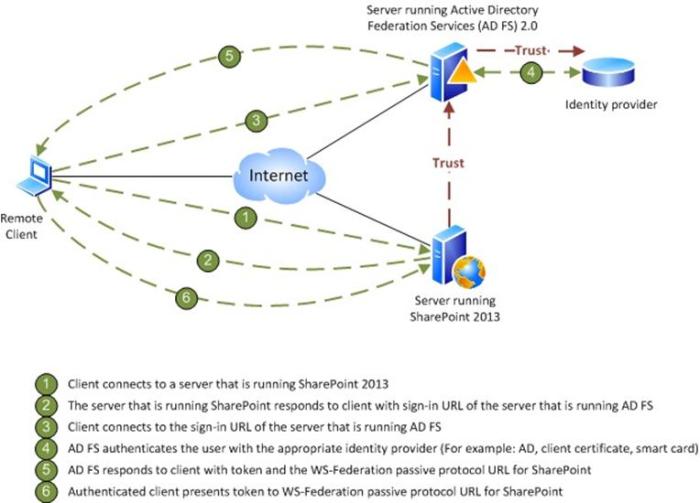 AD FS can authenticate user accounts for several different types of authentication methods, such as forms-based authentication, Active Directory Domain Services (AD DS), client certificates, and smart cards. When you configure SharePoint 2013 as a relying partner of AD FS, SharePoint 2013 trusts the accounts that AD FS validates and the authentication methods that AD FS uses to validate those accounts. This is how SharePoint 2013 supports client certificate authentication.
-
Configure client certificate authentication
The following topics explain how to configure SharePoint 2013 with client certificate authentication or smart card authentication when you use AD FS as your STS:
-
Configure AD FS to support claims-based authentication.
For more information, see AD FS 2.0 – How to change the local authentication type (http://go.microsoft.com/fwlink/p/?LinkId=212513).
-
Configure SharePoint 2013 to support SAML-based claims authentication using AD FS.
For more information, see Configure SAML-based claims authentication with AD FS in SharePoint 2013.
-
Create a web application that uses SAML-based claims authentication.
For more information, see Create claims-based web applications in SharePoint 2013.
 Note:
Note:
These steps will be similar for a third-party STS.
-
Configure availability and recovery solutions for SharePoint 2013
Published: October 16, 2012
Summary: Learn about the options for providing high availability and disaster recovery solutions for SharePoint 2013.
Applies to: SharePoint Foundation 2013 | SharePoint Server 2013
The following downloadable resources, articles on TechNet, video recordings, and related resources provide information about installing and configuring high availability and disaster recovery solutions for a SharePoint 2013 farm.
The articles in this section assume that you are familiar with the concepts and terms presented in High availability and disaster recovery concepts in SharePoint 2013 and Plan for high availability and disaster recovery for SharePoint 2013.
-
TechNet articles about installing and configuring high availability and disaster recovery solutions
The following articles about high availability and disaster recovery solutions are available to view online. Writers update articles on a continuing basis as new information becomes available and as users provide feedback.
Content
Description

Configure SQL Server 2012 AlwaysOn Availability Groups for SharePoint 2013
Describes how to install and configure a SQL Server 2012 AlwaysOn Availability Group for a SharePoint farm.
-
Configure SQL Server 2012 AlwaysOn Availability Groups for SharePoint 2013
Published: October 16, 2012
Summary: Learn how to create and configure a SQL Server 2012 AlwaysOn Availability Group for a SharePoint 2013 farm.
Applies to: SharePoint Server 2013 | SharePoint Server 2013 Enterprise
This article provides the required information and detailed procedures to create and configure a SQL Server 2012 AlwaysOn Availability Group for a SharePoint 2013 farm.
 Important:
The steps in this article apply to both SharePoint Foundation 2013 and SharePoint Server 2013. With both of these products these steps are to deploy a new SharePoint farm and do not cover upgrading from SQL Server 2008 R2 to SQL Server 2012.
In this article:
-
Process overview
We recommend the following installation sequence and key configuration steps to deploy a SharePoint farm that uses an AlwaysOn availability group:
- Select or create a Windows Server failover cluster.
- Install SQL Server 2012 on each cluster node.
- Create and configure an availability group.
- Install and configure SharePoint 2013.
- Add the SharePoint databases to the availability group.
- Test failover for the availability group.
- Select or create a Windows Server failover cluster.
-
Before you begin
A SQL Server 2012 AlwaysOn Availability Group is not just a combination of database mirroring and database clustering. It is a completely new high availability and disaster recovery feature that co-exists with existing high availability and disaster recover options such as mirroring and log shipping.
Before you begin deployment, review the following information about SQL Server AlwaysOn, the technologies that support AlwaysOn, and SharePoint 2013:
- Knowledge and skill requirements
- AlwaysOn Availability Group concepts
- Hardware and software requirements
- Permissions
 Note:
Note:
Because SharePoint 2013 runs as websites in Internet Information Services (IIS), administrators and users depend on the accessibility features that browsers provide. SharePoint 2013 supports the accessibility features of supported browsers. For more information, see the following resources:
- Plan browser support
- Accessibility for SharePoint Products
- Accessibility features in SharePoint 2013 Products
- Keyboard shortcuts
- Touch
-
Knowledge and skill requirements
To implement SQL Server AlwaysOn Availability Groups as a high availability and disaster recovery solution, several technologies interact and have to be installed and configured correctly. We recommend that the team responsible for setting up an AlwaysOn environment for SharePoint products has a working knowledge of, and hands-on skills with the following technologies:
- Windows Server Failover Clustering (WSFC) services
- SQL Server 2012
-
SharePoint 2013
-
SQL Server AlwaysOn Availability Group concepts
-
A SQL Server Availability Group enables you to specify a set of databases that you want to fail over together as a single entity. When an availability group fails over to a target instance or target server, all the databases in the group fail over also. Because SQL Server 2012 can host multiple availability groups on a single server, you can configure AlwaysOn to fail over to SQL Server instances on different servers. This reduces the need to have idle high performance standby servers to handle the full load of the primary server, which is one of the many benefits of using availability groups.
An availability group consists of the following components:
- Replicas, which are a discrete set of user databases called availability databases that fail over together as a single unit. Every availability group supports one primary replica and up to four secondary replicas.
- A specific instance of SQL Server to host each replica and to maintain a local copy of each database that belongs to the availability group.
Replicas and failover
The primary replica makes the availability databases available for read-write connections from clients and sends transaction log records for each primary database to every secondary replica. Each secondary replica applies transaction log records to its secondary databases.
All replicas can run under asynchronous-commit mode, or up to three of them can run under synchronous-commit mode. For more information about synchronous and asynchronous commit mode, see Availability Modes (AlwaysOn Availability Groups).
 Note:
Note:
Database issues, such as a database becoming suspect due to a loss of a data file, deletion of a database, or corruption of a transaction log do not cause failovers.
Read the following articles to learn required and important concepts about SQL Server AlwaysOn technology:
- For details about the benefits of AlwaysOn Availability Groups and an overview of AlwaysOn Availability Groups terminology, see AlwaysOn Availability Groups (SQL Server).
-
For detailed information about prerequisites, see Prerequisites, Restrictions, and Recommendations for AlwaysOn Availability Groups (SQL Server). This article contains the following information:
- Windows Server system requirements and recommendations
-
SQL Server instance prerequisites and restrictions
 Important:
You can install SQL Server 2012 on Windows Server core to improve security and reduce maintenance, but you cannot install SharePoint 2013 on Windows Server core. For more information, see Server Core for Windows Server 2008 R2 [Server Core for Windows Server 2008 R2. For information about server core and Windows Server 2012, see Windows Server Installation Options.
- Prerequisites and restrictions for using a SQL Server Failover Cluster Instance (FCI) to host an availability replica
- Windows Server system requirements and recommendations
- Availability group prerequisites and restrictions
-
Availability database prerequisites and restrictions
-
Windows Server Failover Clustering
-
To create and use SQL Server 2012 AlwaysOn Availability Groups, you have to install SQL Server 2012 on a Windows Server Failover Clustering (WSFC) cluster. For more information, see Windows Server Failover Clustering (WSFC) with SQL Server.
Although configuring a WSFC cluster is out of the scope for this article, you should be aware of the following requirements before you install and configure a cluster:
- All the cluster nodes must be in the same Active Directory Domain Services (AD DS) domain.
- Each availability replica in an availability group must reside on a different node of the same Windows Server Failover Clustering (WSFC) cluster.
-
The cluster creator must have the following accounts and permissions:
- Have a domain account in the domain where the cluster will exist.
- Have local administrator permissions on each cluster node.
- Have Create Computer objects and Read All Properties permissions in AD DS. For more information, see Failover Cluster Step-by-Step Guide: Configuring Accounts in Active Directory or Active Directory Domain Services for Windows Server 2012.
- Have a domain account in the domain where the cluster will exist.
A very important aspect of configuring failover clustering and AlwaysOn is determining the quorum votes that are needed for the cluster nodes.
Failover clustering is based on a voting algorithm where more than one half of the voters, or quorum, must be online and able to communicate with each other. Because a given cluster has a specific number of nodes and a specific quorum configuration, the cluster service is able to determine what constitutes a quorum. The cluster service will stop on all the nodes if the number of voters drops below the required majority.
For more information, see WSFC Quorum Modes and Voting Configuration (SQL Server) and Configure Cluster Quorum NodeWeight Settings.
-
SharePoint Foundation 2013 and SharePoint Server 2013
Some SharePoint 2013 databases do not support SQL Server AlwaysOn Availability Groups. We recommend that you review the Supported high availability and disaster recovery options for SharePoint databases before you configure an AlwaysOn environment. You should also review the Hardware and software requirements for SharePoint 2013 article.
- Knowledge and skill requirements
-
Detailed steps to configure an AlwaysOn Availability Group for SharePoint
The following illustration shows a SharePoint 2013 farm (SPHA_farm) that uses an availability group named SP_AG1. We’ll use SPHA_farm as reference example in our steps to configure AlwaysOn.

-
Prepare the Windows Server cluster environment
Obtain access to or create a three node Windows Server Failover Clustering (WSFC) cluster that you can use to install SQL Server 2012 on each cluster node. The following reference material provides guidance and detailed steps to configure a Windows Server failover cluster:
-
This page provides links to Getting Started, Deployment, Operations, and Troubleshooting articles for Windows Server 2008 R2.
-
This page provides links to Getting Started, Deployment, Operations, and Troubleshooting articles for Windows Server 2012.
-
Prepare the SQL Server environment
-
Before you can create an Availability Group for SharePoint Foundation 2013 or SharePoint Server 2013, you must prepare the SQL Server 2012 environment. To prepare the environment, complete the following tasks:
- Install the SQL Server prerequisites.
- Install SQL Server.
- Enable Named Pipes.
- Enable AlwaysOn.
When you prepare the database server environment you must consider SharePoint 2013 database requirements. Refer to the following articles before you install SQL Server:
- Hardware requirements—database servers
- Install SharePoint 2013
- Configure SQL Server security for SharePoint 2013 environments
-
Supportability regarding SQL collation for SharePoint Databases and TempDB. (This guidance in this article also applies to SharePoint 2013.)
-
Install SQL Server 2012
-
To install SQL Server 2012
-
-
Install SQL Server 2012 prerequisites on each cluster node.
For more information, see Prerequisites, Restrictions, and Recommendations for AlwaysOn Availability Groups (SQL Server).
-
Install SQL Server on each cluster node.
For more information, see Installation for SQL Server 2012.
-
Enable Named Pipes
Named Pipes is required for an AlwaysOn Availability Group. Use the following procedure to enable Named Pipes for SQL Server.
To enable Named Pipes
- Make sure that the logon has the required credentials. To change a network configuration for the database engine, you must be a member of the sysadmin fixed server role.
- Log on to the server that will host the primary replica and start SQL Server Management Studio.
- Expand SQL Server Network Configuration and then click Protocols for<instance name>.
- In the details pane, right-click Named Pipes and then click Enable from the list of available options.
- In the console pane, click SQL Server Services.
- In the details pane, right-click SQL Server ( <instance name> ) and then click Restart, to stop and restart SQL Server.
- Repeat the previous steps to enable Named Pipes for SQL Server on the other cluster nodes.
-
Enable AlwaysOn
After you enable Named Pipes, you must enable AlwaysOn for each of the database servers in the cluster.
 Note:
Note:
You can enable AlwaysOn by using SQL Server Management Studio, Transact-SQL, or Windows PowerShell 3.0.
To enable AlwaysOn
- Make sure that your logon account has the required permissions to create an availability group. The account must have membership in the db_owner fixed database role and either CREATE AVAILABILITY GROUP server permission, CONTROL AVAILABILITY GROUP permission, ALTER ANY AVAILABILITY GROUP permission, or CONTROL SERVER permission.
- Log on to the server that will host the primary replica and start SQL Server Management Studio.
- In Object Explorer, select SQL Server Services, right-click SQL Server (<instance name>), where <instance name> is the name of a local server instance for which you want to enable AlwaysOn Availability Groups, and then click Properties.
- Select the AlwaysOn High Availability tab.
- Select the Enable AlwaysOn Availability Groups check box, and then click OK.
- Although the change is saved you must manually restart the SQL Server service (MSSQLSERVER) to commit the change. The manual restart enables you to choose a restart time that is best for your business requirements.
- Repeat the previous steps to enable AlwaysOn for SQL Server on the other cluster nodes.
For more information, see Enable and Disable AlwaysOn Availability Groups (SQL Server).
-
Create and configure the availability group
Depending on the SQL Server 2012 environment where you plan to create the Availability Group, you might have to create a temporary database to before you create the Availability Group.
The process that creates an availability group requires you to provide a name for the availability group and then select an eligible user database on the connected server instance as an availability database.
 Note:
Note:
To be eligible to be added to an availability group, a database must be a user database. System databases cannot belong to an availability group. For more information, see the “Availability Database Prerequisites and Restrictions” section of Prerequisites, Restrictions, and Recommendations for AlwaysOn Availability Groups (SQL Server) and see Creation and Configuration of Availability Groups (SQL Server).
If there no user databases are on the instance of the connected server, which is the case in our example, you need to create one.
Use the following procedure to create a temporary user database that will be a temporary primary replica for the group.
To create a temporary user database
- Make sure that your logon account has the correct permissions for this task. You require one of the following permissions in the master database to create the new database:
- CREATE DATABASE
- CREATE ANY DATABASE
- ALTER ANY DATABASE
- Log on to the server that will host the primary replica, which is SP-SRV1 in our example.
- Start Management Studio.
- In Object Explorer, right-click Databases and then click New Database.
-
In the New Database dialog box, type the Database name:, which is “TemporaryUserDB” for this example.
Because this is a temporary database that you delete after you create the availability group, you can use the default settings. Click OK.
Because the New Availability Group Wizard will not create an availability group unless the user database was backed up, you have to back up the temporary database.
- In Object Explorer expand Databases and right-click the temporary database that you just created. Pick Tasks and then choose Back Up.
- In the Back Up Database dialog box, click OK to accept all the default settings and create the back up.
-
About replicas and data synchronization
About replicas
Every availability replica is assigned an initial role—either the primary role or the secondary role, which the availability databases of that replica inherit. The role of a given replica determines whether it hosts read-write databases or read-only databases, the type of failover and whether it uses synchronous commit or asynchronous commit.
The following table shows the information that you have to provide for each replica, either when you first create the availability group, or when you add secondary replicas.
-
Replica configuration requirements
|
Replica information |
Description |
|
Server Instance |
Displays the name of the instance of the server that will host the availability replica. |
|
Initial Role |
Indicates the role that the new replica will first perform: Primary or Secondary. |
|
Automatic Failover (Up to 2) |
Indicates the type of failover that the replica uses: automatic or manual. |
|
Synchronous Commit (Up to 3) |
Indicates the type of commit that is used for the replica. |
|
Readable Secondary |
Indicates whether a secondary replica can be read. The configuration options are unavailable for read access, read-only, and read-only intent. For more information, see Readable Secondary Replicas (AlwaysOn Availability Groups).
Readable secondary replicas are currently not supported for SharePoint 2013 runtime usage. |

 Note:
Note:
When you add replicas to a group, you will also provide the endpoint for each replica and configure backup preferences. For more information, see Specify the Endpoint URL When Adding or Modifying an Availability Replica (SQL Server) and Backup on Secondary Replicas (AlwaysOn Availability Groups).
Data synchronization
As part of the availability group creation process, you have to make an exact copy of the data on the primary replica and install the copy on the secondary replica. This is the initial data synchronization for the Availability Group. For more information, see Select Initial Data Synchronization Page (AlwaysOn Availability Group Wizards).
A network share must exist and must be accessed by all the nodes in the AlwaysOn configuration to do the initial data synchronization between all the cluster nodes that host a replica. For more information, see Network Shares Extension and File Services.
The following restrictions exist when you use the New Availability Group wizard to start data synchronization:
- If the file paths on the secondary replica location differ from the file paths on the primary location, you have to start data synchronization manually.
- If any secondary database exists on a secondary replica, you have to manually delete the secondary databases before you start data synchronization in the New Availability Group. However, if you want to use existing secondary databases, exit the New Availability Group wizard and start data synchronization manually.
- To use the availability group wizard to synchronize data, you have to have a backup share that all the replicas can write to. You can specify the share by browsing to it or by entering its fully qualified universal naming convention (UNC) path name, \\Systemname\ShareName\Path\, in the Specify a shared network location accessible by all replicas box.
For each database in the availability group, the Start Data Synchronization page shows the progress of the following operations:
- Creating a full database backup of the primary database on the network share.
- Creating a full database backup of the primary database on the network share.
-
Restoring these backups to the secondary replica location.
These restore operations both use RESTORE WITH NORECOVERY option and leave the new secondary database in the RESTORING state.
-
Joining the secondary database to the availability group.
This step puts the secondary database in the ONLINE state and starts data synchronization for this database.
Login replication
SharePoint logins that are created by using the same approach as in previous releases of SQL Server are not replicated in an availability group. This occurs because login information is stored in the MasterDB database, which is not replicated. Although the farm accounts are created when replicas are synchronized, login information is not available after a failover.
If you have already created an availability group and synchronized the primary and secondary replicas, the workaround is to manually copy the logins from the primary replica to the secondary replicas.
SQL Server 2012 introduces the concept of Users with Passwords for Contained Databases. The database itself stores all the database metadata and user information, and a user who is defined in this database does not have to have a corresponding login. The information in this database is replicated by the availability group and is available after a failover. For more information, see Contained Databases.
 Important:
If you create a new SharePoint login to use for an existing availability group, make sure to add the login to the contained database so it is replicated to each server that is hosting a SQL Server instance for the availability group. For example, if you create another application pool for a Web App and give it a new identity (an application pool account that you have not used), then you need to add that account as a login.
-
Create and configure the availability group
Use the following procedure to create an availability group on the primary replica, which is SP-SRV1 in our example.
-
Create the availability group
- Make sure that your logon account has the required permissions to create an availability group. This requires membership in the db_owner fixed database role and either CREATE AVAILABILITY GROUP server permission, CONTROL AVAILABILITY GROUP permission, ALTER ANY AVAILABILITY GROUP permission, or CONTROL SERVER permission.
- Log on to the server that will host the primary replica and start SQL Server Management Studio.
- To start the New Availability Group Wizard, right-click AlwaysOn High Availability and then click New Availability Group Wizard.
-
Click Next to advance to the Specify Name page. Enter SP-AG1 as the name of the new availability group in the Availability group name: box.
This name must be: a valid SQL Server identifier, unique on the Windows Server Failover Clustering cluster and unique on the domain.
- On the Select Databases page, all user databases that are eligible to become the primary database for the new availability group are listed on the User databases on this instance of SQL Server grid. Select TemporaryUserDB, and then click Next.
- On the Specify Replicas page, use the following tabs to configure the replicas for SP-AG1: Replicas, Endpoints, and Backup Preferences.
-
On the Listener tab, configure an availability group listener for our example.
An availability group listener is a server name to which clients can connect r to access a database in a primary or secondary replica of an availability group. Availability group listeners direct incoming connections to the primary replica or to a read-only secondary replica. The listener provides fast application failover after an availability group fails over. For more information, see Availability Group Listeners, Client Connectivity, and Application Failover (SQL Server).
 Important:
Intermittent, unusually high latency might occur when you use availability groups that have replicas that are deployed on multiple subnets.
As a best practice, connections to SharePoint availability groups in a multi-subnet environment should configure specifyMultiSubnetFailover=True to avoid issues caused by high network latency. For more information, see Supporting Availability Group Multi-Subnet Failovers.
You cannot directly specify MultiSubnetFailover=True because a SharePoint client cannot directly modify a connection string. You must use Windows PowerShell to set this value on the MultiSubnetFailover database property. The following example shows how to do this.
C#
$dbs = Get-SPDatabase | ?{$_.MultiSubnetFailover –ne $true}
foreach ($db in $dbs)
{
$db.MultiSubnetFailover = $true
$db.Update()
}
- Select the desired configuration for each instance in the Selected instances grid, and then click Next.
- Click Finish to create the availability group.
- The Select Initial Data Synchronization page lets you select a synchronization preference and specify the shared network location that all replicas can access. For our environment accept the default, Full, which performs full database and log backups. Click Next.
- The Validation page of the wizard displays the results of six checks before it lets you continue with availability group creation. If all checks pass, click Next to continue. If any tests fail, you cannot continue until you correct the error and then click Re-run Validation to run the validation tests again. When all the tests pass, click Next to continue.
- On the Summary page, verify the configuration of the replica that you are adding and then click Finish to save it. To change the configuration, click Previous to return to previous wizard pages.
-
Install and configure SharePoint 2013
At this point in the process, you can install SharePoint 2013 and create the farm. Use the following procedure as a guide to install and configure SharePoint 2013.
 Note:
Note:
For detailed installation and configuration instructions, see Prepare for installation of SharePoint 2013 and Install SharePoint 2013.
To install SharePoint 2013
- Copy the SharePoint 2013 program files to a local disk on the computer where you plan to install SharePoint products or to a network file share.
- Run the Microsoft SharePoint Products Preparation Tool to install all the prerequisites to set up and use SharePoint 2013.
- Run Setup to install binaries, configure security permissions, and edit registry settings for SharePoint 2013.
- Run the SharePoint Products Configuration Wizard to install and configure the configuration database, install and configure the content database, and install the SharePoint Central Administration website.
 Note:
Note:
When you run the configuration wizard, you have to identify the server that will host the SharePoint databases. On the Specify Configuration Database Settings page, in the Database server box, type SP-SRV1 as the name of the computer that is running SQL Server.
To finalize setup of AlwaysOn for a SharePoint 2013 farm, add the SharePoint databases to the availability group and synchronize secondary replicas to the primary replica.
 Important:
Only add the databases that are supported for use with a SQL Server AlwaysOn Availability Group.
On the server that hosts the primary replica, you have to run the Add Databases to Availability Group wizard to add all the SharePoint databases to the availability group. The following procedure is the same as the procedure that we described to create the availability group.
To add SharePoint databases to the availability group
-
Log on to the server that will host the primary replica and start SQL Server Management Studio.
The account that that you use must be a member of the Local Administrators group for each server where you install SharePoint 2013
In addition, the account must have at least one of the following permissions:
- ALTER AVAILABILITY GROUP permission on the availability group
- CONTROL AVAILABILITY GROUP permission
- ALTER ANY AVAILABILITY GROUP permission
-
CONTROL SERVER permission
To join a database to availability group requires membership in the db_owner fixed database role.
- In Object Explorer, browse to, and if it is necessary expand the Availability Groups.
- Right-click the example group, SP-AG1, and then click Add Database.
- On the Select Databases page, all user databases that are eligible to become the primary database for the new availability group are listed on the User databases on this instance of SQL Server grid. Use the checkboxes to select all the databases that you want to add to the group, and then click Next.
- The Select Initial Data Synchronization page lets you select a synchronization preference and specify the shared network location that all replicas can access. For our environment we’ll accept the default, Full, which performs full database and log backups. Click Next.
- The Validation page of the wizard displays the results of six checks before it lets you continue with availability group creation. If any tests fail, you cannot continue until you correct the error and then click Re-run Validation to run the validation tests again. When all the tests pass, click Next to continue.
- On the Summary page, verify the configuration of the replica that you are adding, and then click Finish to keep it. To change the configuration, click Previous to return to previous wizard pages.
 Important:
Databases that you add to a SharePoint farm are not automatically added to the availability group. You must add them by using the steps described in this article or by using scripts to automate the procedure.
-
Use failover tests to validate the AlwaysOn installation
After you synchronize the SharePoint data with the secondary replicas, the final step is to test failover.
You must run extensive failover tests to make sure that the behavior of the AlwaysOn environment is as expected and that you completely understand the configuration requirements and procedures related to SQL Server 2012Availability Groups. These tests include and are not limited to the following:
- Verify that all the farm services and features are completely functional.
- Verify that SharePoint 2013 data is preserved and not corrupted.
Test availability group failover by using either the planned manual failover described in Perform a Planned Manual Failover of an Availability Group (SQL Server) or the forced manual failover described in Perform a Forced Manual Failover of an Availability Group (SQL Server).
You can perform either of the previous failovers by using the Failover Wizard in SQL Server Management Studio, Transact-SQL, or Windows PowerShell in SQL Server 2012.
 Note:
Note:
In an Active-Active failover cluster scenario where there are multiple SharePoint instances can fail over to each other you must ensure that each server has enough capacity to handle the local workload and the workload from the failed server.
- Verify that all the farm services and features are completely functional.
-
Monitor the AlwaysOn environment
You have to monitor an AlwaysOn environment for performance, health, and capacity.
Performance
New performance objects, SQLServer:Database Replica and SQLServer:Availability Replica, are available to monitor an AlwaysOn environment.
Health and capacity
For general health monitoring you can use the Availability Groups Dashboard to obtain the health of the availability groups in the system. We recommend that you refer to the following posts on the official SQL Server AlwaysOn team blog to fully understand AlwaysOn health monitoring.
- The AlwaysOn Health Model Part 1 — Health Model Architecture
- The AlwaysOn Health Model Part 2 — Extending the Health Model
You can also use Transact-SQL to monitor availability groups by using the set of catalog and dynamic management views that are provided for AlwaysOn Availability Groups. For more information, see Monitor Availability Groups (Transact-SQL).
- The AlwaysOn Health Model Part 1 — Health Model Architecture
-
Configure email integration for a SharePoint 2013 farm
Published: July 16, 2012
Summary: Use these TechNet articles to learn how to configure incoming and outgoing email for a SharePoint 2013 farm.
Applies to: SharePoint Foundation 2013 | SharePoint Server 2013
The following articles on TechNet provide information about email integration. After you install SharePoint 2013, you can configure incoming and outgoing email. These optional settings are useful if you want to work with email in the server farm.
-
TechNet articles about email integration
The following articles about email integration are available to view online. Writers update articles on a continuing basis as new information becomes available and as users provide feedback.

Content
Description
This article describes how to configure incoming email so that SharePoint 2013 sites accept and archive incoming email. It also describes how to configure incoming email so that SharePoint sites can archive email discussions as they happen, save attachments, and show meetings that were sent and received by email on site calendars. In addition, this article describes how to configure the SharePoint Directory Management Service to provide support for email distribution list creation and management.
This article describes how to configure outgoing email so that your Simple Mail Transfer Protocol (SMTP) server sends email alerts to site users and notifications to site administrators.
-
Configure incoming email for a SharePoint 2013 farm
Published: July 16, 2012
Summary: Learn how to install and configure the SMTP service, prepare your environment, and configure incoming email for a SharePoint 2013 farm.
Applies to: SharePoint Foundation 2013 | SharePoint Server 2013
This article describes how to configure incoming email for SharePoint 2013. This article also describes how to install and configure the SMTP service that you must use to enable incoming email.
When incoming email is enabled, SharePoint sites can receive and store email messages and attachments in lists and libraries. This article describes two scenarios, one basic and one advanced. The basic scenario applies to a single-server farm environment and is recommended if you want to use default settings. The advanced scenario applies to a single-server farm or a multiple-server farm and contains several advanced options from which to choose. For more information, see Plan incoming email (SharePoint 2013 Preview).
In this article:
- Before you begin
- Install and configure the SMTP service
- Configure incoming email in a basic scenario
- Configure incoming email in an advanced scenario
- Prepare your environment for incoming email in an advanced scenario
- Are attachments missing from email messages that are sent to a SharePoint document library?
- Before you begin
-
Before you begin
 Note:
Note:
Because SharePoint 2013 runs as websites in Internet Information Services (IIS), administrators and users depend on the accessibility features that browsers provide. SharePoint 2013 supports the accessibility features of supported browsers. For more information, see the following resources:
- Plan browser support
- Accessibility for SharePoint Products
- Accessibility features in SharePoint 2013 Products
- Keyboard shortcuts
- Touch
Before you begin this operation, review the following information about prerequisites:
- Your system is running SharePoint 2013.
- You have read Plan incoming email (SharePoint 2013 Preview).
- For the basic scenario, each SharePoint front-end web server must be running the Simple Mail Transfer Protocol (SMTP) service and the SharePoint Foundation Web Application service.
- For the advanced scenario, you can use one or more servers in the server farm to run the SMTP service and to have a valid SMTP server address. Alternatively, you must know the name of a server outside the farm that is running the SMTP service and the location of the email drop folder.
If you have not installed and configured the SMTP service and do not choose to use an email drop folder, you must complete the steps in Install and configure the SMTP service before you configure incoming email.
- Plan browser support
-
Install and configure the SMTP service
Incoming email for SharePoint 2013 uses the SMTP service. You can use the SMTP service in one of two ways. You can install the SMTP service on one or more servers in the farm, or administrators can provide an email drop folder for email that is forwarded from the service on another server. For more information about the email drop folder option, see Plan incoming email (SharePoint 2013 Preview).
-
Install the SMTP service
If you are not using a drop folder for email, the SMTP service must be installed on every front-end web server in the farm that you want to configure for incoming email. To install the SMTP service, use the Add Features Wizard in Server Manager. After you complete the procedure, the SMTP service is installed on the front-end web server.
To install the SMTP service
-
- Verify that the user account that is performing this procedure is a member of the Administrators group on the front-end web server.
- Click Start, point to Administrative Tools, and then click Server Manager.
- In Server Manager, click Features.
- In Features Summary, click Add Features to open the Add Features Wizard.
- On the Select Features page, select SMTP Server.
- In the Add Features Wizard dialog box, click Add Required Roll Services, and then click Next.
- On the Confirm Installation Selections page, click Install.
- On the Installation Results page, ensure that the installation finished successfully, and then click Close.
-
Install IIS 6.0 Management tools
To manage the SMTP service on Windows Server 2008 and Windows Server 2008 R2, you must use Internet Information Services (IIS) 6.0 Manager.
To install IIS 6.0 Manager
- Verify that you have the following administrative credentials:
- You must be a member of the Administrators group on the front-end web server.
- Click Start, point to Administrative Tools, and then click Server Manager.
- In Server Manager, click Roles.
- In Application Server section, click Add Role Services.
- On the Select Role Services page, select Management Tools and IIS 6 Management compatibility, and then click Install.
-
Configure the SMTP service
After you install the SMTP service, you configure it to accept email from the mail server for the domain. You can decide to accept relayed email from all servers except those that you specifically exclude. Alternatively, you can block email from all servers except those that you specifically include. You can include servers individually, in groups by subnet, or in groups by domain.
After you configure the service, set it to start automatically.
To configure the SMTP service
- Verify that the user account that is performing this procedure is a member of the Administrators group on the front-end web server.
- Click Start, point to Administrative Tools, and then click Internet Information Services (IIS) 6.0 Manager.
- In IIS Manager, expand the server name that contains the SMTP server that you want to configure.
- Right-click the SMTP virtual server that you want to configure, and then click Start.
- Right-click the SMTP virtual server that you want to configure, and then click Properties.
- On the Access tab, in the Access control area, click Authentication.
- In the Authentication dialog box, verify that Anonymous access is selected.
- Click OK.
- On the Access tab, in the Relay restrictions area, click Relay.
- To enable relaying from any server, click All except the list below.
-
To accept relaying from one or more specific servers, follow these steps:
- Click Only the list below.
- Click Add, and then add servers one at a time by IP address, or in groups by using a subnet or domain.
- Click OK to close the Computer dialog box.
- Click Only the list below.
- Click OK to close the Relay Restrictions dialog box.
- Click OK to close the Properties dialog box.
To set the SMTP service to start automatically
- Click Start, point to Administrative Tools, and then click Services.
- In Services, right-click Simple Mail Transfer Protocol (SMTP), and then select Properties.
- In the Simple Mail Transfer Protocol (SMTP) Properties dialog box, on the General tab, in the Startup type list, select Automatic.
- Click OK.
-
Configure incoming email in a basic scenario
You can use the following procedure to configure incoming email in a basic scenario by selecting the Automatic settings mode and using the default settings. After you complete the procedure, users can send email to lists and libraries.
To configure incoming email in a basic scenario
- Verify that the user account that is performing this procedure is a member of the Administrators group on the server that is running the SharePoint Central Administration website.
- In Central Administration, click System Settings.
- On the System Settings page, in the E-Mail and Text Messages (SMS) section, click Configure incoming e-mail settings.
- If you want to enable sites on this server to receive email, on the Configure Incoming E-Mail Settings page, in the Enable Incoming E-Mail section, click Yes.
- Select the Automatic settings mode.
- In the Incoming E-Mail Server Display Address section, in the E-mail server display address box, type a display name for the email server, for example, mail.fabrikam.com.
- Use the default settings for all other sections, and then click OK.
After you configure incoming email, users who have Manage Lists permissions can configure email–enabled lists and document libraries.
-
Configure incoming email in an advanced scenario
You can use the following procedure to configure incoming email in an advanced scenario by selecting the Advanced settings mode and additional options that you want to use for your incoming email environment. After you complete the procedure, users can send email to lists and libraries.
You can also use the Automatic settings mode in an advanced scenario. In the Automatic settings mode, you can select to receive email that has been routed through a safe-email server application. In the Advanced settings mode, you can instead specify a drop folder. For more information, see Plan incoming email (SharePoint 2013 Preview).
Several of these steps mention prerequisite procedures that are documented in Prepare your environment for incoming email in an advanced scenario later in this article.
- Verify that the user account that is performing this procedure is a member of the Administrators group on the server that is running the SharePoint Central Administration website.
- In Central Administration, click System Settings.
- On the System Settings page, in the E-Mail and Text Messages (SMS) section, click Configure incoming e-mail settings.
- If you want to enable sites on this server to receive email, on the Configure Incoming E-mail Settings page, in the Enable Incoming E-Mail section, click Yes.
-
Select the Advanced settings mode.
You can specify a drop folder instead of using an SMTP server.
 Note:
Note:
You can also select the Automatic settings mode and select whether to use Directory Management Service and whether to accept email from all email servers or from several specified email servers. For more information, see Plan incoming email (SharePoint 2013 Preview).
-
If you want to connect to Directory Management Service, in the Directory Management Service section, click Yes.
If you select this option, you must first configure Active Directory Domain Services (AD DS). If you use Exchange Server, you must also configure the DNS Manager and add an SMTP connector. For more information, see Configure AD DS to be used with Directory Management Service, Configure DNS Manager, and Add an SMTP connector in Microsoft Exchange Server 2010 later in this article.
- In the Active Directory container where new distribution groups and contacts will be created box, type the name of the container in the format OU=ContainerName, DC=domain, DC=com, where ContainerName is the name of the OU in AD DS, domain is the second-level domain, and com is the top-level domain.
The application pool identity account for Central Administration must be delegated the Create, delete, and manage user accounts task for the container. Access is configured in the properties for the OU in AD DS.
- In the SMTP mail server for incoming mail box, type the name of the SMTP mail server. The server name must match the FQDN in the A resource record entry for the mail server in DNS Manager.
- To accept messages only from authenticated users, click Yes for Accept messages from authenticated users only. Otherwise, click No.
- To enable users to create distribution groups from SharePoint sites, click Yes for Allow creation of distribution groups from SharePoint sites. Otherwise, click No.
- Under Distribution group request approval settings, select the actions that will require approval. Actions include the following:
- In the Active Directory container where new distribution groups and contacts will be created box, type the name of the container in the format OU=ContainerName, DC=domain, DC=com, where ContainerName is the name of the OU in AD DS, domain is the second-level domain, and com is the top-level domain.
- Create new distribution group
- Change distribution group e-mail address
- Change distribution group title and description
- Delete distribution group
-
If you want to use a remote Directory Management Service, select Use remote and complete the remainder of this step. Otherwise, click No and proceed to step 8.
If you select this option and you are using Exchange Server, you must configure the DNS Manager and add an SMTP connector. For more information, see Configure DNS Manager and Add an SMTP connector in Microsoft Exchange Server 2010 later in this article. The AD DS has most likely already been configured, so you do not need to do this.
- In the Directory Management Service URL box, type the URL of the Directory Management Service that you want to use. The URL is typically in the following format: http://server:adminport/_vti_bin/SharePointEmailWS.asmx.
- In the SMTP mail server for incoming mail box, type the name of the SMTP mail server. The server name must match the FQDN in the A resource record entry for the mail server in DNS Manager on the domain server.
- To accept messages from authenticated users only, click Yes for Accept messages from authenticated users only. Otherwise, click No.
- To allow creation of distribution groups from SharePoint sites, click Yes for Allow creation of distribution groups from SharePoint sites. Otherwise, click No.
- In the Directory Management Service URL box, type the URL of the Directory Management Service that you want to use. The URL is typically in the following format: http://server:adminport/_vti_bin/SharePointEmailWS.asmx.
- In the Incoming E-Mail Server Display Address section, in the E-mail server display address box, type a display name for the email server (for example, mail.fabrikam.com). You typically use this option together with the Directory Management Service.
 Tip:
Tip:
You can specify the email server address that is displayed when users create an incoming email address for a list or group. Use this setting together with Directory Management Service to provide an email server address that is easy to remember.
-
In the E-Mail Drop Folder section, in the E-mail drop folder box, type the name of the folder from which the Windows SharePoint Services Timer service retrieves incoming email from the SMTP service. This option is available only if you selected Advanced settings mode. If you select this option, ensure that you configure the necessary permissions to the email drop folder. For more information, see Configure permissions to the email drop folder later in this article.
It is useful to have a dedicated email drop folder if the default email drop folder is full or almost full.
Ensure that the logon account for the SharePoint Timer service has Modify permissions on the email drop folder. For more information, see To configure email drop folder permissions for the logon account for the SharePoint Timer service later in this article.
-
In the Safe E-Mail Servers section, select whether you want to accept email from all email servers or from specific email servers.
This option is available only if you selected Automatic settings mode.
- Click OK.
After you configure incoming email, site administrators can configure email–enabled lists and document libraries.
If you selected Directory Management Service, contact addresses that are created for document libraries appear automatically in Active Directory Users and Computers. The addresses are displayed in the OU of AD DS for SharePoint 2013 and must be managed by the administrator of AD DS. The AD DS administrator can add more email addresses for each contact. For more information about AD DS, see Using Active Directory Service in the TechNet Library.
Alternatively, you can configure the computer running Exchange Server by adding a new Exchange Server Global recipient policy. The policy automatically adds external addresses that use the second-level domain name and not the subdomain or host name for SharePoint 2013. For more information about how to manage Exchange Server, see Recipient Configuration Node in the Exchange Server Technical Library.
-
Prepare your environment for incoming email in an advanced scenario
Before you configure incoming email in an advanced scenario, you need to perform additional procedures depending on how you want your incoming email environment to work.
If you want to use Directory Management Service, you must first configure AD DS, and if you use Exchange Server, you must also configure the DNS Manager and add an SMTP connector.
If you want to use a specific email drop folder, ensure that you configure the necessary permissions to the email drop folder.
In this section:
- Configure AD DS to be used with Directory Management Service
- Configure DNS Manager
- Add an SMTP connector in Microsoft Exchange Server 2010
If you plan to use Directory Management Service, you should first create an organizational unit (OU) and make the necessary configurations in AD DS.
To use Directory Management Service on a SharePoint farm, you must configure the application pool identity account for the SharePoint Central Administration website to have the Create, delete, and manage user accounts user right to the container that you specify in AD DS. The preferred way to do this is by assigning the right to the application pool identity account for the SharePoint Central Administration website. An AD DS administrator must set up the OU and assign the Create, delete, and manage user accounts right to the container. The advantage of using Directory Management Service on a remote server farm is that you do not have to assign rights to the OU for multiple farm service accounts.
The following procedures are performed on a domain controller that runs Windows Server 2008 with DNS Manager. In some deployments, these applications might run on multiple servers in the same domain.
To create an OU in AD DS
- Configure AD DS to be used with Directory Management Service
- Verify that the user account that is performing this procedure is a member of the Domain Administrators group or a delegated authority for domain administration on the domain controller that is running DNS Manager.
- Click Start, point to Administrative Tools, and then click Active Directory Users and Computers.
- In Active Directory Users and Computers, right-click the folder for the second-level domain that contains your server farm, point to New, and then click Organizational Unit.
-
Type the name of the OU, and then click OK.
After you create the OU, you must delegate the Create, delete, and manage user accounts right to the container of the OU to manage the user accounts.
To delegate the right to the application pool identity account for Central Administration
- Verify that the user account that is performing this procedure is a member of the Domain Administrators group or the Enterprise Administrators group in AD DS, or a delegated authority for domain administration.
- In Active Directory Users and Computers, find the OU that you created.
- Right-click the OU, and then click Delegate control.
- On the Welcome page of the Delegation of Control Wizard, click Next.
- On the Users and Groups page, click Add, and then type the name of the application pool identity account that the Central Administration uses.
- In the Select Users, Computers, and Groups dialog box, click OK.
- On the Users or Groups page of the Delegation of Control Wizard, click Next.
- On the Tasks to Delegate page of the Delegation of Control Wizard, select the Create, delete, and manage user accounts check box, and then click Next.
- On the last page of the Delegation of Control Wizard, click Finish to exit the wizard.
To create and delete child objects, you must also delegate Create all Child Objects and Delete all Child Objects control of the OU to the application pool identity account for Central Administration. After you complete this procedure, the application pool identity account for Central Administration has Create all Child Objects and Delete all Child Objects control on the OU, and you can enable incoming email.
To delegate Create all Child Objects and Delete all Child Objects control of the OU to the application pool identity account for Central Administration
- Verify that the user account that is performing this procedure is a member of the Domain Administrators group or the Enterprise Administrators group in AD DS, or a delegated authority for domain administration.
- Right-click the OU, and then click Delegate control.
- In the Delegation of Control Wizard, click Next.
- Click Add, and then type the name of the application pool identity account for Central Administration.
- Click OK.
- Click Next.
- On the Tasks to Delegate page of the Delegation of Control Wizard, select Create a custom task to delegate, and then click Next.
- Click This folder, existing objects in this folder, and creation of new objects in this folder, and then click Next.
- In the Permissions section, select Create all Child Objects and Delete all Child Objects.
- Click Next.
- On the last page of the Delegation of Control Wizard, click Finish to exit the wizard.
Delegating Create all Child Objects and Delete all Child Objects control of the OU to the application pool identity account for Central Administration enables administrators to enable email for a list. After these controls have been delegated, administrators cannot disable email for the list or document library because the Central Administration account tries to delete the contact from the whole OU instead of from the list.
To avoid this problem, you must add Delete Subtree permissions for the application pool identity account for Central Administration. Use the following procedure to add these permissions. After this procedure is complete, you can disable incoming email for a list.
To add Delete Subtree permissions for the application pool identity account for Central Administration
- Verify that the user account that is performing this procedure is a member of the Domain Administrators group or the Enterprise Administrators group in AD DS, or a delegated authority for domain administration.
- In Active Directory Users and Computers, click the View menu, and then click Advanced Features.
- Right-click the OU, and then click Properties.
- In the Properties dialog box, click the Security tab, and then click Advanced.
-
In the Permission Entries area, double-click the application pool identity account for Central Administration.
If the application pool identity account is listed more than once, select the first one.
- In the Permissions area, select Allow, for Delete Subtree.
- Click OK to close the Permissions dialog box.
- Click OK to close the Properties dialog box.
- Click OK to close Active Directory Users and Computers.
After you add these permissions, you must restart Internet Information Services (IIS) for the farm.
For more information, see Active Directory Users, Computers, and Groups in the TechNet Library.
If you are using Exchange Server and are routing email internally in your organization, you must create a host (A) resource record in DNS Manager to associate DNS domain names of computers (or hosts) to their IP addresses. Your organization might already have a configured DNS Manager and an A resource record. If not, then use the following procedure.
To create an A resource record for a subdomain
- Verify that the user account that is performing this procedure is a member of the Administrators group on the local computer.
- In DNS Manager, select the forward lookup zone for the domain that contains the subdomain for SharePoint 2013.
- Right-click the zone, and then click New Host (A or AAAA).
- In the New Host dialog box, in the Name text box, type the host or subdomain name for SharePoint 2013.
- In the Fully qualified domain name (FQDN) text box, type the FQDN for the server that is running SharePoint 2013. This is typically in the format subdomain.domain.com.
- Ensure that the domains that are listed under the SMTP server in IIS match the FQDN of the server that receives email. If they do not match, you must create a local domain. For instructions, see To create a local domain later in this article.
- In the IP address text box, type the IP address to which you want the FQDN to resolve.
- Click Add Host.
- In the message that confirms the creation of the host record, click OK.
-
In the New Host dialog box, click Done.
The A resource record now appears in DNS Manager.
If you use the E-mail server display address option and if the email address to which you are sending email messages is not the same as your server name, you must create a local domain.
- Click Start, point to Administrative Tools, and then click Internet Information Services (IIS) 6.0 Manager.
- In IIS Manager, expand the SMTP server.
- Right-click Domains, and on the Action menu, point to New, and then click Domain.
- In the New SMTP Domain Wizard dialog box, select Alias, and then click Next.
-
In the Domain Name area, in the Name box, type the address of the mail that is to be received by this domain.
This address must be the same as the one that you specified in step 4 in To create an A resource record for a subdomain, and in step 6b in To configure incoming email in an advanced scenario.
- Click Finish.
- In the message that confirms the creation of the host record, click OK.
- Restart the SMTP server so that all email messages that are still in the Queue folder move to the Drop folder. The messages are then sent by the Windows SharePoint Services Timer service to their destination list or library.
 Note:
Note:
If you are routing email from outside your organization to an SMTP server, you must use an MX record. For more information, see Add a mail exchanger (MX) resource record to a zone in the Windows Server Technical Library.
An SMTP connector gives you more control over the message flow in your organization. Other reasons to use an SMTP connector are to set delivery restrictions or to specify a specific address space. If you use Exchange Server to route incoming email to SharePoint lists and libraries, you must have an SMTP connector so that all mail that is sent to the SharePoint domain uses the servers that are running the SMTP service.
Use the following procedure to add an SMTP connector in Exchange Server. After you complete the procedure, the SMTP connector ensures that incoming email messages are sent to the correct list and library in the farm.
To add an SMTP connector in Exchange Server
- Verify that the user account that is performing this procedure is a member of the Administrators group on the server that is running Exchange Server.
-
In Exchange Management Console, expand the Organization Configuration group, right-click Hub Transport, point to New Send Connector.
The New Send Connector wizard appears.
-
On the Introduction page, do the following and then click Next:
- In the Name box, type a name for the SMTP connector.
- In the Select the intended use for this Send connector box, select the Custom usage type for the connector.
- In the Name box, type a name for the SMTP connector.
- On the Address Space page, click Add, and then click SMTP Address Space.
-
In the SMTP Address Space dialog box, do the following:
- In the Address box, type an email domain for the connector.
- In the Cost box, assign an appropriate cost. By default, the cost is 1.
- In the Address box, type an email domain for the connector.
- Click OK to return to the Address Space page, and then click Next.
- On the Network settings page, select Use domain name system (DNS) “MX” records to route mail automatically, and then click Next.
-
On the Source Server page, click Next.
The Source server page only appears on Hub Transport servers. By default, the Hub Transport server that you are currently working on is listed as a source server.
- On the New Connector page, review your options and then click New to create the new send connector.
-
On the Completion page, ensure that the send connector was created, and then click Finish.
In the Hub Transport pane, you can see that the send connector has been enabled automatically.
For more information, see Create an SMTP Send Connector in the Exchange Server Technical Library.
You can specify a particular email drop folder, which enables SharePoint 2013 to retrieve incoming email from a network share on another server. You can use this option if you do not want to use an SMTP service. However, the drawback of using this option is that SharePoint 2013 cannot detect configuration changes on the remote email server that is delivering email to the drop folder. The result is that SharePoint 2013 cannot retrieve email if the location of the email messages has changed. However, this feature is useful if the default email drop folder is full or almost full.
If you specified an email drop folder, you must ensure that the application pool identity accounts for Central Administration and for the web application have the required permissions to the email drop folder.
-
Configure email drop folder permissions for the application pool identity account for a web application
If your deployment uses different application pool identity accounts for Central Administration and for one or more web applications, each application pool identity account must have permissions to the email drop folder. If the application pool identity account for the web application does not have the required permissions, email will not be delivered to document libraries on that web application.
In most cases, when you configure incoming email and select an email drop folder, permissions are added for the following worker process groups:
- WSS_Admin_WPG, which includes the application pool identity account for Central Administration and the logon account for the SharePoint Timer service, and has Full Control permissions.
- WSS_WPG, which includes the application pool accounts for web applications, and has Read & Execute, List Folder Contents, and Read permissions.
In some cases, these groups might not be configured automatically for the email drop folder. For example, if Central Administration is running as the Network Service account, the groups or accounts that are needed for incoming email will not be added when the email drop folder is created. Check to determine whether these groups have been added automatically to the email drop folder. If the groups have not been added automatically, you can add them or add the specific accounts that are required.
To configure email drop folder permissions for the application pool identity account for a web application
- Verify that the user account that is performing this procedure is a member of the Administrators group on the server that contains the email drop folder.
- In Windows Explorer, right-click the drop folder, click Properties, and then click the Security tab.
- On the Security tab, under the Group or user names box, click Edit.
- In the Permissions for Windows Explorer dialog box, click Add.
-
In the Select Users, Computers, or Groups dialog box, in the Enter the object names to select box, type the name of the worker process group or application pool identity account for the web application, and then click OK.
This account is listed on the Identity tab of the Properties dialog box for the application pool in IIS.
- In the Permissions for User or Group box, next to Modify, select Allow.
- Click OK.
-
Configure email drop folder permissions for the logon account for the SharePoint Timer service
Ensure that the logon account for the Windows SharePoint Services Timer service has Modify permissions on the email drop folder. If the logon account for the service does not have Modify permissions, email–enabled document libraries will receive duplicate email messages.
To configure email drop folder permissions for the logon account for the SharePoint Timer service
- Verify that the user account that is performing this procedure is a member of the Administrators group on the server that contains the email drop folder.
- In Windows Explorer, right-click the drop folder, click Properties, and then click the Security tab.
- On the Security tab, under the Group or user names box, click Edit.
- In the Permissions for Windows Explorer dialog box, click Add.
-
In the Select Users, Computers, or Groups dialog box, in the Enter the object names to select box, type the name of the logon account for the SharePoint Timer service, and then click OK.
This account is listed on the Log On tab of the Properties dialog box for the service in the Services snap-in.
- In the Permissions for User or Group box, next to Modify, select Allow.
- Click OK.
-
Are attachments missing from email messages that are sent to a SharePoint document library?
If attachments are missing from email messages that are sent to a SharePoint document library, it might be because you associated the document library with an email address. When you do this, Directory Management Service may not add the following two attributes to the user associated with the email address:
- internet Encoding = 1310720
- mAPIRecipient = false
You must use Active Directory Service Interfaces (ADSI) to manually add these two missing attributes.
On servers that are running Windows Server 2008 or Windows Server 2008 R2, ADSI Edit is installed when you configure a server as a domain controller by installing the AD DS role. You can also install Windows Server 2008 Remote Server Administration Tools (RSAT) on domain member servers or stand-alone servers. For more information, see Installing or Removing the Remote Server Administration Tools Pack in the Windows Server Technical Library.
To add attributes by using ADSI Edit
- internet Encoding = 1310720
- Click Start, and then click Run.
- In the Run dialog box, type Adsiedit.msc, and then click OK.
- In the ADSI Edit window, expand ADSI Edit, expand Domain [DomainName], expand DC=DomainName, DC=com, and then expand CN=Users.
- Right-click the user name to which you want to add the missing attributes, and then click Properties.
- In the Properties dialog box, double-click Internet Encoding on the Attribute Editor tab.
- In the Integer Attribute Editor dialog box, type 1310720 in the Value box, and then click OK.
- In the Properties dialog box, double-click mAPIRecipient on the Attribute Editor tab.
- In the Boolean Attribute Editor dialog box, click False, and then click OK two times.
-
Configure outgoing email for a SharePoint 2013 farm
Published: July 16, 2012
Summary: Learn how to install and configure the SMTP service and configure outgoing email for a SharePoint 2013 farm.
Applies to: SharePoint Foundation 2013 | SharePoint Server 2013
This article describes how to configure outgoing email for a farm or for a specific web application for SharePoint 2013. This article also describes how to install and configure the SMTP service that you must use to enable outgoing email.
After you have installed SharePoint 2013 and completed the initial configuration of your server farm, you can configure outgoing email. Doing so enables users to create alerts to track such site items as lists, libraries, and documents. In addition, site administrators can receive administrative messages about site administrator issues, such as the information that site owners have exceeded their specified storage space. For more information, see Plan outgoing email (SharePoint 2013 Preview).
To configure outgoing email for a specific web application, first configure the default outgoing email for all web applications in the farm. If you configure the outgoing email for a specific web application, that configuration will override the default configuration for all web applications in the farm.
 Important:
You cannot configure outgoing email by using Windows PowerShell.
In this article:
- Before you begin
- To install the SMTP service
- To install IIS 6.0 Management tools
- To configure the SMTP service
- To set the SMTP service to start automatically
- To configure outgoing email for a farm by using Central Administration
- To configure outgoing email for a specific web application by using Central Administration
- Before you begin
-
Before you begin
 Note:
Note:
Because SharePoint 2013 runs as websites in Internet Information Services (IIS), administrators and users depend on the accessibility features that browsers provide. SharePoint 2013 supports the accessibility features of supported browsers. For more information, see the following resources:
- Plan browser support
- Accessibility for SharePoint Products
- Accessibility features in SharePoint 2013 Products
- Keyboard shortcuts
- Touch
Before you begin this operation, review the following information about prerequisites:
- Your computer is running SharePoint 2013.
- One or more servers in the server farm are running the Simple Mail Transfer Protocol (SMTP) service and have a valid SMTP server address. Alternatively, you must know the name of a server outside the farm that is running the SMTP service.
If you have not installed and configured the SMTP service, before you configure outgoing email you must complete the steps in:
- Install and configure the SMTP service
- Plan browser support
-
Install and configure the SMTP service
Before you can enable outgoing email, you must determine which SMTP server to use. This SMTP server must be configured to allow anonymous SMTP email submissions. The SMTP server can be a server in the farm or outside the farm.
 Note:
Note:
If your organization does not allow anonymous SMTP email messages to be sent by using Exchange Server, you can use a local SMTP server in the SharePoint farm that accepts anonymous email messages. The local SMTP server automatically authenticates the messages and then forwards them to the computer that‘s running Exchange Server.
-
Install the SMTP service
To install the SMTP service, use the Add Features Wizard in Server Manager. The wizard creates a default SMTP configuration. You can customize this default SMTP configuration to meet the requirements of your organization.
If you already have the SMTP service installed on a server, skip to Configure the SMTP service later in this article.
To install the SMTP service
-
- Verify that the user account that is performing this procedure is a member of the Administrators group on the front-end web server.
- Click Start, point to Administrative Tools, and then click Server Manager.
- In Server Manager, click Features.
- In Features Summary, click Add Features to open the Add Features Wizard.
- On the Select Features page, select SMTP Server.
- In the Add Features Wizard dialog box, click Add Required Roll Services, and then click Next.
- On the Confirm Installation Selections page, click Install.
- On the Installation Results page, ensure that the installation is complete, and then click Close.
After you install the SMTP service, you configure it to send email messages from servers in the farm.
You can decide to send relayed email messages to all servers except those that you specifically exclude. Alternatively, you can block messages to all servers except those that you specifically include. You can include servers individually or in groups by subnet or domain.
If you enable anonymous access and relayed email messages, you increase the possibility that the SMTP server will be used to relay unsolicited commercial email messages (spam). It is important to limit this possibility by carefully configuring mail servers to help protect against spam. One way that you can do this is by limiting relayed email messages to a list of specific servers or to a domain, and by preventing relayed email messages from all other servers.
 Note:
Note:
To manage the SMTP service on Windows Server 2008, you must use Internet Information Services (IIS) 6.0 Manager. Ensure that you install IIS 6.0 Management tools in Server Manager.
To install IIS 6.0 Management tools
- Verify that the user account that is performing this procedure is a member of the Administrators group on the front-end web server.
- Click Start, point to Administrative Tools, and then click Server Manager.
- In Server Manager, click Roles.
- In the Application Server section, click Add Role Services.
- On the Select Role Services page, select Management Tools and IIS 6 Management compatibility, and then click Install.
To configure the SMTP service
- Verify that the user account that is performing this procedure is a member of the Administrators group on the front-end web server.
- Click Start, point to Administrative Tools, and then click Internet Information Services (IIS) 6.0 Manager.
- In IIS Manager, expand the server name that contains the SMTP server that you want to configure.
- Right-click the SMTP virtual server that you want to configure, and then click Start.
- Right-click the SMTP virtual server that you want to configure, and then click Properties.
- On the Access tab, in the Access control area, click Authentication.
- In the Authentication dialog box, verify that Anonymous access is selected.
- Click OK.
- On the Access tab, in the Relay restrictions area, click Relay.
- To enable relayed email messages to any server, click All except the list below.
-
To accept relayed email messages from one or more specific servers, follow these steps:
- Click Only the list below.
- Click Add, and then add servers one at a time by IP address, or in groups by using a subnet or domain.
- Click OK to close the Computer dialog box.
- Click Only the list below.
- Click OK to close the Relay Restrictions dialog box.
- Click OK to close the Properties dialog box.
Ensure that the SMTP service is running and set to start automatically. To do this, use the following procedure.
To set the SMTP service to start automatically
- Click Start, point to Administrative Tools, and then click Services.
- In Services, right-click Simple Mail Transfer Protocol (SMTP), and then select Properties.
- In the Simple Mail Transfer Protocol (SMTP) Properties dialog box, on the General tab, in the Startup type list, select Automatic.
- Click OK.
-
Configure outgoing email for a farm
You can configure outgoing email for a farm by using the SharePoint Central Administration website. Use the following procedures to configure outgoing email. After you complete the procedures, users can track changes and updates to individual site collections. In addition, site administrators can, for example, receive notices when users request access to a site.
To configure outgoing email for a farm by using Central Administration
- Verify that the user account that is performing this procedure is a member of the Farm Administrators group on the server that is running the SharePoint Central Administration website.
- In Central Administration, click System Settings.
- On the System Settings page, in the E-Mail and Text Messages (SMS) section, click Configure outgoing e-mail settings.
- On the Outgoing E-Mail Settings page, in the Mail Settings section, type the SMTP server name for outgoing email (for example, mail.example.com) in the Outbound SMTP server box.
- In the From address box, type the email address as you want it to be displayed to email recipients.
- In the Reply-to address box, type the email address to which you want email recipients to reply.
- In the Character set list, select the character set that is appropriate for your language.
- Click OK.
-
Configure outgoing email for a specific web application
You can configure outgoing email for a specific web application by using the Central Administration website. Use the following procedures to configure outgoing email.
 Note:
Note:
To configure outgoing email for a specific web application, first configure the default outgoing email for all web applications in the farm. If you configure the outgoing email for a specific web application, that configuration will override the default configuration for all web applications in the farm.
To configure outgoing email for a specific web application by using Central Administration
- Verify that the user account that is performing this procedure is a member of the Farm Administrators group on the server that is running the SharePoint Central Administration website.
- In Central Administration, in the Application Management section, click Manage web applications.
- On the Web Applications Management page, select a web application, and then in the General Settings group on the ribbon, click Outgoing E-mail.
- On the Web Application Outgoing E-Mail Settings page, in the Mail Settings section, type the name of the SMTP server for outgoing email (for example, mail.fabrikam.com) in the Outbound SMTP server box.
- In the From address box, type the email address (for example, the site administrator alias) as you want it to be displayed to email recipients.
- In the Reply-to address box, type the email address (for example, a help desk alias) to which you want email recipients to reply.
- In the Character set list, click the character set that is appropriate for your language.
- Click OK.
-
Configure services and service applications in SharePoint 2013
Published: July 16, 2012
Summary: Introduces articles that describe how to configure services for SharePoint 2013.
Applies to: SharePoint Foundation 2013 | SharePoint Server 2013
In SharePoint 2013, you can configure individual services independently, and you can implement only the services that your organization needs.
Deployed services are named service applications. A service application provides a resource that you can share across sites in a farm or sometimes across multiple farms, and users can access them through a hosting web application. Service applications are associated to web applications by service application connections.
For more information about service applications and services, see Technical diagrams (SharePoint 2013 Preview). If you plan to use Office Web Apps, you must install and configure them to work with SharePoint 2013. For more information, see Office Web Apps overview (Used with SharePoint 2013 Preview Products).
The following articles on TechNet and related resources provide information about how to configure services for SharePoint 2013.
-
TechNet articles about how to configure services for SharePoint 2013
The following articles about how to configure services for SharePoint 2013 are available to view online. Writers update articles on a continuing basis as new information becomes available and as users provide feedback.

ContentDescription
Deploy Excel Services to a SharePoint Server 2013 farm by creating an Excel Services service application by using Central Administration.
Configure a Business Intelligence Center in SharePoint Server 2013
Create a Business Intelligence Center in SharePoint Server 2013 by using the Business Intelligence Center enterprise template and creating a new site collection.
Create and configure Machine Translation services in SharePoint Server 2013
The Machine Translation Service in SharePoint 2013 lets users automatically translate documents. This topic describes how to create a Machine Translation Service Application and configure the Machine Translation Service by using Central Administration, or Windows PowerShell.
Configure PerformancePoint Services (SharePoint Server 2013)
Configure PerformancePoint Services in SharePoint Server 2013 before you make it available to users
Create and configure a Search service application in SharePoint Server 2013
This article describes how to create and configure a SharePoint Search service application so that you can crawl content and provide search results to users.
Learn how to retrieve, clone, add, move, remove and activate search components in the search topology using Windows PowerShell. Use these procedures to scale out or scale down the search topology of the Search service application
This article describes how to create a SharePoint Search Center site and grant site access to users.
Learn how to set up SharePoint people search so that users can find people in the organization and the documents that they have authored.
Configure result sources for search in SharePoint Server 2013
Learn how to create and manage result sources for SharePoint Search service applications, and for SharePoint sites and site collections.
This article describes the SharePoint 2013Secure Store Service operations that solution designers can use to create target applications that map user and group credentials to the credentials of external data sources.
Administer the User Profile service in SharePoint Server 2013
Learn how to configure and administer the User Profile service and User Profile Synchronization service.
Visio Graphics Service administration in SharePoint Server 2013
Learn how to create, configure, list, or delete Visio Services service applications by using Central Administration or Windows PowerShell.
Describes the process and cautions that are involved in sharing service applications across farms.
-
Additional resources about how to configure services for SharePoint 2013
The following resources about how to configure services for SharePoint 2013 are available from other subject matter experts.
Content
Description

Installation and Deployment for SharePoint 2013 Resource Center
Visit the Resource Center to access videos, Community Sites, documentation, and more.
-
Configure the Secure Store Service in SharePoint 2013
Published: July 16, 2012
Summary: Configure storage of authorization credentials in Secure Store Service on a SharePoint Server 2013 farm. A video demonstration is included.
Applies to: SharePoint Foundation 2013 | SharePoint Server 2013
This article describes how to configure the Secure Store Service on a SharePoint Server 2013 farm. Secure Store has important planning considerations associated with it. Be sure to read Plan the Secure Store service (SharePoint Server 2010) before you begin the procedures in this article.
In this article:
-
Configure Secure Store
To configure Secure Store, you perform the following steps:
- Register a managed account in SharePoint Server 2013 to run the Secure Store application pool.
- Start the Secure Store Service on an application server in the farm.
- Create a Secure Store Service service application.
To run the application pool, you must have a standard domain account. No specific permissions are required for this account. Once the account has been created in Active Directory, follow these steps to register it with SharePoint Server 2013.
To register a managed account
- On the SharePoint Central Administration Web site home page, in the left navigation, click Security.
- On the Security page, in the General Security section, click Configure managed accounts.
- On the Managed Accounts page, click Register Managed Account.
- In the User name box, type the name of the account.
- In the Password box, type the password for the Contoso\ExcelAppPool account.
- If you want SharePoint Server 2013 to handle changing the password for the account, select the Enable automatic password change box and specify the password change parameters that you want to use.
- Click OK.
Once you have configured the registered account, you must start the Secure Store Service on an application server in the farm. Because Secure Store deals with sensitive information, we recommend that you use a separate application server just for the Secure Store Service for better security.
To start the Secure Store Service
- On the Central Administration home page, in the System Settings section, click Manage services on server.
- Above the Service list, click the Server drop-down list, and then click Change Server.
- Select the application server where you want to run the Secure Store Service.
- In the Service list, click Start next to Secure Store Service.
Once the service is started, you must create a Secure Store Service service application. Use the following procedure to create the service application.
To create a Secure Store Service service application
- On the Central Administration home page, in the Application Management section, click Manage service applications.
- On the Manage Service Applications page, click New, and then click Secure Store Service.
- In the Service Application Name box, type a name for the service application (for example, Secure Store Service).
- In the Database Server box, type the instance of SQL Server where you want to create the Secure Store database.
 Note:
Note:
Because the Secure Store database contains sensitive information, we recommend that you deploy the Secure Store database to a different instance of SQL Server from the rest of SharePoint Server 2013.
- Select the Create new application pool option and type a name for the application pool in the text box.
- Select the Configurable option, and, from the drop-down list, select the account for which you created the managed account earlier.
- Click OK.
The Secure Store Service has now been configured. The next step is to generate an encryption key for encrypting the Secure Store database.
-
Work with encryption keys
Before using the Secure Store Service, you must generate an encryption key. The key is used to encrypt and decrypt the credentials that are stored in the Secure Store Service database.
-
Generate an encryption key
The first time that you access the Secure Store service application, your only option is to generate a new encryption key. Once the key has been generated, the rest of the Secure Store functionality becomes available.
To generate a new encryption key
-
- On the Central Administration home page, in the Application Management section, click Manage service applications.
- Click the Secure Store service application.
- In the Key Management group, click Generate New Key.
- On the Generate New Key page, type a pass phrase string in the Pass Phrase box, and type the same string in the Confirm Pass Phrase box. This pass phrase is used to encrypt the Secure Store database.
 Important:
A pass phrase string must be at least eight characters and must have at least three of the following four elements:
- Uppercase characters
- Lowercase characters
- Numerals
- Any of the following special characters
“! ” # $ % & ‘ ( ) * + , – . / : ; < = > ? @ [ \ ] ^ _ ` { | } ~
 Important:
The pass phrase that you enter is not stored. Make sure that you write this down and store it in a safe place. You must have it to refresh the key, such as when you add a new application server to the server farm.
- Click OK.
For security precautions or as part of regular maintenance you may decide to generate a new encryption key and force the Secure Store Service to be re-encrypted based on the new key. You can use this same procedure to do this.
 Caution:
You should back up the database of the Secure Store Service application before generating a new key.
Refreshing the encryption key propagates the key to all the application servers in the farm. You may be required to refresh the encryption key if any of the following things are true:
- You add a new application server to the server farm.
- You restore a previously backed up Secure Store Service database and have since changed the encryption key.
- You receive an “Unable to get master key” error message.
- You have upgraded your farm from SharePoint Server 2010.
To refresh the encryption key
- On the Central Administration home page, in the Application Management section, click Manage service applications.
- Click the Secure Store service application.
- In the Key Management group, click Refresh Key.
-
In the Pass Phrase box, type the pass phrase that you first used to generate the encryption key.
This phrase is either the pass phrase that you used when you initialized the Secure Store Service service application or one that you used when you created a new key by using the Generate a New Key command.
- Click OK.
-
Store credentials in Secure Store
Storing credentials in Secure Store is accomplished by using a Secure Store target application. A target application maps the credentials of a user, group, or claim to a set of encrypted credentials stored in the Secure Store database. After a target application is created, you can associate it with an external content type or application model, or use it with a business intelligence service application such as Excel Services or Visio Services to provide access to an external data source. When a SharePoint Server 2013 service application calls the target application, Secure Store confirms that the user making the request is an authorized user of the target application and then retrieves the encrypted credentials. The credentials are then used on the user’s behalf by the SharePoint Server 2013 service application.
To create a target application, you must do the following:
- Create the target application itself, specifying the type of credentials that you want to store in the Secure Store database, the administrators for the target application, and the credential owners.
- Specify the credentials that you want to store.
Target applications are configured on the Secure Store Service Application page in Central Administration. Use the following procedure to create a target application.
To create a target application
- On the Central Administration home page, in the Application Management section, click Manage service applications.
- Click the Secure Store service application.
- In the Manage Target Applications group, click New.
-
In the Target Application ID box, type a text string.
This is the unique string that you will use externally to identify this target application.
- In the Display Name box, type a text string that will be used to display the identifier of the target application in the user interface.
-
In the Contact Email box, type the e-mail address of the primary contact for this target application.
This can be any legitimate e-mail address and does not have to be the identity of an administrator of the Secure Store Service application.
- When you create a target application of type Individual (see below), you can implement a custom Web page that lets users add individual credentials for the destination data source. This requires custom code to pass the credentials to the target application. If you did this, type the full URL of this page in the Target Application Page URL field. There are three options:
- Use default page: Any Web sites that use the target application to access external data will have an individual sign-up page that was added automatically. The URL of this page will be http:/<samplesite>/_layouts/SecureStoreSetCredentials.aspx?TargetAppId=<TargetApplicationID>, where <TargetApplicationID> is the string typed in the Target Application ID box. By publicizing the location of this page, you can enable users to add their credentials for the external data source.
- Use custom page: You provide a custom Web page that lets users provide individual credentials. Type the URL of the custom page in this field.
- None: There is no sign-up page. Individual credentials are added only by a Secure Store Service administrator who is using the Secure Store Service application.
- In the Target Application Type drop-down list, choose the target application type: Group, for group credentials, or Individual, if each user is to be mapped to a unique set of credentials on the external data source.
 Note:
Note:
There are two primary types for creating a target application:
- Group, for mapping all the members of one or more groups to a single set of credentials on the external data source.
- Individual, for mapping each user to a unique set of credentials on the external data source.
- Click Next.
-
Use the Specify the credential fields for your Secure Store Target Application page to configure the various fields which may be required to provide credentials to the external data source. By default, two fields are listed: Windows User Name and Windows Password.
To add an additional field for supplying credentials to the external data source, on the Specify the credential fields for your Secure Store Target Application page, click Add Field.
By default, the type of the new field is Generic. The following field types are available:
|
Description |
|
Generic |
Values that do not fit in any of the other categories. |
|
User Name |
A user account that identifies the user. |
|
Password |
A secret word or phrase. |
|
PIN |
A personal identification number. |
|
Key |
A parameter that determines the functional output of a cryptographic algorithm or cipher. |
|
Windows User Name |
A Windows user account that identifies the user. |
|
Windows Password |
A secret word or phrase for a Windows account. |
|
Certificate |
A certificate. |
|
Certificate Password |
The password for the certificate. |
-
To change the type of a new or existing field, click the arrow that appears next to the type of the field, and then select the new type of field.
 Note:
Note:
Every field that you add will be required to have data when you set the credentials for this target application.
- You can change the name that a user sees when interacting with a field. In the Field Name column of the Specify the credential fields for your Secure Store Target Application page, change a field name by selecting the current text and typing new text.
- When a field is masked, each character that a user types is not displayed but is replaced with a mask character such as the asterisk “*”. To mask a field, click the check box for that field in the Masked column of the page.
-
To delete a field, click the delete icon for that field in the Delete column of the page.
When you have finished editing the credential fields, click Next.
- In the Specify the membership settings page, in the Target Application Administrators Field, list all users who have access to manage the target application settings.
- If the target application type is group, in the Members field, list the user groups to map to a set of credentials for this target application.
- Click OK to complete configuring the target application.
-
Set credentials for a target application
After creating a target application, an administrator of that target application can set credentials for it. These credentials are used by the calling application to provide access to an external data source. If the target application is of type Individual, you can also enable users to supply their own credentials.
To set credentials for a target application
- On the Central Administration home page, in the Application Management section, click Manage service applications.
- Click the Secure Store service application.
-
In the target application list, point at the target application for which you want to set credentials, click the arrow that appears, and then, in the menu, click Set credentials.
If the target application is of type Group, type the credentials for the external data source. Depending on the information that is required by the external data source, the fields for setting credentials will vary.
If the target application is of type Individual, type the user name of the individual who will be mapped to this set of credentials on the external data source, and type the credentials for the external data source. Depending on the information that is required by the external data source, the fields for setting credentials will vary.
- Click OK.
Once you have set the credentials for the target application, it is ready to be used by a SharePoint Server 2013 service such as Business Connectivity Services or Excel Services.
-
Enable the audit log
Audit entries for the Secure Store service are stored in the Secure Store Service database. By default, the audit log file is disabled.
An audit log entry stores information about a Secure Store Service action, such as when it was performed, whether it succeeded, why it failed if it didn’t succeed, the Secure Store Service user who performed it, and optionally the Secure Store Service user on whose behalf it was performed. Therefore, a valid reason to enable an audit log file is to troubleshoot an authentication issue.
To enable the audit log by using Central Administration
- On the Central Administration home page, in the Application Management section, click Manage service applications.
- Select the Secure Store service application. (That is, select the service application, but do not click the link to go to the Secure Store Service application settings page.)
- On the ribbon, click Properties.
- From the Enable Audit section, click to select the Audit log enabled box.
- To change the number of days that entries will be purged from the audit log file, specify a number in days in the Days Until Purge field. The default value is 30 days.
- Click OK.
-
Video demonstration
This video shows the steps necessary to configure a Secure Store service application.
 Note:
Note:
This video uses SharePoint Server 2010. Target applications function in the same way in SharePoint Server 2013.
Video: How target applications are used in Secure Store

-
Create and configure a Search service application in SharePoint Server 2013
Published: July 16, 2012
Summary: Learn how to create and configure a SharePoint Search service application so that you can crawl content and provide search results to users.
Applies to: SharePoint Server 2013
-
Before you begin
If you used the Farm Configuration Wizard after you installed SharePoint Server 2013, a Search service application might have been created at that time. To verify whether a Search service application exists, you can click Manage service applications in the Application Management section on the Central Administration home page. For the remainder of this article, it is assumed that a Search service application does not exist yet, and that therefore you must create one.
 Note:
Note:
Because SharePoint 2013 runs as websites in Internet Information Services (IIS), administrators and users depend on the accessibility features that browsers provide. SharePoint 2013 supports the accessibility features of supported browsers. For more information, see the following resources:
-
How to create and configure a SharePoint Search service application
When you deploy and configure a Search service application, you perform the following main tasks:
- Create accounts — Certain domain user accounts are required specifically for a Search service application.
- Create a Search service application — A Search service application provides enterprise search features and functionality.
- Configure the Search service application — Basic configuration of a Search service application includes configuring a default content access account, an email contact, and content sources.
- Configure the Search service application topology — You can deploy search components on different servers in the farm. You can also specify which instance of SQL Server is used to host the search-related databases.
-
Step 1: Create accounts that are required for a SharePoint Search service application
The following table lists the accounts that are required when a Search service application is created.
Account
Description
Notes
Search service
Windows user credentials for the SharePoint Server Search service, which is a Windows service
This setting applies to all Search service applications in the farm. You can change this account at any time by clicking Configure service accounts in the Security section on the Central Administration home page.
Search Admin Web Service application pool
- Search Query and Site Settings Web Service application pool
Windows user credentials
For each of these accounts, you can use the same credentials that you specified for the Search service. Or, you can assign different credentials to each account according to the principle of least-privilege administration.
Default content access
Windows user credentials for the Search service application to use to access content when crawling
We recommend that you specify a separate account for the default content access account according to the principle of least-privilege administration.
The accounts that you use for the Search service, the Search Admin Web Service application pool, and the Search Query and Site Settings Web Service application pool must be registered as managed accounts in SharePoint Server 2013 so that they are available when you create the Search service application. Use the following procedure to register each of these accounts as a managed account.
To register a managed account
- On the Central Administration home page, in the Quick Launch, click Security.
- On the Security page, in the General Security section, click Configure managed accounts.
- On the Managed Accounts page, click Register Managed Account.
- On the Register Managed Account page, in the Account Registration section, type the user name and password that you want to use as credentials for the service account.
- If you want SharePoint Server 2013 to manage password changes for this account, select the Enable automatic password change check box and configure the parameters for automatic password change.
- Click OK.
-
Step 2: Create a SharePoint Search service application
Each Search service application has a separate content index. You can create multiple Search service applications if you want to have different content indexes for different sets of content. For example, if you want to segregate sensitive content (such as employee benefits information) into a separate content index, you can create a separate Search service application to correspond to that set of content.
Use the following procedure to create a Search service application.
To create a Search service application
- Verify that the user account that is performing this procedure is a member of the Farm Administrators group for the farm for which you want to create the service application.
- On the Central Administration home page, in the Application Management section, click Manage service applications.
- On the Manage Service Applications page, on the ribbon, click New, and then click Search Service Application.
-
On the Create New Search Service Application page, do the following:
- Accept the default value for Service Application name, or type a new name for the Search service application.
- In the Search Service Account list, select the managed account that you registered in the previous procedure to run the Search service.
-
In the Application Pool for Search Admin Web Service section, do the following:
- Select the Create new application pool option, and then specify a name for the application pool in the Application pool name text box.
- In the Select a security account for this application pool section, select the Configurable option, and then from the list select the account that you registered to run the application pool for the Search Admin Web Service.
- Select the Create new application pool option, and then specify a name for the application pool in the Application pool name text box.
-
In the Application Pool for Search Query and Site Settings Web Service section, do the following:
- Choose the Create new application pool option, and then specify a name for the application pool in the Application pool name text box.
- In the Select a security account for this application pool section, select the Configurable option, and then from the list select the account that you registered to run the application pool for the Search Query and Site Settings Web Service.
- Choose the Create new application pool option, and then specify a name for the application pool in the Application pool name text box.
- Accept the default value for Service Application name, or type a new name for the Search service application.
- Click OK.
-
Step 3: Configure the SharePoint Search service application
You configure a Search service application on the Search Administration page for that service application. Use the following procedure to go to the Search Administration page for a particular Search service application.
To go to the Search Administration page
- Verify that the user account that is performing this procedure is an administrator for the Search service application that you want to configure.
- On the home page of the Central Administration website, in the Application Management section, click Manage service applications.
- On the Manage Service Applications page, click the Search service application that you want to configure.
On the Search Administration page, configure the settings as described in the following sections:
- Specify the default content access account
- Specify the contact email address
-
Create content sources
-
Specify the default content access account
-
When you create a Search service application, the account that you specify for the Search service is automatically configured as the default content access account. The crawler uses this account to crawl content that does not have an associated crawl rule that specifies a different account. For the default content access account, we recommend that you specify a domain user account that has read access to as much of the content that you want to crawl as possible. You can change the default content access account at any time.
If you have to crawl certain content by using a different account, you can create a crawl rule and specify a different account for crawling. For information about how to create a crawl rule, see Manage crawl rules (SharePoint Server 2013 Preview).
Use the following procedure to specify the default content access account.
To specify the default content access account
- On the Search Administration page, in the System Status section, click the link in the Default content access account row.
- In the Default Content Access Account dialog box, in the Account box, type the account that you created for content access in the form domain\user name.
- Type the password for this account in the Password and Confirm Password boxes.
- Click OK.
-
Specify the contact email address
The Search service writes the contact email address to the logs of crawled servers. The default contact email address, someone@example.com, is a placeholder. We recommend that you change this to an account that an external administrator can contact when a crawl might be contributing to a problem such as a decrease in performance on a server that the search system is crawling.
Use the following procedure to specify the contact email address.
To specify the contact email address
- On the Search Administration page, in the System Status section, click the link for the Contact e-mail address.
- In the Search E-mail Setting dialog box, in the E-mail Address box, type the email address that you want to appear in the logs of servers that are crawled by the search system.
- Click OK.
-
Create content sources in a SharePoint Search service application
Crawling requires at least one content source. A content source is a set of options that you use to specify the type of content to crawl, the starting URLs to crawl, and when and how deep to crawl. When a Search service application is created, a content source named “Local SharePoint sites” is automatically created and configured for crawling all SharePoint sites in the local server farm. You can create content sources to specify other content to crawl and how the system will crawl that content. For more information, see Add, edit, or delete a content source (SharePoint Server 2013 Preview). However, you do not have to create other content sources if you do not want to crawl content other than the SharePoint sites in the local farm.
If you choose the Standalone installation option when you install SharePoint Server 2013, a full crawl of all SharePoint sites in the farm is automatically performed after installation and an incremental crawl is scheduled to occur every 20 minutes after that. If you choose the Server Farm installation option when you install SharePoint Server 2013, no crawls are automatically scheduled or performed.
-
Step 4: Configure the SharePoint Search service application topology
When you create a Search service application, the SharePoint Server Search service is started on the application server that is hosting the Central Administration website, and search components are deployed to that server. If you have more than one application server in your farm, you can deploy additional search components on other application servers, depending on your requirements. You can deploy multiple instances of certain components. For more information, see Manage search topology (SharePoint Server 2013 Preview).
-
Create a Search Center site in SharePoint Server 2013
Published: July 16, 2012
Summary: Learn how to create a SharePoint Search Center site and grant site access to users.
Applies to: SharePoint Server 2013
 Note:
Note:
The article does not apply to SharePoint Online, because in that environment a Search Center site is automatically available at <host_name>/search/.
A Search Center site, or Search Center, provides an interface for users to submit search queries and view search results. A Search Center site is the top-level site of a site collection that a farm administrator creates by using the Enterprise Search Center template or the Basic Search Center template.
-
Before you begin
Depending on the kind of installation that you performed and the site collection template that you selected at that time, the farm might already have a Search Center site. To check this, browse to the top-level site for the site collection that you created during installation. In either case, you can create a Search Center site and grant users access to it by using the procedures in this article. After you create the Search Center site, the site collection administrator or site owner might want to add features and functionality so that the site provides a richer interface than the search box that appears by default on each SharePoint site.
 Note:
Note:
Because SharePoint 2013 runs as websites in Internet Information Services (IIS), administrators and users depend on the accessibility features that browsers provide. SharePoint 2013 supports the accessibility features of supported browsers. For more information, see the following resources:
- Plan browser support
- Accessibility for SharePoint Products
- Accessibility features in SharePoint 2013 Products
- Keyboard shortcuts
- Touch
To create a SharePoint Search Center site
- Plan browser support
- Verify that the user account that is performing this procedure is a member of the Farm Administrators group.
- On the home page of the Central Administration website, in the Application Management section, click Create site collections.
-
On the Create Site Collection page, do the following:
- In the Web Application section, select a web application to contain the new site collection. To use a web application other than the one that is displayed, click the web application that is displayed, and then click Change Web Application.
- In the Title and Description section, in the Title box, type the name for the new Search Center site. Optionally, type a description in the Description box.
-
In the Web Site Address section, for the part of the URL immediately after the web application address, select /sites/, or select a managed path that was previously defined, and then type the final part of the URL.
Note the address of the new Search Center for future reference.
-
In the Template Selection section, do the following:
- In the Select the experience version drop-down list, select 2013 to create a Search Center site that provides the SharePoint Server 2013 user experience, or select 2010 to create a Search Center site that provides the SharePoint 2010 Products user experience.
- In the Select a template subsection, click the Enterprise tab, and then do one of the following:
- In the Select the experience version drop-down list, select 2013 to create a Search Center site that provides the SharePoint Server 2013 user experience, or select 2010 to create a Search Center site that provides the SharePoint 2010 Products user experience.
- In the Web Application section, select a web application to contain the new site collection. To use a web application other than the one that is displayed, click the web application that is displayed, and then click Change Web Application.
- If you are using SharePoint Foundation 2013, select the Basic Search Center template.
- Otherwise, if you are using SharePoint Server 2013, select the Enterprise Search Center template.
- In the Primary Site Collection Administrator section, in the User name box, type the user name of the primary site collection administrator for this site collection in the form domain\user name.
- (Optional) In the Secondary Site Collection Administrator section, type the user name of a secondary site collection administrator in the form domain\user name.
-
In the Quota Template section, select No Quota.
A Search Center site is not intended to be a data repository. Therefore, you do not have to select a quota template.
- Click OK.
- On the Top-Level Site Successfully Created page, click the link to the Search Center site that you created.
After you create the Search Center site, you must grant site access to users so that they can perform search queries and view search results. Use the following procedure to grant site access to users.
To grant access to the SharePoint Search Center
- Verify that the user account that is performing this procedure is a member of the Owners group on the Search Center site.
- In a web browser, go to the Search Center site.
- Open the Site menu by clicking the gear icon in the upper-right portion of the page, and then click Site Permissions.
- In the Shared with dialog box, click Invite people.
-
In the Share <SearchCenterName> dialog box, in the Enter users separated with semicolons text box, type the names of the Windows user groups and Windows users to whom you want to grant permissions for submitting queries and viewing search results in the Search Center.
For example, to grant access to the Search Center to all Windows users, type NT Authority\authenticated users.
- Click Show options.
- Clear the Send an email invitation check box.
- In the Select a group or permission level drop-down list, select <SearchCenterName> Visitors [Read].
- Click Share.
-
Deploy people search in SharePoint Server 2013
Published: October 16, 2012
Summary: Learn how to set up SharePoint people search so that users can find people in the organization and the documents that they have authored.
Applies to: SharePoint Server 2013
In this article:
-
Before you begin
 Note:
Note:
Because SharePoint 2013 runs as websites in Internet Information Services (IIS), administrators and users depend on the accessibility features that browsers provide. SharePoint 2013 supports the accessibility features of supported browsers. For more information, see the following resources:
- Plan browser support
- Accessibility for SharePoint 2013
- Accessibility features in SharePoint 2013 Products
- Keyboard shortcuts
- Touch
-
People search prerequisites
People search has the following prerequisites:
- A Search service application must be running in the farm. For more information, see Create and configure a Search service application in SharePoint Server 2013. The farm must also have a Search Center that uses the Enterprise Search Center template. For more information, see Create a Search Center site in SharePoint Server 2013.
- A Managed Metadata service application must be running in the farm. For more information, see Overview of managed metadata service applications in SharePoint Server 2013.
-
User profile synchronization must be configured in the farm. If this has not been done yet, at a minimum you must complete the following procedures that are described in Synchronize user and group profiles in SharePoint Server 2013:
For more information, see Overview of profile synchronization in SharePoint Server 2013 and Plan profile synchronization for SharePoint Server 2013.
The following sections describe how to deploy and provide data for people search.
- Plan browser support
-
Set up people search
To set up people search, you must configure My Sites settings and configure crawling.
-
Configure My Sites settings
You configure My Sites for a User Profile service application to specify the My Site Host location and other settings. For more information, see Plan for My Sites in SharePoint Server 2013 and Configure My Site settings for the User Profile service application.
After you configure My Sites settings, the next step is to configure crawling.
-
Configure crawling
When you configure My Sites, the default content access account for search is automatically given Retrieve People Data for Search Crawlers permissions in the User Profile service application. If you want to use a different content access account to crawl the profile store, you must make sure that the account has permissions to crawl the profile store. Use the following procedure to grant access to the profile store for a different account.
To grant access to an account to crawl the profile store
-
- Verify that the user account that is performing this procedure is an administrator for the Search service application.
- Start SharePoint 2013 Central Administration.
-
For Windows Server 2008 R2:
- Click Start, click Microsoft SharePoint 2013 Products, and then click SharePoint 2013 Central Administration.
- Click Start, click Microsoft SharePoint 2013 Products, and then click SharePoint 2013 Central Administration.
-
For Windows Server 2012:
-
On the Start screen, click SharePoint 2013 Central Administration.
If SharePoint 2013 Central Administration is not on the Start screen:
-
Right-click Computer, click All apps, and then click SharePoint 2013 Central Administration.
For more information about how to interact with Windows Server 2012, see Common Management Tasks and Navigation in Windows Server 2012.
-
- In Central Administration, in the Application Management section, click Manage service applications.
- On the Manage Service Applications page, click the row that contains the User Profile service application, and then in the ribbon, click Administrators.
- In the Administrators for User Profile Service Application dialog box, in the To add an account box, type a user account in the form domain\user name.
- Click Add.
- In the Permissions list, select the Retrieve People Data for Search Crawlers check box.
- Click OK.
After you give the account access to crawl the profile store, you must create a crawl rule to specify that you want to use that account when you crawl the profile store. Use the following procedure to create a crawl rule for this purpose.
To create a crawl rule to authenticate to the User Profile service application
- Verify that the user account that is performing this procedure is an administrator for the Search service application.
- In Central Administration, in the Application Management section, click Manage service applications.
- On the Manage Service Applications page, click the Search service application for which you want to create a crawl rule.
- On the Search Administration page, in the Quick Launch, in the Crawling section, click Crawl Rules.
- On the Manage Crawl Rules page, click New Crawl Rule.
- In the Path section, in the Path box, type the start address for the User Profile service application in the form sps3://<hostname>, where <hostname> is the URL for the Web application where you deployed the My Sites site collection.
- Click Use regular expression syntax for matching this rule if you want to use regular expression syntax in the path.
- In the Crawl Configuration section, select Include all items in this path.
- In the Specify Authentication section, select Specify a different content access account.
- In the Account box that appears, type the user account to which you gave access to the profile store in the form domain\user name.
- Type the password for the account that you specified in the Password and Confirm Password boxes.
- Clear the Do not allow Basic Authentication check box only if you want to allow the user account credentials to be sent as plaintext.
 Note:
Note:
You should not clear the Do not allow Basic Authentication check box unless you are using SSL to encrypt the website traffic. For more information, see Plan for user authentication methods in SharePoint 2013.
- Click OK.
For more information, see Manage crawl rules.
When you configure My Sites, the starting URL to crawl the profile store (sps3://<hostname>) is automatically added to the default content source. We recommend that you remove the URL of the profile store from the default content source and then create a separate content source to crawl only the profile store. This allows you to crawl the profile store on a different schedule from other crawls.
Use the following procedure to remove the URL of the profile store from the default content source.
To remove the profile store URL from the default content source
- Verify that the user account that is performing this procedure is an administrator for the Search service application.
- In Central Administration, in the Application Management section, click Manage service applications.
- On the Manage Service Applications page, click Search Service Application.
- On the Search Administration page, in the Quick Launch, in the Crawling section, click Content Sources.
- On the Manage Content Sources page, click the link to the default content source (Local SharePoint sites).
- In the Start Addresses section, remove the URL for the profile store (sps3://<hostname>, where <hostname> is the URL for the web application where you deployed the My Sites site collection).
-
Click OK.
Use the following procedure to create a content source that specifies how to crawl the profile store.
To create a content source that specifies how to crawl the profile store
- Verify that the user account that is performing this procedure is an administrator for the Search service application.
- In Central Administration, in the Application Management section, click Manage service applications.
- On the Manage Service Applications page, click Search Service Application.
- On the Search Administration page, in the Quick Launch, in the Crawling section, click Content Sources.
- On the Manage Content Sources page, click New Content Source.
- On the Add Content Source page, in the Name section, type a name for this content source.
- In the Content Source Type section, ensure that SharePoint Sites is selected.
- In the Start Addresses section, type the start address in the form sps3://<hostname>, where <hostname> is the URL for the web application where you deployed the My Sites site collection.
- In the Crawl Settings section, leave the default value of Crawl everything under the host name for each start address.
- In the Crawl Schedules section, do the following:
-
Select Enable Continuous Crawls or Enable Incremental Crawls.
A continuous crawl automatically provides maximum freshness for the content source without an incremental crawl schedule. For more information, see Manage continuous crawls in SharePoint 2013.
If you select Enable Incremental Crawls, create an incremental crawl schedule.
- Optionally create a schedule for full crawls.
- If you selected Enable Incremental Crawls, in the Content Source Priority section, select the priority for this content source.
 Note:
Note:
The Content Source Priority section does not appear when you specify the content source type as SharePoint Sites and you select Enable Continuous Crawls.
- Click OK.
-
Add data for people search
To get the best results from people search, you should add as much information as you can by adding user profiles to the profile store and adding information to My Sites.
-
Add user profiles to the profile store
Before you can obtain meaningful people search results, you must add user profiles to the User Profile service application. You can do this in the following ways:
-
Import user profiles from the directory service. For more information, see the following articles:
- Plan for profile synchronization (SharePoint 2013 Preview)
- Synchronize user and group profiles in SharePoint Server 2013
- Configure profile synchronization by using SharePoint Active Directory Import in SharePoint Server 2013
- Configure profile synchronization using a Lightweight Directory Interchange Format (LDIF) file in SharePoint 2013
- Plan for profile synchronization (SharePoint 2013 Preview)
- Add user profiles manually.
- Synchronize with an external data source by using the Business Data Connectivity service. For more information, see Phase 3: Configure connections and import data from business systems in the article Synchronize user and group profiles in SharePoint Server 2013.
 Important:
For a test environment, we recommend that you do not synchronize the profile store to a directory service or other external data source that is in a production environment. Instead, create a copy of the directory service and synchronize the copy with the profile store.
Use the following procedure to view the user profiles in the User Profile service application.
To view a list of user profiles in the User Profile service application
-
- Verify that the user account that is performing this procedure is an administrator for the User Profile service application.
- In Central Administration, in the Application Management section, click Manage service applications.
- On the Manage Service Applications page, click the User Profile service application.
- On the Manage Profile Service page, in the People section, click Manage User Profiles.
-
On the Manage User Profiles page, in the Find profiles box, type the name of the domain of which the users are members.
Do not type the fully qualified domain name. For example, if users are members of the Contoso.com domain, type Contoso in the Find profiles box.
- Click Find.
-
Add information to My Sites
My Sites keep information in the User Profile service application databases. The User Profile service application stores much of the information that appears in results for people search. People search results become more useful as users add more information to their My Sites.
The first time that a user accesses their My Site, also known as their personal site, a My Site is created for them and a profile is automatically added to the User Profile service application.
To add information to a user’s My Site, log on as a user for whom a user profile was created in the User Profile service application, and then go to that user‘s My Site. In the user‘s My Site, you can provide information about the user‘s expertise and interests. To see how the information that you added affects the people search results that appear, perform a crawl of the profile store, and then search on the user’s name.
-
Crawl the profile store
You are now ready to crawl the profile store. For information about how to start the crawl, see Start, pause, resume, or stop crawls in SharePoint 2013.
 Note:
Note:
We recommend that you crawl the profile store and wait about two hours after the crawl finishes before you start the first crawl of the default content source (that is, local SharePoint sites). After the crawl of the profile store finishes, the search system generates a list to standardize people’s names. This is so that when a person’s name has different forms in search results, the results are displayed in a single group corresponding to one name. For example, all documents authored by Anne Weiler or A. Weiler or alias AnneW can be displayed in the search results in a result block that is labeled “Documents by Anne Weiler”. Similarly, all documents authored by any of those identities can be displayed under the heading “Anne Weiler” in the refinement panel if “Author” is one of the categories there.
For information about how to view the status of a crawl, see Start, pause, resume, or stop a crawl.
-
Configure result sources for search in SharePoint Server 2013
Published: October 16, 2012
Summary: Learn how to create and manage result sources for SharePoint Search service applications, and for SharePoint sites and site collections.
Applies to: SharePoint Server 2013
Result sources limit searches to certain content or to a subset of search results. SharePoint Server 2013 provides 16 pre-defined result sources. The pre-configured default result source is Local SharePoint Results. You can specify a different result source as the default. For more information, see Understanding result sources.
In this article:
-
Before you begin
 Note:
Note:
Because SharePoint 2013 runs as websites in Internet Information Services (IIS), administrators and users depend on the accessibility features that browsers provide. SharePoint 2013 supports the accessibility features of supported browsers. For more information, see the following resources:
-
Create a result source
You can create a result source for a Search service application, a site collection, or a site. The following table shows the permissions that are required to create a result source at each level, and where the result source can be used.
-
Levels and permissions for result sources
When you create a result source at this level
You must have this permission
The result source can be used in
Search service application
Search service application administrator
All site collections in web applications that consume the Search service application
Site collection
Site collection administrator
All sites in the site collection
Site
Site owner
The site
To create a result source
-
- Depending on the level at which you want to create the result source, do one of the following:
- To create a result source for a Search service application:
- Verify that the user account that performs this procedure is an administrator on the Search service application.
- In Central Administration, in the Application Management section, click Manage service application.
- Click the Search service application for which you want to create a result source.
- On the Search Administration page for the Search service application, on the Quick Launch, in the Queries and Results section, click Result Sources.
- To create a result source for a site collection:
- Verify that the user account that performs this procedure is an administrator for the site collection.
- On the Settings menu for the site collection, click Site Settings.
- On the Site Settings page, in the Site Collection Administration section, click Search Result Sources.
- To create a result source for a site:
- Verify that the user account that performs this procedure is a member of the Owners group for the site.
- On the Settings menu for the site, click Site Settings.
- On the Site Settings page, in the Search section, click Result Sources.
- On the Manage Result Sources page, click New Result Source.
-
On the Add Result Source page, in the General Information section, do the following:
- In the Name box, type a name for the result source.
- In the Description box, type a description of the result source.
- In the Name box, type a name for the result source.
- In the Protocol section, select one of the following protocols for retrieving search results:
- Local SharePoint, the default protocol, provides results from the search index for this Search service application.
- Remote SharePoint provides results from the index of a search service in another farm.
- OpenSearch provides results from a search engine that uses the OpenSearch 1.0/1.1 protocol.
-
Exchange provides results from Microsoft Exchange Server. Click Use AutoDiscover to have the search system find an Exchange Server endpoint automatically, or type the URL of the Exchange web service to retrieve results from — for example, https://contoso.com/ews/exchange.asmx.
 Note:
Note:
Note: The Exchange Web Services Managed API must be installed on the computer on which the search service is running. For more information, see Optional software in Hardware and software requirements for SharePoint 2013.
- In the Type section, select SharePoint Search Results to search the whole index, or People Search Results to enable query processing that is specific to people search.
- In the Query Transform field, do one of the following:
- Leave the default query transform (searchTerms) as is. In this case, the query will be unchanged since the previous transform.
- Type a different query transform in the text box.
- Use the Query Builder to configure a query transform by doing the following:
- Click Launch Query Builder.
- In the Build Your Query dialog box, optionally build the query by specifying filters, sorting, and testing on the tabs as shown in the following tables.
-
On the BASICS tab
|
Keyword filter |
You can use keyword filters to add pre-defined query variables to the query transform. You can select pre-defined query variables from the drop-down list, and then add them to the query by clicking Add keyword filter. |
|
Property filter |
You can use property filters to query the content of managed properties that are set to queryable in the search schema. You can select managed properties from the Property filter drop-down list. Click Add property filter to add the filter to the query. |
-
On the SORTING tab
|
Sort results |
In the Sort by menu, you can select a managed property from the list of managed properties that are set as sortable in the search schema, and then select Descending or Ascending. To sort by relevance, that is, to use a ranking model, select Rank. You can click Add sort level to specify a property for a secondary level of sorting for search results. |
|
Ranking Model |
If you selected Rank from the Sort by list, you can select the ranking model to use for sorting. |
|
Dynamic ordering |
You can click Add dynamic ordering rule to specify additional ranking by adding rules that change the order of results within the result block when certain conditions are satisfied. |
-
On the TEST tab
|
Query text |
You can view the final query text, which is based on the original query template, the applicable query rules, and the variable values. |
|
Click Show more to display the options in the following rows of this table. |
|
|
Query template |
You can view the query as it is defined in the BASICS tab or in the text box in the Query transform section on the Add Result Source page. |
|
Query template variables |
You can test the query template by specifying values for the query variables. |
- On the Add Result Source page, in the Credentials Information section, select the authentication type that you want for users to connect to the result source.
-
Set a result source as default
You can set any result source as the default result source. Specifying a result source as default can make it easier to edit the query in Search Web Parts. For example, when you add a Content Search Web Part to a page, the Web Part automatically uses the default result source. For more information, see Configure Search Web Parts in SharePoint Server 2013.
To set a result source as default
- Perform the appropriate procedures in the following list depending on the level at which the result source was configured.
- If the result source was created at the Search service application level, do the following:
- Verify that the user account that performs this procedure is an administrator for the Search service application.
- In Central Administration, in the Application Management section, click Manage service applications.
- Click the Search service application for which you want to set the result source as default.
- On the Search Administration page, in the Queries and Results section, click Result Sources.
- If the result source is at the site collection level, do the following:
- Verify that the user account that performs this procedure is an administrator for the site collection administrator.
- On the Settings menu for the site collection, click Site Settings.
- On the Site Settings page, in the Site Collection Administration section, click Search Result Sources.
- If the result source is at the site level, do the following:
- Verify that the user account that performs this procedure is a member of the Owners group for the site.
- On the Settings menu for the site, click Site Settings.
- On the Site Settings page, in the Search section, click Result Sources.
- On the Manage Result Sources page, point to the result source that you want to set as default, click the arrow that appears, and then click Set as Default.
-
Create and configure Machine Translation services in SharePoint Server 2013
Updated: October 16, 2012
Summary: Learn how to create a new SharePoint Machine Translation service application and how to configure the Machine Translation Service.
Applies to: SharePoint Server 2013
The Machine Translation Service in SharePoint Server 2013 lets users automatically translate documents. You can create a Machine Translation service application and configure the Machine Translation Service by using Central Administration, or Windows PowerShell. Configuring the Machine Translation Service consists of the following steps:
- Create a Machine Translation service application.
- Configure the Machine Translation Service.
-
Before you begin
Before you perform these operations, review the following information about prerequisites:
- The App Management service application must be started in Central Administration. For more information, see Configure an environment for apps for SharePoint 2013.
- You must configure server-to-server authentication and app authentication. For more information, see Configure server-to-server authentication in SharePoint 2013 and Configure app authentication in SharePoint Server 2013.
- There must be a User Profile service application proxy in the default proxy group for the farm, and the User Profile service application must be started and configured by using Central Administration or by using Windows PowerShell. For more information, see Create, edit, or delete a User Profile service application (SharePoint 2013 Preview).
- The server from which machine translations will be run must be able to connect to the Internet.
 Note:
Note:
Because SharePoint 2013 runs as websites in Internet Information Services (IIS), administrators and users depend on the accessibility features that browsers provide. SharePoint 2013 supports the accessibility features of supported browsers. For more information, see the following resources:
- Plan browser support (http://go.microsoft.com/fwlink/p/?LinkId=246502)
- Accessibility for SharePoint Products
- Accessibility features in SharePoint 15 Products (http://go.microsoft.com/fwlink/p/?LinkId=246501)
- Keyboard shortcuts (http://go.microsoft.com/fwlink/p/?LinkID=246504)
- Touch (http://go.microsoft.com/fwlink/p/?LinkId=246506)
- The App Management service application must be started in Central Administration. For more information, see Configure an environment for apps for SharePoint 2013.
-
Create a SharePoint Machine Translation service application
You can create a new Machine Translation Service application by using either Central Administration or Windows PowerShell.
To create a Machine Translation service application by using Central Administration
- Verify that the user account that is performing this procedure is a member of the Farm Administrators SharePoint group and the Administrators group on the computer that is running Central Administration.
- On the Central Administration home page, in the Application Management section, click Manage service applications.
- On the ribbon, click New, and then click Machine Translation Service.
- In the Create New Machine Translation Service Application pane, in the Name section, type a name for the service application.
- In the Application Pool section, do one of the following:
- Click Use existing application pool, and then select the application pool that you want to use from the drop-down list.
-
Click Create a new application pool, type the name of the new application pool, and then under Select a security account for this application pool do one of the following:
- Click Predefined to use a predefined security account, and then select the security account from the drop-down list.
- Click Configurable to specify a new security account to be used for an existing application pool. You can create a new account by clicking the Register new managed account link.
- Click Predefined to use a predefined security account, and then select the security account from the drop-down list.
 Important:
The account that is used by the application pool must also have Full Control permissions to the User Profile service application. If you create a new application pool and a new account, make sure that you add the account to the list of accounts that can use the User Profile Service Application, and grant Full Control permissions to the account. For more information, see Restrict or enable access to a service application (SharePoint Server 2010).
- In the Partitioned Mode section, select Run in partitioned mode only if you will be providing hosting services for other sites, and the sites using it have site subscriptions.
- In the Add to Default Proxy List section, select Add this service application’s proxy to the farm’s default proxy list. If you have multiple Web applications, and want them to use different sets of services, clear this check box.
- In the Database section, specify the database server, database name, and authentication method for the new service application as described in the following table. The database is used to hold the work items for the Machine Translation service.
-
Database section properties
|
Item |
Action |
|
Database Server |
Type the name of the database server and SQL Server 2012 instance that you want to use in the format ServerName\Instance. You can also use the default entry. |
|
Database Name |
Type the name of the database.
The database name must be a unique name. |
|
Database Authentication |
Select the authentication that you want to use by doing one of the following:
In SQL authentication, an unencrypted password is sent to SQL Server. We recommend that you use SQL authentication only if you force protocol encryption to SQL Server or encrypt network traffic by using IPsec. |


- Click OK.
- Start the Machine Translation Service. For more information, see “Starting or stopping a service” in Manage services on the server (SharePoint Server 2010).
To create a Machine Translation service application by using Windows PowerShell
- Verify that you have the following memberships:
- securityadmin fixed server role on the SQL Server instance.
- db_owner fixed database role on all databases that are to be updated.
-
Administrators group on the server on which you are running the Windows PowerShell cmdlets.
An administrator can use the Add-SPShellAdmin cmdlet to grant permissions to use SharePoint 2013 cmdlets.
 Note:
Note:
If you do not have permissions, contact your Setup administrator or SQL Server administrator to request permissions. For additional information about Windows PowerShell permissions, see Add-SPShellAdmin.
- On the Start menu, click All Programs.
- Click Microsoft SharePoint 2013 Products.
- Click SharePoint 2013 Management Shell.
-
At the Windows PowerShell command prompt, type the following command:
New-SPTranslationServiceApplication -Name “<ServiceApplicationName>” -DatabaseName “<DatabaseName>” -DatabaseServer “<DatabaseServer>” -ApplicationPool “<ApplicationPoolName>” -Default
Where:
- <ServiceApplicationName> is name of the new Machine Translation Service application.
-
<DatabaseName> is the name of the database that will host the Machine Translation Service logs. To create a new database, provide a new name.
 Important:
The database name must be a unique name.
- <DatabaseServer> is the name of the database server that will hold the work items for the Machine Translation Service.
-
<ApplicationPoolName> is the name of an existing application pool in which the new Machine Translation Service should run.
 Important:
The account that is used by the application pool must also have Full Control permissions to the User Profile service application. If you create a new application pool and a new account, make sure that you add the account to the list of accounts that can use the User Profile service application, and grant it Full Control permissions. For more information, see Restrict or enable access to a service application (SharePoint Server 2010).
Example
New-SPTranslationServiceApplication -Name “Machine Translation Service Application” -DatabaseName “MachineTranslationDB” -DatabaseServer “ContosoDBServer” -ApplicationPool “ContosoAppPool” -Default
- Start the Machine Translation Service. For more information, see “Starting or stopping a service” in Manage services on the server (SharePoint Server 2010).
For more information, see New-SPTranslationServiceApplication.
-
Configure the Machine Translation Service
You can configure the Machine Translation Service by using either Central Administration or Windows PowerShell.
 Caution:
Changing the default settings for the Machine Translation Service can potentially affect server performance. For example, increasing item size limits can result in the translation job taking longer to run, and increasing the number of processes will consume more resources on the server. Be sure to carefully consider any possible server effects before you change these settings.
To configure the Machine Translation Service by using Central Administration
- Verify that the user account that is performing this procedure is a member of the Farm Administrators group in SharePoint Server 2013.
- On the Central Administration home page, in the Application Management section, click Manage service applications.
- On the Manage Service Applications page, click the link that corresponds to the name of the Machine Translation service application.
- On the Machine Translation Service page, in the Enabled File Extensions section, clear the check box for any file name extensions that you want to disable. By default, all file name extensions are enabled.
- In the Item Size Limits section, do the following:
- In the Maximum file size for binary files in KB. Microsoft Word documents are binary files box, type the maximum file size (100-524288), in KB, for binary files. The default is 51200. Files that exceed this limit will not be translated.
- In the Maximum file size for text files in KB. Plain-text, HTML, and XLIFF documents are text files box, type the maximum file size (100-15360), in KB, for text files. The default is 5120. Files that exceed this limit will not be translated.
- In the Maximum character count for Microsoft Word documents box, type the maximum character count (10000-10000000) for Word documents. The default is 500000.
- In the Online Translation Connection section, do one of the following:
- Click Use default internet settings. This is the default.
-
Click Use the proxy specified, and type a web proxy server and port number.
 Note:
Note:
If you change this setting, you must stop and restart the Machine Translation Service after you configure it.
- In the Translation Processes section, type the number of translation processes (1-5). The default is 1.
 Note:
Note:
If you change this setting, you must stop and restart the Machine Translation Service after you configure it.
- In the Translation Throughput section, do the following:
- In the Frequency with which to start translations (minutes) box, type the frequency with which groups of translations are started, in minutes (1-59). The default is 15.
- In the Number of translations to start (per translation process) box, type the number of translations (1-1000) per process. This number represents the number of translations started per process every time translations are started. The default is 200.
- In the Maximum Translation Attempts section, type the maximum number of times (1-10) a translation is tried before its status is set to Failed. The default is 2.
- In the Maximum Synchronous Translation Requests section, type the maximum number of synchronous translation requests (0-300). The default is 10.
 Note:
Note:
You can also set this value to 0 so that no synchronous jobs are accepted.
- In the Translation Quota section, do the following:
-
In the Maximum number of items which can be queued in a 24-hour period section, do one of the following:
- Click No limit. This is the default.
- Click Limit per 24 hours, and then type the maximum number of items (100-1000000) that can be queued in a 24-hour period.
- Click No limit. This is the default.
-
In the Maximum number of items which can be queued in a 24-hour period per site subscription section, do one of the following:
- Click No limit. This is the default.
- Click Limit per 24 hours, and then type the maximum number of items (100-1000000) that can be queued in a 24-hour period per site subscription.
- Click No limit. This is the default.
 Note:
Note:
This setting applies only if you will be providing hosting services for other sites, and the sites using it have site subscriptions.
- In the Completed Job Expiration Time section, do one of the following:
- Click Days, and then type the number of days (1-1000) completed jobs are kept in the job history log. The default is 7.
- Click No expiration.
- In the Recycled Threshold section, type the number of documents (1-1000) to be converted before the conversion process is restarted. The default is 100.
 Note:
Note:
If you change this setting, you must stop and restart the Machine Translation Service after you configure it.
- In the Office 97-2003 Document Scanning section, specify whether to disable security scanning for Office 97-2003 documents. Only enable this setting if you trust the documents that will be converted. The default is No.
- Click OK.
- If you changed any settings that require you to restart the Machine Translation Service, restart the service now. For more information, see “Starting or stopping a service” in Manage services on the server (SharePoint Server 2010).
To configure the Machine Translation Service by using Windows PowerShell
- Verify that you have the following memberships:
- securityadmin fixed server role on the SQL Server instance.
- db_owner fixed database role on all databases that are to be updated.
-
Administrators group on the server on which you are running the Windows PowerShell cmdlets.
An administrator can use the Add-SPShellAdmin cmdlet to grant permissions to use SharePoint 2013 cmdlets.
 Note:
Note:
If you do not have permissions, contact your Setup administrator or SQL Server administrator to request permissions. For additional information about Windows PowerShell permissions, see Add-SPShellAdmin.
- On the Start menu, click All Programs.
- Click Microsoft SharePoint 2013 Products.
- Click SharePoint 2013 Management Shell.
-
At the Windows PowerShell command prompt, type the following command:
Set-SPTranslationServiceApplication -Identity “<ServiceApplicationName>” -EnableAllFileExtensions -UseDefaultlnternetSettings -TimerJobFrequency <TimerJobFrequency> -MaximumTranslationAttempts <MaximumTranslationAttempts> -JobExpirationDays <JobExpirationDays> -MaximumSyncTranslationRequests <MaximumSyncTranslationRequests> -RecycleProcessThreshold <RecycleProcessThreshold> -DisableBinaryFileScan <DisableBinaryFileScan>
Where:
- <ServiceApplicationName> is name of the Machine Translation service application.
- <TimerJobFrequency> is the frequency, in minutes (1-59), with which groups of translations are started.
- <MaximumTranslationAttempts> is the maximum number of times (1-10) a translation is tried before its status is set to Failed.
- <JobExpirationDays> is the number of days (1-1000) completed jobs are kept in the job history log.
- <MaximumSyncTranslationRequests> is the maximum number of synchronous translation requests (0-300).
- <RecycleProcessThreshold> is the number of documents (1-1000) to be converted before the conversion process is restarted.
-
<DisableBinaryFileScan> is either 0 (false) or 1 (true).
Example
Set-SPTranslationServiceApplication -Identity “Machine Translation Service Application” -EnableAllFileExtensions -UseDefaultlnternetSettings -TimerJobFrequency 30 -MaximumTranslationAttempts 3 -JobExpirationDays 14 -MaximumSyncTranslationRequests 20 -RecycleProcessThreshold 300 -DisableBinaryFileScan 1
 Note:
Note:
Changes to any of the following parameters will require that you restart the Machine Translation Service: KeepAliveTimeout, MaximumTranslationTime, TotalActiveProcesses, RecycleProcessThreshold, WebProxyAddress, MachineTranslationAddress, UseDefaultInternetSettings.
- If you changed any settings that require you to restart the Machine Translation Service, restart the service now. For more information, see “Starting or stopping a service” in Manage services on the server (SharePoint Server 2010).
For more information, see Set-SPTranslationServiceApplication.
The Microsoft Translator Hub is an extension of Microsoft Translator, and allows you to build automatic language translation systems that integrate with your website. After you build a custom system, the Test System page on the Projects tab in the Microsoft Translator Hub displays a category ID. You can configure the Machine Translation Service to use the custom translation system by passing the category ID in the MachineTranslationCategory parameter. For more information about the Microsoft Translator Hub, see http://hub.microsofttranslator.com.
-
Additional steps
If the account that is used by the application pool that was assigned to the Machine Translation service application differs from the one used by the User Profile service application, you must add it to the list of accounts that can use the User Profile service application, and grant it Full Control permissions. For more information, see Restrict or enable access to a service application (SharePoint Server 2010).
-
Configure Request Manager in SharePoint Server 2013
Published: October 2, 2012
Summary: Learn how Request Manager in SharePoint Server 2013 can route and throttle incoming requests to help improve performance and availability.
Applies to: SharePoint Server 2013
Request Manager is functionality in SharePoint Server 2013 that enables administrators to manage incoming requests and determine how SharePoint Server 2013 routes these requests.
In this article:
-
Overview
Request Manager uses configured rules to perform the following tasks when it encounters requests:
- Deny potentially harmful requests from entering a SharePoint farm.
- Route good requests to an available server.
- Manually optimize performance.
Information that administrators or an automated process provide to Request Manager determine the effectiveness of routed requests.
To learn about how to use performance data to plan and manage the capacity of a SharePoint Server 2013 environment, see Capacity management and sizing overview for SharePoint Server 2013
- Deny potentially harmful requests from entering a SharePoint farm.
-
Scenarios
The following table describes possible scenarios and resolutions that Request Manager can address.
Area
Scenario
Resolution
Reliability and performance
Routing new requests to web front end with low performance can increase latency and cause timeouts.
Request Manager can route to front-end web servers that have better performance, keeping low performance front-end web servers available.
Requests from users and bots have equal priority.
Prioritize requests by throttling requests from bots to instead serve requests from end-users).
Manageability, accountability, and capacity planning
SharePoint Server fails or generally responds slowly, but it‘s difficult to identify the cause of a failure or slowdown.
Request Manager can send all requests of a specific type, for example, Search, User Profiles, or Office Web Apps, to specific computers. When a computer is failing or slow, Request Manager can locate the problem.
All front-end web servers must be able to handle the requests because they could be sent to any front-end web server.
Request Manager can send multiple or single requests to front-end web servers that are designated to handle them.
Scaling limits
Hardware scaling limited by load balancer
Request Manager can perform application routing and scale out as needed so that a load balancer can quickly balance loads at the network level.
-
Setup and Deployment
Request Manager’s task is to decide two things: a SharePoint farm will accept a request, and if the answer is “yes”, to which front-end web server SharePoint Server will send it. The three major functional components of Request Manager are Request Routing, Request Throttling and Prioritizing, and Request Load Balancing. These components determine how to handle requests. Request Manager manages all requests on a per-web-application basis. Because Request Manager is part of the SharePoint Server 2013 Internet Information Services (IIS) module, it only affects requests that IIS hosts.
When a new request is received, Request Manager is the first code that runs in a SharePoint farm. Although Request Manager is installed during setup of SharePoint Server on a front-end web server, the Request Management service is not enabled. You can use the Start-SPServiceInstance and Stop-SPServiceInstance cmdlets to start and stop the Request Management service instance respectively or the Manage services on server page on the the SharePoint Central Administration website. You can use the RoutingEnabled or ThrottlingEnabled parameters of the Set-SPRequestManagementSettings Windows PowerShell cmdlet to change properties of Request Manager.
 Note:
Note:
There is no user interface to configure properties of Request Manager. The Windows PowerShell cmdlet is the only way to perform this task.
Request Manager has two supported deployment modes: Dedicated and Integrated.
-
Dedicated mode
Figure 1 shows a dedicated mode deployment.
Figure 1: Dedicated mode
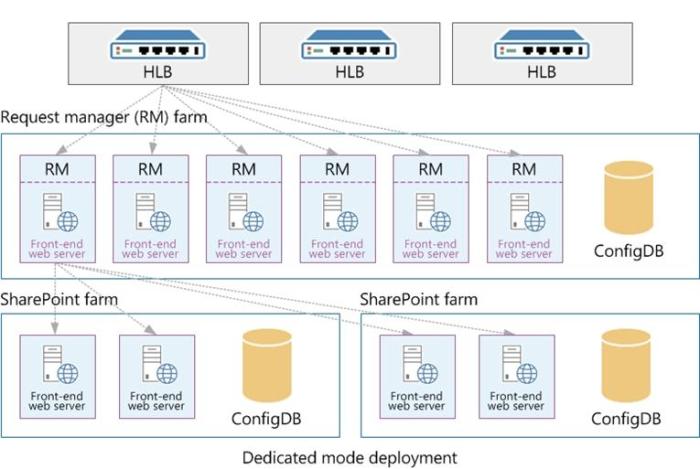 A set of front-end web servers is dedicated to managing requests exclusively. The front-end web servers that are dedicated to Request Manager are in their own farm that is located between the hardware load balancers (HLBs) and the SharePoint farm. The HLBs send all requests to the Request Manager front-end web servers. Request Manager that runs on these front-end web servers decides to which SharePoint front-end web servers it will send the requests and then routes the requests. Depending on the routing and throttling rules, Request Manager might ignore some requests without sending them to another server. The SharePoint front-end web servers do their normal tasks in processing requests and then send responses back through the front-end web servers that run Request Manager and to the clients.
Note that all farms are set up as SharePoint farms. All front-end web servers in Figure 1 are SharePoint front-end web servers, each of which can do the same work as any other. The difference between the farms is that the Request Manager front-end web servers have Request Manager enabled.
Dedicated mode is good for larger-scale deployments when physical computers are readily available. The ability to create a separate farm for Request manager provides two benefits: Request Manager and SharePoint processes do not compete for resources and you can scale out one without having to also scale out the other. This allows you to have more control over the performance of each role.
- Request Manager and SharePoint processes do not compete for resources.
-
You can scale out each farm separately, which provides more control over the performance of each farm.
-
Integrated mode
-
Figure 2 shows an integrated mode deployment.
Figure 2: Integrated mode
 In an integrated mode deployment, all SharePoint front-end web servers run Request Manager. Hardware load balancers send requests to all front-end web servers. When a front-end web server receives a request, Request Manager decides how to handle it: .
- Allow it to be processed locally.
- Route it to a different front-end web server.
- Deny the request.
Integrated mode is good for small-scale deployments when many physical computers are not readily available. This mode lets Request Manager and the rest of SharePoint Server to run on all computers. This mode is common for on-premises deployments.
-
-
Configuration
Request Manager has two configurable parts: General settings and Decision information. General settings are parameters that make Request Manager ready to use, such as enabling or disabling Request Routing and Request Throttling and Prioritizing. Decision information is all of the information that is used during the routing and throttling processes, such as routing and throttling rules.
 Note:
Note:
You configure Request Manager on a farm and functionality occurs at a web application level.
-
General settings
By default, request routing and request throttling and prioritizing are enabled. You use the Set-SPRequestManagementSettings cmdlet to change the properties of request routing, request throttling and prioritizing, and select a routing weight scheme.
The table describes the configuration situation and Windows PowerShell syntax to use.
-
Windows PowerShell examples to enable routing and throttling
Situation
Windows PowerShell syntax
Enable routing and throttling for all web applications
Get-SPWebApplication | Set-SPRequestManagementSettings –RoutingEnabled $true –ThrottlingEnabled $true
Enable routing with static weighting for all web applications
Get-SPWebApplication | Get-SPRequestManagementSettings | Set-SPRequestManagementSettings –RoutingEnabled $true –ThrottlingEnabled $false –RoutingWeightScheme Static
In some situations, multiple front-end web servers will be suitable destinations for a particular request. In this case, by default, SharePoint Server selects one server randomly and uniformly.
One routing weight scheme is static-weighted routing. In this scheme, static weights are associated with front-end web servers so that Request Manager always favors a higher static weight during the selection process. This scheme is useful to give added weight to more powerful front-end web servers and produce less strain on less powerful ones. Each front-end web server will have a static weight associated with it. The values of the weights are any integer value, where 1 is the default. A value less than 1 represents lower weight, and greater than 1 represents higher weight.
Another weighting scheme is health-weighted. In health-weighted routing, front-end web servers that have health scores closer to zero will be favored, and fewer requests will be sent to front-end web servers that have a higher health score values. The health weights run from 0 to 10, where 0 is the healthiest and therefore will get the most requests. By default, all front-end web servers are set to healthy, and therefore, will have equal weights. SharePoint’s health score based monitoring system assigns weight to server and send a health score value as a header in the response to a request. Request Manager uses same health score and stores it in local memory.
-
Decision information
Decision information applies to routing targets, routing rules, and throttling rules.
-
Routing targets
Request routing determines the routing targets that are available when a routing pool is selected for a request. The scope of routing targets is currently for front-end web servers only, but Request Manager‘s design does not exclude routing to application servers, too. A list of front-end web servers in a farm is automatically maintained by using the configuration database. An administrator who wants to change that list, typically in dedicated mode, has to use the appropriate routing cmdlets to get, add, set, and remove routing targets.
The following table describes the various routing target tasks and the associated Windows PowerShell syntax to use.
-
Windows PowerShell examples routing target tasks
Task
Windows PowerShell syntax
Return a list of routing targets for all available web applications.
Get-SPWebApplication | Get-SPRequestManagementSettings | Get-SPRoutingMachineInfo –Availability Available
Add a new routing target for a specified web application.
 Note:
Note:
IIS log files will contain all HTTP requests. For additional information about IIS logging, see IIS Logging
$web=Get-SPWebApplication -Identity <URL of web application>
$rm=Get-SPRequestManagementSettings -Identity $web
Add-SPRoutingMachineInfo –RequestManagementSettings $rm -Name <MachineName> -Availability Available
Where
- <URL of web application> is the URL of the web application to which you’re adding a new routing target.
- <MachineName>is the name of the server that hosts the web application.
Edit an existing routing target‘s availability and static weight for a specified web application
$web=Get-SPWebApplication -Identity <URL of web application>
$rm=Get-SPRequestManagementSettings -Identity $web
$m=Get-SPRoutingMachineInfo -RequestManagementSettings $rm -Name <MachineName>
Set-SPRoutingMachineInfo -Identity $m -Availability Unavailable
Where
- <URL of web application> is the URL of the web application for which you’re editing an existing routing target‘s availability and static weight.
Remove a routing target from a specified web application
 Note:
Note:
You cannot remove front-end web servers that are in the farm. Instead, you can use the Availability parameter of the Set-SPRoutingMachineInfo cmdlet to make them unavailable.
$web=Get-SPWebApplication -Identity <URL of web application>
$rm=Get-SPRequestManagementSettings -Identity $web
$m=Get-SPRoutingMachineInfo -RequestManagementSettings $rm -Name <MachineName>
Remove-SPRoutingMachineInfo -Identity $M
Where
- <URL of web application> is the URL of the web application from which you’re removing a routing target.
-
Routing and throttling rules
Request routing and request throttling and prioritizing are decision algorithms that use rules to prescribe many actions. The rules determine how Request Manager handles requests.
Rules are separated into two categories, routing rules and throttling rules, which are used in request routing and request throttling and prioritizing, respectively. Routing rules match criteria and route to a machine pool. Throttling rules match criteria and throttle based on known health score of a computer.
-
-
Request Routing
Request processing is all operations that occur sequentially from the time that Request Manager receives a new request to the time that Request Manager sends a response to the client.
Request processing is divided into the components:
- request routing
- incoming request handler
- request throttling and prioritizing
-
request load balancing
-
Incoming request handler
-
The role of the incoming request handler is to determine whether Request Manager should process a request. If request throttling and prioritizing is disabled and the Request Manager queue is empty, Request Manager directs the request to SharePoint Server that is running on the current front-end web server. If request throttling and prioritizing is enabled, request throttling and prioritizing determines whether the request should be allowed or denied on the current front-end web server.
The processes steps of the incoming request handler are as follows:
- request routing
- Request is determined if it should be throttled or routed
- For routed requests, load balance algorithm is run
- Request routed to load balancer endpoint
Request routing and Request throttling and prioritizing only run if it is enabled and is routed once per farm. Request load balancer only runs if a request has been determined as routable. The outgoing request handler only runs if the request has to be sent to a different front-end web server. The role of the outgoing request handler is to send the request to the selected front-end web server, wait for a response, and send the response back to the source.
-
Request routing
The role of request routing is to select a front-end web server to route a request. By using no routing rules that are defined, the routing scheme is as easy as randomly selecting an available front-end web server.
The algorithm of request routing is defined by two parts: request-rule matching and front-end web server selection.
-
Request rule matching
Every rule has one or more match criteria, which consist of three things: match property, match type, and match value.
The following table describes the different types of match properties and match types:
|
Match property |
Match type |
|
Hostname |
RegEx |
|
URL |
Equals |
|
Port number |
Starts with |
|
MIME Type |
Ends with |
For example, an administrator would use the following match criteria to match http://contoso requests: Match Property=URL; Match value= http://contoso; Match type=RegEx
-
Front-end web server selection
The front-end web server selection uses all routing rules, whether they match or do not match a given request. Rules that match have machine pools, a request sends load balanced to any machine in any matching rule‘s machine pool. If a request does not match any request, it sends load balanced to any available routing target.
-
Request routing and prioritizing
For routing requests that use the health-based monitoring system, the role of request routing and prioritizing is to reduce the routing pool to computers that have a good health score to process requests. If request routing is enabled, the routing pool is whichever front-end web server is selected. If request routing is disabled, the routing pool only contains the current front-end web server.
Request routing and prioritizing can be divided into two parts: request-rule matching and front-end web server filtering. Request-rule matching happens exactly like in request routing. Front-end web server filtering uses the health threshold parameter from the throttling rules in combination with front-end web server health data to determine whether the front-end web servers in the selected routing pool can process the given request.
The front-end web server filtering process follows these steps:
- The routing pool is either the current front-end web server or one or more front-end web servers that request routing selects.
- All matching rules are checked to find the smallest health threshold value.
- Remove front-end web servers in the routing pool that have health scores greater than or equal to the smallest health threshold value.
For example, request routing is disabled and the current front-end web server has a health score of 7 and a rule “Block OneNote“ without a health threshold (that is, health threshold = 0) is created.
The routing pool is the current front-end web server that has a health threshold equal to zero (0). So, the smallest threshold that the front-end web server can serve is zero. Because the current front-end web server has health score of 7, Request Manager denies and removes the request.
-
Request load balancing
The role of request load balancing is to select a single target to which to send the request. Request load balancing uses the routing weight schemes to select the target. All routing targets begin with a weight of 1. If static weighting is enabled, request load balancing uses the static weights set of each routing target to adjust the weights and the value can be valid integer number. If health weighting is enabled, request load balancing uses health information to add weight to healthier targets and remove weight from less healthy targets.
-
Monitoring and maintenance
Monitoring and logging are keys to managing requests from Request Manager.
- The rules that matched.
- The rules that did not match.
-
The final decision of the request.
Decisions might include useful information such as the following.
- Was the request denied?
- Which front-end web server was selected and from which routing pool>
- Did the request succeed or fail and why?
- How long did each part, routing, throttling, and waiting for front-end web server to respond, take?
- Was the request denied?
An administrator can use this information to adjust the routing and throttling rule sets to optimize the system and correct problems. To help you monitor and evaluate your farm’s performance, you can create a performance monitor log file and add the following SharePoint Foundation Request Manager Performance counters:
Counter name
Description
Connections Current
The total number of connections that are currently open by Request Manager.
Connections Reused / Sec
The number of connections per second that are reused when the same client connection makes another request without closing the connection.
Routed Requests / Sec
The number of routed requests per second. The instance determines the application pool and server for which this counter tracks.
Throttled Requests / Sec
The number of throttled requests per second.
Failed Requests / Sec
The number of failed requests per second.
Average Processing Time
The time to process the request that is, the time to evaluate all the rules and determine a routing target.
Last Ping Latency
The last ping latency (that is, Request Manager’s PING feature) and the instance determine which application pool and machine target.
Connection Endpoints Current
The total number of endpoints that are connected for all active connections.
Routed Requests Current
The number of unfinished routed requests. The instance determines which application pool and machine target.
Along with creating a performance monitor log file, the verbose logging level can be enabled by using the following Windows PowerShell syntax:
Set-SPLogLevel “Request Management“
–TraceSeverity Verbose
- The rules that matched.
-
Configure Business Connectivity Services solutions for SharePoint 2013
Published: July 16, 2012
Summary: Find links to procedures to help you install and configure SharePoint 2013 Business Connectivity Services (BCS) for the on-premises and cloud-only solutions, and other scenarios.
Applies to: SharePoint Foundation 2013 | SharePoint Server 2013
This article is your starting place for the procedures to install common Microsoft Business Connectivity Services scenarios for SharePoint 2013. The Business Connectivity Services solution that you deploy will most likely look different from the solutions presented here, but you can model your installation on these examples. Also, you can select the individual procedures from here to build your own procedural documents for your Business Connectivity Services solution scenario.
-
About Business Connectivity Services installation scenarios
Every Business Connectivity Services solution is unique because each business has unique data integration problems that it solves with Business Connectivity Services. The solutions can range from something simple and straightforward that a power user or IT professional (who has the appropriate permissions) can perform by themselves, to complex solutions that require developer, IT professional, and end-user solution development involvement. This guide presents the configuration procedures in common scenarios.
- On-premises All the Business Connectivity Services components are under your organizations control behind your firewall.
- On-premises All the Business Connectivity Services components are under your organizations control behind your firewall.
-
Prerequisites
Before you begin with any Business Connectivity Services scenario configuration, make sure that you have read Business Connectivity Services Overview (SharePoint 2013 Preview) and completed the steps in Plan a Business Connectivity Services solution (SharePoint 2013 Preview).
-
On-premises deployment
The procedures in Deploy a Business Connectivity Services on-premises solution in SharePoint 2013 show you how to deploy a solution that involves the following:
- A Business Connectivity Services infrastructure that is on your corporate network.
- Information workers who access the Business Connectivity Services solution are on your corporate network.
- External content that is surfaced in SharePoint as an external list.
- External content that is synchronized into Outlook for offline use.
- Accessing external data that is in SQL Server database on your corporate network.
- SharePoint Designer 2013 to create the external content type for the SQL Server data source.
- The Secure Store Service to manage mapping of user credentials to group credentials for accessing the external systems.
- A Business Connectivity Services infrastructure that is on your corporate network.
-
Deploy a Business Connectivity Services on-premises solution in SharePoint 2013
Updated: October 16, 2012
Summary: How to install Business Connectivity Services (BCS) to access an on-premises SQL Server external data source, surface external data in SharePoint lists, and take external data offline in Outlook.
Applies to: SharePoint Server 2013
The following scenario shows you how to create a no-code business solution in Microsoft Business Connectivity Services (BCS) by using the SQL Server AdventureWorks sample database. You learn how to:
- Configure the accounts, and groups that you need to securely access the external data source.
- Configure the permission on the external data source, the external content type and the external lists.
- Create and configure an external content type.
- Create an external list that makes the external data available to users.
- Connect the external list to Outlook to make the external data available when the user is offline.
This article includes the overview, roadmap, and any conceptual information that is needed.
- Configure the accounts, and groups that you need to securely access the external data source.
-
What these procedures help you deploy
Business Connectivity Services is a centralized infrastructure in SharePoint 2013 and Office 2013 that enables you to integrate data that is not in SharePoint products and Office 2013 into SharePoint products and Office 2013. BCS implementations take many different forms, including the on-premises form. These procedures show you how to install and configure BCS to integrate data from an on-premises SQL data source into a SharePoint products external list and into Outlook. For the purposes of building out this scenario, we use the AdventureWorks sample SQL database. The solution looks as shown in the following figure.
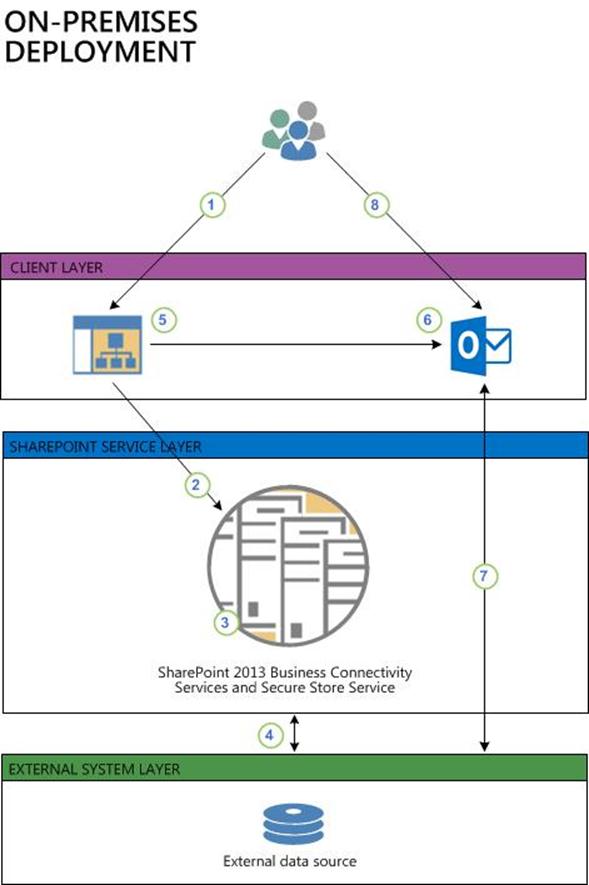
- A user goes to an external list on a SharePoint site. The external list creates a request for data by using the user‘s Windows credentials.
- The request is sent to the BDC runtime in the SharePoint farm.
- The BDC runtime accesses the external content type for the list (in the BDC Metadata Store) to see how to access the external system and which operations can be performed. By using either the user‘s credentials or the credentials from the Secure Store (as defined in the external content type), the BDC runtime passes the request to a connector that can handle the request, in this case the SQL connector.
- The SQL connector accesses the external data source and retrieves the data, and applies any formatting and filtering as specified in the external content type. The data is passed back through the request chain to the list where the user can interact with it.
- The user wants to take this data on a portable computer in Outlook so the user can use the Connect to Outlook feature on the external list to take the data offline.
- The Click Once installation runs and installs the required BDC model on the client. This lets the BDC Client-Side Runtime access the external data directly.
- Outlook then connects to the external data by using the configuration in the BDC model and synchronizes it into an Outlook SharePoint external list, formatted as a contacts list.
- The user can then interact with the contact data, and any changes that the user makes can be written back to the external data source either by an on-demand synch or by waiting six hours for the automated synchronization.
-
How to use these procedures and a roadmap of the procedures
The steps to completely deploy this scenario are presented in smaller procedures. Some of the procedures are on TechNet, some are on Office.com, and some are on MSDN. Each procedure is numbered indicating its position in the overall sequence. At the beginning and end of each procedure, links direct you to the preceding and following steps. The following list contains links to all of the procedures, in proper order, for your reference. You must follow them in sequence to build out the scenario. You can also use these procedures individually to build out your own unique scenarios. When you are assembling individual procedures to build out your own scenarios, be sure to test the entire set of procedures, in order, in a lab setting before you attempt them in production.
- Prerequisites for deploying a Business Connectivity Services on-premises solution in SharePoint 2013
- Create database logins for a Business Connectivity Services on-premises solution in SharePoint 2013
- Start the Business Data Connectivity service for a Business Connectivity Services on-premises solution in SharePoint 2013
- Create the Business Data Connectivity service application in SharePoint 2013
- Set permissions on the BCS Metadata Store for a Business Connectivity Services on-premises solution in SharePoint 2013
- Configure the Secure Store Service for a Business Connectivity Services on-premises solution in SharePoint 2013
- Create an external content type for a Business Connectivity Services on-premises solution in SharePoint 2013
- Configure permission on an external content type for a Business Connectivity Services on-premises solution in SharePoint 2013
- Create an external list for a Business Connectivity Services on-premises solution in SharePoint 2013
- Manage user permissions on an external list for a Business Connectivity Services on-premises solution in SharePoint 2013
- Connect an external list to Outlook for a Business Connectivity Services on-premises solution in SharePoint 2013
- Verify offline access and synchronization of external data in Outlook for a Business Connectivity Services on-premises solution in SharePoint 2013
-
Prerequisites for deploying a Business Connectivity Services on-premises solution in SharePoint 2013
Published: October 16, 2012
Summary: How to prepare your environment to install Business Connectivity Services (BCS) in an on-premises configuration in SharePoint 2013.
Applies to: SharePoint Server 2013 | SharePoint Foundation 2013
Before you start your installation of the on-premises Microsoft Business Connectivity Services (BCS) scenario, you must have these software and infrastructure requirements in place.
 Important:
This is Step 1 in the Business Connectivity Services On-Premises scenario deployment procedures.
- For a list of all the procedures in order, see Deploy a Business Connectivity Services on-premises solution in SharePoint 2013.
- For a list of all the procedures in order, see Deploy a Business Connectivity Services on-premises solution in SharePoint 2013.
-
On-premises scenario prerequisites
- A fully functional SharePoint 2013 server farm with a Web Application and site collection
- A fully functioning instance of SQL Server 2008 with Service Pack 1 (SP1) and Cumulative Update 2 or SQL Server 2008 R2
- SharePoint Designer 2013
- Outlook 2013 client
- You have an account that has permissions to administer the Business Data Connectivity Service Application
- You have an account that has permissions to administer the Secure Store Service service application
- Download the AdventureWorks sample database from Codeplex downloads for SQL Server. This database must be installed and functioning on your SQL Server
- Create an Active Directory directory Service (AD DS) security group and add the users who will be using this BCS solution, for example create a group that is named AdventureWorksBCSUsers
The AdventureWorks sample database is developed and published by Microsoft. The AdventureWorks sample database is prepopulated with a large quantity of fictitious data from a fictitious company, AdventureWorks Cycles. We are using the AdventureWorks sample database here so we have a concrete example for illustrating the installation and configuration of the on-premises BCS scenario.
 Tip:
Tip:
If you have problems attaching the database file by using the Attach command, in the Attach databases dialog box, and remove the reference to the log file in the bottom pane before you click OK.
- A fully functional SharePoint 2013 server farm with a Web Application and site collection
-
Preparing the environment
-
How to download and install the AdventureWorks sample database
-
- From a browser, go to AdventureWorks sample database and download the AdventureWorks2008R2_Data.mdf file.
- Install the Adventure Works2008R2 sample database by following the procedures in the “Readme for AdventureWorks 2008 R2 Sample Database“ section of the SQL Server Samples Readme (en-US) page.
 Important:
Link to Step 2Create database logins for a Business Connectivity Services on-premises solution in SharePoint 2013 of the Business Connectivity Services On-Premises scenario deployment procedures.
-
Create database logins for a Business Connectivity Services on-premises solution in SharePoint 2013
Published: October 16, 2012
Summary: How to prepare the SQL Server logins for Business Connectivity Services (BCS) on-premises scenario deployment in SharePoint 2013.
Applies to: SharePoint Foundation 2013 | SharePoint Server 2013
Microsoft Business Connectivity Services (BCS) requires an account that it can use to access the external data source. The account must have the necessary permissions on the external data source to perform all the operations that your BCS solution might require. For ease of configuration and ongoing management, you can map a group of SharePoint products users to a single shared account on the external data source.
In this procedure, you create a SQL Server login and then assign that login to a user account on the AdventureWorks sample database. You will use Secure Store Service services to map a group of SharePoint 2013 users to the single shared account in a later procedure.
 Important:
This is Step 2 in the Business Connectivity Services On-Premises scenario deployment procedures.
- Link to Step 1Prerequisites for deploying a Business Connectivity Services on-premises solution in SharePoint 2013 of the Business Connectivity Services On-Premises scenario deployment procedures.
-
For a list of all the procedures in order, see Deploy a Business Connectivity Services on-premises solution in SharePoint 2013
-
Create a SQL Server login
-
- Link to Step 1Prerequisites for deploying a Business Connectivity Services on-premises solution in SharePoint 2013 of the Business Connectivity Services On-Premises scenario deployment procedures.
- Start SQL Server Management Studio.
- In the Object Explorer, expand the <database server name>, expand Security, and then expand Logins.
- Right-click Logins, and then click New Login
- In the Login Name box, enter SharePointGroupAccount.
- Select SQL Server authentication, and then enter and confirm a password.
- In the Default database box, select AdventureWorks2008R2, and then click OK.
-
Create a SQL Server user on the AdventureWorks database
- In the Object Explorer, expand Databases, expand AdventureWorks2008R2, expand Security, and then expand Users.
- Right-click Users, and then click New User.
- Under the Login Name, with the User name box pre-selected, in the first box, enter AdventureWorksUser
- In the second box, click Browse, in the Select Login dialog box, click Browse, select the SQL Server account, SharePointGroupAccount, and then click OK twice.
- Under Database Role membership, select db_owner.
- Click OK.
- Close SQL Server Management Studio.
 Important:
Link to Step 3Start the Business Data Connectivity service for a Business Connectivity Services on-premises solution in SharePoint 2013 of the Business Connectivity Services On-Premises scenario deployment procedures.
-
Start the Business Data Connectivity service for a Business Connectivity Services on-premises solution in SharePoint 2013
Published: October 16, 2012
Summary: How to start the Business Data Connectivity service for a SharePoint 2013 server farm.
The Business Data Connectivity Service must be running for you to create any BCS based business solution. Use this procedure to start or stop the Business Data Connectivity Service
 Important:
This is Step 3 in the Business Connectivity Services On-Premises scenario deployment procedures.
- Link to Step 2Create database logins for a Business Connectivity Services on-premises solution in SharePoint 2013 of the Business Connectivity Services
-
For a list of all the procedures in order, see Deploy a Business Connectivity Services on-premises solution in SharePoint 2013
-
Start the Business Data Connectivity service
-
- Link to Step 2Create database logins for a Business Connectivity Services on-premises solution in SharePoint 2013 of the Business Connectivity Services
- Open the SharePoint Central Administration website for the server farm that contains your BCS solution.
- On the Quick Launch, click System Settings.
- On the System Settings page, under Servers, click Manage services on server.
- Check the value in the Server field. If the server name shown there is not the server that you want running the Business Data Connectivity Service on, click on the down arrow, click Change Server and select the correct server.
- If necessary, next to Business Data Connectivity Service, under the Action column, click Start.
 Note:
Note:
If you need to stop the Business Data Connectivity Service after starting it, next to Business Data Connectivity Service in the Action column click Stop.
 Important:
Link to Step 4Create the Business Data Connectivity service application in SharePoint 2013 of the Business Connectivity Services On-Premises deployment procedures
-
Create the Business Data Connectivity service application in SharePoint 2013
Published: October 16, 2012
Summary: How to create the Business Data Connectivity service application for SharePoint 2013 for a Business Connectivity Services on-premises configuration.
Applies to: SharePoint Server 2013 | SharePoint Foundation 2013
Microsoft Business Connectivity Services is a SharePoint 2013 service application. You must create it if it was not created during your farms initial configuration.
 Important:
This is Step 4 in the Business Connectivity Services on-premises scenario deployment procedures.
- Link to Step 3Start the Business Data Connectivity service for a Business Connectivity Services on-premises solution in SharePoint 2013 of the Business Connectivity Services On-Premises scenario deployment procedures.
-
For a list of all the procedures in order, see Deploy a Business Connectivity Services on-premises solution in SharePoint 2013
-
Create a new Business Data Connectivity Services service application
-
- Link to Step 3Start the Business Data Connectivity service for a Business Connectivity Services on-premises solution in SharePoint 2013 of the Business Connectivity Services On-Premises scenario deployment procedures.
- Open the SharePoint Central Administration website for your farm with a Farm administrator account. This must be the farm in which you started the Business Data Connectivity Service in the Start the Business Data Connectivity service for a Business Connectivity Services on-premises solution in SharePoint 2013 procedure.
- On the Quick start, click, Application Management.
- On the Application Management page under Service Applications, click Manage service applications.
- If an instance of the Business Data Connectivity Service Application that you will use for this solution is already there, you can skip the rest of this procedure. If not, follow the rest of this procedure to create one.
- On the SERVICE APPLICATIONS tab, click New and click Business Data Connectivity Service.
-
Configure the setting in the Create New Business Data Connectivity Service Application configuration page as follows:
- In the Service Application Name box enter the name you want the service to appear as on the Manage Service Applications page. This BCS service application can be used by multiple BCS solutions.
- In the Database area, leave the prepopulated values for Database Server, Database Name, and Database authentication, which is Windows authentication (recommended) unless you have specific design needs to change them.
- If you have SQL Server database mirroring configured and you want to include the Business Data Connectivity Service database in mirroring, provide the name of the failover database server in the Failover Database Server box.
- If you have not already created a new application pool for your service applications, enter a name for a new application pool in the Application pool name box, for example, “SharePointServiceApps“. You can use this application pool for all your service applications. For more information on planning, creating and configuring service applications, see Manage service applications in SharePoint 2013.
- Select the account that you configured in the Prerequisites for deploying a Business Connectivity Services on-premises solution in SharePoint 2013 procedure as the SharePoint products application services account in the Configurable drop down.
- In the Service Application Name box enter the name you want the service to appear as on the Manage Service Applications page. This BCS service application can be used by multiple BCS solutions.
- Click OK to create the new Business Data Connectivity Service Application and click OK again.
- Select the row that the Business Data Connectivity Service Application is in, not the proxy row.
- Click Administrators in the Operations area and add any accounts that you want to be able to administer the Business Data Connectivity service application granting them full control. When these individuals open Central Administration they will only be able to administer the Business Data Connectivity service application.
 Important:
Link to Step 5Set permissions on the BCS Metadata Store for a Business Connectivity Services on-premises solution in SharePoint 2013 of the Business Connectivity Services On-Premises scenario deployment procedures.
-
Set permissions on the BCS Metadata Store for a Business Connectivity Services on-premises solution in SharePoint 2013
Published: October 16, 2012
Summary: How to configure permissions on the Business Connectivity Services (BCS) Metadata Store for SharePoint 2013 for an on-premises configuration.
Applies to: SharePoint Server 2013 | SharePoint Foundation 2013
The BCS Metadata Store holds external content types, external systems and BDC model definitions for the BCS Service Application. In this procedure you configure administrative permissions on the Metadata Store and everything that it will contain.
 Important:
This is Step 5 in the Business Connectivity Services On-Premises scenario deployment procedures.
- Link to Step 4Create the Business Data Connectivity service application in SharePoint 2013 of the Business Connectivity Services On-Premises scenario deployment procedures.
-
For a list of all the procedures in order, see Deploy a Business Connectivity Services on-premises solution in SharePoint 2013
-
Set permissions on the Business Connectivity Services Metadata Store
-
- Link to Step 4Create the Business Data Connectivity service application in SharePoint 2013 of the Business Connectivity Services On-Premises scenario deployment procedures.
- Open the SharePoint Central Administration website with either a Farm administrator account or an account that has been delegated permissions to administer the Business Data Connectivity Service Applications.
- On the Quick Launch, click Application Management.
- On the Application Management page, under Service Applications, click Manage service applications.
- In the list of services, select the row of the Business Data Connectivity Service Application that you created in Create the Business Data Connectivity service application in SharePoint 2013 and then click Manage and then Set Metadata Store Permissions.
- Enter the Farm Administrator account and any other delegate administrators if you have them and then click Add.
- For each account or group that you added that is an administrator of the Business Data Connectivity Service Application, select the Edit, Execute, Selectable In Clients, and Set Permissions checkboxes.
- Select the Propagate permissions to all BDC Models, External Systems and External Content Types in the BDC Metadata Store. Doing so will overwrite existing permissions checkbox. For more information on setting permissions on the BDC Metadata Store, see Overview of Business Connectivity Services security tasks in SharePoint 2013.
- Click OK.
 Note:
Note:
Edit is a highly privileged permission that is required to create or modify external content types in the Business Data Connectivity metadata store. Execute permission is required to query the external content type.
 Important:
Link to Step 6Configure the Secure Store Service for a Business Connectivity Services on-premises solution in SharePoint 2013 of the Business Connectivity Services On-Premises scenario deployment procedures.
-
Configure the Secure Store Service for a Business Connectivity Services on-premises solution in SharePoint 2013
Published: October 16, 2012
Summary: Link to a configuration of the Secure Store Services for a Business Connectivity Services (BCS) on-premises solution in SharePoint 2013.
Applies to: SharePoint Server 2013 | SharePoint Foundation 2013
The Secure Store Service stores the credentials that Microsoft Business Connectivity Services uses to access the AdventureWorks external data source and performs credential mapping between your users accounts and the credentials used to access the external data source.
 Important:
This is Step 6 in the Business Connectivity Services On-Premises scenario deployment procedures.
- Link to Step 5Set permissions on the BCS Metadata Store for a Business Connectivity Services on-premises solution in SharePoint 2013 of the Business Connectivity Services On-Premises scenario deployment procedures.
- For a list of all the procedures in order, see Deploy a Business Connectivity Services on-premises solution in SharePoint 2013
- Link to Step 5Set permissions on the BCS Metadata Store for a Business Connectivity Services on-premises solution in SharePoint 2013 of the Business Connectivity Services On-Premises scenario deployment procedures.
-
Parameters for configuring the Secure Store Service for a Microsoft Business Connectivity Services on-premises configuration
In this procedure you perform all the steps in Configure the Secure Store Services in SharePoint 2013 Preview article. You must perform the steps in the Configure the Secure Store Services in SharePoint 2013 article with these parameters from start to finish.
-
Configure Secure Store Service for on-premises Business Connectivity Services
-
- Perform all the steps in Configure the Secure Store Services in SharePoint 2013 Preview with the following parameters.
- Open the SharePoint Central Administration website for the server farm that your Secure Store Service is in with an account that has Farm Administrator permissions.
-
In the Configure the Secure Store Services in SharePoint 2013 Preview article, perform all procedures in the Configure Secure Store section with these parameters
- For the Register Managed Account, User name type in the name of the service account that you created in the Prerequisites for deploying a Business Connectivity Services on-premises solution in SharePoint 2013 procedure.
- Do not select the Enable automatic password change box.
- For the Register Managed Account, User name type in the name of the service account that you created in the Prerequisites for deploying a Business Connectivity Services on-premises solution in SharePoint 2013 procedure.
- Perform the “To start the Secure Store Service“ procedure
-
Perform the “To create a Secure Store Service application” procedures using these parameters
- In the Service Application Name box enter the name you want the service to appear as on the Manage Service Applications page.
- In the Database area, leave the prepopulated values for Database Server, Database Name, and Database authentication, which is Windows authentication (recommended) unless you have specific design needs to change them.
- If you have SQL Server database mirroring configured and you want to include the Secure Store Service in mirroring, provide the name of the failover database server in the Failover Database Server box.
- For the Configurable dropdown, select the account that you registered as a managed account earlier in this procedure.
- In the Service Application Name box enter the name you want the service to appear as on the Manage Service Applications page.
-
Perform the steps in the Work with encryption keys section with these parameters:
- Don‘t perform the procedures in the “Refresh the encryption key“ sub-section
- Don‘t perform the procedures in the “Refresh the encryption key“ sub-section
-
Read the Store credentials in Secure Store section and perform the Create a target application procedure using these parameters.
- In the Target Application ID box type in a string for the target application; this is not the display name. For example type in AWTargetAppID.
- In the Display Name box, enter the display name you want, for example Adventure Works Target Application ID.
- In the Target Application Type dropdown, select Group (which indicates the mapping of many credentials to one credential). In this case, the Target Application Page URL is not needed and automatically selects to None.
- On the Create New Secure Store Target Application page, under Field Name, change Windows User Name to SQL User Name, and Windows Password to SQL Password.
- Under Field Type change Windows User Name to User Name and change Windows Password to Password.
- In the Target Application Administrators add the accounts that you want to be administrators of the Target Application. Note that the Farm Administrator has access by default.
- In the Members box, add the names of the users whom you want to allow access to the external data source. For this example use the AdventureWorksBCSUsers security group you created in Prerequisites for deploying a Business Connectivity Services on-premises solution in SharePoint 2013.
- In the Target Application ID box type in a string for the target application; this is not the display name. For example type in AWTargetAppID.
-
Perform the steps in the Set credentials for a target application procedure using these parameters:
- In the SQL User Name box, type AdventureWorksUser which is the name SQL Server account you created in Create database logins for a Business Connectivity Services on-premises solution in SharePoint 2013.
- In the SQL Password, and Confirm SQL Password boxes type the password for that account, which is actually the password for the SharePointGroupAccount account that you created in Create database logins for a Business Connectivity Services on-premises solution in SharePoint 2013.
- In the SQL User Name box, type AdventureWorksUser which is the name SQL Server account you created in Create database logins for a Business Connectivity Services on-premises solution in SharePoint 2013.
 Important:
Link to Step 7Create an external content type for a Business Connectivity Services on-premises solution in SharePoint 2013 of the Business Connectivity Services On-Premises scenario deployment procedures.
-
Create an external content type for a Business Connectivity Services on-premises solution in SharePoint 2013
Published: October 16, 2012
Summary: How to create and configure an external content type for the Business Connectivity Services (BCS) on-premises scenario deployment in SharePoint 2013.
Applies to:
These procedures walk you through building an external content type for Business Connectivity Services using SharePoint Designer 2013 without writing any code. You will learn how to discover a SQL Server database, connect to the database table, and then return the required data. You will create an external content type named Customers that is based on the Customer view in the AdventureWorks sample database. This article uses the procedures in How to: Create external content types for SQL Server in SharePoint 2013 Preview. You must open that article and perform the steps there using the parameters given in the matching sections of this article.
 Note:
Note:
The sections in this article match the sections in the How to: Create external content types for SQL Server in Sharepoint 2013.
 Important:
This is Step 7 in the Business Connectivity Services On-Premises scenario deployment procedures.
- Link to Step 6Configure the Secure Store Service for a Business Connectivity Services on-premises solution in SharePoint 2013 of the Business Connectivity Services On-Premises scenario deployment procedures.
- For a list of all the procedures in order, see Deploy a Business Connectivity Services on-premises solution in SharePoint 2013
- Link to Step 6Configure the Secure Store Service for a Business Connectivity Services on-premises solution in SharePoint 2013 of the Business Connectivity Services On-Premises scenario deployment procedures.
-
Create and configure an external content type with SharePoint Designer 2013
-
Define general information
-
- Open How to: Create external content types for SQL Server in SharePoint 2013 Preview
- Create a new external content type named AWcustomers with a display name of AdventureWorks Customers.
-
Define general and Office behaviors
- Set the Office Item Type to Contact. The Office Item Type determines the Outlook behavior you want to attach to the external content type. In this case, this AWCustomer external content type behaves like a native Contact Item in Outlook.
- In the Offline Sync for External List checkbox, make sure Enabled is selected, which is the default.
 Note:
Note:
If you disable this option, then the SharePoint Connect to Outlook ribbon command is not available for an external list.
-
Create a connection to the external data
- Add a connection using SQL Server as the External Data Source Type.
- In the Set the Database Server box, enter <The name of the database server> and in the Set the Database Name box, enter AdventureWorks2008R2. Optionally, in the Name box, enter AdventureWorks Sample Database.
- Select Connect with Impersonated Custom Identity.
- In the Secure Store Application ID box, enter AWTargetAppID.
 Warning:
If you are prompted to enter a user name and password for AWTargetAppID it may be because when you created the SharePointGroupAccount SQL login, you did not uncheck the User must change password at next login option. To fix this, you must change the password via SQL query ALTER LOGIN <LoginName> WITH PASSWORD = ‘<originalpassword>‘
-
Select a table, view, or routine and Define Operation
- In the AdventureWorks Sample Database select the vIndividualCustomer view and right click Create All Operations.
 Note:
Note:
Create All Operations is a convenient way to define all basic methods of operations (Create, Read, Read List, Update, and Delete).
 Tip:
Tip:
Always read carefully the messages in the Errors and Warnings pane. They provide useful information to confirm your actions or troubleshoot any issues.
-
Add columns
- In the Parameters Configuration dialog box, by default all columns are selected. To remove unnecessary columns, clear the checkboxes next to the following columns: Suffix and Demographics.
- For the BusinessEntityID select the Map to Identifier value.
 Note:
Note:
Uncheck the Required box to prevent it from being updated but select the Read Only checkbox, which is needed to retrieve items so you can update other fields.
-
Map Outlook fields and set up the external item picker control
- For the FirstName, LastName, EmailAddress, and PhoneNumber fields, do the following:
- Click and highlight the field.
- Under properties, in the Office property dropdown, select the appropriate matching field: FirstName to First Name (FirstName), LastName to Last Name (LastName), and PhoneNumber to Primary Telephone Phone Number (PrimaryTelephonePhoneNumber), EmailAddress to EmailAddress1 (Email1Address).
 Note:
Note:
Unmapped fields, depending on the number, are displayed as extended properties. For two to five fields they are listed as Adjoining meaning that they are appended to the form region at the bottom of an Outlook form’s default page. For six or more fields they are listed as Separate and are added as a new page to an Outlook.
- For the following fields, BusinessEntityID, FirstName, LastName, and EmailAddress click and highlight the field, and then under Properties, click Show in Picker.
-
Define filters
- Create a Comparison filter named ByRegion, use CountryRegionName for the value.
- Under Properties, next to Default Value, enter Canada.
- Create Limit filter named AWLimit, use BusinessEntityID for the Filter Field
- Set the default value to 200
 Tip:
Tip:
Click the Errors and Warnings pane and make sure there are no more errors or warnings.
-
Set the Title field for an external list and complete the external content type
- Set BusinessEntityID as the Title and save the external content type.
 Important:
Link to Step 8Configure permission on an external content type for a Business Connectivity Services on-premises solution in SharePoint 2013 of the Business Connectivity Services On-Premises scenario deployment procedures.
-
Configure permission on an external content type for a Business Connectivity Services on-premises solution in SharePoint 2013
Published: October 16, 2012
Summary: Configure permission on an external content type for a Business Connectivity Services (BCS) on-premises scenario deployment in SharePoint 2013.
Applies to: SharePoint Server 2013 | SharePoint Foundation 2013
To configure user access and permissions to the external content type:
 Important:
This is Step 8 in the Business Connectivity Services On-Premises scenario deployment procedures.
- Link to Step 7Create an external content type for a Business Connectivity Services on-premises solution in SharePoint 2013 of the Business Connectivity Services On-Premises scenario deployment procedures.
-
For a list of all the procedures in order, see Deploy a Business Connectivity Services on-premises solution in SharePoint 2013
-
Set up permissions to the external content type
-
- Link to Step 7Create an external content type for a Business Connectivity Services on-premises solution in SharePoint 2013 of the Business Connectivity Services On-Premises scenario deployment procedures.
- Open the Central Administration page for your site.
- On the Quick Launch, click Application Management.
- On the Application Management page, under Service Applications, click Manage service applications.
- In the list of services, click your Business Data Connectivity (BDC) Service.
- Click AWCustomers.
- On the ribbon, click Set Object Permissions.
- Enter the user accounts to which you want to grant permissions, and then click Add. For this example, you would add the security group that was created in Prerequisites for deploying a Business Connectivity Services on-premises solution in SharePoint 2013AdventureWorksBCSUsers.
- Select the user accounts that you just added, and then select Execute check boxe.
- Select the Propagate permissions to all BDC Models, External Systems and External Content Types in the BDC Metadata Store check box to overwrite existing permissions.
- Click OK.
The external content type is now available for use in SharePoint and Office products to the appropriate users.
 Important:
Link to Step 9Create an external list for a Business Connectivity Services on-premises solution in SharePoint 2013 of the Business Connectivity Services On-Premises scenario deployment procedures.
-
Create an external list for a Business Connectivity Services on-premises solution in SharePoint 2013
Published: October 16, 2012
Summary: Create an external list, set its permissions and configure a view for a Business Connectivity Services (BCS) on-premises scenario deployment in SharePoint 2013.
Applies to:
An external list is a key building block for SharePoint solutions based on external data. You can read and write external data with the familiar experience of using a SharePoint list. An external list looks and behaves a lot like a native list, but there are some differences in behavior. For example, you can create views and use calculated values with formulas, but not attach files or track versions. For this exercise, you create the external list in the browser because that is a common approach. This article uses the procedures in Create an external list on Office.com. You must open that article and perform the steps there using the parameters given in the matching sections of this article.
 Important:
This is Step 9 in the Business Connectivity Services On-Premises scenario deployment procedures.
- Link to Step 8Configure permission on an external content type for a Business Connectivity Services on-premises solution in SharePoint 2013 of the Business Connectivity Services On-Premises scenario deployment procedures.
-
For a list of all the procedures in order, see Deploy a Business Connectivity Services on-premises solution in SharePoint 2013
-
Create an external list
-
- Link to Step 8Configure permission on an external content type for a Business Connectivity Services on-premises solution in SharePoint 2013 of the Business Connectivity Services On-Premises scenario deployment procedures.
- Open Create an external list
- Create an external list named AdventureWorksCustomers using the AWCustomers external content type.
-
Create a view of an external list
- Create a view for the external list AdventureWorksCustomers. For this example use ByRegionData Source Filter.
- Make it the default view, and select your own Sort, Filter, and Limit values.
 Important:
Link to Step 10Manage user permissions on an external list for a Business Connectivity Services on-premises solution in SharePoint 2013 of the Business Connectivity Services On-Premises scenario deployment procedures.
-
Manage user permissions on an external list for a Business Connectivity Services on-premises solution in SharePoint 2013
Published: October 16, 2012
Summary: How to configure permissions on external lists for a Business Connectivity Services (BCS) on-premises scenario deployment in SharePoint 2013.
Applies to:
Once you or an appropriate user has created the external list, it‘s important to make sure that you set appropriate permissions for other users. If the subsite that contains the external list inherits permissions from its parent site, then you may inadvertently give permission to inappropriate users. In this example, permissions are given to the AdventureWorksBCSUsers group.
 Important:
This is Step 10 in the Business Connectivity Services On-Premises scenario deployment procedures.
- Link to Step 9Create an external list for a Business Connectivity Services on-premises solution in SharePoint 2013 of the Business Connectivity Services On-Premises scenario deployment procedures.
-
For a list of all the procedures in order, see Deploy a Business Connectivity Services on-premises solution in SharePoint 2013
-
Manage user permissions to the external list
-
- Link to Step 9Create an external list for a Business Connectivity Services on-premises solution in SharePoint 2013 of the Business Connectivity Services On-Premises scenario deployment procedures.
- On the List tab, in the Settings group, click List Settings.
- Under Permissions and Management, click Permissions for this list…
- Apply permissions to the list as you have planned them.
The following table summarizes the default external list permissions for SharePoint user groups:
|
Name |
Permission levels |
|
Excel Services Viewers |
View Only |
|
<Site Name> Members |
Edit |
|
<Site Name> Owners |
Full Control |
|
<Site Name> Visitors |
Read |
 Important:
Link to Step 11Connect an external list to Outlook for a Business Connectivity Services on-premises solution in SharePoint 2013 of the Business Connectivity Services On-Premises scenario deployment procedures.
-
Connect an external list to Outlook for a Business Connectivity Services on-premises solution in SharePoint 2013
Published: October 16, 2012
Summary: Create a connection between an external list and Outlook in a Business Connectivity Services (BCS) on-premises scenario deployment in SharePoint 2013.
Applies to:
The external list contains customer data mapped to Outlook contacts for which you enabled Offline Sync for External List, so you can connect the list with Outlook 2013. Once connected, you can view, edit, and print the data using the familiar Outlook user interface. This article mirrors the procedures in Connect an external list to Outlook on Office.com. Refer to that article for more information on connecting an external list to Outlook.
 Important:
This is Step 11 in the Business Connectivity Services On-Premises scenario deployment procedures.
- Link to Step 10Manage user permissions on an external list for a Business Connectivity Services on-premises solution in SharePoint 2013 of the Business Connectivity Services On-Premises scenario deployment procedures.
-
For a list of all the procedures in order, see Deploy a Business Connectivity Services on-premises solution in SharePoint 2013.
-
Synchronize the external list with Outlook
-
- Link to Step 10Manage user permissions on an external list for a Business Connectivity Services on-premises solution in SharePoint 2013 of the Business Connectivity Services On-Premises scenario deployment procedures.
- Open the SharePoint 2013 site that contains the external list. In the ribbon, on the List tab, in the Connect & Export group, click Connect to Outlook.
- In the Microsoft Office Customization Installer dialog box, click Install.The installation should take a minute or two.
- Once the installation is complete, click Close.
-
Link to
Step 12Verify offline access and synchronization of external data in Outlook for a Business Connectivity Services on-premises solution in SharePoint 2013 of the Business Connectivity Services On-Premises scenario deployment procedures.
-
Verify offline access and synchronization of external data in Outlook for a Business Connectivity Services on-premises solution in SharePoint 2013
Summary: How to work offline with external data in Outlook for a Business Data Connectivity (BCS) on-premises scenario deployment in SharePoint 2013.
Applies to:
 Important:
This is Step 12 in the On-Premises scenario deployment procedures. This is the last step in the installation procedures for this scenario
- Link to Step 11Connect an external list to Outlook for a Business Connectivity Services on-premises solution in SharePoint 2013Create an external list for a Business Connectivity Services on-premises solution in SharePoint 2013 of the Business Connectivity Services On-Premises scenario deployment procedures.
-
For a list of all the procedures in order, see Deploy a Business Connectivity Services on-premises solution in SharePoint 2013
-
Update customer data offline and refresh it online
-
- Link to Step 11Connect an external list to Outlook for a Business Connectivity Services on-premises solution in SharePoint 2013Create an external list for a Business Connectivity Services on-premises solution in SharePoint 2013 of the Business Connectivity Services On-Premises scenario deployment procedures.
- To take Outlook 2013 offline, click Send/Receive, and in the Preferences group, click Work Offline.
- Make a change or two to one of the AdventureWorks customers.
- To bring Outlook 2013 back online, click Send/Receive, and in the Preferences group, click Work Online.
- To synchronize the data, on the navigation pane, right-click the <Team Site Name> AWCustomers external list and then click Sync now
-
Configure eDiscovery in SharePoint Server 2013
Published: July 16, 2012
Summary: Learn the steps to set up and configure eDiscovery in SharePoint Server 2013 and Exchange Server 2013.
Applies to: SharePoint Server 2013
This article identifies the steps that are required to configure eDiscovery in SharePoint Server 2013. When you complete the steps that are listed in this article, users will be able to create and work with eDiscovery cases.
Before you configure eDiscovery, you should understand the concepts that are presented in the article Overview of eDiscovery and In-Place Holds (SharePoint 2013 Preview), and you should have completed the planning process that is described in the article Plan for eDiscovery.
The tasks that you must perform to configure eDiscovery are the following:
- Configure communication between SharePoint Server 2013 and Exchange Server 2013.
- Configure Search to crawl all discoverable content.
- Grant permissions.
- Create an eDiscovery Center.
- Configure communication between SharePoint Server 2013 and Exchange Server 2013.
-
Configure communication between SharePoint Server 2013 and Exchange Server 2013
If you will use a SharePoint eDiscovery Center to discover content in Exchange Server, you must configure SharePoint Server 2013 and Exchange Server to interact.
 Important:
To discover content in Exchange Server from a SharePoint eDiscovery Center, you must be running Exchange Server 2013.
Perform the following steps:
- Ensure that the Exchange Web Service managed API is installed on every front-end server that is running SharePoint Server 2013. For more information about the Exchange Web Service managed API, see Hardware and software requirements (SharePoint 2013 Preview).
- Configure a trust relationship between SharePoint Server 2013 and Exchange Server. For information about how to configure the trust relationship, see Configure server-to-server authentication in SharePoint 2013.
- If you want content from Lync Server 2013 to be discoverable, configure Lync Server 2013 to archive to Exchange Server 2013. For information about how to configure Lync Server 2013 archiving, see Microsoft Lync Server 2013 Archiving Deployment Guide.
- Perform the eDiscovery configuration steps for Exchange. For information about how to configure Exchange Server 2013 for eDiscovery, see Configure Exchange for SharePoint eDiscovery Center.
-
Configure Search to crawl all discoverable content
Content is only discoverable if it is crawled and indexed by the Search service application that is associated with the web application that the eDiscovery Center is in. You should have identified this Search service application when you planned for eDiscovery. To configure the Search service application to crawl the appropriate content, follow these steps:
- If content in Exchange Server 2013 must be discoverable, add Exchange Server 2013 as a result source. For information about how to configure a result source, see Configure result sources for search in SharePoint Server 2013.
- Ensure that all websites that contain discoverable content are being crawled. For information about how to configure a location to be crawled, see Add, edit, or delete a content source (SharePoint Server 2010).
- Ensure that all file shares that contain discoverable content are being crawled. For information about how to configure a location to be crawled, see Add, edit, or delete a content source (SharePoint Server 2010).
-
Grant permissions
The article Plan for eDiscovery recommends that you create a security group to contain all users of the eDiscovery Center. After you create the security group, grant the security group permissions to access all discoverable content.
 Note:
Note:
The article Plan for eDiscovery explains the different ways of granting permissions to discoverable content. You should have chosen to grant permissions at the web application level or at the site collection level.
- If you will grant permissions at the web application level, create a user policy that gives the security group full read permissions for each web application that contains discoverable content. For information about how to create a policy for a web application, see Manage permission policies for a Web application (SharePoint Server 2010).
 Note:
Note:
When you change permissions at the web application level, Search re-crawls all of the content in the web application.
- If you will grant permissions at the site collection level, make the security group a site collection administrator for each site collection that contains discoverable content. For information about how to add a site collection administrator, see Add or change a site collection administrator.
 Important:
A site collection administrator must add the security group as an additional site collection administrator by using the Site Settings menu. You cannot use Central Administration to make a security group a site collection administrator
- Ensure that the security group has permissions to access all file shares and other websites that contain discoverable content.
- If you will use a SharePoint eDiscovery Center to discover content in Exchange Server, grant the security group permissions to access Exchange Server mailboxes. For information about how to grant permissions in Exchange, see Configure Exchange for SharePoint eDiscovery Center.
- Grant the security group permissions to view the crawl log. For information about how to grant permissions to access the crawl log, see Set-SPEnterpriseSearchCrawlLogReadPermission.
-
Create an eDiscovery center
An eDiscovery Center is a site collection from which users can create and manage eDiscovery cases. To create an eDiscovery Center, follow the procedure in the article Create a site collection (SharePoint 2013 Preview), and choose the eDiscovery Center site collection type from the Enterprise tab. Be aware that an eDiscovery Center must be in a web application that supports claims authentication.
-
Configure site mailboxes in SharePoint Server 2013
Published: July 31, 2012
Summary: Configure Exchange Server 2013 and SharePoint Server 2013 for team email by using the SharePoint Server 2013 Site Mailboxes feature.
Applies to: Exchange Server 2013 | SharePoint Server 2013
This article describes how to configure Site Mailboxes in SharePoint Server 2013 and Exchange Server 2013. Site Mailboxes feature provides SharePoint Server 2013 users with team email on a SharePoint site. Site Mailboxes also provides links to SharePoint document libraries in Outlook 2013, enabling users to share files and email messages with other members of a team that are working on a joint project.
-
Before you begin
Before you begin this operation, review the following information about prerequisites:
- Site Mailboxes requires Exchange Server 2013.
- Any previous version of Exchange Web Services (EWS) will need to be uninstalled from the SharePoint servers.
 Note:
Note:
You may need to determine if a previous version of EWS is installed. If so, please run the Check-SiteMailboxConfig script referenced below. Your version should be 15.0.516.25 or above.
- Site Mailboxes feature requires that user profile synchronization be configured in the farm. For information about configuring user profile synchronization, see Plan user profiles and identities (SharePoint Server 2013 Preview), and Manage user profile synchronization in SharePoint 2013 Server Preview.
- Site Mailboxes feature requires that the app management service application be configured in the farm. For information about configuring the app management service application, see New-SPAppManagementServiceApplication.
- Secure Sockets Layer (SSL) configured for the Default Zone is a requirement for web applications that are deployed in scenarios that support server-to-server authentication and app authentication. This is such a scenario. As a prerequisite for configuring Site Mailboxes, the computer that is running SharePoint Server must have SSL configured. For more information, see Create claims-based web applications in SharePoint 2013 and follow the steps for creating an SSL site collection and server certificate.
 Note:
Note:
You may need to import the Exchange Server SSL certificate from Exchange 2013 to SharePoint 2013, and from SharePoint 2013 to Exchange 2013. This is only necessary if the certificate is not trusted for the API endpoints (such as a Self-SSL Certificate in a lab environment).
To import an untrusted SSL certificate to a new server:
- Open Internet Explorer and navigate to Outlook Web App Preview (if on SharePoint) or the SSL SharePoint site (if on Exchange): https://<ExServerName>/owa or https://<SP_FQDN>.
- Accept to trust the certificate by clicking Continue to website.
- Click Certificate Error info in Internet Explorer next to the Address bar, and then click View Certificates.
- Select Install Certificate and then select Place all certificates in the following store.
- Select the checkbox to show physical stores.
- Install the certificate to Trusted Root Certification Authorities > Local Computer.
- In order to perform these procedures, you must be a member of the SharePoint and Exchange Server administrator groups and have an operational Exchange Server with end-user mailboxes.
- A SharePoint backup solution will not incorporate Exchange site mailboxes. An Exchange administrator will need to ensure timely backups of site mailboxes are taking place.
- Users who access files in a SharePoint document library from a Site Mailbox must have the document library configured as a trusted site in their browser or a warning will appear that asks the user if she or he wants to trust the file.
 Note:
Note:
Because SharePoint 2013 runs as websites in Internet Information Services (IIS), administrators and users depend on the accessibility features that browsers provide. SharePoint 2013 supports the accessibility features of supported browsers. For more information, see the following resources:
- Site Mailboxes requires Exchange Server 2013.
-
Configure SharePoint for Site Mailboxes in SharePoint Server 2013
The first step in configuring Site Mailboxes is to install the Exchange Server Web Services API on each web front-end (WFE) server in the SharePoint Server 2013 farm.
-
Install Exchange Web Services API on SharePoint Server
-
- Download EWSManagedAPI.msi from the Microsoft Download Center (http://go.microsoft.com/fwlink/p/?LinkId=258305) and save it to a folder on each WFE server.
- Open a command window as administrator and navigate to the folder where you saved EWSManagedAPI.msi.
-
Run the following command:
msiexec /i EwsManagedApi.msi addlocal=”ExchangeWebServicesApi_Feature,ExchangeWebServicesApi_Gac”
- Reset IIS from the command line by typing IISReset.
-
Establish OAuth Trust and Service Permissions on SharePoint Server 2013
The next step is to copy the following two scripts. The first should be saved as Set-SiteMailboxConfig.ps1 and the second should be saved as Check-SiteMailboxConfig.ps1.
Set-SiteMailboxConfig.ps1:
# .SYNOPSIS
#
# Set-SiteMailboxConfig helps configure Site Mailboxes for a SharePoint farm
#
# .DESCRIPTION
#
# Establishes trust with an Exchange Server, sets Site Mailbox settings and enables Site Mailboxes for a farm.
#
# .PARAMETER ExchangeSiteMailboxDomain
#
# The FQDN of the Exchange Organization where Site Mailboxes will be created
#
# .PARAMETER ExchangeAutodiscoverDomain
#
# [Optional] The FQDN of an Exchange Autodiscover Virtual Directory
#
# .PARAMETER WebApplicationUrl
#
# [Optional] The URL of a specific web application to configure. If not specified all Web Applications will be configured
#
# .PARAMETER Force
#
# [Optional] Indicate that the script should ignore any configuration issues and enable Site Mailboxes anyway
#Param
(
[Parameter(Mandatory=$true)]
[ValidateNotNullOrEmpty()]
[string]$ExchangeSiteMailboxDomain,
[Parameter(Mandatory=$false)]
[ValidateNotNullOrEmpty()]
[string]$ExchangeAutodiscoverDomain,
[Parameter(Mandatory=$false)]
[ValidateNotNullOrEmpty()]
[string]$WebApplicationUrl,
[Parameter(Mandatory=$false)]
[switch]$Force
)$script:currentDirectory = Split-Path $MyInvocation.MyCommand.Path
if($WebApplicationUrl -ne $NULL -and $WebApplicationUrl -ne “”)
{
$webapps = Get-SPWebApplication $WebApplicationUrl
}
else
{
$webapps = Get-SPWebApplication
}if($webapps -eq $NULL)
{
if($WebApplicationUrl -ne $NULL)
{
Write-Warning “No Web Application Found at $($WebApplicationUrl). Please create a web application and re-run Set-SiteMailboxConfig”
}
else
{
Write-Warning “No Web Applications Found. Please create a web application and re-run Set-SiteMailboxConfig”
}return
}$rootWeb = $NULL
foreach($webapp in $webapps)
{
if($rootWeb -eq $NULL)
{
$rootWeb = Get-SPWeb $webApp.Url -EA SilentlyContinue
}
}if($rootWeb -eq $NULL)
{
Write-Warning “Unable to find a root site collection. Please create a root site collection on a web application and re-run Set-SiteMailboxConfig”
return
}$exchangeServer = $ExchangeAutodiscoverDomain
if($exchangeServer -eq $NULL -or $exchangeServer -eq “”)
{
$exchangeServer = “autodiscover.$($ExchangeSiteMailboxDomain)”
}Write-Host “Establishing Trust with Exchange Server: $($exchangeServer)”
$metadataEndpoint = “https://$($exchangeServer)/autodiscover/metadata/json/1”
$exchange = Get-SPTrustedSecurityTokenIssuer | Where-Object { $_.MetadataEndpoint -eq $metadataEndpoint }
if($exchange -eq $NULL)
{
$exchange = New-SPTrustedSecurityTokenIssuer -Name $exchangeServer -MetadataEndPoint $metadataEndpoint
}if($exchange -eq $NULL)
{
Write-Warning “Unable to establish trust with Exchange Server $($exchangeServer). Ensure that $($metadataEndpoint) is accessible.”if($ExchangeAutodiscoverDomain -eq $NULL -or $ExchangeAutodiscoverDomain -eq “”)
{
Write-Warning “If $($metadataEndpoint) does not exist you may specify an alternate FQDN using ExchangeAutodiscoverDomain.”
}
return
}Write-Host “Granting Permissions to Exchange Server: $($exchangeServer)”
$appPrincipal = Get-SPAppPrincipal -Site $rootWeb.Url -NameIdentifier $exchange.NameId
Set-SPAppPrincipalPermission -AppPrincipal $appPrincipal -Site $rootWeb -Scope SiteSubscription -Right FullControl -EnableAppOnlyPolicyWrite-Host
Write-HostWrite-Host “Verifying Site Mailbox Configuration”
$warnings = & $script:currentDirectory\Check-SiteMailboxConfig.ps1 -ReturnWarningStateif($warnings -and -not $Force)
{
Write-Warning “Pre-requisites not satisfied. Stopping Set-SiteMailboxConfig. Use -Force to override”
return
}
elseif($warnings)
{
Write-Warning “Pre-requisites not satisfied. -Force used to override”
}foreach($webapp in $webapps)
{
Write-Host “Configuring Web Application: $($webapp.Url)”
Write-Host “Setting Exchange Site Mailbox Domain to $($ExchangeSiteMailboxDomain)”
$webapp.Properties[“ExchangeTeamMailboxDomain”] = $ExchangeSiteMailboxDomainif($ExchangeAutodiscoverDomain -ne $NULL -and $ExchangeAutodiscoverDomain -ne “”)
{
Write-Host “Setting Exchange Autodiscover Domain to $($ExchangeAutodiscoverDomain)”
$webapp.Properties[“ExchangeAutodiscoverDomain”] = $ExchangeAutodiscoverDomain;
}$webapp.Update()
}$feature = Get-SPFeature CollaborationMailboxFarm -Farm -ErrorAction Ignore
if($feature -eq $NULL)
{
Write-Host “Enabling Site Mailboxes for Farm”
Enable-SPFeature CollaborationMailboxFarm
}
else
{
Write-Host “Site Mailboxes already enabled for Farm”
}
CheckSiteMailboxConfig.ps1:
Param
(
[Parameter(Mandatory=$false)]
[ValidateNotNullOrEmpty()]
[switch]$ReturnWarningState
)Add-PSSnapin Microsoft.SharePoint.Powershell
$anyWarnings = $false
Write-Host “Step 1: Checking for Exchange Web Services”
try
{
$assm = [System.Reflection.Assembly]::Load(“Microsoft.Exchange.WebServices, Version=15.0.0.0, Culture=neutral, PublicKeyToken=31bf3856ad364e35”)
if($assm.GlobalAssemblyCache)
{
Write-Host -Foreground Green “Found Exchange Web Services in Global Assembly Cache”
Write-Host “Exchange Web Services Version: $([System.Diagnostics.FileVersionInfo]::GetVersionInfo($assm.Location).FileVersion)”
}
else
{
Write-Warning “Unable to find Exchange Web Services in Global Assembly Cache”
$anyWarnings = $true
}
}
catch
{
Write-Warning “Unable to find Exchange Web Services in Global Assembly Cache”
$anyWarnings = $true
}Write-Host
Write-HostWrite-Host “Step 2: Checking for https web application”
$webapps = Get-SPWebApplication -EA SilentlyContinue
$rootWeb = $NULL
if($webapps -ne $NULL)
{
$sslWebAppExists = $false
foreach($webapp in $webapps)
{
if($rootWeb -eq $NULL)
{
$rootWeb = Get-SPWeb $webApp.Url -EA SilentlyContinue
}if(-not $webapp.Url.StartsWith(“https://”))
{
Write-Warning “Web Application at $($webapp.Url) does not use HTTPS. Site Mailboxes will not work on this Web Application.”
}
else
{
$sslWebAppExists = $true
Write-Host -Foreground Green “Found Web Application at $($webapp.Url) that uses HTTPS”
}
}if(-not $sslWebAppExists)
{
Write-Warning “At least one Web Application must be configured for HTTPS in the default zone.”
$anyWarnings = $true
}
}
else
{
Write-Warning “No Web Applications Found. Please create a web application and re-run Check-SiteMailboxConfig”
$anyWarnings = $true
if($ReturnWarningState)
{
return $anyWarnings
}
return;
}if($rootWeb -eq $NULL)
{
Write-Warning “Unable to find any Sites. Please create a root site collection on a web application and re-run Check-SiteMailboxConfig”
$anyWarnings = $true
if($ReturnWarningState)
{
return $anyWarnings
}
return;
}# Get App Permissions Management Objects
$appPrincipalManager = [Microsoft.SharePoint.SPAppPrincipalManager]::GetManager($rootWeb)
$appPrincipalPermissionsManager = New-Object -TypeName Microsoft.SharePoint.SPAppPrincipalPermissionsManager -ArgumentList $rootWebWrite-Host
Write-Host
Write-Host “Step 3: Checking for trusted Exchange Servers”$trustedIssuers = Get-SPTrustedSecurityTokenIssuer
$trustedIssuerHosts = @()if($trustedIssuers -ne $NULL)
{
$foundTrustedIssuer = $false
foreach($trustedIssuer in $trustedIssuers)
{
if($trustedIssuer.RegisteredIssuerName.StartsWith(“00000002-0000-0ff1-ce00-000000000000@”))
{
if($trustedIssuer.IsSelfIssuer)
{
$foundTrustedIssuer = $true$uri = New-Object -TypeName System.Uri -ArgumentList $trustedIssuer.MetadataEndPoint
Write-Host -Foreground Green “Found trusted Exchange Server at $($uri.Host)”
$appPrincipalName = [Microsoft.SharePoint.SPAppPrincipalName]::CreateFromNameIdentifier($trustedIssuer.RegisteredIssuerName)
$appPrincipal = $appPrincipalManager.LookupAppPrincipal([Microsoft.SharePoint.SPAppPrincipalIdentityProvider]::External, $appPrincipalName);if($appPrincipal -ne $NULL)
{
$isValidAppPrincipal = $true;if($appPrincipalPermissionsManager.GetAppPrincipalSiteSubscriptionContentPermission($appPrincipal) -eq [Microsoft.SharePoint.SPAppPrincipalPermissionKind]::FullControl)
{
Write-Host -Foreground Green “Exchange Server at $($uri.Host) has Full Control permissions”}
else
{
Write-Warning “Exchange Server at $($uri.Host) does not have Full Control permissions”
$isValidAppPrincipal = $false;
$anyWarnings = $true
}if($appPrincipalPermissionsManager.IsAppOnlyPolicyAllowed($appPrincipal))
{
Write-Host -Foreground Green “Exchange Server at $($uri.Host) has App Only Permissions”
}
else
{
Write-Warning “Exchange Server at $($uri.Host) does not have App Only Permissions”
$isValidAppPrincipal = $false;
$anyWarnings = $true
}if($isValidAppPrincipal)
{
$trustedIssuerHosts += $uri.Host
}}
else
{
Write-Warning “Unable to get App Principal for $($uri.Host). Unable to check permissions for this Exchange Server”
$anyWarnings = $true
}
}
else
{
Write-Warning “Found trusted Exchange Server at $($uri.Host) but it is not a Self Issuer”
$anyWarnings = $true
}
}
}if(-not $foundTrustedIssuer)
{
Write-Warning “Unable to find any trusted Exchange Servers”
$anyWarnings = $true
}
}
else
{
Write-Warning “Unable to find any trusted Exchange Servers”
$anyWarnings = $true
}Write-Host
Write-Host
Write-Host “Step 4: Report current Site Mailbox Configuration”if($webapps -ne $NULL)
{
foreach($webapp in $webapps)
{
Write-Host
Write-Host “Web Application Site Mailbox Configuration: $($webapp.Url)”
Write-Host “Exchange Site Mailbox Domain: $($webapp.Properties[“ExchangeTeamMailboxDomain”])”if($webapp.Properties[“ExchangeAutodiscoverDomain”] -ne $NULL)
{
Write-Host “Exchange Autodiscover Domain: $($webapp.Properties[“ExchangeAutodiscoverDomain”])”
}
}
}Write-Host
Write-Host “Trusted Exchange Services: $([String]::Join(“, “, $trustedIssuerHosts))”$feature = Get-SPFeature CollaborationMailboxFarm -Farm -ErrorAction Ignore
if($feature -eq $NULL)
{
Write-Host -ForegroundColor Red “Site Mailboxes are NOT enabled for Farm”
}
else
{
Write-Host -ForegroundColor Green “Site Mailboxes are enabled for Farm”
}if($ReturnWarningState)
{
return $anyWarnings
}
Save the two .ps1 files to the same folder on a SharePoint 2013 WFE server, as one script calls the other during execution. In a SharePoint PowerShell window (right-click and Run As Administrator to open), navigate to the folder containing the .ps1 files and run the Set-SiteMailboxConfig.ps1 script. This will allow users to retrieve and install the Exchange metadata, giving the Exchange service principal full control permissions to SharePoint site subscription, enable the site mailbox feature in the SharePoint environment and optionally set the Exchange site mailbox target domain, if DNS for the domain has not been configured for AutoDiscover. The Check-SiteMailboxConfig.ps1 is called as part of the Set-SiteMailboxConfig script, and will confirm the configuration has been successful (it can also be run separately).
The format should be as follows:
.\Set-SiteMailboxConfig.ps1 <Domain> <Exchange Server> [URL] [FQDN of the Exchange AutoDiscovery virtual directory]
Where <Domain> will equal the FQDN of the domain your Exchange is in, and <Exchange Server> is the Exchange you intend to connect to. These are required parameters.
Optional parameters are [URL], which would be a specific URL you may be configuring (typically used in an environment with SSL and non-SSL web applications), while [FQDN of the Exchange AutoDiscovery virtual directory] may need to be configured if DNS AutoDiscovery is not enabled or properly configured.
Example: .\Set-SiteMailboxConfig.ps1 tailspintoys.com exchange1.tailspintoys.com https://tailspintoys.com https://exchange1.tailspintoys.com/autodiscover/metadata/json/1If while running the script you encounter an error, please refer to the Troubleshooting section below for guidance.
-
Configure Exchange Server 2013 for Site Mailboxes
The final step is to establish OAuth trust, and service permissions, on the Exchange server.
-
Establish OAuth Trust and Service Permission on Exchange
-
- On your Exchange Server open the Exchange Windows PowerShell window as Administrator and change to the “C:\Program Files\Microsoft\Exchange Server\V15\Scripts” directory.
-
Run the following command:
.\Configure-EnterprisePartnerApplication.ps1 -ApplicationType Sharepoint -AuthMetadataUrl https://<SP_FQDN>/_layouts/15/metadata/json/1
Where <SP_FQDN> is the URL to the SharePoint SSL root site collection you wish to configure.
-
Troubleshooting
Please review the following if issues are encountered.
-
Table of Error Codes for Reference When Running Configuration Checklist Script
Error Code
Error
Notes
0
NoError
Review Prerequisites.
1
ExchangeClientNotAvailable
EWS client was not found on the SharePoint WFE. Run the Check script and ensure the entries are properly in the GAC; you may need to reinstall the EWS client.
2
UnsupportedVersion
EWS client version is incompatible with SharePoint. Run the Check script to ensure the version meets minimum requirements. Alternatively, the Exchange server may be 2010 or earlier.
3
InvalidUser
The TeamMailboxDomain parameter is not a valid FQDN or SMTP address.
4
UnauthorizedUser
The script received a 401 from the Exchange Server, review the Exchange setup steps.
5
ServerBusy
Exchange timed out during AutoDiscovery. It should be intermittent, please retry, but if it is persistent, follow-up with the Exchange Administrator.
6
URLNotAvailable
AutoDiscovery failed to return a URL for ECP/OWA, which means typically that the EWS client version is incompatible with SharePoint. It may also mean Site Mailboxes are not enabled on Exchange, which would require follow-up with the Exchange Administrator.
7
OAuthNotSupported
Unsuccessful in generating an OAuth token on behalf of SharePoint. This is typically caused by claims-based authentication being disabled on the SharePoint web application.
8
OAuthException
An error occurred during the OAuth handshake between SharePoint and Exchange. This is typically caused by server to server configuration issues, such as a realm value mismatch on either side, certificate issues for Exchange or SharePoint, etc. Review certificates and attempt to establish or reestablish trust.
9
InvalidAutodiscoverDomain
The AutoDiscover domain property is not set to a valid FQDN.
10
UnknownError
An unknown error condition has occurred. Run the Check script and confirm that a valid, trusted instance of SharePoint is available, review prerequisites, confirm AutoDiscover has been set-up properly with the Exchange Administrator.
101
OAuthNotSupportedOverHttp
If this error is thrown, your web application‘s default zone is not set to SSL, and AllowOauthoverHttp is also set to false. Run the Check script to ensure that any web application you intend to host site mailboxes are set with SSL in the default zone, as outlined in the prerequisites.
102
AssociatedOwnersGroupNull
One or both of the default Owners and Members groups for the site have been deleted. Each of these two default groups are required to exist on any site where users install site mailboxes. A site administrator should be able to direct a site owner to recreated these required groups.
103
ExchangeTeamMailboxDomainNotSet
The ExchangeTeamMailboxDomain property has not been set.
104
ExchangeAppPrincipalNotFound
No Exchange app principals were found to be trusted. Typically, this means the New-SPTrustedSecureTokenService step was missed. Run the Check script and ensure that the app principal URL(s) outputted are the correct one(s).
105
ExchangeAppPrincipalMissingPermissions
The Exchange app principal being connected to doesn‘t have the right permissions on the SharePoint farm. Run the Check script and ensure that the Exchange app principal has the required permissions on the farm.
-
-
Configure Exchange task synchronization in SharePoint Server 2013
Published: August 21, 2012
Summary: Configure Exchange Server 2013 and SharePoint Server 2013 for task synchronization by using the SharePoint Server 2013 Task Synchronization feature.
Applies to: SharePoint Server 2013 Enterprise
This article describes how to configure Task Synchronization in SharePoint Server 2013 and Exchange Server 2013. Task Synchronization allows users to synchronize SharePoint Server 2013 and Project Server tasks with Exchange Server and have them appear in Outlook 2013.
-
Before you begin
Before you begin this operation, review the following information about prerequisites:
- Task Synchronization requires that user profile synchronization be configured in the farm. For information about configuring user profile synchronization, see Plan user profiles and identities (SharePoint Server 2013 Preview), and Manage user profile synchronization in SharePoint 2013 Server Preview.
- Task Synchronization requires that the work management service application be configured in the farm. For information about creating the work management service application, see New-SPWorkManagementServiceApplication
- Task Synchronization requires Exchange Server 2013.
- Secure Sockets Layer (SSL) is a requirement for web applications that are deployed in scenarios that support server-to-server authentication and app authentication. This is such a scenario. As a prerequisite for configuring Task Synchronization, the computer that is running SharePoint Server must have SSL configured. For more information, see Create claims-based web applications in SharePoint 2013 and follow the steps for creating an SSL site collection and server certificate.
 Note:
Note:
You may need to import the SSL certificate from the SharePoint Server 2013 web application. This is only necessary if the certificate is not trusted for the API endpoints (such as a Self-SSL Certificate in a lab environment).
To import the untrusted SSL certificate from SharePoint Server 2013:
- Open Internet Explorer on the Exchange server and navigate to the SSL SharePoint site https://<SP_FQDN>, where <SP_FQDN> is the URL to the SSL site.
- Accept to trust the certificate by clicking Continue to website.
- Click Certificate Error info in Internet Explorer next to the Address bar, and then click View Certificates.
- Select Install Certificate and then select Place all certificates in the following store.
- Select the checkbox to show physical stores.
- Install the certificate to Trusted Root Certification Authorities > Local Computer.
- In order to perform these procedures, you must be a member of the SharePoint and Exchange Server administrator groups and have an operational Exchange Server with end-user mailboxes.
 Note:
Note:
Because SharePoint 2013 runs as websites in Internet Information Services (IIS), administrators and users depend on the accessibility features that browsers provide. SharePoint 2013 supports the accessibility features of supported browsers. For more information, see the following resources:
- Task Synchronization requires that user profile synchronization be configured in the farm. For information about configuring user profile synchronization, see Plan user profiles and identities (SharePoint Server 2013 Preview), and Manage user profile synchronization in SharePoint 2013 Server Preview.
-
Configure SharePoint for Task Synchronization in SharePoint Server 2013
The first step in configuring Task Synchronization is to install the Exchange Server Web Services API on each web front-end server in the SharePoint Server 2013 farm.
-
Install Exchange Web Services API on SharePoint Server
-
- Download EWSManagedAPI.msi from the Microsoft Download Center (http://go.microsoft.com/fwlink/p/?LinkId=258305) and save it to a folder on the application server.
- Open a command window as administrator and navigate to the folder where you saved EWSManagedAPI.msi.
-
Run the following command:
msiexec /i EwsManagedApi.msi addlocal=”ExchangeWebServicesApi_Feature,ExchangeWebServicesApi_Gac”
- Reset IIS from the command line by typing IISReset.
-
Configure Exchange Server 2013 for Task Synchronization
The next step is to establish OAuth trust and service permission on Exchange Server.
-
Establish OAuth Trust and Service Permission on Exchange
-
- On the Exchange server, open Windows PowerShell and change to the “C:\Program Files\Microsoft\Exchange Server\V15\Scripts” directory.
-
Run the following script:
.\Configure-EnterprisePartnerApplication.ps1 -ApplicationType Sharepoint -AuthMetadataUrl https://<SP_FQDN>/_layouts/15/metadata/json/1
Where <SP_FQDN> is the URL to the root site collection.
-
Configure social computing features in SharePoint Server 2013
Published: July 16, 2012
Summary: Learn how to configure social computing features in SharePoint 2013, including My Sites, Community Sites, and microblogging.
Applies to: SharePoint Server 2013
SharePoint Server 2013 implements features that make enterprise social computing and collaboration easier. Social networking tools, such as My Sites, and social content technologies, such as microblogs, are examples of social computing features. These features enable users to easily capture and share the knowledge and expertise that is needed to do their work. This sharing of information encourages collaboration, improves innovation, and targets relevant content to the people who have to see it. You can adapt content to each user while enabling administrators to set policies to protect privacy.
-
TechNet articles about configuring social computing features
The following articles about how to configure social computing features in SharePoint Server 2013 are available to view online. Writers update articles on a continuing basis as new information becomes available and as users provide feedback.
Content
Description

Learn how to set up My Sites in SharePoint Server 2013.

Learn how to set up Community Sites in SharePoint Server 2013.

Learn how to configure microblogging in SharePoint Server 2013.

Enable or disable personal and social features for users or groups in SharePoint Server 2013
Learn how to configure user permissions for personal and social features in SharePoint Server 2013.
-
Additional resources about configuring social computing features
The following resources about how to configure social computing features in SharePoint Server 2013 are available from other subject matter experts.
Content
Description

Visit the Resource Center to access videos, community sites, documentation, and more.
-
Configure My Sites in SharePoint Server 2013
Published: July 16, 2012
Summary: Learn how to set up and configure My Sites in SharePoint Server 2013.
Applies to: SharePoint Server 2013
This article describes how to set up My Sites in SharePoint Server 2013. Like other tasks in SharePoint Server, there are multiple ways to complete a task. This article provides ordered tasks with prerequisites and procedures to help you set up My Sites in your enterprise.
Before you set up My Sites, ensure that you understand the concepts and terminology in My Sites overview (SharePoint Server 2010) and Plan for My Sites (SharePoint Server 2010).
We recommend that you perform all of the procedures in the order listed for best results, although not all of them are required.
In this article:
- Prerequisites
- Create a My Site host site collection
- Add a wildcard inclusion managed path to the web application
- Connect the web application to service applications
- Enable self-service site creation for the web application
- Configure My Site settings for the User Profile service application
- Enable the User Profile Service Application – Activity Feed Job
- Next steps
- Prerequisites
-
Prerequisites
Because My Sites have dependencies on other service applications and features in SharePoint Server 2013, ensure that you meet the prerequisites in this section before you perform the procedures in this task.
 Note:
Note:
My Sites are hosted by a web application and rely on a User Profile service application. Both are described in this section. My Sites also requires a managed metadata service application. We recommend that you also have a Search service application to use with My Sites, but this is not required. Without the Search service application, some My Sites functionality is affected. For more information, see Related service applications in Plan for My Sites (SharePoint 2013 Preview).
Although you can use an existing web application, for optimal performance and security, we recommend that you create the My Site host site collection in a dedicated web application. For more information, see Create a Web application (SharePoint Server 2010).
 Important:
If a My Site host site collection was created during initial deployment and configuration, we recommend that you do not use it because it was created in the default web application. Delete this site collection, and create a new web application that is dedicated to hosting My Sites. Then create a new My Site host site collection in the dedicated web application.
Ensure you have a User Profile service application that you want to use for My Sites. If you do not, follow the steps in Create, edit, or delete a User Profile service application (SharePoint 2013 Preview) to create one.
 Important:
Although the Create New User Profile service application dialog box requests information in the My Site Host URL and Personal Site Location sections, for this task, remove any default values and leave those fields blank when you create the User Profile service application. Additionally, you can select any of the options in Site Naming Format. These settings will be configured separately later in this task.
Optionally, configure profile synchronization if you want to synchronize user and group profile information that is stored in the SharePoint Server 2013 profile database with profile information that is stored in a directory service or business system. For more information, see Plan for profile synchronization (SharePoint 2013 Preview).
-
Create a My Site host site collection
The My Site host site collection is a site collection that uses the Enterprise site template named My Site Host. This site collection must be created in the web application that you want to host My Sites. Generally, this site collection can be created at the root path of the web application, although it can be created as an explicit inclusion managed path deeper in the URL as long as there is a site collection created at the web application root. For more information about how to select the path for the My Site host collection, see My Sites architecture in Plan for My Sites (SharePoint 2013 Preview).
To create a My Site host site collection
- Verify that you have the following administrative credentials:
- To create a My Site host site collection, you must be a member of the Farm Administrators group on the computer running the SharePoint Central Administration website or a service application administrator for the services related to My Sites. If you are a service application administrator, you must also have permission to create site collections in the web application that you dedicate to host My Sites.
- In Central Administration, click Application Management, and then click Create site collections.
- On the Create Site Collection page, in the Web Application section, ensure that the selected web application is the web application that you want to host My Sites. If it is not, expand the list, and then click Change Web Application. In the Select Web Application dialog box, select a different web application.
- In the Title and Description section, type a title and description for the site collection.
- In the Web Site Address section, select the URL where you want this site collection created. Generally, you should use the default path (which is displayed as / in the user interface), which is the root of the web application. For more information about this path, see My Sites architecture in Plan for My Sites (SharePoint 2013 Preview).
- In the Template Selection section, in the Select experience version list, select 2013. Then, on the Enterprise tab, click My Site Host.
- In the Primary Site Collection Administrator section, and optionally in the Secondary Site Collection Administrator section, type an account in the format domain\username to specify an administrator for the site collection.
- Optionally, in the Quota Template section, select a quota template for the My Site host site collection. This quota template does not affect the individual site collections that users create for their My Sites. For more information, see Planning for storage requirements in Plan for My Sites (SharePoint 2013 Preview).
- Click OK. Copy this site collection URL for later reference.
-
Add a wildcard inclusion managed path to the web application
The wildcard inclusion managed path is the path under which separate site collections are created for a user’s My Site. Creation of the site collection occurs the first time that a user views the user‘s My Site. This functionality is available only when self-service site creation is also enabled. Enabling self-service site creation is discussed later in this article. For more information about managed paths, see Define managed paths (SharePoint Server 2010).
To add a wildcard inclusion managed path to the web application
- Verify that you have the following administrative credentials:
- To add managed paths, you must be a member of the Farm Administrators group on the computer running the SharePoint Central Administration website.
- In Central Administration, click Application Management, and then click Manage Web applications.
- On the Web Applications Management page, select the web application that you created to host My Sites.
- On the Web Applications tab, in the Manage group, click Managed Paths.
- In the Define Managed Paths dialog box, in the Add a New Path section, in the Path box, type the path that you want to append to the URL namespace, and then select Wildcard inclusion. For example, if your web application URL is http://mysites.contoso.com/ and you want users’ individual site collections created under a path named “personal”, type personal in the Path box. Separate My Sites site collections will be created for each user under http://mysites.contoso.com/personal/.
- Click Add Path, and then click OK.
- Copy this managed path for later reference.
-
Connect the web application to service applications
The web application that hosts My Sites must be connected to service applications in SharePoint Server 2013. The User Profile service application is required for My Sites. The managed metadata service application and Search service application are highly recommended. For more information, see My Sites architecture in Plan for My Sites (SharePoint 2013 Preview).
Additionally, if you have other SharePoint sites from which you want users to be able to access their My Site and About Me links from the upper-right corner menu, connect the web applications of those sites to the User Profile service application.
To connect the web application to service applications
- Verify that you have the following administrative credentials:
- To connect a web application to a service application, you must be a member of the Farm Administrators group on the computer running the SharePoint Central Administration website.
- In Central Administration, in the Application Management section, click Manage Web applications.
- On the Web Applications Management page, select the web application that you created to host My Sites.
- On the Web Applications tab, in the Manage group, click Service Connections.
- In the Configure Service Application Associations dialog box, in the Edit the following group of connections list, select default if the default group contains the service applications that you want to connect to the web application.
- If you choose [Custom], select any service applications to which you want to connect the web application, including the User Profile service application, the managed metadata service application, and the Search service application.
- Click OK.
-
Enable self-service site creation for the web application
Self-service site creation enables the automatic creation of a separate site collection for users when they first view their My Site.
To enable self-service site creation for the web application
- Verify that you have the following administrative credentials:
- To enable self-service site creation, you must be a member of the Farm Administrators group on the computer running the SharePoint Central Administration website.
- In Central Administration, in the Application Management section, click Manage Web applications.
- On the Web Applications page, select the web application that you created to host My Sites.
- On the Web Applications tab, in the Security group, click Self-Service Site Creation.
- In the Self-Service Site Creation Management dialog box, in Site Collections, select On. Optionally, in Quota template to apply, select a quota template.
-
In Start a Site, choose one of the following options:
- Prompt users to create a team site under so users can create team sites from their My Site to use site feeds.
- Be hidden from users if you do not want users to create team sites from their My Sites to use site feeds.
- Prompt users to create a team site under so users can create team sites from their My Site to use site feeds.
- Click OK to finish.
Perform these additional steps to configure permissions for users to create team sites from their My Sites to use site feeds.
- In the Policy group, click Permission Policy.
- On Manage Permission Policy Levels dialog box, click Add Permission Policy Level.
- Type a name for the permission policy.
- Under Permissions, in Site Permissions, select the Grant option for Create Subsites – Create subsites such as team sites, Meeting Workspace sites, and Document Workspace sites.
- Click Save.
- In the Policy group, click User Policy.
- On Policy for Web Application dialog box, click Add Users.
- On Add Users, in Zones select (All Zones), then click Next.
- In Choose Users, enter the user names of the users that you want to create team sites from their My Site to use site feeds. If all users can create team sites from their My Site to use site feeds, click the Browse icon. In Select People and Groups, click All Users, then click Everyone. Click Add, and then click OK.
- In the Choose Permissions section, select the name of the Permission Policy created previously.
- Click Finish, and then click OK.
-
Configure My Site settings for the User Profile service application
After you have a My Site host site collection and wildcard inclusion managed path configured for My Sites, you can update the My Sites settings in the User Profile service application. Most of these settings are configured during initial deployment and only change infrequently during maintenance operations afterward.
To configure My Site settings for the User Profile service application
- Verify that you have the following administrative credentials:
- To configure My Site settings for the User Profile service application, you must be a member of the Farm Administrators group on the computer running the SharePoint Central Administration website or a service application administrator for the User Profile service application.
- In Central Administration, in the Application Management section, click Manage service applications.
- Click the User Profile service application that you connected to the web application hosting My Sites earlier in this task.
- On the Manage Profile Service page, in the My Site Settings section, click Setup My Sites.
- On the My Sites Settings page, in the Preferred Search Center section, specify settings for the search center to direct users to when they search for people or documents from their About Me profile page. If you do not have a search center set up yet, you can skip this step and complete it later. For more information, see Search service application in Plan for My Sites (SharePoint 2013 Preview).
- In the My Site Host section, type the URL of the My Site host site collection that you created earlier in this task.
- Optionally, in the My Site Host URL in Active Directory section, type the URL of the My Site host site collection that is returned to client and mobile phone applications that uses Exchange Auto Discovery. When a user is using a client or mobile phone application, credentials are passed in the form of an email address and password. Exchange Auto Discover then finds other required settings, such as SMTP server name, and sends this to the client or mobile phone application. Client and mobile phone applications use Exchange Auto Discovery to find a user’s SharePoint Server 2013My Site based on the My Site host URL stored in Active Directory Domain Services (AD DS).
- In the Personal Site Location section, type the wildcard inclusion managed path you configured earlier in this task. By default, personal is prepopulated in the box. However, if you chose a different path for your wildcard inclusion managed path, replace personal with your path.
- In the Site Naming Format section, select a naming format for the My Sites site collections that will be created when users view their My Sites for the first time. For more information about these formats, see My Sites architecture in Plan for My Sites (SharePoint 2013 Preview).
- In the Language Options section, specify whether users can select a preferred language for their My Site. The available languages correspond to the language packs installed in the farm. All servers in a farm must have the same language packs. For more information about multilingual sites, see Plan for multilingual sites (SharePoint Server 2010). For more information about language packs, see About language IDs and language packs in Install or uninstall language packs for SharePoint 2013.
- In the Read Permission Level section, specify the users or groups that can view other users‘ My Sites when they are created. By default, this includes all authenticated users. However, you can select a more specific group or users depending on the needs of your deployment.
- In the Security Trimming Options section, specify how system generated posts are checked for permissions before they are displayed in feeds and on the Tags and Notes page.
-
In the Newsfeed section, enable system generated posts to the feed on My Sites by selecting Enable activities in My Site newsfeeds. This option is selected by default. This is important in hosted environments where tenants can share the same User Profile service but have different requirements on whether they can enable newsfeeds for their users.
When upgrading from a SharePoint Server 2010 server farm that uses the newsfeed and tags and notes, you enable these legacy features on your SharePoint Server 2013 server farm by selecting Enable SharePoint 2010 activity migration.
- In the E-mail Notifications section, specify an email address to use as the sender email address for My Site email notifications. This account does not have to be a real monitored email address. If you want to receive notifications for newsfeed activities, such as replies to your posts or when someone follows you, select Enable newsfeed email notifications.
 Important:
You must add the IP address of the farm’s outbound SMTP server to the safe list in Exchange Server 2013 to prevent My Site email notifications from being sent to the Junk folder. For more information about safe lists in Exchange Server 2013, see Understanding Connection Filtering in the Exchange Server Technical Library.
- In the My Site Cleanup section, specify a new owner of a My Site if the existing My Site user is removed from the profile database. For example, if a user leaves the company and is no longer in the profile database, the user‘s My Site will be deleted together with any content. However, before it is deleted, a new owner can recover any important content. Select Enable access delegation for the My Site cleanup job to first attempt to assign ownership of the My Site to the user‘s manager. If no manager is found, the My Site is assigned to the user specified in Secondary Owner. The new owner has two weeks to retrieve content from the My Site before it is deleted.
- In the Privacy Settings section, select Make My Sites Public to make all users’ My Sites public. This option is not selected by default.
 Note:
Note:
When a user’s My Site is public, the user’s list of followers, the user’s list of people they are following, and all activities (including new follow notifications, social tagging and rating of content, birthdays, job title changes, workplace anniversary, updating Ask Me About, posting on a note board, and new blog posts) will be public. Any policies set within People and Privacy on the Manage Policies page is overridden.
- Click OK.
For more information about additional timer jobs for My Sites, see Planning for jobs and schedules in Plan for My Sites (SharePoint 2013 Preview).
-
Enable the User Profile Service Application – Activity Feed Job
The User Profile Service Application – Activity Feed Job creates system generated posts in the feeds for the following events:
- Following a tag
- Tagging an item
- Birthday celebration
- Job title change
- Workplace anniversary
- Updates to Ask Me About
- Posting on a note board
After you configure My Sites, enable the User Profile Service Application – Activity Feed Job so that users receive system generated posts in the Newsfeed on their My Sites.
There are other timer jobs related to My Sites that you might want to review and change default settings for. For more information about jobs related to My Sites functionality, see Planning for jobs and schedules in Plan for My Sites (SharePoint 2013 Preview).
To enable the User Profile Service Application – Activity Feed Job
- Following a tag
- Verify that you have the following administrative credentials:
- To configure timer jobs, you must be a member of the Farm Administrators group on the computer running the SharePoint Central Administration website.
- In Central Administration, click Monitoring, and then click Review job definitions.
- On the Job Definitions page, in the View list, select Service. The Service list appears.
- If the Service list does not display User Profile Service, in Service, click No selection, then click Change Service. On the Select Service page, use the arrows in the upper-right corner to locate User Profile Service, and then click it. The Job Definitions page updates with the User Profile service jobs.
- Click the activity feed job for the User Profile service application that you created in Prerequisites earlier in this article. The job name is in the format User_Profile_service_name – Activity Feed Job, where User_Profile_service_name is the name that you specified for your User Profile service application.
- On the Edit Timer Job page, in the Recurring Schedule section, select the interval that you want the job to run. Available intervals are Minutes, Hourly, Daily, Weekly, and Monthly. Selecting a shorter interval, such as Minutes or Hourly, ensures that activities appear on users’ My Site newsfeeds more frequently. However, it increases load on the system depending on how many activities are available. Selecting a longer interval, such as Daily, Weekly, or Monthly, reduces the number of times the job runs and processes feeds. However, it also means that users receive less frequent updates to activities in their newsfeeds.
- Click Enable.
- Optionally, click Run Now to run the job immediately without waiting for the next scheduled interval.
-
Next steps
After you configure My Sites by using the procedures in this article, consider whether you require the following optional procedures:
- Configure trusted My Site host locations
- Configure links to Office client applications
- Add personalization site links on My Sites
- Start related services
Trusted My Site Host Locations is an optional feature that prevents a user from creating more than one My Site in an organization with multiple User Profile service applications. For more information, see Add or delete a trusted My Site host location (SharePoint Server 2010).
Users‘ My Sites are convenient locations for users to save files that they work on in Office client applications, such as Word, Excel, and PowerPoint. After you configure an environment for My Sites, you can add a link to the Favorite Links section that users see when they save documents in the Save As dialog box in Office client applications. Users can then select their My Site and save files to the Documents library available on their My Site. For more information, see Add or delete links to Office client applications (SharePoint Server 2010).
If your organization wants to provide important information to users, it can do so by adding personalization site links to a user’s My Site. For more information, see Add or delete personalization site links on My Sites.
If the related services for My Sites have not been started yet, start them so that My Sites functionality is available in your environment. For more information, see Manage services on the server (SharePoint Server 2010).
Setting up My Sites is the first step in configuring microblog features in SharePoint Server 2013. For more information about how to configure microblogging features in SharePoint Server 2013, see Configure microblogging in SharePoint Server 2013.
- Configure trusted My Site host locations
-
Create and configure communities in SharePoint Server 2013
Published: July 16, 2012
Summary: Learn how to create Community Sites and Community Portals in SharePoint Server 2013.
Applies to: SharePoint Server 2013
You can create Community Sites and Community Portals in SharePoint Server 2013. Community Sites provide a discussion forum experience in the SharePoint environment. The Community Portal provides a directory of Community Sites for users to browse and search for communities of interest. Before you create Community Sites and Community Portals, understand the concepts and planning process in Communities overview (SharePoint 2013 Preview) and Plan for Communities (SharePoint 2013 Preview).
 Important:
The steps in this article apply to SharePoint Server 2013.
In this article:
-
Before you begin
 Note:
Note:
Because SharePoint 2013 runs as websites in Internet Information Services (IIS), administrators and users depend on the accessibility features that browsers provide. SharePoint 2013 supports the accessibility features of supported browsers. For more information, see the following resources:
- Plan browser support
- Accessibility for SharePoint Products
- Accessibility features in SharePoint 15 Products
- Keyboard shortcuts
- Touch
Before you begin this operation, review the following information about prerequisites:
- Verify that you have met the requirements in Phase 3: Plan the solution in Plan for Communities (SharePoint 2013 Preview).
- Plan browser support
-
Create a Community Site
Use the following procedure to create a Community Site at the site collection level in SharePoint Server 2013.
To create a Community Site
- Verify that you have the following administrative credentials:
- To create a site collection by using the Community Site template, you must be a member of the Farm Administrators group on the computer running the SharePoint Central Administration website or a service application administrator. If you are a service application administrator, you must also have permission to create site collections in the web application in which you create the Community Site.
- In Central Administration, click Application Management, and then click Create site collections.
- On the Create Site Collection page, in the Web Application section, ensure that the selected web application is the web application in which you want to create the Community Site. If it is not, expand the list, and then click Change Web Application. In the Select Web Application dialog box, select a different web application.
- In the Title and Description section, type a title and description for the site collection.
- In the Web Site Address section, select the URL where you want this site collection created.
- In the Template Selection section, in the Select experience version list, select 2013. Then, on the Collaboration tab, click Community Site.
- In the Primary Site Collection Administrator section, and optionally in the Secondary Site Collection Administrator section, type an account in the format domain\username to specify an administrator for the site collection.
- Optionally, in the Quota Template section, select a quota template.
- Click OK.
- Verification: After the site collection is created successfully, click the link to open the Community Site.
-
Create a Community Portal
Use the following procedure to create a Community Portal in SharePoint Server 2013. Community Portals can be created at only the site collection level.
To create a Community Portal
- Verify that you have the following administrative credentials:
- To create a site collection by using the Community Portal template, you must be a member of the Farm Administrators group on the computer running the SharePoint Central Administration website or a service application administrator. If you are a service application administrator, you must also have permission to create site collections in the web application in which you create the Community Portal.
- In Central Administration, click Application Management, and then click Create site collections.
- On the Create Site Collection page, in the Web Application section, ensure that the selected web application is the web application in which you want to create the Community Portal. If it is not, expand the list, and then click Change Web Application. In the Select Web Application dialog box, select a different web application.
- In the Title and Description section, type a title and description for the site collection.
- In the Web Site Address section, select the URL where you want this site collection created.
- In the Template Selection section, in the Select experience version list, select 2013. Then, on the Enterprise tab, click Community Portal.
- In the Primary Site Collection Administrator section, and optionally in the Secondary Site Collection Administrator section, type an account in the format domain\username to specify an administrator for the site collection.
- Optionally, in the Quota Template section, select a quota template.
- Click OK.
- Verification: After the site collection is created successfully, click the link to open the Community Portal.
-
Additional steps
After you have created a Community Site or a Community Portal, consider the following additional steps to complete the configuration:
- Create additional Community Sites as needed. You might create them at the site collection level, as in this procedure, or create them at the site level depending on what you determined during the planning phase.
- Configure permissions for your Community Sites to make them private, closed, or open. For more information, see Community types in Plan for Communities (SharePoint 2013 Preview).
- Customize the Community Site. In particular, update the icon, title, and description of the site so that the Community Portal displays distinct information for each Community Site.
- Run a search crawl so that it indexes the new site or sites, and populates the Community Portal with Community Sites. No communities appear on the portal until you run a crawl. Configure the incremental crawl schedule so that the Community Portal continues to display any new Community Sites, and so that members can search within communities and the portal.
- Create additional Community Sites as needed. You might create them at the site collection level, as in this procedure, or create them at the site level depending on what you determined during the planning phase.
-
Configure microblogging in SharePoint Server 2013
Published: July 16, 2012
Summary: Use these TechNet articles to learn how to configure microblogging in SharePoint 2013.
Applies to: SharePoint Server 2013
The following articles on TechNet provide information about microblogging in SharePoint 2013. Before you configure microblogging, make sure that you have completed the steps in Configure My Sites in SharePoint Server 2013.
-
TechNet articles about microblogging
The following articles about microblogging are available to view online. Writers update articles on a continuing basis as new information becomes available and as users provide feedback.
Content
Description

Learn how to configure Following settings for My Sites in SharePoint 2013.

Manage Feed Cache and Last Modified Time Cache repopulation in SharePoint Server 2013
Learn how to manage repopulation of the Feed Cache and Last Modified Time Cache in SharePoint 2013.

Manage the Distributed Cache service in SharePoint Server 2013
Learn how to configure and manage the Distributed Cache service in SharePoint 2013.
-
Configure Following settings in SharePoint Server 2013
Published: July 16, 2012
Summary: Learn how to configure Following settings for My Sites in SharePoint Server 2013.
Applies to: SharePoint Server 2013
In SharePoint Server 2013, following is a user-initiated action that indicates the user’s interest in a specific document, person, site, or tag. When users follow an item, new activities about that item appear in the users‘ newsfeeds on their My Sites. Users view all their followed items from their My Sites.
-
Configure Following settings for My Sites
Use this procedure to configure Following settings for My Sites.
 Note:
Note:
Using lower limits can slightly improve performance. Also, by using lower limits, users will follow higher priority documents, people, or sites.
To configure Following settings for My Sites
- Verify that you have the following administrative credentials:
- To configure Following settings for the User Profile service application, you must be a member of the Farm Administrators group on the computer running the SharePoint Central Administration website or a service application administrator for the User Profile service application.
- In Central Administration, in the Application Management section, in the Service Applications group, click Manage service applications.
- In the list of service applications, select the User Profile service application.
- In the Operations group, click Manage.
- On the Manage Profile Service page, in the My Sites Settings section, click Manage Following.
- In the Maximum number of followed people box, type the maximum number of people that a user can follow from the user‘s My Site.
- In the Maximum number of followed documents box, type the maximum number of documents that a user can follow from the user‘s My Site.
- In the Maximum number of followed sites box, type the maximum number of sites that a user can follow from the user‘s My Site.
- Click OK.
-
Manage Feed Cache and Last Modified Time Cache repopulation in SharePoint Server 2013
Published: July 16, 2012
Summary: Learn how to manage repopulation of the Feed Cache and Last Modified Time Cache in SharePoint Server 2013.
Applies to: SharePoint Server 2013
SharePoint Server 2013 feeds require the Feed Cache and Last Modified Time Cache. The Feed Cache maintains recent conversations and activities of entities. The Last Modified Time Cache maintains the last modified time for all items in the Feed Cache. The Distributed Cache service manages both the Feed Cache and the Last Modified Time Cache.
System events, such as a server shutting down unexpectedly or a variation in electrical supply to the server, can affect the Distributed Cache service. Additionally, an administrator who performs maintenance and operational tasks can take an application server that runs the Distributed Cache service offline. This results in the resetting and emptying of the Feed Cache and the Last Modified Time Cache. In this situation, repopulation of the recent conversations and activities of entities occurs. Repopulation occurs in two stages:
- Load last modified time information for recent conversations and activities.
- Load recent conversations and activities.
 Note:
Note:
In the case of planned maintenance and operations, an administrator can preserve cache data by using the graceful shutdown procedure. For more information, see Perform a graceful shutdown of the Distributed Cache service in Manage the Distributed Cache service in SharePoint Server 2013.
To manage the repopulation process, SharePoint Server 2013 includes the Feed Cache Repopulation Job timer job. When the Feed Cache Repopulation Job timer job runs, it first checks whether the Feed Cache and Last Modified Time Cache are empty. If they are empty, it starts repopulating the last modified time information for recent conversations and activities in the Last Modified Time Cache. After the timer job finishes the Last Modified Time Cache repopulation, the Feed Cache is populated with recent conversations and activities the next time any user accesses a feed in SharePoint Server 2013.
In this article:
- Repopulate the Last Modified Time Cache by using timer jobs in Central Administration
- Repopulate the Feed Cache and Last Modified Time Cache by using Windows PowerShell cmdlets
-
Repopulate the Last Modified Time Cache by using timer jobs in Central Administration
The User Profile Service Application – Feed Cache Repopulation Job repopulates the Last Modified Time Cache if the Distributed Cache service resets and becomes empty. Also, after you configure My Sites, users will not see posts appearing in their consolidated newsfeed if the User Profile Service Application – Feed Cache Repopulation Job timer job is not configured to run. By default, the User Profile Service Application – Feed Cache Repopulation Job timer job is configured to run every 5 minutes.
Use this procedure to configure the User Profile Service Application – Feed Cache Repopulation Job timer job to monitor the Feed Cache and Last Modified Time Cache for repopulation.
 Important:
Do not change the default settings of this timer job if you plan to use social features in SharePoint Server 2013. Do not disable this timer job. If this timer job is disabled and a repopulation is required, it will re-enable itself and run.
To configure the User Profile Service Application – Feed Cache Repopulation Job
- Verify that you have the following administrative credentials:
- To configure timer jobs, you must be a member of the Farm Administrators group on the computer running the SharePoint Central Administration website.
- In Central Administration, on the Monitoring page, click Review job definitions.
- On the Job Definitions page, in the View list, select All.
- Use the arrows at the bottom of the page to locate the feed cache repopulation job for the User Profile service application on your server farm. The job name is in the format User_Profile_service_name – Feed Cache Repopulation Job, where User_Profile_service_name is the name that you specified for the User Profile service application.
- On the Edit Timer Job page, in the Recurring Schedule section, select the interval that you want the job to run. Available intervals are Minutes, Hourly, Daily, Weekly, and Monthly. Selecting a shorter interval, such as Minutes or Hourly, ensures that checks for an empty cache is performed more frequently. Selecting a longer interval, such as Daily, Weekly, or Monthly, reduces the number of times the job runs. However, it also means that performing cache repopulation checks are done fewer times. We recommend that this timer job runs on shorter intervals.
- Click Enable.
- Optionally, click Run Now to run the job immediately without waiting for the next scheduled interval.
-
Repopulate the Feed Cache and Last Modified Time Cache by using Windows PowerShell cmdlets
You can use Windows PowerShell cmdlets to perform the repopulation of the Feed Cache and the Last Modified Time Cache. To perform repopulation, we recommend that you configure the User Profile Service Application – Feed Cache Repopulation Job timer job as described above. This is because the timer job first checks to see whether the cache is empty and then repopulates the cache as necessary, whereas the Windows PowerShell cmdlets force a repopulation of the cache. However, in some instances, using the Windows PowerShell cmdlets is the only way to repopulate the cache. These instances include the following:
- After attaching a new content database and the cache is not repopulating.
- After restoring a content database.
The following cmdlets are available to force repopulation of the Feed Cache and the Last Modified Time Cache:
- Update-SPRepopulateMicroblogLMTCache. This cmdlet must be run first.
- Update-SPRepopulateMicroblogFeedCache.
- After attaching a new content database and the cache is not repopulating.
-
Manage the Distributed Cache service in SharePoint Server 2013
Published: July 16, 2012
Summary: Learn how to configure and manage the Distributed Cache service in SharePoint Server 2013.
Applies to: SharePoint Server 2013
To perform management and operational tasks on the Distributed Cache service in SharePoint Server 2013, an administrator must perform specific, ordered procedures. This article describes how to conduct several management and operational tasks on the Distributed Cache service.
In this article:
- Start and stop the Distributed Cache service
- Change the memory allocation of the Distributed Cache service
- Add or remove a server in a Distributed Cache cluster
- Perform a graceful shutdown of the Distributed Cache service
- Change the service account
 Important:
The Distributed Cache service can end up in a nonfunctioning or unrecoverable state if you do not follow the procedures that are listed in this article. In extreme scenarios, you might have to rebuild the server farm. The Distributed Cache depends on Windows Server AppFabric as a prerequisite. Do not administer the AppFabric Caching Service from the Services window in Administrative Tools in Control Panel. Do not use the applications in the folder named AppFabric for Windows Server on the Start menu.
- Start and stop the Distributed Cache service
-
Start and stop the Distributed Cache service
An administrator that performs maintenance and operational tasks might need to start and stop the Distributed Cache service. Some of these tasks include the following:
- Changing the default configuration of the server farm at installation time. The Distributed Cache service is started on all SharePoint servers at installation time. An administrator might want to stop the Distributed Cache service on some servers in the farm.
- Updating the server and there is only one Distributed Cache server in the SharePoint Server 2013 farm.
Stopping the cache results in partial data loss. The Feed Cache depends on the Distributed Cache service. Tags and document activities are saved only to the Feed Cache. Tags and document activities are not persisted to content databases. When the Distributed Cache service is stopped, tags and document activities are lost. When the Distributed Cache service is started, repopulation occurs when the feed cache repopulation timer job runs. For more information, see Manage Feed Cache and Last Modified Time Cache repopulation in SharePoint Server 2013. One way to maintain the tags and document activities is to use the method described in Perform a graceful shutdown of the Distributed Cache service later in this article. When the graceful shutdown of the Distributed Cache service method is used, all cache data is moved from one server to another server before the Distributed Cache service is stopped.
 Note:
Note:
If your cache hosts are part of a cache cluster, do not start or stop the Distributed Cache service as described here. Instead, see Add or remove a server in a Distributed Cache cluster later in this article.
To start and stop the Distributed Cache service by using Central Administration
- Changing the default configuration of the server farm at installation time. The Distributed Cache service is started on all SharePoint servers at installation time. An administrator might want to stop the Distributed Cache service on some servers in the farm.
- In Central Administration, click Application Management.
- In Service Applications, click Manage Services on Server.
- On the Services on Server page, locate the Distributed Cache service.
- If the Distributed Cache service is started and you want to stop the service, under Action, click Stop. If the Distributed Cache service is stopped and you want to start the service, under Action, click Start.
To start the Distributed Cache service by using Windows PowerShell
At the Windows PowerShell command prompt, run the following command:
$instanceName =”SPDistributedCacheService Name=AppFabricCachingService”
$serviceInstance = Get-SPServiceInstance | ? {($_.service.tostring()) -eq $instanceName -and ($_.server.name) -eq $env:computername}
$serviceInstance.Provision()
To stop the Distributed Cache service by using Windows PowerShell
At the Windows PowerShell command prompt, run the following command:
$instanceName =”SPDistributedCacheService Name=AppFabricCachingService”
$serviceInstance = Get-SPServiceInstance | ? {($_.service.tostring()) -eq $instanceName -and ($_.server.name) -eq $env:computername}
$serviceInstance.Unprovision()
-
Change the memory allocation of the Distributed Cache service
When SharePoint Server 2013 is installed, it assigns the Distributed Cache service 10 percent of the total physical memory on the server. The Distributed Cache service uses half of the memory allocation for data storage (also known as cache size), and the other half of the memory allocation is used for memory management overhead. When the cached data grows, the Distributed Cache service uses the entire 10 percent of the allocated memory.
The following scenarios describe when an administrator should increase the memory allocation for the Distributed Cache:
- When you add physical memory to a server. In this case, the Distributed Cache does not recalculate the 10 percent memory allocation to include the new total physical memory.
- When you have a dedicated Distributed Cache server. Use the following method to calculate how much memory can be assigned to the Distributed Cache service:
- When you add physical memory to a server. In this case, the Distributed Cache does not recalculate the 10 percent memory allocation to include the new total physical memory.
- Determine the total physical memory on the server. For this example, we will use 16 GB as the total physical memory available on the server.
- Reserve 2 GB of memory for other processes and services that are running on the cache host. For example, 16 GB – 2 GB = 14 GB. This remaining memory is allocated to the Distributed Cache service.
- Take half of the remaining memory, and convert it to MB. For example, 14 GB/2 = 7 GB or 7000 MB. This is the cache size of the Distributed Cache service.
- Use the following procedure to update the memory allocation accordingly.
-
Change the memory allocation of the Distributed Cache by using Windows PowerShell
Use this procedure to reconfigure the memory allocation for the Distributed Cache service.
-
Stop the Distributed Cache service on all cache hosts that are part of the cache cluster. To stop the Distributed Cache service, on all cache hosts, at the Windows PowerShell command prompt, run the following command:
$instanceName =”SPDistributedCacheService Name=AppFabricCachingService”
$serviceInstance = Get-SPServiceInstance | ? {($_.service.tostring()) -eq $instanceName -and ($_.server.name) -eq $env:computername}
$serviceInstance.Unprovision()
-
Reconfigure the cache size of the Distributed Cache service on the server that is being added or upgraded. On that server only, at the Windows PowerShell command prompt, run the following command:
Set-CacheHostConfig -Hostname Hostname -cacheport Cacheport -cachesize Cachesize
Where:
- Hostname is the FQDN of the application server being reconfigured that runs the Distributed Cache service.
- Cacheport is equal to the port number of the Distributed Cache (22233).
- Cachesize is the cache size’s memory allocation assignment in MB. In the previous example, the cache size was calculated at 7000 MB for a server with 16 GB of total physical memory.
-
Restart the Distributed Cache service. On all servers, at the Windows PowerShell command prompt, run the following command:
$serviceInstance.Provision()
-
Add or remove a server in a Distributed Cache cluster
An administrator can add or remove a server to a cache cluster, or might want to remove a server from the cache cluster, perform some operational or maintenance tasks on the server, and then rejoin or add the server to the cache cluster. When removing the server, the Distributed Cache service is stopped, then unregistered from the server. Unregistering the Distributed Cache service means that an administrator will not see the Distributed Cache service listed on the Services on Server page in Central Administration. Similarly, when a server is added, the Distributed Cache service is registered and then is started on the server. Registering the Distributed Cache service means that an administrator will see the Distributed Cache service listed on the Services on Server page in Central Administration.
Use the following procedures to add and remove a server from a cache cluster. These Windows PowerShell cmdlets are run on the server being added or removed.
-
Add a server to the cache cluster and starting the Distributed Cache service by using a Windows PowerShell
At the Windows PowerShell command prompt, run the following command:
Add-SPDistributedCacheServiceInstanceOnLocalServer
-
Remove a server from the cache cluster by using a Windows PowerShell
At the Windows PowerShell command prompt, run the following command:
Remove-SPDistributedCacheServiceInstanceOnLocalServer
 Important:
This procedure will stop the cache service and nonpersisted cached data will be lost. If you want to keep the cached data, use the graceful shutdown procedure that is described in the next section, and then run the Remove-SPDistributedCacheServiceInstanceOnLocalServer cmdlet. The Remove-SPDistributedCacheServiceInstanceOnLocalServer cmdlet involves stopping and disabling the underlying AppFabric Caching service. Do not restart the AppFabric Caching service other than by running the Add-SPDistributedCacheServiceInstanceOnLocalServer cmdlet.
-
-
Perform a graceful shutdown of the Distributed Cache service
In a SharePoint Server 2013 farm, a cache cluster exists when several cache hosts run the Distributed Cache service. In a SharePoint Server 2013 farm, one cache exists, and the cache spans the cache cluster. An administrator can take a cache host out of the cluster to perform operational or maintenance tasks on the server, such as applying updates to the server. To prevent data loss associated with the removal of the cache host from the cache cluster, an administrator must first run the graceful shutdown procedure before removing the cache host from the cache cluster. The graceful shutdown procedure is run on the cache host being removed from the cache cluster. This cache host stores a portion of the cached data. The graceful shutdown procedure transfers all cached data from the cache host on which the graceful shutdown procedure is being run on to another cache host in the farm. The transfer process takes 15 minutes or more to run depending on how many items exist in the cache. When the transfer process is complete, removing the cache host by using the Remove-SPDistributedCacheServiceInstanceOnLocalServer cmdlet does not result in any data loss.
To perform a graceful shutdown of the Distributed Cache by using Windows PowerShell
At the Windows PowerShell command prompt, run the following command:
Stop-SPDistributedCacheServiceInstanceGracefullyOnLocalServer
Remove-SPDistributedCacheServiceInstanceOnLocalServer
 Note:
Note:
To rejoin or add the server to the cache cluster, run the Add-SPDistributedCacheServiceInstanceOnLocalServer cmdlet.
-
Change the service account
When the server farm is first configured, the server farm account is set as the service account of the AppFabric Caching service. The Distributed Cache service depends on the AppFabric Caching service. To change the service account of the AppFabric Caching service to a managed account:
- Create a managed account. For more information, see Configure automatic password change (SharePoint Server 2010).
-
Set the Managed account as the service account on the AppFabric Caching service. At the Windows PowerShell command prompt, run the following command:
$farm = Get-SPFarm
$cacheService = $farm.Services | where {$_.Name -eq “AppFabricCachingService”}
$accnt = Get-SPManagedAccount -Identity domain_name\user_name
$cacheService.ProcessIdentity.CurrentIdentityType = “SpecificUser”
$cacheService.ProcessIdentity.ManagedAccount = $accnt
$cacheService.ProcessIdentity.Update()
$cacheService.ProcessIdentity.Deploy()
Where Domain_name\user_name is the domain name and user name of the managed account.
-
Enable or disable personal and social features for users or groups in SharePoint Server 2013
Published: July 16, 2012
Summary: Learn how to configure user permissions for personal and social features in SharePoint Server 2013.
Applies to: SharePoint Server 2013
Farm Administrators or service administrators of a User Profile service application control who can create My Sites, and use personal and social features. For example, you might want a subset of users in an organization to be able to create My Sites, so you enable the Create Personal Site permission for those users. For more information, see User Profile service application overview (SharePoint 2013 Preview).
 Important:
Before you decide which permission to grant users or groups of users, first review the permission descriptions and how the combination of these permissions affects the My Site user experience. For more information, see Plan users and user permissions in Plan for My Sites (SharePoint 2013 Preview).
Before you perform this procedure, confirm the following:
- A User Profile service application is running in the farm. For more information, see Create, edit, or delete a User Profile service application (SharePoint 2013 Preview).
- A User Profile service application is running in the farm. For more information, see Create, edit, or delete a User Profile service application (SharePoint 2013 Preview).
-
Enable users or groups to use personal and social features
Use this procedure to configure the user permissions for personal and social features.
To enable users or groups to use personal and social features
- Verify that you have the following administrative credentials:
- To use the SharePoint Central Administration website to enable users or groups to use personal and social features, you must be a member of the Farm Administrators group, or you must have been delegated permission to administer the User Profile service application that is running in the farm. For more information, see Assign administration of a User Profile service application (SharePoint 2013 Preview).
- In Central Administration, in the Application Management section, click Manage service applications.
- In the list of service applications, click User Profile Service Application.
- On the Manage Profile Service: User Profile Service Application page, in the People group, click Manage User Permissions.
- On the Permissions for User Profile Service Application page, type or select a user or group account, and then click Add.
- In the Permissions for box, check the feature or features that you want the user or group to be able to use, and then click OK.
-
Configure web content management solutions in SharePoint Server 2013
Updated: October 16, 2012
Summary: Learn how to install and configure SharePoint web content management solutions that use cross-site collection publishing.
Applies to: SharePoint Server 2013
-
The articles that are listed in the following table describe how to set up cross-site publishing features in a SharePoint Server 2013 environment.

Content
Description
Learn how to create site collections for cross-site publishing, activate the Cross-Site Collection Publishing feature, create and manage term sets for tagging content on authoring sites, create catalog content by using SharePoint lists, share a library or list as a catalog, and configure search settings for cross-site publishing.
Connect a publishing site to a catalog in SharePoint Server 2013
Learn how to connect a publishing site to a library or list that is shared as a catalog.
Learn how to configure the following Web Parts that use search technology in a publishing environment:
- Content Search Web Part
- Refinement Panel Web Part
- Taxonomy Refinement Panel Web Part
- Recommended Items Web Part
Configure refiners and faceted navigation in SharePoint Server 2013
Learn how to map a crawled property to a refinable managed property, enable a managed property as a refiner, and configure faceted navigation.
Configure result sources for web content management in SharePoint Server 2013
Learn how to create and manage result sources for SharePoint Search service applications, and for SharePoint sites and site collections.
Configure recommendations and usage event types in SharePoint Server 2013
Learn how to create custom usage event types, how to add code to record usage events, and how to influence how recommendations are shown on a page.
- Content Search Web Part
-
Configure cross-site publishing in SharePoint Server 2013
Updated: October 16, 2012
Summary: Learn to create and tag catalog content in authoring sites and configure search settings for cross-site publishing in SharePoint Server 2013.
Applies to: SharePoint Server 2013
Before you configure cross-site publishing, make sure that you understand the concepts and terminology in Plan for cross-site publishing in SharePoint 2013 Preview.
In this article:
- Before you begin
- Create site collections for cross-site publishing
- Activate the Cross-Site Collection Publishing feature
- Create and manage term sets for tagging content on authoring sites
- Create catalog content by using SharePoint lists
- Share a library or list as a catalog
- Make a term set available to other site collections
- Configure search for cross-site publishing
- Before you begin
-
Before you begin
 Note:
Note:
Because SharePoint 2013 runs as websites in Internet Information Services (IIS), administrators and users depend on the accessibility features that browsers provide. SharePoint 2013 supports the accessibility features of supported browsers. For more information, see the following resources:
-
Create site collections for cross-site publishing
In a cross-site collection publishing scenario where content is reused across site collections, you must have at least two site collections, one for authoring content and one for publishing content. Before you create the site collections, review the following information:
- “Plan site collections and site structure for SharePoint authoring sites” in Plan SharePoint authoring sites for cross-site publishing (SharePoint 2013 Preview).
- “Plan site collections and site structure for SharePoint publishing sites” in Plan SharePoint publishing sites for cross-site publishing (SharePoint 2013 Preview).
For information about how to create a site collection by using either Central Administration or Windows PowerShell, see Create a site collection (SharePoint 2013 Preview).
- “Plan site collections and site structure for SharePoint authoring sites” in Plan SharePoint authoring sites for cross-site publishing (SharePoint 2013 Preview).
-
Activate the Cross-Site Collection Publishing feature
Before you can use cross-site collection publishing to reuse content across site collections, you have to activate the Cross-Site Collection Publishing feature on the authoring site collection.
 Note:
Note:
If you used the Product Catalog Site Collection template to create the authoring site collection, you do not have to do this operation. By default, the Cross-Site Collection publishing feature is active when you create a site collection by using the Product Catalog Site Collection template.
To activate the Cross-Site Collection Publishing feature
- Verify that the user account that performs this procedure is a site collection administrator on the authoring site collection.
- On the top-level site of the authoring site collection, on the Settings menu, click Site Settings.
- On the Site Settings page, in the Site Collection Administration section, click Site collection features.
- On the Site Collection Features page, next to Cross-Site Collection Publishing, click Activate.
-
Create content for authoring sites
Before you create content for authoring sites, review “Plan term sets for tagging content on authoring sites” and “Plan catalog content for authoring sites” in Plan SharePoint authoring sites for cross-site publishing (SharePoint 2013 Preview).
You create and manage term sets by using the Term Store Management Tool. For information about how to create and manage term sets, see the following articles:
After you have created a term set, you have to make it available for tagging content. If you used the Product Catalog Site Collection template to create the authoring site collection, and you have created a term set in this site collection, you do not have to do this operation. By default, new term sets created in the Product Catalog site collection are available for tagging content.
To make a term set available for tagging content
- Verify that the user account that performs this procedure is a member of the Owners SharePoint group on the authoring site that contains the catalog.
- On the authoring site, on the Settings menu, click Site Settings.
- On the Site Settings page, in the Site Administration section, click Term store management.
- In the TAXONOMY TERM STORE section, click the term set that you want to make available for tagging.
- Click the INTEDED USE tab, and then select Available for Tagging.
- Click Save.
When you create catalog content by using SharePoint lists, we recommend that you create site columns for the lists in which you want to maintain your catalog content. This is because managed properties are automatically created for site columns, and you can use these managed properties when defining queries for you catalog content on a publishing site. If you have several lists, we recommend that you create a site content type for each list, and then associate the appropriate site columns to this site content type. If you want to use managed navigation to display catalog content on a publishing site, you also have to create at least one term set as described in Create and manage term sets for tagging content on authoring sites. The tagging term set must be tied to a site column that is a Managed Metadata data type.
For information about how to create site content types and site columns, see the following articles:
If you have large amounts of data in external business systems — for example, an ERP system — consider importing this data into one or more SharePoint lists. SharePoint Server 2013 does not have a solution for importing list content. However, you can develop custom import tools — for example, by using Windows PowerShell. For a set of example Windows PowerShell scripts that you can use to import list content for cross-site publishing, see Import list content to Products list for SharePoint 2013 Preview. The example scripts import content only to a site collection that was created by using the Product Catalog Site Collection template.
Before you share a library or list as a catalog, verify that the Cross-Site Collection Publishing feature is activated for the site collection. If you used the Product Catalog Site Collection template to create the site collection, the Cross-Site Collection Publishing feature is already active. For all other types of site collections, you must activate the Cross-Site Collection Publishing feature before you can continue with the following steps. For more information, see Activate the Cross-Site Collection Publishing feature earlier in this article.
By default, anonymous access is enabled when you share a library or list as a catalog. If you have connected a publishing site to the catalog, and you don’t want anonymous users to be able to view and search content that was added to the search index from this catalog, you should disable anonymous access.
 Important:
In addition to enabling anonymous access for a catalog, you must enable anonymous access for the web application and publishing site so that anonymous users can search and view the content. For more information, see Create claims-based web applications in SharePoint 2013.
To share a library or list as a catalog
- Verify that the user account that performs this procedure is a member of the Owners group on the site that contains the library or list that you want to share.
- Browse to the library or list that you want to share, and then do one of the following:
- To share a library, click the LIBRARY tab, and then, on the ribbon, in the Settings group, click Library Settings.
- To share a list, click the LIST tab, and then, on the ribbon, in the Settings group, click List Settings.
- On the Settings page, in the General Settings section, click Catalog Settings.
- On the Catalog Settings page, in the Catalog Sharing section, select the Enable this library as a catalog check box.
- In the Anonymous Access section, if you want don’t want anonymous users to view and search this content, click Disable anonymous access.
-
In the Catalog Item URL Fields section, in the Available fields box, select up to five fields that uniquely identify an item in the library or list, and then click Add.
After you connect a publishing site to this catalog, the fields that you specified as catalog item URL fields appear as part of the friendly URL. (See the example that follows this procedure.)
- In the Navigation Hierarchy section, select the column that is associated with the term set that you want to use as a navigation term set for catalog pages. After you connect a publishing site to this library or list to show catalog content, the value of the column that you selected appears as part of the friendly URL (see the example that follows this procedure).
 Note:
Note:
You only have to make a selection in this section if you want to use managed navigation to display catalog content on a publishing site.
- Click OK.
 Note:
Note:
After you share a library or list as a catalog, the content source that contains the catalog must be crawled. You don’t have to start a full crawl. This is because an incremental crawl or a continuous crawl also adds the content to the search index. For more information, see Start, pause, resume, or stop crawls in SharePoint 2013 Preview.
In this example, let’s say that you have a list that contains data for different electronic products. The following items were specified when the list was shared as catalog:
-
Electronic products
- Audio
- Car audio
- MP3
- Computers
- Laptops
- Desktops
- Audio
Each item in the shared list is associated with a value from this term set in the Item Category Managed Metadata site column. For more information about Managed Metadata columns, see Create a Managed Metadata column.
The following table describes how site columns and their corresponding values in the previous list are combined to create friendly URLs for catalog content when you connect a publishing site collection to this list.
|
Product title |
Item Category |
Item Number |
Friendly URL to an item when the catalog is connected to a publishing site |
|
Proseware 50W Car Radio |
Car audio |
1010101 |
<site>/audio/car-audio/1010101 |
|
Contoso 4GB Portable MP3 Player M450 |
MP3 |
4020102 |
<site>/audio/mp3/4020102 |
|
AdventureWorks Laptop8.9 E0890 |
Laptops |
7030906 |
<site>/computers/laptops/7030906 |
|
WWI Desktop PC2.33 X2330 |
Desktops |
7030906 |
<site>/computers/desktops/3030802 |
After you create a term set on the authoring site collection, you have to make it available to publishing site collections. You can make a term set available to all site collections or to specific site collections.
To make a term set available to all site collections
- Verify that the user account that performs this procedure is a member of the Owners SharePoint group on the authoring site that contains the catalog.
- On the authoring site, on the Settings menu, click Site Settings.
- On the Site Settings page, in the Site Administration section, click Term store management. If the user that performs this procedure is already a member of the Term Store Administrators group, you can skip to step 7.
- In the Term Store Management Tool, verify that Managed Metadata Service is selected.
- In the Term Store Administrator section, type one or more user names.
- Click Save.
- Right-click Managed Metadata Service, and then select New Group.
- Type the name of the global term set that you want to create, and then press Enter.
- Refresh the page.
- Right-click the term set that you want to make available to all site collections, and then click Move Term Set.
- In the Term Set Move dialog box, click the global term set that you want to move the term set to, and then click OK.
- Refresh the page.
To make a term set available to specific site collections
- Verify that the user account that performs this procedure is a member of the Owners SharePoint group on the authoring site that contains the catalog.
- On the authoring site, on the Settings menu, click Site Settings.
- On the Site Settings page, in the Site Administration section, click Term store management.
- In the Term Store Management Tool, click the group that contains all term sets within the site collection.
- In the Site Collection Access section, type the URLs of the site collections to which you want to make the term set available — for example, http://<site>/sites/products.
- Click Save.
-
Configure search for cross-site publishing
Because cross-site publishing depends on search, you have to create a content source and manage crawling for SharePoint cross-site publishing sites.
A content source specifies what, when, and how content should be crawled. When a Search service application is created, a content source named Local SharePoint sites is created and is automatically configured to crawl all SharePoint sites in the local server farm. You can create additional content sources to specify other content to crawl and define how SharePoint should crawl that content. You do not have to create a separate content source for catalog content in order to make content available to other site collections. However, it is easier to maintain crawl schedules when you have separate content sources for the different content that you want users to view and search.
The ability to enable continuous crawls is a new crawl schedule option in SharePoint 2013. When you enable continuous crawls, any changes that are made to content within the specified content source is picked up automatically by the crawler and added to the search index. A continuous crawl starts at set intervals. The default interval is 15 minutes, but you can set continuous crawls to occur at shorter intervals by using Windows PowerShell.
For information about how to create a new content source and manage crawling in Central Administration, see the following articles:
- Add, edit, or delete a content source in SharePoint 2013 Preview
- Start, pause, resume, or stop crawls in SharePoint 2013 Preview
Some actions — for example, doing search schema management to enable refiners — require a full reindex of the content source that contains the catalog for the changes to be added to the search index. A site collection administrator can independently of the Search service application administrator indicate that a catalog should be fully reindexed during the next scheduled crawl of the catalog.
To reindex catalog content
- Add, edit, or delete a content source in SharePoint 2013 Preview
- Verify that the user account that performs this procedure is a member of the Site collection administrators group on the site that contains the catalog.
- Browse to the catalog, and then do one of the following:
- If you want to perform a full crawl of a catalog in a library, click the LIBRARY tab, and then, on the ribbon, in the Settings group, click Library Settings.
- If you want to perform a full crawl of a catalog in a list, click the LIST tab, and then, on the ribbon, in the Settings group, click List Settings.
- On the Settings page, in the General Settings section, click Advanced settings.
- On the Advanced Settings page, in the Reindex List section, click Reindex List, and then click Reindex List to confirm that you want the catalog to be reindexed during the next scheduled crawl.
- Click OK.
 Note:
Note:
The full reindex of the catalog will be performed during the next scheduled crawl.
-
Connect a publishing site to a catalog in SharePoint Server 2013
Published: October 2, 2012
Summary: Learn how to connect a publishing site collection to a library or list that is shared as a catalog.
Applies to: SharePoint Server 2013
To show content from a library or list that is shared as a catalog, you must connect the publishing site collection to the catalog. When you connect a publishing site collection to a catalog, the following occurs:
- The catalog content is integrated into the publishing site collection.
- The term set used by the catalog is integrated into the term set of the publishing site collection.
- A category page and an item details page are created for the catalog pages.
- Friendly URL is created for the item details page.
- A result source is created for the catalog.
In this article:
- The catalog content is integrated into the publishing site collection.
-
Before you begin
 Note:
Note:
Because SharePoint 2013 runs as websites in Internet Information Services (IIS), administrators and users depend on the accessibility features that browsers provide. SharePoint 2013 supports the accessibility features of supported browsers. For more information, see the following resources:
- Plan browser support
- Accessibility for SharePoint Products
- Accessibility features in SharePoint 2013 Products
- Keyboard shortcuts
- Touch
Before you connect the publishing site collection to a catalog, review the information in Plan category pages and item detail pages. Also verify the following:
- The publishing site that you connect to a catalog uses managed navigation. By default, site collections that are created by using the Publishing Portal Site Collection template use managed navigation.
- The library or list was shared as a catalog, as described in Share a library or list as a catalog.
- A full crawl of the content source that contains the catalog was performed, as described in Configure search for cross-site publishing.
- The term set that is used by the catalog is available to the publishing site collection, as described in Make a term set available to other site collections.
- Plan browser support
-
Connect a publishing site to a catalog
To connect a publishing site to a catalog
- Verify that the user account that completes this procedure is a member of the Owners SharePoint group on the publishing site collection.
- On the publishing site collection, on the Settings menu, click Site Settings.
- On the Site Settings page, in the Site Administration section, click Manage catalog connections.
- On the Manage catalog connections page, click Connect to a catalog. A list of available catalogs appears. Note that only catalogs that have been crawled will appear.
- On the line that contains the catalog that you want to connect to, click Connect. You can also search for a specific catalog by typing the catalog name in the search field.
- On the Catalog Source Settings page, in the Connection Integration section, do one of the following:
- To make catalog content available to the publishing site and integrate the catalog tagging term set into the publishing site navigation term set, select Integrate the catalog into my site. When you select this option, use the following steps to specify at which level the term sets should be integrated, specify the URL for the catalog item details page, and select category pages and catalog item pages.
-
To make the catalog content available to the publishing site, select Connect, but do not integrate the catalog. You should select this option if you want to use content from the library to create individual catalog item pages.
Either option creates a result source for the catalog.
- In the Navigation Hierarchy section, specify the term from which the catalog tagging term set should be integrated into the publishing site navigation term set. The catalog navigation column that you previously configured in Share a library or list as a catalog appears by default. The fields in this section are optional. Therefore, if you don’t change the fields in this section, the catalog tagging term set will be integrated from the root term. If you want to integrate the catalog tagging term set from a different term, do the following:
- Next to the Root term of hierarchy box, click Browse for a valid choice.
- In the Select: Add Terms dialog box, click the term that corresponds to the level from which you want to integrate the catalog tagging term set, click Select, and then click OK.
-
To integrate the root term that is the parent of the selected term in the publishing site navigation term set, select the Include root term in site navigation check box.
 Note:
Note:
All items in the catalog must be tagged with a term from the specified catalog tagging term set. If this is not done, site navigation will not work as intended for all items.
- In the Navigation Position section, specify the term in the publishing site navigation term set where the catalog tagging term set should be integrated. Do one of the following:
- To integrate the catalog tagging term set to the root term of the publishing site navigation term set, click Add to navigation root.
-
To integrate the catalog tagging term set to a term below the root term of the publishing site navigation term set, click Select an alternate location in site navigation, and then do the following:
- Click Browse for a valid choice to display the publishing site navigation term set.
- In the Select: Add Terms dialog box, click the term that corresponds to the level from which you want to integrate the catalog tagging term set, click Select, and then click OK.
- Click Browse for a valid choice to display the publishing site navigation term set.
- If you want changes to the catalog tagging term set to be updated on the publishing site, in the Navigation Pinning section, select the Pin terms to site navigation check box. By default, this option is selected. If you clear this check box, changes made to the catalog tagging term set are not reflected on the publishing site navigation.
- In the Catalog Item URL Behavior section, specify what you want the URL of the catalog item to do by selecting one of the following options:
- To point the URL of the catalog item to an item details page, select Make URLs relative to this site. When you select this option, you have to specify a catalog item URL format as described in the next step. This also means that the content that you can display on the item details page has to come from the search index.
- To have the catalog item URL point to the item in the source catalog, select Make URLs point to source catalog. When you select this option, you do not have to specify a catalog item URL format. Note that when you select this option, anonymous users are not able to access and view the item in the source catalog.
- In the Catalog Item URL Format section, select which properties the URL of the item details page should contain by doing one of the following:
-
To use the field that you specified as Primary Key the when you shared the library or list as a catalog as described in Share a library or list as a catalog, select Use the default URL format provided by the catalog source. By default, this option is already selected.
 Note:
Note:
All items in the catalog must have values for the specified field. Site navigation will not work as intended for items with missing values.
- To manually define a format for the URL, select Manually define a URL format, and then type in a URL. You should select this option only if you have created an item details page and the items in your catalog are not tagged with a term from a catalog tagging term set. Type the URL in the following format: /<Folder of item details page>/<Name of item details page>.aspx? <Managed property name>=[Managed property value] — for example, /Pages/itemdetails.aspx?TitleProperty=[Title].
-
To construct a custom URL based on catalog properties, select Construct a URL format from catalog properties, and then do the following:
- In the Available Fields list, select up to five fields, and then click Add.
- In the Available Fields list, select up to five fields, and then click Add.
 Important:
Fields of site column type Number will not create a valid URL. All items in the catalog must have values for the specified fields. Site navigation will not work as intended for items with missing values.
- In the Category Page section, do one of the following:
- To have SharePoint Server 2013 automatically create a new Category page for your catalog content, click Create a new page, and then select a master page. The page will be added to the Pages library with the name Category-<catalog tagging term set name>. The page will not be published automatically.
- To use a Category page that was already created, select Use an existing page, and then specify the location of the page.
- In the Item Page section, do one of the following:
- To have SharePoint Server 2013 automatically create a new Item page for your catalog content, click Create a new page, and then select a master page. The page will be added to the Pages library with the name CatalogItem-<catalog tagging term set name>. The page will not be published automatically.
- To use an already created Item page, select Use an existing page, and specify the location of this page.
- Click OK.
-
Configure Search Web Parts in SharePoint Server 2013
Published: October 2, 2012
Summary: Learn how to configure the different Web Parts that use search technology in a publishing environment.
Applies to: SharePoint Server 2013
Web Parts that use search technology to show content in a publishing environment (referred to in this article as Search Web Parts) show content that was crawled and added to the search index, as described in “Understanding how content is added to and managed in the search index” in Overview of cross-site publishing in SharePoint 2013 Preview. These Web Parts have queries defined in them, and when users browse to a page that contains a Web Part that uses search technology, the Web Part issues the query automatically. The query result is then displayed in the Web Part. You can modify the query in the search Web Part to fit your content needs.
In this article:
- Before you begin
- Add a Content Search Web Part to a page
- Configure the query for a Content Search Web Part
- Configure the display templates for the Content Search Web Part
- Add a Refinement Web Part to a page
- Configure the Refinement Web Part
- Display refiner counts in a Refinement Web Part
- Change the refiner display name
- Configure the display templates for the Refinement Web Part
- Add a Taxonomy Refinement Panel Web Part to a page
- Configure the Taxonomy Refinement Panel Web Part
- Add a Recommended Items Web Part to a page
- Configure the Recommended Items Web Part
- Configure the display templates for the Recommended Items Web Part
- Before you begin
-
Before you begin
 Note:
Note:
Because SharePoint 2013 runs as websites in Internet Information Services (IIS), administrators and users depend on the accessibility features that browsers provide. SharePoint 2013 supports the accessibility features of supported browsers. For more information, see the following resources:
- Plan browser support
- Accessibility for SharePoint Products
- Accessibility features in SharePoint 2013 Products
- Keyboard shortcuts
- Touch
There are many Search Web Parts available in SharePoint Server 2013. These Web Parts have predefined queries, such as what type of content to search for, where to search for content, and how to show content. For information about different Search Web Parts, see “Plan to add search Web Parts to pages” in Plan SharePoint publishing sites for cross-site publishing (SharePoint 2013 Preview). Many of the Search Web Parts use result sources and have query rules that are applied to them. Result sources narrow the scope of search results that are retrieved. A query rule is a set of conditions that will cause the query to be changed in a specific way. For more information about result sources and query rules, see Plan result sources and query rules.
To customize how search results appear in Search Web Parts — for example, to show an image followed by a title in bold to the right of the image — you modify display templates. The two types of display templates that are most relevant to Search Web Parts are control display templates and item display templates.
- Plan browser support
-
Add a Content Search Web Part to a page
To add a Content Search Web Part to a page
- Verify that the user account that performs this procedure is a member of the Designers SharePoint group on the publishing site collection.
- Browse to the page where you want to add the Web Part.
- Click the Settings menu, and then click Edit page.
- In the Web Part Zone where you want to add the Web Part, click Add a Web Part.
- In the Categories list, click Content Rollup.
- In the Parts list, click Content Search, and then click Add.
-
Configure the query for a Content Search Web Part
You can use the Content Search Web Part in Quick Mode and create a query by selecting options from a list of existing result sources, or you can switch to Advanced Mode to create your own custom query by using Keyword Query Language (KQL). Use the Advanced Mode only if you know KQL and the functionality that is enabled for the managed properties.
To configure the query for a Content Search Web Part
- Verify that the user account that performs this procedure is a member of the Designers SharePoint group on the publishing site collection.
- Browse to the page that contains the Content Search Web Part that you want to configure.
- Click the Settings menu, and then click Edit Page.
- In the Web Part, click the Content Search Web Part Menu arrow, and then click Edit Web Part.
- In the Web Part tool pane, in the Properties section, in the Search Criteria section, click Change query.
- On the BASICS tab, do one of the following:
- To define your query by using Quick Mode, select options as described in the following table:
-
Quick Mode (default)
|
Select a query |
Select a result source to specify which content should be searched. If you have shared a document library or list as catalog, the catalog result source will be displayed in this drop-down list. By default, this is set to Recently changed items (System). |
||||||||
|
Restrict results by app |
Select an option from the list to restrict results to a specific site, library, list, or URL. By default, this is set to Current site. |
||||||||
|
Restrict by tag |
You can limit results to content that is tagged with a term from a term set. Select one of the following options:
|

- To create your own query by using Keyword Query Language (KQL), click Switch to Advanced Mode. For information about KQL, see Keyword Query Language (KQL) syntax reference. When you configure the query in Advanced Mode, you can also use query variables. Query variables are placeholders for values that change dynamically depending on the context of the page when the page that contains the Content Search Web Part is being displayed. The correct information is inserted dynamically from the context the query is sent to the index. Examples of query variables are {User.Name}, which represents the name of the user who is viewing the page, or {searchBoxQuery}, which represents the query that a user typed in a search box. Select options as described in the following table:
-
Advanced Mode
|
Select a query |
Select a result source to specify which content should be searched. Default result source is Local SharePoint Results (System). |
|
Keyword filter |
You can use keyword filters to add query variables to your query. See Query variables in SharePoint Server 2013 for a list of available query variables. You can select pre-defined query variables from the drop-down list, and then add them to the query by clicking Add keyword filter. |
|
Property filter |
You can use property filters to query the content of managed properties that are set to queryable in the search schema. You can select managed properties from the Property filter drop-down list. Click Add property filter to add the filter to the query. |
|
Query text |
Type your query by using Keyword Query Language (KQL), or use the Keyword filter and Property filter lists to build the query. The keyword query can consist of free-text keywords, property filters, or operators. Use braces to enclose query variables. The query variables will be replaced with an actual value when the query is run. Keyword queries have a maximum length of 2,048 characters. |
-
The REFINERS tab lists the managed properties that are enabled as refiners in the search schema. You can specify that the search results returned in the Content Search Web Part should be limited to one or more values from the refiners. Click a refiner in the list, and then click Apply to add it to the query.
Click Show more if you want to define grouping of results. Under Group results, you can specify that the results should be grouped based on one or more managed properties. This is useful when you are displaying several variants for a given item, and want to group them under a single result.
-
On the SORTING tab, you can specify how search results should be sorted.
This tab is available only if you use Advanced Mode. If you use Quick Mode, you can define sorting options in the result source.
In the Sort by drop-down list, select a managed property from the list of managed properties that are set as sortable in the search schema, and then select Descending or Ascending. For example, to sort by relevance (that is, to use a ranking model) select Rank.
To add more sorting levels, click Add sort level.
If you selected Rank from the Sort by list, you can select which ranking model to use for sorting in the Ranking Model list.
Under Dynamic ordering, you can specify additional ranking by adding rules that will change the order of results when certain conditions apply. Click Add dynamic ordering rule, and then specify conditional rules.
- On the SETTINGS tab, specify the settings that are listed in the following table.
|
Query Rules |
Select whether to use Query Rules or not. |
|
URL Rewriting |
Select if the URL rewrite to the item details page should continue to be relative for each catalog item as defined when you set up the catalog connection. If you select Don’t rewrite URLs, the URLs for catalog items are pointed directly to the library item of the connected catalog. |
|
Loading Behavior |
Select when the search results returned by the Content Search Web Part appear on the web page. The default option is Sync option: Issue query from the server. By using this loading behavior, queries are issued from the server, and the search results are included in the page response that is sent back from SharePoint. If you select Async option: Issue query from the browser, the queries will be issued from the end-users browser after the complete page is received. This option may be considered for secondary content on a page — for example Recommendations or Popular Items. |
|
Priority |
Select the level that best describes the relative importance of content that is displayed by this Web Part in relation to other Search Web Parts. If SharePoint Server 2013 is running under heavy load, the queries will be run according to their priority. |
- On the TEST tab, you can preview the query that is sent by the Content Search Web Part.
|
Query text |
Shows the final query that will be run by the Content Search Web Part. It is based on the original query template where dynamic variables are substituted with current values. Other changes to the query may have to be made as part of query rules. |
Click Show more to display additional information.
|
Query template |
Shows the content of the query template that is applied to the query. |
|
Refined by |
Shows the refiners applied to the query as defined on the REFINERS tab. |
|
Grouped by |
Shows the managed property on which search results should be grouped as defined on the REFINERS tab. |
|
Applied query rules |
Shows which query rules are applied to the query. |
The Query template variables section shows the query variables that will be applied to the query, and the values of the variables that apply to the current page. You can type other values to test the effect they will have on the query. Click the Test Query button to preview the search results.
You can also test how the query works for different user segment terms. Click Add user segment term to add terms to be added to the query. Click the Test query button to preview the search results.
|
Shows the final query that will be run by the Content Search Web Part. It is based on the original query template where dynamic variables are substituted with current values. Other changes to the query may have to be made as part of query rules. |
-
Configure the display templates for the Content Search Web Part
When you connect a publishing site to a catalog, the default control display template for the Content Search Web Part on your category page is List with Paging (named Control_ListWithPaging in the Master Page Gallery).
The default item display template for the Content Search Web Part is Picture on top, 3 lines on bottom (named Item_Picture3Lines in the Master Page Gallery). If you want to use other display templates on your category page, you can change them by changing the settings for the Content Search Web Part.
-
Add a Refinement Web Part to a page
You can add refiners to a page to narrow the items that are shown in a Content Search Web Part, and help users quickly browse to specific content. Refiners are based on managed properties from the search index. To display refiners on a page, you must first enable the managed property that you want to use as a refiner, and then add a Refinement Web Part to the page where you want the refiners to appear. You can configure the Refinement Web Part for two types of refiners: Stand-alone refiners and Refiners for faceted navigation. For more information about the different refiner types, see Plan refiners and faceted navigation in Plan search for SharePoint cross-site publishing sites (SharePoint 2013 Preview).
Before you begin this procedure, verify the following:
- The managed properties that you want to use as refiners are enabled as refinable managed properties described in “Enable a managed property as refiner” in Configure refiners and faceted navigation in SharePoint Server 2013.
- You have done a full crawl of the content source that contains the managed properties that are enabled as refiners as described in Start, pause, resume, or stop crawls in SharePoint 2013 Preview.
- If you are using refiners for faceted navigation, you have configured the refiners as described in “Configure refiners for faceted navigation” in Configure refiners and faceted navigation in SharePoint Server 2013.
To add a Refinement Web Part to a page
- The managed properties that you want to use as refiners are enabled as refinable managed properties described in “Enable a managed property as refiner” in Configure refiners and faceted navigation in SharePoint Server 2013.
- Verify that the user account that performs this procedure is a member of the Designers SharePoint group on the publishing site collection.
- Browse to the page where you want to add the Web Part.
- Click the Settings menu, and then click Edit Page.
- In the Web Part Zone where you want to add the Web Part, click Add a Web Part.
- In the Categories list, select Search.
- In the Parts list, select Refinement, and then click Add.
- Verify that the user account that performs this procedure is a member of the Designers SharePoint group on the publishing site collection.
- Browse to the page that contains the Refinement Web Part that you want to configure.
- Click the Settings menu, and then click Edit Page.
- In the Web Part, click the Refinement Web Part Menu arrow, and then click Edit Web Part.
- You can configure the Web Part for stand-alone refiners or for refiners for faceted navigation by using the following procedures,
- To configure the Web Part for stand-alone refiners:
- In the Web Part tool pane, in the Properties for Search Refinement section, verify that the Choose Refiners in this Web Part is selected.
- Click Choose Refiners…
- On the Refinement configuration page, from the Available refiners section, use the buttons to select which refiners should be added to the term set, and also in which order that they should be displayed. If you have specified an alias for a refinable managed property, this alias is displayed in the Configuration for section.
- In the Configuration for section, set the configuration for how every refiner appears.
 Note:
Note:
If you have a single language site, you can change the refiner display name in the Display name section. For multilingual sites, you have to change the refiner display language as described in Change the refiner display name.
- To configure the Web Part for refiners for faceted navigation:
- In the Web Part tool pane, in the Properties for Search Refinement section, select the option Use the refinement configuration defined in the Managed Navigation term set.
-
Change the refiner display name
When you add a Refinement Web Part, the name of the managed property that is enabled as a refiner will be used as display name for the refiner. In many cases, the managed property name is not user-friendly — for example, RefinableString00 or ColorOWSTEXT. You can change the display name of the refiner by changing a java script file in the master page gallery.
To change the refiner display name
- Verify that the user account that performs this procedure is a member of the Designers SharePoint group on the publishing site collection.
- On the Settings menu, click Site Settings.
- On the Site Settings page, in the Web Designer Galleries section, click Master pages and page layouts.
- On the Master Page Gallery page, click Display Templates.
- On the Display Templates page, click Language Files.
- On the Language Files page, click the folder that contains the language that you want to change the refiner display name for.
- Open the CustomStrings.js file.
-
Add one line to the file for each managed property that is enabled as a refiner for which you want to change the display name byusing the following syntax:
“rf_RefinementTitle_ManagedPropertyName”: “Sample Refinement Title for ManagedPropertyName”
For example, you can add the following line to change the display name for the managed property RefinableInt00 to Price:
“rf_RefinementTitle_RefinableInt00”: “Price”.
-
Display refiner counts in a Refinement Web Part
When you add a Refinement Web Part to a page, by default, the Web Part will not show refiner counts — that is, the number of items for each refiner value. For example, if you have enabled the managed property Color as a refiner, the refiner values will only show colors such as Red, Green, and Blue. You can add refiner counts by changing a value in an HTML file so that the refiner values are shown as Red (10), Green (12), and Blue (8).
To add refiner counts to the Refinement Web Part
- Verify that the user account that performs this procedure is a member of the Designers SharePoint group on the publishing site collection.
- On the Settings menu, click Site Settings.
- On the Site Settings page, in the Web Designer Galleries section, click Master pages and page layouts.
- On the Master Page Gallery page, click Display Templates.
- On the Display Templates page, click Filters.
- Open the Filter_Default.html file.
- Change the value for ShowCounts to true.
-
Configure the display templates for the Refinement Web Part
The display templates for the Refinement Web Part can be found in the Master Page Gallery.
To configure display templates for the Refinement Web Part
- Verify that the user account that performs this procedure is a member of the Designers SharePoint group on the publishing site collection.
- On the Settings menu, click Site Settings.
- On the Site Settings page, in the Web Designer Galleries section, click Master pages and page layouts.
- On the Master Page Gallery page, click Display Templates.
- On the Display Templates page, click Filters.
You can change the display template that is used by each refiner by selecting a display template from a list in the Display template section on the Refinement configuration page. When you add a Filter display template to the master page gallery, it is added to the list.
-
Add a Taxonomy Refinement Panel Web Part to a page
Before you begin this procedure, verify the following:
- The managed properties that you want to use as refiners are enabled as refinable as described in Enable a managed property as refiner (SharePoint 2013 Preivew).
- You have done a full crawl of the content source that contains the managed properties that are enabled as refiners as described in Start, pause, resume, or stop crawls in SharePoint 2013 Preview.
- If you are using refiners for faceted navigation, you have configured the refiners as described in Configure refiners for faceted navigation (SharePoint 2013 Preview).
To add a Taxonomy Refinement Panel Web Part to a page
- The managed properties that you want to use as refiners are enabled as refinable as described in Enable a managed property as refiner (SharePoint 2013 Preivew).
- Verify that the user account that performs this procedure is a member of the Designers SharePoint group on the publishing site collection.
- Browse to the page where you want to add the Web Part.
- Click the Settings menu, and then click Edit Page.
- In the Web Part Zone where you want to add the Web Part, click Add a Web Part.
- In the Categories list, select Search.
- In the Parts, select Taxonomy Refinement Panel, and then click Add.
-
Configure the Taxonomy Refinement Panel Web Part
To configure the Taxonomy Refinement Panel Web Part
- Verify that the user account that performs this procedure is a member of the Designers SharePoint group on the publishing site collection.
- Browse to the page where you have the Taxonomy Refinement Panel Web Part that you want to configure.
- On the Settings menu, click Edit Page.
- In the Web Part, click the Taxonomy Refinement Panel Web Part Menu arrow, and then click Edit Web Part.
- In the Web Part tool pane, in the Properties section, in the Query section, on the Refinement Target menu, select the Web Part you want to associate with the Taxonomy Refinement Panel Web Part.
- In the Web Part tool pane, in the Properties section, in the Query section, on the Refiner menu, select the managed property that you have specified for Managed Navigation.
-
Add a Recommended Items Web Part to a page
You can use the Recommended Items Web Part to show content recommendations based how users have previously interacted with the site. For example, you can add this Web Part to a Catalog Item page. If a user views a specific item, this Web Part will display other items that users have previously viewed, such as “Users who viewed this item also viewed these items.“ For more information about recommendations, see Plan usage analytics, usage events and recommendations in Plan search for SharePoint cross-site publishing sites (SharePoint 2013 Preview).
To add a Recommended Items Web Part to a page
- Verify that the user account that performs this procedure is a member of the Designers SharePoint group on the publishing site collection.
- Browse to the page where you want to add the Web Part.
- Click the Settings menu, and then click Edit Page.
- In the Web Part Zone where you want to add the Web Part, click Add a Web Part.
- In the Categories list, click Search-Driven Content.
- In the Parts list, click Recommended Items, and then click Add.
- Verify that the user account that performs this procedure is a member of the Designers SharePoint group on the publishing site collection.
- Browse to the page where you have the Recommended Items Web Part that you want to configure.
- On the Settings menu, click Edit Page.
- In the Web Part, click the Recommended Items Web Part Menu arrow, and then click Edit Web Part.
- In the Web Part tool pane, in the Properties section, in the Search Criteria section, click Change query.
- On the BASICS tab, define your query by selecting options described in the following table.
|
From the drop-down list, select from which value recommendations should be displayed. In a catalog scenario, this will often be A token from a URL. If you select this option, you will also have to select which URL token you want to obtain recommendations for. For example, let’s say that you want to obtain recommendations for items in your catalog. You have a catalog item page where you display your catalog items, and the item number is part of your friendly URL — for example, www.contoso/audio/mp3/4010101. (4010101 represents the item number.) When you want to obtain recommendations for a token from the URL, you should select {URLToken.1} (4010101) from the second drop-down list. |
|
Restrict results by app |
Use this drop-down list to specify a scope for the search results. |
|
Restrict results by content type |
Use this drop-down list to limit the search results to a specific content type. |
|
If there are too few recommended items |
If you don‘t have much usage data — for example, if your site is fairly new, or if the items do not have recommendations to display — this Web Part will not display any search results. In order for the Web Part to display recommendations even though not enough user data has cumulated, you can select the option to Select a query to fill in with additional results. |
-
The REFINERS tab lists the managed properties that are set as refiner-enabled in the search schema. You can specify that the search results returned in the Recommended Items Search Web Part should be limited to one or more values from the refiners. Click a refiner in the list, and then click Apply to add it to the query.
Click Show more if you want to define grouping of results. Under Group results, you can specify that the results should be grouped based on one or more managed properties.
- On the SETTINGS tab, specify the following:
|
Select whether to use Query Rules or not. |
|
URL Rewriting |
Select if the URL rewrite to the item details page should continue to be relative for each catalog item as defined when you set up the catalog connection. If you select Don’t rewrite URLs, the URLs for your catalog items are pointed directly to the library item of the connected catalog. |
|
Loading Behavior |
Select when the search results returned by the Recommended Items Web Part should be displayed on the web page. The default option is Display the page and web party simultaneously. By using this loading behavior, queries are issued from the server, and the search results are included in the page response that is sent back from SharePoint. If you select Display the page and web part independently, the queries will be issued from the end-users browser after the complete page is received. This option may be considered for secondary content on a page — for example, Recommendations or Popular Items |
|
Priority |
Select the level that best describes the relative importance of content that is displayed by this Web Part in relation to other Search Web Parts. If SharePoint Server 2013 is running under heavy load, the queries will be run according to their priority. |
- On the TEST tab, you can preview the query that is sent by the Recommended Items Web Part.
|
Shows the content of the query template that is applied to the query. |
Click Show more to display additional information the query is
|
Shows the refiners applied to the query as defined in the REFINERS tab. |
|
Grouped by |
Shows the managed property on which search results should be grouped as defined in the REFINERS tab. |
|
Applied query rules |
Shows which query rules are applied to the query. |
In the Query template variables section, the selections that you made on the BASIC tab are displayed. In addition, you can type additional values for testing as outlined in the following table. Click the Test query button to preview the search results.
|
Shows the token you selected when specifying for which value recommendations should be displayed. |
|
{Scope}* |
Shows the scope that you selected for the search results. |
|
{ContentTypeID}* |
Shows the content type that you selected for the search results. |
You can also test how the query works for different user segment terms. Click Add user segment term for testing to add terms to be added to the query. Click the Test query button to preview the search results.
|
Shows the final query that will be run by the Recommended Items Web Part. It is based on the original query template where dynamic variables are substituted with current values. Other changes to the query may have be made as part of query rules. |
-
Configure the display templates for the Recommended Items Web Part
The default control display template for the Recommended Items Search Web Part is List (known as Control_List in the Master Page Gallery).
The default item display template for the Recommended Items Web Part is Recommended Items: Picture on top, 3 lines (known as Item_RecommendationsClickLogging in the Master Page Gallery). When a user clicks a link that is displayed in the Recommended Items Web Part, the default display template logs a Recommendations Clicked usage event.
-
Configure refiners and faceted navigation in SharePoint Server 2013
Published: October 2, 2012
Summary: Learn how to map a crawled property to a refinable managed property, enable a managed property as a refiner and configure refiners for faceted navigation.
Applies to: SharePoint Server 2013
You can add refiners to a page to help users quickly browse to specific content. Refiners are based on managed properties from the search index. To use managed properties as refiners, the managed properties must be enabled as refiners.
Faceted navigation is the process of browsing for content by filtering on refiners that are tied to category pages. Faceted navigation allows you to specify different refiners for category pages, even when the underlying page displaying the categories is the same. For information about category pages, see “Category pages and catalog item pages” in Overview of cross-site publishing in SharePoint Server 2013 Preview.
 Important:
You can apply faceted navigation only to publishing sites that use managed navigation. You configure the refiners that are used in faceted navigation on the term set on the authoring site collection.
-
Before you begin
 Note:
Note:
Because SharePoint 2013 runs as websites in Internet Information Services (IIS), administrators and users depend on the accessibility features that browsers provide. SharePoint 2013 supports the accessibility features of supported browsers. For more information, see the following resources:
- Plan browser support
- Accessibility for SharePoint Products
- Accessibility features in SharePoint 2013 Products
- Keyboard shortcuts
- Touch
Review the information in “Plan refiners and faceted navigation” in Plan search for SharePoint cross-site publishing sites (SharePoint 2013 Preview).
- Plan browser support
-
Enable a managed property as refiner
To use a managed property as refiner, the managed property must be enabled as refiner. Search service application administrators can do this in Central Administration as described in Enable a managed property as a refiner in SharePoint Central Administration later in this article.
Site collection administrators can configure refiners because the search schema has many managed properties that are enabled as refiners by default. These managed properties are listed in the following table. Before site collection administrators can use these managed properties as refiners on their web pages, they must map the appropriate crawled property to the managed property that is enabled as a refiner. To make it easier to work with these properties when doing additional refiner configuration in Term Store Management, you can specify a user-friendly alias name for the managed property.
-
Managed properties that are enabled as refiners by default
Managed property name
Data type for mapping
RefinableDate00 – RefinableDate19
Values contain dates
RefinableDecimal00 – RefinableDecimal09
Values contain numbers with maximum three decimals
RefinableDouble00 – RefinableDouble09
Values contain numbers with more than three decimals
RefinableInt00 – RefinableInt49
Values are whole numbers
RefinableString00 – RefinableString99
Values are strings
 Note:
Note:
We recommend that you use only the managed properties that are enabled as refiners by default when you perform the procedure in the following section.
To map a crawled property to a refinable managed property
-
- Verify that the user account that performs this procedure has the following credentials:
- The user account that performs this procedure is a site collection administrator on the publishing site collection.
- On the publishing site collection, on the Settings menu, click Site settings.
- On the Site Settings page, in the Site Collection Administration section, click Search Schema.
- On the Managed Properties page, in the Managed property filter box, type the name of a refinable managed property — for example, RefinableString00 — and then click the arrow.
- In the Property Name column, click the refinable managed property that you want to edit.
- To specify an alias of the refinable managed property to use when you configure refiners for faceted navigation, on the Edit Managed Property page, type a user-friendly name in the Alias box.
- In the Mappings to crawled properties section, click Add a Mapping.
- In the Crawled property selection dialog box, find the crawled property that you want to map to the refinable managed property in the list, or search for it by typing the name of the crawled property in the box, and then clicking Find.
 Important:
When you search for a crawled property, you may find two crawled properties that represent the same content. For example, a site column of type text named Color will during crawl discover two crawled properties: ows_Color and ows_q_TEXT_Color. Crawled properties that begin with either ows_r<four letter code>, ows_q<four letter code> or ows_taxId are automatically created crawled properties. When you select a crawled property to map to a refinable managed property, make sure that you don’t map the automatically created crawled property. You should always map the crawled property that begins with ows_.
For information about automatically created crawled properties, see About automatically created managed properties (SharePoint 2013 Preview).
- Click OK.
- On the Edit Managed Property page, click OK.
 Note:
Note:
To configure refiners in Web Parts or in Term Store Management, you must start a full crawl of the content source that contains the refinable managed properties. For more information, see Start, pause, resume, or stop crawls in SharePoint 2013 Preview.
 Important:
All automatically created managed properties use the text data type. Therefore, you should only enable an automatically created managed property as a refiner if the site column used to create the managed property also uses the text data type. For example, if the site column uses an integer or date data type, you must create a new managed property, map the crawled property value to this new managed property, and then enable it as a refiner.
When you select a crawled property to map to a managed property, make sure that you don‘t map the automatically created crawled property. The name of the automatically created crawled property starts with either ows_r<four letter code>_, ows_q<four letter code>_, or ows_taxId_. The name of the crawled property that you should use in the mapping starts with ows_.
For information about how to create a new managed property, see To add a managed property. For more information about automatically created crawled properties, see About automatically created managed properties (SharePoint 2013 Preview).
To enable a managed property as a refiner
- Verify that the user account that performs this procedure is an administrator of the Search service application.
- In Central Administration, in the Application Management section, click Manage service applications.
- On the Manage Service Applications page, click Search Service Application.
- Click the Search service application.
- On the Managed Properties page, in the Managed property filter box, type the name of the managed property that you want to enable as refiner, and then click the arrow.
- In the Property Name column, click the managed property that you want to edit.
- On the Edit Managed Property page, in the Refinable section, select either Yes – active or Yes – latent. If you select Yes – latent, you can switch the refiner to active later without having to do a full crawl.
- Click OK.
 Note:
Note:
To configure refiners in Web Parts or in Term Store Management, a full crawl of the content source that contains the refinable managed properties must be completed. Administrators of the Search service application can complete a full crawl as described in Start, pause, resume, or stop crawls in SharePoint 2013 Preview. Site collection administrators can initiate a full crawl by specifying that the catalog that contains the refinable managed properties should be reindexed during the next scheduled crawl.
-
Configure refiners for faceted navigation
Before you start the procedures in this section, verify the following:
- On the authoring site, a library or list is shared as a catalog, as described in “Share a library or list as a catalog” in Configure cross-site publishing in SharePoint Server 2013.
- The required managed properties are enabled as refiners, as described in Enable a managed property as refiner.
-
A full crawl was completed for the content source that contains the refinable managed properties, as described in Start, pause, resume, or stop crawls in SharePoint 2013 Preview.
To configure refiners for faceted navigation, you must first enable the relevant term set for faceted navigation. This procedure is performed on the authoring site collection.
To enable a term set for faceted navigation
- On the authoring site, a library or list is shared as a catalog, as described in “Share a library or list as a catalog” in Configure cross-site publishing in SharePoint Server 2013.
- Verify that the user account that performs this procedure is a member of the Designers SharePoint group on the authoring site collection.
- On the authoring site collection, on the Settings menu, click Site settings.
- On the Site Settings page, in the Site Administration section, click Term store management.
- In the TAXONOMY TERM STORE section, click to select the term set that you want to enable for faceted navigation.
- Click the INTENDED USE tab, and then select Use this Term Set for Faceted Navigation.
- Click Save.
When configuring refiners for faceted navigation, you can add refiners to all terms in a term set or to specific terms in a term set. This procedure is performed on the authoring site collection.
To add refiners to all terms in a term set
- Verify that the user account that performs this procedure is a member of the Designers SharePoint group on the authoring site collection.
- On the authoring site collection, on the Settings menu, click Site settings.
- On the Site Settings page, in the Site Administration section, click Term store management.
- In the TAXONOMY TERM STORE section, click the term set that you have enabled for faceted navigation.
- Click the FACETED NAVIGATION tab, and then click Customize refiners….
- On the Refinement Configuration page, in the Available refiners section, use the buttons to select which refiners should be added to the term set, and also to specify the order in which you want the refiners to appear. If you have specified an alias for a refinable managed property, this alias is displayed in the Configuration section.
- In the Configuration for section, specify how you want each refiner to appear.
- Click OK to close the Refinement Configuration page, and then click Save.
To add refiners to specific terms in a term set
- Verify that the user account that performs this procedure is a member of the Designers SharePoint group on the authoring site collection.
- On the authoring site collection, on the Settings menu, click Site settings.
- On the Site Settings page, in the Site Administration section, click Term store management.
- In the TAXONOMY TERM STORE section, click the term set that you have enabled for faceted navigation, and then click the term to which you want to add term-specific refiners.
- Click the FACETED NAVIGATION tab, and then click Stop inheriting….
- Click FACETED NAVIGATION tab, and then click Customize refiners….
- On the Refinement Configuration page, in the Available refiners section, use the buttons to select which refiners should be added to the term set, and also to specify the order in which you want the refiners to appear. If you have specified an alias for a refinable managed property, this alias is displayed in the Configuration section.
- In the Configuration for section, specify how you want each refiner to appear.
- Click OK to close the Refinement Configuration page, and then click Save.
For refiners that contain numeric values, you can present the numeric values within different intervals. For example, if you want end-users to be able to refine based on price, it would be useful to specify different price intervals instead of showing all available prices as separate refiners. This procedure is performed in your authoring site collection.
To set intervals for refiner values
- Add refiners to a term set as described in Add refiners to a term set in this topic.
- On the Refinement Configuration page, in the Selected refiners section, click the refiner that you want to set intervals for.
- In the Configuration for section, for Intervals, select Custom, and then type the intervals in the Thresholds box.
- Click OK to close the Refinement Configuration page, and then click Save.
-
Additional steps
To show refiners on a page, you must add a Refinement Panel Web Part to the page where you want the refiners to appear. For more information, see Configure Search Web Parts in SharePoint Server 2013.
-
Configure result sources for web content management in SharePoint Server 2013
Published: October 16, 2012
Summary: Learn how to create and manage result sources for SharePoint Search service applications, and for SharePoint sites and site collections.
Applies to:
Result sources limit searches to certain content or to a subset of search results. SharePoint Server 2013 provides 16 pre-defined result sources. The pre-configured default result source is Local SharePoint Results. You can specify a different result source as the default. In addition to the pre-configured result sources, SharePoint Server 2013 automatically creates a result source when you connect a publishing site to a catalog, and adds it to the result sources in the publishing site. This result source limits search results to the URL of the catalog. For more information about result sources, see “Plan result sources and query rules” in Plan search for cross-site publishing sites in SharePoint Server 2013 Preview.
In this article:
-
Before you begin
 Note:
Note:
Because SharePoint 2013 runs as websites in Internet Information Services (IIS), administrators and users depend on the accessibility features that browsers provide. SharePoint 2013 supports the accessibility features of supported browsers. For more information, see the following resources:
- Plan browser support
- Accessibility for SharePoint 2013
- Accessibility features in SharePoint 2013 Products
- Keyboard shortcuts
- Touch
We recommend that you set up the publishing site, integrate a catalog, and configure category and catalog item pages before you begin to create result sources. This is because you can then more easily test and verify how the different result sources apply to the different Search Web Parts that you have on the site.
- Plan browser support
-
Create a result source
You can create a result source for a Search service application, a site collection, or a site. The following table shows the permissions that are required to create a result source at each level, and where the result source can be used.
-
Levels and permissions for result sources
When you create a result source at this level
You must have this permission
The result source can be used in
Search service application
Search service application administrator
All site collections in web applications that consume the Search service application
Site collection
Site collection administrator
All sites in the site collection
Site
Site owner
The site
To create a result source
-
- Depending on the level at which you want to create the result source, do one of the following:
- To create a result source for a Search service application:
- Verify that the user account that performs this procedure is an administrator on the Search service application.
- In Central Administration, in the Application Management section, click Manage service application.
- Click the Search service application for which you want to create a result source.
- On the Search Administration page for the Search service application, on the Quick Launch, in the Queries and Results section, click Result Sources.
- To create a result source for a site collection:
- Verify that the user account that performs this procedure is a site collection administrator on the publishing site collection.
- On the publishing site collection, on the Settings menu, click Site Settings.
- On the Site Settings page, in the Site Collection Administration section, click Search Result Sources.
- To create a result source for a site:
- Verify that the user account that performs this procedure is a member of the Owners group on the publishing site.
- On the publishing site, on the Settings menu, click Site Settings.
- On the Site Settings page, in the Search section, click Result Sources.
- On the Manage Result Sources page, click New Result Source.
-
On the Add Result Source page, in the General Information section, do the following:
- In the Name box, type a name for the result source.
- In the Description box, type a description of the result source.
- In the Name box, type a name for the result source.
- In the Protocol section, select one of the following protocols for retrieving search results:
- Local SharePoint, the default protocol, provides results from the search index for this Search service application.
- Remote SharePoint provides results from the index of a search service in another farm.
- OpenSearch provides results from a search engine that uses the OpenSearch 1.0/1.1 protocol.
-
Exchange provides results from Microsoft Exchange Server. Click Use AutoDiscover to have the search system find an Exchange Server endpoint automatically, or type the URL of the Exchange web service to retrieve results from — for example, https://contoso.com/ews/exchange.asmx.
 Note:
Note:
Note: The Exchange Web Services Managed API must be installed on the computer on which the search service is running. For more information, see Optional software in Hardware and software requirements for SharePoint 2013.
- In the Type section, select SharePoint Search Results to search the whole index, or People Search Results to enable query processing that is specific to people search.
- In the Query Transform field, do one of the following:
- Leave the default query transform (searchTerms) as is. In this case, the query will be unchanged since the previous transform.
- Type a different query transform in the text box.
- Use the Query Builder to configure a query transform by doing the following:
- Click Launch Query Builder.
- In the Build Your Query dialog box, optionally build the query by specifying filters, sorting, and testing on the tabs as shown in the following tables.
-
On the BASICS tab
|
Keyword filter |
You can use keyword filters to add pre-defined query variables to the query transform. You can select pre-defined query variables from the drop-down list, and then add them to the query by clicking Add keyword filter. For an overview of query variables, see Query variables in SharePoint Server 2013. |
|
Property filter |
You can use property filters to query the content of managed properties that are set to queryable in the search schema. You can select managed properties from the Property filter drop-down list. Click Add property filter to add the filter to the query. |
-
On the SORTING tab
|
Sort results |
In the Sort by menu, you can select a managed property from the list of managed properties that are set as sortable in the search schema, and then select Descending or Ascending. To sort by relevance, that is, to use a ranking model, select Rank. You can click Add sort level to specify a property for a secondary level of sorting for search results. |
|
Ranking Model |
If you selected Rank from the Sort by list, you can select the ranking model to use for sorting. |
|
Dynamic ordering |
You can click Add dynamic ordering rule to specify additional ranking by adding rules that change the order of results within the result block when certain conditions are satisfied. |
-
On the TEST tab
|
Query text |
You can view the final query text, which is based on the original query template, the applicable query rules, and the variable values. |
|
Click Show more to display the options in the following rows of this table. |
|
|
Query template |
You can view the query as it is defined in the BASICS tab or in the text box in the Query transform section on the Add Result Source page. |
|
Query template variables |
You can test the query template by specifying values for the query variables. |
- On the Add Result Source page, in the Credentials Information section, select the authentication type that you want for users to connect to the result source.
-
Set a result source as default
You can set any result source as the default result source. Specifying a result source as default can make it easier to edit the query in Search Web Parts. For example, when you add a Content Search Web Part to a page, the Web Part automatically uses the default result source. For more information, see Configure Search Web Parts in SharePoint Server 2013.
To set a result source as default
- Perform the appropriate procedures in the following list depending on the level at which the result source was configured.
- If the result source was created at the Search service application level, do the following:
- Verify that the user account that performs this procedure is an administrator for the Search service application.
- In Central Administration, in the Application Management section, click Manage service applications.
- Click the Search service application for which you want to set the result source as default.
- On the Search Administration page, in the Queries and Results section, click Result Sources.
- If the result source is at the site collection level, do the following:
- Verify that the user account that performs this procedure is a site collection administrator on the publishing site collection.
- On the publishing site collection, on the Settings menu, click Site Settings.
- On the Site Settings page, in the Site Collection Administration section, click Search Result Sources.
- If the result source is at the site level, do the following:
- Verify that the user account that performs this procedure is a member of the Owners group on the publishing site.
- On the publishing site, on the Settings menu, click Site Settings.
- On the Site Settings page, in the Search section, click Result Sources.
- On the Manage Result Sources page, point to the result source that you want to set as default, click the arrow that appears, and then click Set as Default.
-
Configure recommendations and usage event types in SharePoint Server 2013
Published: October 16, 2011
Applies to:
Usage events enable you to track how users interact with items on your site. Items can be documents, sites, or catalog items. When a user interacts with an item on your site, SharePoint Server 2013 generates a usage event for this action. For example, if you want to monitor how often a catalog item is viewed from a mobile phone, you can track this activity.
This article describes how to create custom usage event types, and how to add code to record custom usage events so that they can be processed by the analytics processing component.
You can use the data that is generated by usage events to show recommendations or popular items on your site. This article also explains how to influence how recommendations are shown by changing the level of importance for a specific usage event type. For more information, see “Plan usage analytics, usage events and recommendations” in Plan search for cross-site publishing sites in SharePoint Server 2013 Preview.
You can view the statistics for all usage event types in Popularity Trends and Most Popular Items reports. For more information, see View usage reports.
In this article:
-
Before you begin
 Note:
Note:
Because SharePoint 2013 runs as websites in Internet Information Services (IIS), administrators and users depend on the accessibility features that browsers provide. SharePoint 2013 supports the accessibility features of supported browsers. For more information, see the following resources:
-
Create a custom usage event type
There are three default usage event types in SharePoint 2013. You can create up to twelve custom usage event types by using Windows PowerShell.
To create a custom usage event type
- Verify that you have the following memberships:
- securityadmin fixed server role on the SQL Server instance.
- db_owner fixed database role on all databases that are to be updated.
- Administrators group on the server on which you are running the Windows PowerShell cmdlets.
-
Add memberships that are required beyond the minimums above.
An administrator can use the Add-SPShellAdmin cmdlet to grant permissions to use SharePoint 2013 cmdlets.
 Note:
Note:
If you do not have permissions, contact your Setup administrator or SQL Server administrator to request permissions. For additional information about Windows PowerShell permissions, see Add-SPShellAdmin.
- Start the SharePoint 2013 Management Shell.
-
For Windows Server 2008 R2:
- On the Start menu, click All Programs, click Microsoft SharePoint 2013 Products, and then click SharePoint 2013 Management Shell.
- On the Start menu, click All Programs, click Microsoft SharePoint 2013 Products, and then click SharePoint 2013 Management Shell.
-
For Windows Server 2012:
-
On the Start screen, click SharePoint 2013 Management Shell.
If SharePoint 2013 Management Shell is not on the Start screen:
-
Right-click Computer, click All apps, and then click SharePoint 2013 Management Shell.
For more information about how to interact with Windows Server 2012, see Common Management Tasks and Navigation in Windows Server 2012.
-
-
At the Windows PowerShell command prompt, type the following command:
# To get a site at the root site collection level:
$Site = Get-SPSite “http://localhost”# To get a site below the root site collection level:
$Site = Get-SPSite “http://localhost/sites/<SiteName>”# To create a custom usage event type:
$SSP = Get-SPEnterpriseSearchServiceApplicationProxy
$EventGuid = [Guid]::NewGuid()
$EventName = “<EventTypeName>”
$tenantConfig = $SSP.GetAnalyticsTenantConfiguration([Guid]::Empty)
$newEventType = $tenantConfig.RegisterEventType($EventGuid, $EventName, “”)
$tenantConfig.Update($SSP)
Where:
- <SiteName> is the name of the site for which you want to create a custom usage event.
-
<EventTypeName> is the name of the new custom usage event type that you want to create — for example, BuyEventType.
This procedure creates a random GUID for the usage event type. Use this GUID when you add code to record the custom usage event, as described in Record a custom usage event.
 Important:
It can take up to three hours for a custom usage event type to become available in the system. However, to speed up the process, you can alternatively restart the SharePoint Timer Service.
 Note:
Note:
We recommend that you use Windows PowerShell when performing command-line administrative tasks. The Stsadm command-line tool has been deprecated, but is included to support compatibility with previous product versions.
-
Record a custom usage event
After you have created a custom usage event type, as described in Create a custom usage event type, you have to add code to the place where the event occurs — for example, when a page loads, or when a user clicks a link or a button. This data is then sent to the analytics processing component, where it is recorded and processed.
If you are using cross-site publishing, where you show catalog content on a publishing site, you must record the usage event on the URL of the indexed item, and override some site settings. For example, if you have a catalog in an authoring site that you have published on a publishing site, when a user interacts with a catalog item on the publishing site, this usage event must be recorded on the item in the authoring site. Furthermore, the code that you add to record the usage event must override the SiteId and the WebId of the publishing site, and be replaced with the SiteId and the WebId of the authoring site.
To add code to record a custom usage event
- Verify that you have the following memberships:
- securityadmin fixed server role on the SQL Server instance.
- db_owner fixed database role on all databases that are to be updated.
- Administrators group on the server on which you are running the Windows PowerShell cmdlets.
-
Add memberships that are required beyond the minimums above.
An administrator can use the Add-SPShellAdmin cmdlet to grant permissions to use SharePoint 2013 cmdlets.
 Note:
Note:
If you do not have permissions, contact your Setup administrator or SQL Server administrator to request permissions. For additional information about Windows PowerShell permissions, see Add-SPShellAdmin.
- Start the SharePoint 2013 Management Shell.
-
For Windows Server 2008 R2:
- On the Start menu, click All Programs, click Microsoft SharePoint 2013 Products, and then click SharePoint 2013 Management Shell.
- On the Start menu, click All Programs, click Microsoft SharePoint 2013 Products, and then click SharePoint 2013 Management Shell.
-
For Windows Server 2012:
-
On the Start screen, click SharePoint 2013 Management Shell.
If SharePoint 2013 Management Shell is not on the Start screen:
-
Right-click Computer, click All apps, and then click SharePoint 2013 Management Shell.
For more information about how to interact with Windows Server 2012, see Common Management Tasks and Navigation in Windows Server 2012.
-
-
At the Windows PowerShell command prompt, type the following command:
# To view GUIDs for all usage event types:
$SSP = Get-SPEnterpriseSearchServiceApplicationProxy
$SSP.GetAnalyticsEventTypeDefinitions([Guid]::Empty, 3) | ft
-
In an HTML editor, open the file where the custom usage event should be logged — for example, a display template for a Content Search Web Part, and add the following code:
window.Log<CustomUsageEventType>ToEventStore = function(url)
{
ExecuteOrDelayUntilScriptLoaded(function()
{
var spClientContext = SP.ClientContext.get_current();
var eventGuid = new SP.Guid(“<GUID>”);
SP.Analytics.AnalyticsUsageEntry.logAnalyticsAppEvent(spClientContext, eventGuid, url);
spClientContext.executeQueryAsync(null, Function.createDelegate(this, function(sender, e){ alert(“Failed to log event for item: ” + document.URL + ” due to: ” + e.get_message()) }));
}, “SP.js”);
}Where:
- <CustomUsageEventType> is the name of the custom event — for example, BuyEventType.
- <GUID> is the numeric ID of the usage event type — for example, 4e605543-63cf-4b5f-aab6-99a10b8fb257.
-
In an HTML editor, open the file that refers to the custom usage event, and add the following code:
# The example below shows how a custom usage event type is referred to when a button is clicked:
<button onclick=”Log<CustomUsageEventType>ToEventStore(‘<URL>’)”></button>
Where:
- <CustomUsageEventType> is the name of the custom event type.
- <URL> is the full URL of the item to which the usage event should be logged — for example, http://contoso.com/faq.
To add code to record a custom usage event and override site settings
- Verify that you have the following memberships:
- securityadmin fixed server role on the SQL Server instance.
- db_owner fixed database role on all databases that are to be updated.
- Administrators group on the server on which you are running the Windows PowerShell cmdlets.
-
Add memberships that are required beyond the minimums above.
An administrator can use the Add-SPShellAdmin cmdlet to grant permissions to use SharePoint 2013 cmdlets.
 Note:
Note:
If you do not have permissions, contact your Setup administrator or SQL Server administrator to request permissions. For additional information about Windows PowerShell permissions, see Add-SPShellAdmin.
- Start the SharePoint 2013 Management Shell.
-
For Windows Server 2008 R2:
- On the Start menu, click All Programs, click Microsoft SharePoint 2013 Products, and then click SharePoint 2013 Management Shell.
- On the Start menu, click All Programs, click Microsoft SharePoint 2013 Products, and then click SharePoint 2013 Management Shell.
-
For Windows Server 2012:
-
On the Start screen, click SharePoint 2013 Management Shell.
If SharePoint 2013 Management Shell is not on the Start screen:
-
Right-click Computer, click All apps, and then click SharePoint 2013 Management Shell.
For more information about how to interact with Windows Server 2012, see Common Management Tasks and Navigation in Windows Server 2012.
-
-
At the Windows PowerShell command prompt, type the following command:
# To view GUIDs for all usage event types:
$SSP = Get-SPEnterpriseSearchServiceApplicationProxy
$SSP.GetAnalyticsEventTypeDefinitions([Guid]::Empty, 3) | ft
-
In an HTML editor, open the file where the custom usage event should be logged — for example, a display template for a Content Search Web Part. The following example shows how to override the current SiteId, WebId and UserId.
window.Log<CustomUsageEventType>ToEventStore = function(url, siteIdGuid, webIdGuid, spUser)
{
ExecuteOrDelayUntilScriptLoaded(function()
{
var spClientContext = SP.ClientContext.get_current();
var eventGuid = new SP.Guid(“<GUID>”);
SP.Analytics.AnalyticsUsageEntry.logAnalyticsAppEvent2(spClientContext, eventGuid, url, webIdGuid, siteIdGuid, spUser);
spClientContext.executeQueryAsync(null, Function.createDelegate(this, function(sender, e){ alert(“Failed to log event for item: ” + document.URL + ” due to: ” + e.get_message()) }));
}, “SP.js”);
}
Where:
- <CustomUsageEventType> is the name of the custom event type — for example, BuyEventType.
- <GUID> is the numeric ID of the usage event type — for example, 4e605543-63cf-4b5f-aab6-99a10b8fb257.
-
In an HTML editor, open the file that refers to the custom usage event type, and add the following code:
# The example below shows how a custom usage event type is referred to when the “Buy!” button is clicked:
<button onclick=”Log<CustomUsageEventType>ToEventStore(‘<URL>’, new SP.Guid(‘{<SiteId GUID>}’), new SP.Guid(‘{<WebId guid}>’), ‘<UserName>’)”>Buy!</button>
Where:
- <CustomUsageEventType> is the name of the custom event type — for example, BuyEventType.
- <URL> is the URL found in the managed property OriginalPath.
- <SiteId GUID> is the GUID in the managed property SiteID.
- <WebId GUID> is the GUID in the managed property WebId.
- <UserName> can — for example, be a cookie ID that is used to identify users on a site that has anonymous users.
 Note:
Note:
We recommend that you use Windows PowerShell when performing command-line administrative tasks. The Stsadm command-line tool has been deprecated, but is included to support compatibility with previous product versions.
-
Record a default usage event
If you want to add code that refers to a default usage event type — for example, views, you have to add code to the place where the event occurs.
If you are using cross-site publishing, which shows catalog content on a publishing site, you must record the usage event on the URL of the indexed item, and override some site settings. For example, if you have a catalog in an authoring site that you have published on a publishing site, when a user interacts with a catalog item on the publishing site, this usage event must be recorded on the item in the authoring site. Furthermore, the code that you add to record the usage event must override the SiteId and WebId of the publishing site, and be replaced with the SiteId and WebId of the authoring site.
To add code to record a default usage event
- Verify that you have the following memberships:
- securityadmin fixed server role on the SQL Server instance.
- db_owner fixed database role on all databases that are to be updated.
- Administrators group on the server on which you are running the Windows PowerShell cmdlets.
-
Add memberships that are required beyond the minimums above.
An administrator can use the Add-SPShellAdmin cmdlet to grant permissions to use SharePoint 2013 cmdlets.
 Note:
Note:
If you do not have permissions, contact your Setup administrator or SQL Server administrator to request permissions. For additional information about Windows PowerShell permissions, see Add-SPShellAdmin.
- Start the SharePoint 2013 Management Shell.
-
For Windows Server 2008 R2:
- On the Start menu, click All Programs, click Microsoft SharePoint 2013 Products, and then click SharePoint 2013 Management Shell.
- On the Start menu, click All Programs, click Microsoft SharePoint 2013 Products, and then click SharePoint 2013 Management Shell.
-
For Windows Server 2012:
-
On the Start screen, click SharePoint 2013 Management Shell.
If SharePoint 2013 Management Shell is not on the Start screen:
-
Right-click Computer, click All apps, and then click SharePoint 2013 Management Shell.
For more information about how to interact with Windows Server 2012, see Common Management Tasks and Navigation in Windows Server 2012.
-
-
At the Windows PowerShell command prompt, type the following command:
# To view EventTypeId for all usage event types:
$SSP = Get-SPEnterpriseSearchServiceApplicationProxy
$SSP.GetAnalyticsEventTypeDefinitions([Guid]::Empty, 3) | ft
-
In an HTML editor, open the file where the custom usage event should be logged — for example, a display template for a Content Search Web Part, and add the following code:
window.Log<DefaultUsageEventType>ToEventStore = function(url)
{
ExecuteOrDelayUntilScriptLoaded(function()
{
var spClientContext = SP.ClientContext.get_current();
SP.Analytics.AnalyticsUsageEntry.logAnalyticsEvent(spClientContext, <EventTypeId>, url);
spClientContext.executeQueryAsync(null, Function.createDelegate(this, function(sender, e){ alert(“Failed to log event for item: ” + document.URL + ” due to: ” + e.get_message()) }));
}, “SP.js”);
}
Where:
- <DefaultUsageEventType> is the name of the default usage event type — for example, Views.
- <EventTypeId> is the numeric ID of the usage event type — for example, 1.
-
In an HTML editor, open the file that refers to the default usage event, and add the following code:
# The example below shows how a default usage event type is referred to on a page load:
<body onload=“Log<DefaultUsageEventType>ToEventStore(‘<URL>’)“>
Where:
- <DefaultUsageEventType> is the name of the default usage event type — for example, Views.
- <URL> is the full URL of the item to which the usage event should be logged, — for example, http://contoso.com/careers
- Save the file.
To add code to record a default usage event and override site settings
- Verify that you have the following memberships:
- securityadmin fixed server role on the SQL Server instance.
- db_owner fixed database role on all databases that are to be updated.
- Administrators group on the server on which you are running the Windows PowerShell cmdlets.
-
Add memberships that are required beyond the minimums above.
An administrator can use the Add-SPShellAdmin cmdlet to grant permissions to use SharePoint 2013 cmdlets.
 Note:
Note:
If you do not have permissions, contact your Setup administrator or SQL Server administrator to request permissions. For additional information about Windows PowerShell permissions, see Add-SPShellAdmin.
- Start the SharePoint 2013 Management Shell.
-
For Windows Server 2008 R2:
- On the Start menu, click All Programs, click Microsoft SharePoint 2013 Products, and then click SharePoint 2013 Management Shell.
- On the Start menu, click All Programs, click Microsoft SharePoint 2013 Products, and then click SharePoint 2013 Management Shell.
-
For Windows Server 2012:
-
On the Start screen, click SharePoint 2013 Management Shell.
If SharePoint 2013 Management Shell is not on the Start screen:
-
Right-click Computer, click All apps, and then click SharePoint 2013 Management Shell.
For more information about how to interact with Windows Server 2012, see Common Management Tasks and Navigation in Windows Server 2012.
-
-
At the Windows PowerShell command prompt, type the following command:
# To view EventTypeId for all usage event types:
$SSP = Get-SPEnterpriseSearchServiceApplicationProxy
$SSP.GetAnalyticsEventTypeDefinitions([Guid]::Empty, 3) | ft
-
In an HTML editor, open the file where the custom usage event should be logged — for example, a display template for a Content Search Web Part. The example below shows how to override the current SiteId, the WebId and the UserId.
window.Log<DefaultUsageEventType>ToEventStore = function(url, siteIdGuid, webIdGuid, spUser)
{
ExecuteOrDelayUntilScriptLoaded(function()
{
var spClientContext = SP.ClientContext.get_current();
SP.Analytics.AnalyticsUsageEntry.logAnalyticsEvent(spClientContext, <EventTypeId>, url, webIdGuid, siteIdGuid, spUser);
spClientContext.executeQueryAsync(null, Function.createDelegate(this, function(sender, e){ alert(“Failed to log event for item: ” + document.URL + ” due to: ” + e.get_message()) }));
}, “SP.js”);
}
Where:
- <DefaultUsageEventType> is the name of the default event type — for example, Views.
- <EventTypeId> is the numeric ID of the usage event type — for example, 1.
-
In an HTML editor, open the file that refers to the default usage event type, and add the following code:
# The example below shows how a default usage event type is referred to on a page load:
<body onload=“Log<DefaultUsageEventType>ToEventStore(‘<URL>’, new SP.Guid(‘{<SiteId GUID>}’), new SP.Guid(‘{<WebId GUID>}’), ‘<UserName>’)“>
Where:
- <DefaultUsageEventType> is the name of the default event type — for example, Views.
- <URL> is the URL in the managed property OriginalPath.
- <SiteId GUID> is the GUID in the managed property SiteID.
- <WebId GUID> is the GUID in the managed property WebId.
- <UserName><UserName> can — for example, be a cookie ID that is used to identify users on a site that has anonymous users
 Note:
Note:
We recommend that you use Windows PowerShell when performing command-line administrative tasks. The Stsadm command-line tool has been deprecated, but is included to support compatibility with previous product versions.
-
Change the level of importance of a usage event type
The usage event type property, RecommendationWeight, is a numeric value that shows the level of importance of a usage event type compared to other usage event types that are used in the recommendations calculation. The default Views usage event type has a preconfigured RecommendationWeight value of 1. The other default usage event types, Recommendations displayed, and Recommendations clicked, and all custom usage event types, have a RecommendationWeight value of 0. To increase the importance of a usage event type in the recommendations calculation, change the value of the RecommendationWeight parameter. The highest level of importance available is 10.
To change the level of importance of a usage event type
- Verify that you have the following memberships:
- securityadmin fixed server role on the SQL Server instance.
- db_owner fixed database role on all databases that are to be updated.
- Administrators group on the server on which you are running the Windows PowerShell cmdlets.
-
Add memberships that are required beyond the minimums above.
An administrator can use the Add-SPShellAdmin cmdlet to grant permissions to use SharePoint 2013 cmdlets.
 Note:
Note:
If you do not have permissions, contact your Setup administrator or SQL Server administrator to request permissions. For additional information about Windows PowerShell permissions, see Add-SPShellAdmin.
- Start the SharePoint 2013 Management Shell.
-
For Windows Server 2008 R2:
- On the Start menu, click All Programs, click Microsoft SharePoint 2013 Products, and then click SharePoint 2013 Management Shell.
- On the Start menu, click All Programs, click Microsoft SharePoint 2013 Products, and then click SharePoint 2013 Management Shell.
-
For Windows Server 2012:
-
On the Start screen, click SharePoint 2013 Management Shell.
If SharePoint 2013 Management Shell is not on the Start screen:
-
Right-click Computer, click All apps, and then click SharePoint 2013 Management Shell.
For more information about how to interact with Windows Server 2012, see Common Management Tasks and Navigation in Windows Server 2012.
-
-
At the Windows PowerShell command prompt, type the following command:
# To view EventTypeId for all usage event types:
$SSP = Get-SPEnterpriseSearchServiceApplicationProxy
$SSP.GetAnalyticsEventTypeDefinitions([Guid]::Empty, 3) | ft# To get a usage event type:
$tenantConfig = $SSP.GetAnalyticsTenantConfiguration([Guid]::Empty)
$event = $tenantConfig.EventTypeDefinitions | where-object { $_.EventTypeId -eq <EventTypeId> }# To change the importance level of a usage event type:
$event.RecommendationWeight = <RecommendationWeightNumber>
$tenantConfig.Update($SSP)# To verify the changed importance level for the usage event type:
$tenantConfig = $SSP.GetAnalyticsTenantConfiguration([Guid]::Empty)
$event = $tenantConfig.EventTypeDefinitions | where-object { $_.EventTypeId -eq <EventTypeId> }
$event
Where:
- <EventTypeId> is the numeric ID of the usage event type for which you want to change the weight — for example, 256.
- <RecommendationWeightNumber> is the level of importance that you want to apply to the user event type — for example, 4.
 Note:
Note:
We recommend that you use Windows PowerShell when performing command-line administrative tasks. The Stsadm command-line tool has been deprecated, but is included to support compatibility with previous product versions.
-
Change the Recent time period for a usage event type
The usage event type property RecentPopularityTimeframe is a numeric value that defines the Recent time period in the Most Popular Items report. The Most Popular Items report shows the most popular items per usage event type for all items in a library or list — for example, the most viewed items in a library or list. The report can be sorted by the time periods Recent or Ever. By default, the Recent time period is set to the last 14 days for each usage event. You can change this to a time period between one and 14 days.
To change the Recent time period for a usage event type
- Verify that you have the following memberships:
- securityadmin fixed server role on the SQL Server instance.
- db_owner fixed database role on all databases that are to be updated.
- Administrators group on the server on which you are running the Windows PowerShell cmdlets.
-
Add memberships that are required beyond the minimums above.
An administrator can use the Add-SPShellAdmin cmdlet to grant permissions to use SharePoint 2013 cmdlets.
 Note:
Note:
If you do not have permissions, contact your Setup administrator or SQL Server administrator to request permissions. For additional information about Windows PowerShell permissions, see Add-SPShellAdmin.
- Start the SharePoint 2013 Management Shell.
-
For Windows Server 2008 R2:
- On the Start menu, click All Programs, click Microsoft SharePoint 2013 Products, and then click SharePoint 2013 Management Shell.
- On the Start menu, click All Programs, click Microsoft SharePoint 2013 Products, and then click SharePoint 2013 Management Shell.
-
For Windows Server 2012:
-
On the Start screen, click SharePoint 2013 Management Shell.
If SharePoint 2013 Management Shell is not on the Start screen:
-
Right-click Computer, click All apps, and then click SharePoint 2013 Management Shell.
For more information about how to interact with Windows Server 2012, see Common Management Tasks and Navigation in Windows Server 2012.
-
-
At the Windows PowerShell command prompt, type the following command:
# To view EventTypeId for all usage event types:
$SSP = Get-SPEnterpriseSearchServiceApplicationProxy
$SSP.GetAnalyticsEventTypeDefinitions([Guid]::Empty, 3) | ft# To get a usage event type:
$tenantConfig = $SSP.GetAnalyticsTenantConfiguration([Guid]::Empty)
$event = $tenantConfig.EventTypeDefinitions | where-object { $_.EventTypeId -eq <EventTypeId> }# To change the Recent time span for a usage event type:
$event.RecentPopularityTimeFrame = <TimeFrame>
$tenantConfig.Update($SSP)# To verify the changed Recent time frame for the usage event type:
$tenantConfig = $SSP.GetAnalyticsTenantConfiguration([Guid]::Empty)
$event = $tenantConfig.EventTypeDefinitions | where-object { $_.EventTypeId -eq <EventTypeId> }
$event
Where:
- <EventTypeId> is the numeric ID of the usage event type for which you want to change the Recent time frame — for example, 256.
-
<TimeFrame> is the new Recent time frame that you want to apply to the user event type — for example, 7.
 Note:
Note:
The system updates any changes to the Recent time period only after the Usage Analytics Timer Job has run.
 Note:
Note:
We recommend that you use Windows PowerShell when performing command-line administrative tasks. The Stsadm command-line tool has been deprecated, but is included to support compatibility with previous product versions.
-
Enable and disable the logging of usage events of anonymous users
Users that are browsing the contents of a site without being connected to an account are known as anonymous users. Only the Views event type is enabled for the logging of anonymous users. By default, the logging of custom usage events is disabled for anonymous users.
To enable the logging of usage events of anonymous users
- Verify that you have the following memberships:
- securityadmin fixed server role on the SQL Server instance.
- db_owner fixed database role on all databases that are to be updated.
- Administrators group on the server on which you are running the Windows PowerShell cmdlets.
-
Add memberships that are required beyond the minimums above.
An administrator can use the Add-SPShellAdmin cmdlet to grant permissions to use SharePoint 2013 cmdlets.
 Note:
Note:
If you do not have permissions, contact your Setup administrator or SQL Server administrator to request permissions. For additional information about Windows PowerShell permissions, see Add-SPShellAdmin.
- Start the SharePoint 2013 Management Shell.
-
For Windows Server 2008 R2:
- On the Start menu, click All Programs, click Microsoft SharePoint 2013 Products, and then click SharePoint 2013 Management Shell.
- On the Start menu, click All Programs, click Microsoft SharePoint 2013 Products, and then click SharePoint 2013 Management Shell.
-
For Windows Server 2012:
-
On the Start screen, click SharePoint 2013 Management Shell.
If SharePoint 2013 Management Shell is not on the Start screen:
-
Right-click Computer, click All apps, and then click SharePoint 2013 Management Shell.
For more information about how to interact with Windows Server 2012, see Common Management Tasks and Navigation in Windows Server 2012.
-
-
At the Windows PowerShell command prompt, type the following command:
# To view EventTypeId for all usage event types:
$SSP = Get-SPEnterpriseSearchServiceApplicationProxy
$SSP.GetAnalyticsEventTypeDefinitions([Guid]::Empty, 3) | ft# To get a usage event type:
$tenantConfig = $SSP.GetAnalyticsTenantConfiguration([Guid]::Empty)
$event = $tenantConfig.EventTypeDefinitions | where-object { $_.EventTypeId -eq <EventTypeId> }# To enable the logging of anonymous users:
$event.Options = [Microsoft.Office.Server.Search.Analytics.EventOptions]::AllowAnonymousWrite
$tenantConfig.Update($SSP)# To verify that the logging of anonymous users has been enabled, i.e. that the Options property is set to AllowAnonymousWrite:
$tenantConfig = $SSP.GetAnalyticsTenantConfiguration([Guid]::Empty)
$event = $tenantConfig.EventTypeDefinitions | where-object { $_.EventTypeId -eq <EventTypeId> }
$event
Where:
- <EventTypeId> is the numeric ID of the usage event type that you want to enable for the logging of anonymous users — for example, 256.
To disable the logging of usage events of anonymous users
- Verify that you have the following memberships:
- securityadmin fixed server role on the SQL Server instance.
- db_owner fixed database role on all databases that are to be updated.
- Administrators group on the server on which you are running the Windows PowerShell cmdlets.
-
Add memberships that are required beyond the minimums above.
An administrator can use the Add-SPShellAdmin cmdlet to grant permissions to use SharePoint 2013 cmdlets.
 Note:
Note:
If you do not have permissions, contact your Setup administrator or SQL Server administrator to request permissions. For additional information about Windows PowerShell permissions, see Add-SPShellAdmin.
- Start the SharePoint 2013 Management Shell.
-
For Windows Server 2008 R2:
- On the Start menu, click All Programs, click Microsoft SharePoint 2013 Products, and then click SharePoint 2013 Management Shell.
- On the Start menu, click All Programs, click Microsoft SharePoint 2013 Products, and then click SharePoint 2013 Management Shell.
-
For Windows Server 2012:
-
On the Start screen, click SharePoint 2013 Management Shell.
If SharePoint 2013 Management Shell is not on the Start screen:
-
Right-click Computer, click All apps, and then click SharePoint 2013 Management Shell.
For more information about how to interact with Windows Server 2012, see Common Management Tasks and Navigation in Windows Server 2012.
-
-
At the Windows PowerShell command prompt, type the following command:
# To view EventTypeId for all usage event types:
$SSP = Get-SPEnterpriseSearchServiceApplicationProxy
$SSP.GetAnalyticsEventTypeDefinitions([Guid]::Empty, 3) | ft# To get a usage event type:
$tenantConfig = $SSP.GetAnalyticsTenantConfiguration([Guid]::Empty)
$event = $tenantConfig.EventTypeDefinitions | where-object { $_.EventTypeId -eq <EventTypeId> }# To disable the logging of anonymous users:
$event.Options = [Microsoft.Office.Server.Search.Analytics.EventOptions]::None
$tenantConfig.Update($SSP)# To verify that logging of anonymous users has been disabled, i.e. that the Options property is set to None:
$tenantConfig = $SSP.GetAnalyticsTenantConfiguration([Gui
Where:
-
<EventTypeId> is the numeric ID of the usage event type that you want to disable for the logging of anonymous users — for example, 256.
 Note:
Note:
For the default usage event type Views, you cannot disable the logging of anonymous users.
 Note:
Note:
We recommend that you use Windows PowerShell when performing command-line administrative tasks. The Stsadm command-line tool has been deprecated, but is included to support compatibility with previous product versions.
-
Configure workflow in SharePoint Server 2013
Published: September 11, 2012
Summary: Learn how to install and configure the SharePoint 2013 Workflow platform in SharePoint Server 2013.
Applies to: SharePoint Server 2013
This section describes how to configure workflow in SharePoint Server 2013.
In this section:
- Installing and configuring workflow for SharePoint Server 2013 This article describes how to install and configure the SharePoint 2013 Workflow platform to work with SharePoint Server.
- Installing Workflow Manager certificates in SharePoint Server 2013 Secure Socket Layer (SSL) certificates are used to provide encrypted communication between SharePoint Server 2013 and Workflow Manager. This article describes how to install the SSL certificates.
- Installing and configuring workflow for SharePoint Server 2013 This article describes how to install and configure the SharePoint 2013 Workflow platform to work with SharePoint Server.
-
Installing and configuring workflow for SharePoint Server 2013
Updated: October 16, 2012
Summary: Learn how to install and configure workflow in SharePoint Server 2013.
Applies to: SharePoint Server 2013
This article contains the information and procedures required to configure workflow in SharePoint Server 2013.
In this article:
- Overview
- Before you begin
- Install and configure SharePoint Server 2013
- Install and configure Workflow Manager
- Configure Workflow Manager to work with the SharePoint Server 2013 farm
- Validate the installation
- Troubleshooting
- Related topics
 Important:
The steps in this article apply to SharePoint Server 2013. The SharePoint 2013 Workflow platform is not supported in SharePoint Foundation 2013.
- Overview
-
Overview
A new option exists when you build a workflow for SharePoint Server 2013. This option is called Platform Type. The figure shows the Platform Type option when you are creating a new workflow by using SharePoint Designer 2013.
Figure: SharePoint 2013 includes three workflow platform options.

The only platform available when you first install SharePoint Server 2013 is the SharePoint 2010 Workflow platform. The SharePoint 2013 Workflow platform and the Project Server platform require additional steps. The three workflow platforms are outlined in the following table.
-
Workflow Platform types available in SharePoint Server 2013
Platform Type
Platform Framework
Requirements
SharePoint 2010 Workflow
Windows Workflow Foundation 3
Installs automatically with SharePoint 2013 Products.
SharePoint 2013 Workflow
Windows Workflow Foundation 4
Requires SharePoint Server 2013 and Workflow Manager.
 Note:
Note:
Workflow Manager must be downloaded and installed separately from SharePoint Server 2013. It does not install automatically when you install SharePoint Server 2013.
SharePoint 2013 Workflow – Project Server
Windows Workflow Foundation 4
Requires SharePoint Server 2013, Workflow Manager, and Project Server 2013.
To learn more about workflow development with SharePoint Designer 2013 and other aspects of workflow, see the Workflow in SharePoint 2013 Resource Center.
-
-
Before you begin
Before you begin installation, make sure that you have met all hardware and software requirements for both SharePoint Server 2013 and Workflow Manager. For more information, see Hardware and software requirements (SharePoint 2013 Preview) and Planning your Workflow Manager Deployment.
 Important:
The steps in this article apply to SharePoint Server 2013. The SharePoint 2013 Workflow platform is not supported in SharePoint Foundation 2013.
-
Install and configure SharePoint Server 2013
You must install and configure SharePoint Server 2013. To do so, see Install and deploy SharePoint 2013.
 Note:
Note:
The SharePoint 2010 Workflow platform installs automatically when you install SharePoint Server 2013. The SharePoint 2013 Workflow platform requires Workflow Manager and must be installed separately and then configured to work with your SharePoint Server 2013 farm.
-
Install and configure Workflow Manager
You must install and configure Workflow Manager. To do so, see Installing and Configuring Workflow.
-
Configure Workflow Manager to work with the SharePoint Server 2013 farm
You must consider the following two key factors before configuring Workflow Manager to work with SharePoint Server 2013.
- Is Workflow Manager installed on a server that is part of the SharePoint farm?
- Will communication between Workflow Manager and SharePoint Server 2013 use HTTP or HTTPS?
These factors translate into four scenarios. Each scenario configures a SharePoint Server 2013 farm to communicate and function with the Workflow Manager farm. Follow the scenario that matches your circumstance.
1: Workflow Manager is installed on a server that is part of the SharePoint 2013 farm. Communication takes place by using HTTP.
2: Workflow Manager is installed on a server that is part of the SharePoint 2013 farm. Communication takes place by using HTTPS.
3: Workflow Manager is installed on a server that is NOT part of the SharePoint 2013 farm. Communication takes place by using HTTP.
4: Workflow Manager is installed on a server that is NOT part of the SharePoint 2013 farm. Communication takes place by using HTTPS.
 Note:
Note:
For security reasons, we recommend HTTPS for a production environment.
To configure Workflow Manager on a server that is part of the SharePoint 2013 farm and on which communication takes place by using HTTP
- Is Workflow Manager installed on a server that is part of the SharePoint farm?
- Log on to the computer in the SharePoint Server 2013 farm where Workflow Manager was installed.
- Open the SharePoint Management Shell as an administrator. This is accomplished by right-clicking the SharePoint 2013 Management Shell and choosing Run as administrator.
-
Run the Register-SPWorkflowService cmdlet.
Example:
Register-SPWorkflowService –SPSite “http://myserver/mysitecollection” –WorkflowHostUri “http://workflow.example.com:12291” –AllowOAuthHttp
To configure Workflow Manager on a server that is part of the SharePoint 2013 farm and on which communication takes place by using HTTPS
-
Determine if you need to install Workflow Manager certificates in SharePoint.
Under some circumstances, you have to obtain and install Workflow Manager certificates. If your installation requires that you obtain and install these certificates, you must complete that step before continuing. To learn whether you need to install certificates, and for instructions, see Installing Workflow Manager certificates in SharePoint Server 2013.
- Log into the computer in the SharePoint Server 2013 farm where Workflow Manager was installed.
- Open the SharePoint Management Shell as an administrator. This is accomplished by right-clicking the SharePoint 2013 Management Shell and choosing Run as administrator.
-
Run the Register-SPWorkflowService cmdlet.
Example:
Register-SPWorkflowService –SPSite “https://myserver/mysitecollection” –WorkflowHostUri “https://workflow.example.com:12290”
To configure Workflow Manager on a server that is NOT part of the SharePoint 2013 farm and on which communication takes place by using HTTP
- Log on to each Web Front End (WFE) server in the SharePoint Server 2013 farm.
-
Install the Workflow Manager Client on each WFE server in the SharePoint farm.
Before you can run the workflow pairing cmdlet, you must install Workflow Manager Client on each of the WFE servers in the SharePoint farm.
You can download and install the Workflow Manager Client here: http://go.microsoft.com/fwlink/p/?LinkID=268376
- Open the SharePoint Management Shell as an administrator. This is accomplished by right-clicking the SharePoint 2013 Management Shell command and choosing Run as administrator.
-
Run the Register-SPWorkflowService cmdlet. The cmdlet should be run only once and can be run from any of the WFE servers in the SharePoint farm. Example:
Register-SPWorkflowService –SPSite “http://myserver/mysitecollection” –WorkflowHostUri “http://workflow.example.com:12291” –AllowOAuthHttp
 Important:
You must install the Workflow Manager Client on each Web Front End (WFE) server in the SharePoint farm before you run the pairing cmdlet.
To configure Workflow Manager on a server that is NOT part of the SharePoint 2013 farm and on which communication takes place by using HTTPS
-
Determine whether you need to install Workflow Manager certificates in SharePoint 2013.
Under some circumstances, you have to obtain and install Workflow Manager certificates. If your installation requires that you obtain and install these certificates, you must complete that step before continuing. To learn whether you need to install certificates, and for instructions, see Installing Workflow Manager certificates in SharePoint Server 2013.
- Log on to each Web Front End (WFE) server in the SharePoint Server 2013 farm.
-
Install the Workflow Manager Client on each WFE server in the SharePoint farm.
Before you can run the workflow pairing cmdlet, you must install Workflow Manager Client on each of the WFE servers in the SharePoint farm.
You can download and install the Workflow Manager Client here: http://go.microsoft.com/fwlink/p/?LinkID=268376
- Open the SharePoint Management Shell as an administrator. This is accomplished by right-clicking the SharePoint 2013 Management Shell command and choosing Run as administrator.
-
Run the Register-SPWorkflowService cmdlet. Example:
Register-SPWorkflowService –SPSite “https://myserver/mysitecollection” –WorkflowHostUri “https://workflow.example.com:12290”
 Important:
You must install the Workflow Manager Client on each Web Front End (WFE) server in the SharePoint farm before you run the pairing cmdlet.
-
Validate the installation
Use these steps to validate that you have successfully installed and configured the required components.
To validate the installation
- Add a user to your SharePoint site, and grant the user Site Designer permissions.
- Install SharePoint Designer 2013 and create a workflow based on the SharePoint 2013 Workflow platform. For more information, see Creating a workflow by using SharePoint Designer 2013 and the SharePoint 2013 Workflow platform.
- Run this workflow from the SharePoint user interface.
-
Troubleshooting
For security reasons, the Setup account cannot be used to create a workflow based on the SharePoint 2013 Workflow platform. If you try to create a workflow based on the SharePoint 2013 Workflow platform by using SharePoint Designer 2013, you receive a warning that the list of workflow actions do not exist, and the workflow is not created.
The user who deploys and runs a workflow must be added to the User Profile service. Check the User Profile service application page in Central Administration to confirm that the user you are using to validate workflow installation is in the User Profile service.
You can determine which ports SharePoint Server 2013 and Workflow Manager are using for both HTTP and HTTPS by using IIS Manager as shown in the figure.
Figure: Use IIS Manager to view the ports used by Workflow Manager
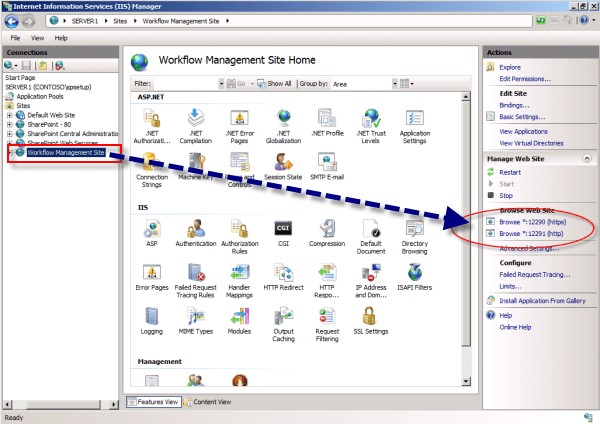 Workflow Manager communicates by using TCP/IP or Named Pipes. Make sure that the appropriate communication protocol is enabled on the SQL Server instance that hosts the Workflow Manager databases.
The SQL Browser Service must be running on the SQL Server instance that hosts the Workflow Manager databases.
The System Account cannot be used to develop a workflow.
To troubleshoot Workflow Manager, see Troubleshooting Workflow Management and Execution.
To troubleshoot SharePoint Server 2013, see Troubleshooting SharePoint 2013.
Installation and Deployment for SharePoint 2013 Resource Center
What’s New in SharePoint 2013 Resource Center
-
Installing Workflow Manager certificates in SharePoint Server 2013
Published: September 11, 2012
Summary: Learn how to configure SSL certificates for encrypted communication between Workflow Manager and SharePoint Server 2013.
Applies to: SharePoint Server 2013
Secure Socket Layer (SSL) is an encrypted communication protocol which uses encryption certificates. Workflow Manager and SharePoint Server 2013 can communicate in a secure manor using SSL. This article describes the steps required to setup and configure SSL certificates.
-
Configuration steps
The following sections provide instructions for configuring SSL communication with Workflow Manager and SharePoint Server 2013.
Enable Secure Sockets Layer (SSL) in IIS Manager. For guidance on completing the configuration, see the following:
Under some circumstances, you must obtain and install Workflow Manager “issuer” certificates on SharePoint Server 2013. Here are the circumstances where you must install Workflow Manager certificates:
- If SSL is enabled either on SharePoint Server 2013 (which is not the default) or on Workflow Manager (which is the default), AND
- If SharePoint Server 2013 and Workflow Manager do not share a Certificate Authority, AND
- If Workflow Manager is configured to generate self-signed certificates (which is the default).
 Note:
Note:
Product trial, workflow development, and troubleshooting are easier if SSL is not enabled. However, communication between SharePoint Server 2013 and Workflow Manager is not encrypted if SSL is not enabled. For this reason, SSL should be enabled for production configurations.
To obtain and export certificates from the Workflow Manager server
- On a computer that has Workflow Manager installed, choose IIS Manager, Sites. Right-click Workflow Management Site, and then choose Edit Bindings.
- Choose the https port, and then choose Edit. Choose the View button in the SSL Certificate section.
-
To export the issuer certificate, do the following:
- In the Certificate window, choose the Certification path tab.
- Select root certification path and choose View.
- On the Details tab, choose Export Certificate, and take the default options in the export wizard.
- Give the exported certificate file a friendly name.
- In the Certificate window, choose the Certification path tab.
To install certificates on SharePoint Server 2013
- Copy the issuer certificate to your SharePoint Server 2013 computer.
- Add the certificates to the Windows Certificate store.
-
For each certificate, do the following:
- Double-click the file to open and view the certificate.
- On the certificate, choose the Install Certificate button to start the installation wizard.
- In the wizard, choose Place all certificates in the following store, and then choose Trusted Root Certification Authorities.
- Double-click the file to open and view the certificate.
- Add the certificates to SharePoint Server by going to the SharePoint Management shell and running the New-SPTrustedRootAuthority cmdlet. Do this for each certificate file.
-
Create a web application in SharePoint 2013
Published: July 16, 2012
Summary: SharePoint 2013 web applications isolate content for specific types of users within your site collections.
Applies to: SharePoint Server 2013 | SharePoint Foundation 2013
The following downloadable resources, articles on TechNet, and related resources provide information about how to create web applications.
Introduction
A SharePoint 2013 web application is composed of an Internet Information Services (IIS) web site that acts as a logical unit for the site collections that you create. Before you can create a site collection, you must first create a Web application. Each web application is represented by a different IIS web site with a unique or shared application pool. You can assign each web application a unique domain name. This helps prevent cross-site scripting attacks. When you create a new web application, you also create a new content database and define the authentication method used to connect to the database. In addition, you define an authentication method to be used by the IIS Web site in SharePoint 2013.
-
TechNet articles about how to create web applications
The following articles about how to create web applications are available to view online. Writers update articles on a continuing basis as new information becomes available and as users provide feedback.

Content
Description
Create web applications that use classic mode authentication in SharePoint 2013
Explains how to create a web application that uses classic mode (Windows-classic) authentication in SharePoint 2013.
Illustrates how to create SharePoint 2013 web applications that use claims-based authentication or classic-mode authentication.
Configure basic authentication for a claims-based web application in SharePoint 2013
Explains how to configure basic authentication for a web application that uses claims-based authentication in SharePoint 2013.
Configure digest authentication for a claims-based web application in SharePoint 2013
Explains how to configure digest authentication for a web application that uses claims-based authentication in SharePoint 2013.
-
Create web applications that use classic mode authentication in SharePoint 2013
Updated: October 2, 2012
Summary: Learn how to create a web application that uses classic mode (Windows-classic) authentication in SharePoint 2013.
Applies to: SharePoint Foundation 2013 | SharePoint Server 2013
In SharePoint 2013, claims-based authentication is the default and preferred method of user authentication and is required to take advantage of server-to-server authentication and app authentication. In Central Administration, you can only configure claims-based authentication when you manage web applications. You can also use Windows PowerShell cmdlets. The use of classic mode authentication, also known as Windows classic authentication, is discouraged in SharePoint 2013 and you can only create or configure web applications for classic mode authentication with Windows PowerShell cmdlets.
 Important:
Office Web Apps can be used only by SharePoint 2013 web applications that use claims-based authentication. Office Web Apps rendering and editing will not work on SharePoint 2013 web applications that use classic mode authentication. If you migrate SharePoint 2010 web applications that use classic mode authentication to SharePoint 2013, you must migrate them to claims-based authentication to allow them to work with Office Web Apps. For more information, see Use Office Web Apps with SharePoint 2013.
To use Windows claims-based authentication instead (recommended), see Create claims-based web applications in SharePoint 2013. To convert a web application that uses classic mode to use claims-based authentication, see Migrate from classic-mode to claims-based authentication in SharePoint 2013.
 Important:
The steps in this article apply to both SharePoint Foundation 2013 and SharePoint Server 2013.
-
Before you begin
Before you perform this procedure, confirm the following:
- Your system is running SharePoint 2013.
-
You have determined the design of your logical architecture.
For more information, see Logical architecture components.
-
You have planned authentication for your web application.
For more information, see Plan for user authentication methods.
- If you use Secure Sockets Layer (SSL), you must associate the SSL certificate with the web application’s IIS website after the IIS website is created. For more information about how to set up SSL, see How to Setup SSL on IIS 7.0 (http://go.microsoft.com/fwlink/p/?LinkId=187887). SSL is required by default for web applications that are used in server-to-server authentication and app authentication scenarios.
-
You understand host-named site collections.
For more information, see Host-named site collections planning.
 Note:
Note:
Because SharePoint 2013 runs as websites in Internet Information Services (IIS), administrators and users depend on the accessibility features that browsers provide. SharePoint 2013 supports the accessibility features of supported browsers. For more information, see the following resources:
- Your system is running SharePoint 2013.
-
Create a web application that uses classic mode authentication with Windows PowerShell
Perform the following procedure to use Windows PowerShell to create a web application that uses classic mode authentication.
To create a web application that uses classic mode authentication with Windows PowerShell
- Verify that you have the following memberships:
- securityadmin fixed server role on the SQL Server instance.
- db_owner fixed database role on all databases that are to be updated.
- Administrators group on the server on which you are running the Windows PowerShell cmdlets.
-
Add memberships that are required beyond the minimums above.
An administrator can use the Add-SPShellAdmin cmdlet to grant permissions to use SharePoint 2013 Products cmdlets.
 Note:
Note:
If you do not have permissions, contact your Setup administrator or SQL Server administrator to request permissions. For additional information about Windows PowerShell permissions, see Add-SPShellAdmin.
- Start the SharePoint 2013 Management Shell.
-
For Windows Server 2008 R2:
- On the Start menu, click All Programs, click Microsoft SharePoint 2013 Products, and then click SharePoint 2013 Management Shell.
- On the Start menu, click All Programs, click Microsoft SharePoint 2013 Products, and then click SharePoint 2013 Management Shell.
-
For Windows Server 2012:
-
On the Start screen, click SharePoint 2013 Management Shell.
If SharePoint 2013 Management Shell is not on the Start screen:
-
Right-click Computer, click All apps, and then click SharePoint 2013 Management Shell.
For more information about how to interact with Windows Server 2012, see Common Management Tasks and Navigation in Windows Server 2012.
-
-
At the Windows PowerShell command prompt, type the following command:
New-SPWebApplication -Name <Name> -ApplicationPool <ApplicationPool> -AuthenticationMethod <WindowsAuthType> -ApplicationPoolAccount <ApplicationPoolAccount> -Port <Port> -URL <URL>
Where:
- <Name> is the name of the new web application.
- <ApplicationPool> is the name of the application pool.
- < WindowsAuthType > is either “NTLM“ or “Kerberos“. Kerberos is recommended.
- <ApplicationPoolAccount> is the user account that this application pool will run as.
- <Port> is the port on which the web application will be created in IIS.
- <URL> is the public URL for the web application.
-
Example
New-SPWebApplication -Name “Contoso Internet Site” -ApplicationPool “ContosoAppPool” -AuthenticationMethod “Kerberos” -ApplicationPoolAccount (Get-SPManagedAccount “CONTOSO\jdoe”) -Port 80 -URL “https://www.contoso.com”
For more information, see New-SPWebApplication.
 Note:
Note:
We recommend that you use Windows PowerShell when performing command-line administrative tasks. The Stsadm command-line tool has been deprecated, but is included to support compatibility with previous product versions.
After this procedure is complete, you can create one or more site collections for this web application. For more information, see Create a site collection.
After you successfully create the web application, when you open the Central Administration page, you see a health rule warning that indicates that one or more web applications is enabled with classic authentication mode. This is a reflection of our recommendation to use claims-based authentication instead of classic mode authentication.
-
Create claims-based web applications in SharePoint 2013
Published: July 16, 2012
Summary: Illustrates how to create SharePoint 2013 web applications that use claims-based authentication or classic-mode authentication.
Applies to: SharePoint Foundation 2013 | SharePoint Server 2013
Claims-based authentication is a requirement to enable the advanced functionality of SharePoint 2013. This article explains how to use either Central Administration or Windows PowerShell to create a SharePoint 2013 web application that uses claims-based authentication. Claims-based authentication is a requirement for web applications that are deployed in scenarios that support server-to-server authentication and app authentication. However, this article also provides guidance for using Windows PowerShell to create classic-mode web applications if you have a specific scenario that cannot support claims-based authentication. Be aware that classic-mode authentication is deprecated in this release, and it will not be available in the next version. For more information, see Plan for server-to-server authentication in SharePoint 2013
 Important:
Secure Sockets Layer (SSL) is a requirement for web applications that are deployed in scenarios that support server-to-server authentication and app authentication.
You can create a web application by using the SharePoint Central Administration website or Windows PowerShell. You typically use Windows PowerShell to create a web application. If you want to automate the task of creating a web application, which is common in enterprises, use Windows PowerShell. After you complete the procedure, you can create one or several site collections.
In this article:
- Create a claims-based web application by using Central Administration
- Create a claims-based web application by using Windows PowerShell
- Create a classic-mode web application by using Windows PowerShell
 Note:
Note:
The steps in this article apply to both SharePoint Foundation 2013 and SharePoint Server 2013.
Because SharePoint 2013 runs as websites in Internet Information Services (IIS), administrators and users depend on the accessibility features that browsers provide. SharePoint 2013 supports the accessibility features of supported browsers. For more information, see the following resources:
- Create a claims-based web application by using Central Administration
-
Create a claims-based web application by using Central Administration
Use the procedure described in this section to create a new claims-based SharePoint 2013 web application using the Central Administration.
To create a claims-based web application by using Central Administration
- Verify that you have the following administrative credentials:
- To create a web application, you must be a member of the Farm Administrators SharePoint group.
- Start SharePoint 2013 Central Administration.
-
For Windows Server 2008 R2:
- Click Start, click Microsoft SharePoint 2013 Products, and then click SharePoint 2013 Central Administration.
- Click Start, click Microsoft SharePoint 2013 Products, and then click SharePoint 2013 Central Administration.
-
For Windows Server 2012:
-
On the Start screen, click SharePoint 2013 Central Administration.
If SharePoint 2013 Central Administration is not on the Start screen:
-
Right-click Computer, click All apps, and then click SharePoint 2013 Central Administration.
For more information about how to interact with Windows Server 2012, see Common Management Tasks and Navigation in Windows Server 2012.
-
- On the Central Administration Home page, click Application Management.
- On the Application Management page, in the Web Applications section, click Manage web applications.
- In the Contribute group of the ribbon, click New.
- On the Create New Web Application page, in the IIS Web Site section, you can configure the settings for your new web application by selecting one of the following two options:
- Click Use an existing IIS web site, and then select the web site on which to install your new web application.
- Click Create a new IIS web site, and then type the name of the web site in the Name box.
-
In the Port box, type the port number you want to use to access the web application. If you are using an existing web site, this field contains the current port number.
 Note:
Note:
The default port number for HTTP access is 80, and the default port number for HTTPS access is 443.
-
Optional: In the IIS Web Site section, in the Host Header box, type the host name (for example, http://www.contoso.com) that you want to use to access the web application.
 Note:
Note:
You do not need to populate this field unless you want to configure two or more IIS web sites that share the same port number on the same server, and DNS has been configured to route requests to the same server.
- In the Path box, type the path to the IIS web site home directory on the server. If you are creating a new web site, this field contains a suggested path. If you are using an existing web site, this field contains the current path of that web site.
- In the Security Configuration section, choose whether or not to Allow Anonymous access and whether or not to Use Secure Sockets Layer (SSL).
 Important:
Secure Sockets Layer (SSL) is a requirement for web applications that are deployed in scenarios that support server-to-server authentication and app authentication. In general, we strongly recommend using SSL for web applications.
-
In the Security Configuration section, click Yes or No for the Allow Anonymous options. If you choose to Yes, visitors can use the computer-specific anonymous access account (that is, IIS_IUSRS) to access the web site.
 Note:
Note:
If you want users to be able to access any site content anonymously, you must enable anonymous access for the entire web application zone before you enable anonymous access at the SharePoint site level. Later, site owners can configure anonymous access for their sites. If you do not enable anonymous access at the web application level, site owners cannot enable anonymous access at the site level.
- In the Security Configuration section, click Yes or No for the Use Secure Sockets Layer (SSL) options. If you choose Yes, you must request and install an SSL certificate to configure SSL. For more information about how to set up SSL, see How to Setup SSL on IIS 7.0.
- In the Claims Authentication Types section, select the authentication method that you want to use for the web application.
-
To enable Windows authentication, select Enable Windows Authentication and, in the drop-down menu, select NTLM or Negotiate (Kerberos). We recommend using Negotiate (Kerberos).
If you do not want to use Integrated Windows authentication, clear Integrated Windows authentication.
 Note:
Note:
If you do not select Windows Authentication for at least one zone of this web application, crawling for this web application will be disabled.
-
If you want users’ credentials to be sent over a network in a nonencrypted form, select Basic authentication (credentials are sent in clear text).
 Note:
Note:
You can select basic authentication or integrated Windows authentication, or both. If you select both, SharePoint 2013 offers both authentication types to the client web browser. The client web browser then determines which type of authentication to use. If you only select Basic authentication, ensure that SSL is enabled. Otherwise, a malicious user can intercept credentials.
-
To enable forms-based authentication, select Enable Forms Based Authentication (FBA), and then enter the ASP.NET Membership provider name and the ASP.NET Role manager name.
 Note:
Note:
If you select this option, ensure that SSL is enabled. Otherwise, a malicious user can intercept credentials.
- If you have set up Trusted Identity Provider authentication by using Windows PowerShell, the Trusted Identity provider check box is selected.
- In the Sign In Page URL section, choose one of the following options to sign into SharePoint 2013:
- Select Default Sign In Page URL to redirect users to a default sign-in web site for claims-based authentication.
- Select Custom Sign In page URL and then type the sign-in URL to redirect users to a customized sign-in web site for claims-based authentication.
-
In the Public URL section, type the URL for the domain name for all sites that users will access in this web application. This URL will be used as the base URL in links that are shown on pages within the web application. The default URL is the current server name and port, and it is automatically updated to reflect the current SSL, host header, and port number settings on the page. If you deploy SharePoint 2013 behind a load balancer or proxy server, then this URL may need to be different than the SSL, host header, and port settings on this page.
The Zone value is automatically set to Default for a new web application. You can change the zone when you extend a web application.
- In the Application Pool section, do one of the following:
- Click Use existing application pool, and then select the application pool that you want to use from the drop-down menu.
- Click Create a new application pool, and then type the name of the new application pool, or keep the default name.
- Click Predefined to use a predefined security account for this application pool, and then select the security account from the drop-down menu.
-
Click Configurable to specify a new security account to be used for an existing application pool.
 Note:
Note:
To create a new account, click the Register new managed account link.
- In the Database Name and Authentication section, choose the database server, database name, and authentication method for your new web application, as described in the following table.
|
Action |
|
Database Server |
Type the name of the database server and SQL Server instance you want to use in the format <SERVERNAME\instance>. You can also use the default entry. |
|
Database Name |
Type the name of the database, or use the default entry. |
|
Database Authentication |
Select the database authentication to use by doing one of the following:
SQL authentication sends the SQL authentication password to SQL Server in an unencrypted format. We recommend that you only use SQL authentication if you force protocol encryption to SQL Server to encrypt your network traffic by using IPsec. |

- If you use database mirroring, in the Failover Server section, in the Failover Database Server box, type the name of a specific failover database server that you want to associate with a content database
- In the Service Application Connections section, select the service application connections that will be available to the web application. In the drop-down menu, click default or [custom]. You use the [custom] option to choose the service application connections that you want to use for the web application.
- In the Customer Experience Improvement Program section, click Yes or No.
- Click OK to create the new web application.
-
Create a claims-based web application by using Windows PowerShell
Use the procedure in this section to create a new claims-based SharePoint 2013 web application using Windows PowerShell.
To create a claims-based web application by using Windows PowerShell
- Verify that you have the following memberships:
- securityadmin fixed server role on the SQL Server instance.
- db_owner fixed database role on all databases that are to be updated.
- Administrators group on the server on which you are running Windows PowerShell cmdlets.
-
You must read about_Execution_Policies.
An administrator can use the Add-SPShellAdmin cmdlet to grant permissions to use SharePoint 15 Products cmdlets.
 Note:
Note:
If you do not have permissions, contact your Setup administrator or SQL Server administrator to request permissions. For additional information about Windows PowerShell permissions, see Permissions and Add-SPShellAdmin.
-
To create a claims-based authentication provider, from the Windows PowerShell command prompt, type the following:
$ap = New-SPAuthenticationProvider
-
To create a claims-based web application, from the Windows PowerShell command prompt, type the following:
New-SPWebApplication -Name <Name>
-ApplicationPool <ApplicationPool>
-ApplicationPoolAccount <ApplicationPoolAccount>
-URL <URL> -Port <Port> -AuthenticationProvider $ap
Where:
- <Name> is the name of the new web application that uses claims-based authentication.
- <ApplicationPool> is the name of the application pool.
- <ApplicationPoolAccount> is the user account that this application pool will run as.
- <URL> is the public URL for this web application.
-
<Port> is the port on which the web application will be created in IIS.
 Note:
Note:
For more information, see New-SPWebApplication.
The following example creates an https claims-based web application, using the current user credentials and the current machine name:
$waUrl = “https://” + $env:ComputerName
$siteAdmin = $env:userdomain + “\” + $env:username;
CreateWindowsWebApp -url $waUrl -title “WinClaimsInbound” -site_admin $siteAdmin -app_pool_name “WebAppPool1” -app_pool_account $siteAdmin -use_claims –use_ssl;
 Note:
Note:
After you have created the web site, you must configure SSL in IIS for this newly created web site. For more information about how to set up SSL, see How to Setup SSL on IIS 7.0.
If you want your web application to use HTTP, do not use the –use_ssl parameter, and use the http scheme for the –url parameter.
-
Create a classic-mode web application by using Windows PowerShell
Use the procedure in this section to create a new classic-mode SharePoint 2013 web application using Windows PowerShell.
To create a classic-mode web application by using Windows PowerShell
- Verify that you have the following memberships:
- securityadmin fixed server role on the SQL Server instance.
- db_owner fixed database role on all databases that are to be updated.
- Administrators group on the server on which you are running Windows PowerShell cmdlets.
- You must read about_Execution_Policies.
-
From the Windows PowerShell command prompt, type the following:
New-SPWebApplication –Name <Name>
–ApplicationPool <ApplicationPool>
-AuthenticationMethod <WindowsAuthType>
–ApplicationPoolAccount <ApplicationPoolAccount>
-Port <Port> -URL <URL>
Where:
- <Name> is the name of the new web application that uses classic-mode authentication.
- <ApplicationPool> is the name of the application pool.
- <WindowsAuthType> is either “NTLM“ or “Kerberos“. Kerberos is recommended.
- <ApplicationPoolAccount> is the user account that this application pool will run as.
- <Port> is the port on which the web application will be created in IIS.
-
<URL> is the public URL for the web application.
 Note:
Note:
For more information, see New-SPWebApplication.
 Note:
Note:
After you successfully create the web application, when you open the Central Administration page, you see a health rule warning that indicates that one or more web applications is enabled with classic authentication mode. This is a reflection of our recommendation to use claims-based authentication instead of classic mode authentication.
-
Configure basic authentication for a claims-based web application in SharePoint 2013
Published: September 25, 2012
Summary: Learn how to configure basic authentication for a web application that uses claims-based authentication in SharePoint 2013.
Applies to: SharePoint Server 2013 Enterprise | SharePoint Foundation 2013 | SharePoint Server 2013 Standard
You can configure basic authentication for one or more zones in a SharePoint 2013 claims-based web application. A web application is an Internet Information Services (IIS) web site that SharePoint 2013 creates and uses. Zones represent different logical paths for gaining access to the network services that are available within the same web application. Within each web application, you can create up to five zones. A different web site in IIS represents each zone. Use zones to enforce different access and policy conditions for large groups of users. To configure basic authentication for one or more zones in a SharePoint 2013 web application, use IIS Manager console, instead of SharePoint Central Administration.
-
Before you begin
Before you perform this procedure, confirm the following:
- Your system is running SharePoint 2013.
- Basic authentication requires previously assigned Windows account credentials for user access.
-
You understand basic authentication for web traffic.
Basic authentication enables a web browser to provide credentials when the browser makes a request during an HTTP transaction. Because user credentials are not encrypted for network transmission but are sent over the network in plaintext, we do not recommend that you use basic authentication over an unsecured HTTP connection. To use basic authentication, you should enable Secure Sockets Layer (SSL) encryption for the web site; otherwise, the credentials can be intercepted by a malicious user.
 Note:
Note:
Because SharePoint 2013 runs as websites in IIS, administrators and users depend on the accessibility features that browsers provide. SharePoint 2013 supports the accessibility features of supported browsers. For more information, see the following resources:
- Plan browser support (http://go.microsoft.com/fwlink/p/?LinkId=246502)
- Accessibility for SharePoint Products
- Accessibility features in SharePoint 15 Products (http://go.microsoft.com/fwlink/p/?LinkId=246501)
- Keyboard shortcuts (http://go.microsoft.com/fwlink/p/?LinkID=246504)
- Touch (http://go.microsoft.com/fwlink/p/?LinkId=246506)
- Your system is running SharePoint 2013.
-
Configure IIS to enable basic authentication
Use the IIS Manager console to configure IIS to enable basic authentication for one or more of the following zones for a claims-based web application:
- Default
- Intranet
- Extranet
The Default zone is the zone that is first created when a web application is created. The other zones are created by extending a web application. For more information, see Extend a claims-based web application.
To configure IIS to enable basic authentication
- Default
- Verify that you a member of the Administrators group on the server on which you are configuring IIS.
- Click Start, point to Administrative Tools, and then click Internet Information Services (IIS) Manager to start IIS Manager console.
- Expand Sites in the console tree, and then click the IIS web site that corresponds to the web application zone on which you want to configure basic authentication.
- In Features View, in IIS, double-click Authentication.
- In Features View, in Authentication, right-click Basic Authentication, and then click Enable.
- Right-click Basic Authentication, and then click Edit.
-
In the Edit Basic Authentication Settings dialog box, in the Default domain text box, type the appropriate default domain.
The default domain is the name of a domain against which you want users to be authenticated when they do not provide a domain name.
-
In the Realm text box, type the appropriate realm, and then click OK.
The realm is a DNS domain name or an IP address that will use the credentials that are authenticated against your internal Windows domain. Configuring a realm name for basic authentication is optional.
The web site is now configured to use basic authentication.
You can also configure basic authentication when you create a web application in SharePoint Central Administration by selecting Basic authentication (password is sent in clear text) in the Claims Authentication Types section of the Create New Web Application dialog box. For more information, see Create claims-based web applications in SharePoint 2013.
 Security
In the Claims Authentication Types section of the Create New Web Application dialog box, you can select Integrated Windows authentication, Basic authentication (password is sent in clear text), or both. If you select both, SharePoint 2013 will offer both authentication types to the client web browser. The client web browser then determines the type of authentication to use. If you only select Basic authentication (password is sent in clear text), make sure that you enable SSL for this web application.
-
Configure digest authentication for a claims-based web application in SharePoint 2013
Published: September 25, 2012
Summary: Learn how to configure digest authentication for a web application that uses claims-based authentication in SharePoint 2013.
Applies to: SharePoint Server 2013 Enterprise | SharePoint Server 2013 Standard | SharePoint Foundation 2013
You can configure digest authentication for one or more zones in a SharePoint 2013 claims-based web application. A web application is an Internet Information Services (IIS) web site that SharePoint 2013 creates and uses. Zones represent different logical paths for gaining access to the same web application. Within each web application, you can create up to five zones. A different web site in IIS represents each zone. Use zones to enforce different access and policy conditions for large groups of users. To configure digest authentication for one or more zones in a SharePoint 2013 web application, use IIS Manager console, instead of SharePoint Central Administration.
Unlike basic authentication, digest authentication encrypts user credentials to increase security. User credentials are sent as an MD5 message digest in which the original user name and password cannot be determined. Digest authentication uses a challenge/response protocol that requires the authentication requestor to present valid credentials in response to a challenge from the server. To authenticate against the server, the client has to supply an MD5 message digest in a response that contains a shared secret password string. The MD5 Message-Digest Algorithm is described in RFC 1321. For access to RFC 1321, see The Internet Engineering Task Force (http://go.microsoft.com/fwlink/p/?LinkId=159913).
-
Before you begin
Before you perform this procedure, confirm the following:
- Your system is running SharePoint 2013.
- The user and IIS server must be members of, or trusted by, the same domain.
- Users must have a valid Windows user account stored in Active Directory Domain Services (AD DS) on the domain controller.
- The domain must use a Windows Server 2008 or Windows Server 2008 R2 domain controller.
-
You understand digest authentication for web traffic.
For more information, see What is Digest Authentication? (http://go.microsoft.com/fwlink/p/?LinkId=209085).
 Note:
Note:
Because SharePoint 2013 runs as websites in IIS, administrators and users depend on the accessibility features that browsers provide. SharePoint 2013 supports the accessibility features of supported browsers. For more information, see the following resources:
- Plan browser support (http://go.microsoft.com/fwlink/p/?LinkId=246502)
- Accessibility for SharePoint Products
- Accessibility features in SharePoint 15 Products (http://go.microsoft.com/fwlink/p/?LinkId=246501)
- Keyboard shortcuts (http://go.microsoft.com/fwlink/p/?LinkID=246504)
- Touch (http://go.microsoft.com/fwlink/p/?LinkId=246506)
- Your system is running SharePoint 2013.
-
Configure IIS to enable digest authentication
Use IIS Manager console to configure IIS to enable digest authentication for one or more of the following zones for a claims-based web application:
- Default
- Intranet
- Extranet
The Default zone is the zone that is first created when a web application is created. The other zones are created by extending a web application. For more information, see Extend a claims-based web application.
To configure IIS to enable digest authentication
- Default
- Verify that you are a member of the Administrators group on the server on which you are configuring IIS.
- Click Start, point to Administrative Tools, and then click Internet Information Services (IIS) Manager to start IIS Manager console.
- Expand Sites in the console tree, and then click the IIS web site that corresponds to the web application zone on which you want to configure digest authentication.
- In Features View, in IIS, double-click Authentication.
- In Features View, in Authentication, right-click Digest Authentication, and then click Enable.
- Right-click Digest Authentication, and then click Edit.
-
In the Edit Digest Authentication Settings dialog box, in the Realm text box, type the appropriate realm, and then click OK.
The realm is a DNS domain name or an IP address that will use the credentials that have been authenticated against your internal Windows domain. You must configure a realm name for digest authentication.
The web site is now configured to use digest authentication.
-
Install and manage solutions for SharePoint 2013
Published: October 16, 2012
Summary: Learn how to install solutions or components that were customized by developer or web designers to a SharePoint 2013 environment.
Applies to: SharePoint Server 2013 | SharePoint Foundation 2013
The process to install custom site elements and solution packages in SharePoint 2010 Products and SharePoint 2013 has not changed significantly. Detailed content about how to install custom elements is available in the SharePoint Server 2010 technical library in the following section Deploy customizations – overview (SharePoint Server 2010). To install solution packages, you can use a new parameter, CompatibilityLevel, to install the solution to the latest version directories, or to use only the current version tracked in the cab file. For more information, see Install-SPSolution.
To add functionality to SharePoint sites in SharePoint 2013, you can use apps for SharePoint. For more information about apps for SharePoint, see Install and manage apps for SharePoint 2013.
-
TechNet articles about how to install and manage solutions
The following articles about how to install and manage solutions are available to view online. Writers update articles on a continuing basis as new information becomes available and as users provide feedback.

Content
Description
Overview article and detailed content about how to install custom elements for SharePoint Server 2010. Applies to both SharePoint 2010 Products and SharePoint 2013.
Content about how to manage sandboxed solutions for SharePoint Server 2010. Applies to both SharePoint 2010 Products and SharePoint 2013.
List Windows PowerShell cmdlets that help you manage features and solutions in a SharePoint 2013 farm.
-
Additional resources about how to install and manage solutions
The following resources about how to install and manage solutions are available from other subject matter experts.
Content
Description

Visit the TechCenter to access videos, community sites, documentation, and more.

Find resources for building solutions on SharePoint 2013. This includes how-to articles, code samples, and the SharePoint SDK.

Read draft content, learn about new content, and join the conversation at this IT pro content team blog.
Learn how to get the most out of SharePoint sites by reading this blog.
-
Install and manage apps for SharePoint 2013
Published: July 16, 2012
Summary: The following resources provide information about apps for SharePoint, the SharePoint Store, and the App Catalog and how to install, manage, and monitor apps.
Applies to: SharePoint Foundation 2013 | SharePoint Server 2013 Standard | SharePoint Server 2013 Enterprise
-
Downloadable resources about apps for SharePoint
Download the following content for information about apps for SharePoint.
Content
Description

Model poster describing apps from an IT Pro perspective.
-
TechNet articles about apps for SharePoint
The following articles about apps are available to view online. Writers update articles on a continuing basis as new information becomes available and as users provide feedback.

ContentDescription
Read an overview of apps for SharePoint from an IT Pro perspective.
Understand what you need to plan for before you support apps for SharePoint.
Learn how to plan for app authentication in SharePoint 2013.
App permissions management enforces security and provides the additional functionality that apps enable on SharePoint 2013 sites.
Follow these steps to configure your environment to support apps for SharePoint.
Learn how to configure app authentication in SharePoint 2013.
Follow these steps to configure and manage the App Catalog and configure SharePoint Store rules.
Learn how to install an app for SharePoint from the App Catalog or SharePoint Store.
Learn how to remove an app for SharePoint from a site collection.
Follow these steps to specify which apps for SharePoint to monitor, and then monitor the apps.
Learn how SharePoint farm administrators assign, monitor, and manage the app for SharePoint licenses in SharePoint Server 2013.
-
Additional resources about apps for SharePoint
The following resources about apps for SharePointare available from other subject matter experts.
Content
Description

Installation and Deployment for SharePoint 2013 Resource Center
Visit the Resource Center to access videos, community sites, documentation, and more.
Content on MSDN

Articles about apps for SharePoint in the SharePoint Server 2013 Software Development Kit
-
Overview of apps for SharePoint 2013
Published: July 16, 2012
Summary: The apps for SharePoint are a powerful, easy way to add functionality to a SharePoint site. Understand how they work, how they are integrated with SharePoint sites, and how they are isolated from your site content.
Applies to: SharePoint Foundation 2013 | SharePoint Server 2013 Standard | SharePoint Server 2013 Enterprise
The apps for SharePoint provide a new method to deliver specific information or functionality to a SharePoint site. An app for SharePoint is a small, easy-to-use, stand-alone app that solves a specific end-user or business need. Site owners can discover and download apps for SharePoint from a public SharePoint Store or from their organization’s internal App Catalog and install them on their SharePoint sites. These apps for SharePoint integrate the best of the web with SharePoint 2013. They do not replace SharePoint features and solution packages, which customize or enhance SharePoint sites. Unlike features and solutions, which farm or site collection administrators have to install, apps for SharePoint are stand-alone applications that owners of sites can add to their SharePoint sites. The apps for SharePoint have a simple lifecycle – they can be installed, upgraded, and uninstalled by site owners.
The following are examples of apps for SharePoint that site owners could add to their sites:
- An app that provides event planning tools.
- An app that provides a shopping cart experience for a site.
- An app that sends a note of recognition for good work (kudos) to someone in the organization.
Microsoft will host and control a public SharePoint Store, where developers will be able to publish and sell their custom apps for SharePoint. End users and IT professionals will be able to obtain these custom apps for personal or corporate use. This SharePoint Store will handle the end-to-end acquisition experience from discovery to purchase, upgrades, and updates.
Company-developed and approved apps can also be deployed to an organization’s internal App Catalog hosted on SharePoint 2013 or SharePoint Online. This controls the visibility of apps within organizations.
 Important:
This article applies to both SharePoint Foundation 2013 and SharePoint Server 2013.
- An app that provides event planning tools.
-
Where are apps for SharePoint hosted?
There are several options for hosting apps for SharePoint.
- Provider-hosted
- Hosted in the cloud (Windows Azure autohosted)
- Hosted in a SharePoint environment
- Several combinations of these options.
Depending on the hosting option, the app can contain different elements and take advantage of different components.
Illustration of hosting options for apps for SharePoint

No matter the hosting option for the app, if you want users to be able to install and use apps for SharePoint in your environment, you will have to configure your environment to support them.
For more information about hosting options, see the SharePoint 2013 developer documentation.
- Provider-hosted
-
How are apps for SharePoint and SharePoint sites related?
Site owners can add apps for SharePoint to their sites. If an app contains SharePoint components, those components are stored in a subweb of the site that is automatically created when you install the app. Apps have their own, isolated URLs, which are separate from the URL for the site that contains the app. If the app is a Provider-hosted or Windows Azure autohosted app, the app components are stored in those locations. For example, in the following diagram, App1 contains custom business logic and is stored on an external server – it is an Windows Azure autohosted app and does not store content in a subweb of the site. App2 is a SharePoint hosted app with only SharePoint components. App2’s content is stored in a subweb of the site on which it is installed.
Illustration of relationship between apps for SharePoint and SharePoint sites
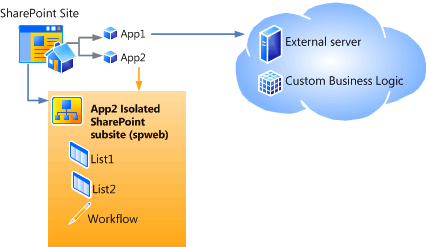
-
What is the URL for an app for SharePoint?
By default, apps are deployed to their own web site in a special, isolated domain name, instead of in the same domain name as your farm. Processes run under that domain name and do not affect the SharePoint sites. This difference in domain names provides a layer of isolation for the apps. The use of a different domain name from the SharePoint sites prevents cross-site scripting between the apps and sites and unauthorized access to users’ data.
Each installation of an app has a unique URL in your environment. You determine the template for that URL (by specifying a domain name and an app prefix), and then app URLs are automatically generated based on that template. Paths for the apps are based on the URL for the site where they are installed. When you install an app to a site, a subweb of that site is created to host the app content. The subweb for the app is hierarchically below the site collection, but has an isolated unique host header instead of being under the site’s URL. The following diagram shows the relationship between the site’s URL and the app’s URL:
Illustration of URL for an app for SharePoint
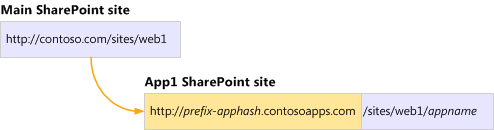
In this diagram, the Main SharePoint Site is the site on which the user installed the app. The App1 SharePoint Site is a subweb of the Main site that contains the app and its components. The URL for the App1 SharePoint site is based on that of the Main SharePoint site. However, it is in a different domain, has a prefix-apphash at the beginning, and has an app name at the end for the subweb name. The prefix-apphash part of the URL is designed to support multi-tenant environments. In a multi-tenant environment, each tenant has its name that is combined with the apphash to provide a unique domain name for the app. If you are not in a multi-tenant environment, you can use the same app prefix for all URLs.
-
Use and benefits of apps for SharePoint
The apps for SharePoint allow users to add quick functionality to their site without your intervention. Unlike templates, features, and solutions, which an IT administrator must deploy, site owners can add apps for SharePoint to their sites or remove them. Because apps for SharePoint are limited in scope to a subweb and have an isolated URL, they do not interact with the rest of your farm or open your environment to cross-site scripting risks.
Your organization can develop its own apps for SharePoint. You can make apps for SharePoint available from the SharePoint Store, and you can make these apps available in the App Catalog so that users know which apps for SharePoint are approved for use in your environment. Users can easily update apps for SharePoint with new versions when they become available.
-
Impacts of apps for SharePoint
Supporting apps for SharePoint in your environment does require a configuration change to your environment. There are two main considerations:
- Requirements for supporting apps for SharePoint You must be running the Subscription Settings and App Management service applications to use apps for SharePoint. You must create the DNS domain to contain the URLs for apps for SharePoint in your environment.
- Plan for capacity Each app for SharePoint that is installed creates a subweb under the site on which it is installed with its own URL. This means that environments that contain many apps for SharePoint will have many additional subwebs. Be sure to consider this when planning for capacity for your farm.
For more information about these and other considerations, see Plan for apps for SharePoint 2013 and Configure an environment for apps for SharePoint 2013.
- Requirements for supporting apps for SharePoint You must be running the Subscription Settings and App Management service applications to use apps for SharePoint. You must create the DNS domain to contain the URLs for apps for SharePoint in your environment.
-
Plan for apps for SharePoint 2013
Published: July 16, 2012
Summary: Determine your environment’s app for SharePoint policy, whether to use the App Catalog, the URLs to use for apps for SharePoint, and the settings to configure for apps for SharePoint in your environment.
Applies to: SharePoint Foundation 2013 | SharePoint Server 2013
The apps for SharePoint provide a new method to deliver specific information or functionality to a SharePoint site. An app for SharePoint is a small, easy-to-use, stand-alone productivity app that solves a specific end-user need. Before you allow users to install apps in a SharePoint environment, you must plan how you want to support them. You have to determine your organization’s policy around apps for SharePoint, plan your configuration settings, and determine how to manage and monitor the apps. This article explains key decisions and helps you understand the choices to make as you plan to support apps for SharePoint.
In this article:
- Governance: determine the app for SharePoint policy for your organization
- Plan app configuration settings
- Plan App Catalog
- Plan to monitor apps
- Plan for app licenses
For more conceptual information about apps for SharePoint, see Overview of apps for SharePoint 2013.
- Governance: determine the app for SharePoint policy for your organization
-
Governance: determine the app for SharePoint policy for your organization
The first decision about apps for SharePoint is the extent to which you want to use them in your organization and the policy for using them. The following questions can help you frame your discussion about your policy:
-
Do you want users to be able to install and use apps for SharePoint?
- If so, keep reading and shaping your policy.
- If not, then you can use settings in the SharePoint Store to control whether users can get apps from the SharePoint Store. You cannot block users from viewing the SharePoint Store. However, you can prevent them from purchasing or downloading apps for SharePoint. If you choose to prevent users from getting apps for SharePoint from the SharePoint Store, you should create a policy statement and notify users to advise users that you have chosen not to support apps for SharePoint. Otherwise, the only notification to users will be an error when they try to install an app for SharePoint.
- If so, keep reading and shaping your policy.
-
Do you want to restrict or control the apps for SharePoint that users can install and use?
If so, you can do one or both of the following:
- Set up an App Catalog to provide a set of apps for SharePoint that users can install and use.
- Use the App Request feature to control the purchasing and licensing of apps for SharePoint.
- Set up an App Catalog to provide a set of apps for SharePoint that users can install and use.
-
In which environments do you want apps for SharePoint to be available? For example, intranet, extranet, or Internet environments?
You should decide which environments are appropriate for using apps for SharePoint and configure the settings for apps for SharePoint only in those farms or for those web applications.
-
Do you want to control who can purchase apps for SharePoint?
No explicit setting prevents a user from purchasing an app for SharePoint. However, you can create a request process that requires users to submit a request that your organization reviews to ensure that appropriate persons make purchases.
-
Do you want to control who can install apps for SharePoint?
A user must have the Manage Web site and Create Subsites permissions to install an app for SharePoint. By default, these permissions are available only to users who have the Full Control permission level or who are in the Site Owners group.
-
Do you want to control which hosting options can be used for apps for SharePoint in your environment?
You cannot explicitly specify the hosting options (Provider-hosted, Windows Azure autohosted, or SharePoint hosted) that are available. The creator of an app determines how it is hosted based on what the app contains or does. However, you can choose a specific hosting option for apps for SharePoint that you provide for your own organization in the App Catalog.
-
How many and which apps for SharePoint do you want to monitor?
You must explicitly select the apps for SharePoint to monitor for a farm.
 Note:
Note:
The ability to monitor apps for SharePoint is not available for SharePoint Foundation 2013.
-
-
Plan app configuration settings
Before you use apps for SharePoint in your environment, you have to configure your environment to support them. If you don‘t configure your environment, users who try to install and use apps for SharePoint receive error messages. For all apps for SharePoint, you must set up a Domain Name Services (DNS) domain name to provide a host name for the installed apps. By using a separate domain name, apps for SharePoint are separated from SharePoint sites to prevent unauthorized access to user data and to reduce the likelihood of cross-site scripting attacks. Using separate URLs for apps for SharePoint and SharePoint sites is called app isolation. You also need a DNS record so that the domain name can get correctly resolved. You can create one of two of the following types of DNS records for app for SharePoint URLs:
- A wildcard Canonical Name (CNAME) record that points to the host domain assigned to the SharePoint farm.
- An A record to point to the IP address for the SharePoint farm.
Choose the type of record to point from the app domain to the SharePoint farm domain.
Illustration of a type of record that points from the app domain to a SharePoint farm domain
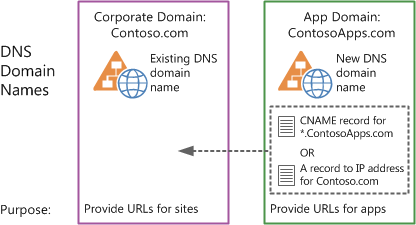
In addition to setting up the DNS domain to support apps in your environment, you also have to configure the following:
-
SSL Certificates (if they are required)
If you are using SSL to help secure traffic, you must create a wildcard certificate to use for all app URLs. Wildcard certificates cost about the same as five individual certificates. So, you can quickly justify the cost of a wildcard if you expect to use more than five instances of apps for SharePoint in your environment.
 Important:
Each instance of an app for SharePoint that is installed has its own URL. Therefore, if you only have one app for SharePoint in your environment, but the app is installed on six different sites, then you will have six different app URLs.
-
The Subscription Settings and App Management service applications
These services support apps in your environment by storing the data needed to run apps in the farm. The Subscription Settings service stores the tenant name and the App Management Service stores app licenses, app principals, app users, app registrations, and so on.
-
The app URLs to use
Each app has a unique URL in your environment. You determine the template for that URL, and then app URLs are automatically generated by using the prefix and domain that you specify. For example, prefix–Apphash.ContosoApps.com/sites/web1/appname.
The Configure an environment for apps for SharePoint 2013 article explains how to configure these settings.
-
Determine the domain name to use
Each app for SharePoint has a unique URL, which is made up of the app domain and a prefix for that domain that consists of a tenant name and an Apphash. The format is as follows: prefix–Apphash.domain.com. The Apphash is an arbitrarily-assigned unique identifier for each app for SharePoint.
 Note:
Note:
The examples in this section use an Internet-style domain name for clarity. This does not imply that you must expose your apps to the Internet or that your URLs must use this format. Note that for actual hosting environments you must still organize a DNS routing strategy within your intranet and optionally configure your firewall.
When you choose the domain name and prefixes to use for your environment, consider the following:
-
Consider using a unique domain name, not a subdomain
To help improve security, the domain name that you choose should not be a subdomain of the root domain name that hosts other applications (other than SharePoint sites). This is because other applications that run under that host name might contain sensitive information stored in cookies that might not be protected. Code can set or read cookies across different domains that are under the same domain. A malicious developer could use code in an app for SharePoint to set or read information in a cookie on the root domain from the app for SharePoint subdomain. If a malicious app accessed that cookie information, then you could have an information leak. SharePoint sites have protections against this issue. However, it is still a good idea to use a domain for apps that is separate from your other domains. For example, if the SharePoint sites are at Contoso.com, do not use Apps.Contoso.com. Instead use a unique name such as Contoso-Apps.com. This is not to say that you should never use a subdomain if you have business reasons to do this. However, consider all potential security risks.
-
For single tenant environments, use the same prefix for all apps
If your environment is only used for your own organization and does not host SharePoint sites for other organizations, you configure a prefix that all app for SharePoint URLs in your environment use. For example, you can set the prefix to a word like default so that each app for SharePoint has a URL such as default-Apphash.Contoso-Apps.com.
-
For multi-tenancy environments, use unique prefixes for each tenant’s apps
If your environment has multiple tenants (in other words, you host SharePoint sites for multiple clients), you must be able to identify the URLs that each tenant or client in your environment uses. So, you set the URL prefix to indicate the client’s name or the client’s site’s name. For example, suppose that A. Datum Corporation hosts SharePoint sites for Fabrikam and Fourth Coffee under the adatum.com hosting domain (for example, Fabrikam.Adatum.com and FourthCoffee.Adatum.com). You should set the prefix for your hosted sites so that they are created as Fabrikam-Apphash.AdatamApps.com and FourthCoffee-Apphash.AdatamApps.com.
 Important:
If you are in a multi-tenancy environment, you must use Windows PowerShell to configure the URL and prefix.
-
Keep prefixes short and simple
Prefixes must be less than 48 characters and cannot contain special characters or dashes.
-
All URLs will be in the default zone
You cannot use multiple zones in alternate access mapping for apps for SharePoint. By default, all apps for SharePoint are in the intranet zone.
- A wildcard Canonical Name (CNAME) record that points to the host domain assigned to the SharePoint farm.
-
Plan App Catalog
If you decide to provide trusted apps for SharePoint for users to install, you can configure the App Catalog to contain those apps for SharePoint. The App Catalog is a special site that contains the apps for SharePoint that users can install. You can have multiple App Catalogs in your farm, one for each Web application in your farm. To configure the App Catalog for a Web application, you just have to supply the names of the site collection administrators who you want to use for the App Catalog site. After you create the App Catalog, the site collection administrators can upload apps for SharePoint to it.
To plan App Catalog settings, determine the following:
-
Which web applications will need an App Catalog.
This goes together with your decisions about your policy for supporting apps for SharePoint in the SharePoint environment. If you have different types of sites (intranet, extranet, Internet) on different web applications in your farm, you can determine whether you want an App Catalog for each of those web applications.
You can also share an App Catalog site across web applications in a farm. To do this, you configure the App Catalog for one web application, and then configure the App Catalog settings for another web application to use the same URL.
-
Who to add as the site collection administrators for the App Catalog.
The App Catalog is a site inside a web application that can only be accessed from a link in Central Administration or directly by using the URL.
-
-
Plan to monitor apps
 Note:
Note:
This section applies only to SharePoint Server 2013.
The Monitor Apps page in SharePoint on-premises only lists apps that the Farm administrator adds. The maximum number of apps that can be monitored is limited to 100. Apps that exceed the threshold require a farm administrator to remove existing apps from the list. The first 50 apps appear in the monitoring apps list so the administrator must filter the apps to monitor the rest of the apps.
The apps for SharePoint monitoring data is stored in the SQL Server Usage database as WSS_Logging.
-
Plan for app licenses
SharePoint 2013 does not enforce app licenses. Developers who build apps must add code that retrieves license information and then addresses users. SharePoint 2013 provides the storage and together with SharePoint Store web services the app license renewal. SharePoint Store handles payments for the licenses, issues the correct licenses, and provides the process to verify license integrity. Note that licensing only works for apps that are distributed through the SharePoint Store. Apps that you purchase from another source and apps that you develop internally must implement their own licensing mechanisms. SharePoint 2013 supports the following app licenses formats:
License Type
Duration
User Limit
Free
Perpetual
Unlimited
Trial
30, 60, 120 Days, or Unlimited
Number per user or Unlimited
Paid per user
Perpetual
Number per user
Paid unlimited users (site license)
Perpetual
Unlimited
-
Plan app permissions management in SharePoint 2013
Published: July 16, 2012
Summary: App permissions management enforces security and enables the additional functionality that apps provide on SharePoint 2013 sites.
Applies to: SharePoint Foundation 2013 | SharePoint Server 2013 Standard | SharePoint Server 2013 Enterprise
The purpose of app permissions management is to manage the ability of apps to access and use internal SharePoint 2013 resources and perform tasks on behalf of users. For app authentication, SharePoint 2013 relies on a trusted token service named the Windows Azure Access Control Service (ACS) to issue time- and scope-limited access tokens for apps. In SharePoint 2013, the ACS acts as the app identity provider. The app authentication process verifies a claim that an app makes and asserts that the app can act on behalf of an authenticated SharePoint 2013 user. The authorization process verifies that an authenticated app has permission to access a specified resource and perform a defined function. You can configure SharePoint 2013 to process app permissions and enable anyone who enters an anonymous web site, for example, to view and fill out a form that requests additional information about a product or service. You can also allow a SharePoint 2013 site owner, or a user with elevated permissions, to purchase and install an app that a defined set of internal SharePoint 2013 users can access. For example, a site owner can purchase and install an expense report app for a workgroup, and the members of the workgroup can use the app to access data in SharePoint 2013 document libraries and generate expense reports. For more information about apps, see Overview of apps for SharePoint 2013.
In this article:
- App permission request scopes
- App permission requests
- App authorization policies
To plan the management of SharePoint 2013 app permissions, you have to determine the specific SharePoint 2013 resources that the app will need to access, and where those resources reside. You also have to determine the minimum permission level that will be required to enable the app to function correctly. In addition, you have to determine the appropriate app authorization policy to ensure that the app functions correctly and complies with specified authorization requirements.
- App permission request scopes
-
Introduction
SharePoint 2013 apps provide a wide variety of powerful tools and enhanced functionality that can increase the usefulness of your SharePoint 2013 deployment. When you decide to support the implementation of SharePoint 2013 apps within your deployment, you need to determine who will be installing the apps and who will be using them. You also need to determine the appropriate scope and permission levels for each app, based on how the app is intended to be used.
This article explains how to decide which scope, permission level, and authorization policy to use for the various types of SharePoint 2013 apps you plan to deploy, depending on how the app is going to be used and who is going to use the app. This article does not explain how to create or configure SharePoint 2013 apps.
-
App permission request scopes
SharePoint 2013 apps use app permission request scopes and permission requests to specify the level at which the app is intended to run, and the permission level that is assigned to the app. The app permission request scope indicates the location within the SharePoint 2013 hierarchy where a permission request will apply. SharePoint 2013 supports the following permission request scopes:
- SPSite Defines the app permission request scope as a SharePoint 2013 site collection.
- SPWeb Defines the app permission request scope as a SharePoint 2013 web site.
- SPList Defines the app permission request scope as a SharePoint 2013 list.
- Tenancy Defines the app permission request scope as a SharePoint 2013 tenancy.
If an app is granted permission to one scope, the permission also applies to the children of that scope. For example, if an app is granted permission to a web site by using the SPWeb scope, the app is also granted permission to each list (SPList scope) that is contained within the SPWeb scope and all list items within each list. Because permission requests are made without information about the topology of the site collection where the app is installed, the scope is expressed as a type rather than as the URL of a specific instance. These scope types are expressed as URIs. Content database related permissions are organized under this URI: http://sharepoint/content. The following table provides an URI example for each app permission request scope.
Scope
URI
SPSite
SPWeb
SPList
Tenancy
- SPSite Defines the app permission request scope as a SharePoint 2013 site collection.
-
App permission requests
App permission requests are collections of permissions that enable apps to perform specific tasks. SharePoint 2013 includes four app permission request levels.
The following table lists the four app permission requests that you can assign to a SharePoint 2013 app.
Permission request
Description
Permissions included
Read-Only
Enables apps to view pages, list items, and download documents.
- View Items
- Open Items
- View Versions
- Create Alerts
- Use Self-Service Site Creation
- View Pages
Write
Enables apps to view, add, update, and delete items in existing lists and document libraries.
- Read-Only permissions, plus:
- Add Items
- Edit Items
- Delete Items
- Delete Versions
- Browse Directories
- Edit Personal User Information
- Manage Personal Views
- Add/Remove Personal Web Parts
- Update Personal Web Parts
Manage
Enables apps to view, add, update, delete, approve, and customize items or pages within a web site.
- Write permissions, plus:
- Manage Lists
- Add and Customize Pages
- Apply Themes and Borders
- Apply Style Sheets
Full Control
Enables apps to have full control within the specified scope.
- All permissions
There are important security implications when you assign a permission request level to a SharePoint 2013 app. The permission request level must be adequate to allow the app to function correctly and complete every aspect of the task it is designed to perform. However, it is also important to make sure that the assigned permission request level does not exceed the minimum requirements to complete the task. For example, the Read-Only app permission request level is adequate for a SharePoint 2013 app that is gathering and rendering data in response to a query. However, the Write app permission request level will be required for a SharePoint 2013 app that is intended to add new data or update existing data in a SharePoint 2013 library.
- View Items
-
App authorization policies
In addition to determining the app permission request scope and the app permission request level for each app you deploy, you must also determine which app authorization policy is appropriate. SharePoint 2013 provides the following app authorization policies:
- User and app policy When you assign the user and app policy to a SharePoint 2013 app, the content database authorization checks succeed only if both the current user and the app have sufficient permissions to perform the actions that the app is designed to perform. The user and app policy is required when a SharePoint 2013 site has an embedded IFRAME that links to a SharePoint Store app, and the app calls back to SharePoint 2013 to access SharePoint 2013 resources on behalf of the user. For example, this is a requirement when a SharePoint Store app that does not run within SharePoint 2013 needs to act on behalf of a user to access the user’s resources.
- App-only policy When you assign the app-only policy to a SharePoint 2013 app, the content database authorization checks succeed if the app has sufficient permissions to perform the actions that the app is designed to perform, whether or not the current user (if there is a current user) has the same permissions. The app-only policy is required when the app is not acting on behalf of a user.
- User-only policy When you assign the user-only policy, the content database authorization checks succeed if the user has sufficient permissions to perform the action that the app is designed to perform. The user-only policy is required when a user is accessing their own resources.
- User and app policy When you assign the user and app policy to a SharePoint 2013 app, the content database authorization checks succeed only if both the current user and the app have sufficient permissions to perform the actions that the app is designed to perform. The user and app policy is required when a SharePoint 2013 site has an embedded IFRAME that links to a SharePoint Store app, and the app calls back to SharePoint 2013 to access SharePoint 2013 resources on behalf of the user. For example, this is a requirement when a SharePoint Store app that does not run within SharePoint 2013 needs to act on behalf of a user to access the user’s resources.
-
Configure an environment for apps for SharePoint 2013
Updated: October 16, 2012
Summary: Configure domain names, service applications, and URLs for apps for SharePoint 2013.
Applies to: SharePoint Foundation 2013 | SharePoint Server 2013 Standard | SharePoint Server 2013 Enterprise
To enable users to install and use apps for SharePoint in their sites, you must configure your environment to support them. This article describes how to configure your environment to support apps. Use the Plan for apps for SharePoint 2013 article to review options and determine the values to use for configuration settings in this article.
 Important:
The steps in this article apply to both SharePoint Foundation 2013 and SharePoint Server 2013.
The following illustration summarizes the steps to take to configure an environment for apps for SharePoint.
Overview of how to configure an environment for apps for SharePoint
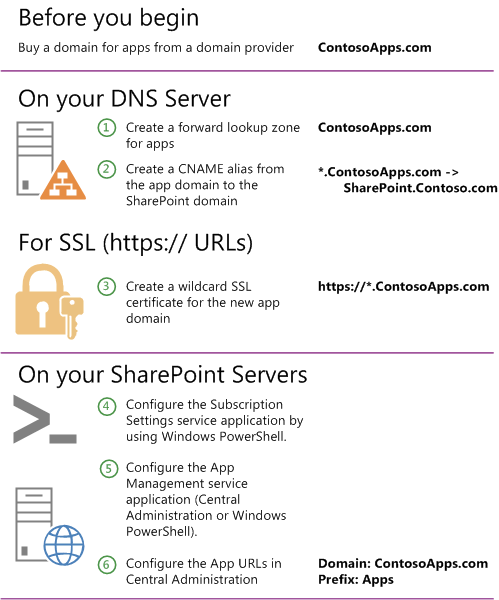
These configuration steps result in example app URLs such as the following:
- http://Apps-12345678ABCDEF.ContosoApps.com/sites/SiteName/App1Name/Pages/Home.aspx
- https://Apps-3456789BCDEFG.ContosoApps.com/sites/SiteName/WebName/App2Name/Default.aspx
This article contains instructions for completing these steps.
- http://Apps-12345678ABCDEF.ContosoApps.com/sites/SiteName/App1Name/Pages/Home.aspx
-
Before you begin
- You must purchase a domain name from a domain name provider for your apps, for example, ContosoApps.com.
- You must be a member of the Farm Administrators group to perform the steps in this article. For some steps, you must also be a local administrator on the domain controller.
-
Confirm that the SharePoint Administration (spadmin) and SharePoint Timer (sptimer) services are running.
To verify this, click Start, point to Administrative Tools, and then click Services. In the Services list, verify that the SharePoint Administration and SharePoint Timer services are running.
 Note:
Note:
Because SharePoint 2013 runs as websites in Internet Information Services (IIS), administrators and users depend on the accessibility features that browsers provide. SharePoint 2013 supports the accessibility features of supported browsers. For more information, see the following resources:
- You must purchase a domain name from a domain name provider for your apps, for example, ContosoApps.com.
-
Configure the domain names in DNS (all hosting options)
You must configure a new name in Domain Name Services (DNS) to host the apps. To help improve security, the domain name should not be a subdomain of the domain that hosts the SharePoint sites. For example, if the SharePoint sites are at Contoso.com, consider ContosoApps.com instead of App.Contoso.com as the domain name. For more information, see Plan for apps for SharePoint 2013. When an app is provisioned, it provisions a unique DNS domain name (for example, Apps-12345678ABCDEF.ContosoApps.com, where 12345678ABCDEF is a unique identifier for the app). You need a wildcard Canonical Name (CNAME) entry for your DNS domain to support these unique names.
Depending on your configuration (for example, if you are using WINS forward lookup), you might have to create a new forward lookup zone first, or you can start with a wildcard CNAME entry in the same zone as the SharePoint site domain. In the following procedures, you create a forward lookup zone, and then create a wildcard alias record for the DNS domain name that allows for individual apps to create unique domain names within your app domain. In these procedures, we use DNS Manager for Windows Server 2008 R2. For more information about DNS server in Windows Server 2008 R2, see DNS Server. If you have a different type of DNS server, follow the procedures in the documentation for that server type.
To create a forward lookup zone for the app domain name
- Verify that the user account that performs this procedure is a local administrator on the domain controller.
- Click Start, point to Administrative Tools, and then click DNS.
- In DNS Manager, right-click Forward Lookup Zones, and then click New Zone….
- In the New Zone Wizard, click Next.
- In the Zone Type page, accept the default of Primary zone, and then click Next.
- In the Active Directory Zone Replication Scope page, select the appropriate replication method for your environment (the default is To all DNS servers in this domain), and then click Next.
-
In the Zone Name page, in the Zone name box type the name for your new app domain name (for example, ContosoApps.com), and then click Next.
The New Zone Wizard shows the new domain name for apps.
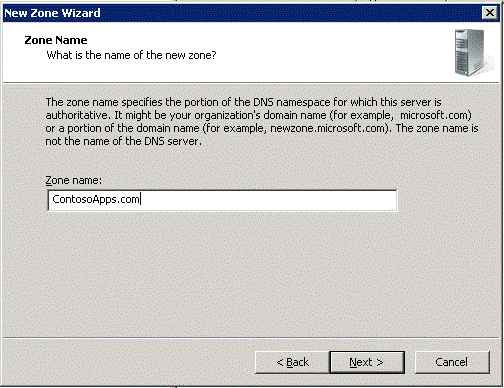
- On the Dynamic Update page, select the appropriate type of dynamic updates for your environment (the default is Do not allow dynamic updates), and then click Next.
- On the Completing the New Zone Wizard page, review the settings, and then click Finish.
For more information about how to create a forward lookup zone, see Add a Forward Lookup Zone.
You have now created a forward lookup zone (and a domain name) to use for apps in your environment.
To create a wildcard Alias (CNAME) record for the new domain name
- Verify that the user account that performs this procedure is a local administrator on the domain controller.
- In DNS Manager, under Forward Lookup Zones, right-click the new app domain name, and then click New Alias (CNAME).
-
In the New Resource Record dialog box, in the Alias name (uses parent domain if left blank) box, type *.
The Fully qualified domain name (FQDN) box displays *. followed by the domain name that you created for apps. For example, *.ContosoApps.com or *.Contoso-Apps.com.
-
Next to the Fully qualified domain name (FQDN) for target host box, type the FQDN of the server that hosts the SharePoint sites.
For example, SharePoint.Contoso.com.
Or:
- Next to the Fully qualified domain name (FQDN) for target host box, click Browse and navigate to the Forward Lookup Zone for the domain that hosts the SharePoint sites.
For example, Contoso.com.
- And then navigate to the record that points to the server that hosts the SharePoint site.
For example, SharePoint.
New Resource Record dialog box shows the wildcard alias for the app domain and the FQDN of the server that hosts the SharePoint sites.
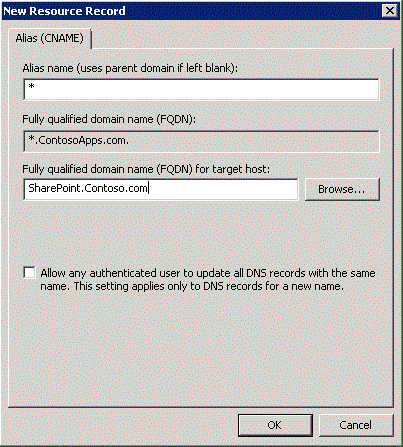
- Next to the Fully qualified domain name (FQDN) for target host box, click Browse and navigate to the Forward Lookup Zone for the domain that hosts the SharePoint sites.
- Click OK.
For more information about how to create a wildcard alias record in DNS Manager, see Add an Alias (CNAME) Resource Record to a Zone.
You can verify the new domain name and alias by pinging them.
To verify the new domain name
- Verify that the user account that is performing this procedure is a local administrator on the domain controller.
- Click Start, and then click Command Prompt.
-
At the command prompt, type ping followed by a subdomain of the domain that you created, and then press ENTER.
For example, ping Apps-12345678ABCDEF.contosoapps.com
If the ping command returns the correct IP address, then your wildcard for the domain name was configured successfully.
-
Create a new wildcard SSL certificate
If you are using Secure Sockets Layer (SSL) for the SharePoint sites in your environment, or if you use any apps that use data external to the SharePoint sites, you should use SSL for your apps. To use SSL, you create an SSL certificate for your app domain (for example, ContosoApps.com).
The domain should be added in the form of a wildcard (for example, *.ContosoApps.com). You need a wildcard certificate instead of individual certificates because each installed app has its own subdomain.
-
Configure the Subscription Settings and App Management service applications
Apps rely on the App Management and Microsoft SharePoint Foundation Subscription Settings service applications. These service applications use the multi-tenancy features to provide app permissions and create the subdomains for apps. Therefore, even if you are not hosting multiple tenants, you must still establish a name for the default tenant for your environment (any SharePoint site that is not associated with a tenant will be in the default tenant).
 Note:
Note:
You can use the SharePoint Central Administration website to set the default tenant name (also know as the app prefix) for non-hosting environments. You must use Windows PowerShell to configure tenant names for hosting environments. You perform the steps to set the app prefix in the next section, Configure the app URLs to use.
To configure these services, you first start the services in Central Administration. After the services are started, you use Windows PowerShell to create the Subscription Settings service application, and then use either Windows PowerShell or Central Administration to create the App Management service application.
To start the Subscription Settings and App Management services in Central Administration
- Verify that you are a member of the farm administrators group in Central Administration.
- In SharePoint 2013 Central Administration, click System Settings.
- On the System Settings page, under Servers, click Manage services on server.
- On the Services on Server page, next to App Management Service, click Start.
- On the Services on Server page, next to Microsoft SharePoint Foundation Subscription Settings Service, click Start.
-
Verify that the App Management and Microsoft SharePoint Foundation Subscription Settings services are running. The following illustration shows the Services on Server page where you can verify that the App Management and Subscription Settings services are running.
Services on Server showing the App Management and Subscription Settings services running.
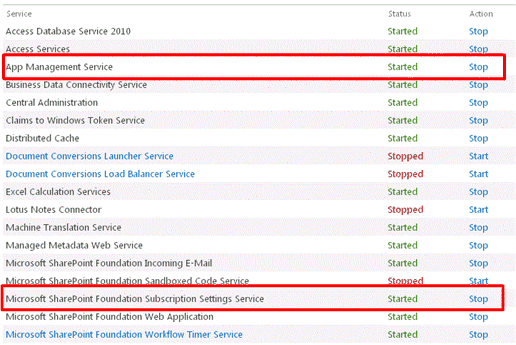
To configure the Subscription Settings service application by using Windows PowerShell
- Verify that you have the following memberships:
- securityadmin fixed server role on the SQL Server instance.
- db_owner fixed database role on all databases that are to be updated.
-
Administrators group on the server on which you are running the Windows PowerShell cmdlets.
An administrator can use the Add-SPShellAdmin cmdlet to grant permissions to use SharePoint 15 Products cmdlets.
 Note:
Note:
If you do not have permissions, contact your Setup administrator or SQL Server administrator to request permissions. For additional information about Windows PowerShell permissions, see Add-SPShellAdmin.
- On the Start menu, click All Programs.
- Click Microsoft SharePoint 2013 Products.
- Click SharePoint 2013 Management Shell.
-
First you must establish the application pool, run as account, and database settings for the services. Use a farm account for the SPManagedAccount (which will be used for the application pool runas account).
At the Windows PowerShell command prompt, type the following commands, and press ENTER after each one to create the application pool:
$account = Get-SPManagedAccount “<farm account>”
# Gets the name of the Farm administrators account and sets it to the variable $account for later use.
Where:
-
<farm account> is the name of the Farm administrators account in the SharePoint farm.
$appPoolSubSvc = New-SPServiceApplicationPool -Name SettingsServiceAppPool -Account $account
# Creates an application pool for the Subscription Settings service application.
# Uses the Farm administrators account as the security account for the application pool.
# Stores the application pool as a variable for later use.
-
At the Windows PowerShell command prompt, type the following commands, and press ENTER after each one to create the new service application and proxy:
$appSubSvc = New-SPSubscriptionSettingsServiceApplication –ApplicationPool $appPoolSubSvc –Name SettingsServiceApp –DatabaseName <SettingsServiceDB>
# Creates the Subscription Settings service application, using the variable to associate it with the application pool that was created earlier.
# Stores the new service application as a variable for later use.
Where:
-
<SettingsServiceDB> is the name of the Subscription Settings service database.
$proxySubSvc = New-SPSubscriptionSettingsServiceApplicationProxy –ServiceApplication $appSubSvc
# Creates a proxy for the Subscription Settings service application.
For more information, see Get-SPManagedAccount, New-SPServiceApplicationPool, New-SPSubscriptionSettingsServiceApplication, New-SPSubscriptionSettingsServiceApplicationProxy.
You can use either Windows PowerShell or Central Administration to create and configure the App Management service application. The following procedures provide the steps for each method.
To configure the App Management service application by using Windows PowerShell
- Verify that you have the following memberships:
- securityadmin fixed server role on the SQL Server instance.
- db_owner fixed database role on all databases that are to be updated.
-
Administrators group on the server on which you are running the Windows PowerShell cmdlets.
An administrator can use the Add-SPShellAdmin cmdlet to grant permissions to use SharePoint 15 Products cmdlets.
 Note:
Note:
If you do not have permissions, contact your Setup administrator or SQL Server administrator to request permissions. For additional information about Windows PowerShell permissions, see Add-SPShellAdmin.
- On the Start menu, click All Programs.
- Click Microsoft SharePoint 2013 Products.
- Click SharePoint 2013 Management Shell.
-
First you must establish the application pool, run as account, and database settings for the services. Use a farm account for the SPManagedAccount (which will be used for the application pool runas account).
At the Windows PowerShell command prompt, type the following commands, and press ENTER after each one to create the application pool:
$account = Get-SPManagedAccount “<farm account>”
# Gets the name of the Farm administrators account and sets it to the variable $account for later use.
Where:
-
<farm account> is the name of the Farm administrators account in the SharePoint farm.
$appPoolAppSvc = New-SPServiceApplicationPool -Name AppServiceAppPool -Account $account
# Creates an application pool for the Application Management service application.
# Uses the Farm administrators account as the security account for the application pool.
# Stores the application pool as a variable for later use.
-
At the Windows PowerShell command prompt, type the following commands, and press ENTER after each one to create the new service application and proxy:
$appAppSvc = New-SPAppManagementServiceApplication -ApplicationPool $appPoolAppSvc -Name AppServiceApp -DatabaseName <AppServiceDB>
# Creates the Application Management service application, using the variable to associate it with the application pool that was created earlier.
# Stores the new service application as a variable for later use.
Where:
-
<AppServiceDB> is the name of the App Management service database.
$proxyAppSvc = New-SPAppManagementServiceApplicationProxy -ServiceApplication $appAppSvc
# Creates a proxy for the Application Management service application.
For more information, see Get-SPManagedAccount, New-SPServiceApplicationPool, New-SPAppManagementServiceApplication and New-SPAppManagementServiceApplicationProxy.
To create the App Management service application in Central Administration
- In SharePoint 2013 Central Administration, on the Application Management page, click Manage service applications.
- On the ribbon, click New, and then click App Management Service.
- In the New App Management Service Application page, in the Service Application Name box, type the name for the service application.
- In the Database section, in the Database Server box, type the instance of SQL Server where you want to store the database, or use the default server.
-
In the Database Name box, type a database name, or use the default name.
The database name must be unique.
- Under Database authentication, select the authentication that you want to use by doing one of the following:
- If you want to use Windows authentication, leave this option selected. We recommend this option because Windows authentication automatically encrypts the password when it connects to SQL Server.
-
If you want to use SQL authentication, click SQL authentication. In the Account box, type the name of the account that you want the service application to use to authenticate to the SQL Server database, and then type the password in the Password box.
 Note:
Note:
In SQL authentication, an unencrypted password is sent to SQL Server. We recommend that you use SQL authentication only if you force protocol encryption to SQL Server or encrypt network traffic by using IPsec.
- In the Failover Database Server section, if you want to use a failover database server, specify the server name.
- In the Application Pool section, do one of the following:
- Click Use existing application pool, and then select the application pool that you want to use from the drop-down list.
-
Click Create a new application pool, type the name of the new application pool, and then under Select a security account for this application pool do one of the following:
- Click Predefined to use a predefined security account, and then select the security account from the drop-down list.
- Click Configurable to specify a new security account to be used for an existing application pool. You can create a new account by clicking the Register new managed account link.
- Click Predefined to use a predefined security account, and then select the security account from the drop-down list.
- In the Create App Management Service Application Proxy section, leave the Create App Management Service Application Proxy and add it to the default proxy group check box selected.
-
Click OK.
The following illustration shows the App Management service application and proxy that were created.
Manage Service Applications page showing the App Management service application and proxy.
 Now you must start the service on the server.
- In SharePoint 2013 Central Administration, click System Settings.
- On the System Settings page, under Servers, click Manage services on server.
- On the Services on Server page, next to App Management Service, click Start.
-
Configure the app URLs to use
In this section, you create the app domain prefix and the tenant name to use for apps in your environment. The app URL points to your app domain and a prefix that determines how each app is named. If you host multiple tenants in your environment, you must use Windows PowerShell to configure the app URLs.
Use the following procedure to configure app URLs for non-hosting (single tenant) environments by using Central Administration.
To configure app URLs
- In Central Administration, click Apps.
- On the Apps page, click Configure App URLs.
-
In the App domain box, type the isolated domain that you created for hosting apps.
For example, ContosoApps.com or Contoso-Apps.com.
-
In the App prefix box, type a name to use for the URL prefix for apps.
For example, you could use “apps“ as the prefix so that you would see a URL for each app such as “apps-12345678ABCDEF.ContosoApps.com“. The following illustration shows the Configure App URLs page after you have filled in the App domain and prefix.
The Configure App URLs page in Central Administration shows the App domain and App prefix.
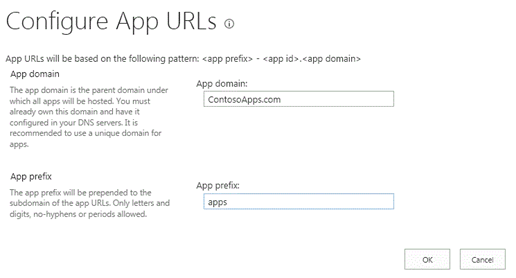
- Click OK.
Use the following procedure to configure app URLs for multi-tenant hosting environments.
To configure app URLs by using Windows PowerShell
- Verify that you have the following memberships:
- securityadmin fixed server role on the SQL Server instance.
- db_owner fixed database role on all databases that are to be updated.
-
Administrators group on the server on which you are running the Windows PowerShell cmdlets.
An administrator can use the Add-SPShellAdmin cmdlet to grant permissions to use SharePoint 15 Products cmdlets.
 Note:
Note:
If you do not have permissions, contact your Setup administrator or SQL Server administrator to request permissions. For additional information about Windows PowerShell permissions, see Add-SPShellAdmin.
- On the Start menu, click All Programs.
- Click Microsoft SharePoint 2013 Products.
- Click SharePoint 2013 Management Shell.
-
At the Windows PowerShell command prompt, type the following commands and press ENTER after each one:
Set-SPAppDomain <appDomain>
Set-SPAppSiteSubscriptionName -Name “app” -Confirm:$false
Where:
- <appDomain> is the domain name that you created.
For more information, see Set-SPAppSiteSubscriptionName and Set-SPAppDomain.
-
Configure the Internet-facing endpoints feature (Optional)
The SharePoint Store contains apps for SharePoint intended for use with sites that require Internet-facing endpoints. By default, these apps are not available (greyed out and cannot be purchased) because they are incompatible with most sites. However, if you have a site that uses Internet-facing endpoints, and want to be able to use these apps, you can turn on the Internet-facing endpoints feature to show these apps in the SharePoint Store. You turn this feature on at the web application level in Central Administration.
To configure Internet-facing endpoints for apps
- In Central Administration, click Application Management.
- On the Application Management page, click Manage Web applications.
- On the Manage Web Applications page, select the web application that you want to change.
- On the Ribbon, click Manage Features.
- In the feature list, next to Apps that require accessible internet facing endpoints, click Activate.
- Click OK.
-
Manage the App Catalog in SharePoint 2013
Published: July 16, 2012
Summary: You can configure and manage an App Catalog for SharePoint environments to control access to available apps.
Applies to: SharePoint Foundation 2013 | SharePoint Server 2013
You can store apps for SharePoint and Office apps for your organization‘s internal use in an App Catalog site. This article contains an overview of the App Catalog site and shows how to configure the App Catalog for a web application.
In this article:
-
Before you begin
Before you begin:
- Before you configure and use the App Catalog, a member of the Farm Administrators group must configure the environment to support apps for SharePoint. For more information, see Configure an environment for apps for SharePoint 2013.
- You must be a member of the Farm Administrators group to perform the steps in this article.
 Note:
Note:
Because SharePoint 2013 runs as websites in Internet Information Services (IIS), administrators and users depend on the accessibility features that browsers provide. SharePoint 2013 supports the accessibility features of supported browsers. For more information, see the following resources:
- Before you configure and use the App Catalog, a member of the Farm Administrators group must configure the environment to support apps for SharePoint. For more information, see Configure an environment for apps for SharePoint 2013.
-
Configure the App Catalog site for a web application
The App Catalog site is a special site collection on a web application. Because each web application can have an App Catalog site, a farm can have more than one App Catalog site.
When you create an App Catalog site, you get two libraries for apps:
- Apps for SharePoint
- Apps for Office
Because an App Catalog is scoped to a web application, all apps that you want to make available for a web application have to be in the App Catalog site collection for that web application. You create the App Catalog site collection from SharePoint Central Administration.
To create an App Catalog site collection for a web application
- Apps for SharePoint
- Verify that the user account that is performing this procedure is a member of the Farm administrators group.
-
In Central Administration, on the Apps page, in the App Management section, click Manage App Catalog.
If no App Catalog exists for the farm, the Web Application page opens, so you can select a web application.
- On the Web Application page, select the web application for which you want to create a catalog.
- In the App Catalog Site section, select Create a new app catalog site, and then click OK.
- On the Create App Catalog page, in the Title box, type a title for the App Catalog site.
- In the Description box, type the description for the site.
- In the URL box, fill in the URL to use for the site.
-
In the Primary Site Collection Administrator section, in the User Name box, type the user who will manage the catalog.
Only one user name can be entered. Security groups are not allowed.
-
In the End Users section, in the Users/Groups box, type the names of the users or groups that you want to be able to browse the catalog.
Added users or groups have read access to the App Catalog site. You can add multiple user names and security groups. Users must be added as End Users to be able to browse the App Catalog from their site collections.
- In the Select a quota template list box, select the quota template to use for the site.
- Click OK.
To use an existing App Catalog site collection for a different web application
- Verify that the user account that is performing this procedure is a member of the Farm administrators group.
- In Central Administration, on the Apps page, in the App Management section, click Manage App Catalog.
- On the Manage App Catalog page, next to Web Application, click the down arrow and click Change Web Application.
- In the Select Web Application box, select the web application for which you want to create a catalog.
- In the App Catalog section, select Enter a URL for an existing app catalog site.
- In the URL box, type the URL to the App Catalog site, and then click OK.
To view an App Catalog site collection from Central Administration
- Verify that the user account that is performing this procedure is a member of the Farm administrators group and has Read permission to the App Catalog site.
- In Central Administration, on the Apps page, in the App Management section, click Manage App Catalog.
-
On the Manage App Catalog page, verify that the web application that is selected is the web application you want to manage.
If you want to switch to a different web application, click the down arrow next to the Web application URL to change to a different web application.
- Under Site URL click the link to open the App Catalog for that web application.
-
Configure app requests and SharePoint Store settings
Farm administrators can determine whether users can purchase apps from the SharePoint Store. This setting is at the web application scope. If users cannot purchase apps, they can still browse the SharePoint Store, and request an app. Farm administrators and the App Catalog site owner can view and respond to app requests.
To configure SharePoint Store settings
- Verify that the user account that is performing this procedure is a member of the Farm Administrators group.
- In Central Administration, on the Apps page, in the SharePoint and Office Store section, click Configure Store Settings.
-
On the SharePoint Store Settings page, verify that the selected web application is the web application that you want to configure.
If you want to switch to a different web application, click the down arrow next to the web application URL to change to a different web application.
- To allow or prevent purchases, select an option for Should end users be able to get apps from the SharePoint Store?
- Select Yes to allow users to purchase apps.
- Select No to prevent purchases but allow users to request apps.
- To allow or prevent apps for Office from the Office Store to be started when a user opens a document in the browser, select an option for Should apps for Office from the store be able to start when documents are opened in the browser?
- Select Yes to allow apps for Office from the Office Store to start.
- Select No to prevent apps for Office from the Office Store from starting.
- Click OK.
When users request an app for SharePoint from the SharePoint Store, users can request a specific number of licenses and provide a justification for the purchase of the app for SharePoint. Submitted requests are added to the App Requests list in the App Catalog of the web application that contains a user‘s site collection. The app request includes the following fields:
- Requested by The user name of the person requesting the app for SharePoint.
- Title The title of the app for SharePoint.
- Seats and Site License The number of licenses the user requested for that app for SharePoint.
- Justification The reason why the app for SharePoint would be useful for the organization.
- Status By default, the status is set to New for new requests. The person who reviews the request can change the status to Pending, Approved, Declined, Withdrawn, Closed as Approved, or Closed as Declined.
- View App Details A link to the app details page in the SharePoint Store.
- Approver Comments The person who reviews the request can add comments for the requestor.
To view and manage app requests from the SharePoint Store Settings page
- Verify that the user account that is performing this procedure is a member of the Farm Administrators group and is a member of the site Owners or Designers group for the App Catalog.
- In Central Administration, on the Apps page, in the SharePoint and Office Store section, click Configure Store Settings.
-
On the SharePoint Store Settings page, verify that the selected web application is the web application that you want to configure.
If you want to switch to a different web application, click the down arrow next to the web application URL to change to a different web application.
-
In the App Requests section, click Click here to view app requests.
The App Requests list in the App Catalog site opens.
- Select a request in the list, and then click the Edit button.
- Review the details of the request.
 Note:
Note:
At this time, the View app details link in the request details opens the SharePoint Store home page, instead of the details page for the app. Search for the app in the SharePoint Store to find more information about the app.
- Change the Status to the appropriate value – Approved if you want to user to be able to purchase the app, or Declined if you do not want to allow the purchase.
-
Add comments in the Approver Comments box, and then click Save.
To view a request, requestors can go to the Add an App page in their site collection, and then click Your Requests.
To view and manage app requests from the App Catalog site
- Verify that the user account that is performing this procedure is a member of the site Owners or Designers group for the App Catalog.
- On the App Catalog site, click the App Requests list.
- Select a request in the list, and then click the Edit button.
- Review the details of the request.
 Note:
Note:
At this time, the View app details link in the request details opens the SharePoint Store home page, instead of the details page for the app. Search for the app in the SharePoint Store to find more information about the app.
- Change the Status to the appropriate value – Approved if you want to user to be able to purchase the app, or Declined if you do not want to allow the app to be purchased.
-
Add any comments in the Approver Comments box, and then click Save.
To view a request, requestors can go to the Add an App page in their site collection, and then click Your Requests.
-
Add apps to the App Catalog
After you have configured the App Catalog, you can add apps that users can then install to their SharePoint sites or use in their Office documents.
To add an app to the App Catalog
- Verify that the user account that is performing this procedure is a member of the site Owners or Designers group for the App Catalog.
-
On the App Catalog site, click the Apps for SharePoint list.
On the Apps for SharePoint page, click new item.
- In the Choose a file box, click Browse, and then locate the folder that contains the app that you want to upload.
 Tip:
Tip:
You can also click Upload files using Windows Explorer instead to drag and drop an app for SharePoint into the App Catalog.
- Select the app, and then click Open.
- Click OK to upload the app.
-
In the Item details box, verify the Name, Title, Short Description, Icon URL, and other settings for the app.
Be sure that the Enabled check box is selected so that users can see the app in their sites.
You can select the Featured check box to list the app in the Featured content view of the App Catalog.
- Click Save.
You can also categorize apps in the App Catalog. To add categories, edit the Category field for the App Catalog list and add the category names you want to use.
You can preview how the app will appear to users.
-
Remove apps from the App Catalog
If you no longer want to offer a particular app to your users, you can remove it from the App Catalog. Removal does not uninstall or remove the app from sites to which it has been added. It merely removes the app from the App Catalog, and users cannot add the app to other sites.
To remove an app from the App Catalog
- Verify that the user account that is performing this procedure is a member of the site Owners or Designers group for the App Catalog.
- On the App Catalog site, click the Apps for SharePoint list.
- On the Apps for SharePoint page, select the app that you want to remove.
- In the ribbon, on the Files tab, click Delete Document to remove the app.
-
In the dialog box, click OK to confirm that you want to send the item to the site Recycle Bin.
The app is removed.
-
Add apps for SharePoint to a SharePoint 2013 site
Published: July 16, 2012
Summary: Site owners can add apps for SharePoint to SharePoint sites so that they and other users of the site can use the app.
Applies to: SharePoint Foundation 2013 | SharePoint Server 2013 Standard | SharePoint Server 2013 Enterprise
Site owners can add apps for SharePoint from the SharePoint Store or an App Catalog to their sites. Adding an app installs an instance of that app to the site. In addition, several lists, libraries, and other SharePoint components, which are also called apps in SharePoint 2013, are available to add to a site.
-
Before you begin
Before you begin this operation, review the following information about prerequisites and permissions:
- Before a user can add an app for SharePoint, a member of the Farm Administrators group must configure the environment to support apps for SharePoint. For more information, see Configure an environment for apps for SharePoint 2013.
- A user must have the Manage Web site and Create Subsites permissions to add an app for SharePoint. By default, these permissions are available only to users who have the Full Control permission level or who are in the site Owners group.
- When a user adds an app for SharePoint, the app requests permissions that it needs to function (for example, access to Search, or to create a list). Users who do not have those permissions are informed that they do not have sufficient permissions and the app cannot be added. The user can contact a site or farm administrator to see if the administrator can add the app.
- A user logged in to a site as the system account cannot install an app. The system account cannot import app licenses because that could result in performance problems.
 Note:
Note:
Because SharePoint 2013 runs as websites in Internet Information Services (IIS), administrators and users depend on the accessibility features that browsers provide. SharePoint 2013 supports the accessibility features of supported browsers. For more information, see the following resources:
- Before a user can add an app for SharePoint, a member of the Farm Administrators group must configure the environment to support apps for SharePoint. For more information, see Configure an environment for apps for SharePoint 2013.
-
Add apps for SharePoint to SharePoint sites
Site owners can add apps for SharePoint from the following sources to their sites:
- from the list of apps already available for a site (default apps, such as standard lists and libraries, and apps that have been purchased already).
- from the App Catalog.
- from the SharePoint Store.
The following procedures provide steps for adding apps from these sources.
To add an app from the list of available apps in a site
- from the list of apps already available for a site (default apps, such as standard lists and libraries, and apps that have been purchased already).
- Verify that the user account that is performing this procedure is a member of the site Owners group.
-
On the home page, under Get started with your site, click Add lists, libraries, and other apps.
If the Get started with your site control does not appear on the home page, click the Settings icon, and click View Site Contents, and then on the Site Contents page, click Add an App.
- In the Your Apps list, click the app you want to add.
-
Follow the instructions to Trust the app (if it is a custom component) or Name the app (if it is a SharePoint component).
The app for SharePoint is added and appears in the Apps section of your Site Contents list.
To add an app from an App Catalog
- Verify that the user account that is performing this procedure is a member of the site Owners group.
-
On the home page, under Get started with your site, click Add lists, libraries, and other apps.
If the Get started with your site control does not appear on the home page, click the Settings icon, and click View Site Contents, and then on the Site Contents page, click Add an App.
-
Click FromName.
Where Name is the name of your organization’s App Catalog. For example, “From Contoso”.
 Tip:
Tip:
Apps marked as Featured in the App Catalog will also appear in the main list of Apps.
- Click the app you want to add.
-
In the Grant Permission to an App dialog box, if you trust the app, click Allow Access.
The app for SharePoint is added and appears in Apps section of your Site Contents list.
To add an app from the SharePoint Store
- Verify that the user account that is performing this procedure is a member of the site Owners group.
-
On the home page, under Get started with your site, click Add lists, libraries, and other apps.
If the Get started with your site control does not appear on the home page, click the Settings icon, and click View Site Contents, and then on the Site Contents page, click Add an App.
- Click SharePoint Store.
- Browse the SharePoint Store to find an app that you want.
- Click the app you want to add.
- Click Details, and then click Buy It.
- Follow the steps to log in and purchase the app, if required.
-
In the Grant Permission to an App dialog box, if you trust the app, click Allow Access.
The app for SharePoint is added and appears in the Apps section of your Site Contents list.
You can also install an app by using Windows PowerShell. First, you import the app package from the file system, and then install it to the site collection. The following procedure contains a script to perform these steps.
To install an app by using Windows PowerShell
- Verify that you have the following memberships:
- securityadmin fixed server role on the SQL Server instance.
- db_owner fixed database role on all databases that are to be updated.
- Administrators group on the server on which you are running the Windows PowerShell cmdlets.
-
Site Owners group on the site collection to which you want to install the app.
An administrator can use the Add-SPShellAdmin cmdlet to grant permissions to use SharePoint 2013 cmdlets.
 Note:
Note:
If you do not have permissions, contact your Setup administrator or SQL Server administrator to request permissions. For additional information about Windows PowerShell permissions, see Add-SPShellAdmin.
- Start the SharePoint 2013 Management Shell.
-
For Windows Server 2008 R2:
- On the Start menu, click All Programs, click Microsoft SharePoint 2013 Products, and then click SharePoint 2013 Management Shell.
- On the Start menu, click All Programs, click Microsoft SharePoint 2013 Products, and then click SharePoint 2013 Management Shell.
-
For Windows Server 2012:
-
On the Start screen, click SharePoint 2013 Management Shell.
If SharePoint 2013 Management Shell is not on the Start screen:
-
Right-click Computer, click All apps, and then click SharePoint 2013 Management Shell.
For more information about how to interact with Windows Server 2012, see Common Management Tasks and Navigation in Windows Server 2012.
-
-
At the Windows PowerShell command prompt, type the following command to import the app and then press ENTER:
$spapp = Import-SPAppPackage -Path Path to app -Site URL -Source Source
# Imports the app and sets a variable that you can use to identify the app when you install it in the next step.
Where:
- Path to app is the path to the app you want to import on the file system.
- URL is URL for the site collection to which you want to import the app.
- Source is one of the following: Marketplace, CorporateCatalog, DeveloperSite, ObjectModel, RemoteObjectModel, or InvalidSource.
-
At the question Are you sure you want to perform this action?, type Y to import the app.
The app is imported and information about the app, including the Asset ID, version string, and Product ID is displayed.
-
At the Windows PowerShell command prompt, type the following command to add the app to a site and then press ENTER:
Install-SPApp -Web URL -Identity $spapp
# Installs the app to the subweb you specify.
# Uses the $spapp variable you set previously to identify that app you want to install.
Where:
- URL is URL for the site or subweb to which you want to install the app.
For more information, see Import-SPAppPackage and Install-SPApp.
-
Remove an app for SharePoint from a SharePoint 2013 site
Published: July 16, 2012
Summary: When administrators remove apps for SharePoint from SharePoint sites, the apps are uninstalled and functionality is no longer available to users.
Applies to: SharePoint Foundation 2013 | SharePoint Server 2013 Standard | SharePoint Server 2013 Enterprise
In this article:
-
Before you begin
Before you begin this operation, review the following information about permissions:
- A user must have the Manage Web site permission to remove an app for SharePoint. By default, this permission is only available to users with the Full Control permission level or who are in the site Owners group.
 Note:
Note:
Because SharePoint 2013 runs as websites in Internet Information Services (IIS), administrators and users depend on the accessibility features that browsers provide. SharePoint 2013 supports the accessibility features of supported browsers. For more information, see the following resources:
- Plan browser support (http://go.microsoft.com/fwlink/p/?LinkId=246502)
- Accessibility for SharePoint Products
- Accessibility features in SharePoint 15 Products (http://go.microsoft.com/fwlink/p/?LinkId=246501)
- Keyboard shortcuts (http://go.microsoft.com/fwlink/p/?LinkID=246504)
- Touch (http://go.microsoft.com/fwlink/p/?LinkId=246506)
- A user must have the Manage Web site permission to remove an app for SharePoint. By default, this permission is only available to users with the Full Control permission level or who are in the site Owners group.
-
Remove an app from a SharePoint site
Site owners can remove apps for SharePoint from their sites. The following procedures provide steps for removing (or uninstalling) an app. When you remove an app, the data for that app will no longer be available.
To remove an app from a SharePoint site
- Verify that the user account that is performing this procedure is a member of the Site owners group.
- On the site, on the Settings menu, click View Site Contents.
- In the Apps section, point to the app that you want to remove, click …, and then click Remove.
- Click OK to confirm that you want to remove the app.
Before you use the following procedure, be sure to get the title for the app that you want to remove.
To remove an app by using Windows PowerShell
- Verify that you have the following memberships:
- securityadmin fixed server role on the SQL Server instance.
- db_owner fixed database role on all databases that are to be updated.
- Administrators group on the server on which you are running the Windows PowerShell cmdlets.
-
Site Owners group on the site collection to which you want to install the app.
An administrator can use the Add-SPShellAdmin cmdlet to grant permissions to use SharePoint 15 Products cmdlets.
 Note:
Note:
If you do not have permissions, contact your Setup administrator or SQL Server administrator to request permissions. For additional information about Windows PowerShell permissions, see Add-SPShellAdmin.
- On the Start menu, click All Programs.
- Click Microsoft SharePoint 2013 Products.
- Click SharePoint 2013 Management Shell.
-
At the Windows PowerShell command prompt, type the following commands, and press ENTER after each one:
$instances = Get-SPAppInstance -Web <URL>
# Gets all apps installed to the subsite you specify.
$instance = $instances | where {$_.Title -eq ‘<App_Title>‘}
# Sets the $instance variable to the app with the title you supply.
Uninstall-SPAppInstance -Identity $instance
# Uninstalls the app from the subsite.
Where:
- <URL> is the path site collection or subsite that contains the app.
- <App_Title> is the title of the app you want to remove.
- At the question Are you sure you want to perform this action?, type Y to uninstall the app.
For more information, see Get-SPAppInstance, Uninstall-SPAppInstance.
-
Monitor apps for SharePoint for SharePoint Server 2013
Published: July 16, 2012
Summary: Learn how administrators and site owners can monitor the health and usage details for apps for SharePoint in SharePoint Server 2013.
Applies to: SharePoint Server 2013 Standard | SharePoint Server 2013 Enterprise
You can use the SharePoint Central Administration website to add and remove apps for SharePoint and check details and errors.
 Important:
- The steps in this article apply to SharePoint Server 2013 only.
- App monitoring is not available in SharePoint Foundation 2013.
- App monitoring is not supported for SharePoint Server 2013 on-premise, multi-tenancy environments.
In this article:
- The steps in this article apply to SharePoint Server 2013 only.
-
Before you begin
Before you can monitor apps, a member of the Farm Administrators group must configure the environment to support apps for SharePoint. For more information, see Configure an environment for apps for SharePoint 2013.
You must be a member of the Farm Administrators group or the site Owners group to perform the steps in this article.
 Note:
Note:
Because SharePoint 2013 runs as websites in Internet Information Services (IIS), administrators and users depend on the accessibility features that browsers provide. SharePoint 2013 supports the accessibility features of supported browsers. For more information, see the following resources:
-
Selecting apps to monitor in Central Administration
The Monitored Apps page displays the apps for SharePoint that a Farm Administrator monitors. Each app for SharePoint that is listed on this page includes details to help an administrator monitor performance. For example, each app for SharePoint provides the following properties: Name, Status, Source, Licenses in Use, Licenses Purchased, Install Locations, and Runtime Errors. A Farm Administrator chooses to add, remove, and monitor apps for SharePoint.
 Important:
The Monitor Apps page requires the following search analytics and usage file import timer jobs to be active:
- ECM analytics timer job name: Usage Analytics timer job for Search Service
- Usage DB timer job name: Microsoft SharePoint Foundation Usage Data Import
For more information, see Timer job reference (SharePoint 2013)
- ECM analytics timer job name: Usage Analytics timer job for Search Service
- Verify that the user account that is performing this procedure is a member of the Farm Administrators SharePoint group.
- In Central Administration, click General Application Settings.
- On the General Application Settings page, in the Apps section, click Monitor Apps.
- On the Monitored Apps page, in the Action group of the ribbon, click Add App.
 Note:
Note:
If the App Catalog is not already created, or if the App Management Service application and app domain settings are not configured correctly the Add App dialog may create an error.
- Select the checkbox for the app that you want to monitor, or type a name in the Search for app name box, and then click the Search icon.
- On the search results page, select the app that you want to monitor.
 Note:
Note:
Apps that you add to the Monitored Apps list previously are not displayed in the search results.
-
Click Add App.
The app now appears in the list of monitored apps.
To remove an app from the monitor apps list
- Verify that the user account that is performing this procedure is a member of the Farm Administrators SharePoint group.
- On the Monitored Apps page, select the checkbox next to the app that you want to remove.
- In the Manage group of the ribbon, click Remove App.
-
Monitoring app details in Central Administration
This section explains how farm administrators can monitor and understand the apps for SharePoint details. There are multiple ways that an administrator can view the error and usage details for apps for SharePoint. By selecting an app in the Monitored Apps page, an administrator can use the ribbon to access the error or usage details for that app. An administrator can also click an app in the list on the Monitored Apps page to open the app details page and access the same error or usage details.
The app usage and app error details data that is in the app monitoring pages can be delayed for up to 29 hours. The app details depend on the when the ECM analytics timer job is scheduled to run. When the timer job runs, it collects events for the previous day. For example, if the timer job is scheduled to run at 5 A.M., then the most recent events that are collected are from 11:59 P.M. the previous day. Zn event that occurs at 12:01 A.M. will not appear in the app details pages until up to 29 hours later.
Note that if you view the app error details page for a specific instance of an app, the number of errors for the app is synchronized with the error messages in the list. This occurs because the number of errors appears in the app error details page instead of the events that are processed by the ECM analytics timer job.
- Verify that the user account that is performing this procedure is a member of the Farm Administrators SharePoint group.
-
On the Monitored Apps page, click the app that you want to view.
A new page opens and displays detailed information about the app, such as the following: licensing, errors, installations, and usage.
 Note:
Note:
The administrator can also select an app in the monitored apps list and in the App Details group of the ribbon, click View Details.
- In the Usage section, click Days, Months, or Years to change the chart to those time frames.
To view the app error details in Monitored Apps
- Verify that the user account that is performing this procedure is a member of the Farm Administrators SharePoint group.
- On the Monitored Apps page, click the number in the Runtime Errors column for the app you want to view.
 Note:
Note:
The administrator can also select an app in the monitored apps list and in the App Details group of the ribbon, click View Errors.
- The App Monitoring Details dialog appears with information about each error for that app. You can use the Correlation ID to find the errors in the error log.
- Click the URL in the Location column to view more error details for this app.
- On the App Monitoring Details page, click the number next to Runtime Errors.
- The App Monitoring Details dialog appears and includes a list of all Runtime Errors for this app, the time each error occurred, and the Correlation ID.
 Note:
Note:
The app error list can help you determine if you want to remove the app because there are too many errors or if the app is working as it should.
-
Monitoring app details in a SharePoint site
This section explains how site owners can monitor and understand the usage of apps for SharePoint. A site owner can view the error and usage details for apps for SharePoint by selecting an app in the Site Contents page and then clicking Monitor in the app dialog box.
 Note:
Note:
Be aware that in the app details page, the error dialog box can show more errors than are counted. The errors are counted every 24 hours, but the error messages are processed more often. As a result, the error dialog box can show error messages that are generated in the current day before the count is updated at the end of the day.
- Verify that the user account that is performing this procedure is a member of the site Owners group.
-
On the Site Contents page, in the quick launch pane, click Apps.
A new page opens and displays all of the apps that are installed on this site.
-
On the Apps page click the icon next to the app you want to monitor and then click Details in the callout.
The App Details page appears for the selected app and the site owner can see the details for licenses, errors Installs and usage.
-
In the Errors section, click the number next to Install Errors, Runtime Errors, or Upgrade Errors to see the error details.
For example, click the number next to Runtime Errors and the Runtime Errors dialog appears. This includes a list of all Runtime Errors for this app, the time each error occurred, and the Correlation ID.
This app error list can help you determine if you want to remove the app because there are too many errors or if the app is working as it should.
 Note:
Note:
The app errors that appear in this list have occurred within the previous four days.
-
In the Usage section, click Days, Months, or Years to change the chart to those time frames.
The chart displays two bars for each time period that represents the number of times the app has been launched and the number of specific users that use this app each day.
 Note:
Note:
If the app uses connections to external data sources through Business Connectivity Services, a graph that shows the number of calls made to the external data sources is also shown. Dates that appear in the Usage and BCS Calls graphs are in Coordinated Universal Time (UTC).
-
Monitor and manage app licenses in SharePoint Server 2013
Published: July 16, 2012
Summary: Learn how SharePoint farm administrators assign, monitor, and manage the app for SharePoint licenses in SharePoint Server 2013.
Applies to: SharePoint Server 2013 Standard | SharePoint Server 2013 Enterprise
You can use the SharePoint Central Administration website to monitor and manage licenses for the apps for SharePoint. Licenses for apps for SharePoint are digital sets of verifiable information that state the user rights for a app for SharePoint. All apps that are distributed through the SharePoint Store are the only apps that have built-in licenses that SharePoint Server 2013 recognizes.
Members of the Farm Administrators group manage licenses for apps and can also assign license managers for others to manage app for SharePoint licenses.
 Important:
The steps in this article apply to SharePoint Server 2013 only.
-
Before you begin
Before you can monitor and manage app licenses you must configure your environment to support apps for SharePoint. You must be a member of the Farm Administrators group to perform these steps. For more information, see Configure an environment for apps for SharePoint 2013.
 Important:
We support only one App Management Service Application per farm. This helps ensure that the app license feature functions correctly.
Before you begin this operation, review the following information about what SharePoint Server 2013 does and does not provide for apps for SharePoint licensing:
-
SharePoint Server 2013 provides:
- Storefront to obtain apps
- Storage and renewal of app for SharePoint licenses
- User Interface (UI) to assign users to specific app for SharePoint licenses
- APIs for developers to query for license information
- Storefront to obtain apps
- SharePoint Server 2013 does not enforce app for SharePoint licenses.
- Developers must add code in their apps for SharePoint to retrieve license information and react accordingly.
- All app for SharePoint licenses are bound to a specific SharePoint Server 2013 deployment but can be transferred to a different SharePoint Server 2013 deployment three times.
 Note:
Note:
Because SharePoint 2013 runs as websites in Internet Information Services (IIS), administrators and users depend on the accessibility features that browsers provide. SharePoint 2013 supports the accessibility features of supported browsers. For more information, see the following resources:
-
-
Monitoring and managing app licenses
A farm administrator or a license manager can check the licenses for all apps for SharePoint on the App Licenses page. It is important to track the number of licenses that are available for each app for SharePoint so that users do not exceed this number. An administrator can assign additional users to a app for SharePoint license, purchase additional licenses for an app, and also add managers to a license. For more information about how to monitor apps for SharePoint see, Monitor apps for SharePoint for SharePoint Server 2013.
To view app license details
- Verify that the user account that is performing this procedure is a member of the Farm Administrators SharePoint group or a license manager.
- In Central Administration, click Apps.
- On the Apps page, in the Store section, click Manage App Licenses.
-
On the Manage App Licenses page, click an app for SharePoint in the list to view the license details.
The Manage App License page shows detailed licensing information. This includes the name of the app, the developer, and current license details.
-
In the top section, click the drop-down arrow in the dialog box to see purchase details for the selected app for SharePoint.
The app details include the following information:
- Number of licenses available for users
- License type
- App purchaser name
- At the end of the dialog box, a farm administrator can view the app details.
-
Click View in Store to see the app details.
- In the People with a License (number of licenses available)section, the number of available licenses and a list of the people who currently have licenses for this App are shown.
- In the License Managers section, all app managers are listed.
- In the People with a License (number of licenses available)section, the number of available licenses and a list of the people who currently have licenses for this App are shown.
To add users to the app license
- Verify that the user account that is performing this procedure is a member of the Farm Administrators SharePoint group.
- On the Manage App Licenses page, click an app for SharePoint for which you want to add users.
- In the People with a License section, click assign people.
-
In the dialog box that appears below, enter the user name that you want to add and then, click Add User.
The user name is added to the list at the bottom of this section and the number of available licenses for this app is refreshed for the selected app for SharePoint.
To purchase more app licenses
- Verify that the user account that is performing this procedure is a member of the Farm Administrators SharePoint group.
- On the Manage App Licenses page, click an app for SharePoint for which you want to purchase more licenses.
- In the People with a License section, click buy more licenses.
- The SharePoint Store opens with the specific app showing the details with links to purchase additional licenses. Choose the number of Apps you want to purchase and then click OK.
To remove app licenses
- Verify that the user account that is performing this procedure is a member of the Farm Administrators SharePoint group.
- On the Manage App Licenses page, click an app for SharePoint for which you want to remove licenses.
- In the top section, under the app for SharePoint name, at the end of the dialog box, click Remove this License.
- Verification: Optionally, include steps that users should perform to verify that the operation was successful.
To recover app licenses
- Verify that the user account that is performing this procedure is a member of the Farm Administrators SharePoint group.
- On the Manage App Licenses page, click an app for SharePoint for which you want to recover licenses.
-
In the top section, under the app name, at the end of the dialog box, click Recover License.
The app for SharePoint details show any changes the administrator has made.
To add a license manager
- Verify that the user account that is performing this procedure is a member of the Farm Administrators SharePoint group.
-
On the Manage App License page, in the License Managers section, click add manager.
Below the License Managers section, the new App manager appears in the list.
-
Upgrade to SharePoint 2013
Published: July 16, 2012
Summary: Learn how to plan, prepare, and perform an upgrade to SharePoint 2013.
Applies to: SharePoint Foundation 2013 | SharePoint Server 2013
The following downloadable resources, articles on TechNet, video recordings, and related resources provide information about performing an upgrade to SharePoint 2013.
-
Downloadable resources about upgrade
Download the following content for information about upgrade.
Content
Description

Describes the steps in the process for a database-attach upgrade.

SharePoint 2013 Products Preview – Test Your Upgrade Process model
See a visual display of information about how to test the upgrade process.

Use this worksheet to record information about your environment while you test upgrade.
-
TechNet articles about upgrade
The following articles about upgrade are available to view online. Writers update articles on a continuing basis as new information becomes available and as users provide feedback.

ContentDescription
Find resources to help you understand how to upgrade databases and site collections from SharePoint 2010 Products to SharePoint 2013.
Find resources about how to plan to upgrade from SharePoint 2010 Products to SharePoint 2013.
Find resources about how to test and troubleshoot an upgrade from SharePoint 2010 Products to SharePoint 2013.
Find resources to help you perform the steps to upgrade databases from SharePoint 2010 Products to SharePoint 2013.
Find out how to upgrade a site collection to SharePoint 2013.
-
Additional resources about upgrade
The following resources about upgrade are available from other subject matter experts.
Content
Description

Upgrade and Migration Resource Center for SharePoint 2013 Products
Visit the Resource Center to find additional information about upgrades to SharePoint 2013.

Capabilities and features in SharePoint 2013 Resource Center
Visit the Resource Center to learn about what‘s new in SharePoint 2013.
-
Get started with upgrades to SharePoint 2013
Published: July 16, 2012
Summary: Find resources to help you understand how to upgrade databases and site collections from SharePoint 2010 Products to SharePoint 2013.
Applies to: SharePoint Foundation 2013 | SharePoint Server 2013
The first step in any upgrade process is to learn about the process itself so that you can plan and prepare appropriately. These articles help you understand how the process of upgrading from SharePoint 2010 Products to SharePoint 2013 works. These articles also include overviews of how to upgrade service applications.
The following downloadable resources, articles on TechNet, video recordings, and related resources provide information about understanding upgrade for SharePoint 2013.
-
Downloadable resources about upgrade to SharePoint 2013
Download the following content for information about upgrade.
Content
Description

Describes the steps in the process for a database attach upgrade
-
TechNet articles about understanding upgrade
The following articles about understanding upgrade are available to view online. Writers update articles on a continuing basis as new information becomes available and as users provide feedback.
Content
Description

Find out about new requirements, approaches, and features that are available for upgrading to SharePoint 2013.

Get a visual overview of the steps involved in performing an upgrade.

SharePoint 2010 Products included several service applications, some of which have databases that can be upgraded when you upgrade to SharePoint 2013. Find out which service application databases can be upgraded and what steps that you must take before, during, and after upgrade for your service applications.

Upgrade farms that share services (parent and child farms) to SharePoint 2013
In SharePoint Server 2010, it was possible to configure parent farms and child farms to share services. In such an environment, the parent farm hosts one or more service applications from which one or more child farms consume services. Learn how to approach upgrading these environments to SharePoint Server 2013.

Get off to the right start – review these best practices for testing and performing an upgrade to SharePoint 2013.

Review supported editions and products for upgrading to SharePoint 2013
Understand the requirements for upgrade. And if you are planning to change SKUs or products during upgrade, understand which upgrade paths are supported.
-
Additional resources about upgrade to SharePoint 2013
The following resources about upgrade to SharePoint 2013 are available from other subject matter experts.
Content
Description

Upgrade and migration for SharePoint 2013 IT Pros Resource Center
Visit the Resource Center to access videos, community sites, documentation, and more.
-
What’s new in SharePoint 2013 upgrade
Published: July 16, 2012
Summary: SharePoint 2013 includes new upgrade features, such as upgrade for service applications, a site health checker, and upgrade for site collections.
Applies to: SharePoint Foundation 2013 | SharePoint Server 2013
SharePoint 2013 does not support in-place upgrade for an existing environment. You must use the database-attach upgrade method to upgrade your databases to a new environment that is based on SharePoint 2013. Also, to provide more flexibility to farm administrators and site administrators, the upgrade process has changed to separate upgrade of the software and databases from upgrade of the sites.
-
In-place upgrade of the farm is not supported
An upgrade to SharePoint Server 2010 or SharePoint Foundation 2010 provides an option to install the new version over the earlier version on the same hardware. This is called an in-place upgrade. During this process, the complete installation, that includes databases and sites, is upgraded in a fixed order. Although this is a simple method, in-place upgrade presents problems in performance and control for a farm administrator. There was no way to control the order in which content is upgraded, and a failure in a particular site collection could stop the whole process.
The database-attach upgrade method offers more flexibility, more control, and a better success rate. To use a database attach upgrade, you complete the following tasks:
- Create and configure a new farm that is separate from the old farm
- Copy the content and services databases to the new farm
- Upgrade the data and sites
You can upgrade the content databases in any order and upgrade several databases at the same time to speed up the overall process.
For more information, see Overview of the upgrade process to SharePoint 2013.
-
Database-attach upgrade is available for some service application databases
For the SharePoint 2013, you can use the database attach upgrade method to upgrade the following service application databases:
-
Business Data Connectivity
This service application is available for both SharePoint Server 2013 and SharePoint Foundation 2013.
-
Managed Metadata
This service application is available only for SharePoint Server 2013.
-
PerformancePoint
This service application is available only for SharePoint Server 2013.
-
Secure Store
This service application is available only for SharePoint Server 2013.
-
User Profile (Profile, Social, and Sync databases)
This service application is available only for SharePoint Server 2013.
-
Search administration
This service application is available only for SharePoint Server 2013.
For more information, see Services upgrade overview for SharePoint Server 2013.
-
-
Deferred site collection upgrade
In SharePoint 2010 Products, farm administrators use either the in-place upgrade process to upgrade sites immediately, or the command line to upgrade all sites at the same time or individually. In SharePoint 2013, farm administrators can now allow site collection owners to upgrade their sites to the new user interface on their own timeline. The commands for upgrading a site collection are on the Site Settings page in the Site Collection Administration section. There are also Windows PowerShell cmdlets to upgrade site collections to the new user interface. For more information, see Plan for site collection upgrades in SharePoint 2013, Upgrade a site collection to SharePoint 2013and Manage site collection upgrades to SharePoint 2013.
-
Site collection health checker
Site collection owners or administrators can use a site collection health checker to detect any potential issues with their site collections and address them before they upgrade sites to the new version. The checker is available after upgrade also to detect any health issues on an ongoing basis. Note that some issues can be repaired automatically, but others require manual steps to repair. During a site collection upgrade, if the checker finds issues that can be repaired automatically, they are repaired at that time. For more information, see Run site collection health checks in SharePoint 2013.
-
Upgrade evaluation site collections
In SharePoint 2013, the upgrade of the software and data was separated from the upgrade of the site. This means that the sites can truly remain running in SharePoint 2010 mode until a site owner or administrator explicitly upgrades the site to the new user interface. Site collection owners can request an evaluation site, which is a separate copy of the site, to review the new interface and functionality. After they have reviewed the site and made necessary changes in their original site, they can then upgrade their sites to the new version. Evaluation sites are set to automatically expire and be deleted. For more information, see Plan for upgrade evaluation sites, Create an upgrade evaluation site (Optional), and Manage site collection upgrades to SharePoint 2013.
-
Notifications for life-cycle events
An email message and a status bar notification in a site collection notifies site collection owners when an upgrade is available. Site collection owners can create an evaluation site from email and control the expiration and deletion of that site by using email also. A status bar notification in the site collection also informs all users if a site is in read-only mode. For more information, see Plan settings for upgrade notifications, self-service upgrade, and site collection creation and Manage site collection upgrades to SharePoint 2013.
-
Throttles for site collection upgrade
To make sure that site collection upgrades do not cause an outage on your farm, there are throttles built in at the web application, database, and content level. This means that even if 100 site collection owners decide to upgrade their site collections at the same time, only some are run at the same time, and the rest are put into a queue to run later. For more information, see Plan site collection upgrade throttling and queues and Manage site collection upgrades to SharePoint 2013.
-
True “SharePoint 2010” instead of visual upgrade
Visual upgrade in SharePoint 2010 Products lets site owners and administrators see what their site would be like in the new user interface. However, it is not a true preview because the site itself has already been upgraded to the new functionality. Consequently, some Web Parts or other elements do not display correctly.
SharePoint 2013 can host sites in both SharePoint 2010 and SharePoint 2013 modes. The installation contains both SharePoint 2010 and SharePoint 2013 versions of the following types of elements:
-
Features, site templates, site definitions, and Web Parts
The directories on the file system are duplicated in both the 14 and 15 paths, for example:
- Web Server Extensions/14/TEMPLATE/Features
- Web Server Extensions/15/TEMPLATE/Features
- Web Server Extensions/14/TEMPLATE/Features
-
IIS support directories:
- _Layouts, _Layouts/15
- _ControlTemplates, _ControlTemplates/15
- _Layouts, _Layouts/15
-
Solution deployment, which lets legacy solutions work in 2010 mode
Note that existing SharePoint 2010 Products solutions can be deployed to SharePoint 2013 and continue to function for 2010 sites, usually without requiring any changes.
Because of these directories, you can continue hosting unupgraded sites in an upgraded environment until all site collections are ready to upgrade. For more information, see About site collection modes.
-
-
Log files now in ULS format
The format of the upgrade, upgrade error, and site upgrade log files now comply with the Unified Logging System (ULS) conventions for easier review. For more information, see Verify database upgrades in SharePoint 2013.
-
Overview of the upgrade process to SharePoint 2013
Published: July 16, 2012
Summary: Learn about the process of upgrading databases, service applications, My Sites, and site collections to SharePoint 2013.
Applies to: SharePoint Foundation 2013 | SharePoint Server 2013
To upgrade from SharePoint 2010 Products to SharePoint 2013, you use the database-attach method to upgrade. In the database-attach method, you first create and configure a SharePoint 2013 farm. Then you copy the content and service application databases from the SharePoint 2010 Products farm, and then attach and upgrade the databases. This upgrades the data to the new version. Site owners can then upgrade individual site collections.
Figure: The sequence of upgrade stages
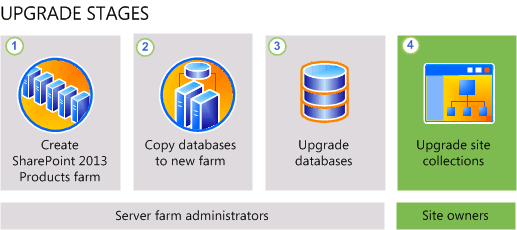
This article helps you understand the upgrade sequence so that you can plan an upgrade project. To get detailed steps for an upgrade, see Upgrade databases from SharePoint 2010 to SharePoint 2013 and Upgrade site collections to SharePoint 2013.
 Important:
This article applies to both SharePoint Foundation 2013 and SharePoint Server 2013, except for information about how to upgrade My Sites and specific service applications that are only in SharePoint Server 2013.
-
Create the SharePoint 2013 farm
The first stage in the upgrade process creates the new SharePoint 2013 farm:
- A server farm administrator installs SharePoint 2013 to a new farm. The administrator configures farm settings and tests the environment.
-
A server farm administrator sets the SharePoint 2010 Products farm to read-only so that users can continue to access the old farm while upgrade is in progress on the new farm.
Figure: Create new farm, set old farm to read-only
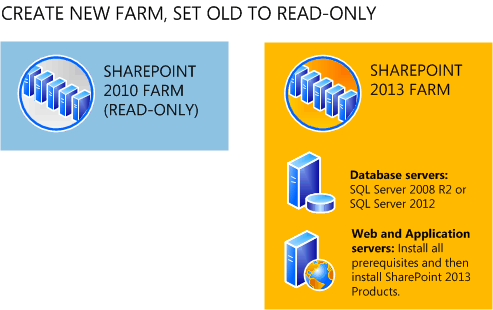
-
Copy the SharePoint 2010 Products databases
The second stage in the upgrade process copies the databases to the new environment. You use SQL Server Management Studio for these tasks.
- With the farm and databases in read-only mode, a server farm administrator backs up the content and service application databases from the SQL Server instance on the SharePoint 2010 Products farm.
-
The server farm administrator restores a copy of the databases to the SQL Server instance on the SharePoint 2013 farm and sets the databases to read-write on the new farm.
Figure: Use SQL Server tools to copy databases

-
Upgrade SharePoint 2010 Products databases and service applications
The third stage in the upgrade process upgrades the databases and service applications.
- A server farm administrator configures the service applications for the new farm. The following service applications have databases that you can upgrade during this process:
-
SharePoint Server 2010 and SharePoint Foundation 2010
- Business Data Connectivity service application
- Business Data Connectivity service application
-
SharePoint Server 2010 only
- Managed Metadata service application
- PerformancePoint Services service application
- Search service application
- Secure Store Service application
- User Profile service application
- Managed Metadata service application
-
A server farm administrator creates a web application on the SharePoint 2013 farm for each web application on the SharePoint 2010 Products farm.
Figure: Create web applications for upgrade
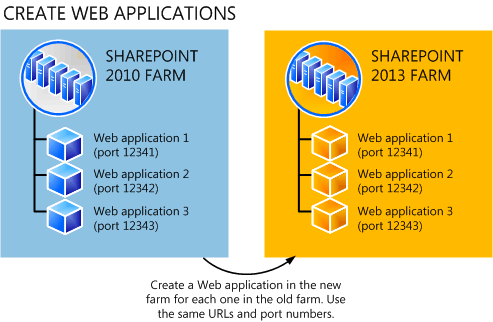
-
A server farm administrator installs all server-side customizations.
Figure: Copy customizations to the new farm

-
A server farm administrator then attaches the content databases to the new farm and upgrades the content databases for those web applications.
Figure: Upgrade the databases by using Windows PowerShell
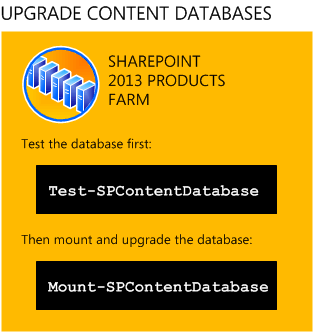
- A server farm administrator confirms that the upgrade is successful.
-
Upgrade SharePoint 2010 Products site collections
The final stage in the upgrade process is to upgrade the site collections. In SharePoint 2013, site owners are in charge of upgrading their sites. The upgrade process for My Sites is slightly different from for other types of site collections.
 Important:
This section applies to SharePoint Server 2013 only.
A server farm administrator upgrades the My Site host and then individual users can upgrade their My Sites or the farm administrator can upgrade them by using Windows PowerShell. The following illustration shows four stages for the My Site host and My Sites during the upgrade process.
Figure: Stages in upgrading My Sites

- The My Site host has not been upgraded. My Sites cannot be upgraded yet.
- A server farm administrator has upgraded the My Site host. No My Sites have been upgraded.
- Some users have upgraded their My Sites.
- All My Sites have been upgraded.
 Note:
Note:
A server farm administrator can choose to force an upgrade of My Sites without waiting for users to upgrade them. For details and steps, read Upgrade site collections to SharePoint 2013.
Owners of all other site collections can start to upgrade their sites as soon as they see a notification on their site’s home page that the new version is available. The following illustration shows four stages for a site collection during the upgrade process.
Stages in upgrading site collections

- The site owner runs the site collection health checks to determine readiness for upgrade. The site owner addresses issues before they continue with the next step.
-
Optionally, the site owner requests an upgrade evaluation site collection. A timer job runs to create the site collection and the site owner receives an email message when the evaluation site collection is ready. The site owner previews the new user interface. After several days or weeks, the evaluation site collection expires and is deleted by a timer job.
A server farm administrator can determine the length of time before expiration.
- When the site owner is ready, the site owner starts the upgrade process. The site collection health checks are run again automatically. The site owner must address issues before upgrading. If health checks return no issues, the upgrade starts.
- When upgrade is complete, the site owner sees the Upgrade Status page that contains the status and a link to the upgrade logs. The site owner reviews the site to make sure that everything works correctly.
 Note:
Note:
A server farm administrator can also force specific site collections to be upgraded without waiting for the site owners to upgrade them. For details and steps, read Upgrade site collections to SharePoint 2013.
-
Services upgrade overview for SharePoint Server 2013
Published: July 16, 2012
Summary: Create a plan to upgrade data for service applications when you upgrade from SharePoint Server 2010 to SharePoint Server 2013.
Applies to: SharePoint Server 2013
The upgrade process for SharePoint Server 2013 uses the database attach upgrade method. When you move your databases to a new farm and upgrade the content, you must create your services infrastructure in the new farm, and configure the services appropriately for your new farm and new version. The following service applications have databases that can be upgraded when you upgrade from SharePoint Server 2010 to SharePoint Server 2013:
- Business Data Connectivity service application
- Managed Metadata service application
- PerformancePoint Services service application
- Search service application
- Secure Store Service application
- User Profile service application
Attaching and upgrading these databases configures these service applications. Settings for other services will have to be reconfigured when you upgrade.
 Important:
The content in this article about the Business Data Connectivity service application applies to both SharePoint Foundation 2013 and SharePoint Server 2013. Other services are available only in SharePoint Server 2013.
- Business Data Connectivity service application
-
Database attach upgrade with services
You must create the service applications on your new farm before you upgrade your content databases. The steps included in the installation guide above describe how to use the Farm Configuration Wizard to enable all service applications. Some service applications can be upgraded by using a service application database upgrade. If you want to upgrade these service applications by upgrading the service application databases, you should not use the Farm Configuration Wizard to configure these service applications when you set up your new farm.
The following service applications can be upgraded by performing a services database upgrade:
-
Business Data Connectivity service
The Business Data Connectivity service uses a database to store information about external data. This database must be upgraded as part of a services database attach upgrade. This service application is also available in SharePoint Foundation 2013.
-
Managed Metadata service
The Managed Metadata service uses a database to store metadata information. This database must be upgraded as part of a services database attach upgrade. You must attach and upgrade the database for this service and for the User Profile service before you can upgrade any My Sites.
-
PerformancePoint services
PerformancePoint Services use a database to store information. This database must be upgraded as part of a services database attach upgrade.
-
Search
In SharePoint Server 2010, the Search service application Administration database contains settings for the Search service application such as content sources, crawl rules, start addresses, server name mapping, and federated locations. You can upgrade a Search service application Administration database from SharePoint Server 2010 to SharePoint Server 2013 by using a database attach approach.
You cannot use the database attach approach to upgrade any other search databases, such as crawl databases or property databases. (These databases are re-created when you perform a full crawl in the new farm.) Also, the upgrade process does not preserve or upgrade logical components of the SharePoint Server 2010 farm topology. After you perform the upgrade, you must manually re-create a topology as appropriate for the requirements of the organization.
-
Secure Store service
The Secure Store Service uses a database to store information. This database must be upgraded as part of a services database attach upgrade. You have to upgrade the data for this service application so that any connections from Excel Services Application and Business Connectivity Services can work with existing passwords.
-
User Profile service
The User Profile service uses databases to store profile, social, and sync information. These databases must be upgraded as part of a services database attach upgrade. You have to attach and upgrade the databases for this service and for the Managed Metadata service before you can upgrade any My Sites.
 Note:
Note:
My Sites are not available in SharePoint Foundation 2010 or SharePoint Foundation 2013.
Specifically, the following service application databases can be upgraded:
Service application
Default database name
Business Data Connectivity
BDC_Service_DB_ID
Managed Metadata
Managed Metadata Service_ID
PerformancePoint
PerformancePoint Service Application_ID
Search Administration
Search_Service_Application_DB_ID
Secure Store
Secure_Store_Service_DB_ID
User Profile: Profile and Social databases
User Profile Service Application_ProfileDB_ID
User Profile Service Application_SocialDB_ID
User Profile Service Application_SyncDB_ID
The steps to upgrade these service application databases are included in Attach databases and upgrade to SharePoint 2013.
-
-
Considerations for specific services
The following services in SharePoint Server 2013 also require additional steps to enable and configure when you upgrade:
-
Excel Services
You can enable this service by using the Farm Configuration Wizard, but you must make sure that you re-create all trusted data connections. For more information, see Manage Excel Services Trusted Data Providers.
-
InfoPath Forms Service
This service is not part of the Farm Configuration Wizard. If you want to use this service, you can use the Configure InfoPath Forms Services link on the General Application Settings page in SharePoint Central Administration to configure it. If you want to continue using form templates from your previous environment, you can export any administrator-deployed form templates (.xsn files) and data connection files (.udcx files) from your SharePoint Server 2010 environment, and then import them to your new SharePoint Server 2013 environment by using the Export-SPInfoPathAdministrationFiles Windows PowerShell cmdlet. If the URL of the new server differs from the URL of the previous server, you can run the Update-SPInfoPathAdminFileUrl Windows PowerShell cmdlet to update links that are used in the upgraded form templates. For more information, see Configure InfoPath Forms Services (SharePoint Server 2010).
-
Office Web Apps
If you installed Office Web Apps with SharePoint 2010 Products, Office Web Apps will not be available after you upgrade to SharePoint 2013 Products. You must deploy Office Web Apps Server and then connect SharePoint 2013 Products it to after the content databases are upgraded. You do not have to wait until the site collections are upgraded because Office Web Apps Server supports both the 2010 and 2013 site collection modes in SharePoint 2013 Products. For more information, see Office Web Apps.
-
-
Upgrade farms that share services (parent and child farms) to SharePoint 2013
Published: July 16, 2012
Summary: Understand how to upgrade environments that include services farms to SharePoint 2013.
Applies to: SharePoint Foundation 2013 | SharePoint Server 2013
Some services in SharePoint 2010 Products can be shared across multiple farms. A services farm hosts services such as Business Data Connectivity service, Search, and User Profiles that other farms consume. When you upgrade to SharePoint 2013, you first upgrade the services farm, and then upgrade the farms that consume those services. This article describes how to upgrade farms that share services.
Before you begin, make sure that you have reviewed the overall upgrade process described in Overview of the upgrade process to SharePoint 2013.
 Note:
Note:
This article applies to both SharePoint Server 2013 and SharePoint Foundation 2013. However, only the Business Data Connectivity service is available in SharePoint Foundation 2013. The other services are available only in SharePoint Server 2013.
-
Process for upgrading farms that share services
To upgrade farms that share services, you follow these steps:
1. Starting status: services farm and content farm running SharePoint 2010 Products
In your SharePoint 2010 Products environment, you have one or more content farms that use services from a services farm. The services farm provides cross-farm services and Enterprise Search indexes the content on the content farm.
Pre-upgrade state: 2010 content and services farms
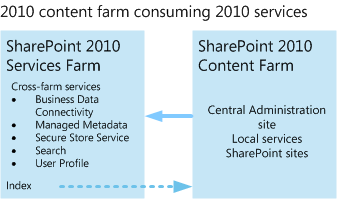
2. Create the SharePoint 2013 services farm
Create a new farm to host the service applications, and install and configure SharePoint 2013.
Create 2013 Services farm
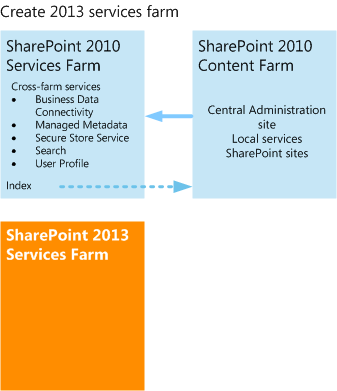
3. Upgrade the Search service application and optionally index the content in the SharePoint 2010 Products content farm
Upgrade the Search service application administration database and run a search crawl against the SharePoint 2010 Products content farm to create the index.
Upgrade the Search service application
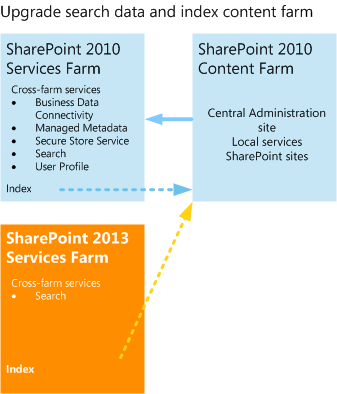
4. Upgrade the other service applications.
Upgrade the databases for the other service applications.
Upgrade other service applications
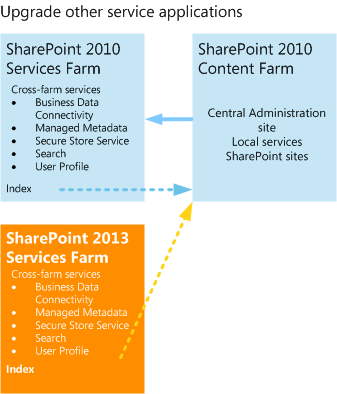
5. Switch the services connection to SharePoint 2013 services farm
Change the SharePoint 2010 Products content farm to consume services from the SharePoint 2013 services farm and retire the SharePoint 2010 Products services farm.
Switch connection to 2013 services farm
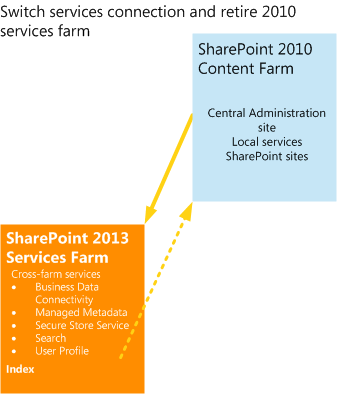
6. Create SharePoint 2013 content farm
Create a new farm to host content, and install and configure SharePoint 2013.
Create 2013 content farm
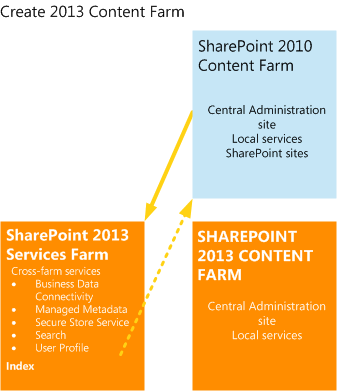
7. Upgrade and index the 2013 content farm
Upgrade the data in the SharePoint 2013 content farm. Configure it to consume services from the SharePoint 2013 services farm. Index the SharePoint 2013 content farm.
Upgrade and index the 2013 content farm

8. Retire the SharePoint 2010 Products content farm
Now that the SharePoint 2013 content farm uses services from a SharePoint 2013 services farm, you can retire the SharePoint 2010 Products content farm.
Retire 2010 content farm

If more than one content farm uses services from the SharePoint 2010 Products services farm, repeat steps 5 through 7 for the remaining content farms until all farms are upgraded and are using services from SharePoint 2013. Except for the order of steps in this process, the process to create and upgrade each farm follows the database-attach upgrade steps outlined in Attach databases and upgrade to SharePoint 2013. This process does not explain how to upgrade site collections. For more information about how to upgrade sites, see Upgrade site collections to SharePoint 2013.
-
Best practices for upgrading to SharePoint 2013
Published: July 16, 2012
Summary: Understand how to get the most out of testing upgrade and how to guarantee a smooth upgrade to SharePoint 2013.
Applies to: SharePoint Foundation 2013 | SharePoint Server 2013
To increase your chances of a successful and faster upgrade to SharePoint 2013, follow these best practices to test and complete an upgrade.
-
Best practices for testing upgrade
To understand your environment before you upgrade it, and to plan for the time that an upgrade will require, you should try one or more trial upgrades. The goal of testing upgrade is to find and fix issues and develop confidence in the outcome before the real upgrade. To develop an accurate trial of the upgrade process from SharePoint 2010 Products to SharePoint 2013, follow these best practices:
-
Know what is in your environment. Do a full survey first.
Document the hardware and software in your environment, where server-side customizations are installed and used, and the settings that you need. This helps you plan the trial environment and also helps you recover if upgrade fails. A worksheet is available to record information about your environment. Download the worksheet at SharePoint 2013 Products Preview Upgrade Worksheet.
-
Make your test environment as similar as possible to your real environment.
If possible, use the same kind of hardware and use the same settings, the same URLs, and so on to configure it. Minimize the differences between your test environment and your real environment. As you introduce more differences, you are likely to spend time resolving unrelated issues to make sure that they will not occur during the actual upgrade.
-
Use real data.
Use copies of your actual databases to run the tests. When you use real data, you can identify trouble areas and also determine upgrade performance. You can also measure how long different upgrade sequences and actions take on different kinds of data. If you cannot test all the data, test a representative subset of the data. Make sure that you find issues with the different kinds and sizes of sites, lists, libraries, and customizations that are present in your environment. If you cannot test all data because of storage concerns, try going over the data in several passes, removing the old trial copies before going on to the next batch.
-
Run multiple tests.
A single test can tell you whether you will encounter big problems. Multiple tests will help you find all the issues that you might face and help you estimate a more accurate timeline for the process. By running multiple tests, you can determine the following:
- The upgrade approaches that will work best for your environment
- The downtime mitigation techniques that you should plan to use
-
How the process or performance may change after you address the issues that you uncovered in your first tests
Your final test pass can help you validate whether you have addressed the errors and are ready to upgrade your production environment.
-
Do not ignore errors or warnings.
Even though a warning is not an error, a warning could lead to problems in the upgrade process. Resolve errors, but also investigate warnings to make sure that you know the results that a warning might produce.
-
Test the upgraded environment, not just the upgrade process.
Check your service applications and run a search crawl and review the log files.
For more information about how to test upgrade, see Use a trial upgrade to SharePoint 2013 to find potential issues and the SharePoint 2013 Products Preview – Test Your Upgrade Process model.
-
Best practices for upgrading to SharePoint 2013
To guarantee a smooth upgrade from SharePoint 2010 Products to SharePoint 2013, follow these best practices:
-
Ensure that the environment is fully functioning before you begin to upgrade.
An upgrade does not solve problems that already exist in your environment. Therefore, make sure that the environment is fully functioning before you start to upgrade. For example, if you are not using web applications, unextend them before you upgrade. If you want to delete a web application in Internet Information Services (IIS), unextend the web application before you delete it. Otherwise, SharePoint 2013 will try to upgrade the web application even though it does not exist, and the upgrade will fail. If you find and solve problems beforehand, you are more likely to meet the estimated upgrade schedule.
-
Perform a trial upgrade on a test farm first.
Copy your databases to a test environment and perform a trial upgrade. Examine the results to determine the following:
- Whether the service application data was upgraded as expected
- The appearance of upgraded sites
- The time to allow for post-upgrade troubleshooting
-
The time to allow for the upgrade process
Try a full search indexing crawl. For more information, see Use a trial upgrade to SharePoint 2013 to find potential issues.
-
Plan for capacity.
Ensure that you have enough disk, processor, and memory capacity to handle upgrade requirements. For more information about system requirements, see System requirements (SharePoint 2013 Preview). For more information about how to plan the disk space that is required for upgrade, see Plan for performance during upgrade to SharePoint 2013.
-
Clean up before you upgrade
Issues in your environment can affect the success of upgrade, and unnecessary or very large amounts of data can affect upgrade performance for both databases and site collections. If you don’t need something in your environment, consider removing it before upgrade. If there are issues detected, try to resolve them before you start to upgrade. For more information, see Clean up an environment before an upgrade to SharePoint 2013.
-
Back up your databases.
Perform a full backup of your databases before you upgrade. That way, you can try upgrade again if it fails.
-
Optimize your environment before upgrade.
Be sure to optimize your SharePoint 2010 Products environment to meet any limits or restrictions, either from your business or governance needs or from the SharePoint 2013 boundaries and limits before upgrade. This will help reduce errors during the upgrade process and prevent broken lists or sites after upgrade. For more information about limits in the product, see SharePoint Server 2010 Capacity Management: Software Boundaries and Limits. For more information about large lists and how to address the lower limit on site collections, see Clean up an environment before an upgrade to SharePoint 2013.
-
(Optional) Set the original databases to read-only if you want to keep your original environment available while you upgrade.
If you expect a long outage period while you upgrade, you can set the databases in the original environment to read-only. Users can continue to access the data but cannot change it. For more information, see Attach databases and upgrade to SharePoint 2013.
-
After upgrade, review the Upgrade Status page and upgrade logs to determine whether you must address issues. Then review the upgraded sites.
The Upgrade Status page reports on the upgrade progress, and the upgrade logs list any errors or warnings that occurred during the upgrade process. Verify all the sites and test them before you consider the upgrade finished. For more information, see Verify database upgrades in SharePoint 2013 and Review site collections upgraded to SharePoint 2013.
-
Defer upgrade for site collections until you can get updated customizations to support 2013 mode.
If you wait until the customizations are available, you can complete the initial upgrade of database and services without significantly affecting use of the existing sites in 2010 mode.
-
Review supported editions and products for upgrading to SharePoint 2013
Published: July 16, 2012
Summary: Understand the editions or versions of SharePoint 2010 Products that you can upgrade to specific editions or versions of SharePoint 2013.
Applies to: SharePoint Foundation 2013 | SharePoint Server 2013 Standard | SharePoint Server 2013 Enterprise
When you plan an upgrade process, make sure that you verify that the intended upgrade path is supported. This article describes the editions and products that are supported and unsupported to upgrade to SharePoint 2013.
 Important:
Upgrade from a pre-release version of SharePoint 2013 to the release version of SharePoint 2013 is not supported.
Pre-release versions are intended for testing only and should not be used in production environments. Upgrading from one pre-release version to another is also not supported.
-
Supported topologies
For SharePoint 2013, the only upgrade method is the database-attach upgrade method. Because this method upgrades the databases instead of installing in place over an existing environment, you can attach the databases from a stand-alone installation to server farm (Complete) installation if you want to expand your environment.
Figure: Upgrade to either stand-alone or server farm (Complete) topologies
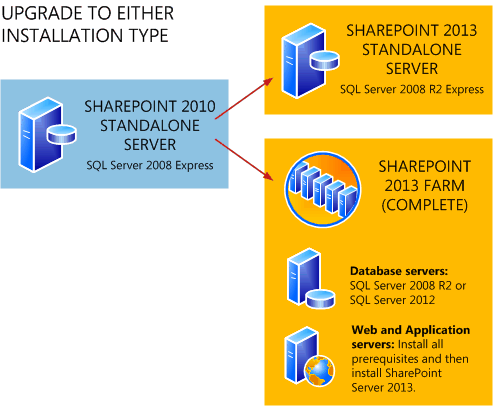
Before you create your new SharePoint 2013 environment and attach and upgrade the databases, determine the type and size of the environment that you need.
-
Physical topology guidance
The SQL Server topology — in addition to network, physical storage, and caching considerations — can significantly affect system performance. To learn more about how to map your solution design to the farm size and hardware that will support your business goals, see Performance and capacity management. For more information about requirements, see System requirements (SharePoint 2013 Preview).
-
-
Supported editions for upgrade
The following table lists the editions available for SharePoint Server 2010 and the supported and unsupported ending editions when you upgrade to SharePoint Server 2013.
Starting edition
Supported ending edition
Unsupported ending edition
SharePoint Server 2010, Standard edition
SharePoint Server 2013, Standard edition
SharePoint Server 2013, Enterprise edition
You can convert to Enterprise edition after upgrade.
SharePoint Server 2010, Enterprise Edition
SharePoint Server 2013, Enterprise edition
SharePoint Server 2013, Standard edition.
SharePoint Server 2010, Trial edition
SharePoint Server 2013, Trial edition
SharePoint Server 2013, full product
You can convert to the full product after upgrade.
-
Supported cross-product upgrades
The following table lists which Microsoft server products can be upgraded to SharePoint Foundation 2013 or SharePoint Server 2013.
Starting product
Supported ending products
Unsupported ending product
SharePoint Foundation 2010
SharePoint Foundation 2013
SharePoint Server 2013
SharePoint Foundation 2013
SharePoint Server 2013
SharePoint Server 2010
SharePoint Server 2013
SharePoint Foundation 2013
SharePoint Server 2013
SharePoint Server 2013
SharePoint Foundation 2013
Search Server 2010
SharePoint Server 2013 or Search Server 2013
SharePoint Foundation 2013
Project Server 2010 with SharePoint Server 2010, Enterprise Edition
Project Server 2013 with SharePoint Server 2013, Enterprise Edition
-
Plan for upgrade to SharePoint 2013
Published: July 16, 2012
Summary: Find resources about how to plan to upgrade from SharePoint 2010 Products to SharePoint 2013.
Applies to: SharePoint Foundation 2013 | SharePoint Server 2013
In order to have a successful upgrade to SharePoint 2013, you must plan for the upgrade. This section contains articles that help you plan and prepare for upgrading from SharePoint 2010 Products to SharePoint 2013.
To understand how the upgrade process works, see the articles in Get started with upgrades to SharePoint 2013.
The following downloadable resources, articles on TechNet, video recordings, and related resources provide information about how to plan for upgrade.
-
TechNet articles about how to plan for upgrade
The following articles about how to plan for upgrade are available to view online. Writers update articles on a continuing basis as new information becomes available and as users provide feedback.

ContentDescription
Understand how to minimize downtime and plan for special cases during an upgrade to SharePoint 2013.
Create a plan for current customizations during upgrade to SharePoint 2013
Learn how to identify and evaluate the customizations in your environment, and determine whether you will upgrade them, and how.
Plan to upgrade site collections to SharePoint 2013. Plan for upgrade evaluation sites, notifications, and throttling.
Understand upgrade performance and how to plan for the space and time that is required to upgrade to SharePoint 2013.
Create a communication plan for the upgrade to SharePoint 2013
Create a plan to coordinate and communicate with the upgrade team, site owners and users, and stakeholders.
Clean up an environment before an upgrade to SharePoint 2013
Make sure that your environment is in a healthy state, and delete unnecessary items before you upgrade to SharePoint 2013.
-
Additional resources about how to plan for upgrade to SharePoint 2013
The following resources about how to plan for upgrade to SharePoint 2013 are available from other subject matter experts.
Content
Description

Visit the Resource Center to access videos, community sites, documentation, and more.
-
Determine strategy for upgrade to SharePoint 2013
Published: July 16, 2012
Summary: Understand how to minimize downtime and plan for special cases during an upgrade to SharePoint 2013.
Applies to: SharePoint Foundation 2013 | SharePoint Server 2013
When you upgrade your environment to SharePoint 2013, you want to limit how much downtime that users experience. You might also have a special case that you must address during upgrade. This article describes how to minimize downtime and work with these special cases.
In addition to the information in this article, make sure that you read Review supported editions and products for upgrading to SharePoint 2013 to understand exactly which upgrade situations are valid and lead to successful upgrades.
-
How to minimize downtime during upgrade
The following table lists the techniques that you can use during upgrade to reduce the time that users cannot access their content or to potentially increase upgrade performance.
- Read-only databases You can use read-only databases to continue to provide read-only access to content during the upgrade process. For this approach, you set the databases to read-only on the original farm while the upgrade is in progress on another farm. This method reduces perceived downtime for users. Also, if you encounter a problem with upgrade, you can restore the read-only farm to read-write and restore access to users while you rework your plans before you try upgrade again.
-
Parallel database upgrades You can attach and upgrade multiple databases at a time to speed up the upgrade process overall. The maximum number of parallel upgrades depends on your hardware. This results in faster overall upgrade times for your environment. However, you must monitor the progress and your servers to make sure that the performance is acceptable, and for large databases, parallel upgrades can be slower than single upgrades.
For more information about upgrade performance, see Plan for performance during upgrade to SharePoint 2013 and Use a trial upgrade to SharePoint 2013 to find potential issues.
The instructions for using these techniques are included in Attach databases and upgrade to SharePoint 2013.
- Read-only databases You can use read-only databases to continue to provide read-only access to content during the upgrade process. For this approach, you set the databases to read-only on the original farm while the upgrade is in progress on another farm. This method reduces perceived downtime for users. Also, if you encounter a problem with upgrade, you can restore the read-only farm to read-write and restore access to users while you rework your plans before you try upgrade again.
-
Special cases
You might have other requirements or additional goals that you want to achieve when you perform an upgrade. The following table lists special cases and describes how to approach upgrade for each case.
Case
Upgrade approach
Upgrading an environment that uses forms-based authentication?
Additional steps are required to upgrade when you are using forms-based authentication. For more information, see Configure forms-based authentication for a claims-based web application in SharePoint 2013.
Upgrading very large databases?
In general, very large databases — especially databases that have a large number or large size of document versions inside them — take longer to upgrade than smaller databases. However, the complexity of the data determines how long it takes to upgrade, not the size of the database itself. If the upgrade process times out, it is usually because of connection issues. For more information about how long upgrade might take for your environment, see Plan for performance during upgrade to SharePoint 2013.
Upgrading from the server products in the Office 2007 release?
Use a database attach upgrade method to upgrade to SharePoint 2010 Products, and then upgrade to SharePoint 2013.
Upgrading from SharePoint Foundation 2010 to SharePoint Server 2013?
Attach and upgrade the content databases from SharePoint Foundation 2010 to SharePoint Server 2013.
Changing languages?
You have two choices, depending on whether a single site or your whole environment is changing languages:
- To change the multiple user interface (MUI) language for a specific site, upgrade in the same language, and then install the new language pack and change to that language.
 Caution:
You must have the appropriate language packs installed to upgrade any sites based on a localized site definition. If you do not have the new language pack, the sites will not be available. Wait for the new language packs to be released before you try to upgrade those sites.
- To change the installation language for your environment, set up your new environment in the new language, and then attach and upgrade your databases in the new language.
- To change the multiple user interface (MUI) language for a specific site, upgrade in the same language, and then install the new language pack and change to that language.
-
Create a plan for current customizations during upgrade to SharePoint 2013
Published: July 16, 2012
Summary: Identify all customizations in your environment and determine what to change or remove as you upgrade to SharePoint 2013.
Applies to: SharePoint Foundation 2013 | SharePoint Server 2013
If you have extensively customized your sites based on SharePoint 2010 Products, you must determine how you want to handle your customizations when you upgrade to SharePoint 2013. Your approach will vary based on the extent of the customizations, the kind of customization, the complexity of your site, and your goals for upgrading. Before you upgrade, you must identify and then evaluate the customizations in your environment and determine whether you will upgrade them, and how.
-
Identify customizations in your environment
As part of an upgrade testing process, you should create an inventory of the server-side customizations in your environment (solutions, features, Web Parts, event handlers, master pages, page layouts, CSS files, and so on). For more information about how to identify customizations, see Use a trial upgrade to SharePoint 2013 to find potential issues.
You can use the Upgrade Planning worksheet to list specific customizations and then record the results of your evaluation in the next section.
-
Evaluate the customizations
After you have identified the customizations, think about the potential upgrade effect of each one. The following table describes types of customizations and the kind of effect they can have during upgrade.
Category of customization
Types of customizations
Potential effect on upgrade
Visually-affecting
Master pages
Themes
Web Pages
Web Parts
Custom JavaScript
Custom CSS files
Should not affect database upgrade.
For site upgrades: likely to work well in 2010 mode, but need changes to work in 2013 mode.
Test carefully in both modes.
Data structure affecting
Content types
List types
Web templates
Site definitions
Can affect database upgrade if content or list type names conflict with new content or list types in the product, or if templates or definitions are missing.
Non-visually affecting
Web services
Windows services
HTTP handler
HTTP module
Might not be compatible with SharePoint 2013. Test carefully to determine effect. Be prepared to remove or replace.
Now that you know what customizations that you have, and what type that they are, you can decide what to do about them. The following questions can help you evaluate the customizations:
-
Is the customization still valuable?
- Does it serve a useful business need?
- Is it widely deployed and used?
- Does it do something that you cannot do with standard features in the product?
- Does it serve a useful business need?
-
Is the customization well-designed?
- Is it built on supported, predefined site definitions?
- Does it follow best practices for customizations?
- Is it a supported kind of customization, or does it introduce risk into your environment?
- Is it built on supported, predefined site definitions?
As you evaluate every customization, you can also think about your overall approach for customizations. You can choose from among these options:
-
- Keep the customizations, don’t upgrade the sites You can continue to run the site in 2010 mode in the upgraded environment. Although you can use this approach to keep the same functionality, you will be unable to take advantage of the features and capabilities that are available in the new version. Use this approach only temporarily – eventually you must address the issue (such as before an upgrade to the next version of the product).
- Replace or redo the customizations If you want to use new functionality, plan to redesign your sites, or are significantly changing the information architecture, the upgrade is your opportunity to start over with new features, a new look, or a new organization. When you replace or redo customizations, you can take advantage of the new capabilities, change your design slightly if you want, or move to a more manageable design.
- Discard the customizations Replace the customizations by using default functionality. You can reset pages to the default site definitions and remove any Web Parts or features that you no longer want to support. In fact, the site collection health-checker checks for unghosted pages and can reset the pages to the default versions. If you decide to discard any customizations, you must fix any issues that result from removing the customizations in the sites that used them. You can use your customizations inventory to determine which sites require this kind of attention before or after upgrade.
-
Considerations for specific customizations
In addition to your overall decision about how to treat customizations in your environment during upgrade, you must examine specific types of customizations to determine whether you must perform any additional actions to make them work in the upgraded environment.
The following table lists some common customizations and a recommendation for addressing that kind of customization.
Customization type
Recommendation
Site definition
Migrate sites to a supported, predefined site definition, then apply custom features by using solution deployment.
You can also continue to use a custom site definition. You do not have to create a new site definition that is based on SharePoint 2013.
However, if you must perform custom upgrade actions for the definition, you might have to create an upgrade definition file for that site definition. For more information, see Upgrade Definition Files (http://go.microsoft.com/fwlink/p/?LinkId=182339) on MSDN.
“Fabulous 40” application templates
Microsoft is not creating new versions of these templates. Environments that contain sites based on these templates can be upgraded as long as the templates are installed. But there might be issues when you try to upgrade the site collections. Make sure that you test each site before you upgrade the production environment. For more information, see Troubleshoot database upgrade issues in SharePoint 2013.
Feature
Evaluate, then redesign or redeploy if it is necessary.
Workflows and server controls
Depends on the solution. Contact the vendor to discover whether there is an updated solution. If a workflow is compatible with the new version, redeploy.
Event handler
Most event handlers will continue to work without changes. However, if the code for the event handler makes calls to APIs which were deprecated, you will have to rewrite it, and then redeploy it as a feature.
Managed paths (inclusions/exclusions)
Re-create inclusions to make sure that you can access all site collections under those paths.
Exclusions were not used in SharePoint 2010 Products. If you had any remaining from an earlier version, they do not have to be re-created.
Themes
Re-create your themes following the SharePoint 2013 theming guidance, or select a new theme available in SharePoint 2013.
Master pages and CSS files
Rework to accommodate the new user experience.
JavaScript
Test to determine whether any actions are required. In some cases, you might have to adjust the scripts to work with the new page model. Verify that it works in both 2010 and 2013 modes.
Search provider or security trimmer
Test to determine whether any actions are required.
Web Parts
Test to determine whether any actions are required. You might have to adjust the Web Parts to work with strict XHMTL mode.
Test to verify that there have not been changes to any object models or Web services that you call from the Web Part.
If a Web Part is located on a page but not in a Web Part Zone (so that it is, basically, HTML code embedded directly in a page), it will not work if you reset the page to the default template. There is a site collection health rule that will identify files in this status inside a site collection. There is a link from that rule to the page where they can reset to template.
Services
Test to determine whether any actions are required. Redesign or adjust code, as needed.
Authentication providers
Test to determine whether any actions are required. Redeploy the provider with the same provider name (exactly. This includes the letter case) on a test farm and make sure that it works correctly.
Custom search solutions that use SQL syntax
Rework to use FQL syntax and KQL syntax.
Custom search solutions in SharePoint Server 2013 do not support SQL syntax. Search in SharePoint Server 2013 supports FQL syntax and KQL syntax for custom search solutions. You cannot use SQL syntax in custom search solutions using any technologies. This includes the query server object model, the client object model, and the Search REST service. Custom search solutions that use SQL syntax with the index server object model and the Query web service that were created in SharePoint Server 2010 will not work when you upgrade them to SharePoint Server 2013. Queries submitted via these applications will return an error. For more information about how to use FQL syntax and KQL syntax, see Keyword Query Language (KQL) syntax reference and FAST Query Language (FQL) syntax reference.
While you are reviewing customizations in your environment, you should also make sure that the environment is not using any features or elements that are deprecated. For example, Web Analytics from SharePoint 2010 Products are not available in SharePoint 2013 and you should turn them off before upgrading. Also, SQL Server Search queries are not available in SharePoint 2013. For more information, see Changes from SharePoint 2010 to SharePoint 2013.
Some methods of deploying customizations might require additional steps in SharePoint 2013. The following table lists methods of deploying customizations and any issues that you might encounter.
Deployment method
Recommendation
Customizations deployed as MSI files
Contact the vendor for updated files. Most likely, you will have to get a replacement file compatible with SharePoint 2013.
Manually deployed features, files, or changes
You can re-deploy them to the equivalent directory in SharePoint 2013. However, consider packaging them into a deployable solution package for easier administration.
Sandbox solutions
No special steps. Sandbox solutions are upgraded with the content databases.
Solution packages
Redeploy to SharePoint 2013. Make sure that you deploy it to the appropriate directory (/14 or /15), depending on the version.
Note that you can no longer add partial trust solution packages to the \bin directory. Any files deployed to the \bin directory must be full trust. Be sure to test any such solutions to make sure that deploying them in full trust does not introduce security vulnerabilities. Also, update any deployment scripts to make sure that they specify the correct trust level.
For more information, see Install-SPSolution.
Administrator-deployed form templates
You must extract them from SharePoint Server 2010 and redeploy them to SharePoint Server 2013. For more information, see Services upgrade overview for SharePoint Server 2013.
The following kinds of customizations are not supported. If you have any of these customizations in your environment, you must replace them by using a supported kind of customization before you can upgrade. Otherwise, you might experience upgrade issues that cannot be fixed:
- Predefined files, features, or site definitions that were changed.
 Warning:
Some predefined file types — such as document icons or actions — can be carried forward in a supportable way, although this does not occur automatically. Do not copy over the old version files as that can cause other issues, instead, make the same changes to the new version file Modifications to other predefined files, such as server-side ASPX pages, will be lost during upgrade if you reset to the site template or if you don’t make the same changes in the new version files. Depending on the files that were changed and the extend of these changes, the upgrade experience can vary significantly.
- SharePoint databases that were changed, either by directly changing data or changing the schema. This includes adding or removing triggers, tables, views, or indexes.
If you have any of these kinds of customizations, remove them and replace them with supported customizations before you attempt to upgrade. This is a best practice for helping to make sure that not only your current upgrade will work, but any future upgrades will go more smoothly. Changing predefined files and databases will remain unsupported.
- Predefined files, features, or site definitions that were changed.
-
Ensure that future customizations follow best practices
Ensure that your environment performs well and follows best practices. Deploy only those customizations that follow the best practices as described on the following page on MSDN: Developer Best Practices Resource Center.
Best practices for upgrading to SharePoint 2013
-
Plan for site collection upgrades in SharePoint 2013
Published: July 16, 2012
Summary: Explains how plan to upgrade site collections to SharePoint 2013 and how to plan for upgrade evaluation sites, notifications, and throttling in SharePoint 2013.
Applies to: SharePoint Foundation 2013 | SharePoint Server 2013
When you upgrade from SharePoint 2010 Products to SharePoint 2013, site collections are not upgraded when you upgrade the content databases to a new version. The upgrade process is split to allow site collection administrators to decide when to upgrade their site collections. For a visual overview of the upgrade process, see Overview of the upgrade process to SharePoint 2013.
Server farm administrators can control settings for upgrading site collections, such as settings for upgrade evaluation site collections, notifications, and upgrade throttling. This article helps you plan the settings to use to controlling the upgrade of a site collection.
-
Determine the site collections that farm administrators should upgrade
By default, site collection administrators are in charge of when they upgrade their site collections, and they perform the upgrade themselves. However, under certain circumstances a farm administrator should probably perform the upgrade. For example, for sites that meet the following characteristics, the upgrade team at the farm level should perform tests before upgrade, and potentially upgrade the site collection:
-
Extremely important sites
If a site is very important to your business, farm administrators should carefully test it before they upgrade it, and then upgrade it themselves to make sure that the site collection is available for users as quickly as possible.
-
Very large sites
By default, if a site collection administrator starts to upgrade a site that is larger than 10 MB or with more than 10 subsites, the site is added to the upgrade queue, instead of being upgraded immediately. For very large site collections (larger than 10 GB), we recommend that you have a farm administrator upgrade the site collections instead of allowing the site collection administrators to start the upgrade. This way, the farm administrators can test these sites and then monitor the progress of the upgrade.
-
Highly-customized sites
Carefully test sites that are based on custom site definitions or that have many other customizations before you upgrade them. If there are issues with server-side customizations, then farm administrators should address them, test again, and then perform the upgrade so that they can troubleshoot any issues that occur. If there are issues with the design of a site, a designer and site collection administrator can address them.
Farm administrators can upgrade sites by using Windows PowerShell. For more information, see Upgrade a site collection to SharePoint 2013.
-
-
Plan settings for upgrade notifications, self-service upgrade, and site collection creation
When a site collection is available to upgrade, a status bar on a site indicates that site collection administrators can upgrade it. They can choose to upgrade the site collection then, or be reminded later.
Farm administrators can determine whether to allow site collection administrators to upgrade their sites at all. You can set a property to prevent the site collection administrators from starting to upgrade, which also turns off the notification in the status bar. Then you can perform the upgrades yourself by using Windows PowerShell. If you choose to upgrade some sites centrally, you should have a plan to decide when each site will be upgraded and who will verify the site after upgrade.
Although administrators can upgrade all site collections immediately, we do not recommend this, for the following reasons:
- You would risk that some sites would have unforeseen issues that you’d have to address. This could create or prolong an outage.
- A high volume of issues could arrive at your helpdesk or troubleshooting process when users start to work with upgraded sites at the same time.
You can control settings for site collection upgrade and site creation. You can determine the following:
- Whether the site collection administrator can upgrade the site collection.
-
Which mode (2010 or 2013, or both) can be used when a user creates a site collection.
For example, you might want users to keep creating 2010 mode sites for a while, until most of site collections are upgraded, or you might want to force new sites to be created in 2013 mode so that you don’t have to upgrade them later.
-
Properties that control site collection upgrade and site creation
-
Property
Description
SPSite.AllowSelfServiceUpgrade
Determines whether an upgrade notification can be set for a site collection.
Default is true – notifications are set automatically.
If set to false, the upgrade notification will not appear on the status bar.
SPWebApplication.CompatibilityRange
Determines in which modes a site collection can be created. For example, 2010 mode (14) or 2013 mode (15). The following ranges are available:
- OldVersions Use this range to enable users to create only 2010 mode sites.
- NewVersion Use this range to enable users to create only 2013 mode sites.
- AllVersions Use this range to enable users to create either 2010 or 2013 mode sites.
You can use these ranges or set your range by using the New-Object command to set the Microsoft.Shareoint.SPCompatibilityRange property.
For more information about how to set these properties, see Manage site collection upgrades to SharePoint 2013.
You can also control settings upgrade notifications. You can determine the following:
- Whether to add a link to more information from the Upgrading now status bar.
-
How many days to wait before reminding a site collection administrator about upgrade if they choose Remind me later on the status bar.
If a user clicks Remind me later, the current date is added to the number that is set for the UpgradeReminderDelay and the notification is hidden until that new date occurs. For example, if the setting is 30, then the notification will appear 30 days from the current date.
The following properties control site collection upgrade notifications:
-
Properties that control upgrade notifications
Property
Description
SPWebApplication.UpgradeMaintenanceLink
Adds another link to the upgrading now status message so that users can follow it, and find more information.
Default is empty.
SPWebApplication.UpgradeReminderDelay
Sets the number of days to suspend the upgrade notification in the status bar after a user clicks Remind me later.
Default is 30 days.
If set to 0, then the upgrade notification is not removed from the status bar and the notification cannot be set to Remind me later.
For more information about how to set these properties, see Manage site collection upgrades to SharePoint 2013.
- You would risk that some sites would have unforeseen issues that you’d have to address. This could create or prolong an outage.
-
Plan for upgrade evaluation sites
Site collection administrators can request a preview of their site collection. This preview site is called an upgrade evaluation site collection. An upgrade evaluation site collection enables site collection administrators to see their site‘s content in a new, separate copy of the site that is running on the SharePoint 2013. Unlike visual upgrade in SharePoint Server 2010, the upgrade evaluation site collection is a complete copy of the site collection. It is separate from the original and has its own URL. Actions that the site collection administrators perform in the upgrade evaluation site collection do not affect the original site. Both the original site and the upgrade evaluation site are available for search, and timer jobs that run for all site collections also run on the upgrade evaluation sites.
When a site collection administrator requests an evaluation site collection, the request is added to a timer job (known as “Create Upgrade Evaluation Site Collections”) which runs one time per day. This timer job creates a full copy of the site collection at a unique URL. Upgrade evaluation site collections are set to expire automatically and be deleted. The default time for expiration is 30 days, which can be configured by setting a value for the web application or by changing a value on the evaluation site collection itself.
Farm administrators can choose to prevent users from creating upgrade evaluation sites by setting the SPSite.AllowSelfServiceUpgradeEvaluation property for a site collection.
Timer jobs create and delete upgrade evaluation sites. The following timer jobs are used:
-
Timer jobs for upgrade evaluation site collections
Job name
Description
When run
Create Upgrade Evaluation Site Collections (job-create-upgrade-eval-sites)
Creates upgrade evaluation sites.
Runs daily, between 1:00 and 1:30 AM
Delete Upgrade Evaluation Site (job-delete-upgrade-eval-sites)
Deletes expired upgrade evaluation sites and sends notifications for sites near their expiration date.
Runs daily, between 1:00 and 1:30 AM
Upgrade site collections (job-upgrade-sites)
Upgrades site collections in the queue for a content database.
Runs every 1 minute
You can decide when and how often these timer jobs run, and you can also run them manually.
-
How the upgrade evaluation site collections are created
The Create Upgrade Evaluation Site Collections job timer collects the list of site collections that were queued for evaluation sites, and then copies the sites to new URLs and Site IDs. It also adds the sites to the upgrade queue so that they will be picked up by the Upgrade Site Collections timer job later. To create the copy of the site:
-
- If you have an Enterprise version of SQL Server, the Create Upgrade Evaluation Site Collections job timer takes a snapshot of the database and reads the data from the snapshot to a destination database (with the source database being the default target). This doesn‘t affect the read-only status of the source site throughout the whole process.
- For other versions of SQL Server that do not have snapshot capabilities, the Create Upgrade Evaluation Site Collections job timer backs up a site collection and restores it to a new URL. This makes the source site read-only for the whole duration of the process.
The Upgrade Site Collections job collects the list of site collections that were queued for upgrade and then upgrades the queued sites from oldest to newest. The recently added evaluation site is then upgraded (or at least upgrade is tried).
-
Plan site collection upgrade throttling and queues
To make sure that site collection upgrades do not cause an outage on your farm, there are throttles built in at the web application, database, and content level. This means that even if 100 site collection administrators decide to upgrade their site collections at the same time, only some are run at the same time, and the rest are put into a queue to run later.
Site collection upgrades are throttled:
-
Throttle levels for site collection upgrade
Level
Maximum number of site collections that can be upgraded at a time
Property that controls the throttle setting
Web application
Default is 5 per web application instance.
Additional requests are queued.
SPWebApplication.SiteUpgradeThrottleSettings AppPoolConcurrentUpgradeSessionLimit
Content database
Default is 10 per content database.
Additional requests are queued.
SPContentDatabase.ConcurrentSiteUpgradeSessionLimit
Content of a site collection (size and number of subwebs)
Default is that a site that is more than 10 MB, or has more than 10 subwebs, cannot be upgraded in a self-service manner by the site collection administrator, but must be upgraded by the farm administrator.
SPWebApplication.SiteUpgradeThrottleSettings UsageStorageLimit and SubwebCountLimit
The following illustration shows the relationship between the web application and content database upgrade throttle limits.
Upgrade throttles and the site upgrade queue for web applications and content databases
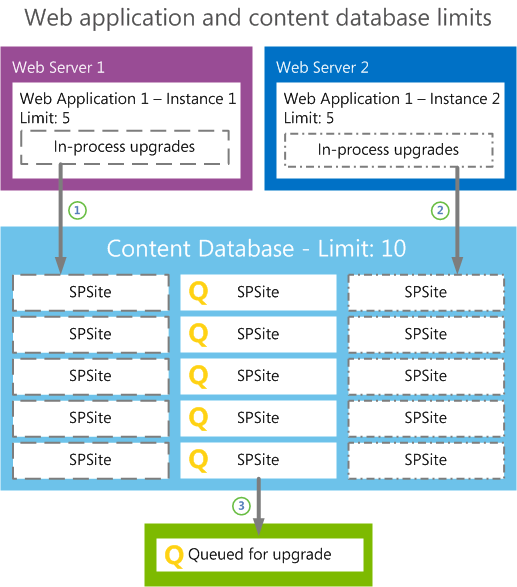
In this illustration, the content database contains fifteen sites, and all sites were requested to start upgrade.
-
- Because of the web application throttle limit, only five sites can start to upgrade for web application 1 – instance 1 on Web server 1.
- An additional five sites start to upgrade on web application 1 – instance 2 on Web server 2.
- Because of the content database throttle, five sites are sent to the upgrade queue to wait their turn.
You can use the default throttling settings, or you can specify your own values for how many site collections can be upgraded at the same time. Farm administrators can also override throttle settings when they upgrade a site by using Windows PowerShell. Exercise caution when you change these values and make sure that you verify the settings that you want to use in a test environment before you implement them in production. If you increase throttling too much, you could create performance problems in your environment. For example, too many parallel upgrades could affect site rendering. For information about how to change these settings, see Manage site collection upgrades to SharePoint 2013.
-
About site collection modes
In order to make it possible to upgrade site collections separately from upgrading content databases, SharePoint 2013 introduces the concept of site collection “modes” (also known as compatibility levels). Site collections are in 2010 mode in the new environment until they are specifically upgraded to 2013 mode. You can create new site collections in either mode. Although farm administrators can configure this setting, the default setting is to create sites in 2010 mode). When a site collection is in 2010 mode, the user interface resembles the SharePoint 2010 Products interface, and only features that were available in SharePoint 2010 Products are enabled. In 2013 mode, the interface and features are updated to SharePoint 2013.
You have to make sure that the solution packages, features, and other custom components are available for both site modes. For more information, see Create a plan for current customizations during upgrade to SharePoint 2013.
-
Train site collection administrators
It is important to train users about how to upgrade their site collections and how to review their sites in an upgrade evaluation site collection. Educated users are prepared and know what to expect, which will minimize helpdesk support and frustrations.
Inform users about changes and new features. Also, let them know about possible issues that they can expect. For instance, they might have issues with customizations, such as pages that do not display correctly. For information about general upgrade issues, see Review site collections upgraded to SharePoint 2013 and Troubleshoot site collection upgrade issues in SharePoint 2013.
Explain to site collection administrators that their upgrade evaluation sites are copies, and any changes they make there will not persist in their upgraded sites. There is also a notification bar in the preview site that indicates that it is a copy.
By default, site collection administrators control upgrade for their sites. They can use upgrade evaluation site collections to preview the new user interface and features. This gives them time to make sure that everything works correctly, and they can address any issues in their original site before upgrading it. When site collection administrators are ready, they can upgrade their sites.
We recommend that you have a plan and set a time limit for how long to allow site collection administrators to postpone upgrade of their sites. For example, each site collection administrator may be given 90 days to work with his or her site collection administrators to evaluate and then upgrade their sites. This time limit makes sure that users are given a reasonable time to become familiar with the new user interface and to resolve any issues in their sites. Ensure that you communicate the time limit to the users, and that they know that you can force through an upgrade of all sites. Also, you can use a Windows PowerShell command to check the compatibility level for sites in a content database so that you can see how many sites are in 2010 mode and how many are in 2013 mode. For more information, see Manage site collection upgrades to SharePoint 2013.
It is important to tell site collection administrators that as long as sites use the 2010 mode, new features will not be available. However, as soon as sites are upgraded to the new version, application features automatically appear.
-
Plan for performance during upgrade to SharePoint 2013
Published: July 16, 2012
Summary: Understand upgrade performance and how to plan for the space and time that is required to upgrade to SharePoint 2013.
Applies to: SharePoint Foundation 2013 | SharePoint Server 2013
An important part of planning an upgrade from SharePoint 2010 Products to SharePoint 2013 is determining how long the upgrade process will take and how much storage space will be required. Every environment is unique and includes different hardware capabilities and different database and site characteristics. The space and the length of time required to run an upgrade will vary greatly depending on your environment. The best way to estimate these factors is to perform one or more trial upgrades, and then review the space and time that it took. For more information about how to perform a trial upgrade, see Use a trial upgrade to SharePoint 2013 to find potential issues.
-
About upgrade performance for SharePoint 2013
One of the main reasons that database upgrade and site collection upgrade are now separate actions for SharePoint 2013 is to give you more control over upgrade performance.
-
How upgrade works for SharePoint 2010 Products
During an upgrade to SharePoint 2010 Products, when the database was upgraded, all of the site collections in that database were also upgraded. That meant that for certain steps, such as activating features or updating the Quick Launch control, the upgrade process needed to perform the step repeatedly for each site collection in a database before the database upgrade was completed.
Upgrade process for SharePoint 2010 Products
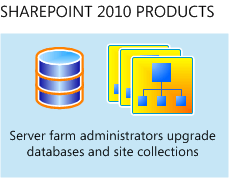
-
How upgrade works for SharePoint 2013
When you upgrade to SharePoint 2013, the database upgrade no longer starts these site-specific steps. Therefore, the database upgrade stage is much faster. Some tests have found that a database can be upgraded to SharePoint 2013 in two-thirds of the time that it took to upgrade the same data to SharePoint 2010 Products. These site-specific steps must still be performed. However, they are performed only when the site collection is upgraded, and then only for that site. Because each site collection is upgraded independently, you can manage the performance effect of those upgrades on your environment.
Upgrade process for SharePoint 2013 Products
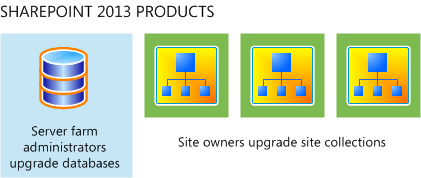
For SharePoint 2013, you can control the performance effect of site collection upgrades by controlling how many sites can be upgraded at a time. There is a site collection upgrade queue that maintains a list of site collections currently requested to be upgraded. And there are throttles on the content database and web application levels to control how many site collection upgrades can occur at a time. For more information about these controls, see Plan for site collection upgrades in SharePoint 2013 and Manage site collection upgrades to SharePoint 2013.
In addition to planning for performance during upgrade, you must also plan for the performance of your production environment after upgrade. Test your planned environment to make sure that you can support your environment by using the hardware that you have planned.
-
-
Estimate the space that you must have for the upgrade
As the databases are upgraded, they expand temporarily. Also, many transactions occur while the upgrade process runs. Therefore, you must make sure that the log files have room to expand to accommodate the changes that are occurring. Therefore, you have to plan for growth in both the databases and the log files.
-
Database growth
Because of the changes in table structures in the new version, the databases grow temporarily while the data is reorganized. This space can be recovered after upgrade, but you should make sure that there is room for the databases to grow up to 50 percent larger than their current sizes during upgrade (be aware that after upgrade, you can reduce the database again to recover much of this space).
You should also make sure that there is room on your database servers for your databases to grow over time with typical use. To check how large your databases currently are, use Enterprise Manager in SQL Server.
-
Transaction log growth
In addition to database space, you must also have room for the transaction log files for the databases. These log files must grow quickly to accommodate the number of changes occurring in the databases
In very large environments, there is a possibility that the default growth rate for the transaction log files (10 percent) is not enough to keep up with the upgrade process. This can cause a time-out. Again, a trial upgrade is the best way to determine whether the transaction log files can keep up with the upgrade process. If your environment is very large, or if the process timed out during a trial upgrade, consider expanding the SQL Server transaction log files beforehand to make sure that you have room for the number of transactions that must be processed. For more information about how to expand the SQL Server transaction logs, see Expanding a Database (SQL Server 2008 R2).
-
-
Estimate how long the upgrade will take
With your disk space estimates in hand, and some testing done, you can now calculate a rough estimate of how long the actual upgrade process will take. Upgrade times vary widely among environments. The performance for an upgrade depends greatly on the hardware being used, the complexity of the sites, and the particular characteristics of your implementation. For example, if you have many large document libraries, these may take longer to upgrade than a simpler site.
Factors that influence performance for upgrade are described in the following list.
-
Environment factors The following factors can affect the performance for both database and site collection upgrade:
- Simultaneous upgrades
- SQL Server disk input/output per second
- SQL Server database to disk layout
- SQL Server temporary database optimizations
- SQL Server CPU and memory characteristics
- Web server CPU and memory characteristics
- Network bandwidth and latency
- Simultaneous upgrades
-
Database factors The following factors can affect the performance of database upgrade. The number of:
- Site collections
- Subwebs
- Lists
- Rowspan within lists
- Document versions (number and size)
- Documents
-
Links
Plus the overall database size itself.
- Site collections
-
Site collection factors The following factors can affect the performance of site collection upgrade. The number of:
- Subwebs
- Lists
- Activated upgrading features
- Document versions (number and size)
- Documents
- Links
- Subwebs
How your data is structured can affect how long it takes to upgrade it. For example, 10,000 lists with 10 items each will have a longer upgrade time than 10 lists with 10,000 items. The actions required to upgrade the list infrastructure must be performed for each list, regardless of the number of items. Therefore, more lists equals more actions. The same goes for most of the items under database factors or site collection factors.
The structure of your hardware can also have a big effect on performance. Generally, the database server performance is more important than web server performance, but underpowered hardware or connectivity issues at either tier can significantly affect upgrade performance. Web servers have a significant part to play in database upgrade performance, mainly by issuing the commands to make data and structural changes in the databases. The database servers have to process those changes and work with a large set of data for every command. Web server performance becomes a bigger issue during site collection upgrade, when the upgrade process iterates several actions for each site collection (which might occur for multiple site collections at a time). Site collection upgrade also affects the database server as each action must occur in SQL Server.
The best way to estimate overall time is to do a trial upgrade of the data, and then review the upgrade log files. The log files contain the duration for an upgrade — look for Total Elapsed Time at the bottom of the upgrade log file. Use this time to estimate the duration for your full set of content. You can also use the log files to check your progress during the upgrade process. The upgrade.log file is located at %COMMONPROGRAMFILES%\Microsoft Shared\web server extensions\15\LOGS.
To determine durations from the logs, examine:
- The times spent in each upgrade sequence per log.
- The times spent per upgrade action instance per log.
- The minimum, maximum, and average times.
Make sure that you separate out the database upgrade times from time that is spent upgrading site collections for accurate planning. Perform multiple trial upgrades to guarantee more accurate data. Then collate the data from multiple tests to determine likely performance per sequence, action, and database. You can use the Get-SPUpgradeActions cmdlet in Windows PowerShell to see how many actions occur for the farm. For more information, see Get-SPUpgradeActions.
The estimate you arrive at based on your trial upgrade is for the actual upgrade process for the data. It does not include all of the steps that you have to perform before and after this step, which can take more time than the upgrade of the data itself. When estimating how long the upgrade will take, in addition to the time that is required for data to be processed, you must also estimate how long the activities during the upgrade phases will take.
Consider the following factors:
- Creating custom elements Upgrading Web Parts or re-doing custom templates to take advantage of new features will take some time. The process of creating custom elements should begin early, during the evaluation phase of your project.
- Backing up the databases You must perform a full backup — not a differential backup — of your databases for a database-attach upgrade. For large environments, this step can take significant time. In particular, if you are backing up to a network location, network latency issues can slow this process down.
- Creating service applications and configuring services Creating service applications and configuring services does not take long. However, if you must contact a database administrator to create the databases for you before you create service applications, you might need a day or two of lead time.
- Running a search crawl on all content For large sites, this step can take more than 24 hours. Unless you run a crawl, searches cannot return results because the index is not upgraded.
- Verifying the environment after upgrade For large environments, it can take a while to verify the environment and check the site collections to make sure that they are in a good state before you allow users access to them. For more information, see Verify database upgrades in SharePoint 2013.
For site collection upgrade, consider the following factors:
- Verifying sites and making changes Allow enough time for users to validate their sites after the upgrade. This may take several days. For more information, see Review site collections upgraded to SharePoint 2013.
Additional factors in your environment can also contribute to longer upgrade times. They include the following:
- Very large document libraries A document library with more than 250,000 documents all in the root of the document library (instead of in folders) will take a long time to upgrade, and the upgrade might not be successful. Following the guidelines for using folders to break up large document libraries can help you manage the library size. For example, if you rearrange the same document library so that the 250,000 documents are divided into 125 folders, it should upgrade more easily.
-
Very large databases Databases larger than 100 GB can take a long time to upgrade.
If you have content databases that are larger than 100 GB and include mixed site types (such as My Sites and team sites together with published sites), we recommend that you divide them up into smaller databases that contain a consistent type of data before you run the upgrade.
 Note:
Note:
My Sites are available only with SharePoint Server, not SharePoint Foundation.
You can use the Move-SPSiteWindows PowerShell cmdlet to move sites between databases. For more information, see Move-SPSite.
Be sure that you are following the capacity planning guidelines from the previous and new versions before you attempt the upgrade. If you have exceeded the guidelines for best performance, the upgrade process might take longer, or it might fail (for example, the process might time out repeatedly on the same large document library). If your deployment does not meet the recommended capacity guidelines, consider whether you have to do some work to meet those guidelines before you try the upgrade. Again, a trial upgrade can help you with that decision.
-
Wide lists (lists with many columns)
Wide lists are lists with more columns than fit in a single rowspan in the content database. These lists can take longer to process during upgrade, or might not upgrade. For more information, see Clean up an environment before an upgrade to SharePoint 2013.
-
Sites with many subwebs
Site collections that contain hundreds or thousands of subwebs will take much longer to process during site collection upgrade. For example, a site collection with thousands of subwebs might take many hours instead of many minutes, or longer, to upgrade.
-
Communications requirements
You have to notify the users and your team of the upgrade schedule, and give them time to do their tasks. For more information, see Create a communication plan for the upgrade to SharePoint 2013.
-
Managing system center alerts and alarms
You have to monitor system performance during upgrade, but you will not have to monitor specific features. Pause any unnecessary alarms and alerts from Microsoft Systems Center Operations Manager or Microsoft Operations Manager, and then turn them on again after upgrade.
-
Turning SQL Server mirroring and log shipping (or AlwaysOn Availability Groups) on/off
You should turn off mirroring and log shipping before you upgrade, and then turn them on again after you are sure that your environment is running correctly after the upgrade. We recommend that you do not run mirroring or log shipping during upgrade, because this creates additional load on the servers that are running SQL Server and also wastes resources mirroring or shipping temporary data.
This also applies to AlwaysOn Availability Groups in SQL Server 2012.
Test the upgrade process to discover how long it may take, then create a schedule for the upgrade operations and test that to determine your timeline. You should include the time that that is required to do the pre-upgrade and post-upgrade steps in your operations timeline: If it takes 5 hours to back up your databases, you must include that time in your timeline. Also include buffer time in case you have to restore or recover — you should determine both your planned outage (realistic case) and your emergency outage (worst case) timelines.
-
-
Environment performance after upgrade
After you complete an upgrade, the environment will likely experience some lag in performance as it works through the changes. Make sure that you confirm the actual performance against your expected performance after upgrade to make sure that your new farm is performing within acceptable bounds. Check SQL Server responsiveness: is the disk queue length too long? Are CPU and memory usage too high? Also look for web and application server responsiveness: is the number of requests per second (RPS) acceptable? What about page load time (initial and secondary page requests). Review your overall environment performance and make adjustments as needed.
-
Create a communication plan for the upgrade to SharePoint 2013
Published: July 16, 2012
Summary: Communicate timelines, requirements, and how to obtain help with site owners and users during upgrade to SharePoint 2013.
Applies to: SharePoint Foundation 2013 | SharePoint Server 2013
It is important that you communicate with users during the upgrade process from SharePoint 2010 Products to SharePoint 2013. Site users have to know what to expect when they visit their sites again after you have upgraded the environment. Site owners have to know how they can help prepare for upgrade and what they have to do to upgrade their site collections in SharePoint 2013 and My Sites in SharePoint Server 2013. Both site users and site owners have to know when the upgrade will occur. As part of the planning process, determine the following:
- Who are the members of the upgrade team, what other stakeholders are involved, and who will be affected by the upgrade?
- What information must the upgrade team have, and when?
- What information must site users and other stakeholders have, and when?
This article describes how to create a communication plan so that the upgrade team, stakeholders, and users know what to expect before, during, and after the upgrade.
- Who are the members of the upgrade team, what other stakeholders are involved, and who will be affected by the upgrade?
-
Who is a member of the upgrade team?
For small deployments in which sites were not customized extensively, the upgrade team might consist of only one person. For larger deployments, on the other hand, several people with different roles can be required, as described in the following list:
- Server administrators Server administrators perform most of the upgrade tasks. There must be at least one server administrator on the upgrade team because running the Setup wizard requires someone who is a member of the Administrators group on each front-end web server.
 Note:
Note:
Farm administrators might not be local administrators for the server.
- Database administrators If you have a separate database administration team, you must coordinate with them to schedule the upgrade and perform the upgrade.
- Server security teams You must coordinate with your security teams, such as the Active Directory Domain Services (AD DS) team, to verify accounts and permissions or to take advantage of the new policy settings that you can apply for SharePoint 2013.
- Network teams You must coordinate with the network teams, especially if you must switch DNS to point to your new farm, or add the new servers to the network infrastructure.
- Client deployment team Communicate with client deployment teams to coordinate deployments of new client and server applications. Client deployment might have to occur before you upgrade, or it might be an option for users after their sites are upgraded.
- Services administrators You must communicate with the administrators for service applications, such as the Business Data Connectivity service, to make sure that they are ready for the upgrade and they can review or reconfigure the appropriate settings in the new version.
- IT or application Helpdesk leadership and personnel If you have a helpdesk for your company, make sure that they know about the timing for the upgrade and are prepared for questions after upgrade. Helpdesk should be a key stakeholder for planning and testing so that they can be understand the potential changes from an upgrade and the effect that it will have on users.
- Site collection owners You must notify site collection owners when the upgrade process is about to occur. Warn them about any issues that you find when you run the pre-upgrade checker or when you upgrade their sites. You must also communicate with site collection owners about their role in upgrade. Site collection owners can upgrade their own sites in SharePoint 2013. Site collection owners can run health checks and review upgrade evaluation sites before they upgrade their sites.
- Site designers and developers and third-party solution providers If you have custom templates, Web Parts, Web services, or other custom elements that are associated with your sites, you must work with the associated site designers and developers or third-party solution providers. Because custom elements can fail or perform differently in an upgraded environment, you have to make sure that designers or developers can create new versions of these custom elements or verify that these elements were upgraded correctly. Because their work can have a big influence on the upgrade schedule, work with these stakeholders early in the process. For more information about potential issues with custom elements, see Use a trial upgrade to SharePoint 2013 to find potential issues.
- Site users Although you do not have to include site users in making decisions about the upgrade process, you must tell site users when it will occur and what they should expect.
- Sponsors and other stakeholders Other people in your organization might be involved in the upgrade planning process. Make sure that you include them in your communication plan appropriately.
 Note:
Note:
An upgrade team can include one or more members in each role, depending on your organization.
- Server administrators Server administrators perform most of the upgrade tasks. There must be at least one server administrator on the upgrade team because running the Setup wizard requires someone who is a member of the Administrators group on each front-end web server.
-
When and what to communicate to the upgrade team
In general, the server administrators and service application administrators set the timeline for upgrade, and site owners are notified only when the process is about to begin. However, because team members have their own tasks to perform at particular points in the overall upgrade process, it is very important that you have a solid plan to communicate the progress of the upgrade to all team members so that everyone knows when it is time to perform their particular tasks.
The whole upgrade team must work together to determine the dates and times to perform the upgrade. We recommend that you choose an upgrade window to occur when site usage is lowest. For small single-server deployments, upgrade may be completed in less than a day. Larger deployments can take more time, up to a weekend. There is no way to determine the precise length of time that will be required to upgrade any particular site collection. Because of this, it is very important to communicate with other team members involved in the upgrade process in addition to users. The day or days that you choose for upgrading should be far enough in the future that the upgrade team has enough time to complete all of the preliminary steps. When you plan the timeline, make sure that you schedule time to validate the upgraded sites and time to implement any changes or do any work to re-brand sites.
It is important to communicate with site owners, designers, and developers at the following points during the upgrade process:
- Before the trial upgrade so that they know the general timeline and their roles in the process.
- After you perform a trial upgrade to find issues. For example, issues such as customized site templates or custom Web Parts should be reported to the appropriate site owner, designer, or developer before you schedule the upgrade, to give them time to investigate the issues and take preliminary steps. Or a developer might decide that it would be prudent to rebuild a Web Part before the upgrade occurs. And site owners might want to note any customizations that were done to their sites, such as site templates and changes to core Active Server Page Extension (ASPX) files.
- After the environment is upgraded so that they can review the sites and make any changes that are needed.
- When you are ready for them to upgrade their site collections.
- Before the trial upgrade so that they know the general timeline and their roles in the process.
-
When and what to communicate to site users
It is equally important to communicate with the users of the sites to tell them about the following issues:
- When the environment will be upgraded In particular, you must also inform them if their sites will be unavailable during the upgrade.
- When their sites will upgraded Site collection owners should communicate to their site users about the timeline for upgrading the site collection. If you, as a server farm administrator, are upgrading a site, you should communicate when that will occur.
- How the upgrade might affect them and what they should know about the new environment For example, the site will look different and function slightly differently in the new user interface. You can also point them to available content, such as What’s New articles or training materials, to learn about the new version. For more information about feature changes, see What’s new in SharePoint Server 15 Beta.
- How to obtain help If they find an issue with their site after upgrade, how can they obtain help in addressing it?
You can use the new system status bar in the site collections to notify users of these items. For more information about how to set notifications for the status bar, see Plan settings for upgrade notifications, self-service upgrade, and site collection creation in the article Plan for site collection upgrades in SharePoint 2013.
- When the environment will be upgraded In particular, you must also inform them if their sites will be unavailable during the upgrade.
-
Clean up an environment before an upgrade to SharePoint 2013
Published: July 16, 2012
Summary: Make sure that your environment is in a healthy state, and delete unnecessary items before you upgrade to SharePoint 2013.
Applies to: SharePoint Foundation 2013 | SharePoint Server 2013
Before you start to upgrade from SharePoint 2010 Products to SharePoint 2013, you should make sure that your environment is functioning in a healthy state and that you clean up any content that you do not have to upgrade. You can also take the time to remove or rearrange content so that you will have the structure that you want after you perform the upgrade.
-
Items to clean up
Many of these items can be removed or repaired by using Stsadm command-line tool or Windows PowerShell cmdlets.
 Important:
To use the Stsadm command-line tool, you must be a member of the Administrators group on the local computer.
To use Windows PowerShell cmdlets in the SharePoint 2013 Management Shell, you must have the following memberships:
- securityadmin fixed server role on the SQL Server instance.
- db_owner fixed database role on all databases that are to be updated.
- Administrators group on the server on which you are running the Windows PowerShell cmdlets.
-
Delete unused or underused site collections and subwebs
You do not want to upgrade content that you do not have to keep. If it was unused for a long time and is not needed in the future, back it up, and then delete it to free storage and administrative resources, improve upgrade performance, and reduce upgrade risk. Be sure to communicate with site owners or organizational contacts regarding the site status — you want to make sure that the site is not needed before you delete it (for example, you do not want to delete sites that are required for compliance, such as emergency procedures, even though they may not be frequently updated).
For more information about how to delete site collections and subwebs, see the following articles:
- Remove-SPSite
-
-
Check large lists (lists with lots of data)
-
By default, large list query throttling is turned on in SharePoint 2010 Products. This behavior has not changed in SharePoint 2013. If a list is very large, and users use a view or perform a query that exceeds the limit or throttling threshold, the view or query will not be permitted. If you are upgrading content from the server products in the Office 2007 release, check any large lists and have the site owner or list owner address the issue. For example, they can create indexed columns with filtered views, organize items into folders, set an item limit on the page for a large view, or use an external list. For more information about large list throttling and how to address issues with large lists, see Manage lists and libraries with many items on Office Online.
-
Delete excess columns from wide lists (lists with too many columns) or remove wide lists
Wide lists are lists with more columns than fit in a single rowspan in the content database. During upgrade, the underlying storage in the database is changed to a sparse table structure, and a very wide list can cause upgrade to fail. Use the Test-SPContentDatabase command in Windows PowerShell to look for wide lists in the content databases and then remove excess columns, or remove the wide list before you upgrade.
For more information about maximum column sizes in a list, see Column limits.
-
Consider moving site collections into separate databases
If you have 5,000 or more site collections in a database, consider breaking them out into multiple databases. In SharePoint 2010 Products, there was a default warning at 9,000 site collections and a hard limit at 15,000 site collections. In SharePoint 2013, these values change to 2,000 site collections for the warning and 5,000 site collections for the limit. To avoid errors during upgrade or broken sites after upgrade, we recommend that you move some site collections into separate databases. If you have multiple content databases, you can also speed up an upgrade process by upgrading multiple databases in parallel.
For more information about site collection limits, see Content database limits. For more information about how to move site collections to a new database, see Move site collections between databases in SharePoint 2013.
-
Remove extraneous document versions
Large numbers of document versions can slow down an upgrade significantly. If you do not have to keep multiple versions, you can have users delete them manually or use the object model to find and remove them. For more information about how to programmatically remove extraneous versions, see Versions Web Service on MSDN.
-
Remove unused templates, features, and Web Parts
First, verify that no sites are using the template, feature, or Web Part. You can use the Stsadm -o EnumAllWebs operation with the –includefeatures and –includewebparts parameters to identify these customizations in your environment. This operation identifies Web Parts, features, event handlers, and setup files that are being used in your environment. The EnumAllWebs command also specifies which files are used by which sites. Changes were made to the EnumAllWebs command in the February 2011 Cumulative update to make it return both site collection and web-level features. For more information, and to get the cumulative update, see Description of the SharePoint Foundation 2010 cumulative update package (SharePoint Foundation server-package): March 3, 2011.
You can remove a feature during site collection upgrade. Simple features can also be removed by deprecating them in the template. You can use feature upgrade to remove more complex features. For more information, see Upgrading Features and Feature Upgrade Overview on MSDN.
For more information about how to identify customizations in your environment, see Use a trial upgrade to SharePoint 2013 to find potential issues. If customizations are not being used, delete them. For more information about how to manage these kinds of customizations, see Features and Templates and Solutions and Web Part Packages on MSDN.
-
Remove PowerPoint Broadcast sites
These sites and site templates are not available in SharePoint 2013 because the Office Web Apps Server are now installed separately from the SharePoint 2013 environment. Sites based on these templates will not work in SharePoint 2013. Remove these types of sites before you upgrade.
You can use the Get-SPSiteWindows PowerShell command together with the following options to find these sites:
Get-SPSite | Where-Object{$_.RootWeb.Template -eq “PowerPointBroadcast#0”}
This will return all sites that use that template.
You can also use the Get-SPSite and Remove-SPSiteWindows PowerShell commands together with the following options to remove these sites:
Get-SPSite | Where-Object{$_.RootWeb.Template -eq “PowerPointBroadcast#0”} | Remove-SPSite
Be sure to back up these sites before you remove them. For more information, see Get-SPSite and Remove-SPSite.
-
Finish Visual Upgrades in SharePoint 2010 Products
During an upgrade from the server products in the Office 2007 release to SharePoint 2010 Products, you could allow site owners to use Visual Upgrade to keep sites in the old experience on the upgraded environment. When you upgrade to SharePoint 2013, all sites that are still in the old experience in SharePoint 2010 Products are automatically upgraded to the 2010 experience. If you want the opportunity to address any issues and review the sites before they are switched to the new experience, upgrade them to the new experience in your SharePoint 2010 Products environment and review them before you upgrade them to SharePoint 2013. We recommend that you finish visual upgrades before you upgrade to SharePoint 2013. Finishing visual upgrades before you upgrade provides the following benefits:
- You can address issues while you still have the server products in the Office 2007 release components available.
- You can have users be involved in reviewing and fixing issues in their sites.
- You can roll back to the old experience temporarily if it is necessary. You cannot roll back when you are in the SharePoint 2013 experience.
- You avoid adding potential errors to the upgrade process. The fewer operations occurring during upgrade, the better. Trying to troubleshoot errors is more difficult when you have more processes involved. And users might think that upgrade has caused an issue when it’s really the experience changing to the new version. If you have an issue with how the site interface is displaying, how will you know whether it is an old issue from the site that was forced through visual upgrade, a problem with the 2010 mode in SharePoint 2013, or a problem with a new CSS file?
To check for sites in the old experience, on the SharePoint 2010 Products environment, you can use the Get-SPSite Windows PowerShell command.
To check for and upgrade sites still in the old experience in the SharePoint 2010 Products environment by using Windows PowerShell
- securityadmin fixed server role on the SQL Server instance.
- Verify that you have the following memberships:
- securityadmin fixed server role on the SQL Server instance.
- db_owner fixed database role on all databases that are to be updated.
-
Administrators group on the server on which you are running the Windows PowerShell cmdlets.
An administrator can use the Add-SPShellAdmin cmdlet to grant permissions to use SharePoint 2013 cmdlets.
 Note:
Note:
If you do not have permissions, contact your Setup administrator or SQL Server administrator to request permissions. For additional information about Windows PowerShell permissions, see Add-SPShellAdmin.
- On the Start menu, click All Programs.
- Click Microsoft SharePoint 2010 Products.
- Click SharePoint 2010 Management Shell.
-
At the Windows PowerShell command prompt, type the following command to return all site collections that are in or have subwebs in the old experience:
Get-SPSite | ForEach-Object{$_.GetVisualReport()}
-
At the Windows PowerShell command prompt, type the following command to upgrade those sites to the new experience:
Get-SPSite | ForEach-Object{$_.VisualUpgradeWebs()}
For more information, see Get-SPSite and Manage visual upgrade (SharePoint Server 2010).
-
Repair data issues
Make sure that you repair all issues in your databases or site content before you upgrade. In particular, check the following items:
-
Check databases for corrupted data
Clean up your databases to remove any orphaned sites or other corrupted data, such as a corrupted list. Consider defragmenting if you have removed sites or subsites from the database. For more information, see:
-
Check databases for duplicate or orphaned site collections
Make sure that site collections exist in only one content database. Occasionally, site collections can leave behind duplicate or orphaned references in old content databases if they are moved to new databases, or if a copy of a database was attached to the farm, or if there was an error when a site collection was provisioned. If a site collection is referenced in more than one content database or there is more than one instance of the site collection in a content database, it can cause issues when you upgrade by using the database attach upgrade method. If you upgrade a duplicate version of the site collection first, the site map in your configuration database might end up pointing to that version of the site instead of the current version.
Before you upgrade, use the Enumallwebs operation in stsadm command-line tool to discover which sites are in which content databases and compare the results. Also, examine each site collection in the results and check whether it is listed as missing in the site map. Being listed as missing indicates that it is an orphaned site. For more information, see Enumallwebs: Stsadm operation. If you find duplicate or orphaned sites, you can use the Remove-SPSite cmdlet in Windows PowerShell to remove the duplicate or orphaned sites from the database.
For more information, see Remove-SPSite.
-
Check variations
In publishing environments, check for any variations that must be fixed. For more information, see Variationsfixuptool: Stsadm operation.
-
How to make structural changes
To make structural changes to your environment, such as moving site collections or changing how your databases are allocated, you can use the following methods:
-
Move-SPSite Use this to move site collections between databases. If a database is very large or contains lots of site collections, you can move sites to address this to make upgrade more efficient. Also, you can move all collaboration sites into one database and all My Sites into another to make the upgrade administration easier for those different sets of sites. You can also use this operation to divide large databases if they contain multiple site collections. This can also help increase upgrade efficiency.
For more information, see Move-SPSite.
- Export-SPWeb and Import-SPWeb Use this method to move subwebs or site collections inside a farm or between farms. For more information, see Export-SPWeb and Import-SPWeb.
-
-
Test and troubleshoot an upgrade to SharePoint 2013
Published: July 16, 2012
Summary: Find resources about how to test and troubleshoot an upgrade from SharePoint 2010 Products to SharePoint 2013.
Applies to: SharePoint Foundation 2013 | SharePoint Server 2013
Before you upgrade from SharePoint 2010 Products to SharePoint 2013, you should take time to test an upgrade process and understand the issues that you might face in an actual upgrade. After you perform a test upgrade, or after you upgrade your actual databases, you might find issues that have to be addressed. After you address issues, you can restart the upgrade to try again.
The following downloadable resources, articles on TechNet, video recordings, and related resources provide information about how to test and troubleshoot upgrade.
-
Downloadable resources about how to test and troubleshoot upgrade
Download the following content for information about how to test and troubleshoot upgrade.
Content
Description

SharePoint 2013 Products Preview – Test Your Upgrade Process model
See a visual display of information about how to test the upgrade process.

Use this worksheet to record information about your environment while you test upgrade.
-
TechNet articles about how to test and troubleshoot upgrade
The following articles about how to test and troubleshoot upgrade are available to view online. Writers update articles on a continuing basis as new information becomes available and as users provide feedback.

ContentDescription
Use a trial upgrade to SharePoint 2013 to find potential issues
Find out how to plan for success by testing upgrade by using your actual data in either a physical or virtual environment.
Follow these recommendations to troubleshoot any issues that occur during database-attach upgrade. You can also look up common issues and discover how to address them.
Troubleshoot site collection upgrade issues in SharePoint 2013
Follow these recommendations to troubleshoot any issues that occur during a site collection upgrade. You can also look up common issues and discover how to address them.
Restart a database-attach upgrade or a site collection upgrade to SharePoint 2013
If you encounter errors during upgrade, you can address them by using the troubleshooting article, and then use this article to restart or resume upgrade.
-
Additional resources about how to test and troubleshoot upgrade
The following resources about how to test and troubleshoot upgrade are available from other subject matter experts.
Content
Description

Upgrade and Migration Resource Center for SharePoint 2013 Products
Visit the Resource Center to find additional information about upgrades to SharePoint 2013.
-
Use a trial upgrade to SharePoint 2013 to find potential issues
Updated: October 16, 2012
Summary: Prepare for upgrade to SharePoint 2013 by testing the upgrade process on copies of real data.
Applies to: SharePoint Foundation 2013 | SharePoint Server 2013
Before you start an upgrade from SharePoint 2010 Products to SharePoint 2013, you should test the upgrade process to make sure that you know exactly what you have to do to have a successful upgrade. A trial upgrade to test the process can reveal the following issues:
- Whether an upgrade plan will work or if you must make adjustments.
- The customizations that are in your environment so that you can plan to deal with them during upgrade.
- Whether you should upgrade your hardware to make an upgrade run more efficiently and more quickly.
- The timing for upgrade, or how long upgrade will take for your environment.
- What you must plan for, operationally — for example, resources to have available.
In addition, you can use the trial upgrade to become familiar with the upgrade tools and the process itself so that you know what to expect when you perform the actual process. Through testing, you can discover the following issues:
- What does the upgrade user interface look like? How do you know when you have finished one phase and are moving through another?
- Where are the log files, and how do you read them? What information do they provide?
- Whether you must adjust any scripts or commands that are used during the upgrade process, especially if you are relying on any scripts that were used in upgrading to SharePoint 2010 Products.
- Whether you have the right plan to address any outages.
This article describes basic steps for testing upgrade, and it gives recommendations for reviewing the results and adjusting an upgrade plan based on what you learn during the tests.
In addition, the following resources can be helpful when you test the upgrade process:
-
SharePoint 2013 Upgrade Worksheet
Download the SharePoint 2013 Products Preview Upgrade Worksheet and use it to record information about your environment while you test upgrade.
-
SharePoint 2013 – Test Your Upgrade Process model
Download the SharePoint 2013 Products Preview – Test Your Upgrade Process model poster to see a visual display of information about how to test the upgrade process.
- See best practices for testing the upgrade process in Best practices for upgrading to SharePoint 2013.
- Whether an upgrade plan will work or if you must make adjustments.
-
Set up a test environment
You can use either virtual or physical hardware to test the upgrade process. Every environment is unique. Therefore, there are no general guidelines for how long upgrade will take or how difficult a particular customization will be to upgrade. The best way to gauge how upgrade will go is to perform a series of trial upgrades.
Here are some things to consider when you create your test environment:
- Make your test farm as similar as possible to your real farm — for example, hardware, software, and available space.
- Use the same URLs in your test farm as in your real farm. Otherwise, you will waste time diagnosing issues that relate to the URLs that will not occur in the real upgrade. You can do this by using the same URLs and testing only from computers that have host file changes.
-
Use the different computer names for your web and application servers.
This will prevent Active Directory Domain Services (AD DS) conflicts.
-
Use separate servers that run SQL Server for your test farm
If you are using the same servers that run SQL Server for your test and production farm, you can affect the performance of your production farm while you run your tests. We recommend that you use different SQL Server computers (not just instances) for your production and test farms.
-
Use the same database names in your test environment.
That way, you can validate any scripts that you use to manage your environment. Again, make sure that you use separate servers that are running SQL Server or you risk affecting your production environment.
- Be sure that you transfer all the settings and customizations to the test environment. The section Identify and install customizations provides information about collecting this information.
Make sure that actions that you take in the test environment do not affect the live environment. Be cautious with the following:
-
External data connections
Even though you are working with a copy of the environment, the link to the data source is real. Changes that you make to the data in the test environment affect the production environment.
-
Running commands against a live database still in production
Make sure that you use copies of your databases for testing, not a live version in your production environment. For example, if you run Test-SPContentDatabase against a live database, instead of a copy, you might affect performance on your production environment.
-
Using a virtual test environment
-
When you test by using a virtualized environment, you do not have to have lots of hardware. You can replicate your environment by using just two servers that are running Hyper-V. One server has images for the front-end web servers and application servers, and the other server has images for the database servers.
However, virtual environments might not have the same performance metrics as physical environments. If your production environment is physical, you must consider this difference when you calculate the time that is required to upgrade your production environment. Generally, you can get better performance estimates if you use a physical server for SQL Server. Make sure that it has similar performance specifications to your server that runs SQL Server in your production environment.
Distribution of servers in a virtual test environment
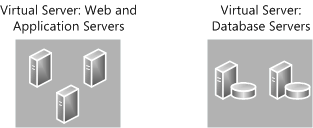
-
Using a physical test environment
When you test by using a physical environment, you must replicate your proposed production server farm environment as closely as possible. If you simplify the number of front-end web servers, application servers, or database servers too much, you will not have an accurate estimate of how long the upgrade process will take. You may not account for complications that arise from interactions between servers in the same role (such as SQL Server transactions). If you have multiple servers in a role in your proposed production farm, use at least two servers for that role in the test farm to test for such issues.
Distribution of servers in a physical test environment
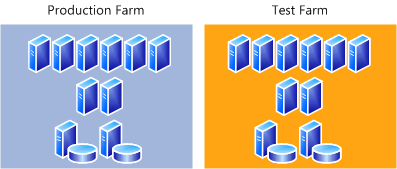
- Make your test farm as similar as possible to your real farm — for example, hardware, software, and available space.
-
Identify and install customizations
To have an accurate test process, you must find all the customizations in your current environment and copy them to the test environment. For more information about the types of customizations that you have to identify, see Create a plan for current customizations during upgrade to SharePoint 2013.
- Use the Stsadm –o enumallwebs operation on all content databases in your SharePoint 2010 Products environment to identify specific customizations in subsites. This operation lists an ID for each site collection and subsite in your environment and the templates that the site relies on. For more information, see Enumallwebs: Stsadm operation.
- Use a tool such as WinDiff (a tool that is provided with most Microsoft operating systems) to compare your production environment servers with your test farm servers. You can use this tool to see which files exist on your servers and the differences between them.
- Check the web.config files for any changes, and look in the SafeControls element to find any custom controls.
- Use the SharePoint Diagnostics Tool (SPDiag) to find deployed solutions. For more information, see SharePoint Diagnostics Tool (SPDiag).
- Create a list of all customizations that you find. Identify the source of the customizations, if it is possible. For example, are there third-party add-ins or templates that were customized in-house? After you identify the source, you can then check for updated or upgraded versions of the customizations. Download the SharePoint 2013 Products Preview Upgrade Worksheet and record information about your environment, based on your research on your customizations.
 Tip:
Tip:
Whom do you contact about customizations that you did not create?
- Contact Microsoft if you have problems with a template that you downloaded from the Microsoft website.
- Contact your third-party solution vendor if you have problems with a template or component that they supplied you for the earlier version. An upgraded version may be available.
After you identify all the customizations, copy them to the appropriate servers in your test farm. Ensure that the following customizations are deployed:
- Solutions – by default legacy solutions are deployed to the /14 directories. Use the CompatibilityLevel parameter when you install the solutions to deploy them to the /15 directories. For more information, see Install-SPSolution.
- Custom Master Pages
- Custom JavaScript
- Custom CSS files (including those for themes)
- Custom workflow actions (must be included in actions file)
- Confirm large list query throttling settings to make sure that large lists are displayed as expected.
When you test customizations, use the following guidance:
- Check for visual changes.
- Check for behavioral changes.
- Test in both 2010 and 2013 mode site collections.
-
Look for any language or resource loading issues.
This is an issue that can occur when customizations exist in 2010 mode and new customizations replace them in 2013 mode. Because there is only one global directory for language resources, there can be an issue loading the correct file. Make sure that replacement 2013 customizations include the 2010 resources so that the customizations can continue to work correctly in both modes.
- Validate that upgrade did not affect customizations. Ensure that customizations do not block site collection upgrade.
You can use the Test-SPContentDatabase Windows PowerShell cmdlet before you attach a database to SharePoint 2013 to determine whether any customizations are missing from the environment. Run this command for each database after you restore the databases to your database server but before you run the upgrade. Note that this cmdlet runs silently — it will not return any output unless there is an issue found.
- Use the Stsadm –o enumallwebs operation on all content databases in your SharePoint 2010 Products environment to identify specific customizations in subsites. This operation lists an ID for each site collection and subsite in your environment and the templates that the site relies on. For more information, see Enumallwebs: Stsadm operation.
-
Copy real data to the test environment and upgrade databases
You cannot achieve your testing goals unless you use your actual data. Use the Microsoft SQL Server backup and restore tools to create a copy of your content and services databases.
There is no better way to tell what may occur during upgrade than to perform the test on a copy of all the data. However, this might not always be a realistic option for initial testing. You can test in phases by testing one database at a time (if the databases are large) so that you can make sure that you test whatever is unique about that dataset. Or, you can assemble a subset of data from representative sites in your environment. If you want to first test by using a subset of your data, be sure that the subset has the following characteristics:
- The data subset contains sites that are typical of the sites that you support in your environment.
- The size and complexity of the data subset closely resembles the actual size and complexity of your environment.
 Important:
Testing a subset of your data does not produce a valid benchmark for how long it will take to process the whole volume of data for your environment.
After you copy the data, take a first pass through the upgrade process to see what happens. This is just the preliminary round. Follow the steps in Attach databases and upgrade to SharePoint 2013 to try the database attach upgrade process.
When you test the upgrade process, make sure that you test services that are shared across farms. Consider all states, such as the following:
- A SharePoint Server 2010 farm connected to a SharePoint Server 2013 services farm.
- A SharePoint Server 2013 farm connected to a SharePoint Server 2013 services farm.
- Different version farms for different services.
Use the test environment to find any security, configuration, compatibility, and performance issues for service applications.
- The data subset contains sites that are typical of the sites that you support in your environment.
-
Review results after you upgrade databases
After your test upgrade has finished, you can review the results and revisit your plans. Look at the log files, look at the upgraded sites, and review your customizations. How did upgrade work for your environment? What did you discover? What do you have to rethink about the upgrade plan?
-
Review the log files
Review the upgrade log file and the upgrade error log file (generated when you run the upgrade). The upgrade log file (.log) and the upgrade error log file (.err) are located at %COMMONPROGRAMFILES%\Microsoft Shared\Web server extensions\15\LOGS. The log files are named in the following format: Upgrade-YYYYMMDD-HHMMSS-SSS.log, where YYYYMMDD is the date and HHMMSS-SSS is the time (hours in 24-hour clock format, minutes, seconds, and milliseconds).
The format of the log files complies with the Unified Logging System (ULS) conventions. To review the log files to find and troubleshoot issues, start at the top of the files. Errors or warnings may be repeated if they occur for several site collections in the environment, or if they block the upgrade process completely. For example, if you cannot connect to the configuration database, the upgrade process will try (and fail) several times and these tries will be listed in the log file.
-
Review sites in 2010 mode
Verify that the site collections that were not upgraded work as expected in 2010 mode. Sites should look and behave as they did in SharePoint 2010 Products. Some changes are expected. For example, Office Web Apps and the web analytics features have changed in SharePoint Server 2013 and sites that used these features will be affected. For information about specific things to look for, see Review site collections upgraded to SharePoint 2013.
-
Run upgrade again, if it is necessary
If you have to, you can restart the upgrade process for a database by using the Upgrade-SPContentDatabase Windows PowerShell cmdlet. For more information about this cmdlet, see Upgrade-SPContentDatabase. For more information, see Restart a database-attach upgrade or a site collection upgrade to SharePoint 2013.
-
-
Upgrade site collections and My Sites
After you have tested and validated upgrade for the content and services databases, you can test the upgrade process for site collections. Follow the steps in Upgrade site collections to SharePoint 2013 to test the site collection upgrade process. If you have My Sites in your environment, see Overview of the upgrade process to SharePoint 2013 for more information about the process of upgrading them.
 Note:
Note:
Content about My Sites applies only to SharePoint Server 2013.
-
Review results after you upgrade site collections
Review upgraded sites visually to identify any issues that have to be addressed before you run the upgrade process on your production environment. For more information about specific things to look for, see Review site collections upgraded to SharePoint 2013.
Review the site collection upgrade log files to check for any issues, starting from the top down. Check the summary section near the end of the log file to see a count of issues and the actual upgrade status (if there is no status, that means that the upgrade process failed and site upgrade must be retried). The site collection log files are stored both in the site collection itself (in the _catalogs/Upgrade document library), and on the file system. The file system log file has more information if you want details about issues. The file system version of the site upgrade log file is located at %COMMONPROGRAMFILES%\Microsoft Shared\Web server extensions\15\LOGS. The log files are named in the following format: SiteUpgrade-YYYYMMDD-HHMMSS-SSS.log, where YYYYMMDD is the date and HHMMSS-SSS is the time (hours in 24-hour clock format, minutes, seconds, and milliseconds).
-
Adjust your plans and test again
Repeat the testing process until you are sure that you have found all the issues that you may face and that you know how to deal with them. Your goal is to know what your plan is if it is 4:00 P.M. on Sunday, you have to be back online Monday morning, and it is not going well. Is there a point of no return? Test your fallback plan and make sure that it works before you begin your real upgrade.
-
Troubleshoot database upgrade issues in SharePoint 2013
Published: July 16, 2012
Summary: Learn how to address problems that may occur after you upgrade a database to SharePoint 2013.
Applies to: SharePoint Foundation 2013 | SharePoint Server 2013
Even after you test the upgrade process to identify potential issues, you might experience unexpected issues during an upgrade from SharePoint 2010 Products to SharePoint 2013. If you experience issues after upgrade, the sooner you detect and fix them, the better the end-user experience will be.
This article includes a list of common issues and describes general principles to help you identify and address upgrade issues. After you identify and address the issues, you can resume upgrade. For more information about how to resume upgrade, see Restart a database-attach upgrade or a site collection upgrade to SharePoint 2013.
-
General principles to identify issues
Check the upgrade status to see where upgrade stopped (if it did stop), and check log files to find errors or warnings. Next, address the issues that you find before you resume the upgrade.
-
First, check upgrade status and log files
Upgrade status indicators and log files indicate what went wrong during the upgrade process. We recommend that you carefully review all the errors that were logged in the upgrade log files. Warnings might not always indicate an issue, but you should review them all to determine whether any of them are likely to cause even more issues.
-
-
Review the Upgrade Status page in the SharePoint Central Administration website.
For more information about how to check upgrade status, see Verify database upgrades in SharePoint 2013.
- Review the following log files:
- The upgrade error log file and the upgrade log file (which contains more detailed information than the upgrade error log file).
-
ULS or trace log files.
These files are stored in the %COMMONPROGRAMFILES%\Microsoft Shared\Web Server Extensions\15\LOGS folder and are named Servername_YYYYMMDD–MMSS.log.
-
The application event log file.
This file can be viewed by using the Event Viewer.
For more information about the upgrade log files, see Verify database upgrades in SharePoint 2013. For more information about the trace log file, see Trace Logs on MSDN.
-
Then, address issues in order
Some issues have more effect than others. For example, a missing server-side file can cause many seemingly unrelated errors at the site level.
Address issues in the following order:
-
Missing server-side files or customizations, such as features or Web Parts.
Be sure to install all server-side customizations, such as features, Web Parts, and so on. Be sure to install customizations to the correct location in your new farm. For example, additional style sheets that you must have for SharePoint 2010 Products should be installed in the /14 path, not the new /15 path so that site collections that you have not upgraded can use them. Also, make sure that that you transfer all unique settings from the Web.config files for each web application to the new servers.
- Configuration issues in the server farm, web application, or service applications, such as managed paths or service applications that are not started.
- Additional issues that you discover on a site-by-site basis, starting with high-profile or very important sites.
As you identify and fix the top-level issues, you can try to run upgrade again to see whether any issues that occurred later in the upgrade process have also been fixed.
-
Common issues
Check to see whether any of the following issues cause an upgrade error or warning.
-
Q: I want to upgrade from a pre-release version of SharePoint 2013
-
A: Upgrade from a pre-release version of SharePoint 2013 to the release version of SharePoint 2013 is not supported.
Pre-release versions are intended for testing only and should not be used in production environments. Upgrading from one pre-release version to another is also not supported.
- A: Identify all server-side customizations and install them before you upgrade
One common error during upgrade is missing server-side files — either files that were installed with SharePoint 2010 Products or customized files. When you prepared for upgrade, you should have created an inventory of the server-side customizations (such as site definitions, templates, features, Web Parts, assemblies) that your sites required. Check this inventory to make sure that all the files that are needed for your customizations are installed in your new environment.
You can use the test-spcontentdatabaseWindows PowerShell cmdlet before you upgrade the database to identify missing files. You can also use the enumallwebs operation in Stsadm.exe to identify server-side customizations that are being used.
In the upgrade log files, you may see errors such as the following:
- ERROR Found Reference Count web(s) using missing web template Site Template Identifier (lcid: Site Template Language Code) in ContentDatabase Content Database Name.
- ERROR Found a missing feature Id = [Feature Identifier]
- WARNING File [Relative File Path] is referenced [Reference Count] times in the database, but is not installed on the current farm.
- WARNING WebPart class [Web Part Identifier] is referenced [Reference Count] times in the database, but is not installed on the current farm.
- WARNING Assembly [Assembly Path] is referenced in the database, but is not installed on the current farm.
- WARNING Feature could not be upgraded. Exception: Feature definition id ‘Feature Identifier’ could not be found.
If you can obtain a missing server-side file or dependency, install it, and then run upgrade again for the affected sites. If the file or dependency (such as a Web Part) was deprecated, you have to investigate whether you want to rebuild the site, page, or Web Part to use a different template, feature, or Web Part. If you can redo the customization by using dependencies that were not deprecated, you can run upgrade again for the affected sites. If you cannot remove the dependency, you cannot upgrade the site.
After you install the missing file or dependency, use the test-SPContentDatabase Windows PowerShell cmdlet on a test server to determine whether any other files for that database are missing. If you only run upgrade again, the error might not appear in the log files, even though it might still be occurring.
-
Q: The log file says that something is not right with my farm, web application, or service application configuration settings
- A: Verify your farm and web application settings.
- A: Create and start missing service applications
- A: Verify that managed paths (included paths) are configured correctly for each web application.
In the upgrade log files, you may see errors such as the following:
-
ERROR Template Template Id: SPSite Id=Site Id could not be accessed due to exception. Skipping SPWeb Id=Web Id for template upgrade. Exception: System.IO.FileNotFoundException: The site with the id Site Id could not be found.
This error indicates that a managed path is missing. Add the managed path for the site collection into the web application and restart upgrade for the content database that contains this site collection.
-
Q: I see errors and warnings during upgrade about connectivity or corruption
-
- A: Verify your power connections and connection to the network and to SQL Server. Loss of connectivity to data sources can cause errors. If your servers cannot connect to the databases, they cannot be upgraded.
-
A: Clean up orphaned sites, lists, and other database corruptions before you try upgrade again. For more information about how to clean up data issues, see Clean up an environment before an upgrade to SharePoint 2013.
In the upgrade log files, you may see errors such as the following:
- WARNING The orphaned sites could cause upgrade failures.
-
ERROR Database [Content Database Name] contains a site (Id = [Site Collection Identifier], Url = [Site Collection URL]) that is not found in the site map.
Fix any orphaned items or database corruptions, and then run upgrade again.
-
Q: I ran out of disk space
- WARNING The orphaned sites could cause upgrade failures.
-
A: Free some space, or increase the size of the transaction log file before you resume upgrade. If you run out of space (for example, for transaction log files on your database servers), upgrade cannot continue.
For more information, see Managing the Size of the Transaction Log File.
- A: Make sure that the web application is using the right authentication method.
A mismatch in authentication methods can cause problems when you upgrade. The following resources can help if you have a mismatch between authentication methods:
-
Classic-to-claims authentication
Make sure that the web applications that you created in SharePoint 2013 use the same authentication method that was used in SharePoint 2010 Products. Claims-based authentication is the default authentication method for web applications in SharePoint 2013. If the web application was using classic mode, you can either update it to claims before you upgrade the database, or create the web application in classic mode and then migrate it to claims. For more information about how to change to claims authentication in SharePoint 2010 Products, see Migrate from classic-mode to claims-based authentication in SharePoint 2013. For more information about how to create a web application that uses classic mode, and then migrating to claims, see Create web applications that use classic mode authentication in SharePoint 2013 and Migrate from classic-mode to claims-based authentication in SharePoint 2013
-
Forms-based authentication
Additional steps are necessary if you are upgrading an environment that uses forms-based authentication. Follow the steps in Configure forms-based authentication for a claims-based web application in SharePoint 2013 to upgrade forms-based authentication providers.
- A: If you receive an error about an unknown account, or if a database is not upgraded, check the permissions for the database. In particular, between instances of SQL Server, make sure that you verify that security is configured correctly. Check that the login accounts that you use have the appropriate fixed roles and permissions on the databases, and that they will still be valid if you upgrade across domains.
-
A: Make sure the account that you use to attach the databases is a member of the db_owner fixed database role for the databases that you want to upgrade.
-
Q: A database will not upgrade
-
-
A: Verify that the database is not set to read-only. You cannot upgrade a database that is set to read-only. Make sure that you set the databases to read-write before you attach and upgrade the databases.
-
Q: I changed a database name during restore, but I cannot find the files that have that name
-
-
A: When you rename a database at restore time, you must also rename the database and log file names in the file system (the MDF and LDF files) so that they match.
-
Q: I cannot back up the Search service application Administration database
-
-
A: Before you can back up the Search service application Administration database, you must stop the Search service on your SharePoint Server 2010 farm. To stop the Search service, on the original farm, on the Start menu, click Administrative Tools, and then click Services. Right-click SharePoint Server Search 14, and then click Stop. Be sure to start the service again after you back up the database.
-
Q: Trusted connections are not working for Excel Services after upgrade
-
-
A: You must manually create all trusted data connections for Excel Services after upgrade.
-
Q: My workflows are no longer associated correctly
-
- A: Verify that the Workflow Auto Cleanup timer job is turned off. If you had disabled the Workflow Auto Cleanup timer job in your SharePoint 2010 Products environment, make sure that you disable this timer job in the new environment also. If this timer job is enabled in the new environment and disabled in the SharePoint 2010 Products environment, you might lose workflow associations when you upgrade.
-
-
Troubleshoot site collection upgrade issues in SharePoint 2013
Updated: October 2, 2012
Summary: Learn how to address problems that may occur after you upgrade a site to SharePoint 2013.
Applies to: SharePoint Foundation 2013 | SharePoint Server 2013
When you upgrade a site collection to SharePoint 2013, errors can occasionally occur. This article helps you understand those errors and address them.
For more information about how to review UI issues in sites, see Review site collections upgraded to SharePoint 2013.
-
Check upgrade status and log files
Upgrade status indicators and log files should give you an indication of what went wrong during the upgrade process. We recommend that you carefully review all the errors in the upgrade log files. Warnings might not always indicate an issue, but you should review them all to determine whether any of them are likely to cause even more issues.
-
Review the upgrade status page for your site collection.
On the Site Settings page for the site collection, in the Site Collection Administration section, click Site collection upgrade. On the Site Collection Upgrade page, click Review Site Collection Upgrade Status.
- Review the site collection upgrade log files. You can review the site collection upgrade logs from the following locations:
- For site collection administrators: There are also log files for site collection upgrade stored inside the site collection itself, in the Maintenance Logs catalog at (http://<SiteName>/_catalogs/MaintenanceLogs/YYYYMMDD-HHMMSS-SSS.txt , where YYYYMMDD is the date and HHMMSS-SSS is the time (hours in 24-hour clock format, minutes, seconds, and milliseconds).
- For farm administrators: The site collection upgrade log file and the upgrade error log file are located at %COMMONPROGRAMFILES%\Microsoft Shared\Web server extensions\15\LOGS. The logs are named in the following format: SiteUpgrade-YYYYMMDD-HHMMSS-SSS.log, where YYYYMMDD is the date and HHMMSS-SSS is the time (hours in 24-hour clock format, minutes, seconds, and milliseconds). These file system logs have more information if you want details about issues.
-
Common issues
Check to see whether any of the following issues are causing an upgrade error or warning or a problem in your site.
- A: Reset the page to the default version (that is, reghost it).
Making changes to the site UI can cause problems in site upgrades. If a page was customized to place a UI control in a non-standard location, you can reset the page to the default version to recover the control.
To reset the page, you can use the Reset to site definition link under Site Actions on the Site Settings page or use the Reset to Template command in SharePoint Designer.
-
Q: The view on a large list is not working any longer
- A: Create indexed columns, folders, or new views for large lists. You might have to add the indexed column to your existing views.
If a list is very large, and users use a view or perform a query that exceeds the limit or throttling threshold, the view or query will not be permitted. You can create indexed columns with filtered views, organize items into folders, set an item limit on the page for a large view, or use an external list. For more information about large list throttling and how to address issues with large lists, see Manage lists and libraries with many items on Office Online.
-
Q: I see an error about a duplicate content type name
- A: Rename content types or fields that conflict with default names.
Occasionally, custom elements (such as a content type) may have a name that conflicts with a name in the new version.
In the upgrade log files, you may see an error such as the following:
-
Failed to activate site collection features on site Site Url. Exception: A duplicate content type name “name” was found.
This error indicates that a third-party content type was added to the specified site in SharePoint Server 2010. During upgrade to SharePoint Server 2013 its name conflicted with the default content type by the same name. Rename the third-party content type in the specified site to a different name and run upgrade again. Note that either renaming or removing a content type can cause any customizations dependent on that content type to stop working.
-
Q: My site looks ugly, doesn’t behave as expected, or I see script errors
-
-
A: Either edit the page or reset the page to the default version, or remove or replace the custom files.
A problem with custom or inline JavaScript or CSS files can cause these issues.
-
Q: Custom content in my site disappeared or doesn’t work
-
-
A: Change the master page, or change the content so that it doesn’t require specific zones.
The master page might have different zone layouts and the content might no longer reference it correctly. As a last resort, you can also reset the page to the default version. However, if you reset the page, you might lose zone specific content.
-
Q: I receive an error that says a control or page cannot render
-
-
A: Do one of the following:
- If a Web Part was added that is not installed, contact the farm administrator to have it installed. If is a Web Part that is no longer available or not supported, then use the Web Part maintenance view to remove the Web Part from the page (remove, do not just close the Web Part).
-
If a page was directly edited, either edit it again to remove the control or Web Part or reset the page to the default version.
A Web Part or other control might have been added to the page that is not installed or is no longer supported. Either a Web Part was added to a zone or the page was directly edited to add a control or Web Part reference directly inline (possibly on a master page).
-
Q: I receive an error that I cannot create a subsite based on a site template because the site template uses the 2010 experience version and my site collection is in the 2013 experience version
- If a Web Part was added that is not installed, contact the farm administrator to have it installed. If is a Web Part that is no longer available or not supported, then use the Web Part maintenance view to remove the Web Part from the page (remove, do not just close the Web Part).
-
A: Recreate the site template in the 2013 experience.
To recreate the site template, create a new subsite based on the 2013 experience, customize it again to match the template that you had, and then save the customized subsite as a template (on the Site Settings page, click Save site as template).
- A: Reset the page to the default version (that is, reghost it).
-
Restart a database-attach upgrade or a site collection upgrade to SharePoint 2013
Published: July 16, 2012
Summary: Learn how to restart a database-attach upgrade or a site collection upgrade to SharePoint 2013.
Applies to: SharePoint Foundation 2013 | SharePoint Server 2013
In some cases, you might have to restart upgrade to finish a database-attach upgrade from SharePoint 2010 Products to SharePoint 2013. For example: if a template or language pack is missing from the environment, or if you lose the connection to SQL Server, you will have to resolve the issue and then restart upgrade. You might also need to retry or restart a site collection upgrade if it was unable to complete.
 Note:
Note:
One frequent cause of failures during upgrade is that the environment is missing customized features, solutions, or other elements. Be sure that any custom elements that you must have are installed on your front-end web servers before you start the upgrade process. You can use the test-spcontentdatabaseWindows PowerShell cmdlet to identify any custom elements that your sites might be using. For more information, see Identify and install customizations in the article “Use a trial upgrade to find potential issues.”
-
Restart upgrade for a database by using Windows PowerShell
If the upgrade ran into issues during the database-attach upgrade, you can restart the upgrade process for the database after you have addressed the issue by using a Windows PowerShell cmdlet.
To restart upgrade for a database by using Windows PowerShell
- Verify that you have the following memberships:
- securityadmin fixed server role on the SQL Server instance.
- db_owner fixed database role on all databases that are to be updated.
-
Administrators group on the server on which you are running the Windows PowerShell cmdlets.
An administrator can use the Add-SPShellAdmin cmdlet to grant permissions to use SharePoint 2013 cmdlets.
 Note:
Note:
If you do not have permissions, contact your Setup administrator or SQL Server administrator to request permissions. For additional information about Windows PowerShell permissions, see Add-SPShellAdmin.
- On the Start menu, click All Programs.
- Click Microsoft SharePoint 2013 Products.
- Click SharePoint 2013 Management Shell.
-
At the Windows PowerShell command prompt (PS C:\>), type the following command:
upgrade-spcontentdatabase <Name>
Where:
-
Name is the database name that you want to upgrade.
You can also use the -id parameter and provide the database GUID instead of a database name. You can run the following cmdlet to find the GUID for a content database:
Get-SPContentDatabase -Identity <content_database_name>
For more information, see Upgrade-SPContentDatabase and Get-SPContentDatabase.
-
Restart upgrade for a site collection
If upgrade ran into issues during a site collection upgrade, you can restart the upgrade process for the site collection after you have addressed the issue. You can use either the Site Settings page or a Windows PowerShell cmdlet to restart upgrade for a site collection.
To restart upgrade for a site collection
- Verify that the user account that performs this procedure is a site collection administrator.
- On the Site Settings page for the site collection, in the Site Collection Administration section, click Site collection upgrade.
-
On the Site Collection Upgrade page, click Upgrade this Site Collection.
This option starts to upgrade your site collection. A box opens to verify that you want to start the process.
- Click I’m ready to start the actual upgrade.
 Note:
Note:
The site collection health checks are run automatically in repair mode before the upgrade starts. The results from the health checks are included in the upgrade log for the site collection. If there is an error, you must address it before you can continue to upgrade.
The upgrade starts, and the Upgrade status page for the site collection is displayed. This page automatically updates while the upgrade is in progress and displays information about the process, such as the following:
- Errors or warnings
- When the upgrade started
-
Where you can find the upgrade log file
After the upgrade is complete, the Upgrade status page is displayed in the new user interface with the message, Upgrade Completed Successfully.
- Click Let’s see the new site to go to the home page.
Farm administrators can restart upgrade by using Windows PowerShell.
To restart upgrade for a site collection by using Windows PowerShell
- Verify that you have the following memberships:
- securityadmin fixed server role on the SQL Server instance.
- db_owner fixed database role on all databases that are to be updated.
-
Administrators group on the server on which you are running the Windows PowerShell cmdlets.
An administrator can use the Add-SPShellAdmin cmdlet to grant permissions to use SharePoint 2013 cmdlets.
 Note:
Note:
If you do not have permissions, contact your Setup administrator or SQL Server administrator to request permissions. For additional information about Windows PowerShell permissions, see Add-SPShellAdmin.
- On the Start menu, click All Programs.
- Click Microsoft SharePoint 2013 Products.
- Click SharePoint 2013 Management Shell.
-
At the Windows PowerShell command prompt, type the following command:
Windows PowerShell
Upgrade-SPSite <http://site> -VersionUpgrade [-Unthrottled]
Where:
- <http://site> is the URL for the site collection.
- Add the option -Unthrottled option to skip the site collection upgrade queue and start the upgrade immediately.
For more information, see Upgrade-SPSite.
-
Upgrade databases from SharePoint 2010 to SharePoint 2013
Published: July 16, 2012
Summary: Find resources to help you perform the steps to upgrade databases from SharePoint 2010 Products to SharePoint 2013.
Applies to: SharePoint Foundation 2013 | SharePoint Server 2013
After you learn about the upgrade process, plan for your upgrade, and test your upgrade process by following the steps in the articles in Test and troubleshoot an upgrade to SharePoint 2013, you are ready to perform a database-attach upgrade to SharePoint 2013. Follow the steps in this section for both a trial upgrade and your actual upgrade for your production farm.
The following downloadable resources, articles on TechNet, video recordings, and related resources provide information about upgrading databases to SharePoint 2013.
-
Downloadable resources about upgrading databases
Download the following content for information about upgrading databases.
Content
Description

Describes the steps in the process for a database-attach upgrade
-
TechNet articles about upgrading databases
The following articles about how to upgrade databases are available to view online. Writers update articles on a continuing basis as new information becomes available and as users provide feedback.
Content
Description

Use this checklist to make sure that you follow all necessary steps as you prepare for upgrade, perform the upgrade, and perform post-upgrade steps.

Follow these steps to configure a new SharePoint 2013 environment, and then attach and upgrade content and service application databases.

Verify that the upgrade for your databases has succeeded and that you are ready to begin to upgrade sites.

Migrate from classic-mode to claims-based authentication in SharePoint 2013
Convert SharePoint 2010 Products or SharePoint 2013classic-mode web applications to claims-based authentication or create new claims-based web applications in SharePoint 2013.

Configure forms-based authentication for a claims-based web application in SharePoint 2013
Learn how to configure forms-based authentication with an LDAP provider for a new SharePoint 2013 web application.
-
Additional resources about upgrade
The following resources about upgrade to SharePoint 2013 are available from other subject matter experts.
Content
Description

Upgrade and Migration Resource Center for SharePoint 2013 Products
Visit the Resource Center to find additional information about upgrades to SharePoint 2013.

Visit the Resource Center to learn about what‘s new in SharePoint 2013.
-
Checklist for database-attach upgrade (SharePoint 2013)
Updated: October 16, 2012
Summary: Use this checklist as you upgrade from SharePoint 2010 Products to SharePoint 2013.
Applies to: SharePoint Foundation 2013 | SharePoint Server 2013
This checklist helps you confirm that you follow all the steps that you must follow as you prepare for upgrade, perform the upgrade, and perform post-upgrade steps. This checklist applies only to upgrade of the content and service application databases. It does not apply to upgrade of My Sites or other site collections. For more information, see Upgrade site collections to SharePoint 2013.
In this article:
Some steps include notes about how long that step might take. These rough estimates only give you a relative idea of the duration of the step. To discover how much time each step will take for your environment, we recommend that you perform trial upgrades in a test environment. For more information, see Use a trial upgrade to SharePoint 2013 to find potential issues and Plan for performance during upgrade to SharePoint 2013.
 Important:
The steps in this article apply to both SharePoint Foundation 2013 and SharePoint Server 2013, except for the steps about how to upgrade the service applications, which apply mostly to SharePoint Server 2013 (the Business Data Connectivity service application applies to both).
-
Prepare for upgrade
Follow these steps in order before you start an upgrade to SharePoint 2013:
-
Pre-upgrade steps
Step
Notes
[ ]
Create an inventory of server-side customizations in the environment
Create an inventory of the server-side customizations in your environment (solutions, features, Web Parts, event handlers, master pages, page layouts, CSS files, and so on). Record all customizations needed for your environment in the upgrade worksheet.
Detailed steps: Identify and install customizations in the “Use a trial upgrade to find potential issues” article.
Complete this step for the whole environment. Check each web server to make sure that you don’t miss any customizations. Keep the inventory up to date as you prepare for the upgrade.
[ ]
Clean up your environment
Before you begin to upgrade, make sure that your environment is functioning in a healthy state and that you clean up any content that you do not have to upgrade. Clean up any orphaned sites or data, address any large lists and large ACLs, remove extraneous document versions, and remove any unused templates, features and Web Parts.
Detailed steps: Clean up an environment before an upgrade to SharePoint 2013.
Complete this step one time for the whole environment.
This process might take days or weeks to finish.
[ ]
Test the upgrade process
Try out upgrade in a test environment to find any issues and determine how long your actual upgrade might take.
Detailed steps: Use a trial upgrade to SharePoint 2013 to find potential issues
Perform this step multiple times, until you are prepared to perform the actual upgrade.
-
-
Complete the database attach upgrade
Follow these steps in order while you upgrade the content and service application databases for your environment.
Detailed steps: Attach databases and upgrade to SharePoint 2013.
-
Prepare the new environment
Step
Notes
[ ]
Install and configure SharePoint 2013 and any language packs
Install the prerequisite software, and then install and configure SharePoint 2013.
Complete these steps on each server in your farm.
This step might take one hour or more, depending on the number of servers are in your environment.
[ ]
Configure service applications
Enable and configure the services that you need in your new environment.
Do not configure the following service applications – you will configure them while you upgrade their databases later in the process:
- Business Data Connectivity service
- Managed Metadata service
- PerformancePoint services
- Search
- Secure Store service
- User Profile service
Complete this step one time for the whole environment.
[ ]
Configure general farm settings
Reapply any general farm settings that you must have from your previous farm — such as blocked file types, e-mail setting, and quota settings — and add users or groups to the Farm Administrators group. Configure new settings such as usage and health data collection, diagnostic logging, and mobile accounts.
 Important:
If you had disabled the Workflow Auto Cleanup timer job in your SharePoint 2013 environment, make sure that you disable this timer job in your new environment also. If this timer job is enabled in the new environment and disabled in the previous version environment, you might lose workflow associations when you upgrade. For more information about this timer job, see Disable preservation of workflow history (SharePoint Server 2010).
Complete this step one time for the whole environment.
-
Back up and restore databases
Step
Notes
[ ]
Record the passphrase for the Secure Store service application
The Secure Store service application uses a passphrase to encrypt information. You must record this passphrase so that you can use it in the new environment.
Complete this step one time for each Secure Store service application in the environment.
[ ]
Set the previous version databases to be read-only
If you want your original environment to remain available to users in a read-only state, set the databases to read-only before you back them up.
Complete this step for each content database in your environment.
Depending on your organization, you might need a database administrator to complete this step.
[ ]
Back up databases
Back up all the content databases and the following service application databases before you begin the database attach upgrade process:
- Business Data Connectivity
- Managed Metadata
- PerformancePoint
- Search Administration
- Secure Store
- User Profile: Profile, Social, and Sync databases
Complete this step for each content database and supported service application database in your environment.
This step can take an hour, several hours, or longer, depending on your dataset and your environment.
Depending on your organization, you might need a database administrator to complete this step.
[ ]
Export the encryption key for the User Profile service application
The User Profile Service service application requires an encryption key that is stored separately from the database and is needed if you want to upgrade the User Profile Sync database.
Complete this step one time for each User Profile service application in the environment.
[ ]
Restore a backup copy of the databases
Restore the databases from the backup.
Complete this step for each content database and supported service application database in your environment.
This step can take an hour or longer, depending on your dataset and your environment.
Depending on your organization, you might need a database administrator to complete this step.
[ ]
Set the restored databases to be read-write
Before you can attach and upgrade the databases that you copied to the new environment, you must set them to read-write.
Complete this step for each content database and supported service application database in your environment.
Depending on your organization, you might need a database administrator to complete this step.
-
Upgrade service application databases
Step
Notes
[ ]
Start the service application instances
Start the following service instances from Central Administration:
- Business Data Connectivity service
- Managed Metadata service
- PerformancePoint services
- Secure Store service
- User Profile service
Start the instance of the Search service application by using Windows PowerShell.
Complete this step one time for the whole environment.
[ ]
Upgrade the Secure Store service application
Use Windows PowerShell to create the new service application and upgrade the database, create a proxy and add it to the default proxy group, and then restore the passphrase from the previous environment.
Complete this step one time for each Secure Store service application in the previous environment.
[ ]
Upgrade the Business Data Connectivity service application
Use Windows PowerShell to create the new service application and upgrade the database. You do not have to create a proxy for the Business Data Connectivity service application.
 Note:
Note:
The Business Data Connectivity service application is available in both SharePoint Foundation 2013 and SharePoint Server 2013.
Complete this step one time for each Business Data Connectivity service service application in the previous environment.
[ ]
Upgrade the Managed Metadata service application
Use Windows PowerShell to create the new service application and upgrade the database, and then create a proxy and add it to the default proxy group. You must upgrade the Managed Metadata service application before you can upgrade the User Profile service application.
Complete this step one time for each Managed Metadata service application in the previous environment.
[ ]
Upgrade the User Profile service application
Use Windows PowerShell to create the new service application and upgrade the database, and then create a proxy and add it to the default proxy group. After you have created the User Profile service application, you must import the Microsoft Identity Integration Server Key (MIIS) encryption key. Finally, you can start the User Profile Synchronization service.
Complete this step one time for each User Profile service application in the previous environment.
[ ]
Upgrade the PerformancePoint Services service application
Use Windows PowerShell to create the new service application and upgrade the database, and then create a proxy and add it to the default proxy group.
Complete this step one time for each PerformancePoint Services service application in the previous environment.
[ ]
Upgrade the Search service application
Use Windows PowerShell to create the new service application and upgrade the database, and then create a proxy and add it to the default proxy group.
 Note:
Note:
This step applies to only SharePoint Server 2013. Although SharePoint Foundation 2013 includes search functionality, it is not the same Search service application that is in SharePoint Server 2013 and it cannot be upgraded.
Complete this step one time for each Search service application in the previous environment.
[ ]
Verify that all of the new proxies are in the default proxy group
Use the Get-SPServiceApplicationProxyGroup cmdlet to verify that all of the service application proxies are in the default proxy group.
Complete this step one time for the whole environment.
-
Create web applications
Step
Notes
[ ]
Create and configure web applications
Create a web application for each web application that existed in the old environment.
Complete this step one time for the whole environment.
[ ]
Reapply server-side customizations
Manually transfer all server-side customizations to your new farm. Refer to the inventory that you created in the upgrade worksheet to make sure that you install all components that your sites depend on to work correctly. When you install solutions, make sure that you add it to the appropriate path (/14 or /15). If you want a solution to be available to both paths, install it two times, and the second time use the CompatibilityLevel parameter when you install it, and it will be installed to the /15 path.
Make sure that you reapply customizations to all web servers in the farm.
[ ]
Verify custom components
Use the Test-SPContentDatabase Windows PowerShell cmdlet to verify that you have all the custom components that you need for that database.
Complete this step for each content database in your environment.
Running the cmdlet takes only a few minutes, but addressing issues might take longer.
-
Attach and upgrade content databases
Step
Notes
[ ]
Attach a content database to a web application
Attach the content database that contains the root site collection first. For My Sites, attach the content database that contains the My Site host before attaching databases that contain the My Sites.
You must perform this action from the command line. Use the Mount-SPContentDatabaseWindows PowerShell cmdlet.
Complete this step for one content database in your environment.
This step might take several minutes or several hours, depending on your dataset and hardware on the web servers, database servers, and storage subsystem.
[ ]
Verify upgrade for the first database
Verify that upgrade succeeded for the first database, and review the site to see whether there are any issues.
Detailed steps: Verify database upgrades in SharePoint 2013.
Complete this step for the content database that you just attached.
[ ]
Attach remaining databases
Attach and upgrade the remaining content databases in your environment. You must complete this action from the command line.
Complete this step for each of the remaining content databases in your environment.
This step might take several minutes or several hours, depending on your dataset, whether you are upgrading multiple databases in parallel, and the hardware on the web servers, database servers, and storage subsystem.
[ ]
Monitor upgrade progress
Use the Upgrade Status page in the SharePoint Central Administration website to monitor progress as your databases are upgraded.
Detailed steps: Verify database upgrades in SharePoint 2013.
Complete this step for each content database that you upgrade.
This step might take several minutes, an hour, several hours, or days, depending on your content.
[ ]
Verify upgrade for the remaining database
Verify that upgrade succeeded for the remaining databases.
Detailed steps: Verify database upgrades in SharePoint 2013.
Complete this step for each of the remaining content databases in your environment.
This step might take several minutes, an hour, several hours, or days, depending on your content.
-
-
Complete post-upgrade steps
Follow these steps in order after you perform a database-attach upgrade.
-
Post upgrade steps for database attach upgrade
Step
Notes
[ ]
Verify that site collections are working as expecting in 2010 mode
Review the site collections and make sure that they work in 2010 mode before you begin to upgrade any site collections. You can use a similar review list as the one provided for upgraded sites in Checklists for reviewing upgraded sites
Complete this step one time for your whole environment.
[ ]
Migrate user accounts to claims authentication, if it is necessary
By default, new web applications in SharePoint 2013 use claims authentication. If you were using classic authentication in the previous environment, you must migrate the users to claims authentication. For more information, see Migrate from classic-mode to claims-based authentication in SharePoint 2013.
Complete this step one time for every web application that has changed authentication methods.
[ ]
Update links that are used in any upgraded InfoPath form templates
For a database-attach upgrade, you exported and imported all InfoPath form templates in your environment when you created the new environment. After upgrade, you can now update the links that are used in those upgraded form templates to point to the correct URLs by using a Windows PowerShell cmdlet.
For more information, see Configure InfoPath Forms Services (SharePoint Server 2010).
Complete this step one time for your whole environment.
[ ]
Configure your Search topology
The architecture for the Search service has changed for SharePoint Server 2013. Plan and configure your Search topology to suit your environment and the new architecture. For more information, see Scale search for performance and availability (SharePoint Server 2013) and Manage search topology (SharePoint Server 2013).
Complete this step one time for your whole environment.
[ ]
Start a full crawl
After all content is upgraded and all settings are configured, you can start a full search crawl of your content. For more information, see Start, pause, resume, or stop a crawl (SharePoint Server 2013).
Complete this step one time for your whole environment.
A full crawl can take several hours or days to complete, depending on how much content is in your environment.
[ ]
Back up your farm
Back up your farm so that you have a current backup of your upgraded environment before you start to upgrade site collections. For more information, see Back up a farm in SharePoint 2013.
Complete this step one time for your whole environment.
-
-
Attach databases and upgrade to SharePoint 2013
Updated: October 16, 2012
Summary: Learn how to upgrade content and service application databases from SharePoint 2010 Products to SharePoint 2013.
Applies to: SharePoint Foundation 2013 | SharePoint Server 2013
When you use the database-attach upgrade approach to upgrade from SharePoint 2010 Products to SharePoint 2013, you upgrade the content databases and several service application databases. You do not upgrade the configuration database for your farm.
This article describes how to set up your new environment and perform a database-attach upgrade. This article does not provide steps for how to upgrade a site collection. For steps to upgrade a site collection, see Upgrade site collections to SharePoint 2013.
For an overview of the whole upgrade process, see Overview of the upgrade process to SharePoint 2013. For an overview of how to upgrade services, see Services upgrade overview for SharePoint Server 2013.
 Important:
Although this article applies to both SharePoint Foundation 2013 and SharePoint Server 2013, the sections about how to upgrade service applications apply to SharePoint Server 2013. (The exception is the section about how to upgrade the Business Data Connectivity service application which applies to SharePoint Foundation 2013 and SharePoint Server 2013).
This article is about 35 printed pages.
-
Before you begin
Before you start to upgrade, you must collect information and settings about your existing environment. You have to know what is in your SharePoint 2010 Products environment before you can start to build your SharePoint 2013 environment. Gather information such as the following:
- Alternate access mappings
- Authentication providers and authentication modes that are being used
- Quota templates
- Managed paths
- Self-service site management settings
- Incoming and outgoing e-mail settings
- Customizations
Before you create the new environment for a database-attach upgrade, review the following information about permissions, hardware requirements, and software requirements.
- Hardware and software requirements (SharePoint 2013)
- Initial deployment administrative and service accounts in SharePoint 2013
Before you attach and upgrade databases, review the following information about permissions, hardware requirements, and software requirements. Follow the specified steps to install or configure prerequisite software or to change settings.
- Ensure that the account that you use to attach the databases is a member of the db_owner fixed database role for the content databases that you want to upgrade.
-
Check for and repair all database consistency errors.
For more information, see Database maintenance for SharePoint Server 2010.
You also have to turn off or remove services or components in the SharePoint 2010 Products environment that could cause errors in the upgrade process. The following services or components should be removed or stopped before you back up your databases:
-
Web Analytics The architecture for the Web Analytics service application is different in SharePoint 2010 Products. The presence of SharePoint Server 2010 Web Analytics information in your content databases could cause an error during upgrade. Stop the Web Analytics service application before you back up the content databases. Features and Web Parts from Web Analytics in SharePoint Server 2010 will not exist in SharePoint Server 2013, even for a site collection in 2010 mode. Remove any Web Analytics Web Parts or features from SharePoint Server 2010site collections before upgrade.
For more information about this change to Web Analytics, see Changes from SharePoint 2010 to SharePoint 2013.
- PowerPoint Broadcast Sites The Office Web Apps have changed into a separate server product, Office Web Apps Server, which can serve multiple SharePoint farms for viewing and editing documents. Because of this change, PowerPoint Broadcast sites cannot be upgraded to SharePoint Server 2013. For more information about how to install and use Office Web Apps Server with SharePoint 2013, see Deploy Office Web Apps (Installed on SharePoint 2010 Products).
 Note:
Note:
Because SharePoint 2013 runs as websites in Internet Information Services (IIS), administrators and users depend on the accessibility features that browsers provide. SharePoint 2013 supports the accessibility features of supported browsers. For more information, see the following resources:
- Alternate access mappings
-
Install SharePoint 2013 in a new environment
Before you can upgrade your databases, you must use SharePoint 2013 to configure a new server or server farm. The first step in creating your new environment is to install SharePoint Server 2013 or SharePoint Foundation 2013 and configure your new server or server farm. You must do the following:
- Run the Microsoft SharePoint Products Preparation Tool to install all required software.
- Run Setup to install the product.
- Install all language packs that you want in your environment.
 Note:
Note:
For more information about how to install available language packs, see Install or uninstall language packs for SharePoint 2013.
- Run the SharePoint Products Configuration Wizard to configure your server or servers.
 Important:
Some service applications can be upgraded by using a service application database upgrade. If you want to upgrade these service applications by upgrading the service application databases, do not use the Farm Configuration Wizard to configure these service applications when you set up your new farm.
For step-by-step instructions for these tasks, see Install SharePoint 2013.
-
Configure service applications and farm settings
You must create the service applications on your new farm before you upgrade your content databases. The steps in Install SharePoint 2013 describe how to use the Farm Configuration Wizard to enable all service applications.
You can upgrade the following service applications by performing a services database upgrade:
- Business Data Connectivity service
- Managed Metadata service
- PerformancePoint services
- Search
- Secure Store service
- User Profile service
For an overview of how to upgrade these service applications, see Services upgrade overview for SharePoint Server 2013. The steps that you must follow to upgrade these service application databases are included in the Upgrade service application databases section.
The following services in SharePoint Server 2013 also require additional steps to enable and configure when you upgrade:
-
Excel Services
You can use the Farm Configuration Wizard to enable this service, but you must make sure that you create all trusted data connections again. For more information, see Configure Excel Services in SharePoint.
-
InfoPath Forms Service
This service is not part of the Farm Configuration Wizard. To use this service, use the Configure InfoPath Forms Services link on the General Application Settings page in Central Administration to configure it. To continue to use form templates from your previous environment, export all administrator-deployed form templates (.xsn files) and data connection files (.udcx files) from your SharePoint Server 2010 environment, and then import them to your new SharePoint Server 2013 environment. For more information, see Configure InfoPath Forms Services (SharePoint Server 2010)
-
Office Web Apps
Office Web Apps Server is a new stand-alone server product that delivers Office Web Apps functionality on your private network. You install and managed it separately from SharePoint Server 2013. It cannot be installed on the same server or virtual machine instance as SharePoint 2013. For more information, see Deploy Office Web Apps Server 2013.
The next step in creating the new environment is to apply general farm settings. You must manually reapply configuration settings from your SharePoint 2010 Products farm, such as the following:
-
Incoming and outgoing e-mail settings
For more information, see Configure incoming email for a SharePoint 2013 farm and Configure outgoing email for a SharePoint 2013 farm.
- All farm–level security and permission settings, such as adding user or group accounts to the Farm Administrators group
-
Blocked file types
For more information, see Manage blocked file types (SharePoint 2013).
And you must configure all new farm-level settings that you want to use, such as the following:
-
Usage and health data collection
For more information, see Configure usage and health data collection (SharePoint 2013).
-
Diagnostic logging
For more information, see Configure diagnostic logging (SharePoint 2013).
- Settings and schedules for timer jobs
 Important:
If you had disabled the Workflow Auto Cleanup timer job in your SharePoint 2010 Products environment, make sure that you disable this timer job in your new environment also. If this timer job is enabled in the new environment and disabled in the SharePoint 2010 Products environment, you might lose workflow associations when you upgrade. For more information about this timer job, see Disable preservation of workflow history (SharePoint Server 2010).
You will create web applications later in the process, after you upgrade the service application databases. For more information, see Create web applications.
- Business Data Connectivity service
-
Record the passphrase for the Secure Store service application
The Secure Store service application uses a passphrase to encrypt information. You have to know what this passphrase is so that you can use it in the new environment. Otherwise, you will not have access to the information in the Secure Store. If you do not know the passphrase, you can refresh the key, and then back up the Secure Store database. For more information, see Working with encryption keys.
-
Set the previous version databases to be read-only
To maintain user access to your original environment, set the SharePoint 2010 Products databases to read-only before you back up the databases. Even if you don‘t want to maintain access over the long term, set the databases to read-only to make sure that you capture all the data in the backup so that you restore and upgrade the current state of the environment without allowing additional changes to be made. If the databases are set to read-only, users can continue to view content. However, they will be unable to add or change content.
 Important:
You cannot upgrade a database that is set to read-only. Make sure that you set the databases to read-write before you attach and upgrade the databases. For more information about how to set the databases to read-write, see the steps in the Set the databases to read-write section.
To set a database to read-only in SQL Server 2005, SQL Server 2008, or SQL Server 2008 R2
- Verify that the user account that is performing this procedure is a member of the db_owner fixed database role for the databases.
- In SQL Server Management Studio, in Object Explorer, connect to an instance of the Database Engine, expand the server, and then expand Databases.
- Find the database that you want to configure to be read-only, right-click the database, and then click Properties.
- In the Database Properties dialog box, in the Select a page section, click Options.
- In the details pane, under Other options, in the State section, next to Database Read-Only, click the arrow, and then select True.
You can use Transact-SQL to configure the READ_ONLY database availability option. For more information about how to use the SET clause of the ALTER DATABASE statement, see Setting Database Options.
-
Back up the SharePoint 2010 Products databases by using SQL Server tools
You back up the databases in SQL Server Management Studio. A backup copy of the database guarantees that you have the data in a safe state if you must enable the original farm again and is required for a database-attach upgrade. Repeat the procedure for the following databases in the SharePoint 2010 Products server farm:
- All content databases (default database name: WSS_Content_ID
-
The following service application databases:
- Service application
Default database name
Business Data Connectivity
BDC_Service_DB_ID
Managed Metadata
Managed Metadata Service_ID
PerformancePoint
PerformancePoint Service Application_ID
Search Administration
Search_Service_Application_DB_ID
Secure Store
Secure_Store_Service_DB_ID
User Profile: Profile, Social, and Sync databases
User Profile Service Application_ProfileDB_ID
User Profile Service Application_SocialDB_ID
User Profile Service Application_SyncDB_ID
The Business Data Connectivity service application is available in both SharePoint Foundation 2010 and SharePoint Server 2010. The other service applications are available only in SharePoint Server 2010. Although SharePoint Foundation 2010 includes search functionality, it is not the same Search service application that is in SharePoint Server 2010 and it cannot be upgraded.
- Service application
You do not have to back up the configuration or admin content databases, because you recreated these databases when you set up the SharePoint 2013 server farm. Upgrading the configuration or admin content databases and the Central Administration site collection is not supported.
After you complete this procedure, you will have created backups of the read-only content databases.
To back up a database in SQL Server 2005, SQL Server 2008, or SQL Server 2008 R2
- All content databases (default database name: WSS_Content_ID
- Verify that the user account that is performing this procedure is a member of the db_owner fixed database role for the databases.
- In Management Studio, in Object Explorer, connect to an instance of the Database Engine, expand the server, and then expand Databases.
-
Right-click the database that you want to back up, point to Tasks, and then click Back Up.
The Back Up Database dialog box appears.
- In the Source area, in the Database box, verify the database name.
- In the Backup type box, select Full.
- Under Backup component, select Database.
- In the Backup set area, in the Name box, either accept the backup set name that is suggested or type a different name for the backup set.
- In the Destination area, specify the type of backup destination by selecting Disk or Tape, and then specify a destination. To create a different destination, click Add.
- Click OK to start the backup process.
Repeat the previous procedure to back up all the content and appropriate service application databases that SharePoint 2010 Products uses in your environment.
 Important:
Before you can back up the Search service application Administration database, you must stop the Search service on your SharePoint Server 2010 farm. To stop the Search service, on the original farm, on the Start menu, click Administrative Tools, and then click Services. Right-click SharePoint Server Search 14, and then click Stop. Be sure to start the service again after you back up the database.
-
Export the encryption key for the User Profile service application
The User Profile Service service application requires an encryption key that is stored separately from the database and is needed if you want to upgrade the User Profile Sync database. You must export the Microsoft Identity Integration Server Key (MIIS) encryption key from your SharePoint Server 2010 environment. You will import this exported key to the SharePoint Server 2013 environment after you upgrade the User Profile service application databases. By default, the key is located on the server that is running SharePoint Server 2010 and that is hosting the Microsoft Forefront Identity Manager services in the following directory: <root directory drive>\Program Files\Microsoft Office Servers\14.0\Synchronization Service\Bin.
To export the encryption key for the User Profile service application
- Verify that you have the following memberships:
- Administrators group on the server on which you are running the command.
-
Open the Command Prompt window, and then change to the following folder:
%Program Files%\Microsoft Office Servers\14.0\Synchronization Service\Bin\
-
To export the key, type the following at the command prompt, and then press ENTER:
miiskmu.exe
- In the Microsoft Identity Integration Server Key Management Utility wizard, verify that Export key set is selected, and then click Next.
- In the Account Name box, type the account name for the farm administrator.
- In the Password box, type the password for the farm administrator.
- In the Domain box, type the domain that contains the farm administrator account, and then click Next.
-
In the Specify export file name and location box, type or click browse to select the path and file name to use for the exported key, and then click Next.
The key is exported as a file that has a .BIN file name extension.
-
Verify the information, and then click Finish.
A message appears indicating that the key was successfully exported.
- Click Close to close the Microsoft Identity Integration Server Key Management Utility.
For more information, see Back up a User Profile Service application (SharePoint Server 2010).
-
Restore a backup copy of the database
After you configure the new SharePoint 2013 server farm, you can restore the backup copies of the databases to SQL Server 2008 R2. Start with one database, and then verify that the restoration has worked before you restore the other databases.
 Important:
Be sure to keep a copy of your original backups in reserve, just in case upgrade fails and you have to troubleshoot and try again.
To restore a backup copy of a database in SQL Server 2008 R2
- Verify that the user account that is performing this procedure is a member of the db_owner fixed database role for the databases.
- After you connect to the appropriate instance of the SQL Server 2008 Database Engine, in Object Explorer, expand the server name.
-
Right-click Databases, and then click Restore Database.
The Restore Database dialog box appears.
- In the Restore Database dialog box, on the General page, type the name of the database to be restored in the To database list.
 Tip:
Tip:
When you type the name for the restored database, you do not have to use the original name. If you want to change the database name from a name with a long GUID to a shorter, more friendly name, this is an opportunity to make that change. Be sure to also change the database and log file names in the file system (the MDF and LDF files) so that they match.
- In the To a point in time text box, keep the default (Most recent possible).
- To specify the source and location of the backup sets to restore, click From device, and then use the browse button to select the backup file.
- In the Specify Backup dialog box, in the Backup media box, be sure that File is selected.
- In the Backup location area, click Add.
- In the Locate Backup File dialog box, select the file that you want to restore, click OK, and then, in the Specify Backup dialog box, click OK.
- In the Restore Database dialog box, under Select the backup sets to restore grid, select the Restore check box next to the most recent full backup.
- In the Restore Database dialog box, on the Options page, under Restore options, select the Overwrite the existing database check box.
- Click OK to start the restore process.
-
Set the databases to read-write
You must also set the databases back to read-write on your SharePoint 2013 farm before you attach and upgrade them.
To set a database to read-write in SQL Server
- In SQL Server Management Studio, in Object Explorer, connect to an instance of the Database Engine, expand the server, and then expand Databases.
- Select the database that you want to configure to be read-write, right-click the database, and then click Properties.
- In the Database Properties dialog box, in the Select a page section, click Options.
- In the details pane, under Other options, in the State section, next to Database Read-Only, click the arrow, and then select False.
-
About upgrading the service application databases
To upgrade a service application database, you create a new service application and provide the name of the existing database to use for the new service application. As the service application is created, the database is upgraded. This process has several steps.
-
Start the service instances
The first step is to start service instances for the five service applications that you can upgrade: the Business Data Connectivity service, Managed Metadata Web Service, PerformancePoint Services service, Secure Store service, User Profile service, and Search service. Most of these service instances can be started from Central Administration. However the SharePoint Server Search service instance must be started by using Windows PowerShell.
-
Create the service applications and upgrade the databases
After you have started the service instances, the next step is to create the service applications and upgrade the databases. You must use Windows PowerShell to restore the service application databases.
-
Create proxies for the service applications
After you have upgraded the service application databases, you create the proxies for the service applications and add them to the default proxy group. You must create proxies for the following service applications:
- Managed Metadata service application
- Search service application
- Secure Store service application
- PerformancePoint Services service application
-
User Profile service application
The Business Data Connectivity service application automatically creates a proxy and assigns it to the default proxy group when you create the service application.
- Verify that the proxies are in the default group
The following sections provide procedures to complete these steps.
 Note:
Note:
The Business Data Connectivity service application is available in both SharePoint Foundation 2013 and SharePoint Server 2013. The other service applications are available only in SharePoint Server 2013. Although SharePoint Foundation 2013 includes search functionality, it is not the same Search service application that is in SharePoint Server 2013 and it cannot be upgraded.
-
Start the service instances
The following procedures start the service instances.
To start service application instances from Central Administration
- Start SharePoint 2013 Central Administration.
-
For Windows Server 2008 R2:
- Click Start, click Microsoft SharePoint 2013 Products, and then click SharePoint 2013 Central Administration.
- Click Start, click Microsoft SharePoint 2013 Products, and then click SharePoint 2013 Central Administration.
-
For Windows Server 2012:
-
On the Start screen, click SharePoint 2013 Central Administration.
If SharePoint 2013 Central Administration is not on the Start screen:
-
Right-click Computer, click All apps, and then click SharePoint 2013 Central Administration.
For more information about how to interact with Windows Server 2012, see Common Management Tasks and Navigation in Windows Server 2012.
-
- In SharePoint 2013 Central Administration, on the Application Management page, in the Service Applications section, click Manage Services on Server.
- Next to the Business Data Connectivity service, click Start.
- Next to the Managed Metadata Web Service, click Start.
- Next to the PerformancePoint Services service, click Start.
- Next to the Secure Store Service, click Start.
- Next to the User Profile Service, click Start.
The Search service instance must be started by using Windows PowerShell because you cannot start it from Central Administration unless a Search Service application already exists.
To start the Search service instance by using Windows PowerShell
- Verify that you have the following memberships:
- securityadmin fixed server role on the SQL Server instance.
- db_owner fixed database role on all databases that are to be updated.
-
Administrators group on the server on which you are running the Windows PowerShell cmdlets.
An administrator can use the Add-SPShellAdmin cmdlet to grant permissions to use SharePoint 2013 cmdlets.
 Note:
Note:
If you do not have permissions, contact your Setup administrator or SQL Server administrator to request permissions. For additional information about Windows PowerShell permissions, see Add-SPShellAdmin.
- Start the SharePoint 2013 Management Shell.
-
For Windows Server 2008 R2:
- On the Start menu, click All Programs, click Microsoft SharePoint 2013 Products, and then click SharePoint 2013 Management Shell.
- On the Start menu, click All Programs, click Microsoft SharePoint 2013 Products, and then click SharePoint 2013 Management Shell.
-
For Windows Server 2012:
-
On the Start screen, click SharePoint 2013 Management Shell.
If SharePoint 2013 Management Shell is not on the Start screen:
-
Right-click Computer, click All apps, and then click SharePoint 2013 Management Shell.
For more information about how to interact with Windows Server 2012, see Common Management Tasks and Navigation in Windows Server 2012.
-
-
To start the Search service instance, at the Windows PowerShell command prompt, type the following commands and press ENTER after each one:
$SearchInst = Get-SPEnterpriseSearchServiceInstance
# Stores the identity for the Search service instance on this server as a variable
Start-SPServiceInstance $SearchInst
# Starts the service instance
For more information, see Get-SPEnterpriseSearchServiceInstance and Start-SPServiceInstance.
-
Upgrade the Secure Store service application
To upgrade the Secure Store service application, you create the new service application and upgrade the database, create a proxy and add it to the default proxy group, and then restore the passphrase from the previous environment.
To upgrade the Secure Store service application by using Windows PowerShell
- Verify that you have the following memberships:
- securityadmin fixed server role on the SQL Server instance.
- db_owner fixed database role on all databases that are to be updated.
-
Administrators group on the server on which you are running the Windows PowerShell cmdlets.
An administrator can use the Add-SPShellAdmin cmdlet to grant permissions to use SharePoint 2013 cmdlets.
 Note:
Note:
If you do not have permissions, contact your Setup administrator or SQL Server administrator to request permissions. For additional information about Windows PowerShell permissions, see Add-SPShellAdmin.
- Start the SharePoint 2013 Management Shell.
-
For Windows Server 2008 R2:
- On the Start menu, click All Programs, click Microsoft SharePoint 2013 Products, and then click SharePoint 2013 Management Shell.
- On the Start menu, click All Programs, click Microsoft SharePoint 2013 Products, and then click SharePoint 2013 Management Shell.
-
For Windows Server 2012:
-
On the Start screen, click SharePoint 2013 Management Shell.
If SharePoint 2013 Management Shell is not on the Start screen:
-
Right-click Computer, click All apps, and then click SharePoint 2013 Management Shell.
For more information about how to interact with Windows Server 2012, see Common Management Tasks and Navigation in Windows Server 2012.
-
-
To store the application pool for a particular service application as a variable, at the Windows PowerShell command prompt, type the following command:
Windows PowerShell
$applicationPool = Get-SPServiceApplicationPool -Identity ‘SharePoint Web Services default‘
Where:
-
SharePoint Web Services default is the name of the service application pool that will contain the new service applications.
This cmdlet sets the service application pool as a variable that you can use again in the cmdlets that follow. If you have multiple application pools and have to use a different application pool for a particular service application, you can repeat this step to get the appropriate application pool before you create the service application.
-
To upgrade the Secure Store service application, at the Windows PowerShell command prompt, type the following command:
Windows PowerShell
$sss = New-SPSecureStoreServiceApplication -Name ‘Secure Store‘ -ApplicationPool $applicationPool -DatabaseName ‘SecureStore_Upgrade_DB‘ -AuditingEnabled
Where:
- SecureStore is the name that you want to give the new Secure Store service application.
-
SecureStore_Upgrade_DB is the name of the service application database that you want to upgrade.
This command sets a variable, $sss, that you use when you create the proxy later.
For more information, see New-SPSecureStoreApplication.
After you create the Secure Store service application and upgrade the database, you have to refresh the encryption key. For information about how to refresh the encryption key, see Refresh the encryption key.
-
Type the following command to create a proxy for the Secure Store service application:
Windows PowerShell
New-SPSecureStoreServiceApplicationProxy -Name ProxyName -ServiceApplication $sss -DefaultProxyGroup
Where:
- ProxyName is the proxy name that you want to use.
-
$sss is the variable that you set earlier to identify the new Secure Store service application.
 Tip:
Tip:
If you do not use the variable $sss, then you must use an ID to identify the Secure Store service application instead of a name. If you have to find the ID, you can run the Get-SPServiceApplication cmdlet to return a list of all service application IDs.
-
DefaultProxyGroup adds the Secure Store service application proxy to the default proxy group for the local farm.
For more information, see New-SPSecureStoreServiceApplicationProxy.
-
Type the following command to restore the passphrase for the Secure Store service application:
Update-SPSecureStoreApplicationServerKey -Passphrase <Passphrase>
Where:
-
<Passphrase> is the Passphrase for the Secure Store service application from your previous environment.
For more information, see Update-SPSecureStoreApplicationServerKey.
-
Upgrade the Business Data Connectivity service application
To upgrade the Business Data Connectivity service application, you create the new service application and upgrade the database. You do not have to create a proxy for the Business Data Connectivity service application. The Business Data Connectivity service application automatically creates a proxy and assigns it to the default proxy group when you create the service application.
 Note:
Note:
The Business Data Connectivity service application is available in both SharePoint Foundation 2013 and SharePoint Server 2013.
To upgrade the Business Data Connectivity service application by using Windows PowerShell
- Verify that you have the following memberships:
- securityadmin fixed server role on the SQL Server instance.
- db_owner fixed database role on all databases that are to be updated.
-
Administrators group on the server on which you are running the Windows PowerShell cmdlets.
An administrator can use the Add-SPShellAdmin cmdlet to grant permissions to use SharePoint 2013 cmdlets.
 Note:
Note:
If you do not have permissions, contact your Setup administrator or SQL Server administrator to request permissions. For additional information about Windows PowerShell permissions, see Add-SPShellAdmin.
- Start the SharePoint 2013 Management Shell.
-
For Windows Server 2008 R2:
- On the Start menu, click All Programs, click Microsoft SharePoint 2013 Products, and then click SharePoint 2013 Management Shell.
- On the Start menu, click All Programs, click Microsoft SharePoint 2013 Products, and then click SharePoint 2013 Management Shell.
-
For Windows Server 2012:
-
On the Start screen, click SharePoint 2013 Management Shell.
If SharePoint 2013 Management Shell is not on the Start screen:
-
Right-click Computer, click All apps, and then click SharePoint 2013 Management Shell.
For more information about how to interact with Windows Server 2012, see Common Management Tasks and Navigation in Windows Server 2012.
-
-
To store the application pool for a particular service application as a variable, at the Windows PowerShell command prompt, type the following command:
Windows PowerShell
$applicationPool = Get-SPServiceApplicationPool -Identity ‘SharePoint Web Services default‘
Where:
-
SharePoint Web Services default is the name of the service application pool that will contain the new service applications.
This cmdlet sets the service application pool as a variable that you can use again in the cmdlets that follow. If you have multiple application pools and have to use a different application pool for a particular service application, you can repeat this step to get the appropriate application pool before you create the service application.
-
To upgrade the Business Data Connectivity service application, at the Windows PowerShell command prompt, type the following command:
Windows PowerShell
New-SPBusinessDataCatalogServiceApplication -Name ‘BDC Service‘ -ApplicationPool $applicationPool -DatabaseName ‘BDC_Service_DB‘
Where:
- BDC Service is the name that you want to give the new Business Data Connectivity service application.
-
BDC_Service_DB is name of the service application database that you want to upgrade.
For more information, see New-SPBusinessDataCatalogServiceApplication.
-
Upgrade the Managed Metadata service application
To upgrade the Managed Metadata service application, you create the new service application and upgrade the database, and then create a proxy and add it to the default proxy group. You must upgrade the Managed Metadata service application before you can upgrade the User Profile service application.
To upgrade the Managed Metadata service application by using Windows PowerShell
- Verify that you have the following memberships:
- securityadmin fixed server role on the SQL Server instance.
- db_owner fixed database role on all databases that are to be updated.
-
Administrators group on the server on which you are running the Windows PowerShell cmdlets.
An administrator can use the Add-SPShellAdmin cmdlet to grant permissions to use SharePoint 2013 cmdlets.
 Note:
Note:
If you do not have permissions, contact your Setup administrator or SQL Server administrator to request permissions. For additional information about Windows PowerShell permissions, see Add-SPShellAdmin.
- Start the SharePoint 2013 Management Shell.
-
For Windows Server 2008 R2:
- On the Start menu, click All Programs, click Microsoft SharePoint 2013 Products, and then click SharePoint 2013 Management Shell.
- On the Start menu, click All Programs, click Microsoft SharePoint 2013 Products, and then click SharePoint 2013 Management Shell.
-
For Windows Server 2012:
-
On the Start screen, click SharePoint 2013 Management Shell.
If SharePoint 2013 Management Shell is not on the Start screen:
-
Right-click Computer, click All apps, and then click SharePoint 2013 Management Shell.
For more information about how to interact with Windows Server 2012, see Common Management Tasks and Navigation in Windows Server 2012.
-
-
To store the application pool for a particular service application as a variable, at the Windows PowerShell command prompt, type the following command:
Windows PowerShell
$applicationPool = Get-SPServiceApplicationPool -Identity ‘SharePoint Web Services default‘
Where:
-
SharePoint Web Services default is the name of the service application pool that will contain the new service applications.
This cmdlet sets the service application pool as a variable that you can use again in the cmdlets that follow. If you have multiple application pools and have to use a different application pool for a particular service application, you can repeat this step to get the appropriate application pool before you create the service application.
-
To upgrade the Managed Metadata service application, at the Windows PowerShell command prompt, type the following command:
Windows PowerShell
$mms = New-SPMetadataServiceApplication -Name ‘Managed Metadata Service Application‘ -ApplicationPool $applicationPool -DatabaseName ‘Managed Metadata Service_DB‘
Where:
- Managed Metadata Service Application is the name that you want to give the new Managed Metadata service application.
-
Managed Metadata Service_DB is name of the service application database that you want to upgrade.
This command sets a variable, $mms, that you use when you create the proxy later.
For more information, see New-SPMetadataServiceApplication.
-
At the Windows PowerShell command prompt, type the following command to create a proxy for the Managed Metadata service application:
Windows PowerShell
New-SPMetadataServiceApplicationProxy -Name ProxyName -ServiceApplication $mmd -DefaultProxyGroup
Where:
- ProxyName is the proxy name that you want to use.
- $mmd is the variable that you set earlier to identify the new Managed Metadata service application.
-
DefaultProxyGroup adds the Managed Metadata service application proxy to the default proxy group for the local farm.
For more information, see New-SPMetadataServiceApplicationProxy.
-
Upgrade the User Profile service application
To upgrade the User Profile service application, you create the new service application and upgrade the database, and then create a proxy and add it to the default proxy group. After you have created the User Profile Service service application, you must import the Microsoft Identity Integration Server Key (MIIS) encryption key. Finally, you can start the User Profile Synchronization service.
 Note:
Note:
You must upgrade the Managed Metadata service application before you can upgrade the User Profile service application.
To upgrade the User Profile service application by using Windows PowerShell
- Verify that you have the following memberships:
- securityadmin fixed server role on the SQL Server instance.
- db_owner fixed database role on all databases that are to be updated.
-
Administrators group on the server on which you are running the Windows PowerShell cmdlets.
An administrator can use the Add-SPShellAdmin cmdlet to grant permissions to use SharePoint 2013 cmdlets.
 Note:
Note:
If you do not have permissions, contact your Setup administrator or SQL Server administrator to request permissions. For additional information about Windows PowerShell permissions, see Add-SPShellAdmin.
- Start the SharePoint 2013 Management Shell.
-
For Windows Server 2008 R2:
- On the Start menu, click All Programs, click Microsoft SharePoint 2013 Products, and then click SharePoint 2013 Management Shell.
- On the Start menu, click All Programs, click Microsoft SharePoint 2013 Products, and then click SharePoint 2013 Management Shell.
-
For Windows Server 2012:
-
On the Start screen, click SharePoint 2013 Management Shell.
If SharePoint 2013 Management Shell is not on the Start screen:
-
Right-click Computer, click All apps, and then click SharePoint 2013 Management Shell.
For more information about how to interact with Windows Server 2012, see Common Management Tasks and Navigation in Windows Server 2012.
-
-
To store the application pool for a particular service application as a variable, at the Windows PowerShell command prompt, type the following command:
Windows PowerShell
$applicationPool = Get-SPServiceApplicationPool -Identity ‘SharePoint Web Services default‘
Where:
-
SharePoint Web Services default is the name of the service application pool that will contain the new service applications.
This cmdlet sets the service application pool as a variable that you can use again in the cmdlets that follow. If you have multiple application pools and have to use a different application pool for a particular service application, you can repeat this step to get the appropriate application pool before you create the service application.
-
To upgrade the User Profile service application, at the Windows PowerShell command prompt, type the following command:
Windows PowerShell
$upa = New-SPProfileServiceApplication -Name ‘User Profile Service Application‘ -ApplicationPool $applicationPool -ProfileDBName ‘User Profile Service Application_ProfileDB‘ -SocialDBName ‘User Profile Service Application_SocialDB‘
-ProfileSyncDBName ‘User Profile Service Application_SyncDB‘
Where:
- User Profile Service Application is the name that you want to give the new User Profile service application.
- User Profile Service Application_ProfileDB is name of the User Profile service application Profile database that you want to upgrade.
- User Profile Service Application_SocialDB is name of the User Profile service application Social database that you want to upgrade.
-
User Profile Service Application_SyncDB is name of the User Profile service application Sync database that you want to upgrade.
This command sets a variable, $upa, that you use when you create the proxy later.
For more information, see New-SPProfileServiceApplication.
-
Type the following command to create a proxy for the User Profile service application:
Windows PowerShell
New-SPProfileServiceApplicationProxy -Name ProxyName -ServiceApplication ServiceApplicationID -DefaultProxyGroup
Where:
- ProxyName is the proxy name that you want to use.
- $upa is the variable that you set earlier to identify the new User Profile service application.
-
ServiceApplicationID is ID of the User Profile service application that you created earlier.
 Tip:
Tip:
If you do not use the variable $upa, then you must use an ID to identify the User Profile service application instead of a name. If you have to find the ID, you can run the Get-SPServiceApplication cmdlet to return a list of all service application IDs.
-
DefaultProxyGroup adds the User Profile service application proxy to the default proxy group for the local farm.
For more information, see New-SPProfileServiceApplicationProxy.
After you have created the User Profile Service service application, you must import the Microsoft Identity Integration Server Key (MIIS) encryption key. Import this key to the following directory: <root directory drive>\Program Files\Microsoft Office Servers\15.0\Synchronization Service\Bin.
To import the encryption key for User Profile service application
- Verify that you have the following memberships:
- Administrators group on the server on which you are running the command.
-
Open the Command Prompt window, and then change to the following folder:
%Program Files%\Microsoft Office Servers\15.0\Synchronization Service\Bin\
-
To import the key, type the following at the command prompt, and then press ENTER:
miiskmu.exe /i Path {0E19E162-827E-4077-82D4-E6ABD531636E}
Where:
-
Path is the path and file name for the key that you want to import.
You might also have to enter a user name and password. These are the credentials for the farm administrator.
For more information, see Install a software update (SharePoint Server 2010).
After you have imported the encryption key, you can start the User Profile Synchronization service.
-
Start the User Profile Synchronization service
- Start SharePoint 2013 Central Administration.
-
For Windows Server 2008 R2:
- Click Start, click Microsoft SharePoint 2013 Products, and then click SharePoint 2013 Central Administration.
- Click Start, click Microsoft SharePoint 2013 Products, and then click SharePoint 2013 Central Administration.
-
For Windows Server 2012:
-
On the Start screen, click SharePoint 2013 Central Administration.
If SharePoint 2013 Central Administration is not on the Start screen:
-
Right-click Computer, click All apps, and then click SharePoint 2013 Central Administration.
For more information about how to interact with Windows Server 2012, see Common Management Tasks and Navigation in Windows Server 2012.
-
- In Central Administration, on the System Settings page, under Servers click Manage services on Server.
- Next to the User Profile Synchronization Service, click Start.
- In the Select the User Profile Application section, select the User Profile service application that you upgraded.
- In the Service Account Name and Password section, type the account name and password to use for the User Profile Synchronization service.
-
Upgrade the PerformancePoint Services service application
To upgrade the PerformancePoint Services service application, you create the new service application and upgrade the database, and then create a proxy and add it to the default proxy group.
To upgrade the PerformancePoint Services service application by using Windows PowerShell
- Verify that you have the following memberships:
- securityadmin fixed server role on the SQL Server instance.
- db_owner fixed database role on all databases that are to be updated.
-
Administrators group on the server on which you are running the Windows PowerShell cmdlets.
An administrator can use the Add-SPShellAdmin cmdlet to grant permissions to use SharePoint 2013 cmdlets.
 Note:
Note:
If you do not have permissions, contact your Setup administrator or SQL Server administrator to request permissions. For additional information about Windows PowerShell permissions, see Add-SPShellAdmin.
- Start the SharePoint 2013 Management Shell.
-
For Windows Server 2008 R2:
- On the Start menu, click All Programs, click Microsoft SharePoint 2013 Products, and then click SharePoint 2013 Management Shell.
- On the Start menu, click All Programs, click Microsoft SharePoint 2013 Products, and then click SharePoint 2013 Management Shell.
-
For Windows Server 2012:
-
On the Start screen, click SharePoint 2013 Management Shell.
If SharePoint 2013 Management Shell is not on the Start screen:
-
Right-click Computer, click All apps, and then click SharePoint 2013 Management Shell.
For more information about how to interact with Windows Server 2012, see Common Management Tasks and Navigation in Windows Server 2012.
-
-
To store the application pool for a particular service application as a variable, at the Windows PowerShell command prompt, type the following command:
Windows PowerShell
$applicationPool = Get-SPServiceApplicationPool -Identity ‘SharePoint Web Services default‘
Where:
-
SharePoint Web Services default is the name of the service application pool that will contain the new service applications.
This cmdlet sets the service application pool as a variable that you can use again in the cmdlets that follow. If you have multiple application pools and have to use a different application pool for a particular service application, you can repeat this step to get the appropriate application pool before you create the service application.
-
To upgrade the PerformancePoint Services service application, at the Windows PowerShell command prompt, type the following command:
Windows PowerShell
$pps = New-SPPerformancePointServiceApplication -Name ‘PerformancePoint Service‘ -ApplicationPool $applicationPool -DatabaseName ‘PerformancePoint Service Application_DB‘
Where:
- PerformancePoint Service is the name that you want to give the new PerformancePoint Services service application.
-
PerformancePoint Service Application_DB is name of the PerformancePoint Services service application database that you want to upgrade.
This command sets a variable, $pps, that you use when you create the proxy later.
For more information, see New-SPProfileServiceApplication.
-
Type the following command to create a proxy for the PerformancePoint Services service application:
Windows PowerShell
New-SPPerformancePointServiceApplicationProxy -Name ProxyName -ServiceApplication ServiceAplicationNameorID -Default
Where:
- ProxyName is the proxy name that you want to use.
- $pps is the variable that you set earlier to identify the new PerformancePoint Services service application.
-
Default adds the PerformancePoint Services service application proxy to the default proxy group for the local farm.
For more information, see New-SPPerformancePointServiceApplicationProxy.
-
Upgrade the Search service application
To upgrade the Search service application, you create the new service application and upgrade the database, and then create a proxy and add it to the default proxy group.
 Note:
Note:
This section applies to only SharePoint Server 2013. Although SharePoint Foundation 2013 includes search functionality, it is not the same Search service application that is in SharePoint Server 2013 and it cannot be upgraded.
To upgrade the Search service application by using Windows PowerShell
- Verify that you have the following memberships:
- securityadmin fixed server role on the SQL Server instance.
- db_owner fixed database role on all databases that are to be updated.
-
Administrators group on the server on which you are running the Windows PowerShell cmdlets.
An administrator can use the Add-SPShellAdmin cmdlet to grant permissions to use SharePoint 2013 cmdlets.
 Note:
Note:
If you do not have permissions, contact your Setup administrator or SQL Server administrator to request permissions. For additional information about Windows PowerShell permissions, see Add-SPShellAdmin.
- Start the SharePoint 2013 Management Shell.
-
For Windows Server 2008 R2:
- On the Start menu, click All Programs, click Microsoft SharePoint 2013 Products, and then click SharePoint 2013 Management Shell.
- On the Start menu, click All Programs, click Microsoft SharePoint 2013 Products, and then click SharePoint 2013 Management Shell.
-
For Windows Server 2012:
-
On the Start screen, click SharePoint 2013 Management Shell.
If SharePoint 2013 Management Shell is not on the Start screen:
-
Right-click Computer, click All apps, and then click SharePoint 2013 Management Shell.
For more information about how to interact with Windows Server 2012, see Common Management Tasks and Navigation in Windows Server 2012.
-
-
To store the application pool for a particular service application as a variable, at the Windows PowerShell command prompt, type the following command:
Windows PowerShell
$applicationPool = Get-SPServiceApplicationPool -Identity ‘SharePoint Web Services default‘
Where:
-
SharePoint Web Services default is the name of the service application pool that will contain the new service applications.
This cmdlet sets the service application pool as a variable that you can use again in the cmdlets that follow. If you have multiple application pools and have to use a different application pool for a particular service application, you can repeat this step to get the appropriate application pool before you create the service application.
-
To upgrade the Search service application, at the Windows PowerShell command prompt, type the following command:
$searchInst = Get-SPEnterpriseSearchServiceInstance -local
# Gets the Search service instance and sets a variable to use in the next commandRestore-SPEnterpriseSearchServiceApplication -Name ‘<SearchServiceApplicationName>‘ -applicationpool $applicationPool -databasename ‘<SearchServiceApplicationDBName>‘ -databaseserver <ServerName> -AdminSearchServiceInstance $searchInst
Where:
- SearchServiceApplicationName is the name of the Search service application.
- AppPoolName is the application pool name.
- SearchServiceApplicationDBName is the name of the Search service application Administration database that you want to upgrade.
-
AdminSearchServiceInstanceID is the ID for the Search Service application instance.
 Note:
Note:
A Search service application upgrade might fail because of an issue that occurs during upgrade, such as network or SQL Server latency. If an error message appears during the Search service application upgrade, do the following:
- Delete the Search Administration database that you were trying to upgrade.
-
Using the backup copy that you made of the Search Administration database, repeat the following procedures in this article for the Search service application only:
- Upgrade the Search service application by typing the command again at the Windows PowerShell command prompt.
For more information, see Restore-SPEnterpriseSearchServiceApplication.
You must follow several steps to create the Search service application proxy and add it to the default proxy group. You must complete separate actions to find the ID for the Search service application, create the new proxy, get the proxy ID, and then add the proxy to the default proxy group.
-
Type the following command to get the ID for the Search service application and store it as a variable:
Windows PowerShell
$ssa = Get-SPEnterpriseSearchServiceApplication
For more information, see Get-SPEnterpriseSearchServiceApplication.
-
Type the following command to create a proxy for the Search service application:
Windows PowerShell
New-SPEnterpriseSearchServiceApplicationProxy -Name ProxyName -SearchApplication $ssa
Where:
- ProxyName is the proxy name that you want to use.
-
$ssa is the variable that you set earlier to identify the new Search service application.
For more information, see New-SPEnterpriseSearchServiceApplicationProxy.
-
Type the following command to get the Search service application proxy ID for the proxy you just created and set it as the variable $ssap:
Windows PowerShell
$ssap = Get-SPEnterpriseSearchServiceApplicationProxy
For more information, see Get-SPEnterpriseSearchServiceApplicationProxy.
-
Type the following command to add the Search service application proxy to the default proxy group:
Windows PowerShell
Add-SPServiceApplicationProxyGroupMember –member $ssap -identity “ “
Where:
- $ssap is the variable that you set earlier to identify the ID for the proxy you just created for the Search service application.
-
You use an empty identity parameter (“ “) to add it to the default group.
For more information, see Add-SPServiceApplicationProxyGroupMember.
-
Verify that all of the new proxies are in the default proxy group
Use the following procedure to verify that the steps to create the proxies and add them to the default proxy group worked.
To verify that all of the new proxies are in the default proxy group by using Windows PowerShell
- Verify that you have the following memberships:
- securityadmin fixed server role on the SQL Server instance.
- db_owner fixed database role on all databases that are to be updated.
-
Administrators group on the server on which you are running the Windows PowerShell cmdlets.
An administrator can use the Add-SPShellAdmin cmdlet to grant permissions to use SharePoint 2013 cmdlets.
 Note:
Note:
If you do not have permissions, contact your Setup administrator or SQL Server administrator to request permissions. For additional information about Windows PowerShell permissions, see Add-SPShellAdmin.
- Start the SharePoint 2013 Management Shell.
-
For Windows Server 2008 R2:
- On the Start menu, click All Programs, click Microsoft SharePoint 2013 Products, and then click SharePoint 2013 Management Shell.
- On the Start menu, click All Programs, click Microsoft SharePoint 2013 Products, and then click SharePoint 2013 Management Shell.
-
For Windows Server 2012:
-
On the Start screen, click SharePoint 2013 Management Shell.
If SharePoint 2013 Management Shell is not on the Start screen:
-
Right-click Computer, click All apps, and then click SharePoint 2013 Management Shell.
For more information about how to interact with Windows Server 2012, see Common Management Tasks and Navigation in Windows Server 2012.
-
-
At the Windows PowerShell command prompt, type the following commands:
$pg = Get-SPServiceApplicationProxyGroup -Identity “ “
$pg.Proxies
Where:
- $pg is a variable you set to represent the default proxy group.
-
You use an empty identity parameter (“ “) to specify the default proxy group.
This returns a list of all proxies in the default proxy group, their display names, type names, and IDs.
For more information, see Get-SPServiceApplicationProxyGroup.
Now that the service applications are upgraded, you can start the process to upgrade the content databases. The first step in that process is to create the web applications that are needed for each content database.
-
Create web applications
Create a web application for each web application that existed in the SharePoint 2010 Products environment. For each web application, do the following:
-
Use the same URL and configure alternate-access mapping settings.
If you use a different URL, Office applications might not be redirected correctly to the new URLs and all bookmarks to the old URLs will not work.
-
Use the same authentication method.
For example, if you use Windows Classic authentication in your old environment, and you want to continue to use it, then you must create a web application that uses Windows Classic authentication. Because claims-based authentication is now the default option for SharePoint 2013, you must use Windows PowerShell to create a web application that uses Windows Classic authentication. For more information, see Create web applications that use classic mode authentication in SharePoint 2013 and Create claims-based web applications in SharePoint 2013.
Alternatively, you can migrate to claims authentication. For more information, see Migrate from classic-mode to claims-based authentication in SharePoint 2013.
- Recreate included paths.
- Recreate quota templates.
-
Configure email settings for the web application.
For more information, see Configure email integration for a SharePoint 2013 farm.
- Enable self-service site creation for any web application that used it in the previous environment. Recreate any self-service site creation settings.
- Create the managed path for the My Sites (/personal) on the web application that hosts My Sites. My Sites are available in SharePoint Server only.
- Recreate any web application policies or other web application settings that you had configured in the previous environment.
-
-
Reapply customizations
One frequent cause of failures during upgrade is that the new environment does not have customized features, solutions, or other elements. Make sure that all custom elements from the SharePoint 2010 Products environment are installed on your front-end web servers before you upgrade any content databases.
In this step, you manually transfer all customizations to your new farm. Make sure to install any components that your sites depend on to work correctly, such as the following:
- Custom site definitions
- Custom style sheets, such as cascading style sheets, and images
- Custom Web Parts
- Custom Web services
- Custom features and solutions
- Custom assemblies
-
Web.config changes (such as security)
Ensure that you transfer all unique settings from the Web.config files for each web application to the new servers.
- Administrator-approved form templates (.xsn files) and data connection files (.udcx files) for InfoPath. InfoPath is available in SharePoint Server 2010 only.
- Any other components or files on which your sites depend.
SharePoint 2013 can host sites in both SharePoint 2010 Products and SharePoint 2013 modes. The installation for SharePoint 2013 contains both SharePoint 2010 Products and SharePoint 2013 versions of many elements. The directories on the file system are duplicated in both the 14 and 15 paths, for example:
- Web Server Extensions/14/TEMPLATE/Features
- Web Server Extensions/15/TEMPLATE/Features
There are also two versions of the IIS support directories: _Layouts, _Layouts/15 and _ControlTemplates, _ControlTemplates/15.
Be sure to install customizations to the correct location in your new farm. For example, additional style sheets for SharePoint 2010 Products should be installed in the /14 path, not the new /15 path so that site collections that you haven‘t upgraded can use them. If you want a solution to be available to both paths, install it two times, and the second time use the CompatibilityLevel parameter when you install it, and it will be installed to the /15 path. For more information, see Install-SPSolution.
For more information about how to update customizations for use in SharePoint 2013, see Redeploying Customizations and Solutions in SharePoint Foundation 2010 and SharePoint Server 2010. For more information about how to deploy customizations to your environment, see Install and manage solutions for SharePoint 2013.
- Custom site definitions
-
Verify custom components
To make sure that you have identified all custom components for your environment, use the Stsadm -o enumallwebs operation in the SharePoint 2010 Products environment and use the includefeatures and includewebparts parameters. This operation can report the templates, features, Web Parts, and other custom elements that are used for each site. For more information about how to use the enumallwebs operation, see Enumallwebs: Stsadm operation (Office SharePoint Server) and Clean up an environment before an upgrade to SharePoint 2013.
You can also use the Get-SPWeb Windows PowerShell cmdlet in your SharePoint 2010 Products environment to see template that are associated with each site and then verify that the template is installed in your SharePoint 2013 environment. For more information about this operation, see Get-SPWeb.
Before you attach the content databases to the web applications, use the Test-SPContentDatabase Windows PowerShell cmdlet to verify that you have all the custom components that you must have for that database.
To verify custom components are available by using Windows PowerShell
- Verify that you have the following memberships:
- securityadmin fixed server role on the SQL Server instance.
- db_owner fixed database role on all databases that are to be updated.
-
Administrators group on the server on which you are running the Windows PowerShell cmdlets.
An administrator can use the Add-SPShellAdmin cmdlet to grant permissions to use SharePoint 2013 cmdlets.
 Note:
Note:
If you do not have permissions, contact your Setup administrator or SQL Server administrator to request permissions. For additional information about Windows PowerShell permissions, see Add-SPShellAdmin.
- Start the SharePoint 2013 Management Shell.
-
For Windows Server 2008 R2:
- On the Start menu, click All Programs, click Microsoft SharePoint 2013 Products, and then click SharePoint 2013 Management Shell.
- On the Start menu, click All Programs, click Microsoft SharePoint 2013 Products, and then click SharePoint 2013 Management Shell.
-
For Windows Server 2012:
-
On the Start screen, click SharePoint 2013 Management Shell.
If SharePoint 2013 Management Shell is not on the Start screen:
-
Right-click Computer, click All apps, and then click SharePoint 2013 Management Shell.
For more information about how to interact with Windows Server 2012, see Common Management Tasks and Navigation in Windows Server 2012.
-
-
At the Windows PowerShell command prompt, type the following command:
Windows PowerShell
Test-SPContentDatabase -Name DatabaseName -WebApplication URL
Where:
- DatabaseName is the name of the database that you want to test.
- URL is the URL for the web application that will host the sites.
For more information, see Test-SPContentDatabase.
-
Attach a content database to a web application and upgrade the database
When you attach a content database, you upgrade the database and add the site collections in that database to the web application that you specify. However, for SharePoint 2013, the process does not upgrade the site collections.
When you attach a content database, include the root site for the web application in the first content database that you attach. In other words, before you continue, examine the root of the web application in the SharePoint 2010 Products server farm to determine the first site collection. After you attach the database that contains the root site, attach the other content databases for the web application in any order. You do not have to create any site collections to store the content before you attach the database. This process attaches the content databases and the site collections inside that database. Make sure that you do not add new site collections until you have restored all the content databases.
 Tip:
Tip:
Each site collection in a content database has a GUID that is registered in the configuration database and associated with the site collection. Therefore, you cannot add the same site collection two times to the farm, even in separate web applications. Although you can successfully attach the database in this situation, you will be unable to browse to the site collection.
If you must have a copy of a site collection in the same farm, first attach the database that contains the site collection to a separate farm, and then use the Backup-SPSite and Restore-SPSite Windows PowerShell cmdlets to copy the site collection to the other farm. The backup and restore process creates a new GUID for the site collection. For more information about these cmdlets, see Backup-SPSite and Restore-SPSite.
For My Sites, attach the content database that contains the My Site host before attaching databases that contain the My Sites.
By default, when you created the web applications in the new SharePoint 2013 environment, a content database was created for each web application. You can ignore these default databases until after you have attached your SharePoint 2010 Products databases, and then you can delete the default databases.
 Important:
If you are moving the content databases across domains or forests or to another environment that has different service accounts, make sure that the permissions for the service accounts are still correct before you attach the databases.
You must use the Mount-SPContentDatabase cmdlet to attach a content database to a web application. Using the SharePoint Central Administration pages to attach a content database is not supported for upgrading.
Ensure that the account that you use to attach the databases is a member of the db_owner fixed database role for the content databases that you want to upgrade.
 Note:
Note:
One frequent cause of failures during upgrade is that the environment is missing customized features, solutions, or other elements. Be sure that all custom elements from the SharePoint 2010 Productsenvironment are installed on your front-end web servers in the SharePoint 2013 environment before you start the upgrade process. Use the test-spcontentdatabase Windows PowerShell cmdlet to identify custom elements that your sites might be missing.
To attach a content database to a web application by using Windows PowerShell
- Verify that you have the following memberships:
- securityadmin fixed server role on the SQL Server instance.
- db_owner fixed database role on all databases that are to be updated.
-
Administrators group on the server on which you are running the Windows PowerShell cmdlets.
An administrator can use the Add-SPShellAdmin cmdlet to grant permissions to use SharePoint 2013 cmdlets.
 Note:
Note:
If you do not have permissions, contact your Setup administrator or SQL Server administrator to request permissions. For additional information about Windows PowerShell permissions, see Add-SPShellAdmin.
- Start the SharePoint 2013 Management Shell.
-
For Windows Server 2008 R2:
- On the Start menu, click All Programs, click Microsoft SharePoint 2013 Products, and then click SharePoint 2013 Management Shell.
- On the Start menu, click All Programs, click Microsoft SharePoint 2013 Products, and then click SharePoint 2013 Management Shell.
-
For Windows Server 2012:
-
On the Start screen, click SharePoint 2013 Management Shell.
If SharePoint 2013 Management Shell is not on the Start screen:
-
Right-click Computer, click All apps, and then click SharePoint 2013 Management Shell.
For more information about how to interact with Windows Server 2012, see Common Management Tasks and Navigation in Windows Server 2012.
-
-
At the Windows PowerShell command prompt, type the following command:
Windows PowerShell
Mount-SPContentDatabase -Name DatabaseName -DatabaseServer ServerName -WebApplication URL
Where:
- DatabaseName is the name of the database that you want to upgrade.
- ServerName is server on which the database is stored.
- URL is the URL for the web application that will host the sites.
For more information, see Mount-SPContentDatabase.
 Tip:
Tip:
To upgrade from SharePoint Foundation 2010 to SharePoint Server 2013, attach the SharePoint Foundation 2010 content databases directly to the SharePoint Server 2013 environment. Just follow the same steps in this article, only use the SharePoint Foundation 2010 databases and a SharePoint Server 2013 farm. The upgrade process will upgrade the version and the product at the same time.
-
Verification: Verify upgrade for the first database
After you attach a database, you can use the Upgrade Status page in Central Administration to check the status of upgrade on your databases. After the upgrade process is complete, you can review the upgrade log file to see whether upgrade produced issues. You can use a Windows PowerShell cmdlet to check the upgrade status for all the content databases. For more information about verifying and troubleshooting upgrade, see Verify database upgrades in SharePoint 2013 and Troubleshoot database upgrade issues in SharePoint 2013.
To view the Upgrade Status page
- Verify that the user account that is performing this procedure is a member of the db_owner fixed database role for the databases.
- In Central Administration, click Upgrade and Migration, and then click Check upgrade status.
To view the upgrade log file
-
The upgrade error log file and the upgrade log file are located at %COMMONPROGRAMFILES%\Microsoft Shared\web server extensions\15\LOGS. The upgrade log file contains more detailed information than the upgrade error log. Be sure to check the summary at the bottom of the log files for information about the overall status and a count of the warnings and errors in the file.
The logs are text files named in the following format:
- Upgrade-YYYYMMDD-HHMMSS-SSS-error.log
-
Upgrade-YYYYMMDD-HHMMSS-SSS.log
Where
- YYYYMMDD is the date
-
HHMMSS-SSS is the time (hours in 24-hour clock format, minutes, seconds, and milliseconds)
An example for an upgrade error log is Upgrade-20120105-132126-374-error.log, and an example for an upgrade log is Upgrade-20120105-132126-374.log.
 Note:
Note:
The format of the upgrade log for SharePoint 2013 is based on the same structure as ULS.
The upgrade log file includes the name of the content database being upgraded.
- Upgrade-YYYYMMDD-HHMMSS-SSS-error.log
To view upgrade status for all databases by using Windows PowerShell
- Verify that the user account that is performing this procedure is a member of the db_owner fixed database role for the databases.
- Verify that you have the following memberships:
- securityadmin fixed server role on the SQL Server instance.
- db_owner fixed database role on all databases that are to be updated.
-
Administrators group on the server on which you are running the Windows PowerShell cmdlets.
An administrator can use the Add-SPShellAdmin cmdlet to grant permissions to use SharePoint 2013 cmdlets.
 Note:
Note:
If you do not have permissions, contact your Setup administrator or SQL Server administrator to request permissions. For additional information about Windows PowerShell permissions, see Add-SPShellAdmin.
- Start the SharePoint 2013 Management Shell.
-
For Windows Server 2008 R2:
- On the Start menu, click All Programs, click Microsoft SharePoint 2013 Products, and then click SharePoint 2013 Management Shell.
- On the Start menu, click All Programs, click Microsoft SharePoint 2013 Products, and then click SharePoint 2013 Management Shell.
-
For Windows Server 2012:
-
On the Start screen, click SharePoint 2013 Management Shell.
If SharePoint 2013 Management Shell is not on the Start screen:
-
Right-click Computer, click All apps, and then click SharePoint 2013 Management Shell.
For more information about how to interact with Windows Server 2012, see Common Management Tasks and Navigation in Windows Server 2012.
-
-
At the Windows PowerShell command prompt, type the following command:
Windows PowerShell
Get-SPContentDatabase | ft Name, NeedsUpgradeIncludeChildren
This cmdlet returns a table-style list of databases in your farm and indicates whether the database needs an upgrade to SharePoint 2013.
-
Attach the remaining databases
After you restore the first content database and verify success, you can continue to restore and upgrade other databases. You can perform parallel database attach upgrades to upgrade more than one database at a time. Use separate Command Prompt windows to run multiple upgrades. It is recommended that you separate the start time for each new database upgrade session by several minutes to prevent issues with temporary locks set for the web application during attachment. Otherwise you might receive an error on the upgrade session. The wait time to clear temporary locks varies depending on the number of site collections, or the speed of the database server hardware.
-
Verification: Verify upgrade for additional databases
After you upgrade all additional databases, view the Upgrade Status page to monitor progress and verify that the upgrade process is complete. Review the log file to identify any other issues.
-
Next steps
After you upgrade the databases, you might want to perform additional steps to make sure that your farm is ready for use. For example:
-
Verify that site collections are working as expecting in 2010 mode.
Visually review site collections. You can use a similar review list as the one provided for upgraded sites in Checklists for reviewing upgraded sites.
-
Migrate user accounts to claims authentication, if it is necessary.
By default, new web applications in SharePoint 2013 use claims authentication. If you were using classic authentication in the previous environment, you must migrate the users to claims authentication. For more information, see Migrate from classic-mode to claims-based authentication in SharePoint 2013.
-
Update links that are used in any upgraded InfoPath form templates.
For a database-attach upgrade, you exported and imported all InfoPath form templates in your environment when you created the new environment. After upgrade, you can now update the links that are used in those upgraded form templates to point to the correct URLs by using a Windows PowerShell cmdlet.
For more information, see Configure InfoPath Forms Services (SharePoint Server 2010).
InfoPath is available in SharePoint Server only.
-
Configure your Search topology
The architecture for the Search service has changed for SharePoint Server 2013. Plan and configure your Search topology to suit your environment and the new architecture. For more information, see Scale search for performance and availability (SharePoint Server 2013) and Manage search topology (SharePoint Server 2013).
-
Perform a full crawl
For more information, see Start, pause, resume, or stop a crawl (SharePoint Server 2013).
-
Back up your farm
For more information, see Back up a farm in SharePoint 2013.
Although SharePoint Foundation 2013 includes search functionality, it is not the same Search service application that is in SharePoint Server 2013. These steps apply only to SharePoint Server 2013.
After your farm is ready, you can enable access to users, and then start to upgrade site collections. For information about how to upgrade site collections, see Upgrade site collections to SharePoint 2013.
-
-
Verify database upgrades in SharePoint 2013
Published: July 16, 2012
Summary: Learn how to verify when a database-attach upgrade to SharePoint 2013 has finished, and identify any problems that may have occurred.
After you upgrade databases to SharePoint 2013, you must verify that the content was successfully upgraded to the new version. You can verify the status of the database-attach upgrade (is it still in progress, or has it been completed successfully or with errors or failures?) to see whether issues remain for you to address. When you follow these steps as part of a trial upgrade, you can use them to identify customizations that have to be reworked before you attempt to upgrade your production environment. When you upgrade your production environment, it is even more important that you know whether the upgrade has completed and what issues remain to be addressed.
In some cases, you might have to restart upgrade to finish upgrading your databases. For more information about how to restart upgrade, see Restart a database-attach upgrade or a site collection upgrade to SharePoint 2013. For information about how to restart a site collection upgrade, see Manage site collection upgrades to SharePoint 2013.
-
Verify upgrade status for databases
You can use the following methods to verify upgrade:
-
Use the Upgrade Status page in Central Administration
This page lists all farm, service, or content database upgrades and their statuses. This includes a count of errors or warnings.
-
Review the log files to look for errors or warnings
If upgrade was not successfully completed, you can view the log files to find the issues, address them, and then restart the upgrade process.
-
Review the log files for database attach upgrade
-
To verify that upgrade has succeeded, you can review the following log and error files:
-
The upgrade log file and the upgrade error log file.
Review the upgrade log file and the upgrade error log file (generated when you run the upgrade). The upgrade log file and the upgrade error log file are located at %COMMONPROGRAMFILES%\Microsoft Shared\Web server extensions\15\LOGS. The logs are named in the following format: Upgrade-YYYYMMDD-HHMMSS-SSS.log, where YYYYMMDD is the date and HHMMSS-SSS is the time (hours in 24-hour clock format, minutes, seconds, and milliseconds). The upgrade error log file combines all errors and warnings in a shorter file and is named Upgrade-YYYYMMDD-HHMMSS-SSS-error.log.
The format of the log files complies with the Unified Logging System (ULS) conventions. To review the log files to find and troubleshoot issues, start at the top of the files. Errors or warnings may be repeated if they occur for several site collections in the environment, or if they block the upgrade process completely. For example, if you cannot connect to the configuration database, the upgrade process will try (and fail) several times and these tries will be listed in the log file.
If you find blocking issues in the log file, you can resolve the issues and then restart upgrade to continue with the process.
-
Check upgrade status for databases
The Upgrade Status page lists the upgrade sessions and gives details about the status of each session — whether it succeeded or failed, and how many errors or warnings occurred for each server. The Upgrade Status page also includes information about the log and error files for the upgrade process and suggests remedies for issues that might have occurred.
To view upgrade status in SharePoint Central Administration
-
- Verify that you have the following administrative credentials:
- To use SharePoint Central Administration, you must be a member of the Farm Administrators group.
- On the Central Administration home page, in the Upgrade and Migration section, click Check upgrade status.
-
Validate the upgraded environment
After you determine whether upgrade was completed successfully, validate your environment. Review the following items:
-
Service applications
- Are they configured correctly?
- Are the service application proxies configured the way that you want?
- Do you have to create new connections between farms?
- Are they configured correctly?
-
Site collections
- Are sites that were not upgraded working as expected in 2010 mode?
- Are all features associated with the sites working?
- Are sites that were not upgraded working as expected in 2010 mode?
-
Search
- Run a crawl, and review the log files.
- Run search queries, and verify that the queries work as expected and provide appropriate results. Twenty-four hours later, view the query reports and look for issues.
- Search for people and profiles.
- Check any Search customizations to make sure that they work as expected.
- Run a crawl, and review the log files.
-
-
Migrate from classic-mode to claims-based authentication in SharePoint 2013
Published: July 16, 2012
Summary: Convert SharePoint 2010 Products or SharePoint 2013 classic-mode web applications to claims-based authentication or create new claims-based web applications in SharePoint 2013.
Applies to: SharePoint Foundation 2013 | SharePoint Server 2013
Claims-based authentication is an essential component to enable the advanced functionality of SharePoint 2013. To move classic-mode web applications from SharePoint 2010 Products to SharePoint 2013, you can convert them to claims-based web applications within SharePoint 2010 Products, and then migrate them to SharePoint 2013. The procedures in this article illustrate various supported scenarios.
The Windows PowerShellConvert-SPWebApplication cmdlet in SharePoint 2013 converts classic-mode web applications to claims-based web applications.
 Warning:
After you convert a web application to claims-based authentication, you cannot revert it to classic-mode authentication.
-
Convert SharePoint 2010 Products classic-mode web applications to claims-based authentication in SharePoint 2010 Products and then upgrade to SharePoint 2013
In SharePoint 2010 Products, complete the following procedure to convert an existing web application to claims-based authentication. After you convert the web application to claims-based authentication, complete the additional step to migrate the web application to SharePoint 2013. To complete this procedure, you need the following information:
- The URL of the web application that you are converting: http://yourWebAppUrl
- A user account to set as a site administrator: yourDomain\yourUser
To convert a SharePoint 2010 Products web application to claims-based authentication
- The URL of the web application that you are converting: http://yourWebAppUrl
- Verify that you have the following memberships:
- securityadmin fixed server role on the SQL Server instance.
- db_owner fixed database role on all databases that are to be updated.
- Administrators group on the server on which you are running Windows PowerShell cmdlets.
- You must read about_Execution_Policies (http://go.microsoft.com/fwlink/p/?LinkId=193050).
-
Add memberships that are required beyond the minimums above.
An administrator can use the Add-SPShellAdmin cmdlet to grant permissions to use SharePoint 15 Products cmdlets.
 Note:
Note:
If you do not have permissions, contact your Setup administrator or SQL Server administrator to request permissions. For additional information about Windows PowerShell permissions, see Permissions and Add-SPShellAdmin.
-
From the Windows PowerShell command prompt, type the following to set the specified user account as an administrator for the site:
$WebAppName = “http://<yourWebAppUrl>“
$wa = get-SPWebApplication $WebAppName
$wa.UseClaimsAuthentication = $true
$wa.Update()
Where:
- <yourWebAppUrl> is the URL of the web application.
-
From the Windows PowerShell command prompt, type the following to configure the policy to enable the user to have full access:
Windows PowerShell
$account = “yourDomain\yourUser”
$account = (New-SPClaimsPrincipal -identity $account -identitytype 1).ToEncodedString()
$wa = get-SPWebApplication $WebAppName
$zp = $wa.ZonePolicies(“Default”)
$p = $zp.Add($account,”PSPolicy”)
$fc=$wa.PolicyRoles.GetSpecialRole(“FullControl”)
$p.PolicyRoleBindings.Add($fc)
$wa.Update()
For more information, see Get-SPWebApplication.
-
From the Windows PowerShell command prompt, type the following to perform user migration:
$wa.MigrateUsers($true)
-
After user migration completes, type the following from the Windows PowerShell command prompt to perform provisioning:
Windows PowerShell
$wa.ProvisionGlobally()
For more information, see New-SPClaimsPrincipal.
 Note:
Note:
We recommend that you use Windows PowerShell when performing command-line administrative tasks. The Stsadm command-line tool has been deprecated, but is included to support compatibility with previous product versions.
After you complete the previous procedures, you might experience one or more of the following issues:
- Users who submit valid credentials when accessing the migrated web application might be notified that they do not have permissions. If this occurs, the portalsuperuseraccount property and the portalsuperreaderaccount property of the web application were probably configured prior to migration. If this is the case, update the portalsuperuseraccount property and the portalsuperreaderaccount property to use the new claims-based account name. After migration, you can find the new claims-based account name in the web application policy for the migrated web application.
- If existing alerts are not invoked after migration, you might have to delete and recreate the alerts.
- If Search crawl does not function on the web application after migration, make sure that the Search crawl account lists the new converted account name. If the new converted account name is not listed, you must manually create a new policy for the crawl account.
To migrate a claims-based SharePoint 2010 Products web application to SharePoint 2013
- In SharePoint 2013, create a claims-based web application. For more information, see Create claims-based web applications in SharePoint 2013.
- Attach the two existing SharePoint 2010 Products content databases to the newly created SharePoint 2013 claims-based web application. For more information, see Attach or detach content databases in SharePoint 2013.
 Note:
Note:
When you attach the SharePoint 2010 Products content databases to the SharePoint 2013 claims-based web application, the databases will be upgraded to the SharePoint 2013 database format. You have to verify that the content databases work correctly after you attach them.
-
Convert SharePoint 2010 Products classic-mode web applications to SharePoint 2013 claims-based web applications
In SharePoint 2013, complete the following procedure to convert an existing SharePoint 2010 Products classic-mode web application to a SharePoint 2013 web application that uses claims-based authentication.
To convert a SharePoint 2010 Products classic-mode web application to a SharePoint 2013 claims-based authentication
- Verify that you have the following memberships:
- securityadmin fixed server role on the SQL Server instance.
- db_owner fixed database role on all databases that are to be updated.
- Administrators group on the server on which you are running Windows PowerShell cmdlets.
- You must read about_Execution_Policies (http://go.microsoft.com/fwlink/p/?LinkId=193050).
-
Add memberships that are required beyond the minimums above.
An administrator can use the Add-SPShellAdmin cmdlet to grant permissions to use SharePoint 15 Products cmdlets.
 Note:
Note:
If you do not have permissions, contact your Setup administrator or SQL Server administrator to request permissions. For additional information about Windows PowerShell permissions, see Permissions and Add-SPShellAdmin.
- In the SharePoint 2013 environment, on the Start menu, click All Programs.
- Click Microsoft SharePoint 2013 Products.
- Click SharePoint 2013 Management Shell.
- Change to the directory where you saved the file.
-
At the Windows PowerShell command prompt, type the following command:
New-SPWebApplication –name “ClassicAuthApp” –Port 100 –ApplicationPool
“ClassicAuthAppPool” –ApplicationPoolAccount (Get-SPManagedAccount
“<domainname>\<user>“)
Where:
- <domainname>\<user> is the domain to which the server belongs and the name of the user account.
- Attach the two existing SharePoint 2010 Products content databases to the new SharePoint 2013 classic-mode web application. For more information, see Attach or detach content databases in SharePoint 2013.
 Note:
Note:
When you attach the SharePoint 2010 Products content databases to the SharePoint 2013 classic-mode web application, the databases are upgraded to the SharePoint 2013 database format. You have to verify that the content databases work correctly after you have attached them.
-
From the Windows PowerShell command prompt, type the following:
Convert-SPWebApplication –Identity <yourWebAppUrl>
–To Claims
-RetainPermissions [ -Force]
Where:
-
<yourWebAppUrl> is the URL of the web application.
 Note:
Note:
Convert-SPWebApplication converts the web application to claims-based authentication. You have to verify that the users can access the web application after you have converted it.
- If necessary, attach a third SharePoint 2010 Products content database to the new SharePoint 2013 classic-mode web application, and verify that the content database working correctly after you have attached it.
-
From the Windows PowerShell command prompt, type the following:
Convert-SPWebApplication –Identity yourWebAppUrl
–To Claims
-RetainPermissions [ -Force]
Verify that users can access the web application after you have converted it to claims-based authentication.
For more information, see New-SPWebApplication, Get-SPManagedAccount, and Convert-SPWebApplication.
 Note:
Note:
We recommend that you use Windows PowerShell when performing command-line administrative tasks. The Stsadm command-line tool has been deprecated, but is included to support compatibility with previous product versions.
-
Convert SharePoint 2013 classic-mode web applications to claims-based web applications
In SharePoint 2013, complete the following procedures to first create a classic-mode Web application, and then convert it to claims-based authentication.
To create a classic-mode Web application in SharePoint 2013
-
Verify that you have the following memberships:
- securityadmin fixed server role on the SQL Server instance.
- db_owner fixed database role on all databases that are to be updated.
- Administrators group on the server on which you are running Windows PowerShell cmdlets.
- You must read about_Execution_Policies (http://go.microsoft.com/fwlink/p/?LinkId=193050).
-
Add memberships that are required beyond the minimums above.
An administrator can use the Add-SPShellAdmin cmdlet to grant permissions to use SharePoint 15 Products cmdlets.
 Note:
Note:
If you do not have permissions, contact your Setup administrator or SQL Server administrator to request permissions. For additional information about Windows PowerShell permissions, see Permissions and Add-SPShellAdmin.
- securityadmin fixed server role on the SQL Server instance.
-
From the Windows PowerShell command prompt, type the following:
New-SPWebApplication –Name <Name>
–ApplicationPool <ApplicationPool>
-AuthenticationMethod <WindowsAuthType>
–ApplicationPoolAccount <ApplicationPoolAccount>
-Port <Port> -URL <URL>
Where:
- <Name> is the name of the new web application that uses classic-mode authentication.
- <ApplicationPool> is the name of the application pool.
- <WindowsAuthType> is either “NTLM“ or “Kerberos“. Kerberos is recommended.
- <ApplicationPoolAccount> is the user account that this application pool will run as.
- <Port> is the port on which the web application will be created in IIS.
-
<URL> is the public URL for the web application.
 Note:
Note:
For more information, see New-SPWebApplication.
 Note:
Note:
After you successfully create the web application, when you open the Central Administration page, you see a health rule warning that indicates that one or more web applications is enabled with classic authentication mode. This is a reflection of our recommendation to use claims-based authentication instead of classic mode authentication.
- <Name> is the name of the new web application that uses classic-mode authentication.
To convert a SharePoint 2013 classic-mode web application to claims-based authentication
-
From the Windows PowerShell command prompt, type the following:
Convert-SPWebApplication -Identity “http:// <servername>:port” -To Claims
–RetainPermissions [-Force]
Where:
- <servername> is the name of the server.
- <servername> is the name of the server.
Verify that users can access the web application after you have converted it to claims-based authentication.
For more information, see New-SPWebApplication, Get-SPManagedAccount, and Convert-SPWebApplication.
 Note:
Note:
We recommend that you use Windows PowerShell when performing command-line administrative tasks. The Stsadm command-line tool has been deprecated, but is included to support compatibility with previous product versions.
-
-
Migrate SharePoint 2010 Products classic-mode web applications to SharePoint 2013 classic-mode web applications
In SharePoint 2013, complete the following procedure to create a classic-mode web application, and then migrate an existing SharePoint 2010 Products classic-mode Web application to SharePoint 2013.
To migrate a SharePoint 2010 Products classic-mode web application to SharePoint 2013
- Verify that you have the following memberships:
- securityadmin fixed server role on the SQL Server instance.
- db_owner fixed database role on all databases that are to be updated.
- Administrators group on the server on which you are running Windows PowerShell cmdlets.
- You must read about_Execution_Policies (http://go.microsoft.com/fwlink/p/?LinkId=193050).
-
Add memberships that are required beyond the minimums above.
An administrator can use the Add-SPShellAdmin cmdlet to grant permissions to use SharePoint 15 Products cmdlets.
 Note:
Note:
If you do not have permissions, contact your Setup administrator or SQL Server administrator to request permissions. For additional information about Windows PowerShell permissions, see Permissions and Add-SPShellAdmin.
-
From the Windows PowerShell command prompt, type the following:
New-SPWebApplication –name “ClassicAuthApp” –Port 100 –ApplicationPool
“ClassicAuthAppPool” –ApplicationPoolAccount (Get-SPManagedAccount
“<domainname>\<user>“)
Where:
- <domainname>\<user> is the domain to which the server belongs and the name of the user account.
- Attach the two existing SharePoint 2010 Products content databases to the new SharePoint 2013 classic-mode web application. Verify that the content databases work correctly after you have attached them. For more information, see Attach or detach content databases in SharePoint 2013.
 Note:
Note:
After migration has successfully completed, you might find a user who has not been migrated listed in the ULS log. Determine if the user still exists in your Active Directory domain, and then:
- If the user does not exist in your Active Directory domain, assign someone else as the site owner and designate the user as deleted in the UserInfo table. To designate a user as deleted, change the tp_deleted value in the UserInfo table for that user to 1.
- If the user does exist in your Active Directory domain, run the migration procedure again.
For more information, see New-SPWebApplication and Get-SPManagedAccount.
 Note:
Note:
We recommend that you use Windows PowerShell when performing command-line administrative tasks. The Stsadm command-line tool has been deprecated, but is included to support compatibility with previous product versions.
-
Upgrade site collections to SharePoint 2013
Published: July 16, 2012
Summary: Find out how to upgrade a site collection to SharePoint 2013.
Applies to: SharePoint Foundation 2013 | SharePoint Server 2013
The following downloadable resources, articles on TechNet, video recordings, and related resources provide information about upgrading site collections to SharePoint 2013.
-
Downloadable resources how to upgrade site collections
Download the following content for information about how to upgrade site collections.
Content
Description

Describes the steps in the process for a database-attach upgrade.
-
TechNet articles about how to upgrade site collections
The following articles about how to upgrade site collections are available to view online. Writers update articles on a continuing basis as new information becomes available and as users provide feedback.

ContentDescription
Run the site collection health checks to verify your site is running well. Check each site before you upgrade to SharePoint 2013.
Site collection administrators can preview a copy of their sites in SharePoint 2013 mode, and then upgrade their sites.
Review site collections after you have upgraded them to SharePoint 2013.
Farm administrators manage the upgrade queue and throttling settings and upgrade site collections to SharePoint 2013.
-
Additional resources about how to upgrade to SharePoint 2013
The following resources about upgrade to SharePoint 2013 are available from other subject matter experts.
Content
Description

Upgrade and Migration Resource Center for SharePoint 2013 Products
Visit the Resource Center to find additional information about upgrades to SharePoint 2013.

Visit the Resource Center to learn about what‘s new in SharePoint 2013.
-
Run site collection health checks in SharePoint 2013
Published: July 16, 2012
Summary: Run the site collection health checks on each site to find issues before you upgrade to SharePoint 2013.
Applies to: SharePoint Foundation 2013 | SharePoint Server 2013
SharePoint 2013 includes a set of rules that you can run against a site collection to verify that it is working as expected. These rules are part of the site collection health checks. You can run the health checks from the Site Settings page or by using Windows PowerShell.
If you are upgrading a site collection to SharePoint 2013, the first step in the process is to run the health checks.
Upgrade step 1: Run site collection health checks
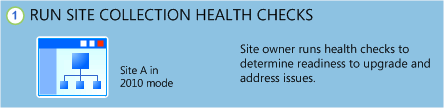
For a visual overview of the entire upgrade process, see Overview of the upgrade process to SharePoint 2013.
You run the health checks manually to prepare for an upgrade. In addition, the health checks are run automatically in repair mode when you start to upgrade a site collection. You can also run the health checks at any time to verify that a site is working as expected. The site collection pre-upgrade health checks examine a site collection and list potential upgrade issues, such as missing or unsupported elements. For example, the results itemize customized files so that you can identify the custom file and reset it to the default template in the site definition, if you want. After you run the checks, a report lists potential issues. The report also has information about how to address the issues.
The site collection health checker includes the following rules:
-
Site collection health check rules
Rule name
Description
Rule ID
Customized Files
This rule checks for any files that were customized (or unghosted) in the site collection or subsites. When run in repair mode, it can reset the page to the default (reghost the file).
cd839b0d-9707-4950-8fac-f306cb920f6c
Missing Galleries
This rule checks for all default galleries and reports if any are missing from the site collection or subsites.
ee967197-ccbe-4c00-88e4-e6fab81145e1
Missing Site Templates
This rule checks to make sure that the template the site is based on is available and reports if any elements are missing.
5258ccf5-e7d6-4df7-b8ae-12fcc0513ebd
Unsupported Language Pack References
This rule checks to make sure that the language packs that are used by the site collection exist and are referenced correctly by the site collection.
99c946f7-5751-417c-89d3-b9c8bb2d1f66
Unsupported MUI References
This rule checks to make sure that the multi-user interface elements that are used by the site collection exist and are referenced correctly by the site collection.
6da06aab-c539-4e0d-b111-b1da4408859a
-
-
Before you begin
This is the first step in upgrading a site collection. Before you upgrade a site collection, you must have already configured the environment that uses SharePoint 2013 and upgraded the databases. For more information about these steps, see Attach databases and upgrade to SharePoint 2013.
 Note:
Note:
Because SharePoint 2013 runs as websites in Internet Information Services (IIS), administrators and users depend on the accessibility features that browsers provide. SharePoint 2013 supports the accessibility features of supported browsers. For more information, see the following resources:
-
Run the site collection pre-upgrade health checks by using Site Settings
Site collection owners can run the site collection health checks from the Site Settings page in their site collections.
To run the pre-upgrade checks for a site collection
- Verify that the user account that performs this procedure is a site collection administrator.
- On the Site Settings page for the site collection, in the Site Collection Administration section, click Site collection health checks.
-
On the Run site collection health checks page, click Start checks.
A report lists all checked issues and issues that you should resolve.
- Resolve all issues, and then click Try it again to verify that you fixed them.
-
Run the site collection pre-upgrade health checks by using Windows PowerShell
Farm administrators can use the following Windows PowerShell cmdlets to run the site collection health checks and to repair issues: Test-SPSite Repair-SPSite.
To run the site collection health checks in test mode by using Windows PowerShell
- Verify that you have the following memberships:
- securityadmin fixed server role on the SQL Server instance.
- db_owner fixed database role on all databases that are to be updated.
- Administrators group on the server on which you are running the Windows PowerShell cmdlets.
-
Either a site collection administrator or be granted full read (for test mode) for the web application by policy. For more information about permission policies for web applications, see Manage permission policies for a web application (SharePoint Server 2010).
An administrator can use the Add-SPShellAdmin cmdlet to grant permissions to use SharePoint 2013 cmdlets.
 Note:
Note:
If you do not have permissions, contact your Setup administrator or SQL Server administrator to request permissions. For additional information about Windows PowerShell permissions, see Add-SPShellAdmin.
- On the Start menu, click All Programs.
- Click Microsoft SharePoint 2013 Products.
- Click SharePoint 2013 Management Shell.
-
At the Windows PowerShell command prompt, type the following command:
Test-SPSite -Identity <SiteURL> [-Rule <RuleID>]
Where:
- <SiteURL> is URL for the site collection you want to check.
- <RuleID> is ID for a specific rule that you want to run.
To run the site collection health checks in repair mode by using Windows PowerShell
- Verify that you have the following memberships:
- securityadmin fixed server role on the SQL Server instance.
- db_owner fixed database role on all databases that are to be updated.
- Administrators group on the server on which you are running the Windows PowerShell cmdlets.
-
Either a site collection administrator or be granted full control (for repair mode) for the web application by policy. For more information about permission policies for web applications, see Manage permission policies for a web application (SharePoint Server 2010).
An administrator can use the Add-SPShellAdmin cmdlet to grant permissions to use SharePoint 2013 cmdlets.
 Note:
Note:
If you do not have permissions, contact your Setup administrator or SQL Server administrator to request permissions. For additional information about Windows PowerShell permissions, see Add-SPShellAdmin.
- On the Start menu, click All Programs.
- Click Microsoft SharePoint 2013 Products.
- Click SharePoint 2013 Management Shell.
-
At the Windows PowerShell command prompt, type the following command:
Repair-SPSite -Identity <SiteURL> [-Rule <RuleID>]
Where:
- <SiteURL> is URL for the site collection you want to repair.
- <RuleID> is ID for a specific rule that you want to run.
-
Additional steps
If you are performing an upgrade to SharePoint 2013, you can start the site collection upgrade after you have addressed all issues from the health checks. You can create an upgrade evaluation site to try the new user interface for your site, or you can upgrade your site collection directly. To learn about how to create evaluation site collections or upgrade a site collection, see Upgrade a site collection to SharePoint 2013.
-
Upgrade a site collection to SharePoint 2013
Published: July 16, 2012
Summary: Learn how site collection administrators can preview a copy of their sites in SharePoint 2013 mode, and then upgrade their sites.
Applies to: SharePoint Foundation 2013 | SharePoint Server 2013
After a server farm administrator has upgraded the databases, site collection administrators can upgrade individual site collections. When site collection administrators first browse to their sites after the database has been upgraded, a notification bar at the top of the site indicates that their sites can be upgraded. The choices are to Start now or Remind me later. Start now begins the site collection upgrade process.
To upgrade a site collection, site collection administrators complete the following steps:
- Run the site collection health checks to verify the site is ready to upgrade. For more information, see Run site collection health checks in SharePoint 2013.
- Create an upgrade evaluation site to preview the differences between versions. (Optional)
- Upgrade the site collection.
- Verify that upgrade was successful and the site works as expected. For more information, see Review site collections upgraded to SharePoint 2013.
This article discusses the second and third steps, and includes procedures for performing these tasks from Site Settings. For information about using Windows PowerShell cmdlets to upgrade sites from the command line, see Manage site collection upgrades to SharePoint 2013.
Upgrade step 2: Request evaluation site collection and Step 3: Upgrade the site
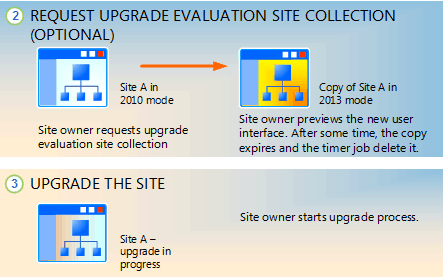
For a visual overview of the upgrade process, including site collection upgrade, see Overview of the upgrade process to SharePoint 2013. For more information about how farm administrators can control site collection upgrades, see Manage site collection upgrades to SharePoint 2013. For more conceptual information about site upgrade, including how to plan for upgrade, see Plan for site collection upgrades in SharePoint 2013.
 Important:
If you upgrade from SharePoint Server 2010 to SharePoint Server 2013, there are special considerations for My Sites. (My Sites are not available in SharePoint Foundation 2013.) Make sure that you upgrade the My Site Host site collection before you allow users to access their individual My Sites in SharePoint Server 2013. This makes sure that the server software and database changes are complete so that users can upgrade their individual My Sites successfully.
A user can upgrade his or her My Site by following the steps to upgrade a site collection later in this article, or a farm administrator can upgrade My Sites by using Windows PowerShell.
 Note:
Note:
Because SharePoint 2013 runs as websites in Internet Information Services (IIS), administrators and users depend on the accessibility features that browsers provide. SharePoint 2013 supports the accessibility features of supported browsers. For more information, see the following resources:
- Plan browser support (http://go.microsoft.com/fwlink/p/?LinkId=246502)
- Accessibility for SharePoint Products
- Accessibility features in SharePoint 15 Products (http://go.microsoft.com/fwlink/p/?LinkId=246501)
- Keyboard shortcuts (http://go.microsoft.com/fwlink/p/?LinkID=246504)
- Touch (http://go.microsoft.com/fwlink/p/?LinkId=246506)
-
Create an upgrade evaluation site (Optional)
As a site collection administrator, you can request a preview of your site collection; this is called an upgrade evaluation site collection. An upgrade evaluation site collection enables you to see your site‘s content in a new, separate copy of the site that is running on the SharePoint 2013. Unlike visual upgrade in SharePoint Server 2010, the upgrade evaluation site collection is a complete copy of the site collection, separate from the original. Actions that you take in the upgrade evaluation do not affect the original site.
When you request an evaluation site collection, the request is added to a Timer job (named “Create Upgrade Evaluation Site Collections”) which runs once a day. You will receive an e-mail message when the upgrade evaluation site is available. This might take up to 24 hours. The message includes a link to the evaluation site. Upgrade evaluation site collections are set to automatically expire (after 30 days by default). If yours expires before you have finished evaluating the changes, you can request another upgrade evaluation site collection.
To request an upgrade evaluation site collection
- Verify that the user account that performs this procedure is a site collection administrator.
- On the Site Settings page for the site collection, in the Site Collection Administration section, click Site collection upgrade.
-
On the Step up to SharePoint 2013 page, click Try a demo upgrade.
This option starts the process of generating an upgrade evaluation site collection.
-
In the Create Upgrade Evaluation Site Collection box, click Create Upgrade Evaluation Site Collection.
A box opens and informs you that a demo site request was received.
-
Click Close to close the box.
You will receive an e-mail message when the upgrade evaluation is available. The e-mail message will contain a link to the site collection. Review the site and confirm that your site collection will look and behave as expected in the new user interface.
After you have reviewed the upgrade evaluation and made any necessary changes in your original site based on your evaluation, you can upgrade your site collection.
Farm administrators can use Windows PowerShell to request an upgrade evaluation site collection. For more information, see Manage site collection upgrades to SharePoint 2013.
-
Upgrade a site collection
After you run the pre-upgrade checks and optionally review an upgrade evaluation site collection, you can upgrade your site collection to SharePoint 2013.
To upgrade a site collection
- Verify that the user account that performs this procedure is a site collection administrator.
- On the Site Settings page for the site collection, in the Site Collection Administration section, click Site collection upgrade.
-
On the Site Collection Upgrade page, click Upgrade this Site Collection.
This option starts the process of upgrading your site collection. A box opens to verify that you want to start the process.
- Click I’m ready to start the actual upgrade.
 Note:
Note:
The site collection health checks are run automatically in repair mode before the upgrade starts. The results from the health checks are included in the upgrade log for the site collection. If there is an error, you must address it before you can continue to upgrade.
The upgrade starts, and the Upgrade status page for the site collection is displayed. This page automatically updates while the upgrade is in progress and displays information about the process, such as the following:
- Errors or warnings
- When the upgrade started
-
Where you can find the upgrade log file
After the upgrade is complete, the Upgrade status page is displayed in the new user interface with the message, Upgrade Completed Successfully.
- Click Let’s see the new site to go to the home page.
Farm administrators can use Windows PowerShell to upgrade a site collection. For more information, see Manage site collection upgrades to SharePoint 2013.
-
Verification
To verify that upgrade has succeeded, check the Upgrade status page for the site collection.
-
View upgrade status in Site Settings
Site collection administrators can view the Upgrade Status page in Site Settings to verify that upgrade has succeeded for a site collection.
To view upgrade status in Site Settings
-
- Verify that the user account that performs this procedure is a site collection administrator.
- On the Site Settings page for the site collection, in the Site Collection Administration section, click Site collection upgrade.
-
On the Site Collection Upgrade page, click Review Site Collection Upgrade Status.
The Upgrade Status page for the site collection is displayed.
Farm administrators can use Windows PowerShell to view site collection upgrade status. For more information, see Manage site collection upgrades to SharePoint 2013.
-
Additional steps
Next, review your upgraded site collection to be sure that everything is working as expected. For more information see Review site collections upgraded to SharePoint 2013.
-
Review site collections upgraded to SharePoint 2013
Published: July 16, 2012
Summary: Learn what to look for when you review site collections after you upgrade to SharePoint 2013 and find tips to address issues.
Applies to: SharePoint Foundation 2013 | SharePoint Server 2013
Use these steps in your test environment to identify any issues before you upgrade your production environment. And review your upgraded sites to fix any issues after you have upgraded a site collection.
When you perform tests before upgrading your environment:
- Begin by validating high-impact or high-profile sites, and then move on to lower-priority sites. As part of the planning process, you should have identified which sites are high-impact and high-profile and require immediate attention, and which can wait a bit longer.
- To verify basic functionality, create a new site collection by using a representative set of lists, libraries, Web Parts, and so on. Review the new site to make sure that the common, basic elements of your sites are working.
- If pages do not render, you can check the Site Settings page by going directly to the URL (http:// siteurl/_layouts/settings.aspx). If the Site Settings page works and the upgrade has succeeded, there might be issues with the master page or home page. If the Site Settings page does not work, go to the site collection upgrade log file to see whether you can get more information about the problem.
You can review the site collection upgrade logs from the following locations:
- For site collection administrators: There are also log files for site collection upgrade stored inside the site collection itself, in the Maintenance Logs catalog at (http://<SiteName>/_catalogs/MaintenanceLogs/YYYYMMDD-HHMMSS-SSS.txt , where YYYYMMDD is the date and HHMMSS-SSS is the time (hours in 24-hour clock format, minutes, seconds, and milliseconds).
- For farm administrators: The site collection upgrade log file and the upgrade error log file are located at %COMMONPROGRAMFILES%\Microsoft Shared\Web server extensions\15\LOGS. The logs are named in the following format: SiteUpgrade-YYYYMMDD-HHMMSS-SSS.log, where YYYYMMDD is the date and HHMMSS-SSS is the time (hours in 24-hour clock format, minutes, seconds, and milliseconds). These file system logs have more information if you want details about issues.
Use the following checklists to review your upgraded sites and look for issues for either trial upgrades or upgrades in a production environment.
- Begin by validating high-impact or high-profile sites, and then move on to lower-priority sites. As part of the planning process, you should have identified which sites are high-impact and high-profile and require immediate attention, and which can wait a bit longer.
-
Checklists for reviewing upgraded sites
-
Web Parts
The following table lists issues with Web Parts that can occur after upgrade and how to address them.
 Tip:
Tip:
To test your Web Parts quickly, you can build a new Web Part page that contains all the custom Web Parts before you test an upgrade, and then review the page for any missing or broken Web Parts after the trial upgrade.
What to check
What to do if there is a problem
Do all the Web Parts from your original site appear in your upgraded site?
If a Web Part zone exists in a customized (unghosted) page, but not in the site definition, the Web Parts from that Web Part zone may have been moved into the bottom zone on the page during the upgrade.
Either in Edit Mode for the page in the browser or in SharePoint Designer 2013, look for missing Web Parts in the bottom zone or other zones, or check whether the Web Parts were closed. For more information about how to work with Web Parts and Web Part zones in SharePoint Designer 2013, see the SharePoint Designer Help system.
Are there any broken Web Parts pages and are the Web Parts displayed correctly (in the correct zone, location, and size)?
Either in Edit Mode for the page in the browser or in SharePoint Designer 2013, drag the Web Part into the correct zone or modify the Web Part properties to correct any sizing or positioning problems.
Are there any extra or missing Web Parts?
Open the page either in Edit Mode for the page in the browser or in SharePoint Designer 2013. If you see additional Web Parts on your page, look for closed or inactive Web Parts on the original version of the page. Were the closed or inactive Web Parts opened by the upgrade process? If so, you can modify the Web Part properties to close these Web Parts.
If Web Parts are missing, look for errors in SharePoint Designer 2013 such as “Error Rendering Control” or “Missing Assembly.” These errors indicate that the Web Part was not installed or was configured incorrectly for the new environment and must be reinstalled or reconfigured.
Do the Web Parts work correctly?
Open the page either in Edit Mode for the page in the browser or in SharePoint Designer 2013, and look for errors that indicate that a component or service is missing. Make sure that any components or services that the Web Parts rely on exist in the upgraded site. Particularly for the database attach upgrade approach, you must make sure that you have installed all the components or services that you must have for your Web Parts, and that you have configured them correctly (for example, you have configured the Web.config Safe Controls list).
Update and redeploy any Web Parts that exist but no longer function correctly.
Are any Web Parts pages still checked out?
If you check out a page to make changes, make sure that you check in the page again.
Are your Excel Web Access Web Parts working correctly? Did you create your connections again correctly? Are external data sources still working?
Verify all connections and external data sources.
 Tip:
Tip:
If you have problems with a Web Part, append ?contents=1 to the end of the URL syntax (http:// siteurl/default.aspx?contents=1), and then press ENTER. This opens the Web Part Maintenance page where you can remove and repair the broken Web Part.
-
Large lists
By default, large list query throttling is turned on in SharePoint 2013. If a list is very large, and users use a view or perform a query that exceeds the limit or throttling threshold, the view or query will not be permitted. Check any large lists in your environment and have the site administrator or list owner address the issue. For example, they can create indexed columns with filtered views, organize items into folders, set an item limit on the page for a large view, or use an external list. For more information about large list throttling and how to address issues with large lists, see Manage lists and libraries with many items on Office Online.
-
Styles and appearance
The following table lists common issues with the style and appearance of your web site after upgrade and how to address them.
 Tip:
Tip:
Most of the issues in this section can be resolved by correcting the links to an item.
What to check
What to do if there is a problem
Are all the images on your pages displayed correctly?
Verify or fix the links to the images.
Are the appropriate cascading style sheet colors and styles used in the appropriate locations?
Verify or fix the links to the cascading style sheet file. Verify the link on the master page.
Theme choices are different in SharePoint 2013 – which theme do you want to use?
Your site’s home page, or other pages on your site, may look different after the site is upgraded. You may have to re-create or revise a theme and reapply it.
Do you have any JavaScript controls that are not working?
Verify or fix the links to the controls.
Are your pages displayed correctly in the browser?
Verify that any HTML on the page is in strict XHTML mode.
Are any script errors displayed on any pages?
Verify the scripts and links, and verify that any HTML is in strict XHTML mode.
-
Customized (unghosted) pages
Customized (also known as unghosted) pages are pages that were edited and are now unique versions of the pages for the site, instead of the default template pages. The following table lists issues with customized pages that can occur after upgrade and how to address them.
What to check
What to do if there is a problem
Are your customizations still in place?
Determine whether you have only one issue or a larger problem with the whole page.
If you added a brand-new page to your original site (for example, if you replaced Default.aspx with a different file instead of changing the existing Default.aspx file), the new page has no association with the site definition. Therefore, it might not resemble the other pages on the upgraded site — nor can it be reset to resemble them. If you want your customized page to have the same appearance and behavior as the other pages on your site, consider creating a brand-new page that is based on the site definition and then transferring your customizations to that new page.
Can you still access the editing controls on the pages?
If you customized the editing controls (for example, the Site Actions link or the Edit Page link in SharePoint 2010 Products), check whether they still appear. If they don’t appear, you can replace them with the editing controls of the new version by resetting the page to the default version.
Use the Reset to Template command in SharePoint Designer to reset the page to the default version (also known as reghosting). After you have restored the default page, you can then reapply your customizations in the browser by applying a different master page, or by reapplying the customizations in SharePoint Designer.
Are your customizations still appropriate in the new environment, or do you want to update to the new functionality and look?
If you want the new functionality and features, you must reset any customized pages to use the template. Resetting the page basically discards the customizations and attaches your page to the appropriate master page. Any customizations that you want can then be transferred to the master page instead of being stored in individual pages.
Use the Reset to Template command in SharePoint Designer to reset the page to the default version (that is, reghost it). After you have restored the default page, you can then reapply your customizations in the browser by applying a different master page, or by reapplying the customizations in SharePoint Designer.
Are any pages still checked out?
If you check out a page to make changes, make sure that you check in the page again.
-
-
Manage site collection upgrades to SharePoint 2013
Published: July 16, 2012
Summary: Learn how farm administrators can manage the upgrade queue and throttling settings and upgrade site collections to SharePoint 2013.
Applies to: SharePoint Foundation 2013 | SharePoint Server 2013
Even though site collection administrators can now upgrade their own sites to SharePoint 2013, server farm administrators can still control when and whether a site collection is upgraded by managing the upgrade queue. You can also view and manage the upgrade throttling settings for a web application or content database to manage your farm’s performance for site collection upgrades.
-
Before you begin to upgrade site collections to SharePoint 2013
Farm administrators can control settings for site collection upgrade, such as notifications, throttling, and the upgrade queue, and can upgrade site collections by using Windows PowerShell. Before you change these settings or upgrade a site collection, you should understand the settings and the implications for making changes. For more information about the settings for site collection upgrade, see Plan for site collection upgrades in SharePoint 2013. For information about how to upgrade a site collection from the Site Settings page, see Upgrade a site collection to SharePoint 2013.
 Note:
Note:
Because SharePoint 2013 runs as websites in Internet Information Services (IIS), administrators and users depend on the accessibility features that browsers provide. SharePoint 2013 supports the accessibility features of supported browsers. For more information, see the following resources:
-
Control upgrade notifications and self-service upgrade
When a site collection is available to upgrade, site collection administrators see a status bar on their sites indicating that they can upgrade them. They can choose to upgrade the site collection then or be reminded later. You can control settings for these notifications and control whether site collection administrators can upgrade their site collections. For more information about these properties, see Plan settings for upgrade notifications, self-service upgrade, and site collection creation.
To view the upgrade notification and self-service upgrade settings by using Windows PowerShell
- Verify that you have the following memberships:
- securityadmin fixed server role on the SQL Server instance.
- db_owner fixed database role on all databases that are to be updated.
-
Administrators group on the server on which you are running the Windows PowerShell cmdlets.
An administrator can use the Add-SPShellAdmin cmdlet to grant permissions to use SharePoint 2013 cmdlets.
 Note:
Note:
If you do not have permissions, contact your Setup administrator or SQL Server administrator to request permissions. For additional information about Windows PowerShell permissions, see Add-SPShellAdmin.
- On the Start menu, click All Programs.
- Click Microsoft SharePoint 2013 Products.
- Click SharePoint 2013 Management Shell.
-
At the Windows PowerShell command prompt, type the following commands to view the upgrade notification settings for a web application:
$wa=Get-SPWebApplication <URL>
$wa.UpgradeReminderDelay
$wa.UpgradeMaintenanceLink
Where:
-
<URL> is URL for the web application that you want to check.
This command returns the Upgrade reminder delay setting for the specified web application.
-
At the Windows PowerShell command prompt, type the following command to view the self-service upgrade setting for a site collection:
$site=Get-SPSite <URL>
$wa.AllowSelfServiceUpgrade
Where:
- <URL> is URL for the site collection that you want to affect.
For more information, see Get-SPWebApplication and Get-SPSite.
To change the upgrade notification and self-service upgrade settings for a web application by using Windows PowerShell
- Verify that you have the following memberships:
- securityadmin fixed server role on the SQL Server instance.
- db_owner fixed database role on all databases that are to be updated.
-
Administrators group on the server on which you are running the Windows PowerShell cmdlets.
An administrator can use the Add-SPShellAdmin cmdlet to grant permissions to use SharePoint 2013 cmdlets.
 Note:
Note:
If you do not have permissions, contact your Setup administrator or SQL Server administrator to request permissions. For additional information about Windows PowerShell permissions, see Add-SPShellAdmin.
- On the Start menu, click All Programs.
- Click Microsoft SharePoint 2013 Products.
- Click SharePoint 2013 Management Shell.
-
At the Windows PowerShell command prompt, type the following command to change the upgrade notification settings for a web application:
$wa=Get-SPWebApplication <URL>
$wa.UpgradeReminderDelay=<Value>
$wa.UpgradeMaintenanceLink=’<LinkURL>‘
Where:
- <URL> is URL for the web application that you want to affect.
- <Value> is the numeric value that you want to set for the delay (for example, 10 for 10 days).
- <LinkURL> is a link where the user can find more information.
-
At the Windows PowerShell command prompt, type the following command to change the self-service upgrade setting for a site collection:
$site=Get-SPSite <URL>
$wa.AllowSelfServiceUpgrade=<Value>
Where:
- <URL> is URL for the site collection that you want to affect.
- <Value> is either ‘true’ to allow site collection administrators to upgrade the site, or ‘false’ to not show them the notification and not allow them to upgrade.
For more information, see Get-SPWebApplication and Get-SPSite.
-
Control the compatibility range for site creation modes
You can control which mode (2010 or 2013, or both) can be used when a user creates a site collection. The CompatibilityRange property on a web application controls the site modes available for a web application. You can view or change the settings for CompatibilityRange by using Windows PowerShell.
To view the compatibility range for site creation modes for a web application by using Windows PowerShell
- Verify that you have the following memberships:
- securityadmin fixed server role on the SQL Server instance.
- db_owner fixed database role on all databases that are to be updated.
-
Administrators group on the server on which you are running the Windows PowerShell cmdlets.
An administrator can use the Add-SPShellAdmin cmdlet to grant permissions to use SharePoint 2013 cmdlets.
 Note:
Note:
If you do not have permissions, contact your Setup administrator or SQL Server administrator to request permissions. For additional information about Windows PowerShell permissions, see Add-SPShellAdmin.
- On the Start menu, click All Programs.
- Click Microsoft SharePoint 2013 Products.
- Click SharePoint 2013 Management Shell.
-
At the Windows PowerShell command prompt, type the following commands to view the compatibility range settings for a web application:
$wa=Get-SPWebApplication <URL>
# Stores the web application at that URL as a variable
$wa.CompatibilityRange
# Returns the CompatibilityRange for the specified web application
Where:
-
<URL> is URL for the web application that you want to check.
This command returns the compatibility range for the specified web application. For example:
MaxCompatibilityLevel MinCompatibilityLevel DefaultCompatibilityLevel Singular
——————— ——————— ————————- ——–
15 14
15
False
-
At the Windows PowerShell command prompt, type the following commands to view the maximum, minimum, and default settings for a specific range:
[Microsoft.SharePoint.SPCompatibilityRange]::<RangeName>
Where:
-
RangeName is one of the following values: OldVersions, NewVersion, AllVersions.
This command returns the compatibility range for the specified value. For example, for NewVersion:
MaxCompatibilityLevel MinCompatibilityLevel DefaultCompatibilityLevel Singular
——————— ——————— ————————- ——–
15
15
15
True
For more information, see Get-SPWebApplication.
To change compatibility range for site creation modes for a web application by using Windows PowerShell
- Verify that you have the following memberships:
- securityadmin fixed server role on the SQL Server instance.
- db_owner fixed database role on all databases that are to be updated.
-
Administrators group on the server on which you are running the Windows PowerShell cmdlets.
An administrator can use the Add-SPShellAdmin cmdlet to grant permissions to use SharePoint 2013 cmdlets.
 Note:
Note:
If you do not have permissions, contact your Setup administrator or SQL Server administrator to request permissions. For additional information about Windows PowerShell permissions, see Add-SPShellAdmin.
- On the Start menu, click All Programs.
- Click Microsoft SharePoint 2013 Products.
- Click SharePoint 2013 Management Shell.
-
At the Windows PowerShell command prompt, type the following command to change the compatibility range settings to a specific range:
$wa=Get-SPWebApplication <URL>
# Stores the web application at that URL as a variable
$wa.CompatibilityRange = [Microsoft.SharePoint.SPCompatibilityRange]::<RangeName>
# Specifies which range to use
$wa.Update()
# Updates the CompatibilityRange setting to use only the range you specified
$wa.CompatibilityRange
# Returns the new CompatibilityRange for the web application
Where:
- <URL> is URL for the web application that you want to change.
- RangeName is one of the following values: OldVersions, NewVersion, AllVersions.
-
At the Windows PowerShell command prompt, type the following command to change the values for the CompatibilityRange manually:
$wa=Get-SPWebApplication <URL>
# Stores the web application at that URL as a variable
$range = New-Object Microsoft.SharePoint.SPCompatibilityRange(<Integer>,<Integer>)
# Creates a new compatibility range from <Integer> to <Integer>
$wa.CompatibilityRange = $range
# Specifies which range to use
$wa.Update()
#Updates the CompatibilityRange setting to use only the range you specified with $range
$wa.CompatibilityRange
# Returns the new CompatibilityRange for the web application
Where:
- <URL> is URL for the web application that you want to change.
-
Integer is a number to use as the minimum or maximum value. For example, (14,15) would set the MinCompatibilityLevel to 14 (2010) and the MaxCompatibilityLevel to 15 (2013). The DefaultCompatibilityLevel is automatically set to the lower of the MaxCompatibilityLevel and the current major version (for example, 15).
This command sets and then returns the range that you specified. For example:
MaxCompatibilityLevel MinCompatibilityLevel DefaultCompatibilityLevel Singular
——————— ——————— ————————- ——–
15 14
15
False
For more information, see Get-SPWebApplication.
-
Control the queue for upgrades of sites to SharePoint 2013
Every site that is set to upgrade is added to the queue, even if it is processed immediately. A site is removed from the queue after it is upgraded, or if it has encountered an error that must be addressed by a site collection or server administrator. If an unexpected failure occurs during the process (such as a power outage or service interruption), the site remains in the queue and the timer service will try the upgrade again automatically. Server farm administrators can manage the queue to remove a site from the queue, add a site to the queue, or upgrade a site manually.
Server farm administrators can manage the queue to do the following:
-
Determine site collections that are in the upgrade queue.
Each web application has its own upgrade queue. You can show the sites that are in the queue for a specific content database associated with that web application.
-
See all sites that are currently being upgraded.
You can view the queue and filter it to show only the sites that are currently being upgraded for a specific content database.
-
Add a site collection to the upgrade queue.
If you want to upgrade a site collection, you can add it to the queue.
-
Remove a site collection from the upgrade queue.
You can remove a site collection from the upgrade queue. Stop the timer job, remove the site from the queue, and then restart the timer job to resume upgrade for the remaining sites in the queue. You cannot remove a site collection from the queue if it is currently being upgraded.
The following procedure contains steps to view and manage the site collection upgrade queue.
To manage the upgrade queue by using Windows PowerShell
-
- Verify that you have the following memberships:
- securityadmin fixed server role on the SQL Server instance.
- db_owner fixed database role on all databases that are to be updated.
-
Administrators group on the server on which you are running the Windows PowerShell cmdlets.
An administrator can use the Add-SPShellAdmin cmdlet to grant permissions to use SharePoint 2013 cmdlets.
 Note:
Note:
If you do not have permissions, contact your Setup administrator or SQL Server administrator to request permissions. For additional information about Windows PowerShell permissions, see Add-SPShellAdmin.
- On the Start menu, click All Programs.
- Click Microsoft SharePoint 2013 Products.
- Click SharePoint 2013 Management Shell.
-
To view all site collections in the queue for a content database, at the Windows PowerShell command prompt, type the following command:
Get-SPSiteUpgradeSessionInfo -ContentDatabase <DatabaseName> -ShowInProgress -ShowCompleted -ShowFailed |ft
Where:
-
<DatabaseName> is name of the database that you want to check. You can also use the GUID for the database instead of the name.
For more information, see Get-SPSiteUpgradeSessionInfo.
-
To see all sites that are currently being upgraded, at the Windows PowerShell command prompt, type the following command:
Get-SPSiteUpgradeSessionInfo -ContentDatabase <DatabaseName> -ShowInProgress
Where:
-
<DatabaseName> is name of the database that you want to check. You can also use the GUID for the database instead of the name.
For more information, see Get-SPSiteUpgradeSessionInfo.
-
To see whether a particular site is in the queue, at the Windows PowerShell command prompt, type the following command:
Get-SPSiteUpgradeSessionInfo -Site <http://site>
Where:
-
<http://site> is URL for the site collection you want to add to the upgrade queue.
For more information, see Get-SPSiteUpgradeSessionInfo.
-
To add a site collection to the upgrade queue, at the Windows PowerShell command prompt, type the following command:
Upgrade-SPSite <http://site> -VersionUpgrade -QueueOnly
Where:
-
<http://site> is URL for the site collection you want to add to the upgrade queue.
For more information, see Upgrade-SPSite.
-
To remove a site collection from the upgrade queue, at the Windows PowerShell command prompt, type the following command:
Remove-SPSiteUpgradeSessionInfo -Identity <URL>
Where:
-
<URL> is URL for the site collection you want to add to the upgrade queue.
For more information, see Remove-SPSiteUpgradeSessionInfo.
-
Control site throttle settings for upgrade to SharePoint 2013
You can view and change the upgrade throttle settings for a content database and web application by viewing and setting the SPContentDatabase.ConcurrentSiteUpgradeSessionLimit and SPWebApplication.SiteUpgradeThrottleSettings properties. For descriptions of the properties that control throttle levels and the default values, see Plan for site collection upgrades in SharePoint 2013.
For more information about web application properties, see SPWebApplication Properties. For more information about content database properties, see SPContentDatabase Properties.
The following procedure provides steps to view upgrade throttling settings for a web application.
To view the upgrade throttle settings for a web application by using Windows PowerShell
- Verify that you have the following memberships:
- securityadmin fixed server role on the SQL Server instance.
- db_owner fixed database role on all databases that are to be updated.
-
Administrators group on the server on which you are running the Windows PowerShell cmdlets.
An administrator can use the Add-SPShellAdmin cmdlet to grant permissions to use SharePoint 2013 cmdlets.
 Note:
Note:
If you do not have permissions, contact your Setup administrator or SQL Server administrator to request permissions. For additional information about Windows PowerShell permissions, see Add-SPShellAdmin.
- On the Start menu, click All Programs.
- Click Microsoft SharePoint 2013 Products.
- Click SharePoint 2013 Management Shell.
-
At the Windows PowerShell command prompt, type the following command:
$wa = Get-SPWebApplication <URL>
$wa.SiteUpgradeThrottleSettings
Where:
-
<URL> is URL for the web application that you want to check.
This command returns the set of throttling settings for the specified web application. For example:
AppPoolConcurrentUpgradeSessionLimit : 5
UsageStorageLimit : 10
SubwebCountLimit : 10
Name :
TypeName : Microsoft.SharePoint.Administration.SPSiteUpgradeThrottleSettings
DisplayName :
Id : ca76dda0-7050-4c6b-a126-05917da39f8a
Status : Online
Parent : SPWebApplication Name=SharePoint – 80
Version : 8222
Properties : {}
Farm : SPFarm Name=SharePoint_ConfigUpgradedPersistedProperties : {}
For more information, see Get-SPWebApplication.
You can change the upgrade throttle settings for a web application. The following procedure provides steps to change the upgrade throttling settings for a web application.
To change the upgrade throttle settings for a web application by using Windows PowerShell
- Verify that you have the following memberships:
- securityadmin fixed server role on the SQL Server instance.
- db_owner fixed database role on all databases that are to be updated.
-
Administrators group on the server on which you are running the Windows PowerShell cmdlets.
An administrator can use the Add-SPShellAdmin cmdlet to grant permissions to use SharePoint 2013 cmdlets.
 Note:
Note:
If you do not have permissions, contact your Setup administrator or SQL Server administrator to request permissions. For additional information about Windows PowerShell permissions, see Add-SPShellAdmin.
- On the Start menu, click All Programs.
- Click Microsoft SharePoint 2013 Products.
- Click SharePoint 2013 Management Shell.
-
At the Windows PowerShell command prompt, type the following command:
$wa=Get-SPWebApplication <URL>
$wa.SiteUpgradeThrottleSettings.AppPoolConcurrentUpgradeSessionLimit=<Value>
$wa.SiteUpgradeThrottleSettings.UsageStorageLimit=<Value>
$wa.SiteUpgradeThrottleSettings.SubwebCountLimit=<Value>
Where:
- <URL> is URL for the web applications that you want to affect.
-
Value is the numeric value that you want to set for that limit (for example, 8).
This command changes the throttling settings for a web application to the value that you supply.
For more information, see Set-SPWebApplication.
The following procedure provides steps to view upgrade throttling settings for a content database.
To view the throttle settings for a content database by using Windows PowerShell
- Verify that you have the following memberships:
- securityadmin fixed server role on the SQL Server instance.
- db_owner fixed database role on all databases that are to be updated.
-
Administrators group on the server on which you are running the Windows PowerShell cmdlets.
An administrator can use the Add-SPShellAdmin cmdlet to grant permissions to use SharePoint 2013 cmdlets.
 Note:
Note:
If you do not have permissions, contact your Setup administrator or SQL Server administrator to request permissions. For additional information about Windows PowerShell permissions, see Add-SPShellAdmin.
- On the Start menu, click All Programs.
- Click Microsoft SharePoint 2013 Products.
- Click SharePoint 2013 Management Shell.
-
At the Windows PowerShell command prompt, type the following command:
$db = Get-SPContentDatabase <DatabaseName>
# Stores the database name as a variable to use in the next command
$db.ConcurrentSiteUpgradeSessionLimit
# Returns the value for the limit for that database
Where:
-
<DatabaseName> is name of the database that you want to check. You can also use the GUID for the database instead of the name.
This command returns the set of throttling settings for the specified content database.
For more information, see Get-SPContentDatabase.
You can change the upgrade throttle settings for a content database. The following procedure provides steps to change the upgrade throttling settings for a content database.
To change the throttle settings for a content database by using Windows PowerShell
- Verify that you have the following memberships:
- securityadmin fixed server role on the SQL Server instance.
- db_owner fixed database role on all databases that are to be updated.
-
Administrators group on the server on which you are running the Windows PowerShell cmdlets.
An administrator can use the Add-SPShellAdmin cmdlet to grant permissions to use SharePoint 2013 cmdlets.
 Note:
Note:
If you do not have permissions, contact your Setup administrator or SQL Server administrator to request permissions. For additional information about Windows PowerShell permissions, see Add-SPShellAdmin.
- On the Start menu, click All Programs.
- Click Microsoft SharePoint 2013 Products.
- Click SharePoint 2013 Management Shell.
-
At the Windows PowerShell command prompt, type the following commands:
$db = Set-SPContentDatabase <DatabaseName>
# Stores the database name as a variable to use in the next command
$db.ConcurrentSiteUpgradeSessionLimit=<value>
# Changes the limit to the value you specify.
Where:
- <DatabaseName> is name of the database that you want to affect. You can also use the GUID for the database instead of the name.
-
<value> is a numeric value to set the property to, such as 9.
This command changes the throttling settings for the specified content database to the value that you supply.
For more information, see Set-SPContentDatabase.
-
Create upgrade evaluation site collections by using Windows PowerShell
Site collection administrators can request a preview of their site collection. This preview site is called an upgrade evaluation site collection. Farm administrators can request an upgrade evaluation site collection by using Windows PowerShell.
To request an upgrade evaluation site collection by using Windows PowerShell
- Verify that you have the following memberships:
- securityadmin fixed server role on the SQL Server instance.
- db_owner fixed database role on all databases that are to be updated.
- Administrators group on the server on which you are running the Windows PowerShell cmdlets.
-
Either a site collection administrator or be granted full control (for repair mode) for the web application by policy. For more information about permission policies for web applications, see Manage permission policies for a Web application (SharePoint Server 2010).
An administrator can use the Add-SPShellAdmin cmdlet to grant permissions to use SharePoint 2013 cmdlets.
 Note:
Note:
If you do not have permissions, contact your Setup administrator or SQL Server administrator to request permissions. For additional information about Windows PowerShell permissions, see Add-SPShellAdmin.
- On the Start menu, click All Programs.
- Click Microsoft SharePoint 2013 Products.
- Click SharePoint 2013 Management Shell.
-
At the Windows PowerShell command prompt, type the following command:
Request-SPUpgradeEvaluationSiteCollection -identity URL to site
Where:
- URL to site is the URL to a site collection in 2010 mode.
For more information, see Request-SPUpgradeEvaluationSite.
-
Upgrade site collections by using Windows PowerShell
You can upgrade a single site collection or all site collections in a specific database by using Windows PowerShell.
To upgrade a single site collection in a database by using Windows PowerShell
- Verify that you have the following memberships:
- securityadmin fixed server role on the SQL Server instance.
- db_owner fixed database role on all databases that are to be updated.
-
Administrators group on the server on which you are running the Windows PowerShell cmdlets.
An administrator can use the Add-SPShellAdmin cmdlet to grant permissions to use SharePoint 2013 cmdlets.
 Note:
Note:
If you do not have permissions, contact your Setup administrator or SQL Server administrator to request permissions. For additional information about Windows PowerShell permissions, see Add-SPShellAdmin.
- On the Start menu, click All Programs.
- Click Microsoft SharePoint 2013 Products.
- Click SharePoint 2013 Management Shell.
-
At the Windows PowerShell command prompt, type the following command:
Windows PowerShell
Upgrade-SPSite <http://site> -VersionUpgrade [-Unthrottled]
Where:
- <http://site> is the URL for the site collection.
- Add the option -Unthrottled option to skip the site collection upgrade queue and start the upgrade immediately.
This cmdlet upgrades the specific site collection to 2013 mode. For more information, see Upgrade-SPSite.
To upgrade all site collections in a database, use Windows PowerShell. However, because sites can continue to run in 2010 mode in the SharePoint 2013 environment, this is not a necessary procedure for most environments. If you do choose to upgrade all site collections immediately, site collection owners do not have an opportunity to use an upgrade evaluation site to preview the new user interface or change their original site before upgrading. We do not recommend that you upgrade all site collections immediately as part of your initial upgrade. However, you might want to upgrade all site collections after some time has passed and all customizations were verified in 2013 mode.
To upgrade all site collections in a database by using Windows PowerShell
- Verify that you have the following memberships:
- securityadmin fixed server role on the SQL Server instance.
- db_owner fixed database role on all databases that are to be updated.
-
Administrators group on the server on which you are running the Windows PowerShell cmdlets.
An administrator can use the Add-SPShellAdmin cmdlet to grant permissions to use SharePoint 2013 cmdlets.
 Note:
Note:
If you do not have permissions, contact your Setup administrator or SQL Server administrator to request permissions. For additional information about Windows PowerShell permissions, see Add-SPShellAdmin.
- On the Start menu, click All Programs.
- Click Microsoft SharePoint 2013 Products.
- Click SharePoint 2013 Management Shell.
-
At the Windows PowerShell command prompt, type the following command:
Windows PowerShell
Get-SPSite -ContentDatabase <DBName> -Limit All | Upgrade-SPSite -VersionUpgrade -QueueOnly
Where:
-
<DBName> is the name of the content database for which you want to upgrade all site collections.
The -QueueOnly parameter adds the site collections to the upgrade queue. This allows the timer job to perform parallel upgrades when it is possible and can save time. The sites are upgraded in the order in which they are added to the queue.
This cmdlet upgrades all site collections in the specific content database to 2013 mode.
-
View upgrade status by using Windows PowerShell
You can view upgrade status for all databases, for a single site collection, or for all site collections.
To view upgrade status for a single site collection by using Windows PowerShell
- Verify that you have the following memberships:
- securityadmin fixed server role on the SQL Server instance.
- db_owner fixed database role on all databases that are to be updated.
-
Administrators group on the server on which you are running the Windows PowerShell cmdlets.
An administrator can use the Add-SPShellAdmin cmdlet to grant permissions to use SharePoint 2013 cmdlets.
 Note:
Note:
If you do not have permissions, contact your Setup administrator or SQL Server administrator to request permissions. For additional information about Windows PowerShell permissions, see Add-SPShellAdmin.
- On the Start menu, click All Programs.
- Click Microsoft SharePoint 2013 Products.
- Click SharePoint 2013 Management Shell.
-
At the Windows PowerShell command prompt, type the following command:
Get-SPSiteUpgradeSessionInfo -Site <http://site>
Where:
-
<http://site> is the URL of the site collection.
This cmdlet returns the upgrade status for the specified site collection together with information about the upgrade session and a link to the log files for more information. For more information, see Get-SPSiteUpgradeSessionInfo.
-
Or, you can use the following command to view the information about a specific site collection upgrade:
$sc = Get-SPSite <http://site>
# Sets a variable for the site collection
$sc.CompatibilityLevel
# Returns the compatibility level for the site collection (either 14 or 15 for 2010 or 2013 mode)
$sc.UpgradeInfo
# Returns the upgrade information for the site collection
Where:
-
<http://site> is the URL of the site collection.
This command returns the compatibility level and upgrade information (such as a pointer to the log file) for the specified site collection. If the compatibility level is “15,” then it has been upgraded to 2013 mode. For more information, see Get-SPSite.
To view upgrade status for a single database by using Windows PowerShell
- Verify that you have the following memberships:
- securityadmin fixed server role on the SQL Server instance.
- db_owner fixed database role on all databases that are to be updated.
-
Administrators group on the server on which you are running the Windows PowerShell cmdlets.
An administrator can use the Add-SPShellAdmin cmdlet to grant permissions to use SharePoint 2013 cmdlets.
 Note:
Note:
If you do not have permissions, contact your Setup administrator or SQL Server administrator to request permissions. For additional information about Windows PowerShell permissions, see Add-SPShellAdmin.
- On the Start menu, click All Programs.
- Click Microsoft SharePoint 2013 Products.
- Click SharePoint 2013 Management Shell.
-
At the Windows PowerShell command prompt, type the following command:
Windows PowerShell
Get-SPSiteUpgradeSessionInfo –ContentDatabase <DatabaseName> -ShowInProgress -ShowCompleted -ShowFailed
Where:
-
<DatabaseName> is the name of the database that you want to check.
This cmdlet returns any site collections that have an upgrade in progress, completed, or failed and lists their status, plus a link to the log files for more information. You can use only one parameter to find only in progress, completed, or failed upgrades. For more information, see Get-SPSiteUpgradeSessionInfo.
To view upgrade status for all site collections by using Windows PowerShell
- Verify that you have the following memberships:
- securityadmin fixed server role on the SQL Server instance.
- db_owner fixed database role on all databases that are to be updated.
-
Administrators group on the server on which you are running the Windows PowerShell cmdlets.
An administrator can use the Add-SPShellAdmin cmdlet to grant permissions to use SharePoint 2013 cmdlets.
 Note:
Note:
If you do not have permissions, contact your Setup administrator or SQL Server administrator to request permissions. For additional information about Windows PowerShell permissions, see Add-SPShellAdmin.
- On the Start menu, click All Programs.
- Click Microsoft SharePoint 2013 Products.
- Click SharePoint 2013 Management Shell.
-
At the Windows PowerShell command prompt, type the following command:
Get-SPSite -Limit All
This cmdlet returns the URL for all site collections in the environment and the compatibility level (14 or 15) for each site collection.
Discover more from Escape Business Solutions
Subscribe to get the latest posts sent to your email.