
Overview of apps for Office

Learn how to use apps for Office to extend your Office 2013 applications. You can build this new Office solution type with web technologies like HTML, CSS, JavaScript, REST, OData, and OAuth. The Apps for Office development platform provides new experiences in Office applications by surfacing web technologies and cloud services right within Office documents, email messages, meeting requests, and appointments.
Applies to: apps for Office | Office 2013 | Office 365 | Excel Web App | Exchange 2013 | Outlook 2013 | Outlook Web App | Project Professional 2013 | Word 2013 | Excel 2013 | PowerPoint 2013

The apps for Office platform lets you create engaging new consumer and enterprise experiences running within supported Office 2013 applications by using the power of the web and standard web technologies like HTML5, XML, CSS3, JavaScript, and REST APIs. You can use your existing knowledge of these web technologies to quickly build your apps.
An app for Office is basically a webpage that is hosted inside an Office client application. You can use apps to extend the functionality of a document, email message, meeting request, or appointment. Apps can run in multiple environments and clients, including rich Office desktop clients, Office Web Apps, mobile browsers, and also on-premises and in the cloud. After you develop and publish your apps to the Office Store or to an onsite catalog, they will be available to consumers from their Office 2013 applications.
To try out some apps for Word, Excel, Outlook, and Project, see Download and try out some apps in Word, Excel, Outlook, PowerPoint, and Project.
This document provides a quick overview of the apps for Office platform, how an app works inside of an Office application, and how you publish an app to the Office Store or to an onsite catalog for consumers to use. Once you have read this overview, see the section Create your first app for Office .

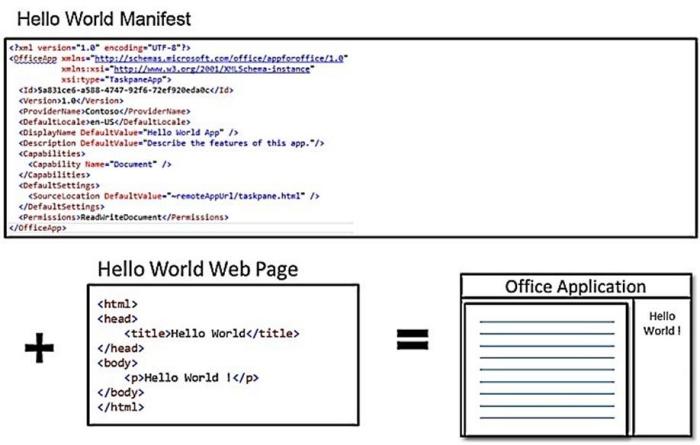
The basic components of an app for Office are an XML manifest file and a webpage. The manifest defines various settings and points to the webpage that implements the app UI and custom logic, as shown in Figure 1.
Figure 1. Manifest + webpage = an app for Office
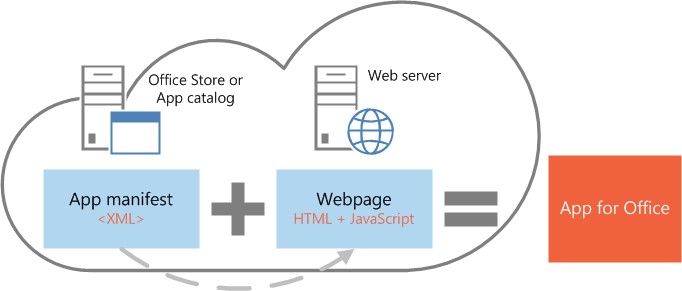
The manifest specifies settings and capabilities of the app, such as the following:
- The URL of the webpage that implements the app UI and programming logic.
- The app display name, description, ID, version, and default locale.
- Whether the app can be shown as a task pane, in line with document content, or activated contextually in an email message, meeting request, or appointment.
- The kinds of client applications (including rich and Web App clients) that an app supports.
- The permission level and data access requirements for the app.
For more information about the apps for Office manifest, see Apps for Office XML manifest overview and Creating a manifest for a mail app for Outlook

This section provides a quick look at the three basic types of apps for Office: task pane, content, and mail.
Task pane apps
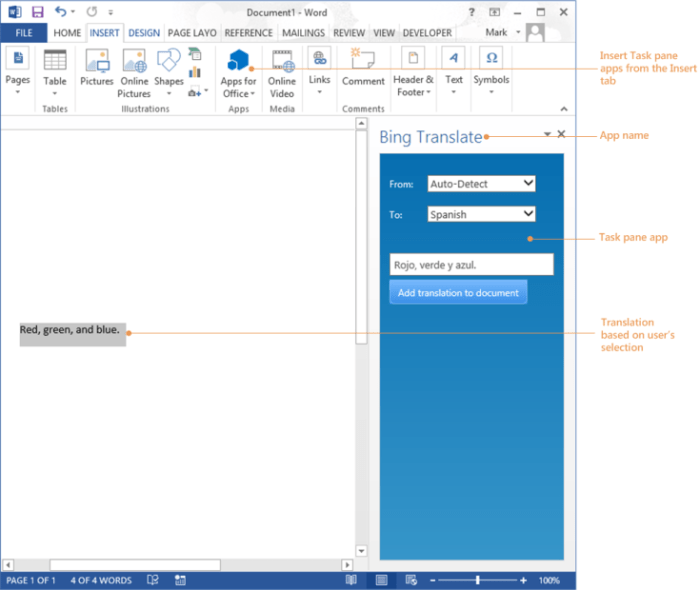
Task pane apps work side-by-side with an Office document, and let you supply contextual information and functionality to enhance the document viewing and authoring experience. For example, a task pane app can look up and retrieve product information from a web service based on the product name or part number the user selects in the document. Figure 2 shows an example of a task pane app.
Figure 2. Task pane app
Content apps
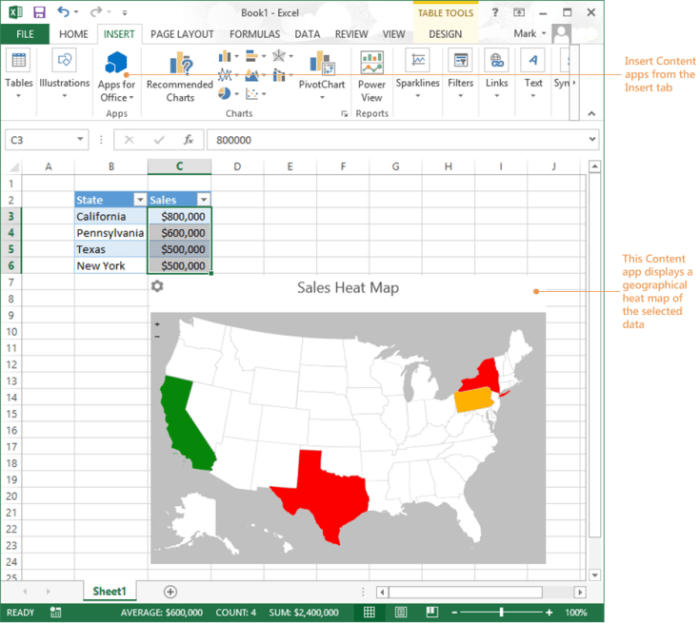
Content apps integrate web-based features as content that can be shown in line with the document. Content apps let you integrate rich, web-based data visualizations, embedded media (such as a YouTube video player or a picture gallery), as well as other external content. Figure 3 shows an example of a content app.
Figure 3. Content app
Mail apps
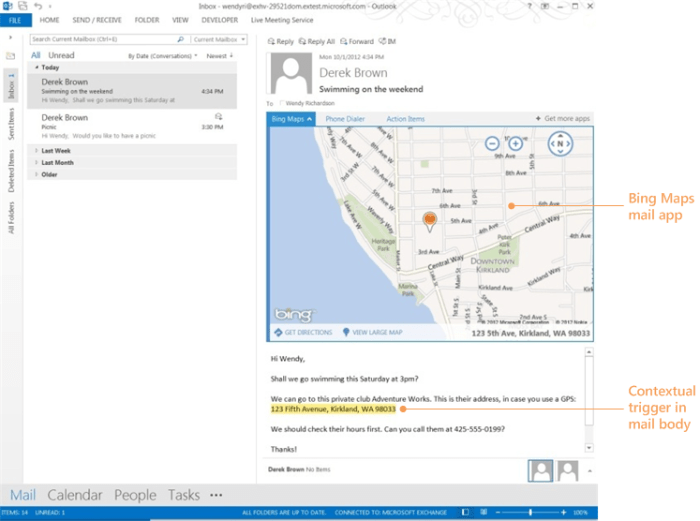
Mail apps display next to the currently viewed Outlook items: email message, meeting request, meeting response, meeting cancellation, or appointment. They can access contextual information from the item, and then use that data to access additional information on the server and from web services to create compelling user experiences. In most cases, a mail app runs without modification on the Outlook 2013 rich client and Outlook Web App for Exchange 2013 to provide a seamless experience on the desktop, web, and tablet and mobile devices. Figure 4 shows an example of a mail app.
|
|
|
Mail apps require Exchange 2013. POP and IMAP email accounts are not supported. |

Figure 4. Mail app
Supported applications
One big benefit of apps for Office is that they can be supported both on Office 2013 rich clients and some corresponding Web Apps. To the developer, this means in many scenarios there is no need to create separate apps for the two different environments or applications. To the end user, it means a consistent user experience across the desktop and web browser.
For task pane apps, this means the same app can run on Excel, Word, and Project. For mail apps, this means the same app can work for Outlook on the desktop, tablet, and mobile devices.
Table 1 shows the Office client applications (including rich and Web App clients) that support apps for Office, and which types of apps are supported by each Office client.
Table 1. Supported app types
|
Application |
Supported types |
|
Excel 2013 |
|
|
Excel Web App |
|
|
Word 2013 |
|
|
Outlook 2013 |
|
|
Outlook Web App |
|
|
Project Professional 2013 |
|
What can an app for Office do?

An app for Office can do pretty much anything a webpage can do inside the browser, such as the following:
- Provide an interactive UI and custom logic through JavaScript.
- Use JavaScript frameworks such as jQuery.
- Connect to REST endpoints and web services via HTTP and AJAX.
- Run server-side code or logic, if the page is implemented using a server-side scripting language such as ASP or PHP.
And, like webpages, apps for Office are subject to the same restrictions imposed by browsers, such as the same-origin policy for domain isolation, and security zones.
In addition to the regular capabilities of a webpage, apps for Office can interact with the Office application and the user’s content through a JavaScript library that the apps for Office infrastructure provides. The specifics of this interaction depend on the type of app, as follows:
- For task pane and content apps, the API lets your app read and write to documents, as well as handle key application and user events, such as when the active selection changes.
- For mail apps, the API lets your app access email message, meeting request, and appointment item properties, and user profile information. The API also provides access to some Exchange Web Services operations. For a summary of top features of mail apps, see Fundamentals for developing mail apps in Outlook.

Apps for Office are secured by an app runtime environment, a multiple-tier permissions model, and performance governors. This framework protects the user’s experience in the following ways:
- Access to the host application’s UI frame is managed.
- Only indirect access to the host application’s UI thread is allowed.
- Modal interactions are not allowed.
Further, the runtime framework provides the following benefits to ensure that an app for Office can’t damage the user’s environment:
- Isolates the process the app runs in.
- Doesn’t require .dll or .exe replacement or ActiveX components.
- Makes apps easy to install and uninstall.
Also, the use of memory, CPU, and network resources by apps for Office is governable to ensure that good performance and reliability are maintained.
For more information about the apps for Office privacy and security model, see Privacy and security for apps for Office.
The following sections briefly describe how the runtime architecture supports running apps in Office rich client applications versus Office Web Apps.
Rich clients
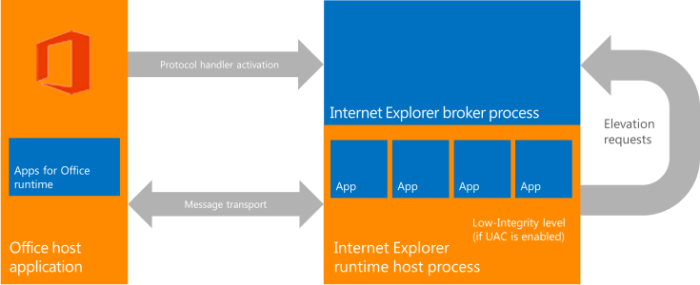
In supported rich clients, such as Word, Excel, and Outlook, apps for Office are supported by integrating an in-process component, the apps for Office runtime, which manages the app lifecycle and enables interoperability between the app and the client application. The app webpage itself is hosted out-of-process inside a web browser control which, in turn, is hosted inside an app runtime process that provides security and performance isolation. The apps for Office runtime manages interprocess communication, the translation of JavaScript API calls and events into native ones, as well as UI remoting support to enable the app to be rendered inside the document, in a task pane, or adjacent to an email message, meeting request, or appointment.
Figure 5 illustrates the components (Apps for Office runtime, host process, and JavaScript API) that are provided to support apps for Office running in Office rich client applications.
Figure 5. Apps for Office rich client runtime environment
Web Apps
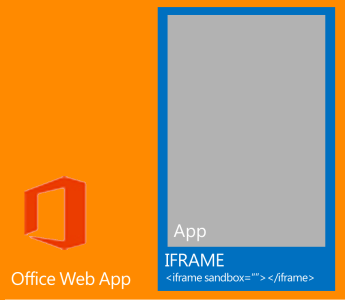
In supported Web Apps, such as Excel Web App and Outlook Web App, apps for Office are hosted in an iframe that runs using the HTML5 sandbox attribute. ActiveX components or navigating the main page of the Web App are not allowed. Apps for Office support is enabled in the Web Apps by the integration of the JavaScript API for Office. In a similar way to the rich client applications, the JavaScript API manages the app lifecycle and interoperability between the app and the Web App. This interoperability is implemented by using a special cross-frame post message communication infrastructure. The same JavaScript library (Office.js) that is used on rich clients is available to interact with the Web App. Figure 6 illustrates the infrastructure that supports apps for Office in the Office Web Apps (running in the browser), and the relevant components (the Web App, iframe, apps for Office runtime, and JavaScript API for Office) that are required to support them.
Figure 6. Infrastructure that supports apps for Office in Office Web Apps Preview

To create apps for Office, you can use any application that can save a file as text. But, you can create an app for Office more easily in the “Napa” Office 365 Development Tools web-based development environment or in Visual Studio 2012 by using its project templates, development environment, and debugging tools.
Basic components of an app for Office
To create an app for Office, at minimum, a developer must create an HTML webpage and a manifest file. The HTML page can be published to any web server. The manifest file must point to the location of the webpage and be published to any of the following locations: the public Office Store, an internal SharePoint list, or a shared network location.
The most basic app for Office consists of a static HTML page that is hosted inside the task pane of an Office application, but does not interact with either the Office document or any other Internet resource. Figure 7 shows the components of a basic “Hello World” app for Office.
Figure 7. Components of a Hello World app for Office
Creating an app for Office by using “Napa” Office 365 Development Tools
Perhaps the quickest way to build an app for Office is directly out of a browser. You can do this by using “Napa” Office 365 Development Tools. “Napa” Office 365 Development Tools is web-based development environment that lets you create projects, write code, and run your apps all within the browser. There is no need to install any other tools such as Visual Studio. To learn more, see Create apps for Office and SharePoint by using “Napa” Office 365 Development Tools.
You can begin developing apps for Office by using “Napa” Office 365 Development Tools and then open these projects in Visual Studio 2012 if you decide that you want to leverage features such as advanced debugging or the ability to use a web project as part of your app for Office.
Creating an app for Office by using Visual Studio
The most powerful way to build an app for Office is to use the App for Office project template in Visual Studio 2012. Just make a few selections in a wizard. Visual Studio creates a complete solution that contains all of the files that you need to begin testing your app in Office immediately. Visual Studio provides a full range of features to make it easy for you to develop and test apps for Office.
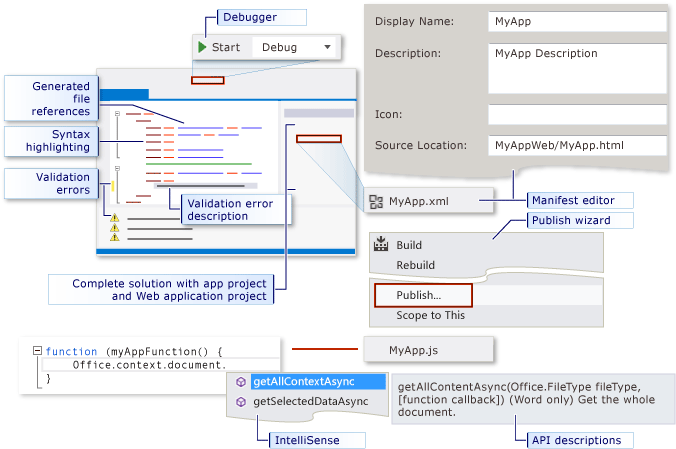
The figure 8 below shows you some of the features that help you develop app for Office.
Figure 8. Visual Studio environment
-
Get started quickly with a complete Visual Studio solution.
Your solution contains a prepopulated XML manifest file, script libraries, styles sheets, starter HTML and JavaScript files that you can use to get started quickly. The starter HTML file contains a reference to style sheets that enable you to develop a page that has the look and feel of Office. This page also refers to other important files such as a default JavaScript file that you can use to add your JavaScript code. The default JavaScript file contains sample code to help you get started with the JavaScript API for Office.
-
Edit the XML manifest file by using an editor.
Modify the most common settings of your app by using a convenient property page-like editor. As you interact with the editor, Visual Studio updates the XML manifest file in your app project for you. You can also edit the XML manifest file directly. The editor and the XML manifest file remain in sync.
-
Quickly uncover validation errors.
Validation errors appear in the code editor as well as in the ERRORLIST window. In the code editor, you can point to a validation error to view a tooltip that describes the error.
-
Discover objects in the JavaScript API for Office by using IntelliSense.
When you type the name of an object in the JavaScript API for Office, lists of all valid objects or members appear in a drop-down list. You can scroll through the list or type the first few letters of a member to move to that member in the list. As you highlight items in the drop-down list, IntelliSense displays information about the object or parameters.
-
Find and fix issues quickly by using the Visual Studio debugger.
When you start the solution, Visual Studio opens the Office application for you. Depending on the type of app for Office you create, Visual Studio automatically shows the app in the Office application. To find and fix issues in your app, set breakpoints, interact with the app, and then step through your code.
-
Package your app for publishing by using the publish wizard.
When you are ready to publish your app for Office, just make a few selections in the publish wizard. Visual Studio generates all of the files that you need to publish the app to the SharePoint corporate catalog, the Office store, file catalog share, or Exchange catalog.
JavaScript API for Office
The JavaScript API for Office consists of members of the Microsoft.Office.WebExtension namespace (which by default is accessed by using the Office object in code) contains objects and members for working with apps and the content they can interact with programmatically. For more information about the JavaScript API for Office, see Understanding the JavaScript API for Office and the JavaScript API for Office reference.
Create your first app for Office

The following topics show you how to create “Hello World” and other simple apps for Office by using either Visual Studio or a text editor:
- How to: Create your first task pane or content app by using Visual Studio
- How to: Create your first content app for Excel by using “Napa” Office 365 Development Tools
- How to: Create your first task pane or content app for Word or Excel by using a text editor
- How to: Create your first mail app for Outlook by using Visual Studio
- How to: Create your first mail app for Outlook by using a text editor

You can publish apps for Office to four distribution end-points:
-
Office Store—This is a public marketplace that Microsoft will host and regulate on Office.com. In the Office Store, developers around the world can publish and sell their custom Office solutions, and then end users and IT professionals can download them for personal or corporate use.
When a developer uploads an app to the Office Store, Microsoft validates the code. For example, it verifies that the app manifest markup is valid and complete. If the code is valid, Microsoft digitally signs the app package. The Office Store then takes care of the consumer download experience from discovery to purchase, upgrades, and updates.
-
Apps for Office catalog on SharePoint—For task pane and content apps, IT departments can deploy private app catalogs to provide the same app acquisition experience that the Office Store provides. This new catalog and development platform enables IT departments to use a streamlined method to distribute apps for Office and SharePoint to managed users from a central location.
App catalogs are available to all SharePoint 2013 customers (including Office 365 and SharePoint on-premise). An app catalog enables publishing and management of both internally created apps as well as apps that are available in the Office Store and licensed for corporate use.
- Exchange catalog—This is a private catalog for mail apps that is available to users of the Exchange server on which it resides. It enables publishing and management of corporate mail apps, including internally created apps as well as apps that are available in the Office Store and licensed for corporate use.
- Network shared folder app catalog—IT departments and developers can also deploy task pane and content apps to a central network shared folder, where the manifest files will be stored and managed. Users can then acquire apps by specifying this shared folder as a trusted catalog, or IT departments can configure this shared folder as a trusted catalog by using a registry setting.
For more information, see Publish apps for Office.

The following scenarios show that apps for Office are targeted, quick-hit apps that can be used to solve complex, time-consuming problems.
These scenarios suggest ways in which you can, for example, surface line-of-business data and drive adoption of structured business processes in the familiar Office UI across multiple devices. They suggest how you could use an expense-managing app that connects Office, SharePoint, and SAP, or create an app that combines sales data with maps from the Bing Maps web service to create more effective sales reports. They show how you can unlock the return on your existing investments, such as enterprise resource planning (ERP) and customer relationship management (CRM) applications, by spending less time navigating to and from these applications from an Office client.
Scenarios include:
- Translation wizard—A Word task pane app that automatically translates selected text from the document language to another language selected from a drop-down list.
- Chart creation—An Excel content app that builds a chart automatically from selected data.
- Third-party service integration—A Word or Excel task pane app that automatically displays the Wikipedia page that corresponds to selected text.
- Rich mash-ups—A Bing map content app in Excel that plots the offshore equipment and resource locations for a petroleum company, including getting this information in real time from the company resource-management system.
- Spec validation—A section or paragraph of a design specification for an aircraft component is flagged as outdated, because a Word task pane app that communicates with a business system to validate the contents against the latest spec.
- Order details surfaced in context—A mail app that detects a purchase order number or customer number embedded in an email message and presents details of the order or customer in the message. This could include an action to take, such as approval.
Components of an app for Office solution

A typical app for Office solution involves the following components:
- A client device—which can be a desktop, laptop, tablet PC, or mobile phone (Outlook only)—on which the supported Office rich client or Web App runs.
-
For Excel, Project, or Word:
- A document, workbook, or project.
- A task pane or content app that the user installed from the public Office Store or from a private SharePoint or file-based app catalog.
- A document, workbook, or project.
-
For Outlook:
- The user’s email account and mailbox, which resides on an Exchange Server.
- A mail app that the user or Exchange Server administrator installed through the Exchange Admin Center (EAC).
- The user’s email account and mailbox, which resides on an Exchange Server.
|
|
|
The user’s installation of an app for Office consists of a pointer to an XML manifest file, which specifies the URL from which to load the app webpage and script at run time. |

For all supported Office applications, the implementation of the app for Office itself consists of the following server-based components:
- An XML manifest file which resides on a public or private app catalog.
- The app HTML, CSS, and JavaScript files, which the developer creates and which reside on a web server.
- The JavaScript library files, such as JavaScript API for Office (Office.js) and the Microsoft AJAX Library (MicrosoftAjax.js), which Microsoft provides. The app accesses the JavaScript library files from content delivery network (CDN) URLs, as specified in its HTML file.
When a user starts an app for Office in a supported Office rich client or Web App, the following events occur:
- When a supported Office application starts, it reads the XML manifests for the apps that have been installed for or by the user.
-
For Excel, Project, or Word: When a user inserts or opens a document that contains an app, the Office application loads the app, making its UI visible in the user interface.
For Outlook: Whenever the current Outlook context satisfies the activation conditions of an app, Outlook activates the app, making its UI visible in the user interface.
- The Office application opens the HTML page in a web browser control (rich client) or an iframe (Web App). The web browser control uses Internet Explorer 9 or later components and provides security and performance isolation.
- The browser control or iframe loads the HTML body, and calls the event handler for the onload event.
- The apps for Office framework calls the event handler for the initialize event of the Office object.
- When the HTML body finishes loading and the app finishes initializing, the main function of the app can proceed.

Server
To test and run any kind of app for Office, you need the a web server, such as Internet Information Services (IIS) 7.5 in Microsoft Windows Server 2008 R2, to host the webpage files for the UI of the app. To test and run task pane and content apps for Word, Excel, or Project, you also need a network file share or an app catalog on SharePoint Server 2013 to host the XML manifest files.
|
|
|
When you develop and debug an app in Visual Studio 2012 by using the Office Developer Tools, Visual Studio runs the webpage files for the UI of an app locally, and doesn’t require an additional web server. |

To test and run mail apps for the Outlook rich client or Outlook Web App, you also need Exchange 2013, which is available through Exchange Online or on premises. The user’s Outlook email account must reside on an Exchange 2013 server, and you install manifest files for mail apps on that server.
|
|
|
POP and IMAP email accounts in Outlook do not support apps for Office. |

Client: desktop and Windows tablet form factors
The following software is required for developing an app for Office for the supported Office rich clients or Web Apps that run on desktop, laptop, or Windows tablet devices:
- Microsoft Windows 7, or designated pre-release builds of Microsoft Windows 8 that support Office 2013. If you are using Windows 8, be sure to use the 32-bit version of Office 2013 (build 3612.1001 or later) on either the 32-bit or 64-bit version of Windows 8 (build 8158.7.111205-1900).
- Microsoft Internet Explorer 9 or later, which must be installed but doesn’t have to be the default browser. To support apps for Office, Office 2013 uses browser components that are part of Internet Explorer 9 or later.
- One of the following as the default browser: Internet Explorer 9, Safari 5.0.6, Firefox 5, Chrome 13, or a later version of one of these browsers.
- An HTML and JavaScript editor such as Notepad, Microsoft Visual Studio, or a third-party web development tool.
- Excel 2013, Outlook 2013, Project 2013, or Word 2013 if you are testing or running an app for Office specifically for one of these Office rich clients. Office rich clients can be installed on premises or via Click-to-Run on the client computer.
Client: mobile and non-Windows tablet form factors
Specifically for Outlook Web App running in a browser on mobile and non-Windows tablet devices, the following software is required for testing and running mail apps.
|
Mobile or tablet device |
Operating system |
Mobile browser |
|
iPhone 4, iPad 2, iPod 4, or iPod Touch |
iOS 5 |
Safari |
|
Mobile and tablet devices that support the specified versions of Android |
Android 2.3 and above |
Discover more from Escape Business Solutions
Subscribe to get the latest posts sent to your email.