-
Upgrading to
Microsoft SharePoint Foundation 2010
Microsoft Corporation
Published: November 2010
Author: Microsoft Office System and Servers Team (itspdocs@microsoft.com)
This book is designed to guide administrators and IT professionals through the process of upgrading to Microsoft SharePoint Foundation 2010 from Windows SharePoint Services 3.0.
The content in this book is a copy of selected content in the SharePoint Foundation 2010 technical library (http://go.microsoft.com/fwlink/?LinkId=181463) as of the publication date. For the most current content, see the technical library on the Web.

This document is provided “as-is”. Information and views expressed in this document, including URL and other Internet Web site references, may change without notice. You bear the risk of using it.
Some examples depicted herein are provided for illustration only and are fictitious. No real association or connection is intended or should be inferred.
This document does not provide you with any legal rights to any intellectual property in any Microsoft product. You may copy and use this document for your internal, reference purposes.
© 2010 Microsoft Corporation. All rights reserved.
Microsoft, Access, Active Directory, Backstage, Excel, Groove, Hotmail, InfoPath, Internet Explorer, Outlook, PerformancePoint, PowerPoint, SharePoint, Silverlight, Windows, Windows Live, Windows Mobile, Windows PowerShell, Windows Server, and Windows Vista are either registered trademarks or trademarks of Microsoft Corporation in the United States and/or other countries.
The information contained in this document represents the current view of Microsoft Corporation on the issues discussed as of the date of publication. Because Microsoft must respond to changing market conditions, it should not be interpreted to be a commitment on the part of Microsoft, and Microsoft cannot guarantee the accuracy of any information presented after the date of publication.
Contents
Getting help ix
Upgrading to SharePoint Foundation 2010 1
About the upgrade process (SharePoint Foundation 2010) 3
What’s new in upgrade (SharePoint Foundation 2010) 4
Upgrade requirements 4
Hardware requirement: 64-bit 4
Operating system requirement: Windows Server 2008 or Windows Server 2008 R2 5
Database requirement: 64-bit SQL Server 2005 SP3 or SQL Server 2008 SP1 5
Pre-upgrade checker 6
Windows PowerShell command to check databases before attaching 7
Visual Upgrade 7
Feature Upgrade 7
New options for reducing downtime during upgrade 7
Changes in key features between versions 8
Upgrade process overview (SharePoint Foundation 2010) 12
In-place upgrade 12
Database attach upgrade 13
Hybrid approach 1: Read-only databases 14
Hybrid approach 2: Detach databases 16
Upgrading from Windows SharePoint Services 2.0 to SharePoint Foundation 2010 19
Process overview 19
Upgrade sequence 19
Before you begin 22
Review required permissions 22
Review required hardware and software 23
Prepare to upgrade 23
Prepare your farms 24
Perform the first upgrade 25
Verify the first upgrade 25
Perform the second upgrade 26
Verify the second upgrade 26
Plan and prepare for upgrade (SharePoint Foundation 2010) 27
Determine upgrade approach (SharePoint Foundation 2010) 28
Choose an upgrade approach 28
Special cases 31
Review upgrade best practices (SharePoint Foundation 2010) 35
Review supported and unsupported upgrade paths (SharePoint Foundation 2010) 37
Review supported topologies for upgrade 37
Physical topology guidance 37
Supported topologies 37
Migrating from a stand-alone server to a server farm 38
Migrating from 32-bit hardware 38
Review system requirements for upgrade (SharePoint Foundation 2010) 39
About these requirements 39
Determine how to handle customizations (SharePoint Foundation 2010) 41
Identify customizations in your environment 41
Evaluate the customizations 41
Considerations for specific customizations 42
Ensure that future customizations follow best practices 43
Create a communication plan (SharePoint Foundation 2010) 46
Who is on the upgrade team? 46
When and what to communicate to the upgrade team 47
When and what to communicate to site users 48
Plan visual upgrade (SharePoint Foundation 2010) 49
Key planning phase of visual upgrade 49
Preserving the existing user interface 49
Upgrading to the new user interface 50
Training site collection owners and site owners 50
Known issues 51
Testing and troubleshooting upgrade (SharePoint Foundation 2010) 52
Best practices for testing upgrade (SharePoint Foundation 2010) 54
Use a trial upgrade to find potential issues (SharePoint Foundation 2010) 56
Set up a test environment 57
Using a virtual test environment 57
Using a physical test environment 57
Additional test environments for database attach upgrade 58
Identify and install customizations 58
Copy real data to the test environment and try the upgrade 59
Try in-place upgrade 60
Try a database attach upgrade 60
Review your results 60
Review the log files 61
Restart upgrade, if necessary 61
Review upgraded sites 62
Adjust your plans and test again 62
Estimate how long the upgrade process will take and the space that you need (SharePoint Foundation 2010) 63
Estimate the space that you need for the upgrade 63
Estimate how long the upgrade will take 64
Cleaning up your environment before upgrade (SharePoint Foundation 2010) 67
Items to clean up 67
Delete unused or underused site collections and subwebs 67
Address large lists 67
Address large numbers of site collections in a content database 68
Address large ACLs 68
Remove extraneous document versions 68
Remove unused templates, features, and Web Parts 68
Repair data issues 68
Making structural changes 69
Troubleshoot upgrade issues (SharePoint Foundation 2010) 70
General principles for identifying issues 70
First, check upgrade status and log files 70
Then, address issues in order 71
Common issues 71
Missing or deprecated server-side files or customizations 71
Incorrectly configured or missing settings for server farm, Web application, or services 72
Inconsistent or incorrect update levels 72
Missing global navigation for blogs 73
Data issues 73
UI changes 73
Lack of space 73
Forms-based authentication 74
Security and permissions 74
.Stp files are not working after upgrade 74
Cannot find new versions of the Fabulous 40 application templates 74
Recovering after a failed upgrade (SharePoint Foundation 2010) 76
Recovering when you have read-only databases in a standby environment (database attach upgrade) 76
Recovering when you have a full environment backup (in-place upgrade) 76
Recovering when you have database backups (in-place upgrade) 77
Resume upgrade (SharePoint Foundation 2010) 78
Restart upgrade for a server farm by using Psconfig.exe 78
Restart upgrade for a database by using Windows PowerShell 79
Perform pre-upgrade steps (SharePoint Foundation 2010) 80
Run the pre-upgrade checker (SharePoint Foundation 2010) 81
About the pre-upgrade checker report 81
Run the pre-upgrade checker 82
Back up the entire environment before an in-place upgrade (SharePoint Foundation 2010) 84
Back up the environment 84
Test the backups 84
Perform an in-place upgrade (SharePoint Foundation 2010) 85
Checklist for in-place upgrade (SharePoint Foundation 2010) 86
Prepare for upgrade 86
Perform the upgrade 87
Perform post-upgrade steps 90
Upgrade in place to SharePoint Foundation 2010 91
Process overview 92
Before you begin 92
Install prerequisites 93
Run Setup on all servers 93
Run the SharePoint Products Configuration Wizard 94
Check upgrade status for sites 96
Verification 96
Roadmap for in-place upgrade with detached databases (SharePoint Foundation 2010) 97
Process overview 98
Before you begin 98
To detach databases and upgrade them in parallel on the same farm 99
To detach databases and upgrade them in parallel on a temporary small farm 99
Verification 101
Install available language template packs (SharePoint Foundation 2010) 102
About installing language packs and upgrading sites 102
About changing languages 102
Moving from a fully localized product to a language pack 102
Changing languages to a new language pack 103
Upgrading from a stand-alone installation of Windows SharePoint Services 3.0 to SharePoint Foundation 2010 when content databases exceed 4 GB (Remote BLOB Storage) 104
In This Section 105
Upgrade a stand-alone installation by using remote BLOB storage (in-place) 106
Upgrade a stand-alone installation on a domain controller by using Remote BLOB Storage (RBS) (database attach) 108
Upgrade a stand-alone installation to new hardware by using Remote BLOB Storage (database attach) 113
Perform a database attach upgrade to SharePoint Foundation 2010 119
Checklist for database attach upgrade (SharePoint Foundation 2010) 120
Prepare for upgrade 120
Perform the upgrade 122
Perform post-upgrade steps 124
Prepare the new SharePoint Foundation 2010 environment for a database attach upgrade 125
Before you begin 125
Create and configure the new environment 126
Install 126
Configure service applications 126
Configure general farm settings 127
Create and configure Web applications 127
Reapply customizations 128
Verify the new environment 129
Perform the upgrade 129
Attach databases and upgrade to SharePoint Foundation 2010 130
Process overview 131
Before you begin 131
Set the previous version databases to be read-only (database attach with read-only databases) 132
Back up the previous version databases by using SQL Server tools 133
Detach the previous version databases (standard database attach) 135
Restore a backup copy of the database (database attach with read-only databases) 136
Verify custom components 137
Attach a content database to a Web application 137
Verification: Verify upgrade for the first database 140
Attach the remaining databases 140
Verification: Verify upgrade for additional databases 140
Perform post-upgrade steps (SharePoint Foundation 2010) 141
Configure forms-based authentication for a claims-based Web application (SharePoint Foundation 2010) 142
Configure a forms-based Web application to use an LDAP provider by using Central Administration 142
Configure the LDAP Web.Config files 142
Configure a forms-based Web application to use an LDAP provider by using Windows PowerShell 146
Verify upgrade and review upgraded sites (SharePoint Foundation 2010) 148
Verify upgrade status 148
Review the log files 148
Verify the version number 149
Check upgrade status for sites 150
Review upgraded sites 150
Web Parts 151
Large lists 152
Styles and appearance 153
Permissions 153
Customized (unghosted) pages 153
Manage visual upgrade (SharePoint Foundation 2010) 155
About using Visual Upgrade 155
View status of current user interface 155
Revert sites to previous user interface 156
Force an upgrade to the new user interface 157
Site owner options for visual upgrade 158
Using AAM URL redirection as part of the upgrade process (SharePoint Foundation 2010) (white paper) 159
-
Getting help
Every effort has been made to ensure the accuracy of this book. This content is also available online in the Office System TechNet Library, so if you run into problems you can check for updates at:
http://technet.microsoft.com/office
If you do not find your answer in our online content, you can send an e-mail message to the Microsoft Office System and Servers content team at:
itspdocs@microsoft.com
If your question is about Microsoft Office products, and not about the content of this book, please search the Microsoft Help and Support Center or the Microsoft Knowledge Base at:
http://support.microsoft.com
-
Upgrading to SharePoint Foundation 2010
Welcome to the upgrade guide for Microsoft SharePoint Foundation 2010. The articles in this guide help you plan for and perform an upgrade from Windows SharePoint Services 3.0 to SharePoint Foundation 2010.
For a graphical overview of the upgrade process, and information about how to plan and test upgrade, see the following upgrade models:
Upgrade planning (http://go.microsoft.com/fwlink/?LinkId=178376)
Upgrade approaches (http://go.microsoft.com/fwlink/?LinkId=178377)
Test your upgrade process (http://go.microsoft.com/fwlink/?LinkId=178378)
In this guide:
About the upgrade process (SharePoint Foundation 2010)
Learn about what’s new in upgrade and how the upgrade process works.
Plan and prepare for upgrade (SharePoint Foundation 2010)
Determine which approach you should take to upgrade to SharePoint Foundation 2010 and plan your upgrade process.
Testing and troubleshooting upgrade (SharePoint Foundation 2010)
Learn how to test your upgrade process ahead of time to understand what issues you might face in your actual upgrade, and determine the time and space you will need for upgrade. Also, learn how to troubleshoot issues that come up during the actual upgrade.
Perform pre-upgrade steps (SharePoint Foundation 2010)
Find out what steps you need to take before upgrading, including information about how to run the pre-upgrade checker.
Perform an in-place upgrade (SharePoint Foundation 2010)
Follow the steps in this section if you are upgrading in-place to SharePoint Foundation 2010. When you upgrade in-place, you install SharePoint Foundation 2010 on the same hardware, and then upgrade the content and settings on the server or server farm as part of a single process.
Upgrading from a stand-alone installation of Windows SharePoint Services 3.0 to SharePoint Foundation 2010 when content databases exceed 4 GB (Remote BLOB Storage)
Follow the steps in this section if you have a standalone installation with content databases that are approaching 4 GB.
Perform a database attach upgrade to SharePoint Foundation 2010
Follow the steps in this section if you are using the database attach upgrade method to upgrade to SharePoint Foundation 2010. When you use the database attach upgrade method, you upgrade the content for the environment on a separate farm.
Perform post-upgrade steps (SharePoint Foundation 2010)
Find out how to tell whether upgrade was completed successfully and what steps you need to perform after the upgrade to get your environment ready for users again.
Migrate from forms-based authentication to claims-based authentication (SharePoint Foundation 2010) (http://technet.microsoft.com/library/3a725e05-9b73-48ff-a481-3ddd2b4091c6(Office.14).aspx)
This article provides guidance to help you migrate existing Windows SharePoint Services 3.0 Web applications, which were configured to use forms-based authentication, to work in a Microsoft SharePoint Foundation 2010 environment as claims-based Web applications.
Migrate from classic-mode to claims-based authentication (SharePoint Foundation 2010) (http://technet.microsoft.com/library/aaa9a815-fcc4-42a0-b107-2a2108d08f1b(Office.14).aspx)
The procedures in this article provide guidance to help you migrate existing Microsoft SharePoint Server 2010 Web applications, which were configured to use classic-mode authentication, to use claims-based authentication.
Using AAM URL redirection as part of the upgrade process (SharePoint Foundation 2010) (white paper)
-
About the upgrade process (SharePoint Foundation 2010)
The first step in any upgrade process is to learn about the process itself so that you can plan and prepare appropriately. This section of the upgrade guide contains articles that help you understand how upgrade works.
In this section:
What’s new in upgrade (SharePoint Foundation 2010)
Find out about new requirements, approaches, and features that are available for upgrade to Microsoft SharePoint Foundation 2010.
Upgrade process overview (SharePoint Foundation 2010)
Get a visual overview of the steps involved in each upgrade approach.
Upgrading from Windows SharePoint Services 2.0 to SharePoint Foundation 2010
Understand using database attach upgrades to upgrade your content from Windows SharePoint Services 2.0 to Microsoft SharePoint Foundation 2010.
-
What’s new in upgrade (SharePoint Foundation 2010)
Microsoft SharePoint Foundation 2010 has been designed for scale and performance and as such requires new hardware and software requirements that are described in this article. These requirements apply to both the in-place and the database attach upgrade approaches. For more information, see Determine upgrade approach (SharePoint Foundation 2010).
In order to facilitate a predictable upgrade and minimize the impact of customization and environmental issues that may prevent a successful upgrade, you can use the Windows PowerShelltest-spcontentdatabase cmdlet, the new Visual Upgrade option, or the preupgradecheck Stsadm operation.
In this article:
Upgrade requirements
Pre-upgrade checker
Windows PowerShell command to check databases before attaching
Visual Upgrade
Feature Upgrade
New options for reducing downtime during upgrade
Changes in key features between versions
-
Upgrade requirements
Before you can perform an in-place upgrade or database attach upgrade to SharePoint Foundation 2010, your existing Windows SharePoint Services 3.0 environment or new SharePoint Foundation 2010 environment must meet the following minimum requirements.
 Note:
Note:
For more information about general system requirements for SharePoint Foundation 2010, see Hardware and software requirements (SharePoint Foundation 2010) (http://technet.microsoft.com/library/dcdb7f80-5d48-4b7c-9cb5-affa5f293653(Office.14).aspx). For more information about upgrade requirements, see Review system requirements for upgrade (SharePoint Foundation 2010).
-
Hardware requirement: 64-bit
SharePoint Foundation 2010 can only run on a 64-bit edition of the Windows Server 2008 R2 or Windows Server 2008 with SP2 operating system. If you plan an in-place upgrade, your Windows SharePoint Services 3.0 installation must be running in a 64-bit Windows Server 2008 environment. If your Windows SharePoint Services 3.0 installation is currently in a 32-bit environment, you cannot perform an in-place upgrade on the existing server or server farm. You must install SharePoint Foundation 2010 on a different server or farm that supports 64-bit applications, and then move your data to that server or farm by using database attach upgrade.
To more easily discover and address any issues in the migration and upgrade processes, we recommend that you do not combine the actions of migrating to a 64-bit environment and upgrading in-place to SharePoint Foundation 2010. Because you must have a 64-bit environment to be able to upgrade in place to SharePoint Foundation 2010, you must migrate to a 64-bit operating system before you perform an in-place upgrade. If you are using a database attach upgrade, you can migrate to 64-bit as part of your upgrade process.
Before you migrate to a 64-bit environment:
Update Windows SharePoint Services 3.0 to the same service pack or software update level on all computers in the source farm.
Find out whether you have to recompile existing 32-bit applications and custom assemblies — for example, Web Parts and event receivers — to run in the 64-bit environment. (Some applications can run in both environments and do not have to be recompiled.) If the existing applications are third-party applications, check with the third-party vendor about 64-bit versions and compatibility.
For more information about how to plan and perform a migration to a 64-bit environment, see the article Migrate an existing server farm to a 64-bit environment (Windows SharePoint Services 3.0) on TechNet (http://go.microsoft.com/fwlink/?LinkId=161120).
-
Operating system requirement: Windows Server 2008 or Windows Server 2008 R2
SharePoint Foundation 2010 must be run on a 64-bit edition of Windows Server 2008 R2 or Windows Server 2008 with Service Pack 2 (SP2). If you are currently running Windows SharePoint Services 3.0 on Windows Server 2003 and intend to upgrade to SharePoint Foundation 2010, you must plan to have a sufficient number of Windows Server licenses for the deployment on the newer operating system.
To more easily discover and address any issues in the migration and upgrade processes, we recommend that you do not combine the actions of upgrading or migrating to Windows Server 2008 or Windows Server 2008 R2 with the process of upgrading to SharePoint Foundation 2010. You can combine migration to 64-bit hardware with migration to Windows Server 2008 or Windows Server 2008 R2.
If you are already running 64-bit hardware, you can upgrade from Windows Server 2003 to Windows Server 2008 or Windows Server 2008 R2. For more information about how to perform an in-place upgrade to Windows Server 2008, see the article Upgrading to Windows Server 2008 for Windows SharePoint Services 3.0 with SP1 on TechNet (http://go.microsoft.com/fwlink/?LinkId=155575).
If you are migrating to 64-bit hardware, take the opportunity to also migrate to Windows Server 2008 or Windows Server 2008 R2 at the same time. For more information about how to install Windows SharePoint Services 3.0 on Windows Server 2008, see the article Deploy a simple farm on the Windows Server 2008 operating system (Windows SharePoint Services) on TechNet (http://go.microsoft.com/fwlink/?LinkID=95859).
-
Database requirement: 64-bit SQL Server 2005 SP3 or SQL Server 2008 SP1
SharePoint Foundation 2010 requires that its database server must be a 64-bit version of one of the following: Microsoft SQL Server 2008 R2, SQL Server 2008 with Service Pack 1 (SP1) and Cumulative Update 2, or SQL Server 2005 with SP3 and Cumulative Update 3. If your current Windows SharePoint Services 3.0 installation uses SQL Server 2000, you must upgrade to one of these versions before you can upgrade to SharePoint Foundation 2010.
To more easily discover and address any issues in the migration and upgrade processes, we recommend that you do not combine the actions of migrating to 64-bit SQL Server with the process of upgrading to SharePoint Foundation 2010. You can combine the migration to 64-bit SQL Server with the overall process of migration to 64-bit hardware.
If you are combining the migration to SQL Server 2005 SP3 or SQL Server 2008 on 64-bit hardware with an overall migration to a 64-bit environment, follow the guidance about how to migrate to a 64-bit environment earlier in this article.
For more information about how to migrate all databases, see the article Move all databases (Windows SharePoint Services 3.0) on TechNet (http://go.microsoft.com/fwlink/?LinkId=161208).
If you already have 64-bit hardware, but have to upgrade to SQL Server 2005 SP3 or SQL Server 2008, follow the guidance in the SQL Server documentation.
-
Pre-upgrade checker
The pre-upgrade checker is a command-line tool that you run in a Windows SharePoint Services 3.0 environment to find any potential issues for upgrade and to review recommendations and best practices.
STSADM.exe –o preupgradecheck
By using the pre-upgrade checker, you can find information such as the following:
A list of all servers and components in the farm, and whether the servers meet the following requirements for upgrading: 64-bit hardware and the Windows Server 2008 operating system.
The alternate access mapping URLs that are being used in the farm.
A list of all site definitions, site templates, features, and language packs that are installed in the farm.
Whether there are customizations in the farm that are not supported (such as database schema modifications).
Whether there are any database or site orphans in the farm.
Whether there are missing or invalid configuration settings in the farm (such as a missing Web.config file, invalid host names, or invalid service accounts).
Whether the databases meet the requirements for upgrade — for example, databases are set to read/write, and any databases and site collections that are stored in Windows Internal Database are not larger than 4 GB.
The pre-upgrade checker is available with Windows SharePoint Services 3.0 Service Pack 2 and has been updated in the October 2009 Cumulative Update for Windows SharePoint Services 3.0. You can download and install the October 2009 Cumulative Update from October 2009 Cumulative Update Packages for SharePoint Server 2007 and Windows SharePoint Services 3.0 are published (http://go.microsoft.com/fwlink/?LinkID=169179). For more information about how to use the pre-upgrade checker, see the following articles on TechNet:
Preupgradecheck: Stsadm operation (Windows SharePoint Services) (http://go.microsoft.com/fwlink/?LinkId=161232)
Pre-upgrade scanning and reporting for future releases (Windows SharePoint Services) (http://go.microsoft.com/fwlink/?LinkID=152468)
Run the pre-upgrade checker (SharePoint Foundation 2010)
-
Windows PowerShell command to check databases before attaching
You can use the Windows PowerShell cmdlet test-spcontentdatabase before you attach a content database to SharePoint Foundation 2010 to determine whether any server-side customizations are missing from the environment. For more information, see Attach databases and upgrade to SharePoint Foundation 2010 and Test-SPContentDatabase (http://technet.microsoft.com/library/ed095a0a-fa1a-4323-8503-624f0e09707d(Office.14).aspx).
-
Visual Upgrade
A new feature that is available with upgrade allows the server administrator or site owner to determine when and if the new look for SharePoint Foundation 2010 is used for a particular site collection. Server administrators can choose to adopt the new look and feel for all sites during upgrade, let site owners make the choice after upgrade, or keep the old look and feel for all sites.
If the server administrator lets the site owners decide, after a site is upgraded by using an in-place upgrade, a preview option is available in the site user interface. This option provides a preview of the SharePoint Foundation 2010 look for the site:
If the owner likes how the site looks and functions, the owner can accept the visual upgrade.
If the owner wants the site to keep the old look and feel, the owner can revert to the Windows SharePoint Services 3.0 look.
By default, the Windows SharePoint Services 3.0 look is retained. For more information, see Plan visual upgrade (SharePoint Foundation 2010).
-
Feature Upgrade
SharePoint Foundation 2010 provides new members and types that make it possible for you to upgrade custom Features through versioning and declarative upgrade actions. You can update any Features you created for Windows SharePoint Services 3.0 to work with SharePoint Foundation 2010 by using these members. For more information, see Upgrading Features (http://msdn.microsoft.com/en-us/library/aa544511(office.14).aspx).
-
New options for reducing downtime during upgrade
Depending on the environment and the complexity and number of SharePoint sites, the upgrade process can take a long time. To reduce downtime during this process, SharePoint Foundation 2010 supports the following options:
Upgrade multiple databases at the same time (parallel upgrade) When you upgrade to SharePoint Foundation 2010, you can manually initiate upgrade for multiple databases at the same time by using the detach databases hybrid approach for upgrade. In Windows SharePoint Services 3.0, only one upgrade process could run at a time, so that each database needed to be processed sequentially. There is a performance impact when you run the upgrade on multiple databases instead of on a single database, but it may be faster to upgrade multiple databases at the same time than to upgrade them sequentially. The number of databases that can be upgraded in parallel will depend on the hardware in your environment and on the structure of the content within the databases. For more information, see Roadmap for in-place upgrade with detached databases (SharePoint Foundation 2010).
Use read-only databases to provide continuous access to data If you perform a database attach upgrade — and if you set the original databases to read-only mode — the old farm can continue to serve content to users while you upgrade a copy of the databases on a new farm. If you do this, users can continue to access the data, although they cannot add new data or update the data. When the new farm is ready and all content has been successfully upgraded, users can be switched over to the new live farm.
For more information about read-only databases, see the article Run a farm that uses read-only databases (Windows SharePoint Services) (http://technet.microsoft.com/en-us/library/ee845027(Office.12).aspx).
For more information about these techniques to reduce downtime, see the article Determine upgrade approach (SharePoint Foundation 2010).
-
Changes in key features between versions
SharePoint Foundation 2010 has a new architecture and includes many new capabilities. The following tables list some of the key changes to terminology and features that immediately affect the administration and site management process after upgrading.
|
Concept, term, or feature
|
New or changed
|
Comments
|
|
Pre-upgrade checker
|
New
|
The pre-upgrade checker is an Stsadm command-line operation that you run in an Windows SharePoint Services 3.0 environment to find any potential issues for upgrade and to review recommendations and best practices.
Unlike the pre-upgrade scan tool (Prescan.exe) that was used when upgrading to Windows SharePoint Services 3.0, the pre-upgrade checker does not make any changes to your environment. For more information, see Run the pre-upgrade checker (SharePoint Foundation 2010).
|
|
SharePoint Central Administration Web site
|
Changed
|
The Central Administration Web site has been redesigned with such new available options and functionality as the following:
The ribbon makes it easier for you to view or change details about a Web application by supplying all the options on the same page.
For more information about Web applications, see Web applications management (SharePoint Foundation 2010) (http://technet.microsoft.com/library/5b82a45b-f871-49e3-8926-47972acde573(Office.14).aspx).
Configuration Wizards have been added to make the configuration process easier by guiding you through the steps to configure the server farm. For more information, see Deploy a single server with SQL Server (SharePoint Foundation 2010) (http://technet.microsoft.com/library/58d28a34-7a84-4564-a4cb-0e6b5425f67e(Office.14).aspx).
You can now perform a backup from the Backup and Restore page. For more information, see Backup (SharePoint Foundation 2010) (http://technet.microsoft.com/library/d01c3931-3069-4267-a1f0-1e6ebaf43fcd(Office.14).aspx).
|
|
Ribbon
|
New
|
The ribbon user interface has been introduced to ensure a consistent user experience and to make it easier for you to work with SharePoint sites. The ribbon is contextual so that you only see the options that are relevant to the tasks that you want to perform. The ribbon is also customizable.
|
|
Service applications
|
New
|
New services architecture that allows you to effectively manage and centralize services. Individual services can be configured independently and third-party companies can add services to the platform. For more information, see Configure services (SharePoint Foundation 2010) (http://technet.microsoft.com/library/88da9bdb-b7c2-4174-997b-d767b9b9c9ea(Office.14).aspx).
|
|
Master pages
|
Changed
|
A site owner can now apply branding to their site, independent of other sites, and administrators can specify whether the system pages in the _Layouts folder are rendered by using the site master pages provided by site owners or by default master pages available across the system. Also, it is possible to use Windows PowerShell to specify a customer master page to system error pages, login pages, confirmation pages, and other non-site-specific pages.
|
|
Themes
|
Changed
|
SharePoint Foundation 2010 has changed the way themes work, making them easier to customize. You can import Microsoft PowerPoint 2010 themes directly into SharePoint Foundation 2010. Additionally, themes can now be applied to all subsites from this interface. For more information, see Plan for using themes (SharePoint Foundation 2010) (http://technet.microsoft.com/library/683790b5-800b-4b13-83d6-348088c75d10(Office.14).aspx).
|
|
Business Connectivity Services (BCS)
|
New
|
Business Connectivity Services (BCS) builds on the Business Data Catalog functionality available in the previous product version to provide access to external systems from SharePoint-based solutions. BCS supports interacting with external systems using SharePoint lists and Web Parts, and also supports interacting with data from rich Office clients. For more information, see Business Connectivity Services overview (SharePoint Foundation 2010) (http://technet.microsoft.com/library/ed9bb457-0ecb-48de-9076-06e61aac38d9(Office.14).aspx).
|
|
Claims-based authentication
|
New
|
Claims-based authentication is a new, more powerful and flexible authentication model that works with any corporate identity system, including Active Directory Domain Services (AD DS), LDAP-based directories, application-specific databases, and new user-centric identity models such as LiveID. For more information, see Configure forms-based authentication for a claims-based Web application (SharePoint Foundation 2010).
|
|
Throttling and list controls
|
New
|
Throttling and list controls are two new performance controls. Throttling provides a way to control server resources and is designed so that the server can be protected from overload during peak business hours. SharePoint Foundation 2010 also provides several different settings that will restrict the queries that can be run against a large list. These settings can be configured for each Web application.
|
|
SharePoint Designer
|
Changed
|
SharePoint Foundation 2010 gives administrators added control over how SharePoint Designer is used in each Web application; for example, administrators control whether site administrators are allowed to customize master pages and layout pages, and whether site administrators can manage the URL structure of their site.
|
|
Developer dashboard
|
New
|
This is a new addition to server diagnostics and displays detailed information for each page load and therefore helps troubleshoot performance issues.
|
|
Sandboxed solutions
|
New
|
You can now enable site administrators to upload custom user code by using sandboxed solutions. For more information, see Sandboxed solutions planning (SharePoint Foundation 2010) (http://technet.microsoft.com/library/832414b2-4b58-4e6c-9d08-c287e30e85a6(Office.14).aspx).
|
-
Upgrade process overview (SharePoint Foundation 2010)
You can choose between two basic upgrade approaches when you upgrade from Windows SharePoint Services 3.0 to Microsoft SharePoint Foundation 2010: in-place upgrade and database attach upgrade. An in-place upgrade is used to upgrade all Microsoft SharePoint sites on the same hardware. A database attach upgrade enables you to move your content to a new farm or new hardware. You can also combine these two types of upgrade in hybrid approaches that reduce downtime during an upgrade.
For more information about these approaches, see Determine upgrade approach (SharePoint Foundation 2010).
This article helps you understand the steps that are involved in performing upgrades by using these approaches so that you can plan your upgrade process. For detailed information about how to use one of these upgrade processes, see the following topics:
Upgrade in place to SharePoint Foundation 2010
Attach databases and upgrade to SharePoint Foundation 2010
In this article:
In-place upgrade
Database attach upgrade
Hybrid approach 1: Read-only databases
Hybrid approach 2: Detach databases
 Important:
It is important that the server administrator communicate with site owners and users about what to expect during an upgrade. The administrator should inform them about downtime and the risk that the upgrade may take longer than expected or that some sites may need some rework after upgrade. For more information, see Create a communication plan (SharePoint Foundation 2010).
-
In-place upgrade
An in-place upgrade takes place on the same hardware as your previous version installation. When you run an in-place upgrade, the process upgrades the complete installation in a fixed order.
The following steps explain what happens as the in-place upgrade process runs:
1. After the server administrator performs all pre-upgrade steps, the administrator runs Setup for SharePoint Foundation 2010 on the server that runs the SharePoint Central Administration Web site. Because the previous version was installed, an in-place upgrade is automatically selected.
2. After Setup runs on the server that hosts the Central Administration Web site, the server administrator runs Setup on the remaining front-end Web servers and application servers in the farm.
3. The server administrator runs the SharePoint Products Configuration Wizard on the server that hosts the Central Administration Web site. This server, the configuration database, the services, and the content databases are upgraded sequentially.
When the configuration wizard finishes, the Central Administration Web site opens. A timer job schedules the upgrade process to run for each site collection. The upgrade process timer job upgrades each site collection. After all sites are upgraded, the upgrade process ends.
4. The server administrator runs the SharePoint Products Configuration Wizard on all the other servers in the farm.

5. The server administrator confirms that the upgrade has finished successfully.
6. If Visual Upgrade is being used, the server administrator or site owner previews sites in the Microsoft SharePoint Foundation 2010 look. When the administrator or site owner is ready, he or she completes the change to the SharePoint Foundation 2010 look.
-
Database attach upgrade
A database attach upgrade enables you to move to new hardware or a new farm. During a database attach upgrade, you detach all the content databases from an existing farm and then attach the databases to a new server farm installation. When you attach the databases to the new server farm, the upgrade process runs and upgrades the data in place.
The following steps explain what happens during a database attach upgrade:
1. The server administrator sets up and configures a new SharePoint Foundation 2010 farm. The administrator transfers all customizations to the new farm and tests the environment.
For more information about how to configure the new environment, see Prepare the new SharePoint Foundation 2010 environment for a database attach upgrade.
2. The server administrator detaches the content databases from the old Windows SharePoint Services 3.0 farm and takes the old farm offline (for example, by changing the load balancer or IIS Web applications to stop service requests, or by turning off all the components and services on each server computer in the farm).
3. The server administrator attaches the content databases to the new farm and upgrades the content.
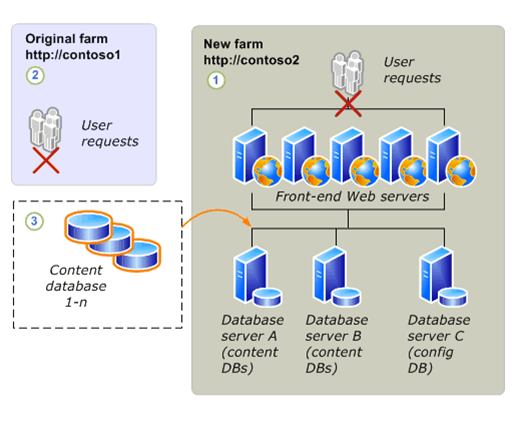
4. The server administrator confirms that the upgrade has finished successfully and then configures the new farm to start serving requests at the new URL.
-
Hybrid approach 1: Read-only databases
This approach gives users continuous read-only access to their data while you upgrade. The content databases in the original farm are set to read-only, and copies of the databases are upgraded on a new farm.
The following steps explain what happens during a database attach upgrade with read-only databases:
1. The server administrator sets up and configures a new SharePoint Foundation 2010 farm. The administrator transfers all customizations to the new farm and tests the environment.
2. The server administrator changes the content databases to read-only. The administrator then uses SQL Server to back up the content databases on the Windows SharePoint Services 3.0 farm and restore them to the new farm.
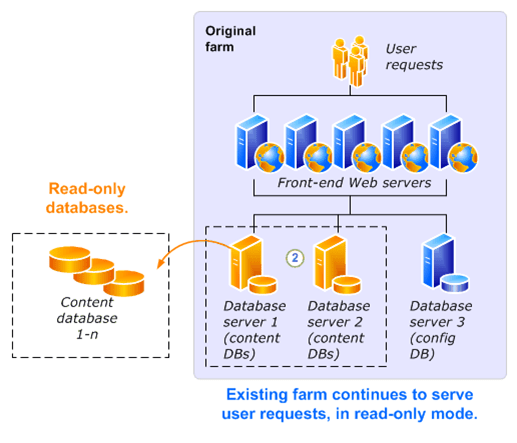
3. The server administrator attaches the new copies of the content databases, and the upgrade process runs and upgrades the content.

4. After the upgrade process runs, the server administrator confirms that the upgrade has finished successfully. The administrator then configures the new farm to start serving requests at the new URL and takes the original farm offline (for example, by changing the load balancer or IIS Web applications to stop service requests, or by turning off all the components and services on each server computer in the farm).
-
Hybrid approach 2: Detach databases
This approach enables you to speed up the upgrade process by detaching and attaching databases to upgrade multiple databases at the same time. It is an in-place upgrade because you are upgrading the original farm; however, you can also use another farm to perform the upgrade and then attach the upgraded databases to your original farm. Note that the original farm cannot serve requests during the upgrade process. As in a standard in-place upgrade, users cannot access their content while the upgrade is in progress.
The following steps explain what happens during an in-place upgrade with detached databases:
1. The server administrator takes the original farm offline (for example, by changing the load balancer or IIS Web applications to stop service requests, or by turning off all of the components and services on each server computer in the farm).
2. The server administrator detaches the content databases from the original farm.
3. The server administrator runs an in-place upgrade on the original farm servers, services, and configuration database.
4. The server administrator attaches the content databases to the original farm and upgrades the content.

Alternatively, you can use a separate, temporary small farm to perform the upgrade. In this approach, you attach the databases to the original farm after they have been upgraded.
The following steps explain what happens during an in-place upgrade with detached databases and a temporary small farm to upgrade the content databases:
1. The server administrator sets up a temporary small farm that is running the new version. Then the administrator takes the original farm offline (for example, by changing the load balancer or IIS Web applications to stop service requests, or by turning off all the components and services on each server computer in the farm).
2. The server administrator detaches the content databases from the original farm.
3. The server administrator runs an in-place upgrade on the original farm to upgrade the servers, services, and configuration database.
4. The server administrator attaches the content databases to the temporary small farm and upgrades them in parallel.
5. The server administrator reattaches the content databases to the original farm.
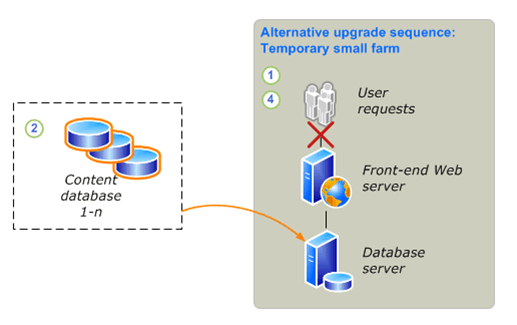
6. The server administrator confirms that the upgrade has finished successfully.
7. If Visual Upgrade is being used, the server administrator or site owner previews sites in the Microsoft SharePoint Foundation 2010 look. When the administrator or site owner is ready, he or she completes the change to the Microsoft SharePoint Foundation 2010 look.
-
Upgrading from Windows SharePoint Services 2.0 to SharePoint Foundation 2010
You cannot upgrade directly from Windows SharePoint Services 2.0 to Microsoft SharePoint Foundation 2010.
The changes between versions are too great, and the hardware requirements differ so much between versions that a direct, in-place upgrade is not possible or supported. You can, however, perform a series of database attach upgrades to first upgrade your content to Windows SharePoint Services 3.0 and then to SharePoint Foundation 2010. This article describes the process of performing this double-database attach upgrade.
 Note:
Note:
During this entire process, your old environment should be offline, to prevent users from making changes in the old environment while you are upgrading. After you have finished and validated the upgrade, you can grant access to your users again in the SharePoint Foundation 2010 environment.
In this article:
Process overview
Before you begin
Prepare to upgrade
Prepare your farms
Perform the first upgrade
Perform the second upgrade
-
Process overview
Because this upgrade approach combines two upgrade processes that have already been documented, this article describes how the steps from each process fit together into the overall process. It does not provide details for every step, because those steps are available in the following articles:
Deploy a new server farm, then migrate content databases (http://technet.microsoft.com/en-us/library/cc303311(Office.12).aspx)
Attach databases and upgrade to SharePoint Foundation 2010
These articles, combined with this roadmap, give you the information you need to perform the double-database attach upgrade.
 Important
Make sure that you try out this entire process in a test environment before you attempt to upgrade your actual live content. For more information about how to test your upgrade processes, see the following content:
To upgrade your content across the two versions, follow these steps.
1. Prepare to upgrade
a. Prepare your original farm by running the pre-upgrade scan tool and making an inventory of all of your customizations.
b. Set up a small, temporary farm that is running Windows SharePoint Services 3.0.
c. Set up your full SharePoint Foundation 2010 farm, and verify that it is configured and running correctly.
2. First upgrade: Upgrade the content to Windows SharePoint Services 3.0
a. Detach the content databases from the old farm, and then take that farm offline.
Alternatively, you can leave the databases attached and make a copy of the databases if you want to ensure that your original farm can be restored to use quickly.
b. Attach the content databases to the Windows SharePoint Services 3.0 farm and upgrade them.
c. Verify that the content has been upgraded and that the Windows SharePoint Services 3.0 farm is working correctly.
3. Second upgrade: Upgrade the content to SharePoint Foundation 2010
a. Detach the content databases from the Windows SharePoint Services 3.0 farm.
b. Attach the content databases to the SharePoint Foundation 2010 farm and upgrade them (optionally, you can upgrade them in parallel).
c. Verify that the content has been upgraded and that the SharePoint Foundation 2010 farm is working correctly.
4. Start serving requests on the SharePoint Foundation 2010 farm.
The following diagrams illustrate this process:
The database attach upgrade to Windows SharePoint Services 3.0.

The database attach upgrade to SharePoint Foundation 2010.

-
Before you begin
Before you begin your upgrade, review the following information about permissions, hardware requirements, and software requirements. Follow the specified steps to install or configure prerequisite software or to modify settings.
-
Review required permissions
When you create your temporary environment for Windows SharePoint Services 3.0, you must have the appropriate permissions. For more information, see Plan for administrative and service accounts (Windows SharePoint Services) (http://technet.microsoft.com/en-us/library/cc288210(Office.12).aspx).
When you create and configure your destination SharePoint Foundation 2010 farm, you must have the appropriate permissions. For more information, see Administrative and service accounts required for initial deployment (SharePoint Foundation 2010) (http://technet.microsoft.com/library/b1aee1ea-45f6-4e05-ad93-9086f6ad7e79(Office.14).aspx).
-
Review required hardware and software
When you create your temporary environment for Windows SharePoint Services 3.0, you must meet specific hardware and software requirements. For more information, see Determine hardware and software requirements (Windows SharePoint Services) (http://technet.microsoft.com/en-us/library/cc288751(Office.12).aspx).
When you create and configure your destination SharePoint Foundation 2010 farm, you must meet different hardware and software requirements. For more information, see Hardware and software requirements (SharePoint Foundation 2010) (http://technet.microsoft.com/library/dcdb7f80-5d48-4b7c-9cb5-affa5f293653(Office.14).aspx).
In some environments, you must coordinate the procedures for moving databases to a separate farm with the database administrator. Make sure that you follow any applicable policies and guidelines for handling databases.
-
Prepare to upgrade
Because you are performing two upgrades, you need to understand all of the steps involved both in upgrading to Windows SharePoint Services 3.0 and to SharePoint Foundation 2010. The following content is available to help you understand these upgrade processes:
Preparing to upgrade to Windows SharePoint Services 3.0
Read the Plan and prepare for upgrade (http://technet.microsoft.com/en-us/library/cc303312(Office.12).aspx) chapter on TechNet. In particular, read the following articles:
How the upgrade process works (Windows SharePoint Services) (http://technet.microsoft.com/en-us/library/cc288775(Office.12).aspx)
Determine how to handle customizations (Windows SharePoint Services) (http://technet.microsoft.com/en-us/library/cc287878(Office.12).aspx)
Develop new custom site definitions and create upgrade definition files (Windows SharePoint Services) (http://technet.microsoft.com/en-us/library/cc287930(Office.12).aspx)
Read the Perform pre-upgrade steps (Windows SharePoint Services) (http://technet.microsoft.com/en-us/library/cc303302(Office.12).aspx) chapter on TechNet. You must perform the following steps for a database attach upgrade (called database migration in this version):
Install Service Pack 2 for Windows SharePoint Services 2.0 (http://technet.microsoft.com/en-us/library/cc288052(Office.12).aspx)
Run the pre-upgrade scan tool (Windows SharePoint Services) (http://technet.microsoft.com/en-us/library/cc287628(Office.12).aspx)
 Important:
You follow these steps on your existing Windows SharePoint Services 2.0 farm.
Preparing to upgrade to SharePoint Foundation 2010
Plan and prepare for upgrade. Read the following article on TechNet:
Upgrade process overview (SharePoint Foundation 2010)
Perform pre-upgrade steps. Read the following article on TechNet:
Run the pre-upgrade checker (SharePoint Foundation 2010)
 Important:
You perform these steps on your temporary Windows SharePoint Services 3.0 farm.
-
Prepare your farms
In this step, you follow the pre-upgrade steps on your existing farm, create your temporary farm for the upgrade to Windows SharePoint Services 3.0, and create your destination SharePoint Foundation 2010 farm. Use the following steps and related content when preparing your farm for the upgrades.
Create the temporary Windows SharePoint Services 3.0 farm
In a virtual or physical environment, create a temporary small farm that is running Windows SharePoint Services 3.0 with Service Pack 2 (SP2) and the October 2009 Cumulative Update. You will use this farm to upgrade your content to Windows SharePoint Services 3.0 on the way to SharePoint Foundation 2010.
 Tip:
Tip:
For best results, it is recommended that you apply the latest updates to the environment. The October 2009 Cumulative Update includes changes to the pre-upgrade checker that can help identify issues before upgrade. For a list of available updates, see Update Center for Microsoft Office, Office Servers, and Related Products (http://go.microsoft.com/fwlink/?LinkID=181115). For more information about applying updates, see Updates Resource Center for SharePoint Products and Technologies (http://go.microsoft.com/fwlink/?LinkID=181116).
1. Download the software for the temporary farm.
Download Windows SharePoint Services 3.0 with SP2 at one of the following links:
x86 version: Windows SharePoint Services 3.0 with Service Pack 2 (http://go.microsoft.com/fwlink/?LinkID=148403)
x64 version: Windows SharePoint Services 3.0 x64 with Service Pack 2 (http://go.microsoft.com/fwlink/?LinkId=181113)
2. Install any language template packs needed for your sites. For more information, see Install available language template packs (Windows SharePoint Services) (http://technet.microsoft.com/en-us/library/cc287870(Office.12).aspx).
3. Configure the farm by using the appropriate farm settings for your environment and reapplying all of the customizations needed by your content. Make sure that you deploy the customizations and the upgrade definition files needed for any custom site definitions that might exist in your environment. You must create Web applications on the temporary farm for every virtual server that you had in your original farm. The URL for the new Web applications should match either the source farm URLs or the destination farm URLs, otherwise you risk adding references to additional temporary URLs to the content. Ideally, you should use the same URLs for the source farm and destination farm, so that the temporary farm URLs are exactly the same as well, including the port numbers used.
For more information about configuring the farm, see Prepare the new Windows SharePoint Services 3.0 environment (http://technet.microsoft.com/en-us/library/cc287900(Office.12).aspx). For more information about deploying custom site definitions and upgrade definitions, see Deploy upgrade definition files and new site definitions (Windows SharePoint Services) (http://technet.microsoft.com/en-us/library/cc288457(Office.12).aspx).
Set up your full SharePoint Foundation 2010 farm
This is the farm you will use for your production environment eventually, so make sure that you plan your infrastructure appropriately to support the solution you are hosting. For more information about how to plan your server farm, see Server farm and environment planning (SharePoint Foundation 2010) (http://technet.microsoft.com/library/a8e97903-c472-4c13-a1e1-2c075b2f8585(Office.14).aspx).
1. Create your farm on 64-bit hardware with database servers that are running a 64-bit version of Microsoft SQL Server 2008 with Service Pack 1 (SP1) and Cumulative Update 2. For more information, see Multiple servers for a three-tier farm (SharePoint Foundation 2010) (http://technet.microsoft.com/library/246fb1c9-660e-40b5-860b-7d681f04505a(Office.14).aspx).
2. Install any language template packs needed for your sites. For more information, see Install available language template packs (SharePoint Foundation 2010).
3. Configure the farm by using the appropriate farm settings for your environment and reapplying all of the customizations needed by your content. Again, you must create Web applications on the destination farm for every virtual server that you had in your original farm.
For more information about how to create and configure a server farm for a database attach upgrade, see Prepare the new SharePoint Foundation 2010 environment for a database attach upgrade.
-
Perform the first upgrade
With your farms set up and configured, you are ready to upgrade your content databases to Windows SharePoint Services 3.0.
 Important:
Make sure that you have run the pre-upgrade scan tool on your original farm before you detach the databases. The upgrade process will not run if you have not scanned the databases. For more information, see Run the pre-upgrade scan tool (Windows SharePoint Services) (http://technet.microsoft.com/en-us/library/cc287628(Office.12).aspx).
To perform a database attach upgrade (called database migration for this version), follow these steps:
1. Back up the content databases.
2. Restore the backed-up copies to your temporary farm.
3. Add the databases to the Web applications to start the upgrade process.
For complete information and steps to follow, see Migrate content databases (http://technet.microsoft.com/en-us/library/cc287634(Office.12).aspx).
-
Verify the first upgrade
To verify the upgrade, do the following:
Review the upgrade log file. For more information, see Migrate content databases (http://technet.microsoft.com/en-us/library/cc287634(Office.12).aspx).
Review the upgraded sites to make sure that they still work as expected and that your Web Parts and other custom elements work correctly.
-
Perform the second upgrade
After you have verified that your sites work correctly, you can begin the upgrade to SharePoint Foundation 2010.
 Important:
Run the pre-upgrade checker and review the report so that you can address any potential issues on your temporary farm before you upgrade the content. For more information, see Run the pre-upgrade checker (SharePoint Foundation 2010).
To perform the database attach upgrade, follow these steps:
1. Back up the content databases.
2. Restore the backed-up copies to your destination farm.
3. Add the databases to the Web applications to start the upgrade process. In SharePoint Foundation 2010, you can attach databases in parallel to speed up the upgrade process.
For complete information and steps to follow, see Attach databases and upgrade to SharePoint Foundation 2010.
-
Verify the second upgrade
To verify the upgrade, do the following:
Review the upgrade log file.
Review the upgraded sites to make sure that they still work as expected and that your Web Parts and other custom elements work correctly.
For more information, see Verify upgrade and review upgraded sites (SharePoint Foundation 2010).
-
Plan and prepare for upgrade (SharePoint Foundation 2010)
Now that you have learned how the upgrade process works by reading the articles in About the upgrade process (SharePoint Foundation 2010), you can begin your upgrade planning. This section contains articles that help you plan and prepare for upgrading from Windows SharePoint Services 3.0 to Microsoft SharePoint Foundation 2010.
In this section:
Determine upgrade approach (SharePoint Foundation 2010)
Learn about the different upgrade approaches and choose the one that is best suited to your environment.
Review upgrade best practices (SharePoint Foundation 2010)
Avoid problems during the upgrade process by following these best practices.
Review supported and unsupported upgrade paths (SharePoint Foundation 2010)
Understand which installation types and topologies can be upgraded to SharePoint Foundation 2010.
Review system requirements for upgrade (SharePoint Foundation 2010)
Review the requirements to help ensure that your environment can be upgraded to SharePoint Foundation 2010.
Determine how to handle customizations (SharePoint Foundation 2010)
Learn how to identify and evaluate the customizations in your environment, and determine whether you will upgrade them, and how.
Create a communication plan (SharePoint Foundation 2010)
Create a plan to coordinate and communicate with the upgrade team, site owners and users, and stakeholders.
Plan visual upgrade (SharePoint Foundation 2010)
Learn about the different visual upgrade options and how to choose the option that best suits your business needs.
A worksheet is available so you can record information about your environment while you prepare for upgrade. Download the worksheet from http://go.microsoft.com/fwlink/?LinkId=179928 (http://go.microsoft.com/fwlink/?LinkId=179928).
-
Determine upgrade approach (SharePoint Foundation 2010)
Before you run any process to upgrade from Windows SharePoint Services 3.0 to Microsoft SharePoint Foundation 2010, you have to determine which upgrade approach to take. Use the information in this article to help compare the pros and cons for each approach and to review information about special cases that might influence your approach. In addition to the information in this article, be sure to read Review supported and unsupported upgrade paths (SharePoint Foundation 2010) to understand exactly which upgrade situations are valid and lead to successful upgrades.
 Note:
Note:
To perform an upgrade, you must have installed Windows SharePoint Services 3.0 with Service Pack 2 (SP2).
In this article:
Choose an upgrade approach
Special cases
-
Choose an upgrade approach
There are two basic approaches to upgrade: in-place and database attach. In addition, there are various techniques you can use to combine aspects of these basic approaches to mitigate downtime or potentially improve performance.
The following table compares the in-place and database attach approaches.
|
Approach
|
Description
|
Pros
|
Cons
|
|
In-place upgrade
|
You can install SharePoint Foundation 2010 on the same hardware. You can also upgrade the content and settings in the server farm as part of a single process.
|
Farm-wide settings are preserved and upgraded. Customizations are available in the environment after the upgrade, although manual steps may be required to upgrade or rework them.
|
Servers and farms are offline while the upgrade is in progress. The upgrade proceeds continuously. Consequently, you must allocate enough time for all content to be upgraded in sequence.
|
|
Database attach upgrade
|
You can upgrade the content for the environment on a separate farm. The result is that you do not upgrade any of the services or farm settings. You can upgrade the databases in any order and upgrade several databases at the same time. While each database is being upgraded, the content in that database is not available to users.
|
You can upgrade multiple content databases at the same time, which results in faster upgrade times overall than an in-place upgrade. You can use a database attach upgrade to combine multiple farms into one farm.
|
The server and farm settings are not upgraded. You must manually transfer settings that you want to preserve from the old farm to the new farm. Any customizations must also be transferred to the new farm manually. Any missing customizations may cause unintended losses of functionality or user experience issues. Copying databases over a network takes time and bandwidth. You must plan for that. You need direct access to the database servers.
|
For more information about how in-place and database attach upgrades work, see Upgrade process overview (SharePoint Foundation 2010).
The following table lists the downtime mitigation techniques that you can use during upgrade to reduce the amount of time that users cannot access their content or to potentially increase upgrade performance.
|
Technique
|
Description
|
Pros
|
Cons
|
|
Parallel upgrade
|
You can attach and upgrade multiple databases at a time to speed up the upgrade process overall. The maximum number of parallel upgrades depends on your hardware. This technique works for either in-place or database attach upgrades.
|
Faster upgrade times for your overall environment.
|
This is a manual process that requires additional steps and monitoring.
|
|
Hybrid approach 1: Database attach with read-only databases
|
Lets you continue to provide read-only access to content during the upgrade process. For this approach, you set the databases to read-only while the upgrade is in progress on another farm. This method reduces perceived downtime for your users.
|
The existing farm can continue to host non-upgraded sites (in read-only mode) while you upgrade the content. As a result, there is minimal downtime for users.
You can upgrade multiple content databases at the same time, which results in faster upgrade times overall than an in-place upgrade.
You can upgrade hardware in addition to software.
|
The server and farm settings are not upgraded. You must manually transfer settings that you want to preserve from the old farm to the new farm.
Any customizations must also be transferred and upgraded manually. Any missing customizations may cause unintended losses of functionality or user experience issues.
Copying databases over a network takes time and bandwidth. You must plan for that.
You need direct access to the database servers.
|
|
Hybrid approach 2: In-place upgrade with detached databases
|
Lets you take advantage of an in-place upgrade’s ability to upgrade content and settings, while adding the speed of a database attach upgrade. For this approach, you use an in-place upgrade to upgrade the farm and settings, and to detach and upgrade multiple databases in parallel (on the same farm or a separate farm).
|
Farmwide settings can be preserved and upgraded.
Customizations are available in the environment after upgrade, although manual steps may be required to upgrade or rework them.
You can upgrade multiple content databases at the same time, which results in faster upgrade times overall than an in-place upgrade.
|
Copying databases over a network takes time and bandwidth. You must plan for that.
You need direct access to the database servers.
|
Be aware that you can also combine these techniques. For example, you can set your original farm to read-only mode, create a copy of the farm and upgrade it without the content databases, use parallel upgrade to rapidly upgrade all the user content, and then finally switch users to the new farm after upgrade is completed. For more information about these downtime mitigation techniques work, see Upgrade process overview (SharePoint Foundation 2010).
Another option to consider if you are facing an overly long outage window is to use Alternate Access Mapping URL Redirection with a database attach approach, so that you temporarily redirect users to an existing farm while you upgrade the content on a new farm. This is an advanced method and should not be used unless other downtime mitigation techniques are not sufficient. For more information, see Using AAM URL redirection as part of the upgrade process (SharePoint Foundation 2010) (white paper).
-
Special cases
You might have other requirements or additional goals that you want to achieve when you perform an upgrade. The following table lists special cases and describes which upgrade approach is appropriate for each case.
|
Case
|
Upgrade approach
|
|
Upgrading a stand-alone installation with Windows Internal Database?
|
If you are running Windows SharePoint Services 3.0 on a stand-alone server with Windows Internal Database, your database will be migrated to SQL Server Express as part of the in-place upgrade process. If your database is larger than 4 GB, you must configure Remote BLOB Storage to store some of the data. For more information, see Upgrade a stand-alone installation by using remote BLOB storage (in-place).
|
|
Upgrading from a 32-bit to a 64-bit edition of SQL Server?
|
If you are running a 32-bit edition of SQL Server, you must migrate to a 64-bit edition. We recommend that you perform this migration before you upgrade to SharePoint Foundation 2010 to ensure best performance benefits. Ensure that you perform only one kind of upgrade or migration at a time to avoid upgrade failure. For more information, see Migrate an existing server farm to a 64-bit environment (Windows SharePoint Services 3.0) (http://technet.microsoft.com/en-us/library/dd637753(Office.12).aspx).
The following are two options for upgrading from a 32-bit to a 64-bit edition of SQL Server:
You can back up the whole set of databases for the farm, perform the upgrade, and then restore the databases. (This option is supported and recommended because you will have a full backup, and after you restore the databases, you do not have to change anything within SharePoint Foundation 2010).
You can move the SQL Server databases that you want to upgrade to a different 64-bit edition of SQL Server. You must add the different 64-bit edition, and then run a command to the computers running SharePoint Foundation 2010 to point them to the new 64-bit edition of SQL Server. (This option is supported but not recommended because it requires more work in SharePoint Foundation 2010 when, for example, the databases change location).
 Note: Note:
If you upgrade a SQL Server version — for example, from SQL Server 2005 SP2 to SQL Server 2008 — you can perform this upgrade before, during, or after you upgrade from a 32-bit to a 64-bit edition of SQL Server.
|
|
Upgrading from Windows Server 2003 to Windows Server 2008?
|
Upgrade the operating system before you attempt to upgrade to SharePoint Foundation 2010.
If you are running Windows SharePoint Services 3.0, you must perform specific steps to upgrade to Windows Server 2008. For more information, see Upgrading to Windows Server 2008 for Windows SharePoint Services 3.0 with SP1 (http://technet.microsoft.com/en-us/library/cc288690(Office.12).aspx).
|
|
Upgrading from a 32-bit operating system to a 64-bit operating system?
|
If you are using a 32-bit operating system, you must migrate to a 64-bit operating system before you upgrade. For more information, see Migrate an existing server farm to a 64-bit environment (Windows SharePoint Services 3.0) (http://technet.microsoft.com/en-us/library/dd637753(Office.12).aspx).
|
|
Upgrading an environment that uses forms-based authentication?
|
Additional steps are required to upgrade when you are using forms-based authentication. For more information, see Configure forms-based authentication for a claims-based Web application (SharePoint Foundation 2010).
|
|
Upgrading very large databases?
|
In general, very large databases — particularly databases that have a large number or large size of document versions inside them — take longer to upgrade than smaller databases. However, the complexity of the data determines how long it takes to upgrade, not the size of the database itself. If the upgrade process times out, it is usually because of connection issues. In Windows SharePoint Services 3.0, the upgrade process often timed out because of the time needed to execute a process, but this is rarely the case with SharePoint Foundation 2010. For more information about how long upgrade might take for your environment, see Estimate how long the upgrade process will take and the space that you need (SharePoint Foundation 2010).
|
|
Upgrading databases with a large number of site collections?
|
If you have 5,000 or more site collections in a database, consider breaking them out into multiple databases. In Windows SharePoint Services 3.0, there was a default warning at 9,000 site collections and a hard limit at 15,000 site collections. In SharePoint Foundation 2010, these values change to 2,000 site collections for the warning and 5,000 site collections for the limit. To avoid errors during upgrade or broken sites after upgrade, we recommend that you move some site collections into separate databases. If you have multiple content databases, you can also speed up your upgrade process by upgrading multiple databases in parallel.
For more information about moving site collections to a new database, see Move site collections to a new database (split a content database) (Windows SharePoint Services 3.0) (http://technet.microsoft.com/en-us/library/cc825327(office.12).aspx).
|
|
Upgrading from Windows SharePoint Services 2.0?
|
Use a database attach upgrade method to upgrade to Windows SharePoint Services 3.0, and then upgrade to SharePoint Foundation 2010. For more information about this upgrade process, see Upgrading from Windows SharePoint Services 2.0 to SharePoint Foundation 2010.
|
|
Changing languages?
|
You have two choices, depending on whether a single site or your entire environment is changing languages:
To change the language for a specific site, upgrade in the same language, and then install the new language pack and change to that language.
 Caution Caution
You must have the appropriate language packs installed to upgrade any sites based on a localized site definition. If you do not have the new language pack, the sites will not be accessible. Wait for the new language packs to be released before attempting to upgrade those sites.
Also, you must have any language packs you used for Windows SharePoint Services 3.0 installed before you can perform an in-place upgrade.
To change the installation language for your servers, use the database migration approach to migrate your data from the old version and language to the new version and language.
|
|
Using internationalized domain names?
|
Although Windows SharePoint Services 3.0 supported internationalized domain names (IDNs), SharePoint Foundation 2010 does not. If you currently use IDNs with Windows SharePoint Services 3.0 and you plan to upgrade or migrate to SharePoint Foundation 2010, you must stop using IDNs, delete any IDN settings, and set up a non-IDN environment before doing so. For more information, see Plan for multilingual sites (SharePoint Foundation 2010) (http://technet.microsoft.com/library/95dc3f61-13da-4447-926a-ddae0326393e(Office.14).aspx).
|
-
Review upgrade best practices (SharePoint Foundation 2010)
To ensure a smooth upgrade from Windows SharePoint Services 3.0 to Microsoft SharePoint Foundation 2010, follow these best practices:
1. Update your servers to Service Pack 2 (SP2) of Windows SharePoint Services 3.0 or later.
Your environment must be updated to Service Pack 2 of Windows SharePoint Services 3.0 to run the upgrade process, either for an in-place or database attach upgrade. We recommend that you install the October 2009 Cumulative Update because it includes improvements to the pre-upgrade checker tool. For more information about how to install service packs and updates, see the Updates Resource Center for SharePoint Products and Technologies (http://technet.microsoft.com/en-us/office/sharepointserver/bb735839.aspx). For a list of all available updates, see Update Center for Microsoft Office, Office Servers, and Related Products (http://technet.microsoft.com/en-us/office/sharepointserver/ee748587.aspx).
2. Ensure that the environment is fully functioning before you perform an upgrade.
An upgrade does not solve any problems that might already exist in your environment. Therefore, ensure that the environment is fully functioning before you perform an upgrade. For example, if you have Web applications that are no longer being used, unextend them before you upgrade. If you want to delete a Web application in Internet Information Services (IIS), unextend the Web application before you delete it; otherwise, SharePoint Foundation 2010 will try to upgrade the Web application even though it does not exist, and the upgrade will fail. If you find and solve problems beforehand, you are more likely to meet the upgrade schedule that you have estimated.
3. Before you try an in-place upgrade, migrate to 64-bit servers. Upgrade your operating system to a 64-bit version of Windows Server 2008 R2 or Windows Server 2008 with Service Pack 2 (SP2). If you are using SQL Server, upgrade or migrate to a 64-bit version of Microsoft SQL Server 2008 R2, SQL Server 2008 with Service Pack 1 (SP1) and Cumulative Update 2, or SQL Server 2005 with SP3 and Cumulative Update 3.
Do not try to combine these operations with your upgrade process. You cannot perform an in-place upgrade unless your system already runs on a supported operating system and platform. For more information, see What’s new in upgrade (SharePoint Foundation 2010).
4. Run the pre-upgrade checker to look for potential issues.
The pre-upgrade checker reports missing customizations and issues with orphaned sites, and more, so that you can address these issues before you perform your upgrade. For more information, see Run the pre-upgrade checker (SharePoint Foundation 2010).
5. Perform a trial upgrade on a test farm first.
Back up the live farm, restore to test servers, and then perform the upgrade. Examine the results to set expectations for what the live upgraded sites will look like, to determine how much post-upgrade customization will have to be done, and to estimate how long the upgrade will take. Try a full search indexing crawl. For more information, see Use a trial upgrade to find potential issues (SharePoint Foundation 2010).
6. Plan for capacity.
Ensure that you have disk, processor, and memory capacity sufficient to handle upgrade requirements. For more information about system requirements, see Review system requirements for upgrade (SharePoint Foundation 2010). For more information about how to plan the disk space that is required for upgrade, see Estimate how long the upgrade process will take and the space that you need (SharePoint Foundation 2010).
7. Back up your environment.
Perform a full backup of your environment before upgrading. That way, you can recover your environment if you must roll back from an upgrade. For more information, see Back up the entire environment before an in-place upgrade (SharePoint Foundation 2010).
8. Optimize your environment before upgrade.
A few key limits have changed in SharePoint Foundation 2010, such as query throttling on large lists and lower limits on the number of site collections allowed per content database (from 5,000 warning and 15,000 limit to 2,000 warning and 5,000 limit). Be sure to optimize your Windows SharePoint Services 3.0 environment to meet these limits or restrictions before upgrade to mitigate errors during the upgrade process or broken lists or sites after upgrade. For more information about the site collection limit, see SharePoint Server 2010 capacity management: Software boundaries and limits (http://technet.microsoft.com/library/6a13cd9f-4b44-40d6-85aa-c70a8e5c34fe(Office.14).aspx). For more information about large lists and addressing the lower limit on site collections, see Cleaning up your environment before upgrade (SharePoint Foundation 2010).
9. (Optional) If you are using the database attach upgrade method, set the original databases to read-only.
If you expect a long outage window while you perform a database attach upgrade, you can set the databases in the original environment to be read-only so that users can continue to access their data without changing it. For more information, Attach databases and upgrade to SharePoint Foundation 2010.
10. Do not add any servers to your server farm after you begin the upgrade process.
Running the SharePoint Products Configuration Wizard upgrades the configuration database. The configuration database contains the list of servers in the farm. Servers added to the farm after the configuration wizard has been run are not included in the database. Therefore, servers added after the wizard runs do not appear in the upgraded version topology. If you need to add servers to your farm, do so either before you start the upgrade or after you have completed the upgrade process.
11. After upgrade, review the Upgrade Status page and upgrade logs to determine whether there are issues that must be addressed. Then review the upgraded sites.
The Upgrade Status page reports on the upgrade progress, and the upgrade logs list any errors or warnings that occurred during the upgrade process. You should verify all of the sites and test them before you consider the upgrade complete. For more information, see Verify upgrade and review upgraded sites (SharePoint Foundation 2010).
-
Review supported and unsupported upgrade paths (SharePoint Foundation 2010)
When you plan your upgrade process, make sure that you verify that the upgrade path you want to pursue is supported. This article describes supported and unsupported upgrade paths for an in-place upgrade, and covers which specific topologies can be upgraded in place to Microsoft SharePoint Foundation 2010.
-
Review supported topologies for upgrade
When you upgrade, you must upgrade to the same kind of installation: stand-alone to stand-alone, or server farm to server farm. You cannot migrate from stand-alone to farm or vice versa during an in-place upgrade process. However, either before or after you upgrade, you can change the size and scale of a server farm to suit your requirements. Or, if you perform a database attach upgrade, you can attach the databases to a different installation type.
-
Physical topology guidance
The Microsoft SQL Server topology — in addition to your network, physical storage, and caching — can significantly affect system performance. In planning your hardware, remember that for in-place upgrade, the server or server farm that you upgrade must be running a 64-bit version of Windows Server 2008 R2 or Windows Server 2008 with Service Pack 2 (SP2). For server farms, you must also be running a 64-bit version of Microsoft SQL Server 2008 R2, SQL Server 2008 with Service Pack 1 (SP1) and Cumulative Update 2, or SQL Server 2005 with SP3 and Cumulative Update 3. For more information about upgrade requirements, see Review system requirements for upgrade (SharePoint Foundation 2010).
The following table lists the supported starting topologies in Windows SharePoint Services 3.0, and the supported and unsupported ending topologies when you upgrade in place to SharePoint Foundation 2010.
|
Starting topology (Windows SharePoint Services 3.0)
|
Supported ending topology (SharePoint Foundation 2010)
|
Unsupported ending topology (SharePoint Foundation 2010)
|
|
Stand-alone server with Windows Internal Database
|
Stand-alone server with Microsoft SQL Server 2008 Express
|
Any farm
|
|
Single server with SQL Server
|
Single server with SQL Server
|
Stand-alone server with Microsoft SQL Server 2008 Express
|
|
Any size farm
|
Any size farm
|
Stand-alone server with Microsoft SQL Server 2008 Express
|
-
Migrating from a stand-alone server to a server farm
If you want to change from a stand-alone server to a server farm, you can do so before you upgrade. To migrate from a stand-alone server to a server farm configuration, you must first create a new farm, and then move the databases from the stand-alone server to the server farm. For more information, see Migrate content databases from Windows Internal Database to an instance of SQL Server (Windows SharePoint Services 3.0) (http://technet.microsoft.com/en-us/library/cc287738(Office.12).aspx). After you have migrated, you can perform your upgrade to SharePoint Foundation 2010.
-
Migrating from 32-bit hardware
You cannot upgrade in-place from Windows SharePoint Services 3.0 to SharePoint Foundation 2010 if you are on 32-bit hardware. If you start in 32-bit, you must first migrate to 64-bit hardware. For more information, see Migrate an existing server farm to a 64-bit environment (Windows SharePoint Services 3.0) (http://technet.microsoft.com/en-us/library/dd637753(Office.12).aspx).
-
Review system requirements for upgrade (SharePoint Foundation 2010)
Before you can upgrade your environment from Windows SharePoint Services 3.0 to Microsoft SharePoint Foundation 2010, your servers must meet the following minimum requirements:
The hardware and software must meet or exceed the minimum system requirements to run the new version.
This includes the requirement for 64-bit hardware and 64-bit versions of the operating system and Microsoft SQL Server. Before you begin the upgrade process, make sure that your system meets or exceeds the minimum requirements in Hardware and software requirements (SharePoint Foundation 2010) (http://technet.microsoft.com/library/dcdb7f80-5d48-4b7c-9cb5-affa5f293653(Office.14).aspx). Before upgrading, determine how much production capacity you have to have in your upgraded environment and identify the hardware that you must have for your upgrade based on that information.
Windows SharePoint Services 3.0 must be updated to Service Pack 2
Your environment must be updated to at least Service Pack 2 of Windows SharePoint Services 3.0 to run the upgrade process, either for an in-place or database attach upgrade. We recommend that you install the October 2009 Cumulative Update because it includes improvements to the pre-upgrade checker tool. For more information about how to install service packs and updates, see the Updates Resource Center for SharePoint Products and Technologies (http://technet.microsoft.com/en-us/office/sharepointserver/bb735839.aspx). For a list of all available updates, see Update Center for Microsoft Office, Office Servers, and Related Products (http://technet.microsoft.com/en-us/office/sharepointserver/ee748587.aspx).
-
About these requirements
It is important that your hardware meet at least the minimum requirements that are listed in the article Hardware and software requirements (SharePoint Foundation 2010) (http://technet.microsoft.com/library/dcdb7f80-5d48-4b7c-9cb5-affa5f293653(Office.14).aspx); otherwise, you might encounter issues during the upgrade process. For example, if your database server has insufficient memory or processor power, it may be unable to keep up with the number of transactions that occur during the upgrade process, and the upgrade may fail.
We recommend that you use a trial upgrade to determine exactly what hardware capacity you must have for an acceptable upgrade experience. For more information, see Use a trial upgrade to find potential issues (SharePoint Foundation 2010). If you experience capacity problems with your hardware during the trial upgrade, you can increase the capacity and repeat the upgrade until you are satisfied that you have found the optimal level of upgrade performance.
 Important:
It is important to track the following three resource components for a server that is running SQL Server: CPU, memory, and I/O subsystem. When one or more of these components seems to have reached capacity, analyze the appropriate strategy based on the current and projected work load, and determine whether to add more resources or to scale out to a new server that is running SQL Server. In general, we recommend that you consider scaling out, in addition to adding more resources.
-
Determine how to handle customizations (SharePoint Foundation 2010)
If you have extensively customized your sites based on Windows SharePoint Services 3.0, you must determine how you want to handle your customized sites when you upgrade to Microsoft SharePoint Foundation 2010. Your approach will vary based on the extent of the customizations, the kind of customization, the complexity of your site, and your goals for upgrading. Before you upgrade, you must identify and then evaluate the customizations in your environment and determine whether you will upgrade them, and how.
In this article:
Identify customizations in your environment
Evaluate the customizations
Considerations for specific customizations
Ensure that future customizations follow best practices
-
Identify customizations in your environment
As part of your upgrade testing process, you should create an inventory of the server-side customizations in your environment (solutions, features, Web Parts, event handlers, master pages, page layouts, CSS files, and so on). For more information about how to identify customizations, see Use a trial upgrade to find potential issues (SharePoint Foundation 2010). You can use the Upgrade Planning worksheet to list specific customizations and then record the results of your evaluation in the next section. Download the worksheet from http://go.microsoft.com/fwlink/?LinkId=179928 (http://go.microsoft.com/fwlink/?LinkId=179928).
-
Evaluate the customizations
After you have identified the customizations, you can decide what to do about them. The following questions can help you evaluate the customizations:
Is the customization still valuable?
Does it serve a useful business need?
Is it widely deployed and used?
Is the customization well-designed?
Is it built on supported, predefined site definitions?
Does it follow best practices for customizations?
Is it a supported kind of customization, or does it introduce risk into your environment?
As you evaluate each individual customization, you can also think about your overall approach for customizations. You can choose from among these options:
1. Keep the customizations Use Visual Upgrade to continue to use the previous version’s user experience for specific sites. Although you can use this approach to keep the same functionality, you will not be able to take advantage of the new visuals — such as the Fluent user interface (UI), also called the ribbon — and capabilities that are available in the new version.
2. Replace or redo the customizations If you want to use new functionality, plan to redesign your sites, or are significantly changing the information architecture, the upgrade is your opportunity to start over with new features, a new look, or a new organization. When you replace or redo customizations, you can take advantage of the new capabilities, modify your design slightly if you want, or move to a more manageable design.
For more information about redoing and redeploying solutions, see Redeploying Customizations and Solutions in SharePoint Foundation 2010 and SharePoint Server 2010 (http://go.microsoft.com/fwlink/?LinkId=182335).
3. Discard the customizations Replace the customizations by using default functionality. You can reset pages to the default site definitions and remove any Web Parts or features that you no longer want to support. If you decide to discard any customizations, you must fix any issues that result from removing the customizations in the sites that used them. You can use your customizations inventory to determine which sites require this kind of attention before or after upgrade.
-
Considerations for specific customizations
In addition to your overall decision about how to treat customizations in your environment during upgrade, you must examine specific types of customizations to determine whether you must perform any additional actions to make them work in the upgraded environment.
The following table lists some common customizations and a recommendation for addressing that kind of customization.
|
Customization type
|
Recommendation
|
|
Site templates (.stp files)
|
Site templates (.stp files) are a deprecated feature in SharePoint Foundation 2010. New site templates in SharePoint Foundation 2010 are saved as .wsp files (solution packages).
A site that was provisioned by using a site template will be upgraded, but you will be unable to create new sites that are based on that template. If you want to be able to create new sites, you can create and deploy a solution package instead. For more information, see Troubleshoot upgrade issues (SharePoint Foundation 2010).
|
|
Site definition
|
Migrate sites to a supported, predefined site definition, then apply custom features by using solution deployment.
You can also continue to use a custom site definition. You do not have to create a new site definition that is based on SharePoint Foundation 2010.
However, if you must perform custom upgrade actions for the definition, you might have to create an upgrade definition file for that site definition. For more information, see Upgrade Definition Files (http://go.microsoft.com/fwlink/?LinkId=182339) on MSDN.
|
|
“Fabulous 40” application templates
|
Microsoft is not creating new versions of these templates. Sites that are based on these templates can be upgraded, but make sure that you test each site before you upgrade the production environment. For more information, see Troubleshoot upgrade issues (SharePoint Foundation 2010).
|
|
Feature
|
Evaluate, then redesign or redeploy if necessary.
|
|
Workflows and server controls
|
Depends on the solution. Contact the vendor to find out whether there is an updated solution. If a workflow is compatible with the new version, redeploy.
|
|
Event handler
|
Rewrite and redeploy as a feature.
|
|
Managed paths (inclusions/exclusions)
|
Re-create inclusions for a database attach upgrade. Exclusions are assumed and do not have to be re-created.
|
|
Themes
|
Because of the extensive changes to the UI, custom themes that are based on Windows SharePoint Services 3.0 will not work in SharePoint Foundation 2010. Use Visual Upgrade to continue to use the sites in the old user experience until you can create and apply a new theme that is based on SharePoint Foundation 2010.
|
|
Toolbar actions
|
Move to the ribbon (Fluent UI).
|
|
Master pages and CSS files
|
Rework to accommodate the new user experience.
|
|
JavaScript
|
Test to determine whether any actions are required. In some cases, you might have to adjust the scripts to work with the new page model. Verify that it works on an upgraded site, and in both Visual Upgrade modes.
|
|
Search provider or security trimmer
|
Test to determine whether any actions are required.
|
|
Web Parts
|
Test to determine whether any actions are required. You might have to adjust the Web Parts to work with strict XHMTL mode.
If a Web Part is located on a page but not in a Web Part Zone (so that it is, basically, HTML code embedded directly in a page), it will not work if you revert the page to the default template.
|
|
Services
|
Test to determine whether any actions are required. Redesign or adjust code, as needed.
|
|
Authentication providers
|
Test to determine whether any actions are required. Redeploy the provider on a test farm and ensure that it works correctly with claims authentication.
|
The following kinds of customizations are not supported. If you have any of these customizations in your environment, you must replace them by using a supported kind of customization before you can upgrade. Otherwise, you might experience upgrade issues that cannot be fixed:
Predefined files, features, or site definitions that have been modified.
 Warning:
Some predefined file types — such as document icons or actions — can be modified and although they will not be upgraded, their changes can be carried forward in a supportable way. Modifications to other predefined files, such as server-side ASPX pages, will be lost during upgrade if you revert to the site template. Depending on the files that have been changed and the extent of these changes, the upgrade experience can vary significantly. The best practice is to revert all changes in all files on the disk.
SharePoint databases that have been modified, either by directly changing data or changing the schema, including adding or removing triggers, tables, views, or indexes.
If you have any of these kinds of customizations, remove them and replace them with supported customizations before you attempt to upgrade. This is a best practice for helping to ensure that not only your current upgrade will work, but any future upgrades will go more smoothly. Changing predefined files and databases will remain unsupported.
-
Ensure that future customizations follow best practices
Ensure that your environment performs well and follows best practices. Deploy only those customizations that follow the best practices described in the following articles on MSDN and TechNet:
Best Practices: Using Disposable Windows SharePoint Services Objects (http://go.microsoft.com/fwlink/?LinkId=105945&clcid=0x409).
Development Tools and Techniques for Working with Code in Windows SharePoint Services 3.0 (Part 1 of 2) (http://go.microsoft.com/fwlink/?LinkID=101494&clcid=0x409).
Best Practices: Common Coding Issues When Using the SharePoint Object Model (http://go.microsoft.com/fwlink/?LinkId=105946&clcid=0x409).
SharePoint Products and Technologies customization policy (http://go.microsoft.com/fwlink/?LinkId=105947&clcid=0x409).
-
Create a communication plan (SharePoint Foundation 2010)
It is important that you communicate with your users during the upgrade process from Windows SharePoint Services 3.0 to Microsoft SharePoint Foundation 2010. Site users need to know what to expect when they visit their sites again after upgrade, and site owners need to know how they can help prepare for upgrade and what they will have to do after upgrade. Both site users and site owners need to know when the upgrade will occur. As part of the planning process, determine the following:
Who are the members of your upgrade team, what other stakeholders are involved, and who will be affected by the upgrade.
What information must the upgrade team have, and when.
What information must site users and other stakeholders have, and when.
This article describes how to create your communication plan so that your upgrade team, your stakeholders, and your users know what to expect before, during, and after the upgrade.
In this article:
Who is on the upgrade team?
When and what to communicate to the upgrade team
When and what to communicate to site users
-
Who is on the upgrade team?
For small deployments in which sites have not been customized to any great degree, the upgrade team might consist of only one person. For larger deployments, on the other hand, several people with different roles can be required, as described in the following list:
Server administrators The server administrator performs most of the upgrade tasks. There must be at least one server administrator on the upgrade team because running the Setup wizard requires someone who is a member of the local Administrators group on each front-end Web server.
 Note:
Note:
Farm administrators might not be local administrators for the server.
Database administrators If you have a separate database administration team, you must coordinate with them to schedule the upgrade and perform the upgrade, especially if you plan to use the database attach upgrade method.
Server security teams You must coordinate with your security teams, such as the Active Directory directory services team, to verify accounts and permissions or to take advantage of the new policy settings you can apply for SharePoint Foundation 2010.
Client deployment team Communicate with client deployment teams to coordinate deployments of new client and server applications. Client deployment might have to occur before you upgrade, or it could be an option available to users after their sites have been upgraded.
Site collection owners You must notify site collection owners when the upgrade process is about to occur, and warn them about any issues that you find when you run the pre-upgrade checker or when you upgrade their sites. If you are using Visual Upgrade, you must also communicate with site collection owners about the change to the new user interface and whether the farm administrators or site collection administrators will be completing that change.
Site designers and developers If you have custom templates, Web Parts, Web services, or other custom elements associated with your sites, you must work with the people responsible for developing or customizing those elements to ensure that you can create new versions of these custom elements or verify that these elements have been upgraded correctly. For more information about potential issues with custom elements, see Use a trial upgrade to find potential issues (SharePoint Foundation 2010).
Site users Although you do not have to include site users in making decisions about the upgrade process, you must tell site users when it will happen and what they should expect.
Sponsors and other stakeholders You might have other people in your organization involved in the upgrade planning process. Make sure that you include them in your communication plan appropriately.
 Note:
Note:
An upgrade team can include one or more members in each role, depending on your organization.
-
When and what to communicate to the upgrade team
In general, the server administrators and shared services administrators set the timeline for upgrade, and site owners are notified only when the process is about to begin. However, because team members have their own tasks to perform at particular points in the overall upgrade process, it is critical that you have a solid plan to communicate the progress of the upgrade to all team members so that everyone knows when it is time to perform their particular tasks.
The whole upgrade team needs to work together to determine the following:
The upgrade approach to use The Determine upgrade approach (SharePoint Foundation 2010) article contains information to help you decide which kind of upgrade to perform. The report generated by the pre-upgrade checker is also important to consider when you make this decision.
Dates and times to perform the upgrade We recommend (especially for an in-place upgrade) that you upgrade when site usage is low. For small single-server deployments, upgrade may be completed in less than a day. For larger deployments, such as server farms with large amounts of data, the database attach upgrade method or the in-place upgrade with detached databases method can be used to distribute the upgrade process over several outage windows. There is no way to determine the precise length of time that will be required to upgrade any particular site collection. Because of this, it is very important to communicate with other team members involved in the upgrade process in addition to end users. The day or days that you choose for upgrading should be far enough in the future that the upgrade team has enough time to complete all of the preliminary steps. When you plan the timeline, make sure that you schedule time to validate the upgraded sites and time to implement any changes or do any work to re-brand sites.
It is important to communicate with site owners, designers, and developers at the following points during the upgrade process:
Before the process begins, so that they know the general timeline and what their roles in the process will be.
After the pre-upgrade checker has been run, so that they can address any issues that have been identified by the checker. For more information about the pre-upgrade checker, see Run the pre-upgrade checker (SharePoint Foundation 2010). For example, issues such as customized site templates or custom Web Parts should be reported to the appropriate site owner, designer, or developer before you schedule the upgrade, to give them time to investigate the issues and take preliminary steps. Or a developer might decide that it would be prudent to rebuild a Web Part before the upgrade occurs. And site owners might want to note any customizations that have been done to their sites, including site templates and changes to core Active Server Page Extension (ASPX) files.
After their sites have been upgraded, so that they can review the sites and make any changes that are needed.
-
When and what to communicate to site users
It is equally important to communicate with the users of the sites to tell them about the following issues:
When their sites will be upgraded In the case of an in-place upgrade, they must also be informed that their sites will be unavailable during the upgrade.
When to expect their upgraded sites to be ready This means that the upgrade team has not only upgraded, but also verified the functionality of, the upgraded sites.
How the upgrade might affect them and what they should know about the new environment For example, the site will look different and function slightly differently in the new user interface. If you are using Visual Upgrade, inform your users whether they will see the new or old user experience and what to expect. You can also point them to available content, such as What’s New articles or training materials, to learn about the new version. For more information about feature changes and visual upgrade, see Plan visual upgrade (SharePoint Foundation 2010) and Changes in key features between versions in the article “What’s New in Upgrade”.
How to get help If they find an issue with their site after upgrade, where can they go to address it?
-
Plan visual upgrade (SharePoint Foundation 2010)
This article discusses the new visual upgrade feature in Microsoft SharePoint Foundation 2010. If your organization plans to perform an upgrade of Windows SharePoint Services 3.0, you can take advantage of this new feature. By default, the look and feel of sites is preserved during an upgrade from Windows SharePoint Services 3.0. Site owners can switch to the new user interface permanently, or they can choose to preview the new user interface for their SharePoint sites. By using the visual upgrade feature, you can choose to move all sites to the new user interface. If you select the latter option, you override the user interface for site collection owners and site owners. You can also choose to either preserve customized pages or you can choose to reset all customized pages. Both choices will update the look and feel of template pages, but the latter option deletes modifications from customized pages and cannot be undone.
 Note:
Note:
The visual upgrade feature is not available if you are performing an upgrade on a single server with built-in database through the SharePoint Products Configuration Wizard. However, the visual upgrade feature is still available if you use the PSConfig command-line tool for upgrade.
This article lists key considerations for planning to use visual upgrade, and it also discusses known issues. For more information, see Manage visual upgrade (SharePoint Foundation 2010).
In this article:
Key planning phase of visual upgrade
Training site collection owners and site owners
Known issues
-
Key planning phase of visual upgrade
Visual upgrade is a feature that is part of the upgrade process. Before you perform the upgrade, ensure that you know about the effects of choosing between the two different options visual upgrade has to offer.
-
Preserving the existing user interface
If you choose to preserve the look and feel of existing SharePoint sites, you give site collection owners control over their site collections and site owners control over their sites. All the data and settings from the original sites are preserved, and layout, command organization, and styles preserve the previous user interface. Regardless of the type of farm upgrade that you select, you receive all the infrastructure benefits of Microsoft SharePoint Foundation 2010 including improved reliability, scalability, and manageability. Preserving the previous user interface reduces the likelihood that customized content will cease to function. This ensures that you and the users can continue to use existing SharePoint sites until all upgrade work, including troubleshooting and updating customizations, has been completed.
-
Upgrading to the new user interface
If you choose to change all the existing SharePoint sites to the new user interface, site collection owners and site owners have no control over the upgrade. All the data and settings from the existing SharePoint sites are upgraded to the new user interface. You might want to choose this option if there are no customizations or if you have tested any customizations that you need before the upgrade. Even if you choose this option, you still have the option of either preserving customized pages or resetting customized pages. If you need to keep customizations, or if you are unsure whether to keep customizations, you should choose to preserve customized pages. Resetting the customized pages removes customizations and cannot be undone. Choose this option if you do not need the customizations any longer and if you know that no important data will be lost. For more information, see Determine how to handle customizations (SharePoint Foundation 2010), Use a trial upgrade to find potential issues (SharePoint Foundation 2010), and Redeploying Customizations and Solutions in SharePoint Foundation 2010 and SharePoint Server 2010 (http://go.microsoft.com/fwlink/?LinkId=186372).
-
Training site collection owners and site owners
It is important that you train users about the effects of either preserving the look and feel of existing SharePoint sites or upgrading all sites to the new user interface. Educated users are prepared and know what to expect, which will minimize helpdesk support and frustrations.
If you upgrade all sites to the new user interface, inform users about changes and new features, such as the ribbon, the new page editing interface, and interactive calendars. Also, let them know about possible issues that they can expect. For instance, they might have issues with customizations, such as pages not displaying correctly. For information about general upgrade issues, see Troubleshoot upgrade issues (SharePoint Foundation 2010).
If you choose to preserve the look and feel of existing SharePoint sites, explain to site collection owners and site owners that the user interface will not change during upgrade, and tell them about the choices they can make.
By default, site owners have control over their sites. They can use the Preview New Visuals option (under Site Settings) to preview the new user interface and then switch between the previous and new user interface. This gives them time to ensure that everything works correctly, and they can fix any issues with their pages that appeared after upgrade. When site owners are ready, they can update their sites to the new user interface. However, site collection owners can choose to finalize the new user interface, which overrides the control that site owners have over visual upgrade for their sites. If site collection owners want to keep the previous user interface for their site collection, they also have an option to hide visual upgrade settings from site owners.
Site owners also need to know that if they make changes in the new user interface while they are in preview mode and then switch back to the previous user interface, this information may not display correctly.
We recommend that you have a plan and set a time limit for how long the previous user interface should be used in your SharePoint deployment. For example, each site collection administrator may be given 90 days to work with his or her site owners to transition from the previous to the new user interface. This time limit ensures that users are given a reasonable time to become familiar with the new user interface and to resolve any issues that might have occurred during the upgrade. Ensure that you communicate the time limit to the users, and that they know you can force through an upgrade of all sites. Also, you can view the current status of the user interface of upgraded sites to monitor the progress of these sites. For more information, see Manage visual upgrade (SharePoint Foundation 2010).
If site collection owners decide to use the new user interface for all sites within their site collection, they cannot change their minds. However, as a farm administrator, you can change these settings by reverting sites to the previous user interface with Windows PowerShell or SharePoint Object Model. For more information, see Manage visual upgrade (SharePoint Foundation 2010).
It is important to tell site collection owners and site owners that as long as sites use the previous user interface, new features—such as the ribbon, in-place editing for Wiki pages, interactive calendars, and list relationships—will not be available. However, once sites switch to the new user interface, application features automatically appear. Also, it is important to note that all new sites created after the upgrade use the new user interface by default.
-
Known issues
There are a few known issues to consider:
If you use SharePoint Foundation 2010, ensure that you use the same version and service pack of SharePoint Designer.
Upgrade in place to SharePoint Foundation 2010
Attach databases and upgrade to SharePoint Foundation 2010
Upgrading to SharePoint Foundation 2010
-
Testing and troubleshooting upgrade (SharePoint Foundation 2010)
Before you upgrade from Windows SharePoint Services 3.0 to Microsoft SharePoint Foundation 2010, you should take time to test your upgrade process and understand what issues you might face in your actual upgrade. This section includes information about how to test upgrade and use the information from that test to predict how much time and how much space you will need for upgrade, and what steps you can take to clean up your environment before you perform your actual upgrade.
During and after upgrade, use the articles in this section to address any issues and resume the upgrade process.
In this section:
Best practices for testing upgrade (SharePoint Foundation 2010)
Follow these best practices to get the most out of your upgrade testing.
Use a trial upgrade to find potential issues (SharePoint Foundation 2010)
Find out how to plan for success by testing upgrade by using your actual data in either a physical or virtual environment.
Estimate how long the upgrade process will take and the space that you need (SharePoint Foundation 2010)
Use your test information to understand how long your upgrade will take.
Cleaning up your environment before upgrade (SharePoint Foundation 2010)
Upgrade runs more smoothly when you prepare your environment by cleaning up extra sites or data. This article lists common things that you should consider cleaning up before you start the upgrade process.
Troubleshoot upgrade issues (SharePoint Foundation 2010)
Follow these recommendations to troubleshoot any issues that occur during upgrade. You can also look up common issues and find out how to address them.
Recovering after a failed upgrade (SharePoint Foundation 2010)
If you created a backup of your environment and databases before you began an in-place upgrade, or if you set your environment to read-only before you began a database attach upgrade, you can recover your environment if the upgrade process fails.
Resume upgrade (SharePoint Foundation 2010)
If you encounter errors during upgrade, you can address them by using the troubleshooting article, and then use this article to restart or resume upgrade.
In addition, the following resources can be helpful when you test your upgrade process:
SharePoint Products 2010 Upgrade Worksheet
Use this worksheet to record information about your environment while you test your upgrade. Download the worksheet from http://go.microsoft.com/fwlink/?LinkId=179928 (http://go.microsoft.com/fwlink/?LinkId=179928).
Microsoft SharePoint 2010 Products – Test Your Upgrade Process model
This poster has a visual display of information about testing your upgrade process. Download the poster from http://go.microsoft.com/fwlink/?LinkId=166303 (http://go.microsoft.com/fwlink/?LinkId=166303).
-
Best practices for testing upgrade (SharePoint Foundation 2010)
To understand your environment before you try to perform an upgrade, and to plan accurately for the time that an upgrade will require, you should perform one or more trial upgrades. The goal of testing upgrade is to find issues early and address them so that you can have confidence in your process and the outcome when you perform the real upgrade. To perform an accurate and useful test of the upgrade process from Windows SharePoint Services 3.0 to Microsoft SharePoint Foundation 2010, follow these best practices:
1. Make your test environment as similar as possible to your real environment.
If possible, use the same kind of hardware and configure it by using the same settings, the same URLs, and so on. The more you can minimize the differences between your test environment and your real environment, the better. The more differences you introduce, the more time that you are likely to spend time tracking down unrelated issues to make sure that they will not occur during the actual upgrade.
2. Know what is in your environment. Do a full survey first.
Take the time to document the hardware and software that is present in your environment, what server-side customizations are installed and used, and where, and what settings you need. This will help you plan more fully, and also help you recover if upgrade fails. A worksheet is available so that you can record information about your environment while you prepare for upgrade. Download the worksheet from http://go.microsoft.com/fwlink/?LinkId=179928 (http://go.microsoft.com/fwlink/?LinkId=179928).
3. Use real data.
Use copies of your actual databases to run the tests. When you test by using real data, you can identify any trouble areas and also determine your upgrade performance. It also gives you the opportunity to measure how long different upgrade sequences and actions take on different kinds of data. If you cannot test all the data, test a representative subset of the data to make sure that you have uncovered any issues with the different kinds and sizes of sites, lists, libraries, and customizations that are present in your environment.
4. Run multiple tests.
A single test can tell you whether you will encounter big problems, but multiple tests will help ensure that you have uncovered all the issues that you might face and can also give you a more accurate timeline for the process. By running multiple tests, you can determine which upgrade approaches will work best for your environment, which downtime mitigation techniques you should plan to use, and how the process or performance may change after you address the issues that you uncovered in your first tests. Your final test pass can help you validate whether you have addressed all of the errors and are ready to upgrade your production environment.
5. Do not ignore warnings.
Even though it is not an error, a warning can lead to problems later in the upgrade process. Work through errors, yes, but also investigate any warnings to make sure that you know what the effect of that warning might be.
6. Test the upgraded environment, not just the upgrade process.
Check your service applications and services. Run a search crawl and review the log files. Verify that the My Site Web sites are working.
7. Verify sites in both Visual Upgrade modes.
Do not assume that because the site can be previewed well in one mode that it will work correctly in the other mode. Check both the previous version and new version user experience.
8. Consider a preview environment.
You can create a preview environment in which your users can verify their sites after a test upgrade, so that they can help you verify the upgrade and find issues. You can use a read-only environment, or you can let your users make changes but warn them that any changes they make will not be saved. Consider limiting this preview environment to a small set of representative sites, and limiting access to interested parties only, to reduce the time that you will need to host the preview environment and the amount of feedback you receive.
For more information about how to test upgrade, see Use a trial upgrade to find potential issues (SharePoint Foundation 2010) and the “Test your upgrade process” poster available at http://go.microsoft.com/fwlink/?LinkId=166303 (http://go.microsoft.com/fwlink/?LinkId=166303).
-
Use a trial upgrade to find potential issues (SharePoint Foundation 2010)
Before you begin the process of upgrading from Windows SharePoint Services 3.0 to Microsoft SharePoint Foundation 2010, you will want to test the upgrade process to make sure that you know exactly what you have to do to have a successful upgrade. By using a trial upgrade to test the process, you can find out:
What customizations you have in your environment, so that you can plan for how to deal with them during upgrade.
Whether you should upgrade your hardware to make your upgrade run more efficiently and more quickly.
The timing for your upgrade, or how long upgrade will take for your environment.
What you need to plan for, operationally — for example, resources to have available.
In addition, you can use the trial upgrade to become familiar with the upgrade tools and the process itself, so that you know what to expect when you go through the actual process. Through testing, you can find out:
Which special cases apply to your environment and which upgrade approach will be most efficient for you?
What does the upgrade user interface look like? How do you know when you have finished one phase and are moving through another?
Where are the log files, and how do you read them? What information do they provide?
Which techniques can you use to mitigate downtime?
This article provides basic steps for testing upgrade, and it gives recommendations for reviewing the results and adjusting your upgrade plans based on what you learn during the tests.
In this article:
Set up a test environment
Identify and install customizations
Copy real data to the test environment and try the upgrade
Review your results
Adjust your plans and test again
In addition, the following resources can be helpful when you test your upgrade process:
SharePoint Products 2010 Upgrade Worksheet
Use this worksheet to record information about your environment while you test your upgrade. Download the worksheet from http://go.microsoft.com/fwlink/?LinkId=179928 (http://go.microsoft.com/fwlink/?LinkId=179928).
Microsoft SharePoint 2010 Products – Test Your Upgrade Process model
This poster has a visual display of information about testing your upgrade process. Download the poster from http://go.microsoft.com/fwlink/?LinkId=166303 (http://go.microsoft.com/fwlink/?LinkId=166303).
-
Set up a test environment
You can use either virtual or physical hardware to test the upgrade process. Every environment is unique, so there are no general guidelines for how long upgrade will take or how difficult a particular customization will be to upgrade. The best way to gauge how your upgrade will go is to perform a series of trial upgrades.
When you create your test environment:
Make your test farm as similar as possible to your real farm — for example, hardware, software, and space available.
Use the same URLs in your test farm as in your real farm. (Otherwise, you will waste time diagnosing issues relating to the URLs that will not come up in the real upgrade.)
Be sure that you transfer all of your settings and customizations to the test environment. The section Identify and install customizations provides information about gathering this information.
-
Using a virtual test environment
When you test by using a virtualized environment, you do not need a lot of hardware. You can replicate your environment by using just two servers that are running Hyper-V. One server has images for the front-end Web servers and application servers, and the other server has images for the database servers.
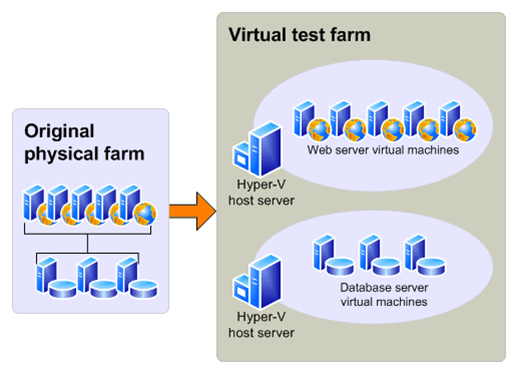
-
Using a physical test environment
When you test by using a physical environment, you need to replicate your entire server farm environment as closely as possible. If you simplify the number of front-end Web servers, application servers, or database servers too much, you will not have an accurate estimate of how long the upgrade process will take and you may not account for complications that arise from interactions between servers in the same role (such as SQL Server transactions). If you have multiple servers in a role in your original farm, use at least two servers for that role in the test farm to test for such issues.
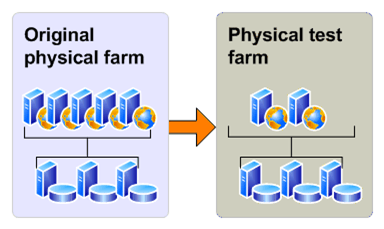
-
Additional test environments for database attach upgrade
If you are using the database attach upgrade approach, you might need to create one additional test environment: a single server farm that is running Windows SharePoint Services 3.0 that you can use to run the pre-upgrade checker before you attempt to upgrade the data.
You can avoid this step by running the pre-upgrade checker on your existing production farm.
-
Identify and install customizations
To have an accurate test process, you must find all the customizations in your current environment and copy them to the test environment. For more information about the types of customizations you need to identify, see Determine how to handle customizations (SharePoint Foundation 2010).
Use the pre-upgrade checker to identify site definitions, site templates, and features in your environment.
The pre-upgrade checker steps through each site collection and generates a report about the state of each site. It also saves list definition information for each list. You can review the reports to find issues and address them before you start the upgrade process. Unlike the pre-upgrade scan tool for Windows SharePoint Services 3.0, the pre-upgrade checker is a read-only tool and does not change your sites. For more information about this tool and steps for running it, see Pre-upgrade scanning and reporting for future releases (Windows SharePoint Services) (http://technet.microsoft.com/en-us/library/dd793607(Office.12).aspx) and Run the pre-upgrade checker (SharePoint Foundation 2010).
Use the Stsadm –o enumallwebs operation on all content databases in your Windows SharePoint Services 3.0 environment to identify specific customizations in subsites. This operation lists an ID for each site collection and subsite in your environment and the templates that the site relies on. This operation was first introduced in Windows SharePoint Services 3.0 with Service Pack 2 (SP2). For more information, see Enumallwebs: Stsadm operation (Windows SharePoint Services) (http://technet.microsoft.com/en-us/library/dd793606(Office.12).aspx).
Use a tool such as WinDiff (a tool that is provided with most Microsoft operating systems) to compare your production environment servers with your test farm servers. You can use this tool to see which files exist on your servers and the differences between them.
Check the web.config files for any changes, and look in the SafeControls element to find any custom controls.
Use the SharePoint Diagnostics Tool (SPDiag) to find deployed solutions. For more information, see SharePoint Diagnostics Tool (SPDiag) (http://technet.microsoft.com/en-us/library/dd745013(Office.12).aspx).
Create a list of all customizations that you find. Identify the source of the customizations, if possible. For example, are there third-party add-ins or templates that were customized in-house? After you identify the source, you can then check for updated or upgraded versions of the customizations. A worksheet is available that you can use to fill in information about your environment, based on the data you find in the results from the pre-upgrade checker and in your research on your customizations. Download the worksheet from http://go.microsoft.com/fwlink/?LinkId=179928 (http://go.microsoft.com/fwlink/?LinkId=179928) and customize it to suit your needs.
 Tip
Tip
Whom do you contact about customizations that you did not create?
After you identify all the customizations, copy them to the appropriate servers in your test farm. You can use the Windows PowerShell cmdlet test-spcontentdatabase before you attach a database to SharePoint Foundation 2010 to determine whether any customizations are missing from the environment. Run this command for each database after you restore the databases to your database server, but before you run the upgrade. Note that this cmdlet runs silently — it will not return any output unless there is an error.
-
Copy real data to the test environment and try the upgrade
You cannot achieve your testing goals unless you use your actual data. You can use the following methods to create a copy of your data:
For in-place upgrade, create a farm backup and then restore it to the test environment. For more information, see Back up and restore the entire farm (Windows SharePoint Services 3.0 technology) (http://technet.microsoft.com/en-us/library/cc288019(Office.12).aspx).
For database attach upgrade, you need to use the Microsoft SQL Server backup and restore tools to create a copy of your content databases and any other databases that you want to upgrade. For more information, see Back up and restore content databases (Windows SharePoint Services 3.0) (http://technet.microsoft.com/en-us/library/cc719751(Office.12).aspx).
There is no better way to tell what may come up during upgrade than to perform the test on a copy of all of your data; however, this might not always be a realistic option for initial testing. You can phase the testing by testing one database at a time (if the databases are large) so that you can make sure you test whatever is unique about that data set, or you can assemble a subset of data from representative sites in your environment. If you want to first test by using a subset of your data, be sure that the subset has the following characteristics:
The data subset contains sites that are typical of the sites you support in your environment.
The size and complexity of the data subset is very similar to the actual size and complexity of your environment.
 Important:
Testing a subset of your data does not produce a valid benchmark for how long it will take to process the entire volume of data for your environment.
After copying the data, take a first pass through the upgrade process to see what happens. This is just the preliminary round.
If you want to try an in-place upgrade approach, use the following steps to try out the upgrade process:
1. Create a backup of your farm.
2. Restore the backup to your test farm.
For more information, see Back up and restore the entire farm (Windows SharePoint Services 3.0 technology) (http://technet.microsoft.com/en-us/library/cc288019(Office.12).aspx).
3. Run the pre-upgrade checker. Make note of any issues it finds. You will want to address these issues in your original environment before you run the actual upgrade on your product farm. For more information, see Run the pre-upgrade checker (SharePoint Foundation 2010).
4. Follow the steps in Perform an in-place upgrade (SharePoint Foundation 2010) to try the in-place upgrade.
5. Review the results.
-
Try a database attach upgrade
1. Create a SQL Server backup of your content databases.
2. Use SQL Server to restore the backups into your single-server test farm and attach the content databases to that environment.
For more information, see Back up and restore content databases (Windows SharePoint Services 3.0) (http://technet.microsoft.com/en-us/library/cc719751(Office.12).aspx).
3. Run the pre-upgrade checker. Make note of any issues it finds and any changes it makes. You will want to address these issues and make these changes in your original environment before you run the actual upgrade on your product farm. For more information, see Run the pre-upgrade checker (SharePoint Foundation 2010).
4. Follow the steps in Prepare the new SharePoint Foundation 2010 environment for a database attach upgrade to configure the test environment for a database attach upgrade.
5. Follow the steps in Attach databases and upgrade to SharePoint Foundation 2010 to try the database attach upgrade process.
-
Review your results
After your test upgrade has been completed, you can review the results and revisit your plans. Look at the log files, look at the upgraded sites, and check out your customizations. How did upgrade work for your environment? What did you find out? What do you need to rethink about your upgrade plan?
Review the following log files:
The pre-upgrade checker log file.
The log files for the pre-upgrade checker (stsadm -o preupgradecheck) are located at %COMMONPROGRAMFILES%\Microsoft Shared\Web server extensions\12\LOGS. The log files are named in the following format: PreUpgradeCheck_YYYYMMDD-HHMMSS-SSS–random-number.log, where YYYYMMDD is the date and HHMMSS-SSS is the time (hours in 24-hour clock format, minutes, seconds, and milliseconds) and the random number is used to differentiate between possible simultaneous attempts to run the pre-upgrade checker.
The SharePoint Products Configuration Wizard (Psconfig.exe) log file (generated when you run this wizard as part of your trial in-place upgrade).
The PSCDiagnostics log files are located at %COMMONPROGRAMFILES%\Microsoft Shared\Web server extensions\14\LOGS.
The upgrade log file and the upgrade error log file (generated when you run the upgrade).
The upgrade log file (.log) and the upgrade error log file (.err) are located at %COMMONPROGRAMFILES%\Microsoft Shared\Web server extensions\14\LOGS. The log files are named in the following format: Upgrade-YYYYMMDD-HHMMSS-SSS.log, where YYYYMMDD is the date and HHMMSS-SSS is the time (hours in 24-hour clock format, minutes, seconds, and milliseconds).
To review the log files to find and troubleshoot issues. start at the top of the files. Errors or warnings may be repeated if they occur for several site collections in the environment, or if they block the upgrade process altogether. For example, if you cannot connect to the configuration database, the upgrade process will try (and fail) several times and these attempts will be listed in the log file.
Search, or visually scan, for the following entries:
Finished upgrading SPFarm Name=<Name of Configuration Database>
In-place upgrade session finishes. Root object = SPFarm=<Name of Configuration Database>, recursive = True. 0 errors and 0 warnings encountered.
If you find these entries, the installation was successful.
If you do not find the entries from the previous step, you can identify specific issues that may have contributed to the failure by searching, or visually scanning, through the Upgrade.log file for the following terms:
Search for ERROR in the log files to find any failures (such as failing components or faulty database connections).
Search for WARNING to find issues such as missing features or components.
To find upgrade issues, you may find it useful to use a log parser to run queries against the log files.
-
Restart upgrade, if necessary
During a database attach upgrade, any sites that cannot be upgraded will be skipped. During an in-place upgrade, if the server restarts or the upgrade fails, you will need to restart the upgrade process to upgrade the remaining sites.
To see whether any sites were missed or skipped during upgrade, run the following Stsadm operation stsadm -o localupgradestatus on every front-end Web server in your SharePoint Foundation 2010 server farm. For more information about this operation, see Localupgradestatus: Stsadm operation (Windows SharePoint Services) (http://technet.microsoft.com/en-us/library/cc289007.aspx).
If the upgrade skipped any site collections, you can restart the upgrade process for the database that contains that site collection by using the following Windows PowerShell cmdlet: upgrade-spcontentdatabase -id <GUID>. For more information about this cmdlet, see Upgrade-SPContentDatabase (http://technet.microsoft.com/library/9c7f1a52-02a7-452d-9746-a4e89aa54874(Office.14).aspx).
For more information, see Resume upgrade (SharePoint Foundation 2010).
Review your upgraded sites to identify any issues that need to be addressed before you run the upgrade process on your production environment. For more information about specific things to look for, Verify upgrade and review upgraded sites (SharePoint Foundation 2010).
-
Adjust your plans and test again
Repeat the testing process until you are sure that you have found all the issues that you may face and that you know how to deal with them. Your goal is to know what your plan is if it is 4:00 P.M. on Sunday, you have to be back online Monday morning, and it is not going well. Is there a point of no return? Test your rollback plan and make sure that it works before you begin your real upgrade.
-
Estimate how long the upgrade process will take and the space that you need (SharePoint Foundation 2010)
An important part of planning your upgrade from Windows SharePoint Services 3.0 to Microsoft SharePoint Foundation 2010 is determining how long the upgrade process will take and how much storage space will be required. Every environment is unique and includes different hardware capabilities and different site characteristics. The space and the length of time that you need to run an upgrade will vary greatly depending on your environment. The best way to estimate these factors is to perform a trial upgrade, and then review the space and time that it took. For more information about how to perform a trial upgrade, see Use a trial upgrade to find potential issues (SharePoint Foundation 2010).
In this article:
Estimate the space that you need for the upgrade
Estimate how long the upgrade will take
-
Estimate the space that you need for the upgrade
During both the in-place upgrade and database attach upgrade approaches, the databases might expand during upgrade. Also, many transactions take place while the upgrade process runs, so you must make sure that the log files have room to expand to accommodate the changes that are occurring. You have to plan for growth in both the databases and the log files.
When planning your upgrade, make sure that your current environment follows the best practices for storage for Windows SharePoint Services 3.0 so that you have the best experience and performance during upgrade. For more information, see Physical storage recommendations (Office SharePoint Server) (http://technet.microsoft.com/en-us/library/cc298801.aspx). You should also review the best practices for SharePoint Foundation 2010 and make any adjustments needed to your upgraded environment.
Because of the changes in table structures in the new version, the databases grow temporarily while the data is reorganized. This space can be recovered after upgrade, but you should ensure that there is room for the databases to grow up to 50 percent larger than their current sizes during either an in-place or database attach upgrade (be aware that after upgrade, you can reduce the database again to recover much of this space). You should also make sure that there is room on your database servers for your databases to grow over time with typical use. To find out how large your databases currently are, use Enterprise Manager in Microsoft SQL Server. In addition to database space, you also must have room for the following items:
The temporary databases. Ensure that you have enough database space to enable quick growth of the temporary databases. If you have insufficient space, the upgrade process might time out and the upgrade will fail.
The upgrade log files.
The transaction log files for the databases. These log files must grow quickly to accommodate the number of changes occurring in the databases.
 Note:
Note:
In very large environments, there is a possibility that the default growth rate for the transaction log files (10 percent) is not enough to keep up with the upgrade process; this can cause a time-out. Again, a trial upgrade is the best way to determine whether the transaction log files can keep up with the upgrade process. If your environment is very large, or if the process timed out during a trial upgrade, consider expanding the SQL Server transaction log files beforehand to make sure you have room for the number of transactions that must be processed. For more information about how to expand the SQL Server transaction logs, see Expanding a Database (SQL Server 2005) (http://go.microsoft.com/fwlink/?LinkId=182619) or Expanding a Database (SQL Server 2008) (http://go.microsoft.com/fwlink/?LinkId=182620).
-
Estimate how long the upgrade will take
With your disk space estimates in hand, and some testing under your belt, you can now calculate a rough estimate of how long the actual upgrade process will take. Upgrade times vary widely among environments. The performance for an upgrade depends greatly on the hardware being used, the complexity of the sites, and the particular characteristics of your implementation. For example, if you have many large document libraries, these may take longer to upgrade than a simpler site.
Factors that influence performance are described in the following table.
|
Content factors
|
Hardware factors
|
|
The number of:
Site collections
Subwebs
Lists
Document versions (number and size)
Documents
Links
Plus the overall database size itself.
|
SQL Server disk input/output per second
SQL Server database to disk layout
SQL Server temporary database optimizations
SQL Server CPU and memory characteristics
Web server CPU and memory characteristics
Network bandwidth and latency
|
How your data is structured can affect how long it takes to upgrade it. For example, 10,000 lists with 10 items each will have a longer upgrade time than 10 lists with 10,000 items. The actions required to upgrade the list infrastructure must be performed for each list, regardless of the number of items; therefore, more lists equals more actions. The same goes for most of the items in the “content factors” column in the table above.
The structure of your hardware can also have a big effect on performance. Generally, the database server performance is more important than Web server performance, but underpowered hardware or connectivity issues at either tier can significantly affect upgrade performance.
The upgrade approach you have chosen will also make a big difference in how long the process will take. Performing a database attach upgrade is the quickest method (however, the pre-upgrade and post-upgrade steps for this approach take longer than for in-place upgrade). An in-place upgrade takes a little more time because you are upgrading the environment in addition to the sites, but you do not have as many pre-upgrade and post-upgrade steps when you use this approach.
The best way to estimate overall time is to do a trial upgrade of a small part or all of the data, and then review the upgrade log files. The log files contain the duration for your upgrade — look for Total Elapsed Time at the bottom of the upgrade log file. Use this time to project a duration for your full set of content. You can also use the log files to check your progress during the upgrade process. The upgrade.log file is located at %COMMONPROGRAMFILES%\Microsoft Shared\web server extensions\14\LOGS.
The estimate you arrive at based on your trial upgrade is for the actual upgrade process for the data; it does not include all of the steps that you have to perform before and after this step, which can take more time than the upgrade of the data itself. When estimating how long the upgrade will take, in addition to the time that is required for data to be processed, you must also estimate how long the activities during the pre-upgrade and post-upgrade phases will take.
For pre-upgrade steps, consider the following factors:
Creating custom elements Upgrading Web Parts or re-doing custom templates to take advantage of new features will take some time. The process of creating custom elements should begin early, during the evaluation phase of your project.
Backing up the databases For in-place upgrade, you must perform a full backup — not a differential backup — of your entire environment to make sure that you can recover in the remote possibility that the upgrade fails and you must rebuild your server farm. For large environments, this step can take a significant amount of time. In particular, if you are backing up to a network location, network latency issues can slow this process down.
For post-upgrade steps, consider the following factors:
Verifying sites and making changes Allow enough time for users to validate their sites after the upgrade. This may take several days. For more information, see Verify upgrade and review upgraded sites (SharePoint Foundation 2010).
Additional factors in your environment can also contribute to longer upgrade times, including the following:
Very large document libraries A document library with more than 250,000 documents all in the root of the document library (instead of in folders) will take a long time to upgrade, and the upgrade might not be successful. Following the Windows SharePoint Services 3.0 guidelines for using folders to break up large document libraries can help you manage the library size. For example, if you rearrange the same document library so that the 250,000 documents are divided into 125 folders, it should upgrade more easily.
Very large databases Databases larger than 100 GB can take a long time to upgrade.
 Note
Note
If you have content databases that are larger than 100 GB you might want to divide them up into smaller databases before you run the upgrade. Larger databases not only take longer to upgrade, but they can make it harder to recover if the upgrade is not completed successfully.
You can use the mergecontentdbs or the backup and restore operations in Stsadm.exe to move sites between databases. For more information, see Mergecontentdbs: Stsadm operation (Windows SharePoint Services) (http://technet.microsoft.com/en-us/library/cc288557(Office.12).aspx) and Backup and restore: Stsadm operations (Windows SharePoint Services) (http://technet.microsoft.com/en-us/library/cc288090(Office.12).aspx).
If you have a very large database (more than 100 GB) that you cannot break up because most of the content is in a single site collection, you may want to reconsider your upgrade approach. A database attach upgrade approach is more difficult with very large databases, because backing up and restoring such large databases is problematic.
 Caution:
Be sure that you are following the capacity planning guidelines from the previous and new versions before you attempt the upgrade. If you have exceeded the guidelines for best performance, the upgrade process might take longer, or it might not succeed (for example, the process might time out repeatedly on the same large document library). If your deployment does not meet the recommended capacity guidelines, consider whether you need to do some work to meet those guidelines before you try the upgrade. Again, a trial upgrade can help you with that decision.
Communications requirements
You need to notify your users and your team of the upgrade schedule, and give them time to do their tasks. For more information, see Create a communication plan (SharePoint Foundation 2010).
Managing system center alerts and alarms
You need to monitor system performance during upgrade, but you will not need to monitor specific features. Pause any unnecessary alarms and alerts from Microsoft Systems Center Operations Manager or Microsoft Operations Manager, and then turn them on again after upgrade.
Turning SQL mirroring and log shipping on/off
You should turn off mirroring and log shipping before you upgrade, and then turn them on again after you are sure that your environment is running correctly after the upgrade. We recommend that you do not run mirroring or log shipping during upgrade, because this creates additional load on the servers running SQL Server and also wastes resources mirroring or shipping temporary data.
Test your upgrade process to find out how long it may take, then create a schedule for your upgrade operations and test that to determine your timeline. You should include the time that you need to do the pre-upgrade and post-upgrade steps in your operations timeline: If it takes 5 hours to back up your environment before you start, you need to include that time in your outage window. Also include buffer time in case you need to restore or recover — you should determine both your planned outage (realistic case) and your emergency outage (worst case) timelines.
-
Cleaning up your environment before upgrade (SharePoint Foundation 2010)
Before you begin upgrading from Windows SharePoint Services 3.0 to Microsoft SharePoint Foundation 2010, you should make sure that your environment is functioning in a healthy state and that you clean up any content that you do not have to upgrade. You can also take the time to remove or rearrange content so that you will have the structure that you want after you perform the upgrade.
In this article:
Items to clean up
Making structural changes
-
Items to clean up
Many of these items can be removed or repaired by using Stsadm.exe commands.
 Important:
To run the Stsadm command-line tool, you must be a member of the Administrators group on the local computer.
-
Delete unused or underused site collections and subwebs
You do not want to upgrade content that you do not have to keep. If it has been unused for a long time and will not be needed in the future, back it up, and then delete it to free storage and administrative resources, improve upgrade performance, and reduce upgrade risk. Be sure to communicate with site owners or organizational contacts regarding the site status — you want to make sure that the site is not needed before you delete it (for example, you do not want to delete sites that are required for compliance, such as emergency procedures, even though they may not be updated frequently).
For more information about how to delete site collections and subwebs, see:
Deletesite: Stsadm operation (Windows SharePoint Services) (http://technet.microsoft.com/en-us/library/cc288016(Office.12).aspx)
Deleteweb: Stsadm operation (Windows SharePoint Services) (http://technet.microsoft.com/en-us/library/cc287710(Office.12).aspx)
By default, large list query throttling is applied after an upgrade to SharePoint Foundation 2010. If a list is very large, and users use a view or perform a query that exceeds the limit or throttling threshold, the view or query will not be permitted. Check any large lists in your environment and have the site owner or list owner address the issue before upgrade. For example, they can create indexed columns by using filtered views, organize items into folders, set an item limit on the page for a large view, or use an external list. For more information about how to address issues with large lists, see Manage lists and libraries with many items (http://go.microsoft.com/fwlink/?LinkId=182370) on Office Online.
-
Address large numbers of site collections in a content database
If you have 5,000 or more site collections in a database, consider breaking them out into multiple databases. In Windows SharePoint Services 3.0, there was a default warning at 9,000 site collections and a hard limit at 15,000 site collections. In SharePoint Foundation 2010, these values change to 2,000 site collections for the warning and 5,000 site collections for the limit. To avoid errors during upgrade or broken sites after upgrade, we recommend that you move some site collections into separate databases. If you have multiple content databases, you can also speed up your upgrade process by upgrading multiple databases in parallel.
For more information about moving site collections to a new database, see Move site collections to a new database (split a content database) (Windows SharePoint Services 3.0) (http://technet.microsoft.com/en-us/library/cc825327(office.12).aspx).
Using item-level permissions frequently can result in large access control list (ACL) entries, which can in turn create performance problems on your servers. For information about this issue and for tips on how to handle lots of users, see Knowledge Base Article 953132: How to add lots of users to a site, to a list, or to a document library in Windows SharePoint Services 3.0 and in SharePoint Server 2007 (http://go.microsoft.com/fwlink/?LinkId=182327).
-
Remove extraneous document versions
Large numbers of document versions can slow down an upgrade significantly. If you do not have to keep multiple versions, you can have users delete them manually or use the object model to find and remove them. For more information about how to programmatically remove extraneous versions, see Versions Web Service (http://go.microsoft.com/fwlink/?LinkId=182330) on MSDN.
-
Remove unused templates, features, and Web Parts
First, verify that no sites are using the template, feature, or Web Part. You can use the pre-upgrade checker (Stsadm -o preupgradecheck) and the Stsadm -o EnumAllWebs operation to identify these customizations in your environment. Both of these operations were updated in the October 2009 Cumulative Update (CU) and now identify Web Parts, features, event handlers, and setup files that are being used in your environment. The pre-upgrade checker specifies which server-side files exist in your environment and how many times they are used. The EnumAllWebs command specifies which files are used by which sites.
For more information about how to identify customizations in your environment, see Use a trial upgrade to find potential issues (SharePoint Foundation 2010). If customizations are not being used, delete them. For more information about how to manage these kinds of customizations, see Features and Templates (http://go.microsoft.com/fwlink/?LinkId=182338) and Solutions and Web Part Packages (http://go.microsoft.com/fwlink/?LinkId=182332) on MSDN.
Make sure that you repair any issues in your databases or site content before you upgrade. In particular, check the following items:
Check databases for corrupted data
Clean up your databases to remove any orphaned sites or other corrupted data, such as a corrupted list. Consider defragmenting if you have removed sites or subsites from the database. For more information, see:
Databaserepair: Stsadm operation (Windows SharePoint Services) (http://technet.microsoft.com/en-us/library/cc288636.aspx)
Forcedeletelist: Stsadm operation (Windows SharePoint Services) (http://technet.microsoft.com/en-us/library/cc287949(Office.12).aspx)
Check databases for duplicate or orphaned site collections
Make sure that site collections exist in only one content database. Occasionally, site collections can leave behind duplicate or orphaned references in old content databases if they are moved to new ones, or if a duplicate copy of a database was attached to the farm, or if there was an error when a site collection was provisioned. If a site collection is referenced in more than one content database or there is more than one instance of the site collection in a content database, it can cause issues when you upgrade by using the database attach upgrade method. If you upgrade a duplicate version of the site collection first, the site map in your configuration database might end up pointing to that version of the site rather than the current version.
Before you upgrade, use the pre-upgrade checker tool to identify all site collections and look for any duplicate or orphaned sites – any sites with the same URL or the same GUID as another site. For more information, see Run the pre-upgrade checker (SharePoint Foundation 2010). Also, use the enumallwebs operation in Stsadm.exe to find out which sites are in which content databases and compare the results. For more information, see Enumallwebs: Stsadm operation (Windows SharePoint Services) (http://technet.microsoft.com/en-us/library/dd793606(office.12).aspx). If you find duplicate or orphaned sites, you can use the deletesite operation in Stsadm.exe to remove the duplicate or orphaned sites from the database. To delete a site from a specific content database, use the following command:
Stsadm -o deletesite -force -siteid <SiteID> -database <databasename> –databaseserver <Servername>
For more information, see Deletesite: Stsadm operation (Windows SharePoint Services) (http://technet.microsoft.com/en-us/library/cc288016(office.12).aspx).
-
Making structural changes
If you want to make structural changes to your environment, such as moving site collections around or changing how your databases are allocated, you can use the following methods:
Stsadm -o mergecontentdbs Use this to move site collections between databases. Upgrade is most efficient when databases contain similar data. Therefore, it is best if any site collections that share a content database are similar types. You can also use this operation to divide large databases if they contain multiple site collections. This can also help increase upgrade efficiency.
For more information, see Mergecontentdbs: Stsadm operation (Windows SharePoint Services) (http://technet.microsoft.com/en-us/library/cc288557(Office.12).aspx).
Export and import sites Use this method to move subwebs or site collections within a farm or between farms. For more information, see Import and export: Stsadm operations (Windows SharePoint Services) (http://technet.microsoft.com/en-us/library/cc288191(Office.12).aspx).
-
Troubleshoot upgrade issues (SharePoint Foundation 2010)
Even after you test the upgrade process to identify potential issues, you might experience unexpected issues during an upgrade from Windows SharePoint Services 3.0 to Microsoft SharePoint Foundation 2010. If you experience issues after upgrade, the sooner you detect and fix them, the better the end-user experience will be.
This article describes general principles for identifying and addressing upgrade issues, and includes a list of common issues. After you have identified and addressed the issues, you can resume upgrade. For more information about how to resume upgrade, see Resume upgrade (SharePoint Foundation 2010).
In this article:
General principles for identifying issues
Common issues
Missing or deprecated server-side files or customizations
Incorrectly configured or missing settings for server farm, Web application, or services
Inconsistent or incorrect update levels
Missing global navigation for blogs
Data issues
UI changes
Lack of space
Forms-based authentication
Security and permissions
.Stp files are not working after upgrade
Cannot find new versions of the Fabulous 40 application templates
-
General principles for identifying issues
Start by checking the upgrade status to see where upgrade stopped (if it did stop), and check log files to find any errors or warnings. Next, address the issues that you find before you resume the upgrade.
-
First, check upgrade status and log files
Upgrade status indicators and log files should give you an indication of what went wrong during the upgrade process. We recommend that you carefully review all the errors that were logged in the upgrade log files. Warnings might not always indicate an issue, but you should review them all to determine whether any of them are likely to cause even more issues.
1. Check upgrade status by doing one or both of the following:
Review the Upgrade Status page in the SharePoint Central Administration Web site.
Use the Stsadm.exe operation localupgradestatus to check upgrade status.
For more information about how to check upgrade status, see Verify upgrade and review upgraded sites (SharePoint Foundation 2010).
2. Review the following log files:
The Setup.exe log file.
The SharePoint Products Configuration Wizard (Psconfig.exe) log file.
The upgrade error log file and the upgrade log file (which contains more detailed information than the upgrade error log file).
ULS or trace log files.
These files are stored in the %COMMONPROGRAMFILES%\Microsoft Shared\Web Server Extensions\14\LOGS folder and are named Servername_YYYYMMDD–MMSS.log.
The application event log file.
This file can be viewed by using the Event Viewer.
For more information about the Setup.exe, PSconfig.exe, and upgrade log files, see Verify upgrade and review upgraded sites (SharePoint Foundation 2010). For more information about the trace log file, see Trace Logs (http://go.microsoft.com/fwlink/?LinkId=182380) on MSDN.
-
Then, address issues in order
Some issues have more effect than others. For example, a missing server-side file can cause many seemingly unrelated errors at the site level.
Address issues in the following order:
1. Missing server-side files or customizations, such as features or Web Parts.
2. Configuration issues in the server farm, Web application, or services, such as managed paths or services that are not started.
3. Additional issues that you discover on a site-by-site basis, starting with high-impact, high-profile sites.
As you identify and fix the top-level issues, you can try running upgrade again to see whether any issues further along in the upgrade process have also been fixed.
-
Common issues
Check to see whether any of the following issues are causing an upgrade error or warning.
-
Missing or deprecated server-side files or customizations
One common error during upgrade is missing server-side files — either files that were installed with Windows SharePoint Services 3.0 or customized files. When you prepared for upgrade, you should have created an inventory of the server-side customizations (such as site definitions, templates, features, Web Parts, assemblies) that your sites required. (The pre-upgrade checker can help identify these items.) Check this inventory to make sure that all the files that are needed for your customizations are installed in your upgrade environment.
If you are performing a database attach upgrade, you can use the test-spcontentdatabaseWindows PowerShell cmdlet before you upgrade the database to identify any missing files. You can also use the enumallwebs operation in Stsadm.exe to identify server-side customizations that are being used.
In the upgrade log files, you may see errors such as the following:
ERROR Found Reference Count web(s) using missing web template Site Template Identifier (lcid: Site Template Language Code) in ContentDatabase Content Database Name.
ERROR Found a missing feature Id = [Feature Identifier]
ERROR File [Relative File Path] is referenced [Reference Count] times in the database, but is not installed on the current farm.
WARNING WebPart class [Web Part Identifier] is referenced [Reference Count] times in the database, but is not installed on the current farm.
WARNING Assembly [Assembly Path] is referenced in the database, but is not installed on the current farm.
WARNING Feature could not be upgraded. Exception: Feature definition id ‘Feature Identifier’ could not be found.
If you can obtain a missing server-side file or dependency, install it and then run upgrade again for the affected sites. If the file or dependency (such as a Web Part) has been deprecated, you have to investigate whether you want to rebuild the site, page, or Web Part to use a different template, feature, or Web Part. If you can redo the customization by using dependencies that have not been deprecated, you can run upgrade again for the affected sites. If you cannot remove the dependency, you cannot upgrade the site.
After you install the missing file or dependency, use the test-SPContentDatabaseWindows PowerShell cmdlet on a test server to determine whether any other files for that database are missing. If you only run the pre-upgrade checker or run upgrade again, the error might not appear in the log files, even though it might still be occurring.
-
Incorrectly configured or missing settings for server farm, Web application, or services
Verify your farm and Web application settings, and create and start any missing services.
Verify that any managed paths (included or excluded paths) are configured correctly for each Web application.
In the upgrade log files, you may see errors such as the following:
ERROR Template Template Id: SPSite Id=Site Id could not be accessed due to exception. Skipping SPWeb Id=Web Id for template upgrade. Exception: System.IO.FileNotFoundException: The site with the id Site Id could not be found.
This error indicates that a managed path is missing. Add the managed path for the site collection into the Web application and restart upgrade for the content database that contains this site collection.
-
Inconsistent or incorrect update levels
You must be running Windows SharePoint Services 3.0 with Service Pack 2 to run upgrade. If you do not meet this minimum requirement, you will see an error and upgrade will not run.
-
Missing global navigation for blogs
Another common error is the global navigation is missing for upgraded blogs. This occurs because the MySiteNavigation (6adff05c-d581-4c05-a6b9-920f15ec6fd9) feature is not enabled during the upgrade. To enable this feature, run the Enable-SPFeatureWindows PowerShell 2.0 cmdlet.
For more information, see Enable-SPFeature (http://technet.microsoft.com/library/9b68c192-b640-4cb8-8a92-a98008169b27(Office.14).aspx).
The following data issues can cause errors or warnings during upgrade:
Connectivity to data sources. If your servers cannot connect to the databases, they cannot be upgraded.
Orphaned sites or lists, or other database corruptions. For more information, see Cleaning up your environment before upgrade (SharePoint Foundation 2010).
Hidden column data. If the upgrade process adds a column to a list, and a custom column that has that same name already exists in the list, the custom column is renamed. After upgrade, you might have to readjust your views to include the renamed column.
In the upgrade log files, you may see errors such as the following:
WARNING The orphaned sites could cause upgrade failures.
ERROR Database [Content Database Name] contains a site (Id = [Site Collection Identifier], Url = [Site Collection URL]) that is not found in the site map.
Fix any orphaned items or database corruptions, and then run upgrade again.
Changes to the user interface (UI), such as the addition of the Fluent UI (also known as the ribbon) or adherence to XHTML standards, can cause problems in sites. Occasionally, custom elements (such as a content type) may have a name that conflicts with a name in the new version. You may also have pages that must be reverted to the standard site definition, or large lists for which you have to create new views.
For more information about how to review UI issues in sites, see Verify upgrade and review upgraded sites (SharePoint Foundation 2010).
In the upgrade log files, you may see errors such as the following:
Failed to activate site collection features on site Site Url. Exception: A duplicate content type name “name” was found.
This error indicates that a 3rd party “Summary Info” content type was added to the specified site in o12 and during upgrade to o14 it name conflicts with our out of the box “Summary Info” content type. Delete or rename the 3rd party content type in the specified site to something other than “Summary Info” and re-run upgrade.
If you run out of space (for example, for transaction log files on your database servers), upgrade cannot continue. Free some space, or increase the size of the transaction log file before you resume upgrade. For more information, see Managing the Size of the Transaction Log File (http://go.microsoft.com/fwlink/?LinkID=124882).
-
Forms-based authentication
Additional steps are necessary if you are upgrading an environment that uses forms-based authentication. Follow the steps in Configure forms-based authentication for a claims-based Web application (SharePoint Foundation 2010) to upgrade forms-based authentication providers.
If you receive an error about an unknown account, or if a database is not upgraded, verify the following:
For an in-place upgrade, make sure that the account that you use to run the SharePoint Products Configuration Wizard is a member of the db_owner fixed database role for all the databases that you want to upgrade. If it is not a member of this role, you might see an error about an unknown user account when the wizard starts to upgrade the databases.
For a database attach upgrade, if you are moving databases between instances of SQL Server, make sure that you verify that security is configured correctly. Check that the accounts that you are using have the appropriate fixed roles and permissions on the databases, and that they will still be valid accounts if you are upgrading across domains.
-
.Stp files are not working after upgrade
Site templates (.stp files) are deprecated in SharePoint Foundation 2010 and cannot be used to create new sites. Existing sites that are based on .stp files will continue to function as usual. Solution packages (.wsp files) are the supported method for creating sites that are based on a template in SharePoint Foundation 2010. You can convert an .stp file to a .wsp file to continue to use the template after upgrade.
 To convert an .stp file to a .wsp file
|
1. In Windows SharePoint Services 3.0, create a site that is based on the template, and then upgrade the site to SharePoint Foundation 2010.
2. In SharePoint Foundation 2010, on the Site Actions menu in the upgraded site, click Site Settings.
3. On the Site Settings page, under Site Actions, click Save site as template.
4. On the Save as Template page, enter a File name and Template name, and then click OK.
The site template is saved as a .wsp file to the Solutions Gallery for that site collection and you can create new sites that are based on that solution.
|
-
Cannot find new versions of the Fabulous 40 application templates
Many people have used the “Fabulous 40” templates that were created for Windows SharePoint Services 3.0. Some of these templates were created as site admin templates (.stp files) and some were created as server admin templates (.wsp files). Microsoft is not releasing new versions of these templates for SharePoint 2010 Products. Also, .stp files are deprecated and cannot be used to create new sites when you upgrade to SharePoint Foundation 2010.
You can upgrade sites that are based on these templates. However, you should try to upgrade these sites in a test environment before you upgrade the production environment so that you can discover any potential issues. Use the pre-upgrade checker to discover any issues. (Some people have seen problems with custom workflows or CAML-based views in the templates.) Note that after upgrade, you will be unable to use .stp files to create new templates.
The following table describes how the templates can be used.
|
Type of template
|
Can I upgrade sites that are based on this template?
|
Can I use the template after upgrade?
|
|
Site admin (.stp file or site template)
|
Yes
|
No
|
|
Server admin (.wsp file or solution package)
|
Yes*
|
Yes*
|
*There are issues with some .wsp files after upgrade. In particular, after upgrade, some customers cannot create new sites that are based on the following templates: Absence Request and Vacation Schedule Management, Call Center, Help Desk, IT Team Workspace, Knowledge Base, and Physical Asset Tracking and Management. If you have problems using any of these templates, you can post an issue to the SharePoint 2010 – Setup, Upgrade, Administration and Operation TechNet Forum (http://go.microsoft.com/fwlink/?LinkId=201600), or contact Microsoft Customer Support.
If you want to continue to create sites that are based on the site admin templates (.stp files) in SharePoint Foundation 2010, you must convert them to solution packages (.wsp files). For more information, see the section .Stp files are not working after upgrade earlier in this article.
Use a trial upgrade to find potential issues (SharePoint Foundation 2010)
Verify upgrade and review upgraded sites (SharePoint Foundation 2010)
Resume upgrade (SharePoint Foundation 2010)
-
Recovering after a failed upgrade (SharePoint Foundation 2010)
If the upgrade to Microsoft SharePoint Foundation 2010 has failed and you do not have time to continue to troubleshoot the issues or resume the upgrade process, you have to recover your Windows SharePoint Services 3.0 environment. The steps differ depending on the type of backup you have. If you were performing a database attach upgrade and you kept your original environment available — either by using read-only databases or by taking the environment offline — you can recover your environment easily. If you were performing an in-place upgrade, you must recover your entire environment and restore the data.
If you do have time, you should troubleshoot the issues and resume upgrade. For more information, see Troubleshoot upgrade issues (SharePoint Foundation 2010) and Resume upgrade (SharePoint Foundation 2010).
In this article:
Recovering when you have read-only databases on a standby environment (database attach upgrade)
Recovering when you have a full environment backup (in-place upgrade)
Recovering when you have database backups (in-place upgrade)
-
Recovering when you have read-only databases in a standby environment (database attach upgrade)
When you perform a database attach upgrade, you can choose to leave your existing environment available, but with the databases set to read-only. Recovering when you are in this state is the simplest recovery path, because your original environment is still available, it is merely set to read-only. If you have to recover your environment, you can merely switch the databases to read/write again and resume serving requests. The article Run a farm that uses read-only databases (Windows SharePoint Services) (http://technet.microsoft.com/en-us/library/ee845027(Office.12).aspx) describes the steps you take to set a farm to use read-only databases. To return the read-only farm to full operations, you set the Database Read-Only entry back to False, and then re-enable the timer jobs listed in the article.
-
Recovering when you have a full environment backup (in-place upgrade)
If you created a full backup of your environment before you started the upgrade process, you can restore that full backup to recover your environment. For more information about how to restore from a full backup, see Restore a farm by using built-in tools (Windows SharePoint Services 3.0) (http://technet.microsoft.com/en-us/library/cc288668(Office.12).aspx).
-
Recovering when you have database backups (in-place upgrade)
If you only created backups of your content databases, you can still recover your environment, but it will take longer and involve more steps. You basically have to build out your environment again and then restore the database backups. For more information about how to recover an environment and restore backed up content databases, see Restore a farm after a configuration database problem (Windows SharePoint Services) (http://technet.microsoft.com/en-us/library/cc512814(Office.12).aspx).
-
Resume upgrade (SharePoint Foundation 2010)
In some cases, you might have to restart upgrade to finish upgrading your sites from Windows SharePoint Services 3.0 to Microsoft SharePoint Foundation 2010. For example:
During an in-place upgrade, if the server restarts or the upgrade fails, you must restart the upgrade process by using Psconfig.exe to upgrade the remaining sites.
During a database attach upgrade, any sites that cannot be upgraded will be skipped. After you have corrected any issues in the sites (such as a missing template or language pack, or the site being set to read-only or having exceeded its quota), you can restart upgrade by using a Windows PowerShell command to upgrade just the skipped sites.
 Note:
Note:
One frequent cause of failures during upgrade is that the environment is missing customized features, solutions, or other elements. Be sure that any custom elements that you need are installed on your front-end Web servers before you begin the upgrade process. You can use the pre-upgrade checker — and, for a database attach upgrade, the test-spcontentdatabaseWindows PowerShell cmdlet — to identify any custom elements that your sites might be using. For more information, see Identify and install customizations in the article “Use a trial upgrade to find potential issues.”
In this article:
Restart upgrade for a server farm by using Psconfig.exe
Restart upgrade for a database by using Windows PowerShell
-
Restart upgrade for a server farm by using Psconfig.exe
If you determine that upgrade stopped or failed before the SharePoint Products Configuration Wizard was completed, you can restart the upgrade from that point by running the SharePoint Products Configuration Wizard again or by using a command line operation. This process is also known as forcing a software upgrade. Be sure to research and address the problem that caused the failure or stoppage before you restart upgrade.
 To restart upgrade for the server farm
|
1. Verify that you have the following administrative credentials:
To use Psconfig.exe, you must be a member of the local Administrators group on the server.
2. Open a Command Prompt window and navigate to the following directory:
%COMMONPROGRAMFILES%\Microsoft shared\Web server extensions\14\Bin\
3. Type the following command:
psconfig -cmd upgrade -inplace v2v -passphrase <passphrase> -wait
There is an optional parameter, -force, that can force the upgrade to continue if the command does not work. Add -force to the end of the command string to force the upgrade process to continue.
|
 Note:
Note:
You can enable Windows Installer logging before you start the software upgrade installation again. To enable logging for Windows Installer, see Microsoft Knowledge Base article 99206: How to enable Windows Installer logging (http://go.microsoft.com/fwlink/?LinkID=99206).
-
Restart upgrade for a database by using Windows PowerShell
If the upgrade skipped any site collections during in-place upgrade or database attach upgrade, you can restart the upgrade process for the database that contains that site collection by using a Windows PowerShell cmdlet.
 To restart upgrade for a database by using Windows PowerShell
|
1. Verify that you meet the following minimum requirements: See Add-SPShellAdmin.
2. On the Start menu, click All Programs.
3. Click Microsoft SharePoint 2010 Products.
4. Click SharePoint 2010 Management Shell.
5. At the Windows PowerShell command prompt (PS C:\>), type the following command:
upgrade-spcontentdatabase -id <GUID>
Where GUID is the identifier for the database. You can run the following cmdlet to find the GUID for a content database:
Get-SPContentDatabase -Identity<content_database_name>
For more information, see Upgrade-SPContentDatabase (http://technet.microsoft.com/library/9c7f1a52-02a7-452d-9746-a4e89aa54874(Office.14).aspx).
|
-
Perform pre-upgrade steps (SharePoint Foundation 2010)
After you have planned your upgrade process to Microsoft SharePoint Foundation 2010, you can start the upgrade process by following the required pre-upgrade steps.
In this section:
Run the pre-upgrade checker (SharePoint Foundation 2010)
The pre-upgrade checker identifies potential upgrade issues in your environment. Run this as you plan your upgrade and before you start the upgrade process, so that you can address these issues.
Back up the entire environment before an in-place upgrade (SharePoint Foundation 2010)
Create a full backup of your environment to ensure that you can recover if upgrade does not go as planned.
-
Run the pre-upgrade checker (SharePoint Foundation 2010)
You can use the pre-upgrade checker to report on the status of your environment and SharePoint sites before you upgrade to Microsoft SharePoint Foundation 2010. We highly recommend that the server administrator run the pre-upgrade checker and resolve as many problems as possible before scheduling the upgrade.
The pre-upgrade checker is an Stsadm operation that you run in a Windows SharePoint Services 3.0 environment to find any potential issues for upgrade and to review recommendations and best practices. The operation is available with Windows SharePoint Services 3.0 Service Pack 2 and has been updated in the October 2009 Cumulative Update for Windows SharePoint Services 3.0. You can download and install the October 2009 Cumulative Update from October 2009 Cumulative Update Packages for SharePoint Server 2007 and Windows SharePoint Services 3.0 are published (http://go.microsoft.com/fwlink/?LinkID=169179).
 Note:
Note:
You might need to run the pre-upgrade checker more than once. For example, if you run the tool to evaluate your server farm but do not perform the upgrade for a few weeks, you can run the tool again just before you perform the upgrade to scan any new sites and to ensure that no additional issues have appeared in the meantime.
In this article:
About the pre-upgrade checker report
Run the pre-upgrade checker
 Note:
Note:
One frequent cause of failures during upgrade is that the environment is missing customized features, solutions, or other elements. Be sure that any custom elements you need are installed on your front-end Web servers before you begin the upgrade process. You can use the pre-upgrade checker — and, for a database attach upgrade, the test-spcontentdatabaseWindows PowerShell cmdlet — to identify any custom elements that your sites might be using. For more information, see Identify and install customizations in the article “Use a trial upgrade to find potential issues.”
-
About the pre-upgrade checker report
The pre-upgrade checker reports information about the status of your environment and the SharePoint sites in that environment, including:
Upgrade readiness and supported paths Returns a list of all servers and components in the farm and information about whether the servers meet requirements for upgrading.
Alternate access mapping settings Returns a list of the alternate access mapping URLs that are being used in the farm.
Installed elements Returns a list of all site definitions, site templates, features, and language packs that are installed in the farm. You need to know which site templates have been installed or used so that you can verify that they are available after an upgrade or database attach. You also need to know which elements have been customized so you can verify the customizations again after the upgrade. For example, you need to know whether a site depends on a language pack for Windows SharePoint Services 3.0 that does not exist yet for SharePoint Foundation 2010, so you can plan how to handle that site during upgrade.
Unsupported customizations Reports whether any server-side customizations that are not supported (such as database schema modifications) exist in the farm.
Orphaned objects Lists any database or site orphans in the farm. Objects such as list items, lists, documents, Web sites, and site collections can become orphaned — that is, the objects exist but are not associated with a particular site. Because orphaned objects do not work in the previous version, they won’t work after the upgrade. If you perform an in-place upgrade, the orphaned items will still exist, but will not work. We recommend that you repair any orphaned objects before upgrading.
 Tip:
Tip:
Members of the Administrators group on the front-end Web servers can repair orphaned items before the upgrade by following the steps in Knowledge Base article 918744, Description of a new command-line operation that you can use to repair content databases in Windows SharePoint Services (http://go.microsoft.com/fwlink/?linkid=69958&clcid=0x409).
Valid configuration settings Reports any missing or invalid configuration settings (such as a missing Web.config file, invalid host names, or invalid service accounts) that exist in the farm.
Database requirements Reports whether the databases meet the requirements for upgrade — for example, databases are set to read/write, and any databases and site collections that are stored in the Windows Internal Database are not larger than 4 GB.
Use the information gathered from the pre-upgrade checker to determine:
Whether to perform an in-place upgrade or a database attach upgrade.
Determine upgrade approach (SharePoint Foundation 2010) provides information to help you decide which type of upgrade to perform. It is important to consider the report generated by the pre-upgrade checker when you make this decision. If your servers do not meet the requirements for in-place upgrade, you need to consider performing a database attach upgrade.
Whether to upgrade some or all site collections that contain customized sites.
Which sites need to have customizations reapplied or redone after upgrade and therefore might take longer than others in the review stage.
A worksheet is available so you can record information about your environment while you prepare for upgrade. Download the worksheet from http://go.microsoft.com/fwlink/?LinkId=179928 (http://go.microsoft.com/fwlink/?LinkId=179928).
-
Run the pre-upgrade checker
Before you perform this procedure, confirm that:
Your system is running Windows SharePoint Services 3.0 with Service Pack 2
 To run the pre-upgrade checker
After you run the pre-upgrade checker, the report automatically opens in your default browser. You can also view the report by opening it from its location in the %COMMONPROGRAMFILES%\Microsoft Shared\Web Server Extensions\12\LOGS directory. The report is named in the following format: PreUpgradeCheck_YYYYMMDD-HHMMSS-SSS–random-number.htm, where YYYYMMDD is the date and HHMMSS-SSS is the time (hours in 24-hour clock format, minutes, seconds, and milliseconds), and the random number is used to differentiate between possible simultaneous attempts to run the pre-upgrade checker. There are also TXT and XML versions of the report in the same location.
Use the report to find and troubleshoot issues. You can also share the relevant results with other members of the upgrade team. For example, you can report issues such as customized site templates or custom Web Parts to the appropriate site owner, Web designer, or developer before scheduling the upgrade, to give them time to resolve the issues.
-
Back up the entire environment before an in-place upgrade (SharePoint Foundation 2010)
To ensure that you can recover the existing environment in case something goes wrong during the upgrade process, you must back up the Windows SharePoint Services 3.0 environment before you run the upgrade process.
If you are running Windows SharePoint Services 3.0 in a Hyper-V virtual environment, see Using SharePoint Products and Technologies in a Hyper-V virtual environment (http://go.microsoft.com/fwlink/?LinkID=125834&clcid=0x409).
-
Back up the environment
You can do a full backup of the Windows SharePoint Services 3.0 environment. We recommend that you perform a full backup of the farm before upgrading.
To back up the Windows SharePoint Services 3.0 environment, use the procedures described in Back up a farm by using built-in tools (Windows SharePoint Services 3.0) (http://go.microsoft.com/fwlink/?LinkID=105988&clcid=0x409).
If you have deployed customizations, you must also back up the customizations. For more information, see Back up and restore customizations (Windows SharePoint Services) (http://go.microsoft.com/fwlink/?LinkId=186627).
-
Test the backups
You have to be sure that these backups are valid so that you can recover if there is a hardware failure or data corruption during the upgrade process. To test the backups, set up a non-production Windows SharePoint Services 3.0 farm, restore the backups and install any customizations (such as site definitions, Web Parts, and so on), and then verify that the restored backup is functional.
To do this, use the procedures described in Restore a farm by using built-in tools (Windows SharePoint Services 3.0) (http://go.microsoft.com/fwlink/?LinkID=105989&clcid=0x409).
Back up and restore the farm (Windows SharePoint Services 3.0) (http://go.microsoft.com/fwlink/?LinkId=186630&clcid=0x409)
-
Perform an in-place upgrade (SharePoint Foundation 2010)
Now that you have learned about the upgrade process by reading the articles in About the upgrade process (SharePoint Foundation 2010), and planned for your upgrade by following the steps in the articles in Plan and prepare for upgrade (SharePoint Foundation 2010), you are ready to perform the in-place upgrade to Microsoft SharePoint Foundation 2010. You can use the steps in this section for both a trial upgrade and your actual in-place upgrade on your production farm.
In this section:
Checklist for in-place upgrade (SharePoint Foundation 2010)
Use this checklist to make sure that you follow all necessary steps as you prepare for upgrade, perform the upgrade, and perform post-upgrade steps.
Upgrade in place to SharePoint Foundation 2010
Get all the steps that you need to perform an in-place upgrade, from installing prerequisites to upgrading sites.
Upgrade a stand-alone installation by using remote BLOB storage (in-place)
Get the steps to upgrade to SharePoint Foundation 2010 from a stand-alone Windows SharePoint Services 3.0 system that has content databases that are larger than 4 gigabytes (GB).
Roadmap for in-place upgrade with detached databases (SharePoint Foundation 2010)
Understand the process for using the detach databases hybrid approach to upgrade. This approach combines an in-place upgrade with the efficiency and speed of upgrading multiple databases at the same time.
Install available language template packs (SharePoint Foundation 2010)
Install any language packs that you need for your environment, after you run Setup and before you run the SharePoint Products Configuration Wizard.
-
Checklist for in-place upgrade (SharePoint Foundation 2010)
This article contains a checklist you can use to make sure that you followed all necessary steps as you prepare for upgrade, perform the upgrade, and perform post-upgrade steps.
In this article:
Prepare for upgrade
Perform the upgrade
Perform post-upgrade steps
Some of the steps include notes about the amount of time the steps might take. These are rough estimates only, to give you a relative idea of the duration of the step. To find out how much time each step will take for your environment, we recommend that you perform trial upgrades in a test environment. For more information, see Estimate how long the upgrade process will take and the space that you need (SharePoint Foundation 2010) and Use a trial upgrade to find potential issues (SharePoint Foundation 2010).
-
Prepare for upgrade
Follow these steps in order before you begin an in-place upgrade:
|
Pre-upgrade steps for an in-place upgrade
|
Notes
|
|
[ ]
|
Run the pre-upgrade checker
Run the pre-upgrade checker and address any issues. Use the report that is generated by the tool to fill out the Upgrade planning worksheet.
Detailed steps: Run the pre-upgrade checker (SharePoint Foundation 2010).
|
Perform this step multiple times as you clean up your environment and test your upgrade process.
Running the checker takes only a few minutes, but addressing any issues might take days or weeks.
|
|
[ ]
|
Clean up your environment
Before you begin the upgrade, make sure that your environment functions in a healthy state and that you clean up any content that you do not have to keep. Remove or repair any orphaned sites or data, address any large lists or large access control lists (ACLs), remove extraneous document versions, and remove any unused templates, features, or Web Parts.
Detailed steps: Cleaning up your environment before upgrade (SharePoint Foundation 2010).
|
Perform this step once for the whole environment.
This process might take days or weeks to complete.
|
|
[ ]
|
Record blocked file types
Blocked file types are not preserved during upgrade. Copy the list of blocked file types and save the list in the upgrade worksheet so you can reapply the settings after upgrade.
|
Perform this step once for the whole environment.
|
|
[ ]
|
Back up your environment
Back up your entire environment to ensure that you can recover the existing environment in case something goes wrong during the upgrade process.
Detailed steps: Back up the entire environment before an in-place upgrade (SharePoint Foundation 2010).
|
Perform this step once for the whole environment.
This step can take an hour, several hours, or longer, depending on your data set and your environment.
|
-
Perform the upgrade
Follow these steps in order during an in-place upgrade. Steps required for in-place upgrade with detached databases are also included.
 Warning:
When you upgrade in-place from an installation of Windows SharePoint Services 3.0 that uses Windows Internal Database and the database size approaches 4 GB, you must perform additional steps. For more information about these steps, see Upgrading from a stand-alone installation of Windows SharePoint Services 3.0 to SharePoint Foundation 2010 when content databases exceed 4 GB (Remote BLOB Storage).
|
Perform the in-place upgrade
|
Notes
|
|
[ ]
|
Run the pre-upgrade checker
Run the pre-upgrade checker again to identify any new or remaining issues before you start the upgrade.
Detailed steps: Run the pre-upgrade checker (SharePoint Foundation 2010).
|
Running the checker takes only a few minutes, but addressing any issues might take longer.
|
|
[ ]
|
Install prerequisites on all servers
Before you can upgrade, you must run the prerequisite installer successfully on each Web server that has Windows SharePoint Services 3.0 installed.
Detailed steps: Install prerequisites in the “Upgrade in place to SharePoint Foundation 2010” article.
|
Perform this step for each Web server in your environment.
|
|
[ ]
|
Detach databases (in-place upgrade with detached databases only)
If you are performing an in-place upgrade with detached databases, detach the databases before you run Setup.
Detailed steps: Roadmap for in-place upgrade with detached databases (SharePoint Foundation 2010).
|
Perform this step for each content database in your environment.
|
|
[ ]
|
Disconnect users
If you are upgrading a server farm, disconnect all the users from the server farm by stopping the World Wide Web Publishing Service (W3SVC) on all Web servers.
|
Perform this step on each Web server in your environment.
|
|
[ ]
|
Run Setup on all servers
Run Setup on all servers to upgrade the software.
Detailed steps: Run Setup on all servers in the “Upgrade in place to SharePoint Foundation 2010” article.
|
Perform this step for each Web server in your environment.
This step might take a few minutes or more than an hour, depending on how many servers are in your environment.
|
|
[ ]
|
Install language packs
Install any language packs you need before you run the SharePoint Products Configuration Wizard.
Detailed steps: Install available language template packs (SharePoint Foundation 2010).
|
Perform this step on each Web server in your environment.
This step should take only a few minutes per Web server.
|
|
[ ]
|
Run the SharePoint Products Configuration Wizard
If you are upgrading a server farm, first run the SharePoint Products Configuration Wizard on the server that is running SharePoint Central Administration, pause and run the wizard on the other servers in the farm, and then return to the first server to complete the wizard.
 Important: Important:
You must upgrade SharePoint Central Administration before you attempt to upgrade any other content in the farm. Completing the wizard on the server running SharePoint Central Administration allows you to do so.
Detailed steps: Run the SharePoint Products Configuration Wizard in the “Upgrade in place to SharePoint Foundation 2010” article.
|
Perform this step for each Web server in your environment.
This step might take an hour or more.
|
|
[ ]
|
Configure forms-based authentication for a claims-based Web application (in-place upgrade with detached databases only)
For Web applications that were configured to use forms-based authentication or Web single sign-on (Web SSO) authentication, you must perform additional steps before you attach and upgrade the databases. First, you convert the Windows SharePoint Services 3.0 Web applications to claims authentication. After you convert the Web applications to claims authentication, you configure your Web application zones for forms-based authentication (or Web SSO authentication, as appropriate). Then, you can migrate users and permissions to SharePoint Foundation 2010.
Detailed steps: Configure forms-based authentication for a claims-based Web application (SharePoint Foundation 2010).
|
Perform this step now if you are following the in-place upgrade with detached databases approach. If you are following a standard in-place upgrade approach, perform this step after upgrade is completed.
Perform this step for any Web applications that used forms-based authentication in Windows SharePoint Services 3.0.
|
|
[ ]
|
Attach databases (in-place upgrade with detached databases only)
If you are performing an in-place upgrade with detached databases, attach the databases and then upgrade the data.
Detailed steps: Roadmap for in-place upgrade with detached databases (SharePoint Foundation 2010).
|
Perform this step for each content database in your environment.
This step might take an hour, several hours, or days, depending on your data set, whether you are upgrading multiple databases in parallel, and the hardware on the Web servers, database servers, and storage subsystem.
|
|
[ ]
|
Monitor upgrade progress
Use the Upgrade Status page in SharePoint Central Administration to monitor progress as your sites are upgraded.
Detailed steps: Verify upgrade and review upgraded sites (SharePoint Foundation 2010).
|
Perform this step once for the whole environment.
This step might take an hour, several hours, or days, depending on your data set.
|
-
-
Perform post-upgrade steps
Perform the following steps in order after you perform an in-place upgrade.
|
Post-upgrade steps for an in-place upgrade
|
Notes
|
|
[ ]
|
Configure forms-based authentication for a claims-based Web application
For Web applications that were configured to use forms-based authentication or Web single sign-on (Web SSO) authentication, you must perform additional steps after upgrading. First, you convert the Windows SharePoint Services 3.0 Web applications to claims authentication. After you convert the Web applications to claims authentication, you configure your Web application zones for forms-based authentication (or Web SSO authentication, as appropriate). Then, you can migrate users and permissions to SharePoint Foundation 2010.
Detailed steps: Configure forms-based authentication for a claims-based Web application (SharePoint Foundation 2010).
|
Perform this step for any Web applications that used forms-based authentication in Windows SharePoint Services 3.0.
|
|
[ ]
|
Verify upgrade and review upgraded sites
Review sites to be sure that they have been upgraded successfully and are ready for users to view.
Detailed steps: Verify upgrade and review upgraded sites (SharePoint Foundation 2010).
|
Perform this step for every upgraded Web application and site collection in your environment.
This step might take an hour, several hours, or days, depending on your content.
You should also have site owners review their sites and report any issues.
|
Upgrade Worksheet for SharePoint 2010 Products (http://go.microsoft.com/fwlink/?LinkId=179928)
-
Upgrade in place to SharePoint Foundation 2010
When you run an in-place upgrade from Windows SharePoint Services 3.0 to Microsoft SharePoint Foundation 2010, the configuration data for the farm and all the content in the farm is upgraded on the existing hardware, in a fixed order. When you start the in-place upgrade process, Setup takes the Web server offline and the Web sites are unavailable until the upgrade is finished, and then Setup restarts the Web server. After you begin an in-place upgrade, you cannot pause the upgrade or roll back to the previous version.
 Note:
Note:
One frequent cause of failures during upgrade is that the environment is missing customized features, solutions, or other elements. Be sure that any custom elements you have to have are installed on your front-end Web servers before you begin the upgrade process. You can use the pre-upgrade checker to identify any custom elements that your sites might be using. For more information, see Identify and install customizations in the article “Use a trial upgrade to find potential issues.”
Upgrading in place from an installation of Windows SharePoint Services 3.0 that uses Windows Internal Database requires additional steps if your database size has exceeded 4 GB. For more information, see Upgrading from a stand-alone installation of Windows SharePoint Services 3.0 to SharePoint Foundation 2010 when content databases exceed 4 GB (Remote BLOB Storage).
You can also use many of the procedures in this article to perform a detach databases hybrid approach to upgrade, where you upgrade the server and infrastructure in place but upgrade the content databases by detaching and attaching them in parallel. For information about the detach databases process, see Roadmap for in-place upgrade with detached databases (SharePoint Foundation 2010). For more information about how to choose an upgrade approach, see Determine upgrade approach (SharePoint Foundation 2010) and Upgrade process overview (SharePoint Foundation 2010).
 Important:
You must be running Service Pack 2 (SP2) of Windows SharePoint Services 3.0 in a 64-bit Windows Server 2008 environment to perform an in-place upgrade to SharePoint Foundation 2010. If you are in a server farm environment, you must also be running a 64-bit version of Microsoft SQL Server 2008 R2, SQL Server 2008 with Service Pack 1 (SP1) and Cumulative Update 2, or SQL Server 2005 with SP3 and Cumulative Update 3.
In this article:
Process overview
Before you begin
Install prerequisites
Run Setup on all servers
Run the SharePoint Products Configuration Wizard
Check upgrade status for sites
Verification
-
Process overview
By using the procedures in this article, you install SharePoint Foundation 2010 and upgrade all of the SharePoint sites in the environment. We recommend that you try out the upgrade process on a test environment before you attempt to upgrade your production environment. For more information, see Use a trial upgrade to find potential issues (SharePoint Foundation 2010).
When you upgrade a server farm, install and configure the new version to the servers in the following order:
1. Install SharePoint Foundation 2010 on all servers in the server farm.
2. Install any language packs for SharePoint Foundation 2010 that you need. For more information, see Install available language template packs (SharePoint Foundation 2010).
3. Run the SharePoint Products Configuration Wizard on the front-end Web server that contains the SharePoint Central Administration Web site. To determine which server is running SharePoint Central Administration, open the Servers in Farm page (http://server_name:adminport/_admin/farmservers.aspx) and note which server or servers have Central Administration services running. Perform this step before you install SharePoint Foundation 2010, while SharePoint Central Administration for Windows SharePoint Services 3.0 is still available.
 Note:
Note:
If you have multiple servers that are running SharePoint Central Administration, pick one and use that as the initial server on which to run upgrade. After you have completed the process on that one, you can continue with any other servers that are running SharePoint Central Administration.
4. Run the SharePoint Products Configuration Wizard on the remaining front-end Web servers and application servers in the farm in any order.
For an overview and diagrams of the each upgrade approach, see Upgrade process overview (SharePoint Foundation 2010).
 Note:
Note:
If you are using the detach databases hybrid approach for upgrading, the process you follow is similar, but you detach all content databases before you run Setup, and then attach them again after you run the SharePoint Products Configuration Wizard. For more information about the detach databases upgrade approach, see Roadmap for in-place upgrade with detached databases (SharePoint Foundation 2010).
-
Before you begin
Before you begin the in-place upgrade, review the following information about permissions, hardware requirements, and software requirements and steps to perform before beginning the process.
Make sure that you have run the pre-upgrade checker tool (stsadm -o preupgradecheck, available in Windows SharePoint Services 3.0 Service Pack 2 and updated in the October 2009 Cumulative Update) and addressed any issues before you begin the upgrade process. For more information, see Run the pre-upgrade checker (SharePoint Foundation 2010).
We recommend that you back up your environment before you begin the upgrade process. For more information, see Back up the entire environment before an in-place upgrade (SharePoint Foundation 2010).
Ensure that you have met all hardware and software requirements. You must have a 64-bit version of Windows Server 2008 or Windows Server 2008 R2. For server farms, you must also have a 64-bit version of SQL Server 2005 or SQL Server 2008. For more information about these requirements (such as specific updates that you must install), see Determine hardware and software requirements (SharePoint Foundation 2010).
Ensure that you are prepared to set up the required accounts by using appropriate permissions. For detailed information, see Administrative and service accounts required for initial deployment (SharePoint Foundation 2010).
Ensure that the account that you use to run the SharePoint Products Configuration Wizard is a member of the db_owner fixed database role for all the databases that you want to upgrade.
-
Install prerequisites
Before you can upgrade, you must run the prerequisite installer successfully on each Web server that has Windows SharePoint Services 3.0 installed. A prerequisite installer is available to install software needed to support SharePoint Foundation 2010.
 To run the prerequisite installer
|
1. From the product disc, open the installation folder and run PrerequisiteInstaller.exe.
The Microsoft SharePoint Products Preparation Tool opens.
2. Click Next.
3. On the License Terms page, select the I accept the terms of the License Agreement(s) check box, and then click Next.
The tool runs, installing and configuring required software.
4. Click Next.
5. On the Installation Complete screen, verify that each prerequisite is listed as successfully installed or already installed.
6. Click Finish to close the wizard.
|
-
Run Setup on all servers
After all of the prerequisites are installed, you can run Setup.exe on all Web servers in your server farm.
 Note:
Note:
If you are using the detach databases hybrid approach for upgrading, you should detach your content databases before you run Setup. For more information about how to detach databases, see Roadmap for in-place upgrade with detached databases (SharePoint Foundation 2010).
 Important:
If you are running an in-place upgrade on a server farm, disconnect all the users from the server farm by stopping the World Wide Web Publishing Service (W3SVC) on all front-end Web servers. If you allow users in a server farm to connect after the files and databases have been updated on one Web server, but before the other Web servers have been updated, users will not be able to browse the Web sites.
 To install the new version
|
1. Run Setup.exe.
2. On the Read the Microsoft Software License Terms page, review the terms, select the I accept the terms of this agreement check box, and then click Continue.
3. On the Upgrade earlier versions page, click Install Now.
4. Setup runs and installs SharePoint Foundation 2010.
On the completion page, clear the Run the SharePoint Products Configuration Wizard now check box, and then click Close.
|
Before you run the SharePoint Products Configuration Wizard, install any language template packs for SharePoint Foundation 2010. For more information, see Install available language template packs (SharePoint Foundation 2010).
-
Run the SharePoint Products Configuration Wizard
If you are upgrading a single server, you can run the SharePoint Products Configuration Wizard on only that server and start to upgrade content. If you are upgrading a server farm, first run the SharePoint Products Configuration Wizard on the server that is running SharePoint Central Administration, pause and run the wizard on the other servers in the farm, and then return to the first server to complete the wizard. It is important to upgrade SharePoint Central Administration before you attempt to upgrade any other content in the farm, and completing the wizard on the server that is running SharePoint Central Administration allows you to do so.
 Important:
Ensure that the account you use to run the SharePoint Products Configuration Wizard is a member of the db_owner fixed database role for all the databases that you want to upgrade. If it is not, you might see an error about an unknown user account when the wizard starts to upgrade the databases.
Be sure that you have installed any language template packs before you run the SharePoint Products Configuration Wizard.
 Caution:
After you run the SharePoint Products Configuration Wizard, Windows SharePoint Services 3.0 will no longer be available. You cannot pause or roll back the setup and upgrade process. Be sure that you have a current and valid backup of your environment before you proceed with installing SharePoint Foundation 2010.
 To run the SharePoint Products Configuration Wizard
|
1. Click Start, point to All Programs, point to Administrative Tools, and then click SharePoint Products Configuration Wizard.
2. In the SharePoint Products Configuration Wizard, on the Welcome to SharePoint Products page, click Next.
A message appears, notifying you that Internet Information Services (IIS), the SharePoint Administration Services v4, and the SharePoint Timer Service v4 may need to be restarted or reset during configuration.
3. Click Yes to continue with the wizard.
4. On the Specify Farm Settings page, in the Passphrase box, type a passphrase and in the Confirm passphrase box, type the same passphrase.
The passphrase should consist of at least eight characters and should contain characters from at least three of the following four groups:
English uppercase characters (from A through Z)
English lowercase characters (from a through z)
Numerals (from 0 through 9)
Nonalphabetic characters (such as !, $, #, %)
5. On the Visual Upgrade page, select one of the following options:
Change existing SharePoint sites to use the new user experience. Administrators control the user experience for end users.
This option allows you to change all sites over to the new user experience without previewing that experience first. If you select this option, you can also choose between the following two options:
Preserve customized pages, but update template and application pages to use the new UI.
Reset all customized pages to their original templates. This option will delete modifications from customized pages and cannot be undone.
Preserve the look and feel of existing SharePoint sites, and allow end users to update their sites’ user experience.
This is the default option. This option allows the site owners to preview their sites in the new user experience and determine when they are ready to switch the sites over to the new user experience permanently.
6. On the Completing the SharePoint Products Configuration Wizard page, verify the settings, and then click Next.
The SharePoint Products Configuration Wizard runs and configures the configuration database and SharePoint Central Administration for SharePoint Foundation 2010.
7. A message appears, notifying you that if you have a server farm with multiple servers, you must run Setup on each server to install new binary files before you continue the SharePoint Products Configuration Wizard.
If this is the only server in your farm, or if you have already run Setup on all the servers in your farm, click OK to continue with the wizard.
If you have not yet run Setup on all the servers in your farm, run Setup on the remaining servers now, and then return to this server and click OK to continue with the wizard.
The SharePoint Products Configuration Wizard continues the upgrade process by setting up the configuration database and installing SharePoint Central Administration.
8. On the Configuration Successful, Upgrade in Progress page, review the settings that have been configured, and then click Finish.
The SharePoint Products Configuration Wizard closes and the Upgrade Status page opens. You might be prompted to enter your user name and password before the Upgrade Status page will open. The upgrade process might take awhile to complete, depending on how much data you have in your farm.
 Note: Note:
If you are following the detach databases hybrid approach for upgrade, you can now begin to attach content databases to upgrade them. For more information, see Roadmap for in-place upgrade with detached databases (SharePoint Foundation 2010).
9. If you are upgrading a server farm, you can now complete the SharePoint Products Configuration Wizard on the other servers in the farm.
|
-
Check upgrade status for sites
After the SharePoint Products Configuration Wizard has finished, you can monitor the upgrade process for each site from the Upgrade Status page in SharePoint Central Administration or by using the localupgradestatus operation in Stsadm.exe. For more information, see Verify upgrade and review upgraded sites (SharePoint Foundation 2010).
After upgrade is completed successfully for all sites, if you stopped the World Wide Web Publishing Service (W3SVC) on all front-end Web servers before the upgrade, manually start the World Wide Web Publishing Service on the front-end Web servers to make the Web servers available to users.
 Note:
Note:
Search results might be incomplete or might not be returned for a few minutes after upgrade. This is because the Search Synchronization Timer job must run after upgrade, and search results are not available until the job has finished.
-
Verification
If upgrade fails or reports issues, you can refer to the log and error files for more information. For more information about how to review the log files and how to restart upgrade after a failure, see Verify upgrade and review upgraded sites (SharePoint Foundation 2010). If you are using Visual Upgrade, for more information about previewing sites and changing to the new user interface, see Manage visual upgrade (SharePoint Foundation 2010).
Troubleshoot upgrade issues (SharePoint Foundation 2010)
-
Roadmap for in-place upgrade with detached databases (SharePoint Foundation 2010)
When you upgrade from Windows SharePoint Services 3.0 to Microsoft SharePoint Foundation 2010, you can perform an in-place upgrade or a database attach upgrade, or you can combine certain aspects of both approaches to increase availability or throughput during the upgrade process. This article describes how to perform a hybrid approach that combines in-place upgrade with detaching and attaching databases so that you can upgrade multiple databases at the same time, possibly even on separate hardware. You can use this approach to upgrade two or more content databases at a time, and therefore upgrade more quickly than if you used a standard in-place upgrade (which upgrades individual content databases and site collections serially). This approach uses the following hybrid techniques:
Use an in-place upgrade to upgrade the farm and settings.
Detach and upgrade multiple databases in parallel.
Alternative upgrade sequence: Upgrade databases on a temporary small farm.
Note that if you decide to use a temporary small farm to perform the actual upgrade, you must have direct access to the database servers to copy the databases from. Copying databases over the network takes time and bandwidth — make sure you test this process to determine whether you have the resources you need to use a temporary small farm.
For more information about the pros and cons of the different upgrade approaches, see Determine upgrade approach (SharePoint Foundation 2010). For a brief overview and graphical description of the steps you take for each approach, see Upgrade process overview (SharePoint Foundation 2010).
 Note:
Note:
One frequent cause of failures during upgrade is that the environment is missing customized features, solutions, or other elements. Be sure that any custom elements you need are installed on your front-end Web servers before you begin the upgrade process. You can use the pre-upgrade checker — and, for a database attach upgrade, the test-spcontentdatabaseWindows PowerShell cmdlet — to identify any custom elements that your sites might be using. For more information, see Identify and install customizations in the article “Use a trial upgrade to find potential issues.”
In this article:
Process overview
Before you begin
To detach databases and upgrade them in parallel on the same farm
To detach databases and upgrade them in parallel on a temporary small farm
Verification
 Important:
You must be running Service Pack 2 (SP2) of Windows SharePoint Services 3.0 in a 64-bit Windows Server 2008 environment to perform an in-place upgrade to SharePoint Foundation 2010. If you are in a server farm environment, you must also be running a 64-bit version of one of the following: Microsoft SQL Server 2008 R2, SQL Server 2008 with Service Pack 1 (SP1) and Cumulative Update 2, and SQL Server 2005 with SP3 and Cumulative Update 3.
-
Process overview
Because this upgrade approach is a hybrid of the techniques used for in-place upgrade and database attach upgrade, this article describes how the steps from each approach fit together into the hybrid process. It does not provide details for every step in the process, because those steps are available in the following articles:
Upgrade in place to SharePoint Foundation 2010
Attach databases and upgrade to SharePoint Foundation 2010
These articles, combined with this roadmap, give you the information you need to perform this hybrid upgrade.
There are two ways in which you can perform this type of hybrid upgrade: using one farm throughout or using a temporary small farm to perform the actual upgrade. The sections below provide the steps you need to take to perform the upgrade by using each of these methods.
-
Before you begin
Before you begin the in-place upgrade, review the following information about permissions, hardware requirements, and software requirements and steps to perform before beginning the process.
Be sure you have run the pre-upgrade checker tool (stsadm -o preupgradecheck, available in Windows SharePoint Services 3.0 Service Pack 2 and updated in the October 2009 Cumulative Update) and addressed any issues before you begin the upgrade process. For more information, see Run the pre-upgrade checker (SharePoint Foundation 2010).
We recommend that you back up your environment before you begin the upgrade process. For more information, see Back up the entire environment before an in-place upgrade (SharePoint Foundation 2010).
Ensure that you have met all hardware and software requirements. You must have a 64-bit version of Windows Server 2008 or Windows Server 2008 R2. For server farms, you must also have a 64-bit version of SQL Server 2005 or SQL Server 2008. For more information about these requirements (such as specific updates that you must install), see Determine hardware and software requirements (SharePoint Foundation 2010).
Ensure that you are prepared to set up the required accounts by using appropriate permissions. For detailed information, see Administrative and service accounts required for initial deployment (SharePoint Foundation 2010).
-
To detach databases and upgrade them in parallel on the same farm
This section describes the steps to take to use the detach databases upgrade approach on a single farm.
|
Process for upgrading in-place with detached databases (same farm)
|
|
Detach databases
1. Use the following operation to detach the content databases:
Stsadm.exe -o deletecontentdb -url http://servername-databasenameContentDatabaseName
For more information about this operation, see Deletecontentdb: Stsadm operation (Windows SharePoint Services) (http://technet.microsoft.com/en-us/library/cc287664(Office.12).aspx).
|
|
Upgrade the farm in place
1. Install all prerequisites to all servers in the farm.
2. Run Setup on all servers in the farm.
3. Run the SharePoint Products Configuration Wizard on all servers in the farm.
For detailed procedures that describe these steps, see Upgrade in place to SharePoint Foundation 2010.
|
|
Attach the databases and upgrade the content
1. Add the content databases to the Web applications.
Use the following Windows PowerShell cmdlet to add and upgrade the content databases:
Mount-SPContentDatabase –Name <DatabaseName> –DatabaseServer <ServerName> –WebApplication <URL> [-Updateuserexperience]
2. Verify upgrade for the first database.
3. Repeat the restore-and-add-database procedures for remaining databases in parallel.
For detailed procedures that describe these steps, see Perform a database attach upgrade to SharePoint Foundation 2010.
|
-
To detach databases and upgrade them in parallel on a temporary small farm
This section describes the steps to take to use the detach databases upgrade approach on two farms: the original farm and a temporary small farm.
|
Process for upgrading in-place with detached databases (temporary small farm)
|
|
Set up a temporary small farm to use in upgrading the databases
For detailed procedures that describe these steps, see Prepare the new SharePoint Foundation 2010 environment for a database attach upgrade.
|
|
2 – Detach databases from the original farm
1. Back up the previous version databases by using SQL Server tools.
For detailed procedures about backing up the databases, see Perform a database attach upgrade to SharePoint Foundation 2010.
2. Use the following operation to detach the content databases:
Stsadm.exe -o deletecontentdb -url http://servername-databasenameContentDatabaseName
For more information about this operation, see Deletecontentdb: Stsadm operation (Windows SharePoint Services) (http://technet.microsoft.com/en-us/library/cc287664(Office.12).aspx).
|
|
Upgrade the original farm in place
1. Install all prerequisites to all servers in the farm.
2. Run Setup on all servers in the farm.
3. Run the SharePoint Products Configuration Wizard on all servers in the farm.
For detailed procedures that describe these steps, see Perform an in-place upgrade (SharePoint Foundation 2010).
|
|
Attach the databases to the temporary small farm and upgrade the content
1. Restore the backup copy to the new farm.
2. Add the content databases to the Web applications.
Use the following Windows PowerShell cmdlet to add and upgrade the content databases:
Mount-SPContentDatabase –Name <DatabaseName> –DatabaseServer <ServerName> –WebApplication <URL> [-Updateuserexperience]
3. Verify upgrade for the first database.
4. Repeat the restore-and-add-database procedures for remaining databases in parallel.
For detailed procedures that describe these steps, see Perform a database attach upgrade to SharePoint Foundation 2010.
|
|
Back up the databases from the temporary small farm and attach them to the original farm
1. Back up the upgraded databases by using SQL Server tools.
2. Restore the backup copy to the original farm.
3. Add the upgraded content databases to the original Web applications.
This is basically the same process as the previous step; however, you are moving the databases from the temporary small farm back to the original farm. The same procedures apply as in the previous steps.
|
-
Verification
If upgrade fails or reports issues, you can refer to the log and error files for more information. For more information about reviewing the log files, and about restarting upgrade after a failure, see Verify upgrade and review upgraded sites (SharePoint Foundation 2010).
-
Install available language template packs (SharePoint Foundation 2010)
Before you can upgrade any sites that are based on a language pack for the previous version, you have to install the language pack for the new version.
In this article:
About installing language packs and upgrading sites
About changing languages
Moving from a fully localized product to a language pack
Changing languages to a new language pack
-
About installing language packs and upgrading sites
If you want to install a language pack for Microsoft SharePoint Foundation 2010, do so after running Setup and before running the SharePoint Products Configuration Wizard. This way, you can upgrade any sites based on a language pack for a previous version along with the other sites during the upgrade process. For more information about installing language packs, see Deploy language packs (SharePoint Foundation 2010) (http://technet.microsoft.com/library/bd2a9863-954a-4e44-bafc-af8c9599cb47(Office.14).aspx) in the Deployment Guide.
You can also install a language pack after you have run the SharePoint Products Configuration Wizard, and after you have upgraded the sites in your environment that are not based on a language pack. If you choose this option, you must then use the PSConfig command-line tool to upgrade the sites based on the newly installed language pack.
-
About changing languages
Generally, a cross-language upgrade is not supported. You must upgrade from and to the same language. For example, if you are running U.S. English in the previous version, you need to upgrade to U.S. English in the new version. If you want to change languages, you must first perform the upgrade and then change the language for the site.
However, this process is complicated in some cases — for example, when the previous version had a fully localized product for a particular language but the new version only has a language pack, or when the new version has a language pack for a new language that was not available in the previous version.
-
Moving from a fully localized product to a language pack
Use the following procedure on each Web server to upgrade from a language that was supported with a fully localized product in the previous version, but that is only supported by a language pack in the new version:
 To move from a fully localized product to a language pack
|
1. Verify that the user account performing this procedure is a member of the Farm Administrators SharePoint group. .
2. Choose a language to install for the new version (for example, English). This is the language that the SharePoint Central Administration Web site will use.
3. In the SharePoint Products Configuration Wizard, when you are prompted to install language packs, stop the wizard and install the appropriate language pack.
If you had additional previous-version language packs installed, install the corresponding SharePoint Foundation 2010 language packs now by canceling the wizard, and then running the appropriate Setup programs to install the language packs.
 Note: Note:
You must be a member of the Administrators group on the local computer to perform this step.
For more information about installing language packs, see Deploy language packs (SharePoint Foundation 2010) (http://technet.microsoft.com/library/bd2a9863-954a-4e44-bafc-af8c9599cb47(Office.14).aspx) in the Deployment Guide.
4. Start the configuration wizard again to complete the upgrade process.
|
-
Changing languages to a new language pack
Use the following process to upgrade from a language in the previous version to a different language in the new version (for example, if the language you want was not available in the previous version, but is now available as a language pack in the new version).
 To change languages to a new language pack
|
1. Verify that the user account performing the next two steps is a member of the Administrators group on the local computer.
2. Upgrade to the new version in the same language that you used for the previous version.
3. After the upgrade is complete, install the new language pack.
4. Verify that the user account performing the next two steps is a member of the Farm Administrators SharePoint group.
5. Create new sites based on the new language pack.
6. Manually move your content to the new sites.
|
Deploy language packs (SharePoint Foundation 2010) (http://technet.microsoft.com/library/bd2a9863-954a-4e44-bafc-af8c9599cb47(Office.14).aspx)
-
Upgrading from a stand-alone installation of Windows SharePoint Services 3.0 to SharePoint Foundation 2010 when content databases exceed 4 GB (Remote BLOB Storage)
This article describes the circumstances in which you might want to upgrade from a stand-alone Windows SharePoint Services 3.0 system to SharePoint Foundation 2010 with Remote BLOB Storage (RBS).
When you upgrade from a stand-alone installation of Windows SharePoint Services 3.0 to Microsoft SharePoint Foundation 2010, the upgrade process differs depending on the size of the content databases.
In a stand-alone installation of Windows SharePoint Services 3.0, content databases are stored in Windows Internal Database and have no size limitations. Conversely, in SharePoint Foundation 2010, the content databases are stored in Microsoft SQL Server 2008 Express and have a maximum size of 4 gigabytes (GB) per database. If you have databases that are larger than 4 GB, you must either use Microsoft SQL Server 2008 R2, SQL Server 2008 with Service Pack 1 (SP1) and Cumulative Update 2, or SQL Server 2005 with SP3 and Cumulative Update 3, or install Remote BLOB Storage (RBS).
 Note:
Note:
Microsoft SQL Server 2008 R2 Express supports databases up to 10 GB. If the installation includes databases that are larger than 4 GB but smaller than 10 GB, you can upgrade to SQL Server 2008 R2 Express for your content database storage solution instead of implementing RBS. SQL Server 2008 R2 Express is available for download and installation at Microsoft SQL Server 2008 R2 Express Edition (http://go.microsoft.com/fwlink/?LinkID=189418).
RBS is designed to move the storage of binary large objects (BLOBs) from database servers to commodity storage solutions. RBS is an add-on that can be applied to SQL Server 2008 Express and to SQL Server 2008. For more information about RBS, see Overview of Remote BLOB Storage (SharePoint Foundation 2010) (http://technet.microsoft.com/library/7522114b-7de5-434e-b028-8b99654a43be(Office.14).aspx).
If you are upgrading fromWindows SharePoint Services 3.0 and all databases are smaller than 4 GB, you can follow the standard in-place upgrade process. For details, see Upgrade in place to SharePoint Foundation 2010.
If you are upgrading from Windows SharePoint Services 3.0 and the search database is larger than 4 GB, you cannot migrate that database. To upgrade, you must remove the existing instance of search before migrating and upgrading. After upgrading, you can create a new instance of search. The search database is limited to 4 GB if the new installation is hosted on SQL Server 2008 Express.
If you are upgrading from Windows SharePoint Services 3.0 and the configuration database is larger than 4 GB, you cannot migrate the configuration database. Instead, you must either create a new SharePoint Foundation system that uses SQL Server 2008 Express (if the configuration database is not expected to grow larger than 4 GB), or create a new installation that uses SQL Server 2008 Standard or SQL Server 2008 Enterprise. You can also migrate the existing system to SQL Server 2008 Standard or SQL Server 2008 Enterprise and then upgrade it.
If you are not upgrading an existing Windows SharePoint Services 3.0 system and you want to install and configure RBS in SharePoint Foundation 2010, see Install and configure Remote BLOB Storage (RBS) with the FILESTREAM provider(SharePoint Foundation 2010) (http://technet.microsoft.com/library/6348e3a7-e2f4-4321-b145-da42269883aa(Office.14).aspx).
 Note
Note
If after you move content into RBS, a content database remains that is larger than 4 GB, the migration operation will fail. This failure typically occurs only with very large databases (20 GB or larger), but it can also occur if there is a smaller database that contains too much metadata.
If the configuration includes SharePoint databases that are larger than 16 GB, RBS is unlikely to provide a full solution to the limitations of SQL Server 2008 Express and SQL Server 2008 R2 Express. In this case, you should be prepared to use SQL Server 2008 Standard or SQL Server 2008 Enterprise to support the SharePoint databases.
Before beginning the upgrade process, confirm that the hardware configuration supports SharePoint Foundation 2010. For more information, see Hardware and software requirements (SharePoint Foundation 2010) (http://technet.microsoft.com/library/dcdb7f80-5d48-4b7c-9cb5-affa5f293653(Office.14).aspx).
-
In This Section
Upgrade a stand-alone installation by using remote BLOB storage (in-place)
This article describes how to upgrade from a stand-alone Windows SharePoint Services 3.0 system that has content databases that are larger than 4 GB to SharePoint Foundation 2010.
Upgrade a stand-alone installation on a domain controller by using Remote BLOB Storage (RBS) (database attach)
This article describes how to upgrade from a stand-alone Windows SharePoint Services 3.0 system that has content databases that are larger than 4 GB to a SharePoint Foundation 2010 system that is running on a domain controller.
Upgrade a stand-alone installation to new hardware by using Remote BLOB Storage (database attach)
This article describes how to upgrade from a stand-alone Windows SharePoint Services 3.0 system that has content databases that are larger than 4 GB to SharePoint Foundation 2010 that is installed on new hardware.
Plan for remote BLOB storage (RBS) (SharePoint Foundation 2010) (http://technet.microsoft.com/library/da8cf825-2f79-49dd-bd4c-4ad0aad83f94(Office.14).aspx)
-
Upgrade a stand-alone installation by using remote BLOB storage (in-place)
This article describes how to upgrade from a stand-alone Windows SharePoint Services 3.0 system that has content databases that range in size from 4 gigabytes (GB) to 16 GB to Microsoft SharePoint Foundation 2010 with Remote BLOB Storage (RBS).
 Note:
Note:
Microsoft SQL Server 2008 R2 Express supports databases up to 10 GB. If the installation includes content databases that are larger than 4 GB but smaller than 10 GB, you can upgrade to SQL Server 2008 R2 Express for your content database storage solution instead of implementing RBS. For more information, see Microsoft SQL Server 2008 R2 Express Edition (http://go.microsoft.com/fwlink/?LinkID=189418).
Before performing the operations described in this article, we strongly recommend that you read the following articles to ensure that you are following the best upgrade path:
Plan for remote BLOB storage (RBS) (SharePoint Foundation 2010) (http://technet.microsoft.com/library/da8cf825-2f79-49dd-bd4c-4ad0aad83f94(Office.14).aspx)
Overview of Remote BLOB Storage (SharePoint Foundation 2010) (http://technet.microsoft.com/library/7522114b-7de5-434e-b028-8b99654a43be(Office.14).aspx)
Upgrading from a stand-alone installation of Windows SharePoint Services 3.0 to SharePoint Foundation 2010 when content databases exceed 4 GB (Remote BLOB Storage)
 To upgrade from a stand-alone installation of Windows SharePoint Services 3.0 to SharePoint Foundation 2010 with RBS
|
1. Verify that the user account that is used to perform the upgrade and installation is a member of the Administrators group on the computer running Windows SharePoint Services 3.0 on which the upgrade is being performed and on which RBS is being installed.
2. Confirm that the hardware configuration supports SharePoint Foundation 2010. For more information, see Hardware and software requirements (SharePoint Foundation 2010) (http://technet.microsoft.com/library/dcdb7f80-5d48-4b7c-9cb5-affa5f293653(Office.14).aspx).
3. Verify that the available disk space meets the following requirements:
Available disk space is at least twice the size of the largest content database.
Available disk space is equal to or greater than the sum of the sizes of all content databases.
4. Download the SharePoint Foundation 2010 software updates from the upgrade site.
5. Open the local folder that contains the software download, and then double-click PrerequisiteInstaller. Accept the default values, and then complete the Prerequisite Installer Wizard.
6. Double-click Setup, accept the default values, and then complete the Setup Wizard.
When Setup completes, the SharePoint Products Configuration Wizard automatically runs.
If the wizard detects a SharePoint database that is larger than 4 GB, a message appears that notifies you that you must migrate the databases to RBS.
 Note: Note:
If any SharePoint database is larger than 4 GB, all SharePoint databases must be migrated to RBS, even if some databases are smaller than 4 GB.
7. If you have not previously installed RBS on the server, the SharePoint Products Configuration Wizard fails, and then displays an error message that explains that databases larger than 4 GB were detected and that RBS must be installed. If you must install RBS, continue with the following steps. If you have already installed RBS on the server, the wizard completes successfully without displaying the error message.
8. Go to http://go.microsoft.com/fwlink/?LinkID=177388 (http://go.microsoft.com/fwlink/?LinkID=177388) to download the RBS_X64.msi file.
 Important: Important:
You must install the version of RBS that is included in the SQL Server Remote BLOB Store installation package from the SQL Server Remote BLOB Store installation package from the Feature Pack for Microsoft SQL Server 2008 R2. The version of RBS must be 10.50.xxx. No earlier version of RBS is supported for SharePoint Foundation 2010.
9. Open the folder that contains the file, and then double-click RBS_X64.msi to start the Install SQL Remote BLOB Storage Wizard.
10. In the Install SQL Remote BLOB Storage Wizard, on the Feature Selection page, expand Server, click the down arrow next to Execute scripts, and then click Entire feature will be unavailable.
11. Expand FILESTREAM Provider, expand Server, click the down arrow next to Execute scripts, and then click Entire feature will be unavailable.
12. Complete the wizard by using the default values.
13. Click Start, click All Programs, click Microsoft SharePoint 2010 Products, and then click SharePoint 2010 Products Configuration Wizard.
14. The wizard completes the upgrade.
|
What’s new in upgrade (SharePoint Foundation 2010)
Upgrade process overview (SharePoint Foundation 2010)
-
Upgrade a stand-alone installation on a domain controller by using Remote BLOB Storage (RBS) (database attach)
This article discusses the upgrade procedures that are required to upgrade from a stand-alone Windows SharePoint Services 3.0 system that is running on a domain controller to Microsoft SharePoint Foundation 2010 with Remote BLOB Storage (RBS). We typically recommend that you use RBS if the content databases are 4 gigabytes (GB) or larger.
 Important:
We strongly recommend that you read the article Upgrading from a stand-alone installation of Windows SharePoint Services 3.0 to SharePoint Foundation 2010 when content databases exceed 4 GB (Remote BLOB Storage) for important information and recommendations about how to upgrade from Windows SharePoint Services 3.0 to SharePoint Foundation 2010 with RBS.
You can use RBS to move the storage of binary large objects (BLOBs) from database servers to commodity storage solutions. RBS is an add-on that can be applied to SQL Server 2008 Express and to SQL Server 2008.
The implementation of RBS that is discussed in this article uses the SQL Server FILESTREAM provider. For more information about RBS and the FILESTREAM provider, see Overview of Remote BLOB Storage (SharePoint Foundation 2010) (http://technet.microsoft.com/library/7522114b-7de5-434e-b028-8b99654a43be(Office.14).aspx).
In SharePoint Foundation 2010, the content databases are stored in SQL Server 2008 Express and have a maximum size of 4 GB per database. Because Microsoft SQL Server 2008 R2 Express supports content databases that are up to 10 GB, we recommend that you install SQL Server 2008 R2 Express to support the content databases.
This article is not a comprehensive guide to upgrading to SharePoint Foundation 2010. Instead, it refers you to the articles you should read to perform the upgrade. This article contains the additional steps that are required to install and implement RBS on a domain controller installation of SharePoint Foundation 2010.
Before beginning the upgrade process, read the following articles and create an upgrade plan:
About the upgrade process (SharePoint Foundation 2010)
Plan and prepare for upgrade (SharePoint Foundation 2010)
Upgrading from a stand-alone installation of Windows SharePoint Services 3.0 to SharePoint Foundation 2010 when content databases exceed 4 GB (Remote BLOB Storage)
Procedures in this article:
To prepare for the upgrade to SharePoint Foundation 2010 with RBS on a domain controller
To install SQL Server 2008 Express R2
To install RBS
To install SharePoint Foundation 2010
To install SharePoint Foundation 2010
 To prepare for the upgrade to SharePoint Foundation 2010 with RBS on a domain controller
 To install SQL Server 2008 Express R2
|
1. Download SQL Server 2008 R2 Express from Microsoft SQL Server 2008 R2 Express Edition (http://go.microsoft.com/fwlink/?LinkID=189418).
2. Follow the on-screen instructions to install SQL Server 2008 R2 Express on the domain controller.
For more information about how to install SQL Server 2008 R2 Express, see How to: Install SQL Server 2008 (Setup) (http://go.microsoft.com/fwlink/?LinkID=186119&clcid=0x409).
Accept the default settings for most of the installation options. You should specifically accept the following options:
a. On the Feature Selection page, you can select the components for the installation. Be sure to select SQL Server Management Studio as a feature to install.
b. On the Instance Configuration page, specify whether to install a default instance or a named instance. If you create a named instance, note the instance name because you will need this name in a later procedure in this article.
c. On the Server Configuration — Service Accounts page, you must specify login accounts for SQL Server services. You can assign the same login account to all SQL Server services, or you can configure each service account individually. You must use a domain account as the login account for the SQL Server Database Engine.
d. On the Database Engine Configuration page, make sure that the domain account that is used for this installation is listed as a SQL Server administrator.
|
 To install RBS
|
1. Go to http://go.microsoft.com/fwlink/?LinkID=177388 (http://go.microsoft.com/fwlink/?LinkID=177388) to download the RBS_X64.msi file.
 Important: Important:
You must install the version of RBS that is included in the SQL Server Remote BLOB Store installation package from the Feature Pack for Microsoft SQL Server 2008 R2. The version of RBS must be 10.50.xxx. No earlier version of RBS is supported for SharePoint Foundation 2010.
2. Open the folder that contains the file, and then double-click RBS_X64.msi to start the Install SQL Remote BLOB Storage Wizard.
3. In the Install SQL Remote BLOB Storage Wizard, on the Feature Selection page, expand Server, click the down arrow next to Execute scripts, and then click Entire feature will be unavailable.
4. Expand FILESTREAM Provider, expand Server, click the down arrow next to Execute scripts, and then click Entire feature will be unavailable.
 Note: Note:
The database that will host the scripts does not yet exist because it will be created during the database upgrade process. The Execute scripts option will be installed automatically during the installation of SharePoint Foundation 2010.
5. Complete the wizard by using the default values.
During the installation, a dialog box appears that describes an RBS Maintainer task. Click OK in that dialog box to continue with the installation.
|
 To install SharePoint Foundation 2010
|
1. Uninstall all previous versions of SharePoint Products and Technologies that exist on the domain controller by using Control Panel.
2. Install SharePoint Foundation 2010 by following the instructions in Install SharePoint Foundation 2010 on the farm servers (http://technet.microsoft.com/library/246fb1c9-660e-40b5-860b-7d681f04505a.aspx#InstallSF). During the installation, you must use the database instance name that you created in Step 2 of the procedure To install SQL Server 2008 Express R2. If you used the default named instance in that step, you must enter it in this step as “SQLExpress”. If you used the default instance, you must type ” “ here instead of using the default SQLExpress named instance.
Note that you are creating a new installation of SharePoint Foundation 2010. You are performing a database attach upgrade, not an in-place upgrade.
 Note: Note:
After you install SharePoint Foundation 2010, do not create any Web applications until instructed to do this later in this article.
|
 To migrate the content database to RBS and complete the installation
Plan for remote BLOB storage (RBS) (SharePoint Foundation 2010) (http://technet.microsoft.com/library/da8cf825-2f79-49dd-bd4c-4ad0aad83f94(Office.14).aspx)
What’s new in upgrade (SharePoint Foundation 2010)
-
Upgrade a stand-alone installation to new hardware by using Remote BLOB Storage (database attach)
This article discusses the upgrade procedures that are required to upgrade from a stand-alone Windows SharePoint Services 3.0 system to an installation of SharePoint Foundation 2010 with Remote BLOB Storage (RBS) onto a new hardware platform.
 Important:
We strongly recommend that you read the article Upgrading from a stand-alone installation of Windows SharePoint Services 3.0 to SharePoint Foundation 2010 when content databases exceed 4 GB (Remote BLOB Storage) for important information and recommendations about how to upgrade from Windows SharePoint Services 3.0 to Microsoft SharePoint Foundation 2010 together with RBS.
RBS is designed to move the storage of binary large objects (BLOBs) from database servers to commodity storage solutions. RBS is an add-on that can be applied to Microsoft SQL Server 2008 Express and Microsoft SQL Server 2008 R2 Express. This implementation of RBS uses the SQL FILESTREAM provider. For more information about RBS and the FILESTREAM provider, see Overview of Remote BLOB Storage (SharePoint Foundation 2010) (http://technet.microsoft.com/library/7522114b-7de5-434e-b028-8b99654a43be(Office.14).aspx).
Because of the database size limitations in SQL Server 2008 Express, install Windows Internal Database and restore the Windows SharePoint Services 3.0 databases into Windows Internal Database. You then install RBS, move the content database from Windows Internal Database into SQL Server, and then move the BLOBs into a content database that is set to use RBS.
By default, content databases in SharePoint Foundation 2010 are stored in SQL Server 2008 Express, which has a maximum size of 4 gigabytes (GB) per content database. Because SQL Server 2008 R2 Express supports content databases that are up to 10 GB, we recommend you install SQL Server 2008 R2 Express to support content databases. SQL Server 2008 R2 Express is a free upgrade that you can download and install from Microsoft SQL Server 2008 R2 Express Edition (http://go.microsoft.com/fwlink/?LinkID=189418).
 Note:
Note:
This article assumes that you have installed SQL Server Management Studio on the database server in the Windows SharePoint Services 3.0 farm. If you do not have this software installed, you can download and install it from Microsoft® SQL Server® 2008 Management Studio Express (http://go.microsoft.com/fwlink/?LinkID=186132&clcid=0x409).
This article is not a comprehensive guide to upgrading to SharePoint Foundation 2010. Before you begin the upgrade process, read the following articles and create an upgrade plan:
About the upgrade process (SharePoint Foundation 2010)
Plan and prepare for upgrade (SharePoint Foundation 2010)
Upgrading from a stand-alone installation of Windows SharePoint Services 3.0 to SharePoint Foundation 2010 when content databases exceed 4 GB (Remote BLOB Storage)
In this article:
To prepare for the upgrade to SharePoint Foundation 2010 on the original server
To prepare for the upgrade to SharePoint Foundation 2010 on the new server
To install and configure Windows Internal Database on the new server
To move the content databases to the new server
To install SQL Server Express 2008 R2 on the new server
To install RBS on the new server
To install SharePoint Foundation 2010 on the new server
To migrate the content database to RBS and complete the installation
 To prepare for the upgrade to SharePoint Foundation 2010 on the original server
 To prepare for the upgrade to SharePoint Foundation 2010 on the new server
 To install and configure Windows Internal Database on the new server
|
1. Click Start, and click Server Manager.
2. In Server Manager, click Features and then click Add Features.
3. In the Add Features wizard, scroll down the list of features, and then select Windows Internal Database.
4. Click Install.
5. Exit Server Manager.
6. Click Start, click Administrative Tools, and then click Computer Management.
7. Expand Services and Applications.
8. Click Services.
9. In the Services pane, right-click Windows Internal Database, and then click Properties.
10. Use the drop-down menu to change the Startup type to Automatic.
11. Click Start to start the service.
12. Click OK, and then exit Computer Management.
|
 To move the content databases to the new server
 To install SQL Server Express 2008 R2 on the new server
|
1. Download SQL Server 2008 R2 Express from Microsoft SQL Server 2008 R2 Express Edition (http://go.microsoft.com/fwlink/?LinkID=189418).
2. Follow the onscreen instructions to install SQL Server 2008 R2 Express.
For additional information, see How to: Install SQL Server 2008 (Setup) (http://go.microsoft.com/fwlink/?LinkID=187771&clcid=0x409).
Especially note the following settings:
On the Instance Configuration page, specify whether to install a Default instance or a Named instance. If you create a named instance, note the instance name. You have to supply this name in a later procedure.
On the Server Configuration — Service Accounts page, you must specify login accounts for SQL Server services. You can assign the same login account to all SQL Server services, or you can configure each service account individually.
On the Database Engine Configuration page, make sure that the domain account that is being used for this installation is listed as a SQL Server administrator.
|
 To install RBS on the new server
|
1. Go to http://go.microsoft.com/fwlink/?LinkID=177388 (http://go.microsoft.com/fwlink/?LinkID=177388) to download the RBS_X64.msi file.
 Important: Important:
You must install the version of RBS that is included in the SQL Server Remote BLOB Store installation package from the Feature Pack for Microsoft SQL Server 2008 R2. The version of RBS must be 10.50.xxx. No earlier version of RBS is supported for SharePoint Foundation 2010.
2. Open the folder that contains the .msi file, and double-click RBS_X64.msi to start the Install SQL Remote BLOB Storage Wizard.
3. In the Install SQL Remote BLOB Storage Wizard, on the Feature Selection page, expand Server, click the down arrow next to Execute scripts, and then click Entire feature will be unavailable.
4. Expand FILESTREAM Provider, expand Server, click the down arrow next to Execute scripts, and then click Entire feature will be unavailable.
 Note: Note:
The database that will host the scripts does not yet exist. It is created during the database upgrade process. The Execute scripts option will be installed automatically during the installation of SharePoint Foundation 2010.
5. Complete the wizard by using the default values.
During the installation, a dialog box appears about an RBS Maintainer task. Click OK in that dialog box to proceed with the installation.
|
 To install SharePoint Foundation 2010 on the new server
 To migrate the content database to RBS and complete the installation
Plan for remote BLOB storage (RBS) (SharePoint Foundation 2010) (http://technet.microsoft.com/library/da8cf825-2f79-49dd-bd4c-4ad0aad83f94(Office.14).aspx)
-
Perform a database attach upgrade to SharePoint Foundation 2010
Now that you have learned about the upgrade process by reading the articles in About the upgrade process (SharePoint Foundation 2010), and planned for your upgrade by following the steps in the articles in Plan and prepare for upgrade (SharePoint Foundation 2010), you are ready to perform database attach upgrade to Microsoft SharePoint Foundation 2010. You can follow the steps in this section for both a trial upgrade and your actual in-place upgrade on your production farm.
In this section:
Checklist for database attach upgrade (SharePoint Foundation 2010)
Use this checklist to make sure that you follow all necessary steps as you prepare for upgrade, perform the upgrade, and perform post-upgrade steps.
Prepare the new SharePoint Foundation 2010 environment for a database attach upgrade
Before you can attach and upgrade your databases, you must fully configure your new environment.
Attach databases and upgrade to SharePoint Foundation 2010
After your new environment is fully configured, follow these steps to attach the databases and upgrade your SharePoint sites.
-
Checklist for database attach upgrade (SharePoint Foundation 2010)
This article contains a checklist you can use to make sure that you followed all necessary steps as you prepare for upgrade, perform the upgrade, and perform post-upgrade steps.
In this article:
Prepare for upgrade
Perform the upgrade
Perform post-upgrade steps
Some of the steps include notes about the amount of time the steps might take. These are rough estimates only, to give you a relative idea of the duration of the step. To find out how much time each step will take for your environment, we recommend that you perform trial upgrades in a test environment. For more information, see Estimate how long the upgrade process will take and the space that you need (SharePoint Foundation 2010) and Use a trial upgrade to find potential issues (SharePoint Foundation 2010).
-
Prepare for upgrade
Follow these steps in order before you begin a database attach upgrade:
|
Pre-upgrade steps for a database attach upgrade
|
Notes
|
|
Prepare for upgrade
|
|
[ ]
|
Run the pre-upgrade checker
Run the pre-upgrade checker and address any issues. Use the report that is generated by the tool to fill out the Upgrade planning worksheet.
Detailed steps: Run the pre-upgrade checker (SharePoint Foundation 2010).
|
Perform this step multiple times as you clean up your environment and test your upgrade process.
Running the checker takes only a few minutes, but addressing any issues might take days or weeks.
|
|
[ ]
|
Create an inventory of server-side customizations in the environment
Create an inventory of the server-side customizations in your environment (solutions, features, Web Parts, event handlers, master pages, page layouts, CSS files, and so on). Much of this information is reported when you run the pre-upgrade checker. Record all customizations needed for your environment in the upgrade worksheet.
Detailed steps: Identify and install customizations in the “Use a trial upgrade to find potential issues” article.
|
Perform this step for the whole environment. Check each Web server to make sure that you don’t miss any customizations. Keep the inventory up to date as you prepare for the upgrade.
|
|
[ ]
|
Clean up your environment
Before you begin upgrading, you should make sure that your environment is functioning in a healthy state and that you clean up any content that you do not have to upgrade. Clean up any orphaned sites or data, address any large lists and large ACLs, remove extraneous document versions, and remove any unused templates, features and Web Parts.
Detailed steps: Cleaning up your environment before upgrade (SharePoint Foundation 2010).
|
Perform this step once for the whole environment.
This process might take days or weeks to complete.
|
|
Prepare the new environment
Also see Prepare the new SharePoint Foundation 2010 environment for a database attach upgrade.
|
|
[ ]
|
Install and configure SharePoint Foundation 2010 and any language packs
Install the prerequisite software, and then install and configure SharePoint Foundation 2010.
|
Perform these steps on each server in your farm.
This step might take one or more hours, depending on how many servers are in your environment.
|
|
[ ]
|
Configure general farm settings
Reapply any general farm settings that you must have from your previous farm — such as blocked file types and e-mail and quota settings — and add users or groups to the Farm Administrators group. Configure new settings such as usage and health data collection, diagnostic logging, and mobile accounts.
 Important: Important:
If you had disabled the Workflow Auto Cleanup timer job in your Windows SharePoint Services 3.0 environment, make sure that you disable this timer job in your new environment also. If this timer job is enabled in the new environment and disabled in the previous version environment, you might lose workflow associations when you upgrade. For more information about this timer job, see Disable preservation of workflow history (SharePoint Foundation 2010) (http://technet.microsoft.com/library/29e71181-0653-43ae-ab92-e6d109ac011b(Office.14).aspx).
|
Perform this step once for the whole environment.
|
|
[ ]
|
Create and configure Web applications
Create a Web application for each Web application that existed in the old environment.
|
Perform this step once for the whole environment.
|
|
[ ]
|
Reapply server-side customizations
Manually transfer all server-side customizations into your new farm. Refer to the inventory you created in the upgrade worksheet to make sure that you install any components that your sites depend on to work correctly.
|
Make sure that you reapply customizations to all Web servers in the farm.
|
|
[ ]
|
Verify the new environment
After you set up the new environment, you can perform tests to make sure it contains all the components you have to have before you upgrade your data.
|
Perform this step once for the whole environment.
|
-
Perform the upgrade
Follow these steps in order during a database attach upgrade. Steps required for database attach with read-only databases are also included.
Detailed steps: Attach databases and upgrade to SharePoint Foundation 2010.
 Warning:
When you upgrade from an installation of Windows SharePoint Services 3.0 that uses Windows Internal Database and the database size exceeds 4 GB, you must perform additional steps. For more information about these steps, see Upgrading from a stand-alone installation of Windows SharePoint Services 3.0 to SharePoint Foundation 2010 when content databases exceed 4 GB (Remote BLOB Storage).
|
Perform the database attach upgrade
|
Notes
|
|
[ ]
|
Run the pre-upgrade checker
Run the pre-upgrade checker again to identify any new or remaining issues before you set the databases to read-only or back up the databases.
Detailed steps: Run the pre-upgrade checker (SharePoint Foundation 2010).
|
Running the checker takes only a few minutes, but addressing any issues might take longer.
|
|
[ ]
|
Set the previous version databases to be read-only (database attach with read-only databases)
If you want your original environment to remain available to users in a read-only state, set the databases to read-only before you back them up.
|
Perform this step for each content database in your environment.
Depending on your organization, you might need a database administrator to perform this task.
|
|
[ ]
|
Back up databases
Back up all of your content databases before you begin the database attach upgrade process.
|
Perform this step for each content database in your environment.
This step can take an hour, several hours, or longer, depending on your data set and your environment.
Depending on your organization, you might need a database administrator to perform this task.
|
|
[ ]
|
Detach the previous version databases (standard database attach)
If you are going to upgrade the original databases (rather than a backup copy), detach the original databases from the instance of Microsoft SQL Server so that you can move them to the new environment.
|
Perform this step for each content database in your environment.
Depending on your organization, you might need a database administrator to perform this task.
|
|
[ ]
|
Restore a backup copy of the database (database attach with read-only databases)
If you are going to upgrade a copy of the databases, restore the databases from the backup.
|
Perform this step for each content database in your environment.
This step can take an hour or longer, depending on your data set and your environment.
Depending on your organization, you might need a database administrator to perform this task.
|
|
[ ]
|
Verify custom components
Use the Test-SPContentDatabaseWindows PowerShell cmdlet to verify that you have all the custom components that you need for that database.
|
Perform this step for each content database in your environment.
Running the cmdlet takes only a few minutes, but addressing any issues might take longer.
|
|
[ ]
|
Verify permissions
Ensure that the account that you use to attach the databases is a member of the db_owner fixed database role for the content databases that you want to upgrade.
|
|
|
[ ]
|
Attach a content database to a Web application
Attach the first content database that you want to upgrade. You must perform this action from the command line. You can use the Mount-SPContentDatabaseWindows PowerShell cmdlet or the AddContentDB Stsadm operation.
|
Perform this step for one content database in your environment.
This step might take an hour, several hours, or longer, depending on your data set and hardware on the Web servers, database servers, and storage subsystem.
|
|
[ ]
|
Verify upgrade for the first database
Verify that upgrade succeeded for the first database, and review the site to see if there are any issues.
Detailed steps: Verify upgrade and review upgraded sites (SharePoint Foundation 2010).
|
Perform this step for the content database you just attached.
|
|
[ ]
|
Attach remaining databases
Attach and upgrade the remaining content databases in your environment. You must perform this action from the command line.
|
Perform this step for each of the remaining content databases in your environment.
This step might take an hour, several hours, or longer, depending on your data set, whether you are upgrading multiple databases in parallel, and the hardware on the Web servers, database servers, and storage subsystem.
|
|
[ ]
|
Monitor upgrade progress
Use the Upgrade Status page in SharePoint Central Administration to monitor progress as your sites are upgraded.
Detailed steps: Verify upgrade and review upgraded sites (SharePoint Foundation 2010).
|
Perform this step for each content database that you upgrade.
This step might take an hour, several hours, or days, depending on your data set.
|
|
[ ]
|
Verify upgrade for the remaining database
Verify that upgrade succeeded for the remaining databases, and review the sites to see if there are any issues.
Detailed steps: Verify upgrade and review upgraded sites (SharePoint Foundation 2010).
|
Perform this step for each of the remaining content databases in your environment.
This step might take an hour, several hours, or days, depending on your content.
|
-
Perform post-upgrade steps
Follow these steps in order after you perform a database attach upgrade.
|
Post upgrade steps for database attach upgrade
|
Notes
|
|
[ ]
|
Verify upgrade and review upgraded sites
Review sites to be sure that they have been upgraded successfully and are ready for users to view.
Detailed steps: Verify upgrade and review upgraded sites (SharePoint Foundation 2010).
|
Perform this step for every upgraded database and site collection in your environment.
This step might take an hour, several hours, or days, depending on your content.
You should also have site owners review their sites and report any issues.
|
Upgrade Worksheet for SharePoint 2010 Products (http://go.microsoft.com/fwlink/?LinkId=179928)
-
Prepare the new SharePoint Foundation 2010 environment for a database attach upgrade
When you upgrade from Windows SharePoint Services 3.0 to Microsoft SharePoint Foundation 2010 by using the database attach approach, you upgrade only the content for your environment and not the configuration settings. Using a database attach upgrade is useful when you are changing hardware or want to reconfigure your server farm topology as part of the upgrade process. For more information about how to choose an upgrade approach, see Determine upgrade approach (SharePoint Foundation 2010).
Before you can upgrade the data, you must configure a new server or server farm by using SharePoint Foundation 2010. This article explains the elements you need to configure to create that new environment. For more information about the general process of upgrading by using the database attach upgrade approach, see Upgrade process overview (SharePoint Foundation 2010).
 Important:
To perform the steps in this article, you must have administrator rights on the local server computer. For more information, see Administrative and service accounts required for initial deployment (SharePoint Foundation 2010) (http://technet.microsoft.com/library/b1aee1ea-45f6-4e05-ad93-9086f6ad7e79(Office.14).aspx).
In this article:
Before you begin
Create and configure the new environment
Verify the new environment
Perform the upgrade
-
Before you begin
Before you begin to create the new environment for a database attach upgrade, review the following information about permissions, hardware requirements, and software requirements.
Ensure that you have met all hardware and software requirements. You must have a 64-bit version of Windows Server 2008 or Windows Server 2008 R2. For server farms, you must also have a 64-bit version of SQL Server 2005 or SQL Server 2008. For more information about these requirements (such as specific updates that you must install), see Determine hardware and software requirements (SharePoint Foundation 2010).
Ensure that you are prepared to set up the required accounts by using appropriate permissions. For detailed information, see Administrative and service accounts required for initial deployment (SharePoint Foundation 2010).
Run the pre-upgrade checker on your original environment. The pre-upgrade checker identifies potential upgrade issues in your environment so that you can address them before you upgrade. It can also help you identify settings that you need in your new environment. For more information, see Run the pre-upgrade checker (SharePoint Foundation 2010).
-
Create and configure the new environment
The process of creating and configuring the new environment contains several steps, which must be performed in the correct sequence. These steps are:
1. Install SharePoint Foundation 2010 on the server or servers.
2. Configure service applications.
3. Configure general farm settings.
4. Create and configure Web applications.
5. Reapply customizations.
The remainder of this section describes these steps and provides links to other articles that contain step-by-step instructions for performing them. After you have performed these steps, you can verify the environment and then perform the upgrade.
The first step in creating your new environment is to install SharePoint Foundation 2010 and configure your new server or server farm. You must do the following:
1. Run the Microsoft SharePoint Products Preparation Tool to install all required software.
2. Run Setup to install the product.
3. Install any language packs that you need in your environment.
4. Run the SharePoint Products Configuration Wizard to configure your server or servers.
The following articles provide step-by-step instructions for performing these tasks.
Install and configure the product
Follow the steps in one of the following articles to install and configure SharePoint Foundation 2010 on a single server or server farm:
Deploy a single server with SQL Server (SharePoint Foundation 2010) (http://technet.microsoft.com/library/58d28a34-7a84-4564-a4cb-0e6b5425f67e(Office.14).aspx)
Multiple servers for a three-tier farm (SharePoint Foundation 2010) (http://technet.microsoft.com/library/246fb1c9-660e-40b5-860b-7d681f04505a(Office.14).aspx)
For more deployment scenarios (such as installing in a stand-alone environment with SQL Express), see Deployment scenarios (SharePoint Foundation 2010) (http://technet.microsoft.com/library/e13a061c-6c24-42a7-a584-933b44e3433d(Office.14).aspx).
Install and configure language packs
Follow the steps in Deploy language packs (SharePoint Foundation 2010) (http://technet.microsoft.com/library/bd2a9863-954a-4e44-bafc-af8c9599cb47(Office.14).aspx) to install and configure any language packs that are needed for the sites in your environment.
-
Configure service applications
You must configure any services you want to use in your new environment, such as the Business Data Connectivity service. The steps included in the deployment scenarios articles listed above describe how to use the Initial Farm Configuration Wizard to enable all services. However, you can also configure services manually. For more information about how to configure services manually, see Configure services (SharePoint Foundation 2010) (http://technet.microsoft.com/library/88da9bdb-b7c2-4174-997b-d767b9b9c9ea(Office.14).aspx).
-
Configure general farm settings
The next step in creating the new environment is to apply general farm settings. You must manually reapply configuration settings from your previous version farm, including the following:
Incoming and outgoing e-mail settings
Any farm–level security and permission settings, such as adding user or group accounts to the Farm Administrators group.
Blocked file types
Quota templates
And you must configure any new farm-level settings that you want to use, such as the following:
Usage and health data collection
Diagnostic logging
Mobile accounts
For more information about how to configure these settings, see Configure farm settings (SharePoint Foundation 2010) (http://technet.microsoft.com/library/7c6d7151-57f4-49c3-beba-6bd8e252a8ec(Office.14).aspx).
 Important:
If you had disabled the Workflow Auto Cleanup timer job in your Windows SharePoint Services 3.0 environment, make sure that you disable this timer job in your new environment also. If this timer job is enabled in the new environment and disabled in the previous version environment, you might lose workflow associations when you upgrade. For more information about this timer job, see Disable preservation of workflow history (SharePoint Foundation 2010) (http://technet.microsoft.com/library/29e71181-0653-43ae-ab92-e6d109ac011b(Office.14).aspx).
-
Create and configure Web applications
Create a Web application for each Web application that existed in the original environment. For each Web application, do the following:
Use the same URL and configure any alternate-access mapping settings.
 Note:
Note:
If you use a different URL, Microsoft Office applications might not be redirected correctly to the new URLs and any bookmarks to the old URLs will not work.
Use the same authentication method.
 Important
If you were using forms-based authentication, you will need to configure claims-based authentication instead. You must also create a Web application policy to grant Full Control to the user account that will be performing the database attach upgrade.
For more information, see Configure forms-based authentication for a claims-based Web application (SharePoint Foundation 2010).
Re-create included paths (such as /Sites).
Enable self-service site creation for any Web application that used it in the previous environment.
For more information about how to configure Web applications and authentication, see the following articles:
For classic authentication: Create a Web application (SharePoint Foundation 2010) (http://technet.microsoft.com/library/d91d600f-10e6-4aac-af24-5e5d69860049(Office.14).aspx)
For claims-based authentication: Create a Web application that uses Windows-claims authentication (SharePoint Foundation 2010) (http://technet.microsoft.com/library/bac469d0-7bf2-493f-9bc4-6095f8d68480(Office.14).aspx) and Configure forms-based authentication for a claims-based Web application (SharePoint Foundation 2010)
One frequent cause of failures during upgrade is that the environment is missing customized features, solutions, or other elements. Make sure that any custom elements you have to have are installed on your front-end Web servers before you begin the upgrade process. You can use the pre-upgrade checker to compile a list of server-side customizations in your environment. For more information, see Identify and install customizations in the article “Use a trial upgrade to find potential issues.”
In this step, you manually transfer all customizations into your new farm. Make sure to install any components that your sites depend on to work correctly, including the following:
Custom site definitions
 Note:
Note:
If the site definition was created in Windows SharePoint Services 3.0, you can copy it over to the new environment as-is. If, however, it was created in Windows SharePoint Services version 2.0, you might have to create an upgrade definition file to map the site definition to the new features in Windows SharePoint Services 3.0. For more information, see Develop new custom site definitions and create upgrade definition files (Windows SharePoint Services) (http://technet.microsoft.com/en-us/library/cc287930(Office.12).aspx) and Deploy upgrade definition files and new site definitions (Windows SharePoint Services) (http://technet.microsoft.com/en-us/library/cc288457(Office.12).aspx).
Custom style sheets, including cascading style sheets, and images
Custom Web Parts
Custom Web services
Custom features and solutions
Custom assemblies
Web.config changes (such as security)
Ensure that you transfer any unique settings from the Web.config files for each Web application to the new servers.
Any other components or files on which your sites depend.
For more information about how to update customizations for use in SharePoint Foundation 2010, see: Redeploying Customizations and Solutions in SharePoint Foundation 2010 and SharePoint Server 2010 (http://msdn.microsoft.com/en-us/library/ee662217(office.14).aspx). For more information about how to deploy customizations to your environment, see Deploy customizations – overview (SharePoint Foundation 2010) (http://technet.microsoft.com/library/5894888f-51b6-4fff-840e-2d82008d73ee(Office.14).aspx).
-
Verify the new environment
After you have set up the new environment, you can perform tests to make sure it contains all the components you need before you upgrade your data. To test your new environment, you can use the following methods:
Create a new Web application and then use the Windows PowerShellTest-SPContentDatabase cmdlet to verify that all the server-side customizations that are needed for that content database are present in the new environment. Do not attach or upgrade the database. For more information, see Test-SPContentDatabase (http://technet.microsoft.com/library/ed095a0a-fa1a-4323-8503-624f0e09707d(Office.14).aspx).
 Note:
Note:
You can also run this command on the original content database, but the database should not be in active use at the time.
Use the enumallwebs Stsadm operation in your Windows SharePoint Services 3.0 environment to see which template each site is associated with and then verify whether the template is installed in your SharePoint Foundation 2010 environment. The October Cumulative Update includes improvements to the enumallwebs operation that can help you find customizations in use. For more information about this operation, see Enumallwebs: Stsadm operation (Windows SharePoint Services) (http://technet.microsoft.com/en-us/library/dd793606(Office.12).aspx).
-
Perform the upgrade
After you finish preparing the new environment, you can attach and upgrade the databases.
Follow the steps in Attach databases and upgrade to SharePoint Foundation 2010 to attach and upgrade the databases from the Windows SharePoint Services 3.0 server or server farm to the new SharePoint Foundation 2010 server or server farm.
 Important:
When you upgrade from an installation of Windows SharePoint Services 3.0 that uses Windows Internal Database and the database size exceeds 4 GB, you must perform additional steps. For more information, see Upgrading from a stand-alone installation of Windows SharePoint Services 3.0 to SharePoint Foundation 2010 when content databases exceed 4 GB (Remote BLOB Storage).
-
Attach databases and upgrade to SharePoint Foundation 2010
When you upgrade from Windows SharePoint Services 3.0 to Microsoft SharePoint Foundation 2010 by using the database attach upgrade approach, you upgrade only the content for your environment and not the configuration settings. Using a database attach upgrade approach is useful when you are changing hardware or want to reconfigure your server farm topology as part of the upgrade process. For more information about how to choose an upgrade approach, see Determine upgrade approach (SharePoint Foundation 2010).
The first step in the process is to set up a new environment to host the upgraded content. If you have not yet set up and configured the new environment, follow the steps in Prepare the new SharePoint Foundation 2010 environment for a database attach upgrade to do so.
After you set up the new environment, you can use the procedures in this article to detach and then reconnect the databases to perform the actual upgrade. This article contains the steps required to perform a standard database attach upgrade and a database attach upgrade with read-only databases.
In this article:
Process overview
Before you begin
Set the previous version databases to be read-only (database attach with read-only databases)
Back up the previous version databases by using SQL Server tools
Detach the previous version databases (standard database attach)
Restore a backup copy of the database (database attach with read-only databases)
Verify custom components
Attach a content database to a Web application
Verification: Verify upgrade for the first database
Attach the remaining databases
Verification: Verify upgrade for additional databases
 Note:
Note:
One frequent cause of failures during upgrade is that the environment is missing customized features, solutions, or other elements. Be sure that any custom elements you have to have are installed on your front-end Web servers before you begin the upgrade process. Use the pre-upgrade checker — and, for a database attach upgrade, also use the test-spcontentdatabaseWindows PowerShell cmdlet — to identify any custom elements that your sites might be using. For more information, see Identify and install customizations in the article “Use a trial upgrade to find potential issues.”
For more information about the general process of upgrading by using the database attach upgrade approach, see Upgrade process overview (SharePoint Foundation 2010).
-
Process overview
When you upgrade by using database attach upgrade, you detach the databases in the old farm and then attach them to the new farm. When you attach a database to the new farm, the upgrade process runs and upgrades the whole database. The database attach upgrade process is similar to the in-place upgrade process. The difference is that the database attach upgrade process is performed manually, and is performed in a separate environment.
If you want to preserve your original farm and allow users to continue to access their data, you must set the databases to read-only and then attach a backup copy of the databases.
 Note:
Note:
The part of the process in this article that is specific to moving a database from one computer that is running Microsoft SQL Server to a different computer that is running SQL Server is known as planned relocation. For more information about planned relocation, see Moving User Databases (http://go.microsoft.com/fwlink/?LinkId=148425).
For a general overview of the upgrade process, see Upgrade process overview (SharePoint Foundation 2010).
-
Before you begin
Before you begin the database attach upgrade, review the following information about permissions, hardware requirements, and software requirements. Follow the specified steps to install or configure prerequisite software or to modify settings.
Ensure that you have met all hardware and software requirements. You must have a 64-bit version of Windows Server 2008 or Windows Server 2008 R2. For server farms, you must also have a 64-bit version of SQL Server 2005 or SQL Server 2008. For more information about these requirements (such as specific updates that you must install), see Determine hardware and software requirements (SharePoint Foundation 2010).
Ensure that you are prepared to set up the required accounts by using appropriate permissions. For detailed information, see Administrative and service accounts required for initial deployment (SharePoint Foundation 2010).
Ensure that the account you use to attach the databases is a member of the db_owner fixed database role for the content databases that you want to upgrade.
Run the pre-upgrade checker tool on the sites that are stored in the databases. The pre-upgrade checker identifies potential upgrade issues in your environment so that you can address them before you upgrade. For more information, see Run the pre-upgrade checker (SharePoint Foundation 2010).
Create a new server farm environment. For information about how to create the new environment, see Prepare the new SharePoint Foundation 2010 environment for a database attach upgrade.
Check for and repair any database consistency errors. For more information, see Database maintenance for Windows SharePoint Services 3.0 (white paper) (http://technet.microsoft.com/en-us/library/cc307161(Office.12).aspx).
-
Set the previous version databases to be read-only (database attach with read-only databases)
If you are using the read-only databases hybrid approach to upgrade, set the previous version databases to read-only before you back up the databases. In any type of database attach upgrade, you can also set the databases to read-only temporarily to ensure that you capture all the data in the backup so that you are restoring and upgrading the current state of the environment. If the databases are set to read-only, users can continue to view content, but they will be unable to add or change content.
 Important:
You cannot upgrade a database that is set to read-only. If you are using a database attach with read-only databases, you restore a copy of the database and perform the upgrade on the copy. If you are not using this method, but want to set content databases to read-only temporarily while you back up the current data, make sure that you set the databases to read-write before you attach and upgrade the databases.
 Important:
Be sure you have run the pre-upgrade checker before you perform this procedure. For more information, see Run the pre-upgrade checker (SharePoint Foundation 2010).
 To set a database to read-only in SQL Server 2000
|
1. In SQL Server Enterprise Manager, right-click the name of the database that you want to set to read-only, and then click Properties.
2. In the Properties dialog box, click the Options tab.
3. Under Access, select the Read-only check box, and then click OK.
|
 To set a database to read-only in SQL Server 2005
|
1. In SQL Server Management Studio, right-click the name of the database that you want to set to read-only, and then click Properties.
2. In the Select a page section, click Options.
3. In the right pane, under Other options, in the State section, next to Database Read-Only, click the arrow, and then select True.
|
 To set a database to read-only in SQL Server 2008
|
1. In SQL Server Management Studio, in Object Explorer, connect to an instance of the Database Engine, expand the server, and then expand Databases.
2. Select the database that you want to configure to be read-only, right-click the database, and then click Properties.
3. In the Database Properties dialog box, in the Select a page section, click Options.
4. In the right pane, under Other options, in the State section, next to Database Read-Only, click the arrow, and then select True.
|
You can configure the READ_ONLY database availability option by using Transact-SQL. For more information about how to use the SET clause of the ALTER DATABASE statement, see Setting Database Options (http://go.microsoft.com/fwlink/?LinkId=148362).
-
Back up the previous version databases by using SQL Server tools
Follow the appropriate procedure to back up databases in SQL Server 2000, SQL Server 2005, or SQL Server 2008. Repeat these steps for each content database in your server farm.
You do not have to back up the configuration or admin content databases, because you will re-create these databases in the new server farm.
For more information about the kinds of databases that you might have in a Windows SharePoint Services 3.0 server farm, see Database types and descriptions (Windows SharePoint Services 3.0) (http://technet.microsoft.com/en-us/library/cc974471(Office.12).aspx).
At the end of this procedure, you will have created duplicates of the read-only content databases.
 To back up a database in SQL Server 2000
|
1. On the database server, click Start, point to All Programs, point to Microsoft SQL Server, and then click Enterprise Manager.
2. In SQL Server Enterprise Manager, expand Microsoft SQL Servers.
3. Expand SQL Server Group.
4. Expand (local) (Windows NT).
5. Expand Databases.
6. Right-click the database that you want to back up, point to All Tasks, and then click Backup Database.
7. In the SQL Server Backup dialog box, in the Name box, specify a name for the backup, and then in the Backup area, select Database – complete.
8. In the Destination area, either select an existing destination or do the following:
a. Click Add.
b. In the Select Backup Destination box, select File Name, and then next to the File Name box, click Browse.
c. In the Backup Device Location – (local) dialog box, in the File name box, type a file name, and then click OK.
d. Click OK again to close the Select Backup Destination dialog box.
9. Click OK to start the backup process.
10. Click OK to acknowledge that the backup process is complete.
|
Repeat the previous procedure to back up all the other content databases that are used by Windows SharePoint Services 3.0 in your environment.
 To back up a database in SQL Server 2005
|
1. On the database server, click Start, point to All Programs, point to Microsoft SQL Server 2005, and then click SQL Server Management Studio.
2. In the Connect to Server box, fill in the connection information, and then click Connect.
3. After you connect to the appropriate instance of the SQL Server 2005 Database Engine, in Object Explorer, expand the server tree by expanding the server name.
4. Expand Databases, right-click the database that you want to back up, point to Tasks, and then click Back Up. The Back Up Database dialog box appears.
5. In the Source area, in the Database box, verify the database name.
6. In the Backup type box, select Full.
7. Under Backup component, select Database.
8. In the Backup set area, in the Name text box, either accept the default backup set name that is suggested or type a different name for the backup set.
9. In the Destination area, specify the type of backup destination by selecting Disk or Tape, and then specify a destination. To create a different destination, click Add.
10. Click OK to start the backup process.
|
Repeat the previous procedure to back up all the other content databases that are used by Windows SharePoint Services 3.0 in your environment.
 To back up a database in SQL Server 2008
|
1. On the database server, click Start, point to All Programs, point to Microsoft SQL Server 2008, and then click SQL Server Management Studio.
2. In the Connect to Server box, fill in the connection information, and then click Connect.
3. After you connect to the appropriate instance of the SQL Server 2008 Database Engine, in Object Explorer, expand the server name.
4. Expand Databases, right-click the database that you want to back up, point to Tasks, and then click Back Up. The Back Up Database dialog box appears.
5. In the Source area, in the Database box, verify the database name.
6. In the Backup type box, select Full.
7. Under Backup component, select Database.
8. In the Backup set area, in the Name text box, either accept the default backup set name or type a new name.
9. In the Destination area, specify the type of backup destination by selecting Disk or Tape, and then specify a destination. To create a different destination, click Add.
10. Click OK to start the backup process.
|
Repeat the previous procedure to back up all the other content databases that are used by Windows SharePoint Services 3.0 in your environment.
-
Detach the previous version databases (standard database attach)
Before you can attach your databases to the new environment and upgrade the data, you need to detach them from the current environment. After you have detached the databases, you can move them to a new database server or leave them on the existing database server and attach them to the Web applications.
 Important:
Do not use the following procedure if you are performing a database attach upgrade with read-only databases. To continue to provide your users with access to their content, you need to leave the databases attached, and follow the steps in the Restore a backup copy of the database (database attach with read-only databases) (http://technet.microsoft.com/library/38ef5fbb-181b-49bf-aa7a-2d5c47b3811c.aspx#restore) section later in this article to make a copy of the databases instead.
 To detach a content database from a Web application
|
1. In Central Administration, on the Application Management page, in the SharePoint Web Application Management section, click Content databases.
2. On the Manage Content Databases page, click the content database you want to detach.
 Note: Note:
If the content database does not appear, it might be associated with another Web application. To select another Web application, on the Web Application menu, click Change Web Application.
3. On the Manage Content Database Settings page, in the Remove Content Database section, select the Remove content database check box, and then click OK.
 Note: Note:
Removing the content database does not delete the database; it only removes the association of the database with the Web application.
4. Repeat steps 2 and 3 for each content database that you want to detach.
|
You can also use the deletecontentdb Stsadm operation to detach a content database from a Web application. For more information, see Deletecontentdb: Stsadm operation (Windows SharePoint Services) (http://technet.microsoft.com/en-us/library/cc287664(Office.12).aspx).
If you are moving the databases to a different database server, you must also detach the databases from the instance of SQL Server before you move them and attach them to the new instance of SQL Server after you move them.
 Important:
If you move your databases to a different instance of SQL Server, make sure to verify that security is configured correctly. Check that the accounts you use have the appropriate fixed roles and permissions on the databases, and that they will still be valid accounts if you are moving across domains.
 To detach a database from an instance of SQL Server and move it to another instance of SQL Server
|
1. In SQL Server 2005 Management Studio, open the source instance of SQL Server, and then expand the Databases node.
2. Right-click the content database, point to Tasks, and then click Detach. Repeat this step for each content database that you want to detach and move.
 Note: Note:
Use this procedure to move only content databases. Do not detach any other databases.
3. In Windows Explorer, browse to the location of the .mdf and .ldf files for the content databases.
4. Select the .mdf and .ldf files for the database you want to move and either copy or move them to the destination directory.
5. In SQL Server 2005 Management Studio, open the source instance of SQL Server.
6. Right-click the Databases node, point to Tasks, and then click Attach.
7. In the Attach Database dialog box, browse to the location to which you transferred the .mdf and .ldf files, select the .mdf file for the database you want to attach, and then click OK.
8. Repeat steps 6 and 7 for each content database that you are moving.
|
-
Restore a backup copy of the database (database attach with read-only databases)
After you configure the new server farm, you can restore the backup copies of the databases on one of the following: Microsoft SQL Server 2008 R2, SQL Server 2008 with Service Pack 1 (SP1) and Cumulative Update 2, and SQL Server 2005 with SP3 and Cumulative Update 3. Note that you must restore to a 64-bit version of SQL Server 2008 R2, SQL Server 2008 with SP1 and Cumulative Update 2, and SQL Server 2005 with SP3 and Cumulative Update 3. Start with one database, and then verify that the restoration has worked before you restore the other databases.
The following section provides procedures for restoring the backups.
 To restore a backup copy of a database in SQL Server 2005 Enterprise Edition
|
1. In SQL Server Management Studio, right-click Databases, and then click Restore Database. The Restore Database dialog box appears.
2. In the Restore Database dialog box, on the General page, in the To database box, type the name of the database you are restoring.
3. In the To a point in time text box, keep the default (Most recent possible).
4. To specify the source and location of the backup sets to restore, click From device, and then click Browse to select the backup file.
5. In the Specify Backup dialog box, in the Backup media box, make sure that File is selected.
6. In the Backup location area, click Add.
7. In the Locate Backup File dialog box, select the file that you want to restore, and then click OK.
8. In the Select the backup sets to restore grid, select the Restore check box next to the most recent full backup.
9. In the Restore Database dialog box, on the Options page, under Restore options, select the Overwrite the existing database check box.
10. Click OK to start the restore process.
|
 To restore a backup copy of a database in SQL Server 2008 Enterprise
|
1. After you connect to the appropriate instance of the SQL Server 2008 Database Engine, in Object Explorer, expand the server name.
2. Right-click Databases, and then click Restore Database. The Restore Database dialog box appears.
3. In the Restore Database dialog box, on the General page, type the name of the database to be restored in the To database list.
4. In the To a point in time text box, retain the default (Most recent possible).
5. To specify the source and location of the backup sets to restore, click From device, and then click Browse to select the backup file.
6. In the Specify Backup dialog box, in the Backup media box, be sure that File is selected.
7. In the Backup location area, click Add.
8. In the Locate Backup File dialog box, select the file that you want to restore, click OK, and then, in the Specify Backup dialog box, click OK.
9. In the Restore Database dialog box, under Select the backup sets to restore grid, select the Restore check box next to the most recent full backup.
10. In the Restore Database dialog box, on the Options page, under Restore options, select the Overwrite the existing database check box.
11. Click OK to start the restore process.
|
-
Verify custom components
Before you attach the content databases to the Web applications, use the Test-SPContentDatabaseWindows PowerShell cmdlet to verify that you have all the custom components that you need for that database.
 To verify custom components are available by using Windows PowerShell
-
Attach a content database to a Web application
When you attach a content database, make sure that the root site for the Web application is included in the first content database that you attach. In other words, before you continue, examine the root of the Web application in the original server farm to determine the first site collection. After you attach the database that contains the root site, you can attach the other content databases for the Web application in any order. You do not have to create any site collections to store the content before you attach the database; this process creates the site collections for you. Make sure that you do not add any new site collections until you have restored all the content databases.
 Important:
If you are moving the content databases across domains or forests or into another environment that has different service accounts, ensure that the permissions for the service accounts are still correct before you attach the databases.
You can use either the Mount-SPContentDatabase cmdlet in Windows PowerShell or the addcontentdb Stsadm command to attach a content database to a Web application. Using the SharePoint Central Administration pages to attach a content database is not supported for upgrading.
Ensure that the account you use to attach the databases is a member of the db_owner fixed database role for the content databases that you want to upgrade.
 Important
If you were using forms-based authentication, you will need to configure claims-based authentication for your Web application before you attach any databases. You must also create a policy to grant Full Control to the Web application to the user account that will be performing the database attach upgrade.
For more information, see Configure forms-based authentication for a claims-based Web application (SharePoint Foundation 2010).
 Tip
Tip
You cannot attach the same content database more than once to a farm, even on different Web applications. Each site collection in a content database has a GUID that is associated with it, which is registered in the configuration database. Therefore, you cannot add the same site collection twice to the farm, even in separate Web applications. Although you can successfully attach the database in this situation, you will be unable to start the site collection.
If you need a duplicate copy of a site collection in the same farm, first attach the database that contains the site collection to a separate farm, and then use the Stsadm backup and restore operations to copy the site collection over to the other farm. The Stsadm backup and restore process creates a new GUID for the site collection.
 To attach a content database to a Web application by using Windows PowerShell
|
1. Verify that you meet the following minimum requirements: See Add-SPShellAdmin.
2. On the Start menu, click All Programs.
3. Click Microsoft SharePoint 2010 Products.
4. Click SharePoint 2010 Management Shell.
5. At the Windows PowerShell command prompt, type the following command:
Mount-SPContentDatabase -Name <DatabaseName> -DatabaseServer <ServerName> -WebApplication <URL> [-Updateuserexperience]
Where:
<DatabaseName> is the name of the database you want to upgrade.
<ServerName> is server on which the database is stored.
<URL> is the URL for the Web application that will host the sites.
Updateuserexperience is the choice to update to the new user experience or stay in the old user experience (part of Visual Upgrade). When you include this parameter, the site is set to preview the new user experience. Omit this parameter if you want the site to remain in the old user experience after upgrade. For more information, see Plan visual upgrade (SharePoint Foundation 2010). For more information, see Mount-SPContentDatabase (http://technet.microsoft.com/library/20d1bc07-805c-44d3-a278-e2793370e237(Office.14).aspx)
. Note: Note:
We recommend that you use Windows PowerShell when performing command-line administrative tasks. The Stsadm command-line tool has been deprecated, but is included to support compatibility with previous product versions.
|
 To attach a content database to a Web application by using the Stsadm command-line tool
|
1. On the drive on which SharePoint Products and Technologies is installed, change to the following directory: %COMMONPROGRAMFILES%\Microsoft shared\Web server extensions\12\Bin.
2. Type the following command, and then press ENTER:
stsadm -o addcontentdb -url<URL> -databasename<DatabaseName>
[-databaseserver<ServerName>] [-databaseuser<UserName>]
[-databasepassword<Password>] [-sitewarning<SiteWarningCount>]
[-preserveolduserexperiencetrue/false]
[-sitemax<SiteMaxCount>]
[-assignnewdatabaseid][-clearchangelog]
 Note Note
When you set the preserveolduserexperience parameter to true, the sites in the content database keep the look of the previous version after upgrade. When you set this parameter to false, the sites are upgraded to the new look and feel. The default for this parameter is true, which preserves the old look and feel.
This parameter is part of the Visual Upgrade feature. For more information, see Plan visual upgrade (SharePoint Foundation 2010).
For more information, see Addcontentdb: Stsadm operation (Windows SharePoint Services) (http://technet.microsoft.com/en-us/library/cc288692(Office.12).aspx).
|
-
Verification: Verify upgrade for the first database
After you have attached a database, you can use the Upgrade Status page in Central Administration to check the status of upgrade on your site collections. After the upgrade process is complete, you can review the upgrade log file to see whether there were any issues during upgrade. Also, you can review each upgraded site to find and address any issues with how the content is displayed. For more information, see Verify upgrade and review upgraded sites (SharePoint Foundation 2010).
 To view the Upgrade Status page
|
In Central Administration, click Upgrade and Migration, and then click Check upgrade status.
|
 To open the upgrade log file
|
The upgrade error log file and the upgrade log file are located at %COMMONPROGRAMFILES%\Microsoft Shared\web server extensions\14\LOGS. The logs are named in the following format: Upgrade-YYYYMMDD-HHMMSS-SSS-error.log and Upgrade-YYYYMMDD-HHMMSS-SSS.log, where YYYYMMDD is the date and HHMMSS-SSS is the time (hours in 24-hour clock format, minutes, seconds, and milliseconds). An example for an upgrade error log is Upgrade-20090415-132126-374-error.log, and an example for an upgrade log is Upgrade-20090415-132126-374.log.
 Note: Note:
The upgrade log file includes the name of the content database being upgraded.
|
-
Attach the remaining databases
After you restore the first content database and verify the upgrade by reviewing the upgrade log file, you can continue by restoring and upgrading the next database or databases. You can attach multiple databases at the same time in separate Command Prompt windows to run multiple upgrades at one time. After you successfully restore and upgrade all the content databases, you can review the sites to make sure that they were upgraded correctly.
-
Verification: Verify upgrade for additional databases
After upgrading any additional databases, view the Upgrade Status page to monitor progress and verify that the upgrade process is complete. Review the log file to identify any other issues, and then review each upgraded site to find and address any issues with how the content is displayed. For more information, see Verify upgrade and review upgraded sites (SharePoint Foundation 2010) and Manage visual upgrade (SharePoint Foundation 2010).
Troubleshoot upgrade issues (SharePoint Foundation 2010)
-
Perform post-upgrade steps (SharePoint Foundation 2010)
After you have performed an in-place upgrade or a database attach upgrade to Microsoft SharePoint Foundation 2010, you can verify your upgrade and follow the necessary configuration steps to get your environment ready for your users again.
In this section:
Configure forms-based authentication for a claims-based Web application (SharePoint Foundation 2010)
Upgrade existing Windows SharePoint Services 3.0 Web applications that were configured to use forms-based authentication to work with SharePoint Foundation 2010.
Verify upgrade and review upgraded sites (SharePoint Foundation 2010)
Find out how to tell whether upgrade was completed successfully (both from the software standpoint and from a visual review of your sites) or any issues remain to address. If you must restart upgrade after a failure, you will find the steps to do so in this article.
Recovering after a failed upgrade (SharePoint Foundation 2010)
Follow these steps if the upgrade to Microsoft SharePoint Foundation 2010 has failed and you do not have time to continue to troubleshoot the issues or resume the upgrade process.
-
Configure forms-based authentication for a claims-based Web application (SharePoint Foundation 2010)
The procedures in this article provide guidance to enable you to configure forms-based authentication for a Microsoft SharePoint Foundation 2010 claims-based Web application. Perform the steps in the following procedures to configure a forms-based Web application to use an LDAP provider.
Configure a forms-based Web application to use an LDAP provider by using Central Administration
Configure the LDAP Web.Config files
Configure a forms-based Web application to use an LDAP provider by using Windows PowerShell
-
Configure a forms-based Web application to use an LDAP provider by using Central Administration
Perform the steps in the following procedure to use Central Administration to configure forms-based authentication for a claims-based Web application.
 To configure forms-based authentication for a claims-based Web application by using Central Administration
|
1. Verify that the user account that is performing this procedure is a site collection administrator.
2. In Central Administration, in the Application Management section, click Manage web applications.
3. In the Contribute group of the ribbon, click New.
4. In the Authentication section of the Create New Web Application dialog box, click Claims Based Authentication.
5. In the Claims Authentication Types section, select Enable Forms Based Authentication (FBA).
6. Type a membership provider name and a role manager name. In the example Web.Config file depicted in this article, the name of the membership provider is membership, and the name of the role manager is rolemanager.
7. Click OK to create the Web application.
|
-
Configure the LDAP Web.Config files
After you have successfully created the Web application (described in the preceding procedure), modify the following Web.Config files:
The Central Administration Web application Web.Config file
The Security Token Service Web.Config file
The forms-based authentication claims-based Web application Web.Config file
 To configure the Central Administration Web.Config file
|
1. Start IIS Manager by typing INETMGR at a command prompt.
2. Go to the SharePoint Central Administration site in IIS.
3. Right-click SharePoint Central Administration and then click Explore.
4. Open the Web.Config file.
5. Find the <Configuration> <system.web> section and add the following entry:
|
<membership defaultProvider=”AspNetSqlMembershipProvider”>
<providers>
<add name=”membership”
type=”Microsoft.Office.Foundation.Security.LdapMembershipProvider, Microsoft.Office.Foundation, Version=14.0.0.0, Culture=neutral, PublicKeyToken=71e9bce111e9429c”
server=”yourserver.com”
port=”389″
useSSL=”false”
userDNAttribute=”distinguishedName”
userNameAttribute=”sAMAccountName”
userContainer=”OU=UserAccounts,DC=internal,DC=yourcompany,DC= distinguishedName (of your userContainer)”
userObjectClass=”person”
userFilter=”(ObjectClass=person)”
scope=”Subtree”
otherRequiredUserAttributes=”sn,givenname,cn” />
</providers>
</membership>
<roleManager enabled=”true” defaultProvider=”AspNetWindowsTokenRoleProvider” >
<providers>
<add name=”roleManager”
type=”Microsoft.Office.Foundation.Security.LdapRoleProvider, Microsoft.Office.Foundation, Version=14.0.0.0, Culture=neutral, PublicKeyToken=71e9bce111e9429c”
server=”yourserver.com”
port=”389″
useSSL=”false”
groupContainer=”DC=internal,DC=yourcompany,DC= distinguishedName (of your groupContainer)”
groupNameAttribute=”cn”
groupNameAlternateSearchAttribute=”samAccountName”
groupMemberAttribute=”member”
userNameAttribute=”sAMAccountName”
dnAttribute=”distinguishedName”
groupFilter=”((ObjectClass=group)”
userFilter=”((ObjectClass=person)”
scope=”Subtree” />
</providers>
</roleManager>
 Important:
After you have added the preceding entry, save and close the Web.Config file.
 To configure the Security Token Service Web.Config file
|
1. Start IIS Manager by typing INETMGR at a command prompt.
2. Go to the SharePoint Web Services site.
3. Go to the SecurityTokenServiceAppliction sub-site.
4. Right-click SecurityTokenServiceAppliction and then click Explore.
5. Open the Web.Config file.
6. Find the <Configuration> <system.web> section and add the following entry:
|
<membership>
<providers>
<add name=”membership”
type=”Microsoft.Office.Foundation.Security.LdapMembershipProvider, Microsoft.Office.Foundation, Version=14.0.0.0, Culture=neutral, PublicKeyToken=71e9bce111e9429c”
server=”yourserver.com”
port=”389″
useSSL=”false”
userDNAttribute=”distinguishedName”
userNameAttribute=”sAMAccountName”
userContainer=”OU=UserAccounts,DC=internal,DC=yourcompany,DC=com”
userObjectClass=”person”
userFilter=”(&(ObjectClass=person))”
scope=”Subtree”
otherRequiredUserAttributes=”sn,givenname,cn” />
</providers>
</membership>
<roleManager enabled=”true” >
<providers>
<add name=”rolemanager”
type=”Microsoft.Office.Foundation.Security.LdapRoleProvider, Microsoft.Office.Foundation, Version=14.0.0.0, Culture=neutral, PublicKeyToken=71e9bce111e9429c”
server=”yourserver.com”
port=”389″
useSSL=”false”
groupContainer=”DC=internal,DC=yourcompany,DC=com”
groupNameAttribute=”cn”
groupNameAlternateSearchAttribute=”samAccountName”
groupMemberAttribute=”member”
userNameAttribute=”sAMAccountName”
dnAttribute=”distinguishedName”
groupFilter=”(&(ObjectClass=group))”
userFilter=”(&(ObjectClass=person))”
scope=”Subtree” />
</providers>
</roleManager>
 Important:
After you have added the preceding entry, save and close the Web.Config file.
 To configure the forms-based authentication claims-based Web application Web.Config file
|
1. Start IIS Manager by typing INETMGR at a command prompt.
2. Go to the Claims Forms site.
3. Right-click Claims Forms and then click Explore.
4. Open the Web.Config file.
5. Find the <Configuration> <system.web> section.
6. Find the <membership defaultProvider=”i”> section and add the following entry:
|
<add name=”membership”
type=”Microsoft.Office.Foundation.Security.LdapMembershipProvider, Microsoft.Office.Foundation, Version=14.0.0.0, Culture=neutral, PublicKeyToken=71e9bce111e9429c”
server=”yourserver.com”
port=”389″
useSSL=”false”
userDNAttribute=”distinguishedName”
userNameAttribute=”sAMAccountName”
userContainer=”OU=UserAccounts,DC=internal, DC=yourcompany,DC=com”
userObjectClass=”person”
userFilter=”(&(ObjectClass=person))”
scope=”Subtree”
otherRequiredUserAttributes=”sn,givenname,cn” />
Find the <roleManager defaultProvider=”c” enabled=”true” cacheRolesInCookie=”false”> section and add the following entry:
<add name=”roleManager”
type=”Microsoft.Office.Foundation.Security.LdapRoleProvider, Microsoft.Office.Foundation, Version=14.0.0.0, Culture=neutral, PublicKeyToken=71e9bce111e9429c”
server=”yourserver.com”
port=”389″
useSSL=”false”
groupContainer=”DC=internal,DC=yourcompany,DC=com”
groupNameAttribute=”cn”
groupNameAlternateSearchAttribute=”samAccountName”
groupMemberAttribute=”member”
userNameAttribute=”sAMAccountName”
dnAttribute=”distinguishedName”
groupFilter=”(&(ObjectClass=group))”
userFilter=”(&(ObjectClass=person))”
scope=”Subtree” />
 Important:
After you have added the preceding entry, save and close the Web.Config file.
 Warning:
Do not overwrite any existing entries in this Web.Config file.
-
Configure a forms-based Web application to use an LDAP provider by using Windows PowerShell
Perform the steps in the following procedure to use Windows PowerShell to configure forms-based authentication for a claims-based Web application.
 To configure a forms-based Web application to use an LDAP provider by using Windows PowerShell
|
1. Verify that you meet the following minimum requirements: See Add-SPShellAdmin.
2. On the Start menu, click All Programs.
3. Click Microsoft SharePoint 2010 Products.
4. Click SharePoint 2010 Management Shell.
5. From the Windows PowerShell command prompt, type the following:
$ap = New-SPAuthenticationProvider -Name “ClaimsForms” -ASPNETMembershipProvider “membership” -ASPNETRoleProviderName “rolemanager”
$wa = New-SPWebApplication -Name “Claims Windows Web App” -ApplicationPool “Claims App Pool” -ApplicationPoolAccount “internal\appool”
-Url http://servername -Port 80 -AuthenticationProvider $ap
 Note: Note:
The value of the ApplicationPoolAccount parameter must be a managed account on the farm.
6. After you have successfully created an authentication provider and a Web application, modify the following Web.Config files by using the sample entries provided in the Configure the LDAP Web.Config files section of this article:
To configure the Central Administration Web.Config file
To configure the Security Token Service Web.Config file
To configure the forms-based authentication claims-based Web application Web.Config file
7. After you have modified the Web.Config files, create a SPClaimsPrincipal and a site collection, as shown in the following example:
$cp = New-SPClaimsPrincipal -Identity “membership:SiteOwner” -IdentityType FormsUser
$sp = New-SPSite http://servername:port -OwnerAlias $cp.Encode() -Template “STS#0”
For more information, see New-SPClaimsPrincipal (http://technet.microsoft.com/library/0831e64b-3ec0-4016-8128-639991530172(Office.14).aspx).
 Note: Note:
We recommend that you use Windows PowerShell when performing command-line administrative tasks. The Stsadm command-line tool has been deprecated, but is included to support compatibility with previous product versions.
|
Migrate from forms-based authentication to claims-based authentication (SharePoint Foundation 2010) (http://technet.microsoft.com/library/3a725e05-9b73-48ff-a481-3ddd2b4091c6(Office.14).aspx)
-
Verify upgrade and review upgraded sites (SharePoint Foundation 2010)
After you have performed either an in-place upgrade or a database attach upgrade to Microsoft SharePoint Foundation 2010, you must verify that the content was successfully upgraded to the new version. You can verify the status of the upgrade (is it still in progress, or has it been completed successfully or with errors or failures?) and then also review the upgraded sites to see whether any issues remain for you to address. When you follow these steps as part of a trial upgrade, you can use them to identify customizations that have to be reworked before you attempt to upgrade your production environment. When you upgrade your production environment, it is even more critical that you know when the upgrade was completed, which sites have been upgraded successfully, and which sites require additional work before you allow users access to them again.
In some cases, you might have to restart upgrade to finish upgrading your sites. For more information about how to restart upgrade, see Resume upgrade (SharePoint Foundation 2010).
In this article:
Verify upgrade status
Review upgraded sites
-
Verify upgrade status
The upgrade process has several phases. For in-place upgrade, you run Setup.exe to install the new software, and then run the SharePoint Products Configuration Wizard to upgrade the configuration database and the admin content database, and then the SharePoint Central Administration Web site opens. At this point, the content upgrade process starts. There are different ways to check the status of the upgrade process during each of these phases: You can review log files for Setup.exe, for the SharePoint Products Configuration Wizard, and for the content upgrade. In SharePoint Central Administration, you can view the version number to make sure that it is correct for the version that you upgraded to. Also, you can use the Upgrade Status page in SharePoint Central Administration or the localupgradestatus operation in Stsadm to find out which sites have been — or are currently being — upgraded. If upgrade was not successfully completed, you can view the log files to find the issues, address them, and then restart the upgrade process.
To verify that upgrade has succeeded, you can review the following log and error files:
The Setup.exe log file for SharePoint Foundation 2010.
The Setup log file is stored in the temp directory for the user account that is running Setup (%USERTEMP% or %WINDIR%\Users\user account\AppData\Local\Temp). It is named SharePoint Foundation Setup(YYYYMMDD-HHMMSS-SSS).log, where YYYYMMDD is the date and HHMMSS-SSS is the time (hours in 24-hour clock format, minutes, seconds, and milliseconds).
The SharePoint Products Configuration Wizard (Psconfig.exe) log file.
The Psconfig.exe log files are located at %COMMONPROGRAMFILES%\Microsoft Shared\Web server extensions\14\LOGS. The logs are named in the following format: PSCDiagnostics_MM_DD_YYYY_HH_MM_SS_SSS_randomnumber.log, where MM_DD_YY is the date and HH_MM_SS_SSS is the time (hours in 24-hour clock format, minutes, seconds, and milliseconds), and the random number is used to differentiate between possible simultaneous attempts to run the Psconfig.exe program.
The upgrade log file and the upgrade error log file.
The upgrade log file and the upgrade error log file are located at %COMMONPROGRAMFILES%\Microsoft Shared\Web server extensions\14\LOGS. The logs are named in the following format: Upgrade-YYYYMMDD-HHMMSS-SSS.log, where YYYYMMDD is the date and HHMMSS-SSS is the time (hours in 24-hour clock format, minutes, seconds, and milliseconds). The upgrade error log file combines all errors and warnings into a shorter file and is named Upgrade-YYYYMMDD-HHMMSS-SSS-error.log.
To review the log files to find and troubleshoot issues, start at the top of the files. Errors or warnings may be repeated if they occur for several site collections in the environment, or if they block the upgrade process completely. For example, if you cannot connect to the configuration database, the upgrade process will try (and fail) several times and these attempts will be listed in the log file.
 To review the log files
|
1. Verify that you have the following administrative credentials:
To view the log files, you must be a member of the local Administrators group on the server.
2. In Windows Explorer, change to the directory that contains the log file that you want to view.
3. Use a text editor to open the log file.
4. In the upgrade log file, search, or visually scan, for the following entry:
Upgrade session finished successfully!
If you find this entry, the installation was successful.
5. If you do not find the entries from the previous step in the upgrade log file, or if you are reviewing one of the other log files, you can identify specific issues that may have contributed to a failure by searching, or visually scanning, through the file for the following terms:
Search for ERROR in the log files to find any failures (such as failing components and faulty database connections).
Search for WARNING to find issues such as missing features or components.
|
To find issues, you may find it useful to use a log parser to run queries against the log files.
If you find blocking issues in the log file, you can resolve the issues and then restart upgrade to continue with the process.
-
Verify the version number
In addition to viewing the upgrade log file, you can verify that the upgrade was successful by using the SharePoint Central Administration Web site to view the version number on the Servers in Farm page.
 To verify the version number on the Servers in Farm page
|
1. Verify that you have the following administrative credentials:
To use SharePoint Central Administration, you must be a member of the Farm Administrators group.
2. On the Central Administration Home page, under System Settings, click Manage servers in this farm.
3. Under Farm Information, next to Configuration database version, verify that the number starts with “14”.
|
-
Check upgrade status for sites
To find out which sites have been upgraded or are currently being upgraded, you can use either the Upgrade Status page in SharePoint Central Administration or the localupgradestatus operation in Stsadm.exe.
The Upgrade Status page lists the upgrade sessions and gives details about the state of each session — whether it succeeded or failed, and how many errors or warnings occurred for each server. The Upgrade Status page also includes information about the log and error files for the upgrade process and suggests remedies for issues that might have occurred.
To see which sites were missed or skipped during upgrade, you can use the localupgradestatus operation in Stsadm.exe. You must run the command on every front-end Web server in a server farm.
 To view upgrade status in SharePoint Central Administration
|
1. Verify that you have the following administrative credentials:
To use SharePoint Central Administration, you must be a member of the Farm Administrators group.
2. On the Central Administration Home page, under Upgrade and Migration, click Check upgrade status.
|
 To view upgrade status from the command line
|
1. Verify that you have the following administrative credentials:
To use Stsadm, you must be a member of the local Administrators group on the server.
2. Click Start, right-click Command Prompt, and then click Run as administrator.
3. In the Command Prompt window, navigate to the following directory:
%COMMONPROGRAMFILES%\Microsoft Shared\Web Server Extensions\14\bin
4. Type the following command and press ENTER:
Stsadm -o localupgradestatus
|
For more information about the localupgradestatus operation, see Localupgradestatus: Stsadm operation (Windows SharePoint Services) (http://technet.microsoft.com/en-us/library/cc289007(Office.12).aspx).
-
Review upgraded sites
Review your upgraded sites to identify any issues that must be addressed before you run the upgrade process on your production environment. If you performed an in-place upgrade and chose to use Visual Upgrade, you can use the Visual Upgrade feature to preview the sites in the new user interface.
For more information about previewing sites using Visual Upgrade, see Manage visual upgrade (SharePoint Foundation 2010).
If you want to verify basic functionality, you can create a new site collection by using a representative set of lists, libraries, Web Parts, and so on. Review the new site to make sure that the common, basic elements of your sites are working.
If pages are not rendered, you can check the Site Settings page by going directly to the URL (http:// siteurl/_layouts/settings.aspx). If the Site Settings page works and the upgrade has succeeded, there might be issues with the master page or home page. If the Site Settings page does not work, go to the log file to see whether you can get more information about the problem.
Begin by validating high-impact or high-profile sites, and then move on to lower-priority sites. As part of the planning process, you should have identified which sites are high-impact and high-profile and require immediate attention, and which can wait a bit longer.
Use the following checklists to review your upgraded sites and look for issues.
The following table lists issues with Web Parts that can occur after upgrade and how to address them.
 Tip:
Tip:
To test your Web Parts quickly, you can build a new Web Part page that contains all of your custom Web Parts before you test your upgrade, and then review the page for any missing or broken Web Parts after the trial upgrade.
|
What to check
|
What to do if there is a problem
|
|
Do all the Web Parts from your original site appear in your upgraded site?
|
If a Web Part zone exists in a customized (unghosted) page, but not in the site definition, the Web Parts from that Web Part zone may have been moved into the bottom zone on the page during the upgrade.
Either in Edit Mode for the page in the browser or in Microsoft SharePoint Designer 2010, look for missing Web Parts in the bottom zone or other zones, or check to see whether the Web Parts have been closed. For more information about how to work with Web Parts and Web Part zones in SharePoint Designer 2010, see the SharePoint Designer Help system.
|
|
Are the Web Parts displayed correctly (in the correct zone, location, and size)?
|
Either in Edit Mode for the page in the browser or in SharePoint Designer 2010, drag the Web Part into the correct zone or modify the Web Part properties to correct any sizing or positioning problems.
|
|
Are there any extra or missing Web Parts?
|
Open the page either in Edit Mode for the page in the browser or in SharePoint Designer 2010. If you see extra Web Parts on your page, look for closed or inactive Web Parts on the original version of the page. Were the closed or inactive Web Parts opened by the upgrade process? If so, you can modify the Web Part properties to close these Web Parts.
If Web Parts are missing, look for errors in SharePoint Designer 2010 such as “Error Rendering Control” or “Missing Assembly.” These errors indicate that the Web Part was not installed or was configured incorrectly for the new environment and must be reinstalled or reconfigured.
|
|
Do the Web Parts work correctly?
|
Open the page either in Edit Mode for the page in the browser or in SharePoint Designer 2010, and look for errors that indicate that a component or service is missing. Make sure that any components or services that the Web Parts rely on exist in the upgraded site. Particularly for the database attach upgrade approach, you must make sure that you have installed all the components or services that you must have for your Web Parts, and that you have configured them correctly (for example, you have configured the Web.config Safe Controls list).
Update and redeploy any Web Parts that exist but no longer function correctly.
|
 Tip:
Tip:
If you have problems with a Web Part, append contents=1 to the end of the URL syntax (http:// siteurl/default.aspx?contents=1), and then press ENTER. This opens the Web Part Maintenance page where you can remove and repair the broken Web Part.
By default, large list query throttling is applied after an upgrade to SharePoint Foundation 2010. If a list is very large, and users use a view or perform a query that exceeds the limit or throttling threshold, the view or query will not be permitted. Check any large lists in your environment and have the site owner or list owner address the issue. For example, they can create indexed columns with filtered views, organize items into folders, set an item limit on the page for a large view, or use an external list.
The following table lists common issues with the style and appearance of your Web site after upgrade and how to address them.
 Tip:
Tip:
Most of the issues in this section can be solved by correcting the links to an item.
|
What to check
|
What to do if there is a problem
|
|
Are all the images on your pages displayed correctly?
|
Verify or fix the links to the images.
|
|
Are the appropriate cascading style sheet colors and styles used in the appropriate locations?
|
Verify or fix the links to the cascading style sheet file. Verify the link on the master page.
|
|
Does the theme that you applied to your site still look the same?
|
Your site’s home page, or other pages on your site, may look different after the site is upgraded. You may have to re-create or revise a theme and reapply it.
|
|
Do you have any scripted controls that are not working?
|
Verify or fix the links to the controls.
|
|
Are your pages displayed correctly in Windows Internet Explorer 8?
|
Verify that any HTML on the page is in strict XHTML mode.
|
|
Are any script errors displayed on any pages?
|
Verify the scripts and links, and verify that any HTML is in strict XHTML mode.
|
Do the appropriate people and groups still have the correct level of permissions to sites, pages, lists, and items?
You can use the Check Permissions button in the Permission Tools section of the ribbon to see who has permissions to which items in a site or subsite.
-
Customized (unghosted) pages
Customized (unghosted) pages are pages that have been edited and are now unique versions of the pages, instead of the default template pages. The following table lists issues with customized pages that can occur after upgrade and how to address them.
|
What to check
|
What to do if there is a problem
|
|
Are your customizations still in the correct locations?
|
Determine whether you have only one issue or a larger problem with the whole page.
If you added a brand new page to your original site (for example, if you replaced Default.aspx with a different file instad of changing the existing Default.aspx file), the new page has no association with the site definition. Therefore, it might not resemble the other pages on the upgraded site — nor can it be reset to resemble them. If you want your customized page to have the same look and feel as the other pages on your site, consider creating a brand-new page that is based on the site definition and then transferring your customizations to that new page.
|
|
Can you still access the editing controls on the pages?
|
If you customized the editing controls (for example, the Site Actions link or the Edit Page link), check whether they still appear. If they don’t appear, you can replace them with the editing controls of the new version by resetting the page to the default version.
Use the Reset to Template command in SharePoint Designer to reset the page to the default version (also known as reghosting). After you have restored the default page, you can then reapply your customizations in the browser by applying a different master page, or by reapplying the customizations in SharePoint Designer.
|
|
Are your customizations still appropriate in the new environment, or do you want to update to the new functionality and look?
|
If you want the new functionality and features, you must reset any customized pages to use the template. Resetting the page basically discards the customizations and attaches your page to the appropriate master page. Any customizations you want can then be transferred to the master page instead of being stored in individual pages.
Use the Reset to Template command in SharePoint Designer to reset the page to the default version (that is, reghost it). After you have restored the default page, you can then reapply your customizations in the browser by applying a different master page, or by reapplying the customizations in SharePoint Designer.
|
|
Are any pages still checked out?
|
If you check out a page to make changes, make sure that you check in the page again.
|
Resume upgrade (SharePoint Foundation 2010)
Troubleshoot upgrade issues (SharePoint Foundation 2010)
-
Manage visual upgrade (SharePoint Foundation 2010)
This article provides procedures related to the Visual Upgrade feature. When you upgrade from Windows SharePoint Services 3.0 to Microsoft SharePoint Foundation 2010, you can choose to use the Visual Upgrade feature to give site collection owners and site owners the opportunity to preserve the previous user interface temporarily. This allows them to update customizations to work in the new user interface. For a full description of Visual Upgrade and related choices, see Plan visual upgrade (SharePoint Foundation 2010).
In this article:
About using Visual Upgrade
View status of current user interface
Revert sites to previous user interface
Force an upgrade to the new user interface
Site owner options for visual upgrade
-
About using Visual Upgrade
When you upgrade, either by using in-place upgrade or by using the database attach upgrade method, you can choose to use Visual Upgrade.
During an in-place upgrade, you make the choice to use Visual Upgrade as a step in the SharePoint Products Configuration Wizard. The visual upgrade feature is not available in the SharePoint Products Configuration Wizard if you are performing an upgrade on a stand-alone server with built-in database. However, the Visual Upgrade feature is available in this case from the Psconfig command-line tool. You can then use the syntax: psconfig.exe -cmd upgrade [–preserveolduserexperience <true|false>].
During a database attach upgrade, the choice to update to the new user experience or stay in the old user experience is accomplished by using either:
The Updateuserexperience parameter of the Mount-SPContentDatabase Windows PowerShell cmdlet.
The preserveolduserexperience parameter of the addcontentdatabase Stsadm operation.
For additional information about using these parameters during an upgrade, see Attach databases and upgrade to SharePoint Foundation 2010.
-
View status of current user interface
You can view the current user interface status by generating a list of all Web sites in a site collection and their corresponding visual upgrade data. This is useful if you have set a time limit by which site owners must have prepared their sites for the new user interface and you want to monitor their progress.
The following procedure shows you how to view the current user interface status.
 To view status of current user interface by using Windows PowerShell
-
Revert sites to previous user interface
If a site collection owner or site owner finalizes the new user interface by mistake, or if they have a problem that they cannot solve, you can revert back to the previous user interface by using Windows PowerShell. This procedure shows you how to revert one or all sites in a site collection to the previous user interface.
 To revert sites to the previous user interface by using Windows PowerShell
|
1. Verify that you meet the following minimum requirements: See Add-SPShellAdmin.
2. On the Start menu, click All Programs.
3. Click Microsoft SharePoint 2010 Products.
4. Click SharePoint 2010 Management Shell.
5. To revert a specific site in a site collection to the previous UI, at the Windows PowerShell command prompt, type the following command:
Get-SPSite http://machinename/sites/V3UI | Get-SPWeb “webname” | Foreach{$_.UIVersionConfigurationEnabled=1;$_.UIVersion=3;$_.Update();}
To reverts all sites in a site collection to the previous user interface, at the Windows PowerShell command prompt, type the following command:
Get-SPSite http://machinename/sites/V3UI | Foreach{$_. UIVersionConfigurationEnabled=1;$_.UIVersion=3;$_.Update();}
For more information, see Get-SPSite (http://technet.microsoft.com/library/f3422bf4-0f9b-4f22-94c8-2a0606a31b16(Office.14).aspx).
|
-
Force an upgrade to the new user interface
If you want to forcibly apply the new user interface after an upgrade has taken place, you might first want to give site collection owners and site owners a specified time during which they can preview the new user interface and fix any issues they might have. When you force an upgrade to the new user interface, you can use a script or use the SharePoint Products Configuration Wizard during the initial upgrade. For information about upgrade and the SharePoint Products Configuration Wizard, see Run the SharePoint Products Configuration Wizard. The following procedure shows you how to programmatically upgrade all site collections and all sites to the new user interface.
 To force through an upgrade to the new user interface by using Windows PowerShell
|
1. Verify that you meet the following minimum requirements: See Add-SPShellAdmin.
2. On the Start menu, click All Programs.
3. Click Microsoft SharePoint 2010 Products.
4. Click SharePoint 2010 Management Shell.
5. At the Windows PowerShell command prompt, type the following command:
$webapp = Get-SPWebApplication http://sitename
foreach ($s in $webapp.sites)
{$s.VisualUpgradeWebs() }
For more information, see Get-SPWebApplication (http://technet.microsoft.com/library/11d6521f-f99c-433e-9ab5-7cf9e953457a(Office.14).aspx)
To upgrade a single site collection to the new user interface, type the following commands at the Windows PowerShell command prompt:
$site = Get-SPSite http://server
$site.VisualUpgradeWebs()
To upgrade a single site to the new user interface, type the following commands at the Windows PowerShell command prompt:
$web = Get-SPWeb http://server/site
$web.UIVersion = 4
$web.UIVersionConfigurationEnabled = 0
$web.Update()
|
-
Site owner options for visual upgrade
The site owner can use the Site Setting user interface to toggle between the Use the previous user interface and Preview the updated user interface options. Once the site owner is satisfied with how the site looks, the new UI can be finalized by selecting the Update the user interface option.
The following table describes the different upgrade options that are available for the site owner to choose for their sites. The upgrade modes are available from the Site Settings page in the Title, Description, and Icon section.
|
Mode type
|
Description
|
|
Use the previous user interface
|
Site owners use this mode to have all their sites use the interface from Windows SharePoint Services 3.0.
|
|
Preview the updated user interface
|
Site owners use this mode to evaluate how their sites will look and function in the new interface. When this mode is chosen, features from the previous version interface will not be available.
|
|
Update the user interface
|
Site owners use this option when they are satisfied with the changes and are ready to switch to the new user interface. If needed, an administrator can restore the user interface to the previous version interface.
|
Plan visual upgrade (SharePoint Foundation 2010)
-
Using AAM URL redirection as part of the upgrade process (SharePoint Foundation 2010) (white paper)
This white paper describes the planning activities that you need to successfully deploy and use the alternate access mapping (AAM) URL redirection feature in Microsoft SharePoint Foundation 2010 to help mitigate downtime during a server computer or server farm upgrade. It also describes the procedures necessary to successfully complete the configuration of this feature by modifying existing Windows SharePoint Services 3.0 server computers.
 Important:
The process described in this white paper is an advanced technique for avoiding downtime during upgrade. It should only be used if other techniques, such as read-only databases and upgrade in-place with detached databases, would cause an unacceptably long period of downtime for your users. Do not consider using this technique unless you know your upgrade process will take more than a long weekend. If your upgrade is not likely to take that long, you won’t save any time by performing the procedures in this paper. For more information about other approaches to upgrade, see Determine upgrade approach (SharePoint Foundation 2010).
Download this white paper as a Microsoft Word document (.doc). (http://go.microsoft.com/fwlink/?LinkId=168857)
Download this white paper as a PDF file. (http://go.microsoft.com/fwlink/?LinkId=168858)