
Escape Business Solutions Blog

Business continuity management for Microsoft SharePoint Foundation 2010

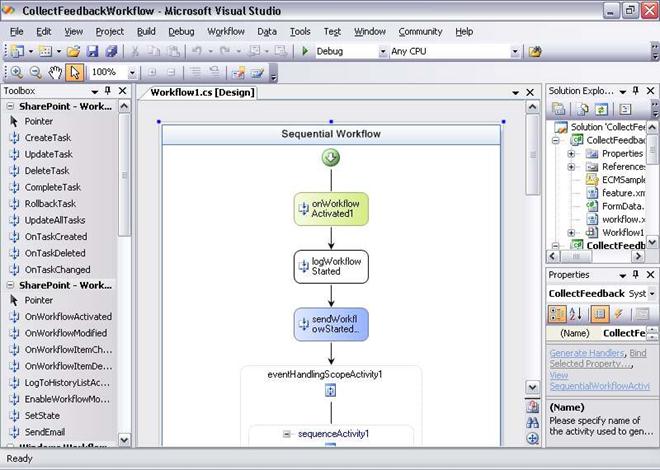
  1. The Visual Studio assemblies for the Activities are stored in the global assembly catalog (GAC).
  2. The XML definition files (.ACTIONS files) are stored in the 14\TEMPLATE\{LCID}\Workflow directory.
  3. An XML entry to mark the activity as an authorized type is stored in the Web.config file for the Web applications in which it is used.

    If your farm workflows use custom actions, you should use a file backup system to protect these files and XML entries. Similar to SharePoint Foundation features such as Web parts and event receivers, these files should be reapplied to the farm as needed after recovery.

  • Workflows that depend on custom code, such as those that are created by using Visual Studio, are stored in two locations. The Visual Studio assemblies for the workflow are stored in the global assembly catalog (GAC), and the XML definition files are stored in the Features directory. This is the same as other types of SharePoint Foundation features such as Web parts and event receivers. If the workflow was installed as part of a solution package, backing up the content database protects these workflows.
  • If you create a custom workflow that interacts with a site collection other than the one where the workflow is deployed, you must back up both site collections to protect the workflow. This includes workflows that write to a history list or other custom list in another site collection. Performing a farm backup is sufficient to back up all site collections in the farm and all workflows that are associated with them.
  • Workflows that are not yet deployed must be backed up and restored separately like any other data file. When you are developing a new workflow but have not yet deployed it to the SharePoint Foundation farm, make sure that you back up the folder where you store your workflow project files by using Windows Backup or another file system backup application.


Protecting service applications

Service applications in a SharePoint Foundation environment can be made up of both service settings and one or more databases, or just service settings. You cannot restore a complete service application by restoring the database only; however, you can restore the databases for a service application and then reprovision the service application. For more information, see Restore a service application (SharePoint Foundation 2010).


Protecting SQL Server Reporting Services databases

SharePoint Foundation backup and recovery does not include SQL Server Reporting Services databases. You must use SQL Server tools. For more information, see Backup and Restore Operations for a Reporting Services Installation (http://go.microsoft.com/fwlink/?LinkId=186642).

  1. Back up or export the object from the unattached content database.
  2. Restore or import the output of the prior step into SharePoint Foundation 2010.

The following items can be backed up or exported from an unattached database by using granular backup and export, and then restored:

  • Site collection

    Back up by using site collection backup, and then recover by using a site collection restore.

  • Site

    Export, and then import.

  • Lists and libraries

    Export, and then import.


You can use import to recover content that you backed up from a database configured to use the SQL FILESTREAM RBS provider. The recovered content will be stored by SharePoint Foundation 2010 using the currently defined storage provider for that content database — that is, if the content database is not set to use RBS, the data will be stored in the content database; if the content database is set to use RBS, the data will be stored in RBS.

  • Related content


  • Plan for availability (SharePoint Foundation 2010)

    Updated: June 17, 2010

    This article describes key decisions in choosing availability strategies for a Microsoft SharePoint Foundation 2010 environment.

    As you carefully review your availability requirements, be aware that the higher the level of availability and the more systems that you protect, the more complex and costly your availability solution is likely to be.

    Not all solutions in an organization are likely to require the same level of availability. You can offer different levels of availability for different sites, different services, or different farms.

    In this article:

  • Availability overview

    Availability is the degree to which a SharePoint Foundation environment is perceived by users to be available. An available system is a system that is resilient — that is, incidents that affect service occur infrequently, and timely and effective action is taken when they do occur.

    Availability is part of business continuity management (BCM), and is related to backup and recovery and disaster recovery. For more information about these related processes, see Plan for backup and recovery (SharePoint Foundation 2010) and Plan for disaster recovery (SharePoint Foundation 2010).


    Note:

    When calculating availability, most organizations specifically exempt or add hours for planned maintenance activities.


    One of the most common measures of availability is percentage of uptime expressed as number of nines — that is, the percentage of time that a given system is active and working. For example, a system with a 99.999 uptime percentage is said to have five nines of availability.


    The following table correlates uptime percentage with calendar time equivalents.


    Acceptable uptime percentage

    Downtime per day

    Downtime per month

    Downtime per year

    95

    72.00 minutes

    36 hours

    18.26 days

    99 (two nines)

    14.40 minutes

    7 hours

    3.65 days

    99.9 (three nines)

    86.40 seconds

    43 minutes

    8.77 hours

    99.99 (four nines)

    8.64 seconds

    4 minutes

    52.60 minutes

    99.999 (five nines)

    0.86 seconds

    26 seconds

    5.26 minutes


    If you can make an educated guess about the number of total hours downtime you are likely to have per year, you can use the following formulas to calculate the uptime percentage for a year, a month, or a week:

    % uptime/year = 100 – (8760 – number of total hours downtime per year)/8760

    % uptime/month = 100 – ((24 × number of days in the month) – number of total hours downtime in that calendar month)/(24 × number of days in the month)

    % uptime/week = 100 – (168 – number of total hours downtime in that week)/168


    Costs of availability

    Availability is one of the more expensive requirements for a system. The higher the level of availability and the more systems that you protect, the more complex and costly an availability solution is likely to be. When you invest in availability, costs include the following:

    • Additional hardware and software, which can increase the complexity of interactions among software applications and settings.
    • Additional operational complexity.


    The costs of improving availability should be evaluated in conjunction with your business needs — not all solutions in an organization are likely to require the same level of availability. You can offer different levels of availability for different sites, different services, or different farms.


    Availability is a key area in which information technology (IT) groups offer service level agreements (SLAs) to set expectations with customer groups. Many IT organizations offer various SLAs that are associated with different chargeback levels.


    Determining availability requirements

    To gauge your organization’s tolerance of downtime for a site, service, or farm, answer the following questions:

    • If the site, service, or farm becomes unavailable, will employees be unable to perform their expected job responsibilities?
    • If the site, service, or farm becomes unavailable, will business and customer transactions be stopped, leading to loss of business and customers?

    If you answered yes to either of these questions, you should invest in an availability solution.

  • Choosing an availability strategy and level

    You can choose among many approaches to improve availability in a SharePoint Foundation environment, including the following:

    • Improve the fault tolerance of server hardware components.
    • Increase the redundancy of server roles within a farm.


    Hardware component fault tolerance

    Hardware component fault tolerance is the redundancy of hardware components and infrastructure systems such as power supplies at the server level. When planning for hardware component fault tolerance, consider the following:

    • Complete redundancy of every component within a server may be impossible or impractical. Use additional servers for additional redundancy.
    • Ensure that servers have multiple power supplies connected to different power sources for maximum redundancy.

    In any system, we recommend that you work with hardware vendors to obtain fault-tolerant hardware that is appropriate for the system, including redundant array of independent disks (RAID) arrays.


    Redundancy within a farm

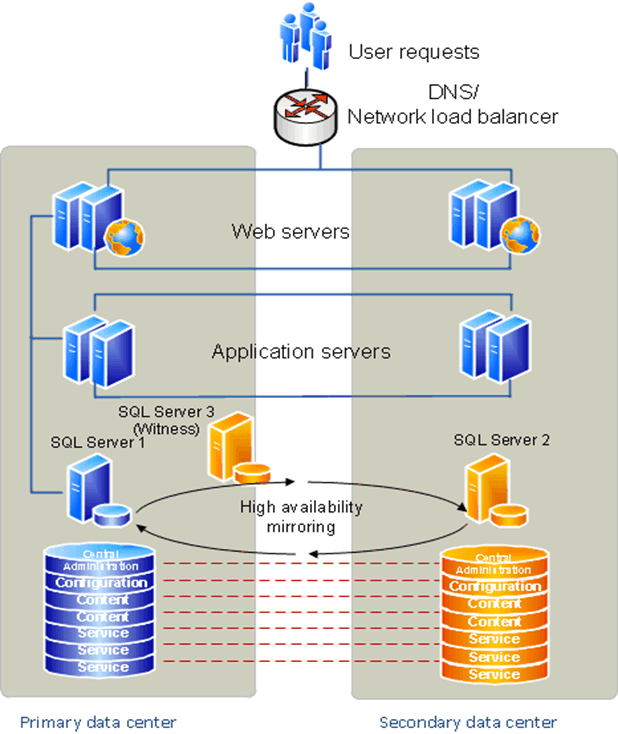
    SharePoint Foundation 2010 supports running server roles on redundant computers (that is, scaling out) within a farm to increase capacity and to provide basic availability.

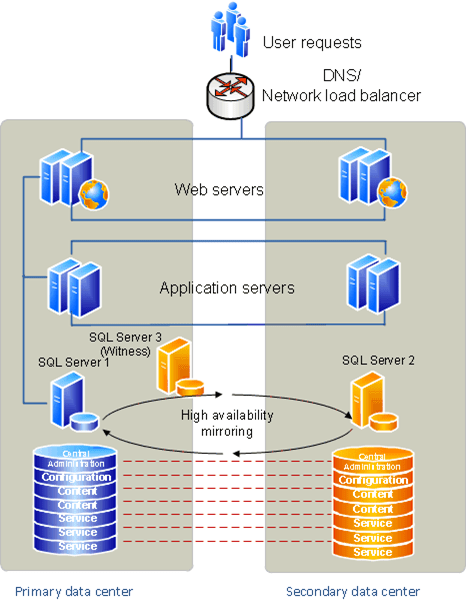
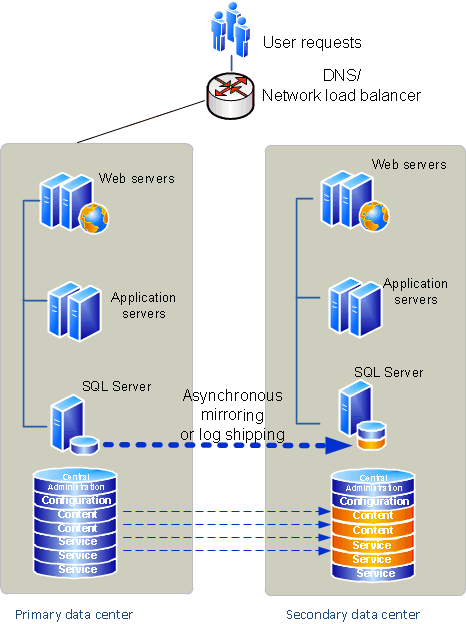
    The capacity that you require determines both the number of servers and the size of the servers in a farm. After you have met your base capacity requirements, you may want to add more servers to increase overall availability. The following illustration shows how you can provide redundancy for each server role.


    Availability within a server farm


    The following table describes the server roles in a SharePoint Foundation 2010 environment and the redundancy strategies that can be used for each within a farm.


    Server role

    Preferred redundancy strategy within a farm

    Front-end Web server

    Deploy multiple front-end Web servers within a farm, and use Network Load Balancing (NLB).

    Application server

    Deploy multiple application servers within a farm.

    Database server

    Deploy database servers by using clustering or high-availability database mirroring.


    Database availability strategies

    You can use Microsoft SQL Server failover clustering or SQL Server high-availability database mirroring to support availability of databases in a SharePoint Foundation environment.


    SQL Server failover clustering

    Failover clustering can provide availability support for an instance of SQL Server. A failover cluster is a combination of one or more nodes or servers, and two or more shared disks. A failover cluster instance appears as a single computer, but has functionality that provides failover from one node to another if the current node becomes unavailable. SharePoint Foundation can run on any combination of active and passive nodes in a cluster that is supported by SQL Server.

    SharePoint Foundation references the cluster as a whole; therefore, failover is automatic and seamless from the perspective of SharePoint Foundation.

    For detailed information about failover clustering, see Getting Started with SQL Server 2008 Failover Clustering (http://go.microsoft.com/fwlink/?LinkID=102837&clcid=0x409) and Configure availability by using SQL Server clustering (SharePoint Foundation 2010).


    SQL Server high-availability mirroring

    Database mirroring is a SQL Server technology that can deliver database redundancy on a per-database basis. In database mirroring, transactions are sent directly from a principal database and server to a mirror database and server when the transaction log buffer of the principal database is written to disk. This technique can keep the mirror database almost up to date with the principal database. SQL Server Enterprise Edition provides additional functionality that improves database mirroring performance.

    For mirroring within a SharePoint Foundation farm, you must use high-availability mirroring, also known as high-safety mode with automatic failover. High-availability database mirroring involves three server instances: a principal, a mirror, and a witness. The witness server enables SQL Server to automatically fail over from the principal server to the mirror server. Failover from the principal database to the mirror database typically takes several seconds.

    A change from previous versions is that SharePoint Foundation is mirroring-aware. After you have configured a database mirror instance of SQL Server, you then use SharePoint Central Administration or Windows PowerShell cmdlets to identify the failover (mirror) database server location for a configuration database, content database, or service application database. Setting a failover database location adds a parameter to the connection string that SharePoint Foundation uses to connect to SQL Server. In the event of a SQL Server time-out event, the following occurs:

  1. The witness server that is configured for SQL Server mirroring automatically swaps the roles of the primary and mirror databases.
  2. SharePoint Foundation automatically attempts to contact the server that is specified as the failover database.

For information about how to configure database mirroring, see Configure availability by using SQL Server database mirroring (SharePoint Foundation 2010).

For general information about database mirroring, see Database Mirroring (http://go.microsoft.com/fwlink/?LinkID=180597).


Note:

Databases that have been configured to use the SQL Server FILESTREAM remote BLOB store provider cannot be mirrored.


Comparison of database availability strategies for a single farm: SQL Server failover clustering vs. SQL Server high-availability mirroring

The following table compares failover clustering to synchronous SQL Server high-availability mirroring.


SQL Server failover clustering

SQL Server high-availability mirroring

Time to failover

Cluster member takes over immediately upon failure.

Mirror takes over immediately upon failure.

Transactional consistency?

Yes

Yes

Transactional concurrency?

Yes

Yes

Time to recovery

Shorter time to recovery (milliseconds)

Slightly longer time to recovery (milliseconds).

Steps required for failover?

Failure is automatically detected by database nodes; SharePoint Foundation 2010 references the cluster so that failover is seamless and automatic.

Failure is automatically detected by the database; SharePoint Foundation 2010 is aware of the mirror location, if it has been configured correctly, so that failover is automatic.

Protection against failed storage?

Does not protect against failed storage, because storage is shared between nodes in the cluster.

Protects against failed storage because both the principal and mirror database servers write to local disks.

Storage types supported

Shared storage (more expensive).

Can use less-expensive direct-attached storage (DAS).

Location requirements

Members of the cluster must be on the same subnet.

Principal, mirror, and witness servers must be on the same LAN (up to 1 millisecond latency roundtrip).

Recovery model

SQL Server full recovery model recommended. You can use the SQL Server simple recovery model, but the only available recovery point if the cluster is lost will be the last full backup.

Requires SQL Server full recovery model.

Performance overhead

Some decrease in performance may occur while a failover is occurring.

High-availability mirroring introduces transactional latency because it is synchronous. It also requires additional memory and processor overhead.

Operational burden

Set up and maintained at the server level.

The operational burden is larger than clustering. Must be set up and maintained for all databases. Reconfiguring after failover is manual.


Service application redundancy strategies

The redundancy strategy you follow for protecting service applications that run in a farm varies, depending on where the service application stores data.


Service applications that store data in databases

To help protect service applications that store data in databases, you must follow these steps:

  1. Install the service on multiple application servers to provide redundancy within the environment.
  1. Configure SQL Server clustering or mirroring to protect the data.

The following service applications store data in databases:

  • Business Data Connectivity service application
  • Application Registry service application

    We do not recommend mirroring the Application Registry database, because it is only used when upgrading Windows SharePoint Services 3.0 Business Data Catolog information to SharePoint Foundation 2010.

  • Usage and Health Data Collection service application


Note:

We recommend that you do not mirror the Usage and Health Data Collection service application Logging database.

  • Microsoft SharePoint Foundation Subscription Settings service
  1. Verify that you meet the following minimum requirements: See Add-SPShellAdmin.
  2. On the Start menu, click All Programs.
  3. Click Microsoft SharePoint 2010 Products.
  4. Click SharePoint 2010 Management Shell.
  5. At the Windows PowerShell command prompt, type the following command:

Backup-SPFarm -Directory <BackupFolder> -BackupMethod {Full | Differential} [-Verbose]

Where <BackUpFolder> is the path of a folder on the local computer or the network in which you want to store the backups.


Note:

If you are backing up the farm for the first time, you must use the Full

option. You must perform a full backup before you can perform a differential backup.

For more information, see Backup-SPFarm (http://technet.microsoft.com/library/c37704b5-5361-4090-a84d-fcdd17bbe345(Office.14).aspx).


Note:

We recommend that you use Windows PowerShell when performing command-line administrative tasks. The Stsadm command-line tool has been deprecated, but is included to support compatibility with previous product versions.


  • Use Central Administration to back up a farm

    You can use Central Administration to back up the farm.

    To back up a farm by using Central Administration

  1. To perform this procedure, you must be a member of the Farm Administrators group on the computer that is running Central Administration.
  2. In Central Administration, on the Home page, in the Backup and Restore section, click Perform a backup.
  3. On the Perform a Backup — Step 1 of 2: Select Component to Back Up page, select the farm from the list of components, and then click Next.
  4. On the Start Backup — Step 2 of 2: Select Backup Options page, in the Backup Type section, select either Full or Differential.


Note:

If you are backing up the farm for the first time, you must use the Full option. You must perform a full backup before you can perform a differential backup.

  1. In the Back Up Only Configuration Settings section, click Back up content and configuration settings.
  2. In the Backup File Location section, type the UNC path of the backup folder, and then click Start Backup.
  3. You can view the general status of all backup jobs at the top of the Backup and Restore Status page in the Readiness section. You can view the status for the current backup job in the lower part of the page in the Backup section. The status page updates every 30 seconds automatically. You can manually update the status details by clicking Refresh. Backup and recovery are Timer service jobs. Therefore, it may take several seconds for the backup to start.

    If you receive any errors, you can review them in the Failure Message column of the Backup and Restore Job Status page. You can also find more details in the Spbackup.log file at the UNC path that you specified in step 6.

  • Use SQL Server tools to back up a farm

    If you want to back up the complete farm, you must use either Windows PowerShell or Central Administration. You cannot back up the complete farm by using the SQL Server tools because you cannot use the tools to back up the farm’s configuration. However, you can back up all the databases that are associated with the farm.


    To back up the databases associated with a farm by using SQL Server tools

  1. To use SQL Server tools to back up SharePoint Foundation 2010 databases, the account that is used to back up the databases must be a member of the SQL Server db_backupoperator fixed database role on the database server where each database is stored.
  2. Open SQL Server Management Studio and connect to the database server.
  3. In Object Explorer, expand Databases.
  4. Right-click the database that you want to back up, point to Tasks, and then click Back Up.
  5. In the Back Up Database dialog box, in the Source area, select the kind of backup that you want to perform from the Backup type list. For more information about which backup type to use, see Overview of Recovery Models (http://go.microsoft.com/fwlink/?LinkId=114396).
  6. In the Backup component area, click Database.
  7. Either use the default name provided or specify a name for the backup set in the Name text box.
  8. Specify the expiration date for the backup set. This date determines how long, or when, the backup set can be overwritten by any later backups that have the same name. By default, the backup set is set to never expire (0 days).
  9. In the Destination area, specify where you want to store the backup.
  10. Click OK to back up the database.
  11. Repeat steps 1-10 for each farm database.
  1. Verify that you meet the following minimum requirements: See Add-SPShellAdmin.
  2. On the Start menu, click All Programs.
  3. Click Microsoft SharePoint 2010 Products.
  4. Click SharePoint 2010 Management Shell.
  5. At the Windows PowerShell command prompt (that is, PS C:\>), type the following command, and then press ENTER:

Backup-SPConfigurationDatabase -Directory <BackupFolder> -DatabaseServer <DatabaseServerName> -DatabaseName <DatabaseName> -DatabaseCredentials <WindowsPowerShellCredentialObject> [-Verbose]

Where:

  • <BackupFolder> is the path to the folder with the correct backup files.
  • <DatabaseServerName> is the name of the database server for the farm that you are backing up.
  • <DatabaseName> is the name of the farm configuration database.
  • If you are not logged on with an account with db_backupoperator fixed database role on the database server where the configuration database is stored, you must specify the value for DatabaseCredentials

    parameter.


For more information, see Backup-SPConfigurationDatabase (http://technet.microsoft.com/library/28ddc176-1b7f-47dd-868f-39b7c403a900(Office.14).aspx).


Note:

We recommend that you use Windows PowerShell when performing command-line administrative tasks. The Stsadm command-line tool has been deprecated, but is included to support compatibility with previous product versions.


  • Use Central Administration to back up a farm configuration

    You can use Central Administration to back up the configuration of the farm that Central Administration is running on. To back up the configuration of a remote farm, you must use the Central Administration Web site that is running on the remote farm. You cannot use Central Administration to back up an unattached configuration database.


    To back up a farm configuration by using Central Administration

  1. Verify that the user account performing this procedure is a member of the Farm Administrators group.
  2. On the Central Administration Home page, in the Backup and Restore section, click Perform a backup.
  3. On the Perform a Backup — Step 1 of 2: Select Component to Back Up page, select the farm from the list of components, and then click Next.


Note:

You can back up the configuration for any service or application. However, common practice is to back up configuration at the farm level.

  1. On the Start Backup — Step 2 of 2: Select Backup Options page, in the Backup Type section, select Full.
  2. In the Backup Only Configuration Settings section, select the Backup only configuration settings option.
  3. In the Backup File Location section, type the Universal Naming Convention (UNC) path of the backup folder, and then click Start Backup.
  4. You can view the general status of all backup jobs at the top of the Backup and Restore Job Status page in the Readiness section. You can view the status for the current backup job in the lower part of the page in the Backup section. The status page updates every 30 seconds automatically. You can manually refresh the status details by clicking Refresh. Backup and recovery are Timer service jobs. Therefore, it may take several seconds for the backup to start.

If you receive any errors, you can review them in the Failure Message column of the Backup and Restore Job Status page. You can also find more details in the Spbackup.log file at the UNC path that you specified in step 5.

  1. Verify that you meet the following minimum requirements: See Add-SPShellAdmin. Additionally, the user account performing this procedure must be a member of the SQL Server db_backupoperator fixed database role on the database server where each database is stored.
  2. On the Start menu, click All Programs.
  3. Click Microsoft SharePoint 2010 Products.
  4. Click SharePoint 2010 Management Shell.
  5. At the Windows PowerShell command prompt (that is, PS C:\>), type the following command, and then press ENTER:

Backup-SPFarm -Directory <BackupFolder> -BackupMethod {Full | Differential} -Item <WebApplicationName> [-Verbose]

Where:

  • <BackupFolder> is the path of the folder you use for storing backup files.
  • <WebApplicationName> is the name of the Web application.


Note:

If you are backing up the Web application for the first time, you must use the Full

option. You must perform a full backup before you can perform a differential backup.


For more information, see Backup-SPFarm (http://technet.microsoft.com/library/c37704b5-5361-4090-a84d-fcdd17bbe345(Office.14).aspx).


Note:

We recommend that you use Windows PowerShell when performing command-line administrative tasks. The Stsadm command-line tool has been deprecated, but is included to support compatibility with previous product versions.


  1. Verify that the user account that is performing this procedure is a member of the Farm Administrators group.
  2. In Central Administration, on the Home page, in the Backup and Restore section, click Perform a backup.
  3. On the Perform a Backup — Step 1 of 2: Select Component to Back Up page, select the Web application from the list of components, and then click Next.


Note:

The Web application might consist of several components. You must select the top-level component.

  1. On the Start Backup — Step 2 of 2: Select Backup Options page, in the Backup Type section, select either Full or Differential.


Note:

If you are backing up the Web application for the first time, you must use the Full option. You must perform a full backup before you can perform a differential backup.

  1. In the Back Up Only Configuration Settings section, click Back up content and configuration settings.
  2. In the Backup File Location section, type the Universal Naming Convention (UNC) path of the backup folder, and then click Start Backup.
  3. You can view the general status of all backup jobs at the top of the Backup and Restore Job Status page in the Readiness section. You can view the status for the current backup job in the lower part of the page in the Backup section. The status page updates every 30 seconds automatically. You can manually update the status details by clicking Refresh. Backup and recovery are Timer service jobs. Therefore, it may take several seconds for the backup to start.

    If you receive any errors, you can review them in the Failure Message column of the Backup and Restore Job Status page. You can also find more details in the Spbackup.log file at the UNC path that you specified in step 6.

  1. Verify that the user account that is used to back up the databases is a member of the SQL Server db_backupoperator fixed database role on the database server where each database is stored. Additionally, verify that the user account has Full Control permissions on the backup folder.
  2. Open SQL Server Management Studio and connect to the database server.
  3. In Object Explorer, expand Databases.
  4. Right-click the database that you want to back up, point to Tasks, and then click Back Up.
  5. In the Back Up Database dialog box, in the Source area, select the kind of backup that you want to perform from the Backup type list. For more information about which backup type to use, see Overview of Recovery Models (http://go.microsoft.com/fwlink/?LinkId=114396).
  6. In the Backup component area, click Database.
  7. Either use the default name provided or specify a name for the backup set in the Name text box.
  8. Specify the expiration date for the backup set. This date determines how long, or when, the backup set can be overwritten by any later backups that have the same name. By default, the backup set is set to never expire (0 days).
  9. In the Destination area, specify where you want to store the backup.
  10. Click OK to back up the database.
  11. Repeat steps 1-10 for each database that is associated with the Web application.
  1. Verify that you meet the following minimum requirements: See Add-SPShellAdmin.
  2. On the Start menu, click All Programs.
  3. Click Microsoft SharePoint 2010 Products.
  4. Click SharePoint 2010 Management Shell.
  5. At the Windows PowerShell command prompt, type the following command:

    Backup-SPFarm -Directory <BackupFolder> -BackupMethod {Full | Differential} -Item <ServiceApplicationName> [-Verbose]


    Where:

  • <BackupFolder> is the path of a folder on the local computer or on the network in which you want to store the backups.
  • <ServiceApplicationName> is the name of the service application that you want to back up.


Note:

To back up all the service applications, at the Windows PowerShell command prompt, type the following command:

Backup-SPFarm -Directory <BackupFolder> -BackupMethod {Full | Differential} -Item “Farm\Shared Service Applications” [-Verbose]


Note:

If you are backing up the service application for the first time, you must use the Full

option. You must perform a full backup before you can perform a differential backup.

Some service applications always require a full backup. For these service applications, even if you select the Differential

option, the system performs a full backup.


For more information, see Backup-SPFarm (http://technet.microsoft.com/library/c37704b5-5361-4090-a84d-fcdd17bbe345(Office.14).aspx).


Note:

We recommend that you use Windows PowerShell when performing command-line administrative tasks. The Stsadm command-line tool has been deprecated, but is included to support compatibility with previous product versions.

  • Use Central Administration to back up a service application

    You can use Central Administration to back up a service application.


    To back up a service application by using Central Administration

  1. Verify that the user account that performs this procedure is a member of the Farm Administrators group.
  2. In Central Administration, on the Home page, in the Backup and Restore section, click Perform a backup.
  3. On the Perform a Backup — Step 1 of 2: Select Component to Back Up page, select the service application from the list of components, and then click Next. To back up all the service applications, select the Shared Service Applications node.


Note:

The service application might consist of several components. You must select the top-level component.

  1. On the Start Backup — Step 2 of 2: Select Backup Options page, in the Backup Type section, select either Full or Differential.


Note:

If you are backing up the service application for the first time, you must use the Full option. You must perform a full backup before you can perform a differential backup.

Some service applications always require a full backup. For these service applications, the system performs a full backup even if you select the Differential option.

  1. In the Backup File Location section, in the Backup location box, type the path of the backup folder, and then click Start Backup.
  2. You can view the general status of all backup jobs at the top of the Backup and Restore Job Status page in the Readiness section. You can view the status for the current backup job in the lower part of the page in the Backup section. The status page updates every 30 seconds automatically. You can manually update the status details by clicking Refresh. Backup and recovery are Timer service jobs. Therefore, it may take several seconds for the backup to start.

    If you receive any errors, you can review them in the Failure Message column of the Backup and Restore Job Status page. You can also find more details in the Spbackup.log file at the UNC path that you specified in step 5.

  1. Verify that you meet the following minimum requirements: See Add-SPShellAdmin.
  2. On the Start menu, click All Programs.
  3. Click Microsoft SharePoint 2010 Products.
  4. Click SharePoint 2010 Management Shell.
  5. At the Windows PowerShell command prompt type the following command:

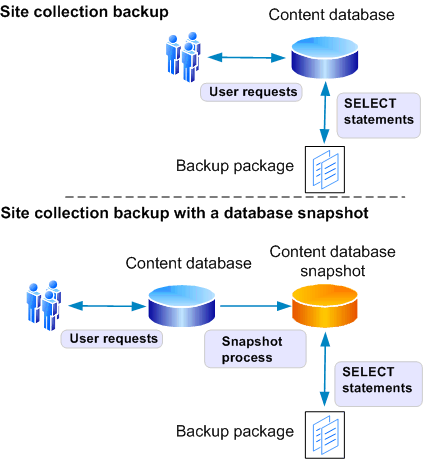
    Backup-SPSite -Identity <Site collection name> -Path <backup file> [-Force] [-NoSiteLock] [-UseSqlSnapshot] [-Verbose]

    If you want to overwrite a previously used backup file, use the Force

    parameter. You can use the NoSiteLock

    parameter to keep the read-only lock from being set on the site collection while it is being backed up. However, using this parameter can allow users to change the site collection while it is being backed up and might lead to possible data corruption during backup.

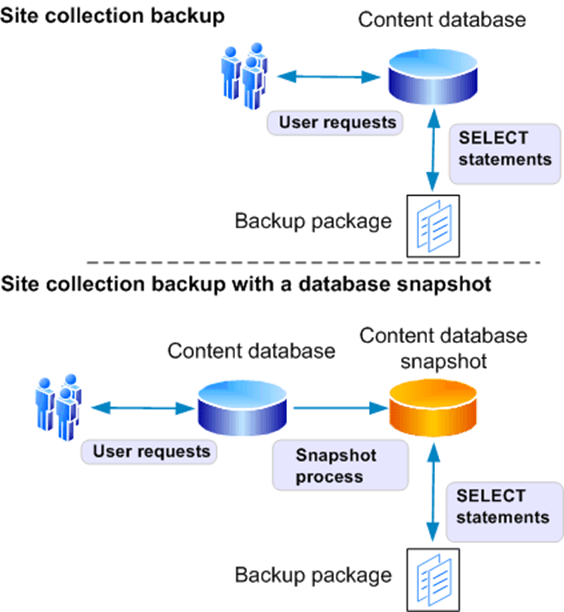
    If the database server is running an Enterprise Edition of Microsoft SQL Server, we recommend that you also use the UseSqlSnapshot

    parameter for more consistent backups. You can also export sites or lists from these snapshots.


Important:

When you perform a backup that uses the UseSqlSnapshot

parameter, a backup will be completed successfully. However, you will see an error similar to the following:

Backup-SPSite : Operation is not valid due to the current state of the object.

At line:1 char:14

+ Backup-SPSite <<<< http://site -Path + CategoryInfo : NotSpecified: (:) [Backup-SPSite], InvalidOperationException + FullyQualifiedErrorId : System.InvalidOperationException,Microsoft.SharePoint.PowerShell.SPCmdletBackupSite\\yourpath


Note:

If the RBS provider that you are using does not support snapshots, you cannot use snapshots for content deployment or backup. For example, the SQL FILESTREAM provider does not support snapshots.

For more information about using SQL snapshots, see Back up databases to snapshots (SharePoint Foundation 2010).

For more information, see Backup-SPSite (http://technet.microsoft.com/library/d4c31a1a-82a7-425f-b1bb-22e70bedd338(Office.14).aspx).


Note:

We recommend that you use Windows PowerShell when performing command-line administrative tasks. The Stsadm command-line tool has been deprecated, but is included to support compatibility with previous product versions.


  • Use Central Administration to back up a site collection

    You can use Central Administration to back up a site collection.

    To back up a site collection by using Central Administration

  1. Verify that the user account performing this procedure is a member of the Farm Administrators group. Additionally, verify that the Windows SharePoint Services Timer V4 service has Full Control permissions on the backup folder.
  2. In Central Administration, on the Home page, in the Backup and Restore section, click Perform a site collection backup.
  3. On the Site collection backup page, select the site collection from the Site Collection list.
  4. Type the local path of the backup file in the Filename box.


Note:

If you want to reuse a file, select the Overwrite existing file check box.

  1. Click Start Backup.
  2. You can view the general status of all backup jobs at the top of the Granular Backup Job Status page in the Readiness section. You can view the status for the current backup job in the lower part of the page in the Site Collection Backup section. The status page updates every 30 seconds automatically. You can manually update the status details by clicking Refresh. Backup and recovery are Timer service jobs. Therefore, it may take several seconds for the backup to start.

    If you receive any errors, you can review them in the Failure Message column of the Granular Backup Job Status page.

  1. Verify that the user account that is performing this procedure is a member of the Farm Administrators group.
  2. In Central Administration, on the Home page, in the Backup and Restore section, click Perform a backup.
  3. On the Perform a Backup — Step 1 of 2: Select Component to Back Up page, select Solutions, and then click Next.

    You can also select an individual solution, if you only want to back up a single solution.

  4. On the Start Backup — Step 2 of 2: Select Backup Options page, in the Backup Type section, select either Full or Differential.


Note:

If you are backing up the solution for the first time, you must use the Full option. You must perform a full backup before you can perform a differential backup.

  1. In the Backup File Location section, type the Universal Naming Convention (UNC) path of the backup folder, and then click Start Backup.
  2. You can view the general status of all backup jobs at the top of the Backup and Restore Job Status page in the Readiness section. You can view the status of the current backup job in the lower part of the page in the Backup section. The status page updates every 30 seconds automatically. You can manually update the status details by clicking Refresh. Backup and recovery are Timer service jobs. Therefore, it may take several seconds for the backup to start.

    If you receive any errors, review the Failure Message column of the Backup and Restore Job Status page. You can also find more details in the Spbackup.log file at the UNC path that you specified in step 4.


To back up trusted solutions by using Windows PowerShell

  1. Verify that you meet the following minimum requirements: See Add-SPShellAdmin.
  2. On the Start menu, click All Programs.
  3. Click Microsoft SharePoint 2010 Products.
  4. Click SharePoint 2010 Management Shell.
  5. At the Windows PowerShell command prompt, type the following command to back up all of the solutions in the farm. To back up a single solution, add the name of the solution to the item path “farm\solutions”.

Backup-SPFarm -backupmethod full -directory <UNC location> -item “farm\solutions”

Where:

  • <UNC location> is UNC location of the directory that you want to back up to.

For more information, see Backup-SPFarm (http://technet.microsoft.com/library/c37704b5-5361-4090-a84d-fcdd17bbe345(Office.14).aspx).


Note:

We recommend that you use Windows PowerShell when performing command-line administrative tasks. The Stsadm command-line tool has been deprecated, but is included to support compatibility with previous product versions.


Backing up sandboxed solutions

You cannot back up only sandboxed solutions. Instead, you must back up the farm, Web application, or content database with which the sandboxed solution is associated. For more information about these methods of backing up, see Related content.

  1. The Visual Studio 2010 assemblies for the actions are stored in the global assembly cache (GAC).
  2. The XML definition files (.ACTIONS files) are stored in the 14\TEMPLATE\<LCID>\Workflow directory.
  3. An XML entry to mark the action as an authorized type is stored in the Web.config file for the Web applications in which it is used.

    If the farm workflows use custom actions, you should use a file backup system to protect these files and XML entries. Similar to SharePoint Foundation features such as Web Parts and event receivers, these files should be reapplied to the farm as needed after recovery.

  • Workflows that depend on custom code, such as those that are created by using Visual Studio 2010, are stored in two locations. The Visual Studio 2010 assemblies for the workflow are stored in the GAC, and the XML definition files are stored in the Features directory. This is the same as other types of SharePoint Foundation features such as Web Parts and event receivers. If the workflow was installed as part of a solution package, backing up the farm, Web application, content database, or site collection protects these workflows.
  • If you create a custom workflow that interacts with a site collection other than the one where the workflow is deployed, you must back up both site collections to protect the workflow. This includes workflows that write to a history list or other custom list in another site collection. Performing a farm backup is sufficient to back up all site collections in the farm and all workflows that are associated with them.
  • Workflows that are not yet deployed must be backed up and restored separately. When you are developing a new workflow but have not yet deployed it to the SharePoint Foundation farm, make sure that you back up the folder where you store the workflow project files by a file system backup application.
  1. Verify that you meet the following minimum requirements: See Add-SPShellAdmin.
  2. On the Start menu, click All Programs.
  3. Click Microsoft SharePoint 2010 Products.
  4. Click SharePoint 2010 Management Shell.
  5. At the Windows PowerShell command prompt (that is, PS C:\>), type the following command, and then press ENTER:

    Backup-SPFarm -Directory <Backup folder> -BackupMethod {Full | Differential} -Item <Content database name> [-Verbose]


Note:

If you are backing up the content database for the first time, you must use the Full

option. You must perform a full backup before you can perform a differential backup.

For more information, see Backup-SPFarm (http://technet.microsoft.com/library/c37704b5-5361-4090-a84d-fcdd17bbe345(Office.14).aspx)


Note:

We recommend that you use Windows PowerShell when performing command-line administrative tasks. The Stsadm command-line tool has been deprecated, but is included to support compatibility with previous product versions.


  • Use Central Administration to back up a content database

    You can use Central Administration to back up a content database.

    To back up a content database by using Central Administration

  1. Verify that the user account that is performing this procedure is a member of the Farm Administrators group.
  2. In Central Administration, on the Home page, in the Backup and Restore section, click Perform a backup.
  3. On the Perform a Backup — Step 1 of 2: Select Component to Back Up page, select the content database that you want to back up from the list of components, and then click Next.


Note:

Not all content databases can be selected in the list. If a database is not selectable, you must use Windows PowerShell to back up the content database.

  1. On the Start Backup — Step 2 of 2: Select Backup Options page, in the Backup Type section, select either Full or Differential.


Note:

If you are backing up the content database for the first time, you must use the Full option. You must perform a full backup before you can perform a differential backup.

  1. In the Backup File Location section, type the Universal Naming Convention (UNC) path of the backup folder, and then click Start Backup.
  2. You can view the general status of all backup jobs at the top of the Backup and Restore Job Status page in the Readiness section. You can view the status of the current backup job in the lower part of the page in the Backup section. The status page updates every 30 seconds automatically. You can manually update the status details by clicking Refresh. Backup and recovery are Timer service jobs. Therefore, it may take several seconds for the backup to start.

    If you receive any errors, review the Failure Message column of the Backup and Restore Job Status page. You can also find more details in the Spbackup.log file at the UNC path that you specified in step 4.

  • Use SQL Server tools to back up a content database

    You can use SQL Server tools to back up a content database.


    To back up a content database by using SQL Server tools

  1. Verify that the user account that is performing this procedure is a member of the SQL Server db_backupoperator fixed database role on the database server where each database is stored.
  2. Open SQL Server Management Studio and connect to the database server.
  3. In Object Explorer, expand Databases.
  4. Right-click the database that you want to back up, point to Tasks, and then click Back Up.
  5. In the Back Up Database dialog box, in the Source area, select the kind of backup that you want to perform from the Backup type list. For more information about which backup type to use, see Overview of Recovery Models (http://go.microsoft.com/fwlink/?LinkId=114396) in SQL Server Books Online.
  6. In the Backup component area, click Database.
  7. Either use the default name provided or specify a name for the backup set in the Name text box.
  8. Specify the expiration date for the backup set. This date determines how long, or when, the backup set can be overwritten by any later backups that have the same name. By default, the backup set is set to never expire (0 days).
  9. In the Destination area, specify where you want to store the backup.
  10. Click OK to back up the database.
  11. Repeat steps 1-9 for each content database that you want to back up.
  1. Verify that the account that is used to back up the databases is a member of the SQL Server db_owner fixed database role.
  2. Open SQL Server Management Studio and connect to the database server.
  3. In Object Explorer, expand Databases.
  4. Select the database that you want to back up, and then click New Query.
  5. Copy the following text, and then paste it to the query pane.

CREATE DATABASE <snapshot name>
ON
(
NAME=<logical name of the database file>,
FILENAME = ‘c:\WSS_Backup1.ss’)
AS SNAPSHOT OF <database name>;

  1. Verify that you meet the following minimum requirements: See Add-SPShellAdmin.
  2. On the Start menu, click All Programs.
  3. Click Microsoft SharePoint 2010 Products.
  4. Click SharePoint 2010 Management Shell.
  5. At the Windows PowerShell command prompt (that is, PS C:\>), type the following command, and then press ENTER:

    Export-SPWeb -Identity <Site URL> -Path <Path and file name> [-ItemUrl <URL of site, list, or library>] [-IncludeUserSecurity] [-IncludeVersions] [-NoFileCompression] [-GradualDelete] [-Verbose]

    If you are exporting a large site, list, or document library, you can use the GradualDelete

    parameter. When this parameter is used, the site collection is marked as deleted, which immediately prevents any further access to its content. The data in the deleted site collection is then deleted gradually over time by a timer job instead of all at once, which reduces its impact on the performance of farm servers and SQL Server.

    To specify which version of the site, list, or document library to include, use the IncludeVersions

    parameter and specify “LastMajor” (default), “CurrentVersion”, “LastMajorandMinor”, or “All”. To include the user security settings with the list or document library, use the IncludeUserSecurity

    parameter. If you want to overwrite the file that you specified, use the Force

    parameter. To view the progress of the backup operation, use the Verbose

    parameter.

    The NoFileCompression

    parameter lets you specify that no file compression is performed during the export process. Using this parameter can lower resource usage up to 30% during the export process. Using this parameter will result in a backup folder being created instead of a compressed file. If you use the NoFileCompression

    parameter in the Export-SPWeb

    command, you must also use it when you import the content by using the Import-SPWeb

    command.

For more information, see Export-SPWeb (http://technet.microsoft.com/library/cd85bf19-6f24-4f13-bd9c-37bbf279ea2b(Office.14).aspx)


Note:

We recommend that you use Windows PowerShell when performing command-line administrative tasks. The Stsadm command-line tool has been deprecated, but is included to support compatibility with previous product versions.

  • Use Central Administration to export a site, list, or document library

    You can use Central Administration to export a site, list, or document library. You can only export one site, list, or document library at a time.


    To export a site, list, or document library by using Central Administration

  1. Verify that the user account that is performing this procedure is a member of the Farm Administrators group.
  2. In Central Administration, on the Home page, click Backup and Restore.
  3. On the Backup and Restore page, in the Granular Backup section, click Export a site or list.
  4. On the Site or List Export page, in the Site Collection section, select the site collection from the Site Collection list, and then select the site from the Site list.
  5. If you are exporting a site, skip this step, Select the list or document library from the List list.
  6. In the File Location section, in the Filename box, type the UNC path of the shared folder and the file to which you want to export the list or document library. The file name must use the .cmp extension.
  7. If the file already exists and you want to use this file, select the Overwrite existing files check box. Otherwise, specify a different file name.
  8. If you want to export all the security and permissions settings with the list or library, in the Export Full Security section, select the Export full security check box.
  9. If you want to specify which version of the list or library to export, select one of the following versions from the Export versions list:
  • All Versions
  • Last Major
  • Current Version
  • Last Major and Last Minor
  1. When you have specified the settings that you want, click Start Export.
  2. You can view the status of all backup jobs at the top of the Granular Backup Job Status page. You can view the status of the current backup job in the Content Export section of the page. The status page updates every 30 seconds automatically. You can manually update the status details by clicking Refresh. Backup and recovery are Timer service jobs. Therefore, it may take several seconds for the backup to start.

    If you receive any errors, you can review them in the Failure Message column of the Backup and Restore Job Status page. You can also find more details in the <file name>.export.log file at the UNC path that you specified in step 6.


  1. Verify that you meet the following minimum requirements: See Add-SPShellAdmin.
  2. On the Start menu, click All Programs.
  3. Click Microsoft SharePoint 2010 Products.
  4. Click SharePoint 2010 Management Shell.
  5. At the Windows PowerShell command prompt, type the following command:

    Merge-SPLogFile -Path “<path to merged log file>.log” -Overwrite

    For example, Merge-SPLogFile -Path “C:\Logs\MergedFiles\AllFarm_merged_12.20.2009.log” -Overwrite


Important:

Merging all log entries for all farm servers can take a long time and use resources. We recommend filtering the entries to match a specific set of criteria before merging.

To merge log entries that match a specific set of criteria, type the following command:

Merge-SPLogFile -Path “<path to merged log file>.log” -Area “<Area>” -Category “<Category>”

You can filter by one or more of the following:

  • Area (one or more, wildcard)
  • Category (one or more, wildcard)
  • Level
  • Correlation (one or more)
  • EventID (one or more, wildcard)
  • Message (wildcard)
  • StartTime
  • EndTime
  • Process (one or more, wildcard)
  • ThreadID (one or more)


Tip:

You can name the merged log file however you want. We recommend that you use a naming convention that makes it easy to determine what the log file contains, such as “<date merged>_<farm name>_<filtering criteria>. For example, to signify all the farm server log entries forSharePoint Foundation 2010 that involve the database category and are marked as “High” use, “Dec_2009_ContosoInternet_Foundation_Database_High.log”.


For more information, see Merge-SPLogFile (http://technet.microsoft.com/library/759702d7-bda2-4302-9345-abb43b609ad4(Office.14).aspx)


To archive diagnostic logs for a specific server by using Windows PowerShell

  1. Verify that you meet the following minimum requirements: See Add-SPShellAdmin.
  2. On the Start menu, click All Programs.
  3. Click Microsoft SharePoint 2010 Products.
  4. Click SharePoint 2010 Management Shell.
  5. At the Windows PowerShell command prompt, type the following command:

    Copy-Item <Log folder path> -Destination <Archive folder path> -Recurse

For more information, type Get-Help Copy-Item -Full

.


Note:

We recommend that you use Windows PowerShell when performing command-line administrative tasks. The Stsadm command-line tool has been deprecated, but is included to support compatibility with previous product versions.


  1. Verify that you meet the following minimum requirements: See Add-SPShellAdmin.
  2. On the Start menu, click All Programs.
  3. Click Microsoft SharePoint 2010 Products.
  4. Click SharePoint 2010 Management Shell.
  5. At the Windows PowerShell command prompt (that is, PS C:\>), type the following command, and then press ENTER:

    Add-SPShellAdmin -Username <User account> -Database <Database ID>

    To add a user account to all the databases in the farm, type the following command, and then press ENTER:

    ForEach ($db in Get-SPDatabase) {Add-SPShellAdmin -Username <User account> -Database $db}

    To remove a user account from all the databases in the farm, type the following command, and then press ENTER:

    ForEach ($db in Get-SPDatabase) {Remove-SPShellAdmin -Username <User account> -Database $db}

    To view the user accounts currently added to the databases in the farm, type the following command, and then press ENTER:

    ForEach ($db in Get-SPDatabase) {Get-SPShellAdmin -Database $db}

For more information, see Add-SPShellAdmin (http://technet.microsoft.com/library/2ddfad84-7ca8-409e-878b-d09cb35ed4aa(Office.14).aspx)

You might also have to grant additional permissions to the users running the backup or restore operation by using Windows PowerShell. The following table shows the permissions that are required.


Required permissions for Windows PowerShell


Farm component

Member of Administrators group on the local computer

Member of Farm Administrators SharePoint group

Full Control on backup folder

Farm

Yes

No

Yes

Content database

Yes

No

Yes

Site collection

No

Yes

Yes

Site, list, document library

Yes

No

Yes


  1. Verify that you meet the following minimum requirements: See Add-SPShellAdmin.
  2. On the Start menu, click All Programs.
  3. Click Microsoft SharePoint 2010 Products.
  4. Click SharePoint 2010 Management Shell.
  5. At the Windows PowerShell command prompt (that is, PS C:\>), type the following command, and then press ENTER:

    Add-SPShellAdmin -Username <User account> -Database <Database ID>

    To add a user account to all the databases in the farm, type the following command, and then press ENTER:

    ForEach ($db in Get-SPDatabase) {Add-SPShellAdmin -Username <User account> -Database $db}

    To remove a user account from all the databases in the farm, type the following command, and then press ENTER:

    ForEach ($db in Get-SPDatabase) {Remove-SPShellAdmin -Username <User account> -Database $db}

    To view the user accounts currently added to the databases in the farm, type the following command, and then press ENTER:

    ForEach ($db in Get-SPDatabase) {Get-SPShellAdmin -Database $db}


For more information, see Add-SPShellAdmin (http://technet.microsoft.com/library/2ddfad84-7ca8-409e-878b-d09cb35ed4aa(Office.14).aspx)

You might also have to grant additional permissions to the users running the backup or restore operation by using Windows PowerShell. The following table shows the permissions that are required.


Required permissions for Windows PowerShell


Farm component

Member of Administrators group on the local computer

Member of Farm Administrators SharePoint group

Full Control on backup folder

Farm

Yes

No

Yes

Service application

Yes

No

Yes

Content database

Yes

No

Yes

Site collection

No

Yes

Yes

Site, list, document library

Yes

No

Yes


  1. The change logs for all databases are retained when you restore a farm.
  2. The change log for content databases is retained when you reattach or restore a database.

    When a database ID and change log are retained, the search system continues crawling based on the regular schedule that is defined by crawl rules.

    When you restore an existing database and do not use the overwrite option, a new ID is assigned to the restored database, and the database change log is not preserved. The next crawl of the database will add data from the content database to the index.

    If a restore is performed and the ID in the backup package is already being used in the farm, a new ID is assigned to the restored database and a warning is added to the restore log. The ability to perform an incremental crawl instead of a full crawl depends on the content database ID being the same as before and the change log token that is used by the search system being valid for the current change log in the content database. If the change log is not preserved, the token is not valid and the search system has to perform a full crawl.

  • SharePoint Foundation 2010 backup backs up the Business Data Connectivity service external content type definitions but does not back up the data source itself. To protect the data, you should back up the data source when you back up the Business Data Connectivity service or the farm.

    If you restore the Business Data Connectivity service or the farm and then restore the data source to a different location, you must change the location information in the external content type definition. If you do not, the Business Data Connectivity service might be unable to locate the data source.

  • SharePoint Foundation 2010 restores remote Binary Large Objects (BLOB) stores only if you are using the FILESTREAM remote BLOB store provider to put data in remote BLOB stores.

    If you are using another provider, you must manually restore the remote BLOB stores.

  • If a user has taken copies of content for off-line editing in Microsoft SharePoint Workspace 2010 and the content is restored from a backup on the server, when the user re-connects, the server automatically synchronizes the off-line content with the restored content. This might result in data loss on the user’s copies of the content.
  • If you are sharing service applications across farms, be aware that trust certificates that have been exchanged are not included in farm backups. You must back up your certificate store separately or retain the certificates in a separate location. When you restore a farm that shares a service application, you must import and redeploy the certificates, and then re-establish any inter-farm trusts.

    For more information, see Exchange trust certificates between farms (SharePoint Foundation 2010) (http://technet.microsoft.com/library/679d334b-913d-49b3-b086-66a60093b261(Office.14).aspx)

  • After a Web application that is configured to use claims-based authentication has been restored, duplicate or additional claims providers are often visible. If duplicates appear, you must then manually save each Web application zone to remove them. For more information, see Restore a Web application (SharePoint Foundation 2010).
  • Additional steps are required when you restore a farm that contains a Web application that is configured to use forms-based authentication. For more information, see Restore a Web application (SharePoint Foundation 2010).
  • Use Windows PowerShell to restore a farm

    You can use Windows PowerShell to restore a farm.

    To restore a farm by using Windows PowerShell

  1. Verify that you meet the following minimum requirements: See Add-SPShellAdmin.
  2. On the Start menu, click All Programs.
  3. Click Microsoft SharePoint 2010 Products.
  4. Click SharePoint 2010 Management Shell.
  5. At the Windows PowerShell command prompt, type the following command:

Restore-SPFarm -Directory <BackupFolder> -RestoreMethod Overwrite [-BackupId <GUID>]

Where:

  • <BackupFolder> is the path of the folder you use for storing backup files.
  • <GUID> is the identifier of the backup to restore from.


Note:

If you are not logged on as the Farm account, you are prompted for the Farm account’s credentials.

If you do not specify the BackupId

, the most recent backup will be used. To view the backups for the farm, type the following command:

Get-SPBackupHistory -Directory <BackupFolder> -ShowBackup [-Verbose]

Where:

  • <BackupFolder> is the path of the folder you use for storing backup files.

    You cannot use a configuration-only backup to restore content databases together with the configuration.

  1. To restart a service application, type the following command:

Start-SPServiceInstance -Identity <ServiceApplicationID>

Where:

For more information about restoring the farm by using Windows PowerShell, see Restore-SPFarm (http://technet.microsoft.com/library/8e18ea80-0830-4ffa-b6b6-ad18a5a7ab3e(Office.14).aspx)


Note:

We recommend that you use Windows PowerShell when performing command-line administrative tasks. The Stsadm command-line tool has been deprecated, but is included to support compatibility with previous product versions.


  • Use Central Administration to restore a farm

    You can use the Central Administration Web site to restore a farm.


    To restore a farm by using Central Administration

  1. Verify that the user account that is performing this procedure is a member of the Farm Administrators SharePoint group.
  2. In Central Administration, on the Home page, in the Backup and Restore section, click Restore from a backup.
  3. On the Restore from Backup — Step 1 of 3: Select Backup to Restore page, from the list of backups, select the backup job that contains the farm backup, and then click Next. You can view more details about each backup by clicking the (+) next to the backup.


Note:

If the correct backup job does not appear, in the Backup Directory Location text box, type the Universal Naming Convention (UNC) path of the correct backup folder, and then click Refresh.

You cannot use a configuration-only backup to restore the farm.

  1. On the Restore from Backup  — Step 2 of 3: Select Component to Restore page, select the check box that is next to the farm, and then click Next.
  2. On the Restore from Backup — Step 3 of 3: Select Restore Options page, in the Restore Component section, ensure that Farm appears in the Restore the following component list.

    In the Restore Only Configuration Settings section, ensure that the Restore content and configuration settings option is selected.

    In the Restore Options section, under Type of Restore, select the Same configuration option. A dialog box will appear that asks you to confirm the operation. Click OK.


Note:

If the Restore Only Configuration Settings section does not appear, the backup that you selected is a configuration-only backup. You must select another backup.

Click Start Restore.

  1. You can view the general status of all recovery jobs at the top of the Backup and Restore Job Status page in the Readiness section. You can view the status for the current recovery job in the lower part of the page in the Restore section. The status page updates every 30 seconds automatically. You can manually update the status details by clicking Refresh. Backup and recovery are Timer service jobs. Therefore, it may take several seconds for the recovery to start.

    If you receive any errors, you can review them in the Failure Message column of the Backup and Restore Job Status page. You can also find more details in the Sprestore.log file at the UNC path that you specified in step 3.

  2. When the restore process has completed, you may need to restart one or more service applications. In Central Administration, on the Home page, in the Application Management section, click Manage services on server.
  3. On the Services on Server page, start any services related to service applications that you want to run by clicking Start in the Actions column next to the service application.
  4. Re-establish any trust relationships. For more information, see Exchange trust certificates between farms (SharePoint Foundation 2010) (http://technet.microsoft.com/library/679d334b-913d-49b3-b086-66a60093b261(Office.14).aspx).
  • Use SQL Server tools to restore a farm

    Although you cannot restore the complete farm by using SQL Server tools, you can restore most of the farm databases. If you restore the databases by using SQL Server tools, you must restore the farm configuration by using Central Administration or Windows PowerShell. For more information about how to restore the farm’s configuration settings, see Restore a farm configuration (SharePoint Foundation 2010).


    Note:

    The search index is not stored in SQL Server. If you use SQL Server tools to back up and restore search, you must perform a full crawl after you restore the content database.


    Before you restore SharePoint Foundation 2010, we recommend that you configure a recovery farm for site and item recovery.

    Restore the databases by following these steps:

  1. If possible, back up the live transaction log of the current database to protect any changes that were made after the last full backup.
  2. Restore the last full database backup.
  3. Restore the most recent differential database backup that occurred after the most recent full database backup.
  4. Restore all transaction log backups that occurred after the most recent full or differential database backup.


To restore a farm by using SQL Server tools

  1. Verify that the user account that is performing this procedure is a member of the sysadmin fixed server role.
  2. If the Windows SharePoint Services Timer service is running, stop the service and wait for several minutes for any currently running stored procedures to finish. Do not restart the service until after you restore all the databases that you have to restore.
  3. Start SQL Server Management Studio and connect to the database server.
  4. In Object Explorer, expand Databases.
  5. Right-click the database that you want to restore, point to Tasks, point to Restore, and then click Database.

    The database is automatically taken offline during the recovery operation and cannot be accessed by other processes.

  6. In the Restore Database dialog box, specify the destination and the source, and then select the backup set or sets that you want to restore.

    The default values for destination and source are appropriate for most recovery scenarios.

  7. In the Select a page pane, click Options.
  8. In the Restore options section, select only Overwrite the existing database. Unless your environment or policies require otherwise, do not select the other options in this section.
  9. In the Recovery state section:
  • If you have included all the transaction logs that you must restore, select RECOVER WITH RECOVERY.
  • If you must restore additional transaction logs, select RECOVER WITH NORECOVERY.
  • The third option, RECOVER WITH STANDBY is not used in this scenario.


Note:

For more information about these recovery options, see Restore Database (Options Page) (http://go.microsoft.com/fwlink/?LinkId=114420).

  1. Click OK to complete the recovery operation.
  2. Except for the configuration database, repeat steps 4 through 9 for each database that you are restoring.


  1. To restore the configuration settings, you must use the existing configuration database or manually create a new database and restore the configuration to that database. For more information about restoring the farm configuration, see Restore a farm configuration (SharePoint Foundation 2010).
  2. Start the Windows SharePoint Services Timer service.
  1. Verify that you meet the following minimum requirements: See Add-SPShellAdmin.
  2. On the Start menu, click All Programs.
  3. Click SharePoint 2010 Products.
  4. Click SharePoint 2010 Management Shell.
  5. From the Windows PowerShell command prompt (that is, PS C:\>), type the following command and press ENTER:

    Restore-SPFarm -Directory <RestoreShare> -RestoreMethod Overwrite -ConfigurationOnly

    You must use the ConfigurationOnly

    parameter. To view the progress of the operation, use the Verbose

    parameter.

For more information, see Restore-SPFarm (http://technet.microsoft.com/library/8e18ea80-0830-4ffa-b6b6-ad18a5a7ab3e(Office.14).aspx)


Note:

We recommend that you use Windows PowerShell when performing command-line administrative tasks. The Stsadm command-line tool has been deprecated, but is included to support compatibility with previous product versions.


  • Use Central Administration to restore a farm’s configuration

    You can use Central Administration to restore a farm’s configuration.

    To restore a farm’s configuration by using Central Administration

  1. Ensure that you are a member of the Farm Administrators SharePoint group on the computer that is running Central Administration and a member of the sysadmin fixed server role on the database server where each database is stored.
  2. In Central Administration, on the Home page, in the Backup and Restore section, click Restore from a backup.
  3. On the Restore from Backup — Step 1 of 3: Select Backup to Restore page, select the backup job that contains the farm backup from the list of backups, and then click Next.


Note:

You can view additional information about the backups by expanding the row that contains the backup.


Note:

If the correct backup job does not appear, in the Backup Directory Location text box, enter the UNC path of the correct backup folder, and then click Refresh.

  1. On the Restore from Backup  — Step 2 of 3: Select Component to Restore page, select the check box that is next to the farm, and then click Next.
  2. On the Restore from Backup  — Step 3 of 3: Select Restore Options page, in the Restore Component section, ensure that “Farm” appears in the Restore the following content list.

    In the Restore Only Configuration Settings section, ensure that the Restore content and configuration settings option is selected.

    In the Restore Options section, select the Type of Restore option. Use the Same configuration setting. A dialog box will appear that asks you to confirm the operation. Click OK.


Note:

If the Restore Only Configuration Settings section does not appear, then the backup that you selected is a configuration-only backup.

Click Start Restore.

  1. You can view the general status of all recovery jobs at the top of the Backup and Restore Status page in the Readiness section. You can view the status of the current recovery job in the lower part of the page in the Restore section. The status page updates every 30 seconds automatically. You can manually update the status details by clicking Refresh. Backup and recovery are Timer service jobs. Therefore, it may take several seconds for the recovery to start.

    If you receive any errors, you can review them in the Failure Message column of the Backup and Restore Job Status page. You can also find more details in the Sprestore.log file at the UNC path that you specified in step 2.

  1. Verify that you meet the following minimum requirements: See Add-SPShellAdmin.
  2. On the Start menu, click All Programs.
  3. Click Microsoft SharePoint 2010 Products.
  4. Click SharePoint 2010 Management Shell.
  5. Using Notepad, create a text file and then copy and paste the following script into the file. The commands in the example create XML files that document the configurations of the Web applications and service applications in the current farm. Choose only those commands that are relevant to your environment.

##
## Common SharePoint configuration settings
##
#Retrieve Web Application information. The default depth of 2 does not return much detail–we recommend that you use a depth of 4 for this cmdlet.
Get-SPWebApplication | Export-Clixml .\ WebAppFilename.xml -depth 4

#Retrieve custom layout information.
Get-SPWebApplication | Get-SPCustomLayoutsPage | Export-Clixml .\Get-SPCustomLayoutsPage.xml

#Determine how SharePoint designer access is configured
Get-SPWebApplication | Get-SPDesignerSettings | Export-Clixml .\Get-SPDesignerSettings.xml

#Retrieve information about alternate access mapping
Get-SPAlternateURL | Export-Clixml .\Get-SPAlternateURL.xml

#Retrieve information about content databases
Get-SPContentDatabase | Export-Clixml .\Get-SPContentDatabase.xml

#Retrieve database properties for each database
Get-SPDatabase | Export-Clixml .\Get-SPDatabase.xml

#Retrieve information about all SharePoint Products installed in the farm, and the versions of all updates installed for each product.
Get-SPProduct | Export-Clixml .\Get-SPProduct.xml

#Retrieve farm information
Get-SPFarm | Export-Clixml .\Get-SPFarm.xml
Get-SPFarmConfig | Export-Clixml .\Get-SPFarmConfig.xml

#Retrieve information about the servers in the farm
Get-SPServer | Export-Clixml .\Get-SPServer.xml

#Retrieve information about installed features
Get-SPFeature | Export-Clixml .\Get-SPFeature.xml

#Retrieve information about globally-installed site templates
Get-SPWebTemplate | Export-Clixml .\Get-SPWebTemplate.xml

#Retrieve information about deployed solutions
Get-SPSolution | Export-Clixml .\Get-SPSolution.xml

#Retrieve information about sandboxed solutions deployed in a site collection
Get-SPSite | Get-SPUserSolution | Export-Clixml .\Get-SPUserSolution.xml

#Retrieve information about installed Help
Get-SPHelpCollection | Export-Clixml .\Get-SPHelpCollection.xml

#Retrieve information about the logging levels that have been set
Get-SPLogLevel | Export-Clixml .\Get-SPLogLevel.xml

#Retrieve information about the sites in the farm
Get-SPSite | Export-Clixml .\Get-SPSite.xml
Get-SPSiteAdministration | Export-Clixml .\Get-SPSiteAdministration.xml
Get-SPSiteSubscription | Export-Clixml .\Get-SPSiteSubscription.xml

#Retrieve ULS logging information
Get-SPDiagnosticConfig | Export-Clixml .\Get-SPDiagnosticConfig.xml
Get-SPDiagnosticsPerformanceCounter | Export-Clixml .\Get-SPDiagnosticsPerformanceCounter.xml
Get-SPDiagnosticsProvider | Export-Clixml .\Get-SPDiagnosticsProvider.xml

#Retrieve information about accounts registered in the configuration database
Get-SPManagedAccount | Export-Clixml .\Get-SPManagedAccount.xml
Get-SPProcessAccount | Export-Clixml .\Get-SPProcessAccount.xml
Get-SPShellAdmin | Export-Clixml .\Get-SPShellAdmin.xml

#Retrieve information about the Mobile Messaging account.
Get-SPWebApplication | Get-SPMobileMessagingAccount | Export-Clixml .\Get-SPMobileMessagingAccount.xml

##
##Common service infrastructure settings
##
#Retrieve information about the service applications in the farm
Get-SPServiceApplication | Export-Clixml .\Get-SPServiceApplication.xml
Get-SPServiceApplicationPool | Export-Clixml .\Get-SPServiceApplicationPool.xml
Get-SPServiceApplicationProxy | Export-Clixml .\Get-SPServiceApplicationProxy.xml
Get-SPServiceApplicationProxyGroup | Export-Clixml .\Get-SPServiceApplicationProxyGroup.xml
Get-SPServiceApplication | Get-SPServiceApplicationEndpoint | Export-Clixml .\Get-SPServiceApplicationEndpoint.xml

#Retrieve information about the services running in the farm
Get-SPServiceInstance | Export-Clixml .\Get-SPServiceInstance.xml

#Retrieve information about common Web service settings
Get-SPServiceHostConfig | Export-Clixml .\Get-SPServiceHostConfig.xml

##
## Common service application configurations
##

#Application Discovery and Load Balancer Service Application
Get-SPTopologyServiceApplication | Export-Clixml .\Get-SPTopologyServiceApplication.xml
Get-SPTopologyServiceApplicationProxy | Export-Clixml .\Get-SPTopologyServiceApplicationProxy.xml

#Business Data Connectivity Service
#Retrieve information about data connection files. ###WARNING: The following cmdlet requires run as administrator rights
Get-SPDataConnectionFile | Export-Clixml .\Get-SPDataConnectionFile.xml
###WARNING: The following cmdlet requires run as administrator rights
Get-SPDataConnectionFile | Get-SPDataConnectionFileDependent | Export-Clixml .\Get-SPDataConnectionFileDependent.xml

#Security Token Service Application
#Retrieve information about the security token service used for incoming SOAP messages.
Get-SPSecurityTokenServiceConfig | Export-Clixml .\Get-SPSecurityTokenServiceConfig.xml

#Usage and Health data collection
#Retrieve information about the Usage and Health Data Collection service application.
Get-SPUsageApplication | Export-Clixml .\Get-SPUsageApplication.xml
Get-SPUsageDefinition | Export-Clixml .\Get-SPUsageDefinition.xml
Get-SPUsageService | Export-Clixml .\Get-SPUsageService.xml

###Note: These cmdlets are commented out because you are unlikely to want to run them. ###
#Get-SPSite | %{$web=Get-SPWeb $_.Url;$webid=$web.Id;$web | Get-SPUser | Export-Clixml .\Get-SPUser-$webid.xml}

# Get-SPSite | %{$web=Get-SPWeb $_.Url;$webid=$web.Id;$web | Export-Clixml .\Get-SPWeb-$webid.xml}

  1. To run the script, in the Windows PowerShell console, at the command prompt (that is, PS C:\>), type the following command and press ENTER:C:\<path>\<filename>.ps1


For more information, see Export-Clixml (http://technet.microsoft.com/en-us/library/dd347657.aspx) Get-SPWebApplication (http://technet.microsoft.com/library/11d6521f-f99c-433e-9ab5-7cf9e953457a(Office.14).aspx), Get-SPServiceApplication (http://technet.microsoft.com/library/71a467dc-3b95-4b65-af93-0d0d6ebb8326(Office.14).aspx).

  1. Verify that you meet the following minimum requirements: See Add-SPShellAdmin.
  2. On the Start menu, click All Programs.
  3. Click Microsoft SharePoint 2010 Products.
  4. Click SharePoint 2010 Management Shell.
  5. At the Windows PowerShell command prompt, type the following command to document the current Web application URLs and content database mappings.

Get-SPWebApplication | %{$_.Name;$_.Url;%{$_.ContentDatabases|%{$_.Name};Write-Host “”}}

  1. Either dismount all content databases, as in the following example:

Get-SPContentDatabase | Dismount-SPContentDatabase

Or dismount a specific content database, as in the following example:

Get-SPContentDatabase WSS_Content | Dismount-SPContentDatabase

  1. Back up the farm.

Backup-SPFarm -Directory \\servername\share -BackupMethod Full


Note:

You can view the progress of the backup by looking at the \\servername\share\spbr####\spbackup.log file.

  1. After the backup is complete, re-mount the content databases. Replace <WSS_Content> and <http://servername&gt; with each of the mappings documented in step 5).

Mount-SPContentDatabase -Name <WSS_Content> -WebApplication <http://servername&gt;

  1. Verify that you meet the following minimum requirements: See Add-SPShellAdmin.
  2. On the Start menu, click All Programs.
  3. Click Microsoft SharePoint 2010 Products.
  4. Click SharePoint 2010 Management Shell.
  5. At the Windows PowerShell command prompt, type the following command:

Restore-SPFarm -Directory <BackupFolderName> -RestoreMethod Overwrite -Item  <WebApplicationName> [-BackupId <GUID>] [-Verbose]

Where:

  • <BackupFolderName> is the full path to the folder you use for backup files.
  • <WebApplicationName> is the name of the Web application that was backed up.
  • <GUID> is the identifier of the back up to use for the restore operation.

    If you do not specify the value of the BackupID

    parameter, the most recent backup will be used. You cannot restore a Web application by using a configuration-only backup. You can view the backups for the farm by typing the following:

Get-SPBackupHistory -Directory <BackupFolderName> -ShowBackup

For more information, see Restore-SPFarm (http://technet.microsoft.com/library/8e18ea80-0830-4ffa-b6b6-ad18a5a7ab3e(Office.14).aspx).


Note:

We recommend that you use Windows PowerShell when performing command-line administrative tasks. The Stsadm command-line tool has been deprecated, but is included to support compatibility with previous product versions.


  1. Verify that the user account performing this procedure is a member of the Farm Administrators group. Additionally, verify that the Windows SharePoint Services Timer V4 service and the Farm Database Access account have Full Control permissions on the backup folder.
  2. In Central Administration, on the Home page, in the Backup and Restore section, click Restore from a backup.
  3. On the Restore from Backup — Step 1 of 3: Select Backup to Restore page, from the list of backups, select the backup job that contains the farm or Web application backup, and then click Next. You can view more details about each backup by clicking the (+) next to the backup.


Note:

If the correct backup job does not appear, in the Current Directory Location text box, type the Universal Naming Convention (UNC) path of the correct backup folder, and then click Refresh.

You cannot use a configuration-only backup to restore the Web application.

  1. On the Restore from Backup — Step 2 of 3: Select Component to Restore page, select the check box that is next to the Web application, and then click Next.
  2. On the Restore from Backup — Step 3 of 3: Select Restore Options page, in the Restore Component section, make sure that Farm\<Web application> appears in the Restore the following content list.

    In the Restore Only Configuration Settings section, make sure that the Restore content and configuration settings option is selected.

    In the Restore Options section, under Type of Restore, select the Same configuration option. A dialog box appears that asks you to confirm the operation. Click OK.


Note:

If the Restore Only Configuration Settings section does not appear, the backup that you selected is a configuration-only backup. You must select another backup.

Click Start Restore.

  1. You can view the general status of all recovery jobs at the top of the Backup and Restore Job Status page in the Readiness section. You can view the status for the current recovery job in the lower part of the page in the Restore section. The status page updates every 30 seconds automatically. You can manually update the status details by clicking Refresh. Backup and recovery are Timer service jobs. Therefore, it may take several seconds for the recovery to start.

    If you receive any errors, you can review them in the Failure Message column of the Backup and Restore Job Status page. You can also find more details in the Sprestore.log file at the UNC path that you specified.

  • Use SQL Server tools to restore databases associated with a Web application

    You cannot restore the complete Web application by using SQL Server tools. However, you can restore all the databases that are associated with the Web application. To restore the complete Web application, use either Windows PowerShell or Central Administration.

    To restore databases associated with a Web application by using SQL Server tools

  1. Verify that the user account performing this procedure is a member of the sysadmin fixed server role.
  2. If the Windows SharePoint Services Timer service is running, stop the service and wait for several minutes for any currently running stored procedures to finish. Do not restart the service until after you restore the databases.
  3. Start SQL Server Management Studio and connect to the database server.
  4. In Object Explorer, expand Databases.
  5. Right-click the database that you want to restore, point to Tasks, point to Restore, and then click Database.

    The database is automatically taken offline during the recovery operation and cannot be accessed by other processes.

  6. In the Restore Database dialog box, specify the destination and the source, and then select the backup set or sets that you want to restore.

    The default values for destination and source are appropriate for most recovery scenarios.

  7. In the Select a page pane, click Options.
  8. In the Restore options section, select only Overwrite the existing database. Unless the environment or policies require otherwise, do not select the other options in this section.
  9. In the Recovery state section:
  • If you have included all the transaction logs that you must restore, select RECOVER WITH RECOVERY.
  • If you must restore additional transaction logs, select RECOVER WITH NORECOVERY.
  • The third option, RECOVER WITH STANDBY is not used in this scenario.


Note:

For more information about these recovery options, see Restore Database (Options Page) (http://go.microsoft.com/fwlink/?LinkId=114420).

  1. Click OK to complete the recovery operation.
  2. Repeat steps 4 through 10 for each database that you are restoring.
  3. Start the Windows SharePoint Services Timer service.
  1. Re-register the membership and role providers in the Web.config file.
  2. Redeploy the providers.

For more information, see Configure forms-based authentication for a claims-based Web application (SharePoint Foundation 2010) (http://technet.microsoft.com/library/f7b57d4b-87d7-41e6-9e55-350d6ad41894(Office.14).aspx).

  1. In Central Administration, click Manage Web application, select a Web application that uses claims-based authentication, and then click Authentication Providers.
  2. Select a zone that the Web application is associated with to open the Edit Authentication page, and then click Save.
  3. Repeat for each zone, and then for each Web application that uses claims-based authentication.
  1. Verify that you meet the following minimum requirements: See Add-SPShellAdmin.
  2. On the Start menu, click All Programs.
  3. Click Microsoft SharePoint 2010 Products.
  4. Click SharePoint 2010 Management Shell.
  5. At the Windows PowerShell command prompt, type the following command:

    Restore-SPFarm -Directory <BackupFolder> -Item <ServiceApplicationName> -RecoveryMethod Overwrite [-BackupId <GUID>] [-Verbose]

    To specify which backup to use, use the BackupId

    parameter. You can view the backups for the farm by typing the following: Get-SPBackupHistory -Directory <Backup folder> -ShowBackup

    . If you do not specify the BackupId

    , the most recent backup will be used. You cannot restore a service application from a configuration-only backup.


For more information, see Restore-SPFarm (http://technet.microsoft.com/library/8e18ea80-0830-4ffa-b6b6-ad18a5a7ab3e(Office.14).aspx).


Note:

We recommend that you use Windows PowerShell when performing command-line administrative tasks. The Stsadm command-line tool has been deprecated, but is included to support compatibility with previous product versions.


  • Use Central Administration to restore a service application

    Use the following procedure to restore a service application by using the SharePoint Central Administration Web site.


    To restore a service application by using Central Administration

  1. Verify that the user account that is performing this procedure is a member of the Farm Administrators SharePoint group.
  2. In Central Administration, on the Home page, in the Backup and Restore section, click Restore from a backup.
  3. On the Restore from Backup — Step 1 of 3: Select Backup to Restore page, select the backup job that contains the service application backup, or a farm-level backup, from the list of backups, and then click Next. You can view more details about each backup by clicking the (+) next to the backup.


Note:

If the correct backup job does not appear, in the Backup Directory Location text box, type the path of the correct backup folder, and then click Refresh.

You cannot use a configuration-only backup to restore the farm.

  1. On the Restore from Backup — Step 2 of 3: Select Component to Restore page, expand Shared Services Applications, select the check box that is next to the service application, and then click Next.
  2. On the Restore from Backup — Step 3 of 3: Select Restore Options page, in the Restore Component section, make sure that Farm\Shared Services Applications\<Service application> appears in the Restore the following component list.

    In the Restore Options section, under Type of restore, select the Same configuration option. A dialog box will appear that asks you to confirm the operation. Click OK.

    Click Start Restore.

  3. You can view the general status of all recovery jobs at the top of the Backup and Restore Job Status page in the Readiness section. You can view the status for the current recovery job in the lower part of the page in the Restore section. The status page updates every 30 seconds automatically.

    You can manually update the status details by clicking Refresh. Backup and recovery are Timer service jobs. Therefore, it may take a several seconds for the recovery to start.

    If you receive any errors, you can review them in the Failure Message column of the Backup and Restore Job Status page. You can also find more details in the Sprestore.log file at the UNC path that you specified in step 3.

  • Use SQL Server tools to restore the databases for a service application

    You cannot restore the complete service application by using SQL Server tools. However, you can use SQL Server tools to restore the databases that are associated with the service application. To restore the complete service application, use either Windows PowerShell or Central Administration.


    To restore the databases for a service application by using SQL Server tools

  1. Verify that the user account that you are using to restore the databases is a member of the SQL Server sysadmin fixed server role on the database server where each database is stored.
  2. Open SQL Server Management Studio and connect to the database server.
  3. In Object Explorer, expand Databases.
  4. Right-click the database that you want to restore, point to Tasks, point to Restore, and then click Database.
  5. In the Restore Database dialog box, on the General page, select the database to restore to from the To database drop-down list.
  6. Select the restore source from the From database drop-down list.
  7. In the Select the backup sets to restore section area, select the check box next to the database.
  8. On the Options tab, select the recovery state from the Recover state section.

    For more information about which recovery type to use, see Overview of Recovery Models (http://go.microsoft.com/fwlink/?LinkId=114396) in SQL Server Books Online.

  9. Click OK to restore the database.
  10. Repeat steps 1-9 for each database that is associated with the service application.


  1. Verify that you meet the following minimum requirements: See Add-SPShellAdmin. Additionally, verify that the user account performing this procedure has read permissions to the backup folder and is a member of the db_owner fixed database role on both the farm configuration database and the content database where the site collection is being restored.
  2. On the Start menu, click Administrative Tools.
  3. Click SharePoint 2010 Management Shell.
  4. At the Windows PowerShell command prompt (that is, PS C:\>), type the following command, and then press ENTER:

    Restore-SPSite -Identity <Site collection URL> -Path <Backup file> [-DatabaseServer <Database server name>] [-DatabaseName <Content database name>] [-HostHeader <Host header>] [-Force] [-GradualDelete] [-Verbose]

    If you want to restore the site collection to a specific content database, use the DatabaseServer

    and DatabaseName

    parameters to specify the content database. If you do not specify a content database, the site collection will be restored to a content database chosen by Microsoft SharePoint Foundation 2010.


    If you are restoring a host-named site collection, use the Identity

    parameter to specify the URL of the host-named site collection and use the HostHeader

    parameter to specify the URL of the Web application that will hold the host-named site collection.

    If you want to overwrite an existing site collection, use the Force

    parameter.


Note:

If the site collection that you are restoring is 1 gigabyte or larger, you can use the GradualDelete

parameter for better performance during the restore process. When this parameter is used, the site collection that is overwritten is marked as deleted, which immediately prevents any additional access to its content. The data in the marked site collection is then deleted gradually over time by a timer job instead of all at the same time, which reduces the impact on server performance.

For more information, see Restore-SPSite (http://technet.microsoft.com/library/90f19a58-0455-470c-a8ee-3129fc341f62(Office.14).aspx).


Note:

We recommend that you use Windows PowerShell when performing command-line administrative tasks. The Stsadm command-line tool has been deprecated, but is included to support compatibility with previous product versions.


  1. Verify that the user account that is performing this procedure is a member of the Farm Administrators SharePoint group.
  2. In Central Administration, on the Home page, in the Backup and Restore section, click Restore from a backup.
  3. On the Restore from Backup — Step 1 of 3: Select Backup to Restore page, from the list of backups, select the backup job that contains the solution package, and then click Next. You can view more details about each backup by clicking the (+) next to the backup.


Note:

If the correct backup job does not appear, in the Backup Directory Location text box, type the Universal Naming Convention (UNC) path of the correct backup folder, and then click Refresh.

  1. On the Restore from Backup  — Step 2 of 3: Select Component to Restore page, select the check box that is next to the solution, and then click Next.
  2. On the Restore from Backup — Step 3 of 3: Select Restore Options page, in the Restore Component section, ensure that Solution appears in the Restore the following component list.

    In the Restore Only Configuration Settings section, ensure that the Restore content and configuration settings option is selected.

    In the Restore Options section, under Type of Restore, select the Same configuration option. A dialog box appears that asks you to confirm the operation. Click OK.

    Click Start Restore.

  3. You can view the general status of all recovery jobs at the top of the Backup and Restore Job Status page in the Readiness section. You can view the status for the current recovery job in the lower part of the page in the Restore section. The status page updates every 30 seconds automatically. You can manually update the status details by clicking Refresh. Backup and recovery are Timer service jobs. Therefore, it may take several seconds for the recovery to start.

    If you receive any errors, you can review them in the Failure Message column of the Backup and Restore Job Status page. You can also find more details in the Sprestore.log file at the UNC path that you specified in step 3.


To restore a trusted solution by using Windows PowerShell

  1. Verify that you meet the following minimum requirements: See Add-SPShellAdmin.
  2. On the Start menu, click All Programs.
  3. Click Microsoft SharePoint 2010 Products.
  4. Click SharePoint 2010 Management Shell.


  1. At the Windows PowerShell command prompt, type the following command:

Restore-SPFarm -Directory <BackupFolder> -RestoreMethod Overwrite -BackupId <GUID> -Item <SolutionPath>

Where:

  • <BackupFolder> is the UNC location of the directory that you want to restore from.
  • <GUID> is the GUID of the backup ID that you want to restore from. If you do not specify a backup, the most recent one is used.
  • <SolutionPath> is the path of the solution within the backup tree (usually farm\solutions\SolutionName).


For more information, see Restore-SPFarm (http://technet.microsoft.com/library/8e18ea80-0830-4ffa-b6b6-ad18a5a7ab3e(Office.14).aspx).


Note:

We recommend that you use Windows PowerShell when performing command-line administrative tasks. The Stsadm command-line tool has been deprecated, but is included to support compatibility with previous product versions.


Restoring a sandboxed solution

You cannot restore only customizations that were deployed as sandboxed solutions. Instead, you must restore the farm, Web application, content database, or site collection with which the customization is associated. For more information about these methods of restoring, see Related content later in this article.

  • Restoring authored site elements

    You cannot restore only authored site elements. Instead, you must restore the farm, Web application, or content database with which the authored site element is associated. For more information about these methods of backing up, see Related content.

  • Restoring workflows

    Workflows are a special case of customizations that you can restore. Make sure that the backup and recovery plan includes any of the following scenarios that apply to the environment:

    • Declarative workflows, such as those created in Microsoft SharePoint Designer 2010, are stored in the content database for the site collection to which they are they are deployed. Restoring the content database or site collection restores these workflows.
    • Custom declarative workflow actions have components in the following three locations:
  1. The Microsoft Visual Studio 2010 assemblies for the actions are stored in the global assembly cache (GAC).
  2. The XML definition files (.actions files) are stored in the 14\TEMPLATE\<LCID>\Workflow directory.
  3. An XML entry to mark the action as an authorized type is stored in the Web.config file for the Web applications in which it is used.

    If the farm workflows use custom actions, you should use a file restore system to restore these files and XML entries. You can reapply the files as needed after recovery.

  • Workflows that depend on custom code, such as those that are created by using Visual Studio 2010, are stored in two locations. The Visual Studio 2010 assemblies for the workflow are stored in the GAC, and the XML definition files are stored in the Features directory. This is the same as other types of SharePoint Foundation features such as Web Parts and event receivers. If the workflow was installed as part of a solution package, follow the instructions for restoring solution packages.
  • If you create a custom workflow that interacts with a site collection other than the one where the workflow is deployed, you must restore both site collections to recover the workflow. Restoring a farm is sufficient to recover all site collections in the farm and all workflows that are associated with them.
  • Workflows that have not been deployed must be restored separately by using a file system backup application.
  1. Verify that you meet the following minimum requirements: See Add-SPShellAdmin.
  2. On the Start menu, click All Programs.
  3. Click Microsoft SharePoint 2010 Products.
  4. Click SharePoint 2010 Management Shell.
  5. At the Windows PowerShell command prompt (that is, PS C:\>), type the following command, and then press ENTER:

    Restore-SPFarm -Directory <Backup folder name> -RestoreMethod Overwrite -Item <Content database name> [-BackupId <GUID>] [-Verbose]


Note:

If you are not logged on as the Farm account, you are prompted for the Farm account’s credentials.

If you do not use the BackupId

parameter, the most recent backup will be used. To view a list of the backups, including their Backup IDs, type the following command, and then press ENTER:

Get-SPBackupHistory -Directory <Backup folder>

For more information, see Restore-SPFarm (http://technet.microsoft.com/library/8e18ea80-0830-4ffa-b6b6-ad18a5a7ab3e(Office.14).aspx).


Note:

We recommend that you use Windows PowerShell when performing command-line administrative tasks. The Stsadm command-line tool has been deprecated, but is included to support compatibility with previous product versions.


  • Use Central Administration to restore a content database

    You can use Central Administration to restore a farm or components of a farm.


    To restore a content database by using Central Administration

  1. Verify that you are logged on as a member of the Farm Administrators group.
  2. In Central Administration, on the Home page, in the Backup and Restore section, click Restore from a backup.
  3. On the Restore from Backup — Step 1 of 3: Select Backup to Restore page, from the list of backups, select the backup job that contains the content database backup, and then click Next.


Note:

If the correct backup job does not appear, in the Current Directory Location text box, enter the path of the correct backup folder, and then click Refresh.

  1. On the Restore from Backup — Step 2 of 3: Select Component to Restore page, select the check box that is next to the content database, and then click Next.


Note:

If the content database is not selectable, you must use Windows PowerShell or SQL Server tools to restore the content database.

  1. On the Restore from Backup — Step 3 of 3: Select Restore Options page, in the Restore Options section, under Type of Restore, click the Same configuration option. A dialog box appears that asks you to confirm the operation. Click OK.

    Click Start Restore.

  2. You can view the general status of all recovery jobs at the top of the Backup and Restore Job Status page in the Readiness section. You can view the status for the current recovery job in the lower part of the page in the Restore section. The status page updates every 30 seconds automatically. You can manually update the status details by clicking Refresh. Backup and recovery are Timer service jobs. Therefore, it may take several seconds for the recovery to start.

    If you receive any errors, you can review them in the Failure Message column of the Backup and Restore Job Status page. You can also find more details in the Sprestore.log file at the UNC path that you specified in step 2.

  • Use SQL Server tools to restore a content database

    You can use SQL Server tools to restore a content database by following these steps:

  1. If possible, back up the live transaction log of the content database to protect any changes that were made after the last full backup.
  2. Restore the last full database backup.
  3. Restore the most recent differential database backup that occurred after the most recent full database backup.
  4. Restore all transaction log backups that occurred after the most recent full or differential database backup.


To restore a content database by using SQL Server tools

  1. Verify that the user account performing this procedure is a member of the sysadmin fixed server role.
  2. If the Windows SharePoint Services Timer service is running, stop the service and wait for several minutes for any currently running stored procedures to finish. Do not restart the service until after you restore the content databases.
  3. Start SQL Server Management Studio and connect to the database server.
  4. In Object Explorer, expand Databases.
  5. Right-click the database that you want to restore, point to Tasks, point to Restore, and then click Database.

    The database is automatically taken offline during the recovery operation and cannot be accessed by other processes.

  6. In the Restore Database dialog box, specify the destination and the source, and then select the backup set or sets that you want to restore.

    The default values for destination and source are appropriate for most recovery scenarios.

  7. In the Select a page pane, click Options.
  8. In the Restore options section, select only Overwrite the existing database. Unless the environment or policies require otherwise, do not select the other options in this section.
  9. In the Recovery state section:
  • If you have included all the transaction logs that you must restore, select RECOVER WITH RECOVERY.
  • If you must restore additional transaction logs, select RECOVER WITH NORECOVERY.
  • The third option, RECOVER WITH STANDBY is not used in this scenario.


Note:

For more information about these recovery options, see Restore Database (Options Page) (http://go.microsoft.com/fwlink/?LinkId=114420).

  1. Click OK to complete the recovery operation.
  2. Repeat steps 4 through 10 for each database that you are restoring.
  3. Start the Windows SharePoint Services Timer service.
  1. Verify that you meet the following minimum requirements: See Add-SPShellAdmin.
  2. On the Start menu, click All Programs.
  3. Click Microsoft SharePoint 2010 Products.
  4. Click SharePoint 2010 Management Shell.
  5. At the Windows PowerShell command prompt (that is, PS C:\>), type the following command, and then press ENTER:

    Mount-SPContentDatabase -Name <Database name> -WebApplication <Web application ID> [-Verbose]


Note:

Attaching a content database by using the Mount-SPContentDatabase

cmdlet differs from attaching a database in SQL Server by using SQL Server tools. Mount-SPContentDatabase

associates the content database with a Web application so that the contents can be read.


For more information, see Mount-SPContentDatabase (http://technet.microsoft.com/library/20d1bc07-805c-44d3-a278-e2793370e237(Office.14).aspx).


Note:

We recommend that you use Windows PowerShell when performing command-line administrative tasks. The Stsadm command-line tool has been deprecated, but is included to support compatibility with previous product versions.


  1. Verify that you meet the following minimum requirements: See Add-SPShellAdmin.
  2. On the Start menu, click All Programs.
  3. Click Microsoft SharePoint 2010 Products.
  4. Click SharePoint 2010 Management Shell.
  5. At the Windows PowerShell command prompt (that is, PS C:\>), type the following command, and then press ENTER:

    Import-SPWeb -Identity <Site URL> -Path <Export file name> [-Force] [-NoFileCompression] [-Verbose]


Important:

The site or subsite that you are importing must have a template that matches the template of the site specified by Identity

.

You can also use the Get-SPWeb

cmdlet and pass the ID to Import-SPWeb

by using the Windows PowerShell pipeline. The value of the Path

parameter specifies the path and file name of the file from which to import the list or library. To include the user security settings with the list or document library, use the IncludeUserSecurity

parameter. To overwrite the list or library that you specified, use the Force

parameter. You can use the UpdateVersions

parameter to specify how versioning conflicts will be handled. To view the progress of the operation, use the Verbose

parameter.

The NoFileCompression

parameter lets you specify that no file compression is performed during the import process. Using this parameter can lower resource usage up to 30% during the export and import process. If you are importing a site, list, or document library that you exported from Central Administration, or if you exported a site, list, or document library by using Windows PowerShell and you did not use the NoFileCompression

parameter in the Export-SPWeb

cmdlet, you cannot use this parameter in the Import-SPWeb

cmdlet.


Note:

There is no facility in the Import-SPWeb

cmdlet import a subset of the items in the export file. Therefore, the import operation will import everything from the file.

For more information, see Import-SPWeb (http://technet.microsoft.com/library/2ecc5b6e-1b23-4367-a966-b7bd3377db3a(Office.14).aspx).


Note:

We recommend that you use Windows PowerShell when performing command-line administrative tasks. The Stsadm command-line tool has been deprecated, but is included to support compatibility with previous product versions.


  1. Verify that you meet the following minimum requirements: See Add-SPShellAdmin.
  2. On the Start menu, click All Programs.
  3. Click Microsoft SharePoint 2010 Products.
  4. Click SharePoint 2010 Management Shell.
  5. At the Windows PowerShell command prompt, type the following commands, and then press ENTER:

    $db = get-spdatabase | where {$_.Name -eq “database name“}

    $db.AddFailoverServiceInstance(“mirrored database name“)

    $db.Update()

For more information, see Get-SPDatabase (http://technet.microsoft.com/library/c9802bf8-5216-4ade-b559-7ee25fcfa666(Office.14).aspx).

  1. On the principal server, create a certificate and open a port for mirroring.

–On the master database, create the database master key, if needed
CREATE MASTER KEY ENCRYPTION BY PASSWORD = ‘<test1234->’;
GO
— Make a certificate for this server instance.
USE master;
CREATE CERTIFICATE <MASTER_HostA_cert>
WITH SUBJECT = ‘<Master_HostA certificate>’;
GO
–Create a mirroring endpoint for server instance by using the certificate
CREATE ENDPOINT Endpoint_Mirroring
STATE = STARTED
AS TCP (
LISTENER_PORT=5024
, LISTENER_IP = ALL
)
FOR DATABASE_MIRRORING (
AUTHENTICATION = CERTIFICATE <MASTER_HostA_cert>
, ENCRYPTION = REQUIRED ALGORITHM RC4
, ROLE = ALL
);
GO

  1. On the principal server, back up the certificate.

–Back up the HOST_A certificate.
BACKUP CERTIFICATE MASTER_HostA_cert TO FILE = ‘<c:\MASTER_HostA_cert.cer>’;
GO

  1. On the principal server, back up the database. This example uses the configuration database. Repeat for all databases.

USE master;
–Ensure that SharePoint_Config uses the full recovery model.
ALTER DATABASE SharePoint_Config
SET RECOVERY FULL;
GO
USE SharePoint_Config
BACKUP DATABASE SharePoint_Config
TO DISK = ‘<c:\SharePoint_Config.bak>’
WITH FORMAT
GO
BACKUP Log SharePoint_Config
TO DISK = ‘<c:\SharePoint_Config_log.bak>’
WITH FORMAT
GO

  1. Copy the backup file to the mirror server. Repeat for all databases.
  2. By using any secure copy method, copy the backup certificate file (C:\HOST_HostA_cert.cer, for example) to the mirror server.
  3. On the principal server, create a login and user for the mirror server, associate the certificate with the user, and grant the login connect permissions for the partnership.

–Create a login on HOST_A for HOST_B
USE master;
CREATE LOGIN <HOST_HostB_login> WITH PASSWORD = ‘<1234-test>’;
GO
–Create a user for that login.
CREATE USER <HOST_HostB_user> FOR LOGIN <HOST_HostB_login>;
GO
–Associate the certificate with the user
CREATE CERTIFICATE <HOST_HostB_cert>
AUTHORIZATION <HOST_HostB_user>
FROM FILE = ‘<c:\HOST_HostB_cert.cer>’ –do not use a network path, SQL Server will give an error about the key not being valid
GO
–Grant CONNECT permission on the login for the remote mirroring endpoint.
GRANT CONNECT ON ENDPOINT::Endpoint_Mirroring TO [<HOST_HostB_login>];
GO


To set up the mirror server for outbound connections

  1. On the mirror server, create a certificate and open a port for mirroring.

–On the master database, create the database master key, if needed.
USE master;
CREATE MASTER KEY ENCRYPTION BY PASSWORD = ‘<1234-test>’;
GO
— Make a certificate on the HOST_B server instance.
CREATE CERTIFICATE <HOST_HostB>
WITH SUBJECT = ‘<HOST_HostB certificate for database mirroring>’;
GO
–Create a mirroring endpoint for the server instance on HOST_B.
CREATE ENDPOINT Endpoint_Mirroring
STATE = STARTED
AS TCP (
LISTENER_PORT=5024
, LISTENER_IP = ALL
)
FOR DATABASE_MIRRORING (
AUTHENTICATION = CERTIFICATE <HOST_HostB>
, ENCRYPTION = REQUIRED ALGORITHM RC4
, ROLE = ALL
);
GO

  1. On the mirror server, back up the certificate.

–Back up the HOST_B certificate.
BACKUP CERTIFICATE <HOST_HostB> TO FILE = ‘<C:\HOST_HostB_cert.cer>’;
GO

  1. By using any secure copy method, copy the backup certificate file (C:\HOST_HostB_cert.cer, for example) to the principal server.
  2. On the mirror server, restore the database from the backup files. This example uses the configuration database. Repeat for all databases.

RESTORE DATABASE SharePoint_Config
FROM DISK = ‘<c:\SharePoint_Config.bak>’
WITH NORECOVERY
GO
RESTORE log SharePoint_Config
FROM DISK = ‘<c:\SharePoint_Config_log.bak>’
WITH NORECOVERY
GO


To set up the mirror server for inbound connections

  1. On the mirror server, create a login and user for the principal server, associate the certificate with the user, and grant the login connect permissions for the partnership.

–Create a login on HOST_B for HOST_A
USE master;
CREATE LOGIN <MASTER_HostA_login> WITH PASSWORD = ‘<test1234->’;
GO
–Create a user for that login.
CREATE USER <MASTER_HostA_user> FOR LOGIN <MASTER_HostA_login>;
GO
–Associate the certificate with the user
CREATE CERTIFICATE <MASTER_HostA_cert>
AUTHORIZATION <MASTER_HostA_user>
FROM FILE = ‘<c:\MASTER_HostA_cert.cer>’ –do not use a network path, SQL Server will give an error about the key not being valid
GO
–Grant CONNECT permission on the login for the remote mirroring endpoint.
GRANT CONNECT ON ENDPOINT::Endpoint_Mirroring TO [<MASTER_HostA_login>];
GO


To set up the principal server for inbound connections

  1. On the principal server, create a login and user for the mirror server, associate the certificate with the user, and grant the login connect permissions for the partnership.

–Create a login on HOST_A for HOST_B
USE master;
CREATE LOGIN <HOST_HostB_login> WITH PASSWORD = ‘<1234-test>’;
GO
–Create a user for that login.
CREATE USER <HOST_HostB_user> FOR LOGIN <HOST_HostB_login>;
GO
–Associate the certificate with the user
CREATE CERTIFICATE <HOST_HostB_cert>
AUTHORIZATION <HOST_HostB_user>
FROM FILE = ‘<c:\HOST_HostB_cert.cer>’ –do not use a network path, SQL Server will give an error about the key not being valid
GO
–Grant CONNECT permission on the login for the remote mirroring endpoint.
GRANT CONNECT ON ENDPOINT::Endpoint_Mirroring TO [<HOST_HostB_login>];
GO


To set up the mirroring partners

  1. On the principal server, set up the mirroring partnership. This example uses the configuration database. Repeat for all databases.

–At HOST_A, set the server instance on HOST_B as a partner (mirror server).
ALTER DATABASE SharePoint_Config
SET PARTNER = ‘<TCP://databasemirror.adatum.com:5024>’;
GO

  1. On the mirror server, set up the mirroring partnership. This example uses the configuration database. Repeat for all databases.

–At HOST_B, set the server instance on HOST_A as a partner (principal server):
ALTER DATABASE SharePoint_Config
SET PARTNER = ‘<TCP://databasemaster.adatum.com:5024>’;
GO

  • Set up a witness server

    Each step lists the server on which it should be performed. Use Transact-SQL to send these commands to SQL Server. Placeholder information is denoted by angle brackets (<>); replace this with information that is specific to your deployment.

  1. On the witness server, set up the certificate and open the port.

–On the master database, create the database master key, if needed
CREATE MASTER KEY ENCRYPTION BY PASSWORD = ‘<1234test->’;
GO
— Make a certificate for this server instance.
USE master;
CREATE CERTIFICATE <WITNESS_HostC_cert>
WITH SUBJECT = ‘<Witness_HostC certificate>’;
GO
–Create a mirroring endpoint for server instance by using the certificate
CREATE ENDPOINT Endpoint_Mirroring
STATE = STARTED
AS TCP (
LISTENER_PORT=5024
, LISTENER_IP = ALL
)
FOR DATABASE_MIRRORING (
AUTHENTICATION = CERTIFICATE <WITNESS_HostC_cert
, ENCRYPTION = REQUIRED ALGORITHM RC4
, ROLE = ALL
);
GO

  1. On the witness server, back up the certificate.

–Back up the HOST_C certificate
BACKUP CERTIFICATE <WITNESS_HostC_cert> TO FILE = ‘<c:\ WITNESS_HostC_cert.cer>’;
GO

  1. By using any secure copy method, copy the backup certificate file (C:\WITNESS_HOSTC_cert.cer, for example) to the principal server and the mirror server.
  2. On the witness server, create logins and users for the principal and mirror servers, associate the certificates with the users, and grant the logins connect permissions for the partnership.

–Create a login on witness HOST_C for principal HOST_A
USE master;
CREATE LOGIN <MASTER_HostA_login> WITH PASSWORD = ‘<test1234->’;
GO
–Create a user for that login.
CREATE USER <MASTER_HostA_user> FOR LOGIN <MASTER_HostA_login>;
GO
–Associate the certificate with the user
CREATE CERTIFICATE <MASTER_HostA_cert>
AUTHORIZATION <MASTER_HostA_user>
FROM FILE = ‘<c:\MASTER_HostA_cert.cer>’ –do not use a network path, SQL Server will give an error about the key not being valid
GO
–Grant CONNECT permission on the login for the remote mirroring endpoint.
GRANT CONNECT ON ENDPOINT::Endpoint_Mirroring TO [<MASTER_HostA_login>];
GO
–Create a login for the mirror Host_B
CREATE LOGIN <HOST_HostB_login> WITH PASSWORD = ‘<1234-test>’;
GO
–Create a user for that login.
CREATE USER <HOST_HostB_user> FOR LOGIN <HOST_HostB_login>;
GO
–Associate the certificate with the user
CREATE CERTIFICATE <HOST_HostB_cert>
AUTHORIZATION <HOST_HostB_user>
FROM FILE = ‘<c:\HOST_HostB_cert.cer>’ –do not use a network path, SQL Server will give an error about the key not being valid
GO
–Grant CONNECT permission on the login for the remote mirroring endpoint.
GRANT CONNECT ON ENDPOINT::Endpoint_Mirroring TO [<HOST_HostB_login>];
GO

  1. On the principal server, create a login and user for the witness server, associate the certificate with the user, and grant the login connect permissions for the partnership. Repeat for the mirror server.

–Create a login on master HostA for witness HostC
USE master;
CREATE LOGIN <WITNESS_HostC_login> WITH PASSWORD = ‘<1234test->’;
GO
–Create a user for that login.
CREATE USER <WITNESS_HostC_user> FOR LOGIN <WITNESS_HostC_login>;
GO
–Associate the certificate with the user
CREATE CERTIFICATE <WITNESS_HostC_cert>
AUTHORIZATION <WITNESS_HostC_user>
FROM FILE = ‘<c:\WITNESS_HostC_cert.cer>’ –do not use a network path, SQL Server will give an error about the key not being valid
GO
–Grant CONNECT permission on the login for the remote mirroring endpoint.
GRANT CONNECT ON ENDPOINT::Endpoint_Mirroring TO [<WITNESS_HostC_login>];
GO

  1. On the principal server, attach the witness server. This example uses the configuration database. Repeat for all databases.

–Set up the witness server
ALTER DATABASE SharePoint_Config
SET WITNESS =
‘<TCP://databasewitness.adatum.com:5024>’
GO


Getting started with Microsoft SharePoint Foundation 2010

  1. Run the Microsoft SharePoint Products Preparation Tool, which installs all required prerequisites to use SharePoint Foundation 2010.
  2. Run Setup, which installs binaries, configures security permissions, and sets registry settings for Microsoft SharePoint Foundation.
  3. Run SharePoint Products Configuration Wizard, which installs and configures the configuration database, the content database, and installs the SharePoint Central Administration Web site.
  4. Configure browser settings.
  5. Run the Farm Configuration Wizard, which configures the farm, creates the first site collection, and selects the services that you want to use in the farm.
  6. Perform post-installation steps.


Important:

To complete the following procedures, you must be a member of the Administrators group on the local computer.


Run the Microsoft SharePoint Products Preparation Tool

Use the following procedure to install software prerequisites for SharePoint Foundation 2010.

To run the Microsoft SharePoint Products Preparation Tool

  1. Insert your SharePoint Foundation 2010 installation disc.
  2. On the SharePoint Foundation 2010 Start page, click Install software prerequisites.


Note:

Because the preparation tool downloads components from the Microsoft Download Center, you must have Internet access on the computer on which you are installing Microsoft SharePoint Foundation.

  1. On the Welcome to the Microsoft SharePoint Products Preparation Tool page, click Next.
  2. On the License Terms for software product page, review the terms, select the I accept the terms of the License Agreement(s) check box, and then click Next.
  3. On the Installation Complete page, click Finish.


Run Setup

The following procedure installs binaries, configures security permissions, and sets registry settings for SharePoint Foundation 2010.

To run Setup

  1. On the SharePoint Foundation 2010 Start page, click Install SharePoint Foundation.
  2. On the Read the Microsoft Software License Terms page, review the terms, select the I accept the terms of this agreement check box, and then click Continue.
  3. On the Choose the installation you want page, click Server farm.
  4. On the Server Type tab, click Complete.
  5. Optional: To install SharePoint Foundation 2010 at a custom location, click the Data Location tab, and then either type the location or click Browse to find the location.
  6. Click Install Now.
  7. When Setup finishes, click Close.


Note:

If Setup fails, check the TEMP folder of the user who ran Setup. Ensure that you are logged in as the user who ran Setup, and then type %temp% in the location bar in Windows Explorer. If the path %temp% resolves to a location that ends in a “1” or “2”, you will need to navigate up one level to view the log files. The log file name is Microsoft SharePoint Foundation 2010 Setup (<timestamp>).


Tip:

To access the SharePoint Products Configuration Wizard, click Start, point to All Programs, and then click Microsoft SharePoint 2010 Products. If the User Account Control dialog box appears, click Continue.


Run the SharePoint Products Configuration Wizard

The following procedure installs and configures the configuration database, the content database, and installs the SharePoint Central Administration Web site.

To run the SharePoint Products Configuration Wizard

  1. On the Welcome to SharePoint Products page, click Next.
  2. In the dialog box that notifies you that some services might need to be restarted during configuration, click Yes.
  3. On the Connect to a server farm page, click Create a new server farm, and then click Next.
  4. On the Specify Configuration Database Settings page, do the following:
    1. In the Database server box, type the name of the computer that is running SQL Server.
    2. In the Database name box, type a name for your configuration database, or use the default database name. The default name is SharePoint_Config.
    3. In the Username box, type the user name of the server farm account. Ensure that you type the user name in the format DOMAIN\user name.


Important:

The server farm account is used to create and access your configuration database. It also acts as the application pool identity account for the SharePoint Central Administration application pool, and it is the account under which the Microsoft SharePoint Foundation Workflow Timer service runs. The SharePoint Products Configuration Wizard adds this account to the SQL Server Login accounts, the SQL Server dbcreator server role, and the SQL Server securityadmin server role. The user account that you specify as the service account must be a domain user account, but it does not need to be a member of any specific security group on your front-end Web servers or your database servers. We recommend that you follow the principle of least privilege and specify a user account that is not a member of the Administrators group on your front-end Web servers or your database servers.

  1. In the Password box, type the user password.
  1. Click Next.
  2. On the Specify Farm Security Settings page, type a passphrase, and then click Next.

    Ensure that the passphrase meets the following criteria:

  • Contains at least eight characters
  • Contains at least three of the following four character groups:
    • English uppercase characters (from A through Z)
    • English lowercase characters (from a through z)
    • Numerals (from 0 through 9)
    • Nonalphabetic characters (such as !, $, #, %)


Note:

Although a passphrase is similar to a password, it is usually longer to enhance security. It is used to encrypt credentials of accounts that are registered in Microsoft SharePoint Foundation; for example, the Microsoft SharePoint Foundation system account that you provide when you run the SharePoint Products Configuration Wizard. Ensure that you remember the passphrase, because you must use it each time you add a server to the farm.

  1. On the Configure SharePoint Central Administration Web Application page, do the following:
    1. Either select the Specify port number check box and type the port number you want the SharePoint Central Administration Web application to use, or leave the Specify port number check box cleared if you want to use the default port number.
    2. Click either NTLM or Negotiate (Kerberos).
  2. Click Next.
  3. On the Completing the SharePoint Products Configuration Wizard page, review your configuration settings to verify that they are correct, and then click Next.


Note:

If you want to automatically create unique accounts for users in Active Directory Domain Services (AD DS), click Advanced Settings, and enable Active Directory account creation.

  1. On the Configuration Successful page, click Finish.


Note:

If the SharePoint Products Configuration Wizard fails, check the PSCDiagnostics log files, which are located on the drive on which SharePoint Foundation is installed, in the %COMMONPROGRAMFILES%\Microsoft Shared\Web Server Extensions\14\LOGS folder.


Note:

If you are prompted for your user name and password, you might need to add the SharePoint Central Administration Web site to the list of trusted sites and configure user authentication settings in Internet Explorer. You might also want to disable the Internet Explorer Enhanced Security settings. Instructions for how to configure or disable these settings are provided in the following section.


Note:

If you see a proxy server error message, you might need to configure your proxy server settings so that local addresses bypass the proxy server. Instructions for configuring proxy server settings are provided later in the following section.


Configure browser settings

After you run the SharePoint Products Configuration Wizard, you should ensure that SharePoint Foundation 2010 works properly for local administrators in your environment by configuring additional settings in Internet Explorer.


Note:

If local administrators are not using Internet Explorer, you might need to configure additional settings. For information about supported browsers, see Plan browser support (SharePoint Foundation 2010).


If you are prompted for your user name and password, perform the following procedures:

  • Add the SharePoint Central Administration Web site to the list of trusted sites
  • Disable Internet Explorer Enhanced Security settings

If you receive a proxy server error message, perform the following procedure:

  • Configure proxy server settings to bypass the proxy server for local addresses

For more information, see Getting Started with IEAK 8 (http://go.microsoft.com/fwlink/?LinkId=151359&clcid=0x409).


To add the SharePoint Central Administration Web site to the list of trusted sites

  1. In Internet Explorer, on the Tools menu, click Internet Options.
  2. On the Security tab, in the Select a zone to view or change security settings area, click Trusted Sites, and then click Sites.
  3. Clear the Require server verification (https:) for all sites in this zone check box.
  4. In the Add this Web site to the zone box, type the URL to your site, and then click Add.
  5. Click Close to close the Trusted Sites dialog box.
  6. Click OK to close the Internet Options dialog box.


To disable Internet Explorer Enhanced Security settings

  1. Click Start, point to All Programs, point to Administrative Tools, and then click Server Manager.
  2. In Server Manager, select the root of Server Manager.
  3. In the Security Information section, click Configure IE ESC.

    The Internet Explorer Enhanced Security Configuration dialog box opens.

  4. In the Administrators section, click Off to disable the Internet Explorer Enhanced Security settings, and then click OK.


To configure proxy server settings to bypass the proxy server for local addresses

  1. In Internet Explorer, on the Tools menu, click Internet Options.
  2. On the Connections tab, in the Local Area Network (LAN) settings area, click LAN Settings.
  3. In the Automatic configuration area, clear the Automatically detect settings check box.
  4. In the Proxy Server area, select the Use a proxy server for your LAN check box.
  5. Type the address of the proxy server in the Address box.
  6. Type the port number of the proxy server in the Port box.
  7. Select the Bypass proxy server for local addresses check box.
  8. Click OK to close the Local Area Network (LAN) Settings dialog box.
  9. Click OK to close the Internet Options dialog box.


Run the Farm Configuration Wizard

You have now completed Setup and the initial configuration of SharePoint Foundation 2010. You have created the SharePoint Central Administration Web site.

You can now create your farm and sites, and you can select services by using the Farm Configuration Wizard.

To run the Farm Configuration Wizard

  1. On the SharePoint Central Administration Web site, on the Configuration Wizards page, click Launch the Farm Configuration Wizard.
  2. On the Help Make SharePoint Better page, click one of the following options, and then click OK:
  • Yes, I am willing to participate (Recommended.)
  • No, I don’t want to participate.
  1. On the Configure your SharePoint farm page, click Walk me through the settings using this wizard, and then click Next.
  2. In the Service Account section, click a service account that you want to use to configure your services.


Note:

For security reasons, we recommend that you use a different account from the farm administrator account to configure services in the farm.

If you decide to use an existing managed account — that is, an account that SharePoint Foundation is aware of — ensure that you click that option before you continue.

  1. Select the services that you want to use in the farm, and then click Next.
  1. On the Create Site Collection page, do the following:
    1. In the Title and Description section, in the Title box, type the name of your new site.
    2. Optional: In the Description box, type a description of what the site contains.
    3. In the Web Site Address section, select a URL path for the site.
    4. In the Template Selection section, in the Select a template list, select the template that you want to use for the top-level site in the site collection.


Note:

To view a template or a description of a template, click any template in the Select a template list.

  1. Click OK.
  2. On the Configure your SharePoint farm page, review the summary of the farm configuration, and then click Finish.
  1. Run the Microsoft SharePoint Products Preparation Tool, which installs all prerequisites to use SharePoint Foundation 2010.
  2. Run Setup, which installs SQL Server 2008 Express and the SharePoint product.
  3. Run SharePoint Products Configuration Wizard, which installs the SharePoint Central Administration Web site and creates your first SharePoint site collection.
  4. Configure browser settings.
  5. Perform post-installation steps.


Important:

To complete the following procedures, you must be a member of the Administrators group on the local computer.


Run the Microsoft SharePoint Products Preparation Tool

Use the following procedure to install software prerequisites for SharePoint Foundation 2010.

To run the Microsoft SharePoint Products Preparation Tool

  1. Insert your SharePoint Foundation 2010 installation disc.
  2. On the SharePoint Foundation 2010 Start page, click Install software prerequisites.


Note:

Because the preparation tool downloads components from the Microsoft Download Center, you must have Internet access on the computer on which you are installing SharePoint Foundation.

  1. On the Welcome to the Microsoft SharePoint Products Preparation Tool page, click Next.
  2. On the Installation Complete page, click Finish.

Run Setup

The following procedure installs SQL Server 2008 Express and the SharePoint product. At the end of Setup, you can choose to start the SharePoint Products Configuration Wizard, which is described later in this section.

To run Setup

  1. On the SharePoint Foundation 2010 Start page, click Install SharePoint Foundation.
  2. On the Read the Microsoft Software License Terms page, review the terms, select the I accept the terms of this agreement check box, and then click Continue.
  3. On the Choose the installation you want page, click Standalone.
  4. When Setup finishes, a dialog box prompts you to complete the configuration of your server. Ensure that the Run the SharePoint Products Configuration Wizard now check box is selected.
  5. Click Close to start the configuration wizard.


Note:

If Setup fails, check the TEMP folder of the user who ran Setup. Ensure that you are logged in as the user who ran Setup, and then type %temp% in the location bar in Windows Explorer. If the path %temp% resolves to a location that ends in a “1” or “2”, you will need to navigate up one level to view the log files. The log file name is Microsoft SharePoint Foundation 2010 Setup (<timestamp>).


Tip:

To access the SharePoint Products Configuration Wizard, click Start, point to All Programs, and then click Microsoft SharePoint 2010 Products. If the User Account Control dialog box appears, click Continue.


Run the SharePoint Products Configuration Wizard

The following procedure installs and configures the configuration database, the content database, and installs the SharePoint Central Administration Web site. It also creates your first SharePoint site collection.

To run the SharePoint Products Configuration Wizard

  1. On the Welcome to SharePoint Products page, click Next.
  2. In the dialog box that notifies you that some services might need to be restarted during configuration, click Yes.
  3. On the Configuration Successful page, click Finish.


Note:

If the SharePoint Products Configuration Wizard fails, check the PSCDiagnostics log files, which are located on the drive on which SharePoint Foundation is installed, in the %COMMONPROGRAMFILES%\Microsoft Shared\Web Server Extensions\14\LOGS folder.


Note:

If you are prompted for your user name and password, you might need to add the SharePoint Central Administration Web site to the list of trusted sites and configure user authentication settings in Internet Explorer. You might also want to disable the Internet Explorer Enhanced Security settings. Instructions for how to configure or disable these settings are provided in the following section.


Note:

If you see a proxy server error message, you might need to configure your proxy server settings so that local addresses bypass the proxy server. Instructions for configuring proxy server settings are provided later in the following section.


Configure browser settings

After you run the SharePoint Products Configuration Wizard, you should ensure that SharePoint Foundation works properly for local administrators in your environment by configuring additional settings in Internet Explorer.


Note:

If local administrators are not using Internet Explorer, you might need to configure additional settings. For information about supported browsers, see Plan browser support (SharePoint Foundation 2010).


If you are prompted for your user name and password, perform the following procedures:

  • Add the SharePoint Central Administration Web site to the list of trusted sites
  • Disable Internet Explorer Enhanced Security settings

If you receive a proxy server error message, perform the following procedure:

  • Configure proxy server settings to bypass the proxy server for local addresses

For more information, see Getting Started with IEAK 8 (http://go.microsoft.com/fwlink/?LinkId=151359&clcid=0x409).


To add the SharePoint Central Administration Web site to the list of trusted sites

  1. In Internet Explorer, on the Tools menu, click Internet Options.
  2. On the Security tab, in the Select a zone to view or change security settings area, click Trusted Sites, and then click Sites.
  3. Clear the Require server verification (https:) for all sites in this zone check box.
  4. In the Add this Web site to the zone box, type the URL to your site, and then click Add.
  5. Click Close to close the Trusted Sites dialog box.
  6. Click OK to close the Internet Options dialog box.

    If you are using a proxy server in your organization, use the following steps to configure Internet Explorer to bypass the proxy server for local addresses.


To disable Internet Explorer Enhanced Security settings

  1. Click Start, point to All Programs, point to Administrative Tools, and then click Server Manager.
  2. In Server Manager, select the root of Server Manager.
  3. In the Security Information section, click Configure IE ESC.

    The Internet Explorer Enhanced Security Configuration dialog box opens.

  4. In the Administrators section, click Off to disable the Internet Explorer Enhanced Security settings, and then click OK.


To configure proxy server settings to bypass the proxy server for local addresses

  1. In Internet Explorer, on the Tools menu, click Internet Options.
  2. On the Connections tab, in the Local Area Network (LAN) settings area, click LAN Settings.
  3. In the Automatic configuration area, clear the Automatically detect settings check box.
  4. In the Proxy Server area, select the Use a proxy server for your LAN check box.
  5. Type the address of the proxy server in the Address box.
  6. Type the port number of the proxy server in the Port box.
  7. Select the Bypass proxy server for local addresses check box.
  8. Click OK to close the Local Area Network (LAN) Settings dialog box.
  9. Click OK to close the Internet Options dialog box.

Windows IT Pro Best Practices for Protecting Your Windows Server 2012 and Hyper-V Based Infrastructures

 
Windows IT Pro

Best Practices for

Protecting Your Windows

Server 2012 and Hyper-V

Based Infrastructures
sponsored by

Tech Advisor • Symantec | p. 2

Many administrators remember the challenges of architecting a
backup solution for their datacenter, ensuring all the right data
was protected and finding solutions to files that were open
during backup processes. The Virtual Shadow Copy Service (VSS)
completely changed how Windows operating systems were
backed up. Application vendors can now create components
(VSS writers) that the VSS backup framework could call, allowing
an application to flush all transactions and data to disk, thus
ensuring a backup that would be usable in a restore scenario by
having all application data on disk in a consistent state.

Looking at a datacenter today and that of 10 years ago demonstrates
the shift in how IT datacenters are architected. Organizations
have moved from one operating system per server to many
operating systems per server, which is achieved through server
virtualization. Windows Server 2012 provides many new features,
including a new version of Hyper-V. The new hypervisor has seen
large increases in its scalability, allowing for virtual machines
with 64 virtual processors, a terabyte of memory, and virtual hard
disks that are 64 terabytes in size. Additional new features include
virtual fibre channel, SMB 3.0 support allowing virtual machines
to be stored on SMB file shares, and shared nothing live migration
that allow virtual machines to be migrated between hosts that
are not clustered or that share storage with no downtime. The
new scalability and functionality means systems that were previously
not virtualized due to limitations in virtualization are now
capable of being virtualized. The percentage of virtual operating
systems will increase and very large, critical systems will now be
virtualized, making the backup of the virtualization environment
even more important.

The adoption of virtualization adds a new dimension to your organization’s
backup plans and this paper will walk through some
key considerations when hosting services on Windows Server
2012 Hyper-V.

The importance of backups, even in a
virtual environment

Virtualization offers a number of very useful features related to
the state of a virtual machine that can sometimes seem to reduce
the need for backups; however, this is not the case. Likewise
many services offer replication capabilities that are also not
replacements for solid backup processes.

Snapshots are a common feature of virtualization platforms,
including Hyper-V, that allow a point-in-time view of a virtual
machine to be taken. If a virtual machine is running when a
snapshot is taken its current storage content is saved and its
memory and device state is stored. While snapshots provide a
point-in-time copy of a virtual machine the operating system
within the virtual machine is unaware that a snapshot has been
taken, which means data on disk may not be in a consistent state
because the VSS backup framework is not utilized. Additionally,
when a snapshot is applied to a virtual machine it restores a virtual
machine to that point in time and the OS has no knowledge
that its state has been changed back in time. This may cause serious
problem for certain types of service and can cause security
and data problems. Typically, snapshots should be avoided in any
production environment; they are best utilized in development
environments where it can be very useful as part of testing or
troubleshooting to be able to revert an operating system to a
known state repeatedly.

Hyper-V also provides a feature called Hyper-V Replica, which is
an asynchronous replication of storage changes of enabled virtual
machines every five minutes to an alternate Hyper-V server in
a separate location. The goal of this feature is to provide disaster
recovery capability for organizations using inbox capabilities
without the need for separate storage replication technologies.
The typical Hyper-V Replica operation works by sending the content
of the Hyper-V Replica log file, which contains the changes
to the storage over the previous five minutes, to the alternate
Hyper-V server, which then merges the changes into its copy of
the virtual hard disks. Like a snapshot, Hyper-V Replica is not typically
notifying the operating system of the storage replication,
making the data on disk possibly inconsistent. Hyper-V Replica
does offer the capability to initiate a VSS request to the virtual
machine periodically, which forces data to be flushed to disk,
making that specific Hyper-V Replica application data consistent.
However, this feature is in no way designed to be a backup solution
and requires a completely separate Hyper-V server for the
continuous receiving of five-minute storage deltas.

Both snapshots and Hyper-V Replica only work with virtual hard
disks, which means if applications are storing data using pass-
through storage or on storage accessed via iSCSI or virtual fibre
channel, then the data is not backed up. Even more importantly

both snapshots and Hyper-V Replica are only aware at the operating
system level rather than understanding specific applications
and data groups within the virtual machine, which would
severely limit the granularity of restoration.

Where to perform backups

Traditionally, a backup is performed via a backup agent running
on the operating system being backed up. The backup agent
communicates to a central backup service, sending the data to
be protected. For operating systems that are virtualized this approach
can still be used; however, there is another option.

For Hyper-V supported guest operating systems (Windows Server
2003 and above), integration services are provided that enhance
the functionality and performance of the operating systems running
within the virtual machines. Once installed the integration
services add a number of specific capabilities between the operating
system running in the virtual machine and the Hyper-V host.
One of these integrations is “Backup (volume snapshot),” which allows
the Hyper-V host to notify the guest operating system within
the virtual machine when a backup it taken of the virtual machine
at the Hyper-V host. The guest operating system then calls all the
registered VSS writers within the virtual machine, which causes all
the applications to flush information to disk and then notifies the
Hyper-V host that the virtual machines virtual hard disks can be
backed up, thus ensuring an app-consistent backup.

Remember that the granularity of what you are protecting and,
therefore, what can be restored is the most important factor.
When a backup agent is running within the virtual machine on
the guest OS it has direct interaction with registered VSS writers
and knowledge of applications running within the operating
system. This enables the backup to be configured to backup
specific units of application data; for example, for a database
server specific databases could be protected; for a mail server,
specific mailboxes. When the backup is application aware the
restore can equally be application aware, offering application-
specific restoration. If, however, the virtual machine was backed
up at the Hyper-V host level—although the VSS writers in the
virtual machine are still called to ensure the data on disk is in a
consistent state—the data being backed up is the entire virtual
machine, which means at restoration time the only thing that
could be restored is the entire virtual machine or perhaps files
from the associated hard disks. This would mean that backing
up within the virtual machine would be the best option where
application-aware backups are required. However, some backup
solutions on the market take the backup pass-through capability
native to Hyper-V to another functional level by also exposing
application awareness from the virtual machines. This means that
even though backups are taken at the Hyper-V host level, the
backups can still be configured to back up particular application
data and restore at application data unit levels.

Another aspect of the virtual machine’s data must be considered
when performing backups: the actual location of the virtual
machine configuration and virtual hard disks. In basic scenarios
the virtual hard disks and configuration files for virtual machines
are stored on direct-attached storage. However, for environments
that leverage clusters of Hyper-V hosts or that wish to use consolidated
storage, then storage local to a host is not optimal and
shared storage must be used.

Windows Server 2008 R2 introduced Cluster Shared Volumes
(CSV,) which allow an NTFS formatted LUN on a SAN to be concurrently
accessed by all hosts in a cluster. This removed previous
problems associated with dismounting and mounting LUNs
when a virtual machine is migrated between hosts. A special process
is required to back up CSV-enabled volumes, which means
it’s critical that your backup solution has CSV support. Windows
Server 2012 provides improvements to CSV processes by labelling
CSV volumes as CSVFS instead of NTFS, making them easy to
identify. In addition, backups of CSV volumes no longer have to
be performed on a specific member of the cluster, known as the
coordinator node. In Windows Server 2012 volume-level backup
of a CSV can be performed from any node connecting to the CSV
and backups do not interfere with running virtual machines.

Another new shared storage option for Windows Server 2012
Hyper-V virtual machines is to use a Server Message Block (SMB)
3.0 file share. This file share can be hosted on a Windows Server
2012 file server or cluster or a storage appliance with SMB 3.0
support. Windows Server 2012 includes a new “File Server VSS
Agent Service,” which must be enabled on all servers acting as
SMB 3.0 servers for Hyper-V. This enables remote VSS backups
to be performed. This is a very new feature so very few backup
solutions have support for remote VSS SMB backups at the time

of writing. However, talk to your backup vendor to ascertain their
plans and timing for SMB 3.0 support. If your organization wishes
to leverage SMB 3.0 prior to support from the backup solution,
one option is to run the backup agent within the virtual machine
to ensure protection of the operating systems and applications.

What to back up

With all the different components in a virtualized datacenter and
the replication capabilities of many services it can often seem
confusing to decide which operating system instances and which
copies of data should be backed up. Often there is no absolute
right or wrong answer, but there are certain must haves—and
generally you can’t back up too much. It’s better to have
redundant backups of the same data than to miss data.

As previously discussed it’s critical that all data in the organization is
backed up, even if it’s also replicated because backup and
replication meet different needs. But if a data set is replicated three
times is it necessary to back up all three copies? For example,
Exchange has the concept of Database Availability Groups (DAG)
where mailbox databases are stored on multiple servers. The
general rule to follow is to make sure all unique data is backed up
by at least one backup process, which means if a database is
replicated between three services make sure at least one of them is
backed up. The same applies to domain controllers within the
same domain. Typically, domain controllers are highly replaceable
so if a domain controller has a problem another one can be
provisioned in its place very quickly. But it’s important there is a
backup of the Active Directory routinely on at least one, and ideally
two, domain controllers. Care must be taken to ensure that backup
is not lost as databases are moved between different servers and
there is a risk if backups are not running on all servers that a data
set falls out of scope of a backup. As a side note if certain copies are
not backed up its important to ensure there are no negative
effects, such as log files never being truncated or deleted which
normally occurs as part of a backup.

It’s important to back up the operating systems and the
application installs that utilize application data because often it
can be very time consuming to perform an installation of a server
application. Thus restoring the server operating system and the
installed application is the most expedient recovery possible.
Ensure any servers that are required for the primary workload
being backed up are also backed up and recoverable. For
example, a service may have requirements on Active Directory,
on DNS or another server running a middleware service. Make
sure all these systems are backed up to provide protection in a
disaster situation where whole racks of servers or even entire
datacenters are lost.

For the Hyper-V host backup it is important in the event of a server
failure that the virtual machines are not affected, so always use
clusters of Hyper-V hosts which enable virtual machines to move
between hosts. It’s critical to replace failed hosts quickly to restore
resiliency from further failure. Performing backups of Hyper-V hosts
provides a very efficient way of restoring this protection.

When considering the backup of the Hyper-V host and virtual
machines from the host do not back up the same guest
operating system twice. If backups are being performed within
the virtual machine via a backup agent installed on the guest
operating system inside the virtual machine, do not also back up
the virtual machine from the Hyper-V host. This leads to wasted
space and possible conflicts.

Putting it all together

Given how critical backups are to every environment one aspect
that is often overlooked in a process that often backs up to disk is
ensuring protection of the backup itself. While backing up to
disks local to the datacenter provides great performance and very
fast restores it leaves the backup vulnerable to the same disaster
scenarios that could affect the protected servers themselves.
Therefore, always ensure backups are also stored offsite (e.g., to a
second location via disk replication, to a repository on tape, or
replicated to public cloud-based storage).

Additionally, ensure backup and restore processes are frequently
tested and revised. Performing regular test recoveries helps
ensure in the event the backup is really needed it contains the
required information and can be used as desired. Any time a new
system is added to the environment ensure backup and restore
processes are updated accordingly to include the new system
and any systems it is dependent upon.

By following these basic guidelines you can help ensure that your data
and your organization are well protected in the most efficient way.

Unleashing the Ideavirus

Unleashing the Ideavirus 1 http://www.ideavirus.com

Unleashing the Ideavirus

By Seth Godin

Foreword by Malcolm Gladwell

©2000 by Do You Zoom, Inc.

You have permission to post this, email this, print this and pass it along for free to

anyone you like, as long as you make no changes or edits to its contents or digital

format. In fact, I’d love it if you’d make lots and lots of copies. The right to bind this

and sell it as a book, however, is strictly reserved. While we’re at it, I’d like to keep

the movie rights too. Unless you can get Paul Newman to play me.

Ideavirus™ is a trademark of Do You Zoom, Inc. So is ideavirus.com™.

Designed by Red Maxwell

You can find this entire manifesto, along with slides and notes and other good stuff, at

http://www.ideavirus.com.

This version of the manifesto is current until September 17, 2000. After that date, please go

to http://www.ideavirus.com and get an updated version. You can buy this in book form on

September 1, 2000.

This book is dedicated to Alan Webber and Jerry Colonna. Of course.

Unleashing the Ideavirus 2 http://www.ideavirus.com

STEAL THIS IDEA!

Here’s what you can do to spread the word about Unleashing the Ideavirus:

1. Send this file to a friend (it’s sort of big, so ask first).

2. Send them a link to http://www.ideavirus.com so they can download it themselves.

3. Visit http://www.fastcompany.com/ideavirus to read the Fast Company article.

4. Buy a copy of the hardcover book at

http://www.amazon.com/exec/obidos/ASIN/0970309902/permissionmarket.

5. Print out as many copies as you like.

Unleashing the Ideavirus 3 http://www.ideavirus.com

Look for the acknowledgments at the end. This is, after all, a new digital format, and you want to get right to it!

The #1 question people ask me after reading

Permission Marketing:

ÒSo, how do we get attention to ask for

permission in the first place?”

This manifesto is the answer to that question.

Unleashing the Ideavirus 4 http://www.ideavirus.com

Foreword

The notion that an idea can become contagious, in precisely the same way that a virus does,

is at once common-sensical and deeply counter-intuitive. It is common-sensical because all of

us have seen it happen: all of us have had a hit song lodged in our heads, or run out to buy a

book, or become infected with a particular idea without really knowing why. It is counterintuitive,

though, because it doesn’t fit with the marketer’s traditional vision of the world.

Advertisers spent the better part of the 20th century trying to control and measure and

manipulate the spread of information—to count the number of eyes and ears that they could

reach with a single message. But this notion says that the most successful ideas are those that

spread and grow because of the customer’s relationship to other customers—not the

marketer’s to the customer.

For years, this contradiction lay unresolved at the heart of American marketing. No longer.

Seth Godin has set out to apply our intuitive understanding of the contagious power of

information—of what he so aptly calls the ideavirus—to the art of successful

communication. “Unleashing the Ideavirus” is a book of powerful and practical advice for

businesses.

But more than that, it is a subversive book. It says that the marketer is not—and ought not

to be—at the center of successful marketing. The customer should be. Are you ready for that?

Malcolm Gladwell

Author

The Tipping Point

http://www.gladwell.com

Unleashing the Ideavirus 5 http://www.ideavirus.com

Introduction

If you don’t have time to read the whole book, here’s what it says:

Marketing by interrupting people isn’t cost-effective anymore. You

can’t afford to seek out people and send them unwanted marketing

messages, in large groups, and hope that some will send you money.

Instead, the future belongs to marketers who establish a foundation

and process where interested people can market to each other. Ignite

consumer networks and then get out of the way and let them talk.

If you’re looking for mindblowing new ideas, you won’t find them in this, or any other

marketing book. Guerrilla marketing, 1:1 marketing, permission marketing—these ideas are

not really new, but they are thoughtful constructs that let you figure out how to do

marketing better. The fact is, if we built factories as badly as we create advertising campaigns,

the country would be in a shambles. This book will help you better understand the timehonored

marketing tradition of the ideavirus, and help you launch your own.

Questions the book answers:

1.

Why is it foolish to launch a new business with millions of dollars in TV ads?

2.

Are the market leaders in every industry more vulnerable to sudden successes by the

competition than ever before?

3.

Should book publishers issue the paperback edition of a book before the hardcover?

4.

What’s the single most important asset a company can create—and what is the simple

thing that can kill it?

5.

Every ad needs to do one of two things to succeed…yet most ads do neither. What’s the

right strategy?

6.

Does the Net create a dynamic that fundamentally changes the way everything is

marketed?

7.

How can every business…big and small…use ideavirus marketing to succeed?

Unleashing the Ideavirus 6 http://www.ideavirus.com

Foreword……………………………………………………………………………………………………………………….5

Introduction……………………………………………………………………………………………………………………6

SECTION 1: Why Ideas Matter…………………………………………………………………………………… 11

Farms, Factories And Idea Merchants ………………………………………………………………………………….12

Why Are Ideaviruses So Important?…………………………………………………………………………………….21

And Five Things Ideaviruses Have In Common……………………………………………………………………….22

Seven Ways An Ideavirus Can Help You: ……………………………………………………………………………… 23

The Sad Decline of Interruption Marketing ………………………………………………………………………….. 24

We Live In A Winner-Take-Almost-All World………………………………………………………………………….. 25

The Traffic Imperative: Why Sites Fail ……………………………………………………………………………….. 28

We Used To Make Food. We Used To Make Stuff. Now We Make Ideas…………………………………………. 30

People Are More Connected Than They Ever Were Before. We Have Dramatically More Friends Of Friends

And We Can Connect With Them Faster And More Frequently Than Ever……………………………………….31

ThereÕs A Tremendous Hunger To Understand The New And To Remain On The Cutting Edge……………34

While Early Adopters (The Nerds Who Always Want To Know About The Cool New Thing In Their Field)

Have Always Existed, Now WeÕve Got More Nerds Than Ever Before. If YouÕre Reading This, YouÕre A

Nerd!………………………………………………………………………………………………………………………….. 35

Ideas Are More Than Just Essays And Books. Everything From New Technology To New Ways Of Creating

To New Products Are Winning Because Of Intelligent Ideavirus Management By Their Creators………..36

The End Of The Zero Sum Game ………………………………………………………………………………………… 37

SECTION 2: How To Unleash An Ideavirus…………………………………………………………………..39

While It May Appear Accidental, ItÕs Possible To Dramatically Increase The Chances Your Ideavirus Will

Catch On And Spread. ……………………………………………………………………………………………………..40

The Heart Of The Ideavirus: Sneezers ………………………………………………………………………………….41

Sneezers Are So Important, We Need To Subdivide Them………………………………………………………… 42

The Art Of The Promiscuous …………………………………………………………………………………………….. 47

ItÕs More Than Just Word Of Mouth ……………………………………………………………………………………..51

An Ideavirus Adores A Vacuum …………………………………………………………………………………………. 52

Unleashing the Ideavirus 7 http://www.ideavirus.com

Once It Does Spread, An Ideavirus Follows A Lifecycle. Ignore The Lifecycle And The Ideavirus Dies Out.

Feed It Properly And You Can Ride It For A Long Time…………………………………………………………….54

Viral Marketing Is An Ideavirus, But Not All Ideaviruses Are Viral Marketing ……………………………….. 55

What Does It Take To Build And Spread An Ideavirus? ……………………………………………………………. 57

There Are Three Key Levers That Determine How Your Ideavirus Will Spread:………………………………60

Ten Questions Ideavirus Marketers Want Answered ………………………………………………………………. 64

Five Ways To Unleash An Ideavirus ……………………………………………………………………………………. 65

SECTION THREE: The Ideavirus Formula ……………………………………………………………………. 78

Managing Digitally-Augmented Word Of Mouth……………………………………………………………………… 79

Tweak The Formula And Make It Work …………………………………………………………………………………80

Advanced Riffs On The Eight Variables You Can Tweak In Building Your Virus………………………………. 85

Hive …………………………………………………………………………………………………………………………… 88

Velocity………………………………………………………………………………………………………………………. 92

Vector………………………………………………………………………………………………………………………… 94

Medium ………………………………………………………………………………………………………………………. 96

SMOOTHNESS: It Would All Be Easy If We Had Gorgons……………………………………………………………. 98

Persistence …………………………………………………………………………………………………………………100

Amplifier …………………………………………………………………………………………………………………….102

SECTION 4: Case Studies and Riffs…………………………………………………………………………..104

The Vindigo Case Study…………………………………………………………………………………………………..105

Saving The World With An Ideavirus ………………………………………………………………………………….. 107

Moving Private To Public…………………………………………………………………………………………………..111

YouÕre In The Fashion Business! ………………………………………………………………………………………..113

The Money Paradox ………………………………………………………………………………………………………..117

Think Like A Music Executive (Sometimes)…………………………………………………………………………..119

Is That Your Final Answer?……………………………………………………………………………………………….121

A Dozen ideaviruses Worth Thinking About…………………………………………………………………………. 123

Why I Love Bestseller Lists………………………………………………………………………………………………124

How A Parody Of Star Wars Outsold Star Wars …………………………………………………………………….. 127

Unleashing the Ideavirus 8 http://www.ideavirus.com

Wassup? ……………………………………………………………………………………………………………………..129

Judging a book by its cover ……………………………………………………………………………………………..131

Being The Most ……………………………………………………………………………………………………………. 133

In Defense Of World Domination ………………………………………………………………………………………. 135

If YouÕre A Member Of The Academy, You Go To Movies For Free …………………………………………….. 137

How An Ideavirus Can Drive The Stock Market …………………………………………………………………….. 139

Bumper Sticker Marketing……………………………………………………………………………………………….142

No, You Go First! ………………………………………………………………………………………………………….. 143

Digital Media Wants to Be Free…………………………………………………………………………………………145

Van Gogh Lost His Ear To Prove A Point ……………………………………………………………………………..148

Answering InaÕs Question………………………………………………………………………………………………..150

Crossing The Chasm With An Ideavirus ……………………………………………………………………………….152

The Myth Of The Tipping Point ………………………………………………………………………………………….156

The Compounding Effect …………………………………………………………………………………………………158

Bill GatesÕ Biggest Nightmare…………………………………………………………………………………………..160

Hey, Skinny!…………………………………………………………………………………………………………………164

Get Big Fast? The Mistake So Many Companies MakeÉ…………………………………………………………..165

The Heart Of Viral Marketing……………………………………………………………………………………………168

The Great Advertising Paradox………………………………………………………………………………………….171

Permission: The Missing Ingredient…………………………………………………………………………………… 174

How A Virus And Permission Team Up To Find Aliens…………………………………………………………….. 176

The Art of Creating an Ideavirus………………………………………………………………………………………. 177

Is He Really More Evil Than Satan Himself? ………………………………………………………………………… 178

Case Study: Why Digimarc Is Going To Fail…………………………………………………………………………..179

Why Are These Cows Laughing?…………………………………………………………………………………………181

Never Drink Alone …………………………………………………………………………………………………………183

The Power Of Parody ……………………………………………………………………………………………………..185

Bee Stings And The Measles …………………………………………………………………………………………….186

But IsnÕt It Obvious?………………………………………………………………………………………………………187

Unleashing the Ideavirus 9 http://www.ideavirus.com

Your CompanyÕs Worst Enemy ………………………………………………………………………………………….189

Step By Step, Ideavirus Tactics: ……………………………………………………………………………………….192

The Future Of The Ideavirus: What Happens When Everyone Does It? ………………………………………..194

Acknowledgments ………………………………………………………………………………………………..196

Unleashing the Ideavirus 10 http://www.ideavirus.com

SECTION 1: Why Ideas Matter

STEAL THIS IDEA!

Here’s what you can do to spread the word about Unleashing the Ideavirus:

1. Send this file to a friend (it’s sort of big, so ask first).

2. Send them a link to http://www.ideavirus.com so they can download it themselves.

3. Visit http://www.fastcompany.com/ideavirus to read the Fast Company article.

4. Buy a copy of the hardcover book at

http://www.amazon.com/exec/obidos/ASIN/0970309902/permissionmarket.

5. Print out as many copies as you like.

Unleashing the Ideavirus 11 http://www.ideavirus.com

Farms, Factories And Idea Merchants

Imagine for a second that you’re at your business school reunion, trading lies and bragging

about how successful you are and are about to become. Frank the jock talks about the dotcom

company he just started. Suzie the ex-banker is now focusing her energy on rebuilding

Eastern Europe. And then the group looks at you. With a wry look of amusement, you

answer:

“Well, the future—the really big money—is in owning a farm. A small one, maybe 100

acres. I intend to invest in a tractor of course, and expect that in just a few years my husband

and I can cash out and buy ourselves a nice little brownstone in the city.”

Ludicrous, no? While owning a farm may bring tremendous lifestyle benefits, it hasn’t been a

ticket to wealth for, say, 200 years.

What about owning a factory then? Perhaps the road to riches in the new economy would be

to buy yourself a hot-stamping press and start turning out steel widgets. Get the UAW to

organize your small, dedicated staff of craftsmen and you’re on your way to robber-baron

status.

Most of us can agree that the big money went out of owning a factory about thirty years ago.

When you’ve got high fixed costs and you’re competing against other folks who also know

how to produce both quantity and quality, unseemly profits fly right out the window.

Fact is, the first 100 years of our country’s history were about who could build the biggest,

most efficient farm. And the second century focused on the race to build factories. Welcome

to the third century, folks. The third century is about ideas.

Alas, nobody has a clue how to build a farm for ideas, or even a factory for ideas. We

recognize that ideas are driving the economy, ideas are making people rich and most

important, ideas are changing the world. Even though we’re clueless about how to best

organize the production of ideas, one thing is clear: if you can get people to accept and

Unleashing the Ideavirus 12 http://www.ideavirus.com

embrace and adore and cherish your ideas, you win. You win financially, you gain power and

you change the world in which we live.

So how do you win? What do you need to do to change the status quo of whatever industry

you’re in, or, if you’re lucky, to change the world?

If you’re a farmer, you want nothing more than a high price for your soybeans. If you’re a

manufacturer of consumer goods, you want a display at the cash register at Wal-Mart. But

what if you’re an idea merchant?

The holy grail for anyone who trafficks in ideas is this: to unleash an ideavirus.

An idea that just sits there is worthless. But an idea that moves and grows and infects

everyone it touches… that’s an ideavirus.

In the old days, there was a limit on how many people you could feed with the corn from

your farm or the widgets from your factory. But ideas not only replicate easily and well, they

get more powerful and more valuable as you deliver them to more people.

How does an ideavirus manifest itself? Where does it live? What does it look like? It’s useful

to think of ideas of every sort as being similar. I call them manifestos. An idea manifesto is a

powerful, logical “essay” that assembles a bunch of existing ideas and creates a new one.

Sometimes a manifesto is a written essay. But it can be an image, a song, a cool product or

process… the medium doesn’t matter. The message does. By lumping all sorts of

ideas—regardless of format—into the same category (manifestos) it’s much easier to think of

them as versions of the same thing. As long as you can use your manifesto to change the way

people think, talk or act… you can create value.

Definition: MEDIUM In order to move, an idea has to be encapsulated in a medium. It

could be a picture, a phrase, a written article, a movie, even a mathematical formula (e=mc2).

The Medium used for transmitting the ideavirus determines how smooth it is as well as the

velocity of its growth. A medium is not a manifesto—every idea is a manifesto, trying to

make its point, and the medium is the substance that the idea lives in.

Unleashing the Ideavirus 13 http://www.ideavirus.com

Not only is this an essay about ideas and ideaviruses…it’s also a manifesto striving to become

an ideavirus! If this manifesto changes your mind about marketing and ideas, maybe you’ll

share it with a friend. Or two. Or with your entire company. If that happens, this idea will

become an ideavirus, and spread and gain in value.

We live in a world where consumers actively resist marketing. So it’s imperative to stop

marketing at people. The idea is to create an environment where consumers will market to

each other.

Is an ideavirus a form of marketing? Sure it is. And today, marketing is all there is. You don’t

win with better shipping or manufacturing or accounts payable. You win with better

marketing, because marketing is about spreading ideas, and ideas are all you’ve got left to

compete with.

The future belongs to the people who unleash ideaviruses.

What’s an ideavirus? It’s a big idea that runs amok across the target audience. It’s a

fashionable idea that propagates through a section of the population, teaching and changing

and influencing everyone it touches. And in our rapidly/instantly changing world, the art

and science of building, launching and profiting from ideaviruses is the next frontier.

Have you ever heard of Hotmail? Ever used it? If so, it’s not because Hotmail ran a lot of TV

ads (they didn’t). It’s because the manifesto of free email got to you. It turned into an

ideavirus. Someone you know and trust infected you with it. What about a Polaroid

camera… was your first exposure (no pun intended!) in a TV ad, or did you discover it when

a friend showed you how cool the idea of an instant photograph was?

Sometimes it seems like everyone is watching the same TV show as you, or reading the same

book, or talking about the same movie or website. How does that happen? It usually occurs

because the idea spreads on its own, through an accidental ideavirus, not because the

company behind the product spent a ton of money advertising it or a lot of time

Unleashing the Ideavirus 14 http://www.ideavirus.com

orchestrating a virus. And how the idea spreads, and how to make it spread faster—that’s the

idea behind unleashing an ideavirus.

Word of mouth is not new—it’s just different now. There were always ideaviruses—gossip or

ideas or politics that spread like wildfire from person to person. Without running an ad or

buying a billboard, Galileo managed to upset all of Pisa with his ideas. Today, though,

ideaviruses are more important and more powerful than ever. Ideaviruses are easier to launch

and more effective. Ideaviruses are critical because they’re fast, and speed wins and speed

kills—brands and products just don’t have the time to develop the old way. Ideaviruses give

us increasing returns—word of mouth dies out, but ideaviruses get bigger. And finally,

ideaviruses are the currency of the future. While ideaviruses aren’t new, they’re important

because we’re obsessed with the new, and an ideavirus is always about the new.

Remember the slogan, “Only her hairdresser knows for sure?” That was classic brand

marketing, and it flew in the face of word of mouth. It was an ad for a product that was

supposed to be a secret—a secret between you, your hairdresser and Clairol.

A few years later, Herbal Essence took a totally different tack… they tried to encourage you

to tell your friends. But while word of mouth works great among the people who use a

product and their immediate friends—if I love your story or hate your service, I’ll tell a few

friends—it dies out fast. There’s no chance a friend of a friend is going to tell you about my

horrible experience on United Airlines or how much I loved flying on Southwest. Word of

mouth fades out after a few exchanges.

But now, aided by the Net and abetted by the incredible clutter in our universe, ideaviruses

are spreading like wildfire. We’re all obsessed with ideas because ideas, not products, are the

engine of our new economy.

I wore Converse sneakers growing up… so did you. But the shareholders of Converse never

profited from the idea of the shoe—they profited from the manufacture of a decent sneaker.

If two sneakers were for sale, you bought the cheaper one.

Unleashing the Ideavirus 15 http://www.ideavirus.com

It took Converse generations to build a brand and years to amortize a factory and they were

quite happy to extract a modest profit from every pair of sneakers sold, because Converse

knew their factory would be around tomorrow and the day after that. So sneakers, like

everything else, were priced by how much they cost, and sold one pair at a time by earnest

shoe salesmen who cared about things like how well the shoes fit.

Converse could take their time. They were in this for the long haul. Those days are long

gone. Twenty years later, it’s the idea of Air Jordan sneakers, not the shoe, that permits Nike

to sell them for more than $100. It’s the sizzle, not the fit. The idea makes Nike outsized

profits. And Nike knows that idea won’t last long, so they better hurry—they need another

ideavirus, fast.

In the old days, we used to sneer at this and call it a fad. Today, everything from presidential

politics to music to dentistry is driven by fads—and success belongs to marketers who

embrace this fact.

Source: Forrester Research

It took 40 years for radio to have ten million users. By then, an industry had grown that

could profit from the mass audience. It took 15 years for TV to have ten million users. It

Unleashing the Ideavirus 16 http://www.ideavirus.com

only took 3 years for Netscape to get to 10 million, and it took Hotmail and Napster less

than a year. By aggregating mass audiences to themselves (and not having to share them with

an entire industry), companies like Netscape and Hotmail are able to realize huge profits,

seemingly overnight. And they do it by spreading ideaviruses.

Ideas can now be carried in the ether. Because the medium for carrying ideas is fast and

cheap, ideas move faster and cheaper! Whether it’s the image of the new VW Beetle (how

long did it take for the idea of that car to find a place in your brain?) or the words of a new

Stephen King novel (more than 600,000 people read it in the first week it was available

online), the time it takes for an idea to circulate is approaching zero.

Why should we care? Why does it matter that ideas can instantly cross international

boundaries, change discussions about politics, crime and justice or even get us to buy

something? Because the currency of our future is ideas, and the ideavirus mechanism is the

way those ideas propagate. And the science and art of creating ideaviruses and using them for

profit is new and powerful. You don’t have to wait for an ideavirus to happen organically or

accidentally. You can plan for it and optimize for it and make it happen.

Sure, some ideaviruses are organic. They happen and spread through no overt action or

intent on the part of the person who creates them (the Macarena wasn’t an organized plot…

it just happened). Others, though, are the intentional acts of smart entrepreneurs and

politicians who know that launching and nurturing an ideavirus can help them accomplish

their goals.

In the old days, the way we sold a product was through interruption marketing. We’d run

ads, interrupt people with unanticipated, impersonal, irrelevant ads and hope that they’d buy

something. And sometimes, it worked.

The advantage of this branding strategy is that the marketer is in complete and total control.

The disadvantage is that it’s hard and expensive. Every time a catalog clothier (Land’s End,

Eddie Bauer, you name it) wants to sign up a new customer, they need to buy a few hundred

stamps, send out some carefully designed catalogs and hope that one person sends them

money.

Unleashing the Ideavirus 17 http://www.ideavirus.com

What marketers are searching for is a way to circumvent the tyranny of cost-per-thousand

interruptions. They need something that ignites, a way to tap into the invisible currents that

run between and among consumers, and they need to help those currents move in better,

faster, more profitable ways. Instead of always talking to consumers, they have to help

consumers talk to each other.

A beautifully executed commercial on the Super Bowl is an extraordinarily risky bet.

Building a flashy and snazzy website is almost certain to lead to failure. Hiring a celebrity

spokesperson might work on occasion, but more often than not, it won’t break through the

clutter. Whenever advertisers build their business around the strategy of talking directly to

the customer, they become slaves to the math of interruption marketing.

In traditional interruption marketing, the marketer talks directly to as many consumers as possible, with no

intermediary other than the media company. The goal of the consumer is to avoid hearing from the advertiser. The

goal of the marketer is to spend money buying ads that interrupt people who don’t want to be talked to!

Unleashing the Ideavirus 18 http://www.ideavirus.com

In creating an ideavirus, the advertiser creates an environment in which the idea can replicate and spread. It’s the

virus that does the work, not the marketer.

Fortunately, there are already proven techniques you can use to identify, launch and profit

from ideas that can be turned into viruses. There’s a right and a wrong way to create them,

and more important, the care and feeding of your ideavirus can dramatically affect its

potency.

One of the key elements in launching an ideavirus is concentrating the message. If just 1% or

even 15% of a group is excited about your idea, it’s not enough. You only win when you

totally dominate and amaze the group you’ve targeted. That’s why focusing obsessively on a

geographic or demographic or psychographic group is a common trait among successful idea

merchants.

Why are new companies launching on the Net so obsessed with traffic and visitors? Why is a

company like GeoCities sold for more than $2 billion, when it has close to zero revenue and

interesting, but by no means unique, software?

Because infecting large populations with the ideavirus is the first step to building a profitable

business model. The key steps for Internet companies looking to build a virus are:

Unleashing the Ideavirus 19 http://www.ideavirus.com

1.

Create a noteworthy online experience that’s either totally new or makes the user’s life

much better. Or make an offline experience better/faster/cheaper so that switching is

worth the hassle.

2.

Have the idea behind your online experience go viral, bringing you a large chunk of the

group you’re targeting WITHOUT having to spend a fortune advertising the new

service.

3.

Fill the vacuum in the marketplace with YOUR version of the idea, so that competitors

now have a very difficult time of unteaching your virus and starting their own.

4.

Achieve “lock in” by creating larger and larger costs to switching from your service to

someone else’s.

5.

Get permission from users to maintain an ongoing dialogue so you can turn the original

attention into a beneficial experience for users and an ongoing profit stream for you.

6.

Continue creating noteworthy online experiences to further spread new viruses, starting

with your core audience of raving fans.

Unleashing the Ideavirus 20 http://www.ideavirus.com

Why Are Ideaviruses So Important?

1.

We live in a winner-take-almost-all world. (Zipf’s law.)

2.

We used to focus on making food. We used to make stuff. Now we make ideas.

3.

People are more connected than ever. Not only are we more aware that our friends have

friends but we can connect with them faster and more frequently.

4.

There’s a tremendous hunger to understand the new and to remain on the cutting edge.

5.

While early adopters (the nerds who always want to know about the cool new thing in

their field) have always existed, now we’ve got more nerds than ever. If you’re reading this,

you’re a nerd!

6.

The profit from creating and owning an ideavirus is huge.

Unleashing the Ideavirus 21 http://www.ideavirus.com

And Five Things Ideaviruses Have In Common

1.

The most successful ideaviruses sometimes appear to be accidents, but it is possible to

dramatically increase the chances your ideavirus will catch on and spread.

2.

An ideavirus adores a vacuum. (This is a big idea. Read on to see what I mean).

3.

Once an ideavirus spreads, it follows a lifecycle. Ignore the lifecycle and the ideavirus dies

out. Feed it properly and you can extend its useful life and profit from it for a long time.

4.

Ideaviruses are more than just essays and books. Everything from new technology to new

ways of creating new products are winning because of intelligent seeding by their

creators.

5.

Viral marketing is a special case of an ideavirus. Viral marketing is an ideavirus in which

the carrier of the virus IS the product.

Unleashing the Ideavirus 22 http://www.ideavirus.com

Seven Ways An Ideavirus Can Help You:

1.

When everyone in town tells ten friends about your amazing ice cream

shop and a line forms out the door (supercharged word of mouth due to

the virus having dominated the town so completely).

2.

When your company’s new mass storage format catches on and it

becomes the next Zip drive.

3.

When an influential sports writer names your daughter as a high school

All-American basketball player and coaches line up outside the door

with scholarships.

4.

When Steve Jobs commissions the iMac, which spreads the word about

the Mac faster than any advertising ever could, raising market share and

saving your favorite computer company from bankruptcy.

5.

When you write a report for your boss about how your company should

deal with an opportunity in Cuba and it gets passed on, from person to

person, throughout the company, making you a hero and a genius.

6.

When the demo recording you made becomes a bestseller on MP3.com

and you get a call from Sony, who wants to give you a recording

contract.

7.

When you are able to devise a brand-new Internet business plan for a

product that’s useful and also embodies viral marketing…growing from

nothing to a million users in a month and making you rich along the

way.

Unleashing the Ideavirus 23 http://www.ideavirus.com

The Sad Decline of Interruption Marketing

When I first starting writing about Permission Marketing about four years ago, much of

what I said was considered heresy. “What do you mean TV ads are going to decline in

effectiveness?” “How dare you say anything negative about banner ads—of course they

work!” or “Direct mail has never been healthier!”

History, fortunately for me, has borne out my cries of doom and gloom about interruption

marketing. The TV networks are diversifying away from their traditional network TV

business as fast as they can. Banner clickthrough rates are down 85% or more. Ads are

sprouting up on the floors of the supermarket, in the elevator of the Hilton hotel in Chicago

and even in urinals. And everywhere you look, unanticipated, impersonal and irrelevant ads

are getting more expensive and less effective.

There’s a crisis in interruption marketing and it’s going to get much worse. It took more

than thirty pages to build the case against this wasteful, costly ($220 billion a year)

outmoded expense in Permission Marketing, so I’ll only spend a page on it here. If you want

to read the entire jeremiad, send a note to free@permission.com and I’ll send it to you for

free.

Unless you find a more cost-effective way to get your message out, your business is doomed.

You can no longer survive by interrupting strangers with a message they don’t want to hear,

about a product they’ve never heard of, using methods that annoy them. Consumers have

too little time and too much power to stand for this any longer.

Unleashing the Ideavirus 24 http://www.ideavirus.com

We Live In A Winner-Take-Almost-All World

Quick! Name an oil painting hanging in a museum somewhere in the world.

Did you say, “the Mona Lisa”?

As I walk through the Louvre, arguably one of the top ten most packed-with-high-qualitypaintings

museums on the planet, I pass one empty room after another, then come to an

alcove packed with people. Why? Why are these people clawing all over each other in order

to see a painting poorly displayed behind many inches of bullet-proof glass?

The reason the Mona Lisa is the most famous painting in the world is

that something had to be the most famous painting in the world and it

might as well be the Mona Lisa.

Busy people don’t have time to look at every painting. They only have

room in their overcrowded, media-hyped brains for a few paintings.

And when you come right down to it, most people would like to see only the “celebrity”

paintings. And just as there can only be one “My most favorite famous actress” (Julia

Roberts) and one “this site equals the Internet” (Yahoo!), there’s only room for one “most

famous painting in the world” and the safe choice is the Mona Lisa.

There’s a name for this effect. It’s called Zipf’s law, after George Kingsley Zipf (1902-1950),

a philologist and professor at Harvard University. He discovered that the most popular word

in the English language (“the”) is used ten times more than the tenth most popular word,

100 times more than the 100th most popular word and 1,000 times more than the 1,000th

most popular word.

Unleashing the Ideavirus 25 http://www.ideavirus.com

It’s also been discovered that this same effect applies to market share for software, soft drinks,

automobiles, candy bars, and the frequency of hits on pages found on a website. The chart

above shows actual visits to the different pages at Sun’s website.

In almost every field of endeavor, it’s clear that being #1 is a lot better than being #3 or #10.

There isn’t an even distribution of rewards, especially in our networked world.

On the Net, the stakes are even larger. The market capitalization of Priceline, eBay and

Amazon approaches 95% of the total market capitalization of every other consumer ecommerce

stock combined. Clearly, there’s a lot to be gained by winning.

An ideavirus lets you make something like this happen to your idea, to your business, to your

product. While the benefits of being #1 for a public Internet stock or an oil painting are

clear, it’s just as important to small businesses and individuals.

Ideaviruses are faced with a brickwall filter. In electronics, a brickwall filter wipes out certain

frequencies and lets the rest through. There’s no room for second place or extra

effort—either you’re in or you’re out. Ideaviruses are win/lose propositions. Either the

velocity and smoothness are high enough that it becomes a bonafide epidemic, or they’re not

and it dies out. Either your ideavirus works or it doesn’t. Smart propagators know when to

quit if their ideavirus isn’t getting through the filter.

Definition: VELOCITY

The velocity is a measure of how fast the idea spreads from

one party to another. If an idea is going to hit ten people before it gets to me, the multiplier

effect is large indeed—fast steps lead to more people being infected before it dies out.

Unleashing the Ideavirus 26 http://www.ideavirus.com

Definition: SMOOTHNESS SMOOTHNESS

How easy is it for an end user to spread this particular

ideavirus? Can I click one button or mention some magic phrase, or do I have to go through

hoops and risk embarrassment to tell someone about it?

For example, it’s pretty easy to talk about your hairdresser. Someone tells you you’ve got a

great haircut, and you say, “Yeah, I went to Bob at Bumble & Bumble.” On the other hand,

spreading the word about your reflexology therapist is pretty tricky. You’re not sure when to

bring it up, and you really don’t have words to describe it.

The smoothest viruses, like Hotmail, spread themselves. Just the act of using the product

spreads the virus. There’s an obvious relationship between smoothness and catchiness. A

product that’s easy to recommend is often a product that’s easy to get hooked on.

Eric Raymond was a little known programmer when he wrote an essay called “The Cathedral

and the Bazaar.” It was a manifesto—an essay designed to become an ideavirus—arguing

why the open source approach to coding (creating stuff like Linux) made sense. But instead

of having a magazine or a book publisher bring it to market, he posted the essay online, in

text, postscript and audio form. And he gave it away for free.

Within months, tens of thousands of people had read it. Months after that, Raymond

published this essay with some of his other free essays in a book. That book became an

“instant” bestseller. Of course, it wasn’t instant at all. He had laid the foundation long

before, by building an ideavirus.

So, what has creating an ideavirus done for Raymond’s value? Let’s take a crass look at his

financial situation: The virus led to increased demand for his services as a programmer (he

can pick his jobs if he likes), as a consultant, and even as a public speaker. The last I saw, he

had just written an essay about what it was like to make a fortune during an IPO!

Unleashing the Ideavirus 27 http://www.ideavirus.com

The Traffic Imperative: Why Sites Fail

A site without traffic doesn’t exist.

According to Forrester Research, only 20% of 50 leading online retailers expect to turn a

profit this year. Just 18% more expect to be profitable next year. It’s becoming increasingly

obvious that many of these sites will never turn a profit, and that they’re hoping to last long

enough to be acquired or sell their stock.

A recent McKinsey and Co. study found that the vast majority of online retailers are not

only unprofitable, they’re actually losing money on every sale. Without even computing the

cost of advertising and clicks, these sites have discounted their prices so significantly that the

contribution margin from each sale is negative. The average online drugstore, for example,

loses $16.42 on each and every sale, before computing the cost of traffic.

Why? Many of these sites are confusing low prices with an effective customer acquisition

tool. There’s probably no way that’s less effective and more costly than cutting your prices to

the point where you lose money on each sale (for Amazon naysayers—they actually make a

profit of about $5 on the average book order).

Add to this mess the obscene cost of customer acquisition—estimated by the Boston

Consulting Group to be more than $80 a visitor (that’s for visitors, not even customers) for

most online merchants. Now you can see the huge hurdle these sites are going to have to

cross in order to be profitable.

This problem isn’t unique to the online world, of course. When I was enrolled at Tufts

University in 1980, there were two homemade ice cream stores within two miles of campus.

One was Joey’s, which made a terrific product (they used Hydrox cookies instead of Oreos,

by the way, so you could avoid the animal fat if you wanted) and there was never, ever a line.

Unleashing the Ideavirus 28 http://www.ideavirus.com

In the other direction was the now famous Steve’s Ice Cream. His prices were a bit higher

than Joey’s, but his profits were clearly much higher. Why? Because there was always a line at

Steve’s. A long line. Sometimes you’d wait an hour to get an ice cream cone.

What happened? Why did one ice cream shop go viral and the other languished at the edge

of profitability? It certainly wasn’t about advertising, because neither shop did any. The

reason Steve Herrell’s shop did so well is that it was famous for having a line! People brought

folks from out of town to have the experience. Locals came back because they’d convinced

themselves that if the hive liked it enough to wait an hour for an ice cream cone, well, it

must be worth it. Suddenly, it wasn’t about the ice cream. It was about the experience.

Most online merchants, being risk averse copycats afraid to innovate, are guaranteeing that

there will be no ideavirus created around their businesses. By paying millions to AOL and

Yahoo! for “traffic,” they’re investing in exactly the wrong sort of buzz. The

alternative—focusing on people who can promote your site, affiliate programs, unique

promotions and building wow, zing and magic into the site—is just too much work for most

sites.

Unleashing the Ideavirus 29 http://www.ideavirus.com

We Used To Make Food. We Used To Make Stuff. Now We Make Ideas.

Here are some astonishing facts you should think about long and hard on your way to work

tomorrow:

Twenty years ago, the top 100 companies in the Fortune 500 either dug something out of

the ground or turned a natural resource (iron ore or oil) into something you could hold.

Today, fewer than half of the companies on the list do that. The rest make unseemly profits

by trafficking in ideas.

In 1998, there were 30,000 new musical CDs published, including one from the Pope (his,

which I like a lot, features a little rap, a little techno and a lot of worldbeats).

Ninety-nine percent of Yahoo’s market capitalization is due to brand, sizzle, user loyalty and

other “soft” ideas. Only 1% of the company’s value is due to actual unique stuff that you

can’t get anywhere else.

Nathan Mhyrvold, former chief scientist at Microsoft, says a great programmer is worth

10,000 times more than an average one. Why? Because of the quality of her ideas.

The important takeaway is this: Ideas aren’t a sideshow that make our factory a little more

valuable. Our factory is a sideshow that makes our ideas a little more valuable!

Unleashing the Ideavirus 30 http://www.ideavirus.com

People Are More Connected Than They Ever Were Before. We Have

Dramatically More Friends Of Friends And We Can Connect With Them Faster

And More Frequently Than Ever.

Think back. Really far. Ten years ago.

How many people did you have regular telephone contact with ten years ago? Probably ten

or twenty or thirty in your personal life, and maybe 100 at work?

Now, take a look at your email inbox and your ICQ (the most popular instant messenger

program) buddy list. How many people do you hear from every week?

We’re far more connected than we ever were. And now, we’ve got second or third or fourth

order connections. There’s an email in my box from someone who is married to someone I

went to summer camp with twenty years ago who got my email address from a third friend.

Another message is from a former employee, telling me about a doctor who’s about to lose

his license for trying radical medical treatments, and how her mother-in-law will suffer if this

guy can’t practice any longer.

It’s hard for me to imagine either person contacting me if they had to walk across the village

and bang on the door of my hut or pick up the phone and call me. But the moment you

connect to the Internet, you connect, at some level, to all of us. And the connections make

ideas travel. Fast.

What’s the difference between word of mouth and an ideavirus? Two differences. First, word

of mouth tends to spread slower, be more analog. If you like a book, you might tell a friend

or two. And then your friends are unlikely to tell someone else until they read it for

themselves.

Second, word of mouth dies off. Because the numbers are smaller, it doesn’t take many

people who don’t participate in the word of mouth for each generation to be smaller than the

one before it.

Unleashing the Ideavirus 31 http://www.ideavirus.com

Here’s a schematic of typical word of mouth. Notice how few cycles there are, and how it drops off

over time.

Here’s an ideal ideavirus. Note how much more frequently the cycles occur, and how each cycle sees

the virus grow.

With an ideavirus, both principles no longer apply. Ideaviruses spread fast and they spread

far. With word of mouse (word of mouth augmented by the power of online

communication), you can tell 100 friends, or a thousand friends. Because the numbers are

larger and faster, the virus grows instead of slows.

Even before the Net, there were special cases of viruses. In traditional word of mouth in the

book business, someone reads a book and tells a friend. It’s nice, but it’s not usually enough.

The Bridges of Madison County, however, became the bestselling novel of the decade, because

booksellers adopted it and told people. As a bookseller, you’ve got exposure not just to a few

people, but hundreds of people. So the serendipitous word of mouth that helps some books

is replaced by a rapid, virulent alternative.

Unleashing the Ideavirus 32 http://www.ideavirus.com

On the other hand, most Americans have never had a massage from a professional masseuse.

Why? Because in order to understand the power of a massage, you have to get one. We don’t

currently have the word or picture tools to adequately describe the positive benefits of a

massage, and just as important, there isn’t a powerful spokesperson for massage who has

spent the time and energy to develop the ideavirus. There’s no real medium to transmit the

message. So the message travels slowly. So there is no virus around the idea of a massage.

Unleashing the Ideavirus 33 http://www.ideavirus.com

ThereÕs A Tremendous Hunger To Understand The New And To Remain On The

Cutting Edge.

Jed Clampett discovered that finding oil on his property was a sure road to riches. Today, the

road seems to be paved with awareness. If you know what’s news, if you know what’s the

latest, hottest, most impactful new idea, it’s much easier to succeed. You can profit in the

stock market, do better in politics, find breakthroughs in science, or programming or

marketing.

Why does this matter? Because in a society where the new isn’t valued, your social standing

doesn’t increase when you become a nerd. And because ideaviruses are really nothing but

amplified gossip about new stuff, they can’t take root in a culture that doesn’t care about the

new.

Take a look at the Top 40 charts in Billboard magazine. Thirty or forty years ago, a record

could easily stay on the list for six months or more. Today, new records come and go much

faster. Why? Because we are happily saturated in the current hit, and then move on.

Last year, 1,778 business books were published in the U.S. alone. Every one of them got read

by someone, some by an awful lot of people. Why? Because as our world changes faster and

faster and faster, knowing is just as important as having. And that makes the population ready

and eager for the next ideavirus.

As the speed of new ideas entering the community has increased, so has our respect for

people who know. And because it’s valuable, we’re open to both hearing about the new and

telling others about it.

Unleashing the Ideavirus 34 http://www.ideavirus.com

While Early Adopters (The Nerds Who Always Want To Know About The Cool

New Thing In Their Field) Have Always Existed, Now WeÕve Got More Nerds

Than Ever Before. If YouÕre Reading This, YouÕre A Nerd!

The Internet turned us all into nerds. AltaVista isn’t cool any more—google.com is. Don’t

use the Palm, that’s passé. Try this Handspring instead. Suddenly we’re ready, willing and

able to be at the bleeding edge, all the time.

The profit from creating and owning an ideavirus is huge, huger than it ever was before. It

used to be that only a few stereotypical nerds cared about the latest pocket calculator. Today,

you’ll see people talking about their handheld computer on the subway. It used to be that

only a few people knew about the latest Salsa hit out of Mexico or the coolest new chef in

Los Angeles. Today, the roles are totally reversed. Your parents are nerds!

It’s not just that our society is rewarding people who are sensitive enough or smart enough or

cool enough to know about the next new thing. It’s that many of us have crossed over a line

and gone from being the vast majority who waited for something to become

mainstream—we’ve become the early adopters, the folks on the bleeding edge who actually

seek out innovation. The combined circulation of Wired, Fast Company and PC Magazine is

rapidly approaching the total circulation of Sports Illustrated.

Because the population has shifted, the sweet spot has shifted. Companies no longer make

most of their money harvesting money from the laggards who finally get around to buying

something at K-Mart. They make their money the first day, the first week, the first month an

idea is out there.

If something is new and different and exciting and getting buzzed about, we want to know

about it, be part of it. The fashion is now to be in fashion, and ideas are the way we keep up.

Unleashing the Ideavirus 35 http://www.ideavirus.com

Ideas Are More Than Just Essays And Books. Everything From New

Technology To New Ways Of Creating To New Products Are Winning Because

Of Intelligent Ideavirus Management By Their Creators.

A manifesto is a carefully organized series of ideas, designed to get someone to come around

to your point of view. But while one way to make a complicated argument is with a book,

you can just as easily (and sometimes more effectively) send it through a song (Bob Dylan

did this for Hurricane Carter) or with something as elegant as an OXO vegetable peeler.

When you first see the OXO, you instantly understand the idea behind it. You just know it

will work better and cut you less often. If you’ve ever peeled a vegetable, you want an OXO.

The design of the OXO is quite simply a manifesto that says, “There’s a smart, comfortable

way to do this annoying task.” Is the OXO going to get viral? Not across the general

population, of course, but if you hang out with a group of people who have arthritis or love

kitchen stuff, it already has. Just take a look at the glowing reviews of this peeler on

Amazon’s kitchen site.

Unleashing the Ideavirus 36 http://www.ideavirus.com

The End Of The Zero Sum Game

Traditional advertising is a game with winners and losers. If your product gets attention from

the targeted consumer, you win “mindshare” and your customer loses time. When a

consumer is foolish enough to listen to an irrelevant ad, she loses time and doesn’t even gain

useful information. It’s an old economy model in which every transaction has someone

taking something.

Permission marketing and the ideavirus are both very different from this model. These

models create a game in which everyone can win! If there’s a great idea, and it moves through

the hive for free, everyone who touches it wins in several ways.

First, you as the consumer win for recommending it to a friend. This increases your status as

a powerful sneezer (or your compensation as a promiscuous sneezer.) Because you respect

your peers, you’re not suggesting or pitching something that doesn’t make your friends’ lives

better. Violate this respect and your power as a sneezer goes way down.

Definition: SNEEZER Some people are more likely to tell their friends about a great new

idea. These people are at the heart of the ideavirus. Identifying and courting sneezers is a key

success factor for ideamerchants.

Second, the recipient benefits as well. He benefits from the way the idea changes his life, and

he benefits because he now has the ability to sneeze the idea to someone else, thus increasing

his power.

Third, the creator of the idea succeeds because her idea propagates and because she can sell

souvenirs (speeches, consulting, value-added services) to people who are now open and

receptive to her idea.

My friend, Chris Meyer, co-author of Blur, had this to say: “The one thing that distinguishes

effective sneezing campaigns from ineffective ones is RESPECT for the time, attention, and

reputation of the next guy to catch the virus. It’s important to note that the decision to

sneeze is, in general, a distributed one, made by each of us as to whether to clog our friend’s

Unleashing the Ideavirus 37 http://www.ideavirus.com

email or whatever with the virus in question, because our (local, at least) reputation is at

stake.”

This insight goes to the core of why ideaviruses are succeeding and why traditional marketers

don’t immediately grasp this approach (or permission marketing for that matter.) The

distributed nature of the decision is the antithesis of the command-and-control General

Patton approach that marketers have taken previously.

The reason that The Red Herring, The Industry Standard and other magazines are jammed

with ads is not because the ads always work. They don’t. The reason the ads are purchased is

that in exchange for money the marketer gets the illusion that they’re in charge of the

conversation, at least for a few seconds.

Bill Bernbach, the dean of American Advertising, was co-founder of DDB Advertising. He

died twenty years ago, but before he left us, he pointed the way to this “new” way of

marketing:

“You cannot sell a man who isn’t listening; word of mouth is the best

medium of all; and dullness won’t sell your product, but neither will

irrelevant brilliance.”

The answer, of course, is to give people a reason to listen and then create an infrastructure

that will amplify their ability to spread word of mouth. And core to both of those tasks is the

new respect that marketers need to show newly powerful consumers.

Unleashing the Ideavirus 38 http://www.ideavirus.com

SECTION 2: How To Unleash An Ideavirus

STEAL THIS IDEA!

Here’s what you can do to spread the word about Unleashing the Ideavirus:

1. Send this file to a friend (it’s sort of big, so ask first).

2. Send them a link to http://www.ideavirus.com so they can download it themselves.

3. Visit http://www.fastcompany.com/ideavirus to read the Fast Company article.

4. Buy a copy of the hardcover book at

http://www.amazon.com/exec/obidos/ASIN/0970309902/permissionmarket.

5. Print out as many copies as you like.

Unleashing the Ideavirus 39 http://www.ideavirus.com

While It May Appear Accidental, ItÕs Possible To Dramatically Increase The

Chances Your Ideavirus Will Catch On And Spread.

This is the really cool part. Once you understand the fundamental elements behind the

propagation of an ideavirus, you can unleash your own.

Just because ideaviruses have usually spread through unknown means or accidental events

doesn’t mean that there isn’t a science to building and managing them.

You can invest in designing your product to make it virusworthy. Then if you understand

the eight elements of the ideavirus formula, you increase your chances of spreading your

ideavirus with every step along the way.

This can change the way you approach all of your marketing. If launching an ideavirus is the

most powerful thing you can do for a product and service, and there are steps you can take to

increase the likelihood that this will occur, you’ve got to try!

Unleashing the Ideavirus 40 http://www.ideavirus.com

The Heart Of The Ideavirus: Sneezers

SNEEZERS Some people are far more likely to spread an ideavirus than others. Malcolm

Gladwell (author of the brilliant book and ideavirus, The Tipping Point) calls this the Law of

the Few and breaks the key virus spreaders into three groups: Connectors, Mavens and

Salespeople. What’s critical in the analysis is understanding that some folks are dead ends,

while others will enable and amplify your ideavirus.

In his best example, Gladwell talks about the success of Paul Revere in warning us that the

British were coming. It turns out that a second man, William Dawes, went on a similar ride

the same night—but his was a total failure.

Why did Dawes fail where Revere succeeded? It’s because people knew Paul Revere. They

trusted him. He had credibility. And so when he said something, people were willing to

listen and believe. Revere was a sneezer. Dawes, a loner, tried hard but couldn’t get the idea

to become a virus.

Sneezers are at the core of any ideavirus. Sneezers are the ones who when they tell ten or

twenty or 100 people—people believe them.

Unleashing the Ideavirus 41 http://www.ideavirus.com

Sneezers Are So Important, We Need To Subdivide Them

There are two basic kinds of sneezers:

Promiscuous Sneezers

This is your uncle the insurance salesman. These are members of a hive who can be counted

on to try to “sell” their favorite ideavirus to almost anyone, almost any time.

1.

Promiscuous sneezers can be motivated by money or other inducements.

2.

Promiscuous sneezers are rarely held in high esteem as opinion leaders, but if they’re

promiscuous enough, they can be extremely effective.

DEFINITION: HIVE People are not one amorphous mass. We’re self-organized into

groups, or hives that have several things in common: a way to communicate among

ourselves; spoken or unspoken rules and standards; a common history; fashion leaders. Some

examples: Fraternity brothers at a college, orthodox Jews, readers of Fast Company,

Deadheads.

Many of the Net businesses that are now being organized around ideaviruses are targeting

this group (people who are willing to sell to their friends for personal gain). Companies like

Mercata, All Advantage and even Amazon are offering inducements to customers that

compensate them for spreading ideas to their friends and acquaintances in an attempt to

acquire new customers. As the value of creating ideaviruses increases, we’ll see more of this,

and we’ll also see more and more people becoming promiscous sneezers—basically, we’re

paying folks enough to corrupt them into spreading ideas in exchange for cash.

Powerful Sneezers

The hat business is near the end of an eighty-year downward spiral to total irrelevance. Each

year has brought worse news, with one manufacturer after another going out of business, and

most towns left with one (if they’re lucky) haberdasher.

In the midst of all this dismal news, about twenty years ago there was one bright spot.

Harrison Ford. With a bullwhip. Wearing a hat.

Unleashing the Ideavirus 42 http://www.ideavirus.com

Indiana Jones sold more hats for Stetson than any single person since the invention of the

Marlboro Man. Why? Because Ford has the influence to set style, because his appearance in a

movie wearing that hat coaxed millions of men who wanted to be like him into buying a hat.

The paradox of the powerful sneezer is that he can’t be bought. Every time a powerful

sneezer accepts a bribe in exchange for spreading a virus, his power decreases. When Bruce

Springsteen does ads in Japan, or Whoopi Goldberg shills for Flooz, they have less leverage as

powerful sneezers. The public knows that they can be motivated by more than just taste.

In fact, every time a powerful sneezer tries something new and introduces a new idea, she

takes a risk. If her followers reject the virus (for whatever reason), her ability to introduce

future viruses decreases. For this reason, it’s difficult to manipulate powerful sneezers, and

equally difficult to predict what might motivate them to adopt an ideavirus.

Here’s an analogy that demonstrates the difference between promiscuous sneezers and

powerful sneezers, and more important, explains how they might converge:

Anyone can buy an ad in the Pennysaver, or even write and insert a “special advertising

section” in some fancy magazine. The advantage of this kind of presentation, obviously, is

that it gives the marketer complete control over how the message appears and what it says.

Advertising is basically paid sneezing. And because the public realizes that that’s all it is, it

doesn’t have an awful lot of credibility. It still works, but it’s not as effective as real sneezing

from a powerful sneezer.

On the other hand, it’s up to the editor in chief of the New York Times to decide what

articles appear in the paper. No matter how much money a marketer spends (even though

spending a lot might get you noticed by the editorial staff), there’s no guarantee that an

article will appear—and no guarantee that if it does appear, it will say what you want it to

say.

Unleashing the Ideavirus 43 http://www.ideavirus.com

Enter the web. There are plenty of websites where the line between editorial content and

advertising is blurred, where sponsoring a website also gives you the right to say what you

want to say.…

So let’s imagine for a second that the New York Times embraced this shocking idea. That

they said, “Okay marketers, write your own articles! And pay us to run them!” Now there’d

be some ground rules. First, the marketer would specify how much they’d be willing to pay

to have a story featured. For example, a restaurant could decide it might be worth $10,000

for a feature on their new chef to appear in print.

Second, the Times would get final say over what was printed.

Obviously, a wholesale switch from powerful sneezer to promiscuous sneezer would decimate

the circulation base of the Times. If the Times accepted any article, regardless of credibility

and interest, just because the marketer was the highest bidder, it would totally destroy the

paper within a week.

But what if the Times realized that picking only the very best articles that were submitted

(maybe just a few a day) could ensure that people would still be delighted to read the paper?

What if the Times knew that for every 199 badly written restaurant fluff pieces, a great one

would show up? And what if the editor in chief had enough guts to pick just the great articles

and resist pressure to completely sell out?

Journalistic handwringing aside, this is already happening (not at the fabled Times, of

course), and it’s going to happen more. It’s happening on websites. It’s happening on

television (witness the CBS coverage of iWon.com awarding prizes—CBS owns a chunk of

iWon.) And far more interesting than this tortured analogy, it’s already happening with

people’s personal sneezing ethics.

A hundred years ago, there weren’t many opportunities for playwrights, actors and captains

of industry to sell out. Today, Whoopi Goldberg pitches Flooz, William Shatner pitches

Priceline and Gerald Ford is on the board of directors of several companies. In each case, the

celebrity is shifting from role of influential, powerful, can’t-be-bought-I’m-a-style-statesman

Unleashing the Ideavirus 44 http://www.ideavirus.com

to promiscuous sneezer, available for sale. William Shatner had lost his ability to set style

through his actions—he was past his prime as a powerful sneezer. So the segue to paid

sneezer made sense for his career. It would probably be a dumb move for Tom Cruise or Mel

Gibson, though.

After I left Yahoo!, I had many opportunities to serve on boards and do endorsements. I

chose not to. Why? Because I didn’t want to squander the powerful sneezing points I’d

earned by writing my last book. The one ad I did, I did for free. I’m still hearing about it.

Think about your own situation…. Have you ever signed up a friend for MCI’s Friends and

Family program? Or tried to get someone to use your Amazon affiliate links to buy books?

Or join with you to buy something at Mercata.com? In every case, you’re getting paid to

alter your behavior. That makes you more promiscuous and less powerful.

As the Net makes it easier to measure ideaviruses and motivate sneezers, we’re going to see

far more people become Promiscuous Sneezers, but, at the same time, the role of the

powerful sneezer will become ever more important. As available attention becomes ever more

precious, we’re going to be far more likely to listen to someone who’s spreading a virus for

non-personal gain.

Epinions.com is a fascinating model of the intersection between the powerful and the

promiscuous sneezers. Here’s a site where hundreds of thousands of people come to hear the

opinions of thousands of sneezers. Everything is reviewed, from books to dishwashers. And

the reviewers are clearly identified and constantly ranked. Promiscuous sneezers (who get

paid to do the reviews) suddenly become powerful! How? If a lot of people read and like

your reviews, your reviews carry more weight, regardless of your compensation scheme.

“Xyz” has posted more than 1,000 reviews and been read more than 100,000 times. She’s

compensated every time someone reads one of her reviews, so she certainly qualifies as

promiscous. She works hard to get others to read her reviews. But at the same time, she’s

developing a reputation as a powerful sneezer.

Unleashing the Ideavirus 45 http://www.ideavirus.com

Referrals.com is a business based around the idea of paying people to help with job searches.

Instead of just giving some headhunter the names of five friends who might be perfect for a

job (and having the headhunter collect a $30,000 fee if you’re right), referrals.com turns the

idea upside down. With their system, YOU send the job offer along to your friends, and if

they take the job, you get a check for $4,000.

If Referrals.com only attracts promiscuous sneezers, the business will fail. Why? Because the

very best people try hard not to listen to interruptions from promiscuous sneezers. The very

best people know that if someone can be bought, they’re not much more than a walking

billboard, and just as they ignore the billboards on the highway, they’re going to ignore the

most promiscuous sneezers in their midst. (Aside: If you’ve ever been called by a headhunter,

you know just how promiscuous people are willing to be in exchange for cash!)

Referrals.com is working very hard to turn powerful sneezers within very select, high-end

hives into people who, on occasion, are willing to sell out for a $4,000 payoff. These are folks

who might not hassle you just so they can make $5 or $10 in bonuses. But the idea of

becoming a headhunter and making $4,000 in exchange for sending a few emails is too

irresistible to pass up. This idea that even the powerful can become promiscuous for the right

inducement and in the right setting is a key building block to unleashing the ideavirus in an

organized way.

What a paradox. Powerful sneezers become less powerful when you buy them off. But

sometimes, promiscuous sneezers become powerful again when they get particularly

successful at it. It’s a cycle, with people switching off from one to another, always trying to

figure out how to be both promiscuous (read profitable) and powerful.

Unleashing the Ideavirus 46 http://www.ideavirus.com

The Art Of The Promiscuous

How do you attract and keep promiscuous sneezers? There are six key principles:

1. Make big promises

2. Show them how to make it up in volume

3. Describe an attainable path

4. When someone succeeds, tell the rest of them

5. Give the successful ones a way to show the non-sneezers it worked

6. Have a Mary Kay convention

Make big promises

One of the things that drives someone to become a promiscuous sneezer is the opportunity

for a change in lifestyle. Certain rewards, though small, are not as enticing as slightly less

certain rewards that are much larger. Human nature (especially among the optimists) will

give you the benefit of the doubt on the risks, but it won’t cut you any slack on the rewards.

So, I’m much more likely to help you out for a chance to get free dry cleaning for six months

than I am to get a certain reward of $4 off my next dry cleaning bill.

Show them how to make it up in volume

Of course, the promise has to be believable. One of the best ways to do that is to make it

clear to the promiscuous sneezer that the system can be gamed. That if they work the system,

the odds of winning go way up.

If I look at the offer you make and say, “Wait. If I go to ten friends, not just one, then I’m a

lock to win this great prize…” you’ve done it right. I may think I’m scamming you by going

to so many people to adjust the odds in my favor, but actually, I’m doing just what you

wanted me to do—and then some.

Many of the online affiliate programs work this way. These programs offer a commission for

referrals that result in a sale. First designed as a cheap way to get new customers referred from

relevant web sites, they’ve evolved into something far bigger. If you’re at an online pet store,

Unleashing the Ideavirus 47 http://www.ideavirus.com

for example, and you see a link to a book about training dogs, you can click on the link and

buy it from Amazon.com. Amazon then sends the affiliate (the online pet store) a

commission. Small businesspeople have looked at these programs and said “Wait! If I build a

site that does nothing but sell books and Barnes and Noble does all the work, I’ll scam the

system and make a ton of money.” Of course, the online bookstore doesn’t care a wit about

where the customers come from. They’re just happy to have them. In essence, hundreds of

thousands of entrepreneurs are now building businesses dedicated to finding customers for

other merchants.

Describe an attainable path

Alas, trust is in short supply, even among optimistic promiscuous sneezers. Thus you’ve got

to make it clear to potential sneezers that there is in fact a way for them to profit from this

adventure.

This is especially true for offers where you don’t have a lot of time to make your case. By

showing the sneezer how smooth the system is, by making it trivially easy to forward that

email or whisper to that friend, you’re far more likely to get their initial enthusiasm. The first

few sneezes are the most difficult to get an individual to perform.

When someone succeeds, tell the rest of them

This is so important and so overlooked. I’m presuming that you’ve gained permission to talk

with your sneezers on an ongoing basis. So now talk to them! I’m a member of several online

affiliate programs, but not one of them does this. Why not send announcements detailing

how the most effective affiliates are doing? Why not invite me to visit their sites and see them

in action? By making it really clear that some sneezers are happily profiting, you dramatically

increase the chances you’ll get better performance from the rest of your sneezers.

Give the successful ones a way to show the non-sneezers it worked

Mary Kay cosmetics gives its best salespeople a pink Cadillac. This is no accident.

There are plenty of ways to pay off a promiscuous sneezer. Why do it with a pink Cadillac?

Because it is a persistent amplifier of this sneezer’s success. Because it attracts new sneezers to

Unleashing the Ideavirus 48 http://www.ideavirus.com

the fold. Because it’s proof to the rest of your organization and to the world that you can get

rich by selling cosmetics to your friends.

Have a sales convention

Just because it’s a new century doesn’t mean we should abandon the idea of getting together

in real life. Zig Ziglar tells the story of how Mary Kay went to a sales convention when she

was a struggling salesperson. She didn’t even have enough money to eat the meals there…

she brought her own crackers and cheese. But at the final banquet, when the salespeople

queued up to shake the company president’s hand, Mary Kay looked at him and said, “Next

year, I’ll be back as the #1 salesperson.” The president, who could have easily brushed off the

claim, stopped what he was doing, paused for a full thirty seconds, looked her in the eye and

said, “Yes, yes, I believe you will.”

And the rest is sales history. But without the convention, I seriously doubt this would have

occurred. How can you get together with your best promiscuous sneezers?

In addition to these six principles, there are two things you can do to totally and completely

wreck your network of promiscuous sneezers:

1. Change the rules in the middle

2. View the relationship as an expense

Don’t change the rules in the middle

Alladvantage.com is one of the fastest growing websites on the planet. The idea was to create

a multi-level marketing organization where each member would get paid for the ads they saw

and, more importantly, for the ads seen by the people they recruited. This led to a classic

MLM (multi-level marketing) network marketing business, where people made more money

bringing in new salespeople than they did actually using the product.

After growing to more than five million registered users, the company took a look at the

numbers and realized that the path to profitability was going to be hampered by the high

rates they were paying. So, well within the fine print they had published when they first

started, they changed the rates.

Unleashing the Ideavirus 49 http://www.ideavirus.com

All hell broke loose. The very best sneezers started sneezing against the company. The growth

rate hiccupped. Bad news. They’ll survive, and they might even continue their record

growth. But far better to have run the numbers in advance and had a payment schedule they

could live with forever.

Don’t view the relationship as an expense

It’s so easy to move your relationship with promiscuous sneezers from investment to expense.

After all, at the beginning it’s great because these people are dramatically cutting your

acquisition costs and helping you grow. But once you do grow, it’s easy to assume your

growth might be able to continue without the “high cost” of paying your sneezers.

In practice, there are two terrible side effects. The first is that you’ll inevitably try to trim the

benefits you offer your sneezers as well as the effort you put into keeping them happy. Better

to just cancel the program outright than to start disappointing these critical allies (remember,

an unhappy promiscuous sneezer can quickly become an angry powerful sneezer).

Second, you’ll find yourself trying to grow using techniques that you haven’t evolved, tested,

measured or practiced. And more often than not, that means failure.

A better strategy is to put a cap on your new sneezer acquisition efforts at the same time you

love and reward your existing sneezers. During this interregnum period, get really good at

tapping other ways to grow. Only after you’re confident that you’ve got the transition

working should you start to phase out the sneezers who got you there in the first place.

Unleashing the Ideavirus 50 http://www.ideavirus.com

ItÕs More Than Just Word Of Mouth

Marketers have been pursuing word of mouth for years. There are five important principles

that someone unleashing an ideavirus should understand—principles that marketers

pursuing old-fashioned word of mouth didn’t use:

1. An idea merchant understands that creating the virus is the single most important part of

her job. So she’ll spend all her time and money on creating a product and environment that

feeds the virus.

2. An idea merchant understands that by manipulating the key elements of idea

propagation—the velocity, the vector, the smoothness, the persistence and the identification

of sneezers—she can dramatically alter a virus’s success.

Definition: PERSISTENCE Some ideas stick around a long time with each person,

influencing them (and those they sneeze on) for months or years to come. Others have a

much shorter half-life before they fade out.

Definition: VECTOR As an ideavirus moves through a population, it usually follows a

vector. It could be a movement toward a certain geographic or demographic audience, for

example. Sometimes an ideavirus starts in a sub-group and then breaks through that niche

into the public consciousness. Other times, it works its way through a group and then just

stops. Napster vectored straight to college kids. Why? Because they combined the three

things necessary for the virus to catch on: fast connection, spare time and an obsession with

new music.

3. The idea merchant remembers that digital word of mouth is a permanent written record

online, a legacy that will follow the product, for good or for ill, forever.

4. An idea merchant realizes that the primary goal of a product or service is not just to satisfy

the needs of one user. It has to deliver so much wow, be so cool, so neat and so productive

that the user tells five friends. Products market themselves by creating and reinforcing

ideaviruses.

5. An idea merchant knows that the ideavirus follows a lifecycle and decides at which

moment to shift from paying to spread it, to charging the user and profiting from it.

Unleashing the Ideavirus 51 http://www.ideavirus.com

An Ideavirus Adores A Vacuum

It’s very hard to keep two conflicting ideaviruses in your head at the same time

(Communism: evil or benign? Martha Stewart: pro or con? Can’t have both). So if an idea

already inhabits space in your consumer’s brain, your idea can’t peacefully coexist. It usually

has to dislodge a different idea, the incumbent, and that’s always tough.

Given that, the best friend of an ideavirus is a vacuum. When “60 Minutes” ran the story

about runaway acceleration in Audi cars, it was an ideal ideavirus. Why? Because most people

had never driven an Audi. Most people had never interacted with the Audi company. Most

people didn’t have a best friend who loved his Audi. As a result, the virus rushed in, filled the

vacuum and refused to be dislodged.

Audi, of course, did exactly the wrong thing in fighting the virus. They issued a tight-lipped

response and relied on engineering data to PROVE that they were right. Very correct, very

German and totally ineffective. It cost the company billions of dollars in lost sales.

Audi didn’t have to go out and spread the idea that Audi’s were good cars. That would have

been pretty straightforward if they were starting from scratch. Instead, Audi had to undo the

idea that had been spread by “60 Minutes”. And responding “did not” to TV’s “did too” was

a recipe for failure.

Instead, they could have countered the virus by filling in the rest of the vacuum. I would

have advised them to put an Audi 5000 in every major shopping mall in America. Let people

sit in it. Invite them to take the “Audi Sudden Acceleration Test” and see for themselves

what the car was like. By creating a more vivid and forceful alternative to a television hatchet

job, Audi could have unleashed its own countervirus.

At the beginning, the Internet was a vacuum. A Yahoo! or an eBay or an Amazon could walk

in and propagate its ideavirus fast and cheap. Today, though, launching a new search engine

or a new email service is hard indeed. Why? Because the vacuum’s gone.

Unleashing the Ideavirus 52 http://www.ideavirus.com

Take the much-coveted Aeron chair from Herman Miller. The company introduced this

puffy, bouncy desk chair for star executives and invented a market where none had

previously existed. Suddenly, you could spend a lot of money on a chair that actually worked

better, as opposed to just one that made you look bigger when you were busy firing people.

When Internet marketing pioneer Site Specific raised its first round of venture capital, the

principals went out and spent $15,000 on these chairs! This is a chair so remarkable, it was

featured on the front page of the Wall Street Journal.

Now, of course, there are plenty of neat, ergonomic desk chairs. One of Herman Miller’s

biggest competitors is betting the farm on their new Leap chair. Their MBA’s have taken a

hard look at Aeron’s success and market share and decided that they can capture x% of the

market. The problem, of course, is that there’s no longer a vacuum. The problem is that

now, instead of spreading a virus about how you can be more comfortable all day, they have

to spread a much smaller, and less compelling virus about why their chair is a little better

than the chair you’ve already heard of.

There are vacuums in your industry. But not for long….

Unleashing the Ideavirus 53 http://www.ideavirus.com

Once It Does Spread, An Ideavirus Follows A Lifecycle. Ignore The Lifecycle

And The Ideavirus Dies Out. Feed It Properly And You Can Ride It For A Long

Time.

Tom Peters co-wrote In Search of Excellence nearly twenty years ago. Through some smart

marketing moves (not to mention a great virus) the book became an epidemic and turned

into the bestselling business book ever written.

Tom’s career could have followed the arc of almost every other business writer… a big hit

followed by a long decline into obscurity. But instead of ignoring the lifecycle, Tom insisted

on riding it.

And he’s still riding it today. Every few years he unleashes a new ideavirus. He writes

mindblowing articles (like the “Brand Called You” cover piece for Fast Company a few years

ago) and follows up with books and exhausting worldwide speaking tours. When he shows

up in a town to give a speech, perhaps a third of the people there are dyed-in-the-wool Tom

Peters fans. And the rest of the audience? Brought there by the fans, exposed to his virus,

ready to be turned into fans.

By leveraging the base that his first book brought him, Tom has built a career out of

launching new ideaviruses. Sure, none of them were as big as In Search of Excellence, but the

vacuum keeps getting smaller, so the opportunities are smaller.

Other companies and ideas have ridden their first wave and then disappeared. People no

longer clamor to dance the Hustle or to get into Studio 54. They don’t visit the once hot

jennicam website or pay a premium for front row seats at Cats. Why? Because instead of

institutionalizing the process of improving, honing and launching new ideaviruses to replace

the dying ones, the “owners” of these viruses milked them until they died.

Unleashing the Ideavirus 54 http://www.ideavirus.com

Viral Marketing Is An Ideavirus, But Not All Ideaviruses Are Viral Marketing

Viral marketing is a special case of an ideavirus. Viral marketing is an ideavirus in which the

medium of the virus IS the product. It’s an idea where the idea is the amplifier.

DEFINITION: AMPLIFIER A key difference between word of mouth and an ideavirus is

that word of mouth dies out while an ideavirus gets bigger. Why? Because something

amplifies the recommendations to a far larger audience. That could be TV or other forms of

media (a good review in the New York Times that amplifies the message of one reviewer to

many readers) or it could be the web (a site like planetfeedback.com amplifies the message of

a single user).

Steve Jurvetson, the venture capitalist behind Hotmail, coined the term “viral marketing” to

describe the way the service grew. Hotmail offered free email. That alone was a very

compelling two-word business proposition. But the magic of the company was that in every

single email you sent using the service, there was a little ad on the bottom of the note. And

the ad said, “Get Your Private, Free Email from Hotmail at http://www.hotmail.com”.

Every time you sent a note, you spread the virus. The magic of viral marketing is that the

medium carries the message. The more you use Hotmail, the more you spread the virus. But

note: It was also extremely smooth…. The Hotmail site was just a click away from an email,

and it took just a few clicks more to start using it—and sending Hotmail’s built-in ads to

your friends.

Unfortunately, not every product lends itself to viral marketing. Viral marketing requires

that the product you’re using be communications-focused or very public. The new VW

Beetle is an example of viral marketing. Why? Because the more you drive it, the more

people see it. And the more Beetles people see, the more they want one. It’s not audible and

it’s not as smooth as Hotmail, but it is most definitely viral.

Many of the very best Internet ideas are built around some level of viral marketing. Using an

earlier example, Referrals.com pays big money to people who recruit their friends for hot

Unleashing the Ideavirus 55 http://www.ideavirus.com

jobs. Of course, the act of recruiting your friends is also the act of telling them about

Referrals.com.

Try not to get too obsessed with the magic, self-referencing nature of viral marketing

companies. They’re a very special case—for example, it’s hard to imagine how most books

could use viral marketing. Interesting, though, that line-dances like the Hustle and the

Macarena DID use viral marketing. After all, you can’t do the dance unless you teach your

friends how!

Unleashing the Ideavirus 56 http://www.ideavirus.com

What Does It Take To Build And Spread An Ideavirus?

There are two questions you can ask yourself about your idea before you launch

it…questions that will help you determine how likely your idea will become an ideavirus.

Is it worth it?

Nobody spreads an ideavirus as a favor to you. They do it because it’s remarkable, thoughtprovoking,

important, profitable, funny, horrible or beautiful. In today’s winner-take-all

world, there’s no room for a me-too offering, or worse, BORING products and services. If

it’s not compelling, it will never lead to an ideavirus.

Face it. Nobody is going to hand out big rewards ever again for being on time, performing

work of good quality, being useful, finishing a project on budget or being good enough.

That’s expected. That’s a given. The rewards (and the ideavirus) belong to the first, the

fastest, the coolest, the very best.

The biggest mistake companies make is that they chicken out. If your idea doesn’t become a

virus, it’s most likely because it didn’t deserve to become a virus.

If you’re now defining yourself as an idea merchant (hey, it’s either that or lose), then you

must accept the fact that being brave and bold in the creation of ideas is the only reason you

went to work today.

Is it smooth?

After someone’s been exposed to an ideavirus just once, they’re not likely to actually catch it.

We’ve made our brains bulletproof and ideaproof. There’s so much clutter, so much noise,

so many ideas to choose from that the vast majority of them fail to make a dent.

Think about the last time you walked through a bookstore (the home of ideaviruses waiting

to happen). How many books did you stop and look at? Pick up? Turn over? And how many

of those books ended up in your shopping basket? Got read? Led you to tell ten friends?

Precious few, that’s for sure.

Unleashing the Ideavirus 57 http://www.ideavirus.com

Compare this to the Harry Potter phenomenon… the bestselling books of the last few years,

created just because kids told kids. A classic ideavirus, and one that initially grew with no

promotion at all from the publisher.

It’s difficult to get from awareness to the “sale” of an idea, to convert a stranger into a friend

and a friend into a carrier of your ideavirus. An ideavirus succeeds when it pierces our natural

defenses and makes an impact.

In greek mythology, they tell the story of the Medusa. The Medusa was part of the race of

Gorgons—beings with a horrible curse. Anyone who looked in their eyes immediately and

permanently turned to stone.

There are plenty of marketers who wish that their ads or their product had the power of the

Medusa: that every person who saw it would be immediately transfixed, rooted to the spot,

and converted into a customer for life. (Of course, they don’t want their customers to die a

horrible death and be turned into stone, but I couldn’t find a Greek myth in which an evil

goddess turned you into a frequent shopper of Kate Spade purses, getting a second mortgage

just to pay for them.)

Alas, there are precious few Gorgon products and even fewer ad campaigns with Gorgon-like

properties. It’s foolish to expect that one exposure to your message will instantly convert

someone from stranger to raving ideavirus-spreading fan. So plan on a process. Plan on a

method that takes people from where they are to where you want them to go.

And while you’re at it, work on the product. Because a catchier, more compelling, more viral

product makes your job 100 times easier.

These are critical decisions because of the attention deficit marketers are facing. In 1986, the

year I published my first book, there were about 300 other business books published. In

1998, there were 1,778 business books brought to market.

The supermarket sees about 15,000 new products introduced every year. The Levenger

catalog alone features more than 50 different pens and pencils, none of which were available

Unleashing the Ideavirus 58 http://www.ideavirus.com

just a couple years ago. There isn’t a marketplace out there that isn’t more crowded than it

was a decade ago.

In a world where products are screaming for attention, the most precious commodity is

attention. And attention is harder and harder to achieve.

If you already understand the power of permission, your next question might be, “Fine, but

how do we get permission? How do we get the first date… the first interaction where we ask

people if we can start an ongoing dialogue about our products and their needs?”

My answer used to be a rather weak mumble about buying ads. The right answer, however,

is to create an ideavirus. The right answer is to let the market tell itself about your products

and services and give you permission to continue the dialogue without your having to pay for

it each time. The right answer is to create products so dynamic and virusworthy that you

earn the attention.

Unleashing the Ideavirus 59 http://www.ideavirus.com

There Are Three Key Levers That Determine How Your Ideavirus Will Spread:

Where do you start? What are the key elements worth focusing on to turbocharge your idea

and turn it into a virus? There are three things to focus on:

1. How big do you launch?

2. How smooth is it?

3. How can you turn trial into persistence?

1. How many people know about it before the spreading starts?

You can launch big or you can launch small. Vindigo (a viral phenomenon discussed in

detail later) launched their Palm ideavirus with just 100 people. Within weeks, that number

had grown to 3,000, and then quickly to more than 100,000. All without advertising.

However, if you’re entering a vacuum and there’s plenty of competition on the horizon,

launching big (while more expensive) can increase the chances that you’ll succeed.

How to launch big? With traditional interruption advertising. With sponsorships. With free

samples. One of the dumbest things marketers do is put artificial barriers in the way of trial.

For example, it’s obvious that one of the best ways to kill sales of a new car is to charge

people $100 to take a test drive.

But charging for a test drive is just as dumb as a politician charging people to hear a speech,

or a movie studio charging for the coming attractions. When you launch an ideavirus, the

more people who can see it fast, the faster it will spread.

Unleashing the Ideavirus 60 http://www.ideavirus.com

2. The importance of smoothness.

In addition to being persistent and cool, an ideavirus spreads the fastest when it’s smooth.

Persistence matters because the longer people are sneezing about your idea, the more people

they infect. Cool is critical because if it’s not virusworthy, it’s just not going to take off. But

smooth is essential because if you make it easy for the virus to spread, it’s more likely to do

so. In viral marketing (for products like the Polaroid camera and Ofoto.com) the ideal

solution is to build smooth transference tools right into the idea—which can be difficult.

But that doesn’t mean you shouldn’t try. Amazon tried with “Member Get a Member”

promotions, in which they bribe members to tell their friends to buy books from Amazon

(get $5 for your friends and $5 for you!). ZDNet puts a button next to every story they

publish on their website: click here to send this article to a friend. Smooth.

Tupperware built an entire company around the smooth transfer of product enthusiasm

from one friend to another. When you have a Tupperware party you are simultaneously

hanging out with friends, demonstrating products you like, selling them and recruiting other

Unleashing the Ideavirus 61 http://www.ideavirus.com

people to do the same to their friends. By focusing obsessively on how to make it smooth,

you can dramatically increase the velocity of the ideavirus.

3. Turning trial into persistence.

Sooner or later, you’ve got to turn momentary attention into an embrace of your idea, and

then, hopefully, into conversion of the user into a sneezer.

Permission marketing becomes a critical tool in working people through this transition. The

Hare Krishnas have grown their sect by inviting people to eat a vegetarian dinner with them.

Intrigued or just hungry, people give them momentary attention and then permission to talk

to them about this new way of life.

Sometimes people leave, having done nothing but eaten dinner. Sometimes, people listen to

what’s being said and decide to embrace the ideals being discussed. And sometimes, they

become converted and turn into sneezers, volunteering to go out and invite other people over

for dinner the next night.

Note that they didn’t start by walking up to a stranger and proselytizing about their religion.

Instead, they used a gradual technique to sell their idea effectively and turn it into a virus.

Are there religions that are not viruses? Sure, the Shakers were. They didn’t try to convert at

all. That’s why there are no Shakers left.

On the web, this multi-step process is too often overlooked by companies facing short-term

financial pressure (combine this with the legendary short attention span of entrepreneurs and

you can see why this happens). Instead of building a virusworthy cool product or service,

identifying a hive, promoting an idea, and making it smooth and persistent, they just spend a

few million dollars to buy advertising.

The hope, of course, is that somehow by spending enough money on clever ads, they’ll

magically create a critical mass of positive energy that will turn their idea into a virus.

They’re looking for a shortcut, and as a result, leading their companies to doom. Building a

virus takes insight, talent and most of all, patience.

Unleashing the Ideavirus 62 http://www.ideavirus.com

After a consumer is interested enough to visit ZDNet or Google.com or some other neat new

site, what should these sites do to augment the ideavirus? Three things:

1. Get permission to follow up: make it easy for me to learn about why I should embrace this

idea over time. All those ads you ran are a great way to get someone to your site, but it might

cost your site $100 in marketing expenditures to get that one visit from just one consumer. If

you don’t get permission to follow up, the entire $100 is wasted.

2. Make as many supporting manifestos available as possible, in whatever forms necessary, to

turn consumers from skeptics into converts. This can include endorsements, press reviews,

even criticisms and commonly made objections. Think of the Hare Krishnas at dinner. The

more they can expose you to during that hour, the better the odds of spreading the virus.

3. Make it easy for consumers to spread the ideavirus by providing a multitude of tell-afriend

tools, as well as overt rewards for becoming a sneezer.

Unleashing the Ideavirus 63 http://www.ideavirus.com

Ten Questions Ideavirus Marketers Want Answered

1.

Have we chosen a hive we’re capable of dominating?

2.

How likely are the powerful sneezers to adopt our virus?

3.

Do we know who the powerful sneezers are and how to contact them?

4.

What can we do to our product to make it more virusworthy?

5.

Are we rewarding promiscuous sneezers sufficiently to get them on our side?

6.

Have we figured out what we want the sneezers to say? How are we teaching them to say

it?

7.

Even if our product isn’t purely viral by nature, is it possible to add more viral marketing

elements to it (or to our marketing approach)?

8.

Do we know how to get permission from people once they’ve been touched by the virus?

Do we know what to say after we get permission?

9.

How smooth is the transfer of the ideavirus?

10. Is our offering good enough to wow this hive?

11. Do we have the resources and time to dominate this hive before others rush in to fill the

vacuum?

12. Have we built in multiple feedback loops so we can alter the virus as it moves and grows?

13. Have we identified the vector we want the virus to move in, and have we built the tools

and plans to keep it moving in the vector we’d like?

Unleashing the Ideavirus 64 http://www.ideavirus.com

Five Ways To Unleash An Ideavirus

Of the five ways to unleash an ideavirus, the most important element they share is that for

best results you must build this thinking in from the very beginning. If you’ve got an existing

product or service and you’re hoping to build a virus around it, your job will be more

difficult. The ideas behind the lightning fast success stories have all worked because the

ideavirus concept was baked in from the start. That’s one of the reasons more established

companies are having so much trouble competing in the new economy—they’re restricted

because of the standards and systems they built in years ago.

The five techniques, in order of sheer market power, are:

1. Go full viral. The more you use it, the more you market it (whether you want to or not).

In essence, using the product is the same as marketing it.

2. Pay off the promiscuous.

3. Make it smooth for the powerful.

4. Digitally augment word of mouth.

5. Altruism…reward the friends of the promiscuous.

1. Go full viral. This is the holy grail of ideavirus marketing. The beauty of viral marketing is

that if you properly construct the virus, you can grow like a weed and dominate the

market—if you can do it before the competition.

Polaroid and Hotmail are the poster children for viral marketing, but there are a few other

that are worth looking at:

Blue Mountain Arts was a pioneer in creating a virus around the idea of sending electronic

greeting cards. The virus is simple to understand—in order to send a greeting card

Unleashing the Ideavirus 65 http://www.ideavirus.com

successfully, you’ve got to send it to someone. Of course, once someone receives the card, if

they like the idea, they’re just a click away from sending someone else a card!

Even though the cards featured by Blue Mountain Arts could charitably be called “cheesy,”

the virus caught on. People got the idea that it might be fun to send electronic cards to their

friends… and the idea spread. The company started small, with no real advertising. Just a

few people sent the first batch of cards.

But then the magic of viral marketing kicked in. Let’s assume that each person sends cards to

five people. Let’s also assume that those recipients have a 50% chance of being interested

enough in the concept to go to the site and send cards to five of their friends. If we start with

ten people, the generations look like this:

10 people send 50 cards

which means that 25 people get the virus and send 125 cards

which means that 63 people get the virus and send 315 cards

which means that 162 people get the virus and send 810 cards

which means that 405 people get the virus and send 2025 cards…

Now, that may seem like a slow start, but if you assume that each generation takes three days

to occur (I send out ten cards and within three days, five friends show up and do the same

thing), then you’d have 58 million users in 54 days!

Of course, that doesn’t really happen. It’s unlikely you’ll be able to continue to get a 50%

conversion rate. And it’s certain that you’ll soon hit duplication, with individuals starting to

get cards from different people. But the math is nevertheless stunning.

The key number in the equation is the percentage of people who convert. If you lower it

from 50% in the Blue Mountain Arts example to 30%, the number of users drops from 58

million to less than 10,000. Which is why conversion is so critical.

The battle between Hallmark and Blue Mountain in this space is fascinating. Hallmark and

American Greetings, both old-line card companies, were well aware of the potential of the

Unleashing the Ideavirus 66 http://www.ideavirus.com

Internet. But they were also unable to imagine a world in which cards didn’t cost money—so

they made the cards they sold online available for a fee.

As a result, no virus emerged from the Hallmark site. If someone was charmed by a card and

came to the site to send a few, they discovered that they’d have to pay to do that. They didn’t

convert. Conversion fell below the magic number and the virus never ignited.

You can compute the magic number by multiplying the number of cards the average user

sends (in the example above, it’s 5) by the percentage of people who convert (50%). In this

case, the magic number is 2.5, which is how much bigger each generation will be than the

one before. Until the magic number exceeds 1.2 or 1.3, it’s hard for a product to get viral fast

enough to beat the competition.

By focusing on smoothness (it’s only three clicks to send a card and it’s free, so go ahead and

try it), Blue Mountain built an amazing conversion machine. As a result, the site grew and

grew until Excite bought it for nearly a billion dollars worth of stock. Whatever Blue

Mountain’s goal—to make a lot of money, to affect a lot of people or to spread their idea far

and wide—they’ve succeeded.

Hallmark and American Greetings have seen the light, and now they, along with Yahoo! and

others, offer free greeting cards. The challenge that they face is that there’s no longer a

vacuum, so their ideavirus can’t spread as fast, and their magic number is far lower than that

which Blue Mountain Arts enjoyed at its peak (the number must go down as the population

of untouched people approaches zero).

Another example of viral marketing worth looking at is Ofoto. Ofoto is an Internet

alternative to Fotomat. Instead of dropping your film off at the corner, you send your digital

camera files to Ofoto and they send back beautiful prints.

This is a compelling story, but there isn’t enough money in the world to communicate it

through traditional marketing means. Kodak spends $100 million a year in advertising (and

has been advertising for a hundred years). On top of the huge amount of noise out there,

Unleashing the Ideavirus 67 http://www.ideavirus.com

there are just no easy media channels Ofoto can use to spread its message in a cost-effective,

fast way to the target hive: digital photography users.

So Ofoto also launched a digital photo album. This album lets you post your favorite digital

photos online, for free, and invite friends to come see them. Here’s the good part: a digital

photo album with no one looking at it is worthless!

Thus, once you upload your photos, you’ve got to motivate your friends and relatives to stop

by and see the photos. You become Ofoto’s #1 marketing weapon.

Take pictures of your kid’s soccer team. Upload them. Tell everyone on the team where to

find the photos.

Some of the parents will like the photos so much they’ll click a button and buy a print.

Ofoto has a new customer. Interestingly, the content was created by someone else —not the

person who bought the photo. This is an effect that never happens to Kodak.

Even better, some people who see the photos of the soccer team will realize that they too

would like to be able to post pictures for friends. So the torch passes, and Ofoto has added

another photographer to its ever growing stable.

It’s worth noting that the conversion rate for Ofoto is almost certainly going to be lower

than it was for Blue Mountain Arts. First, it’s much less smooth. In order to spread the word

that you’ve posted someone’s picture, you’ve got to find that person and tell them about it,

and then they’ve got to hustle themselves to a computer and go look at it… not as clean as

the all-electronic approach of Blue Mountain.

Second, the virus is less smooth. If I want to buy a print, I’ve got to enter my name and

address, AND I’ve got to pay for it. If I want to upload photos, I’ve got to figure out how to

use my digital camera upload files, or I’ve got to mail in my traditional film to Ofoto for

developing.

Unleashing the Ideavirus 68 http://www.ideavirus.com

Despite these obstacles, Ofoto has a very positive magic number as demonstrated by the fact

that they’ve amassed more than 500,000 users in less than 12 weeks.

The astute reader has probably noticed a critical difference between Hotmail and Blue

Mountain Arts vs. Ofoto.

Hotmail and Blue Mountain Arts are self-referencing ideaviruses. The virus spreads with the

use of the product whether the user wants it to or not. When you first start using Hotmail, the

self-promoting signature line promoting Hotmail is automatically included in every email

you send. You didn’t choose to do that (though you can turn it off), it just goes along

anyway.

In the case of Blue Mountain, the symbiotic relationship between the product and the

marketing is even more obvious. The card is the marketing, so using it is, by definition,

promoting it.

Ofoto, on the other hand, does no such thing. You could quite happily use Ofoto for

developing, sorting and storing your photos and never recommend it to anyone.

Clearly, if the marketing element is benign and totally integrated into your offering, your

magic number is going to be much higher; the symbiosis pays off with big dividends. The

product has 100% efficiency…every user becomes a promoter. The challenge is this: it only

works for a very select group of products and services—probably not yours.

Why have I gone to great lengths to point out that viral marketing is merely a subset of

ideavirus marketing? Because while very few of us will ever be lucky enough to enjoy the full

fruits of a viral marketing campaign, most of us can unleash an ideavirus.

2. Pay off the promiscuous.

Paying powerful sneezers in an effort to make them promiscuous (but have them keep the

power) is an extremely difficult balancing act, but if you can do it successfully, you can turn

it into a billion dollar business.

Unleashing the Ideavirus 69 http://www.ideavirus.com

Some people call it network marketing or multi-level marketing. Others think of it as a paid

celebrity endorsement. But it can be as simple as member-get-a-member for your local health

club.

The basic idea is simple: If your recommendation is going to help my business, I’m happy to

pay you to recommend me.

The implementations vary all over the map. When Nike paid the coach of the Duke

University basketball team millions of dollars (for him, not Duke) to coerce his team

members to switch to Nike shoes, they were turning a formerly powerful sneezer into a

promiscuous one. Why? When people see what the Blue Devils wear, they might decide to

wear the same thing.

On the Net, technology makes it easy to take this model and make it much more personal.

Amazon’s affiliate program, in which Amazon pays users a portion of the book revenue they

generate through referrals, is built around this model.

Go to http://www.permission.com. There, at the bottom of the page, is a link where you can buy a

copy of Permission Marketing. Click on it and it will take you to Barnes & Noble or

Amazon—right to the page on the site that sells Permission Marketing. Both stores give me a

kickback on every sale.

Did I send you to Amazon just because I’m going to get a kickback? Nope. It doesn’t do me

any good to recommend a bookseller where you won’t end up buying the book—I’ll end up

with no kickback and no book sales either. I recommended Amazon because you’re likely to

have one-click shopping already set up, increasing the chances the book will get sold. I also

recommended Barnes & Noble, because their affiliate program is at least as good, and some

of my customers would prefer to shop there. But the kickback still influenced my decision,

and has clearly motivated hundreds of thousands of individuals and businesses to set up links

to their favorite books at Amazon and at Barnes & Noble.

Unleashing the Ideavirus 70 http://www.ideavirus.com

This approach is far less risky than Nike’s. Nike has no idea if the Blue Devils actually sell

shoes. They also have to pay for the endorsement in advance, with no refunds if they’re

wrong.

Amazon and other affiliate marketers, on the other hand, are using the power of the Net to

create a deal with no losers and no downside. You can set up an affiliate link in a few

minutes. For free. If it works, you get paid. If it doesn’t work, you don’t. And it doesn’t cost

Amazon a dime.

Because of this risk model, affiliate programs are flourishing. Be Free, a leading provider of

services to marketers using this approach, calls it Performance Marketing. They currently list

235 websites that are offering affiliate programs.

While it may be interesting to earn a dollar or two on a sale (interesting, that is, if you can

sell thousands a month), some companies are taking a different tack.

Woody Chin, founder of Referrals.com, thinks he’s found a way to change the way people

interact when it comes to job hunts and other sorts of business-to-business commerce.

Instead of paying people a nickel or even a buck, he’s paying people $1,000 to $5,000 each

for that priceless commodity: a referral.

Here’s how job filling works before Referrals.com: Hire a contingency headhunter. Offer to

pay a third of the final salary, but only if you hire someone the headhunter brings along. So

the hunter stands to earn $20,000 or more.

Now, the headhunter hits the phones. She calls everyone she can, and basically begs for leads.

There’s no obvious benefit to the referrer, except for the possible goodwill that occurs when

you find a friend a job.

Woody and Referrals.com are aiming to change that.

With Referrals.com, the hiring manager sends out a description of the job to people she

thinks might know good candidates. These referrers can be people she knows in the industry,

Unleashing the Ideavirus 71 http://www.ideavirus.com

company insiders or super-agents (and anyone can be a super-agent—read on). The key here

is that the referrals are from people whose opinion she values. The description includes a

bounty she is willing to pay for a hire as well as a limit to how deep and how wide a referral

tree she desires.

It’s fascinating to see that Referrals.com is building in a limit to the ideavirus! They don’t

want any given job search to get out of control and start being passed from friend to friend

ad infinitum. Instead, they artificially limit how deep a job search can go into the

community. This limit ensures that employers can focus their searches on a certain hive

without it running amok throughout the entire population. The web has turned what might

have been a multi-level marketing business into a carefully regulated ideavirus.

Anyone who gets involved in referring can sign-up to be a “super-agent.” Once you sign up

as a super-agent, your performance ratings will be available to hiring managers (in recruiting)

looking to find experts to help with their search. And of course, you get first crack at the new

job listings.

Let’s say the company wants a CTO. Let’s say they’re willing to pay $5,000 for a successful

hire. And let’s say they’re only willing to go two levels down the referral tree.

Now, a super-agent can send an email to five people he knows who might be perfect for the

job. If one of them takes the job, the super-agent gets $5,000 just for sending five emails.

But let’s say none of the recipients want the job. But one of them knows someone who does.

Bang. He forwards the mail a second time, and this time it lands on the desk of the perfect

hire. Assuming this guy gets the job, the first super-agent and the second referrer split the

money.

All of a sudden, you’ve monetized word of mouth! Referrals.com could create a class of

thousands of “super-agents” who spend their time doing nothing but finding people through

networking. Essentially, it lets just about anyone become a contingency headhunter. (Now, I

know what you think of contingency headhunters… but the small scale of each person’s tree

makes it unlikely it’ll ever get that bad!)

Unleashing the Ideavirus 72 http://www.ideavirus.com

Of course, it goes deeper than this. If it works for headhunting, maybe it works for finding

new clients for Viant, or for people who are looking to take a cruise. Or what about real

estate? If everyone could become a contingency broker, doesn’t life online get interesting? If

the Internet succeeds when it monetizes previously random analog events (like garage sales at

eBay) then this may just be the killer app for this space.

Does Referrals.com work? I actually have no idea. It’s just launching. We don’t know if the

promiscuous will overwhelm the powerful and pollute the whole system. We don’t know the

velocity of the idea or how long this particular virus will last. But it’s clear that something will

replace the current model of headhunters spamming powerful sneezers and essentially

stealing their rolodex.

Alladvantage.com wanted to take the multi-level marketing approach instead. Each person

they signed up got a commission on the revenue generated by the people those people signed

up. And so on.

They got off to a very hot start, signing up millions of users in a very short period of time.

But now, according to the Wall Street Journal, they’ve discovered that maybe they were

paying these promiscuous sneezers too much to make any money in the end. So Alladvantage

just announced new rules in the way they pay their sneezers.

The result was predictable… their most important sneezers were outraged. When you pay

people to refer on your behalf, you’ve got to expect that they are indeed motivated by

money, and when the money goes, so will your sneezers.

Multi-level marketing has gotten a bad reputation among powerful sneezers. Why? Because

individuals are encouraged to suspend their judgment and embrace the idea that several

generations down the pike, they’ll be rich.

While this is a fine choice for an individual to make, it’s problematic for those who are

friends with this individual. Why? Because the personal interaction is no longer on a level

playing field. Person A uses his friendship with person B to encourage her to buy or use

Unleashing the Ideavirus 73 http://www.ideavirus.com

something that isn’t necessarily in her best interest. If she agrees, then person A sees a

significant return, while person B inevitably sees LESS of a return. If she resists, the

friendship is strained.

If the pyramid is steep enough (if there’s enough money promised at the end of the tunnel),

this sort of approach can work. But it usually leaves scorched earth in its path, and

disappointments in the form of broken friendships or financial promises not reached.

To date, very few companies—online or off—have figured out a way to turn network or

multi-level marketing into a large, sustainable business. Those that have, like Rexall, Amway

and perhaps Alladvantage, now have to work even harder to undo the bad reputation that

this approach has earned.

3. Make it smooth for the powerful.

One of the most elegant ways to take advantage of the new tight networking among

consumers is to identify the powerful members of a hive and make it as easy as possible for

them to tell each other about an ideavirus.

When online content sites first debuted, they were extremely hesitant about sharing their

articles. Some of them went so far as to make it impossible to copy and paste the text in an

article. They were petrified that one person would copy an article and no one else would

come to the site and see the ads.

What they soon learned, however, was that the easier they made it to share, the more likely

people were to tell their friends. And if someone came in to read one article, they were likely

to read more. ZDNet.com was one of the first sites I encountered that used this technique.

In one promotion my former company Yoyodyne did for them, they found that more than

20% of the people exposed to a compelling piece of content actually forwarded it to a friend.

Fast Company magazine—devoted to bootstrapping start-ups—does the same thing. Visit

http://www.fastcompany.com/team/wtaylor.html and you can see a list of the articles that co-

Unleashing the Ideavirus 74 http://www.ideavirus.com

founder Bill Taylor has written for that magazine. They’re all there, unabridged, and you can

read them for free.

But the smooth part of this wannabe ideavirus is the little button on the bottom that says

“Click here to send this page to a friend.” All you have to do is type in their email address

and your email address and—boom—it’s done. If his articles contain ideas that are

virusworthy, the Fast Company site is doing a good job in helping them go viral.

Inside.com, which sells subscriptions to its online media newsletter and website for $200, is

happy to have people send these pricey articles to non-subscribing friends. In fact, there’s a

big “send to a friend” button on the bottom of every article. The reason is obvious. Once

you’ve read one, you might be willing to pay for more. All they need is a few of the ideas

they publish to become viral and suddenly the business of selling subscriptions will get a lot

healthier.

In essence, Inside.com is hoping that its readers will market the site for them, spreading ideas

that might go viral and then bringing in new paying customers as a result.

4. Digitally augment word of mouth.

This is a really interesting way of looking at the fundamental change that’s occurring, and

understanding how word of mouth is different from an ideavirus.

If I was delighted by a movie in the old days, I’d tell a friend or two. My comments would

end up influencing three or four or six people.

There are plenty of books on this topic and marketers have always been enamored by the

potential of word of mouth. Alas, without amplification, it usually peters out.

Today, if I like a movie, I can post my comments on a variety of online movie sites. Or I can

email ten friends (who can each forward the mail to ten friends). Later, when the video

comes out, I can post my review on Amazon, where hundreds or thousands of people might

read it.

Unleashing the Ideavirus 75 http://www.ideavirus.com

Using a service like Epinions.com, I can go online and search out opinions on everything

from BMW motorcycles to summer camps.

What’s neat about digital word of mouth (let’s call it word of mouse) is:

1.

It is extremely persistent. Unlike a comment at the watercooler or over the phone, a

comment in a newsgroup, on Epionions or Amazon lasts forever.

2.

It has much greater velocity. The number of ripples my stone makes when dropped in

the pond of public opinion is far greater online. Why? Because if I tell you I like my car,

it might be months before that sort of car comes up again in conversation. But online,

conversations are happening 24 hours a day, and the “conversation” on any given web

page is precisely about what that page is about. As a result, the number of interactions

multiplies geometrically.

3.

It can have more credibility. At first, the opposite was true. An anonymous stock tip or

other form of online recommendation was totally suspect. The sneezer could be a paid

mole, or worse, someone with horrible taste. But now, thanks to rating systems and the

presence of powerful sneezers, it’s possible to know how congruent your tastes are with

those of the sneezer, so it ends up having a ton of credibility.

Amazon is now rating the reviewers! A visit to

http://www.amazon.com/exec/obidos/tg/cm/member-reviews/-/AFVQZQ8PW0L/102-72353452994554

shows me that Harriet Klausner is the top ranked reviewer on the entire site.

Harriet, a retired librarian, has written more than 500 reviews and has received more than

5,000 votes from other folks who agree with her taste. If Harriet likes a book that you like,

you’re certainly going to give her sneeze some credence in the future.

5. Altruism.

Several years ago, a hot chef in Chicago decided to go out on his own and open his first

restaurant. Realizing how competitive the market was, he did a neat thing. He never opened

it to the public. He refused to accept reservations from strangers.

Unleashing the Ideavirus 76 http://www.ideavirus.com

If you wanted to get into Les Nomades, you had to be a member. And how did you do that?

Well, the first 500 people were given memberships because the chef knew them as regular

customers at his old job, and he personally invited them.

Then he told each member that they were welcome to sponsor other members. All they had

to do was vouch for someone and he’d make them a member too.

So, what’s in it for the member to nominate someone else? Simple. They scored points with

their friends as powerful sneezers because they could “get you in” to the hottest restaurant in

town.

Of course, this wouldn’t have worked if the restaurant hadn’t been spectacular. But it was.

And it was exclusive. But by allowing his members to do his marketing for him, by giving

them an altruistic tool that increased their power as professional sneezers, the chef was able to

get out of the way and let his customers sell for him.

Unleashing the Ideavirus 77 http://www.ideavirus.com

SECTION THREE: The Ideavirus Formula

STEAL THIS IDEA!

Here’s what you can do to spread the word about Unleashing the Ideavirus:

1. Send this file to a friend (it’s sort of big, so ask first).

2. Send them a link to http://www.ideavirus.com so they can download it themselves.

3. Visit http://www.fastcompany.com/ideavirus to read the Fast Company article.

4. Buy a copy of the hardcover book at

http://www.amazon.com/exec/obidos/ASIN/0970309902/permissionmarket.

5. Print out as many copies as you like.

Unleashing the Ideavirus 78 http://www.ideavirus.com

Managing Digitally-Augmented Word Of Mouth

That’s what I would have called this book if it had been published by the Harvard Business

Review. And you probably wouldn’t be reading it now! Words matter. Understanding

exactly what we’re talking about makes it far easier to actually do something about the world

around us. That’s why I take such great pains to invent new words and get us all thinking

about exactly what they mean.

If we bump into each other at some convention and you ask me to talk about your business,

I’ll instantly start using words like hive and sneezer and velocity and smoothness. Why?

Because these shorthand phrases make it easy for us to communicate. By using words that

indicate we both understand the underlying factors that leverage an ideavirus, we’re far

likelier to actually get something done.

The ideavirus formula has eight co-efficients. Each one represents not just a concept, but a

variable that you can tweak to make your product or service more viral, to create the

elements you need to drive your idea into the community.

Unleashing the Ideavirus 79 http://www.ideavirus.com

Tweak The Formula And Make It Work

It may be possible to write down the key elements of building and spreading a virus as a

mathematical formula. No, I don’t think you’ll use it. But understanding the co-efficients

makes it far easier to see what’s important and what’s not. They also help you see the wide

range of factors that can help an idea go viral; focusing on the most highly leveraged factor

for your idea is a first step in launching the virus.

Multiply these five factors:

[reputation benefit to powerful sneezer of recommending virus]

[selfish benefit to promiscuous sneezer of recommending virus]

[smoothness of sharing the virus with a friend]

[power of the amplifier used to spread positive word of mouth]

[frequency of interactions among hive members]

Divided by the sum of these two factors:

[number of times you need to expose someone in this hive in order for the virus to catch]

[number of different sneezers who have to recommend a virus to a given individual for it to

ignite]

And then multiply that by the product of these four factors:

[percentage of infected hive members likely to sneeze]

[number of people the infected sneezer is likely to contact]

[persistence of the virus (how long does a sneezer sneeze?)]

[number of people infected /(divided by) number of people in the hive]

Comments on each component:

[reputation benefit to powerful sneezer of recommending virus]

Powerful sneezers can’t be bought. But don’t forget that they are selfishly motivated. Will

this make me look smart? Will it make someone else happy? Will it make the world a better

place? There are plenty of levers that motivate powerful sneezers to spread the word, and they

are often complicated and subtle. Some of our favorite powerful sneezers: Zagats, Linus

Unleashing the Ideavirus 80 http://www.ideavirus.com

Torvald, Paul Newman, Ruth Reichl, Randall Rothenberg, Andy Hertzfeld, Chuck Close,

Spike Lee, Bill Taylor, Don Peppers, Peter Mayles, Alan Greenspan and Yo-Yo Ma. You may

not know all of these names, and there are plenty of hive-based sneezers I’ve never heard of,

but what they all have in common is that they’re perceived as insightful and altruistic. Once

people think they can be bought off, their power plummets.

[selfish benefit to promiscuous sneezer of recommending virus]

As we saw in the Amazon affiliate example, if you can make the benefit to the individual

both significant and easy to achieve, people will respond to it. Amazon signed up hundreds

of thousands of affiliates with a simple offer (get a percentage kickback on everything you

recommend) and backed it up with a two-minute procedure for qualifying and actually

getting started.

[smoothness of sharing the virus with a friend]

Once I want to tell someone about your idea, how do I do it? If it’s got a dumb, hard-to-say

name, or an embarrassing implication, I’ll probably pass. On the other hand, Hotmail is

smooth indeed, because every time I send email I’m talking about the idea.

The Polaroid camera used this smoothness brilliantly. After all, the only reason to take a

picture is to show it to other people, and if you can make the showing (and the waiting) turn

into a discussion of the idea, so much the better.

The beauty of Vindigo is similar. In order to tell you about Vindigo, I’m going to pull my

Palm out of my pocket and show it to you. But once I show it to you, I’m only one button

away from actually giving it to you. The thing I want to show you is how easy it is to give

you, so the virus self-reinforces.

Ideally, you’ll figure out not only what a sneezer should say to someone when they talk about

your idea, you’ll also make it easy and automatic for them to do so.

[power of the amplifier used to spread positive word of mouth]

The mother of a friend of mine was runner up for Miss America in the early 1960s. I think

she lost to Anita Bryant. Alas, coming in second did very little for her career. Anita, on the

Unleashing the Ideavirus 81 http://www.ideavirus.com

other hand, made her fortune squeezing oranges. Point is that once she conquered that hive

of a few judges, the news was amplified far and wide. And the amplification (as per Zipf’s

law) gave her the foundation to create a career.

A challenge in tailoring your ideavirus is to make sure that when you do conquer an

individual or dominate a hive, the good news is amplified as far as possible, preferably at no

cost to you.

[frequency of interactions among hive members]

Some hives (like teenage girls) interact with each other far more frequently (and with much

more intensity) than others—like senior citizens. By understanding the frequency of hive

interaction and then trying to focus on moments of high interactivity, you can dramatically

increase the velocity of a virus.

Trade shows, for example, bring sneezers together for intense periods of information

exchange. By doing something as simple as handing out hats with your logo on them, you

make it more likely that you’ll reinforce your message during this critical time.

[number of times you need to expose someone in this hive in order for the virus to catch]

Some viruses are smooth indeed. See them once and you understand them. It only took one

exposure to the Macarena to get it. In general, the simpler the idea and the lower the risk, the

more likely someone is to get infected. Most of all, though, this variable is driven by how

viral the idea is to begin with. Meaning: is it cool, wonderful, important, dramatically better

and fun?

[number of different sneezers who have to recommend a virus for it to ignite]

Not all ideas have Medusa qualities. We usually need to hear from external sources before

we’re willing to buy into the new thing, especially for risky ideas. Bestseller lists for books

and other products are terrific, as are the sort of seal-of-approval validations that institutional

sneezers look for. “Hey, if it’s good enough for IBM…” say the more timid prospects.

Unleashing the Ideavirus 82 http://www.ideavirus.com

Bestseller lists are a stand-in for the number of recommendations you need to decide. A

bestseller list says, “There are 24,000 other people who liked this idea.” The reviews on

Amazon are another great example of this. When 50 people post a positive review, it counts

for something.

The alternative, which also works, is actually hearing from sneezers one by one. Some ideas

need only one sneezer to get you try it (like a restaurant) while others might need a hundred

(like switching over to using email or a Palm to run your business).

[percentage of infected hive members likely to sneeze]

Some hives are filled with sneezers. And some ideas make people sneeze more than others.

When John McCain tried to capture his party’s presidential nomination, he discovered an

entire population of people, previously dormant, who were so moved by his candor and

campaign finance message that they started sneezing on his behalf. Not accidentally, many of

these sneezers were in the media, carrying his message far and wide.

Another variable is your ability to increase the likelihood that people who don’t usually

sneeze decide that they’ll make an exception just for you. Focus on the time and place of

your introduction to the hive. Want your employees to spread an important new idea among

themselves? Don’t introduce it at the Friday afternoon beer blast, but rather make it a special

event. Give them the tools they need to spread the word. Reward them for doing so, or make

it clear how the virus will dramatically help your company. It’s not an afterthought—it’s the

core of your marketing campaign.

[number of people the infected sneezer is likely to contact]

This is an especially important metric for promiscuous sneezers. Once you’ve converted

people into spreading your message for their own personal gain, how can you incent them to

spread the word to a LOT of their friends? One way to do this is by offering increasing

returns to the sneezer—the more you bring us, the more we give you (but be careful not to

turn sneezers into spammers, who end up proselytizing strangers and causing a backlash).

Referrals.com aims to do this by turning their best sneezers into super-agents, giving them

better information and more money.

Unleashing the Ideavirus 83 http://www.ideavirus.com

The same reasoning is obviously a factor in choosing which members of the media to

contact. Saul Hansell at the New York Times has far more reach and influence than Jason

Snaggs at the Phoenix Register. Seems obvious, but what most marketers miss is the fact that a

very small number of powerful sneezers can have an impact far outside their perceived

influence. A reporter with the right readers could have far more sway over your virus than

someone with plenty of reach but little influence.

[persistence of the virus (how long does a sneezer sneeze?)]

A short-lived experience that leaves no lasting effects is hard to turn into a virus, especially if

it’s not a social event like pop music (does every generation after ours realize just how bad

their pop tunes are?). Tattoos, on the other hand, are extraordinarily persistent, so even

though they’re not very smooth, they continue to infect people for decades, making up what

they lack in impact with sheer stick-to-it-ness.

[number of people infected /(divided by) number of people in the hive]

This is about measuring hive dominance. If just a small percentage of people in your chosen

hive have been infected, you really have your work cut out for you. While you shouldn’t

compromise the essence of your idea in order to get a wide platform, you should be superwary

that you don’t start with too small a sample of too large a hive. It’s very easy for your

virus to fade before it catches on.

Unleashing the Ideavirus 84 http://www.ideavirus.com

Advanced Riffs On The Eight Variables You Can Tweak In Building Your Virus

In this section, we’ll take a look at each of the eight underlying variables in the ideavirus

formula, and try to get a handle on exactly how you can manipulate them for your product.

No two industries rely on the eight fundamental principles in precisely the same way. But

virtually every ideavirus I’ve ever seen uses some of these principles in an extraordinary way,

and just about every one could be improved if it expanded further into the other areas.

The Eight:

1. Sneezers

2. Hive

3. Velocity

4. Vector

5. Medium

6. Smoothness

7. Persistence

8. Amplifier

Unleashing the Ideavirus 85 http://www.ideavirus.com

Sneezers

As described earlier, there are two kinds of sneezers: Powerful and Promiscuous. While all

eight elements of the formula are critical, this is the area where many brand marketers have

the most control, and thus the most influence.

Choose your sneezers—don’t let them choose you. By focusing obsessively on who you’re

choosing to sneeze on your behalf, you build the foundation for your virus.

Powerful sneezers are certainly the most seductive, in that the right word from the right

sneezer can make all the difference to your virus. If David Letterman visits your diner on

television, or the New Yorker writes a twenty-page rave about your website, or if you win a

MacArthur Fellowship Grant, well, you’ve really made it.

Oprah Winfrey is quite possibly the most successful sneezer of our generation. She has

single-handledly turned more than a dozen books into national bestsellers. She has launched

a magazine that already has more than half a million subscribers. She can influence millions

of the most powerful consumers in America, just by uttering a few sentences.

It’s interesting to see how effectively Oprah and her brandmate Martha Stewart have

successfully monetized their position as powerful sneezers. If they trip and get perceived as

promiscuous sneezers, as sneezers for hire, their effectiveness is quite reduced. But if they can

maintain their position at the same time they sell books and magazines or sheets and towels,

they’ve effectively leveraged their fame.

But few of us are that lucky. Most times, you’re going to have to focus on powerful but less

influential sneezers—individuals or organizations that have something to gain by endorsing

your idea but aren’t so out there that they’re tagged as promiscous sneezers.

Some powerful sneezers are very prominent and thus very hard to reach. The challenge for

most marketers is to find the second tier of sneezer—the approachable, interested sneezer

who can do almost as much for you as Oprah or Martha, but with whom you have a far

greater chance of making an impact.

Unleashing the Ideavirus 86 http://www.ideavirus.com

The story of The Bridges of Madison County is a great example of this. Warner Books, the

publisher, realized that most other publishers were doing very little to market to the

independent bookstores, and that if he could court them and give them something to sell

that made them feel special, it would translate into a bestseller.

Of course, as soon as the legions of independent booksellers succeeded in turning Bridges

into a phenomenon, they were assaulted by dozens of other less imaginative publishers, all

trying to rush in and use the same strategy. Too late. It got cluttered. They got busy. No one

else ever repeated the focused, obvious success of this approach.

Remember, an ideavirus adores a vacuum, and Bridges filled that vacuum. As other book

marketers rushed in, no one was able ever again to persuade a critical mass of booksellers to

support just one book.

Does this mean Warner was doomed never to be able to repeat this process again? Is that all

there is—just one new gimmick after another? No! Instead, Warner needed to gain

permission from this critical sneezer audience and use that permission to promote the next

book and the next through a channel they were clever enough to build.

Unleashing the Ideavirus 87 http://www.ideavirus.com

Hive

Winning with an ideavirus begins with the choice of hive. And this choice is so important,

I’d suggest the following: choose your hive first, then build the idea.

Traditionally, marketers start with a problem, or a factory, and go from there. I’ve got a great

widget, and now I need a way to take it to market. Or, we’ve got this excess plant

capacity—let’s find a way to fill it. But that’s not what works today. Choose your market by

identifying a hive that has a problem and has the right concentration of sneezers, the right

amplified networking, the right high velocity of communication and, most of all, an

appropriate vacuum.

Success will come to marketers who attack small but intimate hives. Yes, Yahoo! and eBay hit

huge home runs, but they’re remarkable precisely because success across such a large hive is

rare indeed. We can learn a more relevant lesson from magazines.

Fast Company is one of the fastest-growing (and most profitable) magazines ever. Why? Well

it certainly helps that it’s a great magazine. It also helps that the Internet created a huge

demand for this sort of advertising space. But the real success came in the hive that the

editors selected.

Turns out there are hundreds of thousands of people in mid-sized to large companies who

are eager to do a great job, but feel frustrated at the slow pace and mind-numbing

bureaucracy they face every day. Until Fast Company, the members of this hive didn’t even

know there were others just like them. They didn’t have a tool they could use to reach their

peers.

Fast Company became the identity, the bible, the badge of honor for this new hive. It gave

them a way to communicate, to learn and to have confidence in themselves. By every

measure, the magazine was virusworthy.

Just about every reader of Fast Company became a powerful sneezer. With no compensation

and very little encouragement, they started signing up co-workers for subscriptions, Xeroxing

Unleashing the Ideavirus 88 http://www.ideavirus.com

page after page of the magazine and passing it around the office. The readers even created a

worldwide network of support groups, meeting in cities on a monthly basis, with no help at

all from the magazine.

Fast Company filled a vacuum. It got viral. It enchanted and connected with a huge legion of

powerful sneezers. All because the editors chose the right hive and created a virusworthy

product.

A few years later, Time Warner launched Real Simple magazine, inspired by the significant

sales of books about simple living. So they launched a magazine dedicated to simplifying our

lives. Obviously, it’s aimed at a very different hive than that of Fast Company. Alas, the

magazine is off to a slow start.

Why?

Because this hive isn’t the right one at the right time. Because there’s a real lack of aggressive

powerful sneezers. Because the hive doesn’t have a built-in forum for communicating with

each other (it’s not office-centric like Fast Company). As a result, the magazine is having a

much harder time going viral.

Choosing your hive

The Zagats Guide to New York City Restaurants is a fascinating document. According to

Zagats, the book is put together by 100,000 reviewers, who ate out an average of four times a

week, spending an average of $40 a person. Do the math. That’s more than $8,000 of mostly

after-tax money spent on eating out every year.

This very special hive of people shares a demographic but is by no means typical of the U.S.

population (which in itself is very different from the world at large). Trying to appeal to

everyone is almost sure to fail, for the simple reason that everyone wants something different!

The reason there isn’t one restaurant in Cincinnati or Indianapolis or Tallahassee that’s as

good as the Union Square Café in New York is not that the population can’t afford the tab.

Unleashing the Ideavirus 89 http://www.ideavirus.com

There’s certainly enough money in those towns to keep the seats filled in several restaurants

of this ilk. It’s simply that the hive that can afford these restaurants don’t have a high velocity

way to get the word out fast enough to keep the restaurateur happy. And it’s not clear that

they’d persist. In other words, eating in a New York-style fancy restaurant probably isn’t the

way these “out-of-town” hives choose to spend their time and money. Same’s thing true for a

New York hive that wouldn’t reward a French restaurant that might do just great in Paris.

All of which is a very fancy way of saying, “If the hive doesn’t want it, you picked the wrong

hive.”

Selecting a hive that respects the core value of your virus is a critical first step in laying the

foundation for promoting the idea. College students want something different from

gardeners, who are quite different from computer geeks. Targeting everyone is a sure path to

failure.

Of course, the real reason you want to pick the right hive is not because their values match

the benefits of your product. It’s because when you pick the right hive (and a small enough

hive) you have a chance of overwhelming it—of pumping so much positive juice into your

digital word of mouth that you really do dominate, that so many sneezers are recommending

you to the rest of the hive that the majority surrenders and the entire hive converts.

Once your idea starts coursing through a hive again and again and again, you’ll have a piling

on effect. People will want to be exposed to your idea just because everyone else in the hive

they respect is talking about it.

The mistake that’s so easy to make is to get greedy as you choose your hive, to say, “this

product is for everyone” or “anyone can benefit from this idea.” Well, there are seven billion

people on the planet, so it’s unlikely your comment is correct; even if it is, there’s little

chance that a virus would spread across a hive that big.

Far better to pick smaller hives and conquer them a few at a time. Far better to identify

consumers when they’re grouped in bunches (at a trade show, say, or geographically) and

then allow the concentrated essence of your virus spread to other hives.

Unleashing the Ideavirus 90 http://www.ideavirus.com

Coors did this with beer years ago. You could only get Coors in Colorado, then you could

only get it west of the Mississippi. By concentrating their marketing dollars, they addressed a

smaller hive. This enabled them to get a larger percentage of the hive to sample the product.

This core group then had a smooth way to spread the word, and it quickly conquered one

state after another.

Without any effort from the Coors people, the virus spread to the East Coast. Coors fielded

thousands of requests from disappointed drinkers who wanted to try this new beer they’d

heard about, but couldn’t.

Coors dominated a hive. Then they went national to try to fulfill the demand created when

their hive spread the word. Unfortunately, the new hive was so large, it turned out to be

difficult to satisfy and dominate.

Compare the powerful, nearly effortless spread of their idea with the challenges they face

today. As a national brand in a stagnant market, growth by any method is hard to come by.

They built their company on a unique virus, but they couldn’t continue to grow their

company the same way.

Unleashing the Ideavirus 91 http://www.ideavirus.com

Velocity

Napster is a worldwide file sharing database that lets Internet users share MP3 files. In

essence, you can listen to the digital record collection of millions of other people. The idea

behind Napster turned into a virus and grew like crazy. Why?

They hit college campuses—a hotbed of communication. A virus can spread across a campus

in a matter of hours. When a dear friend of mine went to Tufts in the late 1970s his

roommate started a rumor that Paul McCartney had died (this was before John Lennon’s

tragic death—they weren’t that callous). Within an hour, they started hearing the rumor

back—from friends of friends of friends who couldn’t precisely remember where or how

they’d heard it.

Napster was spread the same way. How? Because in addition to being on a college campus,

Napster lives on the Internet. So, instead of being word of mouth as in the Paul McCartney

example, it was digitally augmented word of mouth. On college campuses, everyone has

email, and email is both instantaneous and amplified. You can send an email to thirty or

forty friends as easily as you can write to one. So once a powerful sneezer had tried the

software and confirmed that it worked as advertised, the word spread fast.

Why is velocity so important? Remember, filling a vacuum is far easier than going second. If

the velocity of a virus isn’t fast enough, a competitor may leapfrog past you into a new hive

before you can get there, dominating as the “original” in that market.

This happened with beer, in which regional favorites have long survived the introduction of

nationwide refrigerated delivery. It even happened with the college entrance exams, in which

the ACT is favored in the Midwest, years after the SAT became the standard almost

everywhere else in the world. The only reason this happened is that the ACT got to the

Midwest first.

How does the Net change our economy so dramatically? Because it dramatically increases the

velocity of viruses in various hives. Where it used to take weeks or months for a contractor to

Unleashing the Ideavirus 92 http://www.ideavirus.com

talk with suppliers before building an office tower, he can now do it in just a day using the

Net.

This increase in velocity fundamentally changes the dynamic of a virus. Something

newsworthy might have 20 or 30 or 100 cycles of communications before the issue itself

becomes boring. In the days before the Net, if each cycle only touched one or two or three

people, the virus would die before it got old. Today, these cycles allow the virus to mutate

and evolve as it touches millions of people.

Unleashing the Ideavirus 93 http://www.ideavirus.com

Vector

Richard Dawkins, a brilliant evolutionary theorist, had his own word for the phenomenon

I’m calling ideaviruses: memes. He pointed out that a meme was like a living organism,

surviving not in the real world, but in our world of ideas.

Like a real organism, memes could live and die, and more important, they could evolve.

Every time a meme is passed from person to person, it gets touched, changed

and—sometimes—improved.

Once a meme has been passed around enough, it ceases to evolve as quickly and just becomes

a building block for future memes. Pop singers are experts at stringing together memes and

turning them into concise snapshots of our lives. (Paul Simon is a favorite—Graceland,

Kodachrome, the pop charts… you get the idea).

One of the behaviors noticed by Dawkins and practiced by anyone who markets with

ideaviruses is that memes follow a vector. An idea doesn’t spread evenly and nicely through a

population. Instead, people are more likely to send it in one direction instead of another.

At college, there was always someone who knew where the good parties were (and which

ones to avoid). In your town, there’s someone who just seems to have the inside buzz on

which restaurants are hot. On the Internet, some people seem to be on the vector of the

latest email joke, while others—even in the same company or the same cliques—just don’t

seem to get touched as often.

When you create an idea and lay the groundwork for it to become a virus, it pays to study

the vector you’d like it to follow. Why? Because there’s plenty you can do to influence its

vector, and the vector you choose will have a lot to do with who “gets” the virus. The vector

controls the hives through which the idea flows.

If you’re on the Net, for example, the barriers you erect will influence your vector. If your

site needs Shockwave and Flash and a high-bandwidth connection, you’re not likely to vector

straight into the heart of the AOL user universe, regardless of where you start. If your goal is

Unleashing the Ideavirus 94 http://www.ideavirus.com

to create a trading card mania among third graders, launching a series of cards available only

at liquor stores isn’t going to enhance the vector, even if you seed the virus by handing the

cards out at the local elementary school.

But this is about more than simple access. Remember, the goal is to market to people and

then get out of the way. So an email joke (which almost anyone with a job in this country

could access at home, at work or at the library) will still find its vector. How? There are three

factors:

1.

Who it starts with. Often, the way we decide which direction to send an idea is based on

where it came from. It’s hard, for example, to bring home a joke from the office. Instead,

we’re more likely to send it straight back into the quadrant of life from which it came.

2.

Who it resonates with . An idea has to have impact to be worth sharing at all, and we’re

much more likely to share that idea with someone whom we believe it will impact as

well. After all, if we spread ideas that don’t go viral, it hurts our reputation as powerful

sneezers. This encompasses the idea of access… I’m not likely to spread an idea if the

recipient doesn’t have the energy or the technology or the resources to get engaged with

it.

3.

What’s easy. The medium drives the spread of ideas more than you might imagine. If I

have to print something out, put it in an envelope and mail it to someone, that virus is

going to stop right there. That’s why TV and the Internet have proven to be such

powerful media for the spread of viruses—they’re easy.

Unleashing the Ideavirus 95 http://www.ideavirus.com

Medium

Scientists wasted hundreds of years looking for the medium by which light traveled. They

knew it was making it through the vacuum of space, through water and through air, but

without a medium, they couldn’t figure out how it worked.

The medium is probably the most overlooked part of ideavirus planning and construction.

It’s so obvious, we often don’t see it.

In Japan, teenage schoolgirls started and built a craze to billion-dollar proportions. They

continue to line up to use a special kind of photo booth. Here’s how it works: You enter the

photo booth (similar to the old Polaroid ones of our youth), insert a some coins and it takes

your picture.

But, instead of giving you four shots on a strip, it prints out 16 little tiny one-square-inch

images on stickers.

Now, what are you going to do with 16 pictures of yourself on stickers? Obvious—share

them with your friends! As a result, every popular Japanese schoolgirl has an autograph book

loaded with dozens or hundreds of these stickers. Sort of like your high school yearbook

signing ceremony, but on steroids.

A friend of mine, Sam Attenberg, developed and patented this technology in the States. And

while it never became a full-fledged virus in the U.S., it did develop pockets of intense

activity in certain hives. Some machines were turning $70 an hour in sticker business, every

hour on the hour for weeks at a time. In Japan, two companies dominate a multi-billiondollar

industry in Sticker Stations.

So what’s the medium? It’s the person-to-person exchange of stickers. The medium is the key

to the entire virus. Once the first person got the sheet of stickers, the only way she could use

them was by sharing them with 15 friends. But in sharing them, in using the medium

provided, she had to explain where she got them. Boom. Virus spreads.

Unleashing the Ideavirus 96 http://www.ideavirus.com

PayPal.com is another example of an extremely virulent idea that spread because the medium

was so powerful. PayPal.com is an online service that allows customers of eBay—and other

auction site—customers to transfer money online safely and securely. Now, when you pay

for something you buy on eBay, you can just PayPal.com your money to the person.

Here, the medium is the money. People care a lot about money, and since, in this case, it

solves a time-consuming problem (sending checks and waiting for them to clear), it’s

particularly welcome. And, just as we saw in the Sticker Station example, the act of using the

medium causes us to teach others about the idea.

In both cases, a focus on the medium led to the ultimate success of the virus.

Unleashing the Ideavirus 97 http://www.ideavirus.com

SMOOTHNESS: It Would All Be Easy If We Had Gorgons

The goal, of course, is to have an ideavirus so smooth that once someone is exposed to it,

they are instantly hooked. A virus so powerful that all it takes is one guitar lick on the radio,

one phrase in a book review, one glimpse of a website and you completely and totally “get

it.” And not only do you get it, but you want it. Now and forever.

One of the talents of the great Steve Jobs is that he knows how to design Medusa-like

products. While every Macintosh model has had flaws (some more than others), most of

them have had a sexiness and a design sensibility that has turned many consumers into

instant converts. Macintosh owners upgrade far more often than most computer users for

precisely this reason. We have to own that new flat panel display. We must have the new

color of iBook.

Vindigo is Medusa-like in the way the virus spreads so smoothly. It only takes one look at a

friend’s Palm in order to get hooked (and one file beaming to get it forever). The Nextel

phone has that power, and so (for some people) does Britney Spears.

Alas, it’s not going to happen for you. While you can aspire to make your product more

Medusa-like, it’s a mistake to spend all your time wishing for it to happen. The odds are long

indeed, especially if your product is not groundbreaking. The longer it takes someone to get

Unleashing the Ideavirus 98 http://www.ideavirus.com

the basic concept behind your idea, the less Medusa-like it is. But often, that’s a good thing.

Real change, and the profit that goes with it, often comes from unsettling ideas that

significantly alter the way people interact with each other and with your company. And those

ideas aren’t as smooth as some others.

Unleashing the Ideavirus 99 http://www.ideavirus.com

Persistence

In our quest for the quick hit, the easy way to start a business or just to increase our power as

sneezers, there’s a real desire for a shallow virus. A joke. A gimmick. A neat new technology

geegaw that won’t be around tomorrow.

Laser pointers are a fine example. I was in a meeting last month where the presenter used a

laser pointer to highlight various things on his deathly boring Powerpoint slides.

Unfortunately for me, not only was the presentation boring, but he kept aiming the laser at

the TV monitor, which reflected this highly focused electromagnetic radiation right at my

face, hitting me in the eye a few times. I finally got him to turn the thing off, but not

without considerable struggle.

Other than this unfortunate incident, I can’t remember how many years ago it was that I saw

someone actually using one of these pointers.

What happened was that the pointer came out, and for a few early adopters, it felt

marvelous. It touched a Jungian need in us (especially men, I think) to have a magic stick

that could project our thoughts on the wall. Of course, the best place to use one was in a

meeting of other nerds. And all the other nerds noticed the laser pointer and a virus was

spread.

But after we all went out and bought laser pointers, we discovered that they weren’t

particularly useful. After all, how much information could one really have to present that we

needed a high-tech device to point out the good stuff from the bad?

So the lasers ended up in a drawer.

In other words, the virus wasn’t persistent. Those who resisted the initial temptation to rush

out and buy a laser pointer stopped being exposed to them, and the virus died off.

Unleashing the Ideavirus 100 http://www.ideavirus.com

Compare this to the Palm virus. Every day, somebody else marches into your office,

declaring their undying love and devotion to his new pocket wonder. And unlike laser

pointers, people who love them keep using them. They persist.

In Gladwell’s terms, the Palm has now tipped in certain hives. So many people are using it so

often that you’re constantly reminded that unless you get one, you’re a loser. It’s the

persistence of the Palm more than any other viral factor that has led to its success.

Unleashing the Ideavirus 101 http://www.ideavirus.com

Amplifier

Word of mouth by itself isn’t enough. As discussed earlier, unamplified word of mouth dies

off too soon to be much good to the average business. The goal of a marketer creating an

ideavirus is to create a system that allows the positive word of mouth to be amplified (and

the negative to be damped!).

This simple idea is behind the success of Planetfeedback.com. It’s impossible for me to

understand why any business invited by Planetfeedback to participate would hesitate for even

a moment before signing up.

If a consumer has a complaint or a compliment about a company, she can go to

Planetfeedback and turn it into a letter to the company. Then, with a click, she can have a

copy of the email go to the relevant congressmen, media and regulatory agencies. Another

click can send a copy of the letter to the consumer’s ten closest friends and co-workers.

Instant amplification.

Now, if your company is the target of a complaint, which course of action makes sense? You

could either proactively grab the opportunity to stamp out a negative virus, to turn the

complainer from an angry reporter of bad news into a now-satisfied witness to how much

your company cares, or you could ignore them and hope they’ll go away. Of course, they

won’t go away. They—and the people already infected—will continue to amplify the

message.

Planetfeedback is providing a great service to all parties involved. By taking previously

invisible word of mouth and aggregating it, they’re making it far easier for companies to

understand the viruses that are already being spread, and they’re giving them an opportunity

to do something about them. And yes, they are viruses—ideas that are running amok, being

passed from person to person. At the same time, Planetfeedback gives consumers far more

power, and makes it easier for them to get attention.

Unleashing the Ideavirus 102 http://www.ideavirus.com

Of course, you don’t have to sponsor Planetfeedback. Some day they may offer a different

program… or your competitors can pay to talk to your unhappy customers instead of you.

Unleashing the Ideavirus 103 http://www.ideavirus.com

SECTION 4: Case Studies and Riffs

STEAL THIS IDEA!

Here’s what you can do to spread the word about Unleashing the Ideavirus:

1. Send this file to a friend (it’s sort of big, so ask first).

2. Send them a link to http://www.ideavirus.com so they can download it themselves.

3. Visit http://www.fastcompany.com/ideavirus to read the Fast Company article.

4. Buy a copy of the hardcover book at

http://www.amazon.com/exec/obidos/ASIN/0970309902/permissionmarket.

5. Print out as many copies as you like.

Unleashing the Ideavirus 104 http://www.ideavirus.com

The Vindigo Case Study

One of the best examples of a company unleashing an ideavirus is Vindigo. You can find

them at vindigo.com on the web, and you’ll need a Palm (or something compatible) to use

the software.

Vindigo is a directory of restaurants, entertainment venues and stores in major U.S. cities.

You download it to your Palm and carry it with you. Tell it where you’re standing (in the

illustration above, you’re on the corner of Amsterdam and Broadway in New York City), and

it will show you whatever sort of restaurant or fun you’re looking for. Sorted by distance

from where you are. With ratings. For free.

What a killer app! I need to tell everyone. This is why they invented handheld computers!

IT’S SO COOL!

But, while that alone is grounds for this to become an ideavirus, as described it doesn’t seem

particularly smooth. After all, after a sneezer tells you about this cool software, you’ve got to

remember the name (vindaloo? indigo?), go home, type it into your browser, download it,

synchronize it, etc. A disaster. No way it’s going to work.

Which is where the smooth part comes in. You see, right on the bottom, underneath the

buttons for eating, shopping and entertainment, is a button that says “give.”

Unleashing the Ideavirus 105 http://www.ideavirus.com

So, when a sneezer is going on and on and on about how cool this is, you just take out your

Palm, they take out their Palm, press the give button and sixty seconds later the entire product

is now on your Palm!

That’s smooth. It’s about as close to perfect smoothness as you can get.

It goes beyond smooth. It’s persistent. The next time you synchronize your Palm with your

PC, it will automatically upload all the ratings you’ve put into the computer and get you an

updated version. Instantly. Automatically.

The ideavirus has stuck.

Is it working? Well, the folks at Vindigo seeded just 100 sneezers with the original version of

the program. Then they spent virtually nothing on advertising and waited to see if the virus

would spread. It’s now the fastest-growing application on the Palm.

Note that this isn’t viral marketing in the sense that Hotmail is. You can happily use Vindigo

for months without mentioning its existence to a friend. Vindigo works really well, but it

also happens to be optimized for spreading the ideavirus.

Unleashing the Ideavirus 106 http://www.ideavirus.com

Saving The World With An Ideavirus

The Prius is a new car from Toyota. And it’s the only car that’s ever won an award from the

Sierra Club. This is the car that’s supposed to save us from ourselves, to take a whack out of

the greenhouse effect and to conserve our remaining fossil fuels.

How? By using an engine that’s a hybrid of gasoline and electricity. By getting more than 90

miles to the gallon, giving very good performance and emitting close to zero pollution. I

dearly hope it succeeds. THIS CAR IS IMPORTANT!

Unfortunately, because Toyota is a factory-based company that uses ideas (instead of being

an idea company that owns factories) they’ve built the product completely backwards. I’m

confident that someday everybody is going to be driving a car as positive for the world as the

Prius, but it won’t be because of the way this car is marketed.

Let’s start with the name. How can you tell someone about a car you’re excited about if you

don’t know how to pronounce it? Is it pry-us, or is it pree-us? I don’t want to feel stupid, so I

just won’t say the name.

Second, is there a smooth way for me to spread the word? A visit to the Toyota website

doesn’t even show the Prius on the home page, and when I search for it, I get a very nice

page. But where’s the “tell a friend” button? How can I set up a test drive? Is there a place for

me to give my email address so I can give permission to get information on when the car is

going to be available in my neighborhood? Alas, no on all three counts.

What about a community activism component with teenagers going door to door with

petitions, hoping to lobby the local government to buy Prius police cars? Or letter-writing

campaigns that spring up from grassroots environmental organizations around the

country…?

Unleashing the Ideavirus 107 http://www.ideavirus.com

But the biggest mistake Toyota made was the way they designed the car. Unlike the VW

Beetle and the Mazda Miata, the Prius is not a driving billboard for itself. Here’s what it

looks like:

You could have 1,000 of these cars drive by and you’d never, ever notice it. You wouldn’t

notice the styling, you wouldn’t notice the gas mileage or the lack of emissions—and you

certainly wouldn’t aspire to own one just by looking at it.

Is Toyota on a mission from God? Are they acting like zealots, aggressively pushing a car that

will change the world for the better, the most powerful idea to come out of the car industry

since Henry Ford perfected the assembly line? We need passion from our manufacturers.

What a lost opportunity! An idea merchant in search of a virus would take a very different

tack. Instead of trying to make it cheap and boring, they’d realize that the first people to buy

a car like this are people with money to risk on an unproven technology. Realize that the

opinion leaders and nerds who are most susceptible to this idea are also the most likely to

want to drive an exceptional car.

I’d redesign the thing to be stunning. Different. Unique. Maybe a permanent bumper sticker

announcing my current gas mileage on an LCD readout. Or a fleet of far-out colors. The

first 50,000 people who buy this car will be doing it to make a statement. And every person

who does will be making that statement to the 1,000 or 10,000 people who see them driving

it. A virus waiting to happen.

Remember what I said about the VW Beetle? 180° difference.

Unleashing the Ideavirus 108 http://www.ideavirus.com

Toyota forgot to pick a vector for this car. They don’t know exactly who they want to buy it,

so they designed it for everyone. Precisely the opposite strategy of the new VW Bug. But

remember, an ideavirus adores a vacuum, and there is a very big and very empty vacuum just

sitting here, waiting to be plucked. Toyota could have picked any vector they wanted,

leading to any hive they chose, and yet they chose none.

And finally, I wouldn’t let just anyone buy the first models off the line. I’d select the very

best sneezers, the loudmouths, the pillars in their community and do whatever it took to get

these folks to drive a car. James Bond? Julia Roberts in her next film? The mayor of Carmel,

California or the head of Greenpeace?

This is urgent. This isn’t about making another few million bucks from a website. It’s about

infecting the population with a good virus, and doing it before the vacuum fills up with junk

and it’s too noisy to communicate about it.

Unleashing the Ideavirus 109 http://www.ideavirus.com

Is UNLEASHING THE IDEAVIRUS An Ideavirus?

Here is the step by step plan I’m using to turn this manifesto into an ideavirus:

1.

Describe something important and cool and neat and useful and new, and do it in

compelling, clear and exciting words.

2.

Launch the virus to the largest audience of sneezers I can find. In this case, that means

the readership of Fast Company. Do it with graphic splash and panache and impact.

3.

Make it smooth. Post the entire manifesto at http://www.ideavirus.com. Include commentary

from big-name authors, pundits and industry professionals. Include the entire text of not

just the manifesto but the entire book. Make it easy to send the book to a friend. Include

an audio version of the book. Include my powerpoint slides. All for free.

4.

Run ads to create an environment in which sneezers feel comfortable spreading the

manifesto to others.

5.

Maintain the virus as it grows by doing speaking engagements and distributing free

copies of the hard-copy version of the manifesto to appropriate sneezers.

Unleashing the Ideavirus 110 http://www.ideavirus.com

Moving Private To Public

One of the challenges facing oldline companies as the ideavirus becomes more important is

that they’re used to providing private services. Your friends and acquaintances probably have

no idea what brand of PC you have, whether you have gas or oil heat, how often you see the

chiropractor or what your favorite kind of wine is.

Because of the private nature of these relationships, the only way to expand the market for

them is for the marketer to spend more money and interrupt more people with more junk

ads. BUT, if they can figure out how to make them public, if they can figure out how to

launch an ideavirus, the whole equation changes.

Here’s an example: your frequent flyer miles.

American Airlines has made a fortune using frequent flyer miles to induce loyalty, and just as

important, to establish a currency that they sell to other companies.

But none of your friends really knows your frequent flyer habits. You almost never talk about

them unless something exceptional happens that you want to brag about… like buying

tickets for the whole family to fly to France with your miles.

There are a number of things that American Airlines can do to move miles out of the closet

and turn them into an ideavirus. For instance, they could allow people to buy, sell or trade

their miles. Would this lead to more mileage redemptions (a bad thing)? Sure. But it would

also turn miles back into a nationwide fascination.

Far more clever would be to make the following announcement at a convention jammed

with business travelers: “If you can find someone at this convention who has precisely the

same number of miles as you do, we’ll give you both a million miles.” Suddenly, every

person you meet wants to talk to you about your mileage status.

Unleashing the Ideavirus 111 http://www.ideavirus.com

Hakuhodo, one of the largest ad agencies in Japan, used a similar approach and turned it

into a national craze. It seems that sending New Year’s cards is a big deal in Japan…much

bigger than Christmas cards.

Most people buy their cards at the post office—envelope and stamp included. When you

send a card, it comes with a lottery ticket, good for a small prize if the recipient wins (a

bicycle, a radio, etc.).

Hakuhodo runs their promotion on the Net. And the cards are free to send (no stamps, no

fee). But the best part is that if the person you’re writing to wins, you win the same prize. So,

the more you send, the happier your friends are, and of course, the happier you are.

Not only did this promotion go viral, it turned into an epidemic. In 1998, 25% of the

people with Net access in Japan either sent or received one of Hakuhodo’s cards. And

Hakuhodo cashed out by selling ads in each and every one of those cards.

In order to turn these public ideaviruses into useful, long-term assets, the companies that

create them need to gain permission from people to follow up directly. Then, they go back to

private marketing, at a very low cost, with excellent results, until they’re ready to go public

again with another virus.

Of course, going public doesn’t mean you have to run a selfishly oriented promotion. When

I was in college, the gay and lesbian center ran a campus-wide activity called “Wear jeans on

Wednesday if you’re gay.” Suddenly, something that had been a private topic was now the

topic of discussion among everyone. If you weren’t wearing jeans, was that because you were

afraid that people thought you were gay? Is there something wrong with being seen as gay,

whether you were or not?

One simple act turned the notion of sexual preference into an ideavirus and generated

thousands of hours of intense discussions about how society (and how we) viewed the issue.

Unleashing the Ideavirus 112 http://www.ideavirus.com

YouÕre In The Fashion Business!

Without question, the most difficult part of unleashing a manifesto is creating something

that’s virusworthy. And one of the key components of that art is understanding the fashion

moment.

Why do open-toed shoes come and go? Bell-bottoms? Miniskirts?

How is it that every year, multiple clothing designers launch very similar clothes, without

consulting with each other in advance?

Source: Corbis

Why is it that we rarely see people dressed like the two women above? Did these folks wake

up one morning and go out and buy the entire outfit at once, or did it happen gradually?

Why do some Internet businesses (group scheduling, free email, health portals) seem to

appear simultaneously, even though it took them months or years to launch?

Unleashing the Ideavirus 113 http://www.ideavirus.com

The fashion moment occurs when a respected hive member takes a chance and tries out

something new.

One of two things occurs when a hive member shows up with a new “outfit”:

1.

The hive embraces the new. They start wearing a nose ring or get a tatoo or switch from

using a Filofax to using a Palm. When this occurs, the respected member gets MORE

respect, becomes more influential and reinforces his position as a powerful sneezer.

2.

The hive rejects the new. Many times, the person who introduces the new item will be

ignored or ridiculed (this happens more to the less-respected members of the hive, but it

happens to everyone sooner or later). When this happens, the person who tried to

introduce the new fashion loses respect, becomes less influential and is usually less likely

to try again in the near future.

Obviously, respected members are hesitant to lose their positions of influence, hence the

consistency and uniformity among hives.

Some hives are incredibly conservative (go to the Assocation of American Actuaries annual

meeting and you won’t see an awful lot of surprising new innovation), while others are

known for their daring (the trends demonstrated on the New York City nightclub scene

oscillate like the NASDAQ).

Some people—I call them fashion editors—seem to have an innate sense for knowing when a

hive is ready to adopt a new virus. Successful venture capitalists, journalists, chefs, research

and development labs and record label executives are great fashion editors.

Clive Davis at Arista Records was a stellar fashion editor in the music business for

generations. He launched dozens of breakthrough acts… from Aretha Franklin to Whitney

Houston, Carlos Santana to Patti Smith. The only thing they had in common was that they

were just right for their time. A month earlier or a month later and they might never have

succeeded. (Well, maybe Aretha would have succeeded no matter what…)

But no fashion editor is infallible, and if they’re not careful, they fall into one of two traps:

Unleashing the Ideavirus 114 http://www.ideavirus.com

They lose touch with the hive and fall in love with their own taste. Without the feedback loop

the hive provides, they “lose their touch.” Someone who had a seemingly hot hand starts

failing.

Warren Buffet is a brilliant stock market investor with an extraordinary ability to understand

what other people are going to want to invest in. But when Internet mania started to hit the

stock market, Buffet lost his ability to predict what the hive would predict. I think he DID

know, but overruled his sense of what would happen with his own common sense. Buffet left

billions of dollars of profit on the table because he refused to believe that the Internet stock

ideavirus would spread across the hive of investors.

They stop thinking of themselves as fashion editors and start to believe that they are fashion

makers. Rather than acting like someone who has a sense as to what virus will hit the hive

next, they believe that they are respected enough by the hive to FORCE them to accept the

next virus.

Fashion designers are famous for this, as are rock groups, authors and product marketers.

Take a look at New Coke—the biggest flaw in the introduction of this product was that

Coke believed that if they willed the consumer to adopt a new formula, the consumer would

do as they were told. Instead of spreading like a virus from a respected hive member, they

tried to ram the formula for New Coke on the hive. The hive rejected it.

The challenge your business faces is finding or training a fashion editor. Launching products

too early is just as bad as launching them too late—if you miss the timing, you fail to fill the

vacuum with your virus. Miss the timing and the profit belongs to someone with better

timing and better fashion sense than you.

To those dedicated to the idea that your business is a factory, all this must sound like heresy.

After all, if you wanted to go into the fashion business, you’d have gone into the fashion

business! But, like it or not, we’re all in the fashion business.

Unleashing the Ideavirus 115 http://www.ideavirus.com

A few years ago, there was plenty of cherry wood to go around. People weren’t making much

furniture out of it… it wasn’t in style. Then a furniture designer named Thomas Moser

decided that his fashion sense was telling him that cherry wood would make a comeback.

That once people saw how beautiful the wood was, the idea of furnishing your house in this

warm, comfortable wood would spread through his chosen hive.

Moser built an entire company around cherry wood furniture, and bought thousands of acres

of prime cherry in anticipation of demand. Today, Thomas Moser has grown more than

30% a year for the last ten years, with showrooms in New York and overseas selling $5,000

tables and $3,000 chairs. Not because the furniture is great (which it is) but because he

created a fashion that resonated with his hive, because he launched an ideavirus.

Unleashing the Ideavirus 116 http://www.ideavirus.com

The Money Paradox

The sooner you ask for money, the less you’ll make.

The single biggest mistake idea merchants make is that they ask for money too soon. On one

hand, you want to charge early and often, so you don’t waste time on people who are just

looking, and so you can maximize your income before your idea fades. “Take the money and

run” is a cliché for a reason.

But this strategy introduces friction into the system. Many marketers require people to pay

the most when they know the least. For example, why don’t movie studios run a day of free

sneak previews to get the virus started, and then charge more once everyone wants to see the

movie? Today, if you want to taste a new movie, you’ve got to pay $8 for the privilege.

On the Internet, dozens of new businesses have discovered how important this model is. A

company called eFax offers a service that lets you get faxes delivered to your email box. They

launched it as a totally free service. Why? Because it’s scary enough to be one of the first

people to try something as flaky as eliminating your fax machine. And it’s even scarier to pay

money for the privilege as well…

So eFax has a plan: get people hooked on a free system. Build an ideavirus. Then upgrade

people to a paid system that offers all sorts of extras.

1. Fill the vacuum

2. Achieve lock-in

3. Extract revenue

They can fill the vacuum by getting in first and furious and spreading the virus. They can

achieve lock-in by making it hard for people to switch to a competitor (what a hassle to keep

changing your fax number!). And finally, they can extract revenue by offering value-added

services or selling advertising.

In that order!

Unleashing the Ideavirus 117 http://www.ideavirus.com

Will eFax be guaranteed an easy upgrade path to paying customers? I have no idea. Some

businesses (like email) will be stuck at FREE forever, thus making the whole journey hard to

justify. In this case, they could offer free faxes with an eight-hour delay before you get them,

but for $5 a month, you get the faxes instantly. So it’s free for me to try out, free to spread,

but profitable after lock-in is achieved.

The challenge, of course, is to figure out which businesses have a payoff at the end. The

challenge is also to be patient enough to wait, to introduce the friction of charging at just the

right moment.

Watts Wacker catapulted his career by writing The 500 Year Delta. After the book came out,

people started to hand it around, to embrace his ideas. This led to larger audiences and a

dramatic increase in bookings for speaking engagements. In a few months, I’m confident he

made more in speaking fees than he had from royalties on the book. By letting the ideavirus

grow before trying to extract much profit, he was able to make more money in the end.

In very transparent markets like the Internet, the fear is that all ideaviruses will be so

competitive that you’ll never be able to extract money. That’s why the race to fill the vacuum

is so intense. If you can fill the vacuum aggressively and permanently, it is far easier to extract

money.

Unleashing the Ideavirus 118 http://www.ideavirus.com

Think Like A Music Executive (Sometimes)

There are plenty of lessons you can learn about viruses from folks in the music industry

(current behavior notwithstanding, but more on that later).

First, industry executives realize that nobody buys a CD because they like the quality of the

polycarbonate disc. If you don’t like the idea of the music, you’re not going to buy it.

Second, they realize that making money later is way more important than making money

now. They learned this the hard way. Consider radio for a second. Before radio, music sales

were tiny. Why would you buy a song for your Victrola if you’d never heard it before? How

could you know if it was any good?

At first, radio might seem like a threat to the recorded music industry. After all, they play the

ENTIRE song, not just a few notes. And if it’s a hit song, you can hear it night and day on

the radio every few minutes if you’re so inclined.

For a while, the music business fought the idea of radio stations playing songs for little or no

compensation. Then, in the 1950s, they realized how valuable airplay was—so valuable that

a congressional inquiry discovered that music labels were bribing disk jockeys to play their

records.

Fast forward a few decades to MTV. Once again, the music labels balked at supporting

MTV’s insistence that they provide expensively produced music videos—for free! It took a

year or two for them to discover that MTV made hits—that giving away the music for free

turned out to be the best way to sell the music.

Music execs know that you’ll pay nothing to hear a song on the radio, but if you like it,

you’ll gladly pay $15 for the CD. And that if you love the CD, you’re more likely to pay $40

for tickets to the local concert, where you might be converted to a raving sneezer, much more

likely to infect your friends and neighbors with raves about the band, the song, even the

souvenirs!

Unleashing the Ideavirus 119 http://www.ideavirus.com

For some reason, history is repeating itself. Rather than embracing Napster, the software that

lets millions of people listen to each other’s CD collections, music moguls, fronted by the

hard rock band Metallica, are once again complaining about the free distribution model.

Even if the record companies are able to beat Napster in court (a likely outcome) it won’t

matter. There are already dozens of technologies (like gnutella) waiting to take its place, and

each will be harder to stamp out than the one before.

Patience! Instead of hassling Napster, they ought to figure out how to license Napster and

the others, probably in exchange for intensive promotion of their hottest acts. Why not let

me subscribe to my favorite bands, paying for live performances or attending private concerts

or buying T-shirts. I’m certain that if the Grateful Dead were still around, their primary

income source would be souvenirs, followed closely by live concerts. Is that what the record

companies want? Doesn’t matter. It’s what the network is going to deliver, regardless of how

they feel.

Is the CD going to disappear? Absolutely, regardless of what happens to Napster. What will

determine the future of the record business is whether music execs are able to redefine their

jobs around what happens after they ignite a virus over Napster or its successor.

Unleashing the Ideavirus 120 http://www.ideavirus.com

Is That Your Final Answer?

When a sneezer is ready to spread your ideavirus, what should he say?

It sounds like a simple, almost silly question, but it goes to the core of how smooth you can

make your virus. If you give sneezers easy-to-follow, effective instructions, they’re likely to

follow them, because, after all, their goal is to spread the virus.

On “Who Wants to Be a Millionaire?” the producers insist that Regis Philbin repeat the

catchphrase, “Is that your final answer?” almost to distraction. But now it’s become a

powerful, smooth tool for sneezers who want to spread the virus. I must have heard the

phrase fifty times and read it in dozens of newspaper columns before I saw the show for the

first time.

By giving loyal watchers a five-word catchphrase, the producers created (intentionally or not)

a powerful shorthand for referencing the show. Hotmail did the same thing with the sig file

in the free email each person sent. Right there at the bottom of each email, with no

additional work on the part of the sneezer, were specific instructions on how to get Hotmail.

Buffalo Springfield and the Beatles did the same thing with some of their songs. It took just a

few notes—an investment by the listener of seconds, not minutes—for them to expose their

“idea” to a new listener. By working so hard on the first chords of the song, pop music

producers (and Beethoven for that matter) made their products far smoother. It’s easier to

share the song when you can hum the riff.

For most ideas, the web can be a powerful tool to help with this. What might a website for

sneezers look like?

The first touch, the first impression and first visit, must go beautifully. It’s got to be fast.

It should contain exactly what you’ve tested and discovered that most effectively captures the

attention of the first time-visitor. You’re in control in this moment, and you can make it

work or not.

Unleashing the Ideavirus 121 http://www.ideavirus.com

The site should also be filled with tools that make it really easy for a visitor to become a

sneezer. Get out of the way. Give the sneezer something to share. Do like Tom Peters (at

http://www.tompeters.com) and include all your Powerpoint slides. Don’t require registration or

permission at this stage. Let them in, sell them on the idea, then give them the (free) tools to

share.

Unleashing the Ideavirus 122 http://www.ideavirus.com

A Dozen ideaviruses Worth Thinking About

Company Big idea How you spread the virus (the

medium)

Polaroid Instant photography “HEY! Look at this,” you say at

the party.

Tupperware The best food storage devices Get your friends to sell their

friends—multi-level marketing

Fax machine Documents delivered by phone The more you sell to your

business associates, the better

your machine works.

Home Shopping Network Shopping via cable TV “Hey Madge! Look what’s on

Home Shopping,” you say to

your friends on the phone.

Fast Company Journal of the new economy Company of Friends—monthly

meetings of local fans of the

magazine.

CarmineÕs Restaurant Tons of food, tons of garlic Six-person minimum for

reservations—you need to sell

your friends to get in.

Beany Babies Collectible teddy bears If other people start collecting,

your collection increases in

value.

Gamesville Super sticky games on the web Word of mouse—email your

friends and invite them over.

Hotmail Free email Totally viral…every mail you

send promotes it.

Tommy Hilfiger Urban preppy chic Logo virus—the more you wear

the logo, the more people see it.

ÒThe Cathedral and the

BazaarÓ

Open source programming

works

Enabling powerful web sneezers

to spread the word by giving

them a powerful manifesto they

can share.

Vindigo Zagats on my Palm “Give it to me,” and a friend

can beam it over in seconds.

Unleashing the Ideavirus 123 http://www.ideavirus.com

Why I Love Bestseller Lists

One of the critical moments in the spread of an ideavirus is the question the consumer asks

before diving in: “Is it worth my time/money?”

Of course, your recommendation is important to me. Of course, I want to look as good as

you, be as smart as you, have as much fun as you. But I also care desperately about everyone

else’s opinion. After all, none of us is as smart as all of us!

The most common way this popularity is reinforced is that the user will hear about a new

ideavirus from more than one person. Usually, we hear about something first from a

promiscuous sneezer, someone who has some sort of benefit from making the

recommendation, or at the least, someone who’s always recommending stuff. We all know

somebody who eats out every night or listens to every CD or is into whatever bizarre

conspiracy theory has gripped insomniacs this week.

But then, sometimes we hear about the same ideavirus from someone else. And then another

person. Finally, we realize that something is really going on, and we investigate.

In the real world, these reinforcements are usually caused by sightings or physical

interactions. Riding through the New York subway last year, I encountered a kid wearing

what appeared to be a black stocking on his head. But along the hem were the words,

“Tommy Hilfilger.” It seemed like an odd affectation and I let it go.

A week later, I saw four more Hilfiger skull caps. In the week after that, a dozen. If I were in

search of genuine urban chic, I certainly would have bought one at that point, if only to

protect my trademark bald pate from the winter chill.

The same thing happened with the VW Beetle. First there was one in my neighborhood (a

yellow one) and then a few, and then a dozen. With all these reinforcements, I assumed that

it was now a safe thing to consider, and went to the dealer to have a look for myself.

Unleashing the Ideavirus 124 http://www.ideavirus.com

Online, the rules are very different. There is no physical world to bump into. Instead (and

even better for the statistician in each of us), there are actual digital counters and accurate, up

to the minute bestseller lists. No guessing. No inferences. The real scoop.

Amazon.com has a bestseller list more than a million titles long. Visit any title and you can

see where it stands compared to every single other title in the world. Wow. Now we instantly

understand what’s hot and what’s not.

MP3.com has done the same thing with music. As a track gets played more and more often,

it moves up their digital bestseller list. And yes, Zipf’s law works here too—the topmost

tunes are downloaded far often more than those just below them.

We use the same math when we look at the MediaMetrix list of the most visited websites, or

Variety’s tally of the weekly box office numbers (some people saw “Titanic” just because it

seemed that everyone else was). Various organizations also track bestselling cars, bestselling

vodka and highest-paid executives.

One of the best ways to facilitate adoption of your ideavirus is to find a bestseller list that

makes sense and then dominate it. If that’s impossible, figure out how to create your own

bestseller list and popularize that!

This isn’t just conjecture. A breakthrough paper by Stanford Business School professor Kirk

Hanson demonstrated this in a really profound way. His team artificially boosted the

bestseller status of files for download on the web (they downloaded one file over and over

again, increasing the counter of how often it had been downloaded). The result? Heavily

downloaded files get downloaded more often! Nothing was changed but the counter, but

users were more interested in seeing the most popular files. Simple, but true.

Want to launch a new drink using your company’s chi-chi liquer? Why not identify the right

bar, frequented by powerful sneezers in the hive you’re targeting. Then pay the bar to post a

“bestselling drinks list.” Now, bribe enough folks to go in and buy themselves a drink. Soon,

you’ll see your drink climbing the bestselling drinks list, and this alone ought to be enough

to get other—less easily bribed drinkers—to give it a try.

Unleashing the Ideavirus 125 http://www.ideavirus.com

Of course, sampling doesn’t always lead to the spreading of a virus, but without sampling,

you’ve got no chance, do you?

Unleashing the Ideavirus 126 http://www.ideavirus.com

How A Parody Of Star Wars Outsold Star Wars

According to USA Today, a parody called George Lucas In Love is currently outselling the

new Star Wars movie on video on Amazon. How is this possible? How can mighty

Twentieth Century Fox be beat by a nine-minute, $8 handmade film?

Because the parody is an ideavirus. And because the medium of the Net is the perfect place

for the word to spread.

In the old days, if you made a movie, you needed movie theaters across the country to show

it. That’s way outside the reach of an entrepreneur, regardless of how clever his movie is.

Videotape leveled the playing field a bit (Blockbuster can carry hundreds or thousands of

titles) but it’s still very difficult, time-consuming and expensive to force your way into

nationwide distribution.

But Amazon is a different story. Amazon prides itself on carrying just about everything. Since

they don’t have to carry much inventory, Amazon doesn’t take much of a risk by listing a

title. And the entrepreneur can certainly find his tape listed along with the thousands of

others available.

Unleashing the Ideavirus 127 http://www.ideavirus.com

So distribution is the easy part. But how to spread the idea?

Well, the parody fills a vacuum. In this case, the vacuum was “funny and interesting news

about Star Wars.” Certainly, the launch of the videotape was a yawner, the mania about the

film version having largely subsided. Would many people buy the video for their libraries?

No doubt. But it wasn’t news.

But now, here’s an email telling me that someone has seen the funniest little video. It’s

hysterical, my friend says. So I click on over to Amazon (using his affiliate link, I notice—he

may be a powerful sneezer, but he’s also making a profit on this virus). There, I note more

than 100 reviews, all of them positive. I see that it’s a bestseller. I realize that there’s almost

no risk here, certainly worth ten bucks and a few minutes of my time. I buy it.

And after I see it, I’ll tell five friends. This time using my affiliate relationship.

A classic ideavirus. Yes, it would have grown faster if the filmmaker had just put the video

online for free, but he was stuck in the mindset of making money now. Yes, the charge and

the wait for shipping definitely slowed the virus down, but at the same time, it was a nice

balancing act—a slightly slower virus in exchange for tens of thousands of dollars (and

probably a contract for a real movie from a studio).

If it were me, I probably would have posted a low-resolution excerpt of some of the funny

parts online… it’s going to happen anyway, so the filmmaker might as well do it and thus

control what the sneezers say while also increasing the velocity of the virus.

Unleashing the Ideavirus 128 http://www.ideavirus.com

Wassup?

I first heard about the Superfriends parody in an email. Apparently, some clever animator

had taken the soundtrack of the ubiquitous Budweiser commercial and replaced the video

portion with Batman, Superman and Aquaman hamming it up and having a few brews.

Clicking on a link (pretty smooth transition from interest to exposure, you’ll notice), I see

that it’s on a reputable site and happens to be one of the most downloaded files (a bestseller

list!).

Soon, I’m laughing out loud. It really is funny. Of course, I’ve got to tell three friends, so I

do. It’s going viral.

A few weeks later, a site launches another Wassup parody. This one uses the AP photo of

Elian Gonzales as the star. But this time, the virus grows far faster, with more than 100,000

people seeing it in less than 24 hours.

Why did it grow so fast? Because everyone who had seen Superfriends and liked it didn’t

need much coaxing to get infected by this one. By tapping into a virus-friendly base, it took

much less effort for the marketer to get the message to spread.

(Of course, this is a paradox, because the ideavirus loves a vacuum. In this case there wasn’t

a vacuum—the Wassup parody was an old joke. So, in order to make an impact, it had to be

fresh and at least as funny. But once it cleared that hurdle, the rest was taken for granted.)

This time, though, the ending of the cycle was very different. The Associated Press fired off a

letter to the site behind the virus, claiming copyright infringement and not interested at all in

the idea of parody and its protection. So the short movie came down.

Inevitably, if you create a piece of digital media that becomes popular, someone is going to

parody it, or at the very least, use it in a way that you’re not delighted with. If your digital

media becomes that popular, odds are you should embrace it, not fight it. Budweiser, for

Unleashing the Ideavirus 129 http://www.ideavirus.com

example, has wisely let the parody virus spread unfettered. Being parodied online is a

shortcut to burning the Budweiser brand further into our subconscious.

Unleashing the Ideavirus 130 http://www.ideavirus.com

Judging a book by its cover

No question, a great cover can make or break your book. Kurt Andersen wrote one of the

funniest books I’ve ever read (Turn of the Century) but, by all accounts, it didn’t meet sales

expectations. Why? One reason is the cover, which is one of the worst I’ve ever seen in my

life.

Remember, the search for Medusa is usually a hopeless quest. But just as it’s difficult to sell

someone on your ideavirus with just an image, it’s also nearly impossible to suck them

further in if the image is offputting, inconsistent or boring.

Boring is probably the worst offense. Whether your product is a book, a trading card, a car

or even the tag on a bag of tea, boring is the obvious, but wrong, solution.

You’ve worked very hard on the stuff “inside.” You’ve refined, tested, edited and slaved to

make sure that the idea is powerful indeed. And then it comes time to make the

package—the cover. The prevailing wisdom is to create a cover that’s attractive but not

offensive. Something that will attract attention from everyone and offend no one.

This is nonsense, of course. It can’t possibly attract everyone and offend no one. The very

best cover images are like a cold glass of water thrown in your face. They break one or more

rules of graphic design or industry rules of thumb. They play off existing images but change

them in a vital and important way. They’re loud. They attract the eye, but they also hold it.

And most of all, they intrigue us enough that we need to understand what’s inside: we set

ourselves up to be exposed to the virus.

When Yahoo! first launched, the company name and logo broke every rule in the book. But

co-founder Jerry Yang will be the first to tell you that in a world populated with Lycos,

AltaVista, InfoSeek and Architext/Excite, Yahoo! was the easy winner. Easy to spell. Easy to

type. Easy to tell other people about.

And it had personality. It meant something.

Unleashing the Ideavirus 131 http://www.ideavirus.com

Was it risky? I don’t think so. A boring, hard to spell, meaningless name like Lycos was risky.

Unleashing the Ideavirus 132 http://www.ideavirus.com

Being The Most

Turns out there’s been a battle going on for a few years—the battle to make the hottest hot

sauce in the world.

At the beginning, you made a hot sauce by using peppers. Hotter peppers made hotter sauce.

And a sauce made from Scotch Bonnet Peppers (the hottest peppers on Earth) was the

hottest sauce on Earth.

Then, some nutty scientist figured out how to extract just the essence of hotness from Scotch

Bonnet Pepper puree. By using gas chromotagraphy or some other evil technology, he was

able to create a sauce more than 1,000,000 times spicier than your basic pepper.

Why does this matter? Because being the hottest hot sauce ever made is like being the Mona

Lisa. Because if I’ve managed to eat chili with the hottest hot sauce ever made in it, I’m

going to tell my friends. I’m going to spread your hot-sauce virus. If it’s the second or third

hottest, who cares?

There’s always room in any list for the world record holder. The greatest basketball player

who ever lived, or the nastiest restaurant owner, or the fastest computer. It’s noteworthy. It’s

news. It’s worth sharing.

My dad’s hospital crib company dominates the market, making most of the cribs that are

used in hospitals around the world. Their standard models cost $700 to $2,000 each, and

they last forever. How to grow the business? How to get more attention and more sales?

His engineers found a leading hospital, and together they designed the best (and the most

expensive) hospital crib in the world. With all the options, it costs about $7,000. Yet it’s

selling like crazy, from the Philippines to Tuscon. Why? Because it’s worth talking about.

Because it embodies an idea, and it’s an idea worth sharing.

Google.com has plenty of traffic, yet they’ve never spent a nickel on advertising. How?

Because it’s the fastest and most complete search engine ever built. Electronically amplified

Unleashing the Ideavirus 133 http://www.ideavirus.com

voices—from nerds to magazines—are happy to trumpet the idea that there is a faster, better

way to search than using the tried and true favorites.

As you think about a corporate virus or a personal one, consider: What you are the best or

the most at? How can you refine and amplify those traits to create a Wow! product…a

world’s record holder that is worth mentioning?

And by the way, if you’re not facing a vacuum (and most of us aren’t lucky enough to be in

that position) you’ve got to be ten times better than what’s already there, if you’re going to

start your own virus.

Unleashing the Ideavirus 134 http://www.ideavirus.com

In Defense Of World Domination

Targeting isn’t enough. Being a world record holder isn’t enough either. You also need to

dominate your hive.

Having 5,000 loyal, rabid fans of your ideavirus is great. Unless, of course, your audience is

the population of Massachusetts. To dominate Massachusetts you need a lot more fans than

that. Without the power of reinforcement, your virus will peter out. Unless individuals are

hearing from sneezers again and again, your virus will slow and will probably die out over

time.

Imagine, instead, that you have 5,000 fans at Stanford University, which is a hive with a

population of about 15,000. The chances that you’ll be exposed to every other member of

the hive is huge. Why? Because if each one of the 5,000 fans tells just a few other people,

you’re already hitting each person more than once. And if the idea is virusworthy, that’s

probably enough to dominate the entire campus. Even the laggards will surrender when they

see everyone else is doing it (even the accounting department at my old company did the

Macarana at the company Christmas party).

Malcolm Gladwell calls this the tipping pointD—the idea that creating and propagating an

ideavirus is not enough. The biggest win comes the last time your virus doubles in size. The

biggest win comes when you’ve so dominated the hive that the last folks (who are often the

most profitable folks) can’t help but come along. They tip because they hear from so many

respected sneezers that they feel they have no choice but to get on the bandwagon.

This happened with AOL. A few years ago, AOL was paying $300 in marketing costs to get

one new member. All those CDs that showed up in every magazine were expensive, but they

were effective.

But how could AOL justify spending $300 to get a member who had a lifetime value of just

$124? Jan Brandt, the genius behind the campaign, realized that if she could win at this

expensive part of the curve, the game would soon turn in her favor. She knew that once she

Unleashing the Ideavirus 135 http://www.ideavirus.com

got over the hump and dominated the hive of people about to go online, the next generation

of users would come along far cheaper.

She was right. Once AOL established dominance for new users, they established a network of

powerful sneezers. Powerful, because these were folks who until quite recently had been new

users. These once-new, once-lost users had the credibility to spread the word to those just

behind them on the learning curve. They were powerful because they’d been there, and their

personal experience counted for more than any salesperson’s could.

The virus had authority, because every “bestseller” list credited AOL with being far and away

the most popular Internet service provider in the land. Today, someone at Sun City who

until recently had no idea what they were talking about when they said “Internet” could

proudly recommend AOL to the person in the next condo. AOL now spends about $100 in

marketing to get a new member—because their virus tipped.

There’s plenty of interesting action that occurs before the tipping point, though. Viruses

need to spread before they tip, and a smart marketer can be quite happy indeed along the

way.

Dominating the hive is essential in starting the virus in the first place. And most marketers

make the mistake of picking too big a hive to focus on in the first place.

If you go to the Consumer Electronics Show in Las Vegas, you’ll see one of the largest trade

shows in the world, and you’ll also see hundreds of companies spending millions of dollars

trying to dominate the show. All of them fail. Which is why it’s so rare for a virus to be

launched at the CES. It’s just too noisy, and there are no exciting but safe recommendations

for the most powerful sneezers to make.

The smart marketers take a different path. They launch at Demo or Spotlight or Esther

Dyson’s conference—a much smaller venue, but a higher concentration of powerful sneezers.

Here, for about the same money as making a whisper at CES, you can completely dominate

the discussion.

Unleashing the Ideavirus 136 http://www.ideavirus.com

If YouÕre A Member Of The Academy, You Go To Movies For Free

If there’s an association of powerful sneezers, it’s the Academy of Motion Picture Arts and

Sciences. This association of actors, screenwriters and directors has celebrated movies every

year for nearly a century, and every year it seems to get more popular and more influential.

If your movie wins an Oscar, you can count on a blip at the box office, and even better, a

long, profitable life on video. And of course, any actor who wins one has a label that will

enhance his career forever.

So, how much do the studios charge Academy members to go to a movie? That’s right,

nothing. Not only that, but the studios are delighted to deliver the latest movies to an

Academy member’s home, on her choice of VHS or DVD.

Why? Why give the movie away? Well, here it should be pretty obvious. The leverage that

comes from building buzz among Academy members more than pays for the cost of sharing

the movie with them. In fact, the benefits are so obvious that studios like Miramax have been

accused of trying to buy the Oscars by throwing hundreds of thousands of dollars of trade

advertising at Academy members.

Well, if this is so obvious, why bring it up? Because your idea, regardless of marketplace, has

a similar group. Maybe it’s not as easy to find or as easy to reach, but there are powerful

sneezers in the audience for almost every idea. It’s the money paradox, but on a much smaller

scale. Finding these sneezers and giving them a sample of your idea for free is a no-brainer.

Even better, figure out what it costs to deliver it with impact.

I met with a marketing executive from Hong Kong last week. He’s building a company that

is targeting the health care and financial services industries. He’s got a big idea, and if he can

persuade some of the key sneezers in the industry, then most of the other companies are sure

to follow.

Unleashing the Ideavirus 137 http://www.ideavirus.com

The good news is that he was invited to speak at a gathering of 100 top chief information

officers from the financial services industry he’s targeting. The bad news is that he was

planning just to give a speech.

What an opportunity! What a chance to talk to all the key sneezers at once and dominate the

hive. We did the math, and it’s clear that even if he needs to buy each one of the attendees a

BMW to get their attention, it’s worth it.

When you have an opportunity to dominate not just a hive, but the sneezers in the hive, you

need to spare no expense to do so. Don’t just give a speech about how your product works

well. Fly in three satisfied customers to tell their stories in person. Don’t just give a speech

and ask for questions. Sponsor a cocktail party afterward so you can meet individuals and

answer their questions. Don’t just give a speech about how your product is safe and secure.

Give each attendee a first aid kit for their car. By focusing on this key moment, by overinvesting,

you can lay the foundation for a virus to come later.

Unleashing the Ideavirus 138 http://www.ideavirus.com

How An Ideavirus Can Drive The Stock Market

When you think about it, the stock market is nothing but thousands of ideaviruses. (That’s

right, thousands. An ideavirus doesn’t have to dominate our entire culture to be an

ideavirus… some last for just a few days in a very isolated hive, then disappear.) When you

buy a share of stock, you don’t really get anything—just the right to sell that stock to

someone else tomorrow. So… if a positive virus catches on and the demand for the stock

skyrockets, you win.

The market’s respect for ideavirus thinking starts before the company even goes public.

Choosing an investment bank for your IPO is a first step. Firms like Goldman Sachs and

Alex.Brown are powerful sneezers (even though they can easily be bought off with millions of

dollars in investment banking fees by eager companies looking to go public). If one of these

firms aggressively recommends the stock to institutions, the virus starts off on the right foot.

The alternative—marketing the stock through a smaller, less respected (and perhaps cheaper)

investment bank—is almost certain to lead to a lower return.

The next step is pricing the IPO. The current rage is to underprice the stock being offered to

the public, because that will lead to a huge first day appreciation in the stock. It’s not

unusual for an IPO (like Globe.com, Martha Stewart Omnimedia or Street.com) to

dramatically increase in price on the first day of trading.

Why do this? Why leave all those proceeds on the table so that the folks lucky enough to buy

into your IPO make the money instead of your company? The answer is simple, and it has

two parts:

First, by rewarding the powerful sneezers who are lucky enough to buy into your IPO, you

maximize the chance that they’ll participate and will tell their less powerful (but more

numerous friends) about this exciting new investment.

Second, the rapid rise in the first day of trading allows other powerful sneezers (the news

media and brokers you don’t have direct contact with) to talk with excitement and

amazement to the next group of potential investors. In other words, this is cheap marketing.

Unleashing the Ideavirus 139 http://www.ideavirus.com

It’s a way of communicating news (this is a hot stock) to large numbers of people in a

powerful way.

After the stock is public, the company has its work cut out for it. There’s a multi-layered

community of intermediaries between the stock and the people who want to buy it, and the

company must work the hive to find the most powerful sneezers able to spread the word

about the stock.

The first stop is the market analysts who cover the stock. Once again, the marketplace sees

this group as being powerful sneezers (when one analyst recommended Amazon.com, the

price of the stock doubled in just a few days). By courting the analyst community, a

company can find a way to communicate the story they’ve created around the stock.

Don’t underestimate the power of the story. There are almost no other cues available to

persuade someone to spread the word about a stock. You can’t see it or touch it or smell

it—it’s just an intangible right to make money in the future. As a result, the story must be

able to describe the reason why the stock is selling for x today but will be selling for 3x

tomorrow.

Brokers are a fascinating component in the spreading of an ideavirus around a stock.

Remember, they’re not paid unless people trade. Buy and hold is the enemy of most

stockbroker compensation schemes, since they only charge for trades and are paid by

commission. Yet, for many decades, brokers were seen as powerful sneezers, especially if they

helped make you money in the past. In fact, they’ve always been promiscuous sneezers,

motivated (whether in the short term or the long term) by their ultimate financial gain. A

“good” broker is one who realizes that if he postpones financial gain in exchange for helping

his clients make money in the long run he’ll get more and more clients.

All this is changing as the world shifts to trading online, and more important, getting stock

news online. Suddenly, anyone can talk about stocks, anyone can post to a bulletin board,

and anyone can spread a rumor.

Unleashing the Ideavirus 140 http://www.ideavirus.com

As a result, stock ideaviruses spread much more often and much faster. In one case, the

public markets knew about a CEO’s plan to quit before his board of directors did. Because

the individuals who post these notes are anonymous and possess unknown motivations, the

chances that they’ll develop into powerful sneezers is slight. But the sheer number of posts

(more than 100,000 a day on Yahoo!’s bulletin boards alone) means that they have influence.

An astute CFO or CEO can look at the key factors in the creation and spread of a stock

ideavirus and launch a campaign to move the virus with a velocity and vector they’re

comfortable with, and more important, aim it at the appropriate hive.

Note, for example, that some stocks, like Iomega, are the darlings of online stock bulletin

boards. As a direct result, those stocks are far more volatile than the average. Live by the

sword…

Yahoo! has worked hard for years to manage the story about its stock. Gary Valenzuela, the

legendary former CFO at Yahoo!, was obsessed with three things:

1. Become a blue-chip stock, one that institutions would happily own.

2. Become profitable, to distinguish the Yahoo! story from its competitors.

3. Underpromise and overdeliver, always beating the “whisper numbers” that analyst

established for the company’s quarterly earnings.

As a result, Yahoo! stock has consistently and regularly outperformed its competitors. And

due to the success in labeling Yahoo! an Internet blue chip, the stock is much less susceptible

to swings due to rumors.

Was that expensive in the short run? No doubt. When the market was looking for good news

and hype, Yahoo! often refused to deliver. Short term gains were forsaken for building a

story, a story that could become an ideavirus to be delivered by analysts and other powerful

sneezers.

One way to predict the future of a stock, then, is to see beyond the story and understand

whether the company is actively managing the ideavirus, and doing it in a way that will move

it to the right hive.

Unleashing the Ideavirus 141 http://www.ideavirus.com

Bumper Sticker Marketing

Years ago, I was a walking parody of a high-tech yuppie.

I worked as a poorly compensated marketer at a start-up software company in Cambridge,

Massachusetts. I drove a dented old Saab. I used a Macintosh. And on the back of my Saab I

proudly affixed a bumper sticker that read, “I’d rather be driving a Macintosh.”

This is an ancient form of ideavirus marketing, of course. I used my car as an amplifier,

exposing my message to hundreds or thousands of people. But even better, given the

neighborhood I was driving in, I was focusing the message on an appropriate hive, and given

the car I was driving, adding power to my sneezing.

Think about it. If the bumper sticker had been on the back of a junker Chevy, rusting

outside an abandoned farm in Oklahoma, you would have had a very different response to

the message, no?

The neatest thing about this technique is the way Apple converted the private (what sort of

computer do I use) to the public (my proclamation of how happy I was to be a Mac user).

There are countless opportunities for marketers to do precisely the same thing today. And

not just on your bumper. Some marketers ride along with their product—the Ralph Lauren

pony, for example, is advertising on the front of your shirt all day long. Others manage to

make it a more political choice—Marlboro, for example, was one of the ten largest marketers

of imprinted clothing a few years ago.

Picking the medium for your “bumper sticker” is important, but it’s just as important to

determine why someone is going to be willing to stick his neck out to promote your product.

Personal pride is an excellent tactic! If people are willing to sneeze on your behalf because

they’re proud of you, your product and their association with it, you’re in. Now all you’ve

got to do is give them a smooth way to spread the word.

Unleashing the Ideavirus 142 http://www.ideavirus.com

No, You Go First!

The challenge of the new idea is that very few people want to go first. Who was the first to

swim in the Charles River in Cambridge, Massachusetts after years of it being off limits for

health reasons? Who was the first to give their kid the chicken pox vaccine? Which company

chose to be the first to file its taxes electronically?

One of the key reasons to launch an ideavirus is that you can give people a risk-free, cost-free

way to check out the safety of your idea before they commit. And more important, you can

create an aura around your idea—an aura of inevitability, of invincibility. When everyone is

buzzing about a new technique, tactic, service, musical style, club, food—whatever—it’s far

easier to put fear aside and try it.

But just as people are hesitant to be the first to buy a fancy new product, many are hesitant

to try a fancy new idea. There are plenty of people who want nothing to do with a new song

or a new book… they’re happy to wait until it’s been screened, filtered and accepted by the

mainstream.

So, depending on the hive you choose, you need to make it clear to that consumer that your

idea has arrived. That the water’s warm, the air is safe to breathe and your idea is a

comfortable, tried and true one.

One way to do this is with bestseller lists. And with testimonials. And by exposing the digital

word of mouth record to let them see the countless people who have tried it and liked it. Do

it with the specific objective of reminding people that others have taken the risk and happily

survived. If you work at this and do it on purpose, you’ll be amazed at how much water you

can drain from the river—how easy it is to bring the rocks to the surface, how powerful you

can make the message when you expose the connections that led you from person A to

person B. It’s in this sort of active ideavirus marketing that many brands are able to run rings

around the competition.

Even before you do this, offering your idea in trial-sized, bite-sized portions is critical. Many

companies have created neat, effective online products, only to see them fail because they

Unleashing the Ideavirus 143 http://www.ideavirus.com

required consumers to go through a time-consuming download before they could use

them… and if they couldn’t use it, they couldn’t understand why they wanted it! Catch-22:

a product you don’t know if you want to download until you download it.

Give them a version instead that doesn’t require a download and doesn’t work as well—but

still makes their life better. Why? Because now that I’ve sampled it without risking a virus or

taking a lot of time or trying to understand the arcane intricacies of downloading in

Windows, now I’m willing to invest the time to do it.

Unleashing the Ideavirus 144 http://www.ideavirus.com

Digital Media Wants to Be Free

When was the last time you bought some table salt?

Odds are, you didn’t pay very much. Salt is cheap. Why? Because once you own a salt mine

and pay for a salt factory, the cost of making a pound of salt is low indeed. But because

there’s more than one salt mine out there, the competition for getting salt sales is pretty

intense. And given that all salt is pretty much the same, why pay more?

Pricing battles are certainly not unusual in physical goods. In fact, almost every competitive

category of item that’s entirely physical (without an idea attached) uses cost-based pricing. In

other words, it’s a commodity. When those rules are abandoned (as they were with crude oil

during the Arab oil embargo) consumers are shocked and angry.

For a number of reasons, this pricing approach hasn’t really kicked in with intellectual

property. It only costs McKinsey a few hundred bucks to write a report for Chrysler, but

they happily charge a few million dollars for it. One more copy of a Bob Dylan CD only

costs 80 cents to make (less than a vinyl record!) but it sells for twenty times that.

Why?

The biggest reason is that intellectual property is rarely a commodity. There are many kinds

of salt, but there’s only one Bob Dylan. And when you want to listen to Dylan, it’s not clear

that 10,000 Maniacs is an acceptable substitute.

Because intellectual property is unique, it has long resisted a trend toward commodity

pricing at the margin. In fact, the price of most forms of intellectual property has increased.

Barring one big exception:

Stuff that went from being expensive to being free.

The most popular web server software (the programs they use to run most giant websites) is

not sold by Microsoft. And it doesn’t cost $10,000. It’s free.

Unleashing the Ideavirus 145 http://www.ideavirus.com

The most popular web browsers are free.

The cost of listening to a Beethoven concerto went from $30 (at some fancy theater in

London) to $0 after radio was invented.

The cost of watching a movie on network television is zero.

The mathematics of the ideavirus make it too compelling for the creators of viruses to stay

greedy.

The more people know your virus, the more it is worth!

Thus, if charging people for exposure to your virus is going to slow down its spread, give it

away.

Apple just cut the price of WebObjects software from $50,000 a copy to $699. That’s a

98.7% decrease in the price.

Why? Because Apple realized that unless a lot of people use their software, no one will use it.

Take a look at http://www.mp3.com. Pick an obscure music category like Celtic. Go to the end of

the bestseller list: there are 1,168 songs listed. These are not illegal copyright scams, where

the music has been stolen by the artist. These are real songs, posted by the artists or their

labels. The whole song… not part of it.

Why would anyone do this? Give away an entire album of music when Bob Dylan can

charge $16?

Look at it from your point of view. An unknown artist is a commodity. An unknown artist is

the same as a box of salt. If you don’t know why the artist is unique, why pay?

Look at it from the artist’s point of view. The cost of giving away songs is literally zero. Once

you’ve made a record, the cost of one more copy of an MP3 is nothing. And if it helps you

Unleashing the Ideavirus 146 http://www.ideavirus.com

get listened to, if it helps you build your virus, then you’re one step closer to no longer being

a commodity!

In fact, many artists would pay people to listen to their MP3 cuts if they thought it would

help them break through the clutter and get famous. Take a look at the Payola section of

MP3.com. You can do exactly that… pay money to have your song promoted so you can

give it away for free.

Of course, once you’re famous, you can go ahead and charge $16 for your CDs.

Or can you?

Sure, there’s going to be room for collectibles. For live events. For autographed guitars. But

once something is no longer hot and fresh and the latest, rarest thing, why wouldn’t the selfinterested

artist go ahead and give it away free to stoke the ideavirus for the next release? In a

competitive marketplace where there’s transparent information about who’s listening to

what, the Internet becomes radio. And artists know that charging radio stations is dumb.

This same logic applies to books. And to just about any other sort of digital media you can

think of. Unless there’s an extraordinarily unique property of the media being offered, I

maintain that sooner or later it’s going to be free. The Bloomberg machine used by stock

brokers, for example, commanded a huge price premium for years, because the combination

of excellent data and locked-in user interface meant it wasn’t worth switching. But as the

web replicates more and more of the data available, it’s inevitable Bloomberg’s market share

will decrease—and their prices will as well.

The exciting thing is that people who go first, who put their previously expensive digital

media out there for free, will gain the lion’s share of attention and launch bigger and longer

lasting viruses.

So. Who wants to go first? And who wants to go… last?

Unleashing the Ideavirus 147 http://www.ideavirus.com

Van Gogh Lost His Ear To Prove A Point

When Vincent was painting, he often sold his work for just enough money to cover the cost

of paints and canvas. Back then, his ideas and his paintings were one and the same, and

neither was held in very high regard.

Over the last hundred years or so, something has changed. Instead of selling for $200, or

$2,000 or even $20,000, it’s not unusual to read of a $10,000,000 sale of a Van Gogh. Over

time his paintings have increased in value with each sale. But the paintings haven’t changed

at all, have they?

What’s changed is the value of his ideas and the popularity of his ideas—not the ideas

themselves. It’s easy to get a reproduction of a Van Gogh. For a few hundred dollars, you can

even get a painted reproduction that only a trained expert can tell isn’t the original. So why

pay twenty million dollars?

Because you’re buying a souvenir. An expensive souvenir, no doubt, but a souvenir

nonetheless. The original painting is a priceless keepsake that reminds you of the idea

Vincent Van Gogh first unleashed on the world. And unfortunately for Van Gogh and his

heirs, it took far too long for the ideavirus to spread.

Compare this inexorable and dramatic increase in value with the resale value of a newspaper.

Today’s newspaper is “worth” fifty cents to a dollar. The combination of recent news and

events in one handy packet makes it a reasonable purchase. However, yesterday’s paper is

virtually worthless. And if you’ve got a big stack of them, you’re going to have to pay me to

take them away.

Why? What happened? Simple: the newspaper is a vessel for ideas with very short half-lives,

and once the ideas aren’t fresh any more, they’re worthless. Imagine, though, how much you

could sell tomorrow’s paper for—especially if you sold it while the stock market was still

open.

Unleashing the Ideavirus 148 http://www.ideavirus.com

This is a lesson in one way to make your digital media valuable: keep it fresh. It’s getting

harder and harder to do; they used to send Charles Dickens’ serialized novels over here by

boat—news that was three weeks old was considered fresh—but that doesn’t mean you can’t

succeed.

By focusing on souvenirs and speed, creators of digital media can create two effective ways to

profit when we play by the coming new set of rules.

Unleashing the Ideavirus 149 http://www.ideavirus.com

Answering InaÕs Question

So how is a bookstore to make money? Or a publisher? Or an art dealer or a consultant or a

music label?

The biggest objection to ideavirus thinking is that it represents a substantial change from

standard operating procedures. Successful companies are in no hurry to rock the boat…

especially if it represents a significant change in the status quo and a risk to planned-for

revenue and profits.

Mighty Words (an Internet articles publisher) is aggressively targeting traditional book

publishers and re-sellers by creating a new online business that cuts out all the middlemen

and lets authors sell works (preferably 15 to 60 pages) directly to readers. Go to their site and

you can find thousands of articles, priced from $3 to $30 each.

Mighty Words gets half the revenue, the author gets half, the reader gets insight and wisdom

and everybody wins. By creating new markets for mid-length ideas, the company seems to be

filling a niche. Of course, then they can turn their success into dominance by integrating up

the food chain until they disrupt all the competition in the publishing world and profit

mightily.

So you’d think that the concept of ideaviruses would be attractive to this maverick company.

After all, they’re only a few months old.

Not true. It bugs them terribly to give away ideas, because it flies in the face of their brand

new business model. After all, if an author profits most by giving away her work, how does

Mighty Words make money?

If you catch yourself asking this question about a new business model innovation (“How

would we make money?”) you’re headed for trouble. The Internet doesn’t care how you

make money. The Internet isn’t going to wait while you figure out how to react. Instead,

there’s some crazy entrepreneur who’s willing to spend years of his life making you miserable

by wrecking your business model.

Unleashing the Ideavirus 150 http://www.ideavirus.com

Email didn’t ask the fax companies if it was okay with them if a new, instant, permanent,

digital communications tool came along and wrecked the fax business. Matchmaker.com

didn’t hold meetings with the extremely profitable video dating services out there to find out

if it was okay for them to launch. Who cares if Matchmaker.com never makes money? What

matters to the existing businesses is that these new kids on the block have wrecked the

business landscape for the old providers.

Giving digital media away is a reality. Non-dominant players in any industry will always

succeed more by giving away digital content and then profiting later than they will by

holding back to preserve somebody else’s business model.

It was a mistake for the record companies to fight radio and MTV. It’s a mistake for them to

fight Napster. Rather than fighting to patch the leaky bucket, perhaps they could redefine

their roles so they can figure out how to profit from a “free” world.

Unleashing the Ideavirus 151 http://www.ideavirus.com

Crossing The Chasm With An Ideavirus

In his brilliant book, Crossing the Chasm, Geoffrey Moore unleashed a powerful ideavirus

about how new businesses and new ideas get spread. Basically, there’s a chasm in the product

adoption cycle.

The curve used to look like this:

On the left are early adopters, the nerds who love new stuff, who want to get their hands on

anything neat and potentially wonderful. On the right are the laggards, who are still having

trouble getting rid of their steam engine cars.

The meat is obviously in the center. That’s where the vast majority of us live, and where the

combination of big audience and pretty decent pricing is most attractive to a marketer.

In the old days, people believed that you could introduce a product to the early adopters, use

the high profits from those sales to ramp up production and advertising, and then roll the

product out to the masses.

There’s a problem with this view: there’s a gap in the curve. A chasm.

Unleashing the Ideavirus 152 http://www.ideavirus.com

What happened? Turns out people on the right side of the chasm aren’t just lazier or less

intellectually curious than the folks on the left of the chasm. It turns out that people on the

right are fundamentally different from the folks on the left. How?

Pre-chasm people want something cool. Post-chasm people want something that works.

A nerd wants the latest personal digital assistant. An executive wants to keep her

appointments straight.

A cutting-edge IT guy at Allstate wants a device that will use satellite technology to update

claims instantly. The CEO at Nationwide wants something that will reduce costs.

A fashionista wants the latest haute couture outfit from Paris, regardless of how ridiculous it

looks. The party girl wants something that’ll get her a hot date next week.

The foodie wants maple-jalapeño corncakes, layered with crème fraiche and bourbon. The

hungry person just wants something to eat.

As you can see, focusing on the folks who will give you early feedback, be your initial

sneezers, your first customers and probably your start-up’s employees is a one-way ticket to

doom. Their advice will help you make stuff that’s expensive, heavy, hard to use, awkward

Unleashing the Ideavirus 153 http://www.ideavirus.com

and difficult to understand. You’ll be the darling of some well-respected sneezers, and then

you’ll fail. This is why many ideaviruses start with plenty of powerful sneezers but end up

dying.

It happened to Apple with the Newton. It happened to Microsoft with almost every product

they’ve ever launched (Bill Gates is to the far, far left of the chasm—that’s why it takes

Microsoft to version 3 to build something that catches on). It happened to Reebok and to

Stephen Sondheim and to Lou Reed. In every case, they indulged the pre-chasm audience

and lost the big wins on the right. (Of course, in some cases—like Microsoft—sheer staying

power is able to force you over the chasm.)

The challenge in launching an ideavirus is to understand who the pre-chasm sneezers are,

and using them but not letting them use you. In other words, they’re the ones who are most

likely to embrace your new idea and talk about it, but if you don’t get past them to the rest

of the curve, you’re doomed.

Why do Woody Allen movies consistently sell so few tickets? They’re certainly adored by

critics, nominated for awards and attended by a core group of sneezers. The reason is simple:

the virus hits a chasm. There’s a huge gap between the Woody Allen audience and the rest of

the population. Because of this chasm, the word rarely spreads as far and as wide as it could.

The success of his latest movie, “Small Time Crooks,” points to the problem. This movie has

box-office results that rank among the top four he’s ever released for one simple reason.

During the month it was released, it was the only clean family movie available. By focusing

(intentionally or not) on creating a wry, funny movie that was understandable at many levels

and worth bringing your kids to, Woody crossed the chasm. Suddenly, the sneezers were

saying, “This is a great movie for your family,” instead of saying, “this is another great

Woody Allen movie.”

Some viruses are just never going to cross the chasm. Try as they might, the computer nerds

are having no luck at all getting normal people to start using Linux. And the guys who sell

the hottest hot sauce in the world are just not going to find themselves on the table at TGI

Friday’s restaurant.

Unleashing the Ideavirus 154 http://www.ideavirus.com

But that’s okay. It’s okay because these idea merchants understand that the hive they’re

targeting is not everyone. They understand that if they choose the right hive, it’s okay if it’s

small, it’s okay if it’s not everyone. The caveat, of course, is to match your expenses and your

expectations to the size of the hive you’ve chosen. If you spend big on product development

and marketing, figuring that will get you over the chasm, it better.

Unleashing the Ideavirus 155 http://www.ideavirus.com

The Myth Of The Tipping Point

One of the most seductive ideas in Gladwell’s The Tipping Point is that somehow a magic

moment appears when the entire population goes from blissful unawareness of your offering

to total and complete infatuation.

While this certainly appears to happen, it’s not a reality for most companies and most ideas,

and it’s not even a requisite for mindblowing success. There are two related reasons for this.

The first is that it ignores the power of the hive. The chances that you’re going to launch an

ideavirus that consumes the entire population is slim indeed. After all, there are seven billion

people out there, and all of them have very different needs and communication cycles. Even

if you just boil it down to the United States, or to Republicans with Internet access, it’s

pretty clear that large hives very rarely tip about anything.

The second reason is that winning and tipping aren’t the same thing. In order to really win

with an ideavirus, you have to concentrate your message very tightly on a specific hive. But

even then it’s not clear to me that you have to tip to win.

Let’s take a look at eBay, for example. By almost any measure, eBay is a winner. It’s

employees are millionaires and billionaires. Early investors are delighted. Users are happy,

with time spent on the service going up all the time.

But has eBay tipped? Certainly not in terms of awareness among the general population.

When asked to name an online service, only a tiny fraction of the population picks eBay as

their first choice. But it gets even more obvious when you ask people where they go to buy

and sell used junk. The vast majority of people are using classified ads and garage sales, not

eBay.

Yes, the management of eBay is on the cover of Fortune and Business Week at least once a

month, or so it seems. Yes, every meeting at certain high-tech companies includes the

sentence, “But will this allow us to become the eBay of [insert business here].” Within a very

small, very focused, very profitable hive, eBay is a winner. But it didn’t happen because some

Unleashing the Ideavirus 156 http://www.ideavirus.com

magical tipping process took place. It happened because a smart, focused, powerful ideavirus

started and spread across a concentrated hive of investors and pundits, and this led a tiny

company to have a huge stock market valuation.

The reason I point out this myth is that it’s dangerous. Dangerous because it leads idea

merchants to believe that if they just wait long enough, something will happen and make

them tip—like Yahoo! or the Atkins diet or Nike or the Macarena. I don’t buy it. The odds

are with you if you focus on small hives, filled with pre-chasm sneezers, and then obsess with

crossing the chasm as fast as you possibly can. If you tip, that’s a bonus.

Unleashing the Ideavirus 157 http://www.ideavirus.com

The Compounding Effect

One of the factors that makes the tipping point myth seem more real is the power that comes

from multiple sneezers. While one or two recommendations might make for a smooth

transition, there’s no doubt that as the number of powerful sneezers recommending an idea

to you increases, the chances that you’re going to use it dramatically increases.

This is a genuine side effect of the tipping point. As you are surrounded by hive members

who loudly sneeze about a new idea, the greater your chances of at least trying the idea.

Rather than decreasing returns, as we find in advertising, there are actually increasing returns

from an ideavirus. The more people who have it, the more you want it.

Are there iconoclasts who fight every trend? Of course. They wouldn’t be seen in a hip car or

a hip restaurant or listening to a pop tune. But for most individuals, in most hives, the

compounding effect is quite strong.

Thus, one of the most essential tasks an idea merchant can accomplish is to bring all positive

news to the forefront. They make every hive member think that every other hive member is

already converted to the virus, thus creating the self-fulfilling prophecy that leads to success.

Publishing houses do this when they print lots and lots of copies of a book and ship it out to

stores. If there are tons stacked up by the cash register, many people think that this must be

the hot new book, so they buy it. On the basis of this trial, the book shows up on the

bestseller lists soon after being published. This, of course, leads to more people trying it,

because, after all, it’s on the bestseller list. So, without any genuine “word of mouth,” the

book has established a much larger foundation. It won’t get any bigger unless the idea is

virusworthy, but at least the book got a shot.

On Eric Raymond’s page promoting his essay “The Cathedral and the Bazaar,” he lists and

points to critiques of his work. Why? Because bringing these critiques (both positive and

negative) to the forefront is an excellent way to bring the compounding effect into play.

Unleashing the Ideavirus 158 http://www.ideavirus.com

Most marketers focus on getting organic word of mouth going without taking the time to lay

a framework for the compounding effect. Music Direct, on the other hand, goes to great

lengths to leverage powerful sneezers. On their site (www.amusicdirect.com) they list the

recommended recordings of several high-end stereo magazines. Each one is linked directly to

their online ordering service. Thus, you can read a review in Stereophile and know that you’re

only a click away from buying it on their site. Look at a few of the lists and you’ll notice that

the same record shows up more than once. Boom. Even if you weren’t considering buying

that title, the fact that three trusted sneezers have recommended it makes it much more likely

that you’ll consider it.

The folks at Telarc Records learned this lesson early on. Unable to compete with the big

boys at the other classical music labels, they recorded the Cincinnati Orchestra playing

dramatic renditions of songs that only a stereo lover could love. Big cymbals. Cannons. You

get the idea.

Then, they worked hard to get high-end stereo shops to use the CDs they were recording to

demonstrate their equipment. Thousands of consumers who might never have rushed out to

buy another recording of Tchaikovsky’s “1812 Overture” now discovered that Telarc’s

recording was being used anytime they listened to $5,000 speakers or $3,000 amplifiers.

Hey, if you were willing to drop 20 large on a stereo system, certainly it was worth a few

more bucks to have the best CDs to play on it, wasn’t it?

Unleashing the Ideavirus 159 http://www.ideavirus.com

Bill GatesÕ Biggest Nightmare

One of the repeated mantras during the Microsoft anti-trust sideshow was that middleware

threatened the very essence of Microsoft’s cash cow: the Windows OS.

Basically, middleware is software that sits on top of the operating system on your computer

and talks to the Internet or other programs. Once you develop a killer piece of middleware, it

doesn’t matter what operating system you’re running—the middleware works the same. The

first successful example of middleware was the browser, but you can be sure there will be

more.

Today I spoke to a woman named Louise Wannier who developed a piece of software called

enfish. You can find it at http://www.enfish.com.

What if there were a piece of middleware that was designed for people who had an “always

on” connection to the Net. And what if that software let you automatically track your stocks,

your email, your calendar, your instant messages—all the stuff you spend time doing online,

but in an organized way, and all at once?

If you’re like me, that accounts for the vast majority of time you use the computer.

Suddenly, Windows is obsolete.

Sounds like it’s time for Louise to start shopping for a new Porsche, no?

But there are some problems. And all of them are related to the idea she’s created and how to

turn it into an ideavirus.

Problem #1 In order to use enfish, you have to download code. Experience has shown us that

this is a huge amount of friction with which to saddle a new idea. Basically, you can’t enjoy

the software until you go through the pain and suffering of downloading and installing it.

Unleashing the Ideavirus 160 http://www.ideavirus.com

Products like Shockwave and various forms of wallets have shown us that it can cost as much

as $100 in direct to consumer marketing expenditures to get someone to download a piece of

software. In the case of enfish, this is way, way too much.

Solution: Get rid of the download if possible. If not, make it swift and painless.

Problem #2: This is a private experience. Unlike ICQ or Hotmail, which are both based on

communications and are thus pretty viral, enfish saves you time by organizing your life and

your data, and so you’re not naturally inclined to spread the idea. In other words, it doesn’t

do its own sneezing, nor does it reward you for sneezing on its behalf.

Solution: Make it public. Let people post their bookmarks and layouts for their co-workers.

Figure out how to turn it into a communications tool because communications tools are the

most likely to go viral.

Problem #3: It’s not very smooth. It’s awfully difficult to describe what enfish does, because

it’s not simple. It’s biggest strength—that it solves a problem you didn’t know you had—is

also a huge hassle when it comes to marketing the thing. “Free Email” is smooth indeed.

“Automated organizer for always-on Internet knowledge workers that saves you three hours a

day” is not.

Solution: This is the hardest one. Breakthroughs frequently have this problem. Figure out

how to teach the sneezers what to say… even if it means giving them a pre-written email to

forward to friends.

Problem #4: There’s no existing amplifier. There are plenty of sites where people talk about

cars or hobbies or restaurants. Find a hive and you can talk to them. There are magazines

about gardening and starting Internet companies. There are TV shows about cooking and

the weather. But there’s no natural way to amplify a message about the problem that enfish

solves. There are few easily identifiable hives that are just sitting there, waiting to hear from

enfish.

Solution: Use advertising to feature your most satisfied users.

Unleashing the Ideavirus 161 http://www.ideavirus.com

Problem #5: The ideavirus isn’t a natural monopoly. In other words, once they do a great job

of spreading the virus, it’s not clear that enfish’s solution will be the only one to triumph.

One of the amazing things about ICQ, for example, is that the better they did, the better

they did. In other words, there were network effects that created a natural monopoly.

Unfortunately for enfish, there isn’t an obvious reason why an enfish knock-off couldn’t be

as good as enfish.

Solution: The same communication tools that made it go viral will also support its position

as a monopoly.

The good news is that once it catches on, enfish will be extraordinarily persistent. It will sit

on your desk for years, saving you time and making enfish a profit as they go.

The other good news is that because the benefit delivered by enfish is so awesome, once the

virus starts to spread through a hive, it ought to spread with high velocity, and with the

support of the very best kind of powerful sneezers. This is a product that can easily attract

the attention of sneezers on the left side of the chasm (the early adopters) but also offers very

real benefits that will make it fairly smooth to transfer to the right side of the chasm.

So what should enfish do?

My recommendation is that they focus on a single hive: people who trade stocks online.

Why?

Well, the hive is pretty easy to talk to. There are eight or so online brokerage companies who

could all benefit by sneezing about enfish to their best customers. And online traders talk to

each other constantly, meaning that the message can spread through this community with

enormous velocity.

Further, the benefit to online traders is much, much easier to describe, so it’s a lot smoother:

Make more money by trading in a more organized way.

Unleashing the Ideavirus 162 http://www.ideavirus.com

There’s also a vacuum here. Nobody else is offering this value proposition to this audience.

And finally, because online traders tend to be more technically astute, the friction induced by

the download will be less of a barrier.

After infecting the trader hive, will the enfish virus jump to other hives? Perhaps. But in

order to do that, enfish needs to make two significant changes to their product (remember,

the best ideaviruses are integrated right into the product, not tacked on at the end by the

marketing department).

The first change is to create significant benefits to users that derive from enfish’s scale. In

other words, create a network effect so there’s a natural monopoly.

The second change is to create clear and obvious incentives for existing enfish users to

evangelize and bring in new enfish users. These could be simple bribes, but it’s much, much

more effective if the incentives are related to the product—making it work better when you

have more buddies involved.

If they can accomplish these two tricky tasks (so tricky you’ll notice I haven’t even told you

how to do it!), then the odds of the virus jumping from the trader hive to the Net audience

at large increases dramatically.

Unleashing the Ideavirus 163 http://www.ideavirus.com

Hey, Skinny!

One of the most successful books of the last five years has been The Atkins Diet. Dr. Atkins

has sold more than seven million copies of his books…with almost no advertising.

How does a marketing phenomenon like this happen? Conventional marketing wisdom says

that he would need to spend tens or even hundreds of millions of dollars to motivate the one

out of every 40 Americans who has rushed out and bought his book.

The secret to the book’s success is that the diet was virusworthy. Unlike other diets, it really

generates remarkable results in a very short time (let’s leave the health discussion for another

book).

But being virusworthy isn’t enough. It was also smooth. All you had do to tell someone what

diet you were on was say one word, “Atkins.” Because the author became synonymous with

the diet, it was easy to spread.

But the real secret was amplification. Word of mouth could never generate seven million

conversions, not without being amplified.

So what was the amplifier? Your skinnyness! Whenever the diet worked, nosy and proud

friends would ask the dieter, “Hey, skinny! You look great. How’d you do it?” And the dieter

would proudly respond: “Atkins.”

This self-fueling virus saved Atkins millions. And it would never work for transcendental

meditation, St. Johns Wort or reflexology. Nobody is going to notice your inner peace, after

all. Yes, we may be obsessed with the way we look, but it also leads to powerful viruses.

If you doubt the power of this, take a look at all the tattooed kids on the beach.

Unleashing the Ideavirus 164 http://www.ideavirus.com

Get Big Fast? The Mistake So Many Companies MakeÉ

Why was there so much bloodletting among consumer etailers this spring? How did

Boo.com burn through more than a hundred million dollars in start up cash? Why is

Salon.com, arguably one of the most literate sites on the web, floundering?

The answer for almost all these high profile sites is the same: Get Big Fast isn’t always the

right advice.

Remember, an ideavirus adores a vacuum. So many companies, especially those racing to be

the first to fill a vacuum, spend a huge percentage of their funds trying to prime an ideavirus

by buying huge amounts of poorly executed, poor performing interruption advertising.

Big-spending interruption marketers hope the following:

1.

That sheer bulk will make this bad advertising work.

2.

That sheer bulk will scare off the competition.

3.

That an ideavirus will be spawned and they will become instantly and permanently

popular.

4.

That once they are a center of an ideavirus, their truly flawed business model will

magically make sense. Sort of the AOL effect—you can’t be profitable if you’re small and

illogical, but if you’re big and illogical, you can make a fortune from the companies that

pay you because you have a huge market.

They also fear:

1. That someone else will come along and spend more and move faster than them.

2. That if they take their time, the market will realize that their business model is totally

flawed and they won’t be able to get any more funding.

Alas, the pursuit of an ideavirus has confused their analysis. Instead of viewing themselves as

a natural monopoly, as virusworthy, as needing to fill a vacuum, they could have considered

a very different analysis:

Unleashing the Ideavirus 165 http://www.ideavirus.com

1. The ideavirus space for “online merchant” is already filled. It’s filled by Amazon, and to a

lesser, more twisted degree, by eBay and Priceline.

2. Given that the big space is filled, they ought to understand that the virus they’re going to

spread is going to be far smaller and far more quirky. Thus, the win is smaller, but the good

news is that they’ll need far less money to get there.

3. Once you accept the second point, you can realize that growing a virus slowly is actually a

better strategy. Why? Because you get to perfect your business model as you grow, and you

get holistic, organic virus growth, instead of the forced growth a Super Bowl ad brings you.

In other words, you actually get to earn the people who visit your site.

Diamond Organics (www.diamondorganics.com) is following this approach, and it’s

working. Instead of trying to be a category killer and spending tons of money to persuade the

world that their organic vegetable-by-Federal-Express business is a good one, they’re instead

focused on delighting one customer at a time.

By spending little and scaling a lot more slowly, Diamond is able to build serious sneezers,

sneezers who are quite powerful and need little additional inducement to spread the word.

By getting their systems into shape they avoid the pitfalls that struck ToysRUs.com last

Christmas.

But doesn’t this fly in the face of the ideavirus mantra? In many ways it does. It also

challenges the permission marketing idea that once a consumer solves a problem, they’re not

in any hurry to find someone else to solve the same problem, so vendors can achieve lockout.

The problem with implementing the grow-slow strategy is that you might not get the

chance. If you’re a CEO or marketing executive in a new business, you’re subject to the

Catch-22 of rapid business development. You can’t grow (and you can’t get funded) if you

don’t make promises, but those promises might not be able to be kept. And if the promises

aren’t kept (ToysRUs.com failing to ship in time for Christmas) or the promises cost too

much to keep (Boo.com) it doesn’t matter anyway, because you’ll be bust. So most

entrepreneurs make the promises anyway, even though they realize that organic growth is the

better strategy.

Unleashing the Ideavirus 166 http://www.ideavirus.com

So, there has to be a middle ground. And the middle ground that makes the most sense to

me is to not launch a business that can’t sustain an ideavirus. And second, not to force an

ideavirus to happen before the market is ready for it.

My best example is Amazon. My firm belief is that if Jeff Bezos had launched it a year later

or a year earlier, it would never have worked. A year too early and there wouldn’t have been

enough sneezers and the medium wouldn’t have been ready to spread the word. A year too

late and the market would have been so overheated that his promise would have never

broken through the clutter and attracted the attention of sneezers in the first place.

It’s hard for me to imagine how a $50 million marketing campaign is ever appropriate for

any business to launch an ideavirus. If you need to interrupt that many people, you’re doing

something wrong. Sure, you need that much (actually, much more than that) to launch a

brand and to do traditional marketing. But if you’re virusworthy, you generally can do it for

a lot less money than that.

So you need to match the speed of your virus not just with the money you raise but also with

the promises you make to your investors. Yes, Hotmail and Netscape and ICQ and eBay

grew fast, fast, fast. But that doesn’t mean you will. Optimize for the virus and build it into

your company—or expect that it isn’t going to happen.

Unleashing the Ideavirus 167 http://www.ideavirus.com

The Heart Of Viral Marketing

Remember, viral marketing is a special case of the ideavirus where the amplifier for the virus

is built right into the product. And the hot spot for this wonderful self-propagating process is

in communication products.

Let’s take a look at the history of interpersonal business communication over the last 120

years:

Stamps

Telegraph

Telegram

Telephone

Telex

Fax

Conference Calls

Federal Express

Cell Phones

Videoconferencing

Email

The Web

ICQ and Instant Messaging

It’s a pretty extraordinary list. Twenty-five years ago, when I got my first real job, we had no

voice mail, no web pages, no fax machine, no cell phones, no pagers and no email. I

sometimes wonder what we did all day!

So why is there such rapid innovation in this field, when, at the same time, we are still using

precisely the same Qwerty keyboard found on the early typewriters and the same pink “while

you were out” message pads that came with the first phone?

Unleashing the Ideavirus 168 http://www.ideavirus.com

The answer is pretty simple: Each one of these devices creates long-term profits for its

inventor but is spread at a relatively low cost. And the reason it spreads? Because of viral

marketing.

Communication products demand viral marketing because they’re worthless without

someone at the other end. Metcalfe’s law tells us that the value of a network increases with

the square of the number of people using it. So when there are 10 fax machines in the world,

that’s 25 times better than when there were just 2.

Once I buy a communications device, two things happen. First, I become a powerful sneezer,

telling all my friends to buy one so I can send them stuff. And second, provided it’s a tool

that uses an existing channel (like FedEx or Hotmail), every time I send someone a message,

it’s selling the medium.

The story of Post-It notes is so good it ought to be apocryphal but it’s actually true. Nobody

was buying them. 3M was going to cancel the whole program. Then the brand manager of

the product persuaded the secretary of the chairman of 3M to send a case of Post-Its to the

secretaries of the chairmen of the other 499 Fortune 500 companies.

Suddenly, the most powerful sneezers in the most powerful companies in the country were

sending around memos, all containing comments scrawled on Post-Its. It took just a few

months after that for it to become yet another successful business communication device. A

classic ideavirus.

When I was in business school, a classmate spent a year working on a secret project he

wouldn’t tell anyone about. Turns out he was working to launch MCI Mail, the first

commercial email system. It’s a shame he couldn’t tell anyone, because a bunch of us would

have been happy to tell him what we knew, even 20 years ago: An email system isn’t going to

work if there isn’t anyone to send email to!

MCI was charging about $100 to set you up, and another $20 or so a month, plus usage, for

this new service. Big mistake! They inserted friction early in the process, ensuring that people

would never try it, especially so early in the virus’s life.

Unleashing the Ideavirus 169 http://www.ideavirus.com

My idea was that they give MCI Mail, plus a computer to send it with, to 50 people in each

of the top 100 companies in a given industry. FREE. Suddenly, that industry’s leaders would

be communicating with each other fast and frequently. It would change the culture of the

company. The virus would spread. MCI would win.

What’s the lesson? There are two:

3.

If you can somehow convert your idea into a virus that has to do with communication,

it’s much easier to make it go viral. The best sort of communication is an actual

communication tool (like the fax machine or ICQ) but inventing words, new musical

concepts or other ways people communicate goes a long way as well.

4.

Find the powerful sneezers and beg, cajole and bribe them to use your new tool.

Unleashing the Ideavirus 170 http://www.ideavirus.com

The Great Advertising Paradox

Imagine for a second that there was a machine your company could buy. Figure it costs

anywhere from $1 million to $100 million. You’re promised by the salesman that using this

machine can transform your business, dramatically increase sales and profits and turn your

business into a success.

Interested?

What if the salesperson also tells you that companies who don’t buy the machine have a hard

time growing and often languish… and then she points out that one company, Procter &

Gamble, spent more than $2 billion on machines just like this one last year. Interested?

Oh. There’s one caveat. Actually two:

The ongoing output of the machine can’t be measured. You have almost no idea if it’s

working or not—and there’s no guarantee. If it doesn’t work, tough.

Still interested? Well, after those caveats, there’s just one more fact to mention: On average,

the machine only works for about one out of every ten companies that use it. Ninety percent

of the time, the machine fails to work.

By now, you’ve probably figured out that I’m talking about advertising. Mass market

advertising is one of the most puzzling success stories of our economy. Companies spend

billions of dollars to interrupt people with ads they don’t want about products they don’t

need. The ads rarely work. Ads that are created by less than competent ad agencies and

clients almost never work. One day, I’d like to write a book about the worst ads ever run, but

my fear is that it would be too long.

Now, writing off all marketing expenditures because most of the time they don’t work isn’t

the right answer, either. Hence the paradox. You can’t grow without it. But you often can’t

grow with it, either.

Unleashing the Ideavirus 171 http://www.ideavirus.com

So if advertising is such a crap shoot, such a dangerous venture, why do it? Because for the

last 100 years, the single best way to determine whether a company was going to get big or

stay small was to look at its advertising. Time and time again, aggressive companies with

great advertising—regardless of their industry—have managed to make the ads pay and to

grow and become profitable.

So what changed?

A few things. First, the clutter in the marketplace has finally made advertising even less

effective. A threshold has been crossed, and with hundreds of TV channels, thousands of

magazines and literally millions of websites, there’s just too much clutter to reliably interrupt

people. Add to this the “consumerization” of business-to-business sales (with more ads

directed at businesses than ever before) and the explosion of dot-com advertising, and it’s

easy to see that the game is fundamentally different.

So, what should we do about it? Consider the ironic situation that MarchFirst, Inc. finds

itself in. MarchFirst was formed in 2000, the result of a merger between USWeb/CKS,

which does websites and consulting and advertising, and Whittman-Hart, an Internet

consulting firm.

According to the New York Times, MarchFirst wants to launch with a bang, so they’ve

announced a $50,000,000 advertising campaign designed to “cut through the clutter” and to

“get the name out there, to create strong brand awareness,” according to Robert Bernard,

their CEO.

How are they going to do this? By buying full-page ads in newspapers and Internet trade

magazines, by running TV commercials during sporting events, and even running ads in

lifestyle magazines.

Now, be honest. If you’re flipping through a magazine or surfing through channels on TV

and you come across an ad that is based on “the human desire to be first,” will you stop and

pay attention? Will the slogan “a new company for the new economy” make you sit up and

take notice? Will you give up a few minutes of your precious time to read an ad about a

Unleashing the Ideavirus 172 http://www.ideavirus.com

company you’ve never heard of, which solves a problem you probably don’t have? Not

bloody likely.

Surely there’s a better way for this company to spend fifty million dollars. Surely there’s a

more effective way to start a relationship with the 10,000 people who matter to them than

interrupting millions of us over and over and over….

Old-fashioned, hand-crafted, fun-to-make, sorta-fun-to-watch interruption advertising isn’t

going to disappear altogether. But it’s just a matter of time before CEOs and investors start

measuring their ever-increasing ad budgets with the same critical eye they use for every other

insanely expensive investment they make.

Unleashing the Ideavirus 173 http://www.ideavirus.com

Permission: The Missing Ingredient

When Hotmail launched their free email service, they did almost everything right. They

built a product that was worthy of an ideavirus. They made is smooth. They built

amplification right into the product. They approached the right people and started with just

enough push to make the thing take off.

But then they made a huge error.

They forgot to get permission to follow up. They failed to ask their users (the folks who were

infected by the virus) if it was okay to send them an anticipated, personal and relevant email

every week. They didn’t build an asset.

As a result, the Hotmail website has one and only one way to make money. By selling banner

ads. And nobody clicks on banner ads when they’re reading their email. So advertising on the

Hotmail site is super cheap. And probably overpriced.

We’re talking a multi-billion-dollar mistake here. If they had permission to follow up with

20 million people every single week with an email that was filled with useful information and

relevant ads, they could easily sell the slots in this email for a buck a week. That’s a billion

dollars a year in lost revenue, which, using stock market multiples, is a gazillion dollars in

market cap. All because they forgot to ask for permission.

Let’s face it: It’s unlikely that every single idea you come up with is virusworthy. If we’re

going to have to grow our businesses in a reliable, predictable way, it’s unwieldy to have to

depend on an ideavirus catching on every time we want to grow. We still need a way to

communicate with people directly, to do it when we want to, to talk to the marketplace

without a filter.

Advertising used to be the way to do this. But what a waste! What a waste to have to pay a

magazine for an ad to reach a user you already have! You’ve got a pair of Nike sneakers in

your closet. But Nike has to buy an ad to reach you—they don’t have permission or the

ability to talk to you directly.

Unleashing the Ideavirus 174 http://www.ideavirus.com

Same is true with Stevie Wonder. You bought “Innervisions” because you heard it at a

friend’s house, or on the radio, not because you saw an ad. Yet when Stevie comes out with a

new album, his record label has to start all over again, interrupting you using mass media.

Both Stevie and his label waste a huge asset every single time you buy an album. They have

no idea who you are, and worse, they don’t have permission to contact you again.

The challenge of the idea merchant is to turn the virus into an asset. And you turn the virus

into an asset when you ask the user for permission to follow up directly!

This is probably the biggest mistake that ideavirus marketers have made to date. They launch

a virus—a website, a book, a record, a software program, a food—and enjoy the fruits of the

virus while it lasts, but fail to gain a long term asset. And without that asset, they can’t

launch new products or leverage their existing ones without long lag times and the high costs

associated with contacting the users they’ve already converted.

Unleashing the Ideavirus 175 http://www.ideavirus.com

How A Virus And Permission Team Up To Find Aliens

Turns out that the best way to find alien life somewhere in the universe is to listen.

Specifically, to use powerful supercomputers to scan the spectrums for anomalous sounds.

Unfortunately, there isn’t a supercomputer available that’s powerful enough to get the job

done in our lifetime. Which is why the SETI built the largest distributed computer network

in the world. More than 2,000,000 computers are working, in their spare time, to process

these huge chunks of data.

The mechanics of the system are elegant. Whenever your computer has some downtime, a

screensaver pops up, and behind the scenes, your Pentium processor starts cranking through

data that the computer downloads through the web. But what’s really neat is the fact that all

2,000,000 computers in the network signed up without any advertising or financial

inducement.

Instead, the SETI project launched an ideavirus. Word spread among nerds the world over

that they could help find alien intelligence by having their computers participate in the

network. It’s a classic ideavirus, propagated by some powerful sneezers.

The power of the network, though, comes from the fact that they don’t have to relaunch the

thing every week. That it’s incredibly persistent, of course (once you set it up, it stays set up

until you take the initiative to turn it off), but even better, they have permission to

communicate to their users.

This permission is an asset. You can measure it. You can leverage it. You could turn it into

cash if you wanted to.

Let’s take one more look at the sequence:

1. Invent a virusworthy idea.

2. Make it smooth and persistent.

3. Incent powerful sneezers.

4. Get their permission to follow up.

Unleashing the Ideavirus 176 http://www.ideavirus.com

The Art of Creating an Ideavirus

So far, much of what we’ve discussed is science. Mathematical formulas, game theory,

categories of individuals. This is stuff you have to do well to allow your virus to take hold.

And as the understanding of propagating viruses increases, companies will get better and

better at the tactics.

The hard part, though, is building the virus in the first place. The hard part is inventing an

idea that’s so compelling, so ¡Wow! that it spreads through the hive with high velocity,

converting everyone in its path.

How is it that some ideas move so quickly while others just languish? Why did the Apple

Newton fail so badly, while the Palm took off just a few years later?

Caveat: If I knew the answer, I’m not sure I would tell you! To date, no one has come up

with a repeatable formula for creating viruses in a reliable way. There are precious few people

who are serial virus starters.

My hope was that this would be a long chapter, and I could answer your big question about

how. Alas, I don’t know. I know it when I see it, but I fear the rest is art.

Which means you win by trying. And failing. Test, try, fail, measure, evolve, repeat, persist.

It’s old fashioned and hot and dusty and by no means guaranteed to work. Sigh.

Unleashing the Ideavirus 177 http://www.ideavirus.com

Is He Really More Evil Than Satan Himself?

The Google.com search engine is perhaps the most effective and accurate way to search the

web. Why? Because instead of reading every site and trying to understand the content of

every page, Google just reads the links to sites, and selects the pages that plenty of other sites

link to. This way, popular pages rise to the top, and it’s far harder to trick the engine into

pointing to your page by loading up on clever phrases.

Anyway, a few months ago, if you typed, “More Evil Than Satan Himself” into the Google

search engine, the top link it would return was Microsoft.com. Other links that followed

involved mostly Bill Gates.

How did this happen? How was it that enough hackers, nerds and online intelligentsia

building web pages had a strong enough opinion about Bill & Co. that they would go to the

trouble of creating links to Microsoft that used the words like evil and Satan?

Regardless of the dynamics of the virus itself, there’s no question that it’s pervasive, that it

will take years to erase and that it cost Microsoft dearly. By filling the vacuum and creating

an ideavirus of Microsoft as an all-powerful demon, trouncing anyone who came into its

path, the company’s critics brought the Justice Department knocking on its door.

Intel and Cisco have similar market share in the computer space. McDonald’s has similar

impact in the fast food business. There are plenty of companies that could have attracted

attention. But because Microsoft (through its actions—and inaction) spawned a virus, it was

easier for its critics to get the attention of the government. Regardless of your position on the

case, it’s clear that the negative virus (and Microsoft’s actions that reinforced that impression)

affected the judge’s ruling.

Unleashing the Ideavirus 178 http://www.ideavirus.com

Case Study: Why Digimarc Is Going To Fail

Looking at the world through the ideavirus lens makes it easier to prognosticate about a

company’s success or failure. Consider the case of Digimarc.

Digimarc is a fascinating idea. Create a tiny series of dots that can easily be hidden in

magazine ad. Then, if a consumer wants to go to the advertiser’s website, all they have to do

is hold the magazine up to the camera connected to their PC, and Digimarc’s software will

read the dots and automatically take the user to the company’s site.

Charge the advertisers a tiny fee per ad and everyone wins! The magazines win because it

makes their publications more useful. The advertisers win because it creates a direct and

impactful link between the consumer and the ad. And the user wins because she finds special

promotions or discounts on the site… without having to type in a pesky URL.

So why is it going to be an utter failure?

Because there isn’t enough money in the world to turn this into a success, and the shortcut

path of creating an ideavirus isn’t going to happen any time soon either. I know that I’m

going out on a limb here, as this technology has just been featured in Wired and other

magazines and has gotten a lot of press. Still, bear with me….

First, there are few sneezers. The participating magazines have agreed to run full-page ads

promoting the service (if it helps their advertisers, it’s well worth it) but other than that,

who’s going to talk about it?

There are no promiscuous sneezers. No individual is compensated in any way for spreading

the word. There are no powerful sneezers. It’s not such a great, awe-inspiring or even totally

neat thing to do with your computer. There aren’t overwhelming discounts or secret bits of

information, because, after all, if the advertiser was willing to give a discount to a Digimarc

user, he’d probably be willing to give it to everyone, right?

Unleashing the Ideavirus 179 http://www.ideavirus.com

In addition to having a hard time describing why the service might be virusworthy, it’s not

smooth, either. In order to even find out if you like the service, you have to buy a PC camera

($100, plus the hassle of setting it up) as well as download and install a piece of software on

your PC to run the thing.

Once it is set up, it’s not clear if it’s persistent. The incremental benefit of each use of the

service doesn’t appear to go up—you don’t get better and better rewards the more you use it.

So, as the novelty wears off, the likelihood you’ll keep using it and keep sneezing about it is

small indeed.

Finally, they forgot to focus on just one hive. The ads are running in a wide variety of

magazines, targeting a wide variety of users. Because there’s no overwhelming concentration

in just one hive, the odds of the virus popping are small indeed.

So, wise guy, what would you do instead? Well, I’d re-orient the launch from a general massmarket

consumer to a very vertical business-to-business offering. For example, imagine

putting it on the factory floor. Now, instead of a technician having to drop everything and

type in a URL to see a certain page in a manual, he could just hold up the shop manual to

the camera on his already configured PC. Once you can show that it makes an overwhelming

difference in just a few shops, the word can quickly spread across the hive.

If I really wanted to find the consumer market, I’d focus only on the techiest markets (like

the readers of Wired, but I’d create a benefit to promiscuous sneezers within that market.

Rather than creating a flat environment (each ad goes straight to the user), I’d introduce an

email component that rewards the few people who came in at the beginning for emailing

their techno-friendly friends.

My guess is that if Digimarc values the advertising at retail, they’re probably going to spend

$300 for every regular user they get. In order for it to be profitable, my guess is that they

need to get that number down to $3. Problem.

Unleashing the Ideavirus 180 http://www.ideavirus.com

Why Are These Cows Laughing?

If you were in Chicago last summer or lucky enough to walk through Manhattan this June,

you may have noticed a few cows in the street. Actually, hundreds of cows. Big fiberglass

cows—practically life-sized—located on heavily trafficked corners.

The cows cost under $2,000 to make, yet when they’re sold in a charity auction at the end of

the cow invasion, they’ll go for $10,000, $30,000… up to $50,000 a piece.

What happened? How did a $2,000 cow turn into a $50,000 cow?

Well, it helps that the cows are painted by local artists. Some are poignant, some are

whimsical, but they’re all extremely interesting.

However, that doesn’t explain the whole thing. After all, it’s a used cow, having sat out in the

rain and sleet and soot for months. Add to that the fact that the cows are well-designed, but

the artists behind them are by no means famous. In fact, it’s fair to say that in most cases, the

price of the cow will be among the single highest price these artists have ever received at

auction.

A $2,000 cow turns into a $50,000 cow because of amplification. The same cow sitting in a

SOHO gallery wouldn’t be famous. The same cow straight from the artist would just be art,

not a souvenir of a special moment in the history of a city.

Literally hundreds of articles have been written about the cows. But more important, tens of

thousands of conversations have occurred. It’s impossible to walk down the street with a

friend and pass a cow without mentioning it. After all, it’s a cow, just standing there in the

street.

Like all good art, these cows create conversations. But unlike art in an art gallery, these cows

are amplifying the number of conversations. By sitting there. Every day. Calmly. Sort of

like—cows.

Unleashing the Ideavirus 181 http://www.ideavirus.com

As you pass more cows and different cows and provocative cows, your litany of cow lore

increases. Your ability to talk in interesting ways about the cows increases. “Hey, if you think

this cow is cute, wait until you hear about the cow I saw downtown….”

All of which goes to say that street art, performance art, guerrilla marketing performances…

any sort of interruption of our regular routine can lead to a moment of conversation. When

Abby Hoffman and the Yippies dropped dollar bills in the middle of Wall Street during

lunch hour, they generated a virus among the people who were there, which spread to the

media and beyond. By getting people to interact in a way that they weren’t accustomed to,

the Yippies created more impact than they would have if they’d spent five times as much

cash running an ad.

While this sort of interruption of routine is highly amplified, it is by nature not very

persistent. If you keep interrupting the routine, the routine stops being routine and the

interruptions are. If they kept the cows there for years at a time, they’d be boring. If Abby

Hoffman dropped dollar bills every day, people would quickly stop being excited by it.

That’s why the bar for interruption and guerrilla marketers keeps moving. You can’t do what

created buzz yesterday, because there’s no way that’s going to create more buzz today.

Unleashing the Ideavirus 182 http://www.ideavirus.com

Never Drink Alone

Alcohol manufacturers have two spectacular advantages over most marketers. First, there’s a

huge profit margin built in. Second, drinking is a social phenomenon, perfect for spawning

ideaviruses.

Yet, given this natural platform, most distillers are lazy and just buy a huge number of

interruption marketing events—billboards, magazine ads, liquor store displays. They work

sometimes—remember, all vodka is the same, yet people gladly pay double for Absolut.

Most telling of all is the fact that St. Pauli Girl and Becks Light are made on precisely the

same brewery line in Hamburg, yet people will insist that they prefer one over the other.

Despite their successes, though, virtually all of the money spent on liquor advertising is

wasted. Last year, alcohol marketers spent more than a billion dollars advertising their wares,

but you probably can’t even name the top 20 advertisers off the top of your head.

It’s far, far more effective for alcohol manufacturers to focus on advertising to your friends,

not to you, to invest in building viruses that make it more likely that the group will discuss a

brand and eventually order it… or at the very least, admire the person who does.

One of my favorite examples was reportedly created by the brilliant marketer Bob Dorf.

When Dorf was a PR guy, I’m told he was hired by Galliano to turn their obscure liquer into

a nationwide phenomenon. Realizing that there wasn’t enough money in the world to buy

enough “Drink Galliano” billboards, he took a very different tack. He riffed on an invention

by a California bartender named Harvey and decided to popularize the Harvey Wallbanger.

Unleashing the Ideavirus 183 http://www.ideavirus.com

Harvey was a fairly primitive cartoon, a bit better drawn than Kilroy. But he was also a

drink, a drink that coincidentally used a lot of Galliano.

Dorf then set out to teach the newly-counterculture 1970s drinking crowd about this fun

(hey, it was a cartoon) drink. He printed T-shirts, taught bartenders how to mix the drink

and even sent people into popular bars and had them order the drinks (loudly).

The result was an ideavirus. When one fashion-forward powerful sneezer in a group ordered

one, he’d have to stop and explain to everyone else in the group what it was. That group

took the news to the hive, and the virus spread.

The virus wasn’t particularly persistent (from what I’m told, a Harvey Wallbanger wasn’t

that good) but it was extremely smooth. After someone told you about the drink, all you had

to do to get one was say, “I’ll have one too, please.” High velocity, the virus did exactly what

Galliano had asked for… it put the drink on the radar screen.

Unleashing the Ideavirus 184 http://www.ideavirus.com

The Power Of Parody

The sequel to Mission: Impossible had a huge opening this summer. People talked about the

trailer, and more important, told their friends to go see the movie after they’d been.

But how was Warner going to encourage people to see it two or three or four times? How to

get to the hive of media-friendly, time-wasting teenagers just sitting around looking for ways

to spend money? Most important, how could they cost-effectively remind people that MI:2

was out there and worth seeing again?

They decided to unleash an ideavirus that parodied their own movie.

Mission: Imp is a five minute long web film designed to go viral. It features almost famous

Hollywood stars, better than usual production values (for a web virus) and best of all, a “send

to a friend” button.

Unfortunately, it’s not very funny—so while the foundation is there, it’s not as virusworthy

as it might have been if it were made by someone who wasn’t nervous about offending Tom

Cruise. Either way, though, it’s a smart and aggressive way to get out there and start a virus

to keep a product in the public eye.

Unleashing the Ideavirus 185 http://www.ideavirus.com

Bee Stings And The Measles

My friend Kate was on a canoe trip in Algonquin Park and was lucky enough to find an

outhouse on a deserted island. Relishing the chance to relieve herself without having to dig a

hole in the woods, she rushed in and sat down.

Bad news for Kate, there was a beehive inside. Forty stings later, she found herself sitting in

the lake, waiting for the pain to subside. After a long paddle back to base camp, she got

herself to a doctor. The good news is that after a little pain, she was back to normal.

Unfortunately, she’s now extremely sensitive to bee stings, and has to be ever vigilant, lest she

develop an allergic reaction.

Compare that to the childhood ritual of getting the measles. You get the measles, you sit

through a week of annoying itching, and then you’re done. You’re never going to get the

measles again. You’re immune.

In the first case, exposure to an invading poison led the body to become sensitized. In the

second, it led to immunity. Your ideavirus might behave in either way.

Yes, in general, the ideavirus adores a vacuum. It will spread faster and farther when no

similar virus has preceded it. The idea that you can follow a leader to great success might

work in the old economy (like Schick in razors or Burger King in fast food) but it clearly

isn’t a winning strategy in the new one.

But here’s the interesting special case: Sometimes, after being sensitized by one ideavirus, the

market is more susceptible to a new one. The failure of the Newton, for example, made early

adopters and sneezers more aware of the PDA concept, and it paved the way for the Palm to

succeed. The second Thai restaurant in a given town is more likely to turn a profit than the

first one. Michael Jordan wasn’t the first basketball hero by any means, but our desire to have

a hero, as sparked by earlier stars like Wilt Chamberlain and Larry Bird, made it easier for

Michael to walk in and fill a role that had to be filled by someone.

Unleashing the Ideavirus 186 http://www.ideavirus.com

But IsnÕt It Obvious?

One of the big challenges I faced with Permission Marketing and now with Unleashing the

Ideavirus is that a lot of stuff in these books seems pretty obvious. It’s obvious that marketing

to people who want to be marketed to is more effective than interrupting people who hate

you. It’s obvious that word of mouth is more powerful than ads. It’s obvious that the winner

takes all online. It’s obvious….

But precisely because it’s so obvious, it needs to be written about. Defined. Measured.

Because it’s so obvious, it’s easy to fall into a 100-year-old habit and start doing business the

old-fashioned (expensive but easy) way.

After all, if ideavirus marketing is so obvious, why does eToys need to raise $100 million in

venture capital to pay for old-fashioned advertising? Why are the TV networks having their

best year ever in advertising revenues? Why do really smart businesses suddenly turn stupid

when faced with ad opportunities like Planetfeedback.com?

Because to embrace ideavirus marketing techniques you also have to accept a change from

the status quo. And many of the executives who are now in charge made their way to the top

by embracing the status quo, not fighting it.

It’s much easier to raise venture money with a plan that says you’re going to spend $30

million or $60 million dollars on traditional advertising than it is with a plan that says you’ll

only spend $3 million but employ elegant but difficult techniques to get the word out.

It’s much easier to run the marketing department of a Fortune 500 company around the

command-and-control interruption techniques that got the company there in the first place

than it is to allow the customer to be in charge. And it’s far more difficult to devote your

research and development efforts to building ideaviruses than it is to stick with the

traditional incremental improvements.

Even marketers have heroes. Some kids grow up wanting to be like Sandy Koufax or Bart

Starr. But most of us imagined creating the next great TV commercial or building the next

Unleashing the Ideavirus 187 http://www.ideavirus.com

great brand. We envy the folks who built Coke or Nike or Starbucks or Star Wars. But all

these heroes found their success in a different world—in a factory-based, interruptionfocused

marketing environment.

Today, the world is suddenly very different. Almost without exception, every single win on

the consumer side of the Internet has been due to marketing, and the most effective part of

that marketing is about the ideavirus.

Hotmail, Yahoo!, eBay, Amazon, GeoCities, Broadcast.com, Google—all of them succeeded

because an ideavirus was unleashed and spread.

So, yes, the underlying tenets behind the ideavirus are obvious indeed. But executing against

them, fighting the status quo, getting it right—that’s not obvious at all.

Unleashing the Ideavirus 188 http://www.ideavirus.com

Your CompanyÕs Worst Enemy

She might just work in your office. She’s certainly underpaid. And not very well respected.

I’m talking about the folks who staff your customer service department. Admit it—you and

most of the folks in your company would be delighted if you never heard from or about

these guys and what they do. Their job is to make angry customers go away… quietly.

In the old days, this was a pretty easy job. After all, very few people went to all the trouble to

find your mailing address, get an envelope, get a stamp and write a letter. And if you sent the

writer a coupon good for a few bucks, well that was the end of the story.

Today, it’s very different. Planetfeedback (find them at http://www.planetfeedback.com) makes it

easy for angry customers to find you. And they can carbon-copy their congressman or the

FAA or ten friends.

With digitally augmented word of mouth, an angry customer can leave an online record…

one that lasts for centuries! There’s no statute of limitations online.

Take a look at

http://www.deja.com/products/at_a_glance/glance.xp?PCID=11819&PDID=32765. As I write

this, more than 90 people have ranked Flashcom, a provider of DSL services. Flashcom is

ranked as one of the worst providers of DSL service in the country. Actual comments:

Don’t make this mistake

This is a Mickey Mouse operation. Actually, that’s an insult to Mickey Mouse. Their tech

support is incompetent, their customer service is a front, and their technicians are

useless.

Impossible to get a live person through customer service. Sent over 7 emails and have

gotten back one reply. Had to cancel because of this and they charged me an additional

$150 for early termination. Completely bad attitude.

Unleashing the Ideavirus 189 http://www.ideavirus.com

Fraudulent Thieves

Took my $100 deposit (in October!), didn’t deliver a thing, and won’t give it back (they

deny having any record of it). Their “customer care” people use a wide variety of lies to

string you along. STAY AWAY FROM THESE PREDATORS!!!

Now, Flashcom may be running a first-rate organization. But there’s no way to tell that from

these comments. Question: How many expensive full-page ads will the marketing

department have to run to undo the damage that these public posts are going to do to their

brand for years to come?

Compare those reviews to these for Worldspy.com:

Pound for pound the best…

After trying AltaVista, I had about given up on the notion of a “useable” free ISP. I then

stumbled upon WorldSpy… I’ve never gotten a busy signal through WorldSpy and

consistently connect at 52kbps or higher. I’ve never been disconnected and love the

lack of an ad banner blocking my view.

Great so far

Thanks to all for your reviews that helped me find this service. I imagine it is tempting to

keep something like this a secret in order to keep good service for those in the know. I

know I considered that before I wrote this review! But I felt that as I benefited from

others’ recommendations, I owed it to the Deja community to share my experiences. I

have now been using WorldSpy for a few weeks, and have been pleased with it.

Now, we’re not comparing apples to apples here (Worldspy is free) but that only reinforces

the point. The 290 or more people who posted positive reviews are busy telling all their

friends about this service, spreading the positive news. (NB that Worldspy just tanked. An

ideavirus does you no good if you can’t stay in business!)

Unleashing the Ideavirus 190 http://www.ideavirus.com

Finally, take a look at the reviews for Big Planet. They have more than 1,000 reviews, but it

turns out that many of them are posted by Big Planet affiliates, looking to profit from

bringing on new users.

Thus, we see one ISP on the road to failure because it appears that they’ve refused to invest

any time, money or training in the way they treat customers. We see one that has used a very

different business model (free) and combined it with excellent quality and customer service,

and we see a third that’s busy paying promiscuous sneezers to spread the word. What’s your

company doing?

Instead of putting your weakest people into customer service, what would happen if you put

your best there? Instead of asking for reports on how much pain they’re alleviating, why not

let them tell you about how much joy and delight they’re adding to the customer service

experience?

American Express, ordinarily a terrific, data-driven marketer, has gone in almost entirely the

wrong direction on this issue. Every letter and every phone call is designed to reduce costs,

not to increase personal relationship and delight. And with the amplifying power now

available to sneezers, many companies, on the web and off, will either use this as a weapon or

be the victim of it.

Unleashing the Ideavirus 191 http://www.ideavirus.com

Step By Step, Ideavirus Tactics:

• Make it virusworthy.

If it’s not worth talking about, it won’t get talked about.

• Identify the hive.

You won’t get the full benefit of the ideavirus until you dominate your hive.

• Expose the idea.

Expose it to the right people, and do whatever you need to do to get those people

deep into the experience of the idea as quickly as possible. Pay them if necessary,

especially at the beginning. NEVER charge for exposure if you can help it.

• Figure out what you want the sneezers to say.

You’ve got to decide what you want the sneezers to say to the population. If you

don’t decide, either they’ll decide for you and say something less than optimal, or

they won’t even bother to spend the time.

• Give the sneezers the tools they need to spread the virus.

After you’ve got a potential sneezer, make it easy for him to spread the idea. Give

him a way to send your idea to someone else with one click. Let me join your

affiliate program in sixty seconds or less. Reward the people I spread the virus to,

so I don’t feel guilty for spreading it.

• Once the consumer has volunteered his attention, get permission.

The goal of the ideavirus marketer is to use the virus to get attention, then to

build a more reliable, permanent chain of communication so that further

enhancements and new viruses can be launched faster and more effectively, under

your control this time.

• Amaze your audience so that they will reinforce the virus and keep it growing.

Where are the Cabbage Patch Kids? Why do some viruses burn out more quickly

than others? The simplest reason is that marketers get greedy and forget that a

short-term virus is not the end of the process, it’s the beginning. By nurturing the

attention you receive, you can build a self reinforcing virus that lasts and lasts and

benefits all involved.

• Admit that few viruses last forever. Embrace the lifecycle of the virus.

Cats was a terrific success on Broadway. But even great shows don’t last forever.

By understanding that the needs of the virus change over time (and that the

Unleashing the Ideavirus 192 http://www.ideavirus.com

benefits received change as well) the marketer can match expenditures to the

highly leveraged moments.

Unleashing the Ideavirus 193 http://www.ideavirus.com

The Future Of The Ideavirus: What Happens When Everyone Does It?

Interruption marketing (the kind they do on TV) is doomed to fail, because each marketer

who enters the field has more to gain by adding to the clutter than they do by trying to make

the medium work for everyone else. It’s the classic Hudson River pollution problem—once a

big factory is polluting the river, you might as well too.

Permission marketing, on the other hand, is self-limiting. When people have had enough,

they’ll stop giving permission to marketers, and thus there will be no clutter crisis. Sure,

some folks will cheat by spamming or invading privacy or buying and selling names. But

societal pressure and a few key government regulations should stop the cheaters.

But what about the ideavirus? After it dawns on marketers that it’s working, won’t we all be

flooded by offers to make us promiscuous and an incredible flow of free this and free that?

You bet. I think a few things will occur:

1. The race goes to the swift. Just as Frank Zappa and David Bowie supercharged their

careers by getting on CD early, some marketers will fill vacuums and enjoy profits for years

to come. Latecomers will get hurt.

2. The cost of spreading a virus will increase. The bounties to turn people promiscuous will

increase. The benefit to powerful sneezers will increase. When there’s huge demand for

recommendations, marketers will have to pay more to get them.

3. There will be a significant benefit to becoming a powerful sneezer. Everyone will want to

be Esther Dyson or Walter Cronkite, because that sort of genuine credential can be turned

into a profit for years and years. Thus, we’ll see fewer institutional efforts and more

individuals (free agents) who figure out that they can profit mightily by spreading their own

viruses (this manifesto is a living example of that technique).

4. It’s going to be noisy and loud and cluttered as we transition, with a few huge winners and

many satisfied marketers who dominate a hive but don’t necessarily tip. After that, once the

various media settle down, an equilibrium will return and (hopefully) the good stuff will win.

Unleashing the Ideavirus 194 http://www.ideavirus.com

Good luck. Tell me how it goes for you! Sethgodin@ideavirus.com

STEAL THIS IDEA!

Here’s what you can do to spread the word about Unleashing the Ideavirus:

1. Send this file to a friend (it’s sort of big, so ask first).

2. Send them a link to http://www.ideavirus.com so they can download it themselves.

3. Visit http://www.fastcompany.com/ideavirus to read the Fast Company article.

4. Buy a copy of the hardcover book at

http://www.amazon.com/exec/obidos/ASIN/0970309902/permissionmarket.

5. Print out as many copies as you like.

Unleashing the Ideavirus 195 http://www.ideavirus.com

Acknowledgments

First, some professional sneezing (you can find all these links at http://www.ideavirus.com as well):

1. If you ever get the chance to have Red Maxwell design something for you, grab it. He’s an

extraordinary talent, and even better, a brilliant project manager and a great friend. You can

reach Red at red@designfactorynet.com.

2. One of the best ways to start and spread an ideavirus is to have your company write a

book about it. Books are still the most leveraged way to get powerful sneezers to understand

your ideas and spread them. And the partners at Lark Productions—Lisa DiMona, Karen

Watts and Robin Dellabough (robinlark@mindspring.com) are among the best I’ve ever

found at turning ideas into books. In the past twelve months, they’ve handled the words of

Kinko’s, the Dalai Lama (who wrote the foreword for Bo Lozoff’s inspiring new book) and

me. How cool is that?

3. If you haven’t been reading Fast Company, don’t panic. You can catch up on what you’ve

missed at http://www.fastcompany.com. In a world of hype and shallowness, you’ll find very little

of either here.

4. Malcolm Gladwell’s book, The Tipping Point, will radically shift your thinking. That’s a

good thing. Find this and his other writings at http://www.gladwell.com.

5. A lot of people haven’t kept up with Tom Peters since they bought his very first book.

Don’t hesitate! I reread his stuff as often as I can. Find it at http://www.tompeters.com.

6. I also recommend four other great writers and thinkers. Chris Meyer co-wrote Blur

among other things, and despite his protestations, is beginning to share my hairline. Jay

Levinson is the original marketing bigthinker, and you’re selling yourself short if you haven’t

picked up his books lately. And finally, Don Peppers and Martha Rogers who continue to

be way ahead of me and everyone else in how they’re deconstructing and reconstructing the

way we think about marketing.

Unleashing the Ideavirus 196 http://www.ideavirus.com

7. The guys at Peanut Press are terrific. If you’ve got a Palm, point your browser to

http://www.peanutpress.com and go get some books for it. Thanks, Mike!

I’d like also like to thank Susan Greenspan Cohen, Bob Dorf, Louise Wannier, Alison

Heisler and the wonderful people at Fast Company (especially the incredible Alan Webber)

for advice, insight and encouragement as I plowed through this manifesto. And thanks to my

role model and friend Lester Wunderman.

Jerry Colonna, Fred Wilson, Bob Greene, Tom Cohen, Seth Goldstein and their friends,

partners and associates at Flatiron Partners have been generous enough to give me a platform

and a lab to mess with a lot of new thinking. They certainly keep me on my toes, and are

nice enough to sit through my endless slide shows. Fred Wilson and Tom Cohen, though,

deserve extra thanks. Without the two of them, my internet company would have never

thrived, and you wouldn’t be reading this book. Steve Kane and Stu Roseman are, amazingly

enough, about to throw themselves into this maelstrom. Can’t wait.

Thanks to Don Epstein and David Evenchick at the Greater Talent Network in New York

City for believing in me and then being true to their word and keeping me busy.

For the last year, two people have done everything to keep things in perspective for me…

Lisa Gansky and my Dad. Thanks, guys.

Of course, as always, the real joy in my life comes from my wife Helene and our little

entrepreneurs, Alex and Max.

Unleashing the Ideavirus 197 http://www.ideavirus.com

Whats Coming in SharePoint 2013 — Redmond Developer News

What’s Coming in SharePoint 2013

Many SharePoint 2013 features are already available for testing in the Office 365 previews.

Microsoft offered more details on the improvements in its SharePoint collaboration platform, which is slated to be released as a service and a server in 2013.

Many SharePoint 2013 features are already available for testing in the Office 365 previews, which the company released last month.

Jared Spataro, senior director for SharePoint product management at Microsoft, offered a quick tour of some highlights in the new SharePoint, during a demonstration for technology reviewers on Tuesday. According to Spataro, the underlying architecture hasn’t changed very much with this release, but the company has added some upgrades and I/O performance improvements.

The user experience has also been updated. Users of the new SharePoint will see a flat, spare “modern” UI, with a narrow menu bar at the top.

Microsoft also highlighted the collaboration and social networking aspects of SharePoint, which are among the product’s top uses, according to a Forrester Research survey. However, nothing was really said during the talk about Microsoft’s Yammer acquisition, which will bring Yammer’s enterprise social networking technologies across SharePoint, Office 365, Microsoft Dynamics and Skype.

Better Tagging
In general, Microsoft has improved the metadata aspects in the new SharePoint, allowing users to tag content while posting, Spataro said. People are considered first-class objects in SharePoint. They can be followed, by SharePoint users, but it’s also possible to follow documents, sites and tags across a Web site. SharePoint also points users to content based on a “suggested sites” feature. Users can hover over user profiles and get access to their contact cards, which bring in profile information, including info from LinkedIn and Facebook social networking pages.

My Site in the new SharePoint has its functionality split into three hubs: Newsfeed, SkyDrive Pro and Sites, as explained in this SharePoint team blog. The Newsfeed application has a sort of Facebook-like appearance with photos and e-mail threads, as well as a “Like” button. The Sites application is a tracker of site locations that are important to the user. SkyDrive Pro is a cloud-based storage place for files that works with SharePoint. Spataro said that SkyDrive Pro replaces what used to be called “SharePoint Documents” or “My Documents” in earlier editions, adding that it had been renamed to highlight Microsoft’s investments in consumer cloud storage. Microsoft also offers a free SkyDrive service for consumers.

SkyDrive Pro Replacing SharePoint Workspaces
SkyDrive Pro provides storage, synchronization and sharing capabilities for users. Cloud-based apps will sync to the desktop app by just clicking on the desktop. There’s also drag-and-drop file uploading capabilities from the desktop to the browser-based app, and even drag-and-drop capabilities within the browser-based app, which Spataro called “a new modality for people.” He claimed that he works more in Web apps these days because of the richness of the applications. SkyDrive Pro works with various Office Web Apps, such as Word, Excel, PowerPoint and OneNote.

SkyDrive Pro has access to all of the new SharePoint capabilities. “All of the content manageable in SharePoint can be managed in SkyDrive Pro,” Spataro said.

The fate of SharePoint Workspace (previously known as “Groove”) in SharePoint 2013 got cleared up during the Q&A session. Groove was the invention of former Microsoft Chief Software Architect Ray Ozzie, whose retirement was announced in October 2010.

“SharePoint Workspace was the way that we did document sync and offline access with the previous version of SharePoint,” Spataro explained. “And in fact, SharePoint Workspace was the evolution of the Groove client. The document store, share and sync capabilities that I showed you are actually based on the next evolution of that SharePoint Workspace. We actually used the underlying component that came from Groove, part of the sync engine, to do it. And going forward, our strategy will be to focus on SkyDrive Pro that I showed you today.”

He added that people can still get access to SharePoint Workspace, “but our go-forward strategy investment will be focused on SkyDrive Pro.”

Team Site Gets OneNote
The Team Site is considered the “center of gravity for people in SharePoint,” Spataro said, and Microsoft has enhanced it by adding a centralized OneNote built into it. OneNote is a Microsoft Office application that lets users store photos and text in a sort of digital scrapbook. The OneNote that’s part of Team Site is capable of synchronization, and it can be viewed on various mobile devices with “the same rich view,” Spataro contended. The Team Site also has its own newsfeed, which will sync up with a user’s main Newsfeed. Users tend to use this newsfeed service as a replacement for e-mail, he added.

Spataro said that the new SharePoint is about task completion and using social interactions to do work, so there’s a My Tasks interface that users can plot against a timeline. It’s capable of drag-and-drop operations, so users can create a list of tasks in Excel and drop the file into tasks lists. It’s possible to edit in real time and assign tasks to different people. The whole timeline is viewable in a “project summary” page. Spataro suggested this approach is an improvement over past SharePoint releases where it was “tough to track things.”

There are some SharePoint business intelligence improvements enabled by SQL Server 2012. For instance, the Excel Web App can be used to display a Power View executive dashboard, which graphically displays data. It allows slice-and-dice operations to be performed using the data or the data can be plotted over time. With these capabilities, Spataro said that Microsoft is bringing together social, task management and business insights.

Lastly, Spataro pointed to the Microsoft partner ecosystem and the extra support users can get though SharePoint apps. The apps are available in the SharePoint library or they can be downloaded from the SharePoint Store.

Spataro said he left out a lot in his presentation, noting that FAST search in the new SharePoint now has e-discovery capabilities across SharePoint, Exchange and Lync file shares. Search was one of the SharePoint features that participants in Forrester’s survey said they least liked. However, it’s apparently improved in the new SharePoint.

An overview of the new SharePoint features was described earlier in this blog post by Jeff Teper, corporate vice president of SharePoint.

About the Author

Kurt Mackie is online news editor, Enterprise Group, at 1105 Media Inc.

• Deployment guide for Microsoft SharePoint 2013

  1. Prepare the servers
  2. Create the farm
  3. Configure settings, services, solutions, and sites

    Note:

The farm that you create and deploy will undergo significant changes in size, topology, and complexity as you move through the different deployment stages illustrated in the SharePoint 2013 Products Deployment model. This is typical and the expected result of a phased deployment. This is why we recommend that you follow all of the stages described in the “Deployment stages” section of this article.

  • Prepare the servers

In this phase, you get your servers ready to host the product. This includes the supporting servers and the servers that will have SharePoint 2013 installed. The following servers must be configured to support and host a farm:

    Important:

SharePoint 2013 does not support installation on to a domain controller in a production environment. A single label domain (SLD) names or single label forests is also not supported. Because the use of SLD names is not a recommended practice, SharePoint 2013 is not tested in this scenario. Therefore, there may be incompatibility issues when SharePoint 2013 are implemented in a single label domain environment. For more information, see Information about configuring Windows for domains with single-label DNS names and the DNS Namespace Planning Solution Center.

For information about required accounts, see:

In this phase, you install the product and configure each server to support its role in the farm. You also create the configuration database and the SharePoint Central Administration Web site. The following servers are required for a SharePoint 2013 farm:

  • Database server: Unless you plan to use DBA-created databases, the configuration database, content database, and other required databases are created when you run the SharePoint Products Configuration Wizard.
  • Application server: After you prepare the application server, install any additional components that are required to support functions such as Information Rights Management (IRM) and decision support. Install SharePoint 2013 on the server that will host SharePoint Central Administration Web site and then run the SharePoint Products Configuration Wizard to create and configure the farm.
  • Front-end Web server: Install SharePoint 2013 on each Web server, install language packs, and then run the SharePoint Products Configuration Wizard to add the Web servers to the farm.

    Note:

After you add and configure all the front-end Web servers, you can add any additional application servers that are part of your topology design to the farm.

For more information about supported deployment scenarios, see Install SharePoint 2013.

  • Configure settings, services, solutions, and sites

In this phase, you prepare the farm to host your site content by completing the following tasks:

    Note:

Farm configuration steps are not isolated to a specific tier in the server infrastructure.

  1. Verify that the user account that is performing this procedure is a member of either the sysadmin or the serveradmin fixed server role.
  2. On the computer that is running SQL Server, open SQL Server Configuration Manager.
  3. In the navigation pane, expand SQL Server Network Configuration.
  4. Click the corresponding entry for the instance that you are configuring.

    The default instance is listed as Protocols for MSSQLSERVER. Named instances will appear as Protocols for named_instance.

  5. In the main window in the Protocol Name column, right-click TCP/IP, and then click Properties.
  6. Click the IP Addresses tab.

    For every IP address that is assigned to the computer that is running SQL Server, there is a corresponding entry on this tab. By default, SQL Server listens on all IP addresses that are assigned to the computer.

  7. To globally change the port that the default instance is listening on, follow these steps:
  • For each IP address except IPAll, clear all values for both TCP dynamic ports and TCP Port.
  • For IPAll, clear the value for TCP dynamic ports. In the TCP Port field, enter the port that you want the instance of SQL Server to listen on. For example, enter 40000.
  1. To globally change the port that a named instance is listening on, follow these steps:
  • For each IP address including IPAll, clear all values for TCP dynamic ports. A value of 0 for this field indicates that SQL Server uses a dynamic TCP port for the IP address. A blank entry for this value means that SQL Server will not use a dynamic TCP port for the IP address.
  • For each IP address except IPAll, clear all values for TCP Port.
  • For IPAll, clear the value for TCP dynamic ports. In the TCP Port field, enter the port that you want the instance of SQL Server to listen on. For example, enter 40000.
  1. Click OK.

    A message indicates that that the change will not take effect until the SQL Server service is restarted. Click OK.

  2. Close SQL Server Configuration Manager.
  3. Restart the SQL Server service and confirm that the computer that is running SQL Server is listening on the port that you selected.

    You can confirm this by looking in the Event Viewer log after you restart the SQL Server service. Look for an information event similar to the following event:

    Event Type:Information

    Event Source:MSSQL$MSSQLSERVER

    Event Category:(2)

    Event ID:26022

    Date:3/6/2008

    Time:1:46:11 PM

    User:N/A

    Computer:computer_name

    Description:

    Server is listening on [ ‘any’ <ipv4>50000]

  4. Verification: Optionally, include steps that users should perform to verify that the operation was successful.
  1. Verify that the user account that is performing this procedure is a member of either the sysadmin or the serveradmin fixed server role.
  2. In Control Panel, open System and Security.
  3. Click Windows Firewall, and then click Advanced Settings to open the Windows Firewall with Advanced Security dialog box.
  4. In the navigation pane, click Inbound Rules to display the available options in the Actions pane.
  5. Click New Rule to open the New Inbound Rule Wizard.
  6. Use the wizard to complete the steps that are required to allow access to the port that you defined in Configuring a SQL Server instance to listen on a non-default port.

    Note:

You can configure the Internet Protocol security (IPsec) to help secure communication to and from your computer that is running SQL Server by configuring the Windows firewall. You do this by selecting Connection Security Rules in the navigation pane of the Windows Firewall with Advanced Security dialog box.

  1. Verify that the user account that is performing this procedure is a member of either the sysadmin or the serveradmin fixed server role.
  2. Run Setup for SQL Server on the target computer, and install the following client components:
  • Connectivity Components
  • Management Tools
  1. Open SQL Server Configuration Manager.
  2. In the navigation pane, click SQL Native Client Configuration.
  3. In the main window under Items, right-click Aliases, and select New Alias.
  4. In the Alias – New dialog box, in the Alias Name field, enter a name for the alias. For example, enter SharePoint_alias.
  5. In the Port No field, enter the port number for the database instance. For example, enter 40000. Make sure that the protocol is set to TCP/IP.
  6. In the Server field, enter the name of the computer that is running SQL Server.
  7. Click Apply, and then click OK.
  8. Verification: You can test the SQL Server client alias by using SQL Server Management Studio, which is available when you install SQL Server client components.
  9. Open SQL ServerManagement Studio.
  10. When you are prompted to enter a server name, enter the name of the alias that you created, and then click Connect. If the connection is successful, SQL ServerManagement Studio is populated with objects that correspond to the remote database.
  11. To check connectivity to additional database instances from SQL ServerManagement Studio, click Connect, and then click Database Engine.


  1. Refer to Hardware and software requirements (SharePoint 2013), which lists all the required and optional software for SharePoint 2013. Additionally, this document provides the download location for each prerequisite that is available for download on the Internet.
  2. From the command prompt, navigate to the root of the SharePoint 2013 installation media or folder location.
  3. At the command prompt, type the following command and then press ENTER:

    PrerequisiteInstaller.exe /?

    This displays a list of the command-line options and switches and their corresponding arguments for installing a prerequisite from the command-line.

    Tip:

To copy the contents of the active About window to the Clipboard, press CTRL+C.

  1. Verify that you have an accurate list of the required software. Compare the output from the prerequisite installer to the list of prerequisites in step 1.
  2. Download the prerequisites to a computer that has Internet access.

Next, follow these steps to create a central location that you can use for installing SharePoint 2013 prerequisites on all the farm servers.

To combine prerequisites

  1. Create a shared folder on a computer that can be accessed by the servers on which the prerequisites will be installed.
  2. Copy the files that you downloaded from the Internet to the shared folder.

After you finish creating an available network location for the prerequisites, use the procedure in the following section to install SharePoint 2013 prerequisites on a server.

  1. From the Start menu, open the Command Prompt window using the Run as administrator option.
  2. Navigate to the SharePoint 2013 source directory.
  3. Type the prerequisite program switch and corresponding argument for the program that you want to install, and then press ENTER, for example:

    PrerequisiteInstaller.exe /SQLNCli: “\\o15-sf-admin\SP_prereqs\sqlncli.msi”

    Note:

To install more than one prerequisite, type each switch and argument pair. Be sure to separate each pair by a space, for example:

PrerequisiteInstaller.exe /IDFX: “\\<path>\Windows6.1-KB974405-x64.msu” /sqlncli:”\\<path>\sqlncli.msi” /Sync:”\\<path>\Synchronization.msi”

  1. PrerequisiteInstaller.exe reads the argument file to verify that each switch is valid and that the program identified in the path statement exists.

    Note:

If you specify an argument, PrerequisiteInstaller.exe ignores the arguments file and only processes the command-line argument.

  1. PrerequisiteInstaller.exe scans the local system to determine whether any of the prerequisites are already installed.
  2. PrerequisiteInstaller.exe installs the programs in the argument file and returns one of the following exit codes:
  • 0 – Success
  • 1 Another instance of this application is already running
  • 2 Invalid command line parameter
  • 1001 A pending restart blocks installation
  • 3010 A restart is needed
  1. If a prerequisite requires a restart, a 3010 code is generated and you are prompted to click Finish to restart the system. The behavior of the installer after a 3010 code is different depending on which of the following conditions are true on the computer:

Use the following procedure to create an arguments file.

To create an arguments file

  1. Using a text editor, create a new text document named PrerequisiteInstaller.Arguments.txt. Save this file to the same location as PrerequisiteInstaller.exe. This file will contain the switches and arguments that are used when you run the Microsoft SharePoint Products Preparation Tool.
  2. Using a text editor, edit PrerequisiteInstaller.Arguments.txt and provide file paths to the installation source for each prerequisite switch by using the following syntax:

    /switch: <path>

    Where /switch is a valid switch and <path> is a path of the installation source.

    The following example shows a complete arguments file that uses a file share as a common installation point. Do not include carriage returns in your file.

    /PowerShell:”<path>\WINDOWS6.1-KB2506143-x64.msu” /NETFX:”<path>\dotNetFx45_Full_x86_x64.exe” /IDFX:”<path>\Windows6.1-KB974405-x64.msu” /sqlncli:”<path>\sqlncli.msi” /Sync:”<path>\Synchronization.msi” /AppFabric:”<path>\setup.exe” /IDFX11:”<path>\Microsoft Identity Extensions.msi” /MSIPCClient:”<path>\msipc.msi” /WCFDataServices:”<path>\WcfDataServices.exe” /KB2671763:”<path>\AppFabric1.1-RTM-KB2671763-x64-ENU.exe

  3. After you finish editing PrerequisiteInstaller.Arguments.txt, save your edits, and verify that this file is in the same directory as PrerequisiteInstaller.exe.

Use the following procedure to install the prerequisites.

To install the prerequisites using an arguments file

  1. Run PrerequisiteInstaller.exe at the command prompt to install the prerequisites.

    Caution:

If you are prompted to click Finish to restart the system, do not do so. Instead, click Cancel. For more information, see Known issues you continue with the next step.

  1. Restart the system manually.
  2. At the command prompt type the following command and then press Enter:

    PrerequisiteInstaller.exe

There are two known issues that affect the use of an arguments file:

  • Using line breaks in the arguments file

    If you create an arguments file and use line breaks to put each switch and argument on a separate line, the prerequisite installer fails. The workaround is to enter all the switch and argument pairs on a single line.

  • After a computer restart, the arguments file is not used

    After a restart, PrerequisiteInstaller.exe executes the startup command file, which contains a /continue flag. The /continue flag forces the installer to ignore the arguments file.

    You must prevent a restart by deleting the startup task in this command file by using one of the following options:

    Option 1

  1. Run PrerequisiteInstaller.exe by double-clicking it. The program will display the first screen with the list of prerequisites.
  2. Click Cancel. PrerequisiteInstaller.exe deletes the startup task.

    Option 2

  3. From the Start menu, choose Run and then type regedit to open the registry.
  4. Open the key HKEY_LOCAL_MACHINE\SOFTWARE\Microsoft\Windows\CurrentVersion\Explorer\Shell Folders.
  5. Check the value for “Common Startup”. This shows the directory where the startup tasks are listed.
  6. Close the registry editor without making any changes.
  7. Navigate to the startup directory, which is usually <systemdir>\ProgramData\Microsoft\Windows\Start Menu\Programs\Startup.
  8. Delete the startup task by deleting “SharePointServerPreparationToolStartup_0FF1CE14-0000-0000-0000-000000000000.cmd”.


  1. Run the Microsoft SharePoint Products Preparation Tool.
  2. Run Setup, which installs Microsoft SQL Server 2008 R2 SP1 Express Edition and the SharePoint product.
  3. Run the SharePoint Products Configuration Wizard, which installs and configures the configuration database, the content database, and installs the SharePoint Central Administration website. This wizard also creates your first SharePoint site collection.
  4. Configure browser settings.
  5. Perform post-installation steps.

    Important:

To complete the following procedures, you must be a member of the Administrators group on the computer on which you are installing SharePoint 2013.

  • Run the Microsoft SharePoint Products Preparation Tool

Because the prerequisite installer downloads components from the Microsoft Download Center, you must have Internet access on the computer on which you are running the installer. Use the following procedure to install software prerequisites for SharePoint 2013.

To run the Microsoft SharePoint Products Preparation Tool

  1. Verify that the user account that is performing this procedure is the Setup user account. For information about the Setup user account, see Initial deployment administrative and service accounts in SharePoint 2013.
  2. In the folder where you downloaded the SharePoint 2013 software, locate and then run prerequisiteinstaller.exe.
  3. On the Welcome to the Microsoft SharePoint Products Preparation Tool page, click Next.
  4. On the License Terms for software products page, review the terms, select the I accept the terms of the License Agreement(s) check box, and then click Next.
  5. On the Installation Complete page, click Finish.
  6. After you complete the Microsoft SharePoint Products Preparation Tool, you must also install the following:

The following procedure installs Microsoft SQL Server 2008 R2 SP1 Express Edition and the SharePoint product. At the end of Setup, you can choose to start the SharePoint Products Configuration Wizard, which is described later in this section.

To run Setup

  1. Verify that the user account that is performing this procedure is the Setup user account. For information about the Setup user account, see Initial deployment administrative and service accounts in SharePoint 2013.
  2. On the SharePoint Server 2013 or SharePoint Foundation 2013 Start page, click Install SharePoint Server or Install SharePoint Foundation.
  3. On the Enter Your Product Key page, enter your product key, and then click Continue.
  4. On the Read the Microsoft Software License Terms page, review the terms, select the I accept the terms of this agreement check box, and then click Continue.
  5. On the Server Type tab, click Standalone.
  6. When Setup finishes, a dialog box prompts you to complete the configuration of your server. Ensure that the Run the SharePoint Products Configuration Wizard now check box is selected.
  7. Click Close to start the configuration wizard.

    Note:

If Setup fails, check log files in the Temp folder of the user account that you used to run Setup. Ensure that you are logged in using the same user account, and then type %temp% in the location bar in Windows Explorer. If the path in Windows Explorer resolves to a location that ends in a “1” or “2”, you will have to navigate up one level to view the log files. The log file name is SharePoint Server Setup (<time stamp>).

  • Run the SharePoint Products Configuration Wizard

Use the following procedure to install and configure the configuration database and the content database, and install the SharePoint Central Administration website.

To run the SharePoint Products Configuration Wizard

  1. Verify that the user account that is performing this procedure is the Setup user account. For information about the Setup user account, see Initial deployment administrative and service accounts in SharePoint 2013.
  2. If you have closed the SharePoint Products Configuration Wizard, you can access it by clicking Start, point to All Programs, click SharePoint 2013 Products, and then click SharePoint 2013 Products Configuration Wizard. If the User Account Control dialog box appears, click Continue.
  3. On the Welcome to SharePoint Products page, click Next.
  4. In the dialog box that notifies you that some services might have to be restarted during configuration, click Yes.
  5. On the Configuration Successful page, click Finish.

    Note:

If the SharePoint Products Configuration Wizard fails, check the PSCDiagnostics log files, which are located on the drive on which SharePoint 2013 is installed, in the %COMMONPROGRAMFILES%\Microsoft Shared\Web Server Extensions\15\LOGS folder.

  1. On the Template Selection page, select one of the following options, and then click OK:
  • In the Template Selection section, click a predefined template.
  • In the Solutions Gallery section, click Solutions Gallery, and customize your own site template.
  1. On the Set Up Groups for this Site page, specify who should have access to your site, and then either create a new group or use an existing group for these users by doing one of the following:
  • To create a new group, click Create a new group, and then type the name of the group and the members that you want to be part of this group.
  • To use an existing group, click Use an existing group, and then select the user group in the Item list.
  1. Click OK.

    Note:

If you are prompted for your user name and password, you might have to add the SharePoint Central Administration website to the list of trusted sites and configure user authentication settings in Internet Explorer. You might also want to disable the Internet Explorer Enhanced Security settings. If you see a proxy server error message, you might have to configure proxy server settings so that local addresses bypass the proxy server. For more information about how to configure browser and proxy settings, see Configure browser settings.

After you run the SharePoint Products Configuration Wizard, you should confirm that SharePoint 2013 works correctly by configuring additional settings in Internet Explorer.

If you are not using Internet Explorer, you might have to configure additional settings for your browser. For information about supported browsers, see Plan browser support (SharePoint 2013).

To confirm that you have configured browser settings correctly, log on to the server by using an account that has local administrative credentials. Next, connect to the SharePoint Central Administration website. If you are prompted for your user name and password when you connect, perform the following procedures:

  • Add the SharePoint Central Administration website to the list of trusted sites
  • Disable Internet Explorer Enhanced Security settings

If you receive a proxy server error message, perform the following procedure:

  • Configure proxy server settings to bypass the proxy server for local addresses

To add the SharePoint Central Administration website to the list of trusted sites

  1. Verify that the user account that completes this procedure has the following credentials:
  • The user account is a member of the Administrators group on the computer on which you are performing the procedure.
  1. In Internet Explorer, on the Tools menu, click Internet Options.
  2. On the Security tab, in the Select a zone to view or change security settings area, click Trusted Sites, and then click Sites.
  3. Clear the Require server verification (https:) for all sites in this zone check box.
  4. In the Add this web site to the zone box, type the URL to your site, and then click Add.
  5. Click Close to close the Trusted Sites dialog box.
  6. Click OK to close the Internet Options dialog box.

To disable Internet Explorer Enhanced Security settings

  1. Verify that the user account that completes this procedure has the following credentials:
  • The user account is a member of the Administrators group on the computer on which you are performing the procedure.
  1. Click Start, point to All Programs, point to Administrative Tools, and then click Server Manager.
  2. In Server Manager, select the root of Server Manager.
  3. In the Security Information section, click Configure IE ESC.

    The Internet Explorer Enhanced Security Configuration dialog box appears.

  4. In the Administrators section, click Off to disable the Internet Explorer Enhanced Security settings, and then click OK.

To configure proxy server settings to bypass the proxy server for local addresses

  1. Verify that the user account that completes this procedure has the following credentials:
  • The user account is a member of the Administrators group on the computer on which you are performing the procedure.
  1. In Internet Explorer, on the Tools menu, click Internet Options.
  2. On the Connections tab, in the Local Area Network (LAN) settings area, click LAN Settings.
  3. In the Automatic configuration area, clear the Automatically detect settings check box.
  4. In the Proxy Server area, select the Use a proxy server for your LAN check box.
  5. Type the address of the proxy server in the Address box.
  6. Type the port number of the proxy server in the Port box.
  7. Select the Bypass proxy server for local addresses check box.
  8. Click OK to close the Local Area Network (LAN) Settings dialog box.
  9. Click OK to close the Internet Options dialog box.
  1. Run the Microsoft SharePoint Products Preparation Tool, which installs all prerequisites to use SharePoint 2013.
  2. Run Setup, which installs binaries, configures security permissions, and edits registry settings for SharePoint 2013.
  3. Run SharePoint Products Configuration Wizard, which installs and configures the configuration database, installs and configures the content database, and installs the SharePoint Central Administration web site.
  4. Configure browser settings.
  5. Run the Farm Configuration Wizard, which configures the farm, creates the first site collection, and selects the services that you want to use in the farm.
  6. Perform post-installation steps.

    Important:

To complete the following procedures, the account that you use must be a member of the Administrators group on the computer on which you are installing SharePoint 2013. For information about user accounts, see Initial deployment administrative and service accounts in SharePoint 2013.

  • Run the Microsoft SharePoint Products Preparation Tool

Because the prerequisite installer downloads components from the Microsoft Download Center, you must have Internet access on the computer on which you are running the installer. Use the following procedure to install software prerequisites for SharePoint 2013.

To run the Microsoft SharePoint Products Preparation Tool

  1. Verify that the user account that is performing this procedure is the Setup user account. For information about the Setup user account, see Initial deployment administrative and service accounts in SharePoint 2013.
  2. In the folder where you downloaded the SharePoint 2013 software, locate and then run prerequisiteinstaller.exe.
  3. On the Welcome to the Microsoft SharePoint Products Preparation Tool page, click Next.
  4. On the License Terms for software products page, review the terms, select the I accept the terms of the License Agreement(s) check box, and then click Next.
  5. On the Installation Complete page, click Finish.
  6. After you complete the Microsoft SharePoint Products Preparation Tool, you must also install the following:

The following procedure installs binaries, configures security permissions, and edits registry settings for SharePoint 2013. At the end of Setup, you can choose to start the SharePoint Products Configuration Wizard, which is described later in this section.

To run Setup

  1. Verify that the user account that is performing this procedure is the Setup user account. For information about the Setup user account, see Initial deployment administrative and service accounts in SharePoint 2013.
  2. On the SharePoint Server 2013 Start page, click Install SharePoint Server.
  3. On the Enter Your Product Key page, enter your product key, and then click Continue.
  4. On the Read the Microsoft Software License Terms page, review the terms, select the I accept the terms of this agreement check box, and then click Continue.
  5. On the Server Type tab, click Complete.

    The stand-alone option is used to install a single server that has a built-in database.

  6. Optional: To install SharePoint 2013 at a custom location, click the File Location tab, and then either type the location or click Browse to find the location.
  7. Click Install Now.
  8. When Setup finishes, a dialog box prompts you to complete the configuration of your server. Ensure that the Run the SharePoint Products and Technologies Configuration Wizard now check box is selected.
  9. Click Close to start the configuration wizard.

    Note:

If Setup fails, check log files in the Temp folder of the user account you used to run Setup. Ensure that you are logged in using the same user account and then type %temp% in the location bar in Windows Explorer. If the path in Windows Explorer resolves to a location that ends in a “1” or “2”, you have to navigate up one level to view the log files. The log file name is SharePoint Server Setup (<time stamp>).

  • Run the SharePoint Products Configuration Wizard

Use the following procedure to install and configure the configuration database and the content database, and to install the SharePoint Central Administration website.

To run the SharePoint Products Configuration Wizard

  1. Verify that the user account that is performing this procedure is the Setup user account. For information about the Setup user account, see Initial deployment administrative and service accounts in SharePoint 2013.
  2. If you have closed the SharePoint Products Configuration Wizard, you can access it by clicking Start, point to All Programs, click SharePoint 2013 Products, and then click SharePoint 2013 Products Configuration Wizard. If the User Account Control dialog box appears, click Continue.
  3. On the Welcome to SharePoint Products page, click Next.
  4. In the dialog box that notifies you that some services might have to be restarted during configuration, click Yes.
  5. On the Connect to a server farm page, click Create a new server farm, and then click Next.
  6. On the Specify Configuration Database Settings page, do the following:
    1. In the Database server box, type the name of the computer that is running SQL Server.
    2. In the Database name box, type a name for your configuration database or use the default database name. The default name is SharePoint_Config.
    3. In the Username box, type the user name of the server farm account. Ensure that you type the user name in the format DOMAIN\user name.

    Security

The server farm account is used to create and access your configuration database. It also acts as the application pool identity account for the SharePoint Central Administration application pool, and it is the account under which the Microsoft SharePoint Foundation Workflow Timer service runs. The SharePoint Products Configuration Wizard adds this account to the SQL Server Login accounts, the SQL Serverdbcreator server role, and the SQL Serversecurityadmin server role. The user account that you specify as the service account has to be a domain user account. However, it does not have to be a member of any specific security group on your front-end web servers or your database servers. We recommend that you follow the principle of least-privilege and specify a user account that is not a member of the Administrators group on your front-end web servers or your database servers.

  1. In the Password box, type the user password.
  1. Click Next.
  2. On the Specify Farm Security Settings page, type a passphrase, and then click Next.

    Although a passphrase resembles a password, it is usually longer to improve security. It is used to encrypt credentials of accounts that are registered in SharePoint 2013. For example, the SharePoint 2013 system account that you provide when you run the SharePoint Products Configuration Wizard. Ensure that you remember the passphrase, because you must use it every time that you add a server to the farm.

    Ensure that the passphrase meets the following criteria:

  • Contains at least eight characters
  • Contains at least three of the following four character groups:
    • English uppercase characters (from A through Z)
    • English lowercase characters (from a through z)
    • Numerals (from 0 through 9)
    • Nonalphabetic characters (such as !, $, #, %)
  1. On the Configure SharePoint Central Administration Web Application page, do the following:
    1. Either select the Specify port number check box and type the port number that you want the SharePoint Central Administration web application to use, or leave the Specify port number check box cleared if you want to use the default port number.
    2. Click either NTLM or Negotiate (Kerberos).
  2. Click Next.
  3. After you complete the SharePoint Products Configuration Wizard page, review your configuration settings to verify that they are correct, and then click Next.

    Note:

The Advanced Settings option is not available in SharePoint 2013.

  1. On the Configuration Successful page, click Finish. When the wizard closes, setup opens the web browser and connects to Central Administration.

    If the SharePoint Products Configuration Wizard fails, check the PSCDiagnostics log files, which are located on the drive on which SharePoint 2013 is installed, in the %COMMONPROGRAMFILES%\Microsoft Shared\Web Server Extensions\15\LOGS folder.

    If you are prompted for your user name and password, you might have to add the SharePoint Central Administration web site to the list of trusted sites and configure user authentication settings in Internet Explorer. You might also want to disable the Internet Explorer Enhanced Security settings. If you see a proxy server error message, you might have to configure proxy server settings so that local addresses bypass the proxy server. Instructions for configuring proxy server settings are provided in the following section. For more information about how to configure browser and proxy settings, see Configure browser settings.

  • Configure browser settings

After you run the SharePoint Products Configuration Wizard, you should confirm that SharePoint 2013 works correctly by configuring additional settings in Internet Explorer.

If you are not using Internet Explorer, you might have to configure additional settings for your browser. For information about supported browsers, see Plan browser support (SharePoint 2013).

To confirm that you have configured browser settings correctly, log on to the server by using an account that has local administrative credentials. Next, connect to the SharePoint Central Administration web site. If you are prompted for your user name and password when you connect, perform the following procedures:

  • Add the SharePoint Central Administration website to the list of trusted sites
  • Disable Internet Explorer Enhanced Security settings

If you receive a proxy server error message, perform the following procedure:

  • Configure proxy server settings to bypass the proxy server for local addresses

To add the SharePoint Central Administration website to the list of trusted sites

  1. Verify that the user account that completes this procedure has the following credentials:
  • The user account is a member of the Administrators group on the computer on which you are performing the procedure.
  1. In Internet Explorer, on the Tools menu, click Internet Options.
  2. On the Security tab, in the Select a zone to view or change security settings area, click Trusted Sites, and then click Sites.
  3. Clear the Require server verification (https:) for all sites in this zone check box.
  4. In the Add this web site to the zone box, type the URL to your site, and then click Add.
  5. Click Close to close the Trusted Sites dialog box.
  6. Click OK to close the Internet Options dialog box.

To disable Internet Explorer Enhanced Security settings

  1. Verify that the user account that completes this procedure has the following credentials:
  • The user account is a member of the Administrators group on the computer on which you are performing the procedure.
  1. Click Start, point to All Programs, point to Administrative Tools, and then click Server Manager.
  2. In Server Manager, select the root of Server Manager.
  3. In the Security Information section, click Configure IE ESC.

    The Internet Explorer Enhanced Security Configuration dialog box appears.

  4. In the Administrators section, click Off to disable the Internet Explorer Enhanced Security settings, and then click OK.

To configure proxy server settings to bypass the proxy server for local addresses

  1. Verify that the user account that completes this procedure has the following credentials:
  • The user account is a member of the Administrators group on the computer on which you are performing the procedure.
  1. In Internet Explorer, on the Tools menu, click Internet Options.
  2. On the Connections tab, in the Local Area Network (LAN) settings area, click LAN Settings.
  3. In the Automatic configuration area, clear the Automatically detect settings check box.
  4. In the Proxy Server area, select the Use a proxy server for your LAN check box.
  5. Type the address of the proxy server in the Address box.
  6. Type the port number of the proxy server in the Port box.
  7. Select the Bypass proxy server for local addresses check box.
  8. Click OK to close the Local Area Network (LAN) Settings dialog box.
  9. Click OK to close the Internet Options dialog box.
  • Run the Farm Configuration Wizard

You have now completed setup and the initial configuration of SharePoint 2013. You have created the SharePoint Central Administration web site. You can now create your farm and sites, and you can select services by using the Farm Configuration Wizard.

To run the Farm Configuration Wizard

  1. Verify that the user account that is performing this procedure is the Setup user account. For information about the Setup user account, see Initial deployment administrative and service accounts in SharePoint 2013.
  2. On the SharePoint Central Administration home page, on the Quick Launch, click Configuration Wizards, and then click Launch the Farm Configuration Wizard.
  3. On the Help Make SharePoint Better page, click one of the following options, and then click OK:
  • Yes, I am willing to participate (Recommended.)
  • No, I don’t want to participate.
  1. On the Configure your SharePoint farm page, next to Yes, walk me through the configuration of my farm using this wizard, click Start the Wizard.
  2. On the Configure your SharePoint farm page, in the Service Account section, click the service account option that you want to use to configure your services.

    Security

For security reasons, we recommend that you use a different account from the farm administrator account to configure services in the farm.

If you decide to use an existing managed account — that is, an account of which SharePoint 2013 is aware — make sure that you click that option before you continue.

  1. In the Services section, review the services that you want to use in the farm, and then click Next.

    Note:

For more information, see Configure services and service applications in SharePoint 2013. If you are using Office Web Apps, see Office Web Apps (SharePoint 2013).

  1. On the Create Site Collection page, do the following:
    1. In the Title and Description section, in the Title box, type the name of your new site.
    2. Optional: In the Description box, type a description of what the site contains.
    3. In the Web Site Address section, select a URL path for the site.
    4. In the Template Selection section, in the Select a template list, select the template that you want to use for the top-level site in the site collection.

    Note:

To view a template or a description of a template, click any template in the Select a template list.

  1. Click OK.
  2. On the Configure your SharePoint farm page, review the summary of the farm configuration, and then click Finish.
  1. Verify that the user account that is performing this procedure is the Setup user account. For information about the Setup user account, see Initial deployment administrative and service accounts in SharePoint 2013.
  2. In the folder where you downloaded the SharePoint 2013 software, locate and then run prerequisiteinstaller.exe.
  3. On the Welcome to the Microsoft SharePoint Products Preparation Tool page, click Next.

    Note:

The preparation tool may have to restart the local server to complete the installation of some prerequisites. The installer will continue to run after the server is restarted without manual intervention. However, you will have to log on to the server again.

  1. On the License Terms for software products page, review the terms, select the I accept the terms of the License Agreement(s) check box, and then click Next.
  2. On the Installation Complete page, click Finish.
  3. After you complete the Microsoft SharePoint Products Preparation Tool, you must also install the following:
  1. Verify that the user account that is performing this procedure is the Setup user account. For information about the Setup user account, see Initial deployment administrative and service accounts in SharePoint 2013.
  2. On the SharePoint 2013 Start page, click Install SharePoint Server.
  3. On the Enter Your Product Key page, enter your product key, and then click Continue.
  4. On the Read the Microsoft Software License Terms page, review the terms, select the I accept the terms of this agreement check box, and then click Continue.
  5. On the Choose the installation you want page, click Server Farm.
  6. On the Server Type tab, click Complete.
  7. On the File Location tab, accept the default location or change the installation path, and then click Install Now.

    Note:

As a best practice, we recommend that you install SharePoint 2013 on a non-system drive.

  1. When the Setup program is finished, a dialog box prompts you to complete the configuration of your server. Clear the Run the SharePoint Products and Technologies Configuration Wizard now check box.

    Note:

For consistency of approach, we recommend that you do not run the configuration wizard until you have installed SharePoint 2013 all application and front-end web servers that will participate in the server farm.

  1. Click Close to finish Setup.
  1. Verify that the user account that is performing this procedure is the Setup user account. For information about the Setup user account, see Initial deployment administrative and service accounts in SharePoint 2013.
  2. On the server that will host Central Administration (the application server), click Start, point to All Programs, and then click SharePoint 2013 Products, and then click SharePoint 2013 Products Configuration Wizard. If the User Account Control dialog box appears, click Continue.
  3. On the Welcome to SharePoint Products page, click Next.
  4. In the dialog box that notifies you that some services might have to be restarted during configuration, click Yes.
  5. On the Connect to a server farm page, click Create a new server farm, and then click Next.
  6. On the Specify Configuration Database Settings page, do the following:
    1. In the Database server box, type the name of the computer that is running SQL Server.
    2. In the Database name box, type a name for your configuration database, or use the default database name. The default name is SharePoint_Config.
    3. In the Username box, type the user name of the server farm account in DOMAIN\user name format.

    Important:

The server farm account is used to create and access your configuration database. It also acts as the application pool identity account for the SharePoint Central Administration application pool, and it is the account under which the SharePoint Timer service runs. The SharePoint Products Configuration Wizard adds this account to the SQL Server Login accounts, the SQL Serverdbcreator server role, and the SQL Serversecurityadmin server role. The user account that you specify as the service account has to be a domain user account. However, it does not have to be a member of any specific security group on your web servers or your database servers. We recommend that you follow the principle of least-privilege, and specify a user account that is not a member of the Administrators group on your front-end web servers or your database servers.

  1. In the Password box, type the user password.
  1. Click Next.
  2. On the Specify Farm Security Settings page, type a passphrase, and then click Next.

    Although a passphrase resembles a password, it is usually longer to improve security. It is used to encrypt credentials of accounts that are registered in SharePoint 2013. For example, the SharePoint 2013 system account that you provide when you run the SharePoint Products Configuration Wizard. Ensure that you remember the passphrase, because you must use it every time that you add a server to the farm.

    Ensure that the passphrase meets the following criteria:

  • Contains at least eight characters
  • Contains at least three of the following four character groups:
    • English uppercase characters (from A through Z)
    • English lowercase characters (from a through z)
    • Numerals (from 0 through 9)
    • Nonalphabetic characters (such as !, $, #, %)
  1. On the Configure SharePoint Central Administration Web Application page, do the following:
    1. Either select the Specify port number check box and type the port number that you want the SharePoint Central Administration web application to use, or leave the Specify port number check box cleared if you want to use the default port number.

    Note:

If you want to access the SharePoint Central Administration website from a remote computer, make sure that you allow access to the port number that you configure in this step. You do this by configuring the inbound rule for SharePoint Central Administration v4 in Windows Firewall with Advanced Security.

  1. Click either NTLM or Negotiate (Kerberos).
  1. Click Next.
  2. On the Completing the SharePoint Products Configuration Wizard page, click Next.
  3. On the Configuration Successful page, click Finish.

    Note:

If the SharePoint Products Configuration Wizard fails, check the log files on the drive on which SharePoint 2013 is installed, which are located in the %COMMONPROGRAMFILES%\Microsoft Shared\Web Server Extensions\15\LOGS folder.

  1. The Central Administration website will open in a new browser window.

    On the Help Make SharePoint Better page, click one of the following options and then click OK.

    1. Yes, I am willing to participate (Recommended).
    2. No, I don’t wish to participate.
  2. On the Initial Farm Configuration Wizard page, you have the option to use a wizard to configure services or you can decide to configure services manually. For the purpose of this article, we use the manual option. Click Cancel.

    The choice that you make here is a matter of personal preference. The Farm Configuration Wizard will configure some services automatically when you run it. However, if you configure services manually, you have greater flexibility in designing your logical architecture.

    For information about how to use the wizard to configure services, see Configure services and service applications in SharePoint 2013. If you are using Microsoft Office Web Apps, see Office Web Apps overview (Installed on SharePoint 2013).

    Important:

If you are using a DBA-created database, you cannot use the Farm Configuration Wizard, you must use SharePoint Products Configuration Wizard.

  1. Verify that the user account that is performing this procedure is the Setup user account. For information about the Setup user account, see Initial deployment administrative and service accounts in SharePoint 2013.
  2. In the folder where you downloaded the language pack, run setup.exe.
  3. On the Read the Microsoft Software License Terms page, review the terms, select the I accept the terms of this agreement check box, and then click Continue.
  4. The Setup wizard runs and installs the language pack.
  5. Rerun the SharePoint Products Configuration Wizard by using the default settings. If you do not run the SharePoint Products Configuration Wizard after you install a language pack, the language pack will not be installed correctly.

    The SharePoint Products Configuration Wizard runs in the language of the base installation of SharePoint 2013, not in the language of the language pack that you just installed.

To rerun the SharePoint 2013 Configuration Wizard

  1. Verify that the user account that is performing this procedure is the Setup user account. For information about the Setup user account, see Initial deployment administrative and service accounts in SharePoint 2013.
  2. Click Start, point to All Programs, click Microsoft SharePoint 2013 Products, and then click SharePoint 2013 Products Configuration Wizard.
  3. On the Welcome to SharePoint Products page, click Next.
  4. Click Yes in the dialog box that alerts you that some services might have to be restarted during configuration.
  5. On the Modify Server Farm Settings page, click Do not disconnect from this server farm, and then click Next.
  6. If the Modify SharePoint Central Administration Web Administration Settings page appears, do not change any of the default settings, and then click Next.
  7. After you complete the Completing the SharePoint Products and Technologies Configuration Wizard, click Next.
  8. On the Configuration Successful page, click Finish.
  9. After you install a new language pack and rerun the Rerun the SharePoint 2013 Configuration Wizard, you must deactivate and then reactivate any language-specific features before you use the new language pack.

When you install language packs, the language-specific site templates are installed in the %COMMONPROGRAMFILES%\Microsoft Shared\Web server extensions\15\TEMPLATE\LanguageID directory, where LanguageID is the Language ID number for the language that you are installing. For example, the United States English language pack installs to the %COMMONPROGRAMFILES%\Microsoft Shared\Web Server Extensions\15\TEMPLATE\1033 directory. After you install a language pack, site owners and site collection administrators can create sites and site collections based on the language-specific site templates by specifying a language when they are creating a new SharePoint site or site collection.

  1. Verify that the user account that is performing this procedure is the Setup user account. For information about the Setup user account, see Initial deployment administrative and service accounts in SharePoint 2013.
  2. From the product media or a file share that contains the SharePoint 2013 Products installation files, run Setup.exe.
  3. On the Start page, click the link to install SharePoint 2013.
  4. Review and accept the Microsoft License Terms.
  5. On the Server Type tab, select Complete.

    Note:

You can choose to install only the components that are required for a front-end web server. However, if you perform a complete installation, you have more flexibility to re-purpose the server role in the farm in the future.

  1. Accept the default file location where SharePoint 2013 will be installed or change the installation path in order to suit your requirements.

    Tip:

As a best practice, we recommend that you install SharePoint 2013 on a drive that does not contain the operating system.

  1. When Setup finishes, a dialog box prompts you to run the SharePoint Products Configuration Wizard. You can start the wizard immediately or from the Windows command prompt later.
  1. Verify that the user account that is performing this procedure is the Setup user account. For information about the Setup user account, see Initial deployment administrative and service accounts in SharePoint 2013.
  2. Start the SharePoint 2013 Products Configuration Wizard.
  • For Windows Server 2008 R2:
    • On the new server, click Start, point to All Programs, click Microsoft SharePoint 2013 Products, and then click SharePoint 2013 Products Configuration Wizard.
  • For Windows Server 2012:
    • On the new server, on the Start screen, click SharePoint 2013 Products Configuration Wizard.

      If SharePoint 2013 Products Configuration Wizard is not on the Start screen:

    • Right-click Computer, click All apps, and then click SharePoint 2013 Products Configuration Wizard.

      For more information about how to interact with Windows Server 2012, see Common Management Tasks and Navigation in Windows Server 2012.

  1. On the Welcome to SharePoint Products page, click Next.
  2. On the Connect to a server farm page, click Connect to an existing server farm.
  3. Click Next.
  4. On the Specify Configuration Database settings page, type the name of the instance of SQL Server in the Database server box, and then click Retrieve Database Names.
  5. Select the name of the configuration database in the Database name list, and then click Next.
  6. On the Specify Farm Security Settings page, type the name of the farm passphrase in the Passphrase box, and then click Next.
  7. On the Completing the SharePoint Products Configuration Wizard page, click Next.
  8. On the server that hosts Central Administration, click Manage servers in this farm to verify that the new server is part of the farm.

    Note:

You can also verify a successful server addition or troubleshoot a failed addition by examining the log files. These files are located on the drive on which SharePoint 2013 is installed, in the %COMMONPROGRAMFILES%\Microsoft Shared\Web Server Extensions\15\LOGS folder. For more information, see Monitor health in SharePoint 2013.

  1. On the Servers in Farm page, click the name of the new server. Use the list of available services on the Services on Server page to start the services that you want to run on the new server.
  2. Configure SharePoint 2013 so that the new server can accommodate the role for which it was intended. For more information, see Configure the new server.

To add a new SharePoint 2013 server to the farm by using Windows PowerShell

  1. Verify that you have the following memberships:
  • securityadmin fixed server role on the SQL Server instance.
  • db_owner fixed database role on all databases that are to be updated.
  • Administrators group on the server on which you are running the Windows PowerShell cmdlets.

    An administrator can use the Add-SPShellAdmin cmdlet to grant permissions to use SharePoint 2013 cmdlets.

        Note:

If you do not have permissions, contact your Setup administrator or SQL Server administrator to request permissions. For additional information about Windows PowerShell permissions, see Add-SPShellAdmin.

  1. Start the SharePoint 2013 Management Shell.
  • For Windows Server 2008 R2:
    • On the Start menu, click All Programs, click Microsoft SharePoint 2013 Products, and then click SharePoint 2013 Management Shell.
  • For Windows Server 2012:
    • On the Start screen, click SharePoint 2013 Management Shell.

      If SharePoint 2013 Management Shell is not on the Start screen:Right-click

    • Computer, click All apps, and then click SharePoint 2013 Management Shell.

      For more information about how to interact with Windows Server 2012, see Common Management Tasks and Navigation in Windows Server 2012.

  1. At the Windows PowerShell command prompt, type the following command to connect the server to a configuration database:

    Connect-SPConfigurationDatabase -DatabaseServer “<$DatabaseServer>” -DatabaseName “<$RunSettings.ConfigurationDatabaseName>” -Passphrase “<$Passphrase>

    Where:

  • <$DatabaseServer> is the name of the server that hosts the configuration database
  • <$RunSettings.ConfigurationDatabaseName> is the name of the configuration database
  • <$Passphrase> is the passphrase for the farm
  1. At the Windows PowerShell command prompt, type the following command to install the Help File Collections:

    Install-SPHelpCollection -All

  2. At the Windows PowerShell command prompt, type the following command to install the Security Resource for SharePoint 2013:

    Initialize-SPResourceSecurity

  3. At the Windows PowerShell command prompt, type the following command to install the basic services:

    Install-SPService

  4. At the Windows PowerShell command prompt, type the following command to install all the features:

    Install-SPFeature -AllExistingFeatures

  5. At the Windows PowerShell command prompt, type the following command to install application content:

    Install-SPApplicationContent

  6. At the Windows PowerShell command prompt, type the following command to get a list of servers in the farm.

    Get-SPFarm | select Servers

    Note:

You can also verify a successful server addition or troubleshoot a failed addition by examining the log files. These files are located on the drive on which SharePoint 2013 is installed, in the %COMMONPROGRAMFILES%\Microsoft Shared\Web Server Extensions\15\LOGS folder. For more information, see Monitor health in SharePoint 2013.

  1. Configure SharePoint 2013 so that the new server can accommodate the role for which it was intended. For more information, see Configure the new server.
  1. Verify that the user account that completes this procedure has the following credentials:
  • The user account that performs this procedure is a member of the Administrators group on the server.
  1. Stop the services that are running on the server. For information about how to determine which services are running on a specific server and stopping services, see Start or Stop a service (SharePoint 2013).
  2. On the server that you want to remove from the farm, click Start, click Control Panel, and then double-click Programs and Features.
  3. In the list of currently installed programs, click SharePoint 2013, and then click Uninstall.
  4. Click Continue at the confirmation prompt to uninstall the program.
  1. Verify that the user account that completes this procedure has the following credentials:
  • The user account that performs this procedure is a member of the Farm Administrators SharePoint group.
  • The user account that performs this procedure is a member of the Administrators group on the server.
  1. Stop the services that are running on the server. For information about how to determine which services are running on a specific server and stopping services, see Start or Stop a service (SharePoint 2013).
  2. On the SharePoint Central Administration website, in the System Settings section, click Manage servers in this farm.
  3. On the Servers in Farm page, locate the row that contains the name of the server that you want to remove, and then click Remove Server.
  4. In the warning that appears, click OK to remove the server or click Cancel to stop the operation.

    The page updates, and the server that you removed no longer appears in the list of servers.


  1. Verify that you are a member of the Farm Administrators group or a member of the Administrators group on the local computer.
  2. On the computer that runs SharePoint 2013, log on as a local or domain administrator.
  3. Start Control Panel.
  1. In the Programs area, click Uninstall a program.
  2. In the Uninstall or change a program dialog box, click Microsoft SharePoint Server 2013.
  3. Click Change.
  4. On the Change your installation of Microsoft SharePoint Server 2013 page, click Remove, and then click Continue.

    A confirmation message appears.

  5. Click Yes to remove SharePoint 2013.

    A warning message appears.

  6. Click OK to continue.

    A confirmation message appears.

  7. Click OK.

    You might be prompted to restart the server.

    Note:

If you did not remove the language template packs before you uninstalled and then reinstalled SharePoint 2013, you must run Repair from the SharePoint Products Configuration Wizard for each language template pack on the server. After the repair operation is complete, you must restart the server. Finally, complete the language template pack configuration by running the SharePoint Products Configuration Wizard.


  1. Verify that the user account that is performing this procedure is a site collection administrator.
  2. Start SharePoint 2013 Central Administration.
  • For Windows Server 2008 R2:
    • Click Start, click Microsoft SharePoint 2013 Products, and then click SharePoint 2013 Central Administration.
  • For Windows Server 2012:
    • On the Start screen, click SharePoint 2013 Central Administration.

      If SharePoint 2013 Central Administration is not on the Start screen:

    • Right-click Computer, click All apps, and then click SharePoint 2013 Central Administration.

      For more information about how to interact with Windows Server 2012, see Common Management Tasks and Navigation in Windows Server 2012.

  1. In Central Administration, in the Application Management section, click Manage web applications.
  2. In the Contribute group of the ribbon, click New.
  3. In the Claims Authentication Types section of the Create New Web Application dialog box, select Enable Forms Based Authentication (FBA).
  4. Type a membership provider name in ASP.NET Membership provider name and a role manager name in ASP.NET Role manager name.

    In the example Web.Config files depicted in this article, the membership provider is membership and the role manager is rolemanager.

  5. Configure the other settings for this new web application as needed, and then click OK to create it.
  6. When prompted with the Application Created dialog box, click OK.
  1. Click Start, point to Administrative Tools, and then click Internet Information Services (IIS) Manager.
  2. In the console tree, open the server name, and then Sites.
  3. Right-click the SharePoint Central Administration v4 site, and then click Explore.
  4. In the folder window, double-click the Web.Config file.
  5. In the <Configuration> section, find the <system.web> section and add the following example entry:

    <membership defaultProvider=”AspNetSqlMembershipProvider”>
    <providers>
    <add name=”membership”
    type=”Microsoft.Office.Server.Security.LdapMembershipProvider, Microsoft.Office.Server, Version=15.0.0.0, Culture=neutral, PublicKeyToken=71e9bce111e9429c”
    server=”yourserver.com”
    port=”389″
    useSSL=”false”
    userDNAttribute=”distinguishedName”
    userNameAttribute=”sAMAccountName”
    userContainer=”OU=UserAccounts,DC=internal,DC=yourcompany,DC=distinguishedName (of your userContainer)”
    userObjectClass=”person”
    userFilter=”(ObjectClass=person)”
    scope=”Subtree”
    otherRequiredUserAttributes=”sn,givenname,cn” />
    </providers>
    </membership>
    <roleManager enabled=”true” defaultProvider=”AspNetWindowsTokenRoleProvider” >
    <providers>
    <add name=”roleManager”
    type=”Microsoft.Office.Server.Security.LdapRoleProvider, Microsoft.Office.Server, Version=15.0.0.0, Culture=neutral, PublicKeyToken=71e9bce111e9429c”
    server=”yourserver.com”
    port=”389″
    useSSL=”false”
    groupContainer=”DC=internal,DC=yourcompany,DC=distinguishedName (of your groupContainer)”
    groupNameAttribute=”cn”
    groupNameAlternateSearchAttribute=”samAccountName”
    groupMemberAttribute=”member”
    userNameAttribute=”sAMAccountName”
    dnAttribute=”distinguishedName”
    groupFilter=”((ObjectClass=group)”
    userFilter=”((ObjectClass=person)”
    scope=”Subtree” />
    </providers>
    </roleManager>


In the preceding entry, substitute the following:

  • The name of your membership provider in <add name=”membership”.
  • The fully qualified domain name (FQDN) of your domain controller (your LDAP server) in server=”yourserver.com”.
  • The distinguished name of your user container in userContainer=”OU=UserAccounts,DC=internal,DC=yourcompany,DC=distinguishedName (of your userContainer)”.
  • The name of your role manager in <add name=”roleManager”.
  • The distinguished name of your group container in groupContainer=”DC=internal,DC=yourcompany,DC=distinguishedName (of your groupContainer)”.

After you add this entry, save and close the Web.Config file.

  • Configure the Security Token Service Web.Config file

The following procedure configures the Security Token Service to recognize and use the new forms-based membership provider and role manager.

To configure the Security Token Service Web.Config file

  1. In the console tree of Internet Information Services (IIS) Manager, open the SharePoint Web Services site.
  2. In the console tree, right-click SecurityTokenServiceApplication, and then click Explore.
  3. In the folder window, double-click the Web.Config file.
  4. In the <Configuration> section, create a new <system.web> section and add the following example entry:

    <membership>
    <providers>
    <add name=”membership”
    type=”Microsoft.Office.Server.Security.LdapMembershipProvider, Microsoft.Office.Server, Version=15.0.0.0, Culture=neutral, PublicKeyToken=71e9bce111e9429c”
    server=”yourserver.com”
    port=”389″
    useSSL=”false”
    userDNAttribute=”distinguishedName”
    userNameAttribute=”sAMAccountName”
    userContainer=”OU=UserAccounts,DC=internal,DC=yourcompany,DC=com”
    userObjectClass=”person”
    userFilter=”(&amp;(ObjectClass=person))”
    scope=”Subtree”
    otherRequiredUserAttributes=”sn,givenname,cn” />
    </providers>
    </membership>
    <roleManager enabled=”true” >
    <providers>
    <add name=”rolemanager”
    type=”Microsoft.Office.Server.Security.LdapRoleProvider, Microsoft.Office.Server, Version=15.0.0.0, Culture=neutral, PublicKeyToken=71e9bce111e9429c”
    server=”yourserver.com”
    port=”389″
    useSSL=”false”
    groupContainer=”DC=internal,DC=yourcompany,DC=com”
    groupNameAttribute=”cn”
    groupNameAlternateSearchAttribute=”samAccountName”
    groupMemberAttribute=”member”
    userNameAttribute=”sAMAccountName”
    dnAttribute=”distinguishedName”
    groupFilter=”(&amp;(ObjectClass=group))”
    userFilter=”(&amp;(ObjectClass=person))”
    scope=”Subtree” />
    </providers>
    </roleManager>


In the preceding entry, substitute the following:

  • The name of your membership provider in <add name=”membership”.
  • The FQDN of your domain controller (your LDAP server) in server=”yourserver.com”.
  • The distinguished name of your user container in userContainer=”OU=UserAccounts,DC=internal,DC=yourcompany,DC=com”.
  • The name of your role manager in <add name=”roleManager”.
  • The distinguished name of your group container in groupContainer=”DC=internal,DC=yourcompany,DC=com”.

After you add this entry, save and close the Web.Config file.

  • Configure the new web application Web.Config file

The following procedure configures the new web application to recognize and use the new forms-based membership provider and role manager.

To configure the new web application Web.Config file

  1. In the console tree of Internet Information Services (IIS) Manager, right-click the site that corresponds to the name of the web applications that you just created, and then click Explore.
  2. In the folder window, double-click the Web.Config file.
  3. In the <Configuration> section, find the <system.web> section.
  4. Find the <membership defaultProvider=”i”> section and add the following example entry to the <Providers> section:

    <add name=”membership”
    type=”Microsoft.Office.Server.Security.LdapMembershipProvider, Microsoft.Office.Server, Version=15.0.0.0, Culture=neutral, PublicKeyToken=71e9bce111e9429c”
    server=”yourserver.com”
    port=”389″
    useSSL=”false”
    userDNAttribute=”distinguishedName”
    userNameAttribute=”sAMAccountName”
    userContainer=”OU=UserAccounts,DC=internal,DC=yourcompany,DC=com”
    userObjectClass=”person”
    userFilter=”(&amp;(ObjectClass=person))”
    scope=”Subtree”
    otherRequiredUserAttributes=”sn,givenname,cn” />


In the preceding entry, substitute the following:

  • The name of your membership provider in <add name=”membership”.
  • The FQDN of your domain controller (your LDAP server) in server=”yourserver.com”.
  • The distinguished name of your user container in userContainer=”OU=UserAccounts,DC=internal,DC=yourcompany,DC=com”.
  1. Find the <roleManager defaultProvider=”c” enabled=”true” cacheRolesInCookie=”false”> section and add the following example entry to the <Providers> section:

<add name=”roleManager”
type=”Microsoft.Office.Server.Security.LdapRoleProvider, Microsoft.Office.Server, Version=15.0.0.0, Culture=neutral, PublicKeyToken=71e9bce111e9429c”
server=”yourserver.com”
port=”389″
useSSL=”false”
groupContainer=”DC=internal,DC=yourcompany,DC=com”
groupNameAttribute=”cn”
groupNameAlternateSearchAttribute=”samAccountName”
groupMemberAttribute=”member”
userNameAttribute=”sAMAccountName”
dnAttribute=”distinguishedName”
groupFilter=”(&amp;(ObjectClass=group))”
userFilter=”(&amp;(ObjectClass=person))”
scope=”Subtree” />


In the preceding entry, substitute the following:

  • The name of your role manager in <add name=”roleManager”.
  • The FQDN of your domain controller (your LDAP server) in server=”yourserver.com”.
  • The distinguished name of your group container in groupContainer=”DC=internal,DC=yourcompany,DC=com”.

After you add the preceding entry, save and close the Web.Config file.

    Warning:

Do not overwrite any existing entries in this Web.Config file.

  • Create a new web application that uses forms-based authentication with Windows PowerShell

    Perform the following procedure to create a web application that uses forms-based authentication with Windows PowerShell.

    To create a new web application that uses forms-based authentication with Windows PowerShell

  1. Verify that you have the following memberships:
  • securityadmin fixed server role on the SQL Server instance.
  • db_owner fixed database role on all databases that are to be updated.
  • Administrators group on the server on which you are running the Windows PowerShell cmdlets.
  • Add memberships that are required beyond the minimums above.

    An administrator can use the Add-SPShellAdmin cmdlet to grant permissions to use SharePoint 2013 Products cmdlets.

        Note:

If you do not have permissions, contact your Setup administrator or SQL Server administrator to request permissions. For additional information about Windows PowerShell permissions, see Add-SPShellAdmin.

  1. Start the SharePoint 2013 Management Shell.
  • For Windows Server 2008 R2:
    • In the SharePoint 2013 environment, on the Start menu, click All Programs, click Microsoft SharePoint 2013 Products, and then click SharePoint 2013 Management Shell.
  • For Windows Server 2012:
    • In the SharePoint 2013 environment, on the Start screen, click SharePoint 2013 Management Shell.

      If SharePoint 2013 Management Shell is not on the Start screen:

    • Right-click Computer, click All apps, and then click SharePoint 2013 Management Shell.

      For more information about how to interact with Windows Server 2012, see Common Management Tasks and Navigation in Windows Server 2012.

  1. From the Windows PowerShell command prompt, type the following:

    $ap = New-SPAuthenticationProvider -Name <Name> -ASPNETMembershipProvider <Membership Provider Name> -ASPNETRoleProviderName <Role Manager Name>
    $wa = New-SPWebApplication -Name
    <Name> -ApplicationPool <ApplicationPool> -ApplicationPoolAccount <ApplicationPoolAccount> -Url <URL> -Port <Port> -AuthenticationProvider $ap

    Example

    $ap = New-SPAuthenticationProvider -Name “ClaimsForms” -ASPNETMembershipProvider “membership” -ASPNETRoleProviderName “rolemanager”
    $wa = New-SPWebApplication -Name “FBA Web App” -ApplicationPool “Claims App Pool” -ApplicationPoolAccount “internal\appool” -Url http://contoso.com -Port 1234 -AuthenticationProvider $ap

    Note:

The value of the ApplicationPoolAccount parameter must be a managed account on the farm.

  1. After you successfully create the new web application, modify the following Web.Config files:
  1. After you change the Web.Config files, create a SPClaimsPrincipal and a site collection, as shown in the following example:

    $cp = New-SPClaimsPrincipal -Identity “membership:SiteOwner” -IdentityType FormsUser
    $sp = New-SPSite http://servername:port -OwnerAlias $cp.Encode() -Template “STS#0”

    For more information, see New-SPClaimsPrincipal.

    Note:

We recommend that you use Windows PowerShell when performing command-line administrative tasks. The Stsadm command-line tool has been deprecated, but is included to support compatibility with previous product versions.

  1. Verify that you have the following memberships:
  • securityadmin fixed server role on the SQL Server instance.
  • db_owner fixed database role on all databases that are to be updated.
  • Administrators group on the server on which you are running the Windows PowerShell cmdlets.

    An administrator can use the Add-SPShellAdmin cmdlet to grant permissions to use SharePoint 2013 Products cmdlets.

        Note:

If you do not have permissions, contact your Setup administrator or SQL Server administrator to request permissions. For additional information about Windows PowerShell permissions, see Add-SPShellAdmin.

  1. Start the SharePoint 2013 Management Shell.
  • For Windows Server 2008 R2:
    • In the SharePoint 2013 environment, on the Start menu, click All Programs, click Microsoft SharePoint 2013 Products, and then click SharePoint 2013 Management Shell.
  • For Windows Server 2012:
    • In the SharePoint 2013 environment, on the Start screen, click SharePoint 2013 Management Shell.

      If SharePoint 2013 Management Shell is not on the Start screen:

    • Right-click Computer, click All apps, and then click SharePoint 2013 Management Shell.

      For more information about how to interact with Windows Server 2012, see Common Management Tasks and Navigation in Windows Server 2012.

  1. From the Windows PowerShell command prompt, type the following:

    $svc = [Microsoft.SharePoint.Administration.SPWebService]::ContentService
    $svc.MembershipUserKeyType=[Microsoft.SharePoint.Administration.SPMembershipUserKeyType]::ProviderUserKey
    $svc.Update()


  1. Configure AD FS for a relying party
  2. Configure the claim rule
  3. Export the token signing certificate

Use the procedure in this section to configure a relying party. The relying party defines how the AD FS recognizes the relying party application and issues claims to it.

To configure AD FS for a relying party

  1. Verify that the user account that is performing this procedure is a member of the Administrators group on the local computer. For additional information about accounts and group memberships, see Local and Domain Default Groups
  2. On the AD FS server, open the Active Directory Federation Services (AD FS) 2.0 Management console.
  3. In the navigation pane, expand Trust Relationships, and then double-click the Relying Party Trusts folder.
  4. In the right pane, click Add Relying Party Trust.

    This opens the Active Directory Federation Services (AD FS) 2.0 configuration wizard.

  5. On the Welcome to the Add Relying Party Trust Wizard page, click Start.
  6. Select Enter data about the relying party manually, and then click next.
  7. Type a relying party name and then click Next.
  8. Make sure Active Directory Federation Services (AD FS) 2.0 Profile is selected, and then click Next.
  9. Do not use an encryption certificate. Click Next.
  10. Click to select the Enable support for the WS-Federation Passive protocol check box.
  11. In the WS-Federation Passive protocol URL field, type the name of the web application URL, and append /_trust/ (for example, https://WebAppName/_trust/). Click Next.

    Note:

The name of the URL has to use Secure Sockets Layer (SSL).

  1. Type the name of the relying party trust identifier (for example, urn:sharepoint:WebAppName), and then click Add. Click Next. Note that this will be the realm value when you configure a new SPTrustedIdentityTokenIssuer in Phase 3.
  2. Select Permit all users to access this relying party. Click Next.
  3. On the Ready to Add Trust page, there is no action required, click Next.
  4. On the Finish page, click Close. This opens the Rules Editor Management console. Use this console and the next procedure to configure the mapping of claims from your chosen directory source to SharePoint 2013.

Use the procedure in this step to send values of a Lightweight Directory Access Protocol (LDAP) attribute as claims and specify how the attributes will map to the outgoing claim type.

To configure a claim rule

  1. Verify that the user account that is performing this procedure is a member of the Administrators group on the local computer. For additional information about accounts and group memberships, see Local and Domain Default Groups
  2. On the Issuance Transform Rules tab, click Add Rule.
  3. On the Select Rule Template page, select Send LDAP Attributes as Claims. Click Next.
  4. On the Configure Rule page, type the name of the claim rule in the Claim rule name field.
  5. From the Attribute Store drop-down list, select Active Directory.
  6. In the Mapping of LDAP attributes to outgoing claim types section, under LDAP Attribute, select SAM-Account-Name.
  7. Under Outgoing Claim Type, select E-Mail Address.
  8. Under LDAP Attribute, select User-Principal-Name.
  9. Under Outgoing Claim Type, select UPN.
  10. Click Finish, and then click OK.

Use the procedure in this section to export the token signing certificate of the AD FS server with which you want to establish a trust relationship, and then copy the certificate to a location that SharePoint 2013 can access.

To export a token signing certificate

  1. Verify that the user account that is performing this procedure is a member of the Administrators group on the local computer. For additional information about accounts and group memberships, see Local and Domain Default Groups
  2. On the AD FS server, open the Active Directory Federation Services (AD FS) 2.0 Management console.
  3. In the navigation pane, expand Service, and then click the Certificates folder.
  4. Under Token signing, click the primary token certificate as indicated in the Primary column.
  5. In the right pane, click View Certificate link. This displays the properties of the certificate.
  6. Click the Details tab.
  7. Click Copy to File. This starts the Certificate Export Wizard.
  8. On the Welcome to the Certificate Export Wizard page, click Next.
  9. On the Export Private Key page, click No, do not export the private key, and then click Next.
  10. On the Export File Format page, select DER encoded binary X.509 (.CER), and then click Next.
  11. On the File to Export page, type the name and location of the file that you want to export, and then click Next. For example, enter C:\ADFS.cer.
  12. On the Completing the Certificate Export Wizard page, click Finish.
  1. Exporting multiple parent certificates
  2. Import a token signing certificate by using Windows PowerShell
  3. Define a unique identifier for claims mapping by using Windows PowerShell
  4. Create a new authentication provider

To complete the configuration of the AD FS server, copy the .CER file to the computer that is running AD FS.

The token signing certificate may have one or more parent certificates in its chain. If it does, every certificate in that chain has to be added to the SharePoint 2013 list of trusted root authorities.

To determine whether one or more parent certificates exist, follow these steps.

    Note:

These steps should be repeated until all certificates are exported up to the root authority certificate.

To export multiple parent certificates

  1. Verify that the user account that is performing this procedure is a member of the Administrators group on the local computer. For additional information about accounts and group memberships, see Local and Domain Default Groups
  2. Open the Active Directory Federation Services (AD FS) 2.0 Management console.
  3. In the navigation pane, expand Service, and then click the Certificates folder.
  4. Under Token signing, click the primary token certificate as indicated in the Primary column.
  5. In the right pane, click View Certificate link. This displays the properties of the certificate.
  6. Click the Certification tab. This displays any other certificate(s) in the chain.
  7. Click the Details tab.
  8. Click Copy to File. This starts the Certificate Export Wizard.
  9. On the Welcome to the Certificate Export Wizard page, click Next.
  10. On the Export Private Key page, click No, do not export the private key, and then click Next.
  11. On the Export File Format page, select DER encoded binary X.509 (.CER), and then click Next.
  12. On the File to Export page, type the name and location of the file that you want to export, and then click Next. For example, enter C:\adfsParent.cer.
  13. On the Completing the Certificate Export Wizard page, click Finish.

Use this section to import the token signing certificates to the trusted root authority list that resides on the SharePoint Server. This step must be repeated for every token signing certificate in the chain until the root certification authority is reached.

To import a token signing certificate by using Windows PowerShell

  1. Verify that you have the following memberships:
  • securityadmin fixed server role on the SQL Server instance.
  • db_owner fixed database role on all databases that are to be updated.
  • Administrators group on the server on which you are running the Windows PowerShell cmdlets.
  • Add memberships that are required beyond the minimums above.

    An administrator can use the Add-SPShellAdmin cmdlet to grant permissions to use SharePoint 2013 Products cmdlets.

        Note:

If you do not have permissions, contact your Setup administrator or SQL Server administrator to request permissions. For additional information about Windows PowerShell permissions, see Add-SPShellAdmin.

  1. Start the SharePoint 2013 Management Shell.
  • For Windows Server 2008 R2:
    • In the SharePoint 2013 environment, on the Start menu, click All Programs, click Microsoft SharePoint 2013 Products, and then click SharePoint 2013 Management Shell.
  • For Windows Server 2012:
    • In the SharePoint 2013 environment, on the Start screen, click SharePoint 2013 Management Shell.

      If SharePoint 2013 Management Shell is not on the Start screen:

    • Right-click Computer, click All apps, and then click SharePoint 2013 Management Shell.

      For more information about how to interact with Windows Server 2012, see Common Management Tasks and Navigation in Windows Server 2012.

  1. From the Windows PowerShell command prompt, import the parent certificate of the token signing certificate (that is, the root authority certificate), as shown in the following syntax:

    $root = New-Object System.Security.Cryptography.X509Certificates.X509Certificate2(“<PathToParentCert>“)

    New-SPTrustedRootAuthority -Name “Token Signing Cert Parent” -Certificate $root

  2. From the Windows PowerShell command prompt, import the token signing certificate that was copied from the AD FS server, as shown in the following syntax:

    $cert = New-Object System.Security.Cryptography.X509Certificates.X509Certificate2(“<PathToSigningCert>“)

    New-SPTrustedRootAuthority -Name “Token Signing Cert” -Certificate $cert

For additional information about the New-SPTrustedRootAuthority cmdlet, see New-SPTrustedRootAuthority

Use the procedure in this section to define a unique identifier for claims mapping. Typically, this information is in the form of an e-mail address and the administrator of the trusted STS will have to provide this information because only the owner of the STS knows which claim type will be always unique for each user.

To define a unique identifier for claims mapping by using Windows PowerShell

  1. Start the SharePoint 2013 Management Shell.
  1. From the Windows PowerShell command prompt, create an identity claim mapping, as shown in the following syntax:

    $emailClaimMap = New-SPClaimTypeMapping -IncomingClaimType “http://schemas.xmlsoap.org/ws/2005/05/identity/claims/emailaddress&#8221; -IncomingClaimTypeDisplayName “EmailAddress” -SameAsIncoming

  2. From the Windows PowerShell command prompt, create the UPN claim mapping as shown in the following syntax:

    $upnClaimMap = New-SPClaimTypeMapping -IncomingClaimType “http://schemas.xmlsoap.org/ws/2005/05/identity/claims/upn&#8221; -IncomingClaimTypeDisplayName “UPN” -SameAsIncoming

For additional information about the New-SPClaimTypeMapping cmdlet, see New-SPClaimTypeMapping

Use the procedure in this section to create a new SPTrustedIdentityTokenIssuer.

To create a new authentication provider by using Windows PowerShell

  1. Start the SharePoint 2013 Management Shell.
  1. From the Windows PowerShell command prompt, create a new authentication provider, as shown in the following syntax.

    Note:

The $realm variable defines the trusted STS that identifies a specific SharePoint farm and the $cert variable is the one that was used from the Import a token signing certificate by using Windows PowerShell section. The SignInUrl parameter is to the AD FS server.

$realm = “urn:sharepoint:<WebAppName>

$signInURL = “https://<YourADFSServerName>/adfs/ls”

$ap = New-SPTrustedIdentityTokenIssuer -Name <ProviderName> -Description <ProviderDescription> -realm $realm -ImportTrustCertificate $cert -ClaimsMappings $emailClaimMap,$upnClaimMap -SignInUrl $signInURL -IdentifierClaim $emailClaimmap.InputClaimType

For additional information about the New-SPTrustedIdentityTokenIssuer cmdlet, see New-SPTrustedIdentityTokenIssuer

  1. Associate an existing web application with the AD FS identity provider
  2. Create a new web application with the AD FS identity provider

To configure an existing web application to use SAML sign-in, the trusted identity provider in the claims authentication type section must be changed.

To configure an existing web application to use the AD FS identity provider

  1. Verify that the user account that is performing this procedure is a member of the Farm Administrators SharePoint group.
  2. In Central Administration, on the home page, click Application Management.
  3. On the Application Management page, in the Web Applications section, click Manage web applications.
  4. Click the appropriate web application.
  5. From the ribbon, click Authentication Providers.
  6. Under Zone, click the name of the zone. For example, Default.
  7. On the Edit Authentication page in the Claims Authentication Types section, select Trusted Identity provider, and then click the name of your SAML provider (<ProviderName> from the New-SPTrustedIdentityTokenIssuer command). Click OK.
  8. Next, you must enable SSL for this web application. You can do this by adding an alternate access mapping for the https:// version of the web applications URL and then configuring the web site in the Internet Information Services (IIS) Manager console for an https binding. For more information about how to set up SSL for IIS, see How to Setup SSL on IIS 7.0.

When creating a new web application to use SAML sign-in, you must configure claims authentication for the AD FS trusted identity provider. See Create claims-based web applications in SharePoint 2013 and do the following:

  • In the Security Configuration section of the New Web Application dialog box, for Use Secure Sockets Layer (SSL), select Yes.

    For information about how to set up SSL for IIS, see How to Setup SSL on IIS 7.0.

  • In the Claims Authentication Types section of the New Web Application dialog box, select Trusted Identity provider, and then click the name of your SAML provider (<ProviderName> from the New-SPTrustedIdentityTokenIssuer command).


  1. Verify that you are a member of the Administrators group on the server on which you are running Windows PowerShell cmdlets.
  • Securityadmin fixed server role on the SQL Server instance.
  • db_owner fixed database role on all databases that are to be updated.

    An administrator can use the Add-SPShellAdmin cmdlet to grant permissions to use SharePoint 2013 cmdlets.

        Note:

If you do not have permissions, contact your Setup administrator or SQL Server administrator to request permissions. For additional information about Windows PowerShell permissions, see Add-SPShellAdmin.

  1. In the SharePoint 2013 environment on the farm that is receiving server-to-server requests, start the SharePoint 2013 Management Shell.
  • For Windows Server 2008 R2:
    • In the SharePoint 2013 environment, on the Start menu, click All Programs, click Microsoft SharePoint 2013 Products, and then click SharePoint 2013 Management Shell.
  • For Windows Server 2012:
    • In the SharePoint 2013 environment, on the Start screen, click SharePoint 2013 Management Shell.

      If SharePoint 2013 Management Shell is not on the Start screen:

    • Right-click Computer, click All apps, and then click SharePoint 2013 Management Shell.

      For more information about how to interact with Windows Server 2012, see Common Management Tasks and Navigation in Windows Server 2012.

  1. At the Windows PowerShell command prompt, type the following command:

    New-SPTrustedSecurityTokenIssuer MetadataEndpoint “https://<HostName>/_layouts/15/metadata/json/1&#8221; IsTrustBroker Name “<FriendlyName>”

    Where:

  • <HostName> is the name and port of any SSL-enabled web application of the farm that will be sending server-to-server requests.
  • <FriendlyName> is a friendly name for the sending SharePoint 2013 farm.
  1. Repeat step 3 for all SharePoint 2013 farms that will be sending server-to-server requests.

    Note:

For more information, see New-SPTrustedSecurityTokenIssuer.

The recommended best practice for server-to-server authentication is that each server-to-server application that establishes trust with a SharePoint farm must use a different certificate. In a cross-farm SharePoint topology, if you are required to use the same certificate across the farms, you must also set the name identifier of the SharePoint Security Token Service (STS) to be the same across those farms. The following procedure describes how to synchronize the STS name identifier across two SharePoint farms.

To synchronize the STS name identifier across SharePoint farms

  1. Verify that you are a member of the Administrators group on the server on which you are running Windows PowerShell cmdlets.
  • Securityadmin fixed server role on the SQL Server instance.
  • db_owner fixed database role on all databases that are to be updated.

    An administrator can use the Add-SPShellAdmin cmdlet to grant permissions to use SharePoint 2013 cmdlets.

        Note:

If you do not have permissions, contact your Setup administrator or SQL Server administrator to request permissions. For additional information about Windows PowerShell permissions, see Add-SPShellAdmin.

  1. In the SharePoint 2013 environment on one of the farms, start the SharePoint 2013 Management Shell.
  • For Windows Server 2008 R2:
    • In the SharePoint 2013 environment, on the Start menu, click All Programs, click Microsoft SharePoint 2013 Products, and then click SharePoint 2013 Management Shell.
  • For Windows Server 2012:
    • In the SharePoint 2013 environment, on the Start screen, click SharePoint 2013 Management Shell.

      If SharePoint 2013 Management Shell is not on the Start screen:

    • Right-click Computer, click All apps, and then click SharePoint 2013 Management Shell.

      For more information about how to interact with Windows Server 2012, see Common Management Tasks and Navigation in Windows Server 2012.

  1. At the Windows PowerShell command prompt, type the following command:

    Get-SPSecurityTokenServiceConfig

  2. In the display of the Get-SPSecurityTokenServiceConfig command, note the value of the NameIdentifier field, which starts with 00000003-0000-0ff1-ce00-000000000000@. This is the name identifier of the SharePoint STS.
  3. To set the name identifier of the SharePoint STS in the other SharePoint farm, use the following Windows PowerShell commands on a server in that farm:

    $config = Get-SPSecurityTokenServiceConfig
    $config.NameIdentifier=<CommonNameIdentifier>
    $config.Update();

    Where <CommonNameIdentifier> is the value of the NameIdentifier field from step 4.


  1. Verify that you are a member of the Administrators group on the server on which you are running Windows PowerShell cmdlets.
  • securityadmin fixed server role on the SQL Server instance.
  • db_owner fixed database role on all databases that are to be updated.

    An administrator can use the Add-SPShellAdmin cmdlet to grant permissions to use SharePoint 2013 cmdlets.

        Note:

If you do not have permissions, contact your Setup administrator or SQL Server administrator to request permissions. For additional information about Windows PowerShell permissions, see Add-SPShellAdmin.

  1. Start the SharePoint 2013 Management Shell.
  • For Windows Server 2008 R2:
    • In the SharePoint 2013 environment, on the Start menu, click All Programs, click Microsoft SharePoint 2013 Products, and then click SharePoint 2013 Management Shell.
  • For Windows Server 2012:
    • In the SharePoint 2013 environment, on the Start screen, click SharePoint 2013 Management Shell.

      If SharePoint 2013 Management Shell is not on the Start screen:

    • Right-click Computer, click All apps, and then click SharePoint 2013 Management Shell.

      For more information about how to interact with Windows Server 2012, see Common Management Tasks and Navigation in Windows Server 2012.

  1. At the Windows PowerShell command prompt, type the following commands:

    New-SPTrustedSecurityTokenIssuer MetadataEndpoint “https://<HostName>/metadata/json/1&#8221; IsTrustBroker Name “<FriendlyName>”

    Where:

  • <HostName> is the name or address of the Exchange Server 2013 server.
  • <FriendlyName> is a friendly name for the Exchange Server 2013 server.

To configure permissions on the SharePoint 2013 server

To configure the Exchange Server 2013 server to trust the SharePoint 2013 server

  1. Start the Exchange Management Shell.
  • For Windows Server 2008 R2:
    • In the Exchange Server 2013 environment, on the Start menu, click All Programs, click Microsoft Exchange Server 2013, and then click Exchange Management Shell.
  • For Windows Server 2012:
    • In the Exchange Server 2013 environment, on the Start screen, click Exchange Management Shell.

      If Exchange Management Shell is not on the Start screen:

    • Right-click Computer, click All apps, and then click Exchange Management Shell.

      For more information about how to interact with Windows Server 2012, see Common Management Tasks and Navigation in Windows Server 2012.

  1. At the Windows PowerShell command prompt, type the following commands:

    cd c:\’Program Files’\Microsoft\’Exchange Server’\V15\Scripts
    .\Configure-EnterprisePartnerApplication.ps1 -AuthMetadataUrl https://<HostName>/_layouts/15/metadata/json/1 -ApplicationType SharePoint

    Where:

  • <HostName> is the name and port of any SSL-enabled web application of the SharePoint farm.

Configure server-to-server authentication in SharePoint 2013


  1. Verify that you are a member of the Administrators group on the server on which you are running Windows PowerShell cmdlets.
  • securityadmin fixed server role on the SQL Server instance.
  • db_owner fixed database role on all databases that are to be updated.

    An administrator can use the Add-SPShellAdmin cmdlet to grant permissions to use SharePoint 2013 cmdlets.

        Note:

If you do not have permissions, contact your Setup administrator or SQL Server administrator to request permissions. For additional information about Windows PowerShell permissions, see Add-SPShellAdmin.

  1. Start the SharePoint 2013 Management Shell.
  • For Windows Server 2008 R2:
    • In the SharePoint 2013 environment, on the Start menu, click All Programs, click Microsoft SharePoint 2013 Products, and then click SharePoint 2013 Management Shell.
  • For Windows Server 2012:
    • In the SharePoint 2013 environment, on the Start screen, click SharePoint 2013 Management Shell.

      If SharePoint 2013 Management Shell is not on the Start screen, right-click Computer, click All apps, and then click SharePoint 2013 Management Shell.

      For more information about how to interact with Windows Server 2012, see Common Management Tasks and Navigation in Windows Server 2012.

  1. At the Windows PowerShell command prompt, type the following commands:

    New-SPTrustedSecurityTokenIssuer MetadataEndpoint “https://<HostName>/metadata/json/1″ IsTrustBroker Name “<FriendlyName>

    Where:

  • <HostName> is name or address of the server that runs Lync Server 2013.
  • <FriendlyName> is a friendly name for the server that runs Lync Server 2013.

To configure the Lync Server 2013 server to trust the SharePoint 2013 server

  1. If you have not already done this, assign a server-to-server authentication certificate to Lync Server 2013. Follow the instructions in Assigning a Server-to-Server Authentication Certificate to Microsoft Lync Server 2013.
  2. Configure the server that runs Lync Server 2013 for a new SharePoint partner application that corresponds to the SharePoint farm. For the instructions in Configuring an On-Premises Partner Application for Microsoft Lync Server 2013, change the metadata URL string in the embedded script from:


  1. Configure the SharePoint Server 2013 app authentication trust.
  2. Register the app with the Application Management service.
  3. Configure app permissions.

For information about apps for SharePoint, see Overview of apps for SharePoint 2013.

    Note:

Because SharePoint Server 2013 runs as websites in Internet Information Services (IIS), administrators and users depend on the accessibility features that browsers provide. SharePoint Server 2013 supports the accessibility features of supported browsers. For more information, see the following resources:

  • Step 1. Configure the SharePoint Server 2013 app authentication trust

    There are two ways to configure an app authentication trust with SharePoint Server 2013:

    • If you have an Office 365 subscription and the app is also using Windows Azure Access Control Service (ACS) for authentication, you configure the SharePoint farm to trust the ACS instance that corresponds to your Office 365 subscription. ACS then acts as a common authentication broker between the on-premises SharePoint farm and the app and as the online security token service (STS). ACS generates the context tokens when the app requests access to a SharePoint resource.

      In this case, configure SharePoint Server 2013 to trust ACS.

    • If you do not have an Office 365 subscription or if the app does not use ACS for authentication, you must configure a server-to-server trust relationship between the SharePoint farm and the app, known as a high-trust app. A high-trust app generates its own context tokens when it requests access to a SharePoint resource. This must be done for each high-trust app that a SharePoint farm must trust. For example, if multiple apps are running on one server and if they all use different token signing certificates, you must create a separate trust with each one.

      In this case, configure SharePoint Server 2013 to trust the app.

      • Configure SharePoint Server 2013 to trust ACS

    Use the following procedure to configure SharePoint Server 2013 to trust ACS.

    To configure a SharePoint Server 2013 trust relationship with ACS

  1. Verify that you are a member of the Administrators group on the server on which you are running Windows PowerShell cmdlets.
  • securityadmin fixed server role on the SQL Server instance.
  • db_owner fixed database role on all databases that are to be updated.

    An administrator can use the Add-SPShellAdmin cmdlet to grant permissions to use SharePoint Server 2013 cmdlets.

        Note:

If you do not have permissions, contact your Setup administrator or SQL Server administrator to request permissions. For additional information about Windows PowerShell permissions, see Add-SPShellAdmin.

  1. Start the SharePoint 2013 Management Shell.
  • For Windows Server 2008 R2:
    • In the SharePoint 2013 environment, on the Start menu, click All Programs, click Microsoft SharePoint 2013 Products, and then click SharePoint 2013 Management Shell.
  • For Windows Server 2012:
    • In the SharePoint 2013 environment, on the Start screen, click SharePoint 2013 Management Shell.

      If SharePoint 2013 Management Shell is not on the Start screen:

    • Right-click Computer, click All apps, and then click SharePoint 2013 Management Shell.

      For more information about how to interact with Windows Server 2012, see Common Management Tasks and Navigation in Windows Server 2012.

  1. At the Windows PowerShell command prompt, type the following command:

    $New-SPTrustedSecurityTokenIssuer MetadataEndpoint “<Metadata endpoint URL of ACS>IsTrustBroker Name “ACS”

    Where:

  1. Keep the Windows PowerShell command prompt open for the Step 2. Register the app with the Application Management service.
  • Configure SharePoint Server 2013 to trust the app

Use the following procedure to configure SharePoint Server 2013 to trust the app.

To configure a SharePoint Server 2013 trust relationship with a high-trust app

  1. Verify that you are a member of the Administrators group on the server on which you are running Windows PowerShell cmdlets.
  • securityadmin fixed server role on the SQL Server instance.
  • db_owner fixed database role on all databases that are to be updated.

    An administrator can use the Add-SPShellAdmin cmdlet to grant permissions to use SharePoint Server 2013 cmdlets.

        Note:

If you do not have permissions, contact your Setup administrator or SQL Server administrator to request permissions. For additional information about Windows PowerShell permissions, see Add-SPShellAdmin.

  1. In Central Administration on the SharePoint Server 2013 server in the farm, on the Quick Launch, click System Settings, and then click Manage services on server.
  2. In the list of services on the server, make sure that that User Profile Service is started.
  3. In Central Administration, on the Quick Launch, click Application Management, and then click Manage service applications.
  4. In the list of service applications, make sure that that the App Management Service and User Profile Service Application are started.
  5. Obtain a .CER version of the signing certificate of the high-trust app and store it in a location that can be accessed during the rest of this procedure.
  6. Verify that you are a member of the Administrators group on the server on which you are running Windows PowerShell cmdlets.
  • securityadmin fixed server role on the SQL Server instance.
  • db_owner fixed database role on all databases that are to be updated.

    An administrator can use the Add-SPShellAdmin cmdlet to grant permissions to use SharePoint Server 2013 cmdlets.

        Note:

If you do not have permissions, contact your Setup administrator or SQL Server administrator to request permissions. For additional information about Windows PowerShell permissions, see Add-SPShellAdmin.

  1. Click Start menu, click All Programs, click SharePoint 2013 Products, and then click SharePoint 2013 Management Shell.
  2. At the Windows PowerShell command prompt, type the following commands:

    $appId = “<AppID>

    $spweb = Get-SPWeb “<AppURL>

    $realm = Get-SPAuthenticationRealm -ServiceContext $spweb.Site

    $certificate = New-Object System.Security.Cryptography.X509Certificates.X509Certificate2(“<CERFilePath>“)

    $fullAppIdentifier = $appId + ‘@’ + $realm

    New-SPTrustedSecurityTokenIssuer -Name “<FriendlyName>” -Certificate $certificate -RegisteredIssuerName $fullAppIdentifier

    Where:

  • <AppID> is the client ID assigned to the high-trust app when it was created.

        Important:

All of the letters in the AppID must be in lowercase.

  • <AppURL> is the URL to the high-trust apps location on the app server.
  • <CERFilePath> is the path of the .CER version of the signing certificate of the high-trust app.
  • <FriendlyName> is a friendly name that identifies the app.
  1. Keep the Windows PowerShell command prompt open for the next procedure.
  1. At the Windows PowerShell command prompt, type the following command:

    $appPrincipal = Register-SPAppPrincipal -NameIdentifier $fullAppIdentifier -Site $spweb -DisplayName “<DisplayName>

    Where:

  • <DisplayName> is the name of the app as displayed in Central Administration.
  1. Keep the Windows PowerShell command prompt open for the next procedure.
  1. Configure AD FS to support claims-based authentication.

    For more information, see AD FS 2.0 – How to change the local authentication type (http://go.microsoft.com/fwlink/p/?LinkId=212513).

  2. Configure SharePoint 2013 to support SAML-based claims authentication using AD FS.

    For more information, see Configure SAML-based claims authentication with AD FS in SharePoint 2013.

  3. Create a web application that uses SAML-based claims authentication.

    For more information, see Create claims-based web applications in SharePoint 2013.

    Note:

These steps will be similar for a third-party STS.


  1. Install SQL Server 2012 prerequisites on each cluster node.

    For more information, see Prerequisites, Restrictions, and Recommendations for AlwaysOn Availability Groups (SQL Server).

  2. Install SQL Server on each cluster node.

    For more information, see Installation for SQL Server 2012.

  • Enable Named Pipes

Named Pipes is required for an AlwaysOn Availability Group. Use the following procedure to enable Named Pipes for SQL Server.

To enable Named Pipes

  1. Make sure that the logon has the required credentials. To change a network configuration for the database engine, you must be a member of the sysadmin fixed server role.
  2. Log on to the server that will host the primary replica and start SQL Server Management Studio.
  3. Expand SQL Server Network Configuration and then click Protocols for<instance name>.
  4. In the details pane, right-click Named Pipes and then click Enable from the list of available options.
  5. In the console pane, click SQL Server Services.
  6. In the details pane, right-click SQL Server ( <instance name> ) and then click Restart, to stop and restart SQL Server.
  7. Repeat the previous steps to enable Named Pipes for SQL Server on the other cluster nodes.
  • Enable AlwaysOn

After you enable Named Pipes, you must enable AlwaysOn for each of the database servers in the cluster.

    Note:

You can enable AlwaysOn by using SQL Server Management Studio, Transact-SQL, or Windows PowerShell 3.0.

To enable AlwaysOn

  1. Make sure that your logon account has the required permissions to create an availability group. The account must have membership in the db_owner fixed database role and either CREATE AVAILABILITY GROUP server permission, CONTROL AVAILABILITY GROUP permission, ALTER ANY AVAILABILITY GROUP permission, or CONTROL SERVER permission.
  2. Log on to the server that will host the primary replica and start SQL Server Management Studio.
  3. In Object Explorer, select SQL Server Services, right-click SQL Server (<instance name>), where <instance name> is the name of a local server instance for which you want to enable AlwaysOn Availability Groups, and then click Properties.
  4. Select the AlwaysOn High Availability tab.
  5. Select the Enable AlwaysOn Availability Groups check box, and then click OK.
  6. Although the change is saved you must manually restart the SQL Server service (MSSQLSERVER) to commit the change. The manual restart enables you to choose a restart time that is best for your business requirements.
  7. Repeat the previous steps to enable AlwaysOn for SQL Server on the other cluster nodes.

For more information, see Enable and Disable AlwaysOn Availability Groups (SQL Server).

  • Create and configure the availability group

Depending on the SQL Server 2012 environment where you plan to create the Availability Group, you might have to create a temporary database to before you create the Availability Group.

The process that creates an availability group requires you to provide a name for the availability group and then select an eligible user database on the connected server instance as an availability database.

    Note:

To be eligible to be added to an availability group, a database must be a user database. System databases cannot belong to an availability group. For more information, see the “Availability Database Prerequisites and Restrictions” section of Prerequisites, Restrictions, and Recommendations for AlwaysOn Availability Groups (SQL Server) and see Creation and Configuration of Availability Groups (SQL Server).

If there no user databases are on the instance of the connected server, which is the case in our example, you need to create one.

Use the following procedure to create a temporary user database that will be a temporary primary replica for the group.

To create a temporary user database

  1. Make sure that your logon account has the correct permissions for this task. You require one of the following permissions in the master database to create the new database:
  • CREATE DATABASE
  • CREATE ANY DATABASE
  • ALTER ANY DATABASE
  1. Log on to the server that will host the primary replica, which is SP-SRV1 in our example.
  2. Start Management Studio.
  3. In Object Explorer, right-click Databases and then click New Database.
  4. In the New Database dialog box, type the Database name:, which is “TemporaryUserDB” for this example.

    Because this is a temporary database that you delete after you create the availability group, you can use the default settings. Click OK.

    Because the New Availability Group Wizard will not create an availability group unless the user database was backed up, you have to back up the temporary database.

  5. In Object Explorer expand Databases and right-click the temporary database that you just created. Pick Tasks and then choose Back Up.
  6. In the Back Up Database dialog box, click OK to accept all the default settings and create the back up.
  • About replicas and data synchronization

About replicas

Every availability replica is assigned an initial roleeither the primary role or the secondary role, which the availability databases of that replica inherit. The role of a given replica determines whether it hosts read-write databases or read-only databases, the type of failover and whether it uses synchronous commit or asynchronous commit.

The following table shows the information that you have to provide for each replica, either when you first create the availability group, or when you add secondary replicas.

  • Replica configuration requirements


Replica information

Description

Server Instance

Displays the name of the instance of the server that will host the availability replica.

Initial Role

Indicates the role that the new replica will first perform: Primary or Secondary.

Automatic Failover (Up to 2)

Indicates the type of failover that the replica uses: automatic or manual.

Synchronous Commit (Up to 3)

Indicates the type of commit that is used for the replica.

Readable Secondary

Indicates whether a secondary replica can be read.

The configuration options are unavailable for read access, read-only, and read-only intent. For more information, see Readable Secondary Replicas (AlwaysOn Availability Groups).

    Important:

Readable secondary replicas are currently not supported for SharePoint 2013 runtime usage.


    Note:

When you add replicas to a group, you will also provide the endpoint for each replica and configure backup preferences. For more information, see Specify the Endpoint URL When Adding or Modifying an Availability Replica (SQL Server) and Backup on Secondary Replicas (AlwaysOn Availability Groups).

Data synchronization

As part of the availability group creation process, you have to make an exact copy of the data on the primary replica and install the copy on the secondary replica. This is the initial data synchronization for the Availability Group. For more information, see Select Initial Data Synchronization Page (AlwaysOn Availability Group Wizards).

A network share must exist and must be accessed by all the nodes in the AlwaysOn configuration to do the initial data synchronization between all the cluster nodes that host a replica. For more information, see Network Shares Extension and File Services.

The following restrictions exist when you use the New Availability Group wizard to start data synchronization:

  • If the file paths on the secondary replica location differ from the file paths on the primary location, you have to start data synchronization manually.
  • If any secondary database exists on a secondary replica, you have to manually delete the secondary databases before you start data synchronization in the New Availability Group. However, if you want to use existing secondary databases, exit the New Availability Group wizard and start data synchronization manually.
  • To use the availability group wizard to synchronize data, you have to have a backup share that all the replicas can write to. You can specify the share by browsing to it or by entering its fully qualified universal naming convention (UNC) path name, \\Systemname\ShareName\Path\, in the Specify a shared network location accessible by all replicas box.

For each database in the availability group, the Start Data Synchronization page shows the progress of the following operations:

  • Creating a full database backup of the primary database on the network share.
  • Creating a full database backup of the primary database on the network share.
  • Restoring these backups to the secondary replica location.

    These restore operations both use RESTORE WITH NORECOVERY option and leave the new secondary database in the RESTORING state.

  • Joining the secondary database to the availability group.

    This step puts the secondary database in the ONLINE state and starts data synchronization for this database.

Login replication

SharePoint logins that are created by using the same approach as in previous releases of SQL Server are not replicated in an availability group. This occurs because login information is stored in the MasterDB database, which is not replicated. Although the farm accounts are created when replicas are synchronized, login information is not available after a failover.

If you have already created an availability group and synchronized the primary and secondary replicas, the workaround is to manually copy the logins from the primary replica to the secondary replicas.

SQL Server 2012 introduces the concept of Users with Passwords for Contained Databases. The database itself stores all the database metadata and user information, and a user who is defined in this database does not have to have a corresponding login. The information in this database is replicated by the availability group and is available after a failover. For more information, see Contained Databases.

    Important:

If you create a new SharePoint login to use for an existing availability group, make sure to add the login to the contained database so it is replicated to each server that is hosting a SQL Server instance for the availability group. For example, if you create another application pool for a Web App and give it a new identity (an application pool account that you have not used), then you need to add that account as a login.

  • Create and configure the availability group

Use the following procedure to create an availability group on the primary replica, which is SP-SRV1 in our example.

  • Create the availability group

  1. Make sure that your logon account has the required permissions to create an availability group. This requires membership in the db_owner fixed database role and either CREATE AVAILABILITY GROUP server permission, CONTROL AVAILABILITY GROUP permission, ALTER ANY AVAILABILITY GROUP permission, or CONTROL SERVER permission.
  2. Log on to the server that will host the primary replica and start SQL Server Management Studio.
  3. To start the New Availability Group Wizard, right-click AlwaysOn High Availability and then click New Availability Group Wizard.
  4. Click Next to advance to the Specify Name page. Enter SP-AG1 as the name of the new availability group in the Availability group name: box.

    This name must be: a valid SQL Server identifier, unique on the Windows Server Failover Clustering cluster and unique on the domain.

  5. On the Select Databases page, all user databases that are eligible to become the primary database for the new availability group are listed on the User databases on this instance of SQL Server grid. Select TemporaryUserDB, and then click Next.
  6. On the Specify Replicas page, use the following tabs to configure the replicas for SP-AG1: Replicas, Endpoints, and Backup Preferences.
  7. On the Listener tab, configure an availability group listener for our example.

    An availability group listener is a server name to which clients can connect r to access a database in a primary or secondary replica of an availability group. Availability group listeners direct incoming connections to the primary replica or to a read-only secondary replica. The listener provides fast application failover after an availability group fails over. For more information, see Availability Group Listeners, Client Connectivity, and Application Failover (SQL Server).

    Important:

Intermittent, unusually high latency might occur when you use availability groups that have replicas that are deployed on multiple subnets.

As a best practice, connections to SharePoint availability groups in a multi-subnet environment should configure specifyMultiSubnetFailover=True to avoid issues caused by high network latency. For more information, see Supporting Availability Group Multi-Subnet Failovers.

You cannot directly specify MultiSubnetFailover=True because a SharePoint client cannot directly modify a connection string. You must use Windows PowerShell to set this value on the MultiSubnetFailover database property. The following example shows how to do this.

C# 

$dbs = Get-SPDatabase | ?{$_.MultiSubnetFailover ne $true}
foreach ($db in $dbs)
{
$db.MultiSubnetFailover = $true
$db.Update()
}

  1. Select the desired configuration for each instance in the Selected instances grid, and then click Next.
  2. Click Finish to create the availability group.
  3. The Select Initial Data Synchronization page lets you select a synchronization preference and specify the shared network location that all replicas can access. For our environment accept the default, Full, which performs full database and log backups. Click Next.
  4. The Validation page of the wizard displays the results of six checks before it lets you continue with availability group creation. If all checks pass, click Next to continue. If any tests fail, you cannot continue until you correct the error and then click Re-run Validation to run the validation tests again. When all the tests pass, click Next to continue.
  5. On the Summary page, verify the configuration of the replica that you are adding and then click Finish to save it. To change the configuration, click Previous to return to previous wizard pages.
  • Install and configure SharePoint 2013

At this point in the process, you can install SharePoint 2013 and create the farm. Use the following procedure as a guide to install and configure SharePoint 2013.

    Note:

For detailed installation and configuration instructions, see Prepare for installation of SharePoint 2013 and Install SharePoint 2013.

To install SharePoint 2013

  1. Copy the SharePoint 2013 program files to a local disk on the computer where you plan to install SharePoint products or to a network file share.
  2. Run the Microsoft SharePoint Products Preparation Tool to install all the prerequisites to set up and use SharePoint 2013.
  3. Run Setup to install binaries, configure security permissions, and edit registry settings for SharePoint 2013.
  4. Run the SharePoint Products Configuration Wizard to install and configure the configuration database, install and configure the content database, and install the SharePoint Central Administration website.

    Note:

When you run the configuration wizard, you have to identify the server that will host the SharePoint databases. On the Specify Configuration Database Settings page, in the Database server box, type SP-SRV1 as the name of the computer that is running SQL Server.

To finalize setup of AlwaysOn for a SharePoint 2013 farm, add the SharePoint databases to the availability group and synchronize secondary replicas to the primary replica.

    Important:

Only add the databases that are supported for use with a SQL Server AlwaysOn Availability Group.

On the server that hosts the primary replica, you have to run the Add Databases to Availability Group wizard to add all the SharePoint databases to the availability group. The following procedure is the same as the procedure that we described to create the availability group.

To add SharePoint databases to the availability group

  1. Log on to the server that will host the primary replica and start SQL Server Management Studio.

    The account that that you use must be a member of the Local Administrators group for each server where you install SharePoint 2013

    In addition, the account must have at least one of the following permissions:

  • ALTER AVAILABILITY GROUP permission on the availability group
  • CONTROL AVAILABILITY GROUP permission
  • ALTER ANY AVAILABILITY GROUP permission
  • CONTROL SERVER permission

    To join a database to availability group requires membership in the db_owner fixed database role.

  1. In Object Explorer, browse to, and if it is necessary expand the Availability Groups.
  2. Right-click the example group, SP-AG1, and then click Add Database.
  3. On the Select Databases page, all user databases that are eligible to become the primary database for the new availability group are listed on the User databases on this instance of SQL Server grid. Use the checkboxes to select all the databases that you want to add to the group, and then click Next.
  4. The Select Initial Data Synchronization page lets you select a synchronization preference and specify the shared network location that all replicas can access. For our environment we’ll accept the default, Full, which performs full database and log backups. Click Next.
  5. The Validation page of the wizard displays the results of six checks before it lets you continue with availability group creation. If any tests fail, you cannot continue until you correct the error and then click Re-run Validation to run the validation tests again. When all the tests pass, click Next to continue.
  6. On the Summary page, verify the configuration of the replica that you are adding, and then click Finish to keep it. To change the configuration, click Previous to return to previous wizard pages.

    Important:

Databases that you add to a SharePoint farm are not automatically added to the availability group. You must add them by using the steps described in this article or by using scripts to automate the procedure.

  1. Verify that the user account that is performing this procedure is a member of the Administrators group on the front-end web server.
  2. Click Start, point to Administrative Tools, and then click Server Manager.
  3. In Server Manager, click Features.
  4. In Features Summary, click Add Features to open the Add Features Wizard.
  5. On the Select Features page, select SMTP Server.
  6. In the Add Features Wizard dialog box, click Add Required Roll Services, and then click Next.
  7. On the Confirm Installation Selections page, click Install.
  8. On the Installation Results page, ensure that the installation finished successfully, and then click Close.
  • Install IIS 6.0 Management tools

To manage the SMTP service on Windows Server 2008 and Windows Server 2008 R2, you must use Internet Information Services (IIS) 6.0 Manager.

To install IIS 6.0 Manager

  1. Verify that you have the following administrative credentials:
  • You must be a member of the Administrators group on the front-end web server.
  1. Click Start, point to Administrative Tools, and then click Server Manager.
  2. In Server Manager, click Roles.
  3. In Application Server section, click Add Role Services.
  4. On the Select Role Services page, select Management Tools and IIS 6 Management compatibility, and then click Install.
  • Configure the SMTP service

After you install the SMTP service, you configure it to accept email from the mail server for the domain. You can decide to accept relayed email from all servers except those that you specifically exclude. Alternatively, you can block email from all servers except those that you specifically include. You can include servers individually, in groups by subnet, or in groups by domain.

After you configure the service, set it to start automatically.

To configure the SMTP service

  1. Verify that the user account that is performing this procedure is a member of the Administrators group on the front-end web server.
  2. Click Start, point to Administrative Tools, and then click Internet Information Services (IIS) 6.0 Manager.
  3. In IIS Manager, expand the server name that contains the SMTP server that you want to configure.
  4. Right-click the SMTP virtual server that you want to configure, and then click Start.
  5. Right-click the SMTP virtual server that you want to configure, and then click Properties.
  6. On the Access tab, in the Access control area, click Authentication.
  7. In the Authentication dialog box, verify that Anonymous access is selected.
  8. Click OK.
  9. On the Access tab, in the Relay restrictions area, click Relay.
  10. To enable relaying from any server, click All except the list below.
  11. To accept relaying from one or more specific servers, follow these steps:
    1. Click Only the list below.
    2. Click Add, and then add servers one at a time by IP address, or in groups by using a subnet or domain.
    3. Click OK to close the Computer dialog box.
  12. Click OK to close the Relay Restrictions dialog box.
  13. Click OK to close the Properties dialog box.

To set the SMTP service to start automatically

  1. Click Start, point to Administrative Tools, and then click Services.
  2. In Services, right-click Simple Mail Transfer Protocol (SMTP), and then select Properties.
  3. In the Simple Mail Transfer Protocol (SMTP) Properties dialog box, on the General tab, in the Startup type list, select Automatic.
  4. Click OK.
  • Configure incoming email in a basic scenario

    You can use the following procedure to configure incoming email in a basic scenario by selecting the Automatic settings mode and using the default settings. After you complete the procedure, users can send email to lists and libraries.

    To configure incoming email in a basic scenario

  1. Verify that the user account that is performing this procedure is a member of the Administrators group on the server that is running the SharePoint Central Administration website.
  2. In Central Administration, click System Settings.
  3. On the System Settings page, in the E-Mail and Text Messages (SMS) section, click Configure incoming e-mail settings.
  4. If you want to enable sites on this server to receive email, on the Configure Incoming E-Mail Settings page, in the Enable Incoming E-Mail section, click Yes.
  5. Select the Automatic settings mode.
  6. In the Incoming E-Mail Server Display Address section, in the E-mail server display address box, type a display name for the email server, for example, mail.fabrikam.com.
  7. Use the default settings for all other sections, and then click OK.

After you configure incoming email, users who have Manage Lists permissions can configure emailenabled lists and document libraries.

  • Configure incoming email in an advanced scenario

    You can use the following procedure to configure incoming email in an advanced scenario by selecting the Advanced settings mode and additional options that you want to use for your incoming email environment. After you complete the procedure, users can send email to lists and libraries.

    You can also use the Automatic settings mode in an advanced scenario. In the Automatic settings mode, you can select to receive email that has been routed through a safe-email server application. In the Advanced settings mode, you can instead specify a drop folder. For more information, see Plan incoming email (SharePoint 2013 Preview).

    Several of these steps mention prerequisite procedures that are documented in Prepare your environment for incoming email in an advanced scenario later in this article.

    To configure incoming email in an advanced scenario

  1. Verify that the user account that is performing this procedure is a member of the Administrators group on the server that is running the SharePoint Central Administration website.
  2. In Central Administration, click System Settings.
  3. On the System Settings page, in the E-Mail and Text Messages (SMS) section, click Configure incoming e-mail settings.
  4. If you want to enable sites on this server to receive email, on the Configure Incoming E-mail Settings page, in the Enable Incoming E-Mail section, click Yes.
  5. Select the Advanced settings mode.

    You can specify a drop folder instead of using an SMTP server.

    Note:

You can also select the Automatic settings mode and select whether to use Directory Management Service and whether to accept email from all email servers or from several specified email servers. For more information, see Plan incoming email (SharePoint 2013 Preview).

  1. If you want to connect to Directory Management Service, in the Directory Management Service section, click Yes.

    If you select this option, you must first configure Active Directory Domain Services (AD DS). If you use Exchange Server, you must also configure the DNS Manager and add an SMTP connector. For more information, see Configure AD DS to be used with Directory Management Service, Configure DNS Manager, and Add an SMTP connector in Microsoft Exchange Server 2010 later in this article.

    1. In the Active Directory container where new distribution groups and contacts will be created box, type the name of the container in the format OU=ContainerName, DC=domain, DC=com, where ContainerName is the name of the OU in AD DS, domain is the second-level domain, and com is the top-level domain.

    The application pool identity account for Central Administration must be delegated the Create, delete, and manage user accounts task for the container. Access is configured in the properties for the OU in AD DS.

    1. In the SMTP mail server for incoming mail box, type the name of the SMTP mail server. The server name must match the FQDN in the A resource record entry for the mail server in DNS Manager.
    2. To accept messages only from authenticated users, click Yes for Accept messages from authenticated users only. Otherwise, click No.
    3. To enable users to create distribution groups from SharePoint sites, click Yes for Allow creation of distribution groups from SharePoint sites. Otherwise, click No.
    4. Under Distribution group request approval settings, select the actions that will require approval. Actions include the following:
  • Create new distribution group
  • Change distribution group e-mail address
  • Change distribution group title and description
  • Delete distribution group
  1. If you want to use a remote Directory Management Service, select Use remote and complete the remainder of this step. Otherwise, click No and proceed to step 8.

    If you select this option and you are using Exchange Server, you must configure the DNS Manager and add an SMTP connector. For more information, see Configure DNS Manager and Add an SMTP connector in Microsoft Exchange Server 2010 later in this article. The AD DS has most likely already been configured, so you do not need to do this.

    1. In the Directory Management Service URL box, type the URL of the Directory Management Service that you want to use. The URL is typically in the following format: http://server:adminport/_vti_bin/SharePointEmailWS.asmx.
    2. In the SMTP mail server for incoming mail box, type the name of the SMTP mail server. The server name must match the FQDN in the A resource record entry for the mail server in DNS Manager on the domain server.
    3. To accept messages from authenticated users only, click Yes for Accept messages from authenticated users only. Otherwise, click No.
    4. To allow creation of distribution groups from SharePoint sites, click Yes for Allow creation of distribution groups from SharePoint sites. Otherwise, click No.
  2. In the Incoming E-Mail Server Display Address section, in the E-mail server display address box, type a display name for the email server (for example, mail.fabrikam.com). You typically use this option together with the Directory Management Service.

    Tip:

You can specify the email server address that is displayed when users create an incoming email address for a list or group. Use this setting together with Directory Management Service to provide an email server address that is easy to remember.

  1. In the E-Mail Drop Folder section, in the E-mail drop folder box, type the name of the folder from which the Windows SharePoint Services Timer service retrieves incoming email from the SMTP service. This option is available only if you selected Advanced settings mode. If you select this option, ensure that you configure the necessary permissions to the email drop folder. For more information, see Configure permissions to the email drop folder later in this article.

    It is useful to have a dedicated email drop folder if the default email drop folder is full or almost full.

    Ensure that the logon account for the SharePoint Timer service has Modify permissions on the email drop folder. For more information, see To configure email drop folder permissions for the logon account for the SharePoint Timer service later in this article.

  2. In the Safe E-Mail Servers section, select whether you want to accept email from all email servers or from specific email servers.

    This option is available only if you selected Automatic settings mode.

  3. Click OK.

After you configure incoming email, site administrators can configure emailenabled lists and document libraries.

If you selected Directory Management Service, contact addresses that are created for document libraries appear automatically in Active Directory Users and Computers. The addresses are displayed in the OU of AD DS for SharePoint 2013 and must be managed by the administrator of AD DS. The AD DS administrator can add more email addresses for each contact. For more information about AD DS, see Using Active Directory Service in the TechNet Library.

Alternatively, you can configure the computer running Exchange Server by adding a new Exchange Server Global recipient policy. The policy automatically adds external addresses that use the second-level domain name and not the subdomain or host name for SharePoint 2013. For more information about how to manage Exchange Server, see Recipient Configuration Node in the Exchange Server Technical Library.

  1. Verify that the user account that is performing this procedure is a member of the Domain Administrators group or a delegated authority for domain administration on the domain controller that is running DNS Manager.
  2. Click Start, point to Administrative Tools, and then click Active Directory Users and Computers.
  3. In Active Directory Users and Computers, right-click the folder for the second-level domain that contains your server farm, point to New, and then click Organizational Unit.
  4. Type the name of the OU, and then click OK.

    After you create the OU, you must delegate the Create, delete, and manage user accounts right to the container of the OU to manage the user accounts.

To delegate the right to the application pool identity account for Central Administration

  1. Verify that the user account that is performing this procedure is a member of the Domain Administrators group or the Enterprise Administrators group in AD DS, or a delegated authority for domain administration.
  2. In Active Directory Users and Computers, find the OU that you created.
  3. Right-click the OU, and then click Delegate control.
  4. On the Welcome page of the Delegation of Control Wizard, click Next.
  5. On the Users and Groups page, click Add, and then type the name of the application pool identity account that the Central Administration uses.
  6. In the Select Users, Computers, and Groups dialog box, click OK.
  7. On the Users or Groups page of the Delegation of Control Wizard, click Next.
  8. On the Tasks to Delegate page of the Delegation of Control Wizard, select the Create, delete, and manage user accounts check box, and then click Next.
  9. On the last page of the Delegation of Control Wizard, click Finish to exit the wizard.

To create and delete child objects, you must also delegate Create all Child Objects and Delete all Child Objects control of the OU to the application pool identity account for Central Administration. After you complete this procedure, the application pool identity account for Central Administration has Create all Child Objects and Delete all Child Objects control on the OU, and you can enable incoming email.

To delegate Create all Child Objects and Delete all Child Objects control of the OU to the application pool identity account for Central Administration

  1. Verify that the user account that is performing this procedure is a member of the Domain Administrators group or the Enterprise Administrators group in AD DS, or a delegated authority for domain administration.
  2. Right-click the OU, and then click Delegate control.
  3. In the Delegation of Control Wizard, click Next.
  4. Click Add, and then type the name of the application pool identity account for Central Administration.
  5. Click OK.
  6. Click Next.
  7. On the Tasks to Delegate page of the Delegation of Control Wizard, select Create a custom task to delegate, and then click Next.
  8. Click This folder, existing objects in this folder, and creation of new objects in this folder, and then click Next.
  9. In the Permissions section, select Create all Child Objects and Delete all Child Objects.
  10. Click Next.
  11. On the last page of the Delegation of Control Wizard, click Finish to exit the wizard.

Delegating Create all Child Objects and Delete all Child Objects control of the OU to the application pool identity account for Central Administration enables administrators to enable email for a list. After these controls have been delegated, administrators cannot disable email for the list or document library because the Central Administration account tries to delete the contact from the whole OU instead of from the list.

To avoid this problem, you must add Delete Subtree permissions for the application pool identity account for Central Administration. Use the following procedure to add these permissions. After this procedure is complete, you can disable incoming email for a list.

To add Delete Subtree permissions for the application pool identity account for Central Administration

  1. Verify that the user account that is performing this procedure is a member of the Domain Administrators group or the Enterprise Administrators group in AD DS, or a delegated authority for domain administration.
  2. In Active Directory Users and Computers, click the View menu, and then click Advanced Features.
  3. Right-click the OU, and then click Properties.
  4. In the Properties dialog box, click the Security tab, and then click Advanced.
  5. In the Permission Entries area, double-click the application pool identity account for Central Administration.

    If the application pool identity account is listed more than once, select the first one.

  6. In the Permissions area, select Allow, for Delete Subtree.
  7. Click OK to close the Permissions dialog box.
  8. Click OK to close the Properties dialog box.
  9. Click OK to close Active Directory Users and Computers.

After you add these permissions, you must restart Internet Information Services (IIS) for the farm.

For more information, see Active Directory Users, Computers, and Groups in the TechNet Library.

If you are using Exchange Server and are routing email internally in your organization, you must create a host (A) resource record in DNS Manager to associate DNS domain names of computers (or hosts) to their IP addresses. Your organization might already have a configured DNS Manager and an A resource record. If not, then use the following procedure.

To create an A resource record for a subdomain

  1. Verify that the user account that is performing this procedure is a member of the Administrators group on the local computer.
  2. In DNS Manager, select the forward lookup zone for the domain that contains the subdomain for SharePoint 2013.
  3. Right-click the zone, and then click New Host (A or AAAA).
  4. In the New Host dialog box, in the Name text box, type the host or subdomain name for SharePoint 2013.
  5. In the Fully qualified domain name (FQDN) text box, type the FQDN for the server that is running SharePoint 2013. This is typically in the format subdomain.domain.com.
  6. Ensure that the domains that are listed under the SMTP server in IIS match the FQDN of the server that receives email. If they do not match, you must create a local domain. For instructions, see To create a local domain later in this article.
  7. In the IP address text box, type the IP address to which you want the FQDN to resolve.
  8. Click Add Host.
  9. In the message that confirms the creation of the host record, click OK.
  10. In the New Host dialog box, click Done.

    The A resource record now appears in DNS Manager.

If you use the E-mail server display address option and if the email address to which you are sending email messages is not the same as your server name, you must create a local domain.

To create a local domain

  1. Click Start, point to Administrative Tools, and then click Internet Information Services (IIS) 6.0 Manager.
  2. In IIS Manager, expand the SMTP server.
  3. Right-click Domains, and on the Action menu, point to New, and then click Domain.
  4. In the New SMTP Domain Wizard dialog box, select Alias, and then click Next.
  5. In the Domain Name area, in the Name box, type the address of the mail that is to be received by this domain.

    This address must be the same as the one that you specified in step 4 in To create an A resource record for a subdomain, and in step 6b in To configure incoming email in an advanced scenario.

  6. Click Finish.
  7. In the message that confirms the creation of the host record, click OK.
  8. Restart the SMTP server so that all email messages that are still in the Queue folder move to the Drop folder. The messages are then sent by the Windows SharePoint Services Timer service to their destination list or library.

    Note:

If you are routing email from outside your organization to an SMTP server, you must use an MX record. For more information, see Add a mail exchanger (MX) resource record to a zone in the Windows Server Technical Library.

An SMTP connector gives you more control over the message flow in your organization. Other reasons to use an SMTP connector are to set delivery restrictions or to specify a specific address space. If you use Exchange Server to route incoming email to SharePoint lists and libraries, you must have an SMTP connector so that all mail that is sent to the SharePoint domain uses the servers that are running the SMTP service.

Use the following procedure to add an SMTP connector in Exchange Server. After you complete the procedure, the SMTP connector ensures that incoming email messages are sent to the correct list and library in the farm.

To add an SMTP connector in Exchange Server

  1. Verify that the user account that is performing this procedure is a member of the Administrators group on the server that is running Exchange Server.
  2. In Exchange Management Console, expand the Organization Configuration group, right-click Hub Transport, point to New Send Connector.

    The New Send Connector wizard appears.

  3. On the Introduction page, do the following and then click Next:
    1. In the Name box, type a name for the SMTP connector.
    2. In the Select the intended use for this Send connector box, select the Custom usage type for the connector.
  4. On the Address Space page, click Add, and then click SMTP Address Space.
  5. In the SMTP Address Space dialog box, do the following:
    1. In the Address box, type an email domain for the connector.
    2. In the Cost box, assign an appropriate cost. By default, the cost is 1.
  6. Click OK to return to the Address Space page, and then click Next.
  7. On the Network settings page, select Use domain name system (DNS) “MX” records to route mail automatically, and then click Next.
  8. On the Source Server page, click Next.

    The Source server page only appears on Hub Transport servers. By default, the Hub Transport server that you are currently working on is listed as a source server.

  9. On the New Connector page, review your options and then click New to create the new send connector.
  10. On the Completion page, ensure that the send connector was created, and then click Finish.

    In the Hub Transport pane, you can see that the send connector has been enabled automatically.

For more information, see Create an SMTP Send Connector in the Exchange Server Technical Library.

You can specify a particular email drop folder, which enables SharePoint 2013 to retrieve incoming email from a network share on another server. You can use this option if you do not want to use an SMTP service. However, the drawback of using this option is that SharePoint 2013 cannot detect configuration changes on the remote email server that is delivering email to the drop folder. The result is that SharePoint 2013 cannot retrieve email if the location of the email messages has changed. However, this feature is useful if the default email drop folder is full or almost full.

If you specified an email drop folder, you must ensure that the application pool identity accounts for Central Administration and for the web application have the required permissions to the email drop folder.

  • Configure email drop folder permissions for the application pool identity account for a web application

If your deployment uses different application pool identity accounts for Central Administration and for one or more web applications, each application pool identity account must have permissions to the email drop folder. If the application pool identity account for the web application does not have the required permissions, email will not be delivered to document libraries on that web application.

In most cases, when you configure incoming email and select an email drop folder, permissions are added for the following worker process groups:

  • WSS_Admin_WPG, which includes the application pool identity account for Central Administration and the logon account for the SharePoint Timer service, and has Full Control permissions.
  • WSS_WPG, which includes the application pool accounts for web applications, and has Read & Execute, List Folder Contents, and Read permissions.

In some cases, these groups might not be configured automatically for the email drop folder. For example, if Central Administration is running as the Network Service account, the groups or accounts that are needed for incoming email will not be added when the email drop folder is created. Check to determine whether these groups have been added automatically to the email drop folder. If the groups have not been added automatically, you can add them or add the specific accounts that are required.

To configure email drop folder permissions for the application pool identity account for a web application

  1. Verify that the user account that is performing this procedure is a member of the Administrators group on the server that contains the email drop folder.
  2. In Windows Explorer, right-click the drop folder, click Properties, and then click the Security tab.
  3. On the Security tab, under the Group or user names box, click Edit.
  4. In the Permissions for Windows Explorer dialog box, click Add.
  5. In the Select Users, Computers, or Groups dialog box, in the Enter the object names to select box, type the name of the worker process group or application pool identity account for the web application, and then click OK.

    This account is listed on the Identity tab of the Properties dialog box for the application pool in IIS.

  6. In the Permissions for User or Group box, next to Modify, select Allow.
  7. Click OK.
  • Configure email drop folder permissions for the logon account for the SharePoint Timer service

Ensure that the logon account for the Windows SharePoint Services Timer service has Modify permissions on the email drop folder. If the logon account for the service does not have Modify permissions, emailenabled document libraries will receive duplicate email messages.

To configure email drop folder permissions for the logon account for the SharePoint Timer service

  1. Verify that the user account that is performing this procedure is a member of the Administrators group on the server that contains the email drop folder.
  2. In Windows Explorer, right-click the drop folder, click Properties, and then click the Security tab.
  3. On the Security tab, under the Group or user names box, click Edit.
  4. In the Permissions for Windows Explorer dialog box, click Add.
  5. In the Select Users, Computers, or Groups dialog box, in the Enter the object names to select box, type the name of the logon account for the SharePoint Timer service, and then click OK.

    This account is listed on the Log On tab of the Properties dialog box for the service in the Services snap-in.

  6. In the Permissions for User or Group box, next to Modify, select Allow.
  7. Click OK.
  1. Click Start, and then click Run.
  2. In the Run dialog box, type Adsiedit.msc, and then click OK.
  3. In the ADSI Edit window, expand ADSI Edit, expand Domain [DomainName], expand DC=DomainName, DC=com, and then expand CN=Users.
  4. Right-click the user name to which you want to add the missing attributes, and then click Properties.
  5. In the Properties dialog box, double-click Internet Encoding on the Attribute Editor tab.
  6. In the Integer Attribute Editor dialog box, type 1310720 in the Value box, and then click OK.
  7. In the Properties dialog box, double-click mAPIRecipient on the Attribute Editor tab.
  8. In the Boolean Attribute Editor dialog box, click False, and then click OK two times.


  1. Verify that the user account that is performing this procedure is a member of the Administrators group on the front-end web server.
  2. Click Start, point to Administrative Tools, and then click Server Manager.
  3. In Server Manager, click Features.
  4. In Features Summary, click Add Features to open the Add Features Wizard.
  5. On the Select Features page, select SMTP Server.
  6. In the Add Features Wizard dialog box, click Add Required Roll Services, and then click Next.
  7. On the Confirm Installation Selections page, click Install.
  8. On the Installation Results page, ensure that the installation is complete, and then click Close.

After you install the SMTP service, you configure it to send email messages from servers in the farm.

You can decide to send relayed email messages to all servers except those that you specifically exclude. Alternatively, you can block messages to all servers except those that you specifically include. You can include servers individually or in groups by subnet or domain.

If you enable anonymous access and relayed email messages, you increase the possibility that the SMTP server will be used to relay unsolicited commercial email messages (spam). It is important to limit this possibility by carefully configuring mail servers to help protect against spam. One way that you can do this is by limiting relayed email messages to a list of specific servers or to a domain, and by preventing relayed email messages from all other servers.

    Note:

To manage the SMTP service on Windows Server 2008, you must use Internet Information Services (IIS) 6.0 Manager. Ensure that you install IIS 6.0 Management tools in Server Manager.

To install IIS 6.0 Management tools

  1. Verify that the user account that is performing this procedure is a member of the Administrators group on the front-end web server.
  2. Click Start, point to Administrative Tools, and then click Server Manager.
  3. In Server Manager, click Roles.
  4. In the Application Server section, click Add Role Services.
  5. On the Select Role Services page, select Management Tools and IIS 6 Management compatibility, and then click Install.

To configure the SMTP service

  1. Verify that the user account that is performing this procedure is a member of the Administrators group on the front-end web server.
  2. Click Start, point to Administrative Tools, and then click Internet Information Services (IIS) 6.0 Manager.
  3. In IIS Manager, expand the server name that contains the SMTP server that you want to configure.
  4. Right-click the SMTP virtual server that you want to configure, and then click Start.
  5. Right-click the SMTP virtual server that you want to configure, and then click Properties.
  6. On the Access tab, in the Access control area, click Authentication.
  7. In the Authentication dialog box, verify that Anonymous access is selected.
  8. Click OK.
  9. On the Access tab, in the Relay restrictions area, click Relay.
  10. To enable relayed email messages to any server, click All except the list below.
  11. To accept relayed email messages from one or more specific servers, follow these steps:
    1. Click Only the list below.
    2. Click Add, and then add servers one at a time by IP address, or in groups by using a subnet or domain.
    3. Click OK to close the Computer dialog box.
  12. Click OK to close the Relay Restrictions dialog box.
  13. Click OK to close the Properties dialog box.

Ensure that the SMTP service is running and set to start automatically. To do this, use the following procedure.

To set the SMTP service to start automatically

  1. Click Start, point to Administrative Tools, and then click Services.
  2. In Services, right-click Simple Mail Transfer Protocol (SMTP), and then select Properties.
  3. In the Simple Mail Transfer Protocol (SMTP) Properties dialog box, on the General tab, in the Startup type list, select Automatic.
  4. Click OK.
  • Configure outgoing email for a farm

    You can configure outgoing email for a farm by using the SharePoint Central Administration website. Use the following procedures to configure outgoing email. After you complete the procedures, users can track changes and updates to individual site collections. In addition, site administrators can, for example, receive notices when users request access to a site.

    To configure outgoing email for a farm by using Central Administration

  1. Verify that the user account that is performing this procedure is a member of the Farm Administrators group on the server that is running the SharePoint Central Administration website.
  2. In Central Administration, click System Settings.
  3. On the System Settings page, in the E-Mail and Text Messages (SMS) section, click Configure outgoing e-mail settings.
  4. On the Outgoing E-Mail Settings page, in the Mail Settings section, type the SMTP server name for outgoing email (for example, mail.example.com) in the Outbound SMTP server box.
  5. In the From address box, type the email address as you want it to be displayed to email recipients.
  6. In the Reply-to address box, type the email address to which you want email recipients to reply.
  7. In the Character set list, select the character set that is appropriate for your language.
  8. Click OK.
  1. Verify that the user account that is performing this procedure is a member of the Farm Administrators group on the server that is running the SharePoint Central Administration website.
  2. In Central Administration, in the Application Management section, click Manage web applications.
  3. On the Web Applications Management page, select a web application, and then in the General Settings group on the ribbon, click Outgoing E-mail.
  4. On the Web Application Outgoing E-Mail Settings page, in the Mail Settings section, type the name of the SMTP server for outgoing email (for example, mail.fabrikam.com) in the Outbound SMTP server box.
  5. In the From address box, type the email address (for example, the site administrator alias) as you want it to be displayed to email recipients.
  6. In the Reply-to address box, type the email address (for example, a help desk alias) to which you want email recipients to reply.
  7. In the Character set list, click the character set that is appropriate for your language.
  8. Click OK.


  1. Register a managed account in SharePoint Server 2013 to run the Secure Store application pool.
  2. Start the Secure Store Service on an application server in the farm.
  3. Create a Secure Store Service service application.

To run the application pool, you must have a standard domain account. No specific permissions are required for this account. Once the account has been created in Active Directory, follow these steps to register it with SharePoint Server 2013.

To register a managed account

  1. On the SharePoint Central Administration Web site home page, in the left navigation, click Security.
  2. On the Security page, in the General Security section, click Configure managed accounts.
  3. On the Managed Accounts page, click Register Managed Account.
  4. In the User name box, type the name of the account.
  5. In the Password box, type the password for the Contoso\ExcelAppPool account.
  6. If you want SharePoint Server 2013 to handle changing the password for the account, select the Enable automatic password change box and specify the password change parameters that you want to use.
  7. Click OK.

Once you have configured the registered account, you must start the Secure Store Service on an application server in the farm. Because Secure Store deals with sensitive information, we recommend that you use a separate application server just for the Secure Store Service for better security.

To start the Secure Store Service

  1. On the Central Administration home page, in the System Settings section, click Manage services on server.
  2. Above the Service list, click the Server drop-down list, and then click Change Server.
  3. Select the application server where you want to run the Secure Store Service.
  4. In the Service list, click Start next to Secure Store Service.

Once the service is started, you must create a Secure Store Service service application. Use the following procedure to create the service application.

To create a Secure Store Service service application

  1. On the Central Administration home page, in the Application Management section, click Manage service applications.
  2. On the Manage Service Applications page, click New, and then click Secure Store Service.
  3. In the Service Application Name box, type a name for the service application (for example, Secure Store Service).
  4. In the Database Server box, type the instance of SQL Server where you want to create the Secure Store database.

    Note:

Because the Secure Store database contains sensitive information, we recommend that you deploy the Secure Store database to a different instance of SQL Server from the rest of SharePoint Server 2013.

  1. Select the Create new application pool option and type a name for the application pool in the text box.
  2. Select the Configurable option, and, from the drop-down list, select the account for which you created the managed account earlier.
  3. Click OK.

The Secure Store Service has now been configured. The next step is to generate an encryption key for encrypting the Secure Store database.

  • Work with encryption keys

    Before using the Secure Store Service, you must generate an encryption key. The key is used to encrypt and decrypt the credentials that are stored in the Secure Store Service database.

    • Generate an encryption key

    The first time that you access the Secure Store service application, your only option is to generate a new encryption key. Once the key has been generated, the rest of the Secure Store functionality becomes available.

    To generate a new encryption key

  1. On the Central Administration home page, in the Application Management section, click Manage service applications.
  2. Click the Secure Store service application.
  3. In the Key Management group, click Generate New Key.
  4. On the Generate New Key page, type a pass phrase string in the Pass Phrase box, and type the same string in the Confirm Pass Phrase box. This pass phrase is used to encrypt the Secure Store database.

    Important:

A pass phrase string must be at least eight characters and must have at least three of the following four elements:

  • Uppercase characters
  • Lowercase characters
  • Numerals
  • Any of the following special characters

! ” # $ % & ‘ ( ) * + , – . / : ; < = > ? @ [ \ ] ^ _ ` { | } ~

    Important:

The pass phrase that you enter is not stored. Make sure that you write this down and store it in a safe place. You must have it to refresh the key, such as when you add a new application server to the server farm.

  1. Click OK.

For security precautions or as part of regular maintenance you may decide to generate a new encryption key and force the Secure Store Service to be re-encrypted based on the new key. You can use this same procedure to do this.

    Caution:

You should back up the database of the Secure Store Service application before generating a new key.

Refreshing the encryption key propagates the key to all the application servers in the farm. You may be required to refresh the encryption key if any of the following things are true:

  • You add a new application server to the server farm.
  • You restore a previously backed up Secure Store Service database and have since changed the encryption key.
  • You receive an “Unable to get master key” error message.
  • You have upgraded your farm from SharePoint Server 2010.

To refresh the encryption key

  1. On the Central Administration home page, in the Application Management section, click Manage service applications.
  2. Click the Secure Store service application.
  3. In the Key Management group, click Refresh Key.
  4. In the Pass Phrase box, type the pass phrase that you first used to generate the encryption key.

    This phrase is either the pass phrase that you used when you initialized the Secure Store Service service application or one that you used when you created a new key by using the Generate a New Key command.

  5. Click OK.
  • Store credentials in Secure Store

    Storing credentials in Secure Store is accomplished by using a Secure Store target application. A target application maps the credentials of a user, group, or claim to a set of encrypted credentials stored in the Secure Store database. After a target application is created, you can associate it with an external content type or application model, or use it with a business intelligence service application such as Excel Services or Visio Services to provide access to an external data source. When a SharePoint Server 2013 service application calls the target application, Secure Store confirms that the user making the request is an authorized user of the target application and then retrieves the encrypted credentials. The credentials are then used on the user’s behalf by the SharePoint Server 2013 service application.

    To create a target application, you must do the following:

  1. Create the target application itself, specifying the type of credentials that you want to store in the Secure Store database, the administrators for the target application, and the credential owners.
  2. Specify the credentials that you want to store.

Target applications are configured on the Secure Store Service Application page in Central Administration. Use the following procedure to create a target application.

To create a target application

  1. On the Central Administration home page, in the Application Management section, click Manage service applications.
  2. Click the Secure Store service application.
  3. In the Manage Target Applications group, click New.
  4. In the Target Application ID box, type a text string.

    This is the unique string that you will use externally to identify this target application.

  5. In the Display Name box, type a text string that will be used to display the identifier of the target application in the user interface.
  6. In the Contact Email box, type the e-mail address of the primary contact for this target application.

    This can be any legitimate e-mail address and does not have to be the identity of an administrator of the Secure Store Service application.

  7. When you create a target application of type Individual (see below), you can implement a custom Web page that lets users add individual credentials for the destination data source. This requires custom code to pass the credentials to the target application. If you did this, type the full URL of this page in the Target Application Page URL field. There are three options:
  • Use default page: Any Web sites that use the target application to access external data will have an individual sign-up page that was added automatically. The URL of this page will be http:/<samplesite>/_layouts/SecureStoreSetCredentials.aspx?TargetAppId=<TargetApplicationID>, where <TargetApplicationID> is the string typed in the Target Application ID box. By publicizing the location of this page, you can enable users to add their credentials for the external data source.
  • Use custom page: You provide a custom Web page that lets users provide individual credentials. Type the URL of the custom page in this field.
  • None: There is no sign-up page. Individual credentials are added only by a Secure Store Service administrator who is using the Secure Store Service application.
  1. In the Target Application Type drop-down list, choose the target application type: Group, for group credentials, or Individual, if each user is to be mapped to a unique set of credentials on the external data source.

    Note:

There are two primary types for creating a target application:

  • Group, for mapping all the members of one or more groups to a single set of credentials on the external data source.
  • Individual, for mapping each user to a unique set of credentials on the external data source.
  1. Click Next.
  2. Use the Specify the credential fields for your Secure Store Target Application page to configure the various fields which may be required to provide credentials to the external data source. By default, two fields are listed: Windows User Name and Windows Password.

    To add an additional field for supplying credentials to the external data source, on the Specify the credential fields for your Secure Store Target Application page, click Add Field.

    By default, the type of the new field is Generic. The following field types are available:

  • Field

Description

Generic

Values that do not fit in any of the other categories.

User Name

A user account that identifies the user.

Password

A secret word or phrase.

PIN

A personal identification number.

Key

A parameter that determines the functional output of a cryptographic algorithm or cipher.

Windows User Name

A Windows user account that identifies the user.

Windows Password

A secret word or phrase for a Windows account.

Certificate

A certificate.

Certificate Password

The password for the certificate.

  • To change the type of a new or existing field, click the arrow that appears next to the type of the field, and then select the new type of field.

        Note:

Every field that you add will be required to have data when you set the credentials for this target application.

  • You can change the name that a user sees when interacting with a field. In the Field Name column of the Specify the credential fields for your Secure Store Target Application page, change a field name by selecting the current text and typing new text.
  • When a field is masked, each character that a user types is not displayed but is replaced with a mask character such as the asterisk “*”. To mask a field, click the check box for that field in the Masked column of the page.
  • To delete a field, click the delete icon for that field in the Delete column of the page.

    When you have finished editing the credential fields, click Next.

  1. In the Specify the membership settings page, in the Target Application Administrators Field, list all users who have access to manage the target application settings.
  2. If the target application type is group, in the Members field, list the user groups to map to a set of credentials for this target application.
  3. Click OK to complete configuring the target application.
  • Set credentials for a target application

After creating a target application, an administrator of that target application can set credentials for it. These credentials are used by the calling application to provide access to an external data source. If the target application is of type Individual, you can also enable users to supply their own credentials.

To set credentials for a target application

  1. On the Central Administration home page, in the Application Management section, click Manage service applications.
  2. Click the Secure Store service application.
  3. In the target application list, point at the target application for which you want to set credentials, click the arrow that appears, and then, in the menu, click Set credentials.

    If the target application is of type Group, type the credentials for the external data source. Depending on the information that is required by the external data source, the fields for setting credentials will vary.

    If the target application is of type Individual, type the user name of the individual who will be mapped to this set of credentials on the external data source, and type the credentials for the external data source. Depending on the information that is required by the external data source, the fields for setting credentials will vary.

  4. Click OK.

Once you have set the credentials for the target application, it is ready to be used by a SharePoint Server 2013 service such as Business Connectivity Services or Excel Services.

  • Enable the audit log

    Audit entries for the Secure Store service are stored in the Secure Store Service database. By default, the audit log file is disabled.

    An audit log entry stores information about a Secure Store Service action, such as when it was performed, whether it succeeded, why it failed if it didn’t succeed, the Secure Store Service user who performed it, and optionally the Secure Store Service user on whose behalf it was performed. Therefore, a valid reason to enable an audit log file is to troubleshoot an authentication issue.


    To enable the audit log by using Central Administration

  1. On the Central Administration home page, in the Application Management section, click Manage service applications.
  2. Select the Secure Store service application. (That is, select the service application, but do not click the link to go to the Secure Store Service application settings page.)
  3. On the ribbon, click Properties.
  4. From the Enable Audit section, click to select the Audit log enabled box.
  5. To change the number of days that entries will be purged from the audit log file, specify a number in days in the Days Until Purge field. The default value is 30 days.
  6. Click OK.
  1. Create accounts — Certain domain user accounts are required specifically for a Search service application.
  2. Create a Search service application — A Search service application provides enterprise search features and functionality.
  3. Configure the Search service application — Basic configuration of a Search service application includes configuring a default content access account, an email contact, and content sources.
  4. Configure the Search service application topology — You can deploy search components on different servers in the farm. You can also specify which instance of SQL Server is used to host the search-related databases.
  • Step 1: Create accounts that are required for a SharePoint Search service application

    The following table lists the accounts that are required when a Search service application is created.


    Account

    Description

    Notes

    Search service

    Windows user credentials for the SharePoint Server Search service, which is a Windows service

    This setting applies to all Search service applications in the farm. You can change this account at any time by clicking Configure service accounts in the Security section on the Central Administration home page.

  • Search Admin Web Service application pool
    • Search Query and Site Settings Web Service application pool
  • Windows user credentials

    For each of these accounts, you can use the same credentials that you specified for the Search service. Or, you can assign different credentials to each account according to the principle of least-privilege administration.

    Default content access

    Windows user credentials for the Search service application to use to access content when crawling

    We recommend that you specify a separate account for the default content access account according to the principle of least-privilege administration.


    The accounts that you use for the Search service, the Search Admin Web Service application pool, and the Search Query and Site Settings Web Service application pool must be registered as managed accounts in SharePoint Server 2013 so that they are available when you create the Search service application. Use the following procedure to register each of these accounts as a managed account.

    To register a managed account

  1. On the Central Administration home page, in the Quick Launch, click Security.
  2. On the Security page, in the General Security section, click Configure managed accounts.
  3. On the Managed Accounts page, click Register Managed Account.
  4. On the Register Managed Account page, in the Account Registration section, type the user name and password that you want to use as credentials for the service account.
  5. If you want SharePoint Server 2013 to manage password changes for this account, select the Enable automatic password change check box and configure the parameters for automatic password change.
  6. Click OK.
  • Step 2: Create a SharePoint Search service application

    Each Search service application has a separate content index. You can create multiple Search service applications if you want to have different content indexes for different sets of content. For example, if you want to segregate sensitive content (such as employee benefits information) into a separate content index, you can create a separate Search service application to correspond to that set of content.

    Use the following procedure to create a Search service application.

    To create a Search service application

  1. Verify that the user account that is performing this procedure is a member of the Farm Administrators group for the farm for which you want to create the service application.
  2. On the Central Administration home page, in the Application Management section, click Manage service applications.
  3. On the Manage Service Applications page, on the ribbon, click New, and then click Search Service Application.
  4. On the Create New Search Service Application page, do the following:
    1. Accept the default value for Service Application name, or type a new name for the Search service application.
    2. In the Search Service Account list, select the managed account that you registered in the previous procedure to run the Search service.
    3. In the Application Pool for Search Admin Web Service section, do the following:
      1. Select the Create new application pool option, and then specify a name for the application pool in the Application pool name text box.
      2. In the Select a security account for this application pool section, select the Configurable option, and then from the list select the account that you registered to run the application pool for the Search Admin Web Service.
    4. In the Application Pool for Search Query and Site Settings Web Service section, do the following:
      1. Choose the Create new application pool option, and then specify a name for the application pool in the Application pool name text box.
      2. In the Select a security account for this application pool section, select the Configurable option, and then from the list select the account that you registered to run the application pool for the Search Query and Site Settings Web Service.
  5. Click OK.
  • Step 3: Configure the SharePoint Search service application

    You configure a Search service application on the Search Administration page for that service application. Use the following procedure to go to the Search Administration page for a particular Search service application.

    To go to the Search Administration page

  1. Verify that the user account that is performing this procedure is an administrator for the Search service application that you want to configure.
  2. On the home page of the Central Administration website, in the Application Management section, click Manage service applications.
  3. On the Manage Service Applications page, click the Search service application that you want to configure.

On the Search Administration page, configure the settings as described in the following sections:

  • Specify the default content access account
  • Specify the contact email address
  • Create content sources
    • Specify the default content access account

When you create a Search service application, the account that you specify for the Search service is automatically configured as the default content access account. The crawler uses this account to crawl content that does not have an associated crawl rule that specifies a different account. For the default content access account, we recommend that you specify a domain user account that has read access to as much of the content that you want to crawl as possible. You can change the default content access account at any time.

If you have to crawl certain content by using a different account, you can create a crawl rule and specify a different account for crawling. For information about how to create a crawl rule, see Manage crawl rules (SharePoint Server 2013 Preview).

Use the following procedure to specify the default content access account.


To specify the default content access account

  1. On the Search Administration page, in the System Status section, click the link in the Default content access account row.
  2. In the Default Content Access Account dialog box, in the Account box, type the account that you created for content access in the form domain\user name.
  3. Type the password for this account in the Password and Confirm Password boxes.
  4. Click OK.
  • Specify the contact email address

The Search service writes the contact email address to the logs of crawled servers. The default contact email address, someone@example.com, is a placeholder. We recommend that you change this to an account that an external administrator can contact when a crawl might be contributing to a problem such as a decrease in performance on a server that the search system is crawling.

Use the following procedure to specify the contact email address.

To specify the contact email address

  1. On the Search Administration page, in the System Status section, click the link for the Contact e-mail address.
  2. In the Search E-mail Setting dialog box, in the E-mail Address box, type the email address that you want to appear in the logs of servers that are crawled by the search system.
  3. Click OK.
  • Create content sources in a SharePoint Search service application

Crawling requires at least one content source. A content source is a set of options that you use to specify the type of content to crawl, the starting URLs to crawl, and when and how deep to crawl. When a Search service application is created, a content source named “Local SharePoint sites” is automatically created and configured for crawling all SharePoint sites in the local server farm. You can create content sources to specify other content to crawl and how the system will crawl that content. For more information, see Add, edit, or delete a content source (SharePoint Server 2013 Preview). However, you do not have to create other content sources if you do not want to crawl content other than the SharePoint sites in the local farm.

If you choose the Standalone installation option when you install SharePoint Server 2013, a full crawl of all SharePoint sites in the farm is automatically performed after installation and an incremental crawl is scheduled to occur every 20 minutes after that. If you choose the Server Farm installation option when you install SharePoint Server 2013, no crawls are automatically scheduled or performed.

  1. Verify that the user account that is performing this procedure is a member of the Farm Administrators group.
  2. On the home page of the Central Administration website, in the Application Management section, click Create site collections.
  3. On the Create Site Collection page, do the following:
    1. In the Web Application section, select a web application to contain the new site collection. To use a web application other than the one that is displayed, click the web application that is displayed, and then click Change Web Application.
    2. In the Title and Description section, in the Title box, type the name for the new Search Center site. Optionally, type a description in the Description box.
    3. In the Web Site Address section, for the part of the URL immediately after the web application address, select /sites/, or select a managed path that was previously defined, and then type the final part of the URL.

      Note the address of the new Search Center for future reference.

    4. In the Template Selection section, do the following:
      1. In the Select the experience version drop-down list, select 2013 to create a Search Center site that provides the SharePoint Server 2013 user experience, or select 2010 to create a Search Center site that provides the SharePoint 2010 Products user experience.
      2. In the Select a template subsection, click the Enterprise tab, and then do one of the following:
  • If you are using SharePoint Foundation 2013, select the Basic Search Center template.
  • Otherwise, if you are using SharePoint Server 2013, select the Enterprise Search Center template.
  1. In the Primary Site Collection Administrator section, in the User name box, type the user name of the primary site collection administrator for this site collection in the form domain\user name.
  2. (Optional) In the Secondary Site Collection Administrator section, type the user name of a secondary site collection administrator in the form domain\user name.
  3. In the Quota Template section, select No Quota.

    A Search Center site is not intended to be a data repository. Therefore, you do not have to select a quota template.

  4. Click OK.
  1. On the Top-Level Site Successfully Created page, click the link to the Search Center site that you created.

After you create the Search Center site, you must grant site access to users so that they can perform search queries and view search results. Use the following procedure to grant site access to users.

To grant access to the SharePoint Search Center

  1. Verify that the user account that is performing this procedure is a member of the Owners group on the Search Center site.
  2. In a web browser, go to the Search Center site.
  3. Open the Site menu by clicking the gear icon in the upper-right portion of the page, and then click Site Permissions.
  4. In the Shared with dialog box, click Invite people.
  5. In the Share <SearchCenterName> dialog box, in the Enter users separated with semicolons text box, type the names of the Windows user groups and Windows users to whom you want to grant permissions for submitting queries and viewing search results in the Search Center.

    For example, to grant access to the Search Center to all Windows users, type NT Authority\authenticated users.

  6. Click Show options.
  7. Clear the Send an email invitation check box.
  8. In the Select a group or permission level drop-down list, select <SearchCenterName> Visitors [Read].
  9. Click Share.


  1. Verify that the user account that is performing this procedure is an administrator for the Search service application.
  2. Start SharePoint 2013 Central Administration.
  • For Windows Server 2008 R2:
    • Click Start, click Microsoft SharePoint 2013 Products, and then click SharePoint 2013 Central Administration.
  • For Windows Server 2012:
    • On the Start screen, click SharePoint 2013 Central Administration.

      If SharePoint 2013 Central Administration is not on the Start screen:

    • Right-click Computer, click All apps, and then click SharePoint 2013 Central Administration.

      For more information about how to interact with Windows Server 2012, see Common Management Tasks and Navigation in Windows Server 2012.

  1. In Central Administration, in the Application Management section, click Manage service applications.
  2. On the Manage Service Applications page, click the row that contains the User Profile service application, and then in the ribbon, click Administrators.
  3. In the Administrators for User Profile Service Application dialog box, in the To add an account box, type a user account in the form domain\user name.
  4. Click Add.
  5. In the Permissions list, select the Retrieve People Data for Search Crawlers check box.
  6. Click OK.

After you give the account access to crawl the profile store, you must create a crawl rule to specify that you want to use that account when you crawl the profile store. Use the following procedure to create a crawl rule for this purpose.

To create a crawl rule to authenticate to the User Profile service application

  1. Verify that the user account that is performing this procedure is an administrator for the Search service application.
  2. In Central Administration, in the Application Management section, click Manage service applications.
  3. On the Manage Service Applications page, click the Search service application for which you want to create a crawl rule.
  4. On the Search Administration page, in the Quick Launch, in the Crawling section, click Crawl Rules.
  5. On the Manage Crawl Rules page, click New Crawl Rule.
  6. In the Path section, in the Path box, type the start address for the User Profile service application in the form sps3://<hostname>, where <hostname> is the URL for the Web application where you deployed the My Sites site collection.
  7. Click Use regular expression syntax for matching this rule if you want to use regular expression syntax in the path.
  8. In the Crawl Configuration section, select Include all items in this path.
  9. In the Specify Authentication section, select Specify a different content access account.
  10. In the Account box that appears, type the user account to which you gave access to the profile store in the form domain\user name.
  11. Type the password for the account that you specified in the Password and Confirm Password boxes.
  12. Clear the Do not allow Basic Authentication check box only if you want to allow the user account credentials to be sent as plaintext.

    Note:

You should not clear the Do not allow Basic Authentication check box unless you are using SSL to encrypt the website traffic. For more information, see Plan for user authentication methods in SharePoint 2013.

  1. Click OK.

For more information, see Manage crawl rules.

When you configure My Sites, the starting URL to crawl the profile store (sps3://<hostname>) is automatically added to the default content source. We recommend that you remove the URL of the profile store from the default content source and then create a separate content source to crawl only the profile store. This allows you to crawl the profile store on a different schedule from other crawls.

Use the following procedure to remove the URL of the profile store from the default content source.

To remove the profile store URL from the default content source

  1. Verify that the user account that is performing this procedure is an administrator for the Search service application.
  2. In Central Administration, in the Application Management section, click Manage service applications.
  3. On the Manage Service Applications page, click Search Service Application.
  4. On the Search Administration page, in the Quick Launch, in the Crawling section, click Content Sources.
  5. On the Manage Content Sources page, click the link to the default content source (Local SharePoint sites).
  6. In the Start Addresses section, remove the URL for the profile store (sps3://<hostname>, where <hostname> is the URL for the web application where you deployed the My Sites site collection).
  7. Click OK.

    Use the following procedure to create a content source that specifies how to crawl the profile store.

To create a content source that specifies how to crawl the profile store

  1. Verify that the user account that is performing this procedure is an administrator for the Search service application.
  2. In Central Administration, in the Application Management section, click Manage service applications.
  3. On the Manage Service Applications page, click Search Service Application.
  4. On the Search Administration page, in the Quick Launch, in the Crawling section, click Content Sources.
  5. On the Manage Content Sources page, click New Content Source.
  6. On the Add Content Source page, in the Name section, type a name for this content source.
  7. In the Content Source Type section, ensure that SharePoint Sites is selected.
  8. In the Start Addresses section, type the start address in the form sps3://<hostname>, where <hostname> is the URL for the web application where you deployed the My Sites site collection.
  9. In the Crawl Settings section, leave the default value of Crawl everything under the host name for each start address.
  10. In the Crawl Schedules section, do the following:
  • Select Enable Continuous Crawls or Enable Incremental Crawls.

    A continuous crawl automatically provides maximum freshness for the content source without an incremental crawl schedule. For more information, see Manage continuous crawls in SharePoint 2013.

    If you select Enable Incremental Crawls, create an incremental crawl schedule.

  • Optionally create a schedule for full crawls.
  1. If you selected Enable Incremental Crawls, in the Content Source Priority section, select the priority for this content source.

    Note:

The Content Source Priority section does not appear when you specify the content source type as SharePoint Sites and you select Enable Continuous Crawls.

  1. Click OK.
  1. Verify that the user account that is performing this procedure is an administrator for the User Profile service application.
  2. In Central Administration, in the Application Management section, click Manage service applications.
  3. On the Manage Service Applications page, click the User Profile service application.
  4. On the Manage Profile Service page, in the People section, click Manage User Profiles.
  5. On the Manage User Profiles page, in the Find profiles box, type the name of the domain of which the users are members.

    Do not type the fully qualified domain name. For example, if users are members of the Contoso.com domain, type Contoso in the Find profiles box.

  6. Click Find.
  • Add information to My Sites

My Sites keep information in the User Profile service application databases. The User Profile service application stores much of the information that appears in results for people search. People search results become more useful as users add more information to their My Sites.

The first time that a user accesses their My Site, also known as their personal site, a My Site is created for them and a profile is automatically added to the User Profile service application.

To add information to a user’s My Site, log on as a user for whom a user profile was created in the User Profile service application, and then go to that users My Site. In the users My Site, you can provide information about the users expertise and interests. To see how the information that you added affects the people search results that appear, perform a crawl of the profile store, and then search on the user’s name.

  1. Depending on the level at which you want to create the result source, do one of the following:
  • To create a result source for a Search service application:
  • Verify that the user account that performs this procedure is an administrator on the Search service application.
  • In Central Administration, in the Application Management section, click Manage service application.
  • Click the Search service application for which you want to create a result source.
  • On the Search Administration page for the Search service application, on the Quick Launch, in the Queries and Results section, click Result Sources.
  • To create a result source for a site collection:
  • Verify that the user account that performs this procedure is an administrator for the site collection.
  • On the Settings menu for the site collection, click Site Settings.
  • On the Site Settings page, in the Site Collection Administration section, click Search Result Sources.
  • To create a result source for a site:
  • Verify that the user account that performs this procedure is a member of the Owners group for the site.
  • On the Settings menu for the site, click Site Settings.
  • On the Site Settings page, in the Search section, click Result Sources.
  1. On the Manage Result Sources page, click New Result Source.
  2. On the Add Result Source page, in the General Information section, do the following:
    1. In the Name box, type a name for the result source.
    2. In the Description box, type a description of the result source.
  3. In the Protocol section, select one of the following protocols for retrieving search results:
  • Local SharePoint, the default protocol, provides results from the search index for this Search service application.
  • Remote SharePoint provides results from the index of a search service in another farm.
  • OpenSearch provides results from a search engine that uses the OpenSearch 1.0/1.1 protocol.
  • Exchange provides results from Microsoft Exchange Server. Click Use AutoDiscover to have the search system find an Exchange Server endpoint automatically, or type the URL of the Exchange web service to retrieve results from — for example, https://contoso.com/ews/exchange.asmx.

        Note:

Note: The Exchange Web Services Managed API must be installed on the computer on which the search service is running. For more information, see Optional software in Hardware and software requirements for SharePoint 2013.

  1. In the Type section, select SharePoint Search Results to search the whole index, or People Search Results to enable query processing that is specific to people search.
  2. In the Query Transform field, do one of the following:
  • Leave the default query transform (searchTerms) as is. In this case, the query will be unchanged since the previous transform.
  • Type a different query transform in the text box.
  • Use the Query Builder to configure a query transform by doing the following:
  • Click Launch Query Builder.
  • In the Build Your Query dialog box, optionally build the query by specifying filters, sorting, and testing on the tabs as shown in the following tables.
  • On the BASICS tab

Keyword filter

You can use keyword filters to add pre-defined query variables to the query transform. You can select pre-defined query variables from the drop-down list, and then add them to the query by clicking Add keyword filter.

Property filter

You can use property filters to query the content of managed properties that are set to queryable in the search schema.

You can select managed properties from the Property filter drop-down list. Click Add property filter to add the filter to the query.

  • On the SORTING tab

Sort results

In the Sort by menu, you can select a managed property from the list of managed properties that are set as sortable in the search schema, and then select Descending or Ascending. To sort by relevance, that is, to use a ranking model, select Rank. You can click Add sort level to specify a property for a secondary level of sorting for search results.

Ranking Model

If you selected Rank from the Sort by list, you can select the ranking model to use for sorting.

Dynamic ordering

You can click Add dynamic ordering rule to specify additional ranking by adding rules that change the order of results within the result block when certain conditions are satisfied.

  • On the TEST tab

Query text

You can view the final query text, which is based on the original query template, the applicable query rules, and the variable values.

Click Show more to display the options in the following rows of this table.


Query template

You can view the query as it is defined in the BASICS tab or in the text box in the Query transform section on the Add Result Source page.

Query template variables

You can test the query template by specifying values for the query variables.

  1. On the Add Result Source page, in the Credentials Information section, select the authentication type that you want for users to connect to the result source.
  1. Perform the appropriate procedures in the following list depending on the level at which the result source was configured.
  • If the result source was created at the Search service application level, do the following:
  • Verify that the user account that performs this procedure is an administrator for the Search service application.
  • In Central Administration, in the Application Management section, click Manage service applications.
  • Click the Search service application for which you want to set the result source as default.
  • On the Search Administration page, in the Queries and Results section, click Result Sources.
  • If the result source is at the site collection level, do the following:
  • Verify that the user account that performs this procedure is an administrator for the site collection administrator.
  • On the Settings menu for the site collection, click Site Settings.
  • On the Site Settings page, in the Site Collection Administration section, click Search Result Sources.
  • If the result source is at the site level, do the following:
  • Verify that the user account that performs this procedure is a member of the Owners group for the site.
  • On the Settings menu for the site, click Site Settings.
  • On the Site Settings page, in the Search section, click Result Sources.
  1. On the Manage Result Sources page, point to the result source that you want to set as default, click the arrow that appears, and then click Set as Default.


  1. Create a Machine Translation service application.
  2. Configure the Machine Translation Service.
  1. Verify that the user account that is performing this procedure is a member of the Farm Administrators SharePoint group and the Administrators group on the computer that is running Central Administration.
  2. On the Central Administration home page, in the Application Management section, click Manage service applications.
  3. On the ribbon, click New, and then click Machine Translation Service.
  4. In the Create New Machine Translation Service Application pane, in the Name section, type a name for the service application.
  5. In the Application Pool section, do one of the following:
  • Click Use existing application pool, and then select the application pool that you want to use from the drop-down list.
  • Click Create a new application pool, type the name of the new application pool, and then under Select a security account for this application pool do one of the following:
    • Click Predefined to use a predefined security account, and then select the security account from the drop-down list.
    • Click Configurable to specify a new security account to be used for an existing application pool. You can create a new account by clicking the Register new managed account link.

    Important:

The account that is used by the application pool must also have Full Control permissions to the User Profile service application. If you create a new application pool and a new account, make sure that you add the account to the list of accounts that can use the User Profile Service Application, and grant Full Control permissions to the account. For more information, see Restrict or enable access to a service application (SharePoint Server 2010).

  1. In the Partitioned Mode section, select Run in partitioned mode only if you will be providing hosting services for other sites, and the sites using it have site subscriptions.
  2. In the Add to Default Proxy List section, select Add this service application’s proxy to the farm’s default proxy list. If you have multiple Web applications, and want them to use different sets of services, clear this check box.
  3. In the Database section, specify the database server, database name, and authentication method for the new service application as described in the following table. The database is used to hold the work items for the Machine Translation service.
  • Database section properties

Item

Action

Database Server

Type the name of the database server and SQL Server 2012 instance that you want to use in the format ServerName\Instance. You can also use the default entry.

Database Name

Type the name of the database.

    Important:

The database name must be a unique name.

Database Authentication

Select the authentication that you want to use by doing one of the following:

  • If you want to use Windows authentication, leave this option selected. We recommend this option because Windows authentication automatically encrypts the password when it connects to SQL Server.
  • If you want to use SQL authentication, click SQL authentication. In the Account box, type the name of the account that you want the service application to use to authenticate to the SQL Server database, and then type the password in the Password box.

    Note:

In SQL authentication, an unencrypted password is sent to SQL Server. We recommend that you use SQL authentication only if you force protocol encryption to SQL Server or encrypt network traffic by using IPsec.

  1. Click OK.
  2. Start the Machine Translation Service. For more information, see “Starting or stopping a service” in Manage services on the server (SharePoint Server 2010).

To create a Machine Translation service application by using Windows PowerShell

  1. Verify that you have the following memberships:
  • securityadmin fixed server role on the SQL Server instance.
  • db_owner fixed database role on all databases that are to be updated.
  • Administrators group on the server on which you are running the Windows PowerShell cmdlets.

    An administrator can use the Add-SPShellAdmin cmdlet to grant permissions to use SharePoint 2013 cmdlets.

        Note:

If you do not have permissions, contact your Setup administrator or SQL Server administrator to request permissions. For additional information about Windows PowerShell permissions, see Add-SPShellAdmin.

  1. On the Start menu, click All Programs.
  2. Click Microsoft SharePoint 2013 Products.
  3. Click SharePoint 2013 Management Shell.
  4. At the Windows PowerShell command prompt, type the following command:

    New-SPTranslationServiceApplication -Name “<ServiceApplicationName>” -DatabaseName “<DatabaseName>” -DatabaseServer “<DatabaseServer>” -ApplicationPool “<ApplicationPoolName>” -Default

    Where:

  • <ServiceApplicationName> is name of the new Machine Translation Service application.
  • <DatabaseName> is the name of the database that will host the Machine Translation Service logs. To create a new database, provide a new name.

        Important:

The database name must be a unique name.

  • <DatabaseServer> is the name of the database server that will hold the work items for the Machine Translation Service.
  • <ApplicationPoolName> is the name of an existing application pool in which the new Machine Translation Service should run.

        Important:

The account that is used by the application pool must also have Full Control permissions to the User Profile service application. If you create a new application pool and a new account, make sure that you add the account to the list of accounts that can use the User Profile service application, and grant it Full Control permissions. For more information, see Restrict or enable access to a service application (SharePoint Server 2010).

Example

New-SPTranslationServiceApplication -Name “Machine Translation Service Application” -DatabaseName “MachineTranslationDB” -DatabaseServer “ContosoDBServer” -ApplicationPool “ContosoAppPool” -Default

  1. Start the Machine Translation Service. For more information, see “Starting or stopping a service” in Manage services on the server (SharePoint Server 2010).

For more information, see New-SPTranslationServiceApplication.

  • Configure the Machine Translation Service

    You can configure the Machine Translation Service by using either Central Administration or Windows PowerShell.

        Caution:

    Changing the default settings for the Machine Translation Service can potentially affect server performance. For example, increasing item size limits can result in the translation job taking longer to run, and increasing the number of processes will consume more resources on the server. Be sure to carefully consider any possible server effects before you change these settings.

    To configure the Machine Translation Service by using Central Administration

  1. Verify that the user account that is performing this procedure is a member of the Farm Administrators group in SharePoint Server 2013.
  2. On the Central Administration home page, in the Application Management section, click Manage service applications.
  3. On the Manage Service Applications page, click the link that corresponds to the name of the Machine Translation service application.
  4. On the Machine Translation Service page, in the Enabled File Extensions section, clear the check box for any file name extensions that you want to disable. By default, all file name extensions are enabled.
  5. In the Item Size Limits section, do the following:
  • In the Maximum file size for binary files in KB. Microsoft Word documents are binary files box, type the maximum file size (100-524288), in KB, for binary files. The default is 51200. Files that exceed this limit will not be translated.
  • In the Maximum file size for text files in KB. Plain-text, HTML, and XLIFF documents are text files box, type the maximum file size (100-15360), in KB, for text files. The default is 5120. Files that exceed this limit will not be translated.
  • In the Maximum character count for Microsoft Word documents box, type the maximum character count (10000-10000000) for Word documents. The default is 500000.
  1. In the Online Translation Connection section, do one of the following:
  • Click Use default internet settings. This is the default.
  • Click Use the proxy specified, and type a web proxy server and port number.

        Note:

If you change this setting, you must stop and restart the Machine Translation Service after you configure it.

  1. In the Translation Processes section, type the number of translation processes (1-5). The default is 1.

    Note:

If you change this setting, you must stop and restart the Machine Translation Service after you configure it.

  1. In the Translation Throughput section, do the following:
  • In the Frequency with which to start translations (minutes) box, type the frequency with which groups of translations are started, in minutes (1-59). The default is 15.
  • In the Number of translations to start (per translation process) box, type the number of translations (1-1000) per process. This number represents the number of translations started per process every time translations are started. The default is 200.
  1. In the Maximum Translation Attempts section, type the maximum number of times (1-10) a translation is tried before its status is set to Failed. The default is 2.
  2. In the Maximum Synchronous Translation Requests section, type the maximum number of synchronous translation requests (0-300). The default is 10.

    Note:

You can also set this value to 0 so that no synchronous jobs are accepted.

  1. In the Translation Quota section, do the following:
  • In the Maximum number of items which can be queued in a 24-hour period section, do one of the following:
    • Click No limit. This is the default.
    • Click Limit per 24 hours, and then type the maximum number of items (100-1000000) that can be queued in a 24-hour period.
  • In the Maximum number of items which can be queued in a 24-hour period per site subscription section, do one of the following:
    • Click No limit. This is the default.
    • Click Limit per 24 hours, and then type the maximum number of items (100-1000000) that can be queued in a 24-hour period per site subscription.

    Note:

This setting applies only if you will be providing hosting services for other sites, and the sites using it have site subscriptions.

  1. In the Completed Job Expiration Time section, do one of the following:
  • Click Days, and then type the number of days (1-1000) completed jobs are kept in the job history log. The default is 7.
  • Click No expiration.
  1. In the Recycled Threshold section, type the number of documents (1-1000) to be converted before the conversion process is restarted. The default is 100.

    Note:

If you change this setting, you must stop and restart the Machine Translation Service after you configure it.

  1. In the Office 97-2003 Document Scanning section, specify whether to disable security scanning for Office 97-2003 documents. Only enable this setting if you trust the documents that will be converted. The default is No.
  2. Click OK.
  3. If you changed any settings that require you to restart the Machine Translation Service, restart the service now. For more information, see “Starting or stopping a service” in Manage services on the server (SharePoint Server 2010).

To configure the Machine Translation Service by using Windows PowerShell

  1. Verify that you have the following memberships:
  • securityadmin fixed server role on the SQL Server instance.
  • db_owner fixed database role on all databases that are to be updated.
  • Administrators group on the server on which you are running the Windows PowerShell cmdlets.

    An administrator can use the Add-SPShellAdmin cmdlet to grant permissions to use SharePoint 2013 cmdlets.

        Note:

If you do not have permissions, contact your Setup administrator or SQL Server administrator to request permissions. For additional information about Windows PowerShell permissions, see Add-SPShellAdmin.

  1. On the Start menu, click All Programs.
  2. Click Microsoft SharePoint 2013 Products.
  3. Click SharePoint 2013 Management Shell.
  4. At the Windows PowerShell command prompt, type the following command:

    Set-SPTranslationServiceApplication -Identity “<ServiceApplicationName>” -EnableAllFileExtensions -UseDefaultlnternetSettings -TimerJobFrequency <TimerJobFrequency> -MaximumTranslationAttempts <MaximumTranslationAttempts> -JobExpirationDays <JobExpirationDays> -MaximumSyncTranslationRequests <MaximumSyncTranslationRequests> -RecycleProcessThreshold <RecycleProcessThreshold> -DisableBinaryFileScan <DisableBinaryFileScan>

    Where:

  • <ServiceApplicationName> is name of the Machine Translation service application.
  • <TimerJobFrequency> is the frequency, in minutes (1-59), with which groups of translations are started.
  • <MaximumTranslationAttempts> is the maximum number of times (1-10) a translation is tried before its status is set to Failed.
  • <JobExpirationDays> is the number of days (1-1000) completed jobs are kept in the job history log.
  • <MaximumSyncTranslationRequests> is the maximum number of synchronous translation requests (0-300).
  • <RecycleProcessThreshold> is the number of documents (1-1000) to be converted before the conversion process is restarted.
  • <DisableBinaryFileScan> is either 0 (false) or 1 (true).

    Example

    Set-SPTranslationServiceApplication -Identity “Machine Translation Service Application” -EnableAllFileExtensions -UseDefaultlnternetSettings -TimerJobFrequency 30 -MaximumTranslationAttempts 3 -JobExpirationDays 14 -MaximumSyncTranslationRequests 20 -RecycleProcessThreshold 300 -DisableBinaryFileScan 1

        Note:

Changes to any of the following parameters will require that you restart the Machine Translation Service: KeepAliveTimeout, MaximumTranslationTime, TotalActiveProcesses, RecycleProcessThreshold, WebProxyAddress, MachineTranslationAddress, UseDefaultInternetSettings.

  1. If you changed any settings that require you to restart the Machine Translation Service, restart the service now. For more information, see “Starting or stopping a service” in Manage services on the server (SharePoint Server 2010).

For more information, see Set-SPTranslationServiceApplication.

The Microsoft Translator Hub is an extension of Microsoft Translator, and allows you to build automatic language translation systems that integrate with your website. After you build a custom system, the Test System page on the Projects tab in the Microsoft Translator Hub displays a category ID. You can configure the Machine Translation Service to use the custom translation system by passing the category ID in the MachineTranslationCategory parameter. For more information about the Microsoft Translator Hub, see http://hub.microsofttranslator.com.

  • Additional steps

    If the account that is used by the application pool that was assigned to the Machine Translation service application differs from the one used by the User Profile service application, you must add it to the list of accounts that can use the User Profile service application, and grant it Full Control permissions. For more information, see Restrict or enable access to a service application (SharePoint Server 2010).


  • Configure Request Manager in SharePoint Server 2013

    Published: October 2, 2012

    Summary: Learn how Request Manager in SharePoint Server 2013 can route and throttle incoming requests to help improve performance and availability.

    Applies to:  SharePoint Server 2013 

    Request Manager is functionality in SharePoint Server 2013 that enables administrators to manage incoming requests and determine how SharePoint Server 2013 routes these requests.

    In this article:

  • Overview

    Request Manager uses configured rules to perform the following tasks when it encounters requests:

    • Deny potentially harmful requests from entering a SharePoint farm.
    • Route good requests to an available server.
    • Manually optimize performance.

    Information that administrators or an automated process provide to Request Manager determine the effectiveness of routed requests.

    To learn about how to use performance data to plan and manage the capacity of a SharePoint Server 2013 environment, see Capacity management and sizing overview for SharePoint Server 2013

  • Scenarios

    The following table describes possible scenarios and resolutions that Request Manager can address.


    Area

    Scenario

    Resolution

    Reliability and performance

    Routing new requests to web front end with low performance can increase latency and cause timeouts.

    Request Manager can route to front-end web servers that have better performance, keeping low performance front-end web servers available.

    Requests from users and bots have equal priority.

    Prioritize requests by throttling requests from bots to instead serve requests from end-users).

    Manageability, accountability, and capacity planning

    SharePoint Server fails or generally responds slowly, but its difficult to identify the cause of a failure or slowdown.

    Request Manager can send all requests of a specific type, for example, Search, User Profiles, or Office Web Apps, to specific computers. When a computer is failing or slow, Request Manager can locate the problem.

    All front-end web servers must be able to handle the requests because they could be sent to any front-end web server.

    Request Manager can send multiple or single requests to front-end web servers that are designated to handle them.

    Scaling limits

    Hardware scaling limited by load balancer

    Request Manager can perform application routing and scale out as needed so that a load balancer can quickly balance loads at the network level.


  • Setup and Deployment

    Request Manager’s task is to decide two things: a SharePoint farm will accept a request, and if the answer is “yes”, to which front-end web server SharePoint Server will send it. The three major functional components of Request Manager are Request Routing, Request Throttling and Prioritizing, and Request Load Balancing. These components determine how to handle requests. Request Manager manages all requests on a per-web-application basis. Because Request Manager is part of the SharePoint Server 2013 Internet Information Services (IIS) module, it only affects requests that IIS hosts.

    When a new request is received, Request Manager is the first code that runs in a SharePoint farm. Although Request Manager is installed during setup of SharePoint Server on a front-end web server, the Request Management service is not enabled. You can use the Start-SPServiceInstance and Stop-SPServiceInstance cmdlets to start and stop the Request Management service instance respectively or the Manage services on server page on the the SharePoint Central Administration website. You can use the RoutingEnabled or ThrottlingEnabled parameters of the Set-SPRequestManagementSettings Windows PowerShell cmdlet to change properties of Request Manager.

        Note:

    There is no user interface to configure properties of Request Manager. The Windows PowerShell cmdlet is the only way to perform this task.

    Request Manager has two supported deployment modes: Dedicated and Integrated.

    • Dedicated mode

    Figure 1 shows a dedicated mode deployment.

    Figure 1: Dedicated mode

    A set of front-end web servers is dedicated to managing requests exclusively. The front-end web servers that are dedicated to Request Manager are in their own farm that is located between the hardware load balancers (HLBs) and the SharePoint farm. The HLBs send all requests to the Request Manager front-end web servers. Request Manager that runs on these front-end web servers decides to which SharePoint front-end web servers it will send the requests and then routes the requests. Depending on the routing and throttling rules, Request Manager might ignore some requests without sending them to another server. The SharePoint front-end web servers do their normal tasks in processing requests and then send responses back through the front-end web servers that run Request Manager and to the clients.

    Note that all farms are set up as SharePoint farms. All front-end web servers in Figure 1 are SharePoint front-end web servers, each of which can do the same work as any other. The difference between the farms is that the Request Manager front-end web servers have Request Manager enabled.

    Dedicated mode is good for larger-scale deployments when physical computers are readily available. The ability to create a separate farm for Request manager provides two benefits: Request Manager and SharePoint processes do not compete for resources and you can scale out one without having to also scale out the other. This allows you to have more control over the performance of each role.

    • Request Manager and SharePoint processes do not compete for resources.
    • You can scale out each farm separately, which provides more control over the performance of each farm.
      • Integrated mode

    Figure 2 shows an integrated mode deployment.

    Figure 2: Integrated mode

    In an integrated mode deployment, all SharePoint front-end web servers run Request Manager. Hardware load balancers send requests to all front-end web servers. When a front-end web server receives a request, Request Manager decides how to handle it: .

    • Allow it to be processed locally.
    • Route it to a different front-end web server.
    • Deny the request.

    Integrated mode is good for small-scale deployments when many physical computers are not readily available. This mode lets Request Manager and the rest of SharePoint Server to run on all computers. This mode is common for on-premises deployments.

  • Configuration

    Request Manager has two configurable parts: General settings and Decision information. General settings are parameters that make Request Manager ready to use, such as enabling or disabling Request Routing and Request Throttling and Prioritizing. Decision information is all of the information that is used during the routing and throttling processes, such as routing and throttling rules.

        Note:

    You configure Request Manager on a farm and functionality occurs at a web application level.

    • General settings

    By default, request routing and request throttling and prioritizing are enabled. You use the Set-SPRequestManagementSettings cmdlet to change the properties of request routing, request throttling and prioritizing, and select a routing weight scheme.

    The table describes the configuration situation and Windows PowerShell syntax to use.

    • Windows PowerShell examples to enable routing and throttling


    Situation

    Windows PowerShell syntax

    Enable routing and throttling for all web applications

    Get-SPWebApplication | Set-SPRequestManagementSettings RoutingEnabled $true ThrottlingEnabled $true

    Enable routing with static weighting for all web applications

    Get-SPWebApplication | Get-SPRequestManagementSettings | Set-SPRequestManagementSettings RoutingEnabled $true ThrottlingEnabled $false RoutingWeightScheme Static


    In some situations, multiple front-end web servers will be suitable destinations for a particular request. In this case, by default, SharePoint Server selects one server randomly and uniformly.

    One routing weight scheme is static-weighted routing. In this scheme, static weights are associated with front-end web servers so that Request Manager always favors a higher static weight during the selection process. This scheme is useful to give added weight to more powerful front-end web servers and produce less strain on less powerful ones. Each front-end web server will have a static weight associated with it. The values of the weights are any integer value, where 1 is the default. A value less than 1 represents lower weight, and greater than 1 represents higher weight.

    Another weighting scheme is health-weighted. In health-weighted routing, front-end web servers that have health scores closer to zero will be favored, and fewer requests will be sent to front-end web servers that have a higher health score values. The health weights run from 0 to 10, where 0 is the healthiest and therefore will get the most requests. By default, all front-end web servers are set to healthy, and therefore, will have equal weights. SharePoint’s health score based monitoring system assigns weight to server and send a health score value as a header in the response to a request. Request Manager uses same health score and stores it in local memory.

    • Decision information

    Decision information applies to routing targets, routing rules, and throttling rules.

    • Routing targets

    Request routing determines the routing targets that are available when a routing pool is selected for a request. The scope of routing targets is currently for front-end web servers only, but Request Managers design does not exclude routing to application servers, too. A list of front-end web servers in a farm is automatically maintained by using the configuration database. An administrator who wants to change that list, typically in dedicated mode, has to use the appropriate routing cmdlets to get, add, set, and remove routing targets.

    The following table describes the various routing target tasks and the associated Windows PowerShell syntax to use.

    • Windows PowerShell examples routing target tasks


    Task

    Windows PowerShell syntax

    Return a list of routing targets for all available web applications.

    Get-SPWebApplication | Get-SPRequestManagementSettings | Get-SPRoutingMachineInfo Availability Available

    Add a new routing target for a specified web application.

        Note:

    IIS log files will contain all HTTP requests. For additional information about IIS logging, see IIS Logging

    $web=Get-SPWebApplication -Identity <URL of web application>

    $rm=Get-SPRequestManagementSettings -Identity $web

    Add-SPRoutingMachineInfo RequestManagementSettings $rm -Name <MachineName> -Availability Available

    Where

    • <URL of web application> is the URL of the web application to which you’re adding a new routing target.
    • <MachineName>is the name of the server that hosts the web application.

    Edit an existing routing targets availability and static weight for a specified web application

    $web=Get-SPWebApplication -Identity <URL of web application>

    $rm=Get-SPRequestManagementSettings -Identity $web

    $m=Get-SPRoutingMachineInfo -RequestManagementSettings $rm -Name <MachineName>

    Set-SPRoutingMachineInfo -Identity $m -Availability Unavailable

    Where

    • <URL of web application> is the URL of the web application for which you’re editing an existing routing targets availability and static weight.

    Remove a routing target from a specified web application

        Note:

    You cannot remove front-end web servers that are in the farm. Instead, you can use the Availability parameter of the Set-SPRoutingMachineInfo cmdlet to make them unavailable.

    $web=Get-SPWebApplication -Identity <URL of web application>

    $rm=Get-SPRequestManagementSettings -Identity $web

    $m=Get-SPRoutingMachineInfo -RequestManagementSettings $rm -Name <MachineName>

    Remove-SPRoutingMachineInfo -Identity $M

    Where

    • <URL of web application> is the URL of the web application from which you’re removing a routing target.


    • Routing and throttling rules

    Request routing and request throttling and prioritizing are decision algorithms that use rules to prescribe many actions. The rules determine how Request Manager handles requests.

    Rules are separated into two categories, routing rules and throttling rules, which are used in request routing and request throttling and prioritizing, respectively. Routing rules match criteria and route to a machine pool. Throttling rules match criteria and throttle based on known health score of a computer.

  • Request Routing

    Request processing is all operations that occur sequentially from the time that Request Manager receives a new request to the time that Request Manager sends a response to the client.

    Request processing is divided into the components:

    • request routing
    • incoming request handler
    • request throttling and prioritizing
    • request load balancing
      • Incoming request handler

    The role of the incoming request handler is to determine whether Request Manager should process a request. If request throttling and prioritizing is disabled and the Request Manager queue is empty, Request Manager directs the request to SharePoint Server that is running on the current front-end web server. If request throttling and prioritizing is enabled, request throttling and prioritizing determines whether the request should be allowed or denied on the current front-end web server.

    The processes steps of the incoming request handler are as follows:

  1. Request is determined if it should be throttled or routed
  2. For routed requests, load balance algorithm is run
  3. Request routed to load balancer endpoint

Request routing and Request throttling and prioritizing only run if it is enabled and is routed once per farm. Request load balancer only runs if a request has been determined as routable. The outgoing request handler only runs if the request has to be sent to a different front-end web server. The role of the outgoing request handler is to send the request to the selected front-end web server, wait for a response, and send the response back to the source.

  • Request routing

The role of request routing is to select a front-end web server to route a request. By using no routing rules that are defined, the routing scheme is as easy as randomly selecting an available front-end web server.

The algorithm of request routing is defined by two parts: request-rule matching and front-end web server selection.

  • Request rule matching

Every rule has one or more match criteria, which consist of three things: match property, match type, and match value.

The following table describes the different types of match properties and match types:


Match property

Match type

Hostname

RegEx

URL

Equals

Port number

Starts with

MIME Type

Ends with


For example, an administrator would use the following match criteria to match http://contoso requests: Match Property=URL; Match value= http://contoso; Match type=RegEx

  • Front-end web server selection

The front-end web server selection uses all routing rules, whether they match or do not match a given request. Rules that match have machine pools, a request sends load balanced to any machine in any matching rules machine pool. If a request does not match any request, it sends load balanced to any available routing target.

  • Request routing and prioritizing

For routing requests that use the health-based monitoring system, the role of request routing and prioritizing is to reduce the routing pool to computers that have a good health score to process requests. If request routing is enabled, the routing pool is whichever front-end web server is selected. If request routing is disabled, the routing pool only contains the current front-end web server.

Request routing and prioritizing can be divided into two parts: request-rule matching and front-end web server filtering. Request-rule matching happens exactly like in request routing. Front-end web server filtering uses the health threshold parameter from the throttling rules in combination with front-end web server health data to determine whether the front-end web servers in the selected routing pool can process the given request.

The front-end web server filtering process follows these steps:

  1. The routing pool is either the current front-end web server or one or more front-end web servers that request routing selects.
  2. All matching rules are checked to find the smallest health threshold value.
  3. Remove front-end web servers in the routing pool that have health scores greater than or equal to the smallest health threshold value.

For example, request routing is disabled and the current front-end web server has a health score of 7 and a rule Block OneNote without a health threshold (that is, health threshold = 0) is created.

The routing pool is the current front-end web server that has a health threshold equal to zero (0). So, the smallest threshold that the front-end web server can serve is zero. Because the current front-end web server has health score of 7, Request Manager denies and removes the request.

  • Request load balancing

The role of request load balancing is to select a single target to which to send the request. Request load balancing uses the routing weight schemes to select the target. All routing targets begin with a weight of 1. If static weighting is enabled, request load balancing uses the static weights set of each routing target to adjust the weights and the value can be valid integer number. If health weighting is enabled, request load balancing uses health information to add weight to healthier targets and remove weight from less healthy targets.

  1. A user goes to an external list on a SharePoint site. The external list creates a request for data by using the users Windows credentials.
  2. The request is sent to the BDC runtime in the SharePoint farm.
  3. The BDC runtime accesses the external content type for the list (in the BDC Metadata Store) to see how to access the external system and which operations can be performed. By using either the users credentials or the credentials from the Secure Store (as defined in the external content type), the BDC runtime passes the request to a connector that can handle the request, in this case the SQL connector.
  4. The SQL connector accesses the external data source and retrieves the data, and applies any formatting and filtering as specified in the external content type. The data is passed back through the request chain to the list where the user can interact with it.
  5. The user wants to take this data on a portable computer in Outlook so the user can use the Connect to Outlook feature on the external list to take the data offline.
  6. The Click Once installation runs and installs the required BDC model on the client. This lets the BDC Client-Side Runtime access the external data directly.
  7. Outlook then connects to the external data by using the configuration in the BDC model and synchronizes it into an Outlook SharePoint external list, formatted as a contacts list.
  8. The user can then interact with the contact data, and any changes that the user makes can be written back to the external data source either by an on-demand synch or by waiting six hours for the automated synchronization.
  • How to use these procedures and a roadmap of the procedures

    The steps to completely deploy this scenario are presented in smaller procedures. Some of the procedures are on TechNet, some are on Office.com, and some are on MSDN. Each procedure is numbered indicating its position in the overall sequence. At the beginning and end of each procedure, links direct you to the preceding and following steps. The following list contains links to all of the procedures, in proper order, for your reference. You must follow them in sequence to build out the scenario. You can also use these procedures individually to build out your own unique scenarios. When you are assembling individual procedures to build out your own scenarios, be sure to test the entire set of procedures, in order, in a lab setting before you attempt them in production.

  1. Prerequisites for deploying a Business Connectivity Services on-premises solution in SharePoint 2013
  2. Create database logins for a Business Connectivity Services on-premises solution in SharePoint 2013
  3. Start the Business Data Connectivity service for a Business Connectivity Services on-premises solution in SharePoint 2013
  4. Create the Business Data Connectivity service application in SharePoint 2013
  5. Set permissions on the BCS Metadata Store for a Business Connectivity Services on-premises solution in SharePoint 2013
  6. Configure the Secure Store Service for a Business Connectivity Services on-premises solution in SharePoint 2013
  7. Create an external content type for a Business Connectivity Services on-premises solution in SharePoint 2013
  8. Configure permission on an external content type for a Business Connectivity Services on-premises solution in SharePoint 2013
  9. Create an external list for a Business Connectivity Services on-premises solution in SharePoint 2013
  10. Manage user permissions on an external list for a Business Connectivity Services on-premises solution in SharePoint 2013
  11. Connect an external list to Outlook for a Business Connectivity Services on-premises solution in SharePoint 2013
  12. Verify offline access and synchronization of external data in Outlook for a Business Connectivity Services on-premises solution in SharePoint 2013


  1. From a browser, go to AdventureWorks sample database and download the AdventureWorks2008R2_Data.mdf file.
  2. Install the Adventure Works2008R2 sample database by following the procedures in the Readme for AdventureWorks 2008 R2 Sample Database section of the SQL Server Samples Readme (en-US) page.

    Important:

Link to Step 2Create database logins for a Business Connectivity Services on-premises solution in SharePoint 2013 of the Business Connectivity Services On-Premises scenario deployment procedures.


  1. Start SQL Server Management Studio.
  2. In the Object Explorer, expand the <database server name>, expand Security, and then expand Logins.
  3. Right-click Logins, and then click New Login
  4. In the Login Name box, enter SharePointGroupAccount.
  5. Select SQL Server authentication, and then enter and confirm a password.
  6. In the Default database box, select AdventureWorks2008R2, and then click OK.
  • Create a SQL Server user on the AdventureWorks database

  1. In the Object Explorer, expand Databases, expand AdventureWorks2008R2, expand Security, and then expand Users.
  2. Right-click Users, and then click New User.
  3. Under the Login Name, with the User name box pre-selected, in the first box, enter AdventureWorksUser
  4. In the second box, click Browse, in the Select Login dialog box, click Browse, select the SQL Server account, SharePointGroupAccount, and then click OK twice.
  5. Under Database Role membership, select db_owner.
  6. Click OK.
  7. Close SQL Server Management Studio.

    Important:

Link to Step 3Start the Business Data Connectivity service for a Business Connectivity Services on-premises solution in SharePoint 2013 of the Business Connectivity Services On-Premises scenario deployment procedures.


  1. Open the SharePoint Central Administration website for the server farm that contains your BCS solution.
  2. On the Quick Launch, click System Settings.
  3. On the System Settings page, under Servers, click Manage services on server.
  4. Check the value in the Server field. If the server name shown there is not the server that you want running the Business Data Connectivity Service on, click on the down arrow, click Change Server and select the correct server.
  5. If necessary, next to Business Data Connectivity Service, under the Action column, click Start.

    Note:

If you need to stop the Business Data Connectivity Service after starting it, next to Business Data Connectivity Service in the Action column click Stop.

    Important:

Link to Step 4Create the Business Data Connectivity service application in SharePoint 2013 of the Business Connectivity Services On-Premises deployment procedures


  1. Open the SharePoint Central Administration website for your farm with a Farm administrator account. This must be the farm in which you started the Business Data Connectivity Service in the Start the Business Data Connectivity service for a Business Connectivity Services on-premises solution in SharePoint 2013 procedure.
  2. On the Quick start, click, Application Management.
  3. On the Application Management page under Service Applications, click Manage service applications.
  4. If an instance of the Business Data Connectivity Service Application that you will use for this solution is already there, you can skip the rest of this procedure. If not, follow the rest of this procedure to create one.
  5. On the SERVICE APPLICATIONS tab, click New and click Business Data Connectivity Service.
  6. Configure the setting in the Create New Business Data Connectivity Service Application configuration page as follows:
    1. In the Service Application Name box enter the name you want the service to appear as on the Manage Service Applications page. This BCS service application can be used by multiple BCS solutions.
    2. In the Database area, leave the prepopulated values for Database Server, Database Name, and Database authentication, which is Windows authentication (recommended) unless you have specific design needs to change them.
    3. If you have SQL Server database mirroring configured and you want to include the Business Data Connectivity Service database in mirroring, provide the name of the failover database server in the Failover Database Server box.
    4. If you have not already created a new application pool for your service applications, enter a name for a new application pool in the Application pool name box, for example, SharePointServiceApps. You can use this application pool for all your service applications. For more information on planning, creating and configuring service applications, see Manage service applications in SharePoint 2013.
    5. Select the account that you configured in the Prerequisites for deploying a Business Connectivity Services on-premises solution in SharePoint 2013 procedure as the SharePoint products application services account in the Configurable drop down.
  7. Click OK to create the new Business Data Connectivity Service Application and click OK again.
  8. Select the row that the Business Data Connectivity Service Application is in, not the proxy row.
  9. Click Administrators in the Operations area and add any accounts that you want to be able to administer the Business Data Connectivity service application granting them full control. When these individuals open Central Administration they will only be able to administer the Business Data Connectivity service application.

    Important:

Link to Step 5Set permissions on the BCS Metadata Store for a Business Connectivity Services on-premises solution in SharePoint 2013 of the Business Connectivity Services On-Premises scenario deployment procedures.


  1. Open the SharePoint Central Administration website with either a Farm administrator account or an account that has been delegated permissions to administer the Business Data Connectivity Service Applications.
  2. On the Quick Launch, click Application Management.
  3. On the Application Management page, under Service Applications, click Manage service applications.
  4. In the list of services, select the row of the Business Data Connectivity Service Application that you created in Create the Business Data Connectivity service application in SharePoint 2013 and then click Manage and then Set Metadata Store Permissions.
  5. Enter the Farm Administrator account and any other delegate administrators if you have them and then click Add.
  6. For each account or group that you added that is an administrator of the Business Data Connectivity Service Application, select the Edit, Execute, Selectable In Clients, and Set Permissions checkboxes.
  7. Select the Propagate permissions to all BDC Models, External Systems and External Content Types in the BDC Metadata Store. Doing so will overwrite existing permissions checkbox. For more information on setting permissions on the BDC Metadata Store, see Overview of Business Connectivity Services security tasks in SharePoint 2013.
  8. Click OK.

    Note:

Edit is a highly privileged permission that is required to create or modify external content types in the Business Data Connectivity metadata store. Execute permission is required to query the external content type.

    Important:

Link to Step 6Configure the Secure Store Service for a Business Connectivity Services on-premises solution in SharePoint 2013 of the Business Connectivity Services On-Premises scenario deployment procedures.


  1. Perform all the steps in Configure the Secure Store Services in SharePoint 2013 Preview with the following parameters.
  2. Open the SharePoint Central Administration website for the server farm that your Secure Store Service is in with an account that has Farm Administrator permissions.
  3. In the Configure the Secure Store Services in SharePoint 2013 Preview article, perform all procedures in the Configure Secure Store section with these parameters
    1. For the Register Managed Account, User name type in the name of the service account that you created in the Prerequisites for deploying a Business Connectivity Services on-premises solution in SharePoint 2013 procedure.
    2. Do not select the Enable automatic password change box.
  4. Perform the To start the Secure Store Service procedure
  5. Perform the To create a Secure Store Service application” procedures using these parameters
    1. In the Service Application Name box enter the name you want the service to appear as on the Manage Service Applications page.
    2. In the Database area, leave the prepopulated values for Database Server, Database Name, and Database authentication, which is Windows authentication (recommended) unless you have specific design needs to change them.
    3. If you have SQL Server database mirroring configured and you want to include the Secure Store Service in mirroring, provide the name of the failover database server in the Failover Database Server box.
    4. For the Configurable dropdown, select the account that you registered as a managed account earlier in this procedure.
  6. Perform the steps in the Work with encryption keys section with these parameters:
    1. Dont perform the procedures in the Refresh the encryption key sub-section
  7. Read the Store credentials in Secure Store section and perform the Create a target application procedure using these parameters.
    1. In the Target Application ID box type in a string for the target application; this is not the display name. For example type in AWTargetAppID.
    2. In the Display Name box, enter the display name you want, for example Adventure Works Target Application ID.
    3. In the Target Application Type dropdown, select Group (which indicates the mapping of many credentials to one credential). In this case, the Target Application Page URL is not needed and automatically selects to None.
    4. On the Create New Secure Store Target Application page, under Field Name, change Windows User Name to SQL User Name, and Windows Password to SQL Password.
    5. Under Field Type change Windows User Name to User Name and change Windows Password to Password.
    6. In the Target Application Administrators add the accounts that you want to be administrators of the Target Application. Note that the Farm Administrator has access by default.
    7. In the Members box, add the names of the users whom you want to allow access to the external data source. For this example use the AdventureWorksBCSUsers security group you created in Prerequisites for deploying a Business Connectivity Services on-premises solution in SharePoint 2013.
  8. Perform the steps in the Set credentials for a target application procedure using these parameters:
    1. In the SQL User Name box, type AdventureWorksUser which is the name SQL Server account you created in Create database logins for a Business Connectivity Services on-premises solution in SharePoint 2013.
    2. In the SQL Password, and Confirm SQL Password boxes type the password for that account, which is actually the password for the SharePointGroupAccount account that you created in Create database logins for a Business Connectivity Services on-premises solution in SharePoint 2013.

    Important:

Link to Step 7Create an external content type for a Business Connectivity Services on-premises solution in SharePoint 2013 of the Business Connectivity Services On-Premises scenario deployment procedures.


  1. Open How to: Create external content types for SQL Server in SharePoint 2013 Preview
  2. Create a new external content type named AWcustomers with a display name of AdventureWorks Customers.
  • Define general and Office behaviors

  1. Set the Office Item Type to Contact. The Office Item Type determines the Outlook behavior you want to attach to the external content type. In this case, this AWCustomer external content type behaves like a native Contact Item in Outlook.
  2. In the Offline Sync for External List checkbox, make sure Enabled is selected, which is the default.

    Note:

If you disable this option, then the SharePoint Connect to Outlook ribbon command is not available for an external list.

  • Create a connection to the external data

  1. Add a connection using SQL Server as the External Data Source Type.
  2. In the Set the Database Server box, enter <The name of the database server> and in the Set the Database Name box, enter AdventureWorks2008R2. Optionally, in the Name box, enter AdventureWorks Sample Database.
  3. Select Connect with Impersonated Custom Identity.
  4. In the Secure Store Application ID box, enter AWTargetAppID.

    Warning:

If you are prompted to enter a user name and password for AWTargetAppID it may be because when you created the SharePointGroupAccount SQL login, you did not uncheck the User must change password at next login option. To fix this, you must change the password via SQL query ALTER LOGIN <LoginName> WITH PASSWORD = <originalpassword>

  • Select a table, view, or routine and Define Operation

  1. In the AdventureWorks Sample Database select the vIndividualCustomer view and right click Create All Operations.

    Note:

Create All Operations is a convenient way to define all basic methods of operations (Create, Read, Read List, Update, and Delete).

    Tip:

Always read carefully the messages in the Errors and Warnings pane. They provide useful information to confirm your actions or troubleshoot any issues.

  • Add columns

  1. In the Parameters Configuration dialog box, by default all columns are selected. To remove unnecessary columns, clear the checkboxes next to the following columns: Suffix and Demographics.
  2. For the BusinessEntityID select the Map to Identifier value.

    Note:

Uncheck the Required box to prevent it from being updated but select the Read Only checkbox, which is needed to retrieve items so you can update other fields.

  • Map Outlook fields and set up the external item picker control

  1. For the FirstName, LastName, EmailAddress, and PhoneNumber fields, do the following:
  2. Click and highlight the field.
  3. Under properties, in the Office property dropdown, select the appropriate matching field: FirstName to First Name (FirstName), LastName to Last Name (LastName), and PhoneNumber to Primary Telephone Phone Number (PrimaryTelephonePhoneNumber), EmailAddress to EmailAddress1 (Email1Address).

    Note:

Unmapped fields, depending on the number, are displayed as extended properties. For two to five fields they are listed as Adjoining meaning that they are appended to the form region at the bottom of an Outlook form’s default page. For six or more fields they are listed as Separate and are added as a new page to an Outlook.

  1. For the following fields, BusinessEntityID, FirstName, LastName, and EmailAddress click and highlight the field, and then under Properties, click Show in Picker.
  • Define filters

  1. Create a Comparison filter named ByRegion, use CountryRegionName for the value.
  2. Under Properties, next to Default Value, enter Canada.
  3. Create Limit filter named AWLimit, use BusinessEntityID for the Filter Field
  4. Set the default value to 200

    Tip:

Click the Errors and Warnings pane and make sure there are no more errors or warnings.

  • Set the Title field for an external list and complete the external content type

  1. Set BusinessEntityID as the Title and save the external content type.

    Important:

Link to Step 8Configure permission on an external content type for a Business Connectivity Services on-premises solution in SharePoint 2013 of the Business Connectivity Services On-Premises scenario deployment procedures.


  1. Open the Central Administration page for your site.
  2. On the Quick Launch, click Application Management.
  3. On the Application Management page, under Service Applications, click Manage service applications.
  4. In the list of services, click your Business Data Connectivity (BDC) Service.
  5. Click AWCustomers.
  6. On the ribbon, click Set Object Permissions.
  7. Enter the user accounts to which you want to grant permissions, and then click Add. For this example, you would add the security group that was created in Prerequisites for deploying a Business Connectivity Services on-premises solution in SharePoint 2013AdventureWorksBCSUsers.
  8. Select the user accounts that you just added, and then select Execute check boxe.
  9. Select the Propagate permissions to all BDC Models, External Systems and External Content Types in the BDC Metadata Store check box to overwrite existing permissions.
  10. Click OK.

The external content type is now available for use in SharePoint and Office products to the appropriate users.

    Important:

Link to Step 9Create an external list for a Business Connectivity Services on-premises solution in SharePoint 2013 of the Business Connectivity Services On-Premises scenario deployment procedures.


  1. Open Create an external list
  2. Create an external list named AdventureWorksCustomers using the AWCustomers external content type.
  • Create a view of an external list

  1. Create a view for the external list AdventureWorksCustomers. For this example use ByRegionData Source Filter.
  2. Make it the default view, and select your own Sort, Filter, and Limit values.

    Important:

Link to Step 10Manage user permissions on an external list for a Business Connectivity Services on-premises solution in SharePoint 2013 of the Business Connectivity Services On-Premises scenario deployment procedures.


  1. On the List tab, in the Settings group, click List Settings.
  2. Under Permissions and Management, click Permissions for this list
  3. Apply permissions to the list as you have planned them.

The following table summarizes the default external list permissions for SharePoint user groups:


Name

Permission levels

Excel Services Viewers

View Only

<Site Name> Members

Edit

<Site Name> Owners

Full Control

<Site Name> Visitors

Read


    Important:

Link to Step 11Connect an external list to Outlook for a Business Connectivity Services on-premises solution in SharePoint 2013 of the Business Connectivity Services On-Premises scenario deployment procedures.


  1. Open the SharePoint 2013 site that contains the external list. In the ribbon, on the List tab, in the Connect & Export group, click Connect to Outlook.
  2. In the Microsoft Office Customization Installer dialog box, click Install.The installation should take a minute or two.
  3. Once the installation is complete, click Close.
  • Link to

Step 12Verify offline access and synchronization of external data in Outlook for a Business Connectivity Services on-premises solution in SharePoint 2013 of the Business Connectivity Services On-Premises scenario deployment procedures.


  1. To take Outlook 2013 offline, click Send/Receive, and in the Preferences group, click Work Offline.
  2. Make a change or two to one of the AdventureWorks customers.
  3. To bring Outlook 2013 back online, click Send/Receive, and in the Preferences group, click Work Online.
  4. To synchronize the data, on the navigation pane, right-click the <Team Site Name> AWCustomers external list and then click Sync now


  1. Ensure that the Exchange Web Service managed API is installed on every front-end server that is running SharePoint Server 2013. For more information about the Exchange Web Service managed API, see Hardware and software requirements (SharePoint 2013 Preview).
  2. Configure a trust relationship between SharePoint Server 2013 and Exchange Server. For information about how to configure the trust relationship, see Configure server-to-server authentication in SharePoint 2013.
  3. If you want content from Lync Server 2013 to be discoverable, configure Lync Server 2013 to archive to Exchange Server 2013. For information about how to configure Lync Server 2013 archiving, see Microsoft Lync Server 2013 Archiving Deployment Guide.
  4. Perform the eDiscovery configuration steps for Exchange. For information about how to configure Exchange Server 2013 for eDiscovery, see Configure Exchange for SharePoint eDiscovery Center.
  1. If content in Exchange Server 2013 must be discoverable, add Exchange Server 2013 as a result source. For information about how to configure a result source, see Configure result sources for search in SharePoint Server 2013.
  2. Ensure that all websites that contain discoverable content are being crawled. For information about how to configure a location to be crawled, see Add, edit, or delete a content source (SharePoint Server 2010).
  3. Ensure that all file shares that contain discoverable content are being crawled. For information about how to configure a location to be crawled, see Add, edit, or delete a content source (SharePoint Server 2010).
  • Grant permissions

    The article Plan for eDiscovery recommends that you create a security group to contain all users of the eDiscovery Center. After you create the security group, grant the security group permissions to access all discoverable content.

        Note:

    The article Plan for eDiscovery explains the different ways of granting permissions to discoverable content. You should have chosen to grant permissions at the web application level or at the site collection level.

  1. If you will grant permissions at the web application level, create a user policy that gives the security group full read permissions for each web application that contains discoverable content. For information about how to create a policy for a web application, see Manage permission policies for a Web application (SharePoint Server 2010).

    Note:

When you change permissions at the web application level, Search re-crawls all of the content in the web application.

  1. If you will grant permissions at the site collection level, make the security group a site collection administrator for each site collection that contains discoverable content. For information about how to add a site collection administrator, see Add or change a site collection administrator.

    Important:

A site collection administrator must add the security group as an additional site collection administrator by using the Site Settings menu. You cannot use Central Administration to make a security group a site collection administrator

  1. Ensure that the security group has permissions to access all file shares and other websites that contain discoverable content.
  2. If you will use a SharePoint eDiscovery Center to discover content in Exchange Server, grant the security group permissions to access Exchange Server mailboxes. For information about how to grant permissions in Exchange, see Configure Exchange for SharePoint eDiscovery Center.
  3. Grant the security group permissions to view the crawl log. For information about how to grant permissions to access the crawl log, see Set-SPEnterpriseSearchCrawlLogReadPermission.
  1. Download EWSManagedAPI.msi from the Microsoft Download Center (http://go.microsoft.com/fwlink/p/?LinkId=258305) and save it to a folder on each WFE server.
  2. Open a command window as administrator and navigate to the folder where you saved EWSManagedAPI.msi.
  3. Run the following command:

    msiexec /i EwsManagedApi.msi addlocal=”ExchangeWebServicesApi_Feature,ExchangeWebServicesApi_Gac”

  4. Reset IIS from the command line by typing IISReset.
  • Establish OAuth Trust and Service Permissions on SharePoint Server 2013

    The next step is to copy the following two scripts. The first should be saved as Set-SiteMailboxConfig.ps1 and the second should be saved as Check-SiteMailboxConfig.ps1.

    Set-SiteMailboxConfig.ps1:

    # .SYNOPSIS
    #
    # Set-SiteMailboxConfig helps configure Site Mailboxes for a SharePoint farm
    #
    # .DESCRIPTION
    #
    # Establishes trust with an Exchange Server, sets Site Mailbox settings and enables Site Mailboxes for a farm.
    #
    # .PARAMETER ExchangeSiteMailboxDomain
    #
    # The FQDN of the Exchange Organization where Site Mailboxes will be created
    #
    # .PARAMETER ExchangeAutodiscoverDomain
    #
    # [Optional] The FQDN of an Exchange Autodiscover Virtual Directory
    #
    # .PARAMETER WebApplicationUrl
    #
    # [Optional] The URL of a specific web application to configure. If not specified all Web Applications will be configured
    #
    # .PARAMETER Force
    #
    # [Optional] Indicate that the script should ignore any configuration issues and enable Site Mailboxes anyway
    #

    Param
    (
    [Parameter(Mandatory=$true)]
    [ValidateNotNullOrEmpty()]
    [string]$ExchangeSiteMailboxDomain,
    [Parameter(Mandatory=$false)]
    [ValidateNotNullOrEmpty()]
    [string]$ExchangeAutodiscoverDomain,
    [Parameter(Mandatory=$false)]
    [ValidateNotNullOrEmpty()]
    [string]$WebApplicationUrl,
    [Parameter(Mandatory=$false)]
    [switch]$Force
    )

    $script:currentDirectory = Split-Path $MyInvocation.MyCommand.Path

    if($WebApplicationUrl -ne $NULL -and $WebApplicationUrl -ne “”)
    {
    $webapps = Get-SPWebApplication $WebApplicationUrl
    }
    else
    {
    $webapps = Get-SPWebApplication
    }

    if($webapps -eq $NULL)
    {
    if($WebApplicationUrl -ne $NULL)
    {
    Write-Warning “No Web Application Found at $($WebApplicationUrl). Please create a web application and re-run Set-SiteMailboxConfig”
    }
    else
    {
    Write-Warning “No Web Applications Found. Please create a web application and re-run Set-SiteMailboxConfig”
    }

    return
    }

    $rootWeb = $NULL

    foreach($webapp in $webapps)
    {
    if($rootWeb -eq $NULL)
    {
    $rootWeb = Get-SPWeb $webApp.Url -EA SilentlyContinue
    }
    }

    if($rootWeb -eq $NULL)
    {
    Write-Warning “Unable to find a root site collection. Please create a root site collection on a web application and re-run Set-SiteMailboxConfig”
    return
    }

    $exchangeServer = $ExchangeAutodiscoverDomain

    if($exchangeServer -eq $NULL -or $exchangeServer -eq “”)
    {
    $exchangeServer = “autodiscover.$($ExchangeSiteMailboxDomain)”
    }

    Write-Host “Establishing Trust with Exchange Server: $($exchangeServer)”

    $metadataEndpoint = “https://$($exchangeServer)/autodiscover/metadata/json/1&#8221;

    $exchange = Get-SPTrustedSecurityTokenIssuer | Where-Object { $_.MetadataEndpoint -eq $metadataEndpoint }

    if($exchange -eq $NULL)
    {
    $exchange = New-SPTrustedSecurityTokenIssuer -Name $exchangeServer -MetadataEndPoint $metadataEndpoint
    }

    if($exchange -eq $NULL)
    {
    Write-Warning “Unable to establish trust with Exchange Server $($exchangeServer). Ensure that $($metadataEndpoint) is accessible.”

    if($ExchangeAutodiscoverDomain -eq $NULL -or $ExchangeAutodiscoverDomain -eq “”)
    {
    Write-Warning “If $($metadataEndpoint) does not exist you may specify an alternate FQDN using ExchangeAutodiscoverDomain.”
    }
    return
    }

    Write-Host “Granting Permissions to Exchange Server: $($exchangeServer)”
    $appPrincipal = Get-SPAppPrincipal -Site $rootWeb.Url -NameIdentifier $exchange.NameId
    Set-SPAppPrincipalPermission -AppPrincipal $appPrincipal -Site $rootWeb -Scope SiteSubscription -Right FullControl -EnableAppOnlyPolicy

    Write-Host
    Write-Host

    Write-Host “Verifying Site Mailbox Configuration”
    $warnings = & $script:currentDirectory\Check-SiteMailboxConfig.ps1 -ReturnWarningState

    if($warnings -and -not $Force)
    {
    Write-Warning “Pre-requisites not satisfied. Stopping Set-SiteMailboxConfig. Use -Force to override”
    return
    }
    elseif($warnings)
    {
    Write-Warning “Pre-requisites not satisfied. -Force used to override”
    }

    foreach($webapp in $webapps)
    {
    Write-Host “Configuring Web Application: $($webapp.Url)”
    Write-Host “Setting Exchange Site Mailbox Domain to $($ExchangeSiteMailboxDomain)”
    $webapp.Properties[“ExchangeTeamMailboxDomain”] = $ExchangeSiteMailboxDomain

    if($ExchangeAutodiscoverDomain -ne $NULL -and $ExchangeAutodiscoverDomain -ne “”)
    {
    Write-Host “Setting Exchange Autodiscover Domain to $($ExchangeAutodiscoverDomain)”
    $webapp.Properties[“ExchangeAutodiscoverDomain”] = $ExchangeAutodiscoverDomain;
    }

    $webapp.Update()
    }

    $feature = Get-SPFeature CollaborationMailboxFarm -Farm -ErrorAction Ignore

    if($feature -eq $NULL)
    {
    Write-Host “Enabling Site Mailboxes for Farm”
    Enable-SPFeature CollaborationMailboxFarm
    }
    else
    {
    Write-Host “Site Mailboxes already enabled for Farm”
    }

    CheckSiteMailboxConfig.ps1:

    Param
    (
    [Parameter(Mandatory=$false)]
    [ValidateNotNullOrEmpty()]
    [switch]$ReturnWarningState
    )

    Add-PSSnapin Microsoft.SharePoint.Powershell

    $anyWarnings = $false

    Write-Host “Step 1: Checking for Exchange Web Services”

    try
    {
    $assm = [System.Reflection.Assembly]::Load(“Microsoft.Exchange.WebServices, Version=15.0.0.0, Culture=neutral, PublicKeyToken=31bf3856ad364e35”)
    if($assm.GlobalAssemblyCache)
    {
    Write-Host -Foreground Green “Found Exchange Web Services in Global Assembly Cache”
    Write-Host “Exchange Web Services Version: $([System.Diagnostics.FileVersionInfo]::GetVersionInfo($assm.Location).FileVersion)”
    }
    else
    {
    Write-Warning “Unable to find Exchange Web Services in Global Assembly Cache”
    $anyWarnings = $true
    }
    }
    catch
    {
    Write-Warning “Unable to find Exchange Web Services in Global Assembly Cache”
    $anyWarnings = $true
    }

    Write-Host
    Write-Host

    Write-Host “Step 2: Checking for https web application”

    $webapps = Get-SPWebApplication -EA SilentlyContinue

    $rootWeb = $NULL

    if($webapps -ne $NULL)
    {
    $sslWebAppExists = $false
    foreach($webapp in $webapps)
    {
    if($rootWeb -eq $NULL)
    {
    $rootWeb = Get-SPWeb $webApp.Url -EA SilentlyContinue
    }

    if(-not $webapp.Url.StartsWith(“https://&#8221;))
    {
    Write-Warning “Web Application at $($webapp.Url) does not use HTTPS. Site Mailboxes will not work on this Web Application.”
    }
    else
    {
    $sslWebAppExists = $true
    Write-Host -Foreground Green “Found Web Application at $($webapp.Url) that uses HTTPS”
    }
    }

    if(-not $sslWebAppExists)
    {
    Write-Warning “At least one Web Application must be configured for HTTPS in the default zone.”
    $anyWarnings = $true
    }
    }
    else
    {
    Write-Warning “No Web Applications Found. Please create a web application and re-run Check-SiteMailboxConfig”
    $anyWarnings = $true
    if($ReturnWarningState)
    {
    return $anyWarnings
    }
    return;
    }

    if($rootWeb -eq $NULL)
    {
    Write-Warning “Unable to find any Sites. Please create a root site collection on a web application and re-run Check-SiteMailboxConfig”
    $anyWarnings = $true
    if($ReturnWarningState)
    {
    return $anyWarnings
    }
    return;
    }

    # Get App Permissions Management Objects
    $appPrincipalManager = [Microsoft.SharePoint.SPAppPrincipalManager]::GetManager($rootWeb)
    $appPrincipalPermissionsManager = New-Object -TypeName Microsoft.SharePoint.SPAppPrincipalPermissionsManager -ArgumentList $rootWeb

    Write-Host
    Write-Host
    Write-Host “Step 3: Checking for trusted Exchange Servers”

    $trustedIssuers = Get-SPTrustedSecurityTokenIssuer
    $trustedIssuerHosts = @()

    if($trustedIssuers -ne $NULL)
    {
    $foundTrustedIssuer = $false
    foreach($trustedIssuer in $trustedIssuers)
    {
    if($trustedIssuer.RegisteredIssuerName.StartsWith(“00000002-0000-0ff1-ce00-000000000000@”))
    {
    if($trustedIssuer.IsSelfIssuer)
    {
    $foundTrustedIssuer = $true

    $uri = New-Object -TypeName System.Uri -ArgumentList $trustedIssuer.MetadataEndPoint

    Write-Host -Foreground Green “Found trusted Exchange Server at $($uri.Host)”
    $appPrincipalName = [Microsoft.SharePoint.SPAppPrincipalName]::CreateFromNameIdentifier($trustedIssuer.RegisteredIssuerName)
    $appPrincipal = $appPrincipalManager.LookupAppPrincipal([Microsoft.SharePoint.SPAppPrincipalIdentityProvider]::External, $appPrincipalName);

    if($appPrincipal -ne $NULL)
    {
    $isValidAppPrincipal = $true;

    if($appPrincipalPermissionsManager.GetAppPrincipalSiteSubscriptionContentPermission($appPrincipal) -eq [Microsoft.SharePoint.SPAppPrincipalPermissionKind]::FullControl)
    {
    Write-Host -Foreground Green “Exchange Server at $($uri.Host) has Full Control permissions”

    }
    else
    {
    Write-Warning “Exchange Server at $($uri.Host) does not have Full Control permissions”
    $isValidAppPrincipal = $false;
    $anyWarnings = $true
    }

    if($appPrincipalPermissionsManager.IsAppOnlyPolicyAllowed($appPrincipal))
    {
    Write-Host -Foreground Green “Exchange Server at $($uri.Host) has App Only Permissions”
    }
    else
    {
    Write-Warning “Exchange Server at $($uri.Host) does not have App Only Permissions”
    $isValidAppPrincipal = $false;
    $anyWarnings = $true
    }

    if($isValidAppPrincipal)
    {
    $trustedIssuerHosts += $uri.Host
    }

    }
    else
    {
    Write-Warning “Unable to get App Principal for $($uri.Host). Unable to check permissions for this Exchange Server”
    $anyWarnings = $true
    }
    }
    else
    {
    Write-Warning “Found trusted Exchange Server at $($uri.Host) but it is not a Self Issuer”
    $anyWarnings = $true
    }
    }
    }

    if(-not $foundTrustedIssuer)
    {
    Write-Warning “Unable to find any trusted Exchange Servers”
    $anyWarnings = $true
    }
    }
    else
    {
    Write-Warning “Unable to find any trusted Exchange Servers”
    $anyWarnings = $true
    }

    Write-Host
    Write-Host
    Write-Host “Step 4: Report current Site Mailbox Configuration”

    if($webapps -ne $NULL)
    {
    foreach($webapp in $webapps)
    {
    Write-Host
    Write-Host “Web Application Site Mailbox Configuration: $($webapp.Url)”
    Write-Host “Exchange Site Mailbox Domain: $($webapp.Properties[“ExchangeTeamMailboxDomain”])”

    if($webapp.Properties[“ExchangeAutodiscoverDomain”] -ne $NULL)
    {
    Write-Host “Exchange Autodiscover Domain: $($webapp.Properties[“ExchangeAutodiscoverDomain”])”
    }
    }
    }

    Write-Host
    Write-Host “Trusted Exchange Services: $([String]::Join(“, “, $trustedIssuerHosts))”

    $feature = Get-SPFeature CollaborationMailboxFarm -Farm -ErrorAction Ignore

    if($feature -eq $NULL)
    {
    Write-Host -ForegroundColor Red “Site Mailboxes are NOT enabled for Farm”
    }
    else
    {
    Write-Host -ForegroundColor Green “Site Mailboxes are enabled for Farm”
    }

    if($ReturnWarningState)
    {
    return $anyWarnings
    }

    Save the two .ps1 files to the same folder on a SharePoint 2013 WFE server, as one script calls the other during execution. In a SharePoint PowerShell window (right-click and Run As Administrator to open), navigate to the folder containing the .ps1 files and run the Set-SiteMailboxConfig.ps1 script. This will allow users to retrieve and install the Exchange metadata, giving the Exchange service principal full control permissions to SharePoint site subscription, enable the site mailbox feature in the SharePoint environment and optionally set the Exchange site mailbox target domain, if DNS for the domain has not been configured for AutoDiscover. The Check-SiteMailboxConfig.ps1 is called as part of the Set-SiteMailboxConfig script, and will confirm the configuration has been successful (it can also be run separately).

    The format should be as follows:

    .\Set-SiteMailboxConfig.ps1 <Domain> <Exchange Server> [URL] [FQDN of the Exchange AutoDiscovery virtual directory]

    Where <Domain> will equal the FQDN of the domain your Exchange is in, and <Exchange Server> is the Exchange you intend to connect to. These are required parameters.

    Optional parameters are [URL], which would be a specific URL you may be configuring (typically used in an environment with SSL and non-SSL web applications), while [FQDN of the Exchange AutoDiscovery virtual directory] may need to be configured if DNS AutoDiscovery is not enabled or properly configured.

    Example: .\Set-SiteMailboxConfig.ps1 tailspintoys.com exchange1.tailspintoys.com https://tailspintoys.com https://exchange1.tailspintoys.com/autodiscover/metadata/json/1If while running the script you encounter an error, please refer to the Troubleshooting section below for guidance.

  • Configure Exchange Server 2013 for Site Mailboxes

    The final step is to establish OAuth trust, and service permissions, on the Exchange server.

    • Establish OAuth Trust and Service Permission on Exchange

  1. On your Exchange Server open the Exchange Windows PowerShell window as Administrator and change to the “C:\Program Files\Microsoft\Exchange Server\V15\Scripts” directory.
  2. Run the following command:

    .\Configure-EnterprisePartnerApplication.ps1 -ApplicationType Sharepoint -AuthMetadataUrl https://<SP_FQDN>/_layouts/15/metadata/json/1

    Where <SP_FQDN> is the URL to the SharePoint SSL root site collection you wish to configure.

  • Troubleshooting

    Please review the following if issues are encountered.

    • Table of Error Codes for Reference When Running Configuration Checklist Script


    Error Code

    Error

    Notes

    0

    NoError

    Review Prerequisites.

    1

    ExchangeClientNotAvailable

    EWS client was not found on the SharePoint WFE. Run the Check script and ensure the entries are properly in the GAC; you may need to reinstall the EWS client.

    2

    UnsupportedVersion

    EWS client version is incompatible with SharePoint. Run the Check script to ensure the version meets minimum requirements. Alternatively, the Exchange server may be 2010 or earlier.

    3

    InvalidUser

    The TeamMailboxDomain parameter is not a valid FQDN or SMTP address.

    4

    UnauthorizedUser

    The script received a 401 from the Exchange Server, review the Exchange setup steps.

    5

    ServerBusy

    Exchange timed out during AutoDiscovery. It should be intermittent, please retry, but if it is persistent, follow-up with the Exchange Administrator.

    6

    URLNotAvailable

    AutoDiscovery failed to return a URL for ECP/OWA, which means typically that the EWS client version is incompatible with SharePoint. It may also mean Site Mailboxes are not enabled on Exchange, which would require follow-up with the Exchange Administrator.

    7

    OAuthNotSupported

    Unsuccessful in generating an OAuth token on behalf of SharePoint. This is typically caused by claims-based authentication being disabled on the SharePoint web application.

    8

    OAuthException

    An error occurred during the OAuth handshake between SharePoint and Exchange. This is typically caused by server to server configuration issues, such as a realm value mismatch on either side, certificate issues for Exchange or SharePoint, etc. Review certificates and attempt to establish or reestablish trust.

    9

    InvalidAutodiscoverDomain

    The AutoDiscover domain property is not set to a valid FQDN.

    10

    UnknownError

    An unknown error condition has occurred. Run the Check script and confirm that a valid, trusted instance of SharePoint is available, review prerequisites, confirm AutoDiscover has been set-up properly with the Exchange Administrator.

    101

    OAuthNotSupportedOverHttp

    If this error is thrown, your web applications default zone is not set to SSL, and AllowOauthoverHttp is also set to false. Run the Check script to ensure that any web application you intend to host site mailboxes are set with SSL in the default zone, as outlined in the prerequisites.

    102

    AssociatedOwnersGroupNull

    One or both of the default Owners and Members groups for the site have been deleted. Each of these two default groups are required to exist on any site where users install site mailboxes. A site administrator should be able to direct a site owner to recreated these required groups.

    103

    ExchangeTeamMailboxDomainNotSet

    The ExchangeTeamMailboxDomain property has not been set.

    104

    ExchangeAppPrincipalNotFound

    No Exchange app principals were found to be trusted. Typically, this means the New-SPTrustedSecureTokenService step was missed. Run the Check script and ensure that the app principal URL(s) outputted are the correct one(s).

    105

    ExchangeAppPrincipalMissingPermissions

    The Exchange app principal being connected to doesnt have the right permissions on the SharePoint farm. Run the Check script and ensure that the Exchange app principal has the required permissions on the farm.


  • Configure Exchange task synchronization in SharePoint Server 2013

    Published: August 21, 2012

    Summary: Configure Exchange Server 2013 and SharePoint Server 2013 for task synchronization by using the SharePoint Server 2013 Task Synchronization feature.

    Applies to:  SharePoint Server 2013 Enterprise 

    This article describes how to configure Task Synchronization in SharePoint Server 2013 and Exchange Server 2013. Task Synchronization allows users to synchronize SharePoint Server 2013 and Project Server tasks with Exchange Server and have them appear in Outlook 2013.

  • Before you begin

    Before you begin this operation, review the following information about prerequisites:

        Note:

    You may need to import the SSL certificate from the SharePoint Server 2013 web application. This is only necessary if the certificate is not trusted for the API endpoints (such as a Self-SSL Certificate in a lab environment).

    To import the untrusted SSL certificate from SharePoint Server 2013:

    • Open Internet Explorer on the Exchange server and navigate to the SSL SharePoint site https://<SP_FQDN&gt;, where <SP_FQDN> is the URL to the SSL site.
    • Accept to trust the certificate by clicking Continue to website.
    • Click Certificate Error info in Internet Explorer next to the Address bar, and then click View Certificates.
    • Select Install Certificate and then select Place all certificates in the following store.
    • Select the checkbox to show physical stores.
    • Install the certificate to Trusted Root Certification Authorities > Local Computer.
    • In order to perform these procedures, you must be a member of the SharePoint and Exchange Server administrator groups and have an operational Exchange Server with end-user mailboxes.

        Note:

    Because SharePoint 2013 runs as websites in Internet Information Services (IIS), administrators and users depend on the accessibility features that browsers provide. SharePoint 2013 supports the accessibility features of supported browsers. For more information, see the following resources:

  • Configure SharePoint for Task Synchronization in SharePoint Server 2013

    The first step in configuring Task Synchronization is to install the Exchange Server Web Services API on each web front-end server in the SharePoint Server 2013 farm.

    • Install Exchange Web Services API on SharePoint Server

  1. Download EWSManagedAPI.msi from the Microsoft Download Center (http://go.microsoft.com/fwlink/p/?LinkId=258305) and save it to a folder on the application server.
  2. Open a command window as administrator and navigate to the folder where you saved EWSManagedAPI.msi.
  3. Run the following command:

    msiexec /i EwsManagedApi.msi addlocal=”ExchangeWebServicesApi_Feature,ExchangeWebServicesApi_Gac”

  4. Reset IIS from the command line by typing IISReset.
  • Configure Exchange Server 2013 for Task Synchronization

    The next step is to establish OAuth trust and service permission on Exchange Server.

    • Establish OAuth Trust and Service Permission on Exchange

  1. On the Exchange server, open Windows PowerShell and change to the “C:\Program Files\Microsoft\Exchange Server\V15\Scripts” directory.
  2. Run the following script:

    .\Configure-EnterprisePartnerApplication.ps1 -ApplicationType Sharepoint -AuthMetadataUrl https://<SP_FQDN>/_layouts/15/metadata/json/1

    Where <SP_FQDN> is the URL to the root site collection.


  1. Verify that you have the following administrative credentials:
  • To create a My Site host site collection, you must be a member of the Farm Administrators group on the computer running the SharePoint Central Administration website or a service application administrator for the services related to My Sites. If you are a service application administrator, you must also have permission to create site collections in the web application that you dedicate to host My Sites.
  1. In Central Administration, click Application Management, and then click Create site collections.
  2. On the Create Site Collection page, in the Web Application section, ensure that the selected web application is the web application that you want to host My Sites. If it is not, expand the list, and then click Change Web Application. In the Select Web Application dialog box, select a different web application.
  3. In the Title and Description section, type a title and description for the site collection.
  4. In the Web Site Address section, select the URL where you want this site collection created. Generally, you should use the default path (which is displayed as / in the user interface), which is the root of the web application. For more information about this path, see My Sites architecture in Plan for My Sites (SharePoint 2013 Preview).
  5. In the Template Selection section, in the Select experience version list, select 2013. Then, on the Enterprise tab, click My Site Host.
  6. In the Primary Site Collection Administrator section, and optionally in the Secondary Site Collection Administrator section, type an account in the format domain\username to specify an administrator for the site collection.
  7. Optionally, in the Quota Template section, select a quota template for the My Site host site collection. This quota template does not affect the individual site collections that users create for their My Sites. For more information, see Planning for storage requirements in Plan for My Sites (SharePoint 2013 Preview).
  8. Click OK. Copy this site collection URL for later reference.
  1. Verify that you have the following administrative credentials:
  • To add managed paths, you must be a member of the Farm Administrators group on the computer running the SharePoint Central Administration website.
  1. In Central Administration, click Application Management, and then click Manage Web applications.
  2. On the Web Applications Management page, select the web application that you created to host My Sites.
  3. On the Web Applications tab, in the Manage group, click Managed Paths.
  4. In the Define Managed Paths dialog box, in the Add a New Path section, in the Path box, type the path that you want to append to the URL namespace, and then select Wildcard inclusion. For example, if your web application URL is http://mysites.contoso.com/ and you want users’ individual site collections created under a path named “personal”, type personal in the Path box. Separate My Sites site collections will be created for each user under http://mysites.contoso.com/personal/.
  5. Click Add Path, and then click OK.
  6. Copy this managed path for later reference.
  1. Verify that you have the following administrative credentials:
  • To connect a web application to a service application, you must be a member of the Farm Administrators group on the computer running the SharePoint Central Administration website.
  1. In Central Administration, in the Application Management section, click Manage Web applications.
  2. On the Web Applications Management page, select the web application that you created to host My Sites.
  3. On the Web Applications tab, in the Manage group, click Service Connections.
  4. In the Configure Service Application Associations dialog box, in the Edit the following group of connections list, select default if the default group contains the service applications that you want to connect to the web application.
  • If you choose [Custom], select any service applications to which you want to connect the web application, including the User Profile service application, the managed metadata service application, and the Search service application.
  1. Click OK.
  1. Verify that you have the following administrative credentials:
  • To enable self-service site creation, you must be a member of the Farm Administrators group on the computer running the SharePoint Central Administration website.
  1. In Central Administration, in the Application Management section, click Manage Web applications.
  2. On the Web Applications page, select the web application that you created to host My Sites.
  3. On the Web Applications tab, in the Security group, click Self-Service Site Creation.
  4. In the Self-Service Site Creation Management dialog box, in Site Collections, select On. Optionally, in Quota template to apply, select a quota template.
  5. In Start a Site, choose one of the following options:
    1. Prompt users to create a team site under so users can create team sites from their My Site to use site feeds.
    2. Be hidden from users if you do not want users to create team sites from their My Sites to use site feeds.
  6. Click OK to finish.

Perform these additional steps to configure permissions for users to create team sites from their My Sites to use site feeds.

  1. In the Policy group, click Permission Policy.
  2. On Manage Permission Policy Levels dialog box, click Add Permission Policy Level.
  3. Type a name for the permission policy.
  4. Under Permissions, in Site Permissions, select the Grant option for Create Subsites – Create subsites such as team sites, Meeting Workspace sites, and Document Workspace sites.
  5. Click Save.
  6. In the Policy group, click User Policy.
  7. On Policy for Web Application dialog box, click Add Users.
  8. On Add Users, in Zones select (All Zones), then click Next.
  9. In Choose Users, enter the user names of the users that you want to create team sites from their My Site to use site feeds. If all users can create team sites from their My Site to use site feeds, click the Browse icon. In Select People and Groups, click All Users, then click Everyone. Click Add, and then click OK.
  10. In the Choose Permissions section, select the name of the Permission Policy created previously.
  11. Click Finish, and then click OK.
  1. Verify that you have the following administrative credentials:
  • To configure My Site settings for the User Profile service application, you must be a member of the Farm Administrators group on the computer running the SharePoint Central Administration website or a service application administrator for the User Profile service application.
  1. In Central Administration, in the Application Management section, click Manage service applications.
  2. Click the User Profile service application that you connected to the web application hosting My Sites earlier in this task.
  3. On the Manage Profile Service page, in the My Site Settings section, click Setup My Sites.
  4. On the My Sites Settings page, in the Preferred Search Center section, specify settings for the search center to direct users to when they search for people or documents from their About Me profile page. If you do not have a search center set up yet, you can skip this step and complete it later. For more information, see Search service application in Plan for My Sites (SharePoint 2013 Preview).
  5. In the My Site Host section, type the URL of the My Site host site collection that you created earlier in this task.
  6. Optionally, in the My Site Host URL in Active Directory section, type the URL of the My Site host site collection that is returned to client and mobile phone applications that uses Exchange Auto Discovery. When a user is using a client or mobile phone application, credentials are passed in the form of an email address and password. Exchange Auto Discover then finds other required settings, such as SMTP server name, and sends this to the client or mobile phone application. Client and mobile phone applications use Exchange Auto Discovery to find a user’s SharePoint Server 2013My Site based on the My Site host URL stored in Active Directory Domain Services (AD DS).
  7. In the Personal Site Location section, type the wildcard inclusion managed path you configured earlier in this task. By default, personal is prepopulated in the box. However, if you chose a different path for your wildcard inclusion managed path, replace personal with your path.
  8. In the Site Naming Format section, select a naming format for the My Sites site collections that will be created when users view their My Sites for the first time. For more information about these formats, see My Sites architecture in Plan for My Sites (SharePoint 2013 Preview).
  9. In the Language Options section, specify whether users can select a preferred language for their My Site. The available languages correspond to the language packs installed in the farm. All servers in a farm must have the same language packs. For more information about multilingual sites, see Plan for multilingual sites (SharePoint Server 2010). For more information about language packs, see About language IDs and language packs in Install or uninstall language packs for SharePoint 2013.
  10. In the Read Permission Level section, specify the users or groups that can view other users My Sites when they are created. By default, this includes all authenticated users. However, you can select a more specific group or users depending on the needs of your deployment.
  11. In the Security Trimming Options section, specify how system generated posts are checked for permissions before they are displayed in feeds and on the Tags and Notes page.
  12. In the Newsfeed section, enable system generated posts to the feed on My Sites by selecting Enable activities in My Site newsfeeds. This option is selected by default. This is important in hosted environments where tenants can share the same User Profile service but have different requirements on whether they can enable newsfeeds for their users.

    When upgrading from a SharePoint Server 2010 server farm that uses the newsfeed and tags and notes, you enable these legacy features on your SharePoint Server 2013 server farm by selecting Enable SharePoint 2010 activity migration.

  13. In the E-mail Notifications section, specify an email address to use as the sender email address for My Site email notifications. This account does not have to be a real monitored email address. If you want to receive notifications for newsfeed activities, such as replies to your posts or when someone follows you, select Enable newsfeed email notifications.

    Important:

You must add the IP address of the farm’s outbound SMTP server to the safe list in Exchange Server 2013 to prevent My Site email notifications from being sent to the Junk folder. For more information about safe lists in Exchange Server 2013, see Understanding Connection Filtering in the Exchange Server Technical Library.

  1. In the My Site Cleanup section, specify a new owner of a My Site if the existing My Site user is removed from the profile database. For example, if a user leaves the company and is no longer in the profile database, the users My Site will be deleted together with any content. However, before it is deleted, a new owner can recover any important content. Select Enable access delegation for the My Site cleanup job to first attempt to assign ownership of the My Site to the users manager. If no manager is found, the My Site is assigned to the user specified in Secondary Owner. The new owner has two weeks to retrieve content from the My Site before it is deleted.
  2. In the Privacy Settings section, select Make My Sites Public to make all users’ My Sites public. This option is not selected by default.

    Note:

When a user’s My Site is public, the user’s list of followers, the user’s list of people they are following, and all activities (including new follow notifications, social tagging and rating of content, birthdays, job title changes, workplace anniversary, updating Ask Me About, posting on a note board, and new blog posts) will be public. Any policies set within People and Privacy on the Manage Policies page is overridden.

  1. Click OK.

For more information about additional timer jobs for My Sites, see Planning for jobs and schedules in Plan for My Sites (SharePoint 2013 Preview).

  1. Verify that you have the following administrative credentials:
  • To configure timer jobs, you must be a member of the Farm Administrators group on the computer running the SharePoint Central Administration website.
  1. In Central Administration, click Monitoring, and then click Review job definitions.
  2. On the Job Definitions page, in the View list, select Service. The Service list appears.
  • If the Service list does not display User Profile Service, in Service, click No selection, then click Change Service. On the Select Service page, use the arrows in the upper-right corner to locate User Profile Service, and then click it. The Job Definitions page updates with the User Profile service jobs.
  1. Click the activity feed job for the User Profile service application that you created in Prerequisites earlier in this article. The job name is in the format User_Profile_service_nameActivity Feed Job, where User_Profile_service_name is the name that you specified for your User Profile service application.
  2. On the Edit Timer Job page, in the Recurring Schedule section, select the interval that you want the job to run. Available intervals are Minutes, Hourly, Daily, Weekly, and Monthly. Selecting a shorter interval, such as Minutes or Hourly, ensures that activities appear on users’ My Site newsfeeds more frequently. However, it increases load on the system depending on how many activities are available. Selecting a longer interval, such as Daily, Weekly, or Monthly, reduces the number of times the job runs and processes feeds. However, it also means that users receive less frequent updates to activities in their newsfeeds.
  3. Click Enable.
  4. Optionally, click Run Now to run the job immediately without waiting for the next scheduled interval.
  1. Verify that you have the following administrative credentials:
  • To create a site collection by using the Community Site template, you must be a member of the Farm Administrators group on the computer running the SharePoint Central Administration website or a service application administrator. If you are a service application administrator, you must also have permission to create site collections in the web application in which you create the Community Site.
  1. In Central Administration, click Application Management, and then click Create site collections.
  2. On the Create Site Collection page, in the Web Application section, ensure that the selected web application is the web application in which you want to create the Community Site. If it is not, expand the list, and then click Change Web Application. In the Select Web Application dialog box, select a different web application.
  3. In the Title and Description section, type a title and description for the site collection.
  4. In the Web Site Address section, select the URL where you want this site collection created.
  5. In the Template Selection section, in the Select experience version list, select 2013. Then, on the Collaboration tab, click Community Site.
  6. In the Primary Site Collection Administrator section, and optionally in the Secondary Site Collection Administrator section, type an account in the format domain\username to specify an administrator for the site collection.
  7. Optionally, in the Quota Template section, select a quota template.
  8. Click OK.
  9. Verification: After the site collection is created successfully, click the link to open the Community Site.
  1. Verify that you have the following administrative credentials:
  • To create a site collection by using the Community Portal template, you must be a member of the Farm Administrators group on the computer running the SharePoint Central Administration website or a service application administrator. If you are a service application administrator, you must also have permission to create site collections in the web application in which you create the Community Portal.
  1. In Central Administration, click Application Management, and then click Create site collections.
  2. On the Create Site Collection page, in the Web Application section, ensure that the selected web application is the web application in which you want to create the Community Portal. If it is not, expand the list, and then click Change Web Application. In the Select Web Application dialog box, select a different web application.
  3. In the Title and Description section, type a title and description for the site collection.
  4. In the Web Site Address section, select the URL where you want this site collection created.
  5. In the Template Selection section, in the Select experience version list, select 2013. Then, on the Enterprise tab, click Community Portal.
  6. In the Primary Site Collection Administrator section, and optionally in the Secondary Site Collection Administrator section, type an account in the format domain\username to specify an administrator for the site collection.
  7. Optionally, in the Quota Template section, select a quota template.
  8. Click OK.
  9. Verification: After the site collection is created successfully, click the link to open the Community Portal.
  1. Verify that you have the following administrative credentials:
  • To configure Following settings for the User Profile service application, you must be a member of the Farm Administrators group on the computer running the SharePoint Central Administration website or a service application administrator for the User Profile service application.
  1. In Central Administration, in the Application Management section, in the Service Applications group, click Manage service applications.
  2. In the list of service applications, select the User Profile service application.
  3. In the Operations group, click Manage.
  4. On the Manage Profile Service page, in the My Sites Settings section, click Manage Following.
  5. In the Maximum number of followed people box, type the maximum number of people that a user can follow from the users My Site.
  6. In the Maximum number of followed documents box, type the maximum number of documents that a user can follow from the users My Site.
  7. In the Maximum number of followed sites box, type the maximum number of sites that a user can follow from the users My Site.
  8. Click OK.


  1. Load last modified time information for recent conversations and activities.
  2. Load recent conversations and activities.

    Note:

In the case of planned maintenance and operations, an administrator can preserve cache data by using the graceful shutdown procedure. For more information, see Perform a graceful shutdown of the Distributed Cache service in Manage the Distributed Cache service in SharePoint Server 2013.

To manage the repopulation process, SharePoint Server 2013 includes the Feed Cache Repopulation Job timer job. When the Feed Cache Repopulation Job timer job runs, it first checks whether the Feed Cache and Last Modified Time Cache are empty. If they are empty, it starts repopulating the last modified time information for recent conversations and activities in the Last Modified Time Cache. After the timer job finishes the Last Modified Time Cache repopulation, the Feed Cache is populated with recent conversations and activities the next time any user accesses a feed in SharePoint Server 2013.

In this article:

  1. Verify that you have the following administrative credentials:
  • To configure timer jobs, you must be a member of the Farm Administrators group on the computer running the SharePoint Central Administration website.
  1. In Central Administration, on the Monitoring page, click Review job definitions.
  2. On the Job Definitions page, in the View list, select All.
  3. Use the arrows at the bottom of the page to locate the feed cache repopulation job for the User Profile service application on your server farm. The job name is in the format User_Profile_service_nameFeed Cache Repopulation Job, where User_Profile_service_name is the name that you specified for the User Profile service application.
  4. On the Edit Timer Job page, in the Recurring Schedule section, select the interval that you want the job to run. Available intervals are Minutes, Hourly, Daily, Weekly, and Monthly. Selecting a shorter interval, such as Minutes or Hourly, ensures that checks for an empty cache is performed more frequently. Selecting a longer interval, such as Daily, Weekly, or Monthly, reduces the number of times the job runs. However, it also means that performing cache repopulation checks are done fewer times. We recommend that this timer job runs on shorter intervals.
  5. Click Enable.
  6. Optionally, click Run Now to run the job immediately without waiting for the next scheduled interval.
  1. In Central Administration, click Application Management.
  2. In Service Applications, click Manage Services on Server.
  3. On the Services on Server page, locate the Distributed Cache service.
  4. If the Distributed Cache service is started and you want to stop the service, under Action, click Stop. If the Distributed Cache service is stopped and you want to start the service, under Action, click Start.

To start the Distributed Cache service by using Windows PowerShell

At the Windows PowerShell command prompt, run the following command:

$instanceName =”SPDistributedCacheService Name=AppFabricCachingService”
$serviceInstance = Get-SPServiceInstance | ? {($_.service.tostring()) -eq $instanceName -and ($_.server.name) -eq $env:computername}
$serviceInstance.Provision()

To stop the Distributed Cache service by using Windows PowerShell

At the Windows PowerShell command prompt, run the following command:

$instanceName =”SPDistributedCacheService Name=AppFabricCachingService”
$serviceInstance = Get-SPServiceInstance | ? {($_.service.tostring()) -eq $instanceName -and ($_.server.name) -eq $env:computername}
$serviceInstance.Unprovision()

  1. Determine the total physical memory on the server. For this example, we will use 16 GB as the total physical memory available on the server.
  2. Reserve 2 GB of memory for other processes and services that are running on the cache host. For example, 16 GB 2 GB = 14 GB. This remaining memory is allocated to the Distributed Cache service.
  3. Take half of the remaining memory, and convert it to MB. For example, 14 GB/2 = 7 GB or 7000 MB. This is the cache size of the Distributed Cache service.
  4. Use the following procedure to update the memory allocation accordingly.
  • Change the memory allocation of the Distributed Cache by using Windows PowerShell

Use this procedure to reconfigure the memory allocation for the Distributed Cache service.

  1. Stop the Distributed Cache service on all cache hosts that are part of the cache cluster. To stop the Distributed Cache service, on all cache hosts, at the Windows PowerShell command prompt, run the following command:

    $instanceName =”SPDistributedCacheService Name=AppFabricCachingService”
    $serviceInstance = Get-SPServiceInstance | ? {($_.service.tostring()) -eq $instanceName -and ($_.server.name) -eq $env:computername}
    $serviceInstance.Unprovision()

  2. Reconfigure the cache size of the Distributed Cache service on the server that is being added or upgraded. On that server only, at the Windows PowerShell command prompt, run the following command:

    Set-CacheHostConfig -Hostname Hostname -cacheport Cacheport -cachesize Cachesize

    Where:

  • Hostname is the FQDN of the application server being reconfigured that runs the Distributed Cache service.
  • Cacheport is equal to the port number of the Distributed Cache (22233).
  • Cachesize is the cache size’s memory allocation assignment in MB. In the previous example, the cache size was calculated at 7000 MB for a server with 16 GB of total physical memory.
  1. Restart the Distributed Cache service. On all servers, at the Windows PowerShell command prompt, run the following command:

    $serviceInstance.Provision()

  1. Create a managed account. For more information, see Configure automatic password change (SharePoint Server 2010).
  2. Set the Managed account as the service account on the AppFabric Caching service. At the Windows PowerShell command prompt, run the following command:

    $farm = Get-SPFarm
    $cacheService = $farm.Services | where {$_.Name -eq “AppFabricCachingService”}
    $accnt = Get-SPManagedAccount -Identity
    domain_name\user_name
    $cacheService.ProcessIdentity.CurrentIdentityType = “SpecificUser”
    $cacheService.ProcessIdentity.ManagedAccount = $accnt
    $cacheService.ProcessIdentity.Update()
    $cacheService.ProcessIdentity.Deploy()

    Where Domain_name\user_name is the domain name and user name of the managed account.


  1. Verify that you have the following administrative credentials:
  1. In Central Administration, in the Application Management section, click Manage service applications.
  2. In the list of service applications, click User Profile Service Application.
  3. On the Manage Profile Service: User Profile Service Application page, in the People group, click Manage User Permissions.
  4. On the Permissions for User Profile Service Application page, type or select a user or group account, and then click Add.
  5. In the Permissions for box, check the feature or features that you want the user or group to be able to use, and then click OK.


  1. Verify that the user account that performs this procedure is a site collection administrator on the authoring site collection.
  2. On the top-level site of the authoring site collection, on the Settings menu, click Site Settings.
  3. On the Site Settings page, in the Site Collection Administration section, click Site collection features.
  4. On the Site Collection Features page, next to Cross-Site Collection Publishing, click Activate.
  1. Verify that the user account that performs this procedure is a member of the Owners SharePoint group on the authoring site that contains the catalog.
  2. On the authoring site, on the Settings menu, click Site Settings.
  3. On the Site Settings page, in the Site Administration section, click Term store management.
  4. In the TAXONOMY TERM STORE section, click the term set that you want to make available for tagging.
  5. Click the INTEDED USE tab, and then select Available for Tagging.
  6. Click Save.

When you create catalog content by using SharePoint lists, we recommend that you create site columns for the lists in which you want to maintain your catalog content. This is because managed properties are automatically created for site columns, and you can use these managed properties when defining queries for you catalog content on a publishing site. If you have several lists, we recommend that you create a site content type for each list, and then associate the appropriate site columns to this site content type. If you want to use managed navigation to display catalog content on a publishing site, you also have to create at least one term set as described in Create and manage term sets for tagging content on authoring sites. The tagging term set must be tied to a site column that is a Managed Metadata data type.

For information about how to create site content types and site columns, see the following articles:

If you have large amounts of data in external business systems — for example, an ERP system — consider importing this data into one or more SharePoint lists. SharePoint Server 2013 does not have a solution for importing list content. However, you can develop custom import tools — for example, by using Windows PowerShell. For a set of example Windows PowerShell scripts that you can use to import list content for cross-site publishing, see Import list content to Products list for SharePoint 2013 Preview. The example scripts import content only to a site collection that was created by using the Product Catalog Site Collection template.

Before you share a library or list as a catalog, verify that the Cross-Site Collection Publishing feature is activated for the site collection. If you used the Product Catalog Site Collection template to create the site collection, the Cross-Site Collection Publishing feature is already active. For all other types of site collections, you must activate the Cross-Site Collection Publishing feature before you can continue with the following steps. For more information, see Activate the Cross-Site Collection Publishing feature earlier in this article.

By default, anonymous access is enabled when you share a library or list as a catalog. If you have connected a publishing site to the catalog, and you don’t want anonymous users to be able to view and search content that was added to the search index from this catalog, you should disable anonymous access.

    Important:

In addition to enabling anonymous access for a catalog, you must enable anonymous access for the web application and publishing site so that anonymous users can search and view the content. For more information, see Create claims-based web applications in SharePoint 2013.

To share a library or list as a catalog

  1. Verify that the user account that performs this procedure is a member of the Owners group on the site that contains the library or list that you want to share.
  2. Browse to the library or list that you want to share, and then do one of the following:
  • To share a library, click the LIBRARY tab, and then, on the ribbon, in the Settings group, click Library Settings.
  • To share a list, click the LIST tab, and then, on the ribbon, in the Settings group, click List Settings.
  1. On the Settings page, in the General Settings section, click Catalog Settings.
  2. On the Catalog Settings page, in the Catalog Sharing section, select the Enable this library as a catalog check box.
  3. In the Anonymous Access section, if you want don’t want anonymous users to view and search this content, click Disable anonymous access.
  4. In the Catalog Item URL Fields section, in the Available fields box, select up to five fields that uniquely identify an item in the library or list, and then click Add.

    After you connect a publishing site to this catalog, the fields that you specified as catalog item URL fields appear as part of the friendly URL. (See the example that follows this procedure.)

  5. In the Navigation Hierarchy section, select the column that is associated with the term set that you want to use as a navigation term set for catalog pages. After you connect a publishing site to this library or list to show catalog content, the value of the column that you selected appears as part of the friendly URL (see the example that follows this procedure).

    Note:

You only have to make a selection in this section if you want to use managed navigation to display catalog content on a publishing site.

  1. Click OK.

    Note:

After you share a library or list as a catalog, the content source that contains the catalog must be crawled. You don’t have to start a full crawl. This is because an incremental crawl or a continuous crawl also adds the content to the search index. For more information, see Start, pause, resume, or stop crawls in SharePoint 2013 Preview.

In this example, let’s say that you have a list that contains data for different electronic products. The following items were specified when the list was shared as catalog:

  • Electronic products
    • Audio
    • Car audio
    • MP3
    • Computers
    • Laptops
    • Desktops

Each item in the shared list is associated with a value from this term set in the Item Category Managed Metadata site column. For more information about Managed Metadata columns, see Create a Managed Metadata column.

The following table describes how site columns and their corresponding values in the previous list are combined to create friendly URLs for catalog content when you connect a publishing site collection to this list.


Product title

Item Category

Item Number

Friendly URL to an item when the catalog is connected to a publishing site

Proseware 50W Car Radio

Car audio

1010101

<site>/audio/car-audio/1010101

Contoso 4GB Portable MP3 Player M450

MP3

4020102

<site>/audio/mp3/4020102

AdventureWorks Laptop8.9 E0890

Laptops

7030906

<site>/computers/laptops/7030906

WWI Desktop PC2.33 X2330

Desktops

7030906

<site>/computers/desktops/3030802


After you create a term set on the authoring site collection, you have to make it available to publishing site collections. You can make a term set available to all site collections or to specific site collections.

To make a term set available to all site collections

  1. Verify that the user account that performs this procedure is a member of the Owners SharePoint group on the authoring site that contains the catalog.
  2. On the authoring site, on the Settings menu, click Site Settings.
  3. On the Site Settings page, in the Site Administration section, click Term store management. If the user that performs this procedure is already a member of the Term Store Administrators group, you can skip to step 7.
  4. In the Term Store Management Tool, verify that Managed Metadata Service is selected.
  5. In the Term Store Administrator section, type one or more user names.
  6. Click Save.
  7. Right-click Managed Metadata Service, and then select New Group.
  8. Type the name of the global term set that you want to create, and then press Enter.
  9. Refresh the page.
  10. Right-click the term set that you want to make available to all site collections, and then click Move Term Set.
  11. In the Term Set Move dialog box, click the global term set that you want to move the term set to, and then click OK.
  12. Refresh the page.

To make a term set available to specific site collections

  1. Verify that the user account that performs this procedure is a member of the Owners SharePoint group on the authoring site that contains the catalog.
  2. On the authoring site, on the Settings menu, click Site Settings.
  3. On the Site Settings page, in the Site Administration section, click Term store management.
  4. In the Term Store Management Tool, click the group that contains all term sets within the site collection.
  5. In the Site Collection Access section, type the URLs of the site collections to which you want to make the term set available for example, http://<site>/sites/products.
  6. Click Save.
  1. Verify that the user account that performs this procedure is a member of the Site collection administrators group on the site that contains the catalog.
  2. Browse to the catalog, and then do one of the following:
  • If you want to perform a full crawl of a catalog in a library, click the LIBRARY tab, and then, on the ribbon, in the Settings group, click Library Settings.
  • If you want to perform a full crawl of a catalog in a list, click the LIST tab, and then, on the ribbon, in the Settings group, click List Settings.
  1. On the Settings page, in the General Settings section, click Advanced settings.
  2. On the Advanced Settings page, in the Reindex List section, click Reindex List, and then click Reindex List to confirm that you want the catalog to be reindexed during the next scheduled crawl.
  3. Click OK.

    Note:

The full reindex of the catalog will be performed during the next scheduled crawl.


  1. Verify that the user account that completes this procedure is a member of the Owners SharePoint group on the publishing site collection.
  2. On the publishing site collection, on the Settings menu, click Site Settings.
  3. On the Site Settings page, in the Site Administration section, click Manage catalog connections.
  4. On the Manage catalog connections page, click Connect to a catalog. A list of available catalogs appears. Note that only catalogs that have been crawled will appear.
  5. On the line that contains the catalog that you want to connect to, click Connect. You can also search for a specific catalog by typing the catalog name in the search field.
  6. On the Catalog Source Settings page, in the Connection Integration section, do one of the following:
  • To make catalog content available to the publishing site and integrate the catalog tagging term set into the publishing site navigation term set, select Integrate the catalog into my site. When you select this option, use the following steps to specify at which level the term sets should be integrated, specify the URL for the catalog item details page, and select category pages and catalog item pages.
  • To make the catalog content available to the publishing site, select Connect, but do not integrate the catalog. You should select this option if you want to use content from the library to create individual catalog item pages.

    Either option creates a result source for the catalog.

  1. In the Navigation Hierarchy section, specify the term from which the catalog tagging term set should be integrated into the publishing site navigation term set. The catalog navigation column that you previously configured in Share a library or list as a catalog appears by default. The fields in this section are optional. Therefore, if you don’t change the fields in this section, the catalog tagging term set will be integrated from the root term. If you want to integrate the catalog tagging term set from a different term, do the following:
  • Next to the Root term of hierarchy box, click Browse for a valid choice.
  • In the Select: Add Terms dialog box, click the term that corresponds to the level from which you want to integrate the catalog tagging term set, click Select, and then click OK.
  • To integrate the root term that is the parent of the selected term in the publishing site navigation term set, select the Include root term in site navigation check box.

        Note:

All items in the catalog must be tagged with a term from the specified catalog tagging term set. If this is not done, site navigation will not work as intended for all items.

  1. In the Navigation Position section, specify the term in the publishing site navigation term set where the catalog tagging term set should be integrated. Do one of the following:
  • To integrate the catalog tagging term set to the root term of the publishing site navigation term set, click Add to navigation root.
  • To integrate the catalog tagging term set to a term below the root term of the publishing site navigation term set, click Select an alternate location in site navigation, and then do the following:
    • Click Browse for a valid choice to display the publishing site navigation term set.
    • In the Select: Add Terms dialog box, click the term that corresponds to the level from which you want to integrate the catalog tagging term set, click Select, and then click OK.
  1. If you want changes to the catalog tagging term set to be updated on the publishing site, in the Navigation Pinning section, select the Pin terms to site navigation check box. By default, this option is selected. If you clear this check box, changes made to the catalog tagging term set are not reflected on the publishing site navigation.
  2. In the Catalog Item URL Behavior section, specify what you want the URL of the catalog item to do by selecting one of the following options:
  • To point the URL of the catalog item to an item details page, select Make URLs relative to this site. When you select this option, you have to specify a catalog item URL format as described in the next step. This also means that the content that you can display on the item details page has to come from the search index.
  • To have the catalog item URL point to the item in the source catalog, select Make URLs point to source catalog. When you select this option, you do not have to specify a catalog item URL format. Note that when you select this option, anonymous users are not able to access and view the item in the source catalog.
  1. In the Catalog Item URL Format section, select which properties the URL of the item details page should contain by doing one of the following:
  • To use the field that you specified as Primary Key the when you shared the library or list as a catalog as described in Share a library or list as a catalog, select Use the default URL format provided by the catalog source. By default, this option is already selected.

        Note:

All items in the catalog must have values for the specified field. Site navigation will not work as intended for items with missing values.

  • To manually define a format for the URL, select Manually define a URL format, and then type in a URL. You should select this option only if you have created an item details page and the items in your catalog are not tagged with a term from a catalog tagging term set. Type the URL in the following format: /<Folder of item details page>/<Name of item details page>.aspx? <Managed property name>=[Managed property value] for example, /Pages/itemdetails.aspx?TitleProperty=[Title].
  • To construct a custom URL based on catalog properties, select Construct a URL format from catalog properties, and then do the following:
    • In the Available Fields list, select up to five fields, and then click Add.

    Important:

Fields of site column type Number will not create a valid URL. All items in the catalog must have values for the specified fields. Site navigation will not work as intended for items with missing values.

  1. In the Category Page section, do one of the following:
  • To have SharePoint Server 2013 automatically create a new Category page for your catalog content, click Create a new page, and then select a master page. The page will be added to the Pages library with the name Category-<catalog tagging term set name>. The page will not be published automatically.
  • To use a Category page that was already created, select Use an existing page, and then specify the location of the page.
  1. In the Item Page section, do one of the following:
  • To have SharePoint Server 2013 automatically create a new Item page for your catalog content, click Create a new page, and then select a master page. The page will be added to the Pages library with the name CatalogItem-<catalog tagging term set name>. The page will not be published automatically.
  • To use an already created Item page, select Use an existing page, and specify the location of this page.
  1. Click OK.


  1. Verify that the user account that performs this procedure is a member of the Designers SharePoint group on the publishing site collection.
  2. Browse to the page where you want to add the Web Part.
  3. Click the Settings menu, and then click Edit page.
  4. In the Web Part Zone where you want to add the Web Part, click Add a Web Part.
  5. In the Categories list, click Content Rollup.
  6. In the Parts list, click Content Search, and then click Add.
  1. Verify that the user account that performs this procedure is a member of the Designers SharePoint group on the publishing site collection.
  2. Browse to the page that contains the Content Search Web Part that you want to configure.
  3. Click the Settings menu, and then click Edit Page.
  4. In the Web Part, click the Content Search Web Part Menu arrow, and then click Edit Web Part.
  5. In the Web Part tool pane, in the Properties section, in the Search Criteria section, click Change query.
  6. On the BASICS tab, do one of the following:
  • To define your query by using Quick Mode, select options as described in the following table:
  • Quick Mode (default)

Select a query

Select a result source to specify which content should be searched. If you have shared a document library or list as catalog, the catalog result source will be displayed in this drop-down list. By default, this is set to Recently changed items (System).

Restrict results by app

Select an option from the list to restrict results to a specific site, library, list, or URL. By default, this is set to Current site.

Restrict by tag

You can limit results to content that is tagged with a term from a term set.

Select one of the following options:


Don’t restrict by any tag

Search results will not be limited based on tags (default).

Restrict by navigation term of current page

Search results will be limited to content that is tagged with the term of the current page. The current tag is displayed as the last part of the friendly URL. This option is only meaningful for sites that use managed navigation.

Restrict by current and child navigation

Search results will be limited to content that is tagged with the term of the current page (displayed as the last part of the friendly URL), and content that is tagged with sub-terms of the current page. This option is only meaningful for sites that use managed navigation.

    Note:

In a cross-site publishing scenario, this selection will only work when the result source selected in the Select a query section is the catalog result source that is created when a publishing site is connected to a catalog.

Restrict on this tag

Search results will be limited to content that is tagged with the tag that you type inside the box.


Select a query

Select a result source to specify which content should be searched.

Default result source is Local SharePoint Results (System).

Keyword filter

You can use keyword filters to add query variables to your query. See Query variables in SharePoint Server 2013 for a list of available query variables.

You can select pre-defined query variables from the drop-down list, and then add them to the query by clicking Add keyword filter.

Property filter

You can use property filters to query the content of managed properties that are set to queryable in the search schema.

You can select managed properties from the Property filter drop-down list. Click Add property filter to add the filter to the query.

Query text

Type your query by using Keyword Query Language (KQL), or use the Keyword filter and Property filter lists to build the query.

The keyword query can consist of free-text keywords, property filters, or operators. Use braces to enclose query variables. The query variables will be replaced with an actual value when the query is run.

Keyword queries have a maximum length of 2,048 characters.

  1. The REFINERS tab lists the managed properties that are enabled as refiners in the search schema. You can specify that the search results returned in the Content Search Web Part should be limited to one or more values from the refiners. Click a refiner in the list, and then click Apply to add it to the query.

    Click Show more if you want to define grouping of results. Under Group results, you can specify that the results should be grouped based on one or more managed properties. This is useful when you are displaying several variants for a given item, and want to group them under a single result.

  2. On the SORTING tab, you can specify how search results should be sorted.

    This tab is available only if you use Advanced Mode. If you use Quick Mode, you can define sorting options in the result source.

    In the Sort by drop-down list, select a managed property from the list of managed properties that are set as sortable in the search schema, and then select Descending or Ascending. For example, to sort by relevance (that is, to use a ranking model) select Rank.

    To add more sorting levels, click Add sort level.

    If you selected Rank from the Sort by list, you can select which ranking model to use for sorting in the Ranking Model list.

    Under Dynamic ordering, you can specify additional ranking by adding rules that will change the order of results when certain conditions apply. Click Add dynamic ordering rule, and then specify conditional rules.

  3. On the SETTINGS tab, specify the settings that are listed in the following table.

Query Rules

Select whether to use Query Rules or not.

URL Rewriting

Select if the URL rewrite to the item details page should continue to be relative for each catalog item as defined when you set up the catalog connection. If you select Don’t rewrite URLs, the URLs for catalog items are pointed directly to the library item of the connected catalog.

Loading Behavior

Select when the search results returned by the Content Search Web Part appear on the web page. The default option is Sync option: Issue query from the server. By using this loading behavior, queries are issued from the server, and the search results are included in the page response that is sent back from SharePoint. If you select Async option: Issue query from the browser, the queries will be issued from the end-users browser after the complete page is received. This option may be considered for secondary content on a page for example Recommendations or Popular Items.

Priority

Select the level that best describes the relative importance of content that is displayed by this Web Part in relation to other Search Web Parts. If SharePoint Server 2013 is running under heavy load, the queries will be run according to their priority.

  1. On the TEST tab, you can preview the query that is sent by the Content Search Web Part.

Query text

Shows the final query that will be run by the Content Search Web Part. It is based on the original query template where dynamic variables are substituted with current values. Other changes to the query may have to be made as part of query rules.

Click Show more to display additional information.

Query template

Shows the content of the query template that is applied to the query.

Refined by

Shows the refiners applied to the query as defined on the REFINERS tab.

Grouped by

Shows the managed property on which search results should be grouped as defined on the REFINERS tab.

Applied query rules

Shows which query rules are applied to the query.

The Query template variables section shows the query variables that will be applied to the query, and the values of the variables that apply to the current page. You can type other values to test the effect they will have on the query. Click the Test Query button to preview the search results.

You can also test how the query works for different user segment terms. Click Add user segment term to add terms to be added to the query. Click the Test query button to preview the search results.

  • Query text

Shows the final query that will be run by the Content Search Web Part. It is based on the original query template where dynamic variables are substituted with current values. Other changes to the query may have to be made as part of query rules.

  1. Verify that the user account that performs this procedure is a member of the Designers SharePoint group on the publishing site collection.
  2. Browse to the page where you want to add the Web Part.
  3. Click the Settings menu, and then click Edit Page.
  4. In the Web Part Zone where you want to add the Web Part, click Add a Web Part.
  5. In the Categories list, select Search.
  6. In the Parts list, select Refinement, and then click Add.
  1. Verify that the user account that performs this procedure is a member of the Designers SharePoint group on the publishing site collection.
  2. Browse to the page that contains the Refinement Web Part that you want to configure.
  3. Click the Settings menu, and then click Edit Page.
  4. In the Web Part, click the Refinement Web Part Menu arrow, and then click Edit Web Part.
  5. You can configure the Web Part for stand-alone refiners or for refiners for faceted navigation by using the following procedures,
  • To configure the Web Part for stand-alone refiners:
  1. In the Web Part tool pane, in the Properties for Search Refinement section, verify that the Choose Refiners in this Web Part is selected.
  2. Click Choose Refiners…
  3. On the Refinement configuration page, from the Available refiners section, use the buttons to select which refiners should be added to the term set, and also in which order that they should be displayed. If you have specified an alias for a refinable managed property, this alias is displayed in the Configuration for section.
  4. In the Configuration for section, set the configuration for how every refiner appears.

    Note:

If you have a single language site, you can change the refiner display name in the Display name section. For multilingual sites, you have to change the refiner display language as described in Change the refiner display name.

  • To configure the Web Part for refiners for faceted navigation:
  1. In the Web Part tool pane, in the Properties for Search Refinement section, select the option Use the refinement configuration defined in the Managed Navigation term set.
  1. Verify that the user account that performs this procedure is a member of the Designers SharePoint group on the publishing site collection.
  2. On the Settings menu, click Site Settings.
  3. On the Site Settings page, in the Web Designer Galleries section, click Master pages and page layouts.
  4. On the Master Page Gallery page, click Display Templates.
  5. On the Display Templates page, click Language Files.
  6. On the Language Files page, click the folder that contains the language that you want to change the refiner display name for.
  7. Open the CustomStrings.js file.
  8. Add one line to the file for each managed property that is enabled as a refiner for which you want to change the display name byusing the following syntax:

    “rf_RefinementTitle_ManagedPropertyName”: “Sample Refinement Title for ManagedPropertyName”

    For example, you can add the following line to change the display name for the managed property RefinableInt00 to Price:

    “rf_RefinementTitle_RefinableInt00”: “Price”.

  1. Verify that the user account that performs this procedure is a member of the Designers SharePoint group on the publishing site collection.
  2. On the Settings menu, click Site Settings.
  3. On the Site Settings page, in the Web Designer Galleries section, click Master pages and page layouts.
  4. On the Master Page Gallery page, click Display Templates.
  5. On the Display Templates page, click Filters.
  6. Open the Filter_Default.html file.
  7. Change the value for ShowCounts to true.
  1. Verify that the user account that performs this procedure is a member of the Designers SharePoint group on the publishing site collection.
  2. On the Settings menu, click Site Settings.
  3. On the Site Settings page, in the Web Designer Galleries section, click Master pages and page layouts.
  4. On the Master Page Gallery page, click Display Templates.
  5. On the Display Templates page, click Filters.

You can change the display template that is used by each refiner by selecting a display template from a list in the Display template section on the Refinement configuration page. When you add a Filter display template to the master page gallery, it is added to the list.

  1. Verify that the user account that performs this procedure is a member of the Designers SharePoint group on the publishing site collection.
  2. Browse to the page where you want to add the Web Part.
  3. Click the Settings menu, and then click Edit Page.
  4. In the Web Part Zone where you want to add the Web Part, click Add a Web Part.
  5. In the Categories list, select Search.
  6. In the Parts, select Taxonomy Refinement Panel, and then click Add.
  1. Verify that the user account that performs this procedure is a member of the Designers SharePoint group on the publishing site collection.
  2. Browse to the page where you have the Taxonomy Refinement Panel Web Part that you want to configure.
  3. On the Settings menu, click Edit Page.
  4. In the Web Part, click the Taxonomy Refinement Panel Web Part Menu arrow, and then click Edit Web Part.
  5. In the Web Part tool pane, in the Properties section, in the Query section, on the Refinement Target menu, select the Web Part you want to associate with the Taxonomy Refinement Panel Web Part.
  6. In the Web Part tool pane, in the Properties section, in the Query section, on the Refiner menu, select the managed property that you have specified for Managed Navigation.
  1. Verify that the user account that performs this procedure is a member of the Designers SharePoint group on the publishing site collection.
  2. Browse to the page where you want to add the Web Part.
  3. Click the Settings menu, and then click Edit Page.
  4. In the Web Part Zone where you want to add the Web Part, click Add a Web Part.
  5. In the Categories list, click Search-Driven Content.
  6. In the Parts list, click Recommended Items, and then click Add.
  1. Verify that the user account that performs this procedure is a member of the Designers SharePoint group on the publishing site collection.
  2. Browse to the page where you have the Recommended Items Web Part that you want to configure.
  3. On the Settings menu, click Edit Page.
  4. In the Web Part, click the Recommended Items Web Part Menu arrow, and then click Edit Web Part.
  5. In the Web Part tool pane, in the Properties section, in the Search Criteria section, click Change query.
  6. On the BASICS tab, define your query by selecting options described in the following table.
  • Get

    recommended items for

From the drop-down list, select from which value recommendations should be displayed. In a catalog scenario, this will often be A token from a URL. If you select this option, you will also have to select which URL token you want to obtain recommendations for.

For example, let’s say that you want to obtain recommendations for items in your catalog. You have a catalog item page where you display your catalog items, and the item number is part of your friendly URL — for example, www.contoso/audio/mp3/4010101. (4010101 represents the item number.) When you want to obtain recommendations for a token from the URL, you should select {URLToken.1} (4010101) from the second drop-down list.

Restrict results by app

Use this drop-down list to specify a scope for the search results.

Restrict results by content type

Use this drop-down list to limit the search results to a specific content type.

If there are too few recommended items

If you dont have much usage data — for example, if your site is fairly new, or if the items do not have recommendations to display — this Web Part will not display any search results. In order for the Web Part to display recommendations even though not enough user data has cumulated, you can select the option to Select a query to fill in with additional results.

  1. The REFINERS tab lists the managed properties that are set as refiner-enabled in the search schema. You can specify that the search results returned in the Recommended Items Search Web Part should be limited to one or more values from the refiners. Click a refiner in the list, and then click Apply to add it to the query.

    Click Show more if you want to define grouping of results. Under Group results, you can specify that the results should be grouped based on one or more managed properties.

  2. On the SETTINGS tab, specify the following:
  • Query Rules

Select whether to use Query Rules or not.

URL Rewriting

Select if the URL rewrite to the item details page should continue to be relative for each catalog item as defined when you set up the catalog connection. If you select Don’t rewrite URLs, the URLs for your catalog items are pointed directly to the library item of the connected catalog.

Loading Behavior

Select when the search results returned by the Recommended Items Web Part should be displayed on the web page. The default option is Display the page and web party simultaneously. By using this loading behavior, queries are issued from the server, and the search results are included in the page response that is sent back from SharePoint. If you select Display the page and web part independently, the queries will be issued from the end-users browser after the complete page is received. This option may be considered for secondary content on a page — for example, Recommendations or Popular Items

Priority

Select the level that best describes the relative importance of content that is displayed by this Web Part in relation to other Search Web Parts. If SharePoint Server 2013 is running under heavy load, the queries will be run according to their priority.

  1. On the TEST tab, you can preview the query that is sent by the Recommended Items Web Part.
  • Query text

Shows the content of the query template that is applied to the query.

Click Show more to display additional information the query is

  • Refined by

Shows the refiners applied to the query as defined in the REFINERS tab.

Grouped by

Shows the managed property on which search results should be grouped as defined in the REFINERS tab.

Applied query rules

Shows which query rules are applied to the query.

In the Query template variables section, the selections that you made on the BASIC tab are displayed. In addition, you can type additional values for testing as outlined in the following table. Click the Test query button to preview the search results.

  • {RecsURL}*

Shows the token you selected when specifying for which value recommendations should be displayed.

{Scope}*

Shows the scope that you selected for the search results.

{ContentTypeID}*

Shows the content type that you selected for the search results.

You can also test how the query works for different user segment terms. Click Add user segment term for testing to add terms to be added to the query. Click the Test query button to preview the search results.

  • Query text

Shows the final query that will be run by the Recommended Items Web Part. It is based on the original query template where dynamic variables are substituted with current values. Other changes to the query may have be made as part of query rules.

  1. Verify that the user account that performs this procedure has the following credentials:
  • The user account that performs this procedure is a site collection administrator on the publishing site collection.
  1. On the publishing site collection, on the Settings menu, click Site settings.
  2. On the Site Settings page, in the Site Collection Administration section, click Search Schema.
  3. On the Managed Properties page, in the Managed property filter box, type the name of a refinable managed property — for example, RefinableString00 — and then click the arrow.
  4. In the Property Name column, click the refinable managed property that you want to edit.
  5. To specify an alias of the refinable managed property to use when you configure refiners for faceted navigation, on the Edit Managed Property page, type a user-friendly name in the Alias box.
  6. In the Mappings to crawled properties section, click Add a Mapping.
  7. In the Crawled property selection dialog box, find the crawled property that you want to map to the refinable managed property in the list, or search for it by typing the name of the crawled property in the box, and then clicking Find.

    Important:

When you search for a crawled property, you may find two crawled properties that represent the same content. For example, a site column of type text named Color will during crawl discover two crawled properties: ows_Color and ows_q_TEXT_Color. Crawled properties that begin with either ows_r<four letter code>, ows_q<four letter code> or ows_taxId are automatically created crawled properties. When you select a crawled property to map to a refinable managed property, make sure that you don’t map the automatically created crawled property. You should always map the crawled property that begins with ows_.

For information about automatically created crawled properties, see About automatically created managed properties (SharePoint 2013 Preview).

  1. Click OK.
  2. On the Edit Managed Property page, click OK.

    Note:

To configure refiners in Web Parts or in Term Store Management, you must start a full crawl of the content source that contains the refinable managed properties. For more information, see Start, pause, resume, or stop crawls in SharePoint 2013 Preview.

    Important:

All automatically created managed properties use the text data type. Therefore, you should only enable an automatically created managed property as a refiner if the site column used to create the managed property also uses the text data type. For example, if the site column uses an integer or date data type, you must create a new managed property, map the crawled property value to this new managed property, and then enable it as a refiner.

When you select a crawled property to map to a managed property, make sure that you dont map the automatically created crawled property. The name of the automatically created crawled property starts with either ows_r<four letter code>_, ows_q<four letter code>_, or ows_taxId_. The name of the crawled property that you should use in the mapping starts with ows_.

For information about how to create a new managed property, see To add a managed property. For more information about automatically created crawled properties, see About automatically created managed properties (SharePoint 2013 Preview).

To enable a managed property as a refiner

  1. Verify that the user account that performs this procedure is an administrator of the Search service application.
  2. In Central Administration, in the Application Management section, click Manage service applications.
  3. On the Manage Service Applications page, click Search Service Application.
  4. Click the Search service application.
  5. On the Managed Properties page, in the Managed property filter box, type the name of the managed property that you want to enable as refiner, and then click the arrow.
  6. In the Property Name column, click the managed property that you want to edit.
  7. On the Edit Managed Property page, in the Refinable section, select either Yes – active or Yes – latent. If you select Yes – latent, you can switch the refiner to active later without having to do a full crawl.
  8. Click OK.

    Note:

To configure refiners in Web Parts or in Term Store Management, a full crawl of the content source that contains the refinable managed properties must be completed. Administrators of the Search service application can complete a full crawl as described in Start, pause, resume, or stop crawls in SharePoint 2013 Preview. Site collection administrators can initiate a full crawl by specifying that the catalog that contains the refinable managed properties should be reindexed during the next scheduled crawl.

  1. Verify that the user account that performs this procedure is a member of the Designers SharePoint group on the authoring site collection.
  2. On the authoring site collection, on the Settings menu, click Site settings.
  3. On the Site Settings page, in the Site Administration section, click Term store management.
  4. In the TAXONOMY TERM STORE section, click to select the term set that you want to enable for faceted navigation.
  5. Click the INTENDED USE tab, and then select Use this Term Set for Faceted Navigation.
  6. Click Save.

When configuring refiners for faceted navigation, you can add refiners to all terms in a term set or to specific terms in a term set. This procedure is performed on the authoring site collection.

To add refiners to all terms in a term set

  1. Verify that the user account that performs this procedure is a member of the Designers SharePoint group on the authoring site collection.
  2. On the authoring site collection, on the Settings menu, click Site settings.
  3. On the Site Settings page, in the Site Administration section, click Term store management.
  4. In the TAXONOMY TERM STORE section, click the term set that you have enabled for faceted navigation.
  5. Click the FACETED NAVIGATION tab, and then click Customize refiners….
  6. On the Refinement Configuration page, in the Available refiners section, use the buttons to select which refiners should be added to the term set, and also to specify the order in which you want the refiners to appear. If you have specified an alias for a refinable managed property, this alias is displayed in the Configuration section.
  7. In the Configuration for section, specify how you want each refiner to appear.
  8. Click OK to close the Refinement Configuration page, and then click Save.

To add refiners to specific terms in a term set

  1. Verify that the user account that performs this procedure is a member of the Designers SharePoint group on the authoring site collection.
  2. On the authoring site collection, on the Settings menu, click Site settings.
  3. On the Site Settings page, in the Site Administration section, click Term store management.
  4. In the TAXONOMY TERM STORE section, click the term set that you have enabled for faceted navigation, and then click the term to which you want to add term-specific refiners.
  5. Click the FACETED NAVIGATION tab, and then click Stop inheriting….
  6. Click FACETED NAVIGATION tab, and then click Customize refiners….
  7. On the Refinement Configuration page, in the Available refiners section, use the buttons to select which refiners should be added to the term set, and also to specify the order in which you want the refiners to appear. If you have specified an alias for a refinable managed property, this alias is displayed in the Configuration section.
  8. In the Configuration for section, specify how you want each refiner to appear.
  9. Click OK to close the Refinement Configuration page, and then click Save.

For refiners that contain numeric values, you can present the numeric values within different intervals. For example, if you want end-users to be able to refine based on price, it would be useful to specify different price intervals instead of showing all available prices as separate refiners. This procedure is performed in your authoring site collection.

To set intervals for refiner values

  1. Add refiners to a term set as described in Add refiners to a term set in this topic.
  2. On the Refinement Configuration page, in the Selected refiners section, click the refiner that you want to set intervals for.
  3. In the Configuration for section, for Intervals, select Custom, and then type the intervals in the Thresholds box.
  4. Click OK to close the Refinement Configuration page, and then click Save.
  • Additional steps

To show refiners on a page, you must add a Refinement Panel Web Part to the page where you want the refiners to appear. For more information, see Configure Search Web Parts in SharePoint Server 2013.


  1. Depending on the level at which you want to create the result source, do one of the following:
  • To create a result source for a Search service application:
  • Verify that the user account that performs this procedure is an administrator on the Search service application.
  • In Central Administration, in the Application Management section, click Manage service application.
  • Click the Search service application for which you want to create a result source.
  • On the Search Administration page for the Search service application, on the Quick Launch, in the Queries and Results section, click Result Sources.
  • To create a result source for a site collection:
  • Verify that the user account that performs this procedure is a site collection administrator on the publishing site collection.
  • On the publishing site collection, on the Settings menu, click Site Settings.
  • On the Site Settings page, in the Site Collection Administration section, click Search Result Sources.
  • To create a result source for a site:
  • Verify that the user account that performs this procedure is a member of the Owners group on the publishing site.
  • On the publishing site, on the Settings menu, click Site Settings.
  • On the Site Settings page, in the Search section, click Result Sources.
  1. On the Manage Result Sources page, click New Result Source.
  2. On the Add Result Source page, in the General Information section, do the following:
    1. In the Name box, type a name for the result source.
    2. In the Description box, type a description of the result source.
  3. In the Protocol section, select one of the following protocols for retrieving search results:
  • Local SharePoint, the default protocol, provides results from the search index for this Search service application.
  • Remote SharePoint provides results from the index of a search service in another farm.
  • OpenSearch provides results from a search engine that uses the OpenSearch 1.0/1.1 protocol.
  • Exchange provides results from Microsoft Exchange Server. Click Use AutoDiscover to have the search system find an Exchange Server endpoint automatically, or type the URL of the Exchange web service to retrieve results from — for example, https://contoso.com/ews/exchange.asmx.

        Note:

Note: The Exchange Web Services Managed API must be installed on the computer on which the search service is running. For more information, see Optional software in Hardware and software requirements for SharePoint 2013.

  1. In the Type section, select SharePoint Search Results to search the whole index, or People Search Results to enable query processing that is specific to people search.
  2. In the Query Transform field, do one of the following:
  • Leave the default query transform (searchTerms) as is. In this case, the query will be unchanged since the previous transform.
  • Type a different query transform in the text box.
  • Use the Query Builder to configure a query transform by doing the following:
  • Click Launch Query Builder.
  • In the Build Your Query dialog box, optionally build the query by specifying filters, sorting, and testing on the tabs as shown in the following tables.
  • On the BASICS tab

Keyword filter

You can use keyword filters to add pre-defined query variables to the query transform. You can select pre-defined query variables from the drop-down list, and then add them to the query by clicking Add keyword filter.

For an overview of query variables, see Query variables in SharePoint Server 2013.

Property filter

You can use property filters to query the content of managed properties that are set to queryable in the search schema.

You can select managed properties from the Property filter drop-down list. Click Add property filter to add the filter to the query.

  • On the SORTING tab

Sort results

In the Sort by menu, you can select a managed property from the list of managed properties that are set as sortable in the search schema, and then select Descending or Ascending. To sort by relevance, that is, to use a ranking model, select Rank. You can click Add sort level to specify a property for a secondary level of sorting for search results.

Ranking Model

If you selected Rank from the Sort by list, you can select the ranking model to use for sorting.

Dynamic ordering

You can click Add dynamic ordering rule to specify additional ranking by adding rules that change the order of results within the result block when certain conditions are satisfied.

  • On the TEST tab

Query text

You can view the final query text, which is based on the original query template, the applicable query rules, and the variable values.

Click Show more to display the options in the following rows of this table.


Query template

You can view the query as it is defined in the BASICS tab or in the text box in the Query transform section on the Add Result Source page.

Query template variables

You can test the query template by specifying values for the query variables.

  1. On the Add Result Source page, in the Credentials Information section, select the authentication type that you want for users to connect to the result source.
  • Set a result source as default

    You can set any result source as the default result source. Specifying a result source as default can make it easier to edit the query in Search Web Parts. For example, when you add a Content Search Web Part to a page, the Web Part automatically uses the default result source. For more information, see Configure Search Web Parts in SharePoint Server 2013.

    To set a result source as default

  1. Perform the appropriate procedures in the following list depending on the level at which the result source was configured.
  • If the result source was created at the Search service application level, do the following:
  • Verify that the user account that performs this procedure is an administrator for the Search service application.
  • In Central Administration, in the Application Management section, click Manage service applications.
  • Click the Search service application for which you want to set the result source as default.
  • On the Search Administration page, in the Queries and Results section, click Result Sources.
  • If the result source is at the site collection level, do the following:
  • Verify that the user account that performs this procedure is a site collection administrator on the publishing site collection.
  • On the publishing site collection, on the Settings menu, click Site Settings.
  • On the Site Settings page, in the Site Collection Administration section, click Search Result Sources.
  • If the result source is at the site level, do the following:
  • Verify that the user account that performs this procedure is a member of the Owners group on the publishing site.
  • On the publishing site, on the Settings menu, click Site Settings.
  • On the Site Settings page, in the Search section, click Result Sources.
  1. On the Manage Result Sources page, point to the result source that you want to set as default, click the arrow that appears, and then click Set as Default.


  1. Verify that you have the following memberships:
  • securityadmin fixed server role on the SQL Server instance.
  • db_owner fixed database role on all databases that are to be updated.
  • Administrators group on the server on which you are running the Windows PowerShell cmdlets.
  • Add memberships that are required beyond the minimums above.

    An administrator can use the Add-SPShellAdmin cmdlet to grant permissions to use SharePoint 2013 cmdlets.

        Note:

If you do not have permissions, contact your Setup administrator or SQL Server administrator to request permissions. For additional information about Windows PowerShell permissions, see Add-SPShellAdmin.

  1. Start the SharePoint 2013 Management Shell.
  • For Windows Server 2008 R2:
    • On the Start menu, click All Programs, click Microsoft SharePoint 2013 Products, and then click SharePoint 2013 Management Shell.
  • For Windows Server 2012:
    • On the Start screen, click SharePoint 2013 Management Shell.

      If SharePoint 2013 Management Shell is not on the Start screen:

    • Right-click Computer, click All apps, and then click SharePoint 2013 Management Shell.

      For more information about how to interact with Windows Server 2012, see Common Management Tasks and Navigation in Windows Server 2012.

  1. At the Windows PowerShell command prompt, type the following command:


    # To get a site at the root site collection level:
    $Site = Get-SPSite “http://localhost&#8221;

    # To get a site below the root site collection level:
    $Site = Get-SPSite “http://localhost/sites/<SiteName>&#8221;

    # To create a custom usage event type:
    $SSP = Get-SPEnterpriseSearchServiceApplicationProxy
    $EventGuid = [Guid]::NewGuid()
    $EventName = “<EventTypeName>”
    $tenantConfig = $SSP.GetAnalyticsTenantConfiguration([Guid]::Empty)
    $newEventType = $tenantConfig.RegisterEventType($EventGuid, $EventName, “”)
    $tenantConfig.Update($SSP)

    Where:

  • <SiteName> is the name of the site for which you want to create a custom usage event.
  • <EventTypeName> is the name of the new custom usage event type that you want to create for example, BuyEventType.

    This procedure creates a random GUID for the usage event type. Use this GUID when you add code to record the custom usage event, as described in Record a custom usage event.

        Important:

It can take up to three hours for a custom usage event type to become available in the system. However, to speed up the process, you can alternatively restart the SharePoint Timer Service.

    Note:

We recommend that you use Windows PowerShell when performing command-line administrative tasks. The Stsadm command-line tool has been deprecated, but is included to support compatibility with previous product versions.

  • Record a custom usage event

    After you have created a custom usage event type, as described in Create a custom usage event type, you have to add code to the place where the event occurs for example, when a page loads, or when a user clicks a link or a button. This data is then sent to the analytics processing component, where it is recorded and processed.

    If you are using cross-site publishing, where you show catalog content on a publishing site, you must record the usage event on the URL of the indexed item, and override some site settings. For example, if you have a catalog in an authoring site that you have published on a publishing site, when a user interacts with a catalog item on the publishing site, this usage event must be recorded on the item in the authoring site. Furthermore, the code that you add to record the usage event must override the SiteId and the WebId of the publishing site, and be replaced with the SiteId and the WebId of the authoring site.

    To add code to record a custom usage event

  1. Verify that you have the following memberships:
  • securityadmin fixed server role on the SQL Server instance.
  • db_owner fixed database role on all databases that are to be updated.
  • Administrators group on the server on which you are running the Windows PowerShell cmdlets.
  • Add memberships that are required beyond the minimums above.

    An administrator can use the Add-SPShellAdmin cmdlet to grant permissions to use SharePoint 2013 cmdlets.

        Note:

If you do not have permissions, contact your Setup administrator or SQL Server administrator to request permissions. For additional information about Windows PowerShell permissions, see Add-SPShellAdmin.

  1. Start the SharePoint 2013 Management Shell.
  • For Windows Server 2008 R2:
    • On the Start menu, click All Programs, click Microsoft SharePoint 2013 Products, and then click SharePoint 2013 Management Shell.
  • For Windows Server 2012:
    • On the Start screen, click SharePoint 2013 Management Shell.

      If SharePoint 2013 Management Shell is not on the Start screen:

    • Right-click Computer, click All apps, and then click SharePoint 2013 Management Shell.

      For more information about how to interact with Windows Server 2012, see Common Management Tasks and Navigation in Windows Server 2012.

  1. At the Windows PowerShell command prompt, type the following command:

    # To view GUIDs for all usage event types:
    $SSP = Get-SPEnterpriseSearchServiceApplicationProxy
    $SSP.GetAnalyticsEventTypeDefinitions([Guid]::Empty, 3) | ft

  2. In an HTML editor, open the file where the custom usage event should be logged for example, a display template for a Content Search Web Part, and add the following code:


    window.Log<CustomUsageEventType>ToEventStore = function(url)
    {
    ExecuteOrDelayUntilScriptLoaded(function()
    {
    var spClientContext = SP.ClientContext.get_current();
    var eventGuid = new SP.Guid(“<GUID>”);
    SP.Analytics.AnalyticsUsageEntry.logAnalyticsAppEvent(spClientContext, eventGuid, url);
    spClientContext.executeQueryAsync(null, Function.createDelegate(this, function(sender, e){ alert(“Failed to log event for item: ” + document.URL + ” due to: ” + e.get_message()) }));
    }, “SP.js”);
    }Where:

  • <CustomUsageEventType> is the name of the custom event for example, BuyEventType.
  • <GUID> is the numeric ID of the usage event type for example, 4e605543-63cf-4b5f-aab6-99a10b8fb257.
  1. In an HTML editor, open the file that refers to the custom usage event, and add the following code:

    # The example below shows how a custom usage event type is referred to when a button is clicked:
    <button onclick=”Log<CustomUsageEventType>ToEventStore(‘<URL>’)”></button>

    Where:

  • <CustomUsageEventType> is the name of the custom event type.
  • <URL> is the full URL of the item to which the usage event should be logged for example, http://contoso.com/faq.

To add code to record a custom usage event and override site settings

  1. Verify that you have the following memberships:
  • securityadmin fixed server role on the SQL Server instance.
  • db_owner fixed database role on all databases that are to be updated.
  • Administrators group on the server on which you are running the Windows PowerShell cmdlets.
  • Add memberships that are required beyond the minimums above.

    An administrator can use the Add-SPShellAdmin cmdlet to grant permissions to use SharePoint 2013 cmdlets.

        Note:

If you do not have permissions, contact your Setup administrator or SQL Server administrator to request permissions. For additional information about Windows PowerShell permissions, see Add-SPShellAdmin.

  1. Start the SharePoint 2013 Management Shell.
  • For Windows Server 2008 R2:
    • On the Start menu, click All Programs, click Microsoft SharePoint 2013 Products, and then click SharePoint 2013 Management Shell.
  • For Windows Server 2012:
    • On the Start screen, click SharePoint 2013 Management Shell.

      If SharePoint 2013 Management Shell is not on the Start screen:

    • Right-click Computer, click All apps, and then click SharePoint 2013 Management Shell.

      For more information about how to interact with Windows Server 2012, see Common Management Tasks and Navigation in Windows Server 2012.

  1. At the Windows PowerShell command prompt, type the following command:

    # To view GUIDs for all usage event types:
    $SSP = Get-SPEnterpriseSearchServiceApplicationProxy
    $SSP.GetAnalyticsEventTypeDefinitions([Guid]::Empty, 3) | ft

  2. In an HTML editor, open the file where the custom usage event should be logged for example, a display template for a Content Search Web Part. The following example shows how to override the current SiteId, WebId and UserId.


    window.Log<CustomUsageEventType>ToEventStore = function(url, siteIdGuid, webIdGuid, spUser)
    {
    ExecuteOrDelayUntilScriptLoaded(function()
    {
    var spClientContext = SP.ClientContext.get_current();
    var eventGuid = new SP.Guid(“<GUID>”);
    SP.Analytics.AnalyticsUsageEntry.logAnalyticsAppEvent2(spClientContext, eventGuid, url, webIdGuid, siteIdGuid, spUser);
    spClientContext.executeQueryAsync(null, Function.createDelegate(this, function(sender, e){ alert(“Failed to log event for item: ” + document.URL + ” due to: ” + e.get_message()) }));
    }, “SP.js”);
    }

    Where:

  • <CustomUsageEventType> is the name of the custom event type for example, BuyEventType.
  • <GUID> is the numeric ID of the usage event type for example, 4e605543-63cf-4b5f-aab6-99a10b8fb257.
  1. In an HTML editor, open the file that refers to the custom usage event type, and add the following code:

    # The example below shows how a custom usage event type is referred to when the “Buy!” button is clicked:
    <button onclick=”Log<CustomUsageEventType>ToEventStore(‘<URL>’, new SP.Guid(‘{<SiteId GUID>}’), new SP.Guid(‘{<WebId guid}>’), ‘<UserName>’)”>Buy!</button>

    Where:

  • <CustomUsageEventType> is the name of the custom event type for example, BuyEventType.
  • <URL> is the URL found in the managed property OriginalPath.
  • <SiteId GUID> is the GUID in the managed property SiteID.
  • <WebId GUID> is the GUID in the managed property WebId.
  • <UserName> can for example, be a cookie ID that is used to identify users on a site that has anonymous users.

    Note:

We recommend that you use Windows PowerShell when performing command-line administrative tasks. The Stsadm command-line tool has been deprecated, but is included to support compatibility with previous product versions.

  1. Verify that you have the following memberships:
  • securityadmin fixed server role on the SQL Server instance.
  • db_owner fixed database role on all databases that are to be updated.
  • Administrators group on the server on which you are running the Windows PowerShell cmdlets.
  • Add memberships that are required beyond the minimums above.

    An administrator can use the Add-SPShellAdmin cmdlet to grant permissions to use SharePoint 2013 cmdlets.

        Note:

If you do not have permissions, contact your Setup administrator or SQL Server administrator to request permissions. For additional information about Windows PowerShell permissions, see Add-SPShellAdmin.

  1. Start the SharePoint 2013 Management Shell.
  • For Windows Server 2008 R2:
    • On the Start menu, click All Programs, click Microsoft SharePoint 2013 Products, and then click SharePoint 2013 Management Shell.
  • For Windows Server 2012:
    • On the Start screen, click SharePoint 2013 Management Shell.

      If SharePoint 2013 Management Shell is not on the Start screen:

    • Right-click Computer, click All apps, and then click SharePoint 2013 Management Shell.

      For more information about how to interact with Windows Server 2012, see Common Management Tasks and Navigation in Windows Server 2012.

  1. At the Windows PowerShell command prompt, type the following command:

    # To view EventTypeId for all usage event types:
    $SSP = Get-SPEnterpriseSearchServiceApplicationProxy
    $SSP.GetAnalyticsEventTypeDefinitions([Guid]::Empty, 3) | ft

  2. In an HTML editor, open the file where the custom usage event should be logged for example, a display template for a Content Search Web Part, and add the following code:


    window.Log<DefaultUsageEventType>ToEventStore = function(url)
    {
    ExecuteOrDelayUntilScriptLoaded(function()
    {
    var spClientContext = SP.ClientContext.get_current();
    SP.Analytics.AnalyticsUsageEntry.logAnalyticsEvent(spClientContext, <EventTypeId>, url);
    spClientContext.executeQueryAsync(null, Function.createDelegate(this, function(sender, e){ alert(“Failed to log event for item: ” + document.URL + ” due to: ” + e.get_message()) }));
    }, “SP.js”);
    }

    Where:

  • <DefaultUsageEventType> is the name of the default usage event type for example, Views.
  • <EventTypeId> is the numeric ID of the usage event type for example, 1.
  1. In an HTML editor, open the file that refers to the default usage event, and add the following code:

    # The example below shows how a default usage event type is referred to on a page load:
    <body onload=
    Log<DefaultUsageEventType>ToEventStore(‘<URL>’)>

    Where:

  • <DefaultUsageEventType> is the name of the default usage event type for example, Views.
  • <URL> is the full URL of the item to which the usage event should be logged, for example, http://contoso.com/careers
  1. Save the file.

To add code to record a default usage event and override site settings

  1. Verify that you have the following memberships:
  • securityadmin fixed server role on the SQL Server instance.
  • db_owner fixed database role on all databases that are to be updated.
  • Administrators group on the server on which you are running the Windows PowerShell cmdlets.
  • Add memberships that are required beyond the minimums above.

    An administrator can use the Add-SPShellAdmin cmdlet to grant permissions to use SharePoint 2013 cmdlets.

        Note:

If you do not have permissions, contact your Setup administrator or SQL Server administrator to request permissions. For additional information about Windows PowerShell permissions, see Add-SPShellAdmin.

  1. Start the SharePoint 2013 Management Shell.
  • For Windows Server 2008 R2:
    • On the Start menu, click All Programs, click Microsoft SharePoint 2013 Products, and then click SharePoint 2013 Management Shell.
  • For Windows Server 2012:
    • On the Start screen, click SharePoint 2013 Management Shell.

      If SharePoint 2013 Management Shell is not on the Start screen:

    • Right-click Computer, click All apps, and then click SharePoint 2013 Management Shell.

      For more information about how to interact with Windows Server 2012, see Common Management Tasks and Navigation in Windows Server 2012.

  1. At the Windows PowerShell command prompt, type the following command:

    # To view EventTypeId for all usage event types:
    $SSP = Get-SPEnterpriseSearchServiceApplicationProxy
    $SSP.GetAnalyticsEventTypeDefinitions([Guid]::Empty, 3) | ft

  2. In an HTML editor, open the file where the custom usage event should be logged for example, a display template for a Content Search Web Part. The example below shows how to override the current SiteId, the WebId and the UserId.


    window.Log<DefaultUsageEventType>ToEventStore = function(url, siteIdGuid, webIdGuid, spUser)
    {
    ExecuteOrDelayUntilScriptLoaded(function()
    {
    var spClientContext = SP.ClientContext.get_current();
    SP.Analytics.AnalyticsUsageEntry.logAnalyticsEvent(spClientContext, <EventTypeId>, url, webIdGuid, siteIdGuid, spUser);
    spClientContext.executeQueryAsync(null, Function.createDelegate(this, function(sender, e){ alert(“Failed to log event for item: ” + document.URL + ” due to: ” + e.get_message()) }));
    }, “SP.js”);
    }

    Where:

  • <DefaultUsageEventType> is the name of the default event type for example, Views.
  • <EventTypeId> is the numeric ID of the usage event type for example, 1.
  1. In an HTML editor, open the file that refers to the default usage event type, and add the following code:

    # The example below shows how a default usage event type is referred to on a page load:
    <body onload=
    Log<DefaultUsageEventType>ToEventStore(‘<URL>’, new SP.Guid(‘{<SiteId GUID>}’), new SP.Guid(‘{<WebId GUID>}’), ‘<UserName>’)>

    Where:

  • <DefaultUsageEventType> is the name of the default event type for example, Views.
  • <URL> is the URL in the managed property OriginalPath.
  • <SiteId GUID> is the GUID in the managed property SiteID.
  • <WebId GUID> is the GUID in the managed property WebId.
  • <UserName><UserName> can for example, be a cookie ID that is used to identify users on a site that has anonymous users

    Note:

We recommend that you use Windows PowerShell when performing command-line administrative tasks. The Stsadm command-line tool has been deprecated, but is included to support compatibility with previous product versions.

  1. Verify that you have the following memberships:
  • securityadmin fixed server role on the SQL Server instance.
  • db_owner fixed database role on all databases that are to be updated.
  • Administrators group on the server on which you are running the Windows PowerShell cmdlets.
  • Add memberships that are required beyond the minimums above.

    An administrator can use the Add-SPShellAdmin cmdlet to grant permissions to use SharePoint 2013 cmdlets.

        Note:

If you do not have permissions, contact your Setup administrator or SQL Server administrator to request permissions. For additional information about Windows PowerShell permissions, see Add-SPShellAdmin.

  1. Start the SharePoint 2013 Management Shell.
  • For Windows Server 2008 R2:
    • On the Start menu, click All Programs, click Microsoft SharePoint 2013 Products, and then click SharePoint 2013 Management Shell.
  • For Windows Server 2012:
    • On the Start screen, click SharePoint 2013 Management Shell.

      If SharePoint 2013 Management Shell is not on the Start screen:

    • Right-click Computer, click All apps, and then click SharePoint 2013 Management Shell.

      For more information about how to interact with Windows Server 2012, see Common Management Tasks and Navigation in Windows Server 2012.

  1. At the Windows PowerShell command prompt, type the following command:

    # To view EventTypeId for all usage event types:
    $SSP = Get-SPEnterpriseSearchServiceApplicationProxy
    $SSP.GetAnalyticsEventTypeDefinitions([Guid]::Empty, 3) | ft

    # To get a usage event type:
    $tenantConfig = $SSP.GetAnalyticsTenantConfiguration([Guid]::Empty)
    $event = $tenantConfig.EventTypeDefinitions | where-object { $_.EventTypeId -eq <EventTypeId> }

    # To change the importance level of a usage event type:
    $event.RecommendationWeight = <RecommendationWeightNumber>
    $tenantConfig.Update($SSP)

    # To verify the changed importance level for the usage event type:
    $tenantConfig = $SSP.GetAnalyticsTenantConfiguration([Guid]::Empty)
    $event = $tenantConfig.EventTypeDefinitions | where-object { $_.EventTypeId -eq <EventTypeId> }
    $event

    Where:

  • <EventTypeId> is the numeric ID of the usage event type for which you want to change the weight for example, 256.
  • <RecommendationWeightNumber> is the level of importance that you want to apply to the user event type for example, 4.

    Note:

We recommend that you use Windows PowerShell when performing command-line administrative tasks. The Stsadm command-line tool has been deprecated, but is included to support compatibility with previous product versions.

  1. Verify that you have the following memberships:
  • securityadmin fixed server role on the SQL Server instance.
  • db_owner fixed database role on all databases that are to be updated.
  • Administrators group on the server on which you are running the Windows PowerShell cmdlets.
  • Add memberships that are required beyond the minimums above.

    An administrator can use the Add-SPShellAdmin cmdlet to grant permissions to use SharePoint 2013 cmdlets.

        Note:

If you do not have permissions, contact your Setup administrator or SQL Server administrator to request permissions. For additional information about Windows PowerShell permissions, see Add-SPShellAdmin.

  1. Start the SharePoint 2013 Management Shell.
  • For Windows Server 2008 R2:
    • On the Start menu, click All Programs, click Microsoft SharePoint 2013 Products, and then click SharePoint 2013 Management Shell.
  • For Windows Server 2012:
    • On the Start screen, click SharePoint 2013 Management Shell.

      If SharePoint 2013 Management Shell is not on the Start screen:

    • Right-click Computer, click All apps, and then click SharePoint 2013 Management Shell.

      For more information about how to interact with Windows Server 2012, see Common Management Tasks and Navigation in Windows Server 2012.

  1. At the Windows PowerShell command prompt, type the following command:

    # To view EventTypeId for all usage event types:
    $SSP = Get-SPEnterpriseSearchServiceApplicationProxy
    $SSP.GetAnalyticsEventTypeDefinitions([Guid]::Empty, 3) | ft

    # To get a usage event type:
    $tenantConfig = $SSP.GetAnalyticsTenantConfiguration([Guid]::Empty)
    $event = $tenantConfig.EventTypeDefinitions | where-object { $_.EventTypeId -eq <EventTypeId> }

    # To change the Recent time span for a usage event type:
    $event.RecentPopularityTimeFrame = <TimeFrame>
    $tenantConfig.Update($SSP)

    # To verify the changed Recent time frame for the usage event type:
    $tenantConfig = $SSP.GetAnalyticsTenantConfiguration([Guid]::Empty)
    $event = $tenantConfig.EventTypeDefinitions | where-object { $_.EventTypeId -eq <EventTypeId> }
    $event

    Where:

  • <EventTypeId> is the numeric ID of the usage event type for which you want to change the Recent time frame for example, 256.
  • <TimeFrame> is the new Recent time frame that you want to apply to the user event type for example, 7.

        Note:

The system updates any changes to the Recent time period only after the Usage Analytics Timer Job has run.

    Note:

We recommend that you use Windows PowerShell when performing command-line administrative tasks. The Stsadm command-line tool has been deprecated, but is included to support compatibility with previous product versions.

  1. Verify that you have the following memberships:
  • securityadmin fixed server role on the SQL Server instance.
  • db_owner fixed database role on all databases that are to be updated.
  • Administrators group on the server on which you are running the Windows PowerShell cmdlets.
  • Add memberships that are required beyond the minimums above.

    An administrator can use the Add-SPShellAdmin cmdlet to grant permissions to use SharePoint 2013 cmdlets.

        Note:

If you do not have permissions, contact your Setup administrator or SQL Server administrator to request permissions. For additional information about Windows PowerShell permissions, see Add-SPShellAdmin.

  1. Start the SharePoint 2013 Management Shell.
  • For Windows Server 2008 R2:
    • On the Start menu, click All Programs, click Microsoft SharePoint 2013 Products, and then click SharePoint 2013 Management Shell.
  • For Windows Server 2012:
    • On the Start screen, click SharePoint 2013 Management Shell.

      If SharePoint 2013 Management Shell is not on the Start screen:

    • Right-click Computer, click All apps, and then click SharePoint 2013 Management Shell.

      For more information about how to interact with Windows Server 2012, see Common Management Tasks and Navigation in Windows Server 2012.

  1. At the Windows PowerShell command prompt, type the following command:

    # To view EventTypeId for all usage event types:
    $SSP = Get-SPEnterpriseSearchServiceApplicationProxy
    $SSP.GetAnalyticsEventTypeDefinitions([Guid]::Empty, 3) | ft

    # To get a usage event type:
    $tenantConfig = $SSP.GetAnalyticsTenantConfiguration([Guid]::Empty)
    $event = $tenantConfig.EventTypeDefinitions | where-object { $_.EventTypeId -eq <EventTypeId> }

    # To enable the logging of anonymous users:
    $event.Options = [Microsoft.Office.Server.Search.Analytics.EventOptions]::AllowAnonymousWrite
    $tenantConfig.Update($SSP)

    # To verify that the logging of anonymous users has been enabled, i.e. that the Options property is set to AllowAnonymousWrite:
    $tenantConfig = $SSP.GetAnalyticsTenantConfiguration([Guid]::Empty)
    $event = $tenantConfig.EventTypeDefinitions | where-object { $_.EventTypeId -eq <EventTypeId> }
    $event

    Where:

  • <EventTypeId> is the numeric ID of the usage event type that you want to enable for the logging of anonymous users for example, 256.

To disable the logging of usage events of anonymous users

  1. Verify that you have the following memberships:
  • securityadmin fixed server role on the SQL Server instance.
  • db_owner fixed database role on all databases that are to be updated.
  • Administrators group on the server on which you are running the Windows PowerShell cmdlets.
  • Add memberships that are required beyond the minimums above.

    An administrator can use the Add-SPShellAdmin cmdlet to grant permissions to use SharePoint 2013 cmdlets.

        Note:

If you do not have permissions, contact your Setup administrator or SQL Server administrator to request permissions. For additional information about Windows PowerShell permissions, see Add-SPShellAdmin.

  1. Start the SharePoint 2013 Management Shell.
  • For Windows Server 2008 R2:
    • On the Start menu, click All Programs, click Microsoft SharePoint 2013 Products, and then click SharePoint 2013 Management Shell.
  • For Windows Server 2012:
    • On the Start screen, click SharePoint 2013 Management Shell.

      If SharePoint 2013 Management Shell is not on the Start screen:

    • Right-click Computer, click All apps, and then click SharePoint 2013 Management Shell.

      For more information about how to interact with Windows Server 2012, see Common Management Tasks and Navigation in Windows Server 2012.

  1. At the Windows PowerShell command prompt, type the following command:

    # To view EventTypeId for all usage event types:
    $SSP = Get-SPEnterpriseSearchServiceApplicationProxy
    $SSP.GetAnalyticsEventTypeDefinitions([Guid]::Empty, 3) | ft

    # To get a usage event type:
    $tenantConfig = $SSP.GetAnalyticsTenantConfiguration([Guid]::Empty)
    $event = $tenantConfig.EventTypeDefinitions | where-object { $_.EventTypeId -eq <EventTypeId> }

    # To disable the logging of anonymous users:
    $event.Options = [Microsoft.Office.Server.Search.Analytics.EventOptions]::None
    $tenantConfig.Update($SSP)

    # To verify that logging of anonymous users has been disabled, i.e. that the Options property is set to None:
    $tenantConfig = $SSP.GetAnalyticsTenantConfiguration([Gui

    Where:

  • <EventTypeId> is the numeric ID of the usage event type that you want to disable for the logging of anonymous users for example, 256.

        Note:

For the default usage event type Views, you cannot disable the logging of anonymous users.

    Note:

We recommend that you use Windows PowerShell when performing command-line administrative tasks. The Stsadm command-line tool has been deprecated, but is included to support compatibility with previous product versions.


  1. Log on to the computer in the SharePoint Server 2013 farm where Workflow Manager was installed.
  2. Open the SharePoint Management Shell as an administrator. This is accomplished by right-clicking the SharePoint 2013 Management Shell and choosing Run as administrator.
  3. Run the Register-SPWorkflowService cmdlet.

    Example:

Register-SPWorkflowService SPSite “http://myserver/mysitecollection&#8221; WorkflowHostUri “http://workflow.example.com:12291&#8221; AllowOAuthHttp

To configure Workflow Manager on a server that is part of the SharePoint 2013 farm and on which communication takes place by using HTTPS

  1. Determine if you need to install Workflow Manager certificates in SharePoint.

    Under some circumstances, you have to obtain and install Workflow Manager certificates. If your installation requires that you obtain and install these certificates, you must complete that step before continuing. To learn whether you need to install certificates, and for instructions, see Installing Workflow Manager certificates in SharePoint Server 2013.

  2. Log into the computer in the SharePoint Server 2013 farm where Workflow Manager was installed.
  3. Open the SharePoint Management Shell as an administrator. This is accomplished by right-clicking the SharePoint 2013 Management Shell and choosing Run as administrator.
  4. Run the Register-SPWorkflowService cmdlet.

    Example:

Register-SPWorkflowService SPSite “https://myserver/mysitecollection&#8221; WorkflowHostUri “https://workflow.example.com:12290&#8221;

To configure Workflow Manager on a server that is NOT part of the SharePoint 2013 farm and on which communication takes place by using HTTP

  1. Log on to each Web Front End (WFE) server in the SharePoint Server 2013 farm.
  2. Install the Workflow Manager Client on each WFE server in the SharePoint farm.

    Before you can run the workflow pairing cmdlet, you must install Workflow Manager Client on each of the WFE servers in the SharePoint farm.

    You can download and install the Workflow Manager Client here: http://go.microsoft.com/fwlink/p/?LinkID=268376

  3. Open the SharePoint Management Shell as an administrator. This is accomplished by right-clicking the SharePoint 2013 Management Shell command and choosing Run as administrator.
  4. Run the Register-SPWorkflowService cmdlet. The cmdlet should be run only once and can be run from any of the WFE servers in the SharePoint farm. Example:

    Register-SPWorkflowService SPSite “http://myserver/mysitecollection&#8221; WorkflowHostUri “http://workflow.example.com:12291&#8221; AllowOAuthHttp

    Important:

You must install the Workflow Manager Client on each Web Front End (WFE) server in the SharePoint farm before you run the pairing cmdlet.

To configure Workflow Manager on a server that is NOT part of the SharePoint 2013 farm and on which communication takes place by using HTTPS

  1. Determine whether you need to install Workflow Manager certificates in SharePoint 2013.

    Under some circumstances, you have to obtain and install Workflow Manager certificates. If your installation requires that you obtain and install these certificates, you must complete that step before continuing. To learn whether you need to install certificates, and for instructions, see Installing Workflow Manager certificates in SharePoint Server 2013.

  2. Log on to each Web Front End (WFE) server in the SharePoint Server 2013 farm.
  3. Install the Workflow Manager Client on each WFE server in the SharePoint farm.

    Before you can run the workflow pairing cmdlet, you must install Workflow Manager Client on each of the WFE servers in the SharePoint farm.

    You can download and install the Workflow Manager Client here: http://go.microsoft.com/fwlink/p/?LinkID=268376

  4. Open the SharePoint Management Shell as an administrator. This is accomplished by right-clicking the SharePoint 2013 Management Shell command and choosing Run as administrator.
  5. Run the Register-SPWorkflowService cmdlet. Example:

    Register-SPWorkflowService SPSite “https://myserver/mysitecollection&#8221; WorkflowHostUri “https://workflow.example.com:12290&#8221;

    Important:

You must install the Workflow Manager Client on each Web Front End (WFE) server in the SharePoint farm before you run the pairing cmdlet.

  • Validate the installation

    Use these steps to validate that you have successfully installed and configured the required components.

    To validate the installation

  1. Add a user to your SharePoint site, and grant the user Site Designer permissions.
  2. Install SharePoint Designer 2013 and create a workflow based on the SharePoint 2013 Workflow platform. For more information, see Creating a workflow by using SharePoint Designer 2013 and the SharePoint 2013 Workflow platform.
  3. Run this workflow from the SharePoint user interface.
  1. If SSL is enabled either on SharePoint Server 2013 (which is not the default) or on Workflow Manager (which is the default), AND
  2. If SharePoint Server 2013 and Workflow Manager do not share a Certificate Authority, AND
  3. If Workflow Manager is configured to generate self-signed certificates (which is the default).

    Note:

Product trial, workflow development, and troubleshooting are easier if SSL is not enabled. However, communication between SharePoint Server 2013 and Workflow Manager is not encrypted if SSL is not enabled. For this reason, SSL should be enabled for production configurations.

To obtain and export certificates from the Workflow Manager server

  1. On a computer that has Workflow Manager installed, choose IIS Manager, Sites. Right-click Workflow Management Site, and then choose Edit Bindings.
  2. Choose the https port, and then choose Edit. Choose the View button in the SSL Certificate section.
  3. To export the issuer certificate, do the following:
    1. In the Certificate window, choose the Certification path tab.
    2. Select root certification path and choose View.
    3. On the Details tab, choose Export Certificate, and take the default options in the export wizard.
    4. Give the exported certificate file a friendly name.

To install certificates on SharePoint Server 2013

  1. Copy the issuer certificate to your SharePoint Server 2013 computer.
  2. Add the certificates to the Windows Certificate store.
  3. For each certificate, do the following:
    1. Double-click the file to open and view the certificate.
    2. On the certificate, choose the Install Certificate button to start the installation wizard.
    3. In the wizard, choose Place all certificates in the following store, and then choose Trusted Root Certification Authorities.
  4. Add the certificates to SharePoint Server by going to the SharePoint Management shell and running the New-SPTrustedRootAuthority cmdlet. Do this for each certificate file.


  1. Verify that you have the following memberships:
  • securityadmin fixed server role on the SQL Server instance.
  • db_owner fixed database role on all databases that are to be updated.
  • Administrators group on the server on which you are running the Windows PowerShell cmdlets.
  • Add memberships that are required beyond the minimums above.

    An administrator can use the Add-SPShellAdmin cmdlet to grant permissions to use SharePoint 2013 Products cmdlets.

        Note:

If you do not have permissions, contact your Setup administrator or SQL Server administrator to request permissions. For additional information about Windows PowerShell permissions, see Add-SPShellAdmin.

  1. Start the SharePoint 2013 Management Shell.
  • For Windows Server 2008 R2:
    • On the Start menu, click All Programs, click Microsoft SharePoint 2013 Products, and then click SharePoint 2013 Management Shell.
  • For Windows Server 2012:
    • On the Start screen, click SharePoint 2013 Management Shell.

      If SharePoint 2013 Management Shell is not on the Start screen:

    • Right-click Computer, click All apps, and then click SharePoint 2013 Management Shell.

      For more information about how to interact with Windows Server 2012, see Common Management Tasks and Navigation in Windows Server 2012.

  1. At the Windows PowerShell command prompt, type the following command:

    New-SPWebApplication -Name <Name> -ApplicationPool <ApplicationPool> -AuthenticationMethod <WindowsAuthType> -ApplicationPoolAccount <ApplicationPoolAccount> -Port <Port> -URL <URL>

    Where:

  • <Name> is the name of the new web application.
  • <ApplicationPool> is the name of the application pool.
  • < WindowsAuthType > is either NTLM or Kerberos. Kerberos is recommended.
  • <ApplicationPoolAccount> is the user account that this application pool will run as.
  • <Port> is the port on which the web application will be created in IIS.
  • <URL> is the public URL for the web application.
  • Example

    New-SPWebApplication -Name “Contoso Internet Site” -ApplicationPool “ContosoAppPool” -AuthenticationMethod “Kerberos” -ApplicationPoolAccount (Get-SPManagedAccount “CONTOSO\jdoe”) -Port 80 -URL “https://www.contoso.com&#8221;

For more information, see New-SPWebApplication.

    Note:

We recommend that you use Windows PowerShell when performing command-line administrative tasks. The Stsadm command-line tool has been deprecated, but is included to support compatibility with previous product versions.

After this procedure is complete, you can create one or more site collections for this web application. For more information, see Create a site collection.

After you successfully create the web application, when you open the Central Administration page, you see a health rule warning that indicates that one or more web applications is enabled with classic authentication mode. This is a reflection of our recommendation to use claims-based authentication instead of classic mode authentication.


  1. Verify that you have the following administrative credentials:
  • To create a web application, you must be a member of the Farm Administrators SharePoint group.
  1. Start SharePoint 2013 Central Administration.
  • For Windows Server 2008 R2:
    • Click Start, click Microsoft SharePoint 2013 Products, and then click SharePoint 2013 Central Administration.
  • For Windows Server 2012:
    • On the Start screen, click SharePoint 2013 Central Administration.

      If SharePoint 2013 Central Administration is not on the Start screen:

    • Right-click Computer, click All apps, and then click SharePoint 2013 Central Administration.

      For more information about how to interact with Windows Server 2012, see Common Management Tasks and Navigation in Windows Server 2012.

  1. On the Central Administration Home page, click Application Management.
  2. On the Application Management page, in the Web Applications section, click Manage web applications.
  3. In the Contribute group of the ribbon, click New.
  4. On the Create New Web Application page, in the IIS Web Site section, you can configure the settings for your new web application by selecting one of the following two options:
  • Click Use an existing IIS web site, and then select the web site on which to install your new web application.
  • Click Create a new IIS web site, and then type the name of the web site in the Name box.
  • In the Port box, type the port number you want to use to access the web application. If you are using an existing web site, this field contains the current port number.

        Note:

The default port number for HTTP access is 80, and the default port number for HTTPS access is 443.

  • Optional: In the IIS Web Site section, in the Host Header box, type the host name (for example, http://www.contoso.com) that you want to use to access the web application.

        Note:

You do not need to populate this field unless you want to configure two or more IIS web sites that share the same port number on the same server, and DNS has been configured to route requests to the same server.

  • In the Path box, type the path to the IIS web site home directory on the server. If you are creating a new web site, this field contains a suggested path. If you are using an existing web site, this field contains the current path of that web site.
  1. In the Security Configuration section, choose whether or not to Allow Anonymous access and whether or not to Use Secure Sockets Layer (SSL).

    Important:

Secure Sockets Layer (SSL) is a requirement for web applications that are deployed in scenarios that support server-to-server authentication and app authentication. In general, we strongly recommend using SSL for web applications.

  • In the Security Configuration section, click Yes or No for the Allow Anonymous options. If you choose to Yes, visitors can use the computer-specific anonymous access account (that is, IIS_IUSRS) to access the web site.

        Note:

If you want users to be able to access any site content anonymously, you must enable anonymous access for the entire web application zone before you enable anonymous access at the SharePoint site level. Later, site owners can configure anonymous access for their sites. If you do not enable anonymous access at the web application level, site owners cannot enable anonymous access at the site level.

  • In the Security Configuration section, click Yes or No for the Use Secure Sockets Layer (SSL) options. If you choose Yes, you must request and install an SSL certificate to configure SSL. For more information about how to set up SSL, see How to Setup SSL on IIS 7.0.
  1. In the Claims Authentication Types section, select the authentication method that you want to use for the web application.
  • To enable Windows authentication, select Enable Windows Authentication and, in the drop-down menu, select NTLM or Negotiate (Kerberos). We recommend using Negotiate (Kerberos).

    If you do not want to use Integrated Windows authentication, clear Integrated Windows authentication.

        Note:

If you do not select Windows Authentication for at least one zone of this web application, crawling for this web application will be disabled.

  • If you want users’ credentials to be sent over a network in a nonencrypted form, select Basic authentication (credentials are sent in clear text).

        Note:

You can select basic authentication or integrated Windows authentication, or both. If you select both, SharePoint 2013 offers both authentication types to the client web browser. The client web browser then determines which type of authentication to use. If you only select Basic authentication, ensure that SSL is enabled. Otherwise, a malicious user can intercept credentials.

  • To enable forms-based authentication, select Enable Forms Based Authentication (FBA), and then enter the ASP.NET Membership provider name and the ASP.NET Role manager name.

        Note:

If you select this option, ensure that SSL is enabled. Otherwise, a malicious user can intercept credentials.

  • If you have set up Trusted Identity Provider authentication by using Windows PowerShell, the Trusted Identity provider check box is selected.
  1. In the Sign In Page URL section, choose one of the following options to sign into SharePoint 2013:
  • Select Default Sign In Page URL to redirect users to a default sign-in web site for claims-based authentication.
  • Select Custom Sign In page URL and then type the sign-in URL to redirect users to a customized sign-in web site for claims-based authentication.
  1. In the Public URL section, type the URL for the domain name for all sites that users will access in this web application. This URL will be used as the base URL in links that are shown on pages within the web application. The default URL is the current server name and port, and it is automatically updated to reflect the current SSL, host header, and port number settings on the page. If you deploy SharePoint 2013 behind a load balancer or proxy server, then this URL may need to be different than the SSL, host header, and port settings on this page.

    The Zone value is automatically set to Default for a new web application. You can change the zone when you extend a web application.

  2. In the Application Pool section, do one of the following:
  • Click Use existing application pool, and then select the application pool that you want to use from the drop-down menu.
  • Click Create a new application pool, and then type the name of the new application pool, or keep the default name.
  • Click Predefined to use a predefined security account for this application pool, and then select the security account from the drop-down menu.
  • Click Configurable to specify a new security account to be used for an existing application pool.

        Note:

To create a new account, click the Register new managed account link.

  1. In the Database Name and Authentication section, choose the database server, database name, and authentication method for your new web application, as described in the following table.
  • Item

Action

Database Server

Type the name of the database server and SQL Server instance you want to use in the format <SERVERNAME\instance>. You can also use the default entry.

Database Name

Type the name of the database, or use the default entry.

Database Authentication

Select the database authentication to use by doing one of the following:

  • To use Windows authentication, leave this option selected. We recommend this option because Windows authentication automatically encrypts the password when it connects to SQL Server.
  • To use SQL authentication, click SQL authentication. In the Account box, type the name of the account that you want the web application to use to authenticate to the SQL Server database, and then type the password in the Password box.

    Note:

SQL authentication sends the SQL authentication password to SQL Server in an unencrypted format. We recommend that you only use SQL authentication if you force protocol encryption to SQL Server to encrypt your network traffic by using IPsec.

  1. If you use database mirroring, in the Failover Server section, in the Failover Database Server box, type the name of a specific failover database server that you want to associate with a content database
  2. In the Service Application Connections section, select the service application connections that will be available to the web application. In the drop-down menu, click default or [custom]. You use the [custom] option to choose the service application connections that you want to use for the web application.
  3. In the Customer Experience Improvement Program section, click Yes or No.
  4. Click OK to create the new web application.
  • Create a claims-based web application by using Windows PowerShell

    Use the procedure in this section to create a new claims-based SharePoint 2013 web application using Windows PowerShell.

    To create a claims-based web application by using Windows PowerShell

  1. Verify that you have the following memberships:
  • securityadmin fixed server role on the SQL Server instance.
  • db_owner fixed database role on all databases that are to be updated.
  • Administrators group on the server on which you are running Windows PowerShell cmdlets.
  • You must read about_Execution_Policies.

    An administrator can use the Add-SPShellAdmin cmdlet to grant permissions to use SharePoint 15 Products cmdlets.

        Note:

If you do not have permissions, contact your Setup administrator or SQL Server administrator to request permissions. For additional information about Windows PowerShell permissions, see Permissions and Add-SPShellAdmin.

  1. To create a claims-based authentication provider, from the Windows PowerShell command prompt, type the following:

    $ap = New-SPAuthenticationProvider

  2. To create a claims-based web application, from the Windows PowerShell command prompt, type the following:

    New-SPWebApplication -Name <Name>
    -ApplicationPool <ApplicationPool>
    -ApplicationPoolAccount <ApplicationPoolAccount>
    -URL <URL> -Port <Port> -AuthenticationProvider $ap

    Where:

  • <Name> is the name of the new web application that uses claims-based authentication.
  • <ApplicationPool> is the name of the application pool.
  • <ApplicationPoolAccount> is the user account that this application pool will run as.
  • <URL> is the public URL for this web application.
  • <Port> is the port on which the web application will be created in IIS.

        Note:

For more information, see New-SPWebApplication.

The following example creates an https claims-based web application, using the current user credentials and the current machine name:

$waUrl = “https://&#8221; + $env:ComputerName
$siteAdmin = $env:userdomain + “\” + $env:username;
CreateWindowsWebApp -url $waUrl -title “WinClaimsInbound” -site_admin $siteAdmin -app_pool_name “WebAppPool1” -app_pool_account $siteAdmin -use_claims
use_ssl;

    Note:

After you have created the web site, you must configure SSL in IIS for this newly created web site. For more information about how to set up SSL, see How to Setup SSL on IIS 7.0.

If you want your web application to use HTTP, do not use the use_ssl parameter, and use the http scheme for the url parameter.

  • Create a classic-mode web application by using Windows PowerShell

    Use the procedure in this section to create a new classic-mode SharePoint 2013 web application using Windows PowerShell.

    To create a classic-mode web application by using Windows PowerShell

  1. Verify that you have the following memberships:
  • securityadmin fixed server role on the SQL Server instance.
  • db_owner fixed database role on all databases that are to be updated.
  • Administrators group on the server on which you are running Windows PowerShell cmdlets.
  • You must read about_Execution_Policies.
  1. From the Windows PowerShell command prompt, type the following:

    New-SPWebApplication Name <Name>
    ApplicationPool <ApplicationPool>
    -AuthenticationMethod <WindowsAuthType>
    ApplicationPoolAccount <ApplicationPoolAccount>
    -Port <Port> -URL <URL>

    Where:

  • <Name> is the name of the new web application that uses classic-mode authentication.
  • <ApplicationPool> is the name of the application pool.
  • <WindowsAuthType> is either NTLM or Kerberos. Kerberos is recommended.
  • <ApplicationPoolAccount> is the user account that this application pool will run as.
  • <Port> is the port on which the web application will be created in IIS.
  • <URL> is the public URL for the web application.

        Note:

For more information, see New-SPWebApplication.

    Note:

After you successfully create the web application, when you open the Central Administration page, you see a health rule warning that indicates that one or more web applications is enabled with classic authentication mode. This is a reflection of our recommendation to use claims-based authentication instead of classic mode authentication.


  1. Verify that you a member of the Administrators group on the server on which you are configuring IIS.
  2. Click Start, point to Administrative Tools, and then click Internet Information Services (IIS) Manager to start IIS Manager console.
  3. Expand Sites in the console tree, and then click the IIS web site that corresponds to the web application zone on which you want to configure basic authentication.
  4. In Features View, in IIS, double-click Authentication.
  5. In Features View, in Authentication, right-click Basic Authentication, and then click Enable.
  6. Right-click Basic Authentication, and then click Edit.
  7. In the Edit Basic Authentication Settings dialog box, in the Default domain text box, type the appropriate default domain.

    The default domain is the name of a domain against which you want users to be authenticated when they do not provide a domain name.

  8. In the Realm text box, type the appropriate realm, and then click OK.

    The realm is a DNS domain name or an IP address that will use the credentials that are authenticated against your internal Windows domain. Configuring a realm name for basic authentication is optional.

The web site is now configured to use basic authentication.

You can also configure basic authentication when you create a web application in SharePoint Central Administration by selecting Basic authentication (password is sent in clear text) in the Claims Authentication Types section of the Create New Web Application dialog box. For more information, see Create claims-based web applications in SharePoint 2013.

    Security

In the Claims Authentication Types section of the Create New Web Application dialog box, you can select Integrated Windows authentication, Basic authentication (password is sent in clear text), or both. If you select both, SharePoint 2013 will offer both authentication types to the client web browser. The client web browser then determines the type of authentication to use. If you only select Basic authentication (password is sent in clear text), make sure that you enable SSL for this web application.


  1. Verify that you are a member of the Administrators group on the server on which you are configuring IIS.
  2. Click Start, point to Administrative Tools, and then click Internet Information Services (IIS) Manager to start IIS Manager console.
  3. Expand Sites in the console tree, and then click the IIS web site that corresponds to the web application zone on which you want to configure digest authentication.
  4. In Features View, in IIS, double-click Authentication.
  5. In Features View, in Authentication, right-click Digest Authentication, and then click Enable.
  6. Right-click Digest Authentication, and then click Edit.
  7. In the Edit Digest Authentication Settings dialog box, in the Realm text box, type the appropriate realm, and then click OK.

    The realm is a DNS domain name or an IP address that will use the credentials that have been authenticated against your internal Windows domain. You must configure a realm name for digest authentication.

The web site is now configured to use digest authentication.


  1. Verify that the user account that performs this procedure is a local administrator on the domain controller.
  2. Click Start, point to Administrative Tools, and then click DNS.
  3. In DNS Manager, right-click Forward Lookup Zones, and then click New Zone….
  4. In the New Zone Wizard, click Next.
  5. In the Zone Type page, accept the default of Primary zone, and then click Next.
  6. In the Active Directory Zone Replication Scope page, select the appropriate replication method for your environment (the default is To all DNS servers in this domain), and then click Next.
  7. In the Zone Name page, in the Zone name box type the name for your new app domain name (for example, ContosoApps.com), and then click Next.

    The New Zone Wizard shows the new domain name for apps.


  8. On the Dynamic Update page, select the appropriate type of dynamic updates for your environment (the default is Do not allow dynamic updates), and then click Next.
  9. On the Completing the New Zone Wizard page, review the settings, and then click Finish.

For more information about how to create a forward lookup zone, see Add a Forward Lookup Zone.

You have now created a forward lookup zone (and a domain name) to use for apps in your environment.

To create a wildcard Alias (CNAME) record for the new domain name

  1. Verify that the user account that performs this procedure is a local administrator on the domain controller.
  2. In DNS Manager, under Forward Lookup Zones, right-click the new app domain name, and then click New Alias (CNAME).
  3. In the New Resource Record dialog box, in the Alias name (uses parent domain if left blank) box, type *.

    The Fully qualified domain name (FQDN) box displays *. followed by the domain name that you created for apps. For example, *.ContosoApps.com or *.Contoso-Apps.com.

  4. Next to the Fully qualified domain name (FQDN) for target host box, type the FQDN of the server that hosts the SharePoint sites.

    For example, SharePoint.Contoso.com.

    Or:

    1. Next to the Fully qualified domain name (FQDN) for target host box, click Browse and navigate to the Forward Lookup Zone for the domain that hosts the SharePoint sites.

    For example, Contoso.com.

    1. And then navigate to the record that points to the server that hosts the SharePoint site.

    For example, SharePoint.

    New Resource Record dialog box shows the wildcard alias for the app domain and the FQDN of the server that hosts the SharePoint sites.


  5. Click OK.

For more information about how to create a wildcard alias record in DNS Manager, see Add an Alias (CNAME) Resource Record to a Zone.

You can verify the new domain name and alias by pinging them.

To verify the new domain name

  1. Verify that the user account that is performing this procedure is a local administrator on the domain controller.
  2. Click Start, and then click Command Prompt.
  3. At the command prompt, type ping followed by a subdomain of the domain that you created, and then press ENTER.

    For example, ping Apps-12345678ABCDEF.contosoapps.com

    If the ping command returns the correct IP address, then your wildcard for the domain name was configured successfully.

  1. Verify that you are a member of the farm administrators group in Central Administration.
  2. In SharePoint 2013 Central Administration, click System Settings.
  3. On the System Settings page, under Servers, click Manage services on server.
  4. On the Services on Server page, next to App Management Service, click Start.
  5. On the Services on Server page, next to Microsoft SharePoint Foundation Subscription Settings Service, click Start.
  6. Verify that the App Management and Microsoft SharePoint Foundation Subscription Settings services are running. The following illustration shows the Services on Server page where you can verify that the App Management and Subscription Settings services are running.

    Services on Server showing the App Management and Subscription Settings services running.


To configure the Subscription Settings service application by using Windows PowerShell

  1. Verify that you have the following memberships:
  • securityadmin fixed server role on the SQL Server instance.
  • db_owner fixed database role on all databases that are to be updated.
  • Administrators group on the server on which you are running the Windows PowerShell cmdlets.

    An administrator can use the Add-SPShellAdmin cmdlet to grant permissions to use SharePoint 15 Products cmdlets.

        Note:

If you do not have permissions, contact your Setup administrator or SQL Server administrator to request permissions. For additional information about Windows PowerShell permissions, see Add-SPShellAdmin.

  1. On the Start menu, click All Programs.
  2. Click Microsoft SharePoint 2013 Products.
  3. Click SharePoint 2013 Management Shell.
  4. First you must establish the application pool, run as account, and database settings for the services. Use a farm account for the SPManagedAccount (which will be used for the application pool runas account).

    At the Windows PowerShell command prompt, type the following commands, and press ENTER after each one to create the application pool:

    $account = Get-SPManagedAccount “<farm account>
    # Gets the name of the Farm administrators account and sets it to the variable $account for later use.

    Where:

  • <farm account> is the name of the Farm administrators account in the SharePoint farm.

    $appPoolSubSvc = New-SPServiceApplicationPool -Name SettingsServiceAppPool -Account $account
    # Creates an application pool for the Subscription Settings service application.
    # Uses the Farm administrators account as the security account for the application pool.
    # Stores the application pool as a variable for later use.

  1. At the Windows PowerShell command prompt, type the following commands, and press ENTER after each one to create the new service application and proxy:

    $appSubSvc = New-SPSubscriptionSettingsServiceApplication ApplicationPool $appPoolSubSvc Name SettingsServiceApp DatabaseName <SettingsServiceDB>
    # Creates the Subscription Settings service application, using the variable to associate it with the application pool that was created earlier.
    # Stores the new service application as a variable for later use.

    Where:

  • <SettingsServiceDB> is the name of the Subscription Settings service database.

    $proxySubSvc = New-SPSubscriptionSettingsServiceApplicationProxy ServiceApplication $appSubSvc
    # Creates a proxy for the Subscription Settings service application.

For more information, see Get-SPManagedAccount, New-SPServiceApplicationPool, New-SPSubscriptionSettingsServiceApplication, New-SPSubscriptionSettingsServiceApplicationProxy.

You can use either Windows PowerShell or Central Administration to create and configure the App Management service application. The following procedures provide the steps for each method.

To configure the App Management service application by using Windows PowerShell

  1. Verify that you have the following memberships:
  • securityadmin fixed server role on the SQL Server instance.
  • db_owner fixed database role on all databases that are to be updated.
  • Administrators group on the server on which you are running the Windows PowerShell cmdlets.

    An administrator can use the Add-SPShellAdmin cmdlet to grant permissions to use SharePoint 15 Products cmdlets.

        Note:

If you do not have permissions, contact your Setup administrator or SQL Server administrator to request permissions. For additional information about Windows PowerShell permissions, see Add-SPShellAdmin.

  1. On the Start menu, click All Programs.
  2. Click Microsoft SharePoint 2013 Products.
  3. Click SharePoint 2013 Management Shell.
  4. First you must establish the application pool, run as account, and database settings for the services. Use a farm account for the SPManagedAccount (which will be used for the application pool runas account).

    At the Windows PowerShell command prompt, type the following commands, and press ENTER after each one to create the application pool:

    $account = Get-SPManagedAccount “<farm account>
    # Gets the name of the Farm administrators account and sets it to the variable $account for later use.

    Where:

  • <farm account> is the name of the Farm administrators account in the SharePoint farm.

    $appPoolAppSvc = New-SPServiceApplicationPool -Name AppServiceAppPool -Account $account
    # Creates an application pool for the Application Management service application.
    # Uses the Farm administrators account as the security account for the application pool.
    # Stores the application pool as a variable for later use.

  1. At the Windows PowerShell command prompt, type the following commands, and press ENTER after each one to create the new service application and proxy:

    $appAppSvc = New-SPAppManagementServiceApplication -ApplicationPool $appPoolAppSvc -Name AppServiceApp -DatabaseName <AppServiceDB>
    # Creates the Application Management service application, using the variable to associate it with the application pool that was created earlier.
    # Stores the new service application as a variable for later use.

    Where:

  • <AppServiceDB> is the name of the App Management service database.

    $proxyAppSvc = New-SPAppManagementServiceApplicationProxy -ServiceApplication $appAppSvc
    # Creates a proxy for the Application Management service application.

For more information, see Get-SPManagedAccount, New-SPServiceApplicationPool, New-SPAppManagementServiceApplication and New-SPAppManagementServiceApplicationProxy.

To create the App Management service application in Central Administration

  1. In SharePoint 2013 Central Administration, on the Application Management page, click Manage service applications.
  2. On the ribbon, click New, and then click App Management Service.
  3. In the New App Management Service Application page, in the Service Application Name box, type the name for the service application.
  4. In the Database section, in the Database Server box, type the instance of SQL Server where you want to store the database, or use the default server.
  5. In the Database Name box, type a database name, or use the default name.

    The database name must be unique.

  6. Under Database authentication, select the authentication that you want to use by doing one of the following:
  • If you want to use Windows authentication, leave this option selected. We recommend this option because Windows authentication automatically encrypts the password when it connects to SQL Server.
  • If you want to use SQL authentication, click SQL authentication. In the Account box, type the name of the account that you want the service application to use to authenticate to the SQL Server database, and then type the password in the Password box.

        Note:

In SQL authentication, an unencrypted password is sent to SQL Server. We recommend that you use SQL authentication only if you force protocol encryption to SQL Server or encrypt network traffic by using IPsec.

  1. In the Failover Database Server section, if you want to use a failover database server, specify the server name.
  2. In the Application Pool section, do one of the following:
  • Click Use existing application pool, and then select the application pool that you want to use from the drop-down list.
  • Click Create a new application pool, type the name of the new application pool, and then under Select a security account for this application pool do one of the following:
    • Click Predefined to use a predefined security account, and then select the security account from the drop-down list.
    • Click Configurable to specify a new security account to be used for an existing application pool. You can create a new account by clicking the Register new managed account link.
  1. In the Create App Management Service Application Proxy section, leave the Create App Management Service Application Proxy and add it to the default proxy group check box selected.
  2. Click OK.

    The following illustration shows the App Management service application and proxy that were created.

    Manage Service Applications page showing the App Management service application and proxy.

    Now you must start the service on the server.

  3. In SharePoint 2013 Central Administration, click System Settings.
  4. On the System Settings page, under Servers, click Manage services on server.
  5. On the Services on Server page, next to App Management Service, click Start.
  1. In Central Administration, click Apps.
  2. On the Apps page, click Configure App URLs.
  3. In the App domain box, type the isolated domain that you created for hosting apps.

    For example, ContosoApps.com or Contoso-Apps.com.

  4. In the App prefix box, type a name to use for the URL prefix for apps.

    For example, you could use apps as the prefix so that you would see a URL for each app such as apps-12345678ABCDEF.ContosoApps.com. The following illustration shows the Configure App URLs page after you have filled in the App domain and prefix.

    The Configure App URLs page in Central Administration shows the App domain and App prefix.


  5. Click OK.

Use the following procedure to configure app URLs for multi-tenant hosting environments.

To configure app URLs by using Windows PowerShell

  1. Verify that you have the following memberships:
  • securityadmin fixed server role on the SQL Server instance.
  • db_owner fixed database role on all databases that are to be updated.
  • Administrators group on the server on which you are running the Windows PowerShell cmdlets.

    An administrator can use the Add-SPShellAdmin cmdlet to grant permissions to use SharePoint 15 Products cmdlets.

        Note:

If you do not have permissions, contact your Setup administrator or SQL Server administrator to request permissions. For additional information about Windows PowerShell permissions, see Add-SPShellAdmin.

  1. On the Start menu, click All Programs.
  2. Click Microsoft SharePoint 2013 Products.
  3. Click SharePoint 2013 Management Shell.
  4. At the Windows PowerShell command prompt, type the following commands and press ENTER after each one:

    Set-SPAppDomain <appDomain>

    Set-SPAppSiteSubscriptionName -Name “app” -Confirm:$false

    Where:

  • <appDomain> is the domain name that you created.

For more information, see Set-SPAppSiteSubscriptionName and Set-SPAppDomain.

  • Configure the Internet-facing endpoints feature (Optional)

    The SharePoint Store contains apps for SharePoint intended for use with sites that require Internet-facing endpoints. By default, these apps are not available (greyed out and cannot be purchased) because they are incompatible with most sites. However, if you have a site that uses Internet-facing endpoints, and want to be able to use these apps, you can turn on the Internet-facing endpoints feature to show these apps in the SharePoint Store. You turn this feature on at the web application level in Central Administration.

    To configure Internet-facing endpoints for apps

  1. In Central Administration, click Application Management.
  2. On the Application Management page, click Manage Web applications.
  3. On the Manage Web Applications page, select the web application that you want to change.
  4. On the Ribbon, click Manage Features.
  5. In the feature list, next to Apps that require accessible internet facing endpoints, click Activate.
  6. Click OK.


  1. Verify that the user account that is performing this procedure is a member of the Farm administrators group.
  2. In Central Administration, on the Apps page, in the App Management section, click Manage App Catalog.

    If no App Catalog exists for the farm, the Web Application page opens, so you can select a web application.

  3. On the Web Application page, select the web application for which you want to create a catalog.
  4. In the App Catalog Site section, select Create a new app catalog site, and then click OK.
  5. On the Create App Catalog page, in the Title box, type a title for the App Catalog site.
  6. In the Description box, type the description for the site.
  7. In the URL box, fill in the URL to use for the site.
  8. In the Primary Site Collection Administrator section, in the User Name box, type the user who will manage the catalog.

    Only one user name can be entered. Security groups are not allowed.

  9. In the End Users section, in the Users/Groups box, type the names of the users or groups that you want to be able to browse the catalog.

    Added users or groups have read access to the App Catalog site. You can add multiple user names and security groups. Users must be added as End Users to be able to browse the App Catalog from their site collections.

  10. In the Select a quota template list box, select the quota template to use for the site.
  11. Click OK.

To use an existing App Catalog site collection for a different web application

  1. Verify that the user account that is performing this procedure is a member of the Farm administrators group.
  2. In Central Administration, on the Apps page, in the App Management section, click Manage App Catalog.
  3. On the Manage App Catalog page, next to Web Application, click the down arrow and click Change Web Application.
  4. In the Select Web Application box, select the web application for which you want to create a catalog.
  5. In the App Catalog section, select Enter a URL for an existing app catalog site.
  6. In the URL box, type the URL to the App Catalog site, and then click OK.

To view an App Catalog site collection from Central Administration

  1. Verify that the user account that is performing this procedure is a member of the Farm administrators group and has Read permission to the App Catalog site.
  2. In Central Administration, on the Apps page, in the App Management section, click Manage App Catalog.
  3. On the Manage App Catalog page, verify that the web application that is selected is the web application you want to manage.

    If you want to switch to a different web application, click the down arrow next to the Web application URL to change to a different web application.

  4. Under Site URL click the link to open the App Catalog for that web application.
  1. Verify that the user account that is performing this procedure is a member of the Farm Administrators group.
  2. In Central Administration, on the Apps page, in the SharePoint and Office Store section, click Configure Store Settings.
  3. On the SharePoint Store Settings page, verify that the selected web application is the web application that you want to configure.

    If you want to switch to a different web application, click the down arrow next to the web application URL to change to a different web application.

  4. To allow or prevent purchases, select an option for Should end users be able to get apps from the SharePoint Store?
  • Select Yes to allow users to purchase apps.
  • Select No to prevent purchases but allow users to request apps.
  1. To allow or prevent apps for Office from the Office Store to be started when a user opens a document in the browser, select an option for Should apps for Office from the store be able to start when documents are opened in the browser?
  • Select Yes to allow apps for Office from the Office Store to start.
  • Select No to prevent apps for Office from the Office Store from starting.
  1. Click OK.

When users request an app for SharePoint from the SharePoint Store, users can request a specific number of licenses and provide a justification for the purchase of the app for SharePoint. Submitted requests are added to the App Requests list in the App Catalog of the web application that contains a users site collection. The app request includes the following fields:

  • Requested by The user name of the person requesting the app for SharePoint.
  • Title The title of the app for SharePoint.
  • Seats and Site License The number of licenses the user requested for that app for SharePoint.
  • Justification The reason why the app for SharePoint would be useful for the organization.
  • Status By default, the status is set to New for new requests. The person who reviews the request can change the status to Pending, Approved, Declined, Withdrawn, Closed as Approved, or Closed as Declined.
  • View App Details A link to the app details page in the SharePoint Store.
  • Approver Comments The person who reviews the request can add comments for the requestor.

To view and manage app requests from the SharePoint Store Settings page

  1. Verify that the user account that is performing this procedure is a member of the Farm Administrators group and is a member of the site Owners or Designers group for the App Catalog.
  2. In Central Administration, on the Apps page, in the SharePoint and Office Store section, click Configure Store Settings.
  3. On the SharePoint Store Settings page, verify that the selected web application is the web application that you want to configure.

    If you want to switch to a different web application, click the down arrow next to the web application URL to change to a different web application.

  4. In the App Requests section, click Click here to view app requests.

    The App Requests list in the App Catalog site opens.

  5. Select a request in the list, and then click the Edit button.
  6. Review the details of the request.

    Note:

At this time, the View app details link in the request details opens the SharePoint Store home page, instead of the details page for the app. Search for the app in the SharePoint Store to find more information about the app.

  1. Change the Status to the appropriate value – Approved if you want to user to be able to purchase the app, or Declined if you do not want to allow the purchase.
  2. Add comments in the Approver Comments box, and then click Save.

    To view a request, requestors can go to the Add an App page in their site collection, and then click Your Requests.

To view and manage app requests from the App Catalog site

  1. Verify that the user account that is performing this procedure is a member of the site Owners or Designers group for the App Catalog.
  2. On the App Catalog site, click the App Requests list.
  3. Select a request in the list, and then click the Edit button.
  4. Review the details of the request.

    Note:

At this time, the View app details link in the request details opens the SharePoint Store home page, instead of the details page for the app. Search for the app in the SharePoint Store to find more information about the app.

  1. Change the Status to the appropriate value – Approved if you want to user to be able to purchase the app, or Declined if you do not want to allow the app to be purchased.
  2. Add any comments in the Approver Comments box, and then click Save.

    To view a request, requestors can go to the Add an App page in their site collection, and then click Your Requests.

  1. Verify that the user account that is performing this procedure is a member of the site Owners or Designers group for the App Catalog.
  2. On the App Catalog site, click the Apps for SharePoint list.

    On the Apps for SharePoint page, click new item.

  3. In the Choose a file box, click Browse, and then locate the folder that contains the app that you want to upload.

    Tip:

You can also click Upload files using Windows Explorer instead to drag and drop an app for SharePoint into the App Catalog.

  1. Select the app, and then click Open.
  2. Click OK to upload the app.
  3. In the Item details box, verify the Name, Title, Short Description, Icon URL, and other settings for the app.

    Be sure that the Enabled check box is selected so that users can see the app in their sites.

    You can select the Featured check box to list the app in the Featured content view of the App Catalog.

  4. Click Save.

You can also categorize apps in the App Catalog. To add categories, edit the Category field for the App Catalog list and add the category names you want to use.

You can preview how the app will appear to users.

  1. Verify that the user account that is performing this procedure is a member of the site Owners or Designers group for the App Catalog.
  2. On the App Catalog site, click the Apps for SharePoint list.
  3. On the Apps for SharePoint page, select the app that you want to remove.
  4. In the ribbon, on the Files tab, click Delete Document to remove the app.
  5. In the dialog box, click OK to confirm that you want to send the item to the site Recycle Bin.

    The app is removed.


  1. Verify that the user account that is performing this procedure is a member of the site Owners group.
  2. On the home page, under Get started with your site, click Add lists, libraries, and other apps.

    If the Get started with your site control does not appear on the home page, click the Settings icon, and click View Site Contents, and then on the Site Contents page, click Add an App.

  3. In the Your Apps list, click the app you want to add.
  4. Follow the instructions to Trust the app (if it is a custom component) or Name the app (if it is a SharePoint component).

    The app for SharePoint is added and appears in the Apps section of your Site Contents list.

To add an app from an App Catalog

  1. Verify that the user account that is performing this procedure is a member of the site Owners group.
  2. On the home page, under Get started with your site, click Add lists, libraries, and other apps.

    If the Get started with your site control does not appear on the home page, click the Settings icon, and click View Site Contents, and then on the Site Contents page, click Add an App.

  3. Click FromName.

    Where Name is the name of your organization’s App Catalog. For example, “From Contoso”.

    Tip:

Apps marked as Featured in the App Catalog will also appear in the main list of Apps.

  1. Click the app you want to add.
  2. In the Grant Permission to an App dialog box, if you trust the app, click Allow Access.

    The app for SharePoint is added and appears in Apps section of your Site Contents list.

To add an app from the SharePoint Store

  1. Verify that the user account that is performing this procedure is a member of the site Owners group.
  2. On the home page, under Get started with your site, click Add lists, libraries, and other apps.

    If the Get started with your site control does not appear on the home page, click the Settings icon, and click View Site Contents, and then on the Site Contents page, click Add an App.

  3. Click SharePoint Store.
  4. Browse the SharePoint Store to find an app that you want.
  5. Click the app you want to add.
  6. Click Details, and then click Buy It.
  7. Follow the steps to log in and purchase the app, if required.
  8. In the Grant Permission to an App dialog box, if you trust the app, click Allow Access.

    The app for SharePoint is added and appears in the Apps section of your Site Contents list.

You can also install an app by using Windows PowerShell. First, you import the app package from the file system, and then install it to the site collection. The following procedure contains a script to perform these steps.

To install an app by using Windows PowerShell

  1. Verify that you have the following memberships:
  • securityadmin fixed server role on the SQL Server instance.
  • db_owner fixed database role on all databases that are to be updated.
  • Administrators group on the server on which you are running the Windows PowerShell cmdlets.
  • Site Owners group on the site collection to which you want to install the app.

    An administrator can use the Add-SPShellAdmin cmdlet to grant permissions to use SharePoint 2013 cmdlets.

        Note:

If you do not have permissions, contact your Setup administrator or SQL Server administrator to request permissions. For additional information about Windows PowerShell permissions, see Add-SPShellAdmin.

  1. Start the SharePoint 2013 Management Shell.
  • For Windows Server 2008 R2:
    • On the Start menu, click All Programs, click Microsoft SharePoint 2013 Products, and then click SharePoint 2013 Management Shell.
  • For Windows Server 2012:
    • On the Start screen, click SharePoint 2013 Management Shell.

      If SharePoint 2013 Management Shell is not on the Start screen:

    • Right-click Computer, click All apps, and then click SharePoint 2013 Management Shell.

      For more information about how to interact with Windows Server 2012, see Common Management Tasks and Navigation in Windows Server 2012.

  1. At the Windows PowerShell command prompt, type the following command to import the app and then press ENTER:

    $spapp = Import-SPAppPackage -Path Path to app -Site URL -Source Source
    # Imports the app and sets a variable that you can use to identify the app when you install it in the next step.

    Where:

  • Path to app is the path to the app you want to import on the file system.
  • URL is URL for the site collection to which you want to import the app.
  • Source is one of the following: Marketplace, CorporateCatalog, DeveloperSite, ObjectModel, RemoteObjectModel, or InvalidSource.
  1. At the question Are you sure you want to perform this action?, type Y to import the app.

    The app is imported and information about the app, including the Asset ID, version string, and Product ID is displayed.

  2. At the Windows PowerShell command prompt, type the following command to add the app to a site and then press ENTER:

    Install-SPApp -Web URL -Identity $spapp
    # Installs the app to the subweb you specify.
    # Uses the $spapp variable you set previously to identify that app you want to install.

    Where:

  • URL is URL for the site or subweb to which you want to install the app.

For more information, see Import-SPAppPackage and Install-SPApp.


  1. Verify that the user account that is performing this procedure is a member of the Site owners group.
  2. On the site, on the Settings menu, click View Site Contents.
  3. In the Apps section, point to the app that you want to remove, click , and then click Remove.
  4. Click OK to confirm that you want to remove the app.

Before you use the following procedure, be sure to get the title for the app that you want to remove.

To remove an app by using Windows PowerShell

  1. Verify that you have the following memberships:
  • securityadmin fixed server role on the SQL Server instance.
  • db_owner fixed database role on all databases that are to be updated.
  • Administrators group on the server on which you are running the Windows PowerShell cmdlets.
  • Site Owners group on the site collection to which you want to install the app.

    An administrator can use the Add-SPShellAdmin cmdlet to grant permissions to use SharePoint 15 Products cmdlets.

        Note:

If you do not have permissions, contact your Setup administrator or SQL Server administrator to request permissions. For additional information about Windows PowerShell permissions, see Add-SPShellAdmin.

  1. On the Start menu, click All Programs.
  2. Click Microsoft SharePoint 2013 Products.
  3. Click SharePoint 2013 Management Shell.
  4. At the Windows PowerShell command prompt, type the following commands, and press ENTER after each one:

    $instances = Get-SPAppInstance -Web <URL>
    # Gets all apps installed to the subsite you specify.

    $instance = $instances | where {$_.Title -eq ‘<App_Title>‘}
    # Sets the $instance variable to the app with the title you supply.

    Uninstall-SPAppInstance -Identity $instance
    # Uninstalls the app from the subsite.

    Where:

  • <URL> is the path site collection or subsite that contains the app.
  • <App_Title> is the title of the app you want to remove.
  1. At the question Are you sure you want to perform this action?, type Y to uninstall the app.

For more information, see Get-SPAppInstance, Uninstall-SPAppInstance.


  1. Verify that the user account that is performing this procedure is a member of the Farm Administrators SharePoint group.
  2. In Central Administration, click General Application Settings.
  3. On the General Application Settings page, in the Apps section, click Monitor Apps.
  4. On the Monitored Apps page, in the Action group of the ribbon, click Add App.

    Note:

If the App Catalog is not already created, or if the App Management Service application and app domain settings are not configured correctly the Add App dialog may create an error.

  1. Select the checkbox for the app that you want to monitor, or type a name in the Search for app name box, and then click the Search icon.
  2. On the search results page, select the app that you want to monitor.

    Note:

Apps that you add to the Monitored Apps list previously are not displayed in the search results.

  1. Click Add App.

    The app now appears in the list of monitored apps.

To remove an app from the monitor apps list

  1. Verify that the user account that is performing this procedure is a member of the Farm Administrators SharePoint group.
  2. On the Monitored Apps page, select the checkbox next to the app that you want to remove.
  3. In the Manage group of the ribbon, click Remove App.
  1. Verify that the user account that is performing this procedure is a member of the Farm Administrators SharePoint group.
  2. On the Monitored Apps page, click the app that you want to view.

    A new page opens and displays detailed information about the app, such as the following: licensing, errors, installations, and usage.

    Note:

The administrator can also select an app in the monitored apps list and in the App Details group of the ribbon, click View Details.

  1. In the Usage section, click Days, Months, or Years to change the chart to those time frames.

To view the app error details in Monitored Apps

  1. Verify that the user account that is performing this procedure is a member of the Farm Administrators SharePoint group.
  2. On the Monitored Apps page, click the number in the Runtime Errors column for the app you want to view.

    Note:

The administrator can also select an app in the monitored apps list and in the App Details group of the ribbon, click View Errors.

  1. The App Monitoring Details dialog appears with information about each error for that app. You can use the Correlation ID to find the errors in the error log.
  2. Click the URL in the Location column to view more error details for this app.
  3. On the App Monitoring Details page, click the number next to Runtime Errors.
  4. The App Monitoring Details dialog appears and includes a list of all Runtime Errors for this app, the time each error occurred, and the Correlation ID.

    Note:

The app error list can help you determine if you want to remove the app because there are too many errors or if the app is working as it should.

  1. Verify that the user account that is performing this procedure is a member of the site Owners group.
  2. On the Site Contents page, in the quick launch pane, click Apps.

    A new page opens and displays all of the apps that are installed on this site.

  3. On the Apps page click the icon next to the app you want to monitor and then click Details in the callout.

    The App Details page appears for the selected app and the site owner can see the details for licenses, errors Installs and usage.

  4. In the Errors section, click the number next to Install Errors, Runtime Errors, or Upgrade Errors to see the error details.

    For example, click the number next to Runtime Errors and the Runtime Errors dialog appears. This includes a list of all Runtime Errors for this app, the time each error occurred, and the Correlation ID.

    This app error list can help you determine if you want to remove the app because there are too many errors or if the app is working as it should.

    Note:

The app errors that appear in this list have occurred within the previous four days.

  1. In the Usage section, click Days, Months, or Years to change the chart to those time frames.

    The chart displays two bars for each time period that represents the number of times the app has been launched and the number of specific users that use this app each day.

    Note:

If the app uses connections to external data sources through Business Connectivity Services, a graph that shows the number of calls made to the external data sources is also shown. Dates that appear in the Usage and BCS Calls graphs are in Coordinated Universal Time (UTC).


  1. Verify that the user account that is performing this procedure is a member of the Farm Administrators SharePoint group or a license manager.
  2. In Central Administration, click Apps.
  3. On the Apps page, in the Store section, click Manage App Licenses.
  4. On the Manage App Licenses page, click an app for SharePoint in the list to view the license details.

    The Manage App License page shows detailed licensing information. This includes the name of the app, the developer, and current license details.

  5. In the top section, click the drop-down arrow in the dialog box to see purchase details for the selected app for SharePoint.

    The app details include the following information:

  • Number of licenses available for users
  • License type
  • App purchaser name
  1. At the end of the dialog box, a farm administrator can view the app details.
  • Click View in Store to see the app details.
    • In the People with a License (number of licenses available)section, the number of available licenses and a list of the people who currently have licenses for this App are shown.
    • In the License Managers section, all app managers are listed.

To add users to the app license

  1. Verify that the user account that is performing this procedure is a member of the Farm Administrators SharePoint group.
  2. On the Manage App Licenses page, click an app for SharePoint for which you want to add users.
  3. In the People with a License section, click assign people.
  4. In the dialog box that appears below, enter the user name that you want to add and then, click Add User.

    The user name is added to the list at the bottom of this section and the number of available licenses for this app is refreshed for the selected app for SharePoint.

To purchase more app licenses

  1. Verify that the user account that is performing this procedure is a member of the Farm Administrators SharePoint group.
  2. On the Manage App Licenses page, click an app for SharePoint for which you want to purchase more licenses.
  3. In the People with a License section, click buy more licenses.
  4. The SharePoint Store opens with the specific app showing the details with links to purchase additional licenses. Choose the number of Apps you want to purchase and then click OK.

To remove app licenses

  1. Verify that the user account that is performing this procedure is a member of the Farm Administrators SharePoint group.
  2. On the Manage App Licenses page, click an app for SharePoint for which you want to remove licenses.
  3. In the top section, under the app for SharePoint name, at the end of the dialog box, click Remove this License.
  4. Verification: Optionally, include steps that users should perform to verify that the operation was successful.

To recover app licenses

  1. Verify that the user account that is performing this procedure is a member of the Farm Administrators SharePoint group.
  2. On the Manage App Licenses page, click an app for SharePoint for which you want to recover licenses.
  3. In the top section, under the app name, at the end of the dialog box, click Recover License.

    The app for SharePoint details show any changes the administrator has made.

To add a license manager

  1. Verify that the user account that is performing this procedure is a member of the Farm Administrators SharePoint group.
  2. On the Manage App License page, in the License Managers section, click add manager.

    Below the License Managers section, the new App manager appears in the list.


  1. Create and configure a new farm that is separate from the old farm
  2. Copy the content and services databases to the new farm
  3. Upgrade the data and sites

You can upgrade the content databases in any order and upgrade several databases at the same time to speed up the overall process.

For more information, see Overview of the upgrade process to SharePoint 2013.

  1. A server farm administrator installs SharePoint 2013 to a new farm. The administrator configures farm settings and tests the environment.
  2. A server farm administrator sets the SharePoint 2010 Products farm to read-only so that users can continue to access the old farm while upgrade is in progress on the new farm.

    Figure: Create new farm, set old farm to read-only


  1. With the farm and databases in read-only mode, a server farm administrator backs up the content and service application databases from the SQL Server instance on the SharePoint 2010 Products farm.
  2. The server farm administrator restores a copy of the databases to the SQL Server instance on the SharePoint 2013 farm and sets the databases to read-write on the new farm.

    Figure: Use SQL Server tools to copy databases


  1. A server farm administrator configures the service applications for the new farm. The following service applications have databases that you can upgrade during this process:
  • SharePoint Server 2010 and SharePoint Foundation 2010
    • Business Data Connectivity service application
  • SharePoint Server 2010 only
    • Managed Metadata service application
    • PerformancePoint Services service application
    • Search service application
    • Secure Store Service application
    • User Profile service application
  1. A server farm administrator creates a web application on the SharePoint 2013 farm for each web application on the SharePoint 2010 Products farm.

    Figure: Create web applications for upgrade


  2. A server farm administrator installs all server-side customizations.

    Figure: Copy customizations to the new farm


  3. A server farm administrator then attaches the content databases to the new farm and upgrades the content databases for those web applications.

    Figure: Upgrade the databases by using Windows PowerShell


  4. A server farm administrator confirms that the upgrade is successful.
  1. The My Site host has not been upgraded. My Sites cannot be upgraded yet.
  2. A server farm administrator has upgraded the My Site host. No My Sites have been upgraded.
  3. Some users have upgraded their My Sites.
  4. All My Sites have been upgraded.

    Note:

A server farm administrator can choose to force an upgrade of My Sites without waiting for users to upgrade them. For details and steps, read Upgrade site collections to SharePoint 2013.

Owners of all other site collections can start to upgrade their sites as soon as they see a notification on their site’s home page that the new version is available. The following illustration shows four stages for a site collection during the upgrade process.

Stages in upgrading site collections


  1. The site owner runs the site collection health checks to determine readiness for upgrade. The site owner addresses issues before they continue with the next step.
  2. Optionally, the site owner requests an upgrade evaluation site collection. A timer job runs to create the site collection and the site owner receives an email message when the evaluation site collection is ready. The site owner previews the new user interface. After several days or weeks, the evaluation site collection expires and is deleted by a timer job.

    A server farm administrator can determine the length of time before expiration.

  3. When the site owner is ready, the site owner starts the upgrade process. The site collection health checks are run again automatically. The site owner must address issues before upgrading. If health checks return no issues, the upgrade starts.
  4. When upgrade is complete, the site owner sees the Upgrade Status page that contains the status and a link to the upgrade logs. The site owner reviews the site to make sure that everything works correctly.

    Note:

A server farm administrator can also force specific site collections to be upgraded without waiting for the site owners to upgrade them. For details and steps, read Upgrade site collections to SharePoint 2013.


  1. Know what is in your environment. Do a full survey first.

    Document the hardware and software in your environment, where server-side customizations are installed and used, and the settings that you need. This helps you plan the trial environment and also helps you recover if upgrade fails. A worksheet is available to record information about your environment. Download the worksheet at SharePoint 2013 Products Preview Upgrade Worksheet.

  2. Make your test environment as similar as possible to your real environment.

    If possible, use the same kind of hardware and use the same settings, the same URLs, and so on to configure it. Minimize the differences between your test environment and your real environment. As you introduce more differences, you are likely to spend time resolving unrelated issues to make sure that they will not occur during the actual upgrade.

  3. Use real data.

    Use copies of your actual databases to run the tests. When you use real data, you can identify trouble areas and also determine upgrade performance. You can also measure how long different upgrade sequences and actions take on different kinds of data. If you cannot test all the data, test a representative subset of the data. Make sure that you find issues with the different kinds and sizes of sites, lists, libraries, and customizations that are present in your environment. If you cannot test all data because of storage concerns, try going over the data in several passes, removing the old trial copies before going on to the next batch.

  4. Run multiple tests.

    A single test can tell you whether you will encounter big problems. Multiple tests will help you find all the issues that you might face and help you estimate a more accurate timeline for the process. By running multiple tests, you can determine the following:

  • The upgrade approaches that will work best for your environment
  • The downtime mitigation techniques that you should plan to use
  • How the process or performance may change after you address the issues that you uncovered in your first tests

    Your final test pass can help you validate whether you have addressed the errors and are ready to upgrade your production environment.

  1. Do not ignore errors or warnings.

    Even though a warning is not an error, a warning could lead to problems in the upgrade process. Resolve errors, but also investigate warnings to make sure that you know the results that a warning might produce.

  2. Test the upgraded environment, not just the upgrade process.

    Check your service applications and run a search crawl and review the log files.

For more information about how to test upgrade, see Use a trial upgrade to SharePoint 2013 to find potential issues and the SharePoint 2013 Products Preview – Test Your Upgrade Process model.

  • Best practices for upgrading to SharePoint 2013

    To guarantee a smooth upgrade from SharePoint 2010 Products to SharePoint 2013, follow these best practices:

  1. Ensure that the environment is fully functioning before you begin to upgrade.

    An upgrade does not solve problems that already exist in your environment. Therefore, make sure that the environment is fully functioning before you start to upgrade. For example, if you are not using web applications, unextend them before you upgrade. If you want to delete a web application in Internet Information Services (IIS), unextend the web application before you delete it. Otherwise, SharePoint 2013 will try to upgrade the web application even though it does not exist, and the upgrade will fail. If you find and solve problems beforehand, you are more likely to meet the estimated upgrade schedule.

  2. Perform a trial upgrade on a test farm first.

    Copy your databases to a test environment and perform a trial upgrade. Examine the results to determine the following:

  1. Plan for capacity.

    Ensure that you have enough disk, processor, and memory capacity to handle upgrade requirements. For more information about system requirements, see System requirements (SharePoint 2013 Preview). For more information about how to plan the disk space that is required for upgrade, see Plan for performance during upgrade to SharePoint 2013.

  2. Clean up before you upgrade

    Issues in your environment can affect the success of upgrade, and unnecessary or very large amounts of data can affect upgrade performance for both databases and site collections. If you don’t need something in your environment, consider removing it before upgrade. If there are issues detected, try to resolve them before you start to upgrade. For more information, see Clean up an environment before an upgrade to SharePoint 2013.

  3. Back up your databases.

    Perform a full backup of your databases before you upgrade. That way, you can try upgrade again if it fails.

  4. Optimize your environment before upgrade.

    Be sure to optimize your SharePoint 2010 Products environment to meet any limits or restrictions, either from your business or governance needs or from the SharePoint 2013 boundaries and limits before upgrade. This will help reduce errors during the upgrade process and prevent broken lists or sites after upgrade. For more information about limits in the product, see SharePoint Server 2010 Capacity Management: Software Boundaries and Limits. For more information about large lists and how to address the lower limit on site collections, see Clean up an environment before an upgrade to SharePoint 2013.

  5. (Optional) Set the original databases to read-only if you want to keep your original environment available while you upgrade.

    If you expect a long outage period while you upgrade, you can set the databases in the original environment to read-only. Users can continue to access the data but cannot change it. For more information, see Attach databases and upgrade to SharePoint 2013.

  6. After upgrade, review the Upgrade Status page and upgrade logs to determine whether you must address issues. Then review the upgraded sites.

    The Upgrade Status page reports on the upgrade progress, and the upgrade logs list any errors or warnings that occurred during the upgrade process. Verify all the sites and test them before you consider the upgrade finished. For more information, see Verify database upgrades in SharePoint 2013 and Review site collections upgraded to SharePoint 2013.

  7. Defer upgrade for site collections until you can get updated customizations to support 2013 mode.

    If you wait until the customizations are available, you can complete the initial upgrade of database and services without significantly affecting use of the existing sites in 2010 mode.


  1. Keep the customizations, don’t upgrade the sites   You can continue to run the site in 2010 mode in the upgraded environment. Although you can use this approach to keep the same functionality, you will be unable to take advantage of the features and capabilities that are available in the new version. Use this approach only temporarily – eventually you must address the issue (such as before an upgrade to the next version of the product).
  2. Replace or redo the customizations   If you want to use new functionality, plan to redesign your sites, or are significantly changing the information architecture, the upgrade is your opportunity to start over with new features, a new look, or a new organization. When you replace or redo customizations, you can take advantage of the new capabilities, change your design slightly if you want, or move to a more manageable design.
  3. Discard the customizations   Replace the customizations by using default functionality. You can reset pages to the default site definitions and remove any Web Parts or features that you no longer want to support. In fact, the site collection health-checker checks for unghosted pages and can reset the pages to the default versions. If you decide to discard any customizations, you must fix any issues that result from removing the customizations in the sites that used them. You can use your customizations inventory to determine which sites require this kind of attention before or after upgrade.
  1. If you have an Enterprise version of SQL Server, the Create Upgrade Evaluation Site Collections job timer takes a snapshot of the database and reads the data from the snapshot to a destination database (with the source database being the default target). This doesnt affect the read-only status of the source site throughout the whole process.
  2. For other versions of SQL Server that do not have snapshot capabilities, the Create Upgrade Evaluation Site Collections job timer backs up a site collection and restores it to a new URL. This makes the source site read-only for the whole duration of the process.

The Upgrade Site Collections job collects the list of site collections that were queued for upgrade and then upgrades the queued sites from oldest to newest. The recently added evaluation site is then upgraded (or at least upgrade is tried).

  1. Because of the web application throttle limit, only five sites can start to upgrade for web application 1 – instance 1 on Web server 1.
  2. An additional five sites start to upgrade on web application 1 – instance 2 on Web server 2.
  3. Because of the content database throttle, five sites are sent to the upgrade queue to wait their turn.

You can use the default throttling settings, or you can specify your own values for how many site collections can be upgraded at the same time. Farm administrators can also override throttle settings when they upgrade a site by using Windows PowerShell. Exercise caution when you change these values and make sure that you verify the settings that you want to use in a test environment before you implement them in production. If you increase throttling too much, you could create performance problems in your environment. For example, too many parallel upgrades could affect site rendering. For information about how to change these settings, see Manage site collection upgrades to SharePoint 2013.

  1. Verify that you have the following memberships:
  • securityadmin fixed server role on the SQL Server instance.
  • db_owner fixed database role on all databases that are to be updated.
  • Administrators group on the server on which you are running the Windows PowerShell cmdlets.

    An administrator can use the Add-SPShellAdmin cmdlet to grant permissions to use SharePoint 2013 cmdlets.

        Note:

If you do not have permissions, contact your Setup administrator or SQL Server administrator to request permissions. For additional information about Windows PowerShell permissions, see Add-SPShellAdmin.

  1. On the Start menu, click All Programs.
  2. Click Microsoft SharePoint 2010 Products.
  3. Click SharePoint 2010 Management Shell.
  4. At the Windows PowerShell command prompt, type the following command to return all site collections that are in or have subwebs in the old experience:

    Get-SPSite | ForEach-Object{$_.GetVisualReport()}

  5. At the Windows PowerShell command prompt, type the following command to upgrade those sites to the new experience:

    Get-SPSite | ForEach-Object{$_.VisualUpgradeWebs()}

For more information, see Get-SPSite and Manage visual upgrade (SharePoint Server 2010).

  • Repair data issues

Make sure that you repair all issues in your databases or site content before you upgrade. In particular, check the following items:

  • Check databases for corrupted data

    Clean up your databases to remove any orphaned sites or other corrupted data, such as a corrupted list. Consider defragmenting if you have removed sites or subsites from the database. For more information, see:

  • Check databases for duplicate or orphaned site collections

    Make sure that site collections exist in only one content database. Occasionally, site collections can leave behind duplicate or orphaned references in old content databases if they are moved to new databases, or if a copy of a database was attached to the farm, or if there was an error when a site collection was provisioned. If a site collection is referenced in more than one content database or there is more than one instance of the site collection in a content database, it can cause issues when you upgrade by using the database attach upgrade method. If you upgrade a duplicate version of the site collection first, the site map in your configuration database might end up pointing to that version of the site instead of the current version.

    Before you upgrade, use the Enumallwebs operation in stsadm command-line tool to discover which sites are in which content databases and compare the results. Also, examine each site collection in the results and check whether it is listed as missing in the site map. Being listed as missing indicates that it is an orphaned site. For more information, see Enumallwebs: Stsadm operation. If you find duplicate or orphaned sites, you can use the Remove-SPSite cmdlet in Windows PowerShell to remove the duplicate or orphaned sites from the database.

    For more information, see Remove-SPSite.

  • Check variations

    In publishing environments, check for any variations that must be fixed. For more information, see Variationsfixuptool: Stsadm operation.

  1. Review the Upgrade Status page in the SharePoint Central Administration website.

    For more information about how to check upgrade status, see Verify database upgrades in SharePoint 2013.

  2. Review the following log files:
  • The upgrade error log file and the upgrade log file (which contains more detailed information than the upgrade error log file).
  • ULS or trace log files.

    These files are stored in the %COMMONPROGRAMFILES%\Microsoft Shared\Web Server Extensions\15\LOGS folder and are named Servername_YYYYMMDDMMSS.log.

  • The application event log file.

    This file can be viewed by using the Event Viewer.

    For more information about the upgrade log files, see Verify database upgrades in SharePoint 2013. For more information about the trace log file, see Trace Logs on MSDN.

  • Then, address issues in order

Some issues have more effect than others. For example, a missing server-side file can cause many seemingly unrelated errors at the site level.

Address issues in the following order:

  1. Missing server-side files or customizations, such as features or Web Parts.

    Be sure to install all server-side customizations, such as features, Web Parts, and so on. Be sure to install customizations to the correct location in your new farm. For example, additional style sheets that you must have for SharePoint 2010 Products should be installed in the /14 path, not the new /15 path so that site collections that you have not upgraded can use them. Also, make sure that that you transfer all unique settings from the Web.config files for each web application to the new servers.

  2. Configuration issues in the server farm, web application, or service applications, such as managed paths or service applications that are not started.
  3. Additional issues that you discover on a site-by-site basis, starting with high-profile or very important sites.

As you identify and fix the top-level issues, you can try to run upgrade again to see whether any issues that occurred later in the upgrade process have also been fixed.

  1. Review the upgrade status page for your site collection.

    On the Site Settings page for the site collection, in the Site Collection Administration section, click Site collection upgrade. On the Site Collection Upgrade page, click Review Site Collection Upgrade Status.

  2. Review the site collection upgrade log files. You can review the site collection upgrade logs from the following locations:
  • For site collection administrators: There are also log files for site collection upgrade stored inside the site collection itself, in the Maintenance Logs catalog at (http://<SiteName>/_catalogs/MaintenanceLogs/YYYYMMDD-HHMMSS-SSS.txt , where YYYYMMDD is the date and HHMMSS-SSS is the time (hours in 24-hour clock format, minutes, seconds, and milliseconds).
  • For farm administrators: The site collection upgrade log file and the upgrade error log file are located at %COMMONPROGRAMFILES%\Microsoft Shared\Web server extensions\15\LOGS. The logs are named in the following format: SiteUpgrade-YYYYMMDD-HHMMSS-SSS.log, where YYYYMMDD is the date and HHMMSS-SSS is the time (hours in 24-hour clock format, minutes, seconds, and milliseconds). These file system logs have more information if you want details about issues.
  1. Verify that you have the following memberships:
  • securityadmin fixed server role on the SQL Server instance.
  • db_owner fixed database role on all databases that are to be updated.
  • Administrators group on the server on which you are running the Windows PowerShell cmdlets.

    An administrator can use the Add-SPShellAdmin cmdlet to grant permissions to use SharePoint 2013 cmdlets.

        Note:

If you do not have permissions, contact your Setup administrator or SQL Server administrator to request permissions. For additional information about Windows PowerShell permissions, see Add-SPShellAdmin.

  1. On the Start menu, click All Programs.
  2. Click Microsoft SharePoint 2013 Products.
  3. Click SharePoint 2013 Management Shell.
  4. At the Windows PowerShell command prompt (PS C:\>), type the following command:

    upgrade-spcontentdatabase <Name>

    Where:

  • Name is the database name that you want to upgrade.

    You can also use the -id parameter and provide the database GUID instead of a database name. You can run the following cmdlet to find the GUID for a content database:

    Get-SPContentDatabase -Identity <content_database_name>

    For more information, see Upgrade-SPContentDatabase and Get-SPContentDatabase.

  • Restart upgrade for a site collection

    If upgrade ran into issues during a site collection upgrade, you can restart the upgrade process for the site collection after you have addressed the issue. You can use either the Site Settings page or a Windows PowerShell cmdlet to restart upgrade for a site collection.

    To restart upgrade for a site collection

  1. Verify that the user account that performs this procedure is a site collection administrator.
  2. On the Site Settings page for the site collection, in the Site Collection Administration section, click Site collection upgrade.
  3. On the Site Collection Upgrade page, click Upgrade this Site Collection.

    This option starts to upgrade your site collection. A box opens to verify that you want to start the process.

  4. Click I’m ready to start the actual upgrade.

    Note:

The site collection health checks are run automatically in repair mode before the upgrade starts. The results from the health checks are included in the upgrade log for the site collection. If there is an error, you must address it before you can continue to upgrade.

The upgrade starts, and the Upgrade status page for the site collection is displayed. This page automatically updates while the upgrade is in progress and displays information about the process, such as the following:

  • Errors or warnings
  • When the upgrade started
  • Where you can find the upgrade log file

    After the upgrade is complete, the Upgrade status page is displayed in the new user interface with the message, Upgrade Completed Successfully.

  1. Click Let’s see the new site to go to the home page.

Farm administrators can restart upgrade by using Windows PowerShell.

To restart upgrade for a site collection by using Windows PowerShell

  1. Verify that you have the following memberships:
  • securityadmin fixed server role on the SQL Server instance.
  • db_owner fixed database role on all databases that are to be updated.
  • Administrators group on the server on which you are running the Windows PowerShell cmdlets.

    An administrator can use the Add-SPShellAdmin cmdlet to grant permissions to use SharePoint 2013 cmdlets.

        Note:

If you do not have permissions, contact your Setup administrator or SQL Server administrator to request permissions. For additional information about Windows PowerShell permissions, see Add-SPShellAdmin.

  1. On the Start menu, click All Programs.
  2. Click Microsoft SharePoint 2013 Products.
  3. Click SharePoint 2013 Management Shell.
  4. At the Windows PowerShell command prompt, type the following command:

    Windows PowerShell 

    Upgrade-SPSite <http://site&gt; -VersionUpgrade [-Unthrottled]

    Where:

  • <http://site&gt; is the URL for the site collection.
  • Add the option -Unthrottled option to skip the site collection upgrade queue and start the upgrade immediately.

For more information, see Upgrade-SPSite.


  1. Run the Microsoft SharePoint Products Preparation Tool to install all required software.
  2. Run Setup to install the product.
  3. Install all language packs that you want in your environment.

    Note:

For more information about how to install available language packs, see Install or uninstall language packs for SharePoint 2013.

  1. Run the SharePoint Products Configuration Wizard to configure your server or servers.

    Important:

Some service applications can be upgraded by using a service application database upgrade. If you want to upgrade these service applications by upgrading the service application databases, do not use the Farm Configuration Wizard to configure these service applications when you set up your new farm.

For step-by-step instructions for these tasks, see Install SharePoint 2013.

Back to top

  1. Verify that the user account that is performing this procedure is a member of the db_owner fixed database role for the databases.
  2. In SQL Server Management Studio, in Object Explorer, connect to an instance of the Database Engine, expand the server, and then expand Databases.
  3. Find the database that you want to configure to be read-only, right-click the database, and then click Properties.
  4. In the Database Properties dialog box, in the Select a page section, click Options.
  5. In the details pane, under Other options, in the State section, next to Database Read-Only, click the arrow, and then select True.

You can use Transact-SQL to configure the READ_ONLY database availability option. For more information about how to use the SET clause of the ALTER DATABASE statement, see Setting Database Options.

Back to top

  1. Verify that the user account that is performing this procedure is a member of the db_owner fixed database role for the databases.
  2. In Management Studio, in Object Explorer, connect to an instance of the Database Engine, expand the server, and then expand Databases.
  3. Right-click the database that you want to back up, point to Tasks, and then click Back Up.

    The Back Up Database dialog box appears.

  4. In the Source area, in the Database box, verify the database name.
  5. In the Backup type box, select Full.
  6. Under Backup component, select Database.
  7. In the Backup set area, in the Name box, either accept the backup set name that is suggested or type a different name for the backup set.
  8. In the Destination area, specify the type of backup destination by selecting Disk or Tape, and then specify a destination. To create a different destination, click Add.
  9. Click OK to start the backup process.

Repeat the previous procedure to back up all the content and appropriate service application databases that SharePoint 2010 Products uses in your environment.

    Important:

Before you can back up the Search service application Administration database, you must stop the Search service on your SharePoint Server 2010 farm. To stop the Search service, on the original farm, on the Start menu, click Administrative Tools, and then click Services. Right-click SharePoint Server Search 14, and then click Stop. Be sure to start the service again after you back up the database.

Back to top

  1. Verify that you have the following memberships:
  • Administrators group on the server on which you are running the command.
  1. Open the Command Prompt window, and then change to the following folder:

    %Program Files%\Microsoft Office Servers\14.0\Synchronization Service\Bin\

  2. To export the key, type the following at the command prompt, and then press ENTER:

    miiskmu.exe

  3. In the Microsoft Identity Integration Server Key Management Utility wizard, verify that Export key set is selected, and then click Next.
  4. In the Account Name box, type the account name for the farm administrator.
  5. In the Password box, type the password for the farm administrator.
  6. In the Domain box, type the domain that contains the farm administrator account, and then click Next.
  7. In the Specify export file name and location box, type or click browse to select the path and file name to use for the exported key, and then click Next.

    The key is exported as a file that has a .BIN file name extension.

  8. Verify the information, and then click Finish.

    A message appears indicating that the key was successfully exported.

  9. Click Close to close the Microsoft Identity Integration Server Key Management Utility.

For more information, see Back up a User Profile Service application (SharePoint Server 2010).

Back to top

  1. Verify that the user account that is performing this procedure is a member of the db_owner fixed database role for the databases.
  2. After you connect to the appropriate instance of the SQL Server 2008 Database Engine, in Object Explorer, expand the server name.
  3. Right-click Databases, and then click Restore Database.

    The Restore Database dialog box appears.

  4. In the Restore Database dialog box, on the General page, type the name of the database to be restored in the To database list.

    Tip:

When you type the name for the restored database, you do not have to use the original name. If you want to change the database name from a name with a long GUID to a shorter, more friendly name, this is an opportunity to make that change. Be sure to also change the database and log file names in the file system (the MDF and LDF files) so that they match.

  1. In the To a point in time text box, keep the default (Most recent possible).
  2. To specify the source and location of the backup sets to restore, click From device, and then use the browse button to select the backup file.
  3. In the Specify Backup dialog box, in the Backup media box, be sure that File is selected.
  4. In the Backup location area, click Add.
  5. In the Locate Backup File dialog box, select the file that you want to restore, click OK, and then, in the Specify Backup dialog box, click OK.
  6. In the Restore Database dialog box, under Select the backup sets to restore grid, select the Restore check box next to the most recent full backup.
  7. In the Restore Database dialog box, on the Options page, under Restore options, select the Overwrite the existing database check box.
  8. Click OK to start the restore process.

Back to top

  1. In SQL Server Management Studio, in Object Explorer, connect to an instance of the Database Engine, expand the server, and then expand Databases.
  2. Select the database that you want to configure to be read-write, right-click the database, and then click Properties.
  3. In the Database Properties dialog box, in the Select a page section, click Options.
  4. In the details pane, under Other options, in the State section, next to Database Read-Only, click the arrow, and then select False.

Back to top

  1. Start the service instances

    The first step is to start service instances for the five service applications that you can upgrade: the Business Data Connectivity service, Managed Metadata Web Service, PerformancePoint Services service, Secure Store service, User Profile service, and Search service. Most of these service instances can be started from Central Administration. However the SharePoint Server Search service instance must be started by using Windows PowerShell.

  2. Create the service applications and upgrade the databases

    After you have started the service instances, the next step is to create the service applications and upgrade the databases. You must use Windows PowerShell to restore the service application databases.

  3. Create proxies for the service applications

    After you have upgraded the service application databases, you create the proxies for the service applications and add them to the default proxy group. You must create proxies for the following service applications:

  • Managed Metadata service application
  • Search service application
  • Secure Store service application
  • PerformancePoint Services service application
  • User Profile service application

    The Business Data Connectivity service application automatically creates a proxy and assigns it to the default proxy group when you create the service application.

  1. Verify that the proxies are in the default group

The following sections provide procedures to complete these steps.

    Note:

The Business Data Connectivity service application is available in both SharePoint Foundation 2013 and SharePoint Server 2013. The other service applications are available only in SharePoint Server 2013. Although SharePoint Foundation 2013 includes search functionality, it is not the same Search service application that is in SharePoint Server 2013 and it cannot be upgraded.

Back to top

  1. Start SharePoint 2013 Central Administration.
  1. In SharePoint 2013 Central Administration, on the Application Management page, in the Service Applications section, click Manage Services on Server.
  2. Next to the Business Data Connectivity service, click Start.
  3. Next to the Managed Metadata Web Service, click Start.
  4. Next to the PerformancePoint Services service, click Start.
  5. Next to the Secure Store Service, click Start.
  6. Next to the User Profile Service, click Start.

The Search service instance must be started by using Windows PowerShell because you cannot start it from Central Administration unless a Search Service application already exists.

To start the Search service instance by using Windows PowerShell

  1. Verify that you have the following memberships:
  • securityadmin fixed server role on the SQL Server instance.
  • db_owner fixed database role on all databases that are to be updated.
  • Administrators group on the server on which you are running the Windows PowerShell cmdlets.

    An administrator can use the Add-SPShellAdmin cmdlet to grant permissions to use SharePoint 2013 cmdlets.

        Note:

If you do not have permissions, contact your Setup administrator or SQL Server administrator to request permissions. For additional information about Windows PowerShell permissions, see Add-SPShellAdmin.

  1. Start the SharePoint 2013 Management Shell.
  • For Windows Server 2008 R2:
    • On the Start menu, click All Programs, click Microsoft SharePoint 2013 Products, and then click SharePoint 2013 Management Shell.
  • For Windows Server 2012:
    • On the Start screen, click SharePoint 2013 Management Shell.

      If SharePoint 2013 Management Shell is not on the Start screen:

    • Right-click Computer, click All apps, and then click SharePoint 2013 Management Shell.

      For more information about how to interact with Windows Server 2012, see Common Management Tasks and Navigation in Windows Server 2012.

  1. To start the Search service instance, at the Windows PowerShell command prompt, type the following commands and press ENTER after each one:

    $SearchInst = Get-SPEnterpriseSearchServiceInstance
    # Stores the identity for the Search service instance on this server as a variable
    Start-SPServiceInstance $SearchInst
    # Starts the service instance

For more information, see Get-SPEnterpriseSearchServiceInstance and Start-SPServiceInstance.

Back to top

  1. Verify that you have the following memberships:
  • securityadmin fixed server role on the SQL Server instance.
  • db_owner fixed database role on all databases that are to be updated.
  • Administrators group on the server on which you are running the Windows PowerShell cmdlets.

    An administrator can use the Add-SPShellAdmin cmdlet to grant permissions to use SharePoint 2013 cmdlets.

        Note:

If you do not have permissions, contact your Setup administrator or SQL Server administrator to request permissions. For additional information about Windows PowerShell permissions, see Add-SPShellAdmin.

  1. Start the SharePoint 2013 Management Shell.
  • For Windows Server 2008 R2:
    • On the Start menu, click All Programs, click Microsoft SharePoint 2013 Products, and then click SharePoint 2013 Management Shell.
  • For Windows Server 2012:
    • On the Start screen, click SharePoint 2013 Management Shell.

      If SharePoint 2013 Management Shell is not on the Start screen:

    • Right-click Computer, click All apps, and then click SharePoint 2013 Management Shell.

      For more information about how to interact with Windows Server 2012, see Common Management Tasks and Navigation in Windows Server 2012.

  1. To store the application pool for a particular service application as a variable, at the Windows PowerShell command prompt, type the following command:

    Windows PowerShell 

    $applicationPool = Get-SPServiceApplicationPool -Identity ‘SharePoint Web Services default

    Where:

  • SharePoint Web Services default is the name of the service application pool that will contain the new service applications.

    This cmdlet sets the service application pool as a variable that you can use again in the cmdlets that follow. If you have multiple application pools and have to use a different application pool for a particular service application, you can repeat this step to get the appropriate application pool before you create the service application.

  1. To upgrade the Secure Store service application, at the Windows PowerShell command prompt, type the following command:

    Windows PowerShell 

    $sss = New-SPSecureStoreServiceApplication -Name ‘Secure Store‘ -ApplicationPool $applicationPool -DatabaseName ‘SecureStore_Upgrade_DB‘ -AuditingEnabled

    Where:

  • SecureStore is the name that you want to give the new Secure Store service application.
  • SecureStore_Upgrade_DB is the name of the service application database that you want to upgrade.

    This command sets a variable, $sss, that you use when you create the proxy later.

    For more information, see New-SPSecureStoreApplication.

    After you create the Secure Store service application and upgrade the database, you have to refresh the encryption key. For information about how to refresh the encryption key, see Refresh the encryption key.

  1. Type the following command to create a proxy for the Secure Store service application:

    Windows PowerShell 

    New-SPSecureStoreServiceApplicationProxy -Name ProxyName -ServiceApplication $sss -DefaultProxyGroup

    Where:

  • ProxyName is the proxy name that you want to use.
  • $sss is the variable that you set earlier to identify the new Secure Store service application.

        Tip:

If you do not use the variable $sss, then you must use an ID to identify the Secure Store service application instead of a name. If you have to find the ID, you can run the Get-SPServiceApplication cmdlet to return a list of all service application IDs.

  1. Type the following command to restore the passphrase for the Secure Store service application:

    Update-SPSecureStoreApplicationServerKey -Passphrase <Passphrase>

    Where:

Back to top

  1. Verify that you have the following memberships:
  • securityadmin fixed server role on the SQL Server instance.
  • db_owner fixed database role on all databases that are to be updated.
  • Administrators group on the server on which you are running the Windows PowerShell cmdlets.

    An administrator can use the Add-SPShellAdmin cmdlet to grant permissions to use SharePoint 2013 cmdlets.

        Note:

If you do not have permissions, contact your Setup administrator or SQL Server administrator to request permissions. For additional information about Windows PowerShell permissions, see Add-SPShellAdmin.

  1. Start the SharePoint 2013 Management Shell.
  • For Windows Server 2008 R2:
    • On the Start menu, click All Programs, click Microsoft SharePoint 2013 Products, and then click SharePoint 2013 Management Shell.
  • For Windows Server 2012:
    • On the Start screen, click SharePoint 2013 Management Shell.

      If SharePoint 2013 Management Shell is not on the Start screen:

    • Right-click Computer, click All apps, and then click SharePoint 2013 Management Shell.

      For more information about how to interact with Windows Server 2012, see Common Management Tasks and Navigation in Windows Server 2012.

  1. To store the application pool for a particular service application as a variable, at the Windows PowerShell command prompt, type the following command:

    Windows PowerShell 

    $applicationPool = Get-SPServiceApplicationPool -Identity ‘SharePoint Web Services default

    Where:

  • SharePoint Web Services default is the name of the service application pool that will contain the new service applications.

    This cmdlet sets the service application pool as a variable that you can use again in the cmdlets that follow. If you have multiple application pools and have to use a different application pool for a particular service application, you can repeat this step to get the appropriate application pool before you create the service application.

  1. To upgrade the Business Data Connectivity service application, at the Windows PowerShell command prompt, type the following command:

    Windows PowerShell 

    New-SPBusinessDataCatalogServiceApplication -Name ‘BDC Service‘ -ApplicationPool $applicationPool -DatabaseName ‘BDC_Service_DB

    Where:

  • BDC Service is the name that you want to give the new Business Data Connectivity service application.
  • BDC_Service_DB is name of the service application database that you want to upgrade.

    For more information, see New-SPBusinessDataCatalogServiceApplication.

Back to top

  1. Verify that you have the following memberships:
  • securityadmin fixed server role on the SQL Server instance.
  • db_owner fixed database role on all databases that are to be updated.
  • Administrators group on the server on which you are running the Windows PowerShell cmdlets.

    An administrator can use the Add-SPShellAdmin cmdlet to grant permissions to use SharePoint 2013 cmdlets.

        Note:

If you do not have permissions, contact your Setup administrator or SQL Server administrator to request permissions. For additional information about Windows PowerShell permissions, see Add-SPShellAdmin.

  1. Start the SharePoint 2013 Management Shell.
  • For Windows Server 2008 R2:
    • On the Start menu, click All Programs, click Microsoft SharePoint 2013 Products, and then click SharePoint 2013 Management Shell.
  • For Windows Server 2012:
    • On the Start screen, click SharePoint 2013 Management Shell.

      If SharePoint 2013 Management Shell is not on the Start screen:

    • Right-click Computer, click All apps, and then click SharePoint 2013 Management Shell.

      For more information about how to interact with Windows Server 2012, see Common Management Tasks and Navigation in Windows Server 2012.

  1. To store the application pool for a particular service application as a variable, at the Windows PowerShell command prompt, type the following command:

    Windows PowerShell 

    $applicationPool = Get-SPServiceApplicationPool -Identity ‘SharePoint Web Services default

    Where:

  • SharePoint Web Services default is the name of the service application pool that will contain the new service applications.

    This cmdlet sets the service application pool as a variable that you can use again in the cmdlets that follow. If you have multiple application pools and have to use a different application pool for a particular service application, you can repeat this step to get the appropriate application pool before you create the service application.

  1. To upgrade the Managed Metadata service application, at the Windows PowerShell command prompt, type the following command:

    Windows PowerShell 

    $mms = New-SPMetadataServiceApplication -Name ‘Managed Metadata Service Application‘ -ApplicationPool $applicationPool -DatabaseName ‘Managed Metadata Service_DB

    Where:

  • Managed Metadata Service Application is the name that you want to give the new Managed Metadata service application.
  • Managed Metadata Service_DB is name of the service application database that you want to upgrade.

    This command sets a variable, $mms, that you use when you create the proxy later.

    For more information, see New-SPMetadataServiceApplication.

  1. At the Windows PowerShell command prompt, type the following command to create a proxy for the Managed Metadata service application:

    Windows PowerShell 

    New-SPMetadataServiceApplicationProxy -Name ProxyName -ServiceApplication $mmd -DefaultProxyGroup

    Where:

  • ProxyName is the proxy name that you want to use.
  • $mmd is the variable that you set earlier to identify the new Managed Metadata service application.
  • DefaultProxyGroup adds the Managed Metadata service application proxy to the default proxy group for the local farm.

    For more information, see New-SPMetadataServiceApplicationProxy.

Back to top

  1. Verify that you have the following memberships:
  • securityadmin fixed server role on the SQL Server instance.
  • db_owner fixed database role on all databases that are to be updated.
  • Administrators group on the server on which you are running the Windows PowerShell cmdlets.

    An administrator can use the Add-SPShellAdmin cmdlet to grant permissions to use SharePoint 2013 cmdlets.

        Note:

If you do not have permissions, contact your Setup administrator or SQL Server administrator to request permissions. For additional information about Windows PowerShell permissions, see Add-SPShellAdmin.

  1. Start the SharePoint 2013 Management Shell.
  • For Windows Server 2008 R2:
    • On the Start menu, click All Programs, click Microsoft SharePoint 2013 Products, and then click SharePoint 2013 Management Shell.
  • For Windows Server 2012:
    • On the Start screen, click SharePoint 2013 Management Shell.

      If SharePoint 2013 Management Shell is not on the Start screen:

    • Right-click Computer, click All apps, and then click SharePoint 2013 Management Shell.

      For more information about how to interact with Windows Server 2012, see Common Management Tasks and Navigation in Windows Server 2012.

  1. To store the application pool for a particular service application as a variable, at the Windows PowerShell command prompt, type the following command:

    Windows PowerShell 

    $applicationPool = Get-SPServiceApplicationPool -Identity ‘SharePoint Web Services default

    Where:

  • SharePoint Web Services default is the name of the service application pool that will contain the new service applications.

    This cmdlet sets the service application pool as a variable that you can use again in the cmdlets that follow. If you have multiple application pools and have to use a different application pool for a particular service application, you can repeat this step to get the appropriate application pool before you create the service application.

  1. To upgrade the User Profile service application, at the Windows PowerShell command prompt, type the following command:

    Windows PowerShell 

    $upa = New-SPProfileServiceApplication -Name ‘User Profile Service Application‘ -ApplicationPool $applicationPool -ProfileDBName ‘User Profile Service Application_ProfileDB‘ -SocialDBName ‘User Profile Service Application_SocialDB
    -ProfileSyncDBName ‘
    User Profile Service Application_SyncDB

    Where:

  • User Profile Service Application is the name that you want to give the new User Profile service application.
  • User Profile Service Application_ProfileDB is name of the User Profile service application Profile database that you want to upgrade.
  • User Profile Service Application_SocialDB is name of the User Profile service application Social database that you want to upgrade.
  • User Profile Service Application_SyncDB is name of the User Profile service application Sync database that you want to upgrade.

    This command sets a variable, $upa, that you use when you create the proxy later.

    For more information, see New-SPProfileServiceApplication.

  1. Type the following command to create a proxy for the User Profile service application:

    Windows PowerShell 

    New-SPProfileServiceApplicationProxy -Name ProxyName -ServiceApplication ServiceApplicationID -DefaultProxyGroup

    Where:

  • ProxyName is the proxy name that you want to use.
  • $upa is the variable that you set earlier to identify the new User Profile service application.
  • ServiceApplicationID is ID of the User Profile service application that you created earlier.

        Tip:

If you do not use the variable $upa, then you must use an ID to identify the User Profile service application instead of a name. If you have to find the ID, you can run the Get-SPServiceApplication cmdlet to return a list of all service application IDs.

After you have created the User Profile Service service application, you must import the Microsoft Identity Integration Server Key (MIIS) encryption key. Import this key to the following directory: <root directory drive>\Program Files\Microsoft Office Servers\15.0\Synchronization Service\Bin.

To import the encryption key for User Profile service application

  1. Verify that you have the following memberships:
  • Administrators group on the server on which you are running the command.
  1. Open the Command Prompt window, and then change to the following folder:

    %Program Files%\Microsoft Office Servers\15.0\Synchronization Service\Bin\

  2. To import the key, type the following at the command prompt, and then press ENTER:

    miiskmu.exe /i Path {0E19E162-827E-4077-82D4-E6ABD531636E}

    Where:

  • Path is the path and file name for the key that you want to import.

    You might also have to enter a user name and password. These are the credentials for the farm administrator.

For more information, see Install a software update (SharePoint Server 2010).

After you have imported the encryption key, you can start the User Profile Synchronization service.

  • Start the User Profile Synchronization service

  1. Start SharePoint 2013 Central Administration.
  • For Windows Server 2008 R2:
    • Click Start, click Microsoft SharePoint 2013 Products, and then click SharePoint 2013 Central Administration.
  • For Windows Server 2012:
    • On the Start screen, click SharePoint 2013 Central Administration.

      If SharePoint 2013 Central Administration is not on the Start screen:

    • Right-click Computer, click All apps, and then click SharePoint 2013 Central Administration.

      For more information about how to interact with Windows Server 2012, see Common Management Tasks and Navigation in Windows Server 2012.

  1. In Central Administration, on the System Settings page, under Servers click Manage services on Server.
  2. Next to the User Profile Synchronization Service, click Start.
  3. In the Select the User Profile Application section, select the User Profile service application that you upgraded.
  4. In the Service Account Name and Password section, type the account name and password to use for the User Profile Synchronization service.

Back to top

  1. Verify that you have the following memberships:
  • securityadmin fixed server role on the SQL Server instance.
  • db_owner fixed database role on all databases that are to be updated.
  • Administrators group on the server on which you are running the Windows PowerShell cmdlets.

    An administrator can use the Add-SPShellAdmin cmdlet to grant permissions to use SharePoint 2013 cmdlets.

        Note:

If you do not have permissions, contact your Setup administrator or SQL Server administrator to request permissions. For additional information about Windows PowerShell permissions, see Add-SPShellAdmin.

  1. Start the SharePoint 2013 Management Shell.
  • For Windows Server 2008 R2:
    • On the Start menu, click All Programs, click Microsoft SharePoint 2013 Products, and then click SharePoint 2013 Management Shell.
  • For Windows Server 2012:
    • On the Start screen, click SharePoint 2013 Management Shell.

      If SharePoint 2013 Management Shell is not on the Start screen:

    • Right-click Computer, click All apps, and then click SharePoint 2013 Management Shell.

      For more information about how to interact with Windows Server 2012, see Common Management Tasks and Navigation in Windows Server 2012.

  1. To store the application pool for a particular service application as a variable, at the Windows PowerShell command prompt, type the following command:

    Windows PowerShell 

    $applicationPool = Get-SPServiceApplicationPool -Identity ‘SharePoint Web Services default

    Where:

  • SharePoint Web Services default is the name of the service application pool that will contain the new service applications.

    This cmdlet sets the service application pool as a variable that you can use again in the cmdlets that follow. If you have multiple application pools and have to use a different application pool for a particular service application, you can repeat this step to get the appropriate application pool before you create the service application.

  1. To upgrade the PerformancePoint Services service application, at the Windows PowerShell command prompt, type the following command:

    Windows PowerShell 

    $pps = New-SPPerformancePointServiceApplication -Name ‘PerformancePoint Service‘ -ApplicationPool $applicationPool -DatabaseName ‘PerformancePoint Service Application_DB

    Where:

  • PerformancePoint Service is the name that you want to give the new PerformancePoint Services service application.
  • PerformancePoint Service Application_DB is name of the PerformancePoint Services service application database that you want to upgrade.

    This command sets a variable, $pps, that you use when you create the proxy later.

    For more information, see New-SPProfileServiceApplication.

  1. Type the following command to create a proxy for the PerformancePoint Services service application:

    Windows PowerShell 

    New-SPPerformancePointServiceApplicationProxy -Name ProxyName -ServiceApplication ServiceAplicationNameorID -Default

    Where:

  • ProxyName is the proxy name that you want to use.
  • $pps is the variable that you set earlier to identify the new PerformancePoint Services service application.
  • Default adds the PerformancePoint Services service application proxy to the default proxy group for the local farm.

    For more information, see New-SPPerformancePointServiceApplicationProxy.

Back to top

  1. Verify that you have the following memberships:
  • securityadmin fixed server role on the SQL Server instance.
  • db_owner fixed database role on all databases that are to be updated.
  • Administrators group on the server on which you are running the Windows PowerShell cmdlets.

    An administrator can use the Add-SPShellAdmin cmdlet to grant permissions to use SharePoint 2013 cmdlets.

        Note:

If you do not have permissions, contact your Setup administrator or SQL Server administrator to request permissions. For additional information about Windows PowerShell permissions, see Add-SPShellAdmin.

  1. Start the SharePoint 2013 Management Shell.
  • For Windows Server 2008 R2:
    • On the Start menu, click All Programs, click Microsoft SharePoint 2013 Products, and then click SharePoint 2013 Management Shell.
  • For Windows Server 2012:
    • On the Start screen, click SharePoint 2013 Management Shell.

      If SharePoint 2013 Management Shell is not on the Start screen:

    • Right-click Computer, click All apps, and then click SharePoint 2013 Management Shell.

      For more information about how to interact with Windows Server 2012, see Common Management Tasks and Navigation in Windows Server 2012.

  1. To store the application pool for a particular service application as a variable, at the Windows PowerShell command prompt, type the following command:

    Windows PowerShell 

    $applicationPool = Get-SPServiceApplicationPool -Identity ‘SharePoint Web Services default

    Where:

  • SharePoint Web Services default is the name of the service application pool that will contain the new service applications.

    This cmdlet sets the service application pool as a variable that you can use again in the cmdlets that follow. If you have multiple application pools and have to use a different application pool for a particular service application, you can repeat this step to get the appropriate application pool before you create the service application.

  1. To upgrade the Search service application, at the Windows PowerShell command prompt, type the following command:


    $searchInst = Get-SPEnterpriseSearchServiceInstance -local
    # Gets the Search service instance and sets a variable to use in the next command

    Restore-SPEnterpriseSearchServiceApplication -Name ‘<SearchServiceApplicationName>‘ -applicationpool $applicationPool -databasename ‘<SearchServiceApplicationDBName>‘ -databaseserver <ServerName> -AdminSearchServiceInstance $searchInst

    Where:

  • SearchServiceApplicationName is the name of the Search service application.
  • AppPoolName is the application pool name.
  • SearchServiceApplicationDBName is the name of the Search service application Administration database that you want to upgrade.
  • AdminSearchServiceInstanceID is the ID for the Search Service application instance.

        Note:

A Search service application upgrade might fail because of an issue that occurs during upgrade, such as network or SQL Server latency. If an error message appears during the Search service application upgrade, do the following:

  1. Delete the Search Administration database that you were trying to upgrade.
  2. Using the backup copy that you made of the Search Administration database, repeat the following procedures in this article for the Search service application only:
    1. Restore a backup copy of the database
    2. Set the databases to read-write
  3. Upgrade the Search service application by typing the command again at the Windows PowerShell command prompt.

For more information, see Restore-SPEnterpriseSearchServiceApplication.

You must follow several steps to create the Search service application proxy and add it to the default proxy group. You must complete separate actions to find the ID for the Search service application, create the new proxy, get the proxy ID, and then add the proxy to the default proxy group.

  1. Type the following command to get the ID for the Search service application and store it as a variable:

    Windows PowerShell 

    $ssa = Get-SPEnterpriseSearchServiceApplication

    For more information, see Get-SPEnterpriseSearchServiceApplication.

  2. Type the following command to create a proxy for the Search service application:

    Windows PowerShell 

    New-SPEnterpriseSearchServiceApplicationProxy -Name ProxyName -SearchApplication $ssa

    Where:

  1. Type the following command to get the Search service application proxy ID for the proxy you just created and set it as the variable $ssap:

    Windows PowerShell 

    $ssap = Get-SPEnterpriseSearchServiceApplicationProxy

    For more information, see Get-SPEnterpriseSearchServiceApplicationProxy.

  2. Type the following command to add the Search service application proxy to the default proxy group:

    Windows PowerShell 

    Add-SPServiceApplicationProxyGroupMember member $ssap -identity “ 

    Where:

  • $ssap is the variable that you set earlier to identify the ID for the proxy you just created for the Search service application.
  • You use an empty identity parameter (“ “) to add it to the default group.

    For more information, see Add-SPServiceApplicationProxyGroupMember.

Back to top

  1. Verify that you have the following memberships:
  • securityadmin fixed server role on the SQL Server instance.
  • db_owner fixed database role on all databases that are to be updated.
  • Administrators group on the server on which you are running the Windows PowerShell cmdlets.

    An administrator can use the Add-SPShellAdmin cmdlet to grant permissions to use SharePoint 2013 cmdlets.

        Note:

If you do not have permissions, contact your Setup administrator or SQL Server administrator to request permissions. For additional information about Windows PowerShell permissions, see Add-SPShellAdmin.

  1. Start the SharePoint 2013 Management Shell.
  • For Windows Server 2008 R2:
    • On the Start menu, click All Programs, click Microsoft SharePoint 2013 Products, and then click SharePoint 2013 Management Shell.
  • For Windows Server 2012:
    • On the Start screen, click SharePoint 2013 Management Shell.

      If SharePoint 2013 Management Shell is not on the Start screen:

    • Right-click Computer, click All apps, and then click SharePoint 2013 Management Shell.

      For more information about how to interact with Windows Server 2012, see Common Management Tasks and Navigation in Windows Server 2012.

  1. At the Windows PowerShell command prompt, type the following commands:

    $pg = Get-SPServiceApplicationProxyGroup -Identity “ 
    $pg.Proxies

    Where:

  • $pg is a variable you set to represent the default proxy group.
  • You use an empty identity parameter (“ “) to specify the default proxy group.

    This returns a list of all proxies in the default proxy group, their display names, type names, and IDs.

For more information, see Get-SPServiceApplicationProxyGroup.

Now that the service applications are upgraded, you can start the process to upgrade the content databases. The first step in that process is to create the web applications that are needed for each content database.

Back to top

  1. Verify that you have the following memberships:
  • securityadmin fixed server role on the SQL Server instance.
  • db_owner fixed database role on all databases that are to be updated.
  • Administrators group on the server on which you are running the Windows PowerShell cmdlets.

    An administrator can use the Add-SPShellAdmin cmdlet to grant permissions to use SharePoint 2013 cmdlets.

        Note:

If you do not have permissions, contact your Setup administrator or SQL Server administrator to request permissions. For additional information about Windows PowerShell permissions, see Add-SPShellAdmin.

  1. Start the SharePoint 2013 Management Shell.
  • For Windows Server 2008 R2:
    • On the Start menu, click All Programs, click Microsoft SharePoint 2013 Products, and then click SharePoint 2013 Management Shell.
  • For Windows Server 2012:
    • On the Start screen, click SharePoint 2013 Management Shell.

      If SharePoint 2013 Management Shell is not on the Start screen:

    • Right-click Computer, click All apps, and then click SharePoint 2013 Management Shell.

      For more information about how to interact with Windows Server 2012, see Common Management Tasks and Navigation in Windows Server 2012.

  1. At the Windows PowerShell command prompt, type the following command:

    Windows PowerShell 

    Test-SPContentDatabase -Name DatabaseName -WebApplication URL

    Where:

  • DatabaseName is the name of the database that you want to test.
  • URL is the URL for the web application that will host the sites.

For more information, see Test-SPContentDatabase.

Back to top

  1. Verify that you have the following memberships:
  • securityadmin fixed server role on the SQL Server instance.
  • db_owner fixed database role on all databases that are to be updated.
  • Administrators group on the server on which you are running the Windows PowerShell cmdlets.

    An administrator can use the Add-SPShellAdmin cmdlet to grant permissions to use SharePoint 2013 cmdlets.

        Note:

If you do not have permissions, contact your Setup administrator or SQL Server administrator to request permissions. For additional information about Windows PowerShell permissions, see Add-SPShellAdmin.

  1. Start the SharePoint 2013 Management Shell.
  • For Windows Server 2008 R2:
    • On the Start menu, click All Programs, click Microsoft SharePoint 2013 Products, and then click SharePoint 2013 Management Shell.
  • For Windows Server 2012:
    • On the Start screen, click SharePoint 2013 Management Shell.

      If SharePoint 2013 Management Shell is not on the Start screen:

    • Right-click Computer, click All apps, and then click SharePoint 2013 Management Shell.

      For more information about how to interact with Windows Server 2012, see Common Management Tasks and Navigation in Windows Server 2012.

  1. At the Windows PowerShell command prompt, type the following command:

    Windows PowerShell 

    Mount-SPContentDatabase -Name DatabaseName -DatabaseServer ServerName -WebApplication URL

    Where:

  • DatabaseName is the name of the database that you want to upgrade.
  • ServerName is server on which the database is stored.
  • URL is the URL for the web application that will host the sites.

For more information, see Mount-SPContentDatabase.

    Tip:

To upgrade from SharePoint Foundation 2010 to SharePoint Server 2013, attach the SharePoint Foundation 2010 content databases directly to the SharePoint Server 2013 environment. Just follow the same steps in this article, only use the SharePoint Foundation 2010 databases and a SharePoint Server 2013 farm. The upgrade process will upgrade the version and the product at the same time.

Back to top

  1. Verify that you have the following memberships:
  • securityadmin fixed server role on the SQL Server instance.
  • db_owner fixed database role on all databases that are to be updated.
  • Administrators group on the server on which you are running the Windows PowerShell cmdlets.

    An administrator can use the Add-SPShellAdmin cmdlet to grant permissions to use SharePoint 2013 cmdlets.

        Note:

If you do not have permissions, contact your Setup administrator or SQL Server administrator to request permissions. For additional information about Windows PowerShell permissions, see Add-SPShellAdmin.

  1. Start the SharePoint 2013 Management Shell.
  • For Windows Server 2008 R2:
    • On the Start menu, click All Programs, click Microsoft SharePoint 2013 Products, and then click SharePoint 2013 Management Shell.
  • For Windows Server 2012:
    • On the Start screen, click SharePoint 2013 Management Shell.

      If SharePoint 2013 Management Shell is not on the Start screen:

    • Right-click Computer, click All apps, and then click SharePoint 2013 Management Shell.

      For more information about how to interact with Windows Server 2012, see Common Management Tasks and Navigation in Windows Server 2012.

  1. At the Windows PowerShell command prompt, type the following command:

    Windows PowerShell 

    Get-SPContentDatabase | ft Name, NeedsUpgradeIncludeChildren

This cmdlet returns a table-style list of databases in your farm and indicates whether the database needs an upgrade to SharePoint 2013.

Back to top

  1. Verify that you have the following administrative credentials:
  • To use SharePoint Central Administration, you must be a member of the Farm Administrators group.
  1. On the Central Administration home page, in the Upgrade and Migration section, click Check upgrade status.
  1. Verify that you have the following memberships:

If you do not have permissions, contact your Setup administrator or SQL Server administrator to request permissions. For additional information about Windows PowerShell permissions, see Permissions and Add-SPShellAdmin.

  1. From the Windows PowerShell command prompt, type the following to set the specified user account as an administrator for the site:

    $WebAppName = “http://<yourWebAppUrl>
    $wa = get-SPWebApplication $WebAppName
    $wa.UseClaimsAuthentication = $true
    $wa.Update()

    Where:

  • <yourWebAppUrl> is the URL of the web application.
  1. From the Windows PowerShell command prompt, type the following to configure the policy to enable the user to have full access:

    Windows PowerShell 

    $account = “yourDomain\yourUser”
    $account = (New-SPClaimsPrincipal -identity $account -identitytype 1).ToEncodedString()
    $wa = get-SPWebApplication $WebAppName
    $zp = $wa.ZonePolicies(“Default”)
    $p = $zp.Add($account,”PSPolicy”)
    $fc=$wa.PolicyRoles.GetSpecialRole(“FullControl”)
    $p.PolicyRoleBindings.Add($fc)
    $wa.Update()

    For more information, see Get-SPWebApplication.

  2. From the Windows PowerShell command prompt, type the following to perform user migration:

    $wa.MigrateUsers($true)

  3. After user migration completes, type the following from the Windows PowerShell command prompt to perform provisioning:

    Windows PowerShell 

    $wa.ProvisionGlobally()

    For more information, see New-SPClaimsPrincipal.

    Note:

We recommend that you use Windows PowerShell when performing command-line administrative tasks. The Stsadm command-line tool has been deprecated, but is included to support compatibility with previous product versions.

After you complete the previous procedures, you might experience one or more of the following issues:

  • Users who submit valid credentials when accessing the migrated web application might be notified that they do not have permissions. If this occurs, the portalsuperuseraccount property and the portalsuperreaderaccount property of the web application were probably configured prior to migration. If this is the case, update the portalsuperuseraccount property and the portalsuperreaderaccount property to use the new claims-based account name. After migration, you can find the new claims-based account name in the web application policy for the migrated web application.
  • If existing alerts are not invoked after migration, you might have to delete and recreate the alerts.
  • If Search crawl does not function on the web application after migration, make sure that the Search crawl account lists the new converted account name. If the new converted account name is not listed, you must manually create a new policy for the crawl account.

To migrate a claims-based SharePoint 2010 Products web application to SharePoint 2013

  1. In SharePoint 2013, create a claims-based web application. For more information, see Create claims-based web applications in SharePoint 2013.
  2. Attach the two existing SharePoint 2010 Products content databases to the newly created SharePoint 2013 claims-based web application. For more information, see Attach or detach content databases in SharePoint 2013.

    Note:

When you attach the SharePoint 2010 Products content databases to the SharePoint 2013 claims-based web application, the databases will be upgraded to the SharePoint 2013 database format. You have to verify that the content databases work correctly after you attach them.

  • Convert SharePoint 2010 Products classic-mode web applications to SharePoint 2013 claims-based web applications

    In SharePoint 2013, complete the following procedure to convert an existing SharePoint 2010 Products classic-mode web application to a SharePoint 2013 web application that uses claims-based authentication.

    To convert a SharePoint 2010 Products classic-mode web application to a SharePoint 2013 claims-based authentication

  1. Verify that you have the following memberships:
  • securityadmin fixed server role on the SQL Server instance.
  • db_owner fixed database role on all databases that are to be updated.
  • Administrators group on the server on which you are running Windows PowerShell cmdlets.
  • You must read about_Execution_Policies (http://go.microsoft.com/fwlink/p/?LinkId=193050).
  • Add memberships that are required beyond the minimums above.

    An administrator can use the Add-SPShellAdmin cmdlet to grant permissions to use SharePoint 15 Products cmdlets.

        Note:

If you do not have permissions, contact your Setup administrator or SQL Server administrator to request permissions. For additional information about Windows PowerShell permissions, see Permissions and Add-SPShellAdmin.

  1. In the SharePoint 2013 environment, on the Start menu, click All Programs.
  2. Click Microsoft SharePoint 2013 Products.
  3. Click SharePoint 2013 Management Shell.
  4. Change to the directory where you saved the file.
  5. At the Windows PowerShell command prompt, type the following command:

    New-SPWebApplication name “ClassicAuthApp” Port 100 ApplicationPool
    “ClassicAuthAppPool”
    ApplicationPoolAccount (Get-SPManagedAccount
    <domainname>\<user>“)

    Where:

  • <domainname>\<user> is the domain to which the server belongs and the name of the user account.
  1. Attach the two existing SharePoint 2010 Products content databases to the new SharePoint 2013 classic-mode web application. For more information, see Attach or detach content databases in SharePoint 2013.

    Note:

When you attach the SharePoint 2010 Products content databases to the SharePoint 2013 classic-mode web application, the databases are upgraded to the SharePoint 2013 database format. You have to verify that the content databases work correctly after you have attached them.

  1. From the Windows PowerShell command prompt, type the following:

    Convert-SPWebApplication Identity <yourWebAppUrl>
    To Claims
    -RetainPermissions [ -Force]

    Where:

  • <yourWebAppUrl> is the URL of the web application.

        Note:

Convert-SPWebApplication converts the web application to claims-based authentication. You have to verify that the users can access the web application after you have converted it.

  1. If necessary, attach a third SharePoint 2010 Products content database to the new SharePoint 2013 classic-mode web application, and verify that the content database working correctly after you have attached it.
  2. From the Windows PowerShell command prompt, type the following:

    Convert-SPWebApplication Identity yourWebAppUrl
    To Claims
    -RetainPermissions [ -Force]

Verify that users can access the web application after you have converted it to claims-based authentication.

For more information, see New-SPWebApplication, Get-SPManagedAccount, and Convert-SPWebApplication.

    Note:

We recommend that you use Windows PowerShell when performing command-line administrative tasks. The Stsadm command-line tool has been deprecated, but is included to support compatibility with previous product versions.

  • Convert SharePoint 2013 classic-mode web applications to claims-based web applications

    In SharePoint 2013, complete the following procedures to first create a classic-mode Web application, and then convert it to claims-based authentication.

    To create a classic-mode Web application in SharePoint 2013

    • Verify that you have the following memberships:
      • securityadmin fixed server role on the SQL Server instance.
      • db_owner fixed database role on all databases that are to be updated.
      • Administrators group on the server on which you are running Windows PowerShell cmdlets.
      • You must read about_Execution_Policies (http://go.microsoft.com/fwlink/p/?LinkId=193050).
      • Add memberships that are required beyond the minimums above.

        An administrator can use the Add-SPShellAdmin cmdlet to grant permissions to use SharePoint 15 Products cmdlets.

            Note:

      If you do not have permissions, contact your Setup administrator or SQL Server administrator to request permissions. For additional information about Windows PowerShell permissions, see Permissions and Add-SPShellAdmin.

    • From the Windows PowerShell command prompt, type the following:

      New-SPWebApplication Name <Name>
      ApplicationPool <ApplicationPool>
      -AuthenticationMethod <WindowsAuthType>
      ApplicationPoolAccount <ApplicationPoolAccount>
      -Port <Port> -URL <URL>

      Where:

      • <Name> is the name of the new web application that uses classic-mode authentication.
      • <ApplicationPool> is the name of the application pool.
      • <WindowsAuthType> is either NTLM or Kerberos. Kerberos is recommended.
      • <ApplicationPoolAccount> is the user account that this application pool will run as.
      • <Port> is the port on which the web application will be created in IIS.
      • <URL> is the public URL for the web application.

            Note:

      For more information, see New-SPWebApplication.

          Note:

      After you successfully create the web application, when you open the Central Administration page, you see a health rule warning that indicates that one or more web applications is enabled with classic authentication mode. This is a reflection of our recommendation to use claims-based authentication instead of classic mode authentication.

    To convert a SharePoint 2013 classic-mode web application to claims-based authentication

    • From the Windows PowerShell command prompt, type the following:

      Convert-SPWebApplication -Identity “http:// <servername>:port” -To Claims
      RetainPermissions [-Force]

      Where:

      • <servername> is the name of the server.

    Verify that users can access the web application after you have converted it to claims-based authentication.

    For more information, see New-SPWebApplication, Get-SPManagedAccount, and Convert-SPWebApplication.

        Note:

    We recommend that you use Windows PowerShell when performing command-line administrative tasks. The Stsadm command-line tool has been deprecated, but is included to support compatibility with previous product versions.

  • Migrate SharePoint 2010 Products classic-mode web applications to SharePoint 2013 classic-mode web applications

    In SharePoint 2013, complete the following procedure to create a classic-mode web application, and then migrate an existing SharePoint 2010 Products classic-mode Web application to SharePoint 2013.

    To migrate a SharePoint 2010 Products classic-mode web application to SharePoint 2013

  1. Verify that you have the following memberships:
  • securityadmin fixed server role on the SQL Server instance.
  • db_owner fixed database role on all databases that are to be updated.
  • Administrators group on the server on which you are running Windows PowerShell cmdlets.
  • You must read about_Execution_Policies (http://go.microsoft.com/fwlink/p/?LinkId=193050).
  • Add memberships that are required beyond the minimums above.

    An administrator can use the Add-SPShellAdmin cmdlet to grant permissions to use SharePoint 15 Products cmdlets.

        Note:

If you do not have permissions, contact your Setup administrator or SQL Server administrator to request permissions. For additional information about Windows PowerShell permissions, see Permissions and Add-SPShellAdmin.

  1. From the Windows PowerShell command prompt, type the following:

    New-SPWebApplication name “ClassicAuthApp” Port 100 ApplicationPool
    “ClassicAuthAppPool”
    ApplicationPoolAccount (Get-SPManagedAccount
    <domainname>\<user>“)

    Where:

  • <domainname>\<user> is the domain to which the server belongs and the name of the user account.
  1. Attach the two existing SharePoint 2010 Products content databases to the new SharePoint 2013 classic-mode web application. Verify that the content databases work correctly after you have attached them. For more information, see Attach or detach content databases in SharePoint 2013.

    Note:

After migration has successfully completed, you might find a user who has not been migrated listed in the ULS log. Determine if the user still exists in your Active Directory domain, and then:

  • If the user does not exist in your Active Directory domain, assign someone else as the site owner and designate the user as deleted in the UserInfo table. To designate a user as deleted, change the tp_deleted value in the UserInfo table for that user to 1.
  • If the user does exist in your Active Directory domain, run the migration procedure again.

For more information, see New-SPWebApplication and Get-SPManagedAccount.

    Note:

We recommend that you use Windows PowerShell when performing command-line administrative tasks. The Stsadm command-line tool has been deprecated, but is included to support compatibility with previous product versions.


  1. Verify that the user account that performs this procedure is a site collection administrator.
  2. On the Site Settings page for the site collection, in the Site Collection Administration section, click Site collection health checks.
  3. On the Run site collection health checks page, click Start checks.

    A report lists all checked issues and issues that you should resolve.

  4. Resolve all issues, and then click Try it again to verify that you fixed them.
  • Run the site collection pre-upgrade health checks by using Windows PowerShell

    Farm administrators can use the following Windows PowerShell cmdlets to run the site collection health checks and to repair issues: Test-SPSite Repair-SPSite.

    To run the site collection health checks in test mode by using Windows PowerShell

  1. Verify that you have the following memberships:

If you do not have permissions, contact your Setup administrator or SQL Server administrator to request permissions. For additional information about Windows PowerShell permissions, see Add-SPShellAdmin.

  1. On the Start menu, click All Programs.
  2. Click Microsoft SharePoint 2013 Products.
  3. Click SharePoint 2013 Management Shell.
  4. At the Windows PowerShell command prompt, type the following command:

    Test-SPSite -Identity <SiteURL> [-Rule <RuleID>]

    Where:

  • <SiteURL> is URL for the site collection you want to check.
  • <RuleID> is ID for a specific rule that you want to run.

To run the site collection health checks in repair mode by using Windows PowerShell

  1. Verify that you have the following memberships:
  • securityadmin fixed server role on the SQL Server instance.
  • db_owner fixed database role on all databases that are to be updated.
  • Administrators group on the server on which you are running the Windows PowerShell cmdlets.
  • Either a site collection administrator or be granted full control (for repair mode) for the web application by policy. For more information about permission policies for web applications, see Manage permission policies for a web application (SharePoint Server 2010).

    An administrator can use the Add-SPShellAdmin cmdlet to grant permissions to use SharePoint 2013 cmdlets.

        Note:

If you do not have permissions, contact your Setup administrator or SQL Server administrator to request permissions. For additional information about Windows PowerShell permissions, see Add-SPShellAdmin.

  1. On the Start menu, click All Programs.
  2. Click Microsoft SharePoint 2013 Products.
  3. Click SharePoint 2013 Management Shell.
  4. At the Windows PowerShell command prompt, type the following command:

    Repair-SPSite -Identity <SiteURL> [-Rule <RuleID>]

    Where:

  • <SiteURL> is URL for the site collection you want to repair.
  • <RuleID> is ID for a specific rule that you want to run.
  1. Run the site collection health checks to verify the site is ready to upgrade. For more information, see Run site collection health checks in SharePoint 2013.
  2. Create an upgrade evaluation site to preview the differences between versions. (Optional)
  3. Upgrade the site collection.
  4. Verify that upgrade was successful and the site works as expected. For more information, see Review site collections upgraded to SharePoint 2013.

This article discusses the second and third steps, and includes procedures for performing these tasks from Site Settings. For information about using Windows PowerShell cmdlets to upgrade sites from the command line, see Manage site collection upgrades to SharePoint 2013.

Upgrade step 2: Request evaluation site collection and Step 3: Upgrade the site


For a visual overview of the upgrade process, including site collection upgrade, see Overview of the upgrade process to SharePoint 2013. For more information about how farm administrators can control site collection upgrades, see Manage site collection upgrades to SharePoint 2013. For more conceptual information about site upgrade, including how to plan for upgrade, see Plan for site collection upgrades in SharePoint 2013.

    Important:

If you upgrade from SharePoint Server 2010 to SharePoint Server 2013, there are special considerations for My Sites. (My Sites are not available in SharePoint Foundation 2013.) Make sure that you upgrade the My Site Host site collection before you allow users to access their individual My Sites in SharePoint Server 2013. This makes sure that the server software and database changes are complete so that users can upgrade their individual My Sites successfully.

A user can upgrade his or her My Site by following the steps to upgrade a site collection later in this article, or a farm administrator can upgrade My Sites by using Windows PowerShell.

    Note:

Because SharePoint 2013 runs as websites in Internet Information Services (IIS), administrators and users depend on the accessibility features that browsers provide. SharePoint 2013 supports the accessibility features of supported browsers. For more information, see the following resources:

  1. Verify that the user account that performs this procedure is a site collection administrator.
  2. On the Site Settings page for the site collection, in the Site Collection Administration section, click Site collection upgrade.
  3. On the Step up to SharePoint 2013 page, click Try a demo upgrade.

    This option starts the process of generating an upgrade evaluation site collection.

  4. In the Create Upgrade Evaluation Site Collection box, click Create Upgrade Evaluation Site Collection.

    A box opens and informs you that a demo site request was received.

  5. Click Close to close the box.

    You will receive an e-mail message when the upgrade evaluation is available. The e-mail message will contain a link to the site collection. Review the site and confirm that your site collection will look and behave as expected in the new user interface.

After you have reviewed the upgrade evaluation and made any necessary changes in your original site based on your evaluation, you can upgrade your site collection.

Farm administrators can use Windows PowerShell to request an upgrade evaluation site collection. For more information, see Manage site collection upgrades to SharePoint 2013.

  1. Verify that the user account that performs this procedure is a site collection administrator.
  2. On the Site Settings page for the site collection, in the Site Collection Administration section, click Site collection upgrade.
  3. On the Site Collection Upgrade page, click Upgrade this Site Collection.

    This option starts the process of upgrading your site collection. A box opens to verify that you want to start the process.

  4. Click I’m ready to start the actual upgrade.

    Note:

The site collection health checks are run automatically in repair mode before the upgrade starts. The results from the health checks are included in the upgrade log for the site collection. If there is an error, you must address it before you can continue to upgrade.

The upgrade starts, and the Upgrade status page for the site collection is displayed. This page automatically updates while the upgrade is in progress and displays information about the process, such as the following:

  • Errors or warnings
  • When the upgrade started
  • Where you can find the upgrade log file

    After the upgrade is complete, the Upgrade status page is displayed in the new user interface with the message, Upgrade Completed Successfully.

  1. Click Let’s see the new site to go to the home page.

Farm administrators can use Windows PowerShell to upgrade a site collection. For more information, see Manage site collection upgrades to SharePoint 2013.

  • Verification

    To verify that upgrade has succeeded, check the Upgrade status page for the site collection.

    • View upgrade status in Site Settings

    Site collection administrators can view the Upgrade Status page in Site Settings to verify that upgrade has succeeded for a site collection.

    To view upgrade status in Site Settings

  1. Verify that the user account that performs this procedure is a site collection administrator.
  2. On the Site Settings page for the site collection, in the Site Collection Administration section, click Site collection upgrade.
  3. On the Site Collection Upgrade page, click Review Site Collection Upgrade Status.

    The Upgrade Status page for the site collection is displayed.

Farm administrators can use Windows PowerShell to view site collection upgrade status. For more information, see Manage site collection upgrades to SharePoint 2013.

  1. Verify that you have the following memberships:
  • securityadmin fixed server role on the SQL Server instance.
  • db_owner fixed database role on all databases that are to be updated.
  • Administrators group on the server on which you are running the Windows PowerShell cmdlets.

    An administrator can use the Add-SPShellAdmin cmdlet to grant permissions to use SharePoint 2013 cmdlets.

        Note:

If you do not have permissions, contact your Setup administrator or SQL Server administrator to request permissions. For additional information about Windows PowerShell permissions, see Add-SPShellAdmin.

  1. On the Start menu, click All Programs.
  2. Click Microsoft SharePoint 2013 Products.
  3. Click SharePoint 2013 Management Shell.
  4. At the Windows PowerShell command prompt, type the following commands to view the upgrade notification settings for a web application:

    $wa=Get-SPWebApplication <URL>
    $wa.UpgradeReminderDelay
    $wa.UpgradeMaintenanceLink

    Where:

  • <URL> is URL for the web application that you want to check.

    This command returns the Upgrade reminder delay setting for the specified web application.

  1. At the Windows PowerShell command prompt, type the following command to view the self-service upgrade setting for a site collection:

    $site=Get-SPSite <URL>
    $wa.AllowSelfServiceUpgrade

    Where:

  • <URL> is URL for the site collection that you want to affect.

For more information, see Get-SPWebApplication and Get-SPSite.

To change the upgrade notification and self-service upgrade settings for a web application by using Windows PowerShell

  1. Verify that you have the following memberships:
  • securityadmin fixed server role on the SQL Server instance.
  • db_owner fixed database role on all databases that are to be updated.
  • Administrators group on the server on which you are running the Windows PowerShell cmdlets.

    An administrator can use the Add-SPShellAdmin cmdlet to grant permissions to use SharePoint 2013 cmdlets.

        Note:

If you do not have permissions, contact your Setup administrator or SQL Server administrator to request permissions. For additional information about Windows PowerShell permissions, see Add-SPShellAdmin.

  1. On the Start menu, click All Programs.
  2. Click Microsoft SharePoint 2013 Products.
  3. Click SharePoint 2013 Management Shell.
  4. At the Windows PowerShell command prompt, type the following command to change the upgrade notification settings for a web application:

    $wa=Get-SPWebApplication <URL>
    $wa.UpgradeReminderDelay=
    <Value>
    $wa.UpgradeMaintenanceLink=’
    <LinkURL>

    Where:

  • <URL> is URL for the web application that you want to affect.
  • <Value> is the numeric value that you want to set for the delay (for example, 10 for 10 days).
  • <LinkURL> is a link where the user can find more information.
  1. At the Windows PowerShell command prompt, type the following command to change the self-service upgrade setting for a site collection:

    $site=Get-SPSite <URL>
    $wa.AllowSelfServiceUpgrade=
    <Value>

    Where:

  • <URL> is URL for the site collection that you want to affect.
  • <Value> is either ‘true’ to allow site collection administrators to upgrade the site, or ‘false’ to not show them the notification and not allow them to upgrade.

For more information, see Get-SPWebApplication and Get-SPSite.

  • Control the compatibility range for site creation modes

    You can control which mode (2010 or 2013, or both) can be used when a user creates a site collection. The CompatibilityRange property on a web application controls the site modes available for a web application. You can view or change the settings for CompatibilityRange by using Windows PowerShell.

    To view the compatibility range for site creation modes for a web application by using Windows PowerShell

  1. Verify that you have the following memberships:
  • securityadmin fixed server role on the SQL Server instance.
  • db_owner fixed database role on all databases that are to be updated.
  • Administrators group on the server on which you are running the Windows PowerShell cmdlets.

    An administrator can use the Add-SPShellAdmin cmdlet to grant permissions to use SharePoint 2013 cmdlets.

        Note:

If you do not have permissions, contact your Setup administrator or SQL Server administrator to request permissions. For additional information about Windows PowerShell permissions, see Add-SPShellAdmin.

  1. On the Start menu, click All Programs.
  2. Click Microsoft SharePoint 2013 Products.
  3. Click SharePoint 2013 Management Shell.
  4. At the Windows PowerShell command prompt, type the following commands to view the compatibility range settings for a web application:

    $wa=Get-SPWebApplication <URL>
    # Stores the web application at that URL as a variable
    $wa.CompatibilityRange
    # Returns the CompatibilityRange for the specified web application

    Where:

  • <URL> is URL for the web application that you want to check.

    This command returns the compatibility range for the specified web application. For example:

    MaxCompatibilityLevel MinCompatibilityLevel  DefaultCompatibilityLevel  Singular
    ———————
      ———————  ————————-   ——–
            
           15                    14                   
          15   
      False

  1. At the Windows PowerShell command prompt, type the following commands to view the maximum, minimum, and default settings for a specific range:

    [Microsoft.SharePoint.SPCompatibilityRange]::<RangeName>

    Where:

  • RangeName is one of the following values: OldVersions, NewVersion, AllVersions.

    This command returns the compatibility range for the specified value. For example, for NewVersion:

    MaxCompatibilityLevel MinCompatibilityLevel  DefaultCompatibilityLevel  Singular
    ——————— ———————
      ————————-   ——–
                   15    
                  15                   
          15   
      True

For more information, see Get-SPWebApplication.

To change compatibility range for site creation modes for a web application by using Windows PowerShell

  1. Verify that you have the following memberships:
  • securityadmin fixed server role on the SQL Server instance.
  • db_owner fixed database role on all databases that are to be updated.
  • Administrators group on the server on which you are running the Windows PowerShell cmdlets.

    An administrator can use the Add-SPShellAdmin cmdlet to grant permissions to use SharePoint 2013 cmdlets.

        Note:

If you do not have permissions, contact your Setup administrator or SQL Server administrator to request permissions. For additional information about Windows PowerShell permissions, see Add-SPShellAdmin.

  1. On the Start menu, click All Programs.
  2. Click Microsoft SharePoint 2013 Products.
  3. Click SharePoint 2013 Management Shell.
  4. At the Windows PowerShell command prompt, type the following command to change the compatibility range settings to a specific range:

    $wa=Get-SPWebApplication <URL>
    # Stores the web application at that URL as a variable
    $wa.CompatibilityRange = [Microsoft.SharePoint.SPCompatibilityRange]::
    <RangeName>
    # Specifies which range to use
    $wa.Update()
    # Updates the CompatibilityRange setting to use only the range you specified
    $wa.CompatibilityRange
    # Returns the new CompatibilityRange for the web application

    Where:

  • <URL> is URL for the web application that you want to change.
  • RangeName is one of the following values: OldVersions, NewVersion, AllVersions.
  1. At the Windows PowerShell command prompt, type the following command to change the values for the CompatibilityRange manually:

    $wa=Get-SPWebApplication <URL>
    # Stores the web application at that URL as a variable
    $range = New-Object Microsoft.SharePoint.SPCompatibilityRange(
    <Integer>,<Integer>)
    # Creates a new compatibility range from
    <Integer> to <Integer>
    $wa.CompatibilityRange = $range
    # Specifies which range to use
    $wa.Update()
    #Updates the CompatibilityRange setting to use only the range you specified with $range
    $wa.CompatibilityRange
    # Returns the new CompatibilityRange for the web application

    Where:

  • <URL> is URL for the web application that you want to change.
  • Integer is a number to use as the minimum or maximum value. For example, (14,15) would set the MinCompatibilityLevel to 14 (2010) and the MaxCompatibilityLevel to 15 (2013). The DefaultCompatibilityLevel is automatically set to the lower of the MaxCompatibilityLevel and the current major version (for example, 15).

    This command sets and then returns the range that you specified. For example:

    MaxCompatibilityLevel  MinCompatibilityLevel  DefaultCompatibilityLevel  Singular
    ———————
       ———————  ————————-   ——–
                    15                     14                   
          15   
      False

For more information, see Get-SPWebApplication.

  1. Verify that you have the following memberships:
  • securityadmin fixed server role on the SQL Server instance.
  • db_owner fixed database role on all databases that are to be updated.
  • Administrators group on the server on which you are running the Windows PowerShell cmdlets.

    An administrator can use the Add-SPShellAdmin cmdlet to grant permissions to use SharePoint 2013 cmdlets.

        Note:

If you do not have permissions, contact your Setup administrator or SQL Server administrator to request permissions. For additional information about Windows PowerShell permissions, see Add-SPShellAdmin.

  1. On the Start menu, click All Programs.
  2. Click Microsoft SharePoint 2013 Products.
  3. Click SharePoint 2013 Management Shell.
  4. To view all site collections in the queue for a content database, at the Windows PowerShell command prompt, type the following command:

    Get-SPSiteUpgradeSessionInfo -ContentDatabase <DatabaseName> -ShowInProgress -ShowCompleted -ShowFailed |ft

    Where:

  • <DatabaseName> is name of the database that you want to check. You can also use the GUID for the database instead of the name.

    For more information, see Get-SPSiteUpgradeSessionInfo.

  1. To see all sites that are currently being upgraded, at the Windows PowerShell command prompt, type the following command:

    Get-SPSiteUpgradeSessionInfo -ContentDatabase <DatabaseName> -ShowInProgress

    Where:

  • <DatabaseName> is name of the database that you want to check. You can also use the GUID for the database instead of the name.

    For more information, see Get-SPSiteUpgradeSessionInfo.

  1. To see whether a particular site is in the queue, at the Windows PowerShell command prompt, type the following command:

    Get-SPSiteUpgradeSessionInfo -Site <http://site&gt;

    Where:

  1. To add a site collection to the upgrade queue, at the Windows PowerShell command prompt, type the following command:

    Upgrade-SPSite <http://site&gt; -VersionUpgrade -QueueOnly

    Where:

  1. To remove a site collection from the upgrade queue, at the Windows PowerShell command prompt, type the following command:

    Remove-SPSiteUpgradeSessionInfo -Identity <URL>

    Where:

  • Control site throttle settings for upgrade to SharePoint 2013

    You can view and change the upgrade throttle settings for a content database and web application by viewing and setting the SPContentDatabase.ConcurrentSiteUpgradeSessionLimit and SPWebApplication.SiteUpgradeThrottleSettings properties. For descriptions of the properties that control throttle levels and the default values, see Plan for site collection upgrades in SharePoint 2013.

    For more information about web application properties, see SPWebApplication Properties. For more information about content database properties, see SPContentDatabase Properties.

    The following procedure provides steps to view upgrade throttling settings for a web application.

    To view the upgrade throttle settings for a web application by using Windows PowerShell

  1. Verify that you have the following memberships:
  • securityadmin fixed server role on the SQL Server instance.
  • db_owner fixed database role on all databases that are to be updated.
  • Administrators group on the server on which you are running the Windows PowerShell cmdlets.

    An administrator can use the Add-SPShellAdmin cmdlet to grant permissions to use SharePoint 2013 cmdlets.

        Note:

If you do not have permissions, contact your Setup administrator or SQL Server administrator to request permissions. For additional information about Windows PowerShell permissions, see Add-SPShellAdmin.

  1. On the Start menu, click All Programs.
  2. Click Microsoft SharePoint 2013 Products.
  3. Click SharePoint 2013 Management Shell.
  4. At the Windows PowerShell command prompt, type the following command:

    $wa = Get-SPWebApplication <URL>
    $wa.SiteUpgradeThrottleSettings

    Where:

  • <URL> is URL for the web application that you want to check.

    This command returns the set of throttling settings for the specified web application. For example:

    AppPoolConcurrentUpgradeSessionLimit : 5
    UsageStorageLimit : 10
    SubwebCountLimit : 10
    Name :
    TypeName : Microsoft.SharePoint.Administration.SPSiteUpgradeThrottleSettings
    DisplayName :
    Id : ca76dda0-7050-4c6b-a126-05917da39f8a
    Status : Online
    Parent : SPWebApplication Name=SharePoint – 80
    Version : 8222
    Properties : {}
    Farm : SPFarm Name=SharePoint_ConfigUpgradedPersistedProperties : {}

For more information, see Get-SPWebApplication.

You can change the upgrade throttle settings for a web application. The following procedure provides steps to change the upgrade throttling settings for a web application.

To change the upgrade throttle settings for a web application by using Windows PowerShell

  1. Verify that you have the following memberships:
  • securityadmin fixed server role on the SQL Server instance.
  • db_owner fixed database role on all databases that are to be updated.
  • Administrators group on the server on which you are running the Windows PowerShell cmdlets.

    An administrator can use the Add-SPShellAdmin cmdlet to grant permissions to use SharePoint 2013 cmdlets.

        Note:

If you do not have permissions, contact your Setup administrator or SQL Server administrator to request permissions. For additional information about Windows PowerShell permissions, see Add-SPShellAdmin.

  1. On the Start menu, click All Programs.
  2. Click Microsoft SharePoint 2013 Products.
  3. Click SharePoint 2013 Management Shell.
  4. At the Windows PowerShell command prompt, type the following command:

    $wa=Get-SPWebApplication <URL>
    $wa.SiteUpgradeThrottleSettings.AppPoolConcurrentUpgradeSessionLimit=
    <Value>
    $wa.SiteUpgradeThrottleSettings.UsageStorageLimit=
    <Value>
    $wa.SiteUpgradeThrottleSettings.SubwebCountLimit=
    <Value>

    Where:

  • <URL> is URL for the web applications that you want to affect.
  • Value is the numeric value that you want to set for that limit (for example, 8).

    This command changes the throttling settings for a web application to the value that you supply.

For more information, see Set-SPWebApplication.

The following procedure provides steps to view upgrade throttling settings for a content database.

To view the throttle settings for a content database by using Windows PowerShell

  1. Verify that you have the following memberships:
  • securityadmin fixed server role on the SQL Server instance.
  • db_owner fixed database role on all databases that are to be updated.
  • Administrators group on the server on which you are running the Windows PowerShell cmdlets.

    An administrator can use the Add-SPShellAdmin cmdlet to grant permissions to use SharePoint 2013 cmdlets.

        Note:

If you do not have permissions, contact your Setup administrator or SQL Server administrator to request permissions. For additional information about Windows PowerShell permissions, see Add-SPShellAdmin.

  1. On the Start menu, click All Programs.
  2. Click Microsoft SharePoint 2013 Products.
  3. Click SharePoint 2013 Management Shell.
  4. At the Windows PowerShell command prompt, type the following command:

    $db = Get-SPContentDatabase <DatabaseName>

    # Stores the database name as a variable to use in the next command

    $db.ConcurrentSiteUpgradeSessionLimit
    # Returns the value for the limit for that database

    Where:

  • <DatabaseName> is name of the database that you want to check. You can also use the GUID for the database instead of the name.

    This command returns the set of throttling settings for the specified content database.

For more information, see Get-SPContentDatabase.

You can change the upgrade throttle settings for a content database. The following procedure provides steps to change the upgrade throttling settings for a content database.

To change the throttle settings for a content database by using Windows PowerShell

  1. Verify that you have the following memberships:
  • securityadmin fixed server role on the SQL Server instance.
  • db_owner fixed database role on all databases that are to be updated.
  • Administrators group on the server on which you are running the Windows PowerShell cmdlets.

    An administrator can use the Add-SPShellAdmin cmdlet to grant permissions to use SharePoint 2013 cmdlets.

        Note:

If you do not have permissions, contact your Setup administrator or SQL Server administrator to request permissions. For additional information about Windows PowerShell permissions, see Add-SPShellAdmin.

  1. On the Start menu, click All Programs.
  2. Click Microsoft SharePoint 2013 Products.
  3. Click SharePoint 2013 Management Shell.
  4. At the Windows PowerShell command prompt, type the following commands:

    $db = Set-SPContentDatabase <DatabaseName>
    # Stores the database name as a variable to use in the next command

    $db.ConcurrentSiteUpgradeSessionLimit=<value>
    # Changes the limit to the value you specify.

    Where:

  • <DatabaseName> is name of the database that you want to affect. You can also use the GUID for the database instead of the name.
  • <value> is a numeric value to set the property to, such as 9.

    This command changes the throttling settings for the specified content database to the value that you supply.

For more information, see Set-SPContentDatabase.

  1. Verify that you have the following memberships:

If you do not have permissions, contact your Setup administrator or SQL Server administrator to request permissions. For additional information about Windows PowerShell permissions, see Add-SPShellAdmin.

  1. On the Start menu, click All Programs.
  2. Click Microsoft SharePoint 2013 Products.
  3. Click SharePoint 2013 Management Shell.
  4. At the Windows PowerShell command prompt, type the following command:

    Request-SPUpgradeEvaluationSiteCollection -identity URL to site

    Where:

  • URL to site is the URL to a site collection in 2010 mode.

For more information, see Request-SPUpgradeEvaluationSite.

  1. Verify that you have the following memberships:
  • securityadmin fixed server role on the SQL Server instance.
  • db_owner fixed database role on all databases that are to be updated.
  • Administrators group on the server on which you are running the Windows PowerShell cmdlets.

    An administrator can use the Add-SPShellAdmin cmdlet to grant permissions to use SharePoint 2013 cmdlets.

        Note:

If you do not have permissions, contact your Setup administrator or SQL Server administrator to request permissions. For additional information about Windows PowerShell permissions, see Add-SPShellAdmin.

  1. On the Start menu, click All Programs.
  2. Click Microsoft SharePoint 2013 Products.
  3. Click SharePoint 2013 Management Shell.
  4. At the Windows PowerShell command prompt, type the following command:

    Windows PowerShell 

    Upgrade-SPSite <http://site&gt; -VersionUpgrade [-Unthrottled]

    Where:

  • <http://site&gt; is the URL for the site collection.
  • Add the option -Unthrottled option to skip the site collection upgrade queue and start the upgrade immediately.

This cmdlet upgrades the specific site collection to 2013 mode. For more information, see Upgrade-SPSite.

To upgrade all site collections in a database, use Windows PowerShell. However, because sites can continue to run in 2010 mode in the SharePoint 2013 environment, this is not a necessary procedure for most environments. If you do choose to upgrade all site collections immediately, site collection owners do not have an opportunity to use an upgrade evaluation site to preview the new user interface or change their original site before upgrading. We do not recommend that you upgrade all site collections immediately as part of your initial upgrade. However, you might want to upgrade all site collections after some time has passed and all customizations were verified in 2013 mode.

To upgrade all site collections in a database by using Windows PowerShell

  1. Verify that you have the following memberships:
  • securityadmin fixed server role on the SQL Server instance.
  • db_owner fixed database role on all databases that are to be updated.
  • Administrators group on the server on which you are running the Windows PowerShell cmdlets.

    An administrator can use the Add-SPShellAdmin cmdlet to grant permissions to use SharePoint 2013 cmdlets.

        Note:

If you do not have permissions, contact your Setup administrator or SQL Server administrator to request permissions. For additional information about Windows PowerShell permissions, see Add-SPShellAdmin.

  1. On the Start menu, click All Programs.
  2. Click Microsoft SharePoint 2013 Products.
  3. Click SharePoint 2013 Management Shell.
  4. At the Windows PowerShell command prompt, type the following command:

    Windows PowerShell 

    Get-SPSite -ContentDatabase <DBName> -Limit All | Upgrade-SPSite -VersionUpgrade -QueueOnly

    Where:

  • <DBName> is the name of the content database for which you want to upgrade all site collections.

    The -QueueOnly parameter adds the site collections to the upgrade queue. This allows the timer job to perform parallel upgrades when it is possible and can save time. The sites are upgraded in the order in which they are added to the queue.

This cmdlet upgrades all site collections in the specific content database to 2013 mode.

  1. Verify that you have the following memberships:
  • securityadmin fixed server role on the SQL Server instance.
  • db_owner fixed database role on all databases that are to be updated.
  • Administrators group on the server on which you are running the Windows PowerShell cmdlets.

    An administrator can use the Add-SPShellAdmin cmdlet to grant permissions to use SharePoint 2013 cmdlets.

        Note:

If you do not have permissions, contact your Setup administrator or SQL Server administrator to request permissions. For additional information about Windows PowerShell permissions, see Add-SPShellAdmin.

  1. On the Start menu, click All Programs.
  2. Click Microsoft SharePoint 2013 Products.
  3. Click SharePoint 2013 Management Shell.
  4. At the Windows PowerShell command prompt, type the following command:

    Get-SPSiteUpgradeSessionInfo -Site <http://site&gt;

    Where:

  • <http://site&gt; is the URL of the site collection.

    This cmdlet returns the upgrade status for the specified site collection together with information about the upgrade session and a link to the log files for more information. For more information, see Get-SPSiteUpgradeSessionInfo.

  1. Or, you can use the following command to view the information about a specific site collection upgrade:

    $sc = Get-SPSite <http://site&gt;
    # Sets a variable for the site collection
    $sc.CompatibilityLevel
    # Returns the compatibility level for the site collection (either 14 or 15 for 2010 or 2013 mode)
    $sc.UpgradeInfo
    # Returns the upgrade information for the site collection

    Where:

  • <http://site&gt; is the URL of the site collection.

    This command returns the compatibility level and upgrade information (such as a pointer to the log file) for the specified site collection. If the compatibility level is “15,” then it has been upgraded to 2013 mode. For more information, see Get-SPSite.

To view upgrade status for a single database by using Windows PowerShell

  1. Verify that you have the following memberships:
  • securityadmin fixed server role on the SQL Server instance.
  • db_owner fixed database role on all databases that are to be updated.
  • Administrators group on the server on which you are running the Windows PowerShell cmdlets.

    An administrator can use the Add-SPShellAdmin cmdlet to grant permissions to use SharePoint 2013 cmdlets.

        Note:

If you do not have permissions, contact your Setup administrator or SQL Server administrator to request permissions. For additional information about Windows PowerShell permissions, see Add-SPShellAdmin.

  1. On the Start menu, click All Programs.
  2. Click Microsoft SharePoint 2013 Products.
  3. Click SharePoint 2013 Management Shell.
  4. At the Windows PowerShell command prompt, type the following command:

    Windows PowerShell 

    Get-SPSiteUpgradeSessionInfo ContentDatabase <DatabaseName> -ShowInProgress -ShowCompleted -ShowFailed

    Where:

  • <DatabaseName> is the name of the database that you want to check.

    This cmdlet returns any site collections that have an upgrade in progress, completed, or failed and lists their status, plus a link to the log files for more information. You can use only one parameter to find only in progress, completed, or failed upgrades. For more information, see Get-SPSiteUpgradeSessionInfo.

To view upgrade status for all site collections by using Windows PowerShell

  1. Verify that you have the following memberships:
  • securityadmin fixed server role on the SQL Server instance.
  • db_owner fixed database role on all databases that are to be updated.
  • Administrators group on the server on which you are running the Windows PowerShell cmdlets.

    An administrator can use the Add-SPShellAdmin cmdlet to grant permissions to use SharePoint 2013 cmdlets.

        Note:

If you do not have permissions, contact your Setup administrator or SQL Server administrator to request permissions. For additional information about Windows PowerShell permissions, see Add-SPShellAdmin.

  1. On the Start menu, click All Programs.
  2. Click Microsoft SharePoint 2013 Products.
  3. Click SharePoint 2013 Management Shell.
  4. At the Windows PowerShell command prompt, type the following command:

    Get-SPSite -Limit All

This cmdlet returns the URL for all site collections in the environment and the compatibility level (14 or 15) for each site collection.

Capacity Planning for Microsoft SharePoint 2010My Sites and Social Computing features


Capacity Planning for

Microsoft SharePoint 2010

My Sites and Social Computing features

This document is provided “as-is”. Information and views expressed in this document, including URL and other Internet Web site references, may change without notice. You bear the risk of using it.

Some examples depicted herein are provided for illustration only and are fictitious.  No real association or connection is intended or should be inferred.

This document does not provide you with any legal rights to any intellectual property in any Microsoft product. You may copy and use this document for your internal, reference purposes.

© 2010 Microsoft Corporation. All rights reserved.


Capacity Planning for

Microsoft SharePoint 2010

My Sites and Social Computing features

Gaurav Doshi, Wenyu Cai
Microsoft Corporation

Applies to: Microsoft SharePoint Server 2010

Summary: This whitepaper provides guidance on performance and capacity planning for a My Sites and Social computing portal based on Microsoft® SharePoint® 2010. This documents covers:

  • Test environment specifications, such as hardware, farm topology and configuration
  • Test farm dataset
  • Test data and recommendations for how to determine the hardware, topology, and configuration that you need to deploy a similar environment, and how to optimize your environment for appropriate capacity and performance characteristics.


Table of Contents

Executive Summary…………………………………………………………………………………………………………………………….4

Introduction5

Scenario5

Assumptions and prerequisites5

Glossary5

Overview7

Scaling approach7

Correlating lab environment with production environment7

Test notes8

Test setup…………………………………………………………………………………………………………………………………………..9

Hardware9

Software9

Topology and configuration10

Dataset and disk geometry11

Transactional Mix12

Results and analysis15

Comparison of all iterations15

Impact of people search crawl19

Analysis20

Recommendations23

Appendix24


Executive summary

Overall, here are the key findings from our testing for the My Sites and Social Computing Portal:

  • The environment scaled up to eight front-end Web servers for one application server and one database server; increase in throughput was almost linear throughout. After eight front-end Web servers, there are no additional gains to be made in throughput by adding more front-end Web servers because the bottleneck at this point was the database server CPU utilization.
  • Further scale can be achieved by separating the Content database and Services database on two separate database servers.
  • We maxed out the 8x1x2 topology. At that point both front-end Web server and application server CPU utilization was the bottleneck. That leads us to believe that for the given hardware, dataset, and test workload, the maximum RPS possible is represented by Max Zone RPS for 8x1x2, which is about 1877.
  • Looking at the trends, it seems possible to extract the same throughput with a healthy farm, if the bottlenecks on the front-end Web server and application server are addressed. The front-end Web server bottleneck can be addressed by adding more front-end Web servers, and the application server bottleneck can be addressed by using two computers to play the role of application server. We did not try it out in the lab though.
  • Latency is not affected by throughput or hardware variations.
  • If you have security trimming turned ON, one front-end Web server can support about 8-10 RPS of Outlook Social Connector traffic. This means, one front-end Web server can support about 28,000 to 36,000 employees using Outlook Social Connector all day. Thus, if you are rolling out Outlook Social Connector to 100,000 employees, you can support the traffic that is generated by three front-end Web servers. These values can vary depending on social tagging usage at your company. If you imagine your company to have less social tagging activity than what we used in the dataset for this testing effort, you might get better throughput per front-end Web server.
  • The incremental people search crawl doesn’t have much effect on the farm’s throughput as long as the farm is maintained in a healthy state.


Introduction

Scenario

This document outlines the test methodology and results to provide guidance for the capacity planning of a social computing portal. A social computing portal is a Microsoft® SharePoint® 2010 deployment where each person in the company maintains a user profile, finds experts in the company, connects with other employees through newsfeeds and maintains a personal site for document storage and sharing. In addition to this traffic caused by social computing features, there is good amount of typical collaboration traffic caused by people uploading, sharing, viewing, and updating documents on their personal sites. We expect these results to help in designing a separate portal dedicated to My Sites and social features.

Different scenarios will have different requirements, so it is important to supplement this guidance with additional testing on your own hardware and in your own environment.

When you read this document, you will understand how to:

  • Estimate the hardware required to support the scale you need to support: number of users, load, and the features enabled.
  • Design your physical and logical topology for optimum reliability and efficiency. High Availability/Disaster Recovery are not covered in this document.
  • Account for effect of ongoing people search crawl and profile sync on the RPS of a social computing portal-like deployment

Before you read this document, you should read the following:

  • Capacity Planning and Sizing for Microsoft SharePoint 2010 Products and Technologies
  • Office SharePoint Server 2010 Software Boundaries
  • SharePoint Server 2010 Technical Case Study: Social Environment, available for download on TechNet


If you are interested in reading capacity planning guidance on typical collaboration scenarios, please read: SharePoint Server 2010 Capacity Lab Study: Enterprise Intranet Collaboration Solution

Assumptions and prerequisites

  • There is no custom code running on the social computing portal deployment in this case. We cannot guarantee the behavior of custom code or third party solutions that are installed on top of your My Site and social computing portal.
  • Authentication mode was NTLM

Glossary

There are some specialized terms you will encounter in this document. Here are a few key terms and their definitions.

  • RPS: Requests per second. The number of requests received by a farm or server in one second. This is a common measurement of server and farm load.
    Note that requests are different from page loads; each page contains several components, each of which creates one or more requests when the page is loaded. Therefore, one page load creates several requests. Typically, authentication checks and events that are consuming negligible resources are not counted in RPS measurements.
  • Green Zone: This is the state at which the server can maintain the following set of criteria:
    • The server-side latency for at least 75 percent of the requests is less than 0.5 second.
    • All servers have a CPU utilization of less than 50 percent.
      Note: Because this lab environment did not have an active search crawl running, the database server was kept at 40 percent CPU utilization or lower, to reserve 10 percent for the search crawl load. This assumes Microsoft SQL Server® Resource Governor is used in production to limit Search crawl load to 10 percent CPU.
    • Failure rate is less than 0.01 percent.
  • Max Zone: This is the state at which the server can maintain the following set of criteria:
    • HTTP request throttling feature is enabled, but no 503 errors (Server Busy) are returned.
    • Failure rate is less than 0. 1 percent.
    • The server-side latency is less than 1 second for at least 75 percent of the requests.
    • Database server CPU utilization is less than 80 percent, which allows for 10 percent to be reserved for the Search crawl load, limited by using SQL Server Resource Governor.
  • AxBxC (Graph notation): This is the number of Web servers, application servers, and database servers in a farm. So for example, 8x1x2 means that this environment has eight Web servers, one application server, and two database servers.
  • VSTS Load: Threads used internally by Visual Studio Team System (VSTS) to simulate virtual users. We used increasing VSTS Load to generate more and more RPS for the topology.


Overview

Scaling approach

This section describes the specific order that we recommend for scaling computers in your environment, and it is the same approach we took for scaling this lab environment. This approach will allow you to find the best configuration for your workload and can be described as follows:

  1. First, we scaled out the Web servers. These were scaled out as far as possible under the tested workload, until the database server became the bottleneck and was not able to accommodate any more requests from the Web servers.
  2. Until this point, content database and services databases (user profile database, Social database, etc.) were all on the same database server. When we noticed that the database server was the bottleneck, we scaled out the database server by moving the content databases to another database server. At this point, the Web servers were not creating sufficient load on the database servers, so they were scaled out further.
  3. In lab environment, we did not test scale out further. But, if you need more scale, then the next logical step will be to have two computers share application server responsibilities.

We started off with a minimal farm configuration of one front-end Web server, one application server, and one SQL Server-based computer. Through multiple iterations, we finally ended at eight front-end servers, one application server, two SQL Server farm configurations. In the “Results and Analysis” section, you will find a comparison of Green Zone and Max Zone performance characteristics across different iterations. Details of how we found out Green Zone and Max Zone for each iteration is covered in “Appendix”.

Correlating lab environment with a production environment

The lab environment outlined in this document is a smaller scale model of a production environment at Microsoft, and although there are significant differences between the two environments, it can be useful to look at them side by side because they are both My Site and social computing environments where the patterns observed should be similar.

The lab environment contains a dataset that closely mimics the dataset from the production environment. The workload that is used for testing is largely similar to the workload seen in the production environment with few notable differences.

The most notable of the differences is that in the lab environment. We use fewer distinct users to perform the operations, and we perform operations on a smaller number of user profiles compared to the production environment. Also, the lab test runs happen over a shorter period of time.

All this has an effect on how many cache hits we have for the User Profile cache that is maintained on the application server. User Profile Service caches recently used user profiles on the application server. The default size of this cache is 256 MB, which approximately translates into 500,000 user profiles. Because the number of user profiles that was used in testing was limited to 1,500, and the duration of the tests were less than the recycle time of the cache, we almost always had cache hits. Thus, the throughput numbers presented in this document are on the higher side. You should definitely account for cache misses in your environment and hence, expect a lower throughput number.

For a detailed case study of a production My Sites and social computing portal at Microsoft, see SharePoint 2010 Technical Case Study: Social Environment.

Test notes

This document provides results from a test lab environment. Because this was a lab environment and not a production environment, we were able to control certain factors to show specific aspects of performance for this workload. In addition, certain elements of the production environment, in the following list, were left out of the lab environment to simplify testing overhead. Note that we do not recommend omitting these elements for production environments.

  • Between test runs, we modified only one variable at a time, to make it easy to compare results between test runs.
  • The database servers used in this lab environment were not part of a cluster because redundancy was not necessary for the purposes of these tests.

Search crawl was not running during the tests, whereas it might be running in a production environment. To take this into account, we lowered the SQL Server CPU utilization in our definition of Green Zone and Max to accommodate the resources that a search crawl would have consumed if it had been running simultaneously with our tests.

Test setup

Hardware

The following table presents hardware specifications for the computers that were used in this testing. Every front-end Web server (WFE) that was added to the server farm during multiple iterations of the test complies to the same specifications.


 Front-end Web server

Application server

Database server

Server model

PE 2950

PE 2950

Dell PE 6850

Processor(s

)

2px4c@2.33 GHz

2px4c@2.33 GHz

4px4c@ 3.19 GHz

RAM

8 GB

8 GB

32 GB

Number

of NICs

2

2

1

NIC speed

1 Gigabit

1 Gigabit

1 Gigabit

Load balancer type

F5 – Hardware load balancer

n/a

n/a

ULS Logging level

Medium

Medium

n/a


Table 1: Hardware specifications for server computers

Software

The following table explains the software that was installed and running on the servers that were used in this testing.


 Front-end Web server

Application server

Database server

Operating System

Windows Server® 2008 R2 x64

Windows Server 2008 R2 x64

Windows Server 2008 x64

Software version

Microsoft SharePoint 4763.1000 (RTM), Office Web Applications 4763.1000 (RTM)

Microsoft SharePoint 4763.1000 (RTM), WAC 4763.1000 (RTM)

SQL Server 2008 R2 CTP3

Load balancer type

F5 – Hardware load balancer

n/a

n/a

ULS Logging level

Medium

Medium

n/a

Antivirus Settings

Disabled

Disabled

Disabled


Table 2: Software specifications for server computers

Topology and configuration

The following topology diagram explains the hardware setup that was used for the tests.


Diagram 1: Farm Configuration

Refer to Diagram 1 for the services that are provisioned in the test environment.

Dataset and disk geometry

The test farm was populated with a total of 166.5 GB of MySite content, evenly distributed across 10 content databases, 27.7 GB of Profile database content, 3.7 GB of Social database content (GUIDs for Social tags, notes and ratings) and 0.14 GB of Metadata Management database content (text for social tags and corresponding GUIDs).

The following table explains the dataset in detail:

Number of user profiles

~150K

Average number of memberships / user

74

Average number of direct reports / user

6

Average number of colleagues / user

28

Number of total profile properties

101

Number of multivalue properties

21

Number of audiences

130

Number of MySites

~10K

Number of blog sites

~600

Total number of events in activity feed

798K*

Number of social tags/ratings

5.04M**


Table 3: Dataset detail

*
Social tagging study from del.icio.us suggests that an active user creates 4.2 tags/month. (Tags here mean any activity of assigning metadata to URLs, and hence includes keyword tags, ratings and notes.) This means an active user creates 4.2/30 = 0.14 tags/day. Assuming 1/3rd users of the social portal are actively tagging, we have 150K/3*0.14 tagging events per day. Activity feed tables maintain activity for 14 days, hence total number of tagging activity in the activity feed table comes to 150K/3*0.14*14. In addition to tagging events, if we assume that active user generates 1 more event per day such as a profile property update or status update, we have 150K/3*1*14 events added to activity feed tables. Thus, total number of events in activity feed tables comes to 150K/3*1.14*14 = 798K Among that, 98K of events is tagging activities which may trigger security trimming; rest of the events will be randomly distributed among status update and profile property changes.

**
Assume 1/3 of population are active users, each create 4.2 tags / month, where a tag can mean a keyword tag, a note or a rating. Assuming the farm is in use for 2 years, total tags will be 150K/3 * 4.2 * 12 * 2 = 5.04M.

The table below explains the disk geometry in details:

Database

ContentDB 1, 2, 3, 4

ContentDB 5, 6

ContentDB 7, 8

ContentDB 9, 10

Profile

Social

Metadata

Database Size

61.4 GB

39 GB

32.3 GB

33.7 GB

27.7 GB

3.7G B

0.14

RAID configuration

0

0

0

0

0

0

0

Number of spindles for MDF

1

1

1

1

6

1

1

Number of spindles for LDF

one physical spindle shared by all databases


Table 4: Disk geometry detail


Transactional mix

Important notes

  • The tests only model prime time usage on a typical social computing portal. We did not consider the cyclical changes in user generated traffic that is seen with day-night cycles. Timer jobs, which require significant resources, such as Profile Synchronization and People Search Crawl, were tested independently with the same test workload to identify their citizenship effect.
  • This test focuses more on social operations, such as newsfeeds, social tagging, and reading people profiles. It does have a small amount of typical collaboration traffic, but that is not the focus. We expect these results to help in designing a separate portal dedicated to My Sites and social features.
  • Test mix does not include traffic from Search Content Crawl. However this was factored into our tests by modifying the Green Zone definition to be 40 percent SQL Server CPU usage as opposed to the standard 50 percent to allow 10percent for the search crawl. Similarly, we used 80 percent SQL Server CPU as the criteria for max RPS.
  • In addition to the test mix listed in the following table, we also added eight RPS per front-end Web server for Outlook Social Connector traffic. We had security trimming turned ON, and we saw Secure Token Service being stressed as we approached about 8 RPS of Outlook Social Connector’s traffic on single front-end Web server to get activities of colleagues. This is a function of the dataset, test workload, and hardware we used in lab for testing, and you might see entirely different behavior. To avoid further stress on Secure Token Service, we decided to add Outlook Social Connector traffic as a function of the number of front-end Web servers in each iteration. Thus for 1X1X1, we have eight RPS of Outlook Social Connector traffic, while for 2X1X1 we have 16 RPS of Outlook Social Connector traffic, and so on.

Overall transaction mix is presented in the following table:

Description

Read/write

% of mix

Add a colleague

Write

2.11%

Create a rating on a URL, write a note or tag a URL

Write

3.22%

List operations document

Read/Write

2.36%

Get published links to model client calls to PublishedLinksService.asmx

Read

6.92%

Get RSS feeds from lists

Read

3.72%

View all items in document libraries and lists on My Site

Read

1.07%

View a blog post

Read

0.04%

View various My Site pages (my content, colleagues, newsfeed, my profile, someone else’s profile, organization browser, memberships, tags, and notes)

Read

3.87%

Sync for Shared OneNote files

Read

10.0%

Edit my profile page or status message, update picture

Write

2.31%

Office Web Applications: Open and scroll files (PowerPoint®, Word, Excel®)

Read

0.13%

List sync with Outlook®

Read

48.16%

Upload a document

Write

0.09%

Loading pages, document libraries, folders from Content DB

Read

15.93%

Co-authoring of documents

Read/Write

0.17%


Table 5: Transactional Mix


Additional Outlook Social Connector scenario test mix generating 8 RPS per front-end Web server:

Auto-sync my colleagues

Read

4%

Auto-sync my colleagues’ news feeds

Read

96%


Table 6: Outlook Social Connector scenario text mix


Results and analysis

Comparison of all iterations

As mentioned earlier, we started off with a minimal farm configuration of one front-end Web server, one application server and one SQL Server-based computer. Through multiple iterations, we finally ended at eight front-end Web servers, one application server, two SQL Server-based farm configurations. For each of these iterations, we performed step load tests to identify Green Zone and Max Zone. Details of step load tests within each iteration are provided in the Appendix. In the following table, you will find comparison of these Green Zone and Max Zone performance characteristics across different iterations.

The following table and charts provide a summary for comparison and analysis.

Green Zone results:

First let’s take a look at Green Zone performance characteristics across topologies. The following table provides a summary of results:

Topology

1x1x1

2x1x1

3x1x1

5x1x1

8x1x1

8x1x2

Green Zone RPS

137.25

278.08

440.72

683.07

793.67

873.4

Green Zone 75th Percentile Latency

0.12

0.16

0.14

0.16

0.31


0.32

Green Zone front-end Web server CPU

47.84

46.88

48.68

46.13

31.79

36.90

Green Zone application server CPU

9.45

18.88

26.91

35.58

48.73

47.20

Green Zone SQL Server CPU

5.45

10.61

16.46

24.73

30.03

32.40 (17.9 for Content DB and 14.5 for Services DB)


Table 7:Green Zone performance


The following chart presents variation in CPU utilizations plotted on RPS, and offered by different topologies for Green Zone results.


From the chart above:

  • RPS increased throughout as we added more computers to topologies.
  • It is clear that front-end Web server CPU was the driving factor leading the topology to the boundary of Green Zone until 5X1X1, and at 8X1X1 application server CPU reached the boundary for Green Zone before the front-end Web servers could reach Green Zone boundaries.
  • Throughout, SQL Server CPU was in a very healthy territory.

Max Zone results:

The following table provides a summary of results across topologies for Max Zone.


1x1x1

2x1x1

3x1x1

5x1x1

8x1x1

8x1x2

Max Zone RPS

203.28

450.75

615.00

971.13

1655

1877

Max Zone Latency

0.22

0.23

0.22

0.22

0.31

0.32

Max Zone front-end Web server CPU

75.13

78.17

70.00

67.02

67

71.6

Max Zone application server CPU

12.97

27.07

28.40

48.28

67.1

73.4

Max Zone SQL Server CPU

7.64

16.06

21.00

38.38

79.5

74.9

(45.9 for Content DB and 29 for Services DB)

Table 8: Results across topologies for Max Zone

The following chart presents variation in CPU utilizations plotted on RPS, and offered by different topologies for Max Zone results.


From the preceding chart:

  • RPS increased throughout as we added more computers to topologies.
  • It is clear that front-end Web server CPU was the bottleneck until 5X1X1, and at 8X1X1 SQL CPU became the bottleneck.
  • Initially, application server CPU utilization was higher than SQL Server CPU utilization, but it is apparent that the growth rate of SQL Server CPU utilization is more than the growth rate of application server CPU utilization. At higher throughput, SQL Server CPU utilization overtook application server CPU utilization and became the bottleneck.

Green Zone vs. Max Zone:

The following charts compare throughput and latencies for Green Zone and Max Zone across different topologies.

From the charts above:

  • Latencies don’t vary much with throughput or topologies. In our testing we saw all latencies under 0.5 seconds, which is very acceptable.
  • Throughput increase is almost linear.


A note on I/Ops:

The following table and chart presents I/Ops observed on each database in different topologies. We did not run into disk I/O as a bottleneck, and looking at the trend, we did not record the data for later topologies.


1x1x1 Max Zone

2x1x1 Max Zone

3x1x1 Max Zone

5x1x1 Max Zone

Reads/Sec (ContentDB)

21.33

20.80

24.24

22.42

Reads/Sec (ProfileDB)

14.97

17.20

19.82

13.50

Reads/Sec (SocialDB)

1.81

1.83

2.10

2.01

Writes/Sec (ContentDB)

50.12

76.24

80.02

99.16

Writes/Sec (ProfileDB)

9.01

24.31

23.35

38.29

Writes/Sec (SocialDB)

4.12

9.47

10.63

19.45

Table 9: Observed I/Ops


Effect of people search crawl

We wanted to measure the effect of people search crawl on throughput offered by a configuration and by end user latencies. For this testing, we used results given by 8X1X1 configuration as baseline and started the incremental people search crawl. The incremental crawl indexed 49,375 items in 53 minutes.

Comparison of performance characteristics exhibited by the 8X1X1 configuration with and without people search incremental crawl are presented in the following table:


Baseline 8X1X1 Green Zone results

8X1X1 with People Search crawl Green Zone results

Throughput [RPS]

1024.00

1026.00

Front-end Web server CPU [%]

39.84

41.6

Application server CPU [%]

41.40

43.1

Content/Service SQL Server CPU [%]

36.63

39.5

Indexer CPU [%]

0.52

34.6

Search SQL CPU [%]

3.62

14.8

Table 10: Comparison of performance characteristics

From the table above:


  • RPS nearly remained the same. Because there was no resource bottleneck in the 8X1X1 Green Zone, there is no reason for RPS to be affected.
  • The front-end Web server and Content/Service SQL Server CPU utilization became only slightly higher.
  • Search Indexer and SQL Server CPU increased from 0.5% to 34.6%, and 3.6% to 14.8%.


Analysis

Application Server Scale

You might have noticed that in none of the configurations did we find application server as a bottleneck. Further, if you see application server CPU utilization for different VSTS loads in any single configuration, you will notice that it grows and then flattens out. An ideal example of this is seen in the 8X1X1 configuration (detailed results are in Appendix):

VSTS Load

416

616

816

1016

1216

1416

1616

Application server CPU

37.6

49.4

57.9

61.9

67.1

65.3

63.10


This is expected. In the case of a social portal, most of the operations require dealing with a SharePoint service called User Profile Service. Most of the operations require fetching a user’s profile from Profile DB that is provisioned when User Profile Service is created.

To avoid frequent SQL Server round trips, application server for User Profile Service maintains a cache of User Profiles. Initially, as the test environment is warming up, this cache is empty, and the application server is responding to incoming requests from the front-end Web server by constantly fetching User Profiles from SQL Server. These profiles are then cached, and subsequently, all requests from the front-end Web server can be responded to by the application server without causing a SQL Server round trip, by just looking up in the cache.

Because the number of user profiles used in testing was limited, we saw the application server warm up to cache all those user profiles, hence it showed an increasing utilization. When all the profiles were cached, it was a steady operation of cache lookups, and hence we see the application server CPU utilization stabling down.

Outlook Social Connector traffic and security trimming

Outlook Social Connector is an add-in that ships with Office 2010, which shows activities by your SharePoint Colleagues in Outlook. This add-in is also available for free download for Office 2007 and Office 2003.

Outlook Social Connector pings SharePoint server once every hour to fetch activities by colleagues of the user who is using it. It caches those activities for the hour. Next hour, it only asks for the delta of activities since the last time it called SharePoint. Thus, it follows a very predictable traffic pattern. For a 100,000-people deployment of Outlook Social Connector and SharePoint, assuming everyone is using it all day long, it generates 100,000 requests per hour, which translates to 27.77 requests per second.

Showing activities by other people leads to a possibility of information disclosure; if the URL that is tagged by a colleague is something confidential that a user does not have access to, then the user can find out about existence of that confidential piece of content by seeing it in Outlook Social Connector. To prevent this information disclosure, SharePoint filters all activities and shows only those URLs in activities that a user has access to. This filtering is what we call security trimming. It is ON by default, but it can be turned off.

Not every activity requires security trimming. Out of 16 activity type SharePoint supports, only 4 (tagging, note board comments, rating and DL membership changes) require security trimming. Also, because Outlook Social Connector asks only for a delta of activities that have happened since last time it synced, the number of activities per user that would require security trimming would be reasonably low.

Every request from Outlook Social Connector requiring security trimming results in an authenticated WCF call to Search Service’s application server. To get the authentication token for making this call, a WCF call is initially made to Secure Token Service.

We found out that if the Outlook Social Connector RPS goes beyond eight RPS per front-end Web server, Secure Token Service was under stress. This might or might not happen to each customer, because it is affected by the number of total users and total social tagging being made to a user’s colleagues. In the dataset we created, and the users we used, we probably had enough activities requiring security trimming that we saw this happen. Hence, we increased Outlook Social Connector traffic as a function of the number of front-end Web servers available. For the 1X1X1 configuration, we generated 8 RPS of Outlook Social Connector traffic, while for a 2X1X1 configuration we generated 16 RPS of Outlook Social Connector traffic, and so on.

This means, for the dataset, test mix, and hardware we had for testing, we could support about 8*60*60, that is, 28,800 requests per hour. With the way Outlook Social Connector works, this means that we could have supported 28,800 employees using Outlook Social Connector on a single front-end Web server with security trimming ON. Similarly, we could support 28,800*3, which is 86,400 employees using Outlook Social Connector on three front-end Web servers with security trimming ON.

This should help you estimate the hardware that is required to support Outlook Social Connector traffic, but keep in mind that the results we saw are specific to the dataset, test mix, and hardware we used for testing. Also, keep in mind that you have the option of turning off security trimming using PowerShell, or changing the frequency of Outlook Social Connector sync with SharePoint. Both of these options will have significant effect on hardware requirements.


Recommendations

Overall, in our testing, we found that:

  • The environment scaled up to eight front-end Web servers for one application server and one database server; increase in throughput was almost linear throughout. After eight front-end Web servers, there are no additional gains to be made in throughput by adding more front-end Web servers because the bottleneck at this point was the database server CPU utilization.
  • Further scale can be achieved by separating content database and services database on two separate database servers.
  • We maxed out the 8x1x2 topology. At that point both the front end Web server and the application server CPU utilization was bottleneck. That leads us to believe that for the given hardware, dataset, and test workload, max RPS possible is represented by Max Zone RPS for 8x1x2, which is about 1877.
  • Looking at the trends, it seems possible to extract the same throughput with a healthy farm, if the bottlenecks on front-end Web server and application server are addressed. The front end Web server bottleneck can be addressed by adding more front-end Web servers, and the application server bottleneck can be addressed by using two computers to play the role of application server. We did not try it out in the lab though.
  • Latency is not affected by throughput or hardware variations.
  • If you have security trimming turned ON, one front-end Web server can support about 8-10 RPS of Outlook Social Connector traffic. This means, one front-end Web server can support about 28,000 to 36,000 employees using Outlook Social Connector all day. Thus, if you are rolling out Outlook Social Connector to 100,000 employees, you can support the traffic generated by three front-end Web servers. These values can vary depending on social tagging usage at your company. If you imagine your company to have less social tagging activity than what we used in the dataset for this testing effort, you can get better throughput per front-end Web server.
  • Incremental people search crawl doesn’t have much effect on the farm’s throughput as long as farm is maintained in a healthy state.


Appendix

Results from iterations

1 X 1 X 1 topology

Summary of results

  • In addition to the test mix presented above, this farm had eight RPS traffic of Outlook Social Connector asking for feed events by a user.
  • On a one front-end Web servers, one application server and one SQL Server-based farm, clearly the front-end Web server was the bottleneck. As presented in the data in the following table, front-end Web server CPU reached about 90 percent utilization when the farm was subjected to RPS of 238, using the transactional mix that is described earlier in this document.
  • This configuration delivered Green Zone RPS of 137.25, with 75th percentile latency being 0.12 sec, and front-end Web servers CPU hovering around 47.8 percent utilization. This indicates that this farm can healthily deliver an RPS of about 137.25. Max Zone RPS delivered by this farm was 203.2 with latencies of 0.22 sec and front-end Web server CPU hovering around 85 percent.
  • Because the front-end Web server was bottlenecked, for the next iteration, we added another front-end Web server to the farm.

Performance counters and graphs

Various performance counters captured during testing a 1 X 1 X 1 farm, at different steps in VSTS load, are presented below.

VSTS Load

52

77

102

127

152

177

RPS

99.8

147

188

218

238

243

Front-end Web server CPU

33.9

50

71.8

81.1

90.8

89

Application Server CPU

7.92

11.7

13.5

14.1

13.9

13.3

SQL Server CPU

4.7

6.48

7.99

8.21

8.41

8.88

75th Percentile [sec]

0.13

0.16

0.17

0.25

0.3

0.45

95th Percentile [sec]

0.29

0.47

0.41

0.55

0.55

0.77


Table 1: Performance counters in a 1X1X1 farm configuration


2 X 1 X 1 farm configuration

Summary of results

  • In addition to the test mix presented above, this farm had 16 RPS traffic of Outlook Social Connector asking for feed events by a user.
  • On a two front-end Web server, one application server, and one SQL Server-based farm, the front-end Web server was the bottleneck. As presented in the data below, the front-end Web server CPU reached about 89 percent utilization when the farm was subjected to RPS of 520, using the transactional mix described earlier in this document.
  • This configuration delivered Green Zone RPS of 278, with 75th percentile latency being 0.16 sec, and the front-end Web server CPU hovering around 47 percent utilization. This indicates that this farm can healthily deliver an RPS of about 278 with the test mix and hardware used for tests. Max Zone RPS delivered by this farm was 450 with latencies of 0.23 sec and the front-end Web server CPU hovering around 78 percent.
  • Because the front-end Web server CPU was the bottleneck in this iteration, we relived the bottleneck by adding another front-end Web server for the next iteration.

Performance counters and graphs

Various performance counters captured during testing 2 X 1 X 1 farm, at different steps in VSTS load, are presented in the following table and chart.

VSTS Load

104

154

204

254

304

354

RPS

190

278

390

455

500

520

Front-end Web server CPU

36

50.9

71.9

86.9

87.1

89.5

Application server CPU

16

24.9

28.3

26.5

26.5

24.9

SQL Server CPU

8.06

10.6

14.2

16.4

17.9

18.9

75th Percentile [sec]

0.16

0.22

0.22

0.33

0.42

0.53

95th Percentile [sec]

0.42

0.64

0.51

0.69

0.73

0.89


Table 2: Performance Counters during 2 X 1 X 1 configuration


3 X 1 X 1 farm configuration

Summary of results

  • In addition to the test mix presented above, this farm had 24 RPS traffic of Outlook Social Connector asking for feed events by a user.
  • On a three front-end Web server, one application server, and one SQL Server-based farm, the front-end Web server was the bottleneck. As presented in the data below, the front-end Web server CPU reached about 76 percent utilization when the farm was subjected to RPS of 629, using the transactional mix described earlier in this document.
  • This configuration delivered Green Zone RPS of 440, with 75th percentile latency being 0.14 sec, and the front-end Web server CPU hovering around 48 percent utilization. This indicates that this farm can healthily deliver an RPS of about 440 with the test mix and hardware used for tests. Max Zone RPS delivered by this farm was 615 with latencies of 0.22 sec and the front-end Web server CPU hovering around 70 percent.
  • Because the front-end Web server CPU was the bottleneck in this iteration, we decided to add more front-end Web servers. Considering the delta between iterations seen previously by addition of a front-end Web server, we decided to add two front-end Web servers. We hoped to find application server or SQL Server as a bottleneck by doing so.


Performance counters and graphs

Various performance counters captured during testing the 3 X 1 X 1 farm, at different steps in VSTS load, are presented in the following table and charts.


VSTS Load

156

231

306

381

456

531

RPS

264

393

532

624

634

629

Front-end Web server CPU

30.5

46.3

62.55

72.95

75.4

76

Application server CPU

22.7

35.6

34.2

32.5

32.5

29.4

SQL Server CPU

10.4

14.8

20.8

22.5

22.8

22.4

75th Percentile [sec]

0.17

0.26

0.27

0.28

0.31

0.40

95th Percentile [sec]

0.63

1.08

0.76

0.68

0.88

0.98


Table 3: Performance counters during 3X1X1 configuration


5 X 1 X 1 farm configuration

Summary of results

  • In addition to the test mix presented above, this farm had 40 RPS traffic of Outlook Social Connector asking for feed events by a user.
  • On a five front-end Web server, one application server, and one SQL Server-based farm, we saw significant increase in SQL Server CPU and application server CPU utilization, but still, the front-end Web server CPU was the bottleneck. As presented in the data below, the front-end Web server CPU reached about 88 percent utilization when the farm was subjected to RPS of 1315, using the transactional mix described earlier in this document.
  • This configuration delivered Green Zone RPS of 683, with 75th percentile latency being 0.16 sec, and the front-end Web server CPU hovering around 46 percent utilization. This indicates that this farm can healthily deliver an RPS of about 683 with the test mix and hardware used for tests. Max Zone RPS delivered by this farm was 971 with latencies of 0.22 sec and the front-end Web server CPU hovering around 68percent.
  • Looking at the trend, we decided to add three front-end Web servers and test for 8X1X1 configuration. We hoped to find application server or SQL Server as a bottleneck with that configuration

Performance counters and graphs

Various performance counters captured during testing 5 X 1 X 1 farm, at different steps in user load, are presented below. Because we saw no significant effect of VSTS load or configuration changes on latency, we stopped recording it.


VSTS Load

260

385

510

635

760

885

RPS

359

560

901

1188

1281

1315

front-end Web server CPU

20.5

34

56.2

77.5

86.1

88

Application server CPU

40.2

50.6

66.9

71.3

66.3

58.7

SQL Server CPU

13.9

20.3

34.9

53.6

58.4

64


Table 4: Performance counters during 5X1X1 configuration


8 X 1 X 1 farm configuration

Summary of results

  • In addition to the test mix presented above, this farm had 64 RPS traffic of Outlook Social Connector asking for feed events by a user.
  • On eight front-end Web servers, one application server, and one SQL Server-based farm, finally, SQL Server CPU was the bottleneck. As presented in the data below, SQL Server CPU reached about 80 percent utilization when the farm was subjected to RPS of 1664, using the transactional mix described earlier in this document.
  • This configuration delivered Green Zone RPS of 793, with 75th percentile latency being 0.31 sec, and SQL Server CPU hovering around 30 percent utilization, while application server CPU was about 48 percent. This indicates that this farm can healthily deliver an RPS of about 793 with the test mix and hardware used for tests. Max Zone RPS delivered by this farm was 1655 with latencies of 0.31 sec and SQL Server CPU hovering around 80 percent.
  • Because SQL Server CPU was the bottleneck in this iteration, we relived the bottleneck by separating out the content database and services database on two different instances of SQL Server for the next iteration.

Performance counters and graphs

Various performance counters captured during testing the 8 X 1 X 1 farm, at different steps in VSTS load, are presented in the following table and chart.

VSTS Load

416

616

816

1016

1216

1416

1616

RPS

664

1101

1359

1530

1655

1664

1617.00

Front-end Web server CPU

26.7

44.4

54.7

61.5

67

65.9

65.10

Application server CPU

37.6

49.4

57.9

61.9

67.1

65.3

63.10

SQL Server CPU

23.2

42

57.9

69.5

79.5

80.8

77.30


Table 5: Performance counters during 8X1X1 configuration

8 X 1 X 2 farm configuration

Summary of results

  • In addition to the test mix presented above, this farm had 64 RPS traffic of Outlook Social Connector asking for feed events by a user.
  • On an eight front-end Web server, one application server, and two SQL Server-based farms, we could take the configuration to its extreme. The front-end Web server and application server, both were bottlenecked, while combined SQL Server utilization was also in the higher 70s. The farm exhibited RPS of 1817 at max.
  • This was the last iteration we tried. But clearly, if you need more scale, the next step would be to use two computers to perform application server duties. That would allow you to have many more front-end Web servers, and hence load on each front-end Web server will be less.

Performance counters and graphs

Various performance counters captured during testing 8 X 1 X 2 farm, at different steps in VSTS load, are presented in the following table and chart.

VSTS Load

466

666

866

1066

1266

1416

RPS

466.00

873.40

1431.00

1703.00

1766.00

1817.00

Front-end Web server CPU

19.90

36.90

57.60

68.00

71.40

71.60

Application server CPU

29.80

47.20

63.50

71.40

71.90

73.40

Total SQL Server CPU

19.61

32.40

55.20

63.60

68.50

74.90

Content SQL Server CPU

9.93

17.90

31.90

40.10

42.30

45.90

Services SQL Server CPU

9.68

14.50

23.30

23.50

26.20

29.00


Table 6: Performance counters during 8X1X2 configuration