The economic benefits of innovating with Azure AI

At Microsoft Build this year our CEO Satya Nadella grounded the excitement surrounding AI back to one simple goal: to better serve unmet user needs. He asked “Why do we build software?” and, in doing so, he reminded us it’s not the technological capabilities of AI tools that make them so valuable, but instead where we apply them and for whom. Great products have always, and will always, be about people, and that’s what’s energizing us most on the Microsoft Azure team right now.

Azure customers are already infusing AI in incredible ways, building next-gen app experiences with cutting-edge innovation from Azure AI services with the backing of Azure’s trusted cloud platform. CarMaxH&R Blockthe NBA, and most recently announced, Mercedes-Benz are putting Azure AI to work to differentiate their respective businesses, and they’re proving how investments in innovation quickly pay themselves forward—even during a challenging economy. When AI-powered apps like the CarMax research tool help us scour online reviews of 4,500 car types in seconds, or NBA CourtOptix serves up insights behind our favorite players’ moves, we see first-hand how our own needs inspire truly remarkable software development.

Even so, some customers that are ready to invest in AI tell us that they need help making the financial case for the tools they need to build great products. That’s why today we’re sharing a new Total Economic Impact™ (TEI) study conducted by Forrester Consulting, which captures the costs and benefits of innovating with Azure AI services over a three-year journey. The report analyzes not just one Azure AI service but the exponential effect of multiple. CarMax, for example, leverages a combination of Azure OpenAI’s Chat GPT, Azure Cognitive Search, and Azure Machine Learning Responsible AI dashboard to design their own data-driven AI solution. When you partner with Azure, you gain access to pre-trained large language models that are enterprise-ready and it’s exciting to see customers combine our products to create their own digital IP with the same building blocks Microsoft trusts for its products.

Bring high-quality AI to market with fast ROI

Grounded in a composite organization, trusted financial model, and interviews with decision-makers across five organizations, our new Forrester study shows how Azure AI services collectively resulted in a 284 percent return on investment. Forrester breaks this big number down into tangible value by category, calculating $12.6 million gains from business growth and $16.1 million gains in spending optimization. Impact of such magnitude doesn’t happen overnight, but it also happens a lot sooner than some organizations might think. With a well-architected cloud foundation, AI can be infused smoothly into all kinds of applications and start automating cumbersome processes fairly fast.

In Forrester’s findings, Azure AI services showed potential payback in less than six months because Azure’s pre-trained models are so accurate and the services integrate well across other Azure and Microsoft Cloud products. Azure AI also offers turnkey services that unblock specific tasks even faster out of the box. Azure Form Recognizer, for example, continues to be incredibly popular because it was purposefully designed to make documents intelligent and searchable. In a single service, it brings together business logic, the orchestration of multiple AI skills, and a UI to support more nimble app deployment.
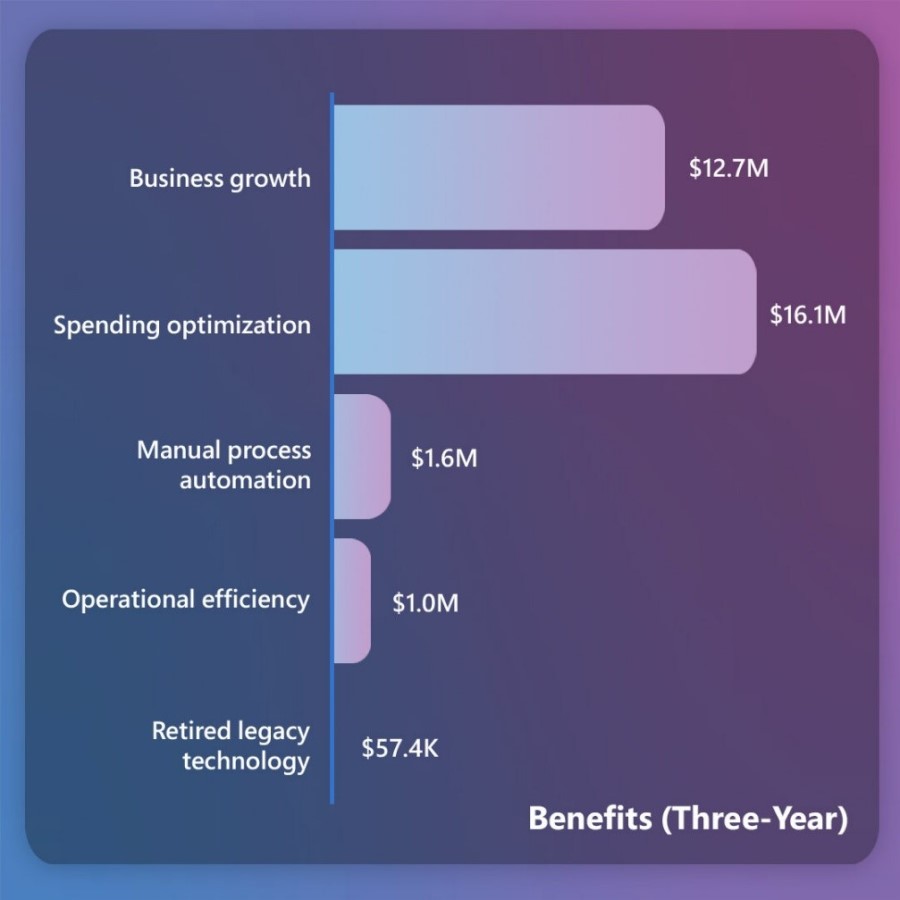
Above is an executive summary from the Total Economic Impact of Microsoft Azure AI, a study conducted by Forrester Consulting and commissioned by Microsoft in April of 2023.

Start small to move quickly and grow fast

Creating space and resources for technological innovation has never been easy, but it’s what keeps companies competitive through economic headwinds. Lately, what’s been most interesting for me as a B2B marketer is watching my own friends and family members realize the possibilities of AI as we experiment with prompt engineering in the new Bing around a dinner table. It has struck me that AI isn’t in the background anymore; it’s very much at the forefront of how we think about tackling solutions through software and what we as humans expect from digital experiences. The transformative shift of generative AI has all industries reimagining their products and services. In Forrester’s study, Azure AI helped generate revenue from new products, and the value of these compounded in worth year-over-year, generating $3.1 million of revenue growth in year one, then $5.6 million in year two, and $6.9 million in year three. Well-calculated risks are the ones organizations can’t afford not to take, especially when they serve those unmet user needs.

The qualitative interviews Forrester conducted for the study revealed a trend across the five different organizations who participated: using a planful pilot approach produces strong financial results. In aggregate, value was mapped from initial planning, model development, and training with just eight people to an expanded team of 40 data engineers and data scientists. The study itself essentially demonstrates what a startup mentality inside a large organization can do. One retail customer interviewed said something that just stuck with me as we look at the cash flow chart below, they said, “Before, we didn’t have maturity around ML (machine learning). Now that we do, we can move away from a subscription-based tool which is not cheap, and go to a consumption-based tool like Azure, where 100 percent of what we build is an asset [to our organization] …” That’s exactly what innovating with Azure is about: helping you build your own proprietary value in the cloud—unique solutions your competitors can’t buy. 
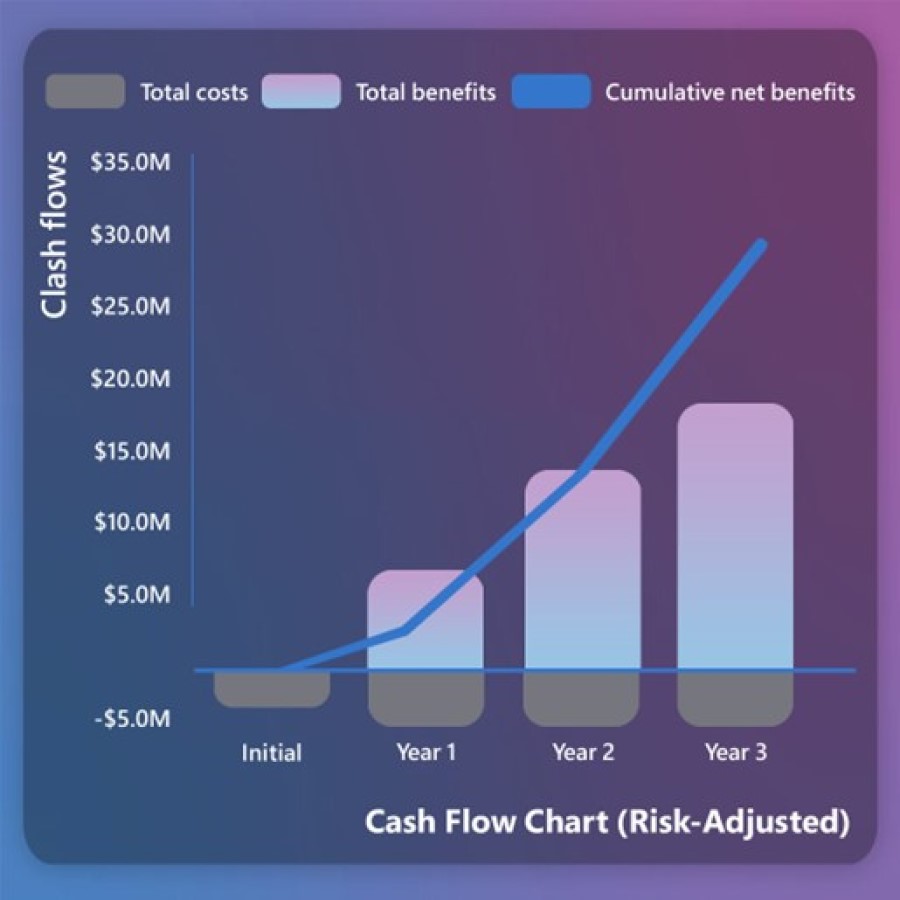
Above is a cash flow chart from the Total Economic Impact of Microsoft Azure AI, a study conducted by Forrester Consulting and commissioned by Microsoft in April of 2023.

The AI adventure

We often talk about technology as a journey, and in this journey, AI is what gives digital transformation a sense of adventure and purpose again. The cost savings and optimization of cloud computing will continue to fund the magic of AI. It’s all interconnected and when you partner with Azure to build and run AI, that’s how we’ll support your vision and your teams.

Be sure to download the full Forrester study here and contact your Microsoft account team to learn more about how to get started with AI today. All you need is a great business idea. Learn more about Azure AI today.
Deploy and install Dynamics 365 App for Outlook

Dynamics 365 App for Outlook works with customer engagement apps (such as Dynamics 365 SalesDynamics 365 Customer ServiceDynamics 365 MarketingDynamics 365 Field ServiceDynamics 365 Project Service Automation, and Dynamics 365 Customer Engagement (on-premises), version 9), and model-driven Power Apps that run on Microsoft Dataverse.

 Note

Multiplexing setup doesn’t reduce the number of licenses required to access Dynamics 365 apps. For more information, see Multiplexing Licensing Brief.

Prerequisites

The following prerequisites are required before you begin set up.

Step 1: Set the default synchronization method

To use Dynamics 365 App for Outlook, you need to set server-side synchronization for your email processing. For more information on email synchronization, see Set incoming and outgoing email synchronization

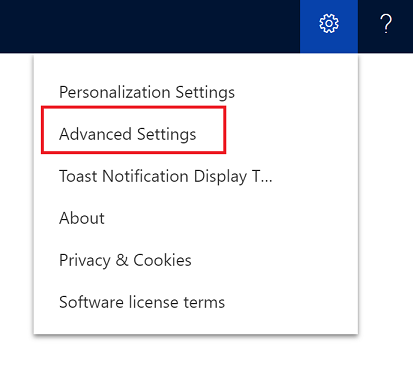
  1. From your app, go to Settings > Advanced Settings.Setting Customizations.
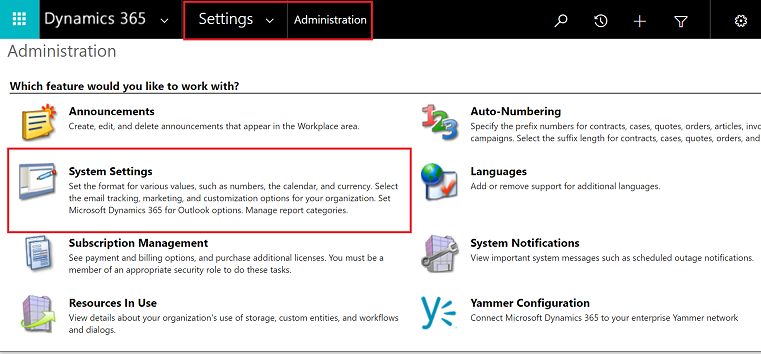
  2. Go Settings > Administration and then select System Settings.Go to system settings.
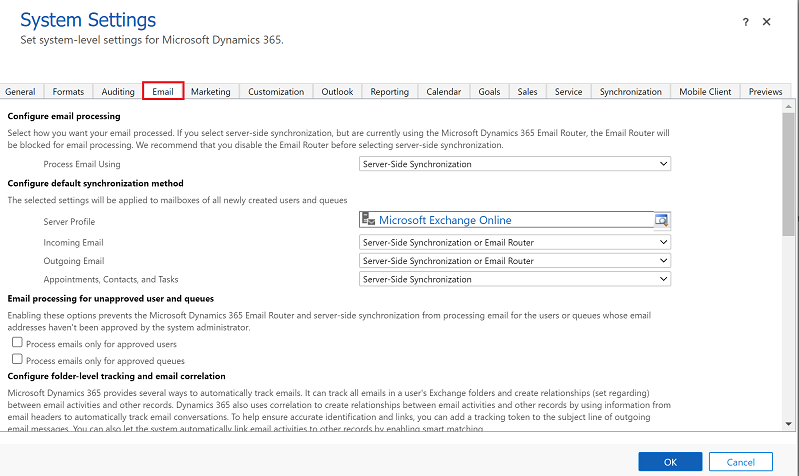
  3. Select the Email tab, and set Process Email Using to Server-Side Synchronization.Select server-side sync.

Step 2: Test email configuration and enable mailboxes

Enable and test your user mailboxes so they can use Dynamics 365 App for Outlook.

  1. From your app, go to Settings > Advanced Settings.Setting Customizations.
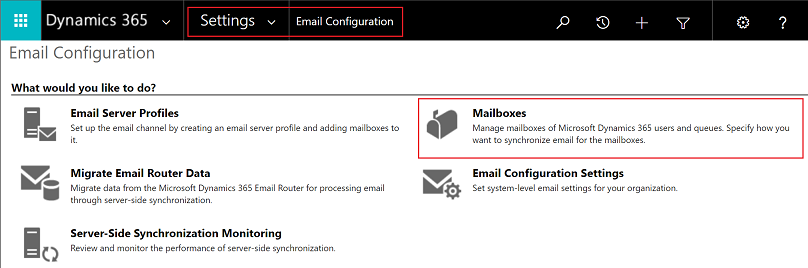
  2. Go Settings > Email Configuration and then select Mailboxes.Go to mailboxes settings.
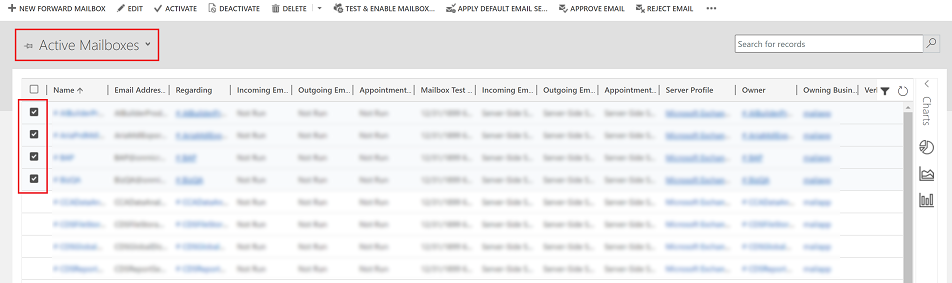
  3. Select the Active Mailboxes view, and then select the mailboxes that you want to test and enable.Select the mailboxes that you want to enable.
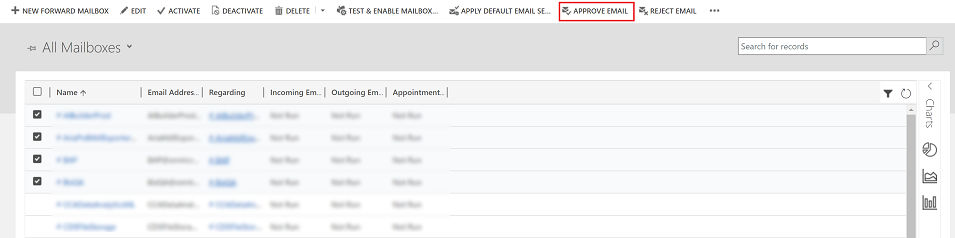
  4. On the command bar, select APPROVE EMAIL and then select OK.Select approve email.
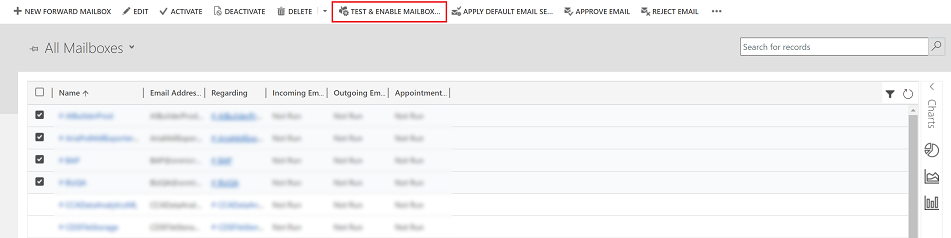
  5. Once approved, select TEST & ENABLE MAILBOX.Select test and enable maillbox.
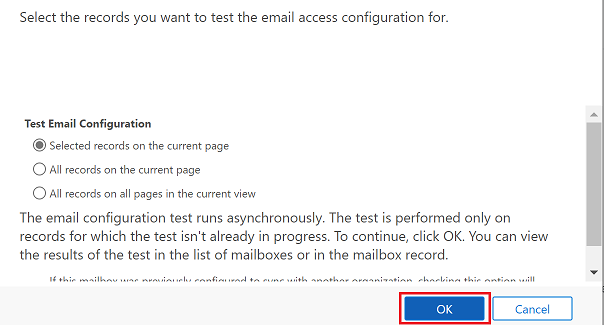
  6. On the confirmation dialog box, select OK.Select ok to confirm.

You may need to wait for the system to process the updates. The more mailboxes you enable, the longer it may take.

Step 2.1: Verify configuration

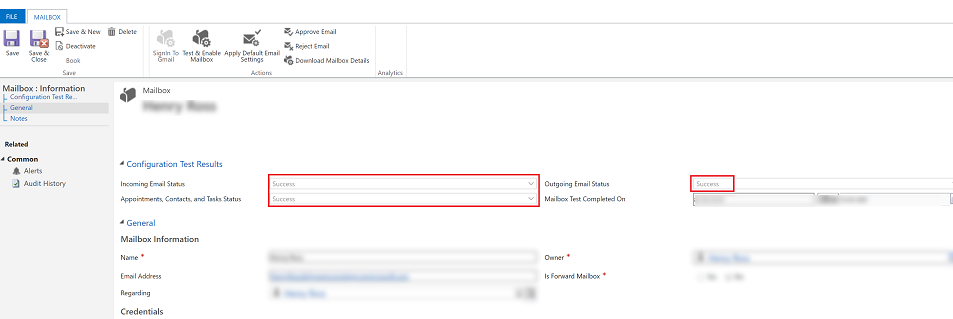
To verify mailbox is set up correctly, open the mailbox that you tested in the previous step.

If the set up is successful, the configuration Test Results section will change from Not Run to Success.

Open a mailbox to verify that it's set up correctly.

Step 3: Provide security role access

The security role Dynamics 365 App for Outlook User is available from build 9.1.0.4206 or later. If a user doesn’t have this security role or its underlying privileges, they’ll receive the following error: You haven’t been authorized to use this app. Check with your system administrator to update your settings. You must add users to this role so they can use Dynamics 365 App for Outlook. This will ensure that the users have the basic privileges needed to access App for Outlook.

Other security privileges on top of the basic privileges, related to the user’s role, will light up more features. For example, if a user has create privilege on Lead table, in addition to Dynamics 365 App for Outlook User security role, they would see an email resolve to a Lead table where applicable.

App for Outlook also requires server-side synchronization to be properly configured with the minimum security roles required by the service. These roles are outlined in the table below.Expand table

Privilege nameTableLocation (tab) within security role
prvReadEmailServerProfileEmailServerProfileBusiness Management
prvWriteMailboxMailboxBusiness Management
prvReadMailboxMailboxBusiness Management
prvReadOrganizationOrganizationBusiness Management
prvSyncToOutlook (exchangesyncidmappingOutlookBusiness Management > Privacy-related privileges
prvReadActionCardActionCardCore Records
prvDeleteActivityActivityCore Records
prvAppendActivityActivityCore Records
prvWriteActivityActivityCore Records
prvCreateActivityActivityCore Records
prvReadActivityActivityCore Records
prvAppendToActivityActivityCore Records
prvReadConnectionConnectionCore Records
prvAssignContactContactCore Records
prvReadContactContactCore Records
prvWriteContactContactCore Records
prvCreateContactContactCore Records
prvDeleteContactContactCore Records
prvReadUserQuerySaved ViewCore Records
prvReadQueueQueueCore Records
prvReadQueryViewCustomization
prvReadIncidentCaseService
prvSearchAvailability Service Management > Miscellaneous Privileges
prvOverrideCreatedOnCreatedBy Business Management > Miscellaneous Privileges

 Note

If you create a team and add the team to the Dynamics 365 App for Outlook User security role, this doesn’t automatically propogate the privileges to the users within that team. This applies to custom roles with the Use Dynamics 365 Appf for Outlook privilege, as well.

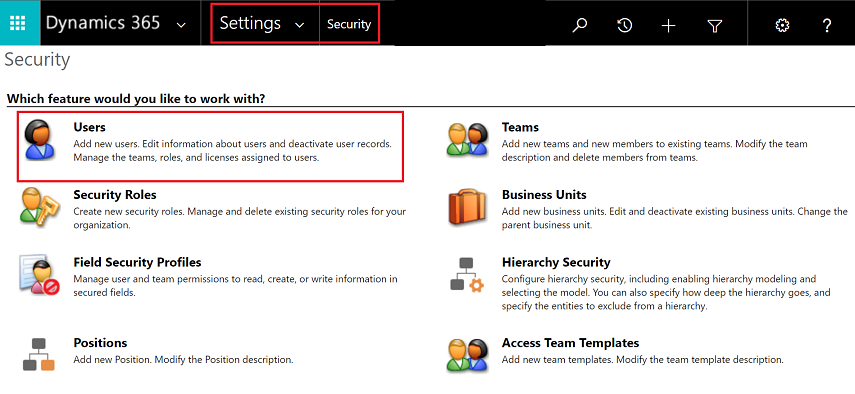
  1. To add users to the App for Outlook security role, from your app, go to Settings > Advanced Settings.Setting Customizations.
  2. Go Settings > Security and then select Users.Select a user settings.
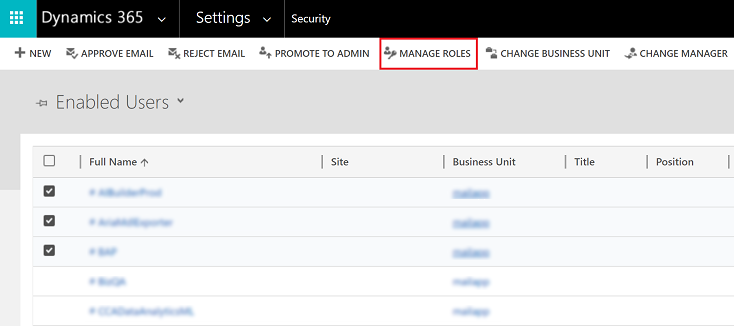
  3. Select the users from the list and then select Manage Roles.Select manage roles.
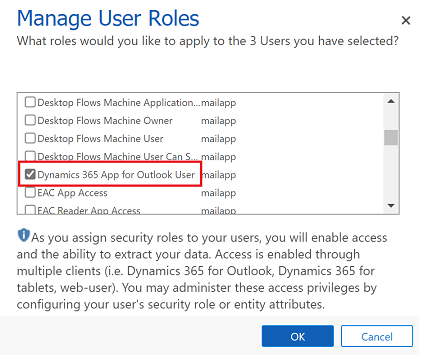
  4. In the Manage User Roles dialog, select the Dynamics 365 App for Outlook User security role to the users and then select OK.Select user role.

Step 4: Install App for Outlook

Follow these steps to push Dynamics 365 App for Outlook to selected users, all users, or have users install it themselves as needed.

 Important

For environments in Microsoft Dataverse an administrator can get the App for Outlook solution from Microsoft AppSource. After signing in to AppSource, choose the the environment that you want to install App for Outlook. For more information, see Microsoft Dynamics 365 App for Outlook.

Your Dataverse organization must have a Dataverse store for the AppSource install to succeed.

  1. To push the app to your users, from your app, go to Settings > Advanced Settings.Setting Customizations.
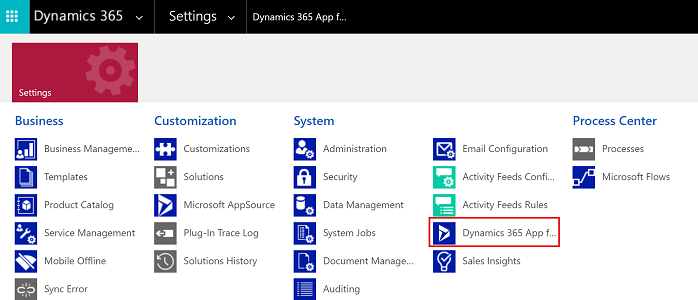
  2. Go Settings > Dynamics 365 App for Outlook.Go to Dynamics 365 App for Outlook.
  3. The Getting Started with Microsoft Dynamics 365 App for Outlook page lists all eligible users that can use App for Outlook. You have several different options on how you can deploy the app to your users:
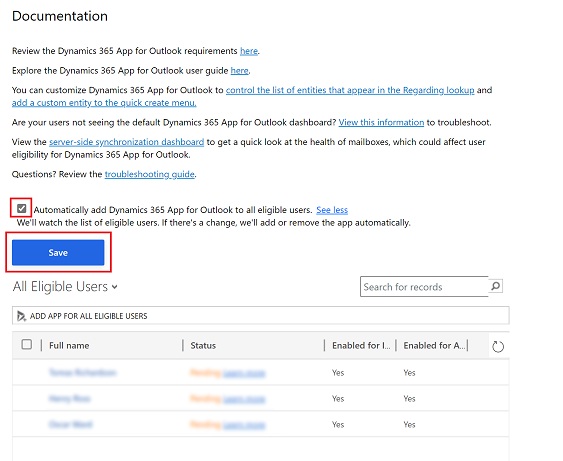
    • Option 1: Select the checkbox to automatically add App for Outlook to all eligible users. If a user’s email is synchronized through server-side synchronization, you won’t have to do anything more to push the app to them.Automatically deply the app.
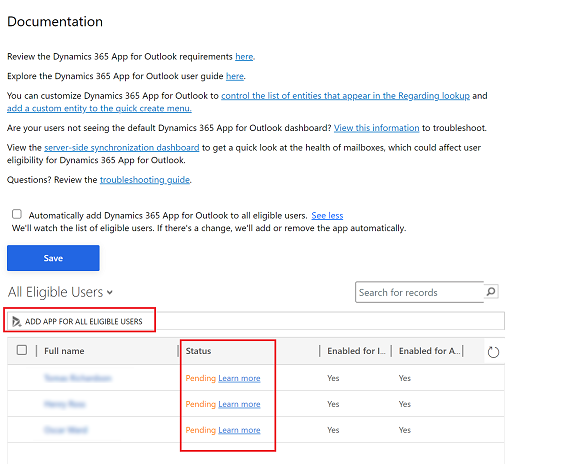
    • Option 2: Select ADD APP FOR EIGIBILE USERS to deploy the app to all users that are set up correctly. The Status will change to Pending.Automatically deply the app for eligible users.
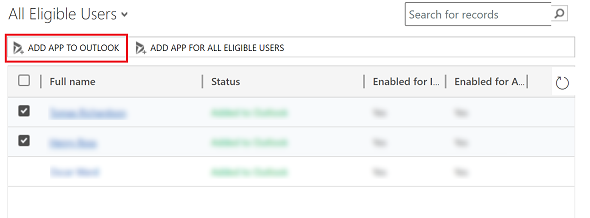
    • Option 3: Push the app to certain users, select those users in the list, and then select Add App to Outlook.Automatically deply the app to certain users.
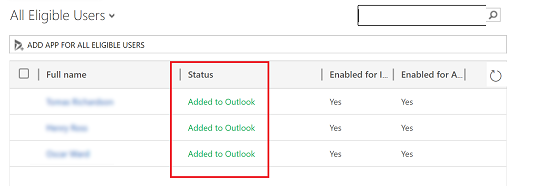
  4. The status will change to Added to Outlook and the app will be available for your users.Status changes to added to Outlook.

The app will appear in the Outlook ribbon for the added users.

Open App for Outlook pane.

Have users install App for Outlook themselves

  1. From your app, go to Settings > Advanced Settings.Setting Customizations.
  2. Select the Settings button Settings button., again and then select Apps for Dynamics 365 apps.Select Apps for Dynamics 365 apps.
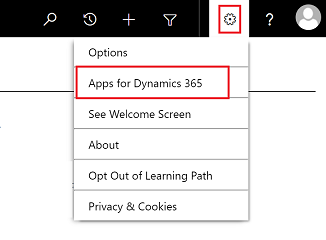

  3. In the Apps for Dynamics 365 apps screen, under Dynamics 365 App for Outlook, users select Add app to Outlook.

To deploy to Dynamics 365 apps (on-premises) users

Follow these steps if you’re using Dynamics 365 apps (on-premises).

Troubleshooting installation problems

  1. If you don’t see Dynamics 365 App for Outlook when you click the Settings button Settings button., check that you’ve enabled the feature.
  2. If you or your users have trouble installing Dynamics 365 App for Outlook, it may be because their Exchange mailbox is currently linked to another Microsoft Dataverse environment or Customer Engagement (on-premises) organization. An Exchange mailbox (email address) can only synchronize appointments, contacts, and tasks with one organization, and a user that belongs to that organization can only synchronize appointments, contacts, and tasks with one Exchange mailbox. You can overwrite the setting stored in Exchange if you want to change the primary synchronizing organization. For more information, see this KB article.

From intuitive sharing with OneDrive to driving prioritization with Viva Goals—here’s what’s new in Microsoft 365

In today’s shifting macroeconomic climate, Microsoft is focused on helping organizations in every industry use technology to overcome challenges and emerge stronger. From enabling hybrid work to bringing business processes into the flow of work, Microsoft 365 helps organizations deliver on their digital imperative so they can do more with less.

This month in Microsoft 365, we’re introducing new sharing experiences in OneDrive, enabling creation and collaboration in Microsoft Office, and connecting employees to organizational goals with Microsoft Viva Goals. And our new How to Hybrid: The WorkLab Guides offer practical guidance to help leaders make hybrid work work.

Let’s dive in.

Streamline file sharing and communication in the flow of work

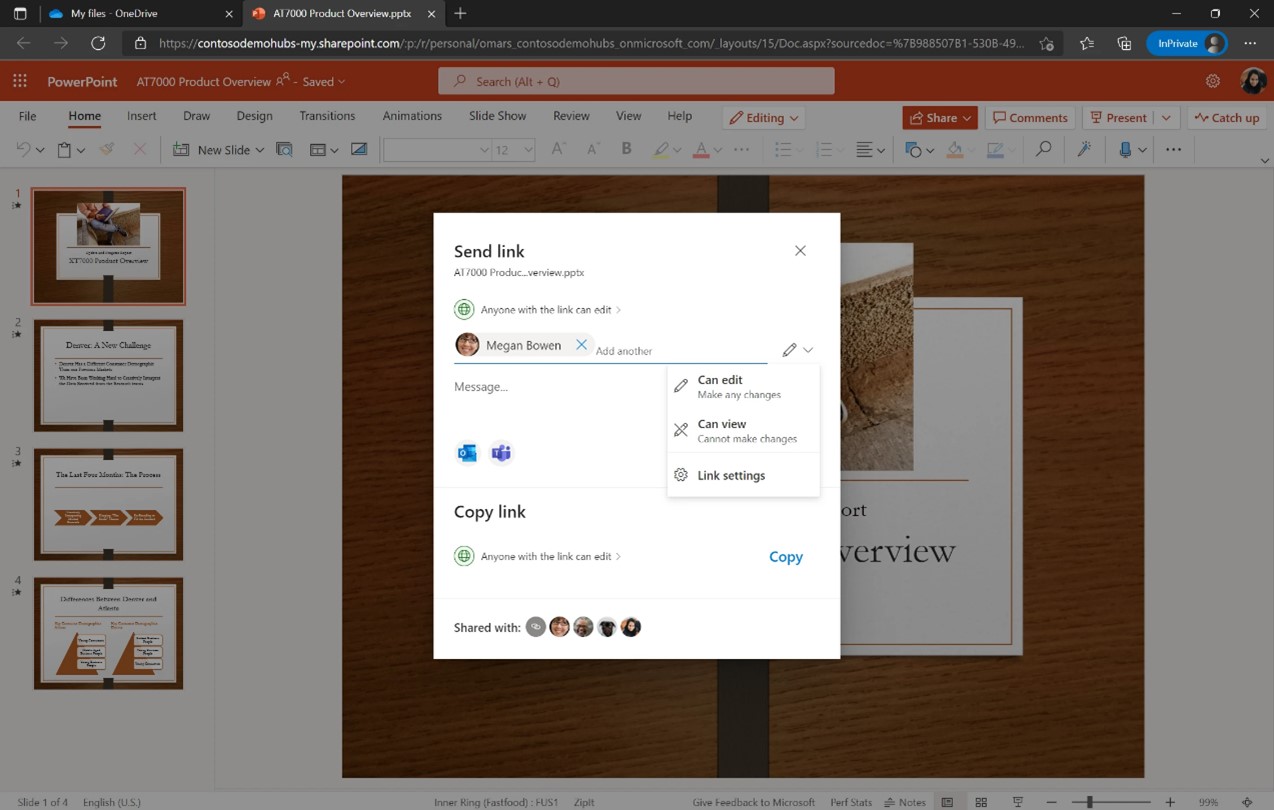
OneDrive is the core system for powering all file-sharing experiences across Microsoft 365. We’re excited to preview new capabilities to help you access everything you need, whether you’re working alone on a project, collaborating with your team, or organizing important documents or files.

We’re creating a more intuitive sharing experience across OneDrive, SharePoint, and Microsoft Teams that provides a quick, robust way to locate and share files and manage access settings across individuals and groups.

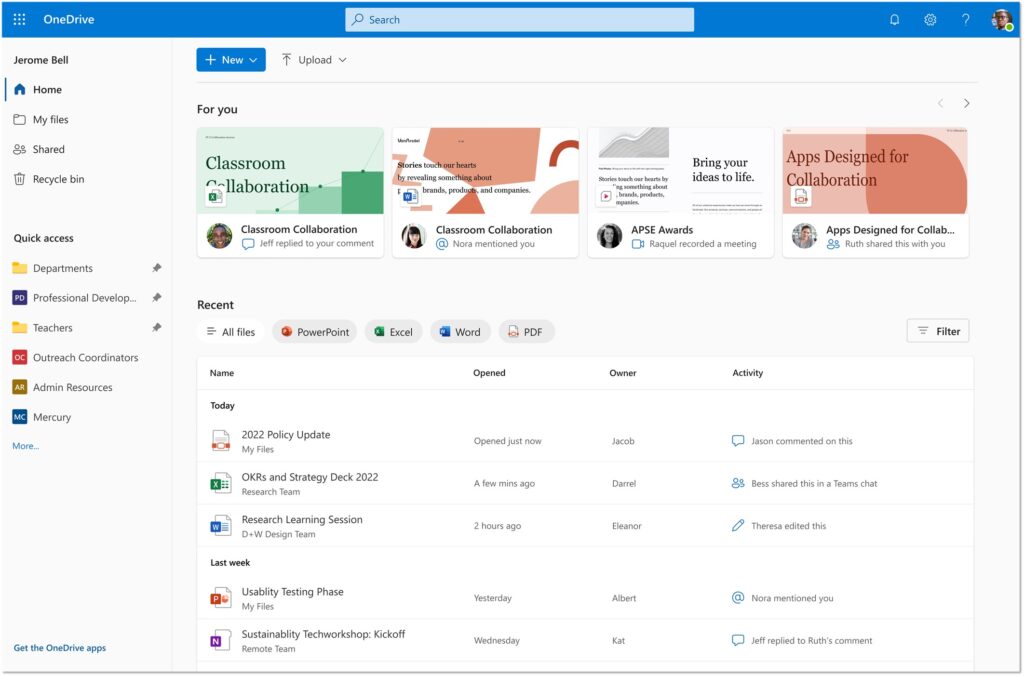
The redesigned OneDrive Home experience surfaces your most recent files along with any activity updates, so you can see everything at a glance and quickly prioritize where to start working. You can also filter by file type (.docx, .pptx, .xlsx, and .pdf) using the buttons at the top of the Recent file list.  

Filter by file type using buttons at the top of the Recent file list.

Finally, to easily find and access the places where you continually work, you can pin document libraries to the Quick access section in the left navigation bar of OneDrive Home. Learn more about the latest OneDrive capabilities.

Microsoft Teams Phone is the market leader in cloud calling across VoIP and PSTN with more than 12 million PSTN users. We are introducing a new Teams Phone Pay-As-You-Go calling plan option to give customers even more flexibility to choose the plan that best meets their organization’s needs. Each Pay-As-You-Go license includes a phone number and unlimited inbound calling, while outbound calls accrue per-minute charges. The Pay-As-You-Go calling plan is now available in select markets.

Enable creation and collaboration with Microsoft 365

Microsoft 365 lets you create, share, and collaborate all in one place with your favorite apps. New capabilities in Microsoft Office make it easier to access, create, and organize ideas on the web or on your mobile device.

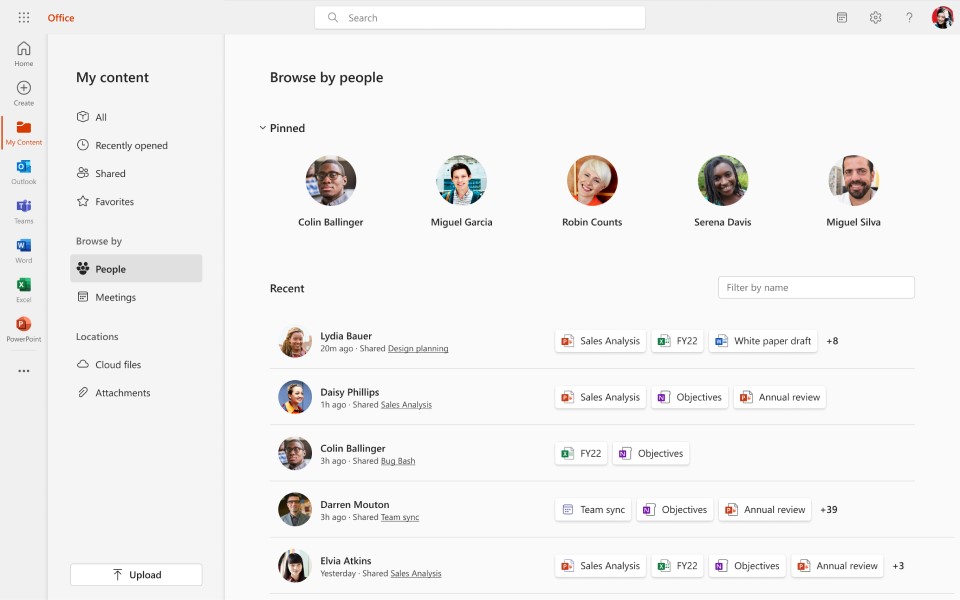
On the web, People Pinning under My content enables you to create a more personalized experience by pinning your top collaborators so that you can easily get back to the content from your most important contacts.

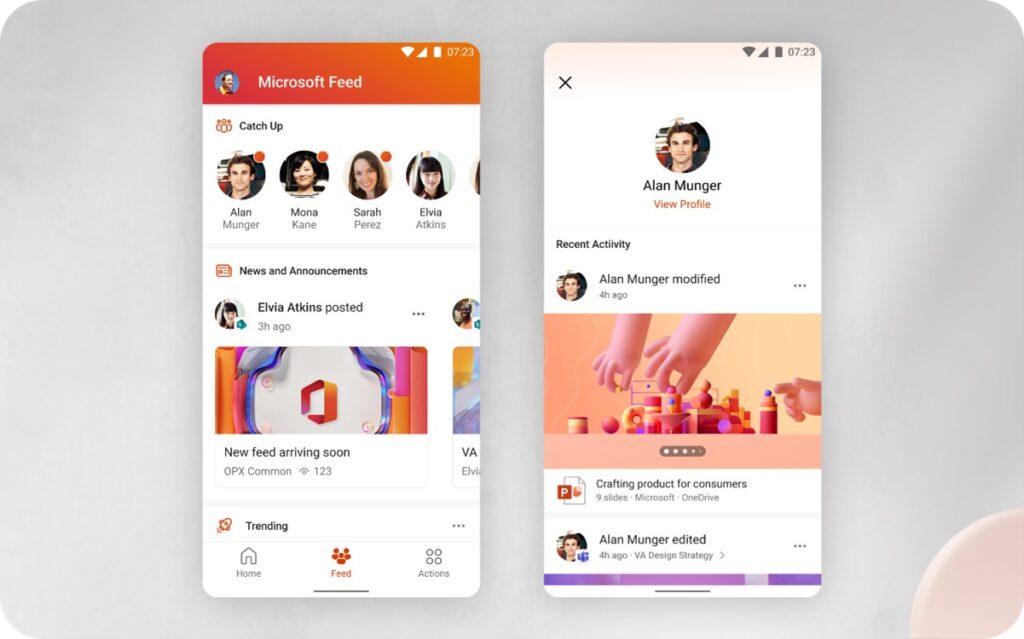
On the mobile app, Microsoft Feed lets commercial users discover interesting and relevant content, activity, and insights all drawn from their Microsoft 365 network.

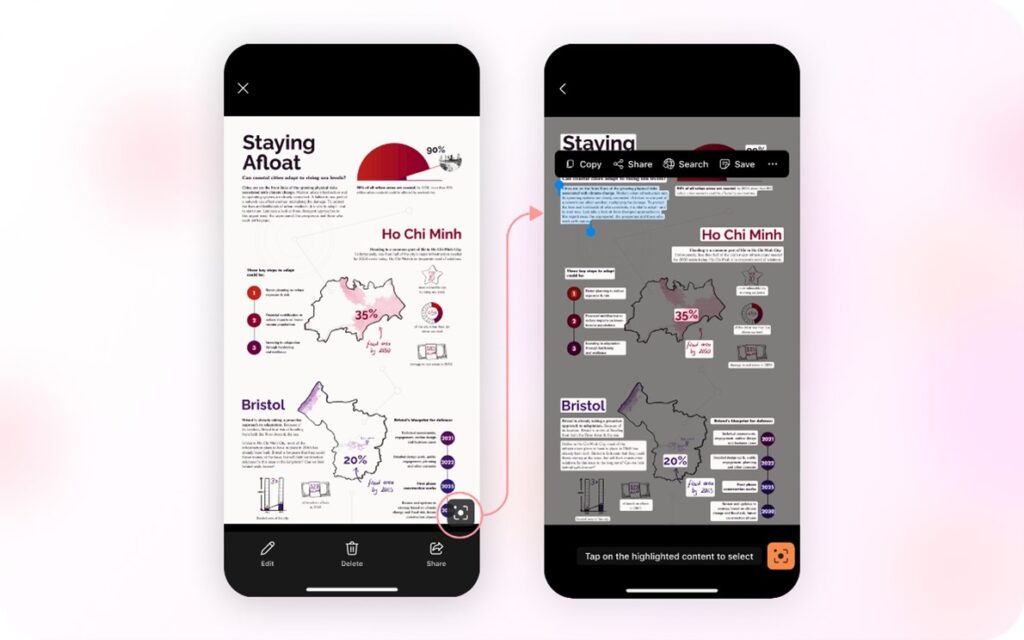
And Microsoft Lens in the app uses interactive text to help you reuse information from existing photos, screenshots, or camera views to quickly capture notes, copy and paste across platforms, save to your device, or share with others.

Reconnect and engage a dispersed workforce

Organizations increasingly recognize that employee experience and wellbeing are essential to productivity—it’s why 25 percent of the Fortune 500 already use Microsoft Viva. We’re adding new capabilities in Viva and Teams to help keep employees connected to each other, their team, and to the organization’s mission, culture, and business goals.

Viva Goals—now generally available—connects employees to your organization’s goals, helps them stay aligned at scale, and drives business results to empower people and teams to understand their impact. Viva Goals supports the objectives and key results (OKR) goal-setting framework that naturally creates alignment between the work teams are doing and an organization’s top business priorities. Because Viva Goals is a part of Microsoft Viva, it integrates into the employee experience, empowering people and teams to be their best from anywhere. Use Viva Goals as a standalone web application or directly from inside Teams and our other third-party integrations. Learn more about Viva Goals.

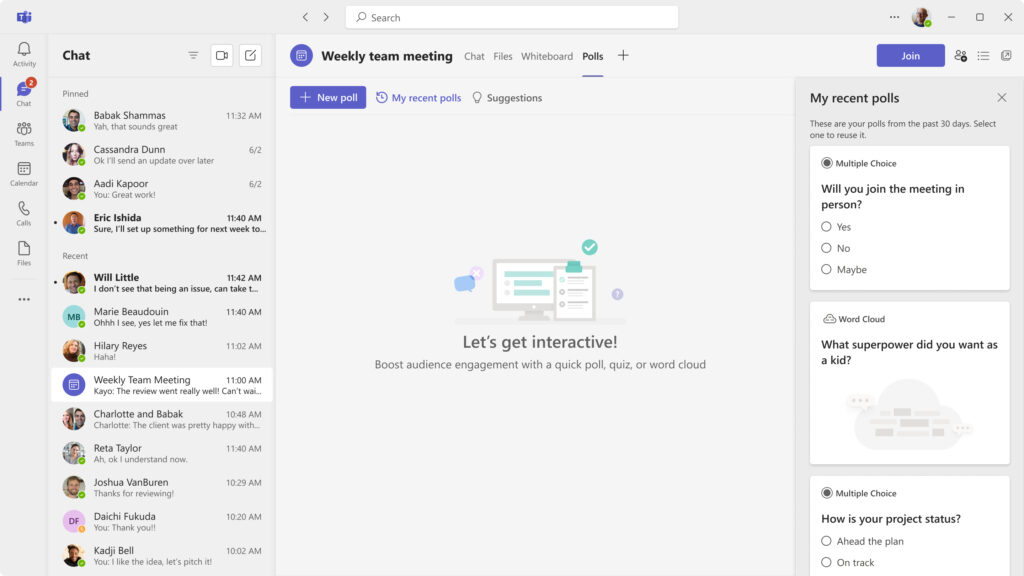
We now have an improved Polling experience in Teams. Teams meeting owners can easily create and launch new pre-defined polls or repurpose recent polls to increase engagement and collect input from their meeting attendees, as well as share the results live. A new, dynamic experience with animations for voting and results views makes polls more interactive and engaging. We’ve also added Rating as a new question type. Read more about what’s new in Microsoft Teams.  

Recent-polls

Leverage the How to Hybrid: The WorkLab Guides

For leaders grappling with how to make hybrid work work, check out the new WorkLab Guides. From collaborating asynchronously to hosting effective meetings to knowing how and when to come together in person, these detailed guides include hands-on advice to help leaders navigate the new approach to work and figure out what works for their teams. Learn more at The WorkLab Guides.

Security practitioner or information worker working from home office.

How to Hybrid: The WorkLab Guides

Leverage hands-on advice to help leaders navigate the hybrid work world.

Explore our guides 

Looking forward

This month we debuted enhanced capabilities across Microsoft 365 to help people collaborate and stay connected and engaged in the flow of work. Stay tuned for more developments next month, as we highlight a number of new product innovations in Microsoft 365.